ad blue FORD EXPLORER 2015 5.G Owners Manual
[x] Cancel search | Manufacturer: FORD, Model Year: 2015, Model line: EXPLORER, Model: FORD EXPLORER 2015 5.GPages: 596, PDF Size: 6.32 MB
Page 125 of 596
Menu
You can access the menus using the information display control.
Note:Some options may appear slightly different or not at all if the
items are optional.
†Trip 1 & 2
Distance to E
Trip Odometer
Trip Timer
Inst Fuel Econ
Average Fuel
Fuel Used
Total Odometer (located in lower right of display).Note:this will also
display in other menus.
†SeeTrip computerlater in this section for more information.
Information
Driver Alert — Displays the alertness level status.
Intelligent 4WD — Displays power distribution between the front and
rear wheels. More power to either front or rear wheels will be
displayed by more area filled in. Also indicates currently selected
terrain management mode.
MyKey® Distance (if key is programmed) — Distance traveled when a
programmed key is in use.
MyKey® Information — Number of MyKeys and admin keys
programmed)
Coolant Temp. — The engine coolant indicator will change colors
indicating: blue for cool, gray for normal and red for hot. If the engine
coolant temperature exceeds the normal range, stop the vehicle as
soon as safely possible, switch off the engine and let the engine cool.
124Information Displays
2015 Explorer(exp)
Owners Guide gf, 2nd Printing, September 2014
USA(fus)
Page 182 of 596
Programming HomeLink to the Genie Intellicode garage door
opener motor
Note:You may need a ladder to access the garage door opener motor.
To program HomeLink to the garage
door opener motor:
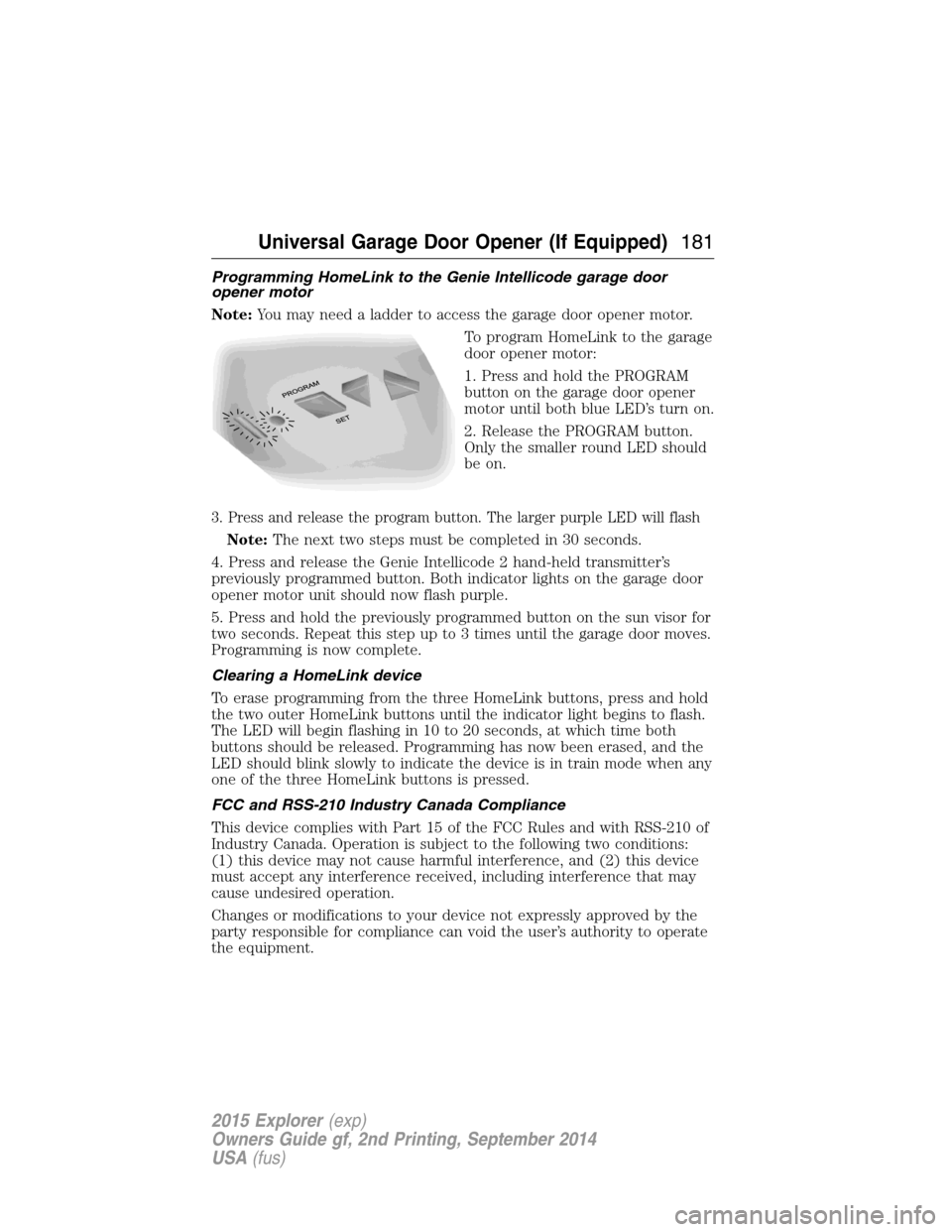
1. Press and hold the PROGRAM
button on the garage door opener
motor until both blue LED’s turn on.
2. Release the PROGRAM button.
Only the smaller round LED should
be on.
3. Press and release the program button. The larger purple LED will flash
Note:The next two steps must be completed in 30 seconds.
4. Press and release the Genie Intellicode 2 hand-held transmitter’s
previously programmed button. Both indicator lights on the garage door
opener motor unit should now flash purple.
5. Press and hold the previously programmed button on the sun visor for
two seconds. Repeat this step up to 3 times until the garage door moves.
Programming is now complete.
Clearing a HomeLink device
To erase programming from the three HomeLink buttons, press and hold
the two outer HomeLink buttons until the indicator light begins to flash.
The LED will begin flashing in 10 to 20 seconds, at which time both
buttons should be released. Programming has now been erased, and the
LED should blink slowly to indicate the device is in train mode when any
one of the three HomeLink buttons is pressed.
FCC and RSS-210 Industry Canada Compliance
This device complies with Part 15 of the FCC Rules and with RSS-210 of
Industry Canada. Operation is subject to the following two conditions:
(1) this device may not cause harmful interference, and (2) this device
must accept any interference received, including interference that may
cause undesired operation.
Changes or modifications to your device not expressly approved by the
party responsible for compliance can void the user’s authority to operate
the equipment.
Universal Garage Door Opener (If Equipped)181
2015 Explorer(exp)
Owners Guide gf, 2nd Printing, September 2014
USA(fus)
Page 277 of 596

Trailer Towing Connector (Vehicles with a Trailer Towing Package
and 7–Pin Connector)
When attaching the trailer wiring connector to
your vehicle, only use a proper fitting connector
that works with the vehicle and trailer functions. If
your vehicle has a trailer towing package, it may
have a 7–pin connector. Some connectors may
have the SAE J2863 logo, which confirms that it is
the proper wiring connector and works correctly
with your vehicle.
Color Function
1. Yellow Left turn signal and stop lamp
2. White Ground (-)
3. Blue Electric brakes
4. Green Right turn signal and stop lamp
5. Orange Battery (+)
6. Brown Running lights
7. Grey Reverse lights
Trailer Hitch Cover
Your vehicle is equipped with a removable trailer hitch trim cover. To
remove the trim cover:
1. Loosen the two
14-turn fasteners
(A) in the bottom of the cover by
turning them counterclockwise. Pull
the cover rearward to remove it.
The fasteners remain attached to
the cover.
AA
276Towing
2015 Explorer(exp)
Owners Guide gf, 2nd Printing, September 2014
USA(fus)
Page 418 of 596
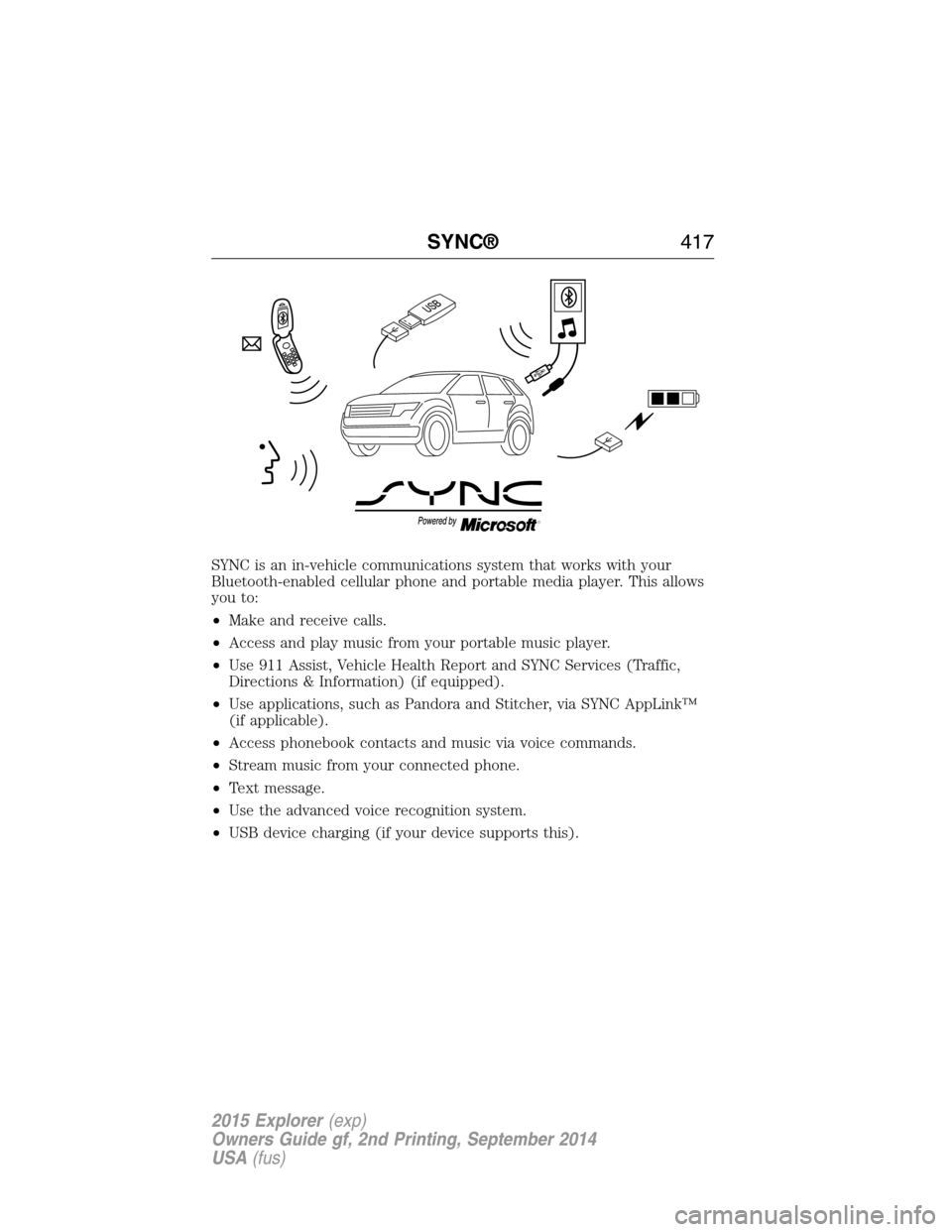
SYNC is an in-vehicle communications system that works with your
Bluetooth-enabled cellular phone and portable media player. This allows
you to:
•Make and receive calls.
•Access and play music from your portable music player.
•Use 911 Assist, Vehicle Health Report and SYNC Services (Traffic,
Directions & Information) (if equipped).
•Use applications, such as Pandora and Stitcher, via SYNC AppLink™
(if applicable).
•Access phonebook contacts and music via voice commands.
•Stream music from your connected phone.
•Text message.
•Use the advanced voice recognition system.
•USB device charging (if your device supports this).
SYNC®417
2015 Explorer(exp)
Owners Guide gf, 2nd Printing, September 2014
USA(fus)
Page 421 of 596
USING VOICE RECOGNITION
This system helps you control many features using voice commands. This
allows you to keep your hands on the wheel and focus on what is in
front of you.
Initiating a Voice Session
Push the voice icon; a tone sounds and Listening appears in the
display. Say any of the following:
Say: If you want to:
“Phone” Make calls.
“USB” Access the device connected to your USB
port.
“Bluetooth Audio” Stream audio from your phone.
“Line in” Access the device connected to the auxiliary
input jack.
“Cancel” Cancel the requested action.
“SYNC” Return to the main menu.
“Voice settings” Adjust the level of voice interaction and
feedback.
“Vehicle Health Report” Run a vehicle health report.
*
“Services” Access the SYNC Services portal.*
“Mobile apps” Access mobile applications.*
“Help” Hear a list of voice commands available in the
current mode.
*If equipped, U.S. only.
System Interaction and Feedback
The system provides feedback through audible tones, prompts, questions
and spoken confirmations depending on the situation and the chosen
level of interaction (voice settings). You can customize the voice
recognition system to provide more or less instruction and feedback.
The default setting is to a higher level of interaction in order to help you
learn to use the system. You can change these settings at any time.
420SYNC®
2015 Explorer(exp)
Owners Guide gf, 2nd Printing, September 2014
USA(fus)
Page 423 of 596
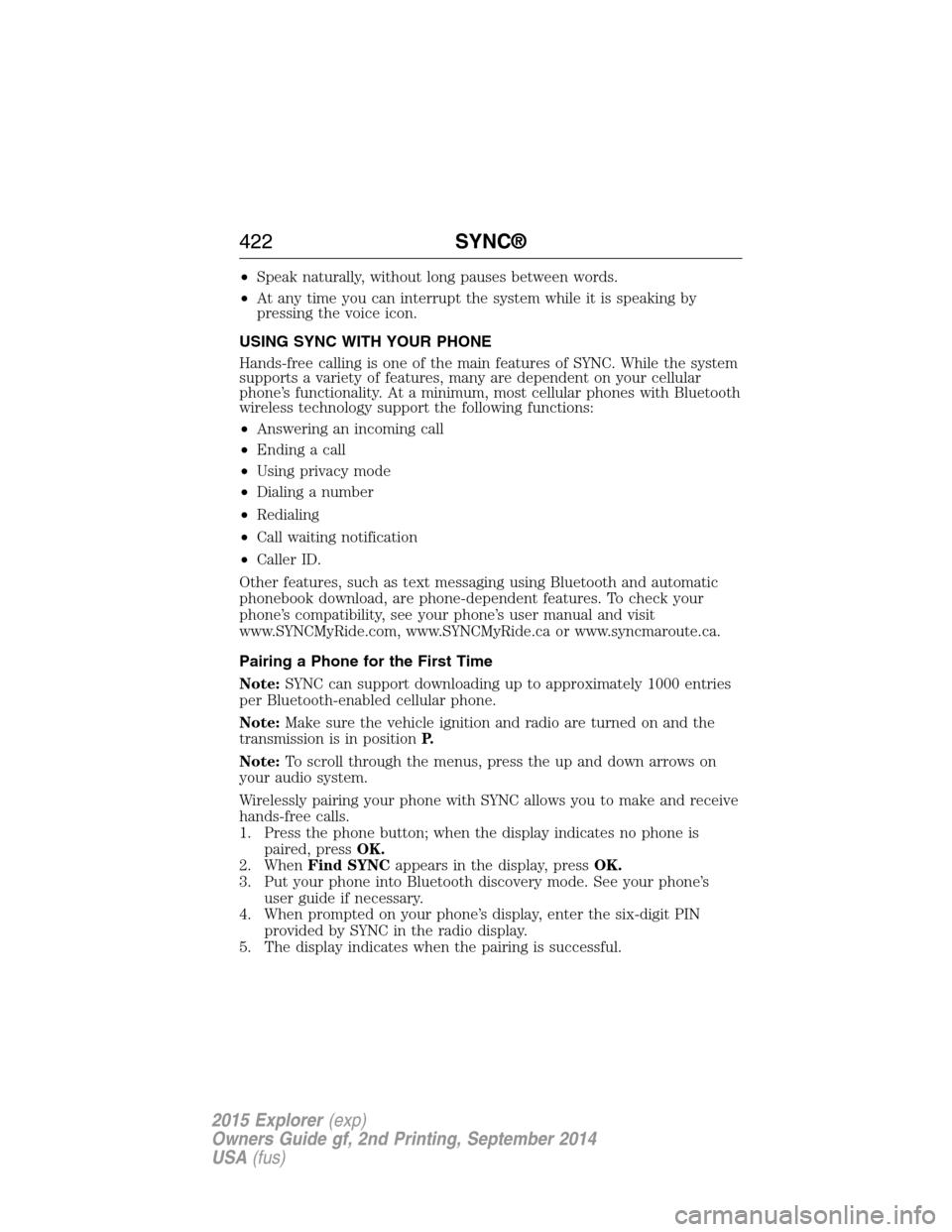
•Speak naturally, without long pauses between words.
•At any time you can interrupt the system while it is speaking by
pressing the voice icon.
USING SYNC WITH YOUR PHONE
Hands-free calling is one of the main features of SYNC. While the system
supports a variety of features, many are dependent on your cellular
phone’s functionality. At a minimum, most cellular phones with Bluetooth
wireless technology support the following functions:
•Answering an incoming call
•Ending a call
•Using privacy mode
•Dialing a number
•Redialing
•Call waiting notification
•Caller ID.
Other features, such as text messaging using Bluetooth and automatic
phonebook download, are phone-dependent features. To check your
phone’s compatibility, see your phone’s user manual and visit
www.SYNCMyRide.com, www.SYNCMyRide.ca or www.syncmaroute.ca.
Pairing a Phone for the First Time
Note:SYNC can support downloading up to approximately 1000 entries
per Bluetooth-enabled cellular phone.
Note:Make sure the vehicle ignition and radio are turned on and the
transmission is in positionP.
Note:To scroll through the menus, press the up and down arrows on
your audio system.
Wirelessly pairing your phone with SYNC allows you to make and receive
hands-free calls.
1. Press the phone button; when the display indicates no phone is
paired, pressOK.
2. WhenFind SYNCappears in the display, pressOK.
3. Put your phone into Bluetooth discovery mode. See your phone’s
user guide if necessary.
4. When prompted on your phone’s display, enter the six-digit PIN
provided by SYNC in the radio display.
5. The display indicates when the pairing is successful.
422SYNC®
2015 Explorer(exp)
Owners Guide gf, 2nd Printing, September 2014
USA(fus)
Page 424 of 596
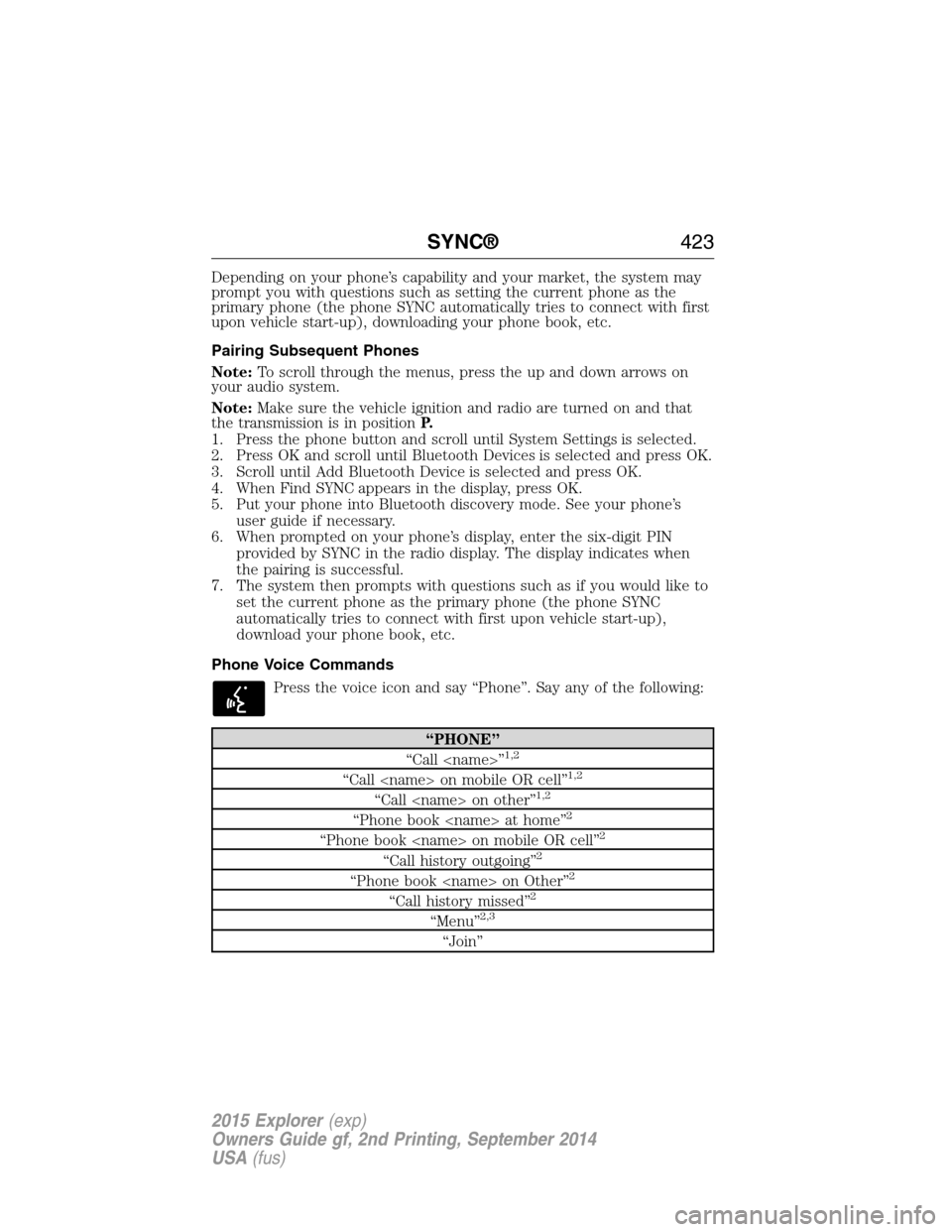
Depending on your phone’s capability and your market, the system may
prompt you with questions such as setting the current phone as the
primary phone (the phone SYNC automatically tries to connect with first
upon vehicle start-up), downloading your phone book, etc.
Pairing Subsequent Phones
Note:To scroll through the menus, press the up and down arrows on
your audio system.
Note:Make sure the vehicle ignition and radio are turned on and that
the transmission is in positionP.
1. Press the phone button and scroll until System Settings is selected.
2. Press OK and scroll until Bluetooth Devices is selected and press OK.
3. Scroll until Add Bluetooth Device is selected and press OK.
4. When Find SYNC appears in the display, press OK.
5. Put your phone into Bluetooth discovery mode. See your phone’s
user guide if necessary.
6. When prompted on your phone’s display, enter the six-digit PIN
provided by SYNC in the radio display. The display indicates when
the pairing is successful.
7. The system then prompts with questions such as if you would like to
set the current phone as the primary phone (the phone SYNC
automatically tries to connect with first upon vehicle start-up),
download your phone book, etc.
Phone Voice Commands
Press the voice icon and say “Phone”. Say any of the following:
“PHONE”
“Call
“Call
“Call
“Phone book
“Phone book
“Call history outgoing”2
“Phone book
“Call history missed”2
“Menu”2,3
“Join”
SYNC®423
2015 Explorer(exp)
Owners Guide gf, 2nd Printing, September 2014
USA(fus)
Page 425 of 596
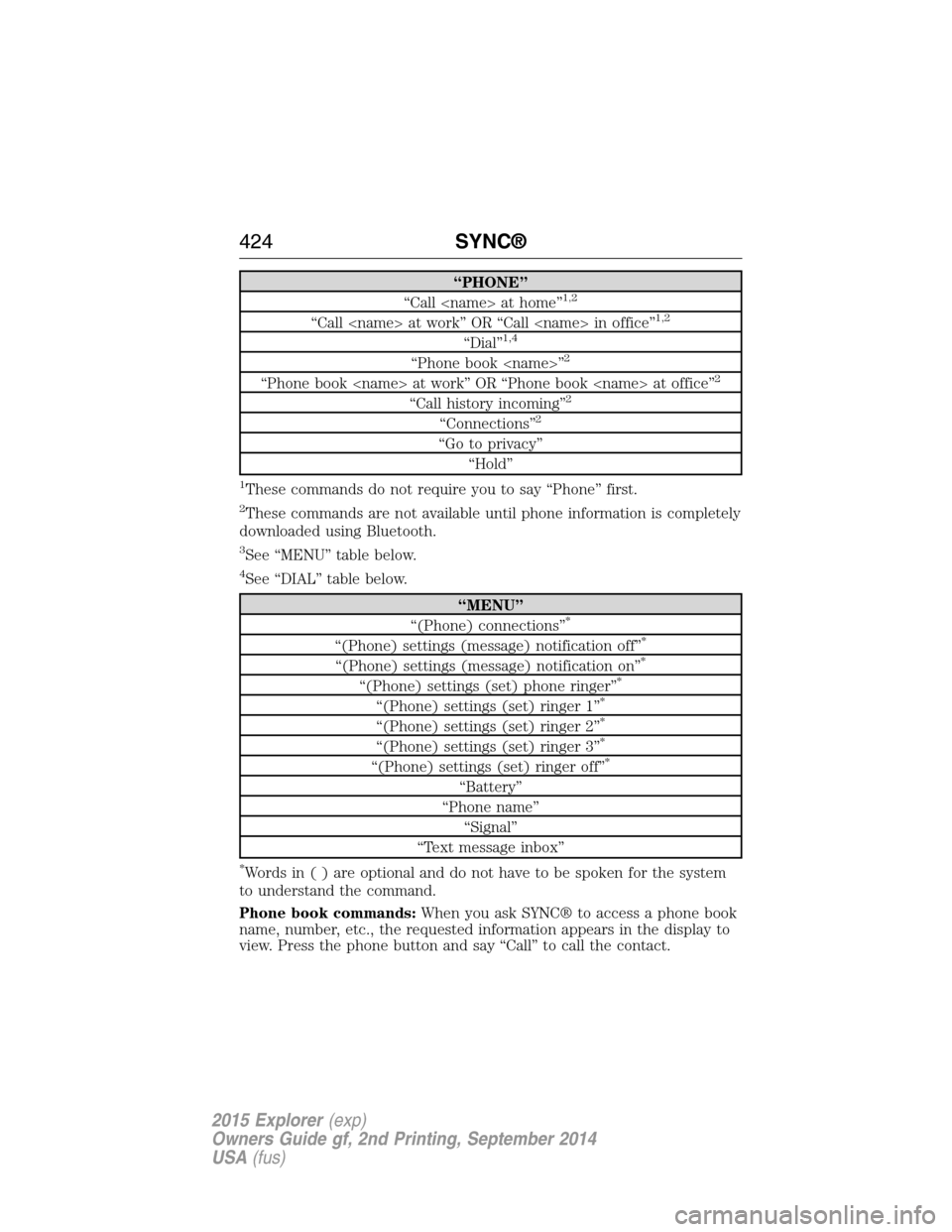
“PHONE”
“Call
“Call
“Dial”1,4
“Phone book
“Phone book
“Call history incoming”2
“Connections”2
“Go to privacy”
“Hold”
1These commands do not require you to say “Phone” first.
2These commands are not available until phone information is completely
downloaded using Bluetooth.
3See “MENU” table below.
4See “DIAL” table below.
“MENU”
“(Phone) connections”*
“(Phone) settings (message) notification off”*
“(Phone) settings (message) notification on”*
“(Phone) settings (set) phone ringer”*
“(Phone) settings (set) ringer 1”*
“(Phone) settings (set) ringer 2”*
“(Phone) settings (set) ringer 3”*
“(Phone) settings (set) ringer off”*
“Battery”
“Phone name”
“Signal”
“Text message inbox”
*Words in ( ) are optional and do not have to be spoken for the system
to understand the command.
Phone book commands:When you ask SYNC® to access a phone book
name, number, etc., the requested information appears in the display to
view. Press the phone button and say “Call” to call the contact.
424SYNC®
2015 Explorer(exp)
Owners Guide gf, 2nd Printing, September 2014
USA(fus)
Page 428 of 596
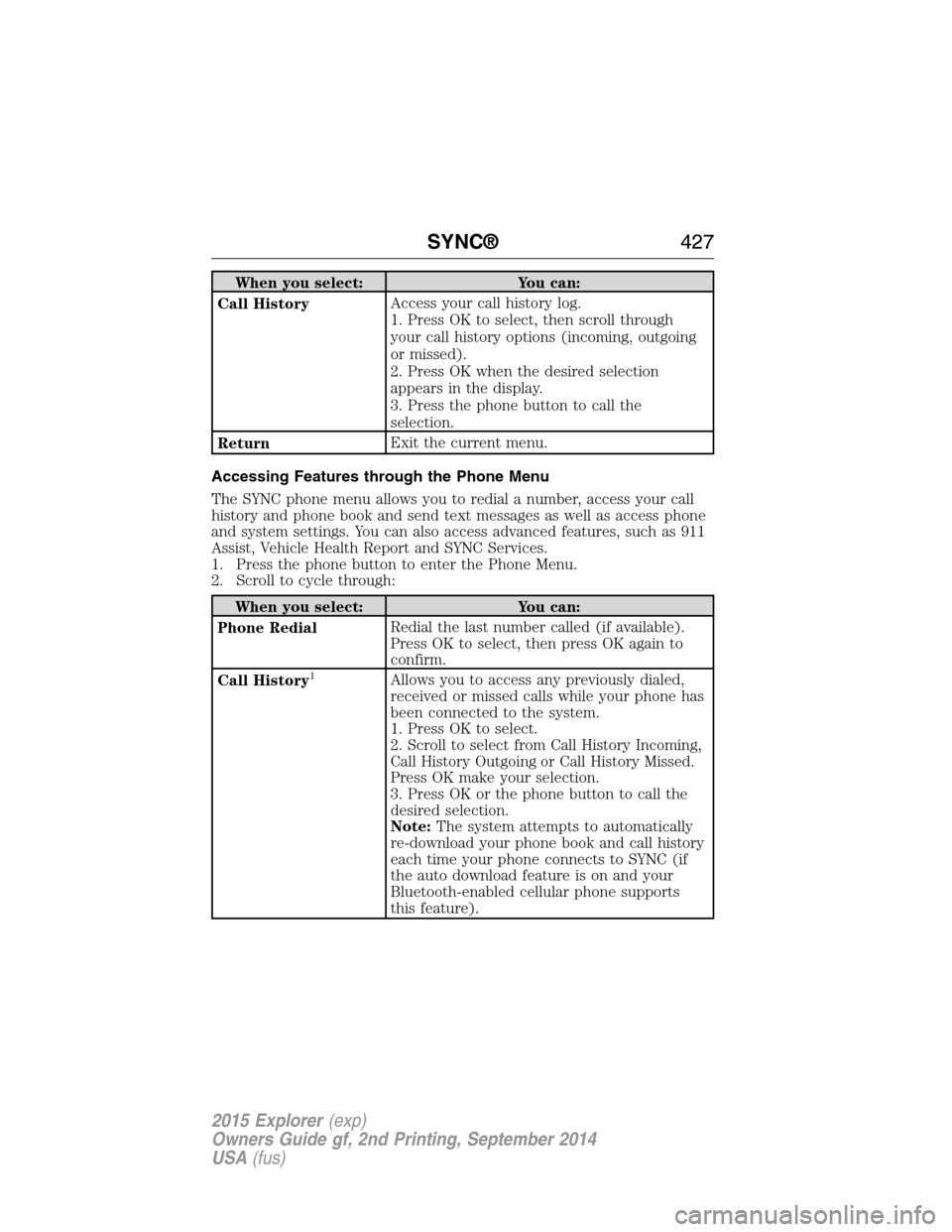
When you select: You can:
Call HistoryAccess your call history log.
1. Press OK to select, then scroll through
your call history options (incoming, outgoing
or missed).
2. Press OK when the desired selection
appears in the display.
3. Press the phone button to call the
selection.
ReturnExit the current menu.
Accessing Features through the Phone Menu
The SYNC phone menu allows you to redial a number, access your call
history and phone book and send text messages as well as access phone
and system settings. You can also access advanced features, such as 911
Assist, Vehicle Health Report and SYNC Services.
1. Press the phone button to enter the Phone Menu.
2. Scroll to cycle through:
When you select: You can:
Phone RedialRedial the last number called (if available).
Press OK to select, then press OK again to
confirm.
Call History
1Allows you to access any previously dialed,
received or missed calls while your phone has
been connected to the system.
1. Press OK to select.
2. Scroll to select from Call History Incoming,
Call History Outgoing or Call History Missed.
Press OK make your selection.
3. Press OK or the phone button to call the
desired selection.
Note:The system attempts to automatically
re-download your phone book and call history
each time your phone connects to SYNC (if
the auto download feature is on and your
Bluetooth-enabled cellular phone supports
this feature).
SYNC®427
2015 Explorer(exp)
Owners Guide gf, 2nd Printing, September 2014
USA(fus)
Page 429 of 596
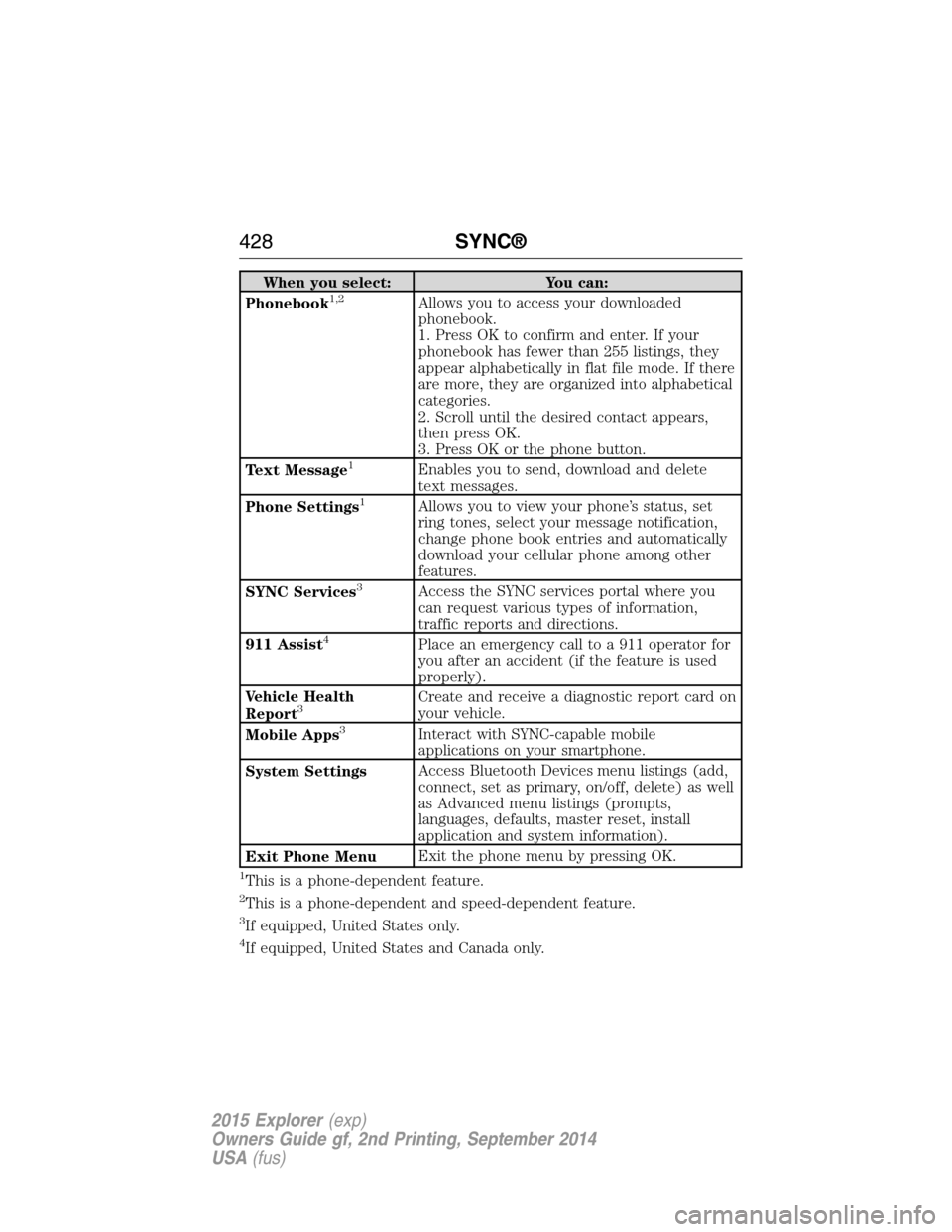
When you select: You can:
Phonebook1,2Allows you to access your downloaded
phonebook.
1. Press OK to confirm and enter. If your
phonebook has fewer than 255 listings, they
appear alphabetically in flat file mode. If there
are more, they are organized into alphabetical
categories.
2. Scroll until the desired contact appears,
then press OK.
3. Press OK or the phone button.
Text Message
1Enables you to send, download and delete
text messages.
Phone Settings
1Allows you to view your phone’s status, set
ring tones, select your message notification,
change phone book entries and automatically
download your cellular phone among other
features.
SYNC Services
3Access the SYNC services portal where you
can request various types of information,
traffic reports and directions.
911 Assist
4Place an emergency call to a 911 operator for
you after an accident (if the feature is used
properly).
Vehicle Health
Report
3Create and receive a diagnostic report card on
your vehicle.
Mobile Apps
3Interact with SYNC-capable mobile
applications on your smartphone.
System SettingsAccess Bluetooth Devices menu listings (add,
connect, set as primary, on/off, delete) as well
as Advanced menu listings (prompts,
languages, defaults, master reset, install
application and system information).
Exit Phone MenuExit the phone menu by pressing OK.
1This is a phone-dependent feature.
2This is a phone-dependent and speed-dependent feature.
3If equipped, United States only.
4If equipped, United States and Canada only.
428SYNC®
2015 Explorer(exp)
Owners Guide gf, 2nd Printing, September 2014
USA(fus)