warning FORD EXPLORER 2016 5.G Owners Manual
[x] Cancel search | Manufacturer: FORD, Model Year: 2016, Model line: EXPLORER, Model: FORD EXPLORER 2016 5.GPages: 541, PDF Size: 6.51 MB
Page 220 of 541
Changing the Set Speed
•
Press and release SET+ or SET-. When
you select km/h as the display
measurement in the information
display the set speed changes in
approximately 2 km/h increments.
When you select mph as the display
measurement in the information
display the set speed changes in
approximately 1 mph increments.
• Press the accelerator or brake pedal
until you reach the desired speed. Press
and release SET+.
• Press and hold SET+ or SET- until the
desired set speed shows on the
information display. The vehicle speed
will gradually change to the selected
speed.
The system may apply the brakes to slow
the vehicle to the new set speed. The set
speed displays continuously in the
information display while the system is
active.
Resuming the Set Speed
Press and release RES. The vehicle returns
to the previously set speed and gap setting.
The set speed displays continuously in the
information display while the system is
active.
Note: Only use resume if you are aware of
the set speed and intend to return to it.
Automatic Cancellation
The system does not operate below
12 mph (20 km/h)
. An audible warning
sounds and the automatic braking releases
if the vehicle drops below this speed. Hilly Condition Usage
You should select a lower gear position
when the system is active in situations
such as prolonged downhill driving on
steep grades, for example in mountainous
areas. The system needs additional engine
braking in these situations to reduce the
load on the vehicle
’s regular brake system
to prevent them from overheating.
Note: An audible warning sounds and the
system shuts down if it applies brakes for
an extended period of time. This allows the
brakes to cool down. The system functions
normally again when the brakes have cooled
down.
Switching Adaptive Cruise Control
Off
Press and release the
OFF button when
the system is in stand by mode or switch
the ignition off.
Note: The set speed memory erases when
you switch off the system.
Detection Issues WARNING
On rare occasions, detection issues
can occur due to the road
infrastructures, for example bridges,
tunnels and safety barriers. In these cases,
the system may brake late or
unexpectedly. At all times, you are
responsible for controlling your vehicle,
supervising the system and intervening, if
required. The radar sensor has a limited field of
vision. It may not detect vehicles at all or
detect a vehicle later than expected in
some situations. The lead vehicle graphic
does not illuminate if the system does not
detect a vehicle in front of you.
217
Explorer (TUB), enUSA, First Printing Cruise Control
Page 222 of 541
The following table lists possible causes and actions for this message displaying.
Action
Cause
Clean the grille surface in front of the radar
or remove the object causing the obstruc-
tion.
The surface of the radar in the grille is dirty
or obstructed in some way.
Wait a short time. It may take several
minutes for the radar to detect that it is free
from obstruction.
The surface of the radar in the grille is clean
but the message remains in the display.
Do not use the system in these conditions
because it may not detect any vehicles
ahead.
Heavy rain or snow is interfering with the
radar signals.
Do not use the system in these conditions
because it may not detect any vehicles
ahead.
Swirling water, or snow or ice on the surface
of the road may interfere with the radar
signals.
Wait a short time or switch to normal cruise
control.
You are in a desert or remote area with no
other vehicles and no roadside objects.
Due to the nature of radar technology, it is
possible to get a blockage warning and not
be blocked. This can happen, for example,
when driving in sparse rural environments.
A false blocked condition self clears or
clears after a key cycle.
Switching to Normal Cruise
Control WARNING
Normal cruise control does not brake
due to slower vehicles. Always be
aware of which mode you have
selected and apply the brakes when
necessary. You can manually change from adaptive
cruise control to normal cruise control
through the information display. The cruise control indicator light
replaces the adaptive cruise
control indicator light if you
select normal cruise control. The gap
setting does not display, the system does
not automatically respond to lead vehicles
and automatic braking does not activate.
219
Explorer (TUB), enUSA, First Printing Cruise ControlE71340
Page 223 of 541
DRIVER ALERT (If Equipped)
PRINCIPLE OF OPERATION WARNING
The driver alert system is designed
to aid you. It is not intended to
replace your attention and judgment.
You are still responsible to drive with due
care and attention. Note:
The system will store the on or off
setting in the information display menu
through ignition cycles.
Note: If enabled in the menu, the system
will be active at speeds above
40 mph
(64 km/h). When below the activation
speed, the information display will inform
the driver that the system is unavailable.
Note: The system works as long as one lane
marking can be detected by the camera.
Note: If the camera is blocked or if the
windshield is damaged, the system may not
function.
Note: The system may not be available in
poor weather or other low visibility
conditions.
The system automatically monitors your
driving behavior using various inputs
including the front camera sensor.
If the system detects that your driving
alertness is reduced below a certain
threshold, the system will alert you using
a chime and a message in the cluster
display.
USING DRIVER ALERT
Switching the System On and Off
Switch the system on or off using the
information display. See
General
Information (page 101). When activated, the system will monitor
your alertness level based upon your
driving behavior in relation to the lane
markings, and other factors.
System Warnings
Note:
The system will not issue warnings
below approximately
40 mph (64 km/h).
The warning system has two stages. At
first, the system issues a temporary
warning that you need to take a rest. This
message will only appear for a short time.
If the system detects further reduction in
driving alertness, it may issue another
warning that will remain in the information
display for a longer time. You can press OK
on the steering wheel control to clear the
warning.
Resetting the System
You can reset the system by either:
• Switching the ignition off and on.
• Stopping the vehicle and then opening
and closing the driver ’s door.
LANE KEEPING SYSTEM
(If
Equipped) WARNINGS
The system does not relieve you of
your responsibility to drive with due
care and attention.
At all times you are responsible for
controlling your vehicle, supervising
the system and intervening if
required. If the sensor becomes blocked the
system may not function.
In cold and severe weather
conditions the system may not
function. Rain, snow, spray can all
limit sensor performance.
220
Explorer (TUB), enUSA, First Printing Driving Aids
Page 224 of 541
WARNINGS
Large contrasts in lighting can limit
sensor performance.
The system will not operate if the
sensor cannot track the road lane
markings.
The vehicle should be taken to an
authorized dealer for inspection if
damage occurs in the immediate
area surrounding the sensor. Note:
The system works above 40 mph
(64 km/h).
Note: The system works as long as the
camera can detect one lane marking.
Note: The system may not function if the
camera is blocked or there is damage to the
windshield.
Note: When Aid mode is on and the system
detects no steering activity for a short
period, the system will alert you to put your
hands on the steering wheel. The system
may detect a light grip or touch on the
steering wheel as hands off driving.
The system notifies you to stay in your lane
through the steering system and the
instrument cluster display when the front
camera detects an unintentional drift out
of your lane is likely to occur. The system
automatically detects and tracks the road
lane markings using a camera mounted
behind the interior rear view mirror.
Switching the System On and Off
Note: The system on or off setting is stored
until it is manually changed, unless a MyKey
is detected. If the system detects a MyKey
it defaults to on and the mode is set to Alert.
Note: If a MyKey is detected, pressing the
button will not affect the on or off status of
the system. Press the button located on the
left steering wheel stalk to
switch the system on or off.
System Settings
The system has optional setting menus
available. To view or adjust the settings,
See General Information (page 101). The
system stores the last-known selection for
each of these settings. You do not need to
readjust your settings each time you turn
on the system.
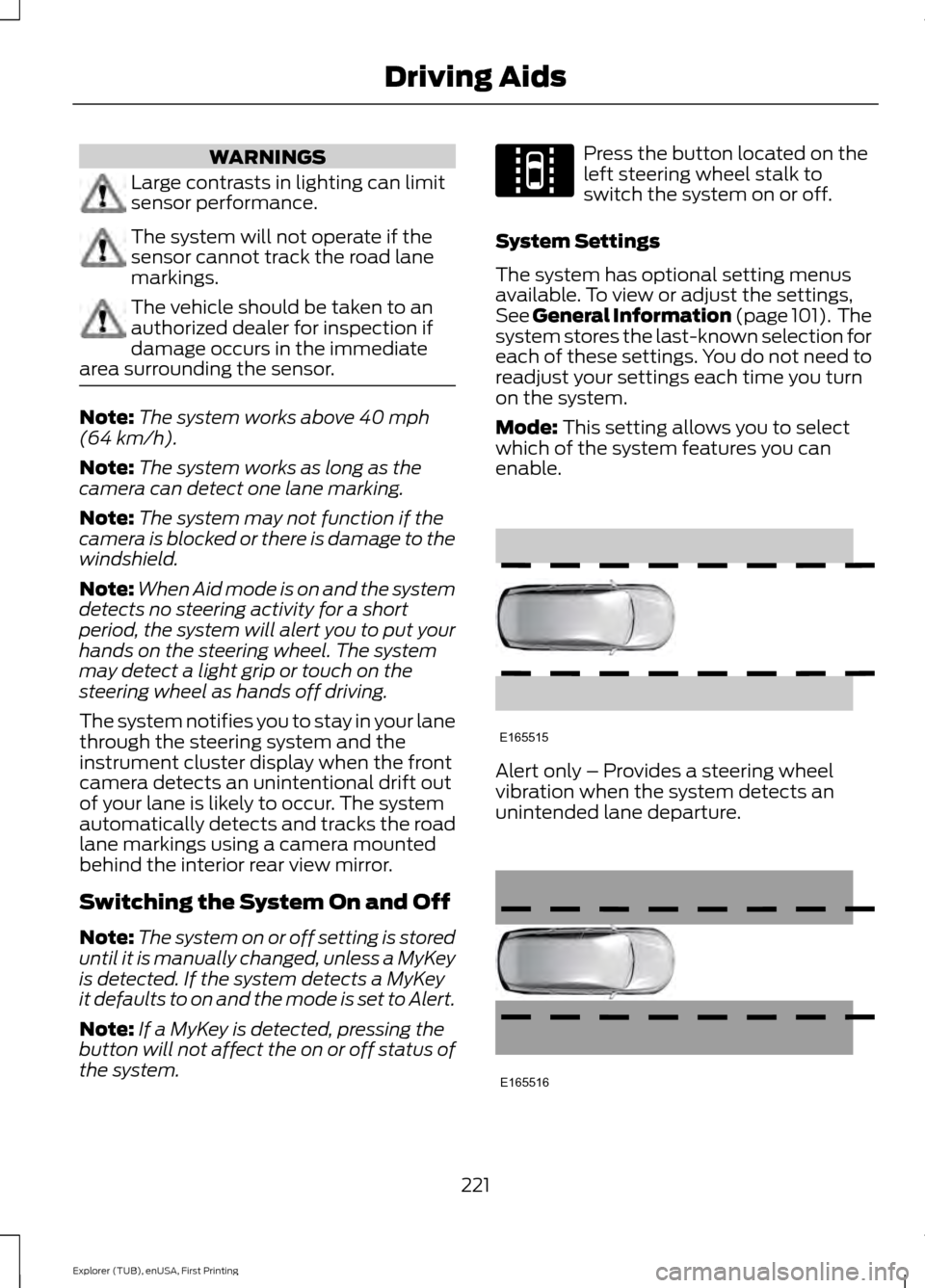
Mode: This setting allows you to select
which of the system features you can
enable. Alert only – Provides a steering wheel
vibration when the system detects an
unintended lane departure.
221
Explorer (TUB), enUSA, First Printing Driving AidsE144813 E165515 E165516
Page 225 of 541
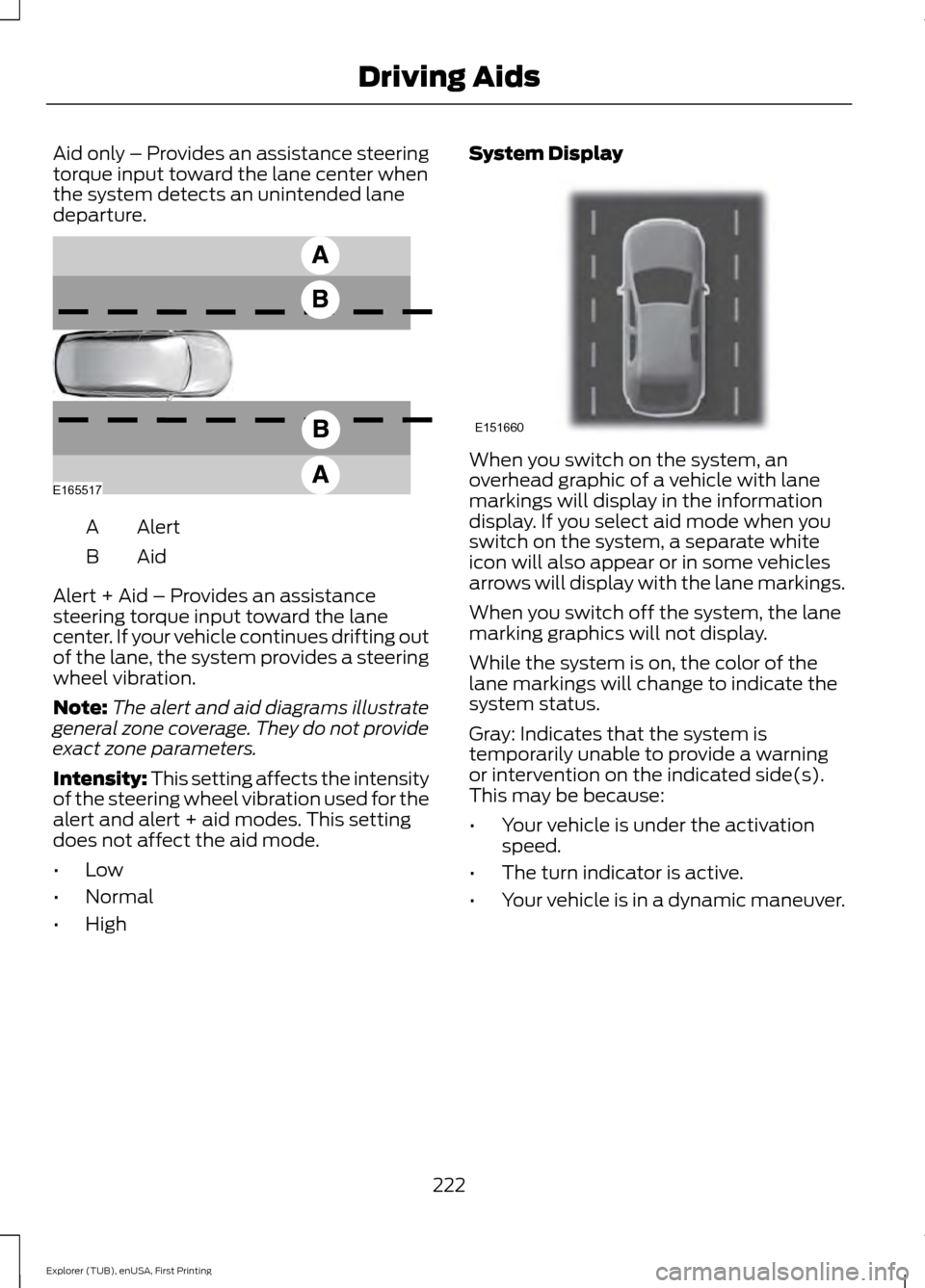
Aid only – Provides an assistance steering
torque input toward the lane center when
the system detects an unintended lane
departure.
Alert
A
AidB
Alert + Aid – Provides an assistance
steering torque input toward the lane
center. If your vehicle continues drifting out
of the lane, the system provides a steering
wheel vibration.
Note: The alert and aid diagrams illustrate
general zone coverage. They do not provide
exact zone parameters.
Intensity: This setting affects the intensity
of the steering wheel vibration used for the
alert and alert + aid modes. This setting
does not affect the aid mode.
• Low
• Normal
• High System Display
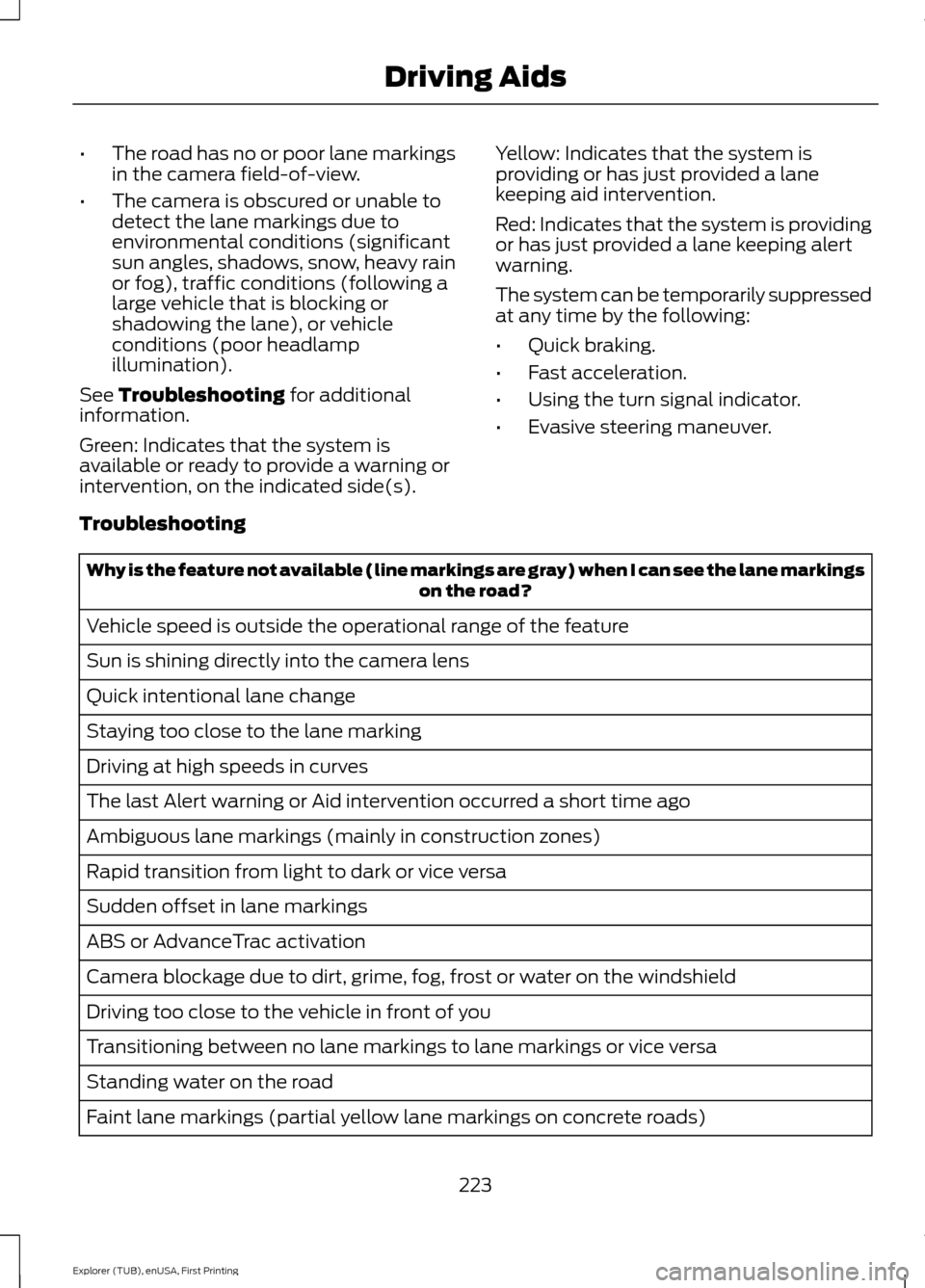
When you switch on the system, an
overhead graphic of a vehicle with lane
markings will display in the information
display. If you select aid mode when you
switch on the system, a separate white
icon will also appear or in some vehicles
arrows will display with the lane markings.
When you switch off the system, the lane
marking graphics will not display.
While the system is on, the color of the
lane markings will change to indicate the
system status.
Gray: Indicates that the system is
temporarily unable to provide a warning
or intervention on the indicated side(s).
This may be because:
•
Your vehicle is under the activation
speed.
• The turn indicator is active.
• Your vehicle is in a dynamic maneuver.
222
Explorer (TUB), enUSA, First Printing Driving AidsE165517 E151660
Page 226 of 541
•
The road has no or poor lane markings
in the camera field-of-view.
• The camera is obscured or unable to
detect the lane markings due to
environmental conditions (significant
sun angles, shadows, snow, heavy rain
or fog), traffic conditions (following a
large vehicle that is blocking or
shadowing the lane), or vehicle
conditions (poor headlamp
illumination).
See Troubleshooting for additional
information.
Green: Indicates that the system is
available or ready to provide a warning or
intervention, on the indicated side(s). Yellow: Indicates that the system is
providing or has just provided a lane
keeping aid intervention.
Red: Indicates that the system is providing
or has just provided a lane keeping alert
warning.
The system can be temporarily suppressed
at any time by the following:
•
Quick braking.
• Fast acceleration.
• Using the turn signal indicator.
• Evasive steering maneuver.
Troubleshooting Why is the feature not available (line markings are gray) when I can see the lane markings
on the road?
Vehicle speed is outside the operational range of the feature
Sun is shining directly into the camera lens
Quick intentional lane change
Staying too close to the lane marking
Driving at high speeds in curves
The last Alert warning or Aid intervention occurred a short time ago
Ambiguous lane markings (mainly in construction zones)
Rapid transition from light to dark or vice versa
Sudden offset in lane markings
ABS or AdvanceTrac activation
Camera blockage due to dirt, grime, fog, frost or water on the windshield
Driving too close to the vehicle in front of you
Transitioning between no lane markings to lane markings or vice versa
Standing water on the road
Faint lane markings (partial yellow lane markings on concrete roads)
223
Explorer (TUB), enUSA, First Printing Driving Aids
Page 227 of 541
Why is the feature not available (line markings are gray) when I can see the lane markings
on the road?
Lane width too narrow or too wide
Camera not calibrated after a windshield replacement
Driving on tight roads or on uneven roads Why does the vehicle not come back toward the middle of the lane, as expected, in the
Aid or Aid + Alert mode?
High cross winds
Large road crown
Rough roads, grooves, shoulder drop-offs
Heavy uneven loading of the vehicle or improper tire inflation pressure
If the tires have been exchanged (including snow tires), or the suspension has been
modified
BLIND SPOT INFORMATION
SYSTEM WARNING
Do not use the system as a
replacement for using the mirrors or
looking over your shoulder before
changing lanes. You should only use the
system as an aid. It is not a replacement
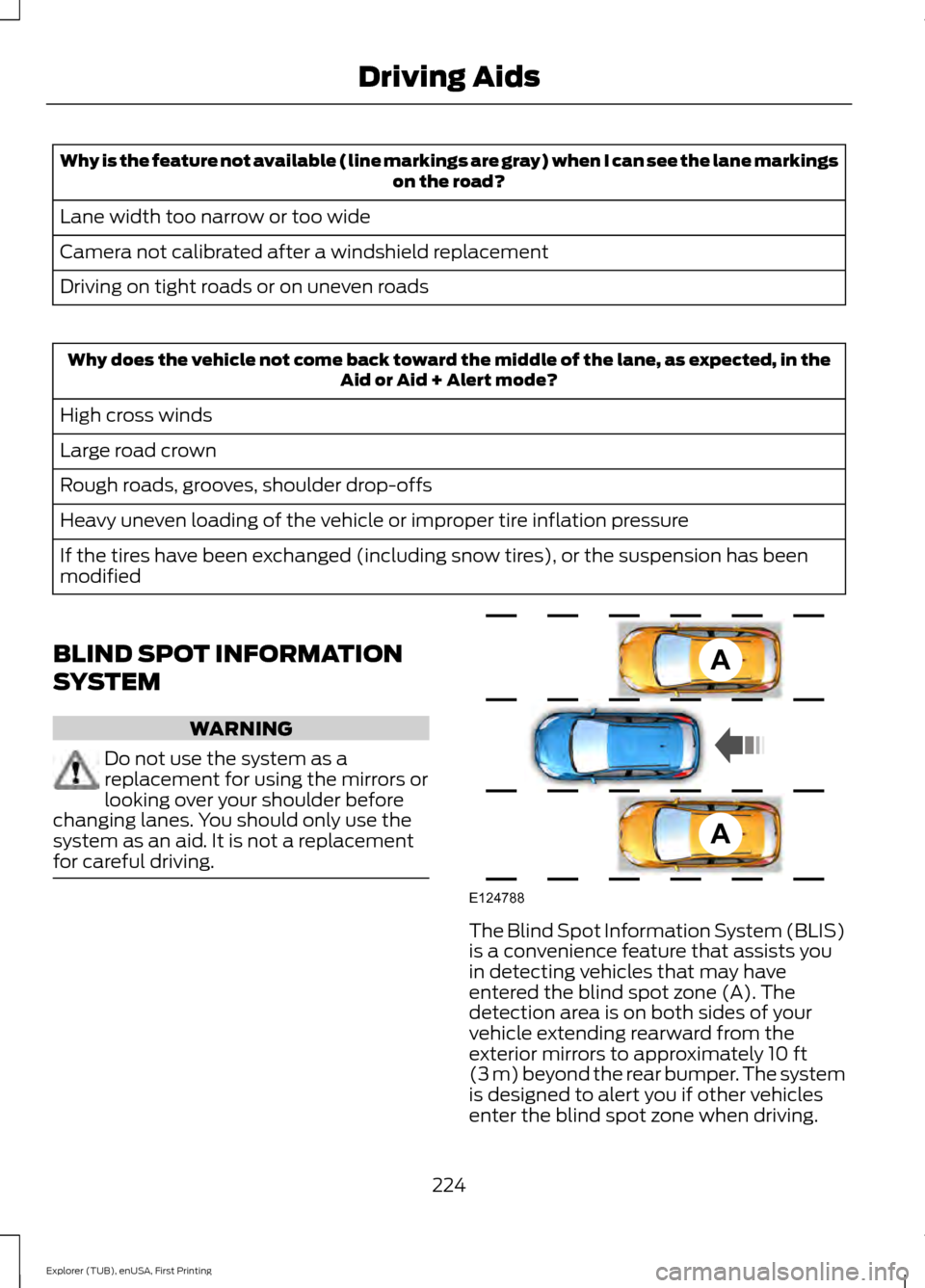
for careful driving. The Blind Spot Information System (BLIS)
is a convenience feature that assists you
in detecting vehicles that may have
entered the blind spot zone (A). The
detection area is on both sides of your
vehicle extending rearward from the
exterior mirrors to approximately 10 ft
(3 m) beyond the rear bumper. The system
is designed to alert you if other vehicles
enter the blind spot zone when driving.
224
Explorer (TUB), enUSA, First Printing Driving AidsA
A
E124788
Page 228 of 541
Note:
The Blind Spot Information System
does not prevent contact with other vehicles
or objects; nor detect parked vehicles,
people, animals or infrastructure (fences,
guardrails, trees). It's only designed to alert
you to vehicles in the blind zones.
Note: Vehicles that pass through the blind
spot zone quickly (typically less than 2
seconds) will not trigger the alert.
Using the System
The Blind Spot Information System turns
on when you start the engine and you drive
your vehicle forward above approximately
6 mph (10 km/h).
Note: The Blind Spot Information System
does not function in reverse (R) or park (P)
or provide any additional warning when a
turn signal is on.
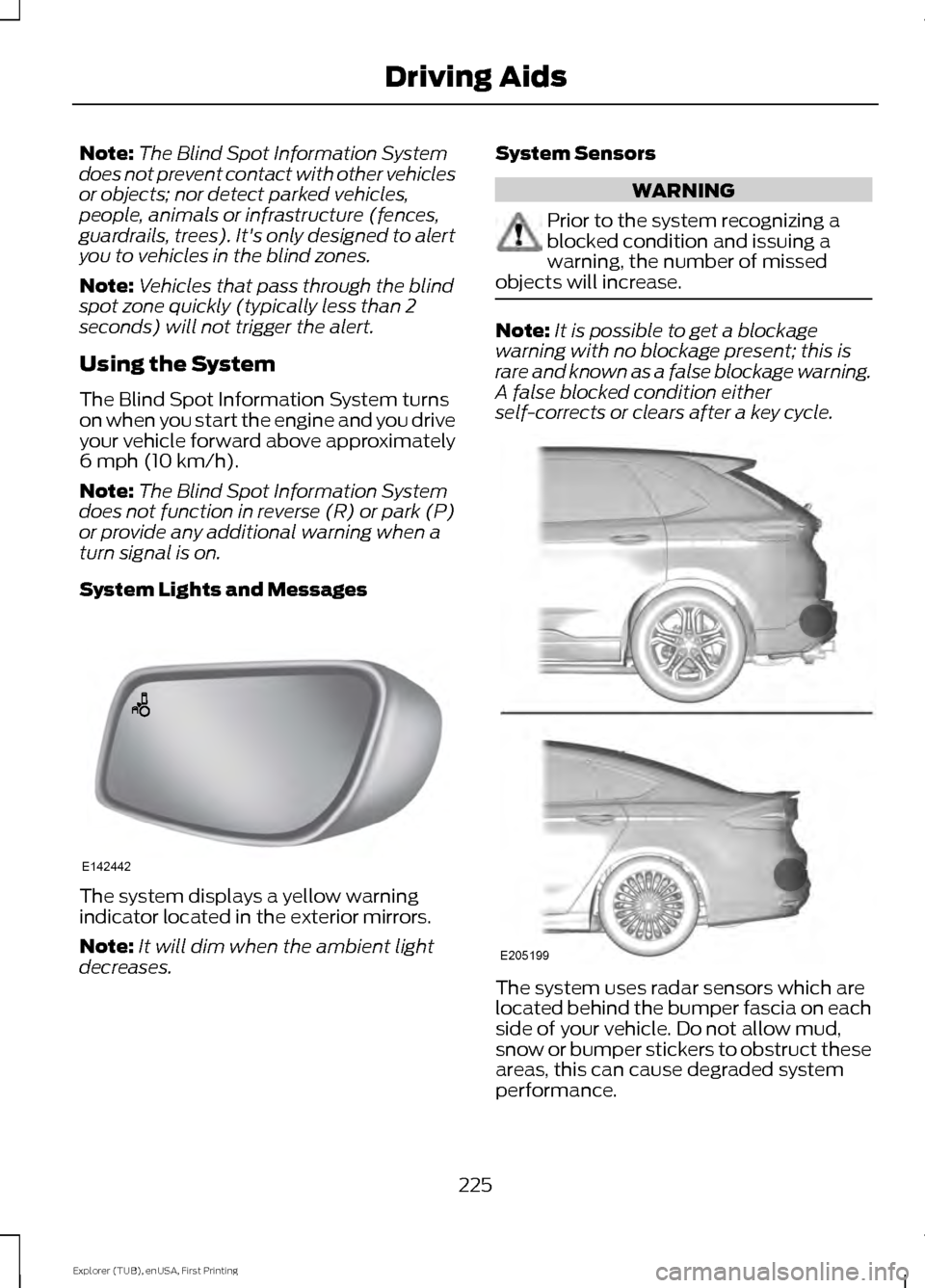
System Lights and Messages The system displays a yellow warning
indicator located in the exterior mirrors.
Note:
It will dim when the ambient light
decreases. System Sensors WARNING
Prior to the system recognizing a
blocked condition and issuing a
warning, the number of missed
objects will increase. Note:
It is possible to get a blockage
warning with no blockage present; this is
rare and known as a false blockage warning.
A false blocked condition either
self-corrects or clears after a key cycle. The system uses radar sensors which are
located behind the bumper fascia on each
side of your vehicle. Do not allow mud,
snow or bumper stickers to obstruct these
areas, this can cause degraded system
performance.
225
Explorer (TUB), enUSA, First Printing Driving AidsE142442 E205199
Page 229 of 541
If the system detects a degraded
performance condition, a message warning
of a blocked sensor or low visibility will
appear in the information display along
with a warning indicator. You can clear the
information display warning but the
warning indicator will remain illuminated.
When you remove a blockage, you can
reset the system in two ways:
•
While driving, the system detects at
least two objects.
• You cycle the ignition from on to off
and then back on.
If the blockage is still present after the key
cycle and driving in traffic, check again for
a blockage. Reasons for messages being displayed
Clean the fascia area in front
of the radar or remove the
obstruction.
The radar
surface is
dirty or
obstructed
Drive normally in traffic for
a few minutes to allow the
radar to detect passing
vehicles so it can clear the
blocked state.
The radar
surface is
not dirty or
obstructed
No action required. The
system automatically resets
to an unblocked state once
the rainfall or snowfall rate
decreases or stops. Do not
use the Blind Spot Informa-
tion System in these condi-
tions.
Heavy rain-
fall or
snowfall
interferes
with the
radar
signals
Detection Limitations
There may be instances where the system
will not always detect vehicles entering
and exiting the blind spot zone. Instances which may cause non-detection:
•
Debris build up on the rear bumper
panels in the area of the sensors.
• Certain maneuvering of vehicles
entering and exiting the blind spot
zone.
• Vehicles passing through the blind spot
zone at high speed.
• Severe weather conditions.
• Several vehicles passing through the
blind spot zone following each other
closely.
False Alerts
Note: If your vehicle has a trailer tow
module approved by us, the system will
detect a connected trailer and turn off. For
non-factory equipped tow bars, you may
want to turn the Blind Spot Information
System off manually.
There may be certain instances when there
is a false alert by the system that
illuminates the alert indicator with no
vehicle in the coverage zone. Some
amount of false alerts are normal; they are
temporary and self-correct.
Detection Errors
If the system senses a problem with the
left or right sensor, the Blind Spot
Information System warning indicator will
illuminate and a message will appear in
the information display.
All other system faults will display only
with a message in the information display.
See Information Messages (page 115).
226
Explorer (TUB), enUSA, First Printing Driving Aids
Page 232 of 541
The following are other situations that may
limit the cross traffic alert system
performance:
•
Adjacently parked vehicles or objects
obstructing the sensors.
• Approaching vehicles passing at
speeds greater than 37 mph
(60 km/h).
• Backing out of an angled parking spot.
False Alerts
Note: If your vehicle has a tow bar with a
factory equipped trailer tow module and it
is towing a trailer, the sensors will
automatically turn the cross traffic alert off.
If your vehicle has a tow bar but no factory
equipped trailer tow module, it is
recommended to turn the cross traffic alert
off manually. Operating cross traffic alert
with a trailer attached will cause poor cross
traffic alert system performance.
There may be certain instances when there
is a false alert by the Cross Traffic Alert
system that illuminates the alert indicator
with no vehicle in the coverage zone. Some
amount of false alerts are normal; they are
temporary and self-correct.
System Errors
If cross traffic alert senses a problem with
the left or right sensor, a message will
appear in the information display. See
General Information
(page 101).
Switching the System Off and On
You can temporarily switch cross traffic
alert off in the information display. See
General Information
(page 101). When
you switch cross traffic alert off, you will
not receive alerts and the information
display will display a system off message. Note:
The cross traffic alert system always
switches on whenever the ignition is
switched on and ready to provide
appropriate alerts when the transmission is
in reverse (R). Cross Traffic Alert will not
remember the last selected on or off setting.
You can have cross traffic alert switched
off permanently at an authorized dealer.
Once switched off permanently, the
system can only be switched back on at
an authorized dealer.
STEERING
Electric Power Steering WARNING
The electric power steering system
has diagnostic checks that
continuously monitor the system. If
a fault is detected, a message displays in
the information display. Stop your vehicle
as soon as it is safe to do so. Switch the
ignition off. After at least 10 seconds,
switch the ignition on and watch the
information display for a steering system
warning message. If a steering system
warning message returns, have the system
checked by an authorized dealer. Your vehicle has an electric power steering
system. There is no fluid reservoir. No
maintenance is required.
If your vehicle loses electrical power while
you are driving, electric power steering
assistance is lost. The steering system still
operates and you can steer your vehicle
manually. Manually steering your vehicle
requires more effort.
229
Explorer (TUB), enUSA, First Printing Driving Aids