steering wheel FORD EXPLORER 2016 5.G Workshop Manual
[x] Cancel search | Manufacturer: FORD, Model Year: 2016, Model line: EXPLORER, Model: FORD EXPLORER 2016 5.GPages: 541, PDF Size: 6.51 MB
Page 388 of 541
Setting 911 Assist On or Off
Press the phone button to enter the
phone menu then select:
Action and Description
Menu
Item
Press OK to confirm and enter
the 911 Assist menu.
911 Assist
Scroll to activate this option
then press OK when the
desired option appears in the
radio display.
If you choose not to activate this
feature you will have the following
options: Action and Description
Menu
Item
Provides a display and voice
reminder at phone connection
at vehicle start.
Voice
Reminder
ON
Provides a display reminder
only without a voice reminder
at phone connection.
Voice
Reminder
OFF
To make sure that 911 Assist works
properly:
• SYNC must be powered and working
properly at the time of the incident and
throughout feature activation and use.
• The 911 Assist feature must be set on
before the incident.
• You must pair and connect a
Bluetooth-enabled and compatible
cell phone to SYNC.
• A connected Bluetooth-enabled phone
must have the ability to make and
maintain an outgoing call at the time
of the incident. •
A connected Bluetooth-enabled phone
must have adequate network coverage,
battery power and signal strength.
• The vehicle must have battery power
and be located in the U.S., Canada or
in a territory in which 911 is the
emergency number.
In the Event of a Crash
Not all crashes deploy an airbag or activate
the fuel pump shut-off (the triggers for 911
Assist). If a connected cell phone sustains
damage or loses its connection to SYNC
during a crash, SYNC searches for and tries
to connect to a previously paired cell
phone; SYNC then attempts to call the
emergency services.
Before making the call:
• SYNC provides a short window of time
(about 10 seconds) to cancel the call.
If you fail to cancel the call, SYNC
attempts to dial 911.
• SYNC says the following, or a similar
message: "SYNC will attempt to call
911, to cancel the call, press Cancel on
your screen or press and hold the
phone button on your steering wheel".
If you do not cancel the call, and SYNC
makes a successful call, a pre-recorded
message plays for the 911 operator, and
then the occupant(s) in your vehicle is able
to talk with the operator. Be prepared to
provide your name, phone number and
location immediately, because not all 911
systems are capable of receiving this
information electronically.
911 Assist May Not Work If
• Your cellular phone or 911 Assist
hardware sustains damage in a crash.
• The vehicle's battery or the SYNC
system has no power.
• The phone(s) thrown from your vehicle
are the ones paired and connected to
the system.
385
Explorer (TUB), enUSA, First Printing SYNC™
(If Equipped)
Page 389 of 541
911 Assist Privacy Notice
When you switch on 911 Assist, it may
disclose to emergency services that your
vehicle has been in a crash involving the
deployment of an airbag or activation of
the fuel pump shut-off. Certain versions or
updates to 911 Assist may also be capable
of electronically or verbally disclosing to
911 operators your vehicle location or other
details about your vehicle or crash to assist
911 operators to provide the most
appropriate emergency services. If you do
not want to disclose this information, do
not switch the feature on.
SYNC Mobile Apps
The system enables voice and steering
wheel control of SYNC AppLink enabled
smartphone apps. When an app is running
through AppLink, you can control main
features of the app through voice
commands and steering wheel controls.
Note:
You must pair and connect your
smartphone to SYNC to access AppLink.
Note: iPhone users need to connect the
phone to the USB port.
Note: Android users need to connect the
phone to SYNC using Bluetooth.
Note: For information on available apps,
supported smartphone devices and
troubleshooting tips please visit the Ford
website.
Availability of SYNC AppLink enabled Apps
will vary by region. Note:
Make sure you have an active account
for the app that you have downloaded.
Some apps work automatically with no
setup. Other apps want you to configure
your personal settings and personalize your
experience by creating stations or favorites.
We recommend you do this at home or
outside of your vehicle.
Note: AppLink is not available if your
vehicle is equipped with the MyFordTouch
system.
To Access Using the SYNC Menu
Press the MENU button to access the
menu on-screen. Then select: Action and Description
Menu
Item
SYNC-Apps Scroll through the list of
available applications and
select a particular app or
select:
Mobile
Apps
Find New Apps
Note: If you cannot find a compatible SYNC
AppLink app, make sure the required app is
running on the mobile device.
Accessing an App's Menu
When an app is running through SYNC,
press the right arrow button on the steering
wheel control to access the app menu.
You can access various app features from
here, for example thumbs up and thumbs
down.
Press the left arrow button on the steering
wheel control to exit the app menu.
386
Explorer (TUB), enUSA, First Printing SYNC™
(If Equipped)
Page 390 of 541
To Access Using Voice Commands
Press the voice button then when prompted say:
Action and Description
Menu Item
Say the name of the application after the tone.
The app should start. When an app is running through SYNC, you can press the voice button and speak commands specific to the app, for example "Play Playlist Road Trip".
mobile (apps |
applications)
Use this command to discover the available voice commands.
Help
SYNC Mobile App Voice Commands
The following voice commands are always available: Action and Description
Menu Item
SYNC prompts you to say the name of an
app to start it on SYNC.
mobile (apps | applications)
SYNC lists all of the currently available
mobile apps.
list [mobile] (apps | applications)
Searches your connected mobile device for
SYNC-compatible mobile apps.
find [new] [mobile] (apps | applications)
help
You can say the name of a mobile app at any time to start the mobile app on SYNC.
App Permissions
App permissions are organized by groups.
You can grant these group permissions
individually. You can change a permission
group status any time when not driving, by
using the settings menu. When you launch an app using SYNC, the
system may ask you to grant certain
permissions, for example:
•
To allow your vehicle to provide vehicle
information to the app such as, but not
limited to: Fuel level, fuel economy, fuel
consumption, engine speed, rain
sensor, odometer, VIN, external
temperature, gear position, tire
pressure, and head lamp status.
• To allow your vehicle to provide driving
characteristic information such as, but
not limited to: MyKey, seat belt status,
engine revolutions per minute, gear
position, braking events, steering wheel
angle, and accelerator pedal position.
387
Explorer (TUB), enUSA, First Printing SYNC™ (If Equipped)
Page 412 of 541
Action and Description
Controls
Midrange
Set Balance and Fade
DSP
EQ Mode
Speed Compensated Volume
Using the Steering Wheel Controls
Depending on your vehicle, it may also have the following controls: Action and Description
Control
Adjust the volume of playing media.
VOL
Press to start a voice session. Press again to interrupt a voice
prompt and begin speaking. Press and hold to end an active
voice session.
Voice
Use as you normally would in media and phone modes.
Seek and Call Accept
Use as you normally would in media and phone modes.
Seek and Call Reject
Using the Touchscreen
• Make sure your hands are clean and
dry.
• Press firmly on the center of a control
graphic or menu item.
• Keep metal objects or other conductive
material away from the surface of the
touchscreen.
Cleaning the Touchscreen Display
Use a dry, clean, soft cloth. If dirt or
fingerprints are still visible, apply a small
amount of alcohol to the cloth. Do not pour
or spray alcohol onto the display. Do not
use detergent or any type of solvent to
clean the display. Support
The SYNC support team is available:
•
Monday-Saturday, 8:30am-8:00pm
EST.
• United States: 1-888-270-1055
• Canada: 1-800-565-3673
Note: Times are subject to change due to
holidays.
409
Explorer (TUB), enUSA, First Printing MyFord Touch
™ (If Equipped)
Page 416 of 541
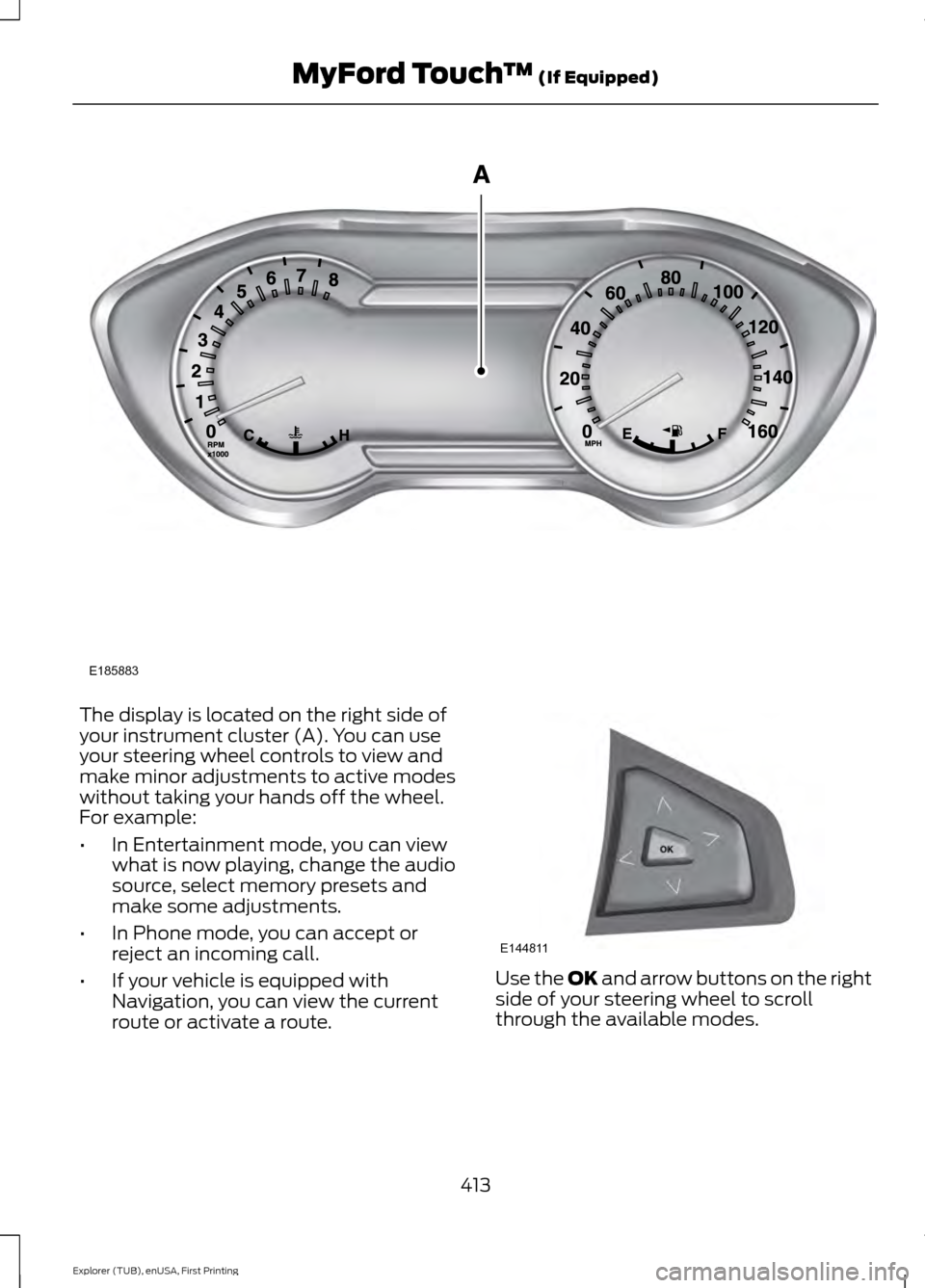
The display is located on the right side of
your instrument cluster (A). You can use
your steering wheel controls to view and
make minor adjustments to active modes
without taking your hands off the wheel.
For example:
•
In Entertainment mode, you can view
what is now playing, change the audio
source, select memory presets and
make some adjustments.
• In Phone mode, you can accept or
reject an incoming call.
• If your vehicle is equipped with
Navigation, you can view the current
route or activate a route. Use the OK and arrow buttons on the right
side of your steering wheel to scroll
through the available modes.
413
Explorer (TUB), enUSA, First Printing MyFord Touch
™
(If Equipped)E185883 E144811
Page 418 of 541
Using the touchscreen, press:
Menu Item
Settings
Help
Voice Command List Using the steering wheel control, press
the voice button and when prompted
say one of the following: Voice Commands
List of Commands
Radio List of Commands
Phone List of Commands
Voice Instructions List of Commands
Voice Command Settings
These allow you to customize the level of
system interaction, help and feedback. The
system defaults to standard interaction
that uses candidate lists and confirmation
prompts as these provide the highest level
of guidance and feedback. Action and Description
Menu Item
In this mode the system provides
detailed interaction and guidance.
Novice
Interaction Mode
This mode has less audible interac-tion and more tone prompts.
Advanced
The system uses these short questions to confirm your voice
command. If turned off, the system simply makes a best guess as to what you requested. The system may still occasionally ask you to confirm a voice command.
Confirmation Prompts
Candidate lists are lists of possible results from your voice
commands. The system creates these lists when it has the
same confidence level of several options based on your voice command
Phone Candidate Lists
Media Candidate Lists
415
Explorer (TUB), enUSA, First Printing MyFord Touch
™ (If Equipped)
Page 420 of 541
Message
Item
Clock
A
Display
B
Sound
C
Vehicle
D
Settings
E
Help
F Clock
Under this menu, you can set the clock,
access and adjust the display, sound and
vehicle settings as well as access settings
for specific modes or the help feature.
To make adjustments using the touchscreen, select: Action and Description
Menu Item
Press the settings icon.
Settings
Press the + or - to adjust the time.
Clock
From this screen, you can also make other adjustments such
as 12-hour or 24-hour mode, activate GPS time synchroniza-
tion and have the system automatically update new time
zones.
You can also switch the outside air temperature display off
and on. It appears at the top center of the touchscreen, next
to the time and date.
Note: You cannot manually set the date. Your vehicle ’s GPS does this for you.
Note: If the battery has been disconnected, your vehicle needs to acquire a GPS signal to
update the clock. Once your vehicle acquires the signal, it may take a few minutes for the
update to display the correct time.
Display
You can adjust the display using the
touchscreen or the voice button on the
steering wheel controls.
To make adjustments using the touchscreen, select: Action and Description
Menu Item
Press the settings icon.
Settings
Display
Then select from the following:
417
Explorer (TUB), enUSA, First Printing MyFord Touch
™
(If Equipped)
Page 443 of 541
SIRIUS Satellite Radio Voice
Commands
If you are listening to SIRIUS
satellite radio, press the voice
button on the steering wheel
controls. You will hear a prompt, you can
then say any of the commands in the
following table.
If you are not listening to SIRIUS
satellite radio, press the voice button
and, after the tones press the voice
button and when prompted say: Voice command
Sirius
You can then say any of the following
or a similar command:
SAT 1 Voice command
Sports Games
Tune
Help
You can also say the name of any Sirius
station, such as “The Highway” or “Deep
Tracks” , to listen to that station.
CD To access, press the lower left corner
on the touchscreen, then select:
Menu Item
CD
Insert your CD then select: Action and Description
Menu Item
Touch this button to repeat the currently
playing track, all tracks on the disc or switch
the feature off if already on.
Repeat
Touch this button to play the tracks or
entire albums in random order, or switch
the feature off if already on.
Shuffle
Touch this button to hear a brief sampling
of all available tracks.
Scan
Touch this button to see disc information.
More Info
Touch this button to look through all avail-
able CD tracks.
Browse
440
Explorer (TUB), enUSA, First Printing MyFord Touch
™ (If Equipped)E142599 E142611
Page 444 of 541
To adjust the Sound Settings, select:
Menu Item
Options
Sound Settings
Then any of the following:
Bass
Midrange
Treble
Set Balance and Fade
Occupancy Mode
EQ Mode
Speed Compensated Volume
Note: Your vehicle may not have all these
sound settings.
CD Voice Commands If you are listening to a CD, press
the voice button on the steering
wheel controls. When prompted,
say any of the following commands. If you are not listening to a CD, press
the voice button and, after the tone,
say: Voice command
CD Player
When listening to a CD you can say
many commands. Following are a few
examples of what you can say. Voice command
Play
Pause
Next Track
Previous Track
Help
* This applies to WMA or MP3 files only.
SD Card Slot and USB Port
The SD card slot and USB port are located
in the Media Hub. See Media Hub (page
367).
SD Card
Note: Your SD card slot is spring-loaded.
To remove the SD card, press the card in
and the system ejects it. Do not attempt to
pull the card to remove it as this could cause
damage.
Note: The navigation system also uses this
card slot. See
Navigation (page 466).
441
Explorer (TUB), enUSA, First Printing MyFord Touch
™
(If Equipped)E142599
Page 451 of 541
Making Calls
Press the voice button and say a
command similar to the following:
Voice command
Call
Dial
You can say the name of a person from
your phone book to call or a say a number
to dial. For example "Call John" or "Dial
867-5309". To end the call or exit phone
mode, press and hold the phone
button.
Receiving Calls
During an incoming call, an audible tone
sounds. Call information appears in the
display if it is available. To accept the call, select:
Message
Accept
Note: You can also accept the call by
pressing the phone button on the steering
wheel. To reject the call, select:
Message
Reject
Note: You can also reject the call by
pressing the phone button on the steering
wheel.
Ignore the call by doing nothing. SYNC logs
it as a missed call.
Phone Menu Options
Press the top left corner on the
touchscreen to select from the following
options: Action and Description
Menu Item
Touch this button to access the on-screen numerical pad to
enter a number and place a call. During an active call, you can
also choose any of these options:
Phone
Mute Call
Hold Call
Privacy
Join Calls
End
448
Explorer (TUB), enUSA, First Printing MyFord Touch
™ (If Equipped)E142599 E142632 E142632