phone FORD EXPLORER 2019 Repair Manual
[x] Cancel search | Manufacturer: FORD, Model Year: 2019, Model line: EXPLORER, Model: FORD EXPLORER 2019Pages: 571, PDF Size: 6.8 MB
Page 436 of 571
You can say the following commands to access SiriusXM Traffic and Travel Link:
Description
Voice command
Displays a list of traffic incidents.
Show Traffic
Displays the current weather map.
Show Weather Map
Displays a list of fuel prices.
Show Fuel Prices
Displays the 5 day weather forecast.
Show 5 Day Fore-
cast
Help
Voice Settings Commands
You can say the following commands to access the voice settings: Description
Voice command
Allows you to enter the voice settings functionality.
Voice Settings
Sets standard prompting with longer prompts.
Interaction Mode
Standard
Sets advanced prompting with shorter prompts.
Interaction Mode
Advanced
Allows the system to confirm before making a phone call.
Call Confirmation On
The system does not confirm before placing a call.
Call Confirmation Off
The system displays a short list of available commands.
Voice Command Lists On
The system does not display the list of commands.
Voice Command Lists Off
You can use the volume control to adjust
the volume of the system voice prompts.
While prompt is active, adjust the volume
control up or down to your desired setting. Note:
Depending on the current climate
control settings, the fan speed may
automatically go down while issuing voice
commands or while making and receiving
phone calls via SYNC to reduce the amount
of background noise in the vehicle. The fan
speed will automatically return to normal
operation once the voice session ends. You
can adjust the fan speed during a voice
session, simply press the fan buttons (or
turn the fan knob) to increase or decrease
the fan speed to the setting you prefer.
433
Explorer (TUB) Canada/United States of America, enUSA, Edition date: 201807, Second-Printing SYNC™ 3 (If Equipped)
Page 438 of 571
Note:
Your vehicle may allow you to save
presets from different audio sources on the
same page.
You can access these options using the
touchscreen or voice commands. Sources
Press this button to select the source of
media you want to listen to.Menu Item
AM
FM 1
SIRIUS
1
CD
The name of the USB that is plugged in displays here.
USB
Bluetooth Stereo
If you have SYNC 3 compatible apps on your connected smart phone, they
display here as individual source selections.
Apps
1 This feature may not be available in all markets and requires an active subscription.
AM/FM Radio
Tuning a Station
You can use the tune or seek controls on
the radio bezel to select a station.
To tune a station using the
touchscreen, select: Menu Item
Direct Tune
A pop up appears, allowing you to type in
the frequency of a station. You can only
enter a valid station for the source you are
currently listening to.
You can press the backspace button to
delete the previously entered number. Once you have entered the station's
call numbers, you can select: Action and Descrip-
tion
Menu Item
Press to begin
playing the station
you have entered.
Enter
Press to exit
without changing
the station.
Cancel
Presets
To set a new preset, tune to the station
and then press and hold one of the
memory preset buttons. The audio mutes
briefly while the system saves the station
and then returns.
435
Explorer (TUB) Canada/United States of America, enUSA, Edition date: 201807, Second-Printing SYNC™ 3 (If Equipped)
Page 446 of 571
Function
Button
Playlists
Artist
Albums
Songs
Genres
Podcasts
Audio books
Composers
This button allows you to choose a specific
letter to view within the category you are
browsing.
A-Z Jump
If available, this allows you to browse the
folders and files on your USB device.
Explore Device
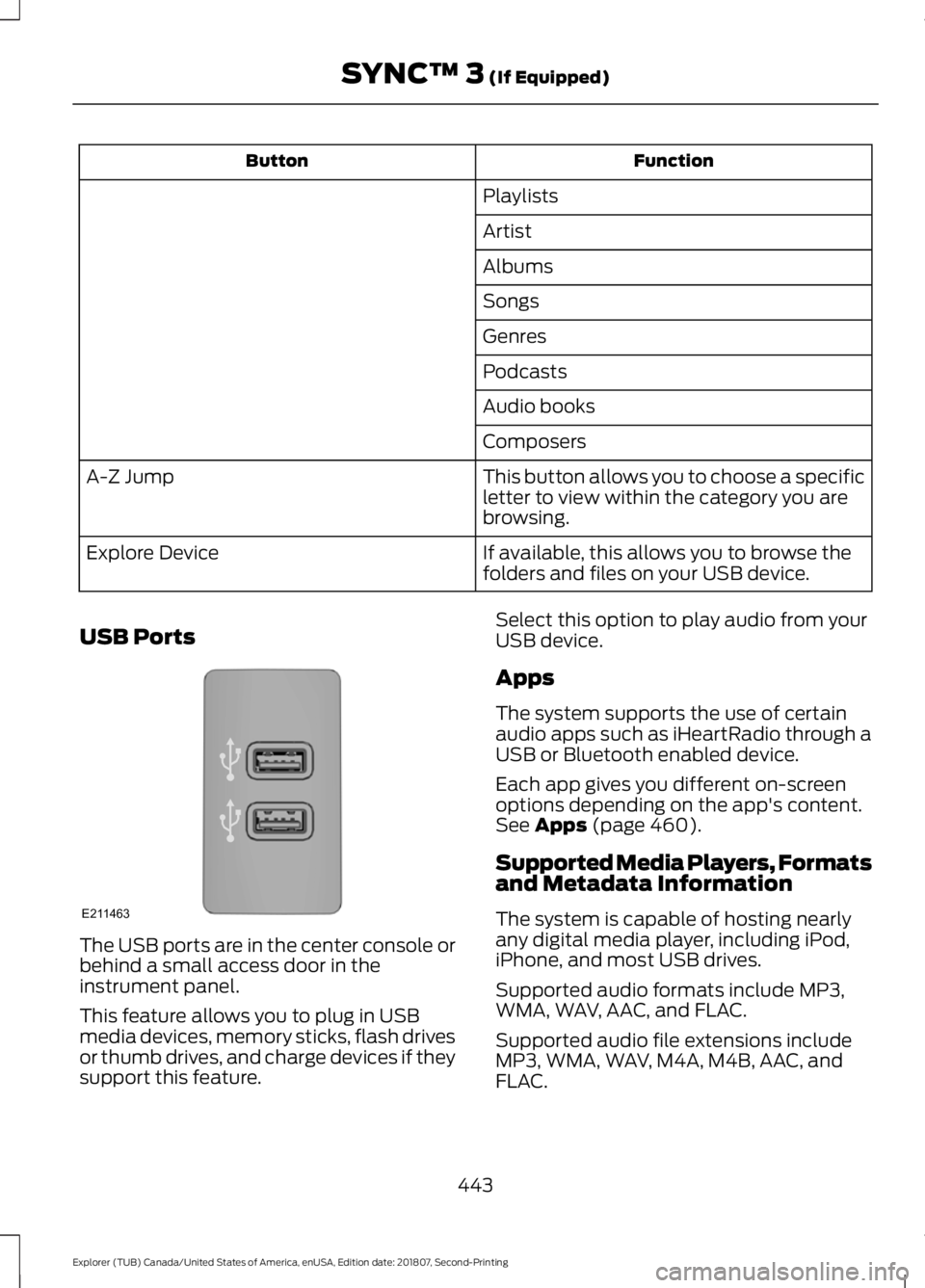
USB Ports The USB ports are in the center console or
behind a small access door in the
instrument panel.
This feature allows you to plug in USB
media devices, memory sticks, flash drives
or thumb drives, and charge devices if they
support this feature. Select this option to play audio from your
USB device.
Apps
The system supports the use of certain
audio apps such as iHeartRadio through a
USB or Bluetooth enabled device.
Each app gives you different on-screen
options depending on the app's content.
See Apps (page 460).
Supported Media Players, Formats
and Metadata Information
The system is capable of hosting nearly
any digital media player, including iPod,
iPhone, and most USB drives.
Supported audio formats include MP3,
WMA, WAV, AAC, and FLAC.
Supported audio file extensions include
MP3, WMA, WAV, M4A, M4B, AAC, and
FLAC.
443
Explorer (TUB) Canada/United States of America, enUSA, Edition date: 201807, Second-Printing SYNC™ 3
(If Equipped)E211463
Page 449 of 571
Note:
Recirculated air may turn off, or
prevent you from switching on, in all air flow
modes except MAX A/C to reduce the risk
of fogging. Recirculation may also turn on
and off in various air distribution control
combinations during hot weather to improve
cooling efficiency.
Switching the Ventilated Seats On
and Off Touch the button to cycle
through the various ventilated
seat settings and off.
Accessing Rear Climate Controls Touch the button to access
additional controls for the rear
climate system.
Rear Climate Control Lock
Indicator Touch the button.
When on, you can only operate
the rear passenger settings
through the front controls.
Switching Rear Auto Mode On and
Off Touch the button to switch on
rear automatic operation, then
set the temperature.
Switching the Rear Climate
Controlled Seats On and Off Touch the button to cycle
through the various climate
controlled seat settings and off. Switching the Rear Heated Seats
On and Off Touch the button to cycle
through the various heat settings
and off.
Switching the Rear Ventilated
Seats On and Off Touch the button to cycle
through the various ventilated
seat settings and off.
PHONE WARNING:
Driving while
distracted can result in loss of vehicle
control, crash and injury. We strongly
recommend that you use extreme
caution when using any device that may
take your focus off the road. Your
primary responsibility is the safe
operation of your vehicle. We
recommend against the use of any
hand-held device while driving and
encourage the use of voice-operated
systems when possible. Make sure you
are aware of all applicable local laws
that may affect the use of electronic
devices while driving.
Hands-free calling is one of the main
features of the system. Once you pair your
cell phone, you can access many options
using the touchscreen or voice commands.
While the system supports a variety of
features, many are dependent on your cell
phone ’s functionality.
Pairing Your Cell Phone for the
First Time
Pair your Bluetooth enabled phone with
the system before using the functions in
hands-free mode.
446
Explorer (TUB) Canada/United States of America, enUSA, Edition date: 201807, Second-Printing SYNC™ 3
(If Equipped)E268558 E270447 E265289 E265282 E268558
Page 450 of 571
Switch on Bluetooth on your device to
begin pairing. See your phone
’s manual if
necessary.
To add a phone, select: Menu Item
Add a Bluetooth Device
1. Follow the on-screen instructions.
2. A prompt alerts you to search for the system on your phone.
3. Select your vehicle on your phone.
4. Confirm that the six-digit number appearing on your phone matches the
six-digit number on the touchscreen.
5. The touchscreen indicates when the pairing is successful.
6. Your phone may prompt you to give the system permission to access
information. To check your phone ’s
compatibility, see your phone ’s manual
or visit the website.
Alternatively, to add a phone, select: Menu Item
Add a Bluetooth Device
Then select:
Discover Other Bluetooth Devices 1. Follow the on-screen instructions.
2. Select your phone's name when it
appears on the touchscreen.
3. Confirm that the six-digit number appearing on your phone matches the
six-digit number on the touchscreen.
4. The touchscreen indicates when the pairing is successful.
5. Your phone may prompt you to give the system permission to access
information. To check your phone ’s
compatibility, see your phone ’s manual
or visit the website.
At a minimum, most cell phones with
Bluetooth wireless technology support the
following functions:
• Answering an incoming call.
• Ending a call.
• Dialing a number.
• Call waiting notification.
• Caller identification.
Other features, such as text messaging
using Bluetooth and automatic phonebook
download, are phone-dependent features.
Phone Menu
This menu becomes available after pairing
a phone.
447
Explorer (TUB) Canada/United States of America, enUSA, Edition date: 201807, Second-Printing SYNC™ 3 (If Equipped)
Page 451 of 571
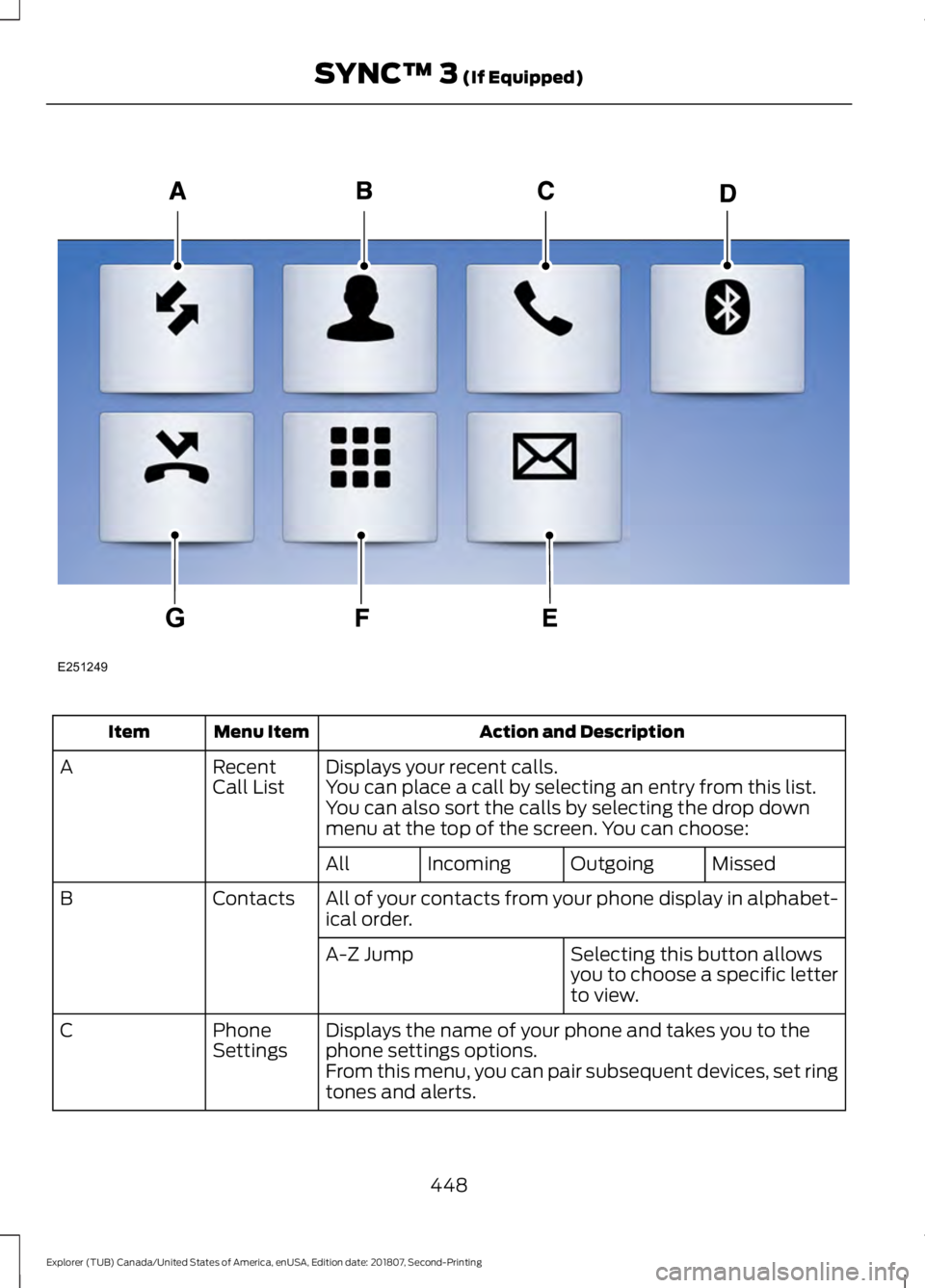
Action and Description
Menu Item
Item
Displays your recent calls.
Recent
Call List
A
You can place a call by selecting an entry from this list.
You can also sort the calls by selecting the drop down
menu at the top of the screen. You can choose:
Missed
Outgoing
Incoming
All
All of your contacts from your phone display in alphabet-
ical order.
Contacts
B
Selecting this button allows
you to choose a specific letter
to view.
A-Z Jump
Displays the name of your phone and takes you to the
phone settings options.
Phone
Settings
C
From this menu, you can pair subsequent devices, set ring
tones and alerts.
448
Explorer (TUB) Canada/United States of America, enUSA, Edition date: 201807, Second-Printing SYNC™ 3 (If Equipped)E251249
G
Page 452 of 571
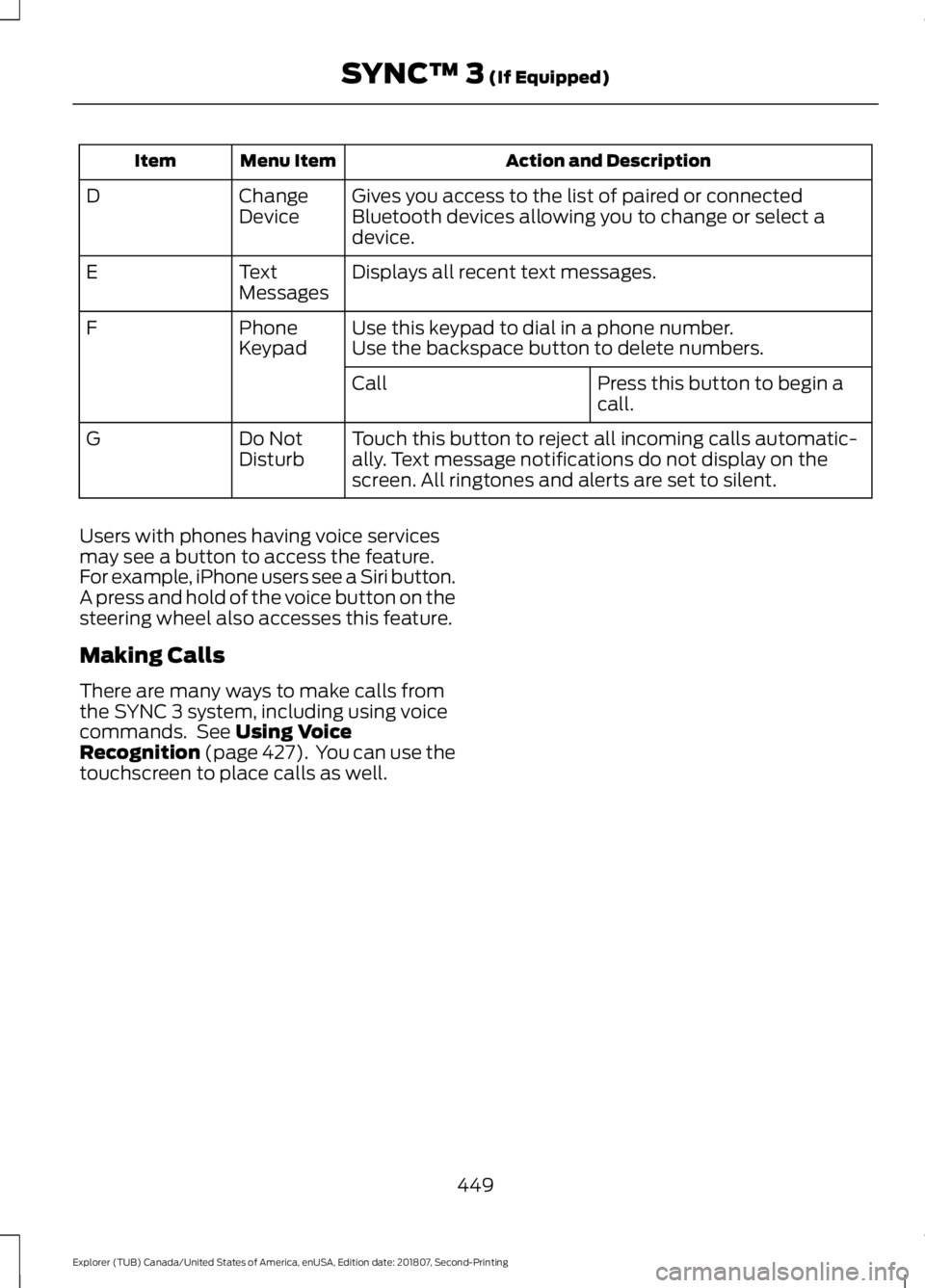
Action and Description
Menu Item
Item
Gives you access to the list of paired or connected
Bluetooth devices allowing you to change or select a
device.
Change
Device
D
Displays all recent text messages.
Text
Messages
E
Use this keypad to dial in a phone number.
Phone
Keypad
F
Use the backspace button to delete numbers.
Press this button to begin a
call.
Call
Touch this button to reject all incoming calls automatic-
ally. Text message notifications do not display on the
screen. All ringtones and alerts are set to silent.
Do Not
Disturb
G
Users with phones having voice services
may see a button to access the feature.
For example, iPhone users see a Siri button.
A press and hold of the voice button on the
steering wheel also accesses this feature.
Making Calls
There are many ways to make calls from
the SYNC 3 system, including using voice
commands. See Using Voice
Recognition (page 427). You can use the
touchscreen to place calls as well.
449
Explorer (TUB) Canada/United States of America, enUSA, Edition date: 201807, Second-Printing SYNC™ 3
(If Equipped)
Page 453 of 571
To call a number in your contacts,
select:
Action and Description
Menu Item
You can then select the
name of the contact you
want to call. Any numbers
stored for that contact
display along with any
stored contact photos. You
can then select the
number that you want to
call. The system begins the
call.
Contacts
To call a number from your recent calls,
select: Action and Description
Menu Item
You can then select an
entry that you want to call.
The system begins the call.
Recent Call
List
To call a number that is not stored in
your phone, select: Action and Description
Menu Item
Select the digits of the
number you wish to call.
Phone
Keypad
The system begins the call.
Call
Pressing the backspace button deletes the
last digit you typed.
Receiving Calls
During an incoming call, an audible tone
sounds. Caller information appears in the
display if it is available. To accept the call, select: Menu Item
Accept
Note: You can also accept the call by
pressing the phone button on the steering
wheel.
To reject the call, select: Menu Item
Reject
Note: You can also reject the call by
pressing the phone button on the steering
wheel.
Ignore the call by doing nothing. SYNC 3
logs it as a missed call.
During a Phone Call
During a phone call, the contacts name
and number display on the screen along
with the call duration.
The phone status items are also visible:
• Signal Strength.
• Battery.
You can select any of the following during
an active phone call:
450
Explorer (TUB) Canada/United States of America, enUSA, Edition date: 201807, Second-Printing SYNC™ 3 (If Equipped)
Page 454 of 571
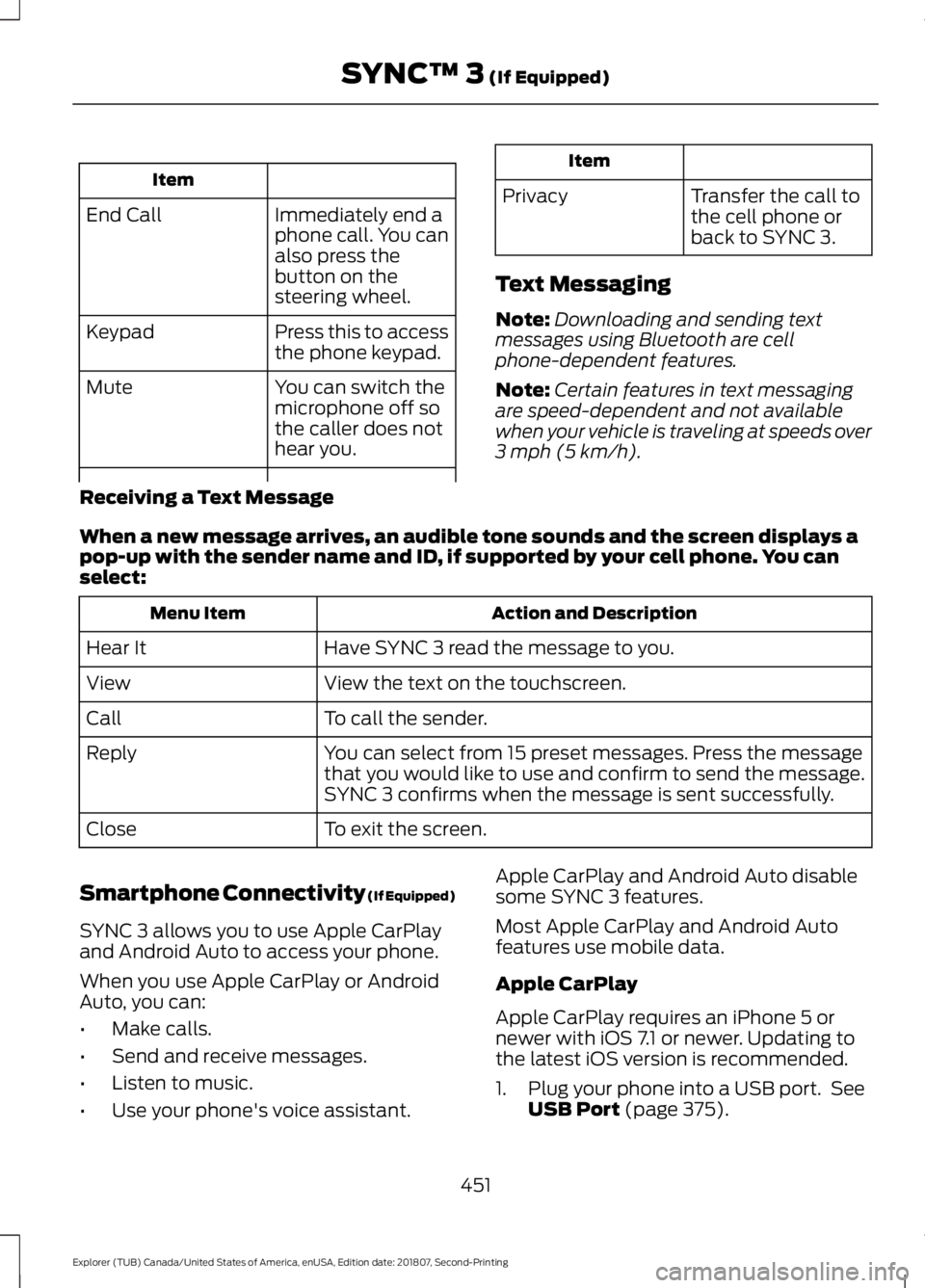
Item
Immediately end a
phone call. You can
also press the
button on the
steering wheel.
End Call
Press this to access
the phone keypad.
Keypad
You can switch the
microphone off so
the caller does not
hear you.
Mute Item
Privacy Transfer the call to
the cell phone or
back to SYNC 3.
Text Messaging
Note: Downloading and sending text
messages using Bluetooth are cell
phone-dependent features.
Note: Certain features in text messaging
are speed-dependent and not available
when your vehicle is traveling at speeds over
3 mph (5 km/h).
Receiving a Text Message
When a new message arrives, an audible tone sounds and the screen displays a
pop-up with the sender name and ID, if supported by your cell phone. You can
select: Action and Description
Menu Item
Have SYNC 3 read the message to you.
Hear It
View the text on the touchscreen.
View
To call the sender.
Call
You can select from 15 preset messages. Press the message
that you would like to use and confirm to send the message.
SYNC 3 confirms when the message is sent successfully.
Reply
To exit the screen.
Close
Smartphone Connectivity (If Equipped)
SYNC 3 allows you to use Apple CarPlay
and Android Auto to access your phone.
When you use Apple CarPlay or Android
Auto, you can:
• Make calls.
• Send and receive messages.
• Listen to music.
• Use your phone's voice assistant. Apple CarPlay and Android Auto disable
some SYNC 3 features.
Most Apple CarPlay and Android Auto
features use mobile data.
Apple CarPlay
Apple CarPlay requires an iPhone 5 or
newer with iOS 7.1 or newer. Updating to
the latest iOS version is recommended.
1. Plug your phone into a USB port. See
USB Port
(page 375).
451
Explorer (TUB) Canada/United States of America, enUSA, Edition date: 201807, Second-Printing SYNC™ 3
(If Equipped)
Page 455 of 571
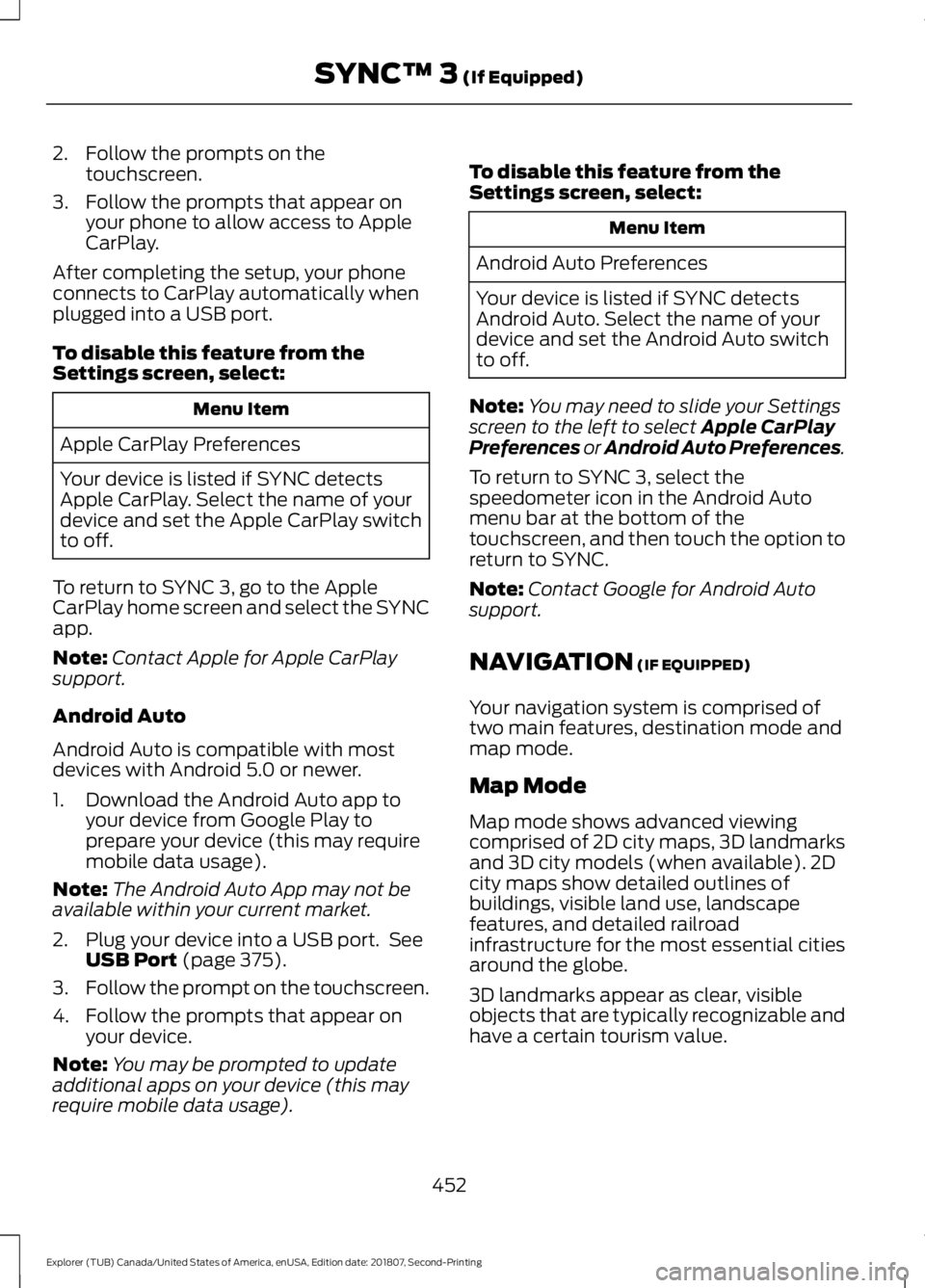
2. Follow the prompts on the
touchscreen.
3. Follow the prompts that appear on your phone to allow access to Apple
CarPlay.
After completing the setup, your phone
connects to CarPlay automatically when
plugged into a USB port.
To disable this feature from the
Settings screen, select: Menu Item
Apple CarPlay Preferences
Your device is listed if SYNC detects
Apple CarPlay. Select the name of your
device and set the Apple CarPlay switch
to off.
To return to SYNC 3, go to the Apple
CarPlay home screen and select the SYNC
app.
Note: Contact Apple for Apple CarPlay
support.
Android Auto
Android Auto is compatible with most
devices with Android 5.0 or newer.
1. Download the Android Auto app to your device from Google Play to
prepare your device (this may require
mobile data usage).
Note: The Android Auto App may not be
available within your current market.
2. Plug your device into a USB port. See USB Port (page 375).
3. Follow the prompt on the touchscreen.
4. Follow the prompts that appear on your device.
Note: You may be prompted to update
additional apps on your device (this may
require mobile data usage). To disable this feature from the
Settings screen, select: Menu Item
Android Auto Preferences
Your device is listed if SYNC detects
Android Auto. Select the name of your
device and set the Android Auto switch
to off.
Note: You may need to slide your Settings
screen to the left to select
Apple CarPlay
Preferences or Android Auto Preferences.
To return to SYNC 3, select the
speedometer icon in the Android Auto
menu bar at the bottom of the
touchscreen, and then touch the option to
return to SYNC.
Note: Contact Google for Android Auto
support.
NAVIGATION
(IF EQUIPPED)
Your navigation system is comprised of
two main features, destination mode and
map mode.
Map Mode
Map mode shows advanced viewing
comprised of 2D city maps, 3D landmarks
and 3D city models (when available). 2D
city maps show detailed outlines of
buildings, visible land use, landscape
features, and detailed railroad
infrastructure for the most essential cities
around the globe.
3D landmarks appear as clear, visible
objects that are typically recognizable and
have a certain tourism value.
452
Explorer (TUB) Canada/United States of America, enUSA, Edition date: 201807, Second-Printing SYNC™ 3
(If Equipped)