warning FORD EXPLORER 2020 Owners Manual
[x] Cancel search | Manufacturer: FORD, Model Year: 2020, Model line: EXPLORER, Model: FORD EXPLORER 2020Pages: 555, PDF Size: 8.16 MB
Page 251 of 555
•
The system does not detect at least
one lane marking or when lanes merge
or split.
• You switch the direction indicator on.
• Limited steering torque input is applied.
• Areas under construction or new
infrastructure.
• When modifications to the steering
system have been made.
• When using a spare tire.
Note: The assistance steering torque is
limited and may not be sufficient for all
driving situations.
Note: In exceptional conditions, the system
may deviate from the center line.
ADAPTIVE CRUISE CONTROL
LIMITATIONS - VEHICLES
WITH: ADAPTIVE CRUISE
CONTROL WITH STOP AND GO
Sensor Limitations WARNING: On rare occasions,
detection issues can occur due to the
road infrastructures, for example bridges,
tunnels and safety barriers. In these
cases, the system may brake late or
unexpectedly. At all times, you are
responsible for controlling your vehicle,
supervising the system and intervening,
if required. WARNING:
If the system
malfunctions, have your vehicle checked
as soon as possible. WARNING:
Large contrasts in
outside lighting can limit sensor
performance. WARNING:
The system only warns
of vehicles detected by the radar sensor.
In some cases there may be no warning
or a delayed warning. Apply the brakes
when necessary. Failure to follow this
instruction could result in personal injury
or death. WARNING:
The system may not
detect stationary or slow moving
vehicles below
6 mph (10 km/h). WARNING:
The system does not
detect pedestrians or objects in the road. WARNING:
The system does not
detect oncoming vehicles in the same
lane. WARNING:
The system may not
operate properly if the sensor is blocked.
Keep the windshield free from
obstruction. WARNING:
The sensor may
incorrectly track lane markings as other
structures or objects. This can result in
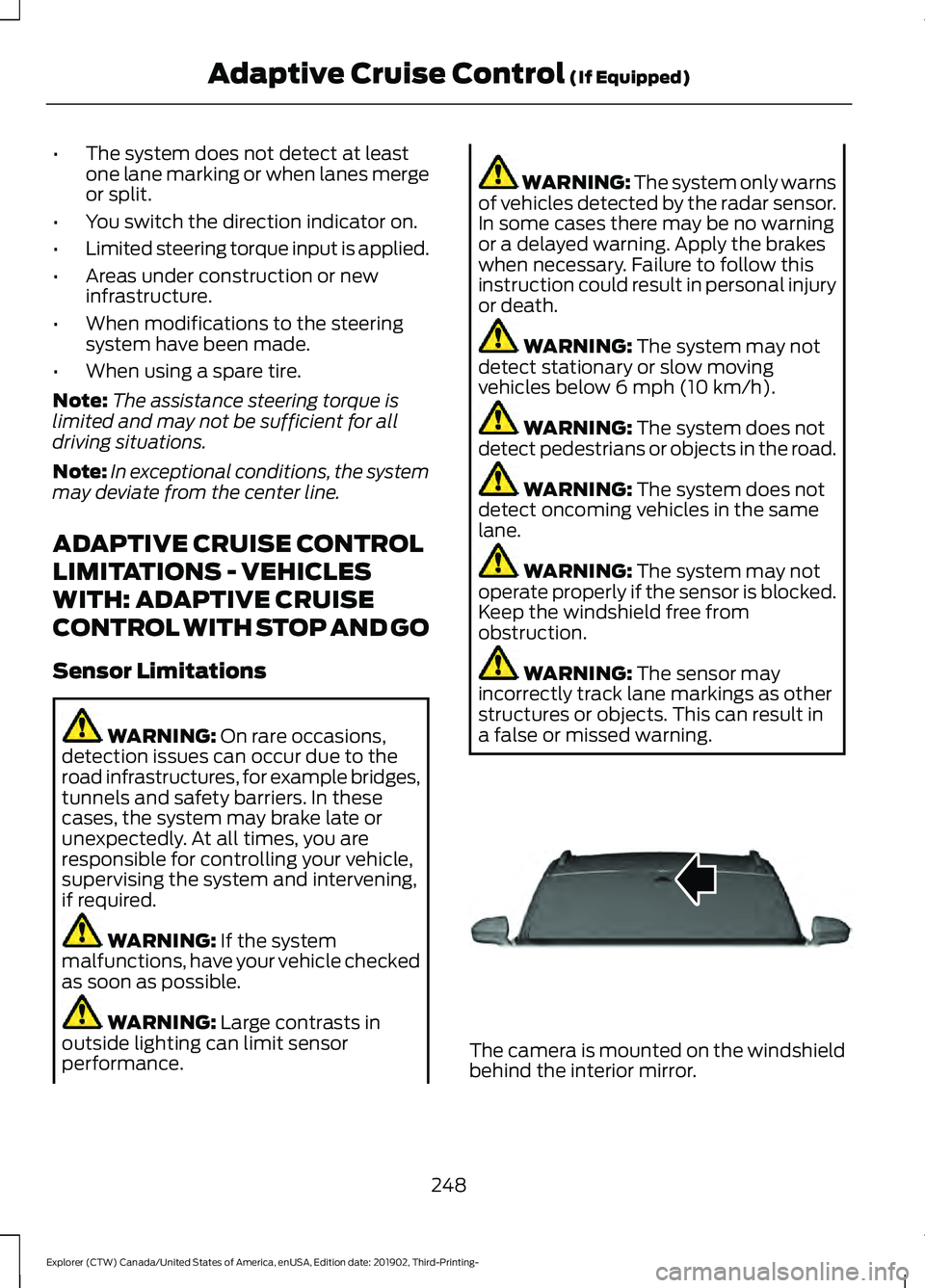
a false or missed warning. The camera is mounted on the windshield
behind the interior mirror.
248
Explorer (CTW) Canada/United States of America, enUSA, Edition date: 201902, Third-Printing- Adaptive Cruise Control
(If Equipped)E307893
Page 255 of 555
Following a Vehicle
When a vehicle ahead of you enters the
same lane or a slower vehicle is ahead in
the same lane, the vehicle speed adjusts
to maintain the gap setting.
Note:
When you are following a vehicle and
you switch on a direction indicator, adaptive
cruise control may provide a small
temporary acceleration to help you pass.
Your vehicle maintains a consistent gap
from the vehicle ahead until:
• The vehicle in front of you accelerates
to a speed above the set speed.
• The vehicle in front of you moves out
of the lane you are in.
• You set a new gap distance.
The system applies the brakes to slow your
vehicle to maintain a safe gap distance
from the vehicle in front. The system only
applies limited braking. You can override
the system by applying the brakes.
Note: The brakes may emit noise when
applied by the system.
If the system determines that its maximum
braking level is not sufficient, an audible
warning sounds, a message appears in the
information display and an indicator
flashes when the system continues to
brake. Take immediate action.
CANCELING THE SET SPEED Press the button or tap the brake
pedal.
The set speed does not erase.
RESUMING THE SET SPEED Press the button. Your vehicle speed returns to the
previously set speed and gap setting. The
set speed displays continuously in the
information display when the system is
active.
Note:
Only use resume if you are aware of
the set speed and intend to return to it.
Resuming the Set Speed from a
Complete Stop
If your vehicle follows a vehicle to a
complete stop and remains stationary for
less than three seconds, your vehicle
accelerates from a stationary position to
follow the vehicle ahead. If your vehicle follows a vehicle
to a complete stop and remains
stationary for more than three
seconds, press and release the button or
press the accelerator pedal to follow the
vehicle ahead.
OVERRIDING THE SET SPEED WARNING: If you override the
system by pressing the accelerator
pedal, it does not automatically apply
the brakes to maintain a gap from any
vehicle ahead.
When you press the accelerator pedal, you
override the set speed and gap distance.
Use the accelerator pedal to intentionally
exceed the set speed limit.
When you override the system, the green
indicator illuminates and the vehicle icon
does not appear in the information display.
The system resumes operation when you
release the accelerator pedal. The vehicle
speed decreases to the set speed, or a
lower speed if following a slower vehicle.
252
Explorer (CTW) Canada/United States of America, enUSA, Edition date: 201902, Third-Printing- Adaptive Cruise Control
(If Equipped)E280804
Page 256 of 555
ADAPTIVE CRUISE CONTROL
INDICATORS - VEHICLES
WITH: ADAPTIVE CRUISE
CONTROL WITH LANE
CENTERING
Illuminates when you switch
lane centering on. The color of
the indicator changes to indicate
the system status.
Gray indicates the system is on but
inactive.
Green indicates the system is active and
applying assistance steering torque input
to keep your vehicle in the center of the
lane.
Amber with an audible tone and then gray
indicates a system auto-cancellation.
ADAPTIVE CRUISE CONTROL
INDICATORS - VEHICLES
WITH: ADAPTIVE CRUISE
CONTROL WITH STOP AND GO Illuminates when you switch
adaptive cruise control on. The
color of the indicator changes to
indicate the system status.
White indicates the system is on but
inactive.
Green indicates that you set the speed and
the system is active. ADAPTIVE CRUISE CONTROL
INDICATORS - VEHICLES
WITH: INTELLIGENT ADAPTIVE
CRUISE CONTROL
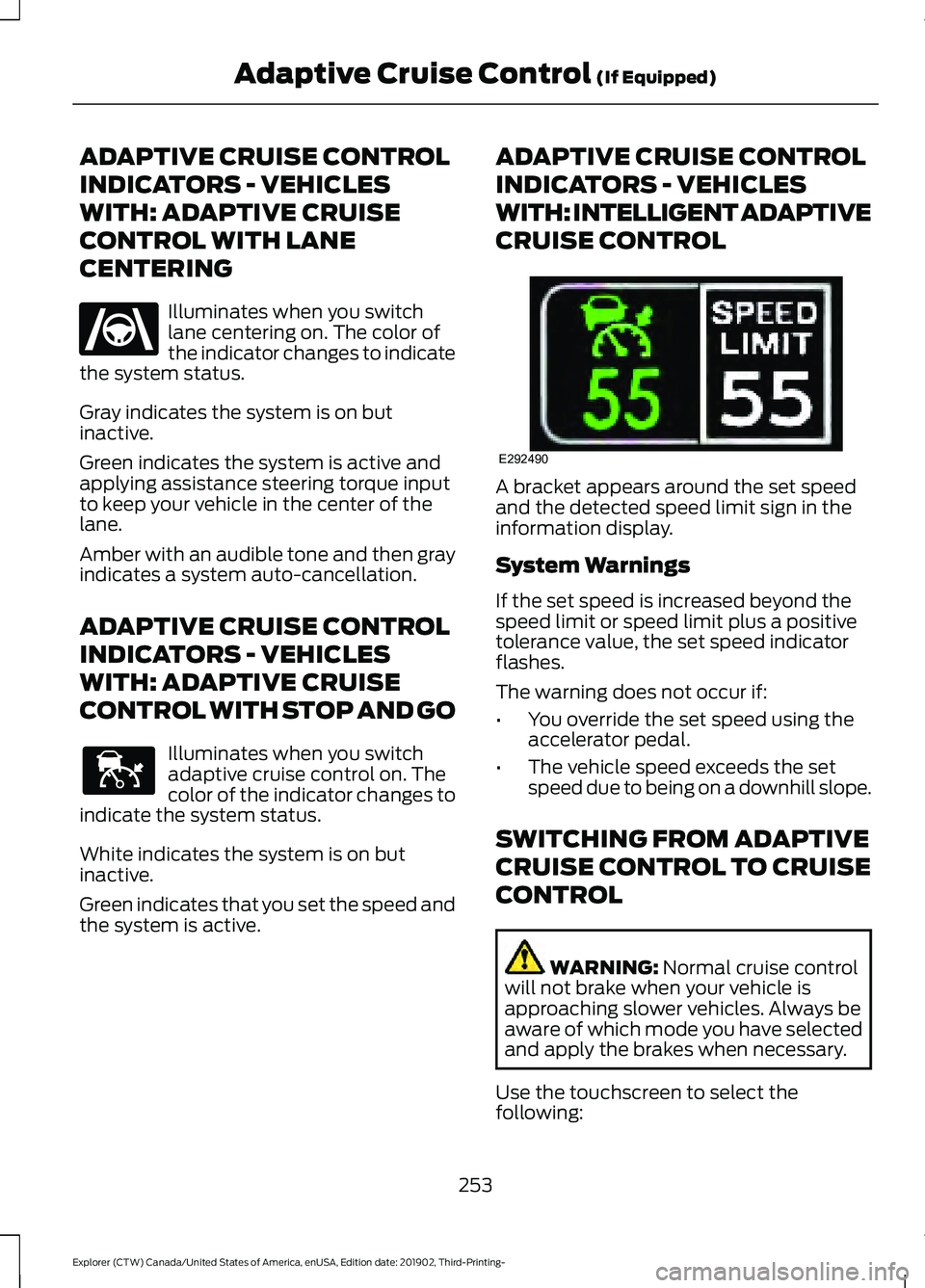
A bracket appears around the set speed
and the detected speed limit sign in the
information display.
System Warnings
If the set speed is increased beyond the
speed limit or speed limit plus a positive
tolerance value, the set speed indicator
flashes.
The warning does not occur if:
•
You override the set speed using the
accelerator pedal.
• The vehicle speed exceeds the set
speed due to being on a downhill slope.
SWITCHING FROM ADAPTIVE
CRUISE CONTROL TO CRUISE
CONTROL WARNING: Normal cruise control
will not brake when your vehicle is
approaching slower vehicles. Always be
aware of which mode you have selected
and apply the brakes when necessary.
Use the touchscreen to select the
following:
253
Explorer (CTW) Canada/United States of America, enUSA, Edition date: 201902, Third-Printing- Adaptive Cruise Control
(If Equipped)E262175 E144529 E292490
Page 257 of 555
1. Select Settings.
2. Select
Driver Assist..
3. Select
Cruise Control.
4. Select
Normal. The cruise control indicator
replaces the adaptive cruise
control indicator if you select
normal cruise control. The gap setting does
not display, and the system does not
respond to lead vehicles. Automatic
braking remains active to maintain set
speed. The system remembers the last
setting when you start your vehicle.
SWITCHING LANE CENTERING
ON AND OFF
The cruise controls are on the steering
wheel. See
Cruise Control (page 82). Press the button.
The indicator appears in the information
display. When the system is on, the color
of the indicator changes to indicate the
system status. See
Adaptive Cruise
Control Indicators (page 253).
Note: Adaptive cruise control must be on
before you can switch lane centering on.
Activating Lane Centering
The system only activates when all of the
following occur:
• You have adaptive cruise control with
stop-and-go on.
• Your hands are on the steering wheel.
• The system detects both lane
markings.
Note: If it does not detect valid lane
markings, the system stays inactive until
valid markings are available. You can override the system at any time
by steering your vehicle.
System Alerts and Automatic
Cancellation
You must keep your hands on the steering
wheel at all times.
When the system is active and detects no
steering activity for a certain period of time,
the system alerts you to put your hands on
the steering wheel. If you do not react to
the warnings the system cancels and slows
your vehicle down to idle speeds while
maintaining steering control.
The system also alerts you if your vehicle
crosses lane markings without detected
steering activity.
Note:
The system may detect a light grip
or touch on the steering wheel as hands-off
driving.
When an external condition cancels the
system, for example, no lane markings
available, a tone sounds and a message
appears in the information display. If your vehicle starts to slow
down, you must provide steering
input to the wheel and press and
release the button to regain full system
performance.
Automatic cancellation can also occur if:
• The lane becomes too wide or too
narrow.
• The system cannot detect valid lane
markings.
• Lane markings are crossed.
Note: The system disables until the next
key cycle if your vehicle slows down due to
driver inactivity twice within a key cycle.
254
Explorer (CTW) Canada/United States of America, enUSA, Edition date: 201902, Third-Printing- Adaptive Cruise Control
(If Equipped)E71340 E262175
Page 258 of 555
SWITCHING INTELLIGENT
MODE ON AND OFF
WARNING: You are responsible for
controlling your vehicle at all times. The
system is designed to be an aid and does
not relieve you of your responsibility to
drive with due care and attention. Failure
to follow this instruction could result in
the loss of control of your vehicle,
personal injury or death.
Use the touchscreen to select the
following:
1. Select Settings. See Settings (page
469).
2. Select
Driver Assist..
3. Select
Cruise Control.
Changing the Set Speed with
Intelligent Adaptive Cruise Control
When intelligent mode is on, the system
adjusts the set speed to the speed limit
detected by the camera and the speed
limit information provided by the
navigation system.
Note: The set speed adjusts when the
system detects a different maximum speed
limit.
Note: The speed limit information provided
by the navigation map data may be
inaccurate or out of date. See
Navigation
(page 460).
Note: The system alerts you if the set speed
increases beyond the speed limit. See
Adaptive Cruise Control Indicators (page
253
).
If the system does not detect a speed limit,
the vehicle speed remains at the current
set speed. You can override the set speed at any time.
You may need to override or cancel the
system in certain situations such as
inclement weather or if an incorrect speed
is set.
Note:
The system may not detect and read
speed limit signs with conditional
information, for example, when a sign is
flashing, during specific time ranges, or
when children are present.
Note: Under certain conditions, the system
may not adjust the vehicle speed until after
your vehicle passes the speed limit sign.
ADJUSTING THE SET SPEED
TOLERANCE
You can set a permanent speed tolerance
that is above or below the detected speed
limit.
Use the touchscreen to select the
following:
1. Select
Settings. See Settings (page
469).
2. Select
Driver Assist.
3. Select
Cruise Control.
4. Select
Tolerance.
5. Use
+ and - to set the tolerance.
Note: You cannot set the tolerance more
than
20 mph (30 km/h) above or below the
recognized speed.
255
Explorer (CTW) Canada/United States of America, enUSA, Edition date: 201902, Third-Printing- Adaptive Cruise Control
(If Equipped)
Page 260 of 555
Adaptive Cruise Control –
Information Messages - Vehicles
With: Adaptive Cruise Control With
Stop and Go
Note:
Depending on your vehicle options
and instrument cluster type, not all
messages display or are available.
Note: Certain messages may be
abbreviated or shortened depending upon
which cluster type you have. Action
Message
A malfunction is preventing the adaptive cruise from engaging.
Adaptive Cruise
Malfunction
Front Sensor Not Aligned Contact an authorized dealer to have the radar checked for
proper coverage and operation.
Conditions exist preventing the system from being available.
Adaptive Cruise Not
Available
The radar is blocked because of poor radar visibility due to
inclement weather or ice, mud, or water in front of the radar. You can typically clean the sensor to resolve this.
Adaptive Cruise Not
Available Sensor
Blocked See Manual Due to the nature of radar technology, it is possible to get ablockage warning with no actual block. This happens, for
example, when driving in sparse rural or desert environments.
A false blocked condition either self clears, or clears after you restart your vehicle.
You have selected normal cruise control. The system does not brake or react to traffic.
Normal Cruise Active
Adaptive Braking Off
Displays when the adaptive cruise is going to cancel and youmust take control.
Adaptive Cruise - Driver
Resume Control
Displays when the vehicle speed is too slow to activate theadaptive cruise and there is no lead vehicle in range.
Adaptive Cruise Speed
Too Low to Activate
257
Explorer (CTW) Canada/United States of America, enUSA, Edition date: 201902, Third-Printing- Adaptive Cruise Control (If Equipped)
Page 262 of 555
DRIVER ALERT
PRINCIPLE OF OPERATION
WARNING: You are responsible for
controlling your vehicle at all times. The
system is designed to be an aid and does
not relieve you of your responsibility to
drive with due care and attention. Failure
to follow this instruction could result in
the loss of control of your vehicle,
personal injury or death. WARNING: The system may not
function if the sensor is blocked. WARNING:
Take regular rest
breaks if you feel tired. Do not wait for
the system to warn you. WARNING:
Certain driving styles
may result in the system warning you
even if you are not feeling tired. WARNING:
In cold and severe
weather conditions the system may not
function. Rain, snow and spray can all
limit sensor performance. WARNING:
The system will not
operate if the sensor cannot track the
road lane markings. WARNING:
If damage occurs in the
immediate area surrounding the sensor,
have your vehicle checked as soon as
possible. WARNING:
The system may not
correctly operate if your vehicle is fitted
with a suspension kit not approved by
us.
Note: Keep the windshield free from
obstructions. For example, bird droppings,
insects and snow or ice. Note:
If the camera is blocked or if the
windshield is damaged, the system may not
function.
Note: The system remembers the on or off
setting in the information display menu
through ignition cycles.
Note: If enabled in the menu, the system
activates at speeds above
40 mph
(64 km/h). When below the activation
speed, the information display informs the
driver that the system is unavailable. The system automatically monitors your
driving behavior using various inputs
including the front camera sensor.
If the system detects that your driving
alertness is reduced below a certain
threshold, the system alerts you using a
chime and a message in the cluster display.
USING DRIVER ALERT
Switching the System On and Off
Switch the system on or off using the
touchscreen. See
Settings (page 469).
When active, the system monitors your
alertness level based upon your driving
behavior in relation to the lane markings,
and other factors.
System Warnings
Note: The system does not issue warnings
below approximately
40 mph (64 km/h).
259
Explorer (CTW) Canada/United States of America, enUSA, Edition date: 201902, Third-Printing- Driving AidsE249505
Page 263 of 555
Note:
If you receive a warning you should
consider resting, even if the current
assessment is within the typical range.
The warning system has two stages. At
first, the system issues a temporary
warning that you need to take a rest. This
message only appears for a short time. If
the system detects further reduction in
driving alertness, it may issue another
warning that remains in the information
display for a longer time. You can press OK
on the steering wheel control to clear the
warning.
Resetting the System
You can reset the system by either:
• Switching the ignition off and on.
• Stopping the vehicle and then opening
and closing the driver ’s door.
LANE KEEPING SYSTEM WARNING: You are responsible for
controlling your vehicle at all times. The
system is designed to be an aid and does
not relieve you of your responsibility to
drive with due care and attention. Failure
to follow this instruction could result in
the loss of control of your vehicle,
personal injury or death. WARNING: Always drive with due
care and attention when using and
operating the controls and features on
your vehicle. WARNING:
In cold and severe
weather conditions the system may not
function. Rain, snow and spray can all
limit sensor performance. WARNING:
Large contrasts in
outside lighting can limit sensor
performance. WARNING:
The system will not
operate if the sensor cannot track the
road lane markings. WARNING:
The sensor may
incorrectly track lane markings as other
structures or objects. This can result in
a false or missed warning. WARNING:
The system may not
operate properly if the sensor is blocked.
Keep the windshield free from
obstruction. WARNING:
If damage occurs in the
immediate area surrounding the sensor,
have your vehicle checked as soon as
possible. WARNING:
The system may not
correctly operate if your vehicle is fitted
with a suspension kit not approved by
us.
Note: The system works above
40 mph
(64 km/h).
Note: The system works as long as the
camera can detect one lane marking.
Note: When you select aid or alert and aid
mode and the system detects no steering
activity for a short period, the system alerts
you to put your hands on the steering wheel.
The system may detect a light grip or
touch on the steering wheel as hands off
driving.
Note: The system may not function if the
camera is blocked, or if the windshield is
damaged or dirty.
260
Explorer (CTW) Canada/United States of America, enUSA, Edition date: 201902, Third-Printing- Driving Aids
Page 264 of 555
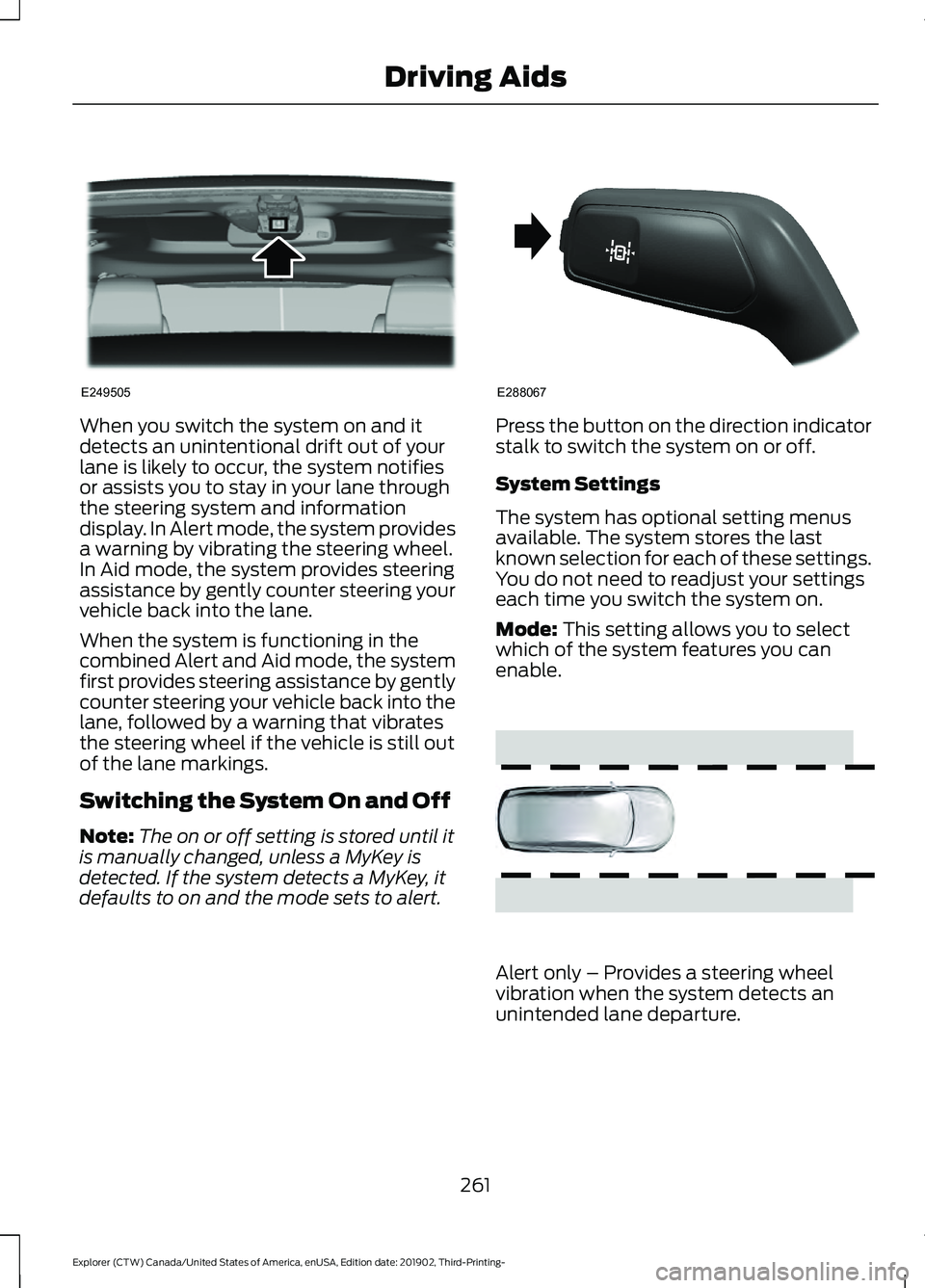
When you switch the system on and it
detects an unintentional drift out of your
lane is likely to occur, the system notifies
or assists you to stay in your lane through
the steering system and information
display. In Alert mode, the system provides
a warning by vibrating the steering wheel.
In Aid mode, the system provides steering
assistance by gently counter steering your
vehicle back into the lane.
When the system is functioning in the
combined Alert and Aid mode, the system
first provides steering assistance by gently
counter steering your vehicle back into the
lane, followed by a warning that vibrates
the steering wheel if the vehicle is still out
of the lane markings.
Switching the System On and Off
Note:
The on or off setting is stored until it
is manually changed, unless a MyKey is
detected. If the system detects a MyKey, it
defaults to on and the mode sets to alert. Press the button on the direction indicator
stalk to switch the system on or off.
System Settings
The system has optional setting menus
available. The system stores the last
known selection for each of these settings.
You do not need to readjust your settings
each time you switch the system on.
Mode: This setting allows you to select
which of the system features you can
enable. Alert only – Provides a steering wheel
vibration when the system detects an
unintended lane departure.
261
Explorer (CTW) Canada/United States of America, enUSA, Edition date: 201902, Third-Printing- Driving AidsE249505 E288067 E165515
Page 265 of 555
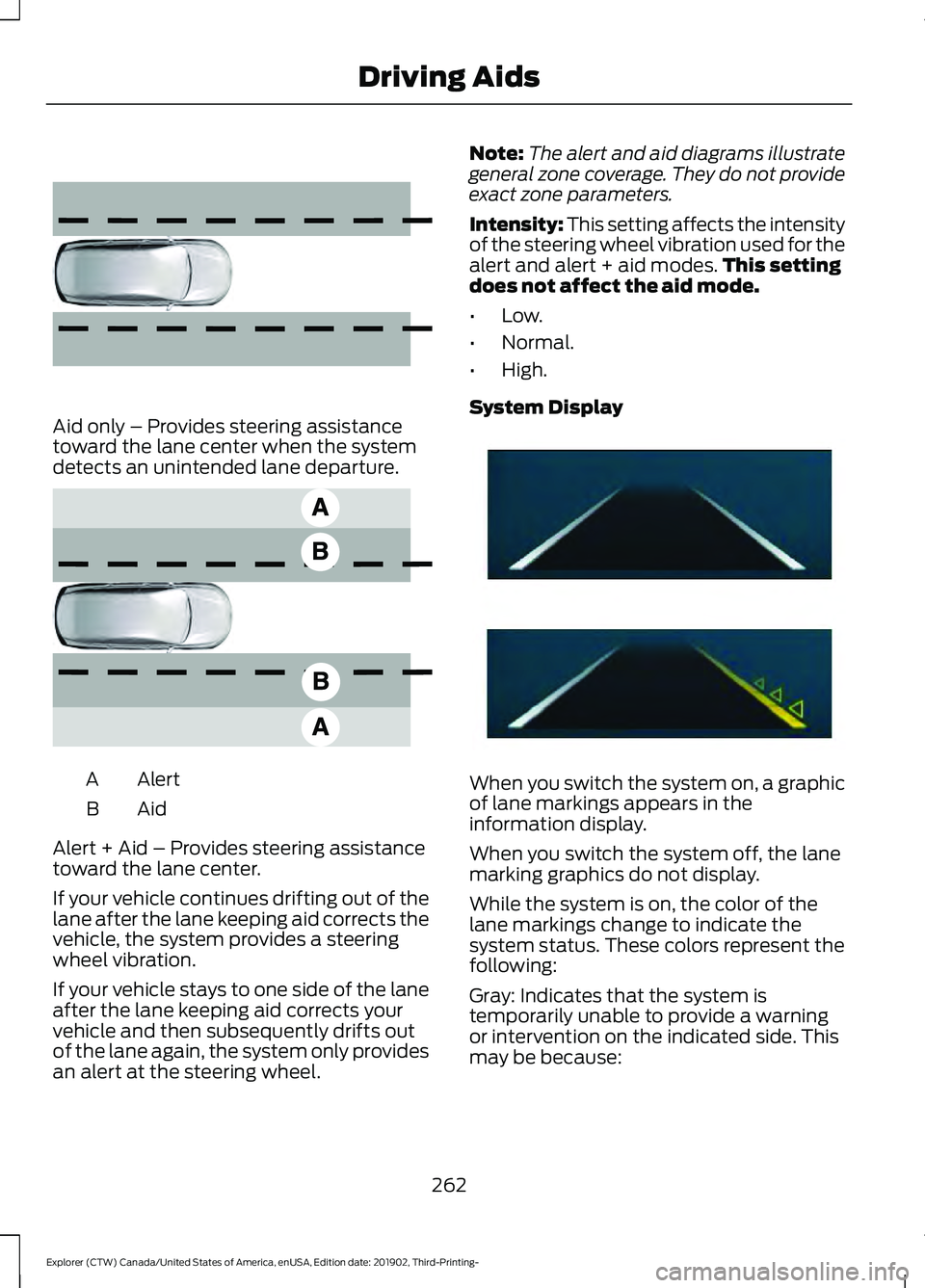
Aid only – Provides steering assistance
toward the lane center when the system
detects an unintended lane departure.
Alert
A
AidB
Alert + Aid – Provides steering assistance
toward the lane center.
If your vehicle continues drifting out of the
lane after the lane keeping aid corrects the
vehicle, the system provides a steering
wheel vibration.
If your vehicle stays to one side of the lane
after the lane keeping aid corrects your
vehicle and then subsequently drifts out
of the lane again, the system only provides
an alert at the steering wheel. Note:
The alert and aid diagrams illustrate
general zone coverage. They do not provide
exact zone parameters.
Intensity: This setting affects the intensity
of the steering wheel vibration used for the
alert and alert + aid modes. This setting
does not affect the aid mode.
• Low.
• Normal.
• High.
System Display When you switch the system on, a graphic
of lane markings appears in the
information display.
When you switch the system off, the lane
marking graphics do not display.
While the system is on, the color of the
lane markings change to indicate the
system status. These colors represent the
following:
Gray: Indicates that the system is
temporarily unable to provide a warning
or intervention on the indicated side. This
may be because:
262
Explorer (CTW) Canada/United States of America, enUSA, Edition date: 201902, Third-Printing- Driving Aids E165516 E165517 E294544