lighting FORD EXPLORER 2021 User Guide
[x] Cancel search | Manufacturer: FORD, Model Year: 2021, Model line: EXPLORER, Model: FORD EXPLORER 2021Pages: 577, PDF Size: 9.79 MB
Page 96 of 577
Changing the Color
Touch any color once.
Adjusting the Brightness
Drag the selected color left or right.
Switching Ambient Lighting Off
Touch the selected color once or drag the
selected color left to zero brightness.
93
Explorer (CTW), enUSA, Edition date: 202007, Second-Printing Lighting
Page 97 of 577
WHAT IS AUTOMATIC HIGH
BEAM CONTROL
The system turns on high beams if it is dark
enough and no other traffic is present. If it
detects an approaching vehicle
’s
headlamps or tail lamps, or street lighting
ahead, the system turns the high beams
off. Low beams remain on.
A camera sensor, centrally mounted
behind the windshield of your vehicle,
continuously monitors conditions to turn
the high beams on and off.
SWITCHING AUTOMATIC HIGH
BEAM CONTROL ON AND OFF WARNING: Do not use the system
in poor visibility, for example fog, heavy
rain, spray or snow.
1. Press
Settings on the touchscreen.
2. Press
Vehicle.
3. Press
Lighting.
Activating the Automatic High
Beam Control Switch the lighting control to the
autolamps position. See
Autolamps
(page 88).
Note: The lighting control defaults to
autolamps each time you switch your
vehicle on.
When active, the high beams turn on if:
• The ambient light level is low enough.
• There is no traffic in front of your
vehicle.
• The vehicle speed is greater than
approximately
32 mph (51 km/h). When active, the high beams turn off if:
•
The ambient light level is high enough
that high beams are not required.
• The system detects an approaching
vehicle's headlamps or tail lamps.
• The system detects severe rain, snow
or fog.
• The camera is blocked.
• The vehicle speed falls below
approximately
27 mph (44 km/h).
Note: The deactivation speed is lower on
curves.
Note: High beam reactivation may be
delayed in certain curvy road situations.
Note: The system may not operate properly
if the sensor is blocked. Keep the windshield
free from obstruction or damage.
Note: The system may not operate properly
in cold or inclement conditions. You can
switch on the high beams by overriding the
system.
Note: If the system detects a blockage, for
example bird droppings, bug splatter, snow
or ice, the system goes into low beam mode
until you clear the blockage. A message may
appear in the information display if the
camera is blocked.
Note: Using much larger tires or equipping
vehicle accessories such as snowplows can
modify your vehicle's ride height and
degrade automatic high beam control
performance.
AUTOMATIC HIGH BEAM
CONTROL INDICATORS The indicator illuminates to
confirm when the system is
ready to assist.
94
Explorer (CTW), enUSA, Edition date: 202007, Second-Printing Automatic High Beam ControlE281240
Page 138 of 577
Tire Pressure Monitoring System
Action
Message
One or more tires on your vehicle have low tire pressure. See Tire
Pressure Monitoring System (page 368).
Tire Pressure Low
The tire pressure monitoring system is malfunctioning. If the warning
stays on or continues to come on, have the system checked as soonas possible. See
Tire Pressure Monitoring System (page 368).
Tire Pressure
Monitor Fault
A tire pressure sensor is malfunctioning, or your spare tire is in use.For more information on how the system operates under these
conditions, See
Tire Pressure Monitoring System (page 368). If
the warning stays on or continues to come on, have the system checked as soon as possible.
Tire Pressure
Sensor Fault
Trailer Action
Message
A correct trailer connection is sensed duringa given ignition cycle.
Trailer Connected
A trailer connection becomes disconnected,either intentionally or unintentionally, and has been sensed during a given ignition cycle.
Trailer Disconnected
The trailer sway control has detected trailersway.
Trailer Sway Reduce Speed
There are certain faults in your vehicle
wiring and trailer wiring/brake system. See Towing a Trailer
(page 288).
Trailer Wiring Fault
There is a fault with your trailer turn lamp.Check your lamp.
Trailer Left Turn Lamps Fault Check Lamps
There is a fault with your trailer turn lamp.Check your lamp.
Trailer Right Turn Lamps Fault Check
Lamps
There is a fault with your trailer battery.See
Towing a Trailer (page 288).
Trailer Battery Not Charging See Manual
There is a fault with your vehicle trailer
lighting module. See
Towing a Trailer
(page 288).
Trailer Lighting Module Fault See Manual
135
Explorer (CTW), enUSA, Edition date: 202007, Second-Printing Information Displays
Page 165 of 577
UNIVERSAL GARAGE DOOR
OPENER
HomeLink Wireless Control
System
WARNING: Do not use the system
with any garage door opener that does
not have the safety stop and reverse
feature as required by U.S. Federal
Safety Standards (this includes any
garage door opener manufactured
before April 1, 1982). A garage door
opener which cannot detect an object,
signaling the door to stop and reverse,
does not meet current federal safety
standards. Using a garage door opener
without these features increases the risk
of serious injury or death.
Note: Make sure that the garage door and
security device are free from obstruction
when you are programming. Do not program
the system with the vehicle in the garage.
Note: Make sure you keep the original
remote control transmitter for use in other
vehicles as well as for future system
programming.
Note: We recommend that upon the sale
or lease termination of your vehicle, you
erase the programmed function buttons for
security reasons. See Erasing the Function
Button Codes
.
Note: You can program a maximum of
three devices. To change or replace any of
the three devices after it has been initially
programmed, you must first erase the
current settings. See Erasing the Function
Button Codes
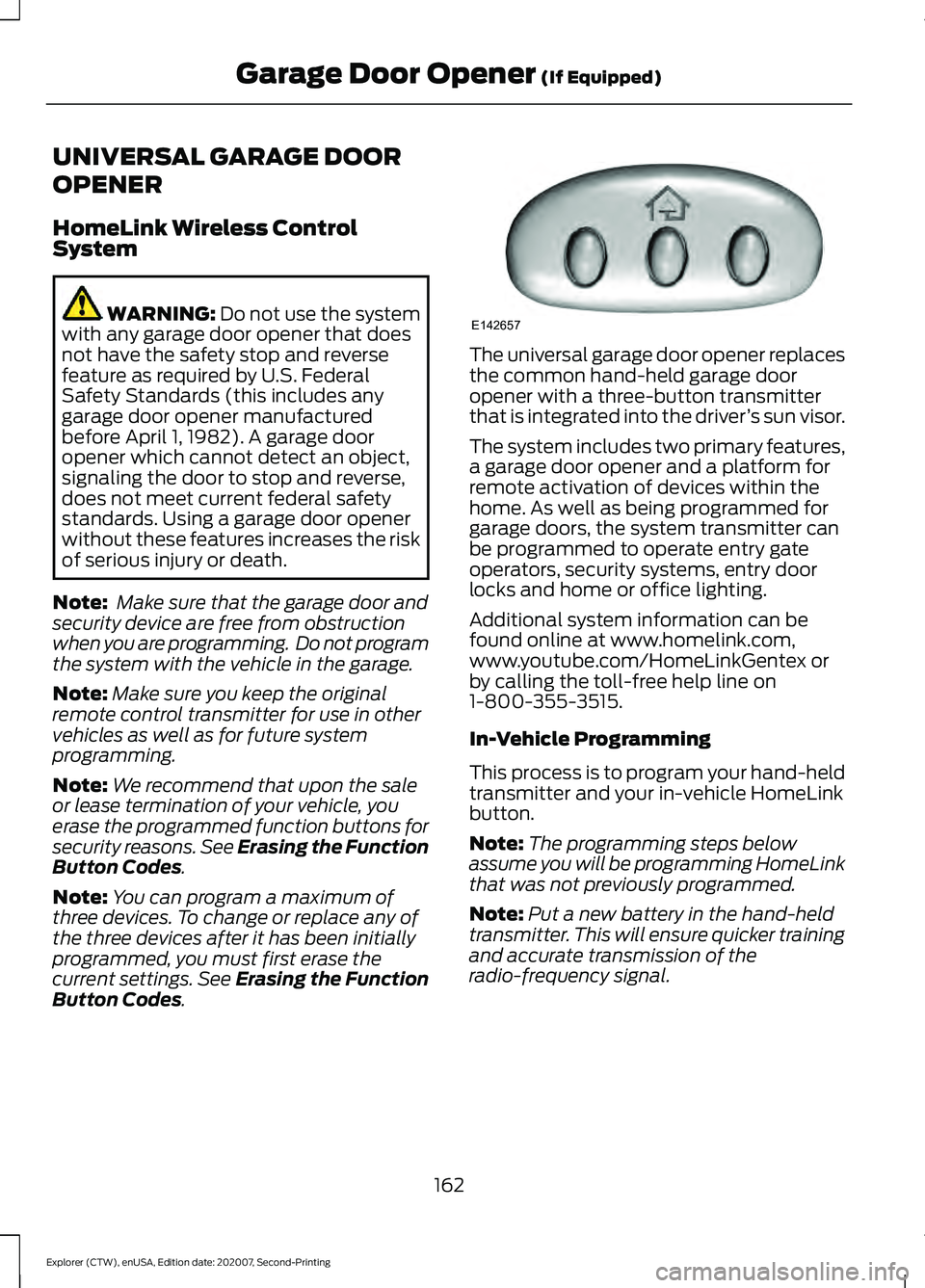
. The universal garage door opener replaces
the common hand-held garage door
opener with a three-button transmitter
that is integrated into the driver
’s sun visor.
The system includes two primary features,
a garage door opener and a platform for
remote activation of devices within the
home. As well as being programmed for
garage doors, the system transmitter can
be programmed to operate entry gate
operators, security systems, entry door
locks and home or office lighting.
Additional system information can be
found online at www.homelink.com,
www.youtube.com/HomeLinkGentex or
by calling the toll-free help line on
1-800-355-3515.
In-Vehicle Programming
This process is to program your hand-held
transmitter and your in-vehicle HomeLink
button.
Note: The programming steps below
assume you will be programming HomeLink
that was not previously programmed.
Note: Put a new battery in the hand-held
transmitter. This will ensure quicker training
and accurate transmission of the
radio-frequency signal.
162
Explorer (CTW), enUSA, Edition date: 202007, Second-Printing Garage Door Opener
(If Equipped)E142657
Page 251 of 577
•
The system does not detect at least
one lane marking or when lanes merge
or split.
• You switch the direction indicator on.
• Limited steering torque input is applied.
• Areas under construction or new
infrastructure.
• When modifications to the steering
system have been made.
• When using a spare tire.
Note: The driving assistance torque is
limited and may not be sufficient for all
driving situations such as driving through
tight curves or driving through curves at high
speeds.
Note: In exceptional conditions, the system
may deviate from the center line.
ADAPTIVE CRUISE CONTROL
LIMITATIONS - VEHICLES
WITH: ADAPTIVE CRUISE
CONTROL WITH STOP AND GO
Sensor Limitations WARNING: On rare occasions,
detection issues can occur due to the
road infrastructures, for example bridges,
tunnels and safety barriers. In these
cases, the system may brake late or
unexpectedly. At all times, you are
responsible for controlling your vehicle,
supervising the system and intervening,
if required. WARNING:
If the system
malfunctions, have your vehicle checked
as soon as possible. WARNING:
Large contrasts in
outside lighting can limit sensor
performance. WARNING:
The system only warns
of vehicles detected by the radar sensor.
In some cases there may be no warning
or a delayed warning. Apply the brakes
when necessary. Failure to follow this
instruction could result in personal injury
or death. WARNING:
The system may not
detect stationary or slow moving
vehicles below
6 mph (10 km/h). WARNING:
The system does not
detect pedestrians or objects in the road. WARNING:
The system does not
detect oncoming vehicles in the same
lane. WARNING:
The system may not
operate properly if the sensor is blocked.
Keep the windshield free from
obstruction. WARNING:
The sensor may
incorrectly track lane markings as other
structures or objects. This can result in
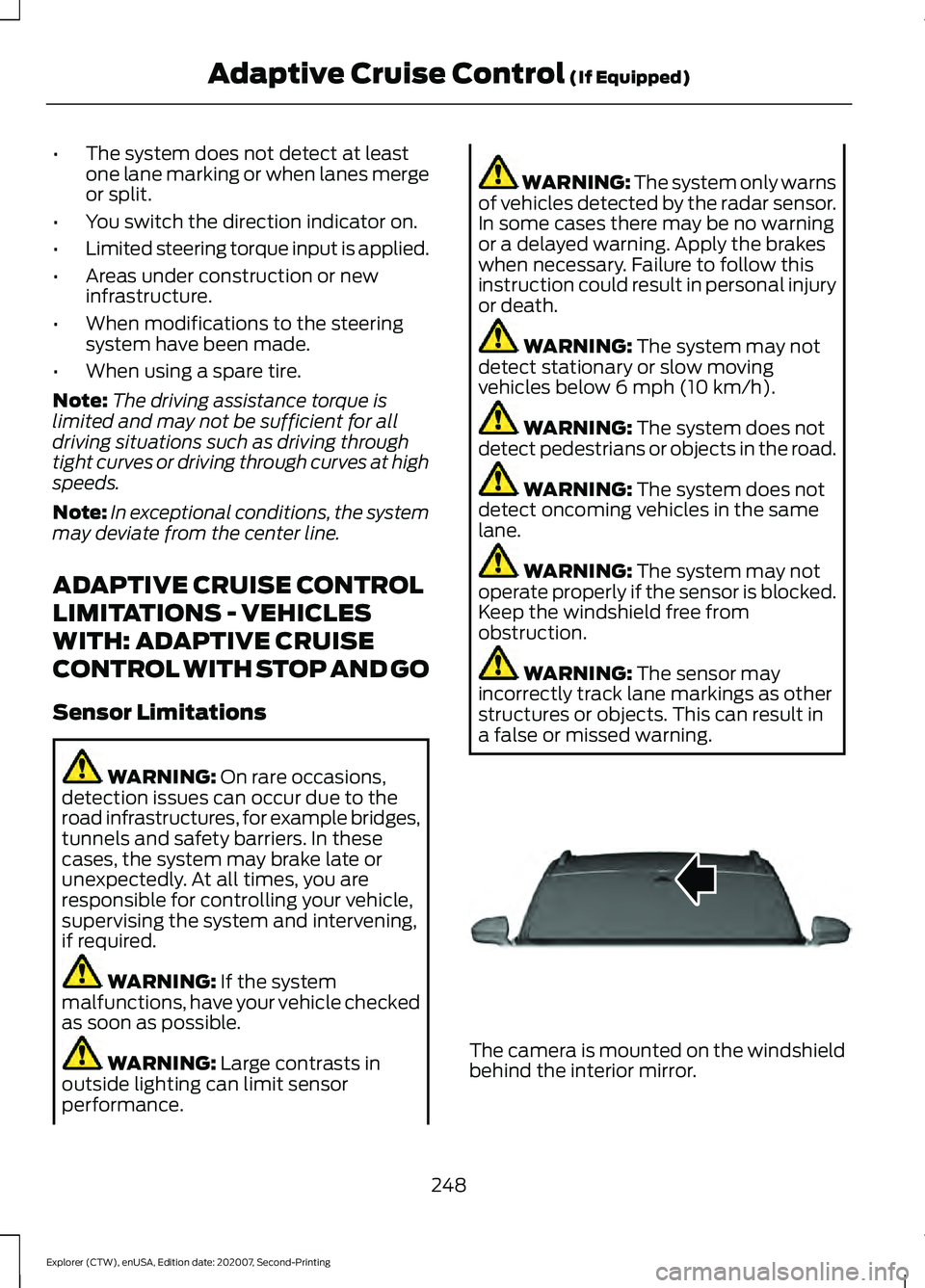
a false or missed warning. The camera is mounted on the windshield
behind the interior mirror.
248
Explorer (CTW), enUSA, Edition date: 202007, Second-Printing Adaptive Cruise Control
(If Equipped)E307893
Page 253 of 577
Optimal system performance requires a
clear view of the road by the
windshield-mounted camera.
Optimal performance may not occur if:
•
The camera is blocked.
• There is poor visibility or lighting
conditions.
• There are bad weather conditions.
SWITCHING ADAPTIVE
CRUISE CONTROL ON AND OFF
The cruise controls are on the steering
wheel. See Cruise Control (page 82).
Switching Adaptive Cruise Control
On Press the button to set the
system in standby mode.
The indicator, current gap setting and set
speed appear in the information display.
Switching Adaptive Cruise Control
Off Press the button when the
system is in standby mode, or
switch the ignition off.
Note: You erase the set speed when you
switch the system off.
Automatic Cancellation or
Deactivation
The system may cancel if:
• The tires lose traction.
• You apply the parking brake. The system may cancel and set the parking
brake if:
•
You unbuckle the seatbelt and open
the driver door after you stop your
vehicle.
• Your vehicle is at a stop continuously
for more than three minutes.
The system may deactivate or prevent
activating when requested if:
• The vehicle has a blocked sensor.
• The brake temperature is too high.
• There is a failure in the system or a
related system.
SETTING THE ADAPTIVE
CRUISE CONTROL SPEED
Drive to the speed you prefer. Press the toggle button upward
or downward to set the current
speed.
Take your foot off the accelerator pedal.
The indicator, current gap setting and set
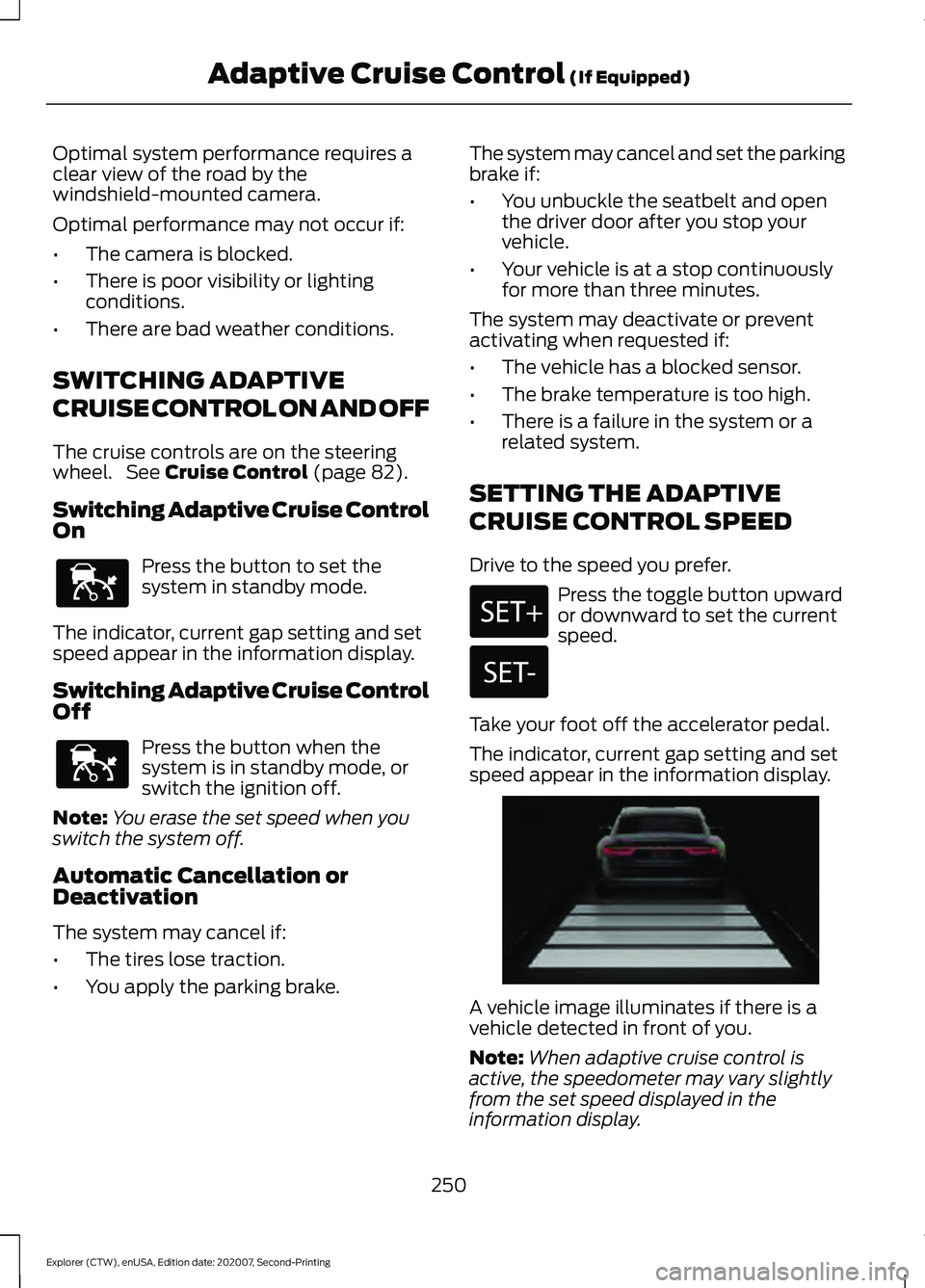
speed appear in the information display. A vehicle image illuminates if there is a
vehicle detected in front of you.
Note:
When adaptive cruise control is
active, the speedometer may vary slightly
from the set speed displayed in the
information display.
250
Explorer (CTW), enUSA, Edition date: 202007, Second-Printing Adaptive Cruise Control
(If Equipped)E144529 E144529 E255686
Page 263 of 577
Note:
If you receive a warning you should
consider resting, even if the current
assessment is within the typical range.
The warning system has two stages. At
first, the system issues a temporary
warning that you need to take a rest. This
message only appears for a short time. If
the system detects further reduction in
driving alertness, it may issue another
warning that remains in the information
display for a longer time. You can press OK
on the steering wheel control to clear the
warning.
Resetting the System
You can reset the system by either:
• Switching the ignition off and on.
• Stopping the vehicle and then opening
and closing the driver ’s door.
LANE KEEPING SYSTEM WARNING: You are responsible for
controlling your vehicle at all times. The
system is designed to be an aid and does
not relieve you of your responsibility to
drive with due care and attention. Failure
to follow this instruction could result in
the loss of control of your vehicle,
personal injury or death. WARNING: Always drive with due
care and attention when using and
operating the controls and features on
your vehicle. WARNING:
In cold and severe
weather conditions the system may not
function. Rain, snow and spray can all
limit sensor performance. WARNING:
Large contrasts in
outside lighting can limit sensor
performance. WARNING:
The system will not
operate if the sensor cannot track the
road lane markings. WARNING:
The sensor may
incorrectly track lane markings as other
structures or objects. This can result in
a false or missed warning. WARNING:
The system may not
operate properly if the sensor is blocked.
Keep the windshield free from
obstruction. WARNING:
If damage occurs in the
immediate area surrounding the sensor,
have your vehicle checked as soon as
possible. WARNING:
The system may not
correctly operate if your vehicle is fitted
with a suspension kit not approved by
us.
Note: The system works above
40 mph
(64 km/h).
Note: The system works as long as the
camera can detect one lane marking.
Note: When you select aid or alert and aid
mode and the system detects no steering
activity for a short period, the system alerts
you to put your hands on the steering wheel.
The system may detect a light grip or
touch on the steering wheel as hands off
driving.
Note: The system may not function if the
camera is blocked, or if the windshield is
damaged or dirty.
260
Explorer (CTW), enUSA, Edition date: 202007, Second-Printing Driving Aids
Page 270 of 577
Note:
You do not need to enter an exact
trailer width measurement. You only need
to confirm that the width of the trailer is
8.2 ft (2.5 m) or less.
If no, the system turns off.
If yes, the menu goes to the next screen.
• Enter length of trailer:
Toggling up or down using the menu
buttons increases or decreases the
measurement by
3 ft (1 m). Select a length
that is equal to or within 3 ft (1 m) of the
actual measured length. For example, if
the actual measured length is 25 ft (7.6 m),
toggle the length in the menu to 8 m or 27
ft. When you enter the length of the trailer,
this saves the system setup.
Note: When you connect a trailer, but do
not setup a trailer in the blind spot
information system, the system turns off
and a warning appears in the information
display.
Note: If the trailer is a bike rack or cargo
rack with electrical lighting, enter a length
of
3 ft (1 m). Cross Traffic Alert remains on
for trailers with a length of 3 ft (1 m) or less.
Note: The system requires proper
measurement and measurement entry to
function as designed.
System Operation
If you select a trailer in the information
display prior to connecting a trailer, the
system loads that configuration and the
information display shows a message
when you connect the trailer. A second
message appears stating cross traffic alert
is off, unless a trailer is set up with a length
of
3 ft (1 m). The blind spot information
system with trailer tow still functions
normally when driving forward. If you connect a trailer, a message appears
indicating that you attached a trailer. If you
have not selected a trailer previously,
another message appears requesting you
to select one of the trailers in the list or add
a new trailer. The blind spot information
system with trailer tow does not function
without a trailer selected. If you do not
select a trailer, a message appears in the
information display stating it has
deactivated the system. This message
might not appear until your vehicle speed
reaches
22 mph (35 km/h).
The blind spot information system with
trailer tow activates when driving forward
for that particular trailer set up. If you cycle
the ignition, the blind spot information
system with trailer tow continues to
function using the last trailer you selected.
Trailer Considerations
The system works with a trailer with a front
width of
8.2 ft (2.5 m) or less, and a total
length from the trailer hitch ball to the rear
of the trailer of
33 ft (10 m) or less.
Some trailers could cause a slight change
in system performance:
• Wide box trailers, especially those
wider than the towing vehicle, could
cause false alerts to occur when driving
next to infrastructure or near parked
cars. A false alert could also occur
while making a 90-degree turn or
driving through a roundabout.
• Wide trailers that have a total length
greater than
20 ft (6 m) could cause
delayed alerts when a vehicle is
passing at high speeds.
267
Explorer (CTW), enUSA, Edition date: 202007, Second-Printing Driving Aids
Page 318 of 577
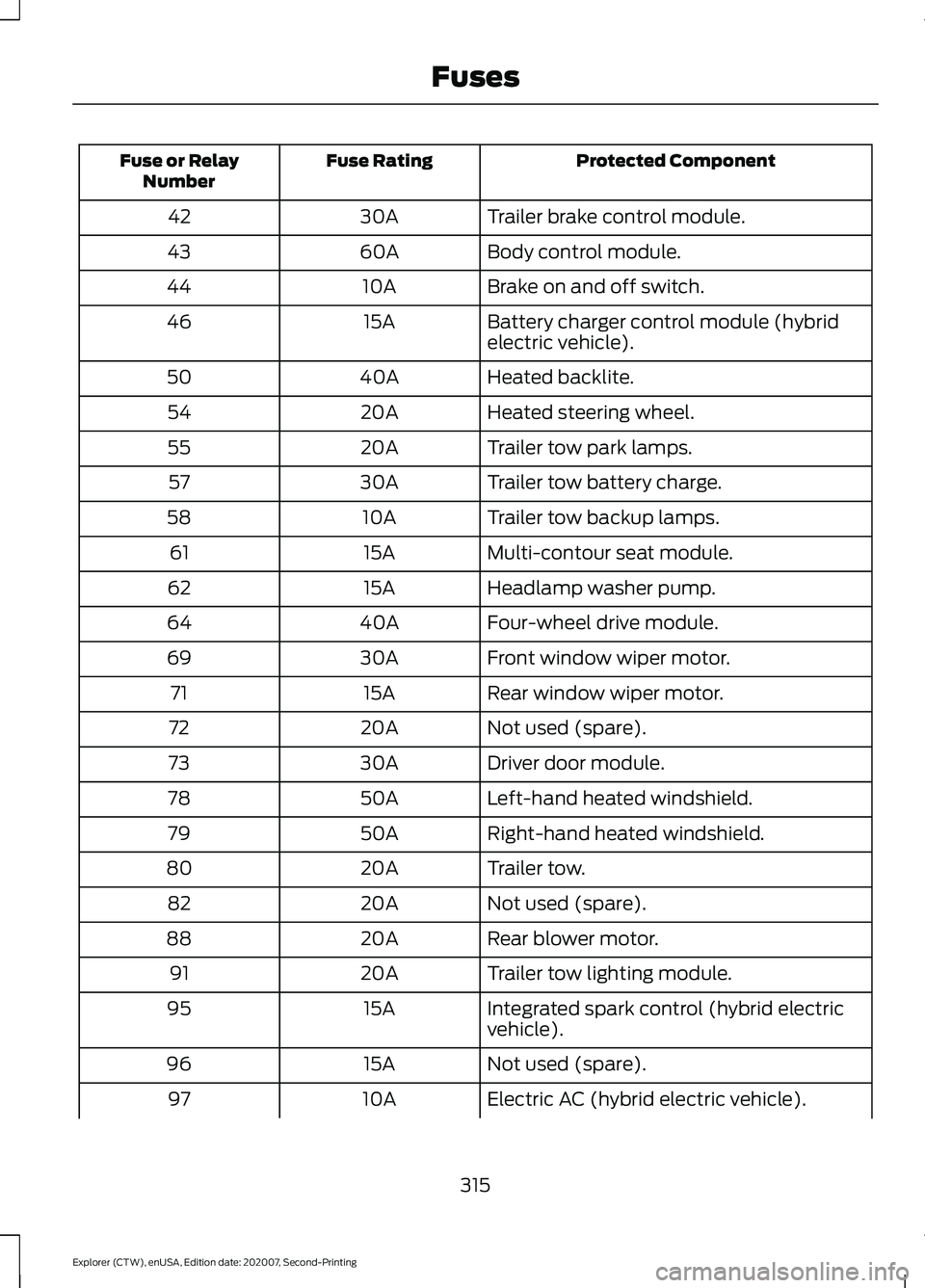
Protected Component
Fuse Rating
Fuse or Relay
Number
Trailer brake control module.
30A
42
Body control module.
60A
43
Brake on and off switch.
10A
44
Battery charger control module (hybrid
electric vehicle).
15A
46
Heated backlite.
40A
50
Heated steering wheel.
20A
54
Trailer tow park lamps.
20A
55
Trailer tow battery charge.
30A
57
Trailer tow backup lamps.
10A
58
Multi-contour seat module.
15A
61
Headlamp washer pump.
15A
62
Four-wheel drive module.
40A
64
Front window wiper motor.
30A
69
Rear window wiper motor.
15A
71
Not used (spare).
20A
72
Driver door module.
30A
73
Left-hand heated windshield.
50A
78
Right-hand heated windshield.
50A
79
Trailer tow.
20A
80
Not used (spare).
20A
82
Rear blower motor.
20A
88
Trailer tow lighting module.
20A
91
Integrated spark control (hybrid electric
vehicle).
15A
95
Not used (spare).
15A
96
Electric AC (hybrid electric vehicle).
10A
97
315
Explorer (CTW), enUSA, Edition date: 202007, Second-Printing Fuses
Page 467 of 577
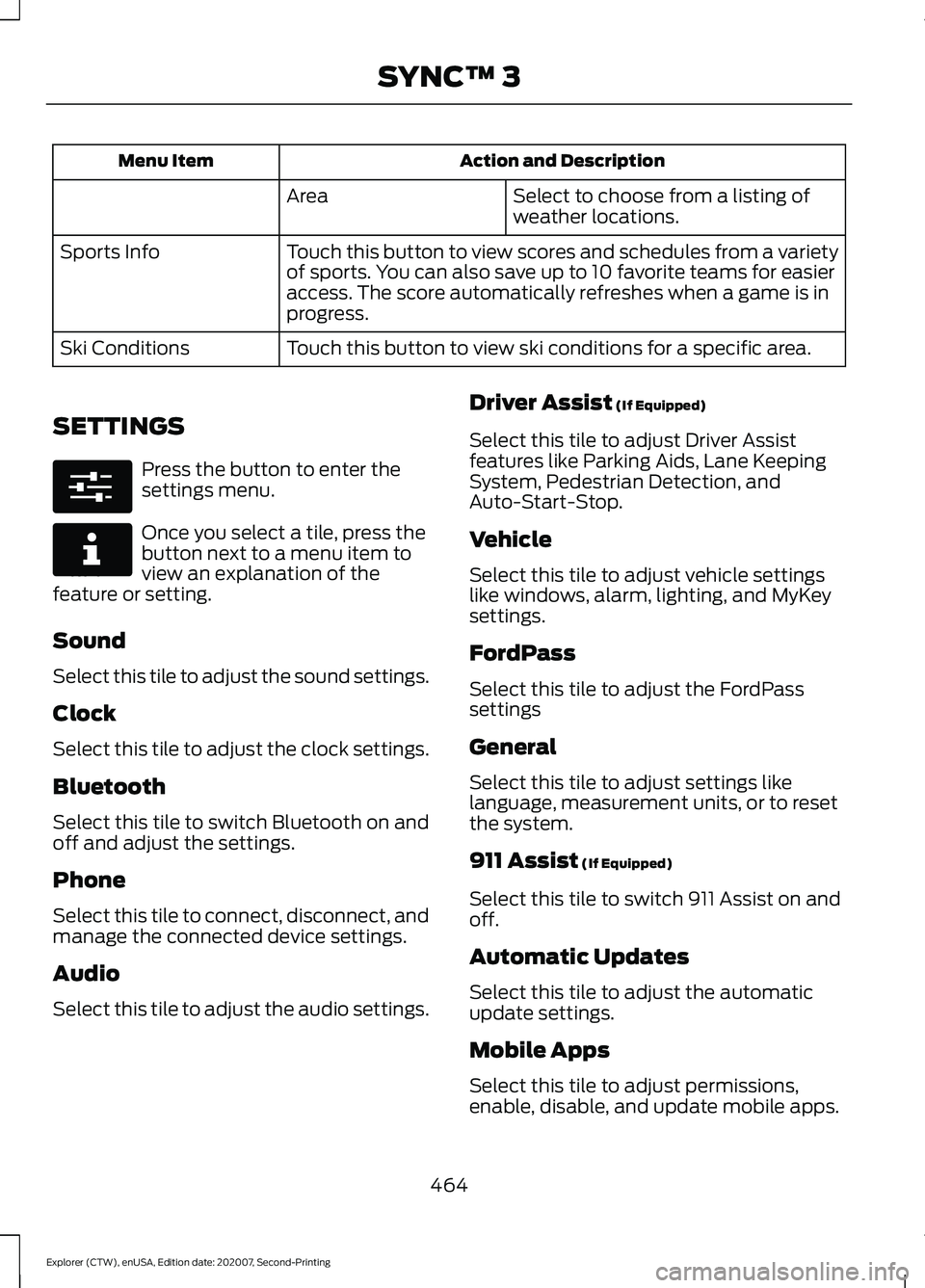
Action and Description
Menu Item
Select to choose from a listing of
weather locations.
Area
Touch this button to view scores and schedules from a variety
of sports. You can also save up to 10 favorite teams for easier
access. The score automatically refreshes when a game is in
progress.
Sports Info
Touch this button to view ski conditions for a specific area.
Ski Conditions
SETTINGS Press the button to enter the
settings menu.
Once you select a tile, press the
button next to a menu item to
view an explanation of the
feature or setting.
Sound
Select this tile to adjust the sound settings.
Clock
Select this tile to adjust the clock settings.
Bluetooth
Select this tile to switch Bluetooth on and
off and adjust the settings.
Phone
Select this tile to connect, disconnect, and
manage the connected device settings.
Audio
Select this tile to adjust the audio settings. Driver Assist (If Equipped)
Select this tile to adjust Driver Assist
features like Parking Aids, Lane Keeping
System, Pedestrian Detection, and
Auto-Start-Stop.
Vehicle
Select this tile to adjust vehicle settings
like windows, alarm, lighting, and MyKey
settings.
FordPass
Select this tile to adjust the FordPass
settings
General
Select this tile to adjust settings like
language, measurement units, or to reset
the system.
911 Assist
(If Equipped)
Select this tile to switch 911 Assist on and
off.
Automatic Updates
Select this tile to adjust the automatic
update settings.
Mobile Apps
Select this tile to adjust permissions,
enable, disable, and update mobile apps.
464
Explorer (CTW), enUSA, Edition date: 202007, Second-Printing SYNC™ 3E280315 E268570