key FORD EXPLORER 2021 Owner's Guide
[x] Cancel search | Manufacturer: FORD, Model Year: 2021, Model line: EXPLORER, Model: FORD EXPLORER 2021Pages: 577, PDF Size: 9.79 MB
Page 110 of 577
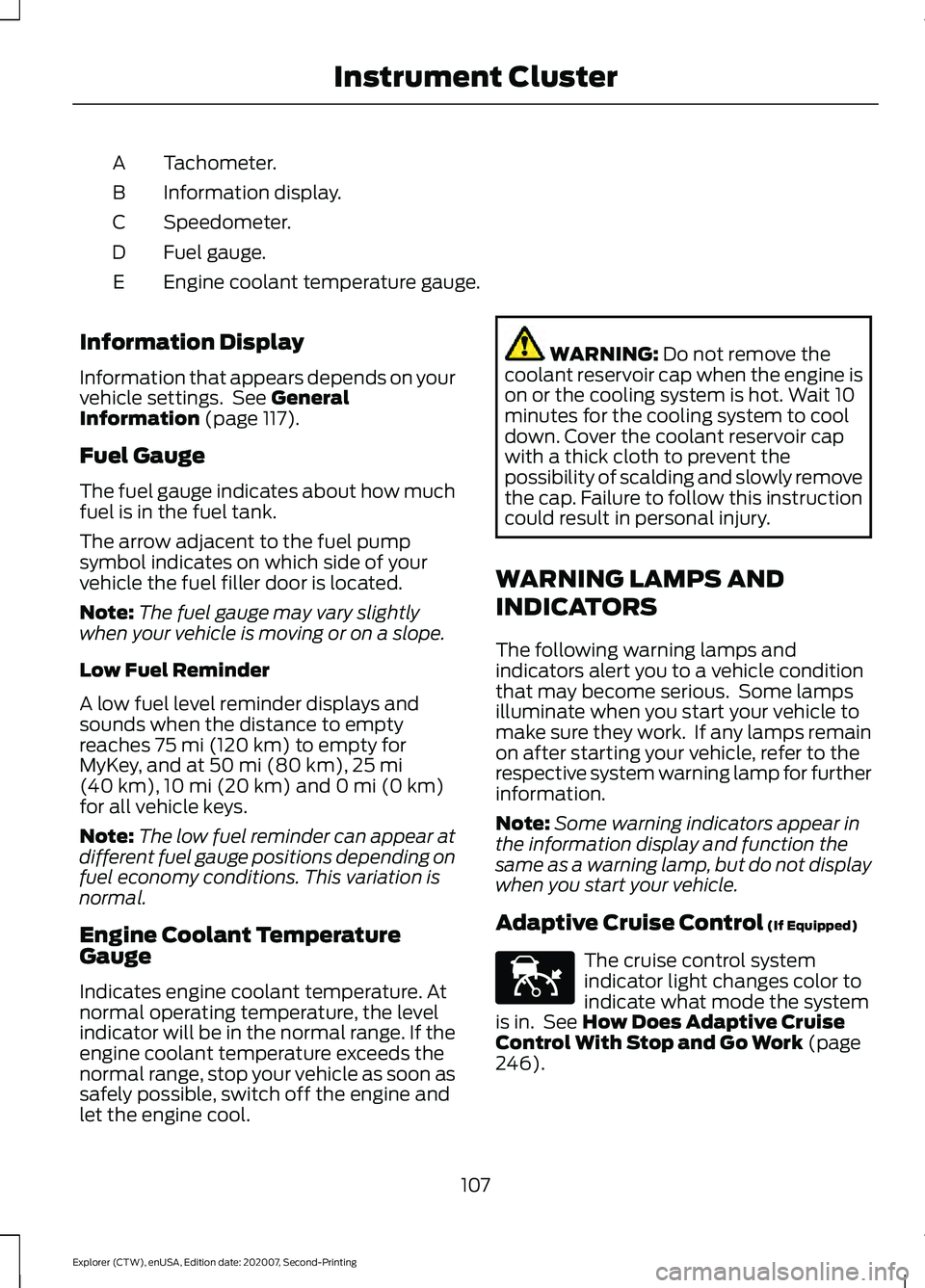
Tachometer.
A
Information display.
B
Speedometer.
C
Fuel gauge.
D
Engine coolant temperature gauge.
E
Information Display
Information that appears depends on your
vehicle settings. See General
Information (page 117).
Fuel Gauge
The fuel gauge indicates about how much
fuel is in the fuel tank.
The arrow adjacent to the fuel pump
symbol indicates on which side of your
vehicle the fuel filler door is located.
Note: The fuel gauge may vary slightly
when your vehicle is moving or on a slope.
Low Fuel Reminder
A low fuel level reminder displays and
sounds when the distance to empty
reaches
75 mi (120 km) to empty for
MyKey, and at 50 mi (80 km), 25 mi
(40 km), 10 mi (20 km) and 0 mi (0 km)
for all vehicle keys.
Note: The low fuel reminder can appear at
different fuel gauge positions depending on
fuel economy conditions. This variation is
normal.
Engine Coolant Temperature
Gauge
Indicates engine coolant temperature. At
normal operating temperature, the level
indicator will be in the normal range. If the
engine coolant temperature exceeds the
normal range, stop your vehicle as soon as
safely possible, switch off the engine and
let the engine cool. WARNING:
Do not remove the
coolant reservoir cap when the engine is
on or the cooling system is hot. Wait 10
minutes for the cooling system to cool
down. Cover the coolant reservoir cap
with a thick cloth to prevent the
possibility of scalding and slowly remove
the cap. Failure to follow this instruction
could result in personal injury.
WARNING LAMPS AND
INDICATORS
The following warning lamps and
indicators alert you to a vehicle condition
that may become serious. Some lamps
illuminate when you start your vehicle to
make sure they work. If any lamps remain
on after starting your vehicle, refer to the
respective system warning lamp for further
information.
Note: Some warning indicators appear in
the information display and function the
same as a warning lamp, but do not display
when you start your vehicle.
Adaptive Cruise Control
(If Equipped) The cruise control system
indicator light changes color to
indicate what mode the system
is in. See
How Does Adaptive Cruise
Control With Stop and Go Work (page
246).
107
Explorer (CTW), enUSA, Edition date: 202007, Second-Printing Instrument ClusterE144524
Page 114 of 577
Normally, it illuminates until the engine is
cranked and automatically turns off if no
system errors are present. However, if after
15 seconds it flashes eight times, this
indicates that your vehicle is not ready for
Inspection and Maintenance (I/M) testing.
See Catalytic Converter (page 197).
If it illuminates when the engine is running
this indicates a system error. The On Board
Diagnostics system has detected an error
in the vehicle emission control system.
If it flashes, engine misfire may be
occurring. Continuing to drive your vehicle
may cause reduced power or the engine
to stop. Failure to respond to the warning
lamp may cause component damage not
covered by the vehicle Warranty. Have
your vehicle checked as soon as possible.
Stability Control It flashes when the system is
active. If it remains illuminated
or does not illuminate when you
switch the ignition on, this indicates a
system error. During a system error the
system switches off. Have the system
checked by an authorized dealer
immediately. See
Using Stability
Control (page 226).
Stability Control Off Illuminates when you switch the
system off. It goes out when you
switch the system back on or
when you switch the ignition off.
AUDIBLE WARNINGS AND
INDICATORS
Key in Ignition Warning Chime
Sounds when you open the driver's door
and you have left the key in the ignition. Keyless Warning Alert
(If Equipped)
Sounds the horn twice when you exit your
vehicle with the intelligent access key, after
the last door is closed and your keyless
vehicle is in RUN, indicating your vehicle is
still on.
Headlamps On Warning Chime
Sounds when you remove the key from the
ignition and open the driver's door and you
have left the headlamps or parking lamps
on.
Parking Brake On Warning Chime
Sounds when you have left the parking
brake on and drive your vehicle. If the
warning chime remains on after you have
released the parking brake, have the
system checked by an authorized dealer
immediately.
111
Explorer (CTW), enUSA, Edition date: 202007, Second-Printing Instrument ClusterE138639 E130458
Page 115 of 577
GENERAL INFORMATION -
VEHICLES WITH: 6.5 INCH
INSTRUMENT CLUSTER
DISPLAY SCREEN
WARNING: Driving while distracted
can result in loss of vehicle control, crash
and injury. We strongly recommend that
you use extreme caution when using any
device that may take your focus off the
road. Your primary responsibility is the
safe operation of your vehicle. We
recommend against the use of any
hand-held device while driving and
encourage the use of voice-operated
systems when possible. Make sure you
are aware of all applicable local laws
that may affect the use of electronic
devices while driving.
You can control various systems on your
vehicle using the information display
controls on the steering wheel.
Corresponding information appears in the
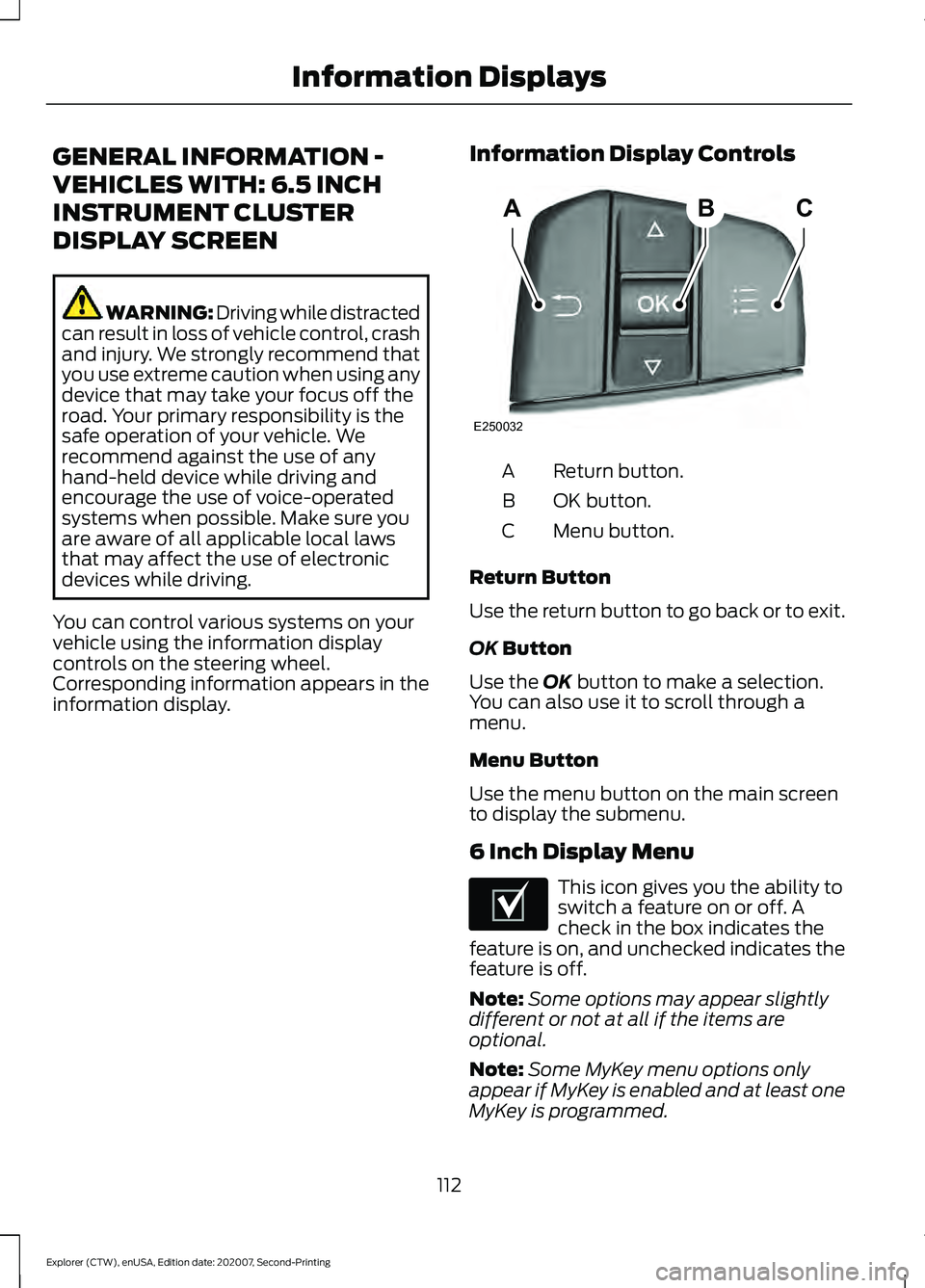
information display. Information Display Controls Return button.
A
OK button.
B
Menu button.
C
Return Button
Use the return button to go back or to exit.
OK Button
Use the
OK button to make a selection.
You can also use it to scroll through a
menu.
Menu Button
Use the menu button on the main screen
to display the submenu.
6 Inch Display Menu This icon gives you the ability to
switch a feature on or off. A
check in the box indicates the
feature is on, and unchecked indicates the
feature is off.
Note: Some options may appear slightly
different or not at all if the items are
optional.
Note: Some MyKey menu options only
appear if MyKey is enabled and at least one
MyKey is programmed.
112
Explorer (CTW), enUSA, Edition date: 202007, Second-Printing Information DisplaysABC
E250032 E204495
Page 118 of 577
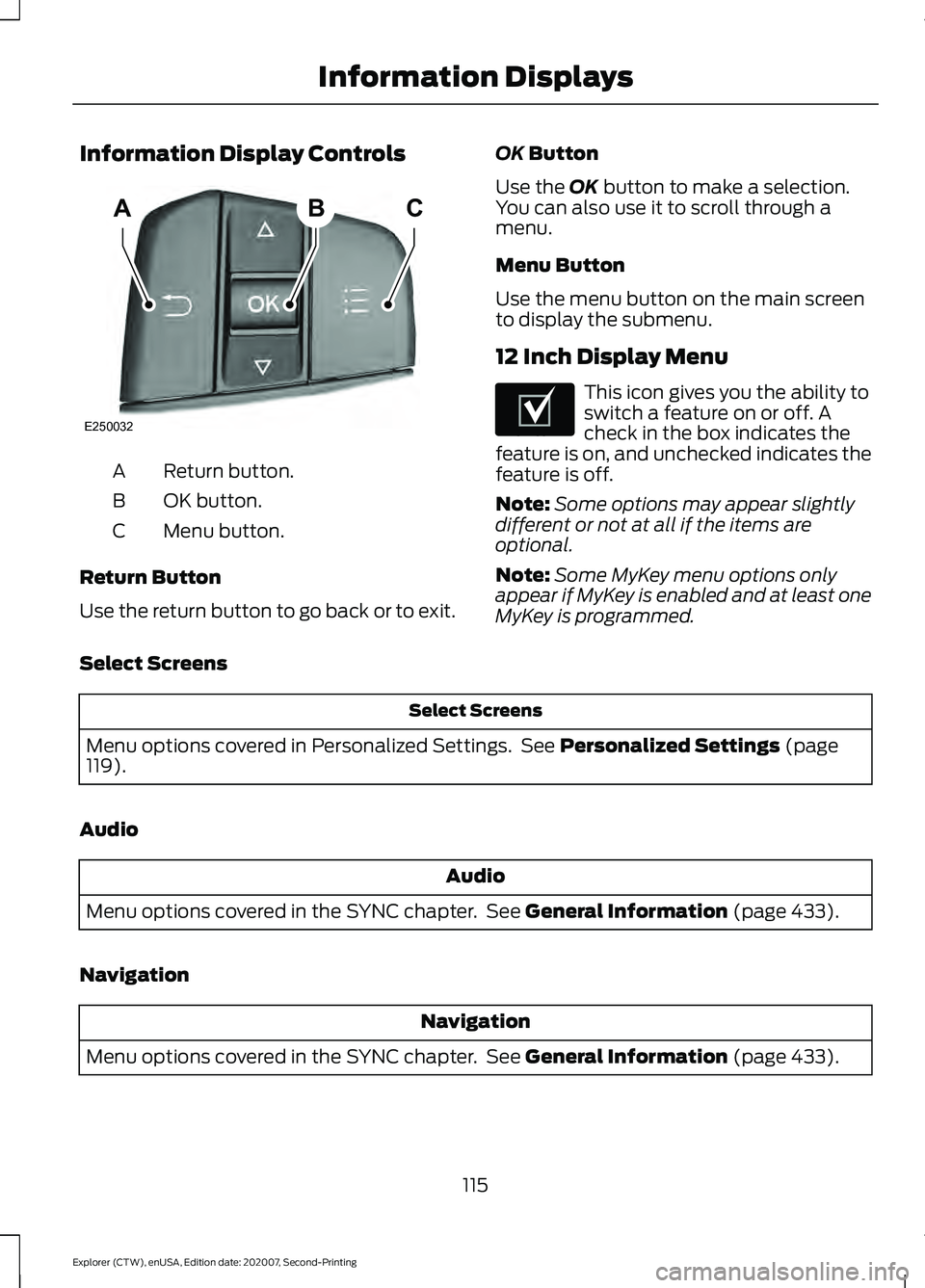
Information Display Controls
Return button.
A
OK button.
B
Menu button.
C
Return Button
Use the return button to go back or to exit. OK Button
Use the
OK button to make a selection.
You can also use it to scroll through a
menu.
Menu Button
Use the menu button on the main screen
to display the submenu.
12 Inch Display Menu This icon gives you the ability to
switch a feature on or off. A
check in the box indicates the
feature is on, and unchecked indicates the
feature is off.
Note: Some options may appear slightly
different or not at all if the items are
optional.
Note: Some MyKey menu options only
appear if MyKey is enabled and at least one
MyKey is programmed.
Select Screens Select Screens
Menu options covered in Personalized Settings. See
Personalized Settings (page
119).
Audio Audio
Menu options covered in the SYNC chapter. See
General Information (page 433).
Navigation Navigation
Menu options covered in the SYNC chapter. See
General Information (page 433).
115
Explorer (CTW), enUSA, Edition date: 202007, Second-Printing Information DisplaysABC
E250032 E204495
Page 120 of 577
Trip Summary
The trip summary displays upon shutting
off your vehicle. The values are cumulative
since you last started your vehicle.
The information shown is the same as the
This Trip on demand screen. See
Personalized Settings (page 119).
GENERAL INFORMATION -
VEHICLES WITH: 4.2 INCH
INSTRUMENT CLUSTER
DISPLAY SCREEN WARNING: Driving while distracted
can result in loss of vehicle control, crash
and injury. We strongly recommend that
you use extreme caution when using any
device that may take your focus off the
road. Your primary responsibility is the
safe operation of your vehicle. We
recommend against the use of any
hand-held device while driving and
encourage the use of voice-operated
systems when possible. Make sure you
are aware of all applicable local laws
that may affect the use of electronic
devices while driving.
You can control various systems on your
vehicle using the quick action menu (QAM)
buttons on the right-hand side of the
steering wheel. The information display
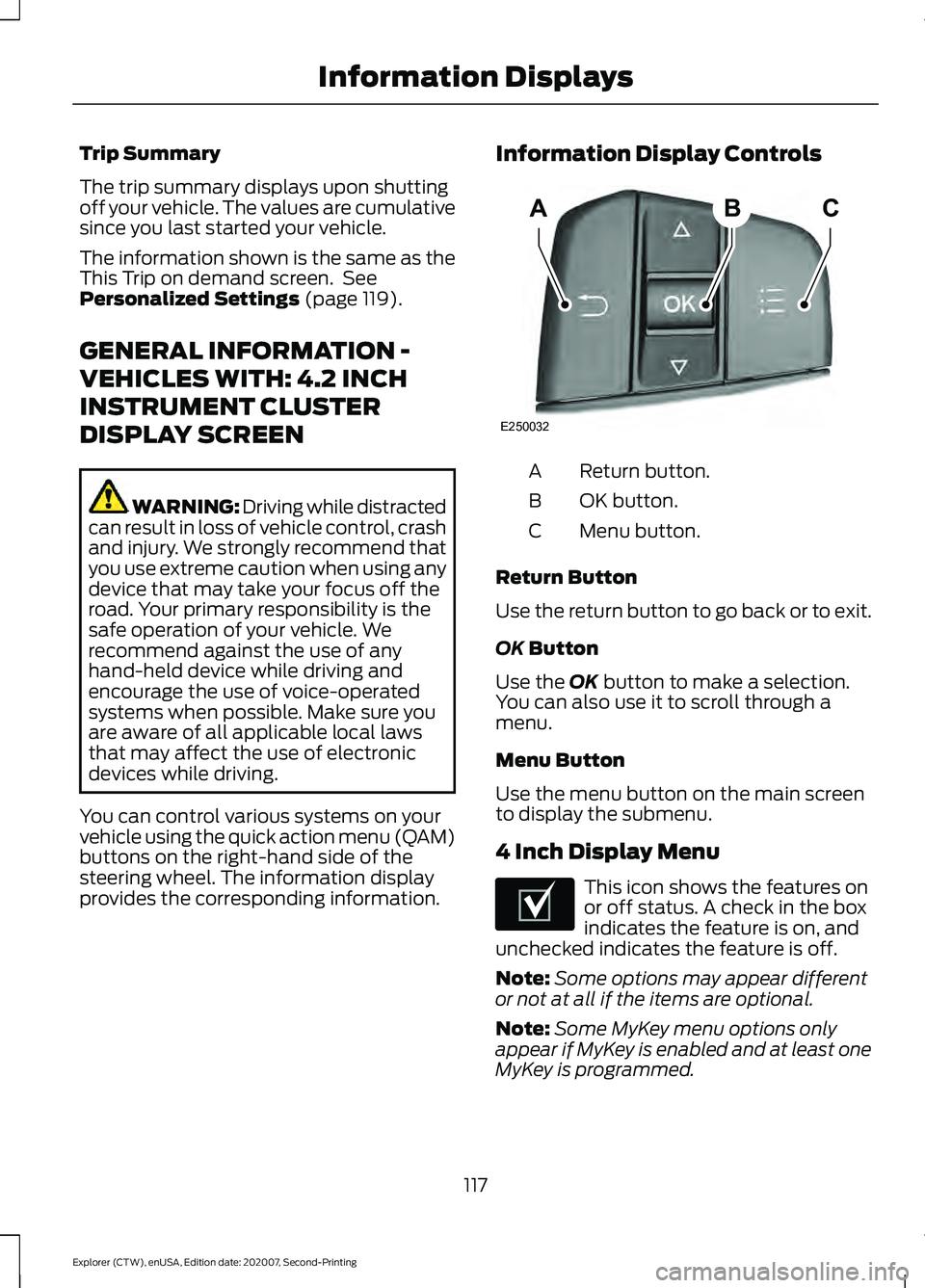
provides the corresponding information. Information Display Controls Return button.
A
OK button.
B
Menu button.
C
Return Button
Use the return button to go back or to exit.
OK
Button
Use the
OK button to make a selection.
You can also use it to scroll through a
menu.
Menu Button
Use the menu button on the main screen
to display the submenu.
4 Inch Display Menu This icon shows the features on
or off status. A check in the box
indicates the feature is on, and
unchecked indicates the feature is off.
Note: Some options may appear different
or not at all if the items are optional.
Note: Some MyKey menu options only
appear if MyKey is enabled and at least one
MyKey is programmed.
117
Explorer (CTW), enUSA, Edition date: 202007, Second-Printing Information DisplaysABC
E250032 E204495
Page 122 of 577
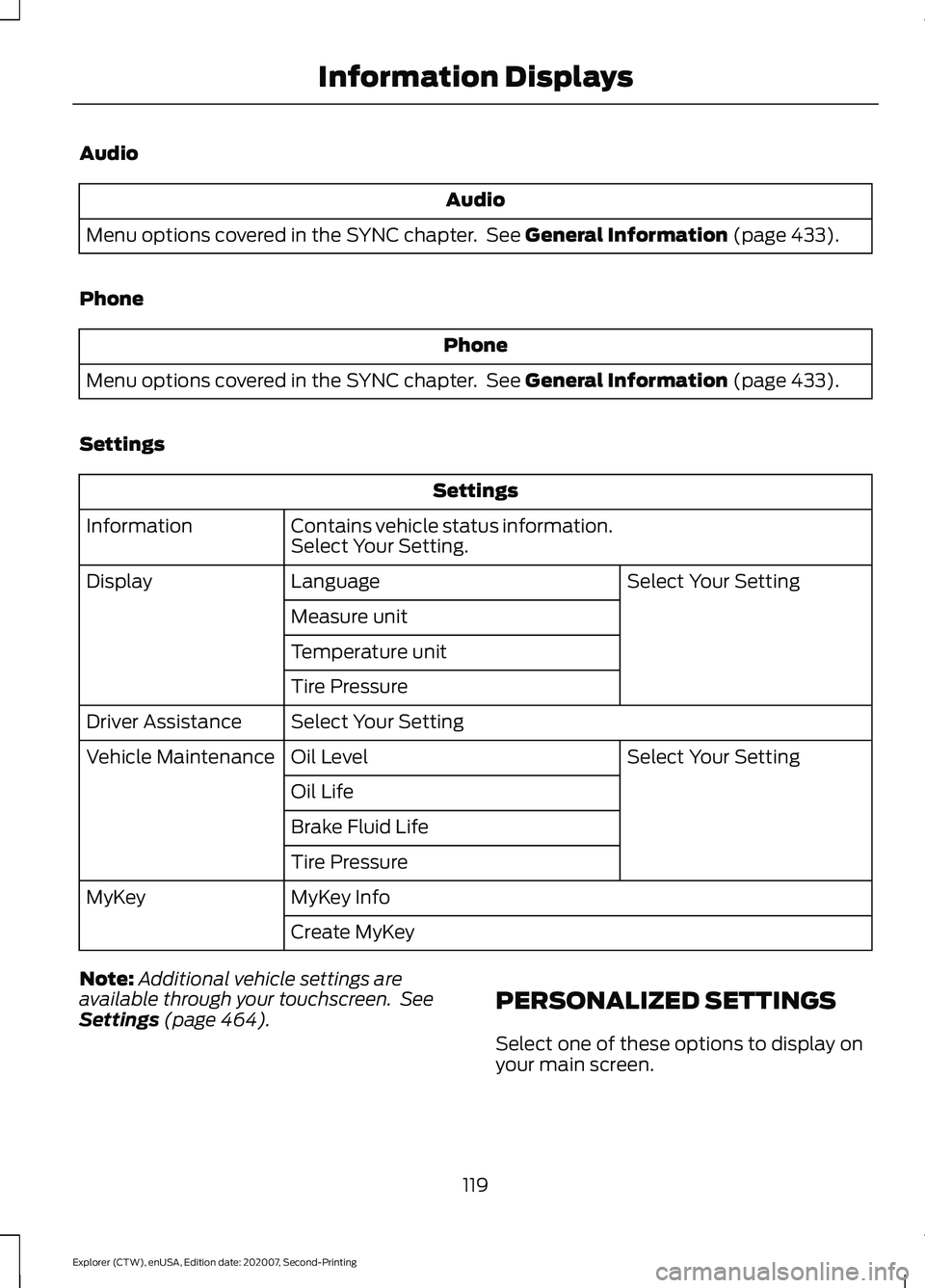
Audio
Audio
Menu options covered in the SYNC chapter. See General Information (page 433).
Phone Phone
Menu options covered in the SYNC chapter. See
General Information (page 433).
Settings Settings
Contains vehicle status information.
Select Your Setting.
Information
Select Your Setting
Language
Display
Measure unit
Temperature unit
Tire Pressure
Select Your Setting
Driver Assistance
Select Your Setting
Oil Level
Vehicle Maintenance
Oil Life
Brake Fluid Life
Tire Pressure
MyKey Info
MyKey
Create MyKey
Note: Additional vehicle settings are
available through your touchscreen. See
Settings
(page 464). PERSONALIZED SETTINGS
Select one of these options to display on
your main screen.
119
Explorer (CTW), enUSA, Edition date: 202007, Second-Printing Information Displays
Page 129 of 577
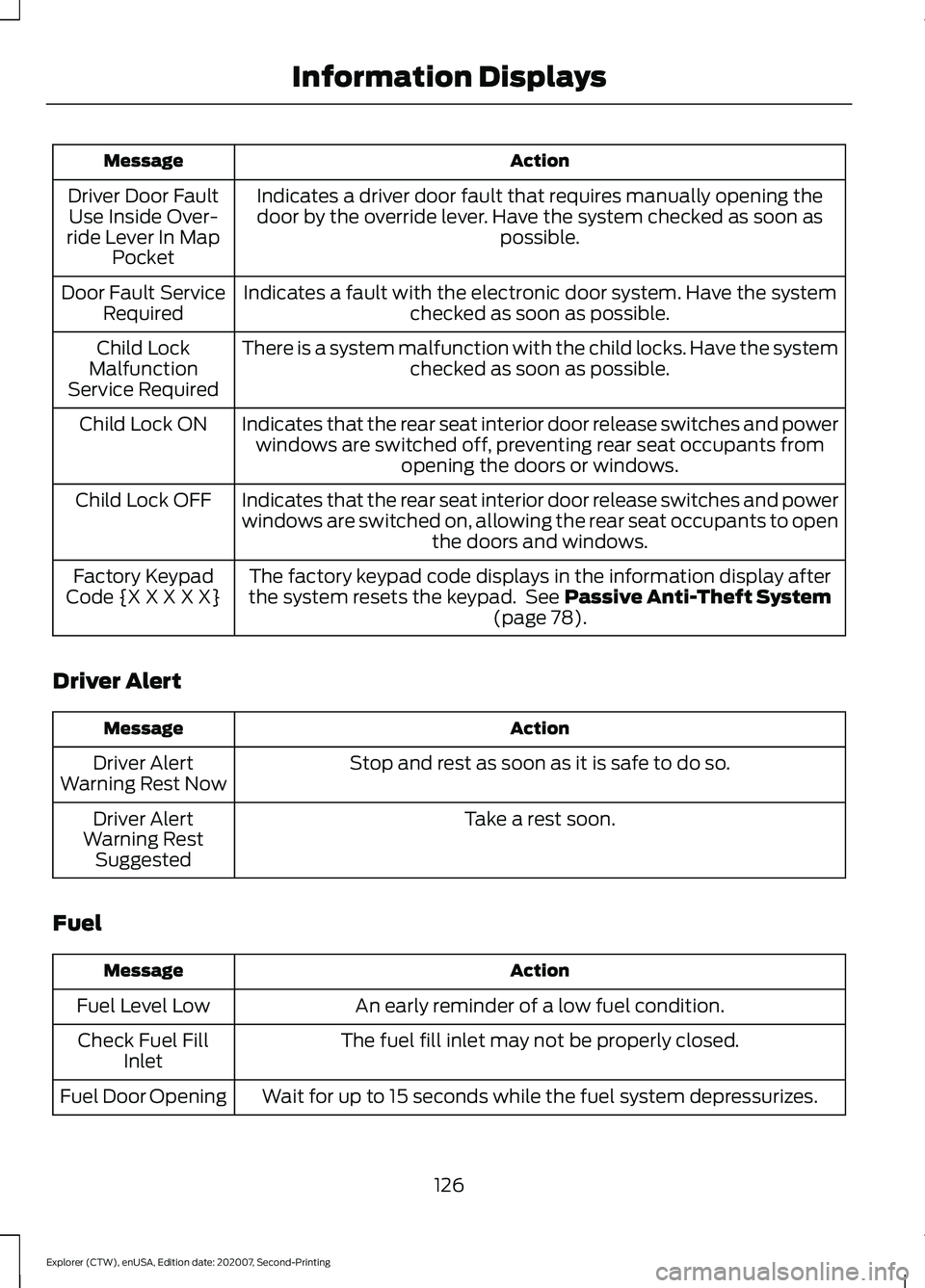
Action
Message
Indicates a driver door fault that requires manually opening thedoor by the override lever. Have the system checked as soon as possible.
Driver Door Fault
Use Inside Over-
ride Lever In Map Pocket
Indicates a fault with the electronic door system. Have the system checked as soon as possible.
Door Fault Service
Required
There is a system malfunction with the child locks. Have the system checked as soon as possible.
Child Lock
Malfunction
Service Required
Indicates that the rear seat interior door release switches and powerwindows are switched off, preventing rear seat occupants from opening the doors or windows.
Child Lock ON
Indicates that the rear seat interior door release switches and power
windows are switched on, allowing the rear seat occupants to open the doors and windows.
Child Lock OFF
The factory keypad code displays in the information display after
the system resets the keypad. See Passive Anti-Theft System
(page 78).
Factory Keypad
Code {X X X X X}
Driver Alert Action
Message
Stop and rest as soon as it is safe to do so.
Driver Alert
Warning Rest Now
Take a rest soon.
Driver Alert
Warning Rest Suggested
Fuel Action
Message
An early reminder of a low fuel condition.
Fuel Level Low
The fuel fill inlet may not be properly closed.
Check Fuel Fill
Inlet
Wait for up to 15 seconds while the fuel system depressurizes.
Fuel Door Opening
126
Explorer (CTW), enUSA, Edition date: 202007, Second-Printing Information Displays
Page 131 of 577
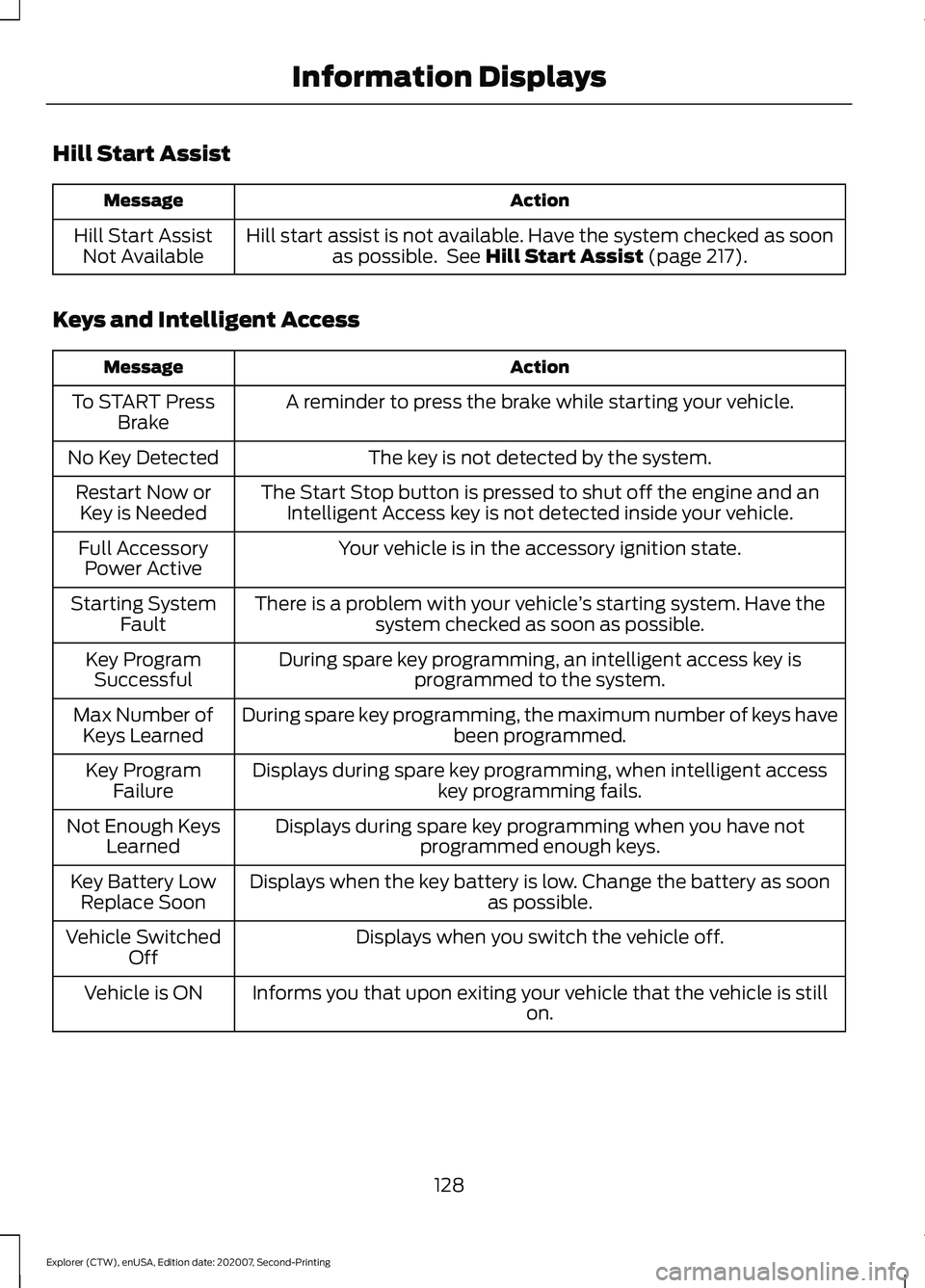
Hill Start Assist
Action
Message
Hill start assist is not available. Have the system checked as soonas possible. See Hill Start Assist (page 217).
Hill Start Assist
Not Available
Keys and Intelligent Access Action
Message
A reminder to press the brake while starting your vehicle.
To START Press
Brake
The key is not detected by the system.
No Key Detected
The Start Stop button is pressed to shut off the engine and anIntelligent Access key is not detected inside your vehicle.
Restart Now or
Key is Needed
Your vehicle is in the accessory ignition state.
Full Accessory
Power Active
There is a problem with your vehicle ’s starting system. Have the
system checked as soon as possible.
Starting System
Fault
During spare key programming, an intelligent access key isprogrammed to the system.
Key Program
Successful
During spare key programming, the maximum number of keys have been programmed.
Max Number of
Keys Learned
Displays during spare key programming, when intelligent access key programming fails.
Key Program
Failure
Displays during spare key programming when you have notprogrammed enough keys.
Not Enough Keys
Learned
Displays when the key battery is low. Change the battery as soon as possible.
Key Battery Low
Replace Soon
Displays when you switch the vehicle off.
Vehicle Switched
Off
Informs you that upon exiting your vehicle that the vehicle is still on.
Vehicle is ON
128
Explorer (CTW), enUSA, Edition date: 202007, Second-Printing Information Displays
Page 133 of 577
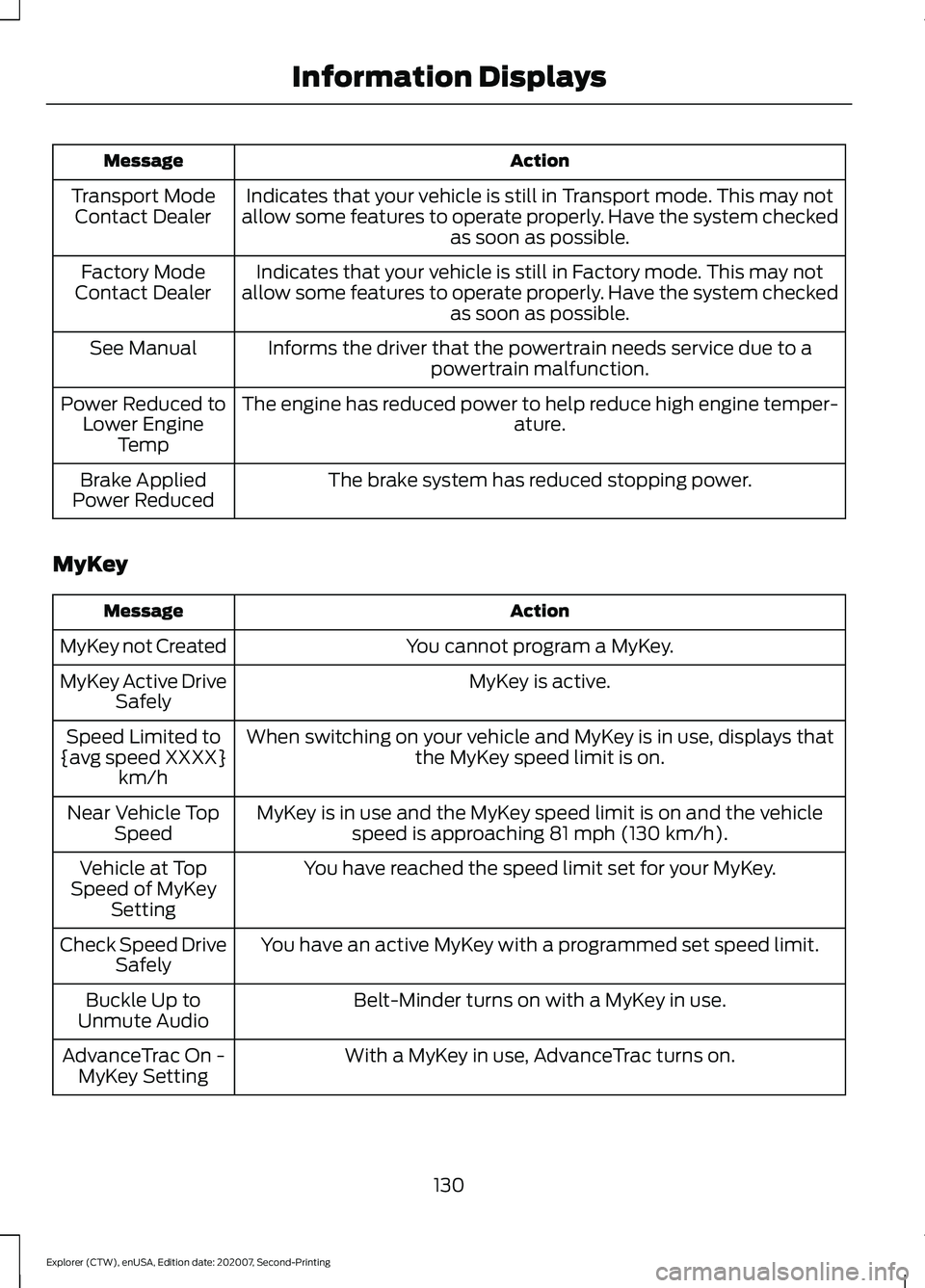
Action
Message
Indicates that your vehicle is still in Transport mode. This may not
allow some features to operate properly. Have the system checked as soon as possible.
Transport Mode
Contact Dealer
Indicates that your vehicle is still in Factory mode. This may not
allow some features to operate properly. Have the system checked as soon as possible.
Factory Mode
Contact Dealer
Informs the driver that the powertrain needs service due to apowertrain malfunction.
See Manual
The engine has reduced power to help reduce high engine temper- ature.
Power Reduced to
Lower Engine Temp
The brake system has reduced stopping power.
Brake Applied
Power Reduced
MyKey Action
Message
You cannot program a MyKey.
MyKey not Created
MyKey is active.
MyKey Active Drive
Safely
When switching on your vehicle and MyKey is in use, displays that the MyKey speed limit is on.
Speed Limited to
{avg speed XXXX} km/h
MyKey is in use and the MyKey speed limit is on and the vehiclespeed is approaching 81 mph (130 km/h).
Near Vehicle Top
Speed
You have reached the speed limit set for your MyKey.
Vehicle at Top
Speed of MyKey Setting
You have an active MyKey with a programmed set speed limit.
Check Speed Drive
Safely
Belt-Minder turns on with a MyKey in use.
Buckle Up to
Unmute Audio
With a MyKey in use, AdvanceTrac turns on.
AdvanceTrac On -
MyKey Setting
130
Explorer (CTW), enUSA, Edition date: 202007, Second-Printing Information Displays
Page 134 of 577
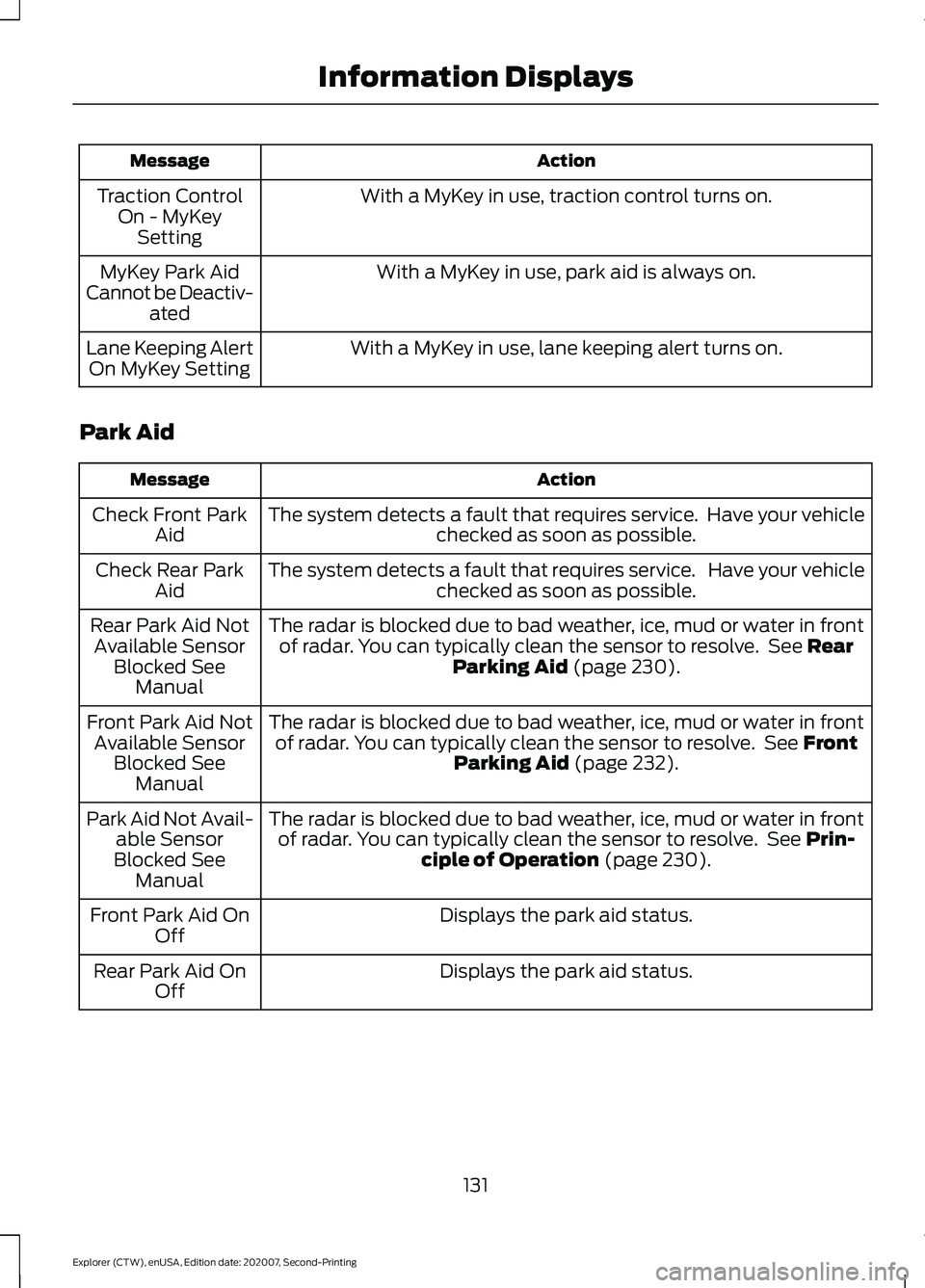
Action
Message
With a MyKey in use, traction control turns on.
Traction Control
On - MyKeySetting
With a MyKey in use, park aid is always on.
MyKey Park Aid
Cannot be Deactiv- ated
With a MyKey in use, lane keeping alert turns on.
Lane Keeping Alert
On MyKey Setting
Park Aid Action
Message
The system detects a fault that requires service. Have your vehicle checked as soon as possible.
Check Front Park
Aid
The system detects a fault that requires service. Have your vehicle checked as soon as possible.
Check Rear Park
Aid
The radar is blocked due to bad weather, ice, mud or water in frontof radar. You can typically clean the sensor to resolve. See Rear
Parking Aid (page 230).
Rear Park Aid Not
Available Sensor Blocked See Manual
The radar is blocked due to bad weather, ice, mud or water in frontof radar. You can typically clean the sensor to resolve. See
Front
Parking Aid (page 232).
Front Park Aid Not
Available Sensor Blocked See Manual
The radar is blocked due to bad weather, ice, mud or water in frontof radar. You can typically clean the sensor to resolve. See
Prin-
ciple of Operation (page 230).
Park Aid Not Avail-
able Sensor
Blocked See Manual
Displays the park aid status.
Front Park Aid On
Off
Displays the park aid status.
Rear Park Aid On
Off
131
Explorer (CTW), enUSA, Edition date: 202007, Second-Printing Information Displays