buttons FORD F-150 2020 User Guide
[x] Cancel search | Manufacturer: FORD, Model Year: 2020, Model line: F-150, Model: FORD F-150 2020Pages: 625, PDF Size: 7.98 MB
Page 131 of 625
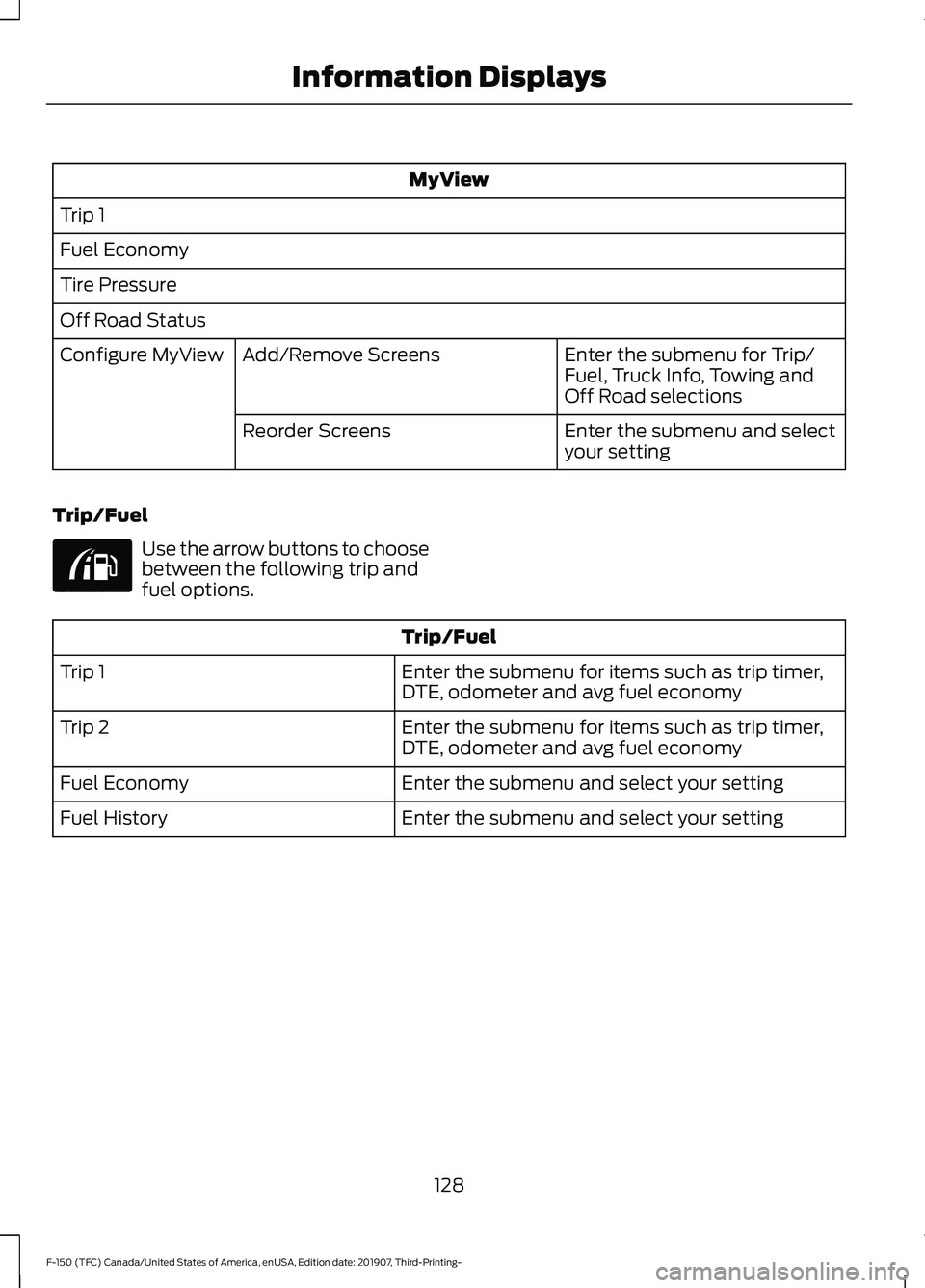
MyView
Trip 1
Fuel Economy
Tire Pressure
Off Road Status Enter the submenu for Trip/
Fuel, Truck Info, Towing and
Off Road selections
Add/Remove Screens
Configure MyView
Enter the submenu and select
your setting
Reorder Screens
Trip/Fuel Use the arrow buttons to choose
between the following trip and
fuel options.
Trip/Fuel
Enter the submenu for items such as trip timer,
DTE, odometer and avg fuel economy
Trip 1
Enter the submenu for items such as trip timer,
DTE, odometer and avg fuel economy
Trip 2
Enter the submenu and select your setting
Fuel Economy
Enter the submenu and select your setting
Fuel History
128
F-150 (TFC) Canada/United States of America, enUSA, Edition date: 201907, Third-Printing- Information DisplaysE176095
Page 132 of 625
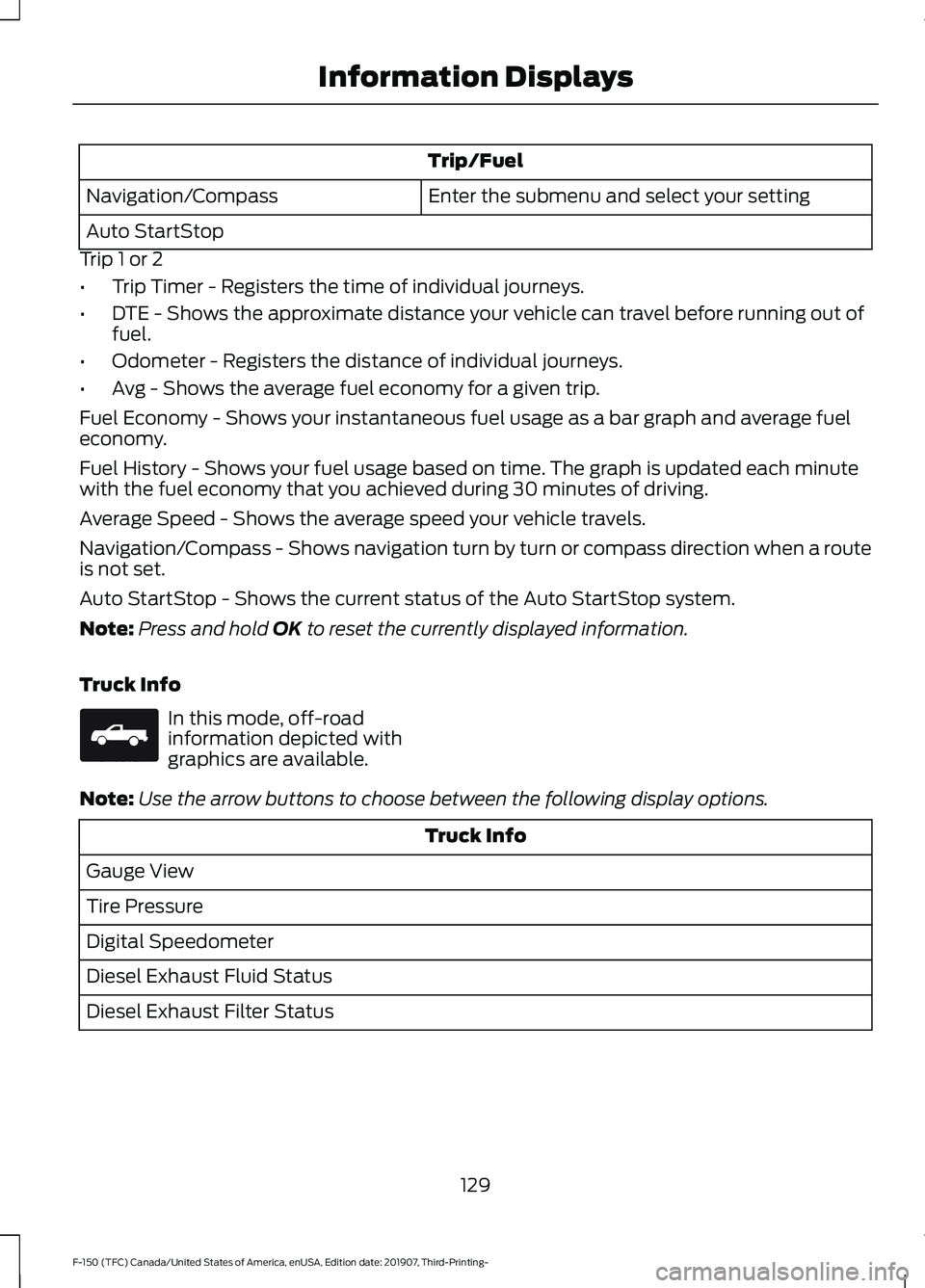
Trip/Fuel
Enter the submenu and select your setting
Navigation/Compass
Auto StartStop
Trip 1 or 2
• Trip Timer - Registers the time of individual journeys.
• DTE - Shows the approximate distance your vehicle can travel before running out of
fuel.
• Odometer - Registers the distance of individual journeys.
• Avg - Shows the average fuel economy for a given trip.
Fuel Economy - Shows your instantaneous fuel usage as a bar graph and average fuel
economy.
Fuel History - Shows your fuel usage based on time. The graph is updated each minute
with the fuel economy that you achieved during 30 minutes of driving.
Average Speed - Shows the average speed your vehicle travels.
Navigation/Compass - Shows navigation turn by turn or compass direction when a route
is not set.
Auto StartStop - Shows the current status of the Auto StartStop system.
Note: Press and hold OK to reset the currently displayed information.
Truck Info In this mode, off-road
information depicted with
graphics are available.
Note: Use the arrow buttons to choose between the following display options. Truck Info
Gauge View
Tire Pressure
Digital Speedometer
Diesel Exhaust Fluid Status
Diesel Exhaust Filter Status
129
F-150 (TFC) Canada/United States of America, enUSA, Edition date: 201907, Third-Printing- Information DisplaysE163181
Page 133 of 625
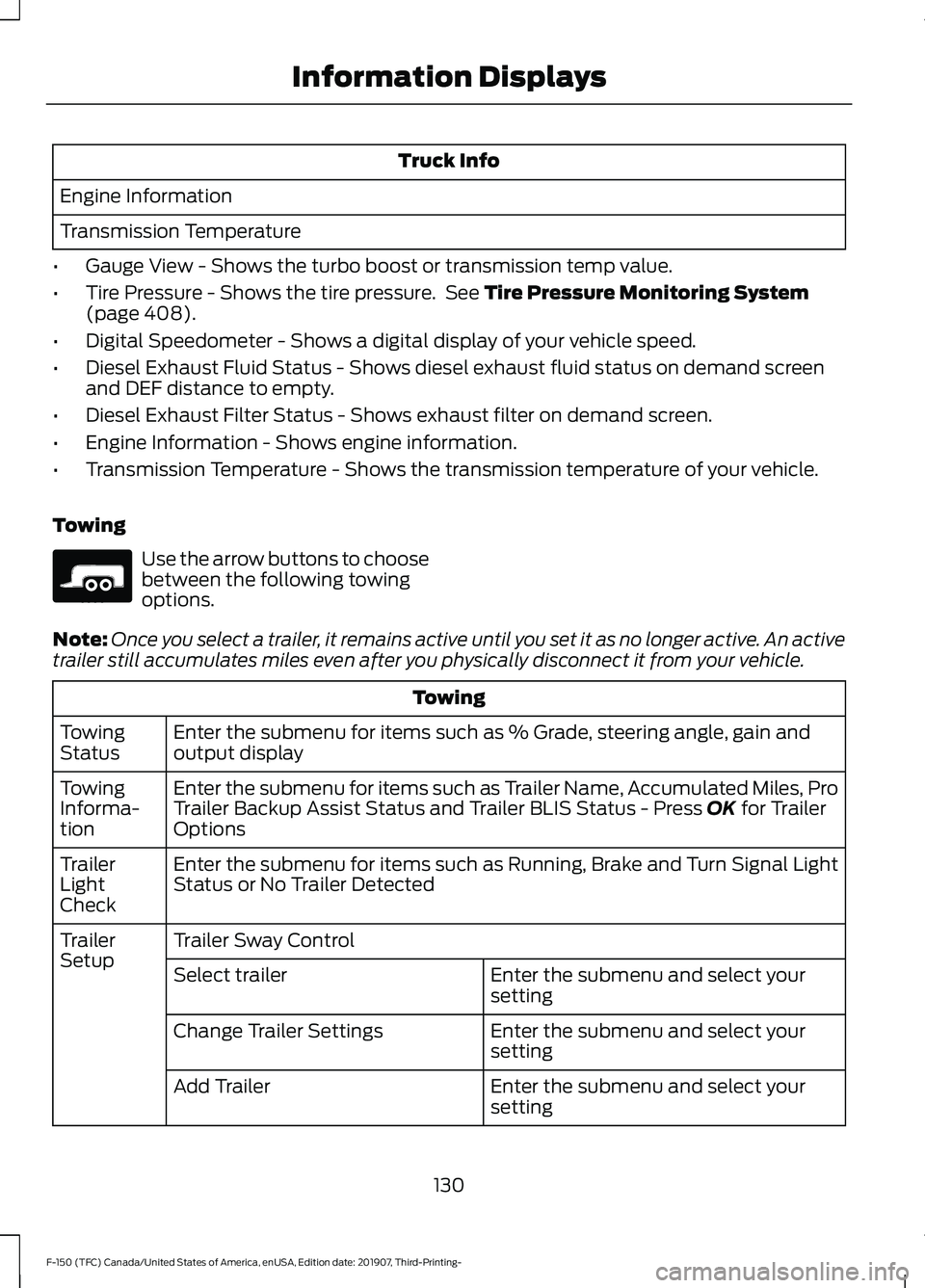
Truck Info
Engine Information
Transmission Temperature
• Gauge View - Shows the turbo boost or transmission temp value.
• Tire Pressure - Shows the tire pressure. See Tire Pressure Monitoring System
(page 408).
• Digital Speedometer - Shows a digital display of your vehicle speed.
• Diesel Exhaust Fluid Status - Shows diesel exhaust fluid status on demand screen
and DEF distance to empty.
• Diesel Exhaust Filter Status - Shows exhaust filter on demand screen.
• Engine Information - Shows engine information.
• Transmission Temperature - Shows the transmission temperature of your vehicle.
Towing Use the arrow buttons to choose
between the following towing
options.
Note: Once you select a trailer, it remains active until you set it as no longer active. An active
trailer still accumulates miles even after you physically disconnect it from your vehicle. Towing
Enter the submenu for items such as % Grade, steering angle, gain and
output display
Towing
Status
Enter the submenu for items such as Trailer Name, Accumulated Miles, Pro
Trailer Backup Assist Status and Trailer BLIS Status - Press
OK for Trailer
Options
Towing
Informa-
tion
Enter the submenu for items such as Running, Brake and Turn Signal Light
Status or No Trailer Detected
Trailer
Light
Check
Trailer Sway Control
Trailer
Setup
Enter the submenu and select your
setting
Select trailer
Enter the submenu and select your
setting
Change Trailer Settings
Enter the submenu and select your
setting
Add Trailer
130
F-150 (TFC) Canada/United States of America, enUSA, Edition date: 201907, Third-Printing- Information DisplaysE176096
Page 134 of 625
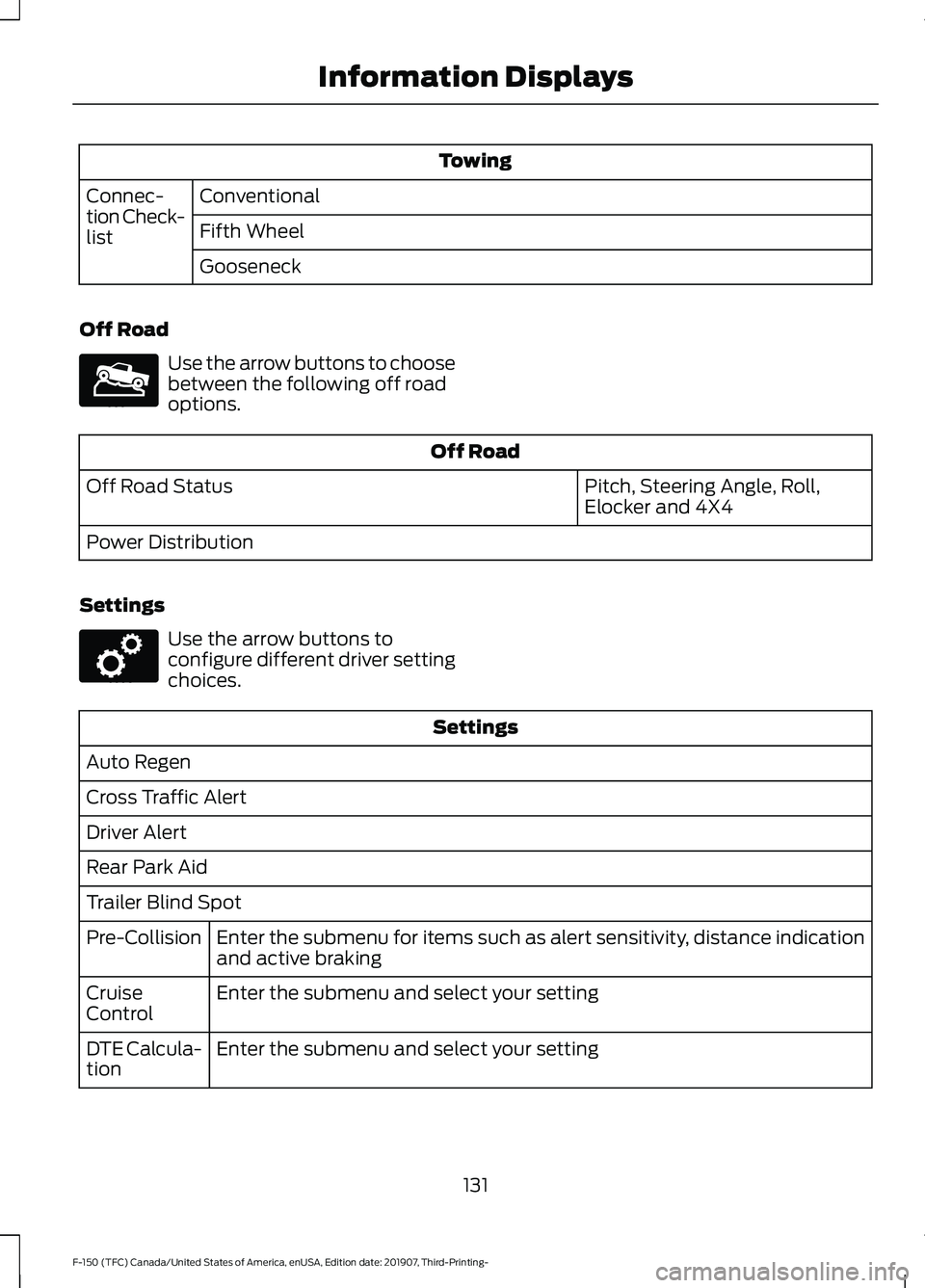
Towing
Conventional
Connec-
tion Check-
list Fifth Wheel
Gooseneck
Off Road Use the arrow buttons to choose
between the following off road
options.
Off Road
Pitch, Steering Angle, Roll,
Elocker and 4X4
Off Road Status
Power Distribution
Settings Use the arrow buttons to
configure different driver setting
choices.
Settings
Auto Regen
Cross Traffic Alert
Driver Alert
Rear Park Aid
Trailer Blind Spot Enter the submenu for items such as alert sensitivity, distance indication
and active braking
Pre-Collision
Enter the submenu and select your setting
Cruise
Control
Enter the submenu and select your setting
DTE Calcula-
tion
131
F-150 (TFC) Canada/United States of America, enUSA, Edition date: 201907, Third-Printing- Information DisplaysE176097 E176098
Page 162 of 625
WARNING: The head restraint is a
safety device. Whenever possible it
should be installed and properly
adjusted when the seat is occupied.
Failure to adjust the head restraint
properly could reduce its effectiveness
during certain impacts.
Note: Adjust the seat backrest to an upright
driving position before adjusting the head
restraint. Adjust the head restraint so that
the top of it is level with the top of your head
and as far forward as possible. Make sure
that you remain comfortable. If you are
extremely tall, adjust the head restraint to
its highest position.
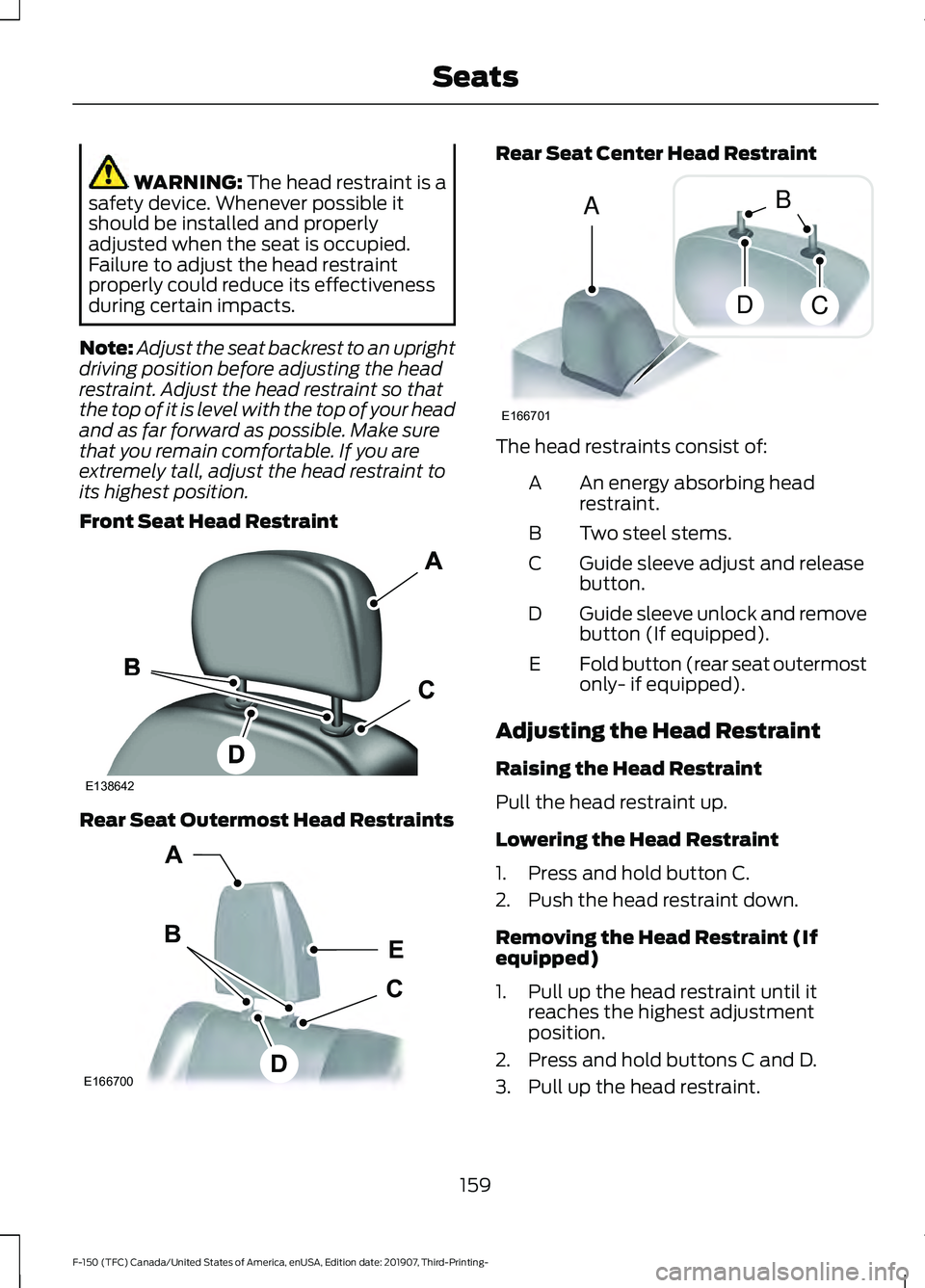
Front Seat Head Restraint Rear Seat Outermost Head Restraints Rear Seat Center Head Restraint
The head restraints consist of:
An energy absorbing head
restraint.
A
Two steel stems.
B
Guide sleeve adjust and release
button.
C
Guide sleeve unlock and remove
button (If equipped).
D
Fold button (rear seat outermost
only- if equipped).
E
Adjusting the Head Restraint
Raising the Head Restraint
Pull the head restraint up.
Lowering the Head Restraint
1. Press and hold button C.
2. Push the head restraint down.
Removing the Head Restraint (If
equipped)
1. Pull up the head restraint until it reaches the highest adjustment
position.
2. Press and hold buttons C and D.
3. Pull up the head restraint.
159
F-150 (TFC) Canada/United States of America, enUSA, Edition date: 201907, Third-Printing- SeatsE138642 E166700
E
D
C
B
A E166701
A
DC
B
Page 174 of 625
UNIVERSAL GARAGE DOOR
OPENER
HomeLink Wireless Control
System
WARNING: Do not use the system
with any garage door opener that does
not have the safety stop and reverse
feature as required by U.S. Federal
Safety Standards (this includes any
garage door opener manufactured
before April 1, 1982). A garage door
opener which cannot detect an object,
signaling the door to stop and reverse,
does not meet current federal safety
standards. Using a garage door opener
without these features increases the risk
of serious injury or death.
Note: Make sure that the garage door and
security device are free from obstruction
when you are programming. Do not program
the system with the vehicle in the garage.
Note: Make sure you keep the original
remote control transmitter for use in other
vehicles as well as for future system
programming.
Note: We recommend that upon the sale
or lease termination of your vehicle, you
erase the programmed function buttons for
security reasons. See Erasing the Function
Button Codes
later in this section.
Note: You can program a maximum of
three devices. To change or replace any of
the three devices after it has been initially
programmed, you must first erase the
current settings. See Erasing the Function
Button Codes
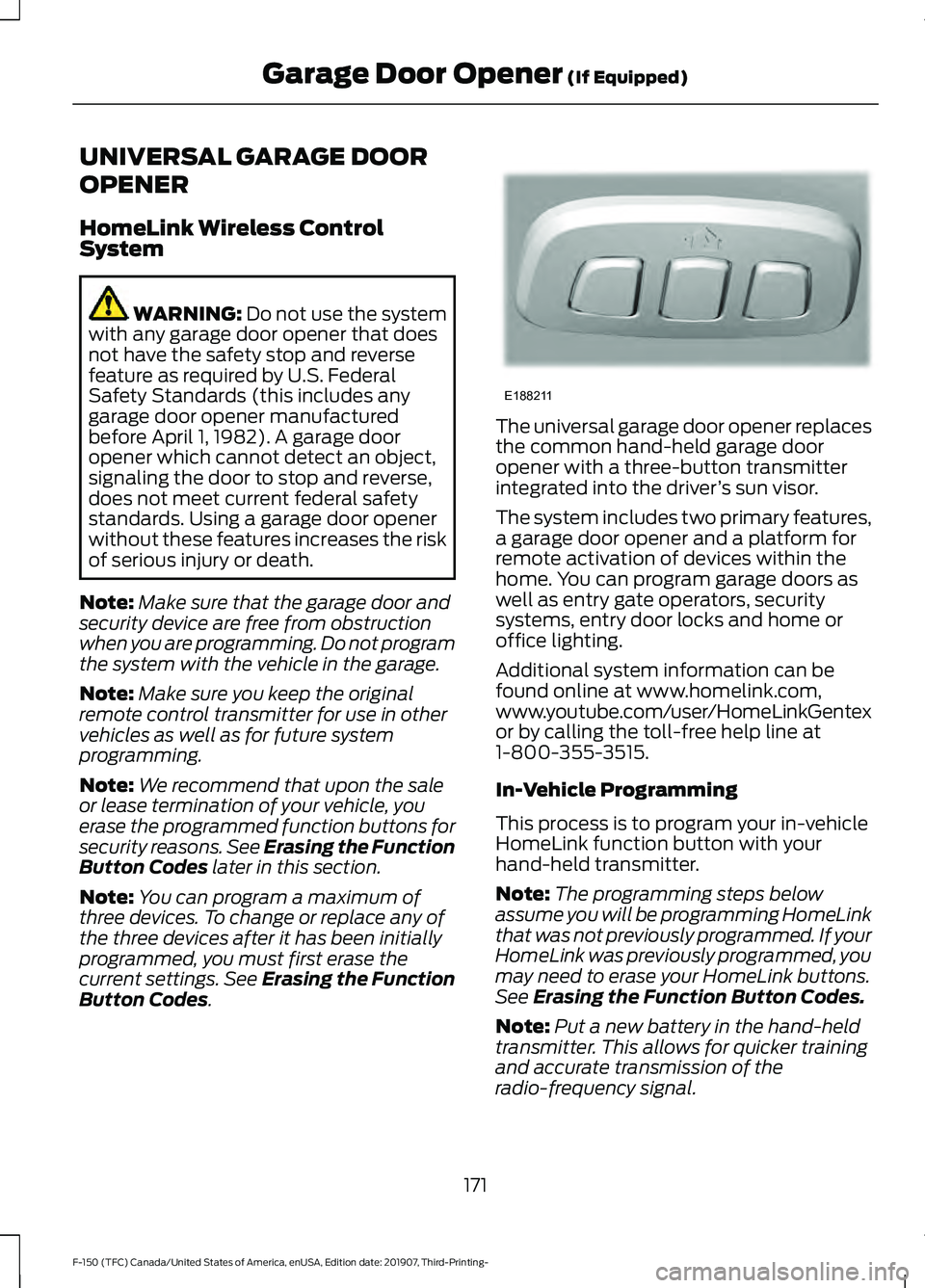
. The universal garage door opener replaces
the common hand-held garage door
opener with a three-button transmitter
integrated into the driver
’s sun visor.
The system includes two primary features,
a garage door opener and a platform for
remote activation of devices within the
home. You can program garage doors as
well as entry gate operators, security
systems, entry door locks and home or
office lighting.
Additional system information can be
found online at www.homelink.com,
www.youtube.com/user/HomeLinkGentex
or by calling the toll-free help line at
1-800-355-3515.
In-Vehicle Programming
This process is to program your in-vehicle
HomeLink function button with your
hand-held transmitter.
Note: The programming steps below
assume you will be programming HomeLink
that was not previously programmed. If your
HomeLink was previously programmed, you
may need to erase your HomeLink buttons.
See Erasing the Function Button Codes.
Note: Put a new battery in the hand-held
transmitter. This allows for quicker training
and accurate transmission of the
radio-frequency signal.
171
F-150 (TFC) Canada/United States of America, enUSA, Edition date: 201907, Third-Printing- Garage Door Opener
(If Equipped)E188211
Page 175 of 625
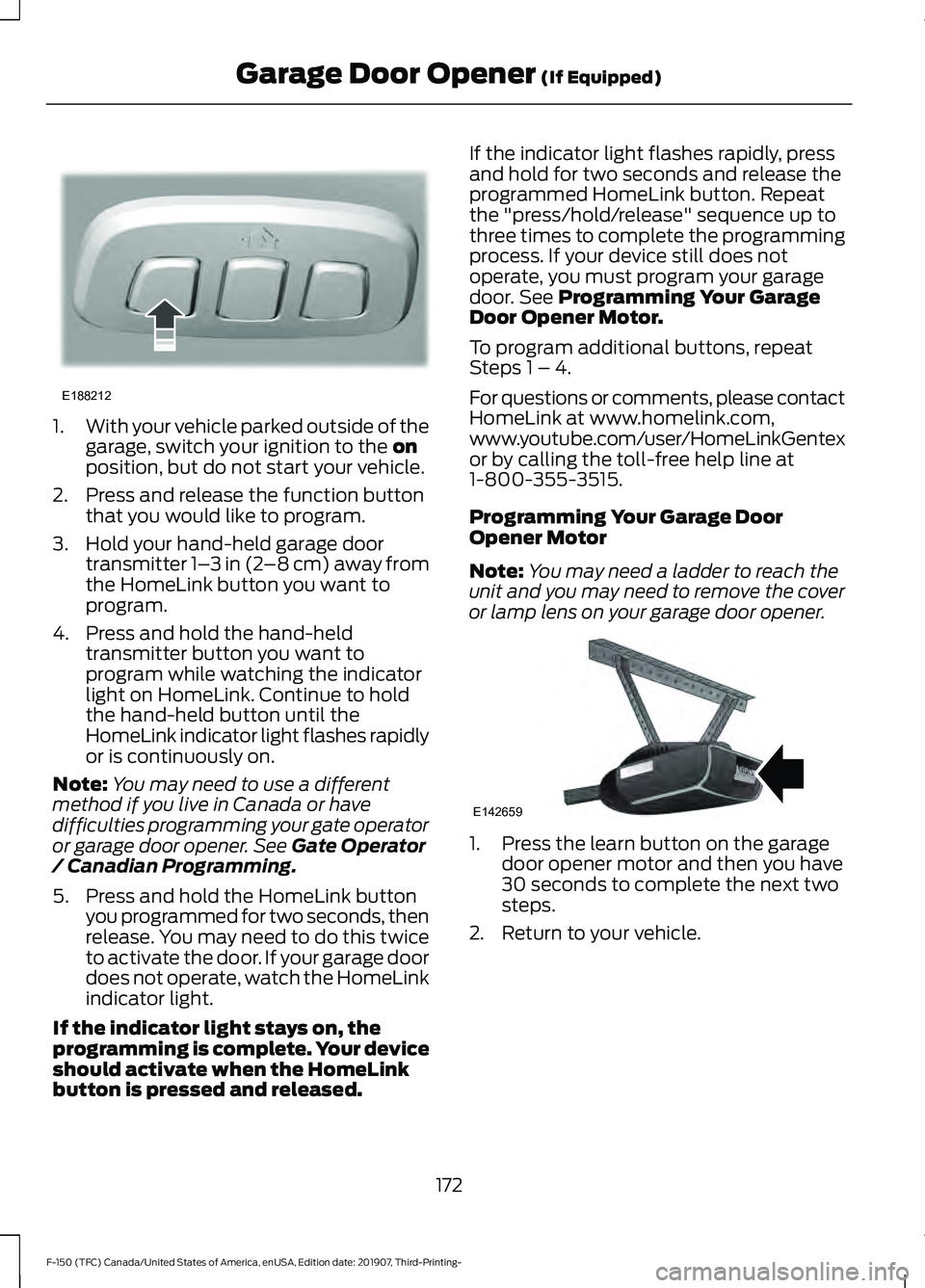
1.
With your vehicle parked outside of the
garage, switch your ignition to the on
position, but do not start your vehicle.
2. Press and release the function button that you would like to program.
3. Hold your hand-held garage door transmitter 1– 3 in (2–8 cm) away from
the HomeLink button you want to
program.
4. Press and hold the hand-held transmitter button you want to
program while watching the indicator
light on HomeLink. Continue to hold
the hand-held button until the
HomeLink indicator light flashes rapidly
or is continuously on.
Note: You may need to use a different
method if you live in Canada or have
difficulties programming your gate operator
or garage door opener. See
Gate Operator
/ Canadian Programming.
5. Press and hold the HomeLink button you programmed for two seconds, then
release. You may need to do this twice
to activate the door. If your garage door
does not operate, watch the HomeLink
indicator light.
If the indicator light stays on, the
programming is complete. Your device
should activate when the HomeLink
button is pressed and released. If the indicator light flashes rapidly, press
and hold for two seconds and release the
programmed HomeLink button. Repeat
the "press/hold/release" sequence up to
three times to complete the programming
process. If your device still does not
operate, you must program your garage
door. See
Programming Your Garage
Door Opener Motor.
To program additional buttons, repeat
Steps 1 – 4.
For questions or comments, please contact
HomeLink at www.homelink.com,
www.youtube.com/user/HomeLinkGentex
or by calling the toll-free help line at
1-800-355-3515.
Programming Your Garage Door
Opener Motor
Note: You may need a ladder to reach the
unit and you may need to remove the cover
or lamp lens on your garage door opener. 1. Press the learn button on the garage
door opener motor and then you have
30 seconds to complete the next two
steps.
2. Return to your vehicle.
172
F-150 (TFC) Canada/United States of America, enUSA, Edition date: 201907, Third-Printing- Garage Door Opener
(If Equipped)E188212 E142659
Page 176 of 625
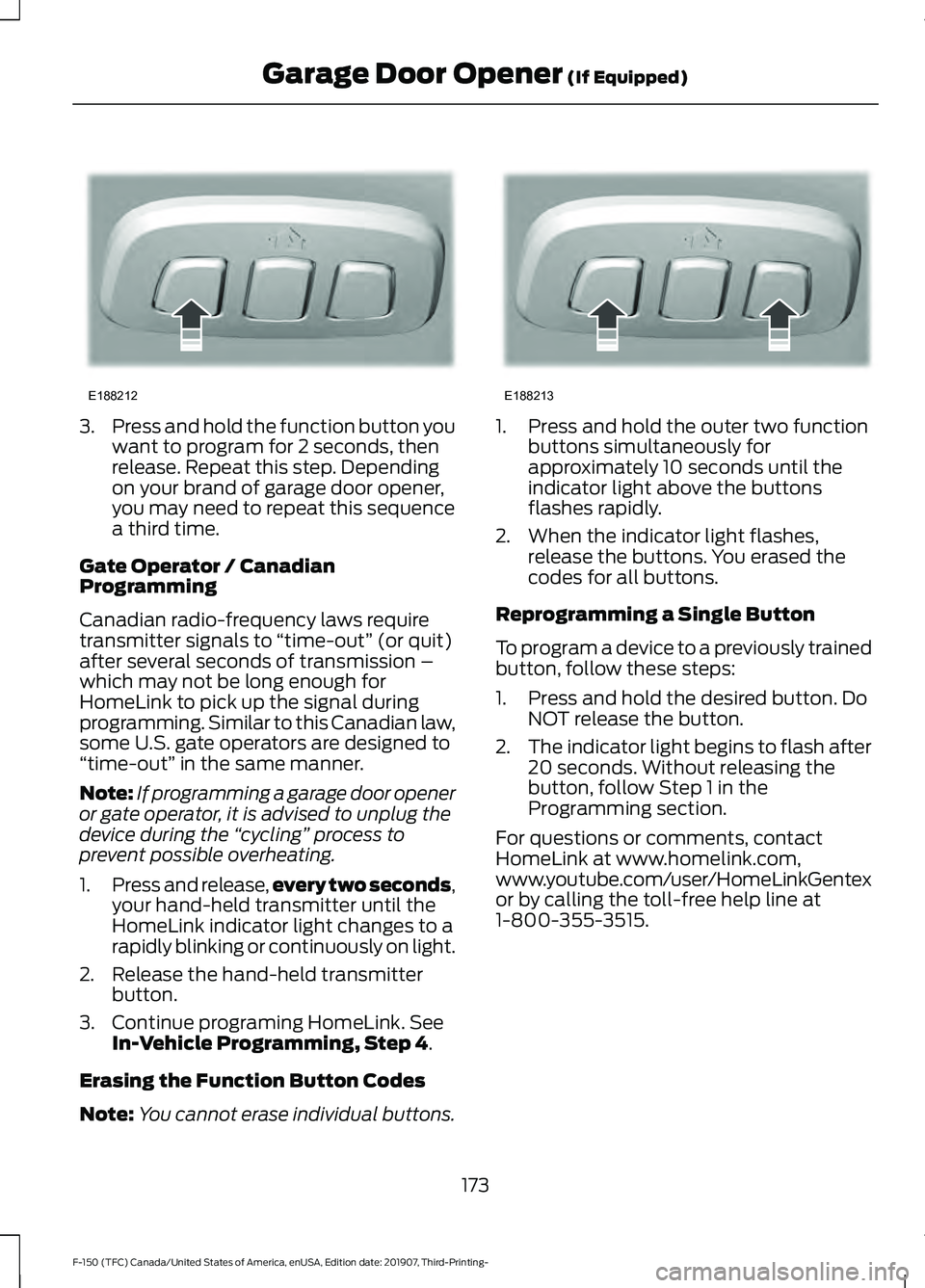
3.
Press and hold the function button you
want to program for 2 seconds, then
release. Repeat this step. Depending
on your brand of garage door opener,
you may need to repeat this sequence
a third time.
Gate Operator / Canadian
Programming
Canadian radio-frequency laws require
transmitter signals to “time-out” (or quit)
after several seconds of transmission –
which may not be long enough for
HomeLink to pick up the signal during
programming. Similar to this Canadian law,
some U.S. gate operators are designed to
“time-out” in the same manner.
Note: If programming a garage door opener
or gate operator, it is advised to unplug the
device during the “cycling” process to
prevent possible overheating.
1. Press and release, every two seconds,
your hand-held transmitter until the
HomeLink indicator light changes to a
rapidly blinking or continuously on light.
2. Release the hand-held transmitter button.
3. Continue programing HomeLink. See In-Vehicle Programming, Step 4.
Erasing the Function Button Codes
Note: You cannot erase individual buttons. 1. Press and hold the outer two function
buttons simultaneously for
approximately 10 seconds until the
indicator light above the buttons
flashes rapidly.
2. When the indicator light flashes, release the buttons. You erased the
codes for all buttons.
Reprogramming a Single Button
To program a device to a previously trained
button, follow these steps:
1. Press and hold the desired button. Do NOT release the button.
2. The indicator light begins to flash after
20 seconds. Without releasing the
button, follow Step 1 in the
Programming section.
For questions or comments, contact
HomeLink at www.homelink.com,
www.youtube.com/user/HomeLinkGentex
or by calling the toll-free help line at
1-800-355-3515.
173
F-150 (TFC) Canada/United States of America, enUSA, Edition date: 201907, Third-Printing- Garage Door Opener
(If Equipped)E188212 E188213
Page 185 of 625
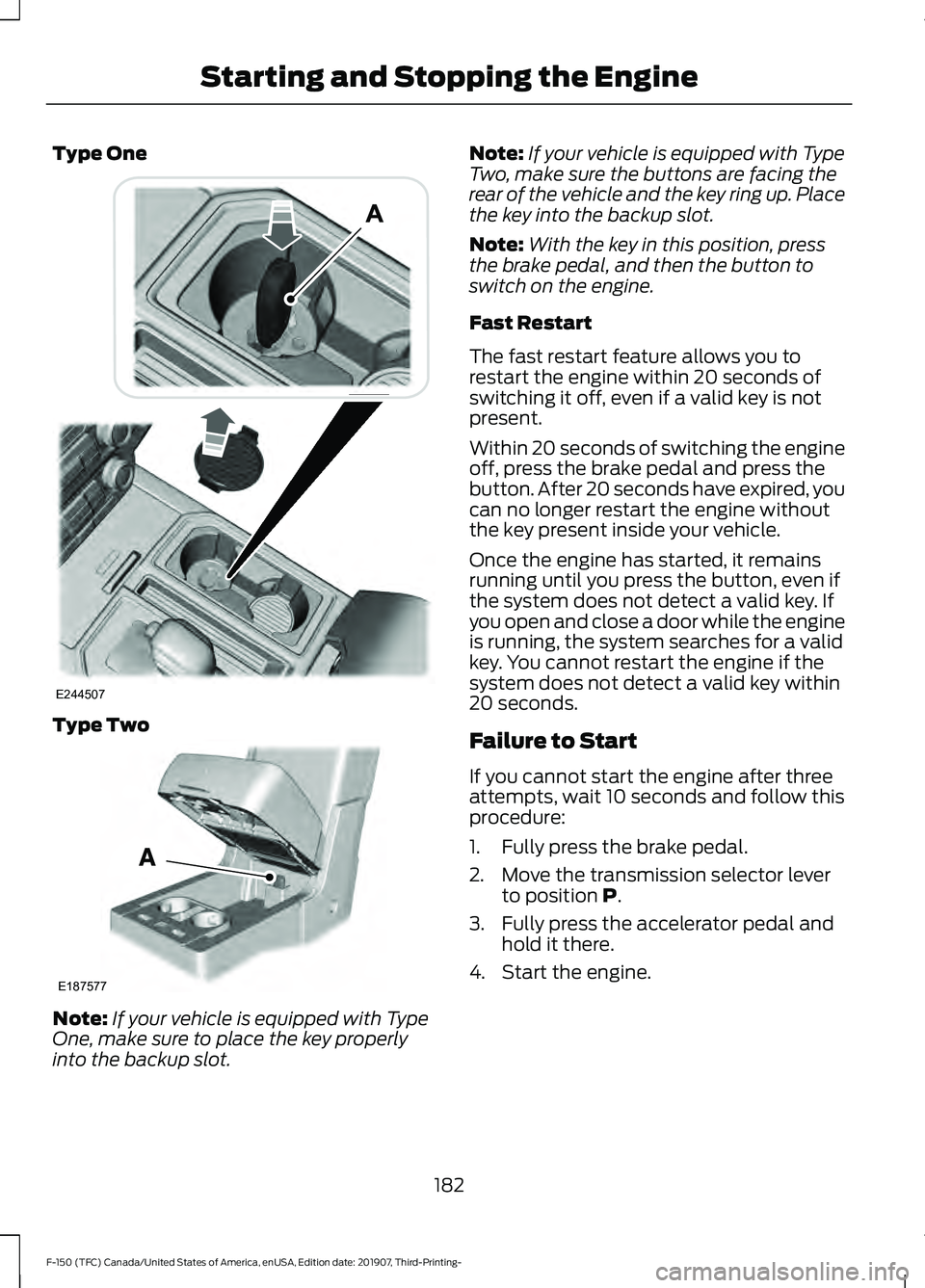
Type One
Type Two
Note:
If your vehicle is equipped with Type
One, make sure to place the key properly
into the backup slot. Note:
If your vehicle is equipped with Type
Two, make sure the buttons are facing the
rear of the vehicle and the key ring up. Place
the key into the backup slot.
Note: With the key in this position, press
the brake pedal, and then the button to
switch on the engine.
Fast Restart
The fast restart feature allows you to
restart the engine within 20 seconds of
switching it off, even if a valid key is not
present.
Within 20 seconds of switching the engine
off, press the brake pedal and press the
button. After 20 seconds have expired, you
can no longer restart the engine without
the key present inside your vehicle.
Once the engine has started, it remains
running until you press the button, even if
the system does not detect a valid key. If
you open and close a door while the engine
is running, the system searches for a valid
key. You cannot restart the engine if the
system does not detect a valid key within
20 seconds.
Failure to Start
If you cannot start the engine after three
attempts, wait 10 seconds and follow this
procedure:
1. Fully press the brake pedal.
2. Move the transmission selector lever to position P.
3. Fully press the accelerator pedal and hold it there.
4. Start the engine.
182
F-150 (TFC) Canada/United States of America, enUSA, Edition date: 201907, Third-Printing- Starting and Stopping the EngineE244507 E187577
Page 220 of 625
AUTOMATIC TRANSMISSION
WARNING: Always fully apply the
parking brake and make sure you shift
into park (P). Failure to follow this
instruction could result in personal injury
or death. WARNING:
Do not use tow/haul
when the road surface is slippery. Failure
to follow this instruction could result in
the loss of control of your vehicle. WARNING:
When your vehicle is
stationary, keep the brake pedal fully
pressed when shifting gears. Failure to
follow this instruction could result in
personal injury, death or property
damage.
Note: Under certain conditions, you will not
be able to shift out of park (P) unless the
intelligent access key is inside the vehicle.
Understanding the Shift Positions
of your Automatic Transmission
Putting your vehicle in or out of gear:
1. Fully press down on the brake pedal.
2. Move the gearshift lever into the desired gear.
3. When you are finished driving, come to
a complete stop.
4. Move the gearshift lever and securely latch it in park (P).
The instrument cluster displays the current
gear.
Park (P)
This position locks the transmission and
prevents the wheels from turning. Reverse (R)
With the gearshift lever in reverse (R), your
vehicle moves backward. Always come to
a complete stop before shifting into and
out of reverse (R).
Neutral (N)
With the gearshift lever in neutral (N), you
can start your vehicle, which is free to roll.
Hold the brake pedal down when in this
position.
Drive (D)
Drive (D) is the normal driving position for
the best fuel economy, and allows
automatic upshifts and downshifts through
all available gears.
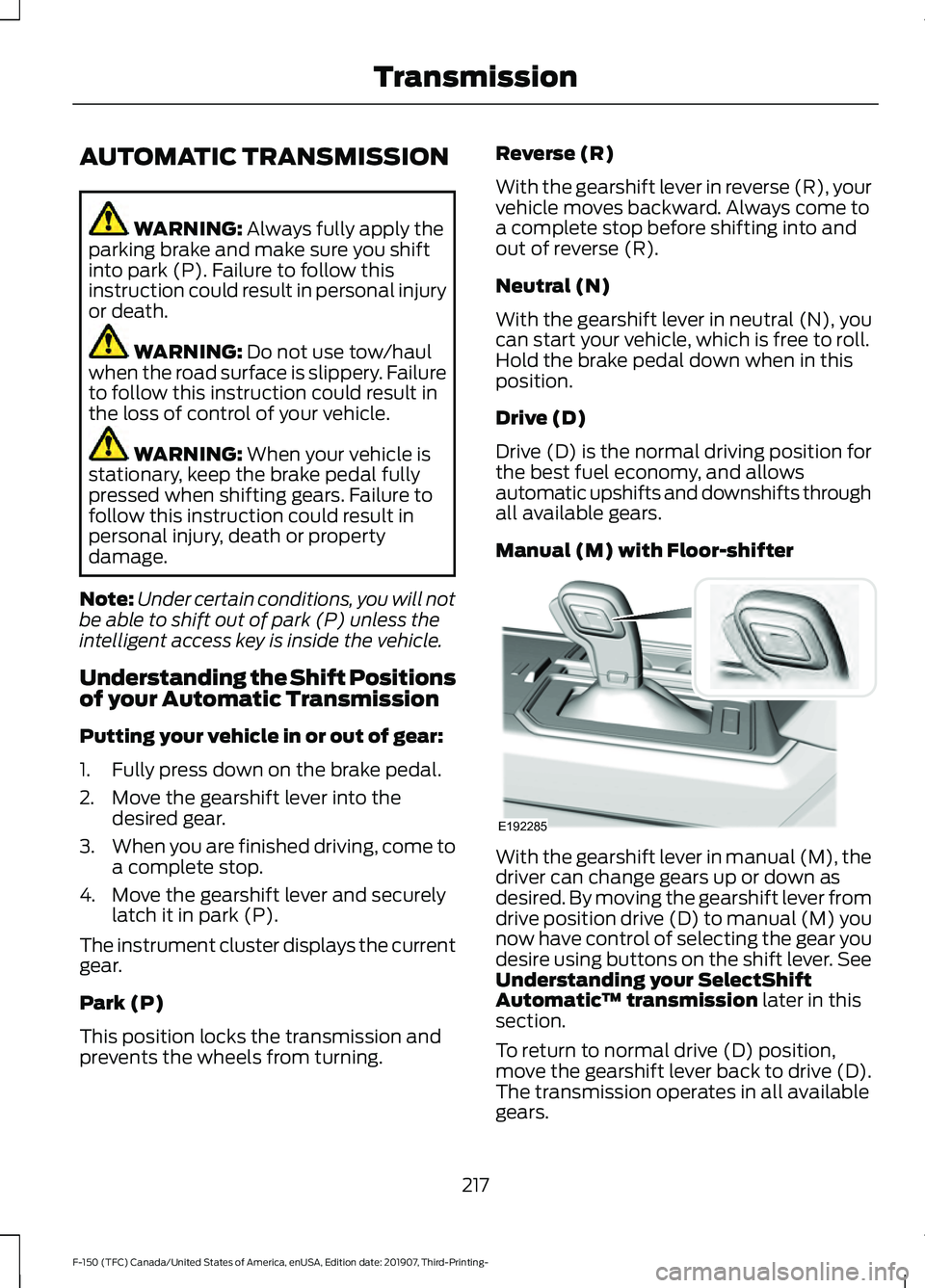
Manual (M) with Floor-shifter
With the gearshift lever in manual (M), the
driver can change gears up or down as
desired. By moving the gearshift lever from
drive position drive (D) to manual (M) you
now have control of selecting the gear you
desire using buttons on the shift lever. See
Understanding your SelectShift
Automatic
™ transmission
later in this
section.
To return to normal drive (D) position,
move the gearshift lever back to drive (D).
The transmission operates in all available
gears.
217
F-150 (TFC) Canada/United States of America, enUSA, Edition date: 201907, Third-Printing- TransmissionE192285