ECO mode FORD F-150 2021 Owners Manual
[x] Cancel search | Manufacturer: FORD, Model Year: 2021, Model line: F-150, Model: FORD F-150 2021Pages: 796, PDF Size: 13.89 MB
Page 392 of 796
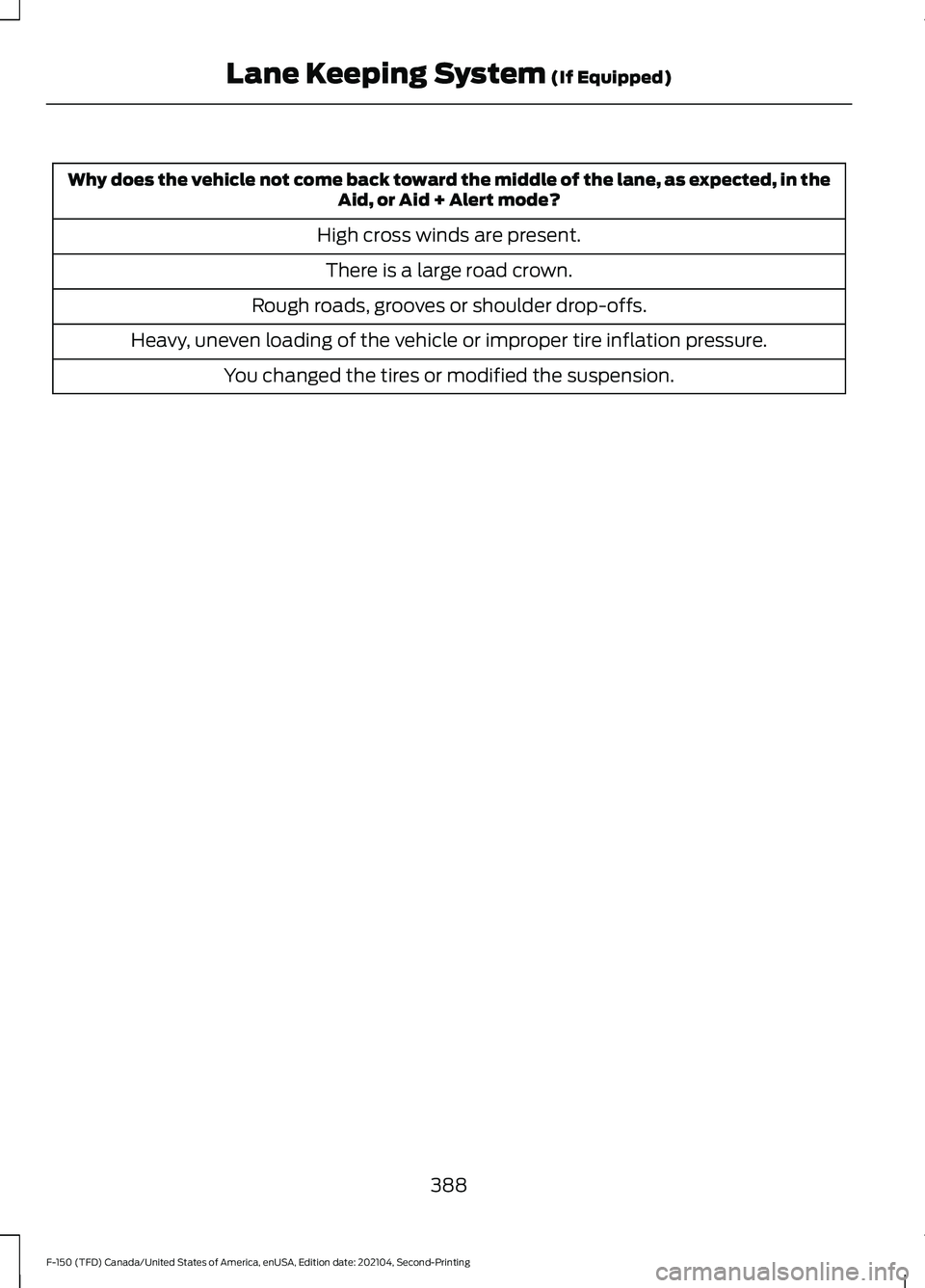
Why does the vehicle not come back toward the middle of the lane, as expected, in the
Aid, or Aid + Alert mode?
High cross winds are present. There is a large road crown.
Rough roads, grooves or shoulder drop-offs.
Heavy, uneven loading of the vehicle or improper tire inflation pressure. You changed the tires or modified the suspension.
388
F-150 (TFD) Canada/United States of America, enUSA, Edition date: 202104, Second-Printing Lane Keeping System (If Equipped)
Page 401 of 796
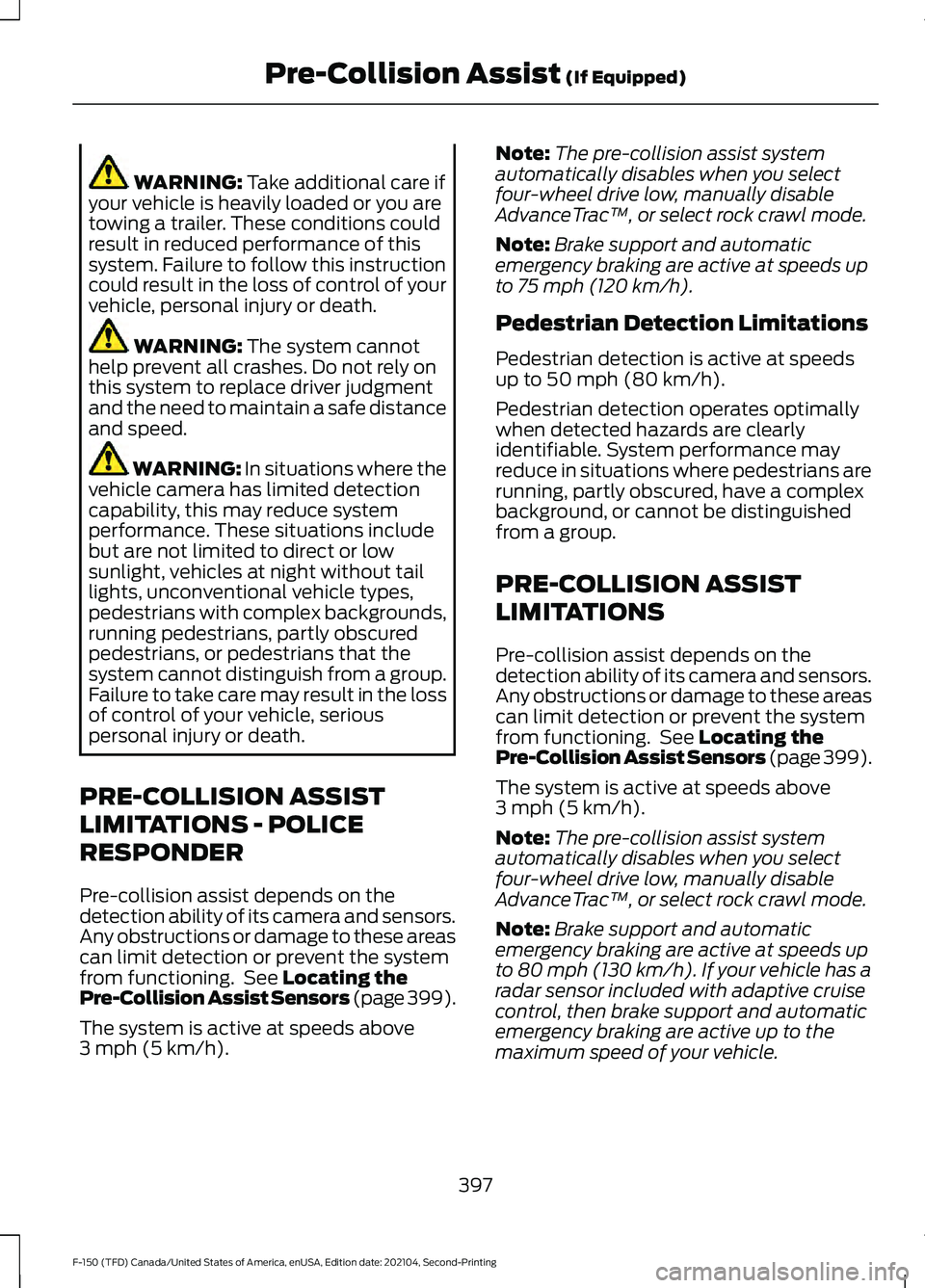
WARNING: Take additional care if
your vehicle is heavily loaded or you are
towing a trailer. These conditions could
result in reduced performance of this
system. Failure to follow this instruction
could result in the loss of control of your
vehicle, personal injury or death. WARNING:
The system cannot
help prevent all crashes. Do not rely on
this system to replace driver judgment
and the need to maintain a safe distance
and speed. WARNING:
In situations where the
vehicle camera has limited detection
capability, this may reduce system
performance. These situations include
but are not limited to direct or low
sunlight, vehicles at night without tail
lights, unconventional vehicle types,
pedestrians with complex backgrounds,
running pedestrians, partly obscured
pedestrians, or pedestrians that the
system cannot distinguish from a group.
Failure to take care may result in the loss
of control of your vehicle, serious
personal injury or death.
PRE-COLLISION ASSIST
LIMITATIONS - POLICE
RESPONDER
Pre-collision assist depends on the
detection ability of its camera and sensors.
Any obstructions or damage to these areas
can limit detection or prevent the system
from functioning. See
Locating the
Pre-Collision Assist Sensors (page 399).
The system is active at speeds above
3 mph (5 km/h)
. Note:
The pre-collision assist system
automatically disables when you select
four-wheel drive low, manually disable
AdvanceTrac ™, or select rock crawl mode.
Note: Brake support and automatic
emergency braking are active at speeds up
to
75 mph (120 km/h).
Pedestrian Detection Limitations
Pedestrian detection is active at speeds
up to
50 mph (80 km/h).
Pedestrian detection operates optimally
when detected hazards are clearly
identifiable. System performance may
reduce in situations where pedestrians are
running, partly obscured, have a complex
background, or cannot be distinguished
from a group.
PRE-COLLISION ASSIST
LIMITATIONS
Pre-collision assist depends on the
detection ability of its camera and sensors.
Any obstructions or damage to these areas
can limit detection or prevent the system
from functioning. See
Locating the
Pre-Collision Assist Sensors (page 399).
The system is active at speeds above
3 mph (5 km/h)
.
Note: The pre-collision assist system
automatically disables when you select
four-wheel drive low, manually disable
AdvanceTrac ™, or select rock crawl mode.
Note: Brake support and automatic
emergency braking are active at speeds up
to 80 mph (130 km/h). If your vehicle has a
radar sensor included with adaptive cruise
control, then brake support and automatic
emergency braking are active up to the
maximum speed of your vehicle.
397
F-150 (TFD) Canada/United States of America, enUSA, Edition date: 202104, Second-Printing Pre-Collision Assist
(If Equipped)
Page 436 of 796
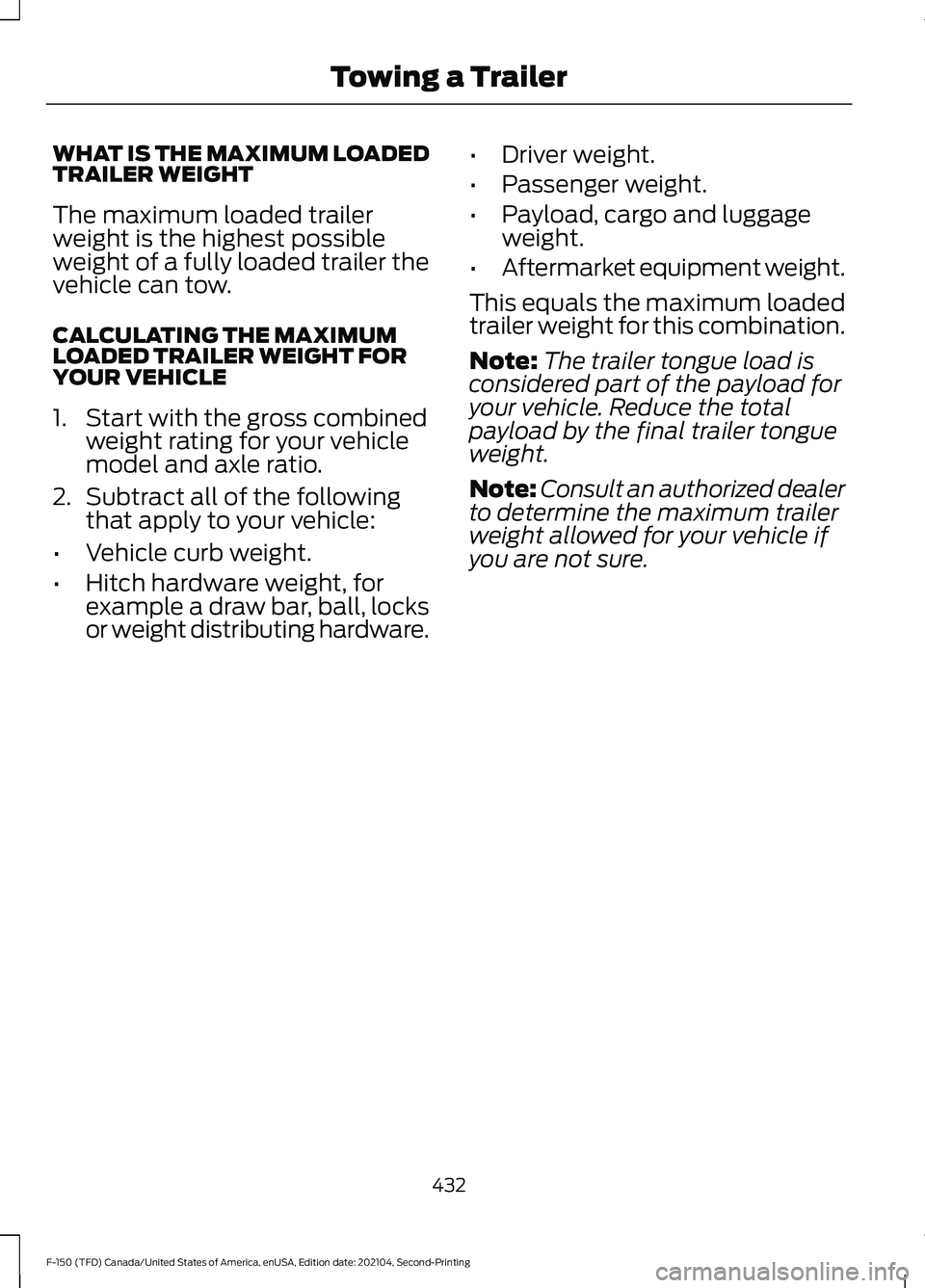
WHAT IS THE MAXIMUM LOADED
TRAILER WEIGHT
The maximum loaded trailer
weight is the highest possible
weight of a fully loaded trailer the
vehicle can tow.
CALCULATING THE MAXIMUM
LOADED TRAILER WEIGHT FOR
YOUR VEHICLE
1. Start with the gross combined
weight rating for your vehicle
model and axle ratio.
2. Subtract all of the following
that apply to your vehicle:
• Vehicle curb weight.
• Hitch hardware weight, for
example a draw bar, ball, locks
or weight distributing hardware. •
Driver weight.
• Passenger weight.
• Payload, cargo and luggage
weight.
• Aftermarket equipment weight.
This equals the maximum loaded
trailer weight for this combination.
Note: The trailer tongue load is
considered part of the payload for
your vehicle. Reduce the total
payload by the final trailer tongue
weight.
Note: Consult an authorized dealer
to determine the maximum trailer
weight allowed for your vehicle if
you are not sure.
432
F-150 (TFD) Canada/United States of America, enUSA, Edition date: 202104, Second-Printing Towing a Trailer
Page 438 of 796
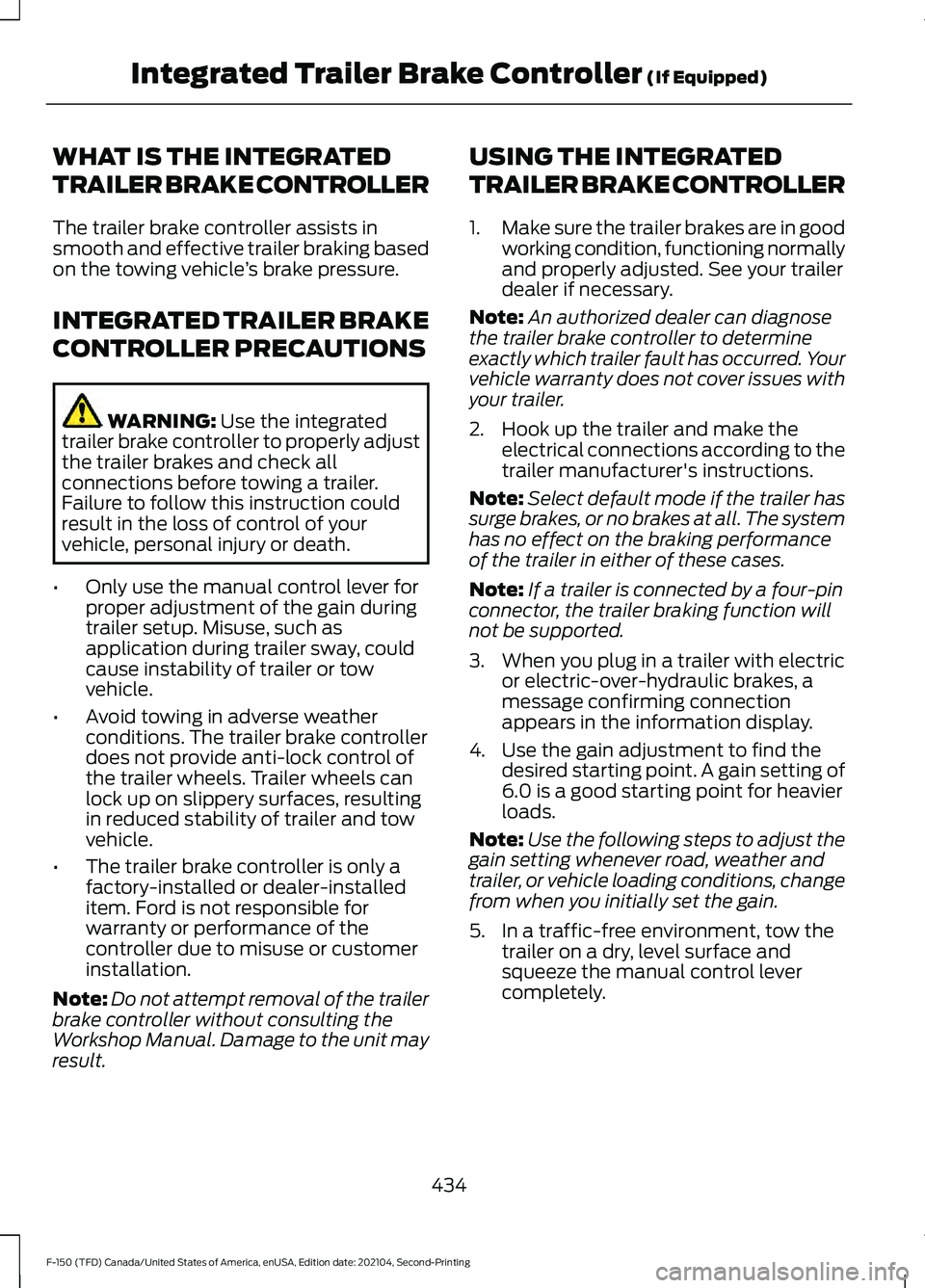
WHAT IS THE INTEGRATED
TRAILER BRAKE CONTROLLER
The trailer brake controller assists in
smooth and effective trailer braking based
on the towing vehicle
’s brake pressure.
INTEGRATED TRAILER BRAKE
CONTROLLER PRECAUTIONS WARNING: Use the integrated
trailer brake controller to properly adjust
the trailer brakes and check all
connections before towing a trailer.
Failure to follow this instruction could
result in the loss of control of your
vehicle, personal injury or death.
• Only use the manual control lever for
proper adjustment of the gain during
trailer setup. Misuse, such as
application during trailer sway, could
cause instability of trailer or tow
vehicle.
• Avoid towing in adverse weather
conditions. The trailer brake controller
does not provide anti-lock control of
the trailer wheels. Trailer wheels can
lock up on slippery surfaces, resulting
in reduced stability of trailer and tow
vehicle.
• The trailer brake controller is only a
factory-installed or dealer-installed
item. Ford is not responsible for
warranty or performance of the
controller due to misuse or customer
installation.
Note: Do not attempt removal of the trailer
brake controller without consulting the
Workshop Manual. Damage to the unit may
result. USING THE INTEGRATED
TRAILER BRAKE CONTROLLER
1.
Make sure the trailer brakes are in good
working condition, functioning normally
and properly adjusted. See your trailer
dealer if necessary.
Note: An authorized dealer can diagnose
the trailer brake controller to determine
exactly which trailer fault has occurred. Your
vehicle warranty does not cover issues with
your trailer.
2. Hook up the trailer and make the electrical connections according to the
trailer manufacturer's instructions.
Note: Select default mode if the trailer has
surge brakes, or no brakes at all. The system
has no effect on the braking performance
of the trailer in either of these cases.
Note: If a trailer is connected by a four-pin
connector, the trailer braking function will
not be supported.
3. When you plug in a trailer with electric or electric-over-hydraulic brakes, a
message confirming connection
appears in the information display.
4. Use the gain adjustment to find the desired starting point. A gain setting of
6.0 is a good starting point for heavier
loads.
Note: Use the following steps to adjust the
gain setting whenever road, weather and
trailer, or vehicle loading conditions, change
from when you initially set the gain.
5. In a traffic-free environment, tow the trailer on a dry, level surface and
squeeze the manual control lever
completely.
434
F-150 (TFD) Canada/United States of America, enUSA, Edition date: 202104, Second-Printing Integrated Trailer Brake Controller
(If Equipped)
Page 440 of 796
ADJUSTING THE INTEGRATED
TRAILER BRAKE CONTROLLER
MODE
Select the correct integrated trailer brake
controller mode option using the
touchscreen.
Note:
Trailer brake gain settings are saved
to the active trailer profile.
Selecting the Trailer Brake Type
1. Press Default for trailers with
electromagnetic drum brake systems
or press
Electric over Hydraulic for
trailers with electrically actuated
hydraulic brake systems. 2. Press
Save.
Selecting the Trailer Brake Effort
1. Select a setting for your trailer.
Note: The default value is
Low and is the
recommended setting for most trailers.
Select a different setting if your trailer's
brakes require more initial voltage, or you
prefer more aggressive trailer braking.
2. Press
Save.
INTEGRATED TRAILER BRAKE CONTROLLER –
TROUBLESHOOTING
INTEGRATED TRAILER BRAKE CONTROLLER – INFORMATION
MESSAGES Details
Message
The system detects the trailer wiring
connection is disconnected, during a given ignition cycle.
Trailer Disconnected
The system detects an electrical fault inthe trailer brake circuit. If this message
appears without a trailer attached, see your authorized dealer. If a trailer is attached, inspect and repair the trailer wiring.
Trailer Wiring Fault
Displays the current gain setting for thetrailer brake.
Trailer Brake Gain: {trailer gain value:#0.0}
Displays the current gain setting for the
trailer brake when you do not have a trailer connected.
Trailer Brake Gain: {trailer gain value:#0.0}
No Trailer
436
F-150 (TFD) Canada/United States of America, enUSA, Edition date: 202104, Second-Printing Integrated Trailer Brake Controller
(If Equipped)
Page 448 of 796
WHAT IS ON-BOARD SCALE
On-board scale provides the estimated
payload of your vehicle and warns when
your vehicle is overloaded.
HOW DOES ON-BOARD SCALE
WORK
On-board scale uses sensors mounted to
the suspension to calculate the vehicle's
payload.
ON-BOARD SCALE
LIMITATIONS
You cannot use the system if any of the
following occur:
•
The wheels are not pointed straight
ahead.
• Your vehicle is not in park (P).
• Your vehicle is not on a level surface.
• The tire pressures are below the
recommended levels.
• Your vehicle is off.
USING ON-BOARD SCALE
1. Press Features on the touchscreen.
2. Press
Onboard Scales.
Note: You can also access on-board scale
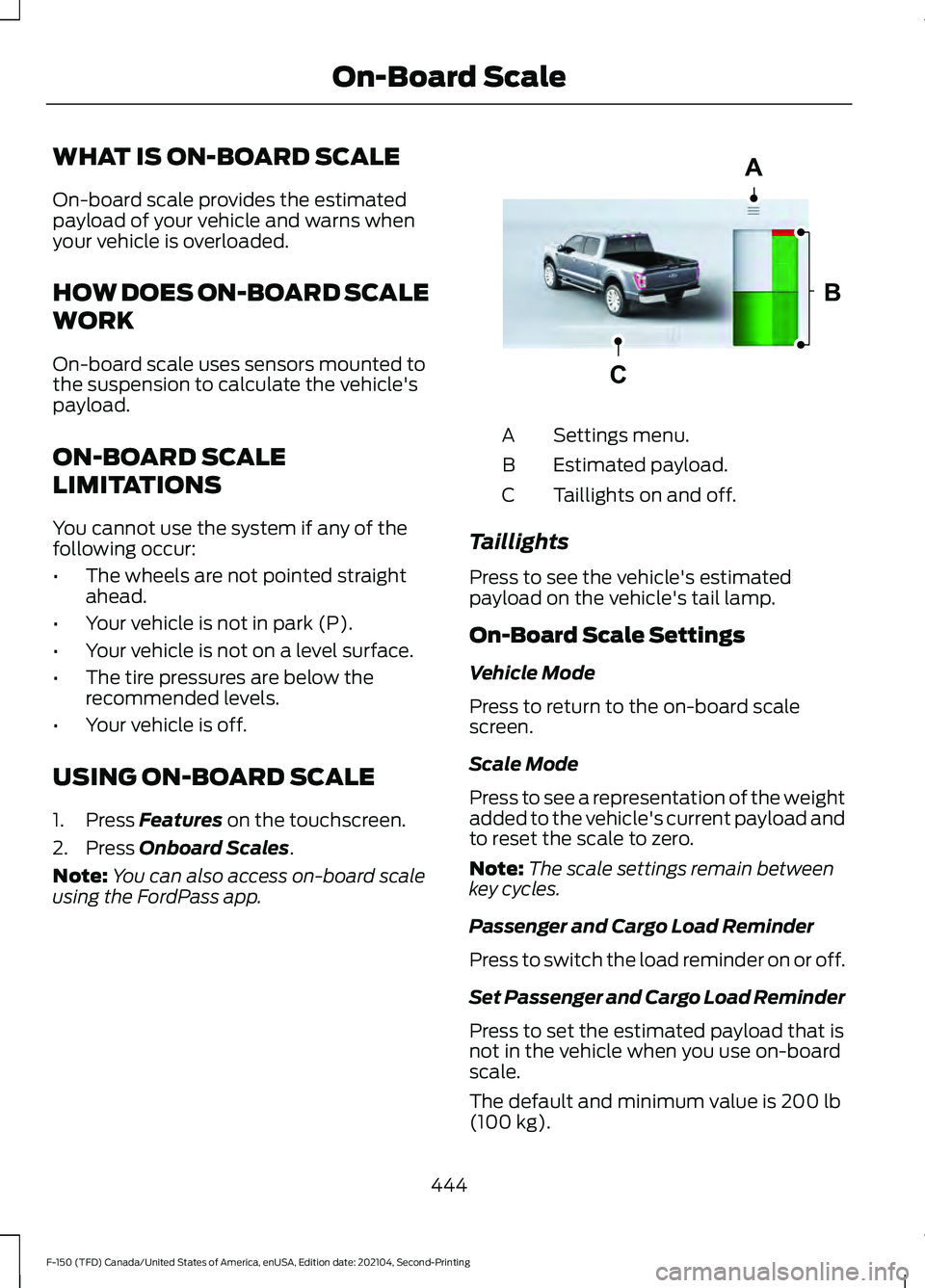
using the FordPass app. Settings menu.
A
Estimated payload.
B
Taillights on and off.
C
Taillights
Press to see the vehicle's estimated
payload on the vehicle's tail lamp.
On-Board Scale Settings
Vehicle Mode
Press to return to the on-board scale
screen.
Scale Mode
Press to see a representation of the weight
added to the vehicle's current payload and
to reset the scale to zero.
Note: The scale settings remain between
key cycles.
Passenger and Cargo Load Reminder
Press to switch the load reminder on or off.
Set Passenger and Cargo Load Reminder
Press to set the estimated payload that is
not in the vehicle when you use on-board
scale.
The default and minimum value is
200 lb
(100 kg).
444
F-150 (TFD) Canada/United States of America, enUSA, Edition date: 202104, Second-Printing On-Board ScaleA
B
CE361332
Page 455 of 796
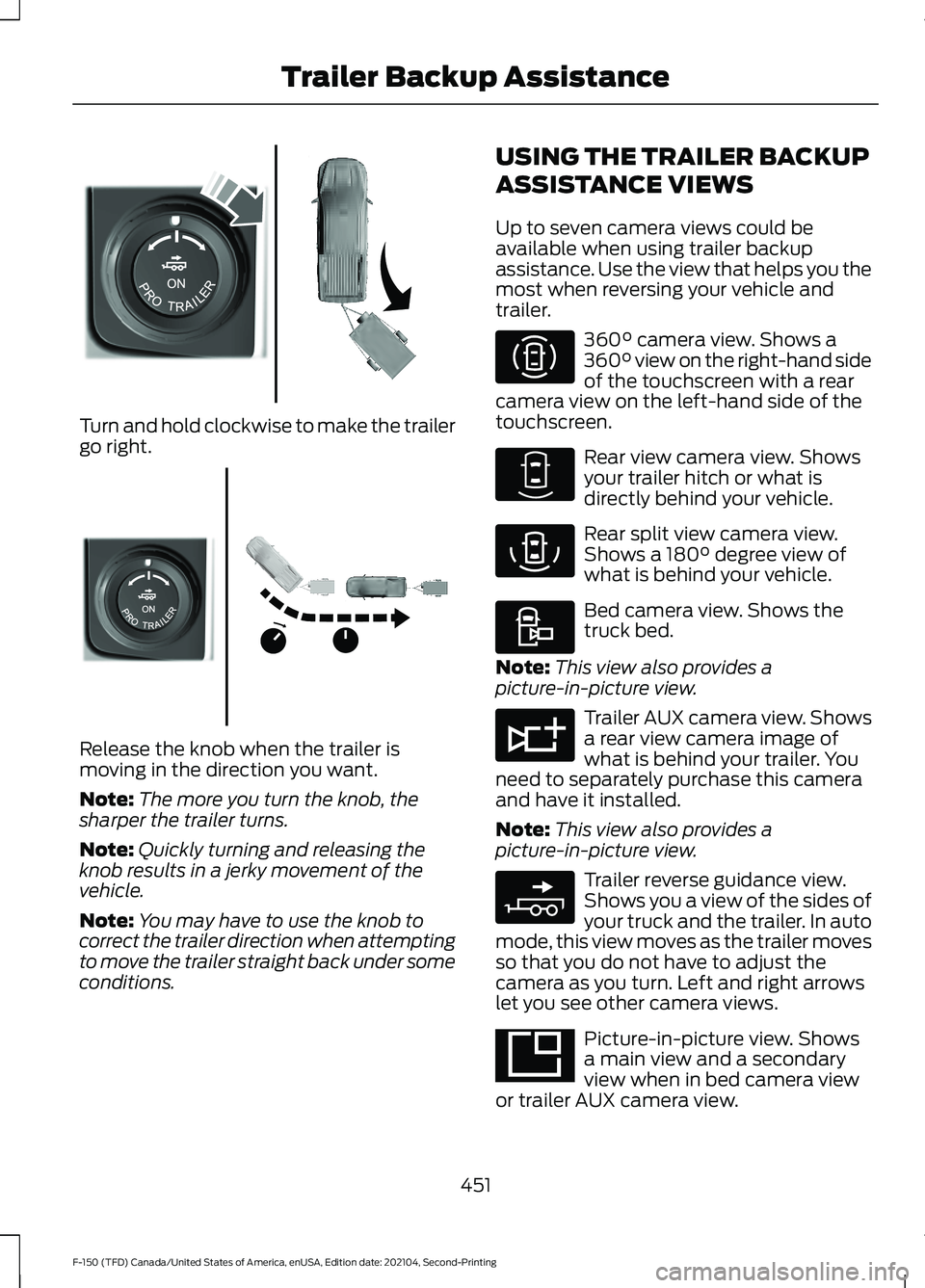
Turn and hold clockwise to make the trailer
go right.
Release the knob when the trailer is
moving in the direction you want.
Note:
The more you turn the knob, the
sharper the trailer turns.
Note: Quickly turning and releasing the
knob results in a jerky movement of the
vehicle.
Note: You may have to use the knob to
correct the trailer direction when attempting
to move the trailer straight back under some
conditions. USING THE TRAILER BACKUP
ASSISTANCE VIEWS
Up to seven camera views could be
available when using trailer backup
assistance. Use the view that helps you the
most when reversing your vehicle and
trailer. 360° camera view. Shows a
360° view on the right-hand side
of the touchscreen with a rear
camera view on the left-hand side of the
touchscreen. Rear view camera view. Shows
your trailer hitch or what is
directly behind your vehicle.
Rear split view camera view.
Shows a
180° degree view of
what is behind your vehicle. Bed camera view. Shows the
truck bed.
Note: This view also provides a
picture-in-picture view. Trailer AUX camera view. Shows
a rear view camera image of
what is behind your trailer. You
need to separately purchase this camera
and have it installed.
Note: This view also provides a
picture-in-picture view. Trailer reverse guidance view.
Shows you a view of the sides of
your truck and the trailer. In auto
mode, this view moves as the trailer moves
so that you do not have to adjust the
camera as you turn. Left and right arrows
let you see other camera views. Picture-in-picture view. Shows
a main view and a secondary
view when in bed camera view
or trailer AUX camera view.
451
F-150 (TFD) Canada/United States of America, enUSA, Edition date: 202104, Second-Printing Trailer Backup AssistanceE313026 E313027 E310996 E310967 E310974 E310995 E311776 E310965 E351663
Page 456 of 796
Note:
If you have a 8 in (20 cm)
touchscreen, picture-in-picture is off by
default. Press the picture-in-picture icon on
the touchscreen to switch picture-in-picture
view on and off.
Note: If you have a
12 in (30 cm)
touchscreen, picture-in-picture is on by
default and cannot be switched off. Swap. Press to swap between
picture-in-picture views.
Auto. Press to return to auto
view.
Note: Auto mode is the default setting.
Hitch Angle Graphic
The hitch angle graphic shows a small
representation of your truck and trailer with
visual feedback to help you monitor the
trailer. The graphic shows two different
colored lines for the trailer hitch angle. A
black line shows you where your trailer is
in relation to your vehicle. The white line
represents the amount the trailer can turn
based on knob input.
The graphic shows a yellow and red zone
for the hitch angle to warn you of a high
angle condition that could require you to
pull forward to reduce the hitch angle. The
angle limits for each zone vary based on
the trailer length. The yellow zone indicates you are
approaching the maximum controllable
trailer angle for the system. When the
trailer enters this zone, it is more difficult
to reduce the trailer turn when backing up.
It may be necessary to put your vehicle
back into drive (D) and pull forward to get
the truck and trailer back to an in-line
position.
The red zone indicates you have exceeded
the maximum controllable trailer angle for
the system. Immediately stop reversing.
Put your vehicle into drive (D) and pull
forward until the trailer is no longer in the
red zone.
Setting the
Trailer Angle Limit
1. Press
Features on the touchscreen.
2. Press
Towing.
3. Press
Manage trailers.
4. Press
Pro Trailer Backup Assist.
5. Press
Trailer Angle Limit.
6. Press a setting.
Normal Control Angle
Default setting. This provides a balanced
limit that returns from a turn to straight
backing with minimal change to the trailer
direction.
Max Control Angle
Increases the trailer angle limit close to the
maximum controllable angle to allow
sharper turns but also causes more change
in the trailer direction when straightening
out from a turn.
452
F-150 (TFD) Canada/United States of America, enUSA, Edition date: 202104, Second-Printing Trailer Backup AssistanceE351662 E315644
Page 467 of 796
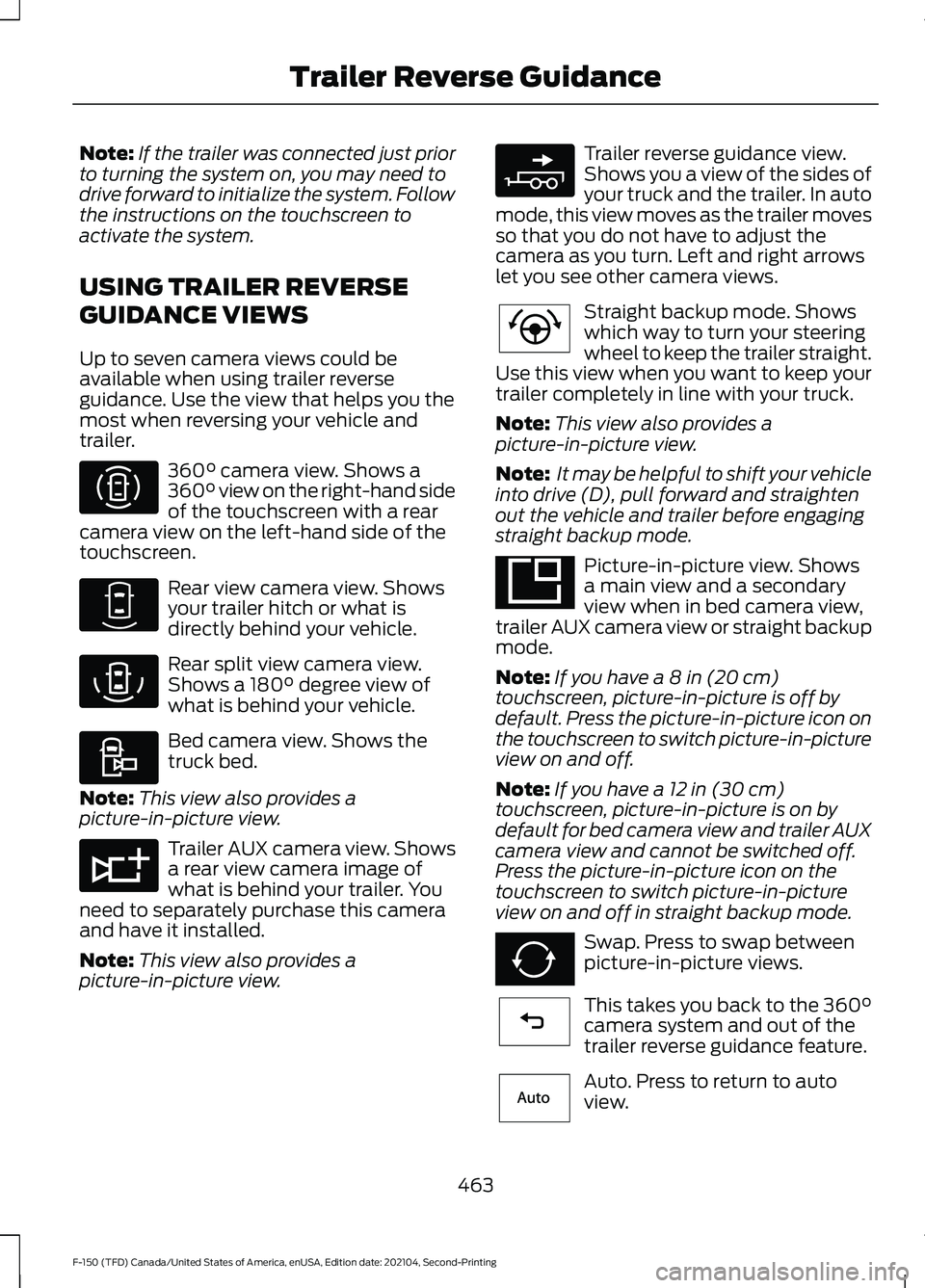
Note:
If the trailer was connected just prior
to turning the system on, you may need to
drive forward to initialize the system. Follow
the instructions on the touchscreen to
activate the system.
USING TRAILER REVERSE
GUIDANCE VIEWS
Up to seven camera views could be
available when using trailer reverse
guidance. Use the view that helps you the
most when reversing your vehicle and
trailer. 360° camera view. Shows a
360° view on the right-hand side
of the touchscreen with a rear
camera view on the left-hand side of the
touchscreen. Rear view camera view. Shows
your trailer hitch or what is
directly behind your vehicle.
Rear split view camera view.
Shows a
180° degree view of
what is behind your vehicle. Bed camera view. Shows the
truck bed.
Note: This view also provides a
picture-in-picture view. Trailer AUX camera view. Shows
a rear view camera image of
what is behind your trailer. You
need to separately purchase this camera
and have it installed.
Note: This view also provides a
picture-in-picture view. Trailer reverse guidance view.
Shows you a view of the sides of
your truck and the trailer. In auto
mode, this view moves as the trailer moves
so that you do not have to adjust the
camera as you turn. Left and right arrows
let you see other camera views. Straight backup mode. Shows
which way to turn your steering
wheel to keep the trailer straight.
Use this view when you want to keep your
trailer completely in line with your truck.
Note: This view also provides a
picture-in-picture view.
Note: It may be helpful to shift your vehicle
into drive (D), pull forward and straighten
out the vehicle and trailer before engaging
straight backup mode. Picture-in-picture view. Shows
a main view and a secondary
view when in bed camera view,
trailer AUX camera view or straight backup
mode.
Note: If you have a 8 in (20 cm)
touchscreen, picture-in-picture is off by
default. Press the picture-in-picture icon on
the touchscreen to switch picture-in-picture
view on and off.
Note: If you have a
12 in (30 cm)
touchscreen, picture-in-picture is on by
default for bed camera view and trailer AUX
camera view and cannot be switched off.
Press the picture-in-picture icon on the
touchscreen to switch picture-in-picture
view on and off in straight backup mode. Swap. Press to swap between
picture-in-picture views.
This takes you back to the
360°
camera system and out of the
trailer reverse guidance feature. Auto. Press to return to auto
view.
463
F-150 (TFD) Canada/United States of America, enUSA, Edition date: 202104, Second-Printing Trailer Reverse GuidanceE310996 E310967 E310974 E310995 E311776 E310965 E224484 E351663 E351662 E224486 E315644
Page 468 of 796
Note:
Auto mode is the default setting.
Hitch Angle Graphic
The hitch angle graphic shows a small
representation of your truck and trailer with
visual feedback to help you monitor the
trailer. The graphic shows two different
colored lines for the trailer hitch angle. A
black line shows you where your trailer is
in relation to your vehicle. The white line
represents the amount the trailer can turn
based on steering wheel position.
The graphic shows a yellow and red zone
for the hitch angle to warn you of a high
angle condition that could require you to
pull forward to reduce the hitch angle. The
angle limits for each zone vary based on
the trailer length. The yellow zone indicates you are
approaching the maximum controllable
trailer angle for the system. When the
trailer enters this zone, it is more difficult
to reduce the trailer turn when backing up.
It may be necessary to put your vehicle
back into drive (D) and pull forward to get
the truck and trailer back to an in-line
position.
The red zone indicates you have exceeded
the maximum controllable trailer angle for
the system. Immediately stop reversing.
Put your vehicle into drive (D) and pull
forward until the trailer is no longer in the
red zone.
464
F-150 (TFD) Canada/United States of America, enUSA, Edition date: 202104, Second-Printing Trailer Reverse Guidance