lock FORD F-150 2021 Owners Manual
[x] Cancel search | Manufacturer: FORD, Model Year: 2021, Model line: F-150, Model: FORD F-150 2021Pages: 796, PDF Size: 13.89 MB
Page 575 of 796
1. Lay the tire on the ground with the
valve stem facing up.
2. Slide the wheel partially under the vehicle and install the retainer through
the wheel center. Pull on the cable to
align the components at the end of the
cable.
3. Turn the jack handle clockwise until you raise the tire to its stowed position
underneath the vehicle. The effort to
turn the jack handle increases
significantly and the spare tire carrier
ratchets or slips when you raise the tire
to the maximum tightness. Tighten to
the point where the ratchet or slip
occurs a minimum of three times, as
indicated by an audible click each time.
The spare tire carrier does not allow
you to overtighten. If the spare tire
carrier ratchets or slips with little effort,
have your vehicle checked as soon as
possible.
4. Check that the tire lies flat against the frame and you properly tighten it. Try
to push or pull, then turn the tire to be
sure it does not move. Loosen and
retighten, if necessary. Failure to
properly stow the spare tire could
result in failure of the winch cable and
loss of the tire.
5. Repeat this tightness check procedure
when servicing the spare tire pressure,
every six months, as per your scheduled
maintenance information, or at any
time that the spare tire gets disturbed
through service of other components.
6. If removed, install the spare tire lock into the bumper drive tube with the
spare tire lock key and jack handle. Stowing the Vehicle Jack and Tool
Bag
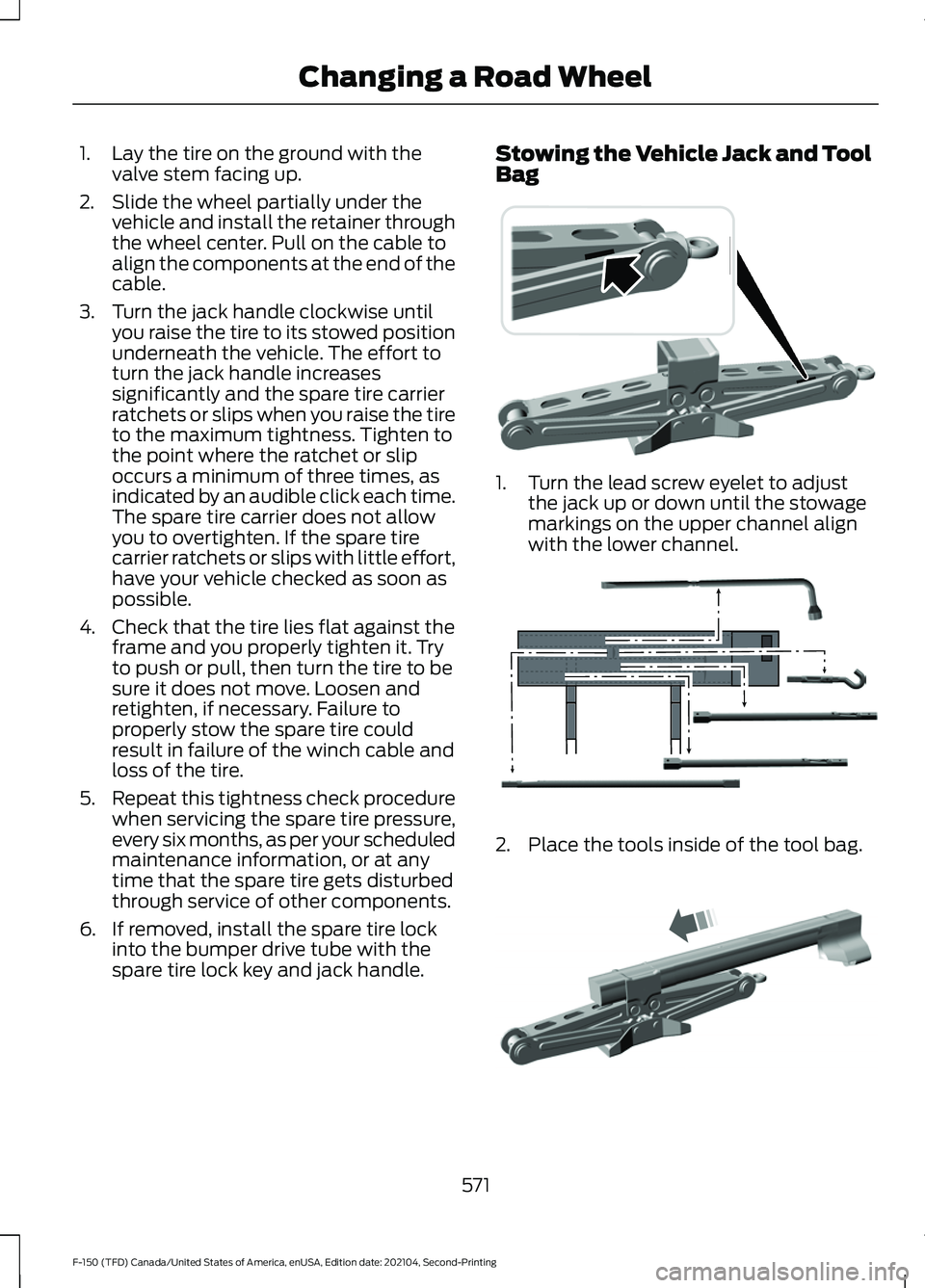
1. Turn the lead screw eyelet to adjust
the jack up or down until the stowage
markings on the upper channel align
with the lower channel. 2. Place the tools inside of the tool bag.
571
F-150 (TFD) Canada/United States of America, enUSA, Edition date: 202104, Second-Printing Changing a Road Wheel E323394 E323393 E327653
Page 576 of 796
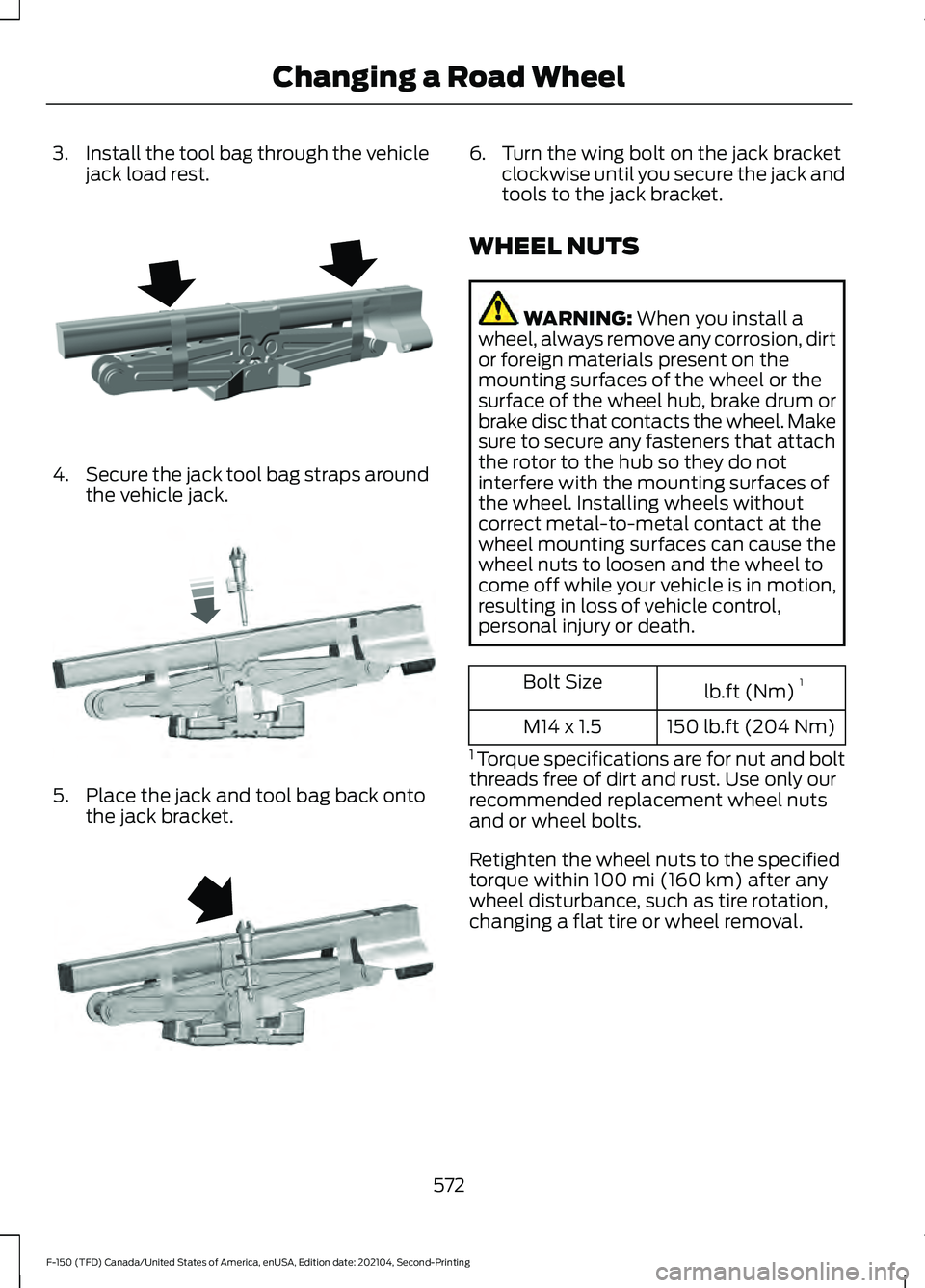
3.
Install the tool bag through the vehicle
jack load rest. 4.
Secure the jack tool bag straps around
the vehicle jack. 5. Place the jack and tool bag back onto
the jack bracket. 6. Turn the wing bolt on the jack bracket
clockwise until you secure the jack and
tools to the jack bracket.
WHEEL NUTS WARNING: When you install a
wheel, always remove any corrosion, dirt
or foreign materials present on the
mounting surfaces of the wheel or the
surface of the wheel hub, brake drum or
brake disc that contacts the wheel. Make
sure to secure any fasteners that attach
the rotor to the hub so they do not
interfere with the mounting surfaces of
the wheel. Installing wheels without
correct metal-to-metal contact at the
wheel mounting surfaces can cause the
wheel nuts to loosen and the wheel to
come off while your vehicle is in motion,
resulting in loss of vehicle control,
personal injury or death. lb.ft (Nm)
1
Bolt Size
150 lb.ft (204 Nm)
M14 x 1.5
1 Torque specifications are for nut and bolt
threads free of dirt and rust. Use only our
recommended replacement wheel nuts
and or wheel bolts.
Retighten the wheel nuts to the specified
torque within
100 mi (160 km) after any
wheel disturbance, such as tire rotation,
changing a flat tire or wheel removal.
572
F-150 (TFD) Canada/United States of America, enUSA, Edition date: 202104, Second-Printing Changing a Road WheelE323386 E327654 E323384
Page 593 of 796
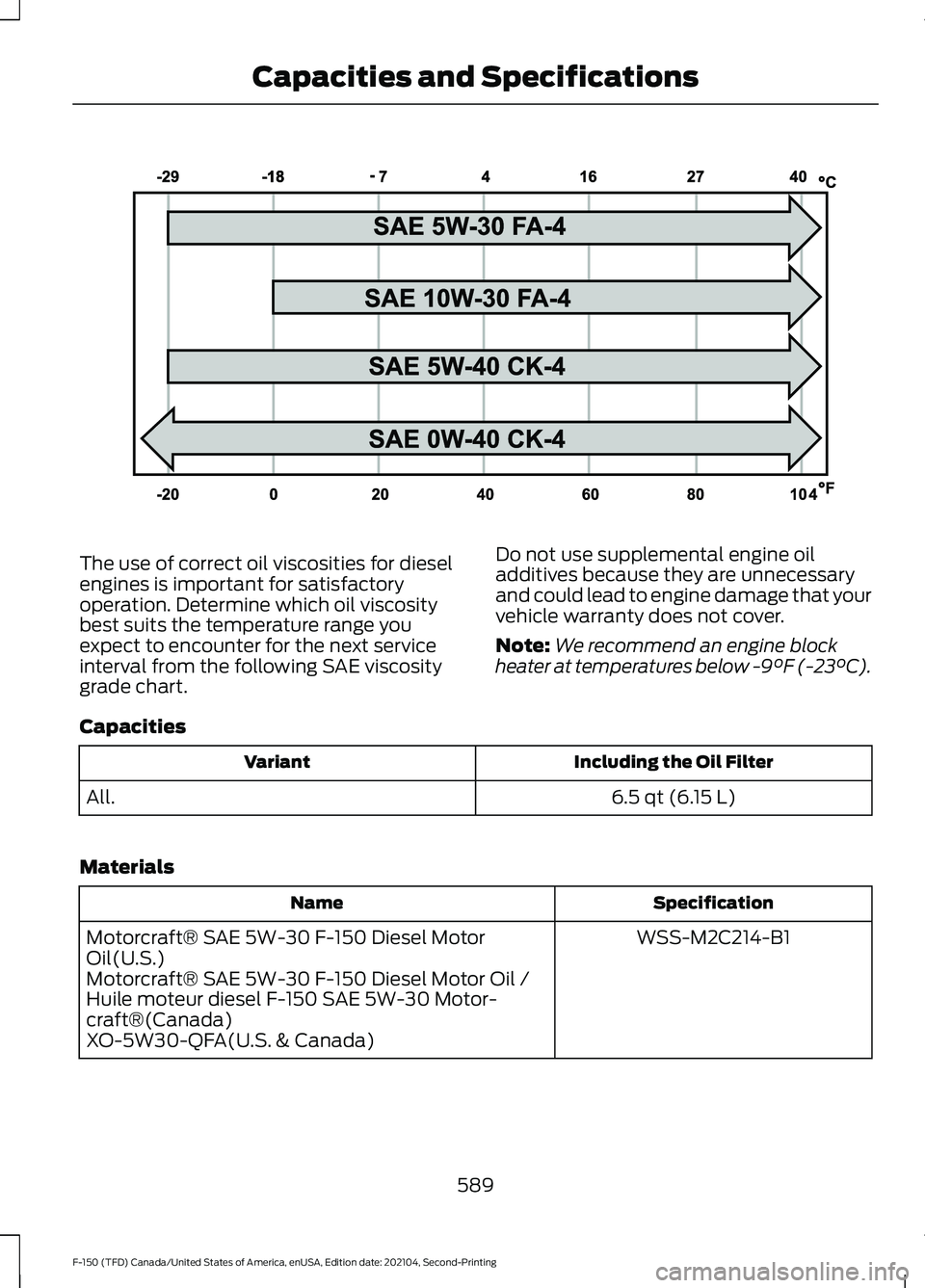
The use of correct oil viscosities for diesel
engines is important for satisfactory
operation. Determine which oil viscosity
best suits the temperature range you
expect to encounter for the next service
interval from the following SAE viscosity
grade chart.
Do not use supplemental engine oil
additives because they are unnecessary
and could lead to engine damage that your
vehicle warranty does not cover.
Note:
We recommend an engine block
heater at temperatures below -9°F (-23°C).
Capacities Including the Oil Filter
Variant
6.5 qt (6.15 L)
All.
Materials Specification
Name
WSS-M2C214-B1
Motorcraft® SAE 5W-30 F-150 Diesel Motor
Oil(U.S.)
Motorcraft® SAE 5W-30 F-150 Diesel Motor Oil /
Huile moteur diesel F-150 SAE 5W-30 Motor-
craft®(Canada)
XO-5W30-QFA(U.S. & Canada)
589
F-150 (TFD) Canada/United States of America, enUSA, Edition date: 202104, Second-Printing Capacities and SpecificationsE276509
Page 618 of 796
Capacities
Quantity
Variant
Fill as required.
All.
Materials Specification
Name
WSS-M6C65-A2
Motorcraft® DOT 4 LV High Performance Motor
Vehicle Brake Fluid(U.S.)
Motorcraft® DOT 4 LV High Performance Motor
Vehicle Brake Fluid / Liquide de frein automobile
haute performance DOT 4 LV Motorcraft®(Canada)
PM-20(U.S. & Canada)
TRANSFER CASE FLUID
CAPACITY AND
SPECIFICATION - 4X4
Use fluid that meets the defined
specification and viscosity grade. If you do not use fluid that meets the
defined specification and viscosity grade,
it could result in:
•
Component damage that your vehicle
warranty does not cover.
• Reduced vehicle performance.
Capacities Quantity
Variant
1.5 qt (1.4 L)
Four-wheel drive (Electronic shift on the
Fly).
1.5 qt (1.4 L)
Automatic four-wheel drive (Torque on
demand).
1.9 qt (1.8 L)
Two-speed automatic four-wheel drive
(Mechanical lock).
614
F-150 (TFD) Canada/United States of America, enUSA, Edition date: 202104, Second-Printing Capacities and Specifications
Page 619 of 796
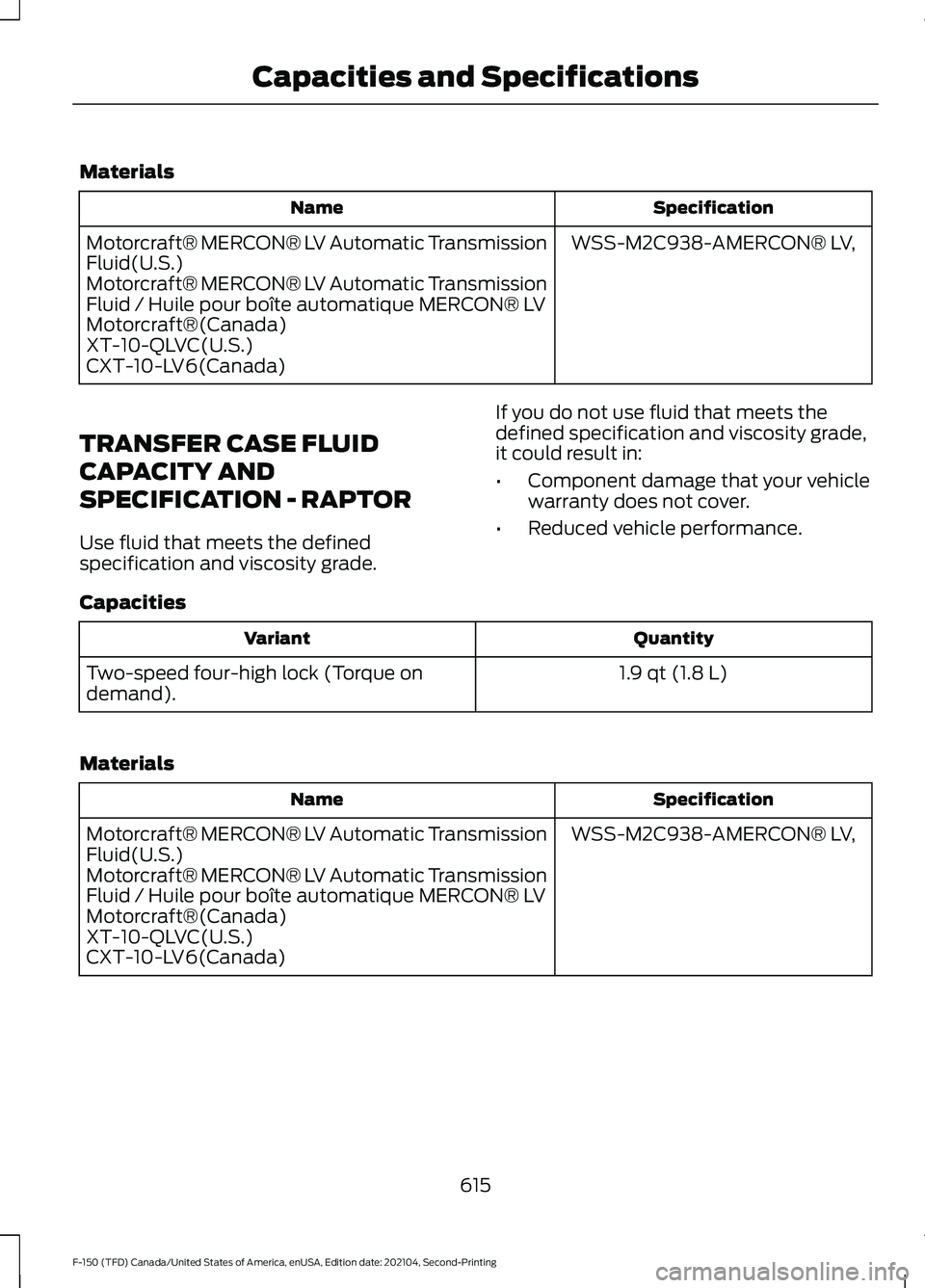
Materials
Specification
Name
WSS-M2C938-AMERCON® LV,
Motorcraft® MERCON® LV Automatic Transmission
Fluid(U.S.)
Motorcraft® MERCON® LV Automatic Transmission
Fluid / Huile pour boîte automatique MERCON® LV
Motorcraft®(Canada)
XT-10-QLVC(U.S.)
CXT-10-LV6(Canada)
TRANSFER CASE FLUID
CAPACITY AND
SPECIFICATION - RAPTOR
Use fluid that meets the defined
specification and viscosity grade. If you do not use fluid that meets the
defined specification and viscosity grade,
it could result in:
•
Component damage that your vehicle
warranty does not cover.
• Reduced vehicle performance.
Capacities Quantity
Variant
1.9 qt (1.8 L)
Two-speed four-high lock (Torque on
demand).
Materials Specification
Name
WSS-M2C938-AMERCON® LV,
Motorcraft® MERCON® LV Automatic Transmission
Fluid(U.S.)
Motorcraft® MERCON® LV Automatic Transmission
Fluid / Huile pour boîte automatique MERCON® LV
Motorcraft®(Canada)
XT-10-QLVC(U.S.)
CXT-10-LV6(Canada)
615
F-150 (TFD) Canada/United States of America, enUSA, Edition date: 202104, Second-Printing Capacities and Specifications
Page 626 of 796
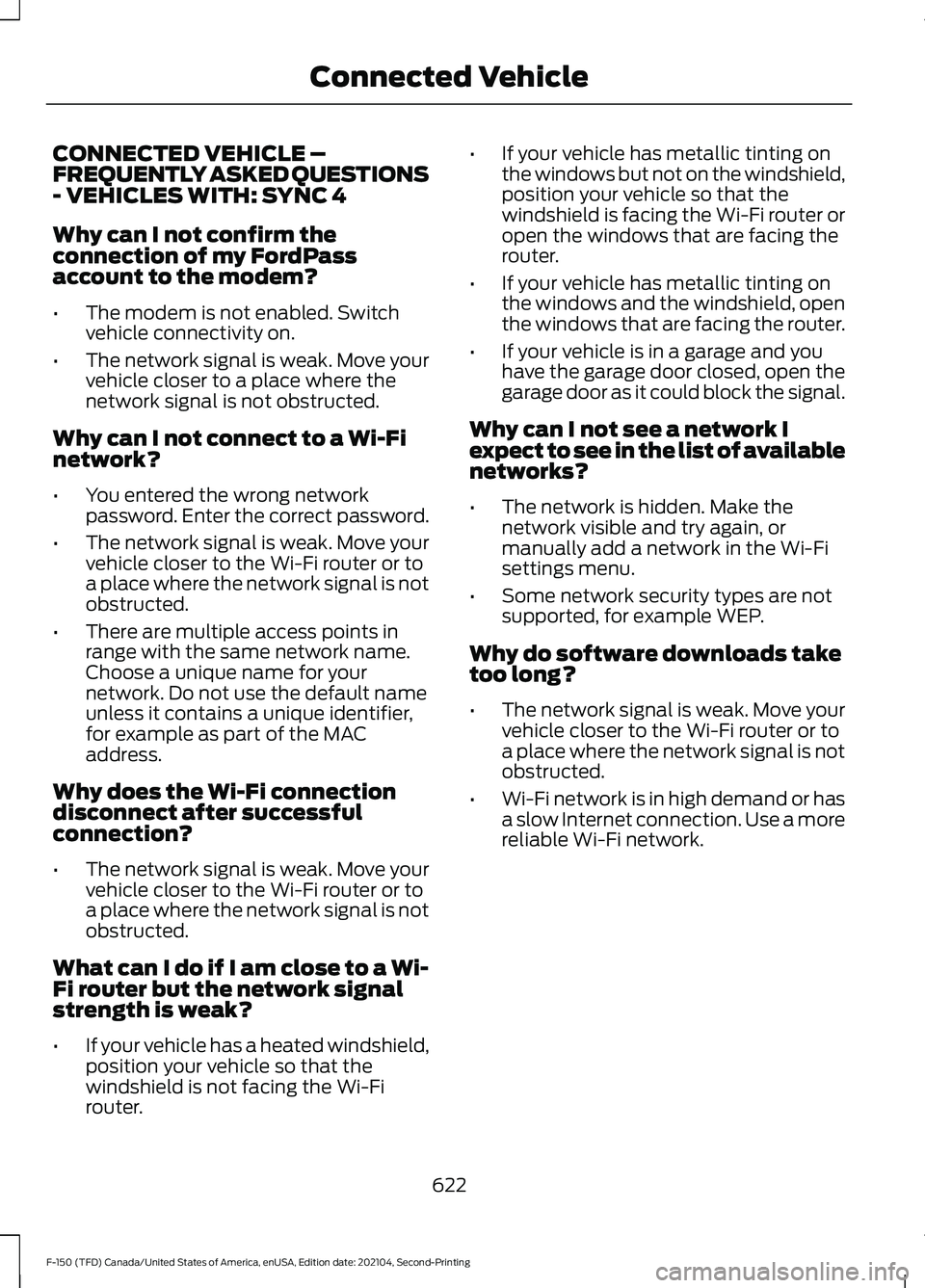
CONNECTED VEHICLE –
FREQUENTLY ASKED QUESTIONS
- VEHICLES WITH: SYNC 4
Why can I not confirm the
connection of my FordPass
account to the modem?
•
The modem is not enabled. Switch
vehicle connectivity on.
• The network signal is weak. Move your
vehicle closer to a place where the
network signal is not obstructed.
Why can I not connect to a Wi-Fi
network?
• You entered the wrong network
password. Enter the correct password.
• The network signal is weak. Move your
vehicle closer to the Wi-Fi router or to
a place where the network signal is not
obstructed.
• There are multiple access points in
range with the same network name.
Choose a unique name for your
network. Do not use the default name
unless it contains a unique identifier,
for example as part of the MAC
address.
Why does the Wi-Fi connection
disconnect after successful
connection?
• The network signal is weak. Move your
vehicle closer to the Wi-Fi router or to
a place where the network signal is not
obstructed.
What can I do if I am close to a Wi-
Fi router but the network signal
strength is weak?
• If your vehicle has a heated windshield,
position your vehicle so that the
windshield is not facing the Wi-Fi
router. •
If your vehicle has metallic tinting on
the windows but not on the windshield,
position your vehicle so that the
windshield is facing the Wi-Fi router or
open the windows that are facing the
router.
• If your vehicle has metallic tinting on
the windows and the windshield, open
the windows that are facing the router.
• If your vehicle is in a garage and you
have the garage door closed, open the
garage door as it could block the signal.
Why can I not see a network I
expect to see in the list of available
networks?
• The network is hidden. Make the
network visible and try again, or
manually add a network in the Wi-Fi
settings menu.
• Some network security types are not
supported, for example WEP.
Why do software downloads take
too long?
• The network signal is weak. Move your
vehicle closer to the Wi-Fi router or to
a place where the network signal is not
obstructed.
• Wi-Fi network is in high demand or has
a slow Internet connection. Use a more
reliable Wi-Fi network.
622
F-150 (TFD) Canada/United States of America, enUSA, Edition date: 202104, Second-Printing Connected Vehicle
Page 632 of 796
Occupancy Mode (If Equipped)
1. Press
Settings on the touchscreen.
2. Press
Sound Settings.
3. Press
Occupancy Mode.
4. Press a setting.
Sound Mode
(If Equipped)
1. Press
Settings on the touchscreen.
2. Press
Sound Settings.
3. Press
Sound Mode.
4. Press a setting.
SETTING THE CLOCK AND
DATE
1. Press
Settings on the touchscreen.
2. Press
Clock Settings.
3. Set the time.
Note: The
AM and PM options are not
available if 24-hour mode is on.
Switching Automatic Time
Updates On and Off
1. Press
Settings on the touchscreen.
2. Press
Clock Settings.
3. Switch
Automatic time zone update
on or off.
AM/FM RADIO
AM/FM RADIO LIMITATIONS
The further you travel from an AM or FM
station, the weaker the signal and the
weaker the reception. Hills, mountains, tall buildings, bridges,
tunnels, freeway overpasses, parking
garages, dense tree foliage and
thunderstorms can interfere with the
reception.
When you pass a ground-based broadcast
repeating tower, a stronger signal may
overtake a weaker one and result in the
audio system muting.
SELECTING A RADIO STATION
Manually Selecting a Radio
Station
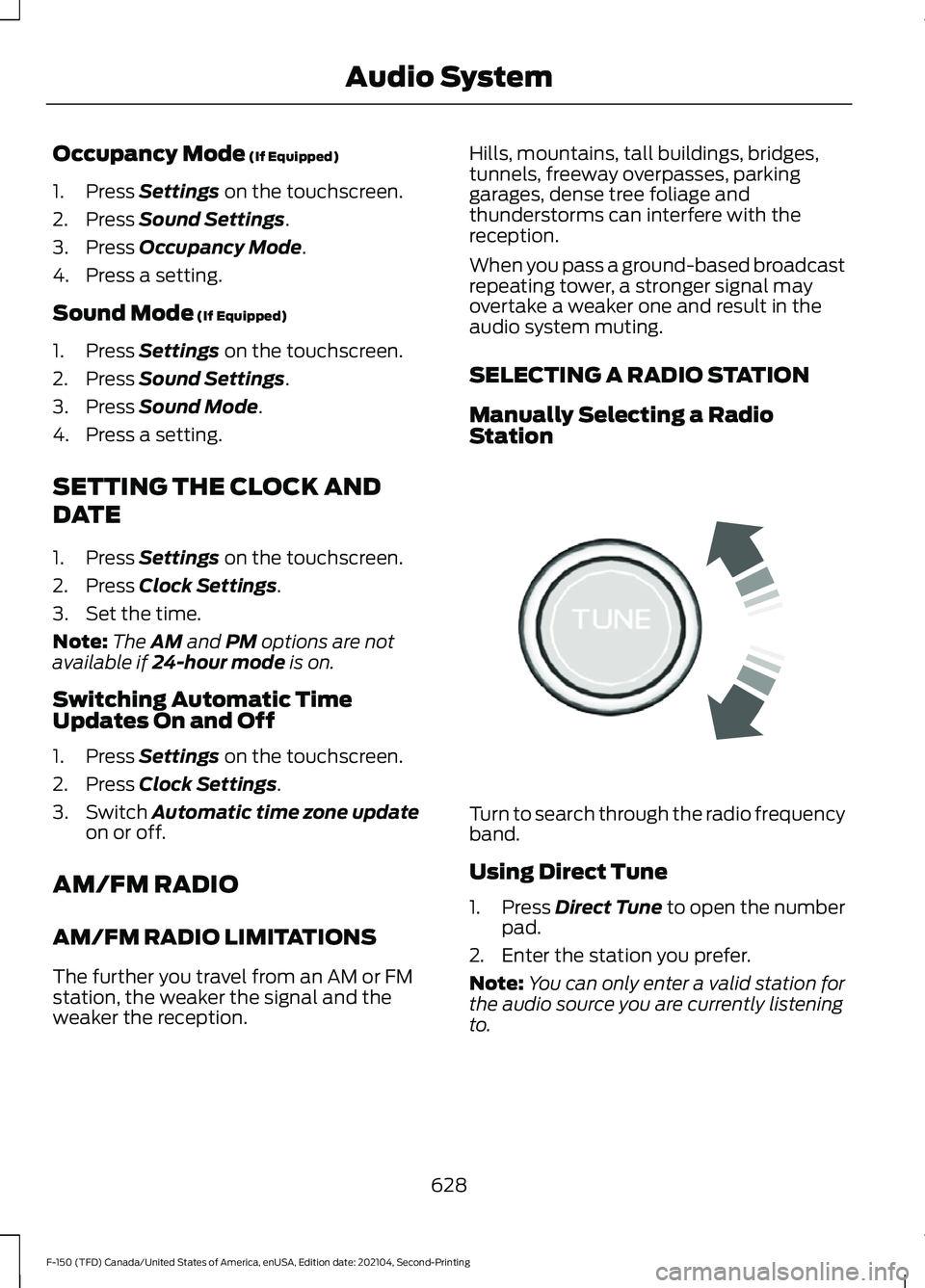
Turn to search through the radio frequency
band.
Using Direct Tune
1.
Press
Direct Tune to open the number
pad.
2. Enter the station you prefer.
Note: You can only enter a valid station for
the audio source you are currently listening
to.
628
F-150 (TFD) Canada/United States of America, enUSA, Edition date: 202104, Second-Printing Audio SystemE270235
Page 639 of 796
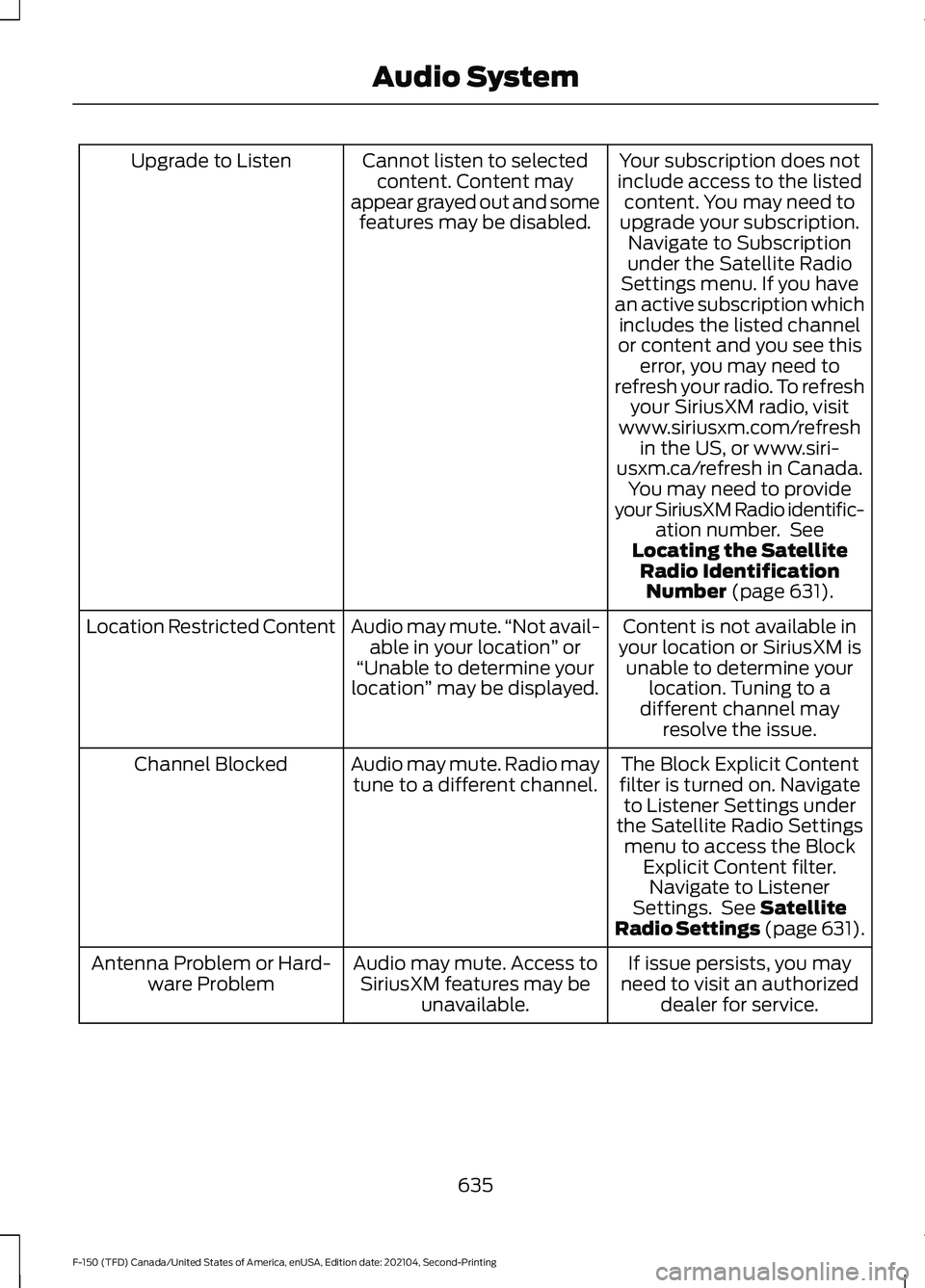
Your subscription does not
include access to the listed content. You may need to
upgrade your subscription. Navigate to Subscription
under the Satellite Radio
Settings menu. If you have
an active subscription which includes the listed channel
or content and you see this error, you may need to
refresh your radio. To refresh your SiriusXM radio, visit
www.siriusxm.com/refresh in the US, or www.siri-
usxm.ca/refresh in Canada. You may need to provide
your SiriusXM Radio identific- ation number. See
Locating the Satellite Radio IdentificationNumber (page 631).
Cannot listen to selected
content. Content may
appear grayed out and some features may be disabled.
Upgrade to Listen
Content is not available in
your location or SiriusXM is unable to determine your location. Tuning to a
different channel may resolve the issue.
Audio may mute.
“Not avail-
able in your location ” or
“Unable to determine your
location ” may be displayed.
Location Restricted Content
The Block Explicit Content
filter is turned on. Navigate to Listener Settings under
the Satellite Radio Settings menu to access the Block Explicit Content filter.Navigate to Listener
Settings. See
Satellite
Radio Settings (page 631).
Audio may mute. Radio may
tune to a different channel.
Channel Blocked
If issue persists, you may
need to visit an authorized dealer for service.
Audio may mute. Access to
SiriusXM features may be unavailable.
Antenna Problem or Hard-
ware Problem
635
F-150 (TFD) Canada/United States of America, enUSA, Edition date: 202104, Second-Printing Audio System
Page 655 of 796
HOW DO PERSONAL PROFILES
WORK
This feature allows you to create multiple
personal profiles enabling users to
personalize vehicle
’s settings such as seats
and mirrors, as well as non-positional
settings like radio, navigation, driver assist
system settings. Positional settings are
saved by holding a memory seat button.
Non-positional settings are saved you
change a setting while a profile is active.
You can create one profile for each preset
memory seat button along with a guest
profile.
Recalling and Changing a Profile
You can recall a profile using the
touchscreen or the preset button you
selected when you created your profile.
You can also link a remote control and a
mobile device to your profile, which are
used to recall it. ENABLING OR DISABLING
PERSONAL PROFILES
When you switch on the Personal Profiles
feature:
•
Unlocking a door with a remote control
or mobile device that is not linked to a
driver profile does not change the
active profile, but remains in the last
known profile. It does not change the
positional settings.
• Pressing a memory seat button that is
not linked to a driver profile or saved to
a preset setting does not change the
active profile, but remains in the last
known profile. It does not change the
positional settings.
• Pressing a memory seat button that is
not linked to a driver profile but is saved
to a preset setting does not change the
active profile, but remains in the last
known profile. It recalls the positional
settings that you saved to that memory
seat button.
When you switch off a Personal Profiles
feature:
• Unlocking a door with a remote control
or mobile device does not recall any
non-positional settings but still recalls
positional settings from the driver
profile which the remote control or
mobile device is linked to.
• Pressing a memory seat button that is
not linked to a driver profile or saved to
a preset setting does not change the
positional or non-positional settings.
• Pressing a memory seat button that is
linked to a driver profile or has saved
to a preset setting recalls the positional
settings that you saved to that memory
seat button.
651
F-150 (TFD) Canada/United States of America, enUSA, Edition date: 202104, Second-Printing Personal Profiles (If Equipped)
Page 661 of 796
During an update you will not be able to
drive your vehicle, start the vehicle, use
remote controls to lock and unlock the
vehicle. The alarm, central locks, and door
tones are disabled. The electronic door
lock will not function during an update. You
can open the doors using the mechanical
latch if child locks are not on. Pull the
handle until it stops to use the mechanical
latch Some updates may not allow you to
use your vehicle during the update process.
Note:
Some updates can complete in the
background, but more complex updates can
take up to 45 minutes.
Note: Double locking is switched off and
central locking is switched on during and
after an update.
Note: If your vehicle is plugged in, charging
will stop during an update and resume when
the update is complete.
Viewing Update Details
If an update is successful, the touchscreen
will provide additional details about the
update. You can also access this
information under the System Update tile.
If an update is not successful, follow the
prompt that appears on the touchscreen.
PERFORMING A MASTER
RESET Press the settings option on the
feature bar.
1. Press the Reset tile.
2. Press
Master Reset.
3. Follow the prompts on the screen to complete the reset.
657
F-150 (TFD) Canada/United States of America, enUSA, Edition date: 202104, Second-Printing Vehicle System UpdatesE280315