buttons FORD F-150 2021 Owner's Manual
[x] Cancel search | Manufacturer: FORD, Model Year: 2021, Model line: F-150, Model: FORD F-150 2021Pages: 796, PDF Size: 13.89 MB
Page 354 of 796
WHAT IS CRUISE CONTROL
Cruise control lets you maintain a set
speed without keeping your foot on the
accelerator pedal.
Requirements
Use cruise control when the vehicle speed
is greater than 15 mph in imperial units and
20 km/h in metric units.
SWITCHING CRUISE CONTROL
ON AND OFF
WARNING: Do not use cruise
control on winding roads, in heavy traffic
or when the road surface is slippery. This
could result in loss of vehicle control,
serious injury or death.
The cruise controls are on the steering
wheel.
Switching Cruise Control On Press the button to activate the
system. When the system
activates, the set speed is equal
to whichever is greater, the current vehicle
speed, or 15 mph when in imperial units or
20 km/h when in metric units. If the speed
is too low, or other conditions are not
correct for cruise control activation, the
system will instead enter standby mode.
Switching Cruise Control Off Press the button when the
system is active or switch the
ignition off.
Note: When you switch cruise control off,
the set speed clears. SETTING THE CRUISE
CONTROL SPEED WARNING:
When you are going
downhill, your vehicle speed could
increase above the set speed. The
system does not apply the brakes.
Drive to the speed you prefer. Press either the SET+ or SET-
buttons to set the current speed.
Take your foot off the accelerator pedal.
Note: The indicator changes color in the
information display.
Changing the Set Speed Press the SET+ button to
increase the set speed in small
increments. Press and hold the
SET+ button to accelerate. Release the
button when you have reached your
preferred speed. Press the SET- button to
decrease the set speed in small
increments. Press and hold the
SET- button to decelerate. Release the
button when you have reached your
preferred speed.
Note: If you accelerate by pressing the
accelerator pedal, the set speed does not
change. When you release the accelerator
pedal, your vehicle returns to the speed that
you previously set.
350
F-150 (TFD) Canada/United States of America, enUSA, Edition date: 202104, Second-Printing Cruise Control
(If Equipped)E332905 E332905
Page 359 of 796
Switching Adaptive Cruise Control
Off
Press the button when the
system is in standby mode or
switch the ignition off.
Note: When you switch the system off, the
set speed clears.
ADAPTIVE CRUISE CONTROL
AUTOMATIC CANCELLATION
The system may cancel if:
• The tires lose traction.
• You apply the parking brake.
The system may cancel and set the parking
brake if:
• You unbuckle the seatbelt and open
the driver door after you stop your
vehicle.
• Your vehicle is at a stop continuously
for more than three minutes.
The system may deactivate or prevent
activating when requested if:
• The vehicle has a blocked sensor.
• The brake temperature is too high.
• There is a failure in the system or a
related system.
SETTING THE ADAPTIVE
CRUISE CONTROL SPEED
Drive to the speed you prefer. Press the SET+ or SET- buttons
to set the current speed.
Take your foot off the accelerator pedal. The indicator, current gap setting and set
speed appear in the instrument cluster
display.
A vehicle image illuminates if there is a
vehicle detected in front of you.
Note:
When adaptive cruise control is
active, the speedometer may vary slightly
from the set speed displayed in the
instrument cluster display.
Setting the Adaptive Cruise Speed
from a Complete Stop Press the SET+ or SET- buttons
while keeping the brake pedal
fully depressed.
The set speed adjusts to 20 km/h when in
metric units or 15 mph when in imperial
units.
The indicator, current gap setting and set
speed appear in the instrument cluster
display.
Note: The system activates from a
complete stop only when it detects a lead
vehicle in close proximity.
355
F-150 (TFD) Canada/United States of America, enUSA, Edition date: 202104, Second-Printing Adaptive Cruise Control (If Equipped)E144529 E337576
Page 371 of 796
The driver-facing camera may not operate
correctly due to any of the following:
•
You have a pre-existing eye condition,
such as an eye misalignment, or have
had eye surgery.
• You cover your facial features by a
mask, hat or other items.
• The lighting conditions change
significantly.
• You are not in the field of view of the
camera.
• You position or tilt yourself to one side.
• You are moving around extensively.
• You are wearing glasses or sunglasses
that are too dark or reflective.
Note: The system has limited steering
assistance and may not be sufficient for all
driving situations.
Note: In exceptional conditions, such as
inclement weather or direct sunlight, the
system could deviate from the center line.
Note: The information provided by the
navigation map data could be inaccurate or
out of date.
BLUECRUISE SETTINGS
Enabling BlueCruise
1. Press Features on the touchscreen.
2. Press
Driver Assistance.
3. Press
Cruise Control.
4. Press
Lane Centering with
Hands-Free.
Enabling Activation Prompts
1. Press
Features on the touchscreen.
2. Press
Driver Assistance.
3. Press
Cruise Control.
4. Press
Activation Prompts. SWITCHING BLUECRUISE ON
AND OFF
Switching BlueCruise On
The controls are on the steering wheel.
Using Activation Prompts
When the prompt appears, press
the button to switch BlueCruise
on.
The indicator appears in the instrument
cluster. When the system is on, the color
of the indicator changes to indicate the
system status.
Note: You must enable activation prompts
in the touchscreen.
Using Steering Wheel Controls Using the adaptive cruise control
and lateral support buttons,
ensure both systems are active.
BlueCruise activates.
Switching BlueCruise Off Press either the lateral support
or adaptive cruise control button
when system is active or in
standby mode.
BlueCruise turns off through
each ignition cycle.
367
F-150 (TFD) Canada/United States of America, enUSA, Edition date: 202104, Second-Printing BlueCruise
(If Equipped)E144529 E308131 E144529 E308131 E144529
Page 395 of 796
Make sure the trailer width is less than or
equal to 8.5 ft (2.6 m) and the length is
less than 33 ft (10.1 m). If you input values
higher, the system turns off.
Some trailers could cause a slight change
in system performance:
• Large box trailers could cause false
alerts to occur when driving next to
infrastructures or near parked cars. A
false alert could also occur while
making a 90-degree turn.
• Trailers that have a width greater than
8.5 ft (2.6 m)
at the front and have a
total length greater than 20 ft (6 m)
could cause delayed alerts when a
vehicle is passing at high speeds.
• Box trailers that have a width greater
than
8.5 ft (2.6 m) at the front could
cause early alerts when you pass a
vehicle.
• Clam shell or v-nose box trailers with
a width greater than
8.5 ft (2.6 m) at
the front could cause delayed alerts
when a vehicle traveling the same
speed as your vehicle merges lanes.
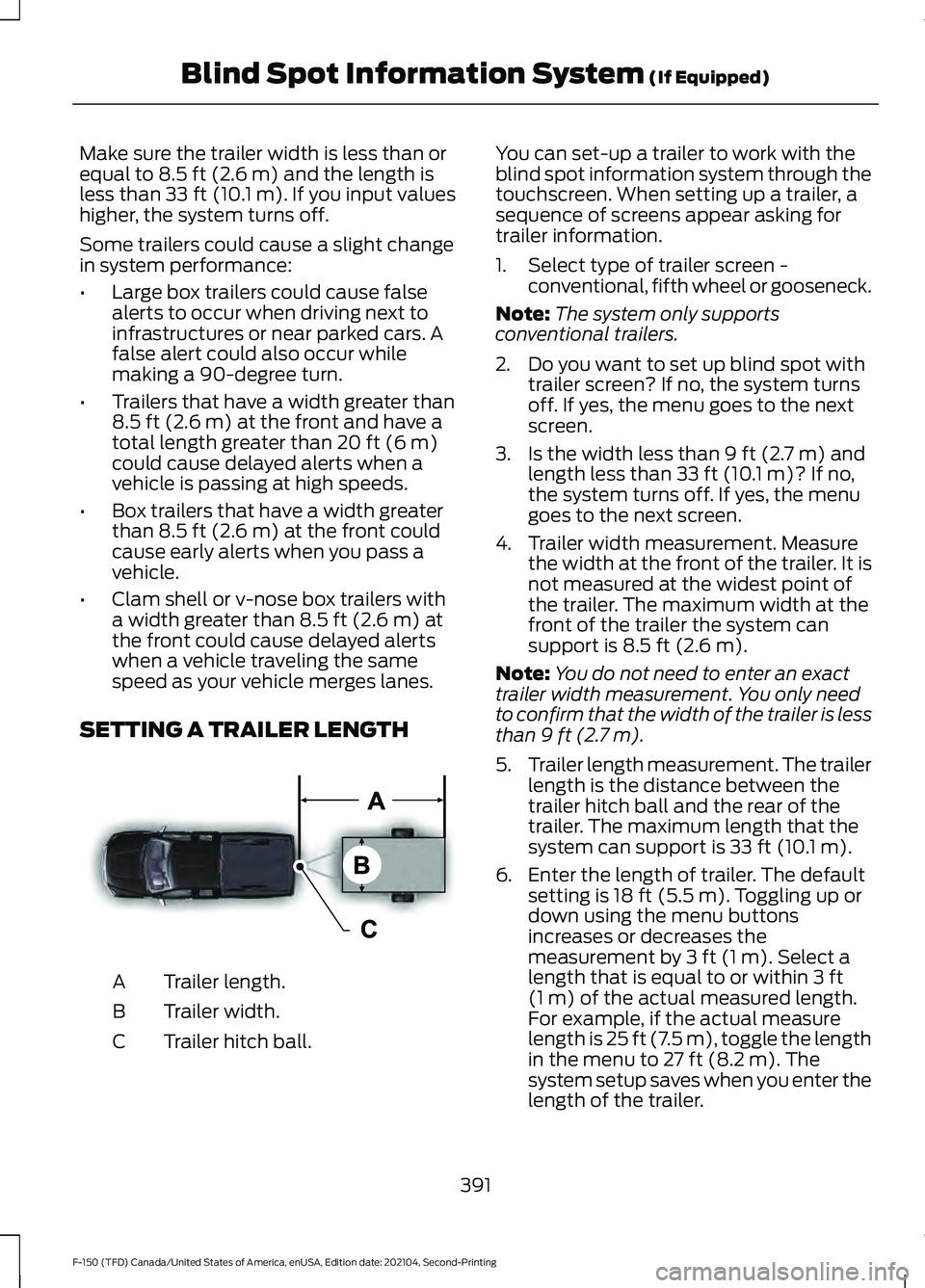
SETTING A TRAILER LENGTH Trailer length.
A
Trailer width.
B
Trailer hitch ball.
C You can set-up a trailer to work with the
blind spot information system through the
touchscreen. When setting up a trailer, a
sequence of screens appear asking for
trailer information.
1. Select type of trailer screen -
conventional, fifth wheel or gooseneck.
Note: The system only supports
conventional trailers.
2. Do you want to set up blind spot with trailer screen? If no, the system turns
off. If yes, the menu goes to the next
screen.
3. Is the width less than
9 ft (2.7 m) and
length less than 33 ft (10.1 m)? If no,
the system turns off. If yes, the menu
goes to the next screen.
4. Trailer width measurement. Measure the width at the front of the trailer. It is
not measured at the widest point of
the trailer. The maximum width at the
front of the trailer the system can
support is
8.5 ft (2.6 m).
Note: You do not need to enter an exact
trailer width measurement. You only need
to confirm that the width of the trailer is less
than
9 ft (2.7 m).
5. Trailer length measurement. The trailer
length is the distance between the
trailer hitch ball and the rear of the
trailer. The maximum length that the
system can support is
33 ft (10.1 m).
6. Enter the length of trailer. The default setting is
18 ft (5.5 m). Toggling up or
down using the menu buttons
increases or decreases the
measurement by
3 ft (1 m). Select a
length that is equal to or within 3 ft
(1 m) of the actual measured length.
For example, if the actual measure
length is
25 ft (7.5 m), toggle the length
in the menu to 27 ft (8.2 m). The
system setup saves when you enter the
length of the trailer.
391
F-150 (TFD) Canada/United States of America, enUSA, Edition date: 202104, Second-Printing Blind Spot Information System
(If Equipped)E225008
Page 631 of 796
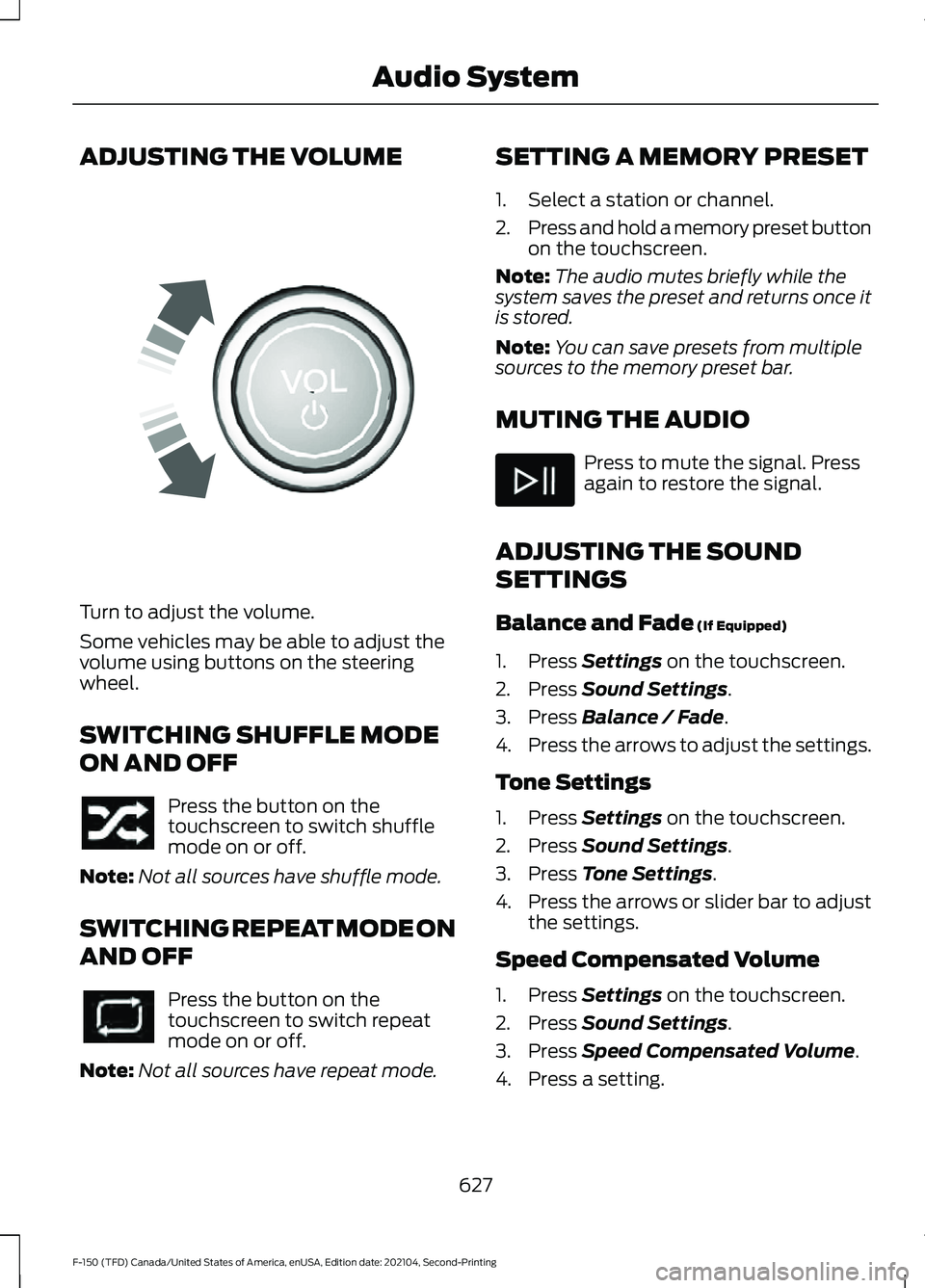
ADJUSTING THE VOLUME
Turn to adjust the volume.
Some vehicles may be able to adjust the
volume using buttons on the steering
wheel.
SWITCHING SHUFFLE MODE
ON AND OFF
Press the button on the
touchscreen to switch shuffle
mode on or off.
Note: Not all sources have shuffle mode.
SWITCHING REPEAT MODE ON
AND OFF Press the button on the
touchscreen to switch repeat
mode on or off.
Note: Not all sources have repeat mode. SETTING A MEMORY PRESET
1. Select a station or channel.
2.
Press and hold a memory preset button
on the touchscreen.
Note: The audio mutes briefly while the
system saves the preset and returns once it
is stored.
Note: You can save presets from multiple
sources to the memory preset bar.
MUTING THE AUDIO Press to mute the signal. Press
again to restore the signal.
ADJUSTING THE SOUND
SETTINGS
Balance and Fade (If Equipped)
1. Press
Settings on the touchscreen.
2. Press
Sound Settings.
3. Press
Balance / Fade.
4. Press the arrows to adjust the settings.
Tone Settings
1. Press
Settings on the touchscreen.
2. Press
Sound Settings.
3. Press
Tone Settings.
4. Press the arrows or slider bar to adjust
the settings.
Speed Compensated Volume
1. Press
Settings on the touchscreen.
2. Press
Sound Settings.
3. Press
Speed Compensated Volume.
4. Press a setting.
627
F-150 (TFD) Canada/United States of America, enUSA, Edition date: 202104, Second-Printing Audio SystemE248939
Page 784 of 796
Lane Centering Alerts......................................
360
Lane Centering Automatic Cancellation................................................... 360
Lane Centering Indicators............................... 361
Lane Centering Limitations........................... 360
Lane Centering Precautions..........................359
Lane Centering Requirements......................359
Switching Lane Centering On and Off...................................................................... 360
Lane Keeping System Indicators...........385
Lane Keeping System................................382 Aid Mode.............................................................. 384
Alert and Aid Mode........................................... 384
Alert Mode............................................................ 383
Lane Keeping System – Troubleshooting............................................ 386
Lane Keeping System Limitations........382
Lane Keeping System Precautions.......382
Lane Keeping System – Troubleshooting.......................................386
Lane Keeping System – Frequently Asked Questions......................................................... 387
Lane Keeping System – Information Messages......................................................... 386
Launching or Retrieving a Boat or Personal Watercraft................................430
Linking or Unlinking a Personal Profile to a Remote Control.....................................652
Live Traffic......................................................653 Switching Live Traffic On and Off...............653
What Is Live Traffic........................................... 653
Load Carrying.................................................412
Load Carrying Precautions........................412
Loading Your Trailer....................................429
Locating the 360 Degree Cameras.......342
Locating the 360 Degree Cameras - Raptor/Tremor...........................................343
Locating the Auxiliary Switches............659
Locating the Auxiliary Switch Wiring............................................................659
Locating the Blind Spot Information System Sensors
........................................390
Locating the Brake Fluid Reservoir.......308
Locating the Cross Traffic Alert Sensors........................................................394
Locating the Fuel Filler Funnel...............260
Locating the Keyless Entry Keypad........110 Locating the Memory Function
Buttons........................................................209
Locating the Power Outlets
......................218
Locating the Pre-Collision Assist Sensors........................................................399
Locating the Pre-Collision Assist Sensors - Police Responder
..................................399
Locating the Rear View Camera............339
Locating the Safety Compliance Certification Labels...................................413
Locating the Tire label...............................542
Locating the USB Ports..............................214
Locating the USB Ports - Raptor
............214
Locating the Wireless Accessory Charger..........................................................231
Locating Your Vehicle....................................91
Locking and Unlocking the Tailgate........113
Locking the Rear Window Controls
.......163
M
Maintenance.................................................503 Engine Air Filter.................................................... 515
Engine Oil.............................................................. 510
Exterior Bulbs...................................................... 522
Interior Bulbs........................................................ 531
Maintenance Precautions........................503
Making and Receiving a Phone Call.................................................................645
Manually Dimming the Interior Mirror..............................................................164
Manually Releasing the Electric Parking Brake................................................................311
Manually Shifting Gears............................283 Shifting Using the Buttons on the Selector
Lever.................................................................. 284
Shifting Using the Paddle Shifters..............283
Manual Park Release.................................288 Manual Park Release Precautions..............288
Using Manual Park Release........................... 288
What Is Manual Park Release.......................288
Manual Seats
.................................................196
Adjusting the Head Restraint......................... 196
Adjusting the Lumbar Support..................... 198
Adjusting the Seat Backrest........................... 197
Folding the Seats.............................................. 204
Head Restraint Components......................... 196
Installing the Head Restraint.......................... 197
780
F-150 (TFD) Canada/United States of America, enUSA, Edition date: 202104, Second-Printing Index