ground FORD F-150 2022 Service Manual
[x] Cancel search | Manufacturer: FORD, Model Year: 2022, Model line: F-150, Model: FORD F-150 2022Pages: 750, PDF Size: 12.96 MB
Page 558 of 750
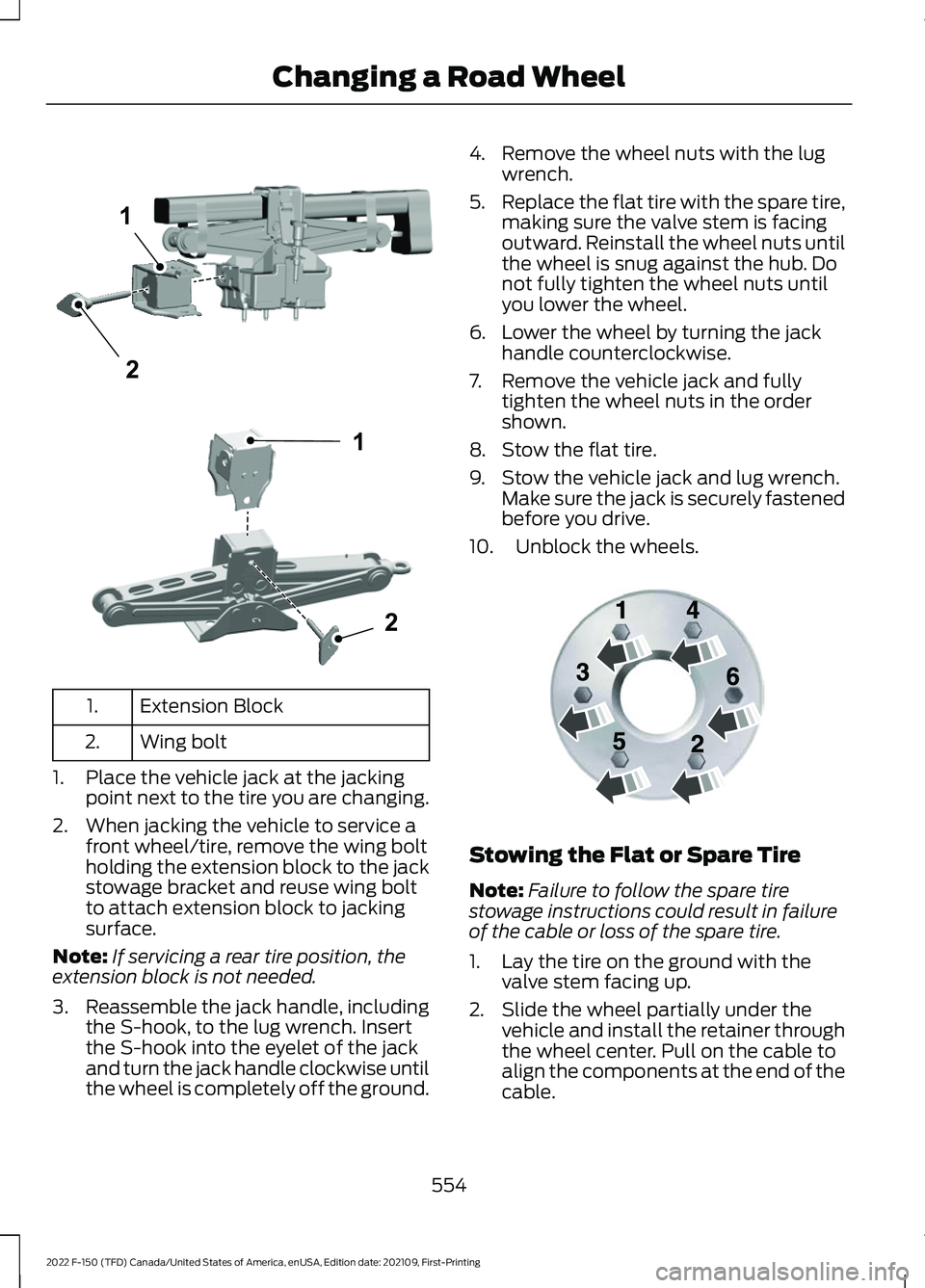
Extension Block
1.
Wing bolt
2.
1. Place the vehicle jack at the jacking point next to the tire you are changing.
2. When jacking the vehicle to service a front wheel/tire, remove the wing bolt
holding the extension block to the jack
stowage bracket and reuse wing bolt
to attach extension block to jacking
surface.
Note: If servicing a rear tire position, the
extension block is not needed.
3. Reassemble the jack handle, including
the S-hook, to the lug wrench. Insert
the S-hook into the eyelet of the jack
and turn the jack handle clockwise until
the wheel is completely off the ground. 4. Remove the wheel nuts with the lug
wrench.
5. Replace the flat tire with the spare tire,
making sure the valve stem is facing
outward. Reinstall the wheel nuts until
the wheel is snug against the hub. Do
not fully tighten the wheel nuts until
you lower the wheel.
6. Lower the wheel by turning the jack handle counterclockwise.
7. Remove the vehicle jack and fully tighten the wheel nuts in the order
shown.
8. Stow the flat tire.
9. Stow the vehicle jack and lug wrench. Make sure the jack is securely fastened
before you drive.
10. Unblock the wheels. Stowing the Flat or Spare Tire
Note:
Failure to follow the spare tire
stowage instructions could result in failure
of the cable or loss of the spare tire.
1. Lay the tire on the ground with the valve stem facing up.
2. Slide the wheel partially under the vehicle and install the retainer through
the wheel center. Pull on the cable to
align the components at the end of the
cable.
554
2022 F-150 (TFD) Canada/United States of America, enUSA, Edition date: 202109, First-Printing Changing a Road Wheel1
2E363809 1
2E363808 E166719
Page 609 of 750
Occupancy Mode (If Equipped)
1. Press
Settings on the touchscreen.
2. Press
Sound Settings.
3. Press
Occupancy Mode.
4. Press a setting.
Sound Mode
(If Equipped)
1. Press
Settings on the touchscreen.
2. Press
Sound Settings.
3. Press
Sound Mode.
4. Press a setting.
SETTING THE CLOCK AND
DATE
1. Press
Settings on the touchscreen.
2. Press
Clock Settings.
3. Set the time.
Note: The
AM and PM options are not
available if 24-hour mode is on.
Switching Automatic Time
Updates On and Off
1. Press
Settings on the touchscreen.
2. Press
Clock Settings.
3. Switch
Automatic time zone update
on or off.
AM/FM RADIO
AM/FM RADIO LIMITATIONS
The further you travel from an AM or FM
station, the weaker the signal and the
weaker the reception. Hills, mountains, tall buildings, bridges,
tunnels, freeway overpasses, parking
garages, dense tree foliage and
thunderstorms can interfere with the
reception.
When you pass a ground-based broadcast
repeating tower, a stronger signal may
overtake a weaker one and result in the
audio system muting.
SELECTING A RADIO STATION
Manually Selecting a Radio
Station
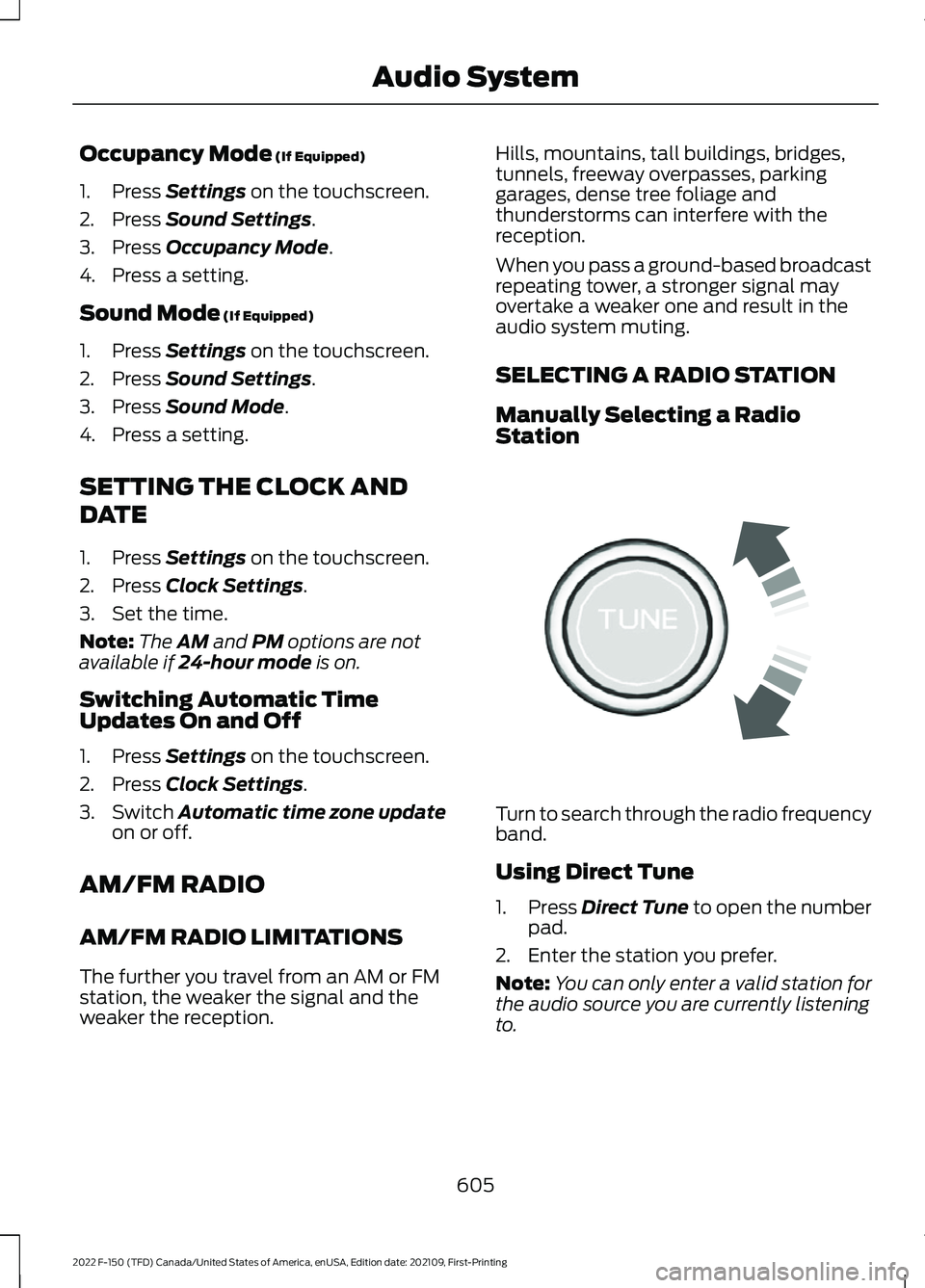
Turn to search through the radio frequency
band.
Using Direct Tune
1.
Press
Direct Tune to open the number
pad.
2. Enter the station you prefer.
Note: You can only enter a valid station for
the audio source you are currently listening
to.
605
2022 F-150 (TFD) Canada/United States of America, enUSA, Edition date: 202109, First-Printing Audio SystemE270235
Page 612 of 750
Hills, mountains, tall buildings, bridges,
tunnels, freeway overpasses, parking
garages, dense tree foliage and
thunderstorms can interfere with your
reception.
When you pass a ground-based
broadcast-repeating tower, a stronger
signal may overtake a weaker one and
could result in the audio system muting.
Your display could show an error message
to indicate the interference.
LOCATING THE SATELLITE RADIO
IDENTIFICATION NUMBER
1. Select SiriusXM as the audio source.
2. Tune to channel 0.
SELECTING A CHANNEL
Manually Selecting a Channel
Press the button to find the
previous or next available radio
channel.
Linear Tuner
The linear tuner is displayed when
manually selecting a channel. You can
swipe left or right on the linear tuner
carousel to navigate through the channel
list. Tap on a channel title to listen to it.
Using Direct Tune
1. Press the channel up or down button to open the linear tuner screen.
2. Press Direct Tune to open the number
pad.
3. Enter the channel you prefer.
Using Browse
1. Press
Browse. 2. Select a channel.
SATELLITE RADIO SETTINGS
Subscription
Your subscription status is displayed. You
can subscribe or manage your subscription
directly from the touchscreen.
Listener Add/Switch
You can create up to five listener profiles
per SiriusXM account. Each listener profile
can be personalized with a name and
profile image.
Note:
Requires a trial or active subscription
to use.
Note: A default profile is available when no
listener profiles are created.
SiriusXM Favorites
SiriusXM Favorites are shown for the active
listener profile. While you are listening to
SiriusXM, you can save favorites by:
• Tapping the currently tuned channel
or show logo on the SiriusXM audio
screen. A favorite icon appears next to
the logo when it is saved as a favorite.
• Tuning to a channel or show you want
to save as a favorite. Navigate to the
SiriusXM Favorites screen and press
the Add Current button. The currently
tuned channel or show is saved as a
favorite.
• Saving a radio preset. This saves the
currently tuned SiriusXM channel or
show as a favorite.
Note: Requires a trial or active subscription
to use.
608
2022 F-150 (TFD) Canada/United States of America, enUSA, Edition date: 202109, First-Printing Audio SystemE328569 E328570
Page 638 of 750
During an update you will not be able to
drive your vehicle, start the vehicle, use
remote controls to lock and unlock the
vehicle. The alarm, central locks, and door
tones are disabled. The electronic door
lock will not function during an update. You
can open the doors using the mechanical
latch if child locks are not on. Pull the
handle until it stops to use the mechanical
latch Some updates may not allow you to
use your vehicle during the update process.
Note:
Some updates can complete in the
background, but more complex updates can
take up to 45 minutes.
Note: Double locking is switched off and
central locking is switched on during and
after an update.
Note: If your vehicle is plugged in, charging
will stop during an update and resume when
the update is complete.
Viewing Update Details
If an update is successful, the touchscreen
will provide additional details about the
update. You can also access this
information under the System Update tile.
If an update is not successful, follow the
prompt that appears on the touchscreen.
PERFORMING A MASTER
RESET Press the settings option on the
feature bar.
1. Press the Reset tile.
2. Press
Master Reset.
3. Follow the prompts on the screen to complete the reset.
634
2022 F-150 (TFD) Canada/United States of America, enUSA, Edition date: 202109, First-Printing Vehicle System UpdatesE280315
Page 740 of 750
Reprogramming the Garage Door
Opener.........................................................208
Resetting Ground Fault Detection..........215
Resetting the Circuit Breaker - Vehicles With: 7.2kW..................................................216
Resetting the Stopping Position - Vehicles With: Power Adjustable
Steering Column........................................139
Resetting Tire Pressure Monitoring System
..........................................................538
Restarting the Engine................................244
Resuming the Set Speed..........................330
Reverse Braking Assist Indicators..........293
Reverse Braking Assist Precautions.................................................292
Reverse Braking Assist...............................292 Reverse Braking Assist –
Troubleshooting............................................ 294
Reverse Braking Assist – Troubleshooting........................................294
Reverse Braking Assist – Frequently Asked Questions........................................................ 295
Reverse Braking Assist – Information Messages......................................................... 294
Roadside Assistance..................................462
Rollover Warning
.........................................656
Route Guidance............................................631
Adjusting the Guidance Prompt
Volume.............................................................. 631
Canceling Route Guidance............................. 631
Repeating an Instruction................................. 631
Running-In See: Breaking-In................................................. 455
Running Out of Fuel
...................................250
Adding Fuel From a Portable Fuel
Container......................................................... 250
Filling a Portable Fuel Container.................250
S
Satellite Radio
..............................................607
Locating the Satellite Radio Identification
Number............................................................ 608
Satellite Radio Limitations............................ 607
Satellite Radio Settings.................................. 608
Selecting a Channel......................................... 608
What Is Satellite Radio.................................... 607
Saving a Preset Position
...........................204 Scheduled Maintenance
..........................642
Seatbelt Extensions......................................68
Seatbelt Precautions
.....................................61
Seatbelt Reminder........................................65
How Does the Seatbelt Reminder
Work..................................................................... 65
Seatbelt Reminder Audible Warnings..........67
Seatbelt Reminder Indicators.......................... 67
Switching the Seatbelt Reminder On and Off........................................................................\
. 67
Seatbelts............................................................61 Automatic Locking Mode.................................. 63
Seatbelt Reminder.............................................. 65
Sensitive Locking Mode..................................... 63
Security.............................................................132 Anti-Theft Alarm System................................ 132
Anti-Theft Alarm System Settings..............133
Passive Anti-Theft System.............................. 132
Security – Troubleshooting............................ 134
Security – Troubleshooting......................134 Security – Frequently Asked
Questions.......................................................... 135
Security – Information Messages.................134
Selecting a Drive Mode - Raptor.............351
Selecting a Drive Mode.............................350
Selecting a Four-Wheel Drive Mode - Raptor............................................................272
Selecting a Four-Wheel Drive Mode
...............................................................271
Selecting the Audio Source.....................603
Sending and Receiving a Text Message
.......................................................623
Sensitive Locking Mode...............................63 How Does Sensitive Locking Mode
Work..................................................................... 63
What is Sensitive Locking Mode.................... 63
Service Data
.....................................................28
Setting a Destination.................................630 Setting a Destination Using a Point of
Interest............................................................... 631
Setting a Destination Using a Predictive Destination....................................................... 631
Setting a Destination Using a Recent Destination....................................................... 631
Setting a Destination Using a Saved Destination....................................................... 631
Setting a Destination Using the Map Screen............................................................... 630
736
2022 F-150 (TFD) Canada/United States of America, enUSA, Edition date: 202109, First-Printing Index