ignition FORD F-250 2020 Owners Manual
[x] Cancel search | Manufacturer: FORD, Model Year: 2020, Model line: F-250, Model: FORD F-250 2020Pages: 631, PDF Size: 9.62 MB
Page 473 of 631
CONNECTING THE VEHICLE TO
A MOBILE NETWORK
What Is the Modem
The modem allows you to connect your
vehicle to the Internet to use when you are
on the road.
If you enable the modem using the
FordPass app, you can access the
following services:
•
Locating and remotely starting, locking
and unlocking your vehicle. See the
information in FordPass app.
• Automatic system updates.
Enabling the Modem Using
FordPass
1. Open the FordPass app on your device
and log in. 2. Select your vehicle.
3. Select the option for vehicle details.
4. Select the option to activate your
vehicle.
5. Switch the ignition on.
6. Make sure that the name on the screen
matches the name shown in your
FordPass account.
7. Confirm the association of your vehicle
with your FordPass account.
Enabling the Modem Using the
Touchscreen Select the settings option on the
feature bar.
1. Select FordPass Connect.
2. Select
Connectivity Settings.
3. Switch connectivity features on.
470
Super Duty (TFE), enUSA, Edition date: 201909, Third-Printing- Network Connectivity
(If Equipped)
Page 490 of 631
USING SYNC™ WITH YOUR
PHONE
Hands-free calling is one of the main
features of SYNC. While the system
supports a variety of features, many are
dependent on your cellular phone's
functionality. At a minimum, most cellular
phones with Bluetooth wireless technology
support the following functions:
•
Answering an incoming call.
• Ending a call.
• Dialing a number.
• Redialing.
• Call waiting notification.
• Caller identification.
Other features, such as text messaging
using Bluetooth and automatic phonebook
download, are phone-dependent features.
Pairing a Phone
Wirelessly pairing your phone with SYNC
allows you to make and receive hands-free
calls.
Note: Make sure to switch on the ignition
and the radio. Shift the transmission into
park (P) for automatic transmission or
neutral (N) for manual transmission.
Using the Audio System
Note: To scroll through the menus, press
the up and down arrows on your audio
system.
1. Make sure to switch on your phone's Bluetooth feature before starting the
search. See your device's manual if
necessary.
2. Press the Settings button.
3. Select Bluetooth from the menu.
4. Press the
OK button.
5. Select the option to add. This starts the pairing process. 6. When a message to begin pairing
appears in the audio display, search for
SYNC on your device.
Depending on your phone's capability and
your market, the system may prompt you
with questions, such as setting the current
phone as the primary phone and
downloading your phonebook.
Using Voice Commands Make sure to switch on your
phone's Bluetooth feature
before starting the search. See
your device's manual if necessary.
Press the voice button and when
prompted say: Action and Descrip-
tion
Voice Command
Follow the instruc-
tions on the audio
display.
Pair Phone
Phone Voice Commands Press the voice button. You can
do things like place a phone call
and access text messages.
When prompted, say a command. See the
following table for examples of
commands. Voice Command
___ List of Commands
Help
Call ___
Dial ___
Text Messages
487
Super Duty (TFE), enUSA, Edition date: 201909, Third-Printing- SYNC™
(If Equipped)E142599 E142599
Page 501 of 631
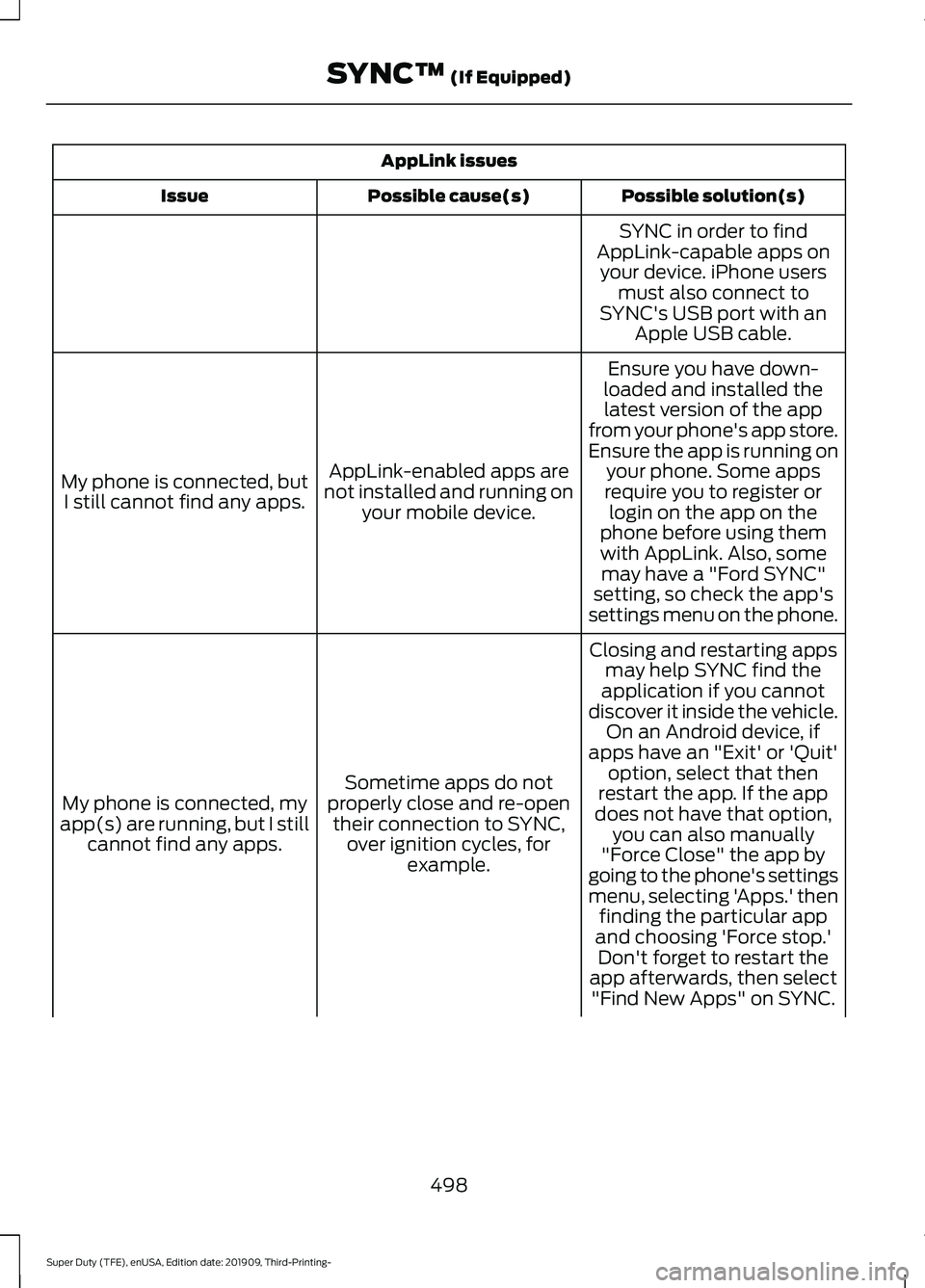
AppLink issues
Possible solution(s)
Possible cause(s)
Issue
SYNC in order to find
AppLink-capable apps on your device. iPhone users must also connect to
SYNC's USB port with an Apple USB cable.
Ensure you have down-
loaded and installed the latest version of the app
from your phone's app store.
Ensure the app is running on your phone. Some apps
AppLink-enabled apps are
not installed and running on your mobile device.
My phone is connected, but
I still cannot find any apps. require you to register or
login on the app on the
phone before using them with AppLink. Also, some may have a "Ford SYNC"
setting, so check the app's
settings menu on the phone.
Closing and restarting apps may help SYNC find the
application if you cannot
discover it inside the vehicle. On an Android device, if
apps have an "Exit' or 'Quit'
Sometime apps do not
properly close and re-open their connection to SYNC, over ignition cycles, for example.
My phone is connected, my
app(s) are running, but I still cannot find any apps. option, select that then
restart the app. If the app
does not have that option, you can also manually
"Force Close" the app by
going to the phone's settings
menu, selecting 'Apps.' then finding the particular app
and choosing 'Force stop.' Don't forget to restart the
app afterwards, then select "Find New Apps" on SYNC.
498
Super Duty (TFE), enUSA, Edition date: 201909, Third-Printing- SYNC™ (If Equipped)
Page 504 of 631
GENERAL INFORMATION
WARNING: Driving while distracted
can result in loss of vehicle control, crash
and injury. We strongly recommend that
you use extreme caution when using any
device that may take your focus off the
road. Your primary responsibility is the
safe operation of your vehicle. We
recommend against the use of any
hand-held device while driving and
encourage the use of voice-operated
systems when possible. Make sure you
are aware of all applicable local laws
that may affect the use of electronic
devices while driving.
About SYNC
The system allows you to interact with the
entertainment, information and
communication systems on your vehicle
using voice commands and a touchscreen.
The system provides easy interaction with
audio, phone, navigation, mobile apps and
settings.
Note: You can switch the system on and
use it for up to an hour without switching
the ignition on.
Note: You can use the system after you
switch the ignition off for up to 10 minutes
or until you open a door.
Note: For your safety, some features are
speed-dependent. Their use is limited to
when your vehicle speed is less than 3 mph
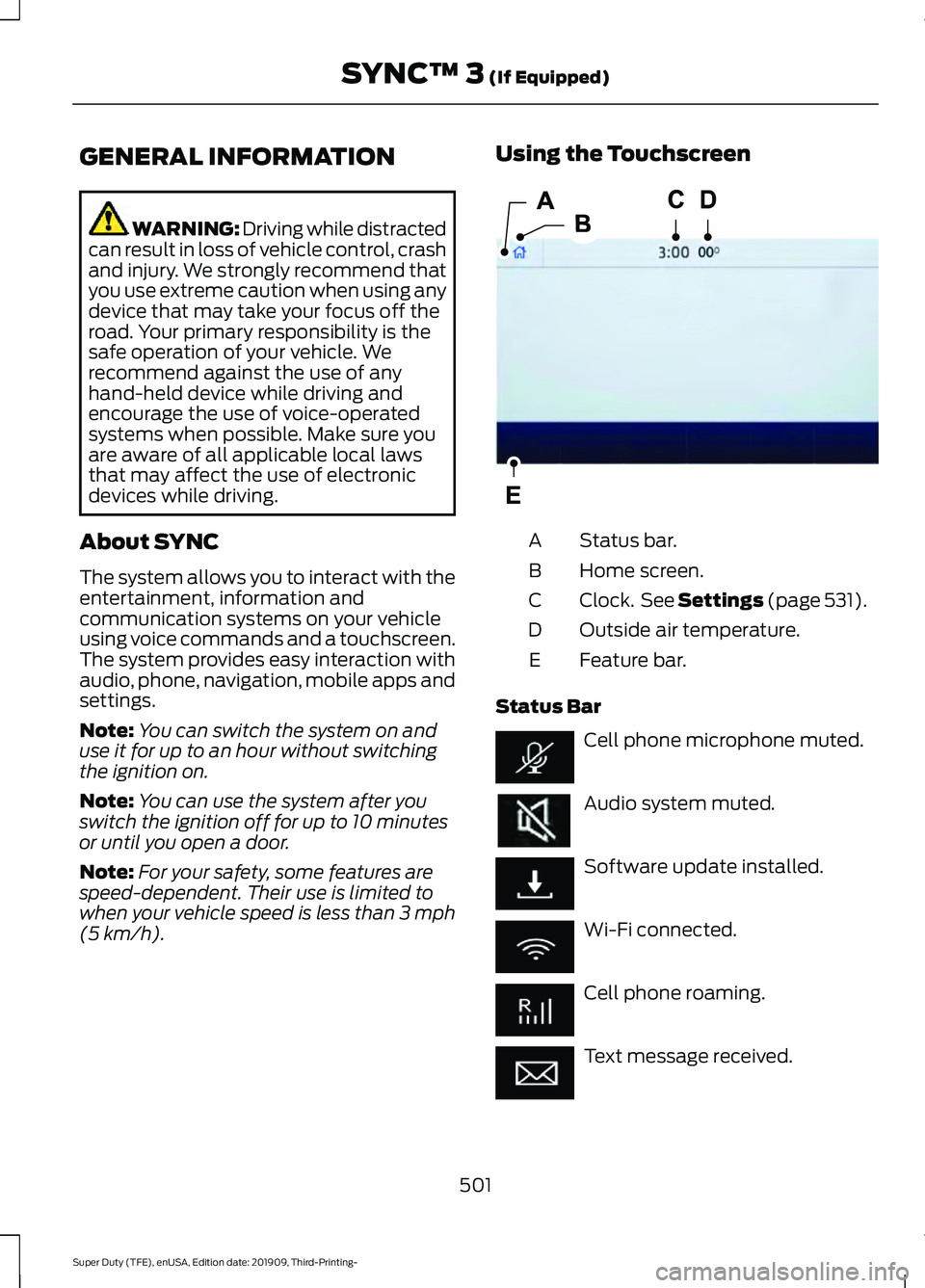
(5 km/h). Using the Touchscreen
Status bar.
A
Home screen.
B
Clock. See
Settings (page 531).
C
Outside air temperature.
D
Feature bar.
E
Status Bar Cell phone microphone muted.
Audio system muted.
Software update installed.
Wi-Fi connected.
Cell phone roaming.
Text message received.
501
Super Duty (TFE), enUSA, Edition date: 201909, Third-Printing- SYNC™ 3
(If Equipped)E293823
Page 516 of 631
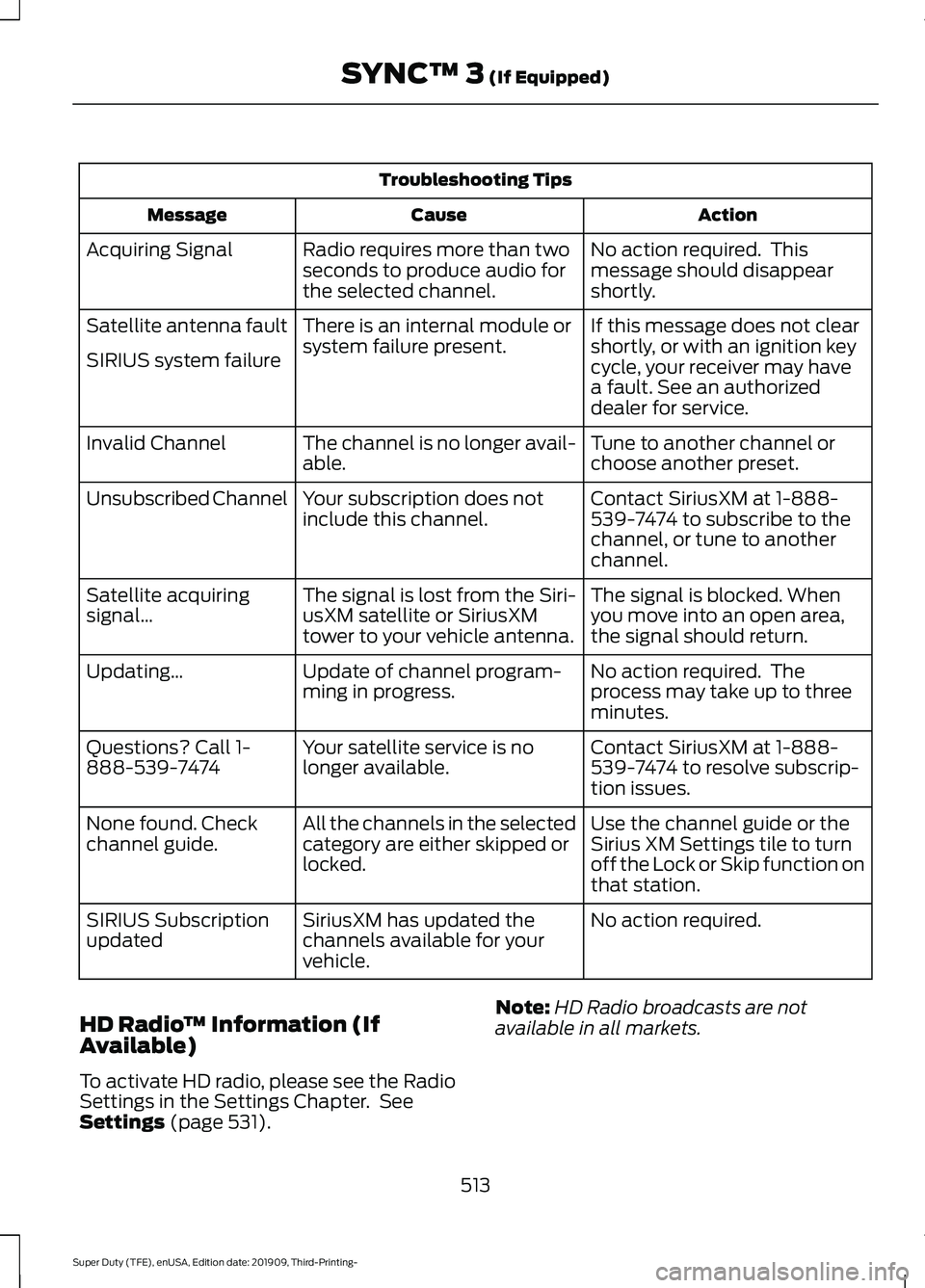
Troubleshooting Tips
Action
Cause
Message
No action required. This
message should disappear
shortly.
Radio requires more than two
seconds to produce audio for
the selected channel.
Acquiring Signal
If this message does not clear
shortly, or with an ignition key
cycle, your receiver may have
a fault. See an authorized
dealer for service.
There is an internal module or
system failure present.
Satellite antenna fault
SIRIUS system failure
Tune to another channel or
choose another preset.
The channel is no longer avail-
able.
Invalid Channel
Contact SiriusXM at 1-888-
539-7474 to subscribe to the
channel, or tune to another
channel.
Your subscription does not
include this channel.
Unsubscribed Channel
The signal is blocked. When
you move into an open area,
the signal should return.
The signal is lost from the Siri-
usXM satellite or SiriusXM
tower to your vehicle antenna.
Satellite acquiring
signal\b
No action required. The
process may take up to three
minutes.
Update of channel program-
ming in progress.
Updating\b
Contact SiriusXM at 1-888-
539-7474 to resolve subscrip-
tion issues.
Your satellite service is no
longer available.
Questions? Call 1-
888-539-7474
Use the channel guide or the
Sirius XM Settings tile to turn
off the Lock or Skip function on
that station.
All the channels in the selected
category are either skipped or
locked.
None found. Check
channel guide.
No action required.
SiriusXM has updated the
channels available for your
vehicle.
SIRIUS Subscription
updated
HD Radio ™ Information (If
Available)
To activate HD radio, please see the Radio
Settings in the Settings Chapter. See
Settings (page 531). Note:
HD Radio broadcasts are not
available in all markets.
513
Super Duty (TFE), enUSA, Edition date: 201909, Third-Printing- SYNC™ 3
(If Equipped)
Page 540 of 631
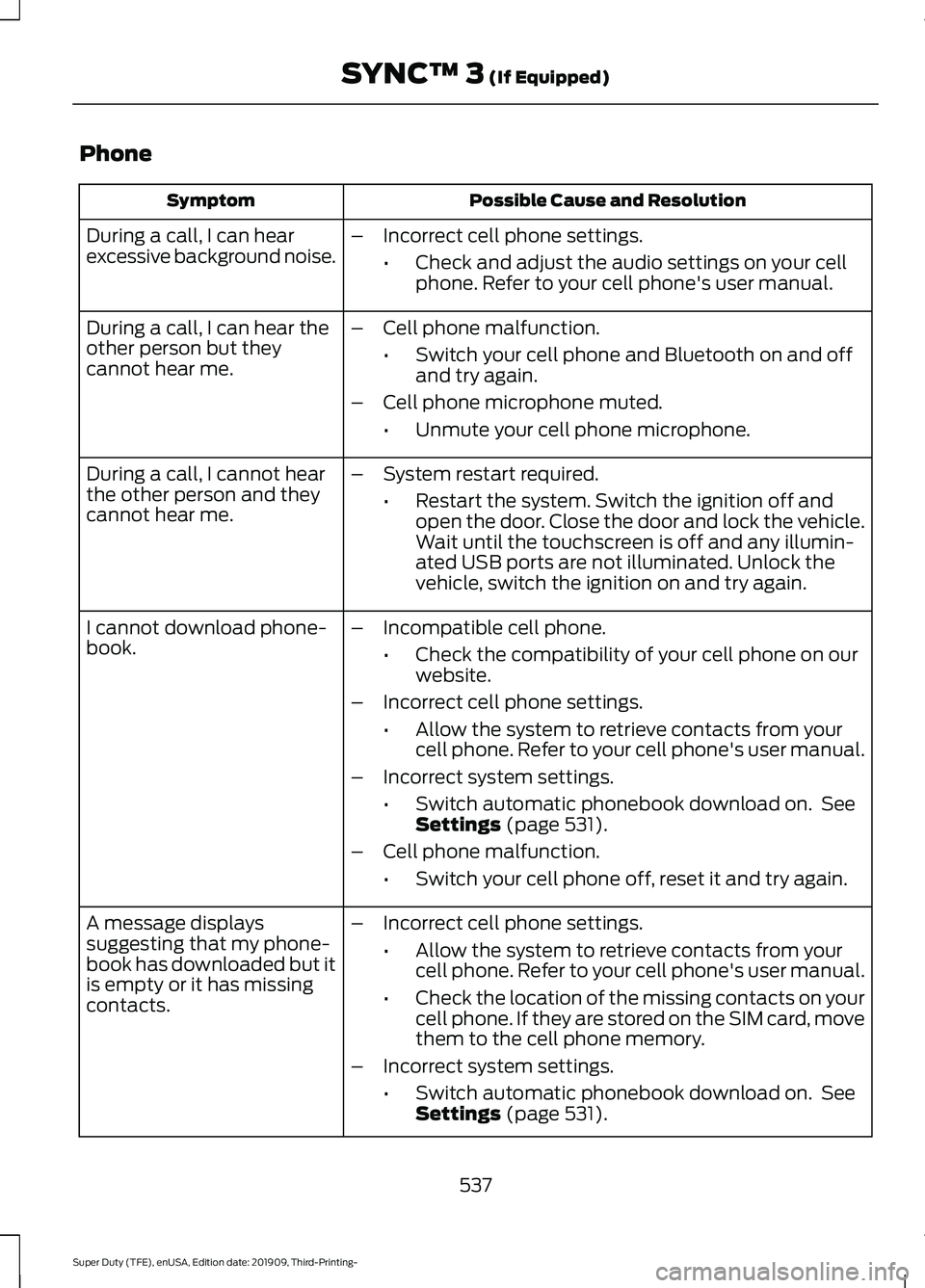
Phone
Possible Cause and Resolution
Symptom
During a call, I can hear
excessive background noise. –
Incorrect cell phone settings.
•Check and adjust the audio settings on your cell
phone. Refer to your cell phone's user manual.
– Cell phone malfunction.
•Switch your cell phone and Bluetooth on and off
and try again.
– Cell phone microphone muted.
•Unmute your cell phone microphone.
During a call, I can hear the
other person but they
cannot hear me.
During a call, I cannot hear
the other person and they
cannot hear me.
–
System restart required.
•Restart the system. Switch the ignition off and
open the door. Close the door and lock the vehicle.
Wait until the touchscreen is off and any illumin-
ated USB ports are not illuminated. Unlock the
vehicle, switch the ignition on and try again.
I cannot download phone-
book. –
Incompatible cell phone.
•Check the compatibility of your cell phone on our
website.
– Incorrect cell phone settings.
•Allow the system to retrieve contacts from your
cell phone. Refer to your cell phone's user manual.
– Incorrect system settings.
•Switch automatic phonebook download on. See
Settings (page 531).
– Cell phone malfunction.
•Switch your cell phone off, reset it and try again.
– Incorrect cell phone settings.
•Allow the system to retrieve contacts from your
cell phone. Refer to your cell phone's user manual.
• Check the location of the missing contacts on your
cell phone. If they are stored on the SIM card, move
them to the cell phone memory.
– Incorrect system settings.
•Switch automatic phonebook download on. See
Settings
(page 531).
A message displays
suggesting that my phone-
book has downloaded but it
is empty or it has missing
contacts.
537
Super Duty (TFE), enUSA, Edition date: 201909, Third-Printing- SYNC™ 3
(If Equipped)
Page 546 of 631
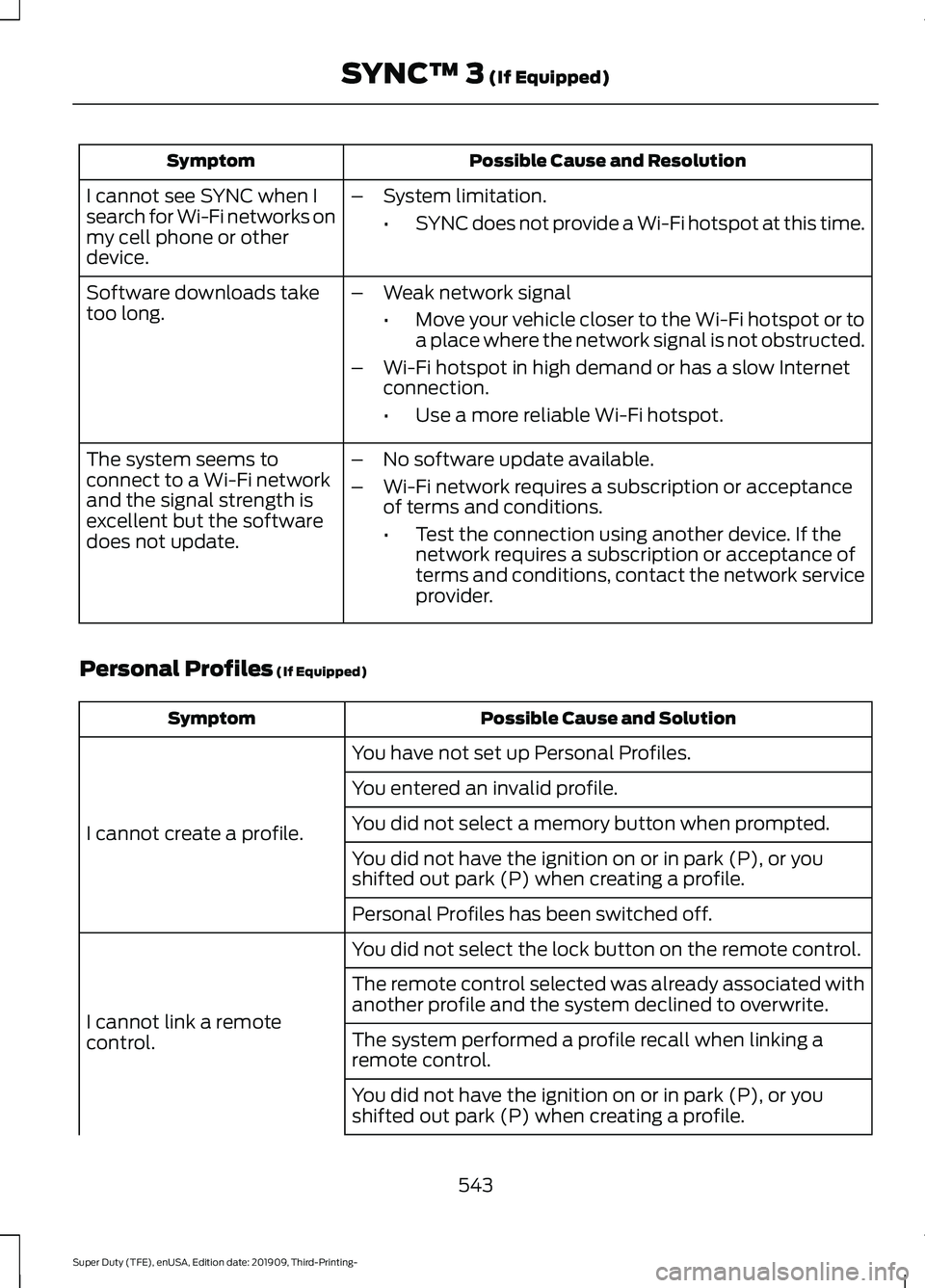
Possible Cause and Resolution
Symptom
I cannot see SYNC when I
search for Wi-Fi networks on
my cell phone or other
device. –
System limitation.
•SYNC does not provide a Wi-Fi hotspot at this time.
– Weak network signal
•Move your vehicle closer to the Wi-Fi hotspot or to
a place where the network signal is not obstructed.
– Wi-Fi hotspot in high demand or has a slow Internet
connection.
•Use a more reliable Wi-Fi hotspot.
Software downloads take
too long.
–No software update available.
– Wi-Fi network requires a subscription or acceptance
of terms and conditions.
•Test the connection using another device. If the
network requires a subscription or acceptance of
terms and conditions, contact the network service
provider.
The system seems to
connect to a Wi-Fi network
and the signal strength is
excellent but the software
does not update.
Personal Profiles (If Equipped) Possible Cause and Solution
Symptom
You have not set up Personal Profiles.
I cannot create a profile. You entered an invalid profile.
You did not select a memory button when prompted.
You did not have the ignition on or in park (P), or you
shifted out park (P) when creating a profile.
Personal Profiles has been switched off.
You did not select the lock button on the remote control.
I cannot link a remote
control. The remote control selected was already associated with
another profile and the system declined to overwrite.
The system performed a profile recall when linking a
remote control.
You did not have the ignition on or in park (P), or you
shifted out park (P) when creating a profile.
543
Super Duty (TFE), enUSA, Edition date: 201909, Third-Printing- SYNC™ 3
(If Equipped)
Page 550 of 631
AUXILIARY SWITCHES
For maximum vehicle performance, keep
the following information in mind when
adding accessories or equipment to your
vehicle:
•
When adding accessories, equipment,
passengers and luggage to your
vehicle, do not exceed the total weight
capacity of the vehicle or of the front
or rear axle (GVWR or GAWR as
indicated on the Safety Compliance
Certification label). Ask an authorized
dealer for specific weight information.
• The Federal Communications
Commission (FCC) and Canadian
Radio Telecommunications
Commission (CRTC) regulate the use
of mobile communications systems
equipped with radio transmitters, for
example, two-way radios, telephones
and theft alarms. Any such equipment
installed in your vehicle should comply
with Federal Communications
Commission (FCC) and Canadian
Radio Telecommunications
Commission (CRTC) regulations, and
should be installed by an authorized
dealer.
• An authorized dealer needs to install
mobile communications systems.
Improper installation may harm the
operation of your vehicle, particularly
if the manufacturer did not design the
mobile communication system
specifically for automotive use.
• If you or an authorized Ford dealer add
any non-Ford electrical or electronic
accessories or components to your
vehicle, you may adversely affect
battery performance and durability. In
addition, you may also adversely affect
the performance of other electrical
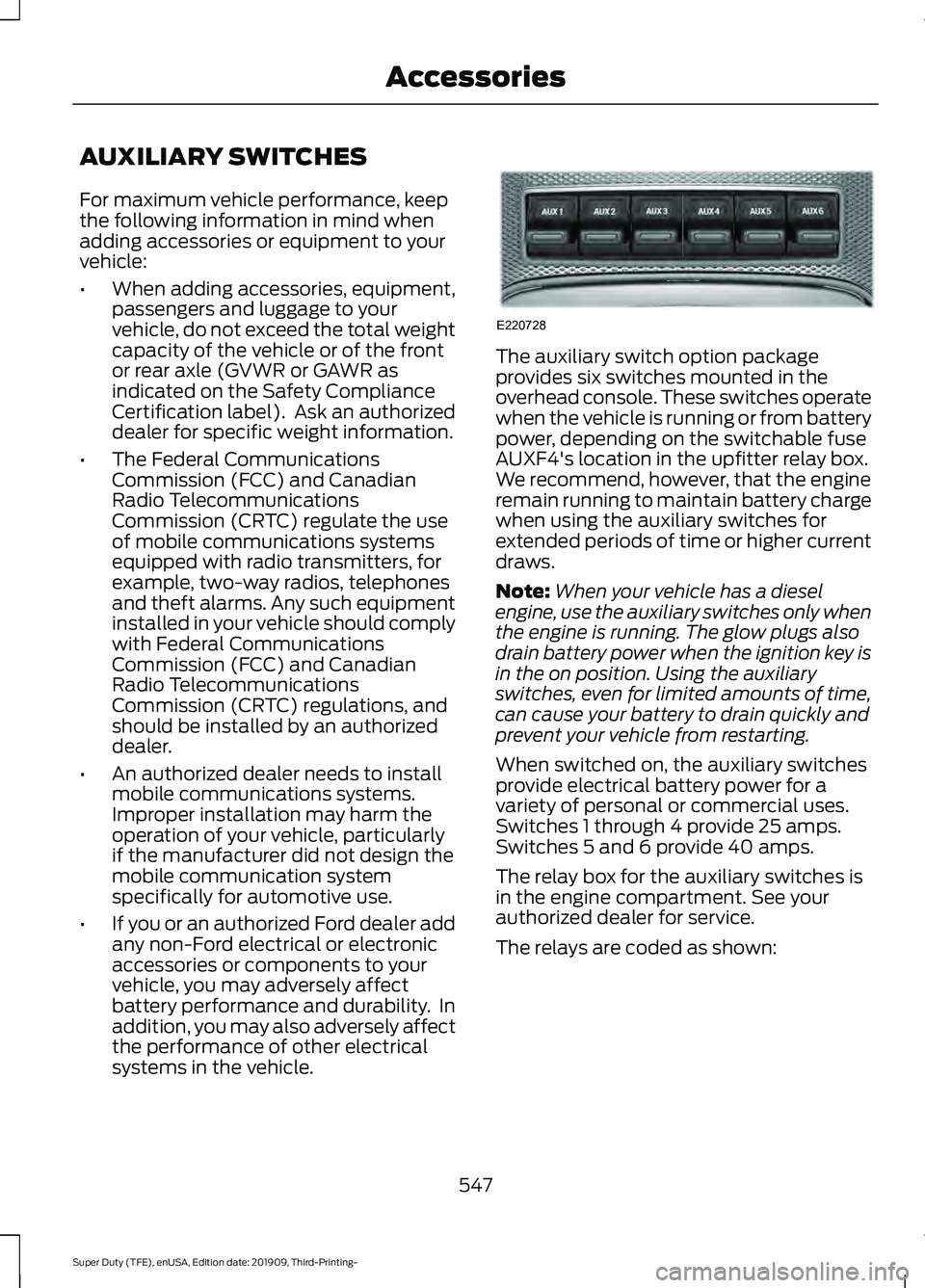
systems in the vehicle. The auxiliary switch option package
provides six switches mounted in the
overhead console. These switches operate
when the vehicle is running or from battery
power, depending on the switchable fuse
AUXF4's location in the upfitter relay box.
We recommend, however, that the engine
remain running to maintain battery charge
when using the auxiliary switches for
extended periods of time or higher current
draws.
Note:
When your vehicle has a diesel
engine, use the auxiliary switches only when
the engine is running. The glow plugs also
drain battery power when the ignition key is
in the on position. Using the auxiliary
switches, even for limited amounts of time,
can cause your battery to drain quickly and
prevent your vehicle from restarting.
When switched on, the auxiliary switches
provide electrical battery power for a
variety of personal or commercial uses.
Switches 1 through 4 provide 25 amps.
Switches 5 and 6 provide 40 amps.
The relay box for the auxiliary switches is
in the engine compartment. See your
authorized dealer for service.
The relays are coded as shown:
547
Super Duty (TFE), enUSA, Edition date: 201909, Third-Printing- AccessoriesE220728
Page 616 of 631
3
360 Degree Camera...................................232
Advanced Camera Views................................ 232
Auxiliary Camera................................................ 234
Bed View Camera.............................................. 234
Camera Views..................................................... 232
Front Camera...................................................... 233
Keep Out Zone.................................................... 233
Side Camera........................................................ 234
4
4WD See: Four-Wheel Drive..................................... 207
A
A/C See: Climate Control......................................... 139
About This Manual
...........................................7
ABS See: Brakes............................................................ 217
ABS driving hints See: Hints on Driving With Anti-Lock
Brakes................................................................. 219
Accessories....................................................546
Accessories See: Replacement Parts
Recommendation............................................ 14
ACC See: Using Adaptive Cruise Control............237
Adjustable Pedals
..........................................83
Adjusting the Headlamps.........................370
Horizontal Aim Adjustment............................ 371
Vertical Aim Adjustment................................. 370
Adjusting the Pedals
.....................................83
Adjusting the Steering Wheel - Vehicles With: Manual Adjustable Steering
Column
............................................................79
Adjusting the Steering Wheel - Vehicles With: Power Adjustable Steering
Column
............................................................79
End of Travel Position........................................ 80
Memory Feature................................................... 80
Airbag Disposal
...............................................52
Air Conditioning See: Climate Control......................................... 139Air Filter
See: Changing the Engine Air Filter -
6.2L.................................................................... 346
See: Changing the Engine Air Filter - 6.7L Diesel................................................................. 347
See: Changing the Engine Air Filter - 7.3L..................................................................... 349
Alarm See: Anti-Theft Alarm......................................... 75
Ambient Lighting...........................................90 Adjusting the Brightness................................... 90
Switching Ambient Lighting Off.................... 90
Switching Ambient Lighting On..................... 90
Anti-Theft Alarm............................................75 Arming the Alarm................................................. 76
Disarming the Alarm........................................... 76
Using the System.................................................. 75
Appendices.....................................................581
Apps
.................................................................528
SiriusXM Traffic and Travel Link.................. 530
Using Apps on an Android Device...............529
Using Apps on an iOS Device........................ 529
Using Mobile Navigation on an Android Device................................................................ 529
At a Glance........................................................18
Audible Warnings and Indicators...........108 Headlamps On Warning Chime.................... 108
Key in Ignition Warning Chime...................... 108
Keyless Warning Alert...................................... 108
Parking Brake On Warning Chime...............108
Audio Control
..................................................80
You can operate the following functions
with the control:.............................................. 80
Audio System
................................................474
General Information.......................................... 474
Audio Unit - Vehicles With: AM/FM/ Touchscreen Display/SYNC 3..............474
Adjusting the Volume....................................... 475
Changing Radio Stations................................ 475
Selecting the Audio Modes............................ 475
Setting a Memory Preset................................ 475
Switching the Audio Unit On and Off.........475
Using Seek, Fast Forward and Reverse.............................................................. 475
Audio Unit - Vehicles With: SYNC.........476 Accessing the Apps Menu.............................. 476
Accessing the Clock Settings........................ 476
Accessing the Media Source Menu.............476
613
Super Duty (TFE), enUSA, Edition date: 201909, Third-Printing- Index
Page 623 of 631
Turbo Boost Gauge............................................
103
Type 1 and 2........................................................... 101
Type 3...................................................................... 102
Gearbox See: Transmission.............................................. 201
General Information on Radio Frequencies...................................................53
Intelligent Access................................................. 53
General Maintenance Information........553 Multi-Point Inspection..................................... 556
Owner Checks and Services.......................... 554
Protecting Your Investment........................... 553
Why Maintain Your Vehicle?.......................... 553
Why Maintain Your Vehicle at Your Dealership?..................................................... 553
Getting Assistance Outside the U.S. and Canada.........................................................325
Getting the Services You Need...............322 Away From Home.............................................. 322
Global Opening...............................................95
Opening the Windows....................................... 95
H
Handbrake See: Parking Brake..............................................219
Hazard Flashers
............................................316
HDC See: Using Hill Descent Control................... 226
Headlamp Adjusting See: Adjusting the Headlamps..................... 370
Headrest See: Head Restraints......................................... 147
Head Restraints.............................................147 Adjusting the Head Restraint......................... 148
Heated Exterior Mirrors..............................144
Heated Rear Window..................................144
Heated Seats
.................................................156
Rear Heated Seats............................................. 156
Heated Steering Wheel
................................81
Heated Windshield......................................144
Windshield Wiper De-Icer............................... 144
Heating See: Climate Control......................................... 139
Hill Start Assist
..............................................219
Switching the System On and Off..............220
Using Hill Start Assist...................................... 220Hints on Controlling the Interior Climate
- Vehicles With: Automatic
Temperature Control................................142
Defogging the Side Windows in Cold Weather............................................................. 143
General Hints........................................................ 142
Quickly Cooling the Interior............................. 143
Quickly Heating the Interior............................ 142
Recommended Settings for Cooling...........143
Recommended Settings for Heating..........143
Hints on Controlling the Interior Climate - Vehicles With: Manual Temperature
Control...........................................................143
Defogging the Side Windows in Cold Weather............................................................. 144
General Hints........................................................ 143
Quickly Cooling the Interior............................. 143
Quickly Heating the Interior............................ 143
Recommended Settings for Cooling...........143
Recommended Settings for Heating..........143
Vehicle Stationary for Extended Periods During Extreme High Ambient
Temperatures.................................................. 144
Hints on Driving With Anti-Lock Brakes............................................................219
Hood Lock See: Opening and Closing the Hood...........337
Horn.....................................................................82
I
Ignition Switch
...............................................168
In California (U.S. Only).............................323
Information Display Control........................81
Information Displays...................................109 General Information.......................................... 109
Information Messages................................120 4WD........................................................................\
. 137
Active Park............................................................ 120
Adaptive Cruise Control.................................... 121
Adaptive Steering............................................... 122
AdvanceTrac and Traction Control..............122
Airbag...................................................................... 123
Alarm and Security............................................. 123
Automatic Engine Shutdown......................... 123
Battery and Charging System........................ 124
Blind Spot Information and Cross Traffic Alert System.................................................... 124
620
Super Duty (TFE), enUSA, Edition date: 201909, Third-Printing- Index