change wheel FORD F-450 2022 User Guide
[x] Cancel search | Manufacturer: FORD, Model Year: 2022, Model line: F-450, Model: FORD F-450 2022Pages: 740, PDF Size: 12.6 MB
Page 261 of 740
HYDRAULIC POWER STEERING
ADAPTIVE STEERING
Note:
The adaptive steering system has
diagnostic checks that continuously monitor
the system. If the system detects a fault, a
message displays in the information display.
If a red warning message displays, stop your
vehicle as soon as it is safe to do so. The
message may clear if the fault is no longer
present. If an adaptive steering system
warning message appears each time you
start your vehicle, have the system checked
as soon as possible.
The adaptive steering system continually
changes the steering ratio with changes to
vehicle speed, optimizing the steering
response in all conditions. The system also
changes when you switch on the
transmission tow/haul feature. When you
select the tow/haul button, the adaptive
steering system reduces vehicle sensitivity
to steering inputs at higher vehicle speeds,
while maintaining the ease of parking and
maneuverability at low speeds.
Note: The adaptive steering system is
designed with a locking device. With the
lock engaged, the adaptive steering system
remains mechanically locked at a fixed
steering ratio. You may also notice a click
when you switch the vehicle on or after you
switch it off, as the lock disengages or
engages. Note:
If your vehicle loses electrical power
or detects a fault when you are driving, the
system automatically shuts down and you
retain normal steering function with a fixed
steering ratio. During this time, it is possible
that the steering wheel may not be straight
when the vehicle is driving straight ahead.
In addition, the driver may notice that the
steering wheel angle required to steer the
vehicle may be different.
Note: During parking maneuvers, the
adaptive steering system balances the driver
workload for various steering wheel inputs
and vehicle loading conditions. Under
extreme operating conditions the system
locking device may engage. This strategy
prevents overheating and permanent
damage to the adaptive steering system.
Typical steering and driving maneuvers
allow the system to cool and return to
normal operation.
STEERING –
TROUBLESHOOTING
STEERING – WARNING
INDICATORS The adaptive steering system
indicator illuminates if the
system detects a fault during the
continuous diagnostic checks.
Note: If a red warning message displays,
stop your vehicle as soon as it is safe to do
so.
258
2022 Super Duty (TFE) Canada/United States of America, enUSA, Edition date: 202103, First-Printing SteeringE223375
Page 267 of 740
REAR VIEW CAMERA GUIDE
LINES
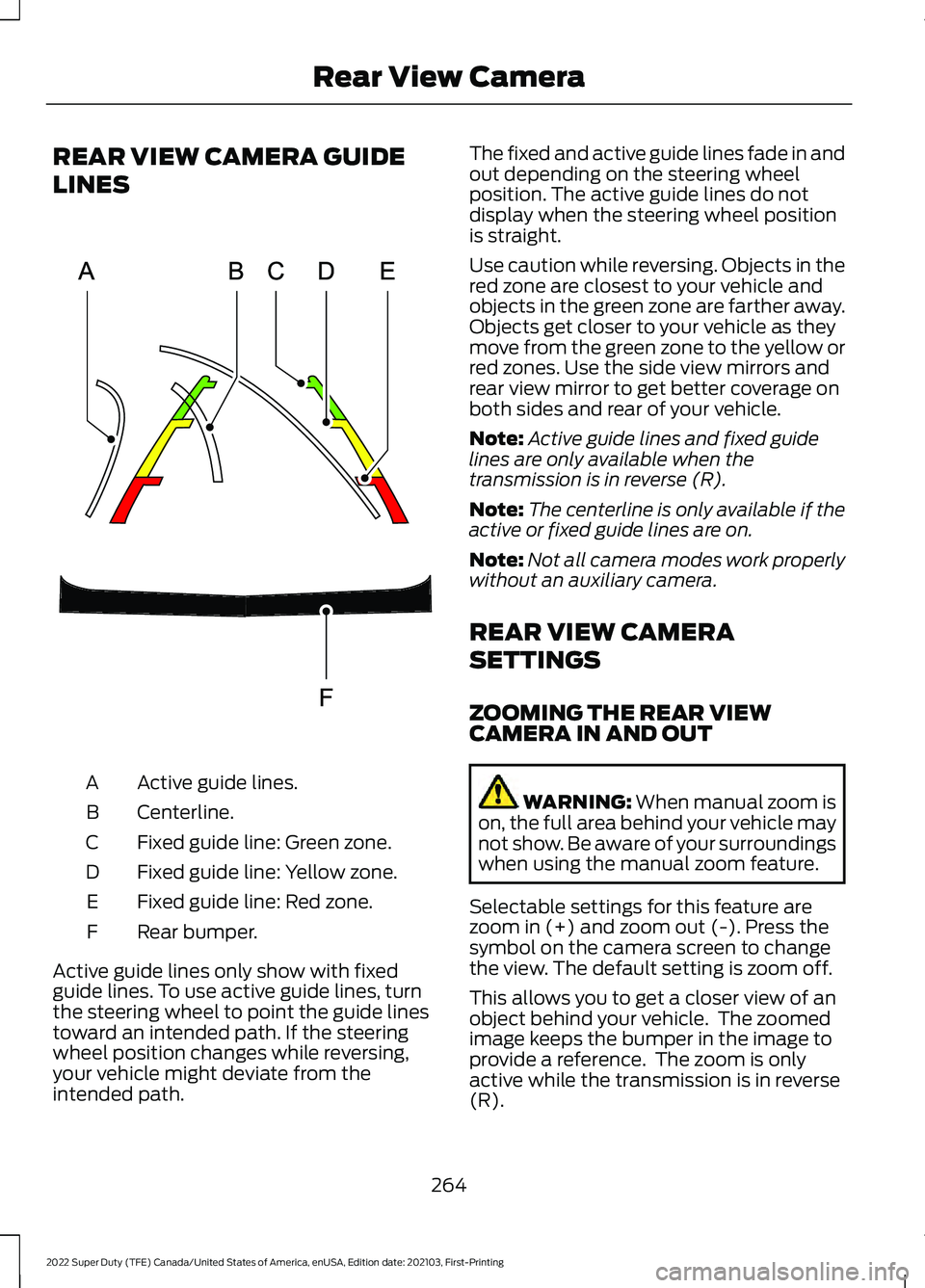
Active guide lines.
A
Centerline.
B
Fixed guide line: Green zone.
C
Fixed guide line: Yellow zone.
D
Fixed guide line: Red zone.
E
Rear bumper.
F
Active guide lines only show with fixed
guide lines. To use active guide lines, turn
the steering wheel to point the guide lines
toward an intended path. If the steering
wheel position changes while reversing,
your vehicle might deviate from the
intended path. The fixed and active guide lines fade in and
out depending on the steering wheel
position. The active guide lines do not
display when the steering wheel position
is straight.
Use caution while reversing. Objects in the
red zone are closest to your vehicle and
objects in the green zone are farther away.
Objects get closer to your vehicle as they
move from the green zone to the yellow or
red zones. Use the side view mirrors and
rear view mirror to get better coverage on
both sides and rear of your vehicle.
Note:
Active guide lines and fixed guide
lines are only available when the
transmission is in reverse (R).
Note: The centerline is only available if the
active or fixed guide lines are on.
Note: Not all camera modes work properly
without an auxiliary camera.
REAR VIEW CAMERA
SETTINGS
ZOOMING THE REAR VIEW
CAMERA IN AND OUT WARNING: When manual zoom is
on, the full area behind your vehicle may
not show. Be aware of your surroundings
when using the manual zoom feature.
Selectable settings for this feature are
zoom in (+) and zoom out (-). Press the
symbol on the camera screen to change
the view. The default setting is zoom off.
This allows you to get a closer view of an
object behind your vehicle. The zoomed
image keeps the bumper in the image to
provide a reference. The zoom is only
active while the transmission is in reverse
(R).
264
2022 Super Duty (TFE) Canada/United States of America, enUSA, Edition date: 202103, First-Printing Rear View CameraE306774
Page 270 of 740
Bed Camera
The bed camera is mounted within the
high-mount stop lamp. It displays the
contents of your truck bed. The camera
contains a dynamic guideline to help locate
the center of your vehicle. This view can
be accessed while in drive (D) or reverse
(R).
Auxiliary Camera
The auxiliary camera is a variant of the rear
view camera and is accessed by pressing
the AUX button on the display screen when
moving in reverse (R) or in drive (D). It
displays a rear view image from the back
of a trailer while in reverse.
360 DEGREE CAMERA GUIDE
LINES
Note:
Active guide lines are only available
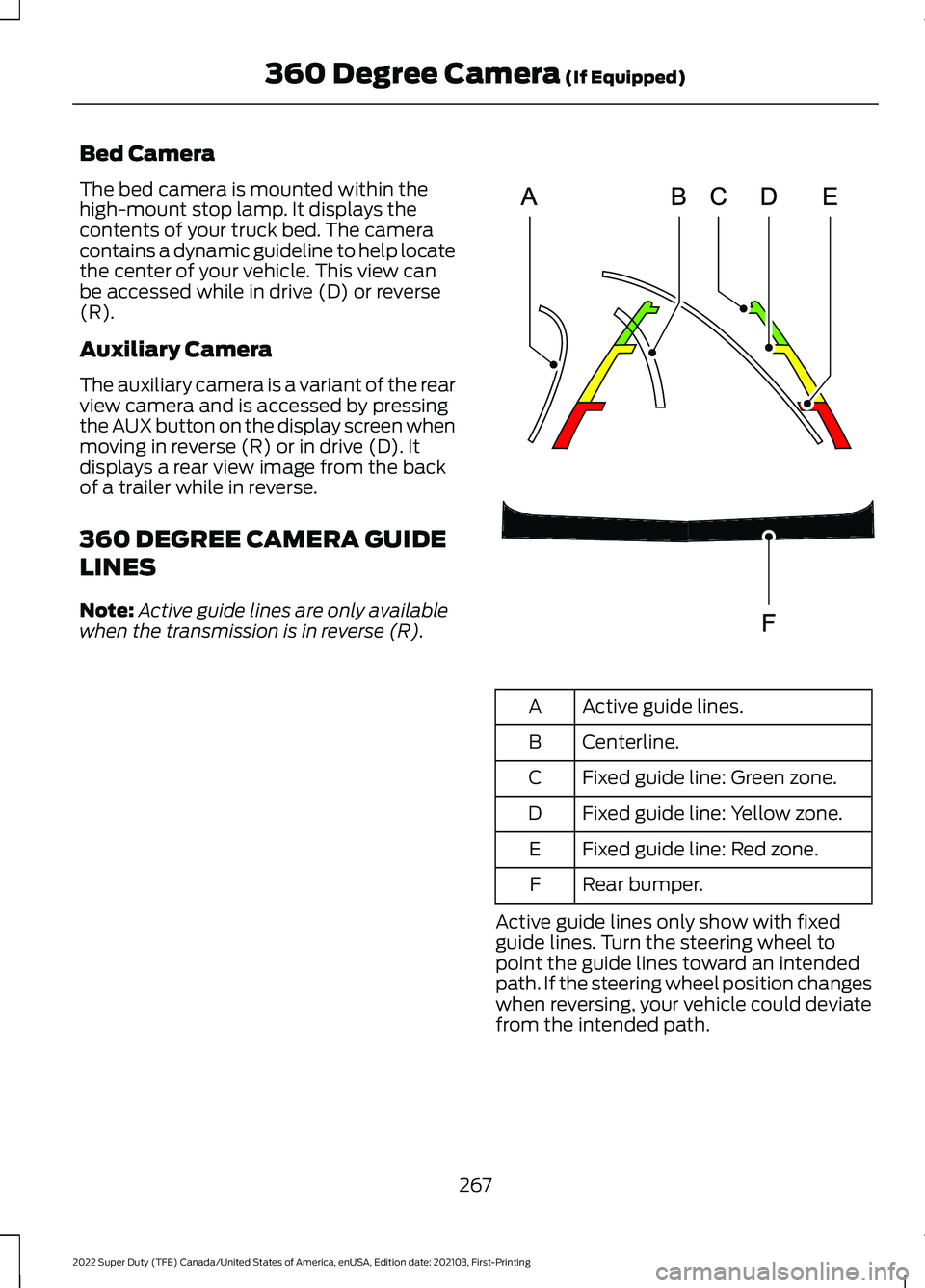
when the transmission is in reverse (R). Active guide lines.
A
Centerline.
B
Fixed guide line: Green zone.
C
Fixed guide line: Yellow zone.
D
Fixed guide line: Red zone.
E
Rear bumper.
F
Active guide lines only show with fixed
guide lines. Turn the steering wheel to
point the guide lines toward an intended
path. If the steering wheel position changes
when reversing, your vehicle could deviate
from the intended path.
267
2022 Super Duty (TFE) Canada/United States of America, enUSA, Edition date: 202103, First-Printing 360 Degree Camera (If Equipped)E306774
Page 273 of 740
WHAT IS CRUISE CONTROL
Cruise control lets you maintain a set
speed without keeping your foot on the
accelerator pedal.
Requirements
Use cruise control when the vehicle speed
is greater than 20 mph (30 km/h).
SWITCHING CRUISE CONTROL
ON AND OFF WARNING:
Do not use cruise
control on winding roads, in heavy traffic
or when the road surface is slippery. This
could result in loss of vehicle control,
serious injury or death.
The cruise controls are on the steering
wheel. See What Is Cruise Control (page
270
).
Switching Cruise Control On Press the button.
Switching Cruise Control Off Press the button when the
system is in standby mode.
The system also turns off when you switch
the ignition off.
Note: The set speed erases when you
switch the system off. SETTING THE CRUISE
CONTROL SPEED WARNING:
When you are going
downhill, your vehicle speed could
increase above the set speed. The
system does not apply the brakes.
Drive to the speed you prefer. Press either the Set+ or Set-
buttons to set the current speed.
Take your foot off the accelerator pedal.
Note: The indicator changes color in the
information display.
Changing the Set Speed Press the Set+ button to
increase the set speed in small
increments. Press and hold the
Set+ button to accelerate. Release the
button when you have reached your
preferred speed. Press the Set- button to
decrease the set speed in small
increments. Press and hold the
Set- button to decelerate. Release the
button when you have reached your
preferred speed.
Note: If you accelerate by pressing the
accelerator pedal, the set speed does not
change. When you release the accelerator
pedal, your vehicle returns to the speed that
you previously set.
270
2022 Super Duty (TFE) Canada/United States of America, enUSA, Edition date: 202103, First-Printing Cruise Control
(If Equipped)E265296 E265297
Page 284 of 740
WHAT IS DRIVE MODE
CONTROL
Your vehicle has various drive modes that
you can select for different driving
conditions. Depending on the drive mode
that you select, the system adjusts various
vehicle settings.
HOW DOES DRIVE MODE
CONTROL WORK
Drive mode control adjusts your vehicle
configuration for each mode you select.
Changing the drive mode adjusts the
steering effort and feel of the steering
system.
The stability and traction control assist
your vehicle control in adverse conditions
or high-performance driving.
Throttle control enhances the powertrain
response, transmission controls become
optimized with shift schedules, and
four-wheel drive settings are optimized
and tuned to each mode.
Changing the drive mode can engage or
disengage the electronic locking
differentials.
Changing the drive mode changes the
four-wheel drive mode to the default
setting for the selected drive mode.
Note:
The system has diagnostic checks
that continuously monitor the system for
proper operation. If a mode is unavailable
due to a system fault, the drive mode
system defaults to normal. When the
system defaults to normal, the driveline
settings remain the same as prior to the
system fault. Note:
The system reverts to the normal
mode each time you start your vehicle. At
startup the system also displays a prompt
on the instrument cluster display that gives
you the option to return to the previously
selected drive mode during the last ignition
cycle. If you select yes, the system returns
to the last selected drive mode and the
default driveline settings associated with
that mode. If you select no, the system
remains in normal mode and the driveline
settings remain the same as selected in the
prior ignition cycle. If you do not select yes
or no, the system stays in normal mode and
the driveline settings remain the same as
selected in the prior ignition cycle.
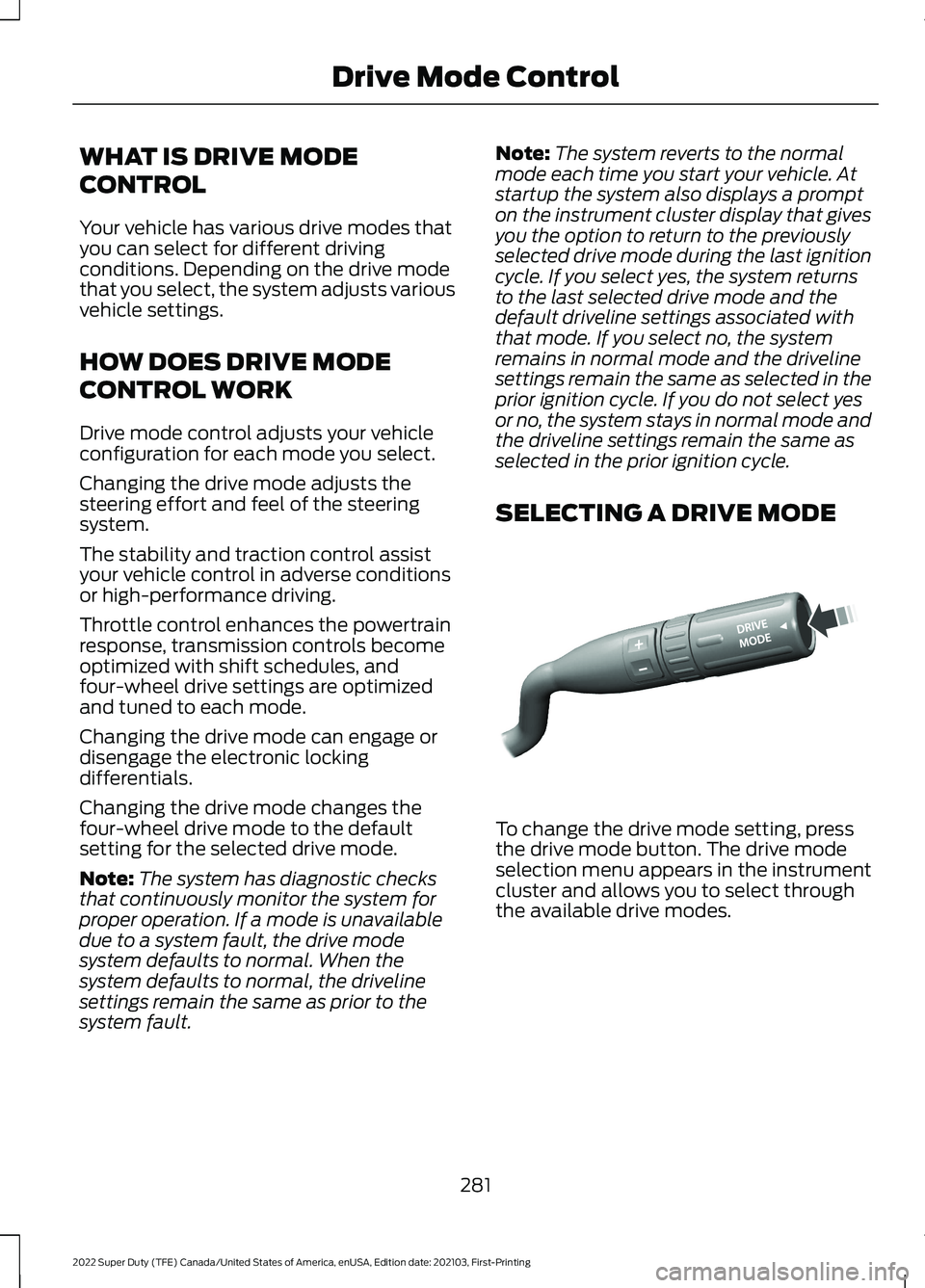
SELECTING A DRIVE MODE To change the drive mode setting, press
the drive mode button. The drive mode
selection menu appears in the instrument
cluster and allows you to select through
the available drive modes.
281
2022 Super Duty (TFE) Canada/United States of America, enUSA, Edition date: 202103, First-Printing Drive Mode ControlE249567
Page 290 of 740
•
The lane is too narrow.
• Something is obscuring the camera or
it is unable to detect the lane markings
due to environment, traffic or vehicle
conditions.
• Entering or exiting a tight curve when
driving at high speeds.
The lane keeping system may not correct
lane positioning in any of the following
conditions:
• High winds.
• Uneven road surfaces.
• Heavy or uneven loads.
• Incorrect tire pressure.
SWITCHING THE LANE
KEEPING SYSTEM ON AND
OFF - VEHICLES WITH: 4.2
INCH SCREEN To activate the lane keeping
system, press the button on the
steering wheel.
To deactivate the lane keeping system,
press the button again.
Note: When switching the system on or off
a message appears in the information and
entertainment display to show the status.
Note: The system stores the on or off
setting until manually changed, unless it
detects a MyKey ™. If the system detects a
MyKey ™, it defaults to the last setting for
that MyKey ™.
Note: If the system detects a MyKey ™,
pressing the button does not affect the on
or off status of the system. You can only
change the mode and intensity settings.
System Settings
To switch the system on or off, use the
instrument cluster display: 1. Select Driver Assist.
2. Select
Lane-Keeping System.
3. Switch the feature on or off.
The system remembers the last selection.
You do not need to readjust the setting
each time you turn on your vehicle.
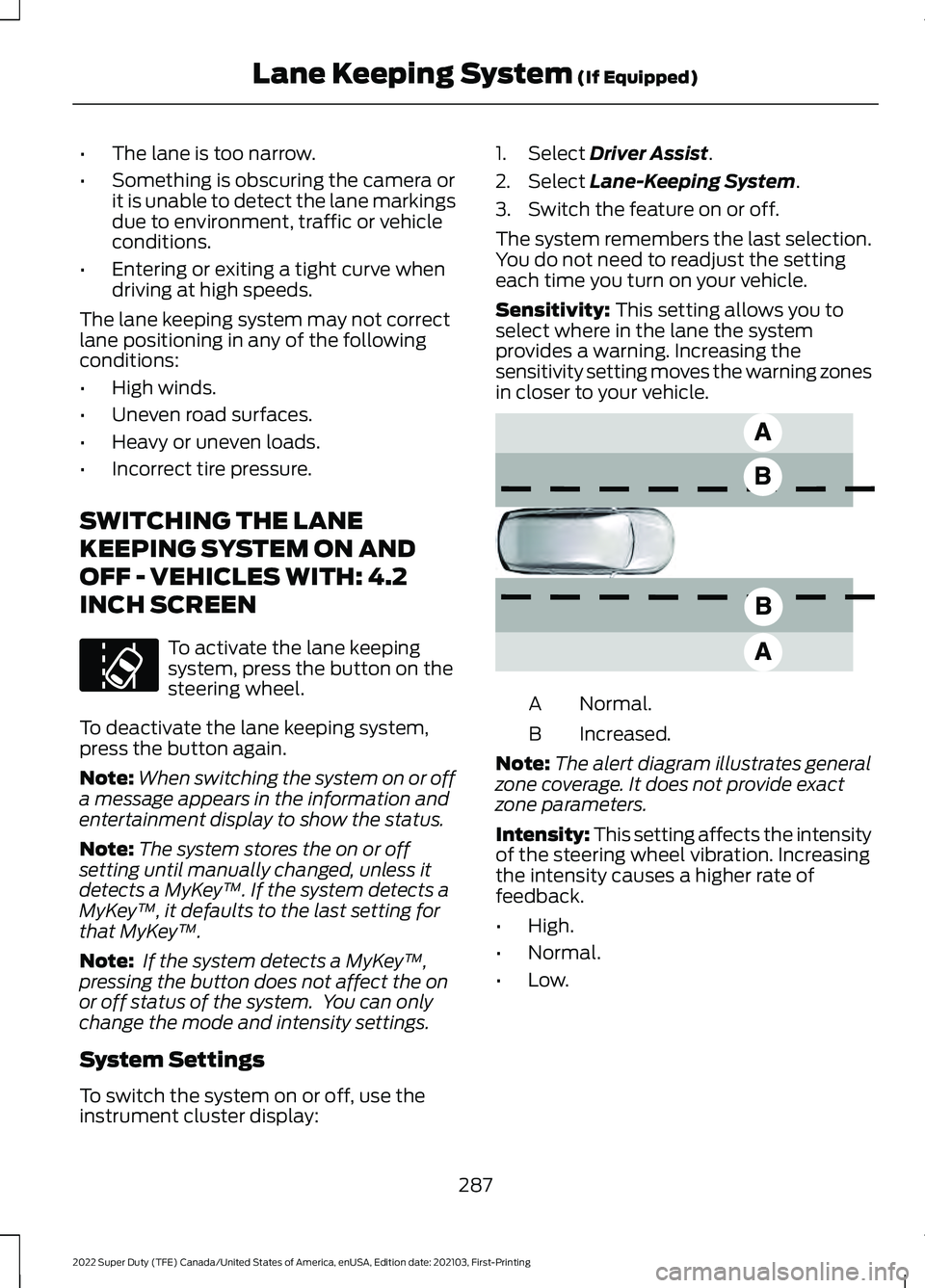
Sensitivity:
This setting allows you to
select where in the lane the system
provides a warning. Increasing the
sensitivity setting moves the warning zones
in closer to your vehicle. Normal.
A
Increased.
B
Note: The alert diagram illustrates general
zone coverage. It does not provide exact
zone parameters.
Intensity: This setting affects the intensity
of the steering wheel vibration. Increasing
the intensity causes a higher rate of
feedback.
• High.
• Normal.
• Low.
287
2022 Super Duty (TFE) Canada/United States of America, enUSA, Edition date: 202103, First-Printing Lane Keeping System
(If Equipped)E173233 E165517
Page 291 of 740
SWITCHING THE LANE
KEEPING SYSTEM ON AND
OFF - VEHICLES WITH: 8 INCH
SCREEN
To activate the lane keeping
system, press the button on the
steering wheel.
To deactivate the lane keeping system,
press the button again.
Note: When switching the system on or off
a message appears in the information and
entertainment display to show the status.
Note: The system stores the on or off
setting until manually changed, unless it
detects a MyKey ™. If the system detects a
MyKey ™, it defaults to the last setting for
that MyKey ™.
Note: If the system detects a MyKey ™,
pressing the button does not affect the on
or off status of the system. You can only
change the mode and intensity settings.
System Settings
To switch the system on or off, use the
instrument cluster display:
1. Select Driver Assist.
2. Select
Lane-Keeping System.
3. Switch the feature on or off.
The system remembers the last selection.
You do not need to readjust the setting
each time you turn on your vehicle.
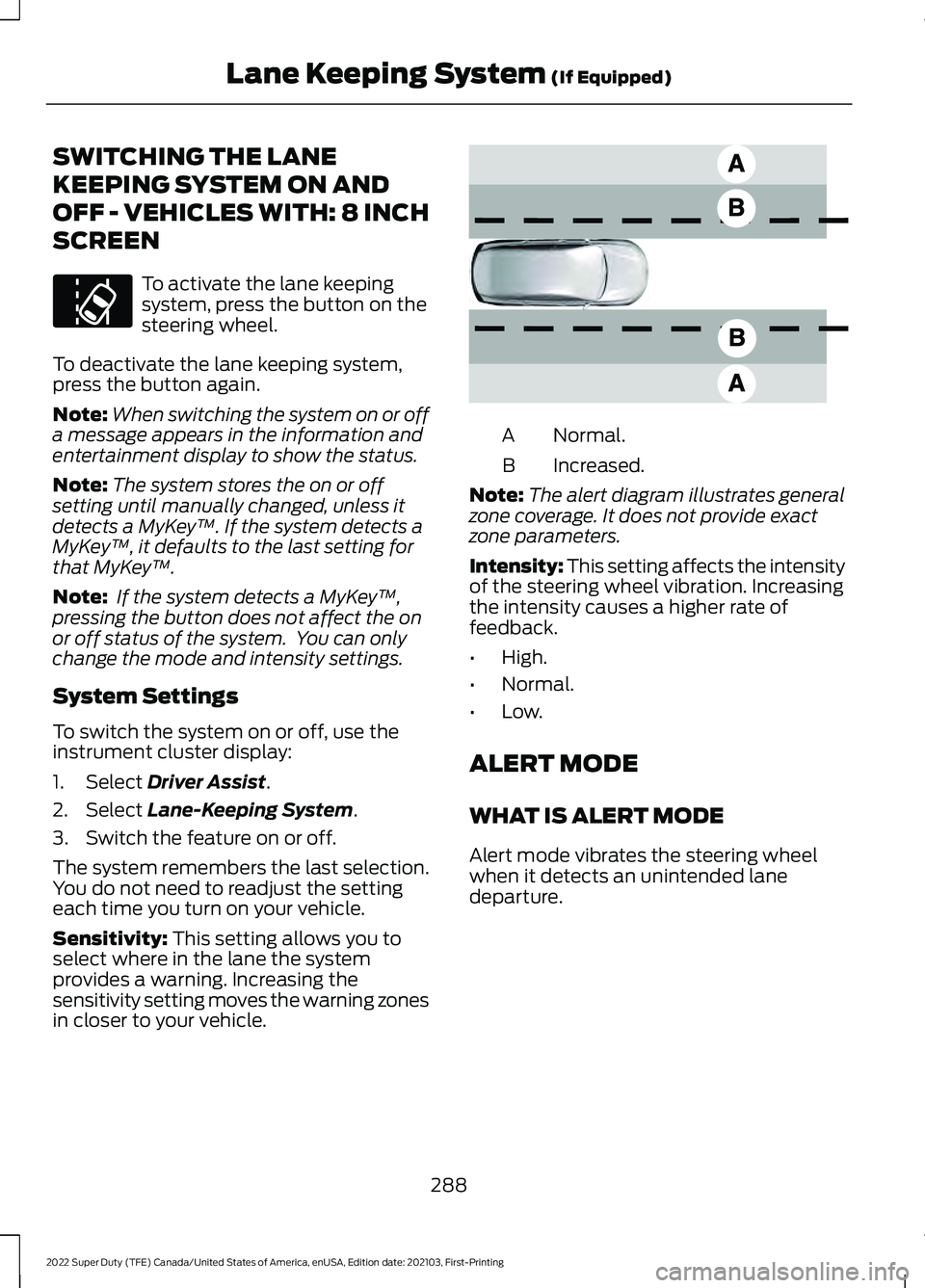
Sensitivity:
This setting allows you to
select where in the lane the system
provides a warning. Increasing the
sensitivity setting moves the warning zones
in closer to your vehicle. Normal.
A
Increased.
B
Note: The alert diagram illustrates general
zone coverage. It does not provide exact
zone parameters.
Intensity: This setting affects the intensity
of the steering wheel vibration. Increasing
the intensity causes a higher rate of
feedback.
• High.
• Normal.
• Low.
ALERT MODE
WHAT IS ALERT MODE
Alert mode vibrates the steering wheel
when it detects an unintended lane
departure.
288
2022 Super Duty (TFE) Canada/United States of America, enUSA, Edition date: 202103, First-Printing Lane Keeping System
(If Equipped)E173233 E165517
Page 292 of 740
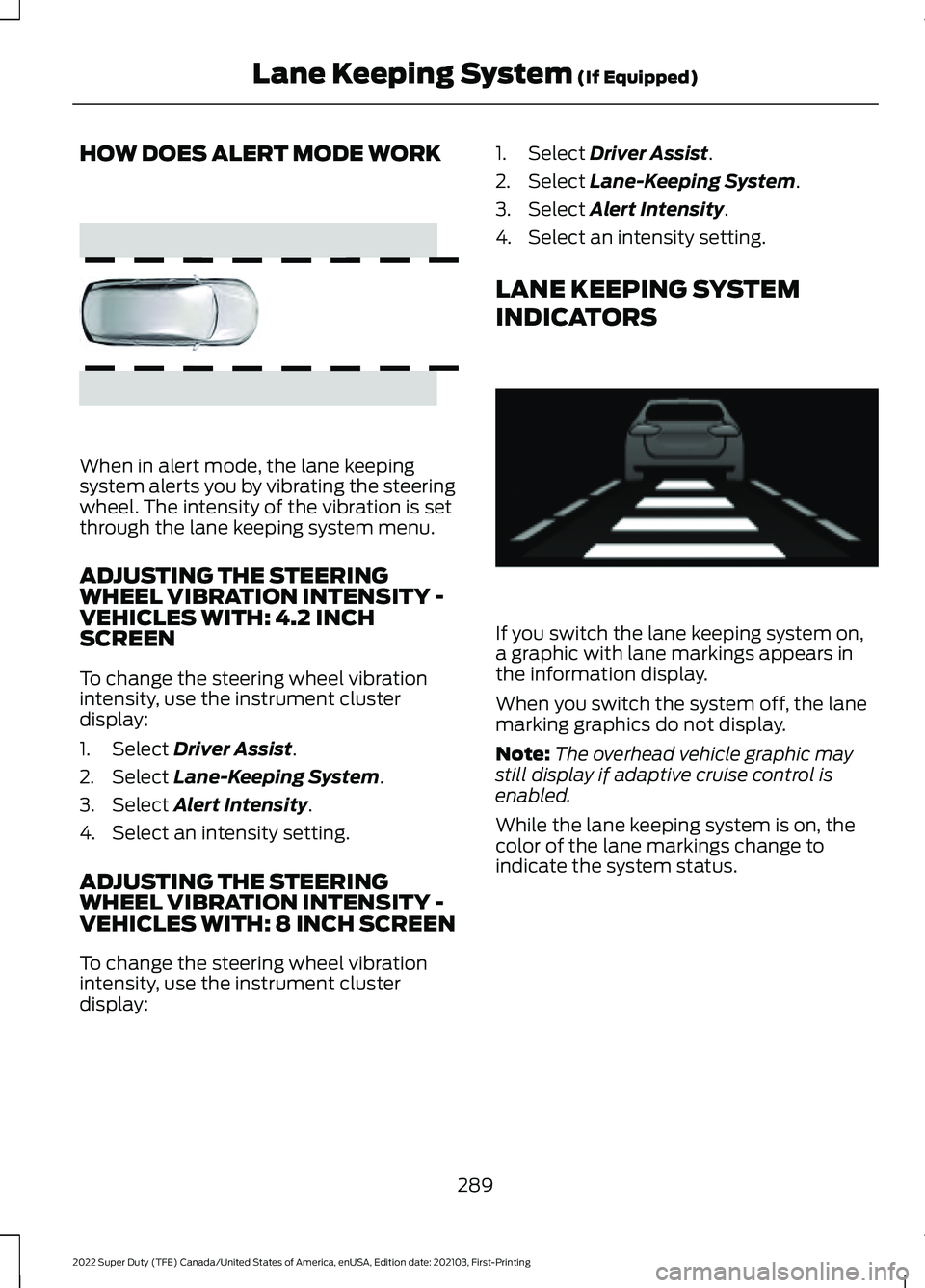
HOW DOES ALERT MODE WORK
When in alert mode, the lane keeping
system alerts you by vibrating the steering
wheel. The intensity of the vibration is set
through the lane keeping system menu.
ADJUSTING THE STEERING
WHEEL VIBRATION INTENSITY -
VEHICLES WITH: 4.2 INCH
SCREEN
To change the steering wheel vibration
intensity, use the instrument cluster
display:
1. Select Driver Assist.
2. Select
Lane-Keeping System.
3. Select
Alert Intensity.
4. Select an intensity setting.
ADJUSTING THE STEERING
WHEEL VIBRATION INTENSITY -
VEHICLES WITH: 8 INCH SCREEN
To change the steering wheel vibration
intensity, use the instrument cluster
display: 1. Select
Driver Assist.
2. Select
Lane-Keeping System.
3. Select
Alert Intensity.
4. Select an intensity setting.
LANE KEEPING SYSTEM
INDICATORS If you switch the lane keeping system on,
a graphic with lane markings appears in
the information display.
When you switch the system off, the lane
marking graphics do not display.
Note:
The overhead vehicle graphic may
still display if adaptive cruise control is
enabled.
While the lane keeping system is on, the
color of the lane markings change to
indicate the system status.
289
2022 Super Duty (TFE) Canada/United States of America, enUSA, Edition date: 202103, First-Printing Lane Keeping System
(If Equipped)E165515 E233874
Page 298 of 740
BLIND SPOT INFORMATION
SYSTEM WITH TRAILER
COVERAGE
WHAT IS BLIND SPOT
INFORMATION SYSTEM WITH
TRAILER COVERAGE
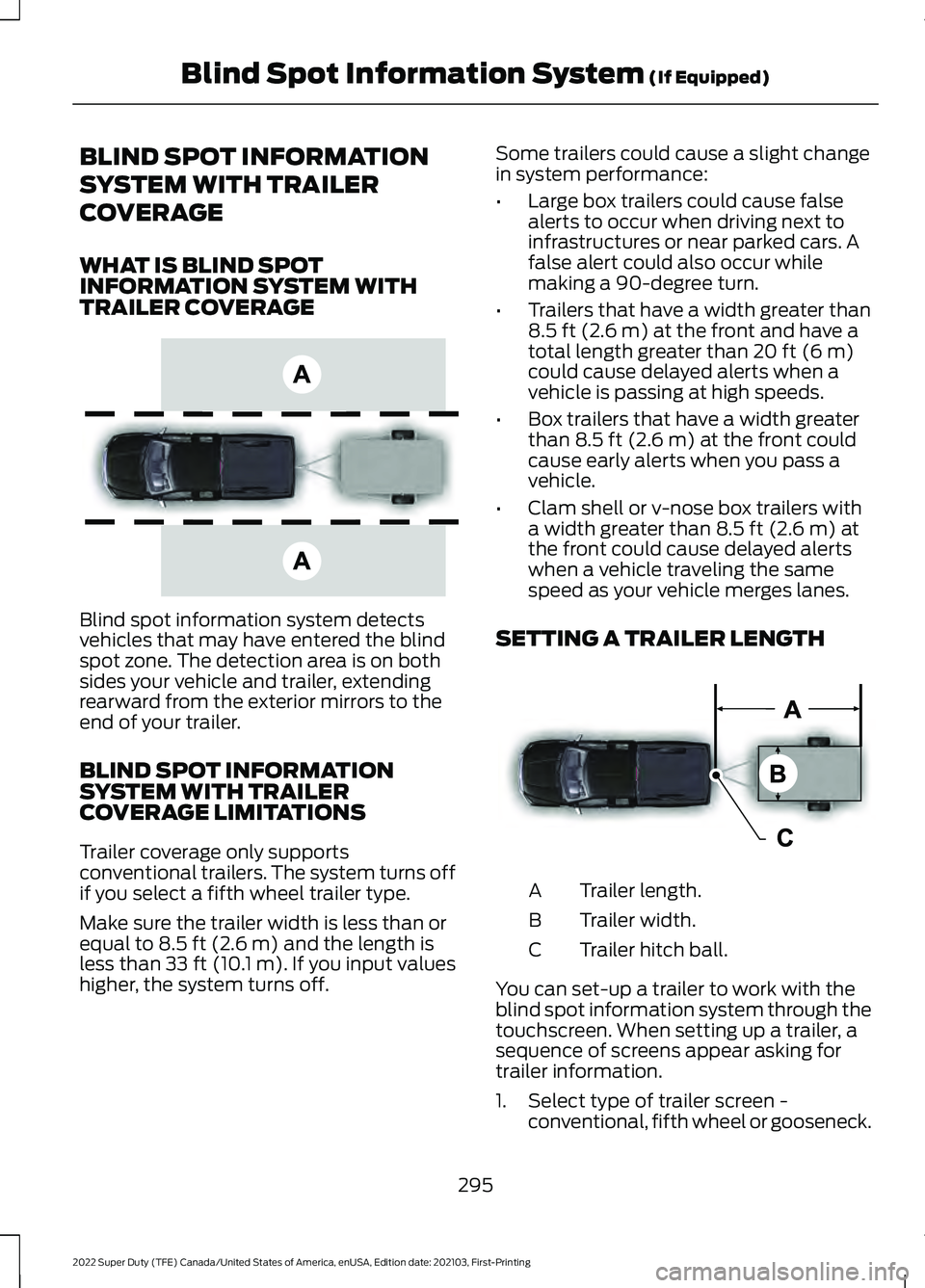
Blind spot information system detects
vehicles that may have entered the blind
spot zone. The detection area is on both
sides your vehicle and trailer, extending
rearward from the exterior mirrors to the
end of your trailer.
BLIND SPOT INFORMATION
SYSTEM WITH TRAILER
COVERAGE LIMITATIONS
Trailer coverage only supports
conventional trailers. The system turns off
if you select a fifth wheel trailer type.
Make sure the trailer width is less than or
equal to 8.5 ft (2.6 m) and the length is
less than 33 ft (10.1 m). If you input values
higher, the system turns off. Some trailers could cause a slight change
in system performance:
•
Large box trailers could cause false
alerts to occur when driving next to
infrastructures or near parked cars. A
false alert could also occur while
making a 90-degree turn.
• Trailers that have a width greater than
8.5 ft (2.6 m)
at the front and have a
total length greater than 20 ft (6 m)
could cause delayed alerts when a
vehicle is passing at high speeds.
• Box trailers that have a width greater
than
8.5 ft (2.6 m) at the front could
cause early alerts when you pass a
vehicle.
• Clam shell or v-nose box trailers with
a width greater than
8.5 ft (2.6 m) at
the front could cause delayed alerts
when a vehicle traveling the same
speed as your vehicle merges lanes.
SETTING A TRAILER LENGTH Trailer length.
A
Trailer width.
B
Trailer hitch ball.
C
You can set-up a trailer to work with the
blind spot information system through the
touchscreen. When setting up a trailer, a
sequence of screens appear asking for
trailer information.
1. Select type of trailer screen - conventional, fifth wheel or gooseneck.
295
2022 Super Duty (TFE) Canada/United States of America, enUSA, Edition date: 202103, First-Printing Blind Spot Information System
(If Equipped)E225007 E225008
Page 337 of 740
WHAT IS THE INTEGRATED
TRAILER BRAKE CONTROLLER
The trailer brake controller assists in
smooth and effective trailer braking based
on the towing vehicle
’s brake pressure.
INTEGRATED TRAILER BRAKE
CONTROLLER PRECAUTIONS WARNING: Use the integrated
trailer brake controller to properly adjust
the trailer brakes and check all
connections before towing a trailer.
Failure to follow this instruction could
result in the loss of control of your
vehicle, personal injury or death.
• Only use the manual control lever for
proper adjustment of the gain during
trailer setup. Misuse, such as
application during trailer sway, could
cause instability of trailer or tow
vehicle.
• Avoid towing in adverse weather
conditions. The trailer brake controller
does not provide anti-lock control of
the trailer wheels. Trailer wheels can
lock up on slippery surfaces, resulting
in reduced stability of trailer and tow
vehicle.
• The trailer brake controller is only a
factory-installed or dealer-installed
item. Ford is not responsible for
warranty or performance of the
controller due to misuse or customer
installation.
Note: Do not attempt removal of the trailer
brake controller without consulting the
Workshop Manual. Damage to the unit may
result. USING THE INTEGRATED
TRAILER BRAKE CONTROLLER
1.
Make sure the trailer brakes are in good
working condition, functioning normally
and properly adjusted. See your trailer
dealer if necessary.
Note: An authorized dealer can diagnose
the trailer brake controller to determine
exactly which trailer fault has occurred. Your
vehicle warranty does not cover issues with
your trailer.
2. Hook up the trailer and make the electrical connections according to the
trailer manufacturer's instructions.
Note: Select default mode if the trailer has
surge brakes, or no brakes at all. The system
has no effect on the braking performance
of the trailer in either of these cases.
Note: If a trailer is connected by a four-pin
connector, the trailer braking function will
not be supported.
3. When you plug in a trailer with electric or electric-over-hydraulic brakes, a
message confirming connection
appears in the information display.
4. Use the gain adjustment to find the desired starting point. A gain setting of
6.0 is a good starting point for heavier
loads.
Note: Use the following steps to adjust the
gain setting whenever road, weather and
trailer, or vehicle loading conditions, change
from when you initially set the gain.
5. In a traffic-free environment, tow the trailer on a dry, level surface and
squeeze the manual control lever
completely.
334
2022 Super Duty (TFE) Canada/United States of America, enUSA, Edition date: 202103, First-Printing Integrated Trailer Brake Controller
(If Equipped)