change time FORD F150 2014 12.G Owner's Manual
[x] Cancel search | Manufacturer: FORD, Model Year: 2014, Model line: F150, Model: FORD F150 2014 12.GPages: 472, PDF Size: 4.62 MB
Page 274 of 472
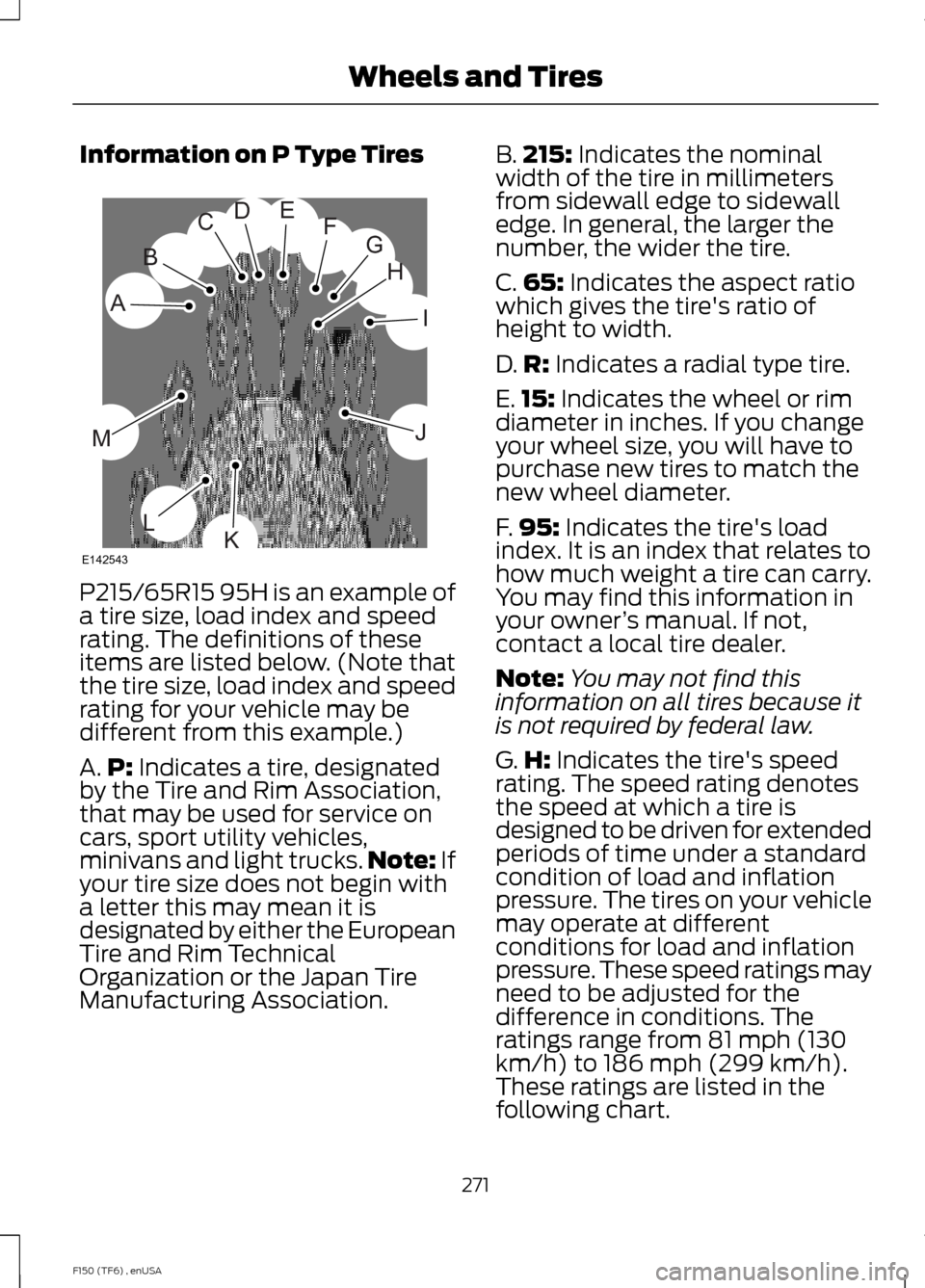
Information on P Type Tires
P215/65R15 95H is an example of
a tire size, load index and speed
rating. The definitions of these
items are listed below. (Note that
the tire size, load index and speed
rating for your vehicle may be
different from this example.)
A.
P: Indicates a tire, designated
by the Tire and Rim Association,
that may be used for service on
cars, sport utility vehicles,
minivans and light trucks. Note:
If
your tire size does not begin with
a letter this may mean it is
designated by either the European
Tire and Rim Technical
Organization or the Japan Tire
Manufacturing Association. B.
215:
Indicates the nominal
width of the tire in millimeters
from sidewall edge to sidewall
edge. In general, the larger the
number, the wider the tire.
C. 65:
Indicates the aspect ratio
which gives the tire's ratio of
height to width.
D. R:
Indicates a radial type tire.
E. 15:
Indicates the wheel or rim
diameter in inches. If you change
your wheel size, you will have to
purchase new tires to match the
new wheel diameter.
F. 95:
Indicates the tire's load
index. It is an index that relates to
how much weight a tire can carry.
You may find this information in
your owner ’s manual. If not,
contact a local tire dealer.
Note: You may not find this
information on all tires because it
is not required by federal law.
G. H:
Indicates the tire's speed
rating. The speed rating denotes
the speed at which a tire is
designed to be driven for extended
periods of time under a standard
condition of load and inflation
pressure. The tires on your vehicle
may operate at different
conditions for load and inflation
pressure. These speed ratings may
need to be adjusted for the
difference in conditions. The
ratings range from 81 mph (130
km/h) to 186 mph (299 km/h).
These ratings are listed in the
following chart.
271
F150 (TF6) , enUSA Wheels and TiresH
I
J
KL
M
A
B
CDEFG
E142543
Page 308 of 472
1
Ford recommends using Motorcraft (Ford) DOT 4 LV High Performance Motor Vehicle
Brake Fluid or equivalent meeting WSS-M6C65-A2. Use of any fluid other than the
recommended fluid may cause degraded brake performance and not meet the Ford
performance standards. Keep brake fluid clean and dry. Contamination with dirt, water,
petroleum products or other materials may result in brake system damage and possible
failure.
2 The design of your engine allows for the use of Motorcraft engine oils or equivalent oils
that meet Ford specifications. It is also acceptable to use an engine oil of recommended
viscosity grade that meets API SN requirements and displays the API certification mark
for gasoline engines.
3 Do not use supplemental engine oil additives in your engine. They are unnecessary and
could lead to engine damage not covered by your Ford warranty.
Do not use API S category oils labeled as SN, SM, SL or lower category unless the label
also displays the API certification mark. These oils do not meet the requirements of the
engine and emission system.
4 Add the coolant type originally equipped in your vehicle.
5 Service refill capacity is determined by filling the axle to 1/4-9/16 inch (6-14 millimeter)
below the bottom of the filler hole with the vehicle on a level surface. Add 4 fl oz. (118
milliliters) of Additive Friction Modifier XL-3 (US) / CXL-3 (Canada) or equivalent meeting
Ford specification EST-M2C118-A, for complete fill of 8.8-inch Traction-Lok axles.
6 Filled with a synthetic rear axle lubricant, consider the rear axle on your vehicle filled for
life. You do not need to check or change the rear axle lubricant unless you suspect a leak.
Change the rear axle lubricant any time you have submerged the rear axle in water.
7 Service refill capacity is determined by filling the transfer case to the bottom of the filler
hole with the vehicle on a level surface.
8 Make sure the correct automatic transmission fluid is used. Transmission fluid
requirements are indicated on the dipstick blade or the dipstick handle. Before adding,
check the container to verify the fluid is of the correct type. Refer to your scheduled
maintenance information to determine the correct service interval.
Note: Automatic transmissions that require MERCON LV should only use MERCON LV fluid.
Use of any fluid other than the recommended fluid may cause transmission damage.
9 Indicates only approximate dry-fill capacity. Some applications may vary based on cooler
size and if equipped with an in-tank cooler. Use the indication on the dipstick, showing
the normal operating range, to determine the amount of transmission fluid and the fluid
level.
10 See the Warning below: WARNING
The air conditioning refrigerant system contains refrigerant R-134a under high
pressure. Opening the air conditioning refrigerant system can cause personal injury.
Have the air conditioning refrigerant system serviced only by qualified personnel.
305
F150 (TF6) , enUSA Capacities and Specifications
Page 313 of 472
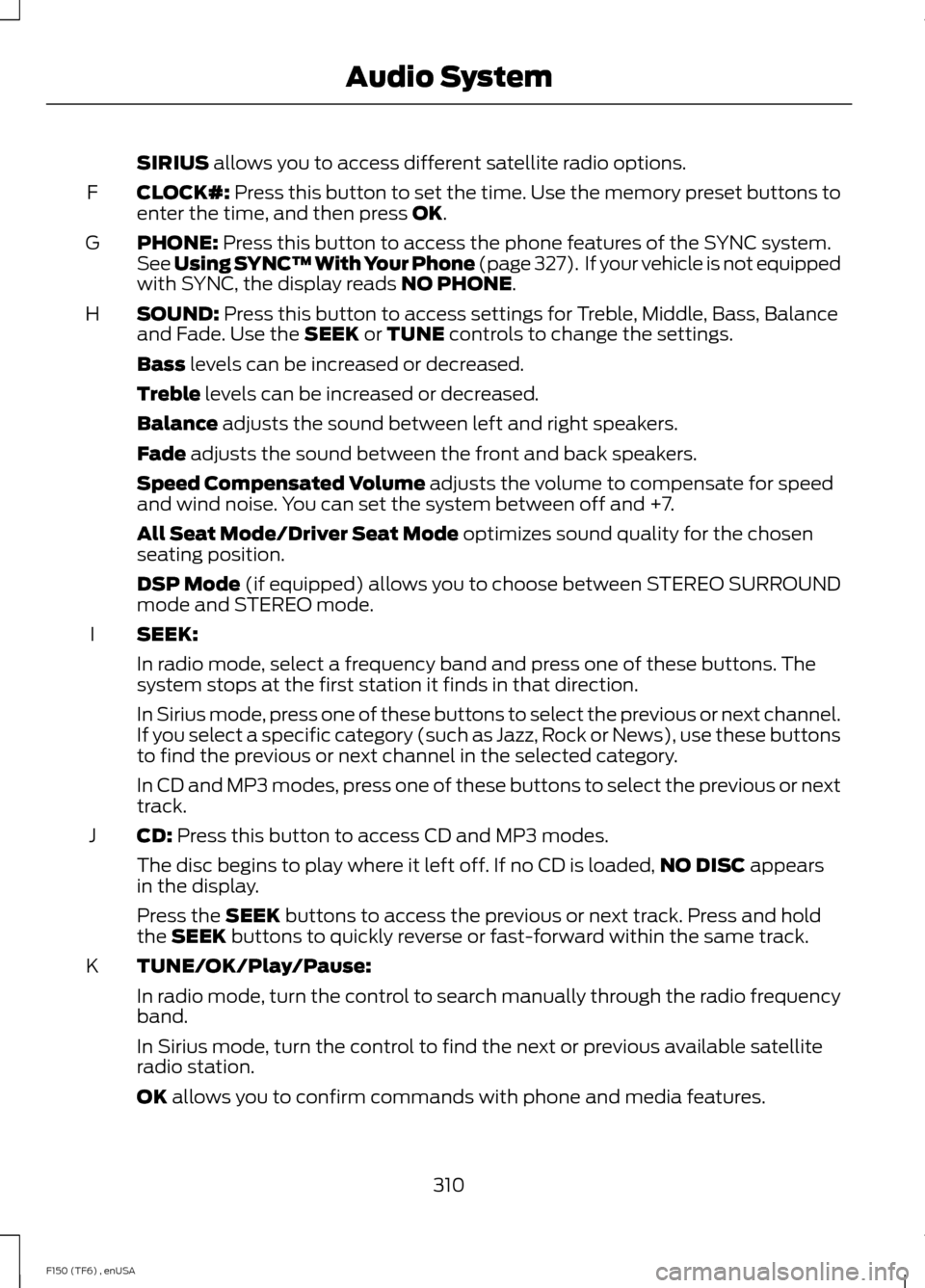
SIRIUS allows you to access different satellite radio options.
CLOCK#:
Press this button to set the time. Use the memory preset buttons to
enter the time, and then press OK.
F
PHONE:
Press this button to access the phone features of the SYNC system.
See Using SYNC™ With Your Phone (page 327). If your vehicle is not equipped
with SYNC, the display reads NO PHONE.
G
SOUND:
Press this button to access settings for Treble, Middle, Bass, Balance
and Fade. Use the SEEK or TUNE controls to change the settings.
H
Bass
levels can be increased or decreased.
Treble
levels can be increased or decreased.
Balance
adjusts the sound between left and right speakers.
Fade
adjusts the sound between the front and back speakers.
Speed Compensated Volume
adjusts the volume to compensate for speed
and wind noise. You can set the system between off and +7.
All Seat Mode/Driver Seat Mode
optimizes sound quality for the chosen
seating position.
DSP Mode
(if equipped) allows you to choose between STEREO SURROUND
mode and STEREO mode.
SEEK:
I
In radio mode, select a frequency band and press one of these buttons. The
system stops at the first station it finds in that direction.
In Sirius mode, press one of these buttons to select the previous or next channel.
If you select a specific category (such as Jazz, Rock or News), use these buttons
to find the previous or next channel in the selected category.
In CD and MP3 modes, press one of these buttons to select the previous or next
track.
CD:
Press this button to access CD and MP3 modes.
J
The disc begins to play where it left off. If no CD is loaded, NO DISC
appears
in the display.
Press the
SEEK buttons to access the previous or next track. Press and hold
the SEEK buttons to quickly reverse or fast-forward within the same track.
TUNE/OK/Play/Pause:
K
In radio mode, turn the control to search manually through the radio frequency
band.
In Sirius mode, turn the control to find the next or previous available satellite
radio station.
OK
allows you to confirm commands with phone and media features.
310
F150 (TF6) , enUSA Audio System
Page 321 of 472
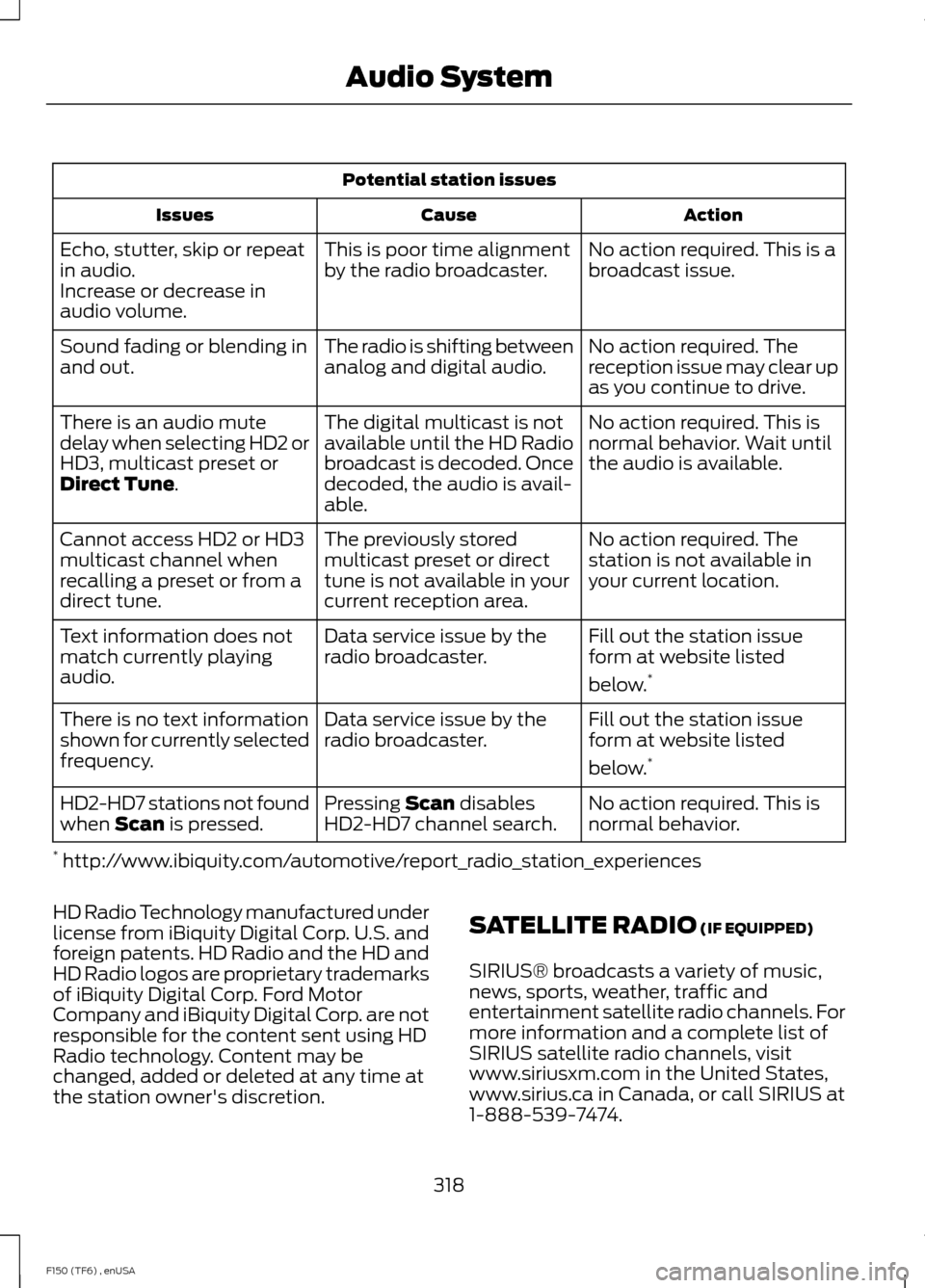
Potential station issues
Action
Cause
Issues
No action required. This is a
broadcast issue.
This is poor time alignment
by the radio broadcaster.
Echo, stutter, skip or repeat
in audio.
Increase or decrease in
audio volume.
No action required. The
reception issue may clear up
as you continue to drive.
The radio is shifting between
analog and digital audio.
Sound fading or blending in
and out.
No action required. This is
normal behavior. Wait until
the audio is available.
The digital multicast is not
available until the HD Radio
broadcast is decoded. Once
decoded, the audio is avail-
able.
There is an audio mute
delay when selecting HD2 or
HD3, multicast preset or
Direct Tune.
No action required. The
station is not available in
your current location.
The previously stored
multicast preset or direct
tune is not available in your
current reception area.
Cannot access HD2 or HD3
multicast channel when
recalling a preset or from a
direct tune.
Fill out the station issue
form at website listed
below.*
Data service issue by the
radio broadcaster.
Text information does not
match currently playing
audio.
Fill out the station issue
form at website listed
below.*
Data service issue by the
radio broadcaster.
There is no text information
shown for currently selected
frequency.
No action required. This is
normal behavior.
Pressing
Scan disables
HD2-HD7 channel search.
HD2-HD7 stations not found
when Scan is pressed.
* http://www.ibiquity.com/automotive/report_radio_station_experiences
HD Radio Technology manufactured under
license from iBiquity Digital Corp. U.S. and
foreign patents. HD Radio and the HD and
HD Radio logos are proprietary trademarks
of iBiquity Digital Corp. Ford Motor
Company and iBiquity Digital Corp. are not
responsible for the content sent using HD
Radio technology. Content may be
changed, added or deleted at any time at
the station owner's discretion. SATELLITE RADIO
(IF EQUIPPED)
SIRIUS® broadcasts a variety of music,
news, sports, weather, traffic and
entertainment satellite radio channels. For
more information and a complete list of
SIRIUS satellite radio channels, visit
www.siriusxm.com in the United States,
www.sirius.ca in Canada, or call SIRIUS at
1-888-539-7474.
318
F150 (TF6) , enUSA Audio System
Page 322 of 472
Note:
This receiver includes the eCos
real-time operating system. eCos is
published under the eCos License.
Satellite Radio Reception Factors Potential satellite radio reception issues
For optimal reception performance, keep the antenna
clear of snow and ice build-up and keep luggage and other
material as far away from the antenna as possible.
Antenna obstructions
Hills, mountains, tall buildings, bridges, tunnels, freeway
overpasses, parking garages, dense tree foliage and
thunderstorms can interfere with your reception.
Terrain
When you pass a ground-based broadcast-repeating
tower, a stronger signal may overtake a weaker one and
the audio system may mute.
Station overload
Your display may show ACQUIRING . . . to indicate the
interference and the audio system may mute.
Satellite radio signal interfer-
ence
SIRIUS® Satellite Radio Service
Note: SIRIUS reserves the unrestricted right
to change, rearrange, add or delete
programming including canceling, moving
or adding particular channels, and its prices,
at any time, with or without notice to you.
Ford Motor Company shall not be
responsible for any such programming
changes. SIRIUS satellite radio is a
subscription-based satellite radio service
that broadcasts a variety of music, sports,
news, weather, traffic and entertainment
programming. Your factory-installed
SIRIUS satellite radio system includes
hardware and a limited subscription term,
which begins on the date of sale or lease
of your vehicle. See an authorized dealer
for availability.
For more information on extended
subscription terms (a service fee is
required), the online media player and a
complete list of SIRIUS satellite radio
channels, and other features, please visit
www.siriusxm.com in the United States,
www.sirius.ca in Canada, or call SIRIUS at
1-888-539-7474.
319
F150 (TF6) , enUSA Audio SystemE142593
Page 327 of 472
Times are subject to change due to
holidays.
SYNC Owner Account
Why do I need a SYNC owner account?
•
Required to activate Vehicle Health
Report and to view the reports online.
• Required to activate the
subscription-based SYNC Services and
to personalize your Saved Points and
Favorites.
• Essential for keeping up with the latest
software downloads available for
SYNC.
• Access to customer support for any
questions you may have.
Driving Restrictions
For your safety, certain features are
speed-dependent and restricted when your
vehicle is traveling over 3 mph (5 km/h).
Safety Information WARNING
Driving while distracted can result in
loss of vehicle control, crash and
injury. We strongly recommend that
you use extreme caution when using any
device that may take your focus off the
road. Your primary responsibility is the safe
operation of your vehicle. We recommend
against the use of any hand-held device
while driving and encourage the use of
voice-operated systems when possible.
Make sure you are aware of all applicable
local laws that may affect the use of
electronic devices while driving. When using SYNC:
•
Do not operate playing devices if the
power cords or cables are broken, split
or damaged. Place cords and cables
out of the way, so they do not interfere
with the operation of pedals, seats,
compartments or safe driving abilities.
• Do not leave playing devices in your
vehicle during extreme conditions as it
could cause them damage. See your
device's manual for further information.
• Do not attempt to service or repair the
system. See an authorized dealer.
Privacy Information
When a cellular phone is connected to
SYNC, the system creates a profile within
your vehicle that is linked to that cellular
phone. This profile is created in order to
offer you more cellular features and to
operate more efficiently. Among other
things, this profile may contain data about
your cellular phone book, text messages
(read and unread), and call history,
including history of calls when your cellular
phone was not connected to the system.
In addition, if you connect a media device,
the system creates and retains an index of
supported media content. The system also
records a short development log of
approximately 10 minutes of all recent
system activity. The log profile and other
system data may be used to improve the
system and help diagnose any problems
that may occur.
The cellular profile, media device index,
and development log will remain in the
vehicle unless you delete them and are
generally accessible only in the vehicle
when the cellular phone or media player
is connected. If you no longer plan to use
the system or the vehicle, we recommend
you perform a Master Reset to erase all
stored information.
324
F150 (TF6) , enUSA SYNC™
Page 329 of 472
System Interaction and Feedback
The system provides feedback through
audible tones, prompts, questions and
spoken confirmations depending on the
situation and the chosen level of
interaction (voice settings). You can
customize the voice recognition system to
provide more or less instruction and
feedback.
The default setting is to a higher level of
interaction in order to help you learn to use
the system. You can change these settings
at any time.
Adjusting the Interaction Level Push the voice icon. Say "Voice
settings" when prompted, then
any of the following:
The system:
When you say:
Provides more detailed interaction andguidance.
"Interaction mode standard"
Provides less audible interaction and moretone prompts.
"Interaction mode advanced"
The system defaults to the standard interaction mode.
Confirmation prompts are short questions
the system asks when it is not sure of your
request or when there are multiple possible
responses to your request. For example,
the system may ask "Phone, is that
correct?". If turned off, the system simply
makes a best guess as to what you
requested and may ask you to confirm
settings. The system:
When you say:
Makes a best guess from the command;you may still occasionally be asked to confirm settings.
"Confirmation prompts off"
Clarifies your voice command with a shortquestion.
"Confirmation prompts on"
The system creates candidate lists when
it has the same confidence level of several
options based on your voice command.
When turned on, it may prompt you with
as many as four possibilities for
clarification. For example, say "Say 1 after the tone to
call John Doe at home. Say 2 after the tone
to call Johnny Doe on mobile. Say 3 after
the tone to call Jane Doe at home." You
could also say "Say 1 after the tone to play
John Doe, Say 2 after the tone to play
Johnny Doe."
326
F150 (TF6) , enUSA SYNC™E142599
Page 335 of 472
You can:
When you select:
Note: The system attempts to automatically re-download
your phonebook and call history each time your phone
connects to SYNC (if the auto download feature is on and
your Bluetooth-enabled cellular phone supports this
feature).
Access and call any contacts in your previously down-
loaded phonebook.
Phonebook
1,2
1. Press OK to confirm and enter. If your phonebook has
fewer than 255 listings, they appear alphabetically in flat
file mode. If there are more than 255 entries, the system
organizes them into alphabetical categories.
2. Scroll until the desired contact appears, then press OK.
3. Press
OK or the phone button.
Send, download and delete text messages.
Text Message 1
View your phone's status, set ring tones, select your
message notification, change phone book entries and
automatically download your cellular phone among other
features.
Phone Settings
1
Access the SYNC Services portal where you can request
various types of information, traffic reports and directions.
SYNC Services
3
Place an emergency call to a 911 operator for you after an
accident, when used properly.
911 Assist
4
Create and receive a diagnostic report card on your vehicle.
Vehicle Health Report 3
Interact with SYNC-capable mobile applications on your
smartphone.
Mobile Apps
3
Access Bluetooth Devices menu listings (Add, Connect,
Set as Primary, On and Off, Delete) as well as Advanced
menu listings (prompts, languages, defaults, master reset,
install application and system information).
System Settings
Exit the phone menu by pressing OK.
Exit Phone Menu
1 This is a phone-dependent feature.
2 This is a phone-dependent and speed-dependent feature.
3 This is an optional feature and available in the United States only.
4 This is an optional feature and available in the United States and Canada only.
332
F150 (TF6) , enUSA SYNC™
Page 338 of 472
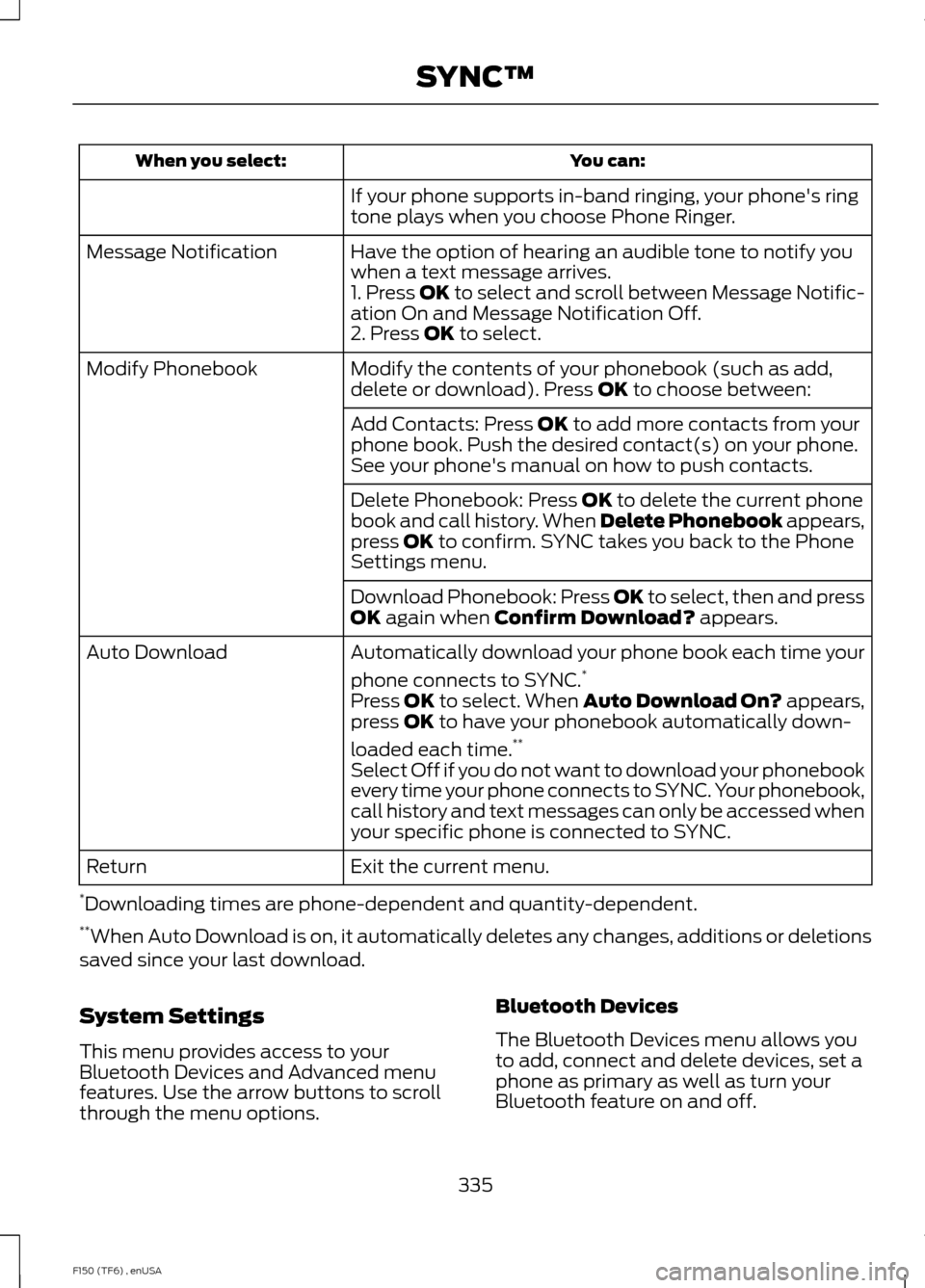
You can:
When you select:
If your phone supports in-band ringing, your phone's ring
tone plays when you choose Phone Ringer.
Have the option of hearing an audible tone to notify you
when a text message arrives.
Message Notification
1. Press OK to select and scroll between Message Notific-
ation On and Message Notification Off.
2. Press OK to select.
Modify the contents of your phonebook (such as add,
delete or download). Press
OK to choose between:
Modify Phonebook
Add Contacts: Press
OK to add more contacts from your
phone book. Push the desired contact(s) on your phone.
See your phone's manual on how to push contacts.
Delete Phonebook: Press
OK to delete the current phone
book and call history. When Delete Phonebook appears,
press
OK to confirm. SYNC takes you back to the Phone
Settings menu.
Download Phonebook: Press OK to select, then and press
OK
again when Confirm Download? appears.
Automatically download your phone book each time your
phone connects to SYNC. *
Auto Download
Press
OK to select. When Auto Download On? appears,
press OK to have your phonebook automatically down-
loaded each time. **
Select Off if you do not want to download your phonebook
every time your phone connects to SYNC. Your phonebook,
call history and text messages can only be accessed when
your specific phone is connected to SYNC.
Exit the current menu.
Return
* Downloading times are phone-dependent and quantity-dependent.
** When Auto Download is on, it automatically deletes any changes, additions or deletions
saved since your last download.
System Settings
This menu provides access to your
Bluetooth Devices and Advanced menu
features. Use the arrow buttons to scroll
through the menu options. Bluetooth Devices
The Bluetooth Devices menu allows you
to add, connect and delete devices, set a
phone as primary as well as turn your
Bluetooth feature on and off.
335
F150 (TF6) , enUSA SYNC™
Page 341 of 472
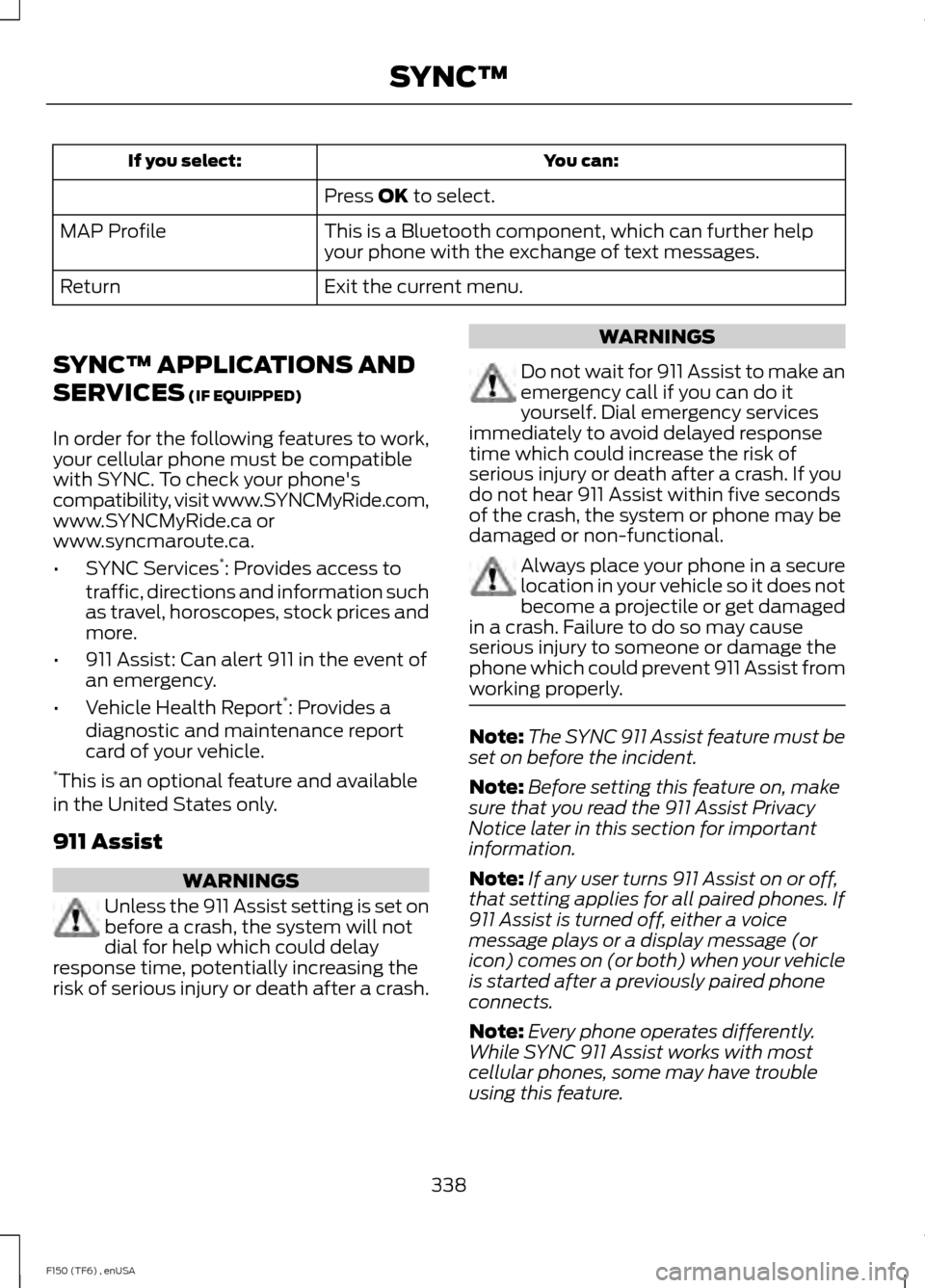
You can:
If you select:
Press OK to select.
This is a Bluetooth component, which can further help
your phone with the exchange of text messages.
MAP Profile
Exit the current menu.
Return
SYNC™ APPLICATIONS AND
SERVICES
(IF EQUIPPED)
In order for the following features to work,
your cellular phone must be compatible
with SYNC. To check your phone's
compatibility, visit www.SYNCMyRide.com,
www.SYNCMyRide.ca or
www.syncmaroute.ca.
• SYNC Services *
: Provides access to
traffic, directions and information such
as travel, horoscopes, stock prices and
more.
• 911 Assist: Can alert 911 in the event of
an emergency.
• Vehicle Health Report *
: Provides a
diagnostic and maintenance report
card of your vehicle.
* This is an optional feature and available
in the United States only.
911 Assist WARNINGS
Unless the 911 Assist setting is set on
before a crash, the system will not
dial for help which could delay
response time, potentially increasing the
risk of serious injury or death after a crash. WARNINGS
Do not wait for 911 Assist to make an
emergency call if you can do it
yourself. Dial emergency services
immediately to avoid delayed response
time which could increase the risk of
serious injury or death after a crash. If you
do not hear 911 Assist within five seconds
of the crash, the system or phone may be
damaged or non-functional. Always place your phone in a secure
location in your vehicle so it does not
become a projectile or get damaged
in a crash. Failure to do so may cause
serious injury to someone or damage the
phone which could prevent 911 Assist from
working properly. Note:
The SYNC 911 Assist feature must be
set on before the incident.
Note: Before setting this feature on, make
sure that you read the 911 Assist Privacy
Notice later in this section for important
information.
Note: If any user turns 911 Assist on or off,
that setting applies for all paired phones. If
911 Assist is turned off, either a voice
message plays or a display message (or
icon) comes on (or both) when your vehicle
is started after a previously paired phone
connects.
Note: Every phone operates differently.
While SYNC 911 Assist works with most
cellular phones, some may have trouble
using this feature.
338
F150 (TF6) , enUSA SYNC™