radio controls FORD F150 2015 13.G Owners Manual
[x] Cancel search | Manufacturer: FORD, Model Year: 2015, Model line: F150, Model: FORD F150 2015 13.GPages: 549, PDF Size: 5.97 MB
Page 4 of 549
Introduction
About This Manual...........................................7
Symbols Glossary
.............................................7
Data Recording
..................................................9
California Proposition 65..............................11
Perchlorate.........................................................11
Ford Credit
..........................................................11
Replacement Parts Recommendation
........................................11
Special Notices................................................12
Mobile Communications Equipment.....................................................12
Export Unique Options..................................13
At a Glance
Front Exterior Overview
................................14
Rear Exterior Overview..................................15
Vehicle Interior Overview.............................16
Instrument Panel Overview.........................17
Child Safety
General Information
.......................................19
Installing Child Seats....................................20
Booster Seats
...................................................31
Child Seat Positioning
..................................33
Child Safety Locks
.........................................35
Safety Belts
Principle of Operation...................................37
Fastening the Safety Belts.........................38
Safety Belt Height Adjustment.................42
Safety Belt Warning Lamp and Indicator Chime.............................................................43
Safety Belt Minder.........................................43
Child Restraint and Safety Belt Maintenance................................................45
Personal Safety System ™
Personal Safety System ™
.........................46Supplementary Restraints
System
Principle of Operation...................................47
Driver and Passenger Airbags...................48
Front Passenger Sensing System............49
Side Airbags
......................................................51
Safety Canopy ™
.............................................52
Crash Sensors and Airbag Indicator........53
Airbag Disposal...............................................54
Keys and Remote Controls
General Information on Radio Frequencies..................................................55
Remote Control..............................................55
Replacing a Lost Key or Remote Control...........................................................60
MyKey ™
Principle of Operation...................................61
Creating a MyKey
............................................62
Clearing All MyKeys.......................................62
Checking MyKey System Status...............63
Using MyKey With Remote Start Systems.........................................................64
MyKey Troubleshooting...............................64
Locks
Locking and Unlocking................................66
Keyless Entry
...................................................68
Security
Passive Anti-Theft System..........................71
Anti-Theft Alarm
............................................73
Power Running Boards
Using Power Running Boards....................75
Steering Wheel
Adjusting the Steering Wheel....................77
Audio Control...................................................78
1
F-150 (), enUSA, First Printing Table of Contents
Page 58 of 549
GENERAL INFORMATION ON
RADIO FREQUENCIES
This device complies with Part 15 of the
FCC Rules and with Industry Canada
license-exempt RSS standard(s).
Operation is subject to the following two
conditions: (1) This device may not cause
harmful interference, and (2) This device
must accept any interference received,
including interference that may cause
undesired operation.
Note:
Changes or modifications not
expressively approved by the party
responsible for compliance could void the
user's authority to operate the equipment.
The term IC before the radio certification
number only signifies that Industry Canada
technical specifications were met.
The typical operating range for your
transmitter is approximately 33 feet (10
meters). Vehicles with the remote start
feature will have a greater range. One of
the following could cause a decrease in
operating range:
• weather conditions
• nearby radio towers
• structures around the vehicle
• other vehicles parked next to your
vehicle
Other short-distance radio transmitters,
such as amateur radios, medical
equipment, wireless headphones, remote
controls and alarm systems may operate
on the same frequency as your remote
control. If other transmitters are operating
on those frequencies, you may not be able
to use your remote control. Using your
remote control near some types of
electronic equipment, such as USB devices, computers or cell phones can interfere with
remote operation. Operating your remote
control near metal or metallic-finished
purses, bags or clothing can interfere with
remote operation. You can lock and unlock
the doors with the key.
Note:
Make sure to lock your vehicle before
leaving it unattended.
Note: If you are in range, the remote control
will operate if you press any button
unintentionally.
Intelligent Access
The system uses a radio frequency signal
to communicate with your vehicle and
authorize your vehicle to unlock when one
of the following conditions are met:
• You touch the inside of the front
exterior door handle.
• You press the tailgate release button.
• You press a button on the transmitter.
If excessive radio frequency interference
is present in the area or if the transmitter
battery is low, you may need to
mechanically unlock your door. You can
use the mechanical key blade in your
intelligent access key to open the driver
door in this situation. See
Remote
Control (page 55).
REMOTE CONTROL
Integrated Keyhead Transmitters
(If Equipped)
Use the key blade to start your vehicle and
unlock or lock the driver door from outside
your vehicle. The transmitter portion
functions as the remote control.
55
F-150 (), enUSA, First Printing Keys and Remote Controls
Page 63 of 549
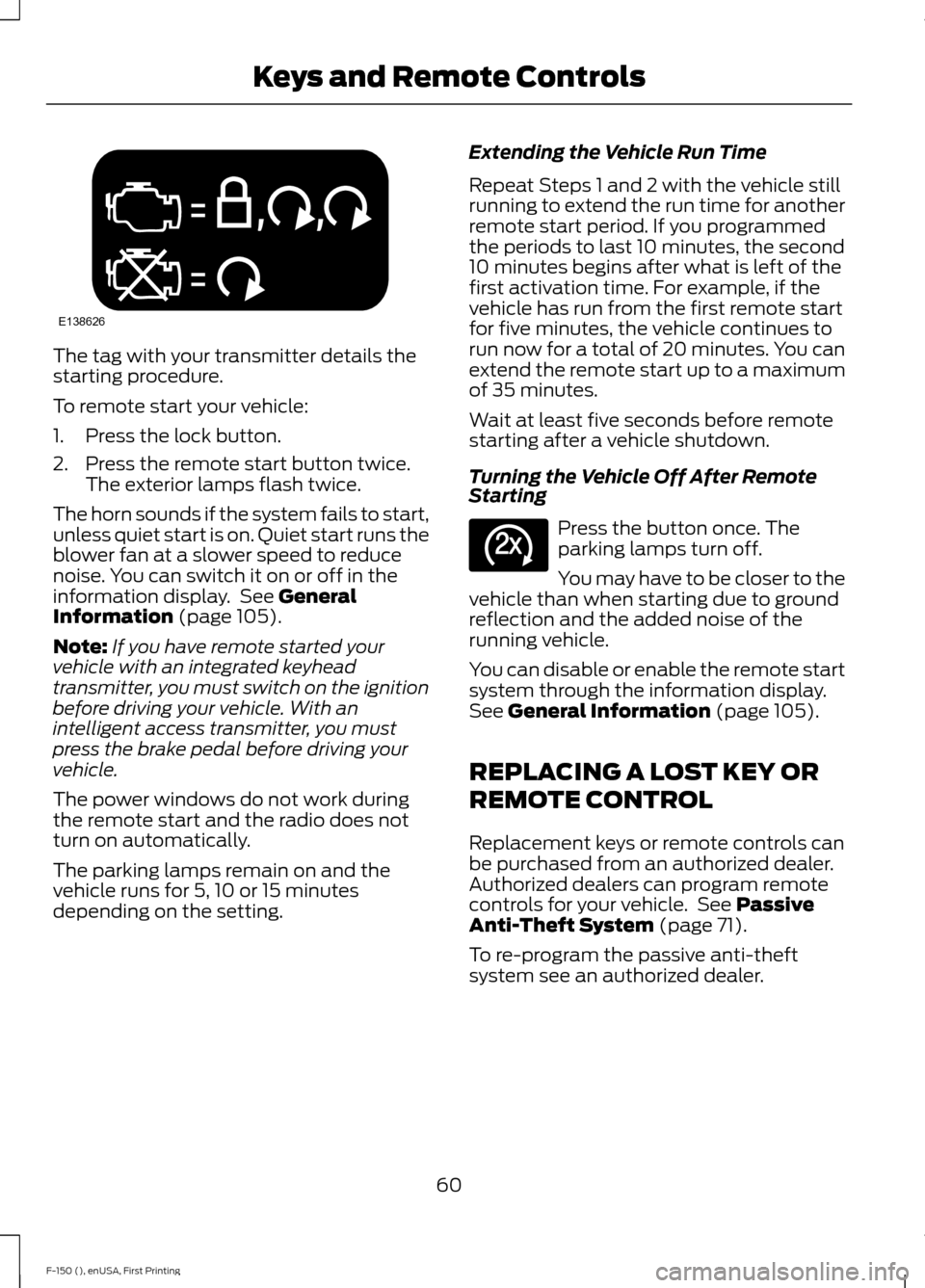
The tag with your transmitter details the
starting procedure.
To remote start your vehicle:
1. Press the lock button.
2. Press the remote start button twice.
The exterior lamps flash twice.
The horn sounds if the system fails to start,
unless quiet start is on. Quiet start runs the
blower fan at a slower speed to reduce
noise. You can switch it on or off in the
information display. See General
Information (page 105).
Note: If you have remote started your
vehicle with an integrated keyhead
transmitter, you must switch on the ignition
before driving your vehicle. With an
intelligent access transmitter, you must
press the brake pedal before driving your
vehicle.
The power windows do not work during
the remote start and the radio does not
turn on automatically.
The parking lamps remain on and the
vehicle runs for 5, 10 or 15 minutes
depending on the setting. Extending the Vehicle Run Time
Repeat Steps 1 and 2 with the vehicle still
running to extend the run time for another
remote start period. If you programmed
the periods to last 10 minutes, the second
10 minutes begins after what is left of the
first activation time. For example, if the
vehicle has run from the first remote start
for five minutes, the vehicle continues to
run now for a total of 20 minutes. You can
extend the remote start up to a maximum
of 35 minutes.
Wait at least five seconds before remote
starting after a vehicle shutdown.
Turning the Vehicle Off After Remote
Starting
Press the button once. The
parking lamps turn off.
You may have to be closer to the
vehicle than when starting due to ground
reflection and the added noise of the
running vehicle.
You can disable or enable the remote start
system through the information display.
See
General Information (page 105).
REPLACING A LOST KEY OR
REMOTE CONTROL
Replacement keys or remote controls can
be purchased from an authorized dealer.
Authorized dealers can program remote
controls for your vehicle. See
Passive
Anti-Theft System (page 71).
To re-program the passive anti-theft
system see an authorized dealer.
60
F-150 (), enUSA, First Printing Keys and Remote ControlsE138626 E138625
Page 387 of 549
MENU: Press this button to access different audio system features.
I
RADIO:
Press this button to listen to the radio or change radio frequency bands.
Press the function buttons below the radio screen to select different radio
functions.
J
Clock:
Press this button to access the clock setting. Use the center arrow
controls to change the hours and minutes.
K
You can also set the clock by pressing the MENU button and scrolling to Clock
Settings.
Mute:
Press this button to mute the playing media.
L
Sound:
Press this button to access settings for Treble, Midrange, Bass, Fade
and Balance.
M
AUDIO UNIT - VEHICLES WITH:
AM/FM/CD WARNING
Driving while distracted can result in
loss of vehicle control, crash and
injury. We strongly recommend that
you use extreme caution when using any
device that may take your focus off the
road. Your primary responsibility is the safe
operation of your vehicle. We recommend
against the use of any hand-held device
while driving and encourage the use of
voice-operated systems when possible.
Make sure you are aware of all applicable
local laws that may affect the use of
electronic devices while driving. 384
F-150 (), enUSA, First Printing Audio System
Page 389 of 549
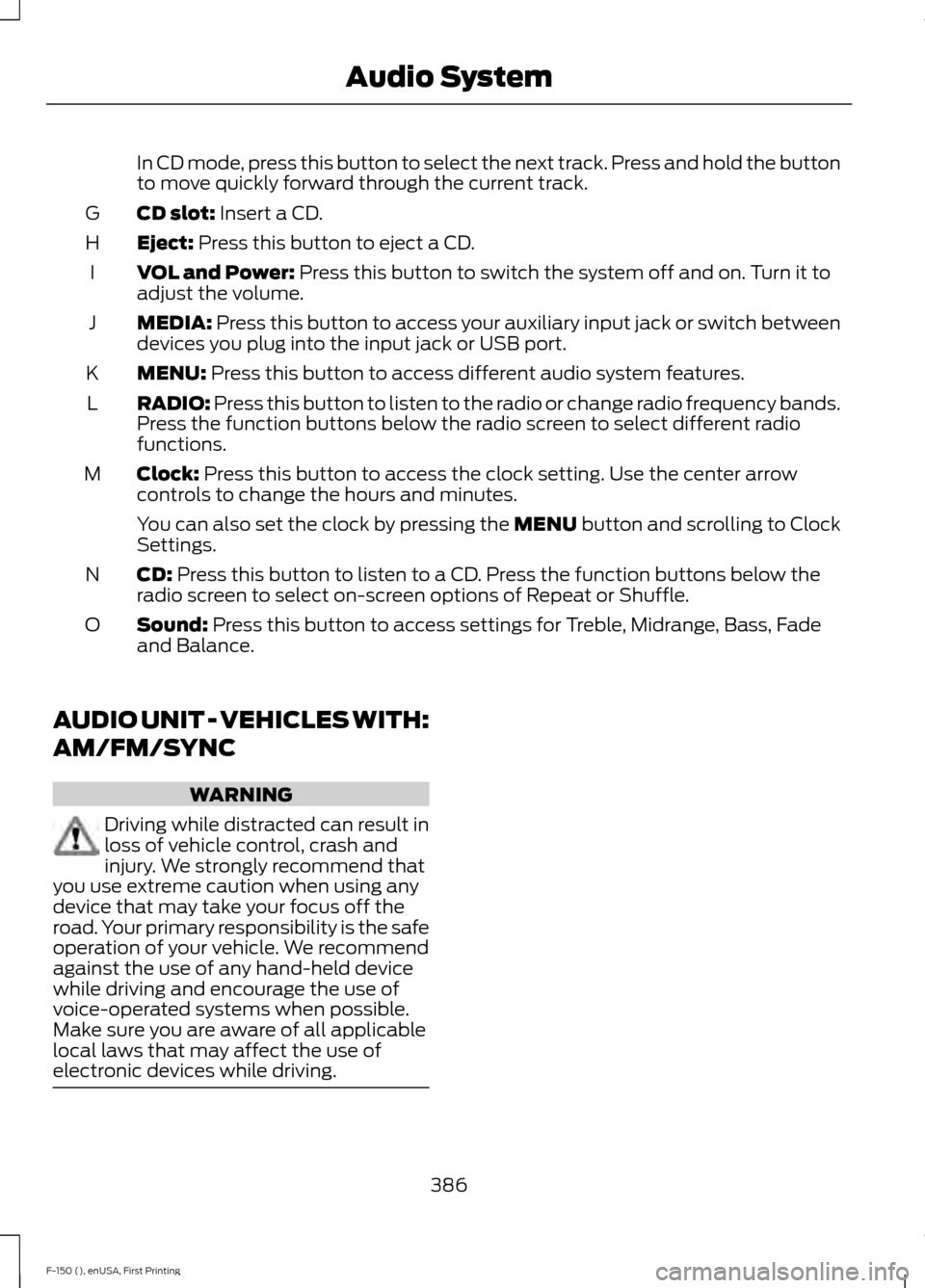
In CD mode, press this button to select the next track. Press and hold the button
to move quickly forward through the current track.
CD slot: Insert a CD.
G
Eject:
Press this button to eject a CD.
H
VOL and Power:
Press this button to switch the system off and on. Turn it to
adjust the volume.
I
MEDIA:
Press this button to access your auxiliary input jack or switch between
devices you plug into the input jack or USB port.
J
MENU:
Press this button to access different audio system features.
K
RADIO:
Press this button to listen to the radio or change radio frequency bands.
Press the function buttons below the radio screen to select different radio
functions.
L
Clock:
Press this button to access the clock setting. Use the center arrow
controls to change the hours and minutes.
M
You can also set the clock by pressing the MENU button and scrolling to Clock
Settings.
CD:
Press this button to listen to a CD. Press the function buttons below the
radio screen to select on-screen options of Repeat or Shuffle.
N
Sound:
Press this button to access settings for Treble, Midrange, Bass, Fade
and Balance.
O
AUDIO UNIT - VEHICLES WITH:
AM/FM/SYNC WARNING
Driving while distracted can result in
loss of vehicle control, crash and
injury. We strongly recommend that
you use extreme caution when using any
device that may take your focus off the
road. Your primary responsibility is the safe
operation of your vehicle. We recommend
against the use of any hand-held device
while driving and encourage the use of
voice-operated systems when possible.
Make sure you are aware of all applicable
local laws that may affect the use of
electronic devices while driving. 386
F-150 (), enUSA, First Printing Audio System
Page 391 of 549
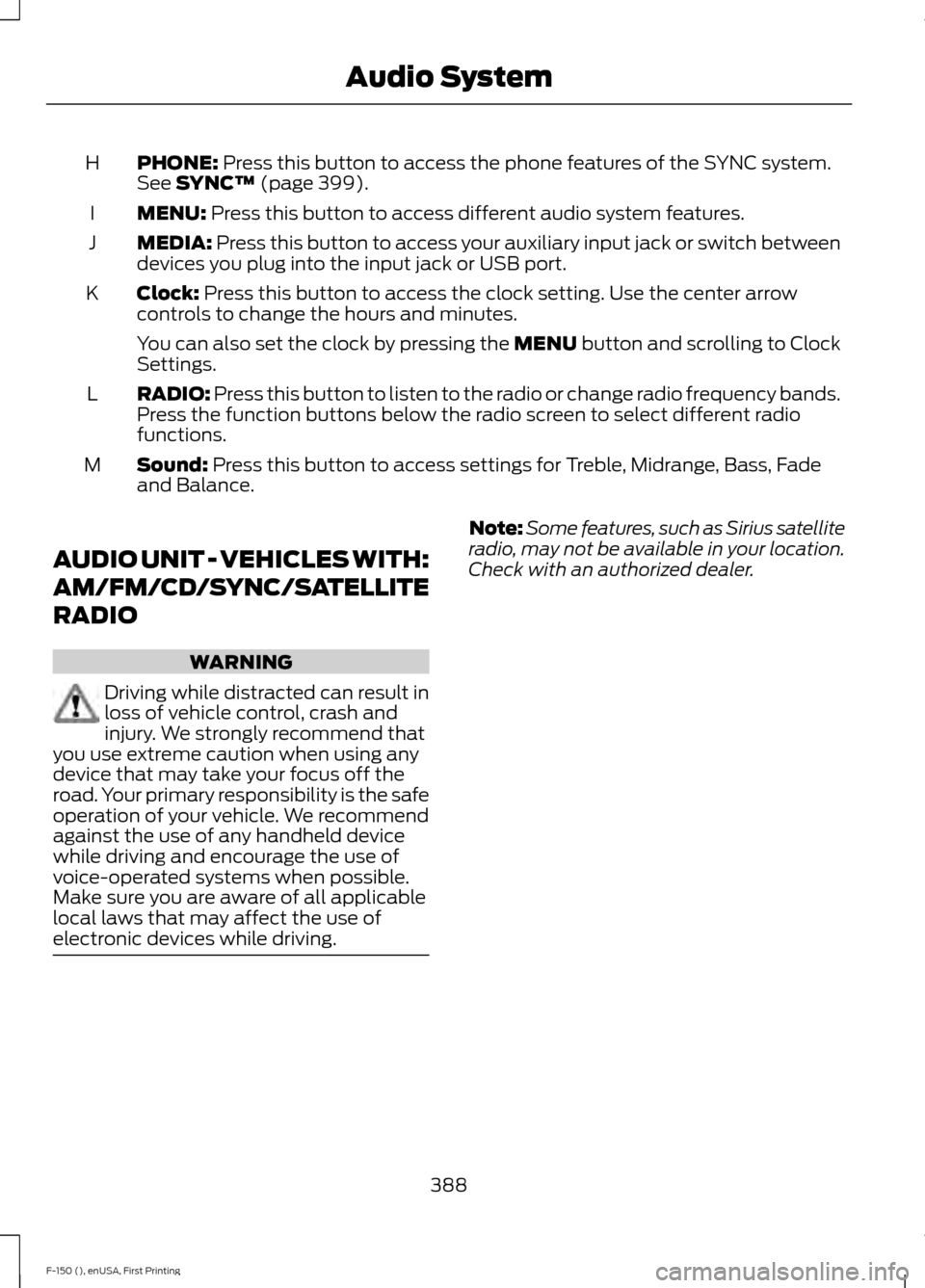
PHONE: Press this button to access the phone features of the SYNC system.
See SYNC™ (page 399).
H
MENU:
Press this button to access different audio system features.
I
MEDIA:
Press this button to access your auxiliary input jack or switch between
devices you plug into the input jack or USB port.
J
Clock:
Press this button to access the clock setting. Use the center arrow
controls to change the hours and minutes.
K
You can also set the clock by pressing the MENU button and scrolling to Clock
Settings.
RADIO:
Press this button to listen to the radio or change radio frequency bands.
Press the function buttons below the radio screen to select different radio
functions.
L
Sound:
Press this button to access settings for Treble, Midrange, Bass, Fade
and Balance.
M
AUDIO UNIT - VEHICLES WITH:
AM/FM/CD/SYNC/SATELLITE
RADIO WARNING
Driving while distracted can result in
loss of vehicle control, crash and
injury. We strongly recommend that
you use extreme caution when using any
device that may take your focus off the
road. Your primary responsibility is the safe
operation of your vehicle. We recommend
against the use of any handheld device
while driving and encourage the use of
voice-operated systems when possible.
Make sure you are aware of all applicable
local laws that may affect the use of
electronic devices while driving. Note:
Some features, such as Sirius satellite
radio, may not be available in your location.
Check with an authorized dealer.
388
F-150 (), enUSA, First Printing Audio System
Page 393 of 549
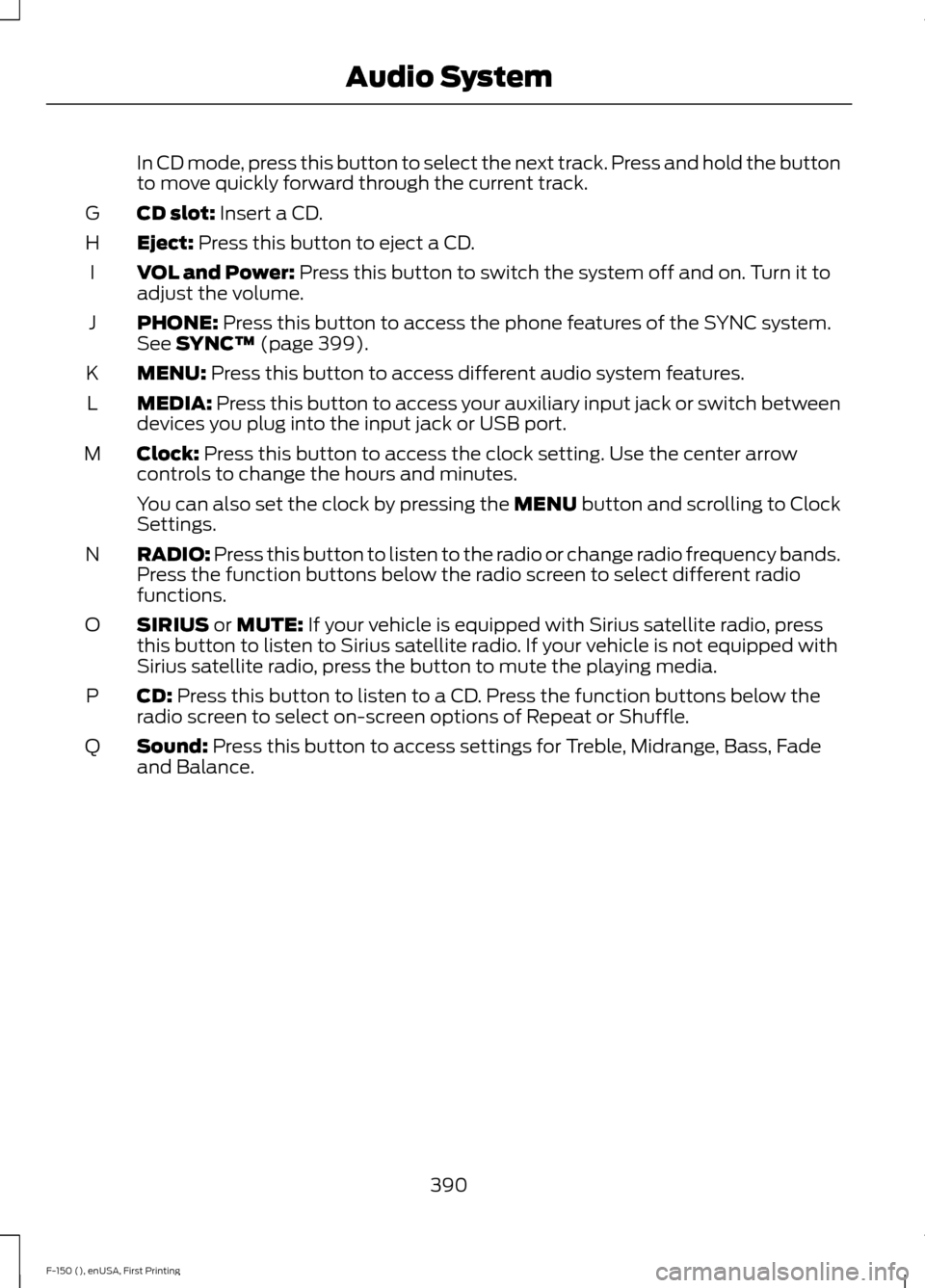
In CD mode, press this button to select the next track. Press and hold the button
to move quickly forward through the current track.
CD slot: Insert a CD.
G
Eject:
Press this button to eject a CD.
H
VOL and Power:
Press this button to switch the system off and on. Turn it to
adjust the volume.
I
PHONE:
Press this button to access the phone features of the SYNC system.
See SYNC™ (page 399).
J
MENU:
Press this button to access different audio system features.
K
MEDIA:
Press this button to access your auxiliary input jack or switch between
devices you plug into the input jack or USB port.
L
Clock:
Press this button to access the clock setting. Use the center arrow
controls to change the hours and minutes.
M
You can also set the clock by pressing the MENU button and scrolling to Clock
Settings.
RADIO:
Press this button to listen to the radio or change radio frequency bands.
Press the function buttons below the radio screen to select different radio
functions.
N
SIRIUS
or MUTE: If your vehicle is equipped with Sirius satellite radio, press
this button to listen to Sirius satellite radio. If your vehicle is not equipped with
Sirius satellite radio, press the button to mute the playing media.
O
CD:
Press this button to listen to a CD. Press the function buttons below the
radio screen to select on-screen options of Repeat or Shuffle.
P
Sound:
Press this button to access settings for Treble, Midrange, Bass, Fade
and Balance.
Q
390
F-150 (), enUSA, First Printing Audio System
Page 400 of 549
AUDIO INPUT JACK
WARNINGS
Driving while distracted can result in
loss of vehicle control, crash and
injury. We strongly recommend that
you use extreme caution when using any
device that may take your focus off the
road. Your primary responsibility is the safe
operation of your vehicle. We recommend
against the use of any hand-held device
while driving and encourage the use of
voice-operated systems when possible.
Make sure you are aware of all applicable
local laws that may affect the use of
electronic devices while driving. Do not connect or adjust the settings
on your portable music player when
your vehicle is moving.
Do not place your portable music
player on the instrument panel. Hard
objects may become projectiles in a
crash or sudden stop, which may increase
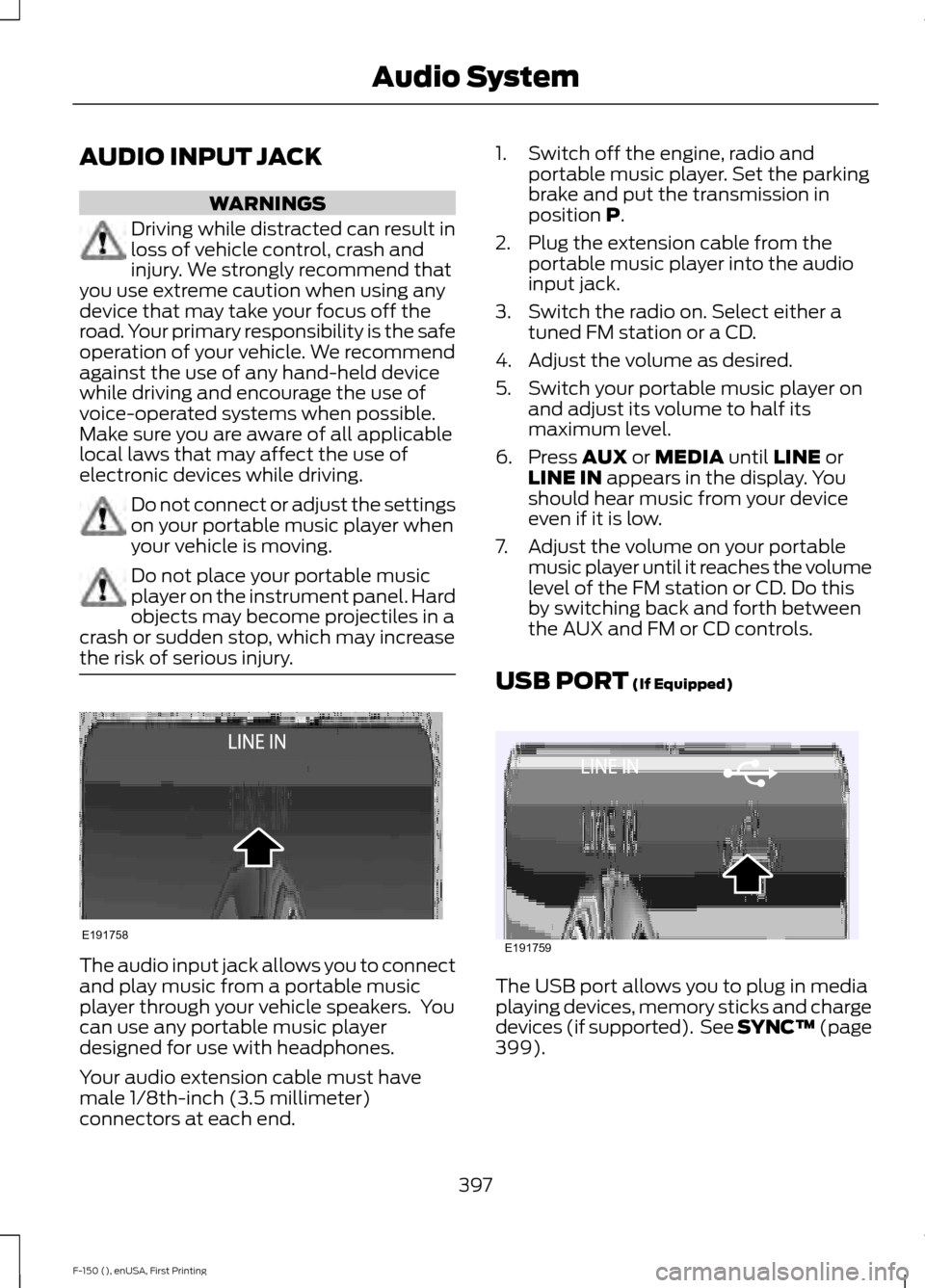
the risk of serious injury. The audio input jack allows you to connect
and play music from a portable music
player through your vehicle speakers. You
can use any portable music player
designed for use with headphones.
Your audio extension cable must have
male 1/8th-inch (3.5 millimeter)
connectors at each end. 1. Switch off the engine, radio and
portable music player. Set the parking
brake and put the transmission in
position P.
2. Plug the extension cable from the portable music player into the audio
input jack.
3. Switch the radio on. Select either a tuned FM station or a CD.
4. Adjust the volume as desired.
5. Switch your portable music player on and adjust its volume to half its
maximum level.
6. Press
AUX or MEDIA until LINE or
LINE IN appears in the display. You
should hear music from your device
even if it is low.
7. Adjust the volume on your portable music player until it reaches the volume
level of the FM station or CD. Do this
by switching back and forth between
the AUX and FM or CD controls.
USB PORT
(If Equipped) The USB port allows you to plug in media
playing devices, memory sticks and charge
devices (if supported). See SYNC™
(page
399).
397
F-150 (), enUSA, First Printing Audio SystemE191758 E191759
Page 443 of 549
Press to select any of the following:
•
AM
• FM
• SIRIUS
• CD
• USB
• BT Stereo
• SD Card
• Line In
Cleaning the Touchscreen Display
Use a clean, soft cloth such as one used
for cleaning glasses. If dirt or fingerprints
are still visible, apply a small amount of
alcohol to the cloth. Do not pour or spray
alcohol onto the display. Do not use
detergent or any type of solvent to clean
the display.
Using Your Bezel Controls
Depending on your vehicle and option
package, you may also have these controls
on your bezel:
• Power: Switch the media or climate
features off and on.
• VOL:
Control the volume of playing
media.
• Seek
and Tune: Use as you normally
would in media modes.
• Presets:
Press and hold a numbered
button to store a radio or Sirius station;
press to recall the stored station."
• MEDIA:
Touch repeatedly to see all
available media modes. The screen
does not change, but you see the
media change in the lower left status
bar.
• Eject:
Eject a CD from the
entertainment system.
• Climate Control:
Control the
temperature, fan speed or settings of
the climate control system. Using Your Steering Wheel
Controls
Depending on your vehicle and option
package, you can use your steering wheel
controls to interact with the touchscreen
system. See
Steering Wheel (page 77).
Support
The SYNC support team is available to
help you with any questions you are not
able to answer on your own.
Monday-Saturday, 8:30am-9:00pm EST.
Sunday, 10:30am-7:30pm EST.
In the United States, call: 1-800-392-3673.
In Canada, call: 1-800-565-3673.
Times are subject to change due to
holidays.
Safety Information WARNING
Driving while distracted can result in
loss of vehicle control, crash and
injury. We strongly recommend that
you use extreme caution when using any
device that may take your focus off the
road. Your primary responsibility is the safe
operation of your vehicle. We recommend
against the use of any hand-held device
while driving and encourage the use of
voice-operated systems when possible.
Make sure you are aware of all applicable
local laws that may affect the use of
electronic devices while driving. •
Do not attempt to service or repair the
system. See an authorized dealer.
• Do not operate playing devices if the
power cords or cables are broken, split
or damaged. Place cords and cables
out of the way, so they do not interfere
with the operation of pedals, seats,
compartments or safe driving abilities.
440
F-150 (), enUSA, First Printing MyFord Touch
™
(If Equipped)
Page 458 of 549
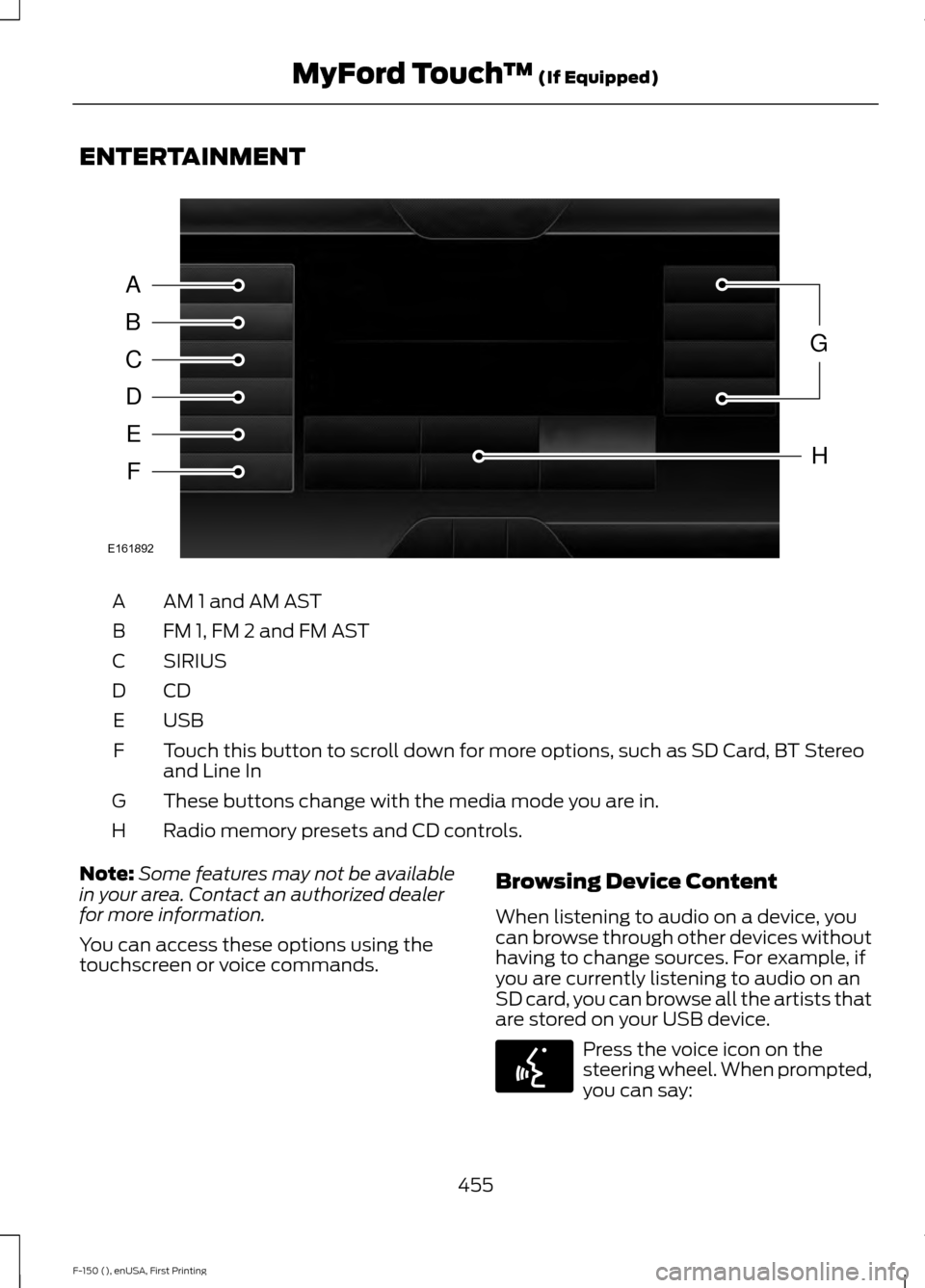
ENTERTAINMENT
AM 1 and AM AST
A
FM 1, FM 2 and FM AST
B
SIRIUS
C
CDD
USBE
Touch this button to scroll down for more options, such as SD Card, BT Stereo
and Line In
F
These buttons change with the media mode you are in.
G
Radio memory presets and CD controls.
H
Note: Some features may not be available
in your area. Contact an authorized dealer
for more information.
You can access these options using the
touchscreen or voice commands. Browsing Device Content
When listening to audio on a device, you
can browse through other devices without
having to change sources. For example, if
you are currently listening to audio on an
SD card, you can browse all the artists that
are stored on your USB device. Press the voice icon on the
steering wheel. When prompted,
you can say:
455
F-150 (), enUSA, First Printing MyFord Touch
™ (If Equipped)A
B
C
D
E
F
G
H
E161892 E142599