brake light FORD F150 2016 13.G Owner's Manual
[x] Cancel search | Manufacturer: FORD, Model Year: 2016, Model line: F150, Model: FORD F150 2016 13.GPages: 505, PDF Size: 6.27 MB
Page 207 of 505
PRINCIPLE OF OPERATION
WARNINGS
Vehicle modifications involving
braking system, aftermarket roof
racks, suspension, steering system,
tire construction and wheel and tire size
may change the handling characteristics
of your vehicle and may adversely affect
the performance of the electronic stability
control system. In addition, installing any
stereo loudspeakers may interfere with
and adversely affect the electronic stability
control system. Install any aftermarket
stereo loudspeaker as far as possible from
the front center console, the tunnel, and
the front seats in order to minimize the risk
of interfering with the electronic stability
control sensors. Reducing the
effectiveness of the electronic stability
control system could lead to an increased
risk of loss of vehicle control, vehicle
rollover, personal injury and death. Remember that even advanced
technology cannot defy the laws of
physics. It’
s always possible to lose
control of a vehicle due to inappropriate
driver input for the conditions. Aggressive
driving on any road condition can cause
you to lose control of your vehicle
increasing the risk of personal injury or
property damage. Activation of the
electronic stability control system is an
indication that at least some of the tires
have exceeded their ability to grip the road;
this could reduce the operator ’s ability to
control the vehicle potentially resulting in
a loss of vehicle control, vehicle rollover,
personal injury and death. If your electronic
stability control system activates, SLOW
DOWN. The system automatically turns on each
time you switch the ignition on. If a driving condition activates either the
stability control or the traction control
system you may experience the following
conditions:
•
The stability and traction control light
flashes.
• Your vehicle slows down.
• Reduced engine power.
• A vibration in the brake pedal.
• The brake pedal is stiffer than usual.
• If the driving condition is severe and
your foot is not on the brake, the brake
pedal may move as the systems
applies higher brake forces.
The stability control system has several
features built into it to help you maintain
control of your vehicle:
Electronic Stability Control
The system enhances your vehicle ’s ability
to prevent skids or lateral slides by
applying brakes to one or more of the
wheels individually and, if necessary,
reducing engine power.
Roll Stability Control
The system enhances your vehicle ’s ability
to prevent rollovers by detecting your
vehicle ’s roll motion and the rate at which
it changes by applying the brakes to one
or more wheels individually.
Traction Control
The system enhances your vehicle ’s ability
to maintain traction of the wheels by
detecting and controlling wheel spin. See
Using Traction Control (page 203).
204
F-150 (TFC) Canada/United States of America, enUSA, Edition date: 08/2015, First Printing Stability Control
Page 210 of 505
PRINCIPLE OF OPERATION
WARNINGS
Hill descent control cannot control
descent in all surface conditions and
circumstances, such as ice or
extremely steep grades. Hill descent
control is a driver assist system and cannot
substitute for good judgment by the driver.
Failure to do so may result in loss of vehicle
control, crash or serious injury. Hill descent control does not provide
hill hold at zero miles per hour (0
kilometers per hour). When stopped,
the parking brake must be applied or the
vehicle must be placed in P (Park) or it
may roll away. Hill descent control allows the driver to set
and maintain vehicle speed while
descending steep grades in various surface
conditions.
Hill descent control can maintain vehicle
speeds on downhill grades between 2 mph
(3 km/h) and 12 mph (20 km/h). Above 20
mph (32 km/h), the system remains
armed, but descent speed cannot be set
or maintained.
Hill descent control requires a cooling
down interval after a period of sustained
use. The amount of time that the feature
can remain active before cooling varies
with conditions. The system will provide a
warning in the message center and a chime
will sound when the system is about to
disengage for cooling. At this time,
manually apply the brakes as needed to
maintain descent speed. USING HILL DESCENT
CONTROL Press and release the hill
descent button located on the
instrument panel. A light in the
cluster will illuminate and a chime will
sound when this feature is activated.
To increase descent speed, press the
accelerator pedal until you reach the
desired speed. To decrease descent
speed, press the brake pedal until you
reach the desired speed.
When accelerating or decelerating, once
you reach the desired descent speed,
remove your feet from the pedals and hill
descent control maintains the chosen
vehicle speed.
Note: Noise from the ABS pump motor may
be observed during hill descent control
operation. This is a normal characteristic of
the ABS and should be no reason for
concern.
Hill descent modes
• At speeds between
2 mph (3 km/h)
and 20 mph (32 km/h): When the Hill
Descent Control switch is pressed and
Hill Descent Control is active, the Hill
Descent Control indicator light flashes.
Your vehicle maintains your desired
speed.
• At speeds between
20 mph (32 km/h)
and 40 mph (64 km/h): When the Hill
Descent Control switch is pressed, the
Hill Descent Control system is enabled,
the Hill Descent Control indicator light
is solid and a message displays in the
information display. Your vehicle does
not maintain your desired speed and
you cannot set your descent speed.
207
F-150 (TFC) Canada/United States of America, enUSA, Edition date: 08/2015, First Printing Terrain Response
(If Equipped)E163957
Page 225 of 505
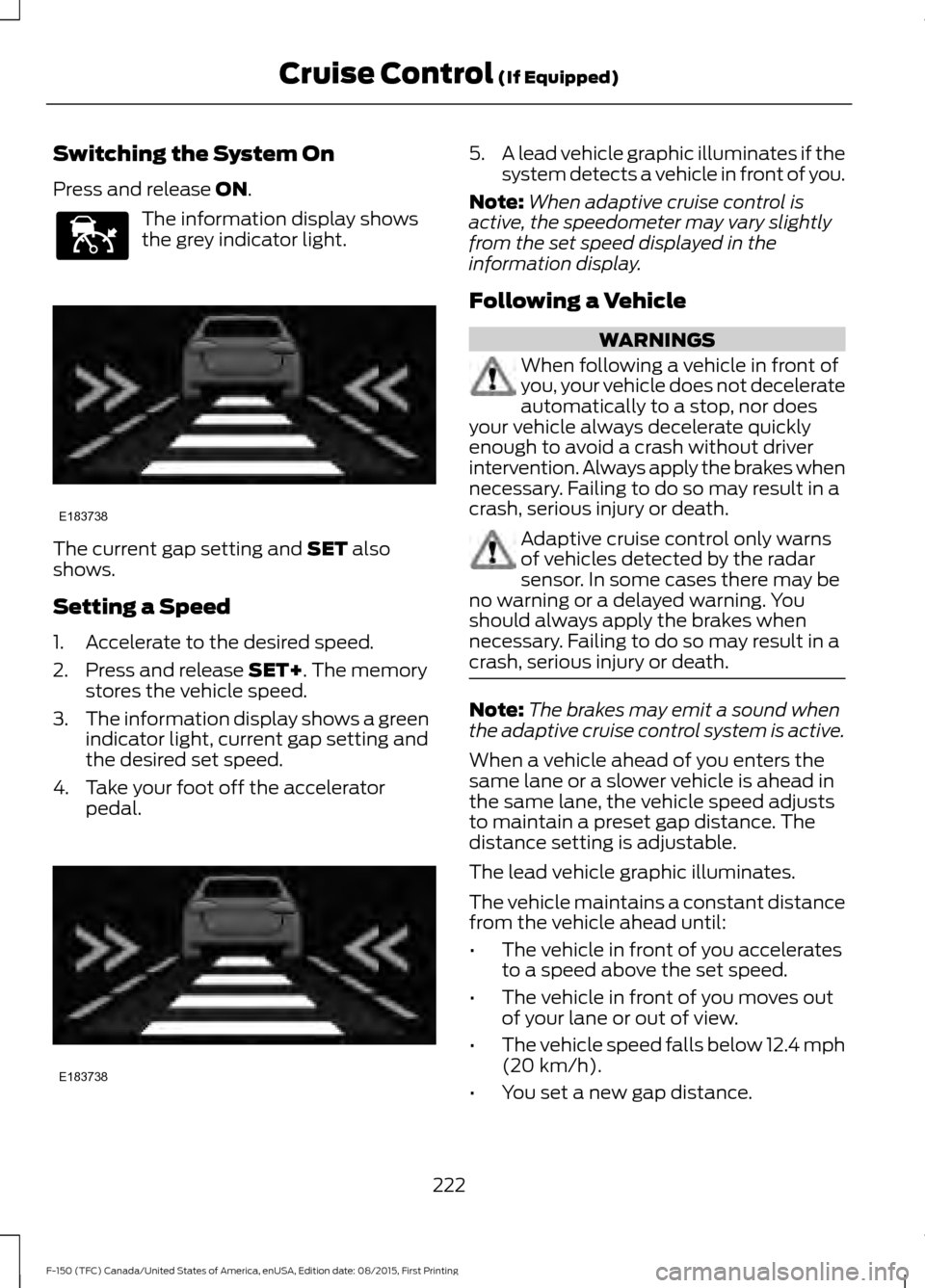
Switching the System On
Press and release ON.
The information display shows
the grey indicator light.
The current gap setting and
SET also
shows.
Setting a Speed
1. Accelerate to the desired speed.
2. Press and release
SET+. The memory
stores the vehicle speed.
3. The information display shows a green
indicator light, current gap setting and
the desired set speed.
4. Take your foot off the accelerator pedal. 5.
A lead vehicle graphic illuminates if the
system detects a vehicle in front of you.
Note: When adaptive cruise control is
active, the speedometer may vary slightly
from the set speed displayed in the
information display.
Following a Vehicle WARNINGS
When following a vehicle in front of
you, your vehicle does not decelerate
automatically to a stop, nor does
your vehicle always decelerate quickly
enough to avoid a crash without driver
intervention. Always apply the brakes when
necessary. Failing to do so may result in a
crash, serious injury or death. Adaptive cruise control only warns
of vehicles detected by the radar
sensor. In some cases there may be
no warning or a delayed warning. You
should always apply the brakes when
necessary. Failing to do so may result in a
crash, serious injury or death. Note:
The brakes may emit a sound when
the adaptive cruise control system is active.
When a vehicle ahead of you enters the
same lane or a slower vehicle is ahead in
the same lane, the vehicle speed adjusts
to maintain a preset gap distance. The
distance setting is adjustable.
The lead vehicle graphic illuminates.
The vehicle maintains a constant distance
from the vehicle ahead until:
• The vehicle in front of you accelerates
to a speed above the set speed.
• The vehicle in front of you moves out
of your lane or out of view.
• The vehicle speed falls below 12.4 mph
(20 km/h)
.
• You set a new gap distance.
222
F-150 (TFC) Canada/United States of America, enUSA, Edition date: 08/2015, First Printing Cruise Control
(If Equipped)E144529 E183738 E183738
Page 226 of 505
The system applies the brakes to slow the
vehicle to maintain a safe distance from
the vehicle in front. The system applies
only limited maximum braking. Press the
brake pedal to override the system.
If the system predicts that its maximum
braking level is insufficient, an audible
warning sounds while the system
continues to brake. A red warning bar
appears on the windshield heads-up
display. Take immediate action to slow or
stop the vehicle.
The system may provide slight temporary
acceleration when you use your driver side
directional indicator while following a lead
vehicle, to aid in passing the vehicle.
Setting the Gap Distance
Note:
It is your responsibility to select a gap
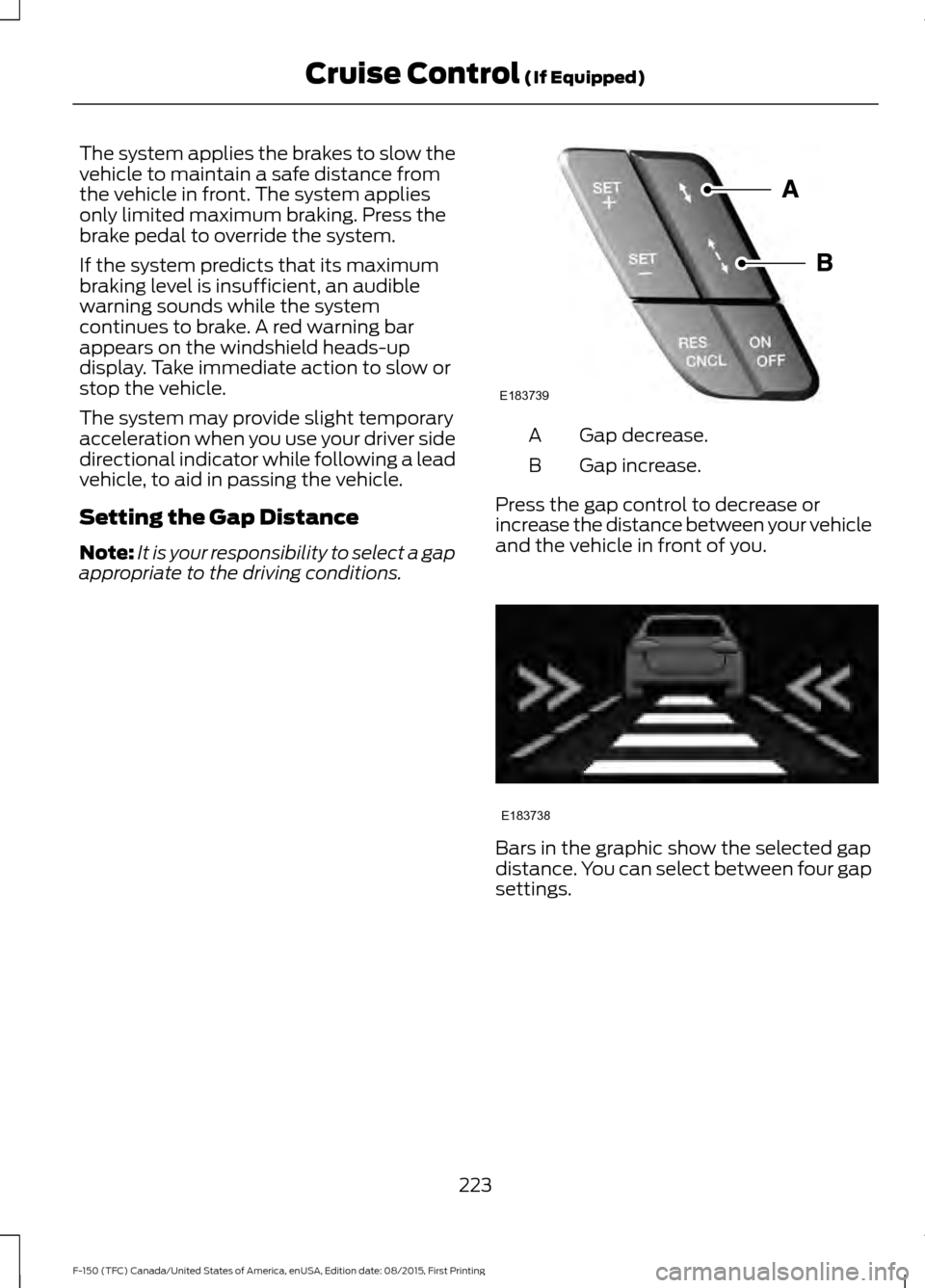
appropriate to the driving conditions. Gap decrease.
A
Gap increase.
B
Press the gap control to decrease or
increase the distance between your vehicle
and the vehicle in front of you. Bars in the graphic show the selected gap
distance. You can select between four gap
settings.
223
F-150 (TFC) Canada/United States of America, enUSA, Edition date: 08/2015, First Printing Cruise Control (If Equipped)E183739 E183738
Page 227 of 505
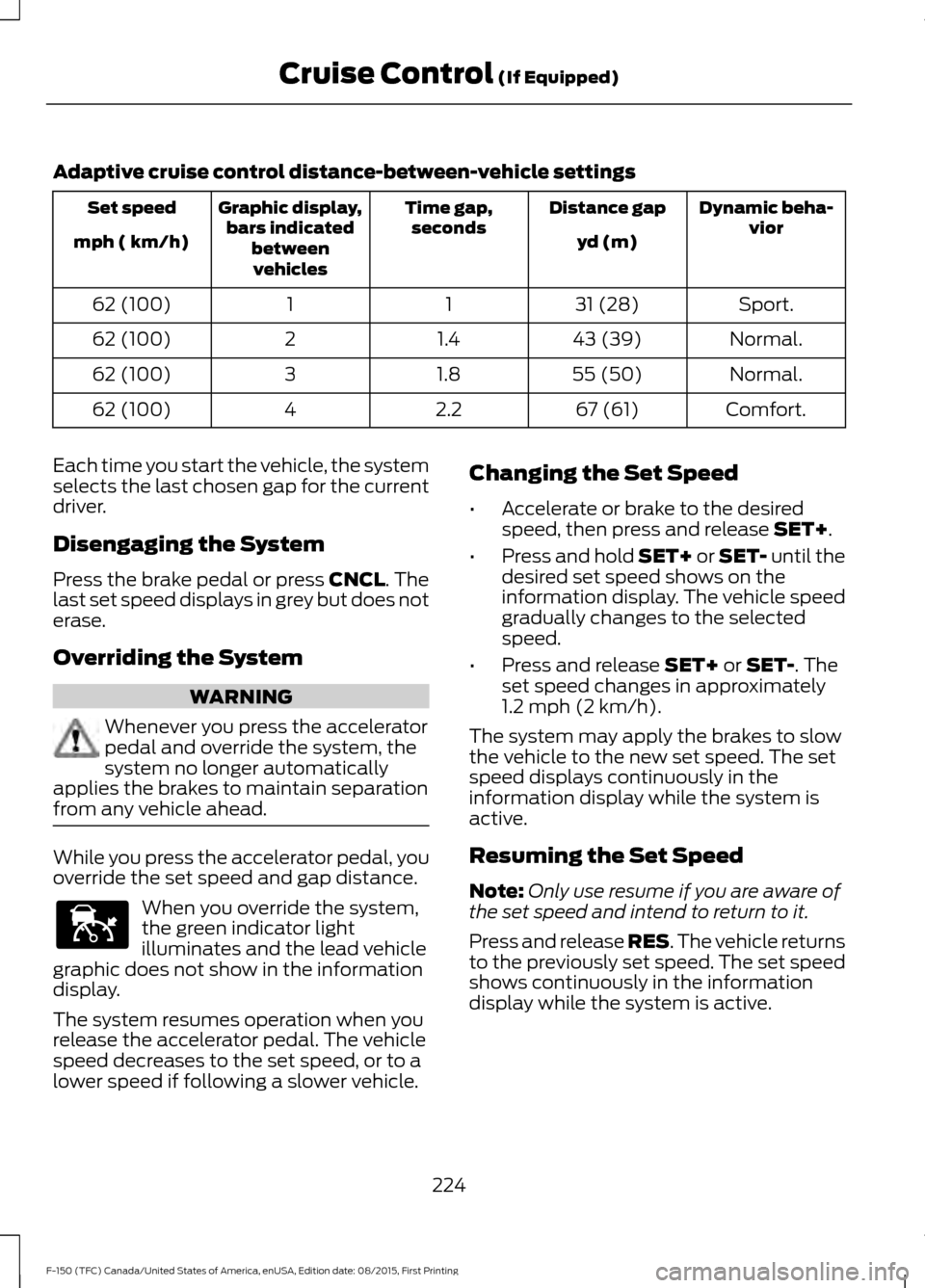
Adaptive cruise control distance-between-vehicle settings
Dynamic beha-
vior
Distance gap
Time gap,
seconds
Graphic display,
bars indicated betweenvehicles
Set speed
yd (m)
mph ( km/h)
Sport.
31 (28)
1
1
62 (100)
Normal.
43 (39)
1.4
2
62 (100)
Normal.
55 (50)
1.8
3
62 (100)
Comfort.
67 (61)
2.2
4
62 (100)
Each time you start the vehicle, the system
selects the last chosen gap for the current
driver.
Disengaging the System
Press the brake pedal or press CNCL. The
last set speed displays in grey but does not
erase.
Overriding the System WARNING
Whenever you press the accelerator
pedal and override the system, the
system no longer automatically
applies the brakes to maintain separation
from any vehicle ahead. While you press the accelerator pedal, you
override the set speed and gap distance.
When you override the system,
the green indicator light
illuminates and the lead vehicle
graphic does not show in the information
display.
The system resumes operation when you
release the accelerator pedal. The vehicle
speed decreases to the set speed, or to a
lower speed if following a slower vehicle. Changing the Set Speed
•
Accelerate or brake to the desired
speed, then press and release
SET+.
• Press and hold SET+ or SET- until the
desired set speed shows on the
information display. The vehicle speed
gradually changes to the selected
speed.
• Press and release
SET+ or SET-. The
set speed changes in approximately
1.2 mph (2 km/h)
.
The system may apply the brakes to slow
the vehicle to the new set speed. The set
speed displays continuously in the
information display while the system is
active.
Resuming the Set Speed
Note: Only use resume if you are aware of
the set speed and intend to return to it.
Press and release RES. The vehicle returns
to the previously set speed. The set speed
shows continuously in the information
display while the system is active.
224
F-150 (TFC) Canada/United States of America, enUSA, Edition date: 08/2015, First Printing Cruise Control
(If Equipped)E144529
Page 230 of 505
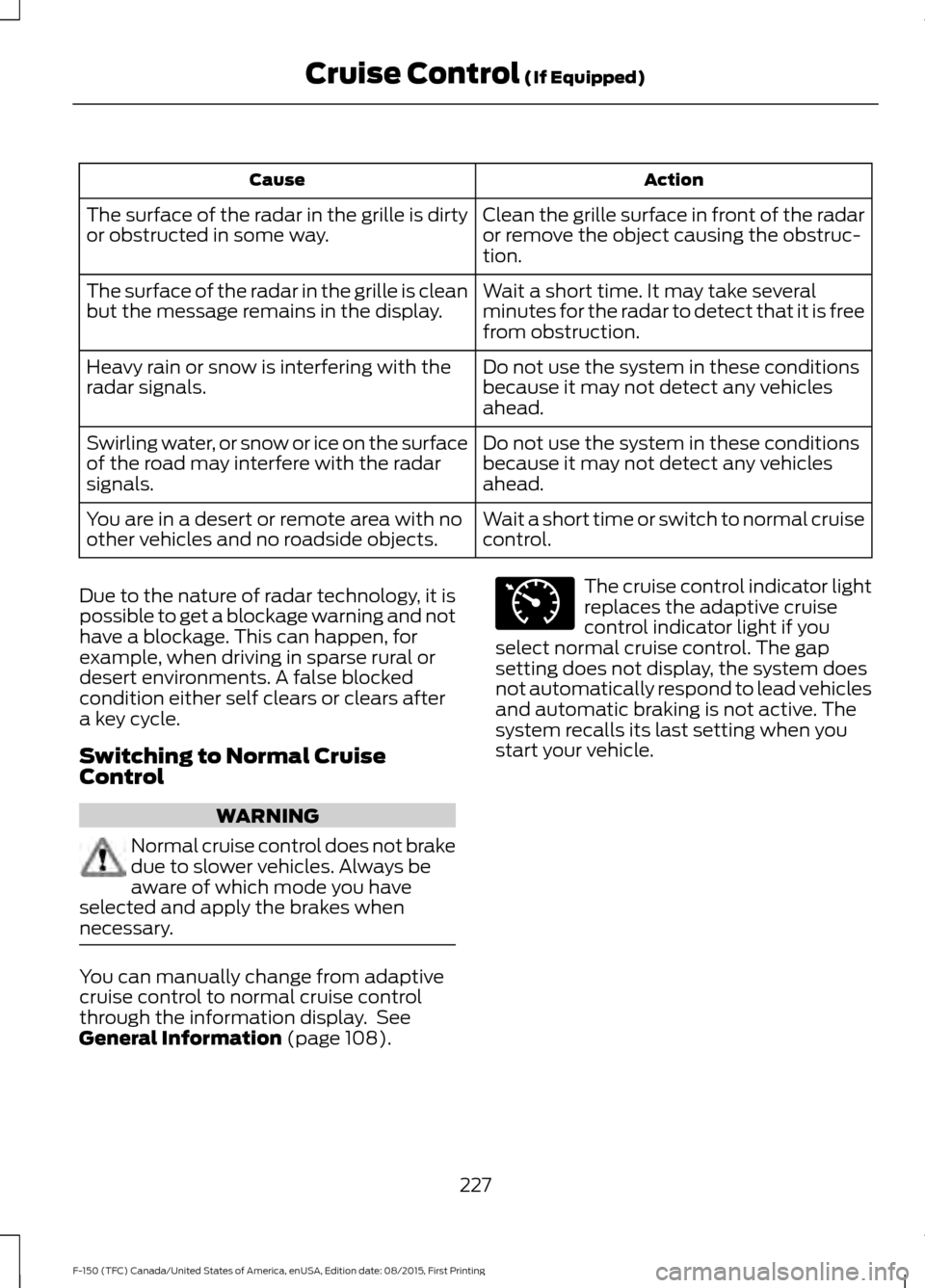
Action
Cause
Clean the grille surface in front of the radar
or remove the object causing the obstruc-
tion.
The surface of the radar in the grille is dirty
or obstructed in some way.
Wait a short time. It may take several
minutes for the radar to detect that it is free
from obstruction.
The surface of the radar in the grille is clean
but the message remains in the display.
Do not use the system in these conditions
because it may not detect any vehicles
ahead.
Heavy rain or snow is interfering with the
radar signals.
Do not use the system in these conditions
because it may not detect any vehicles
ahead.
Swirling water, or snow or ice on the surface
of the road may interfere with the radar
signals.
Wait a short time or switch to normal cruise
control.
You are in a desert or remote area with no
other vehicles and no roadside objects.
Due to the nature of radar technology, it is
possible to get a blockage warning and not
have a blockage. This can happen, for
example, when driving in sparse rural or
desert environments. A false blocked
condition either self clears or clears after
a key cycle.
Switching to Normal Cruise
Control WARNING
Normal cruise control does not brake
due to slower vehicles. Always be
aware of which mode you have
selected and apply the brakes when
necessary. You can manually change from adaptive
cruise control to normal cruise control
through the information display. See
General Information (page 108). The cruise control indicator light
replaces the adaptive cruise
control indicator light if you
select normal cruise control. The gap
setting does not display, the system does
not automatically respond to lead vehicles
and automatic braking is not active. The
system recalls its last setting when you
start your vehicle.
227
F-150 (TFC) Canada/United States of America, enUSA, Edition date: 08/2015, First Printing Cruise Control
(If Equipped)E71340
Page 242 of 505
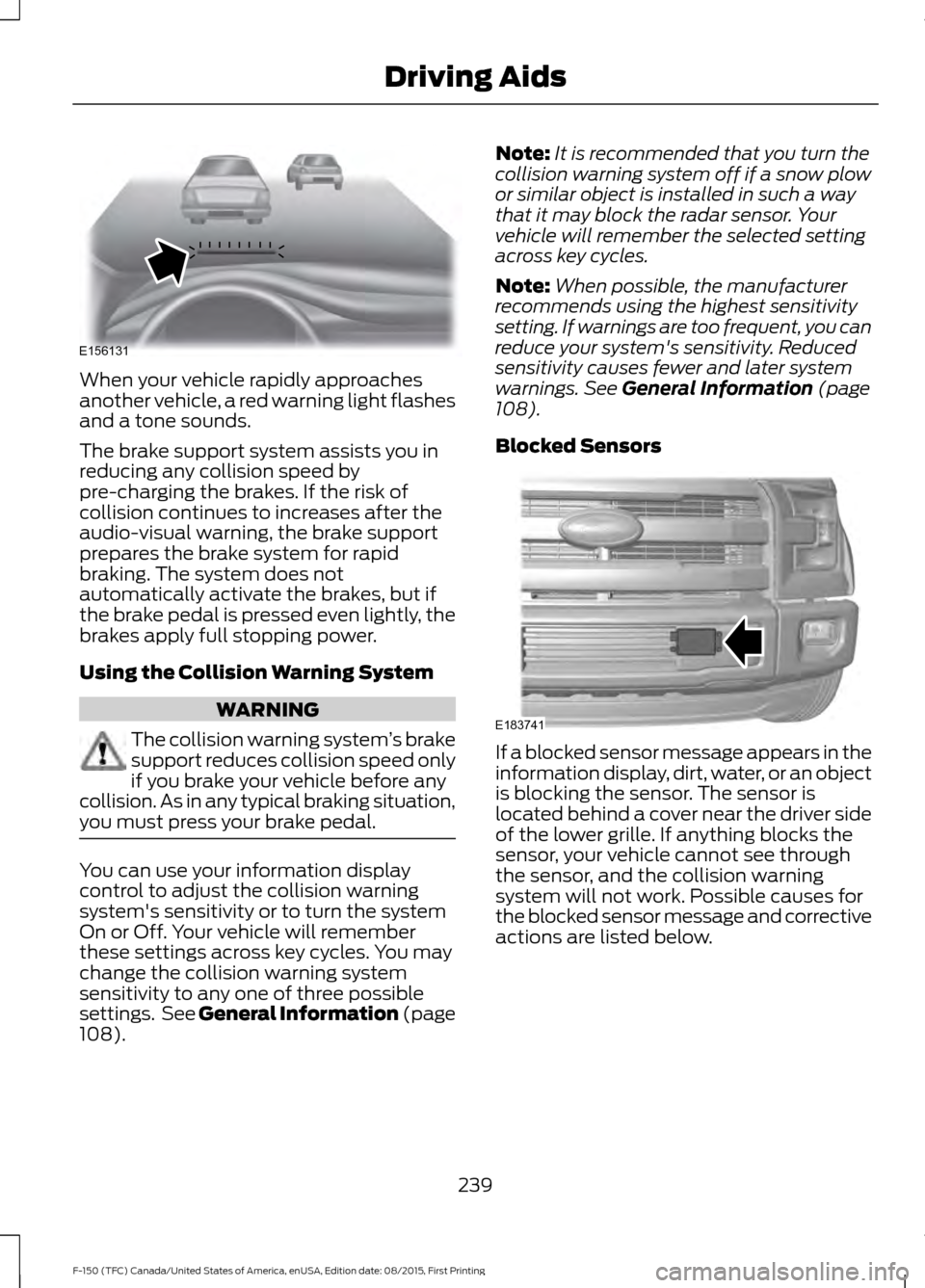
When your vehicle rapidly approaches
another vehicle, a red warning light flashes
and a tone sounds.
The brake support system assists you in
reducing any collision speed by
pre-charging the brakes. If the risk of
collision continues to increases after the
audio-visual warning, the brake support
prepares the brake system for rapid
braking. The system does not
automatically activate the brakes, but if
the brake pedal is pressed even lightly, the
brakes apply full stopping power.
Using the Collision Warning System
WARNING
The collision warning system
’s brake
support reduces collision speed only
if you brake your vehicle before any
collision. As in any typical braking situation,
you must press your brake pedal. You can use your information display
control to adjust the collision warning
system's sensitivity or to turn the system
On or Off. Your vehicle will remember
these settings across key cycles. You may
change the collision warning system
sensitivity to any one of three possible
settings. See General Information (page
108). Note:
It is recommended that you turn the
collision warning system off if a snow plow
or similar object is installed in such a way
that it may block the radar sensor. Your
vehicle will remember the selected setting
across key cycles.
Note: When possible, the manufacturer
recommends using the highest sensitivity
setting. If warnings are too frequent, you can
reduce your system's sensitivity. Reduced
sensitivity causes fewer and later system
warnings.
See General Information (page
108).
Blocked Sensors If a blocked sensor message appears in the
information display, dirt, water, or an object
is blocking the sensor. The sensor is
located behind a cover near the driver side
of the lower grille. If anything blocks the
sensor, your vehicle cannot see through
the sensor, and the collision warning
system will not work. Possible causes for
the blocked sensor message and corrective
actions are listed below.
239
F-150 (TFC) Canada/United States of America, enUSA, Edition date: 08/2015, First Printing Driving AidsE156131 E183741
Page 255 of 505
TOWING A TRAILER
WARNINGS
Do not exceed the GVWR or
the GAWR specified on the
certification label. Towing trailers beyond the
maximum recommended
gross trailer weight exceeds the
limit of the vehicle and could
result in engine damage,
transmission damage, structural
damage, loss of vehicle control,
vehicle rollover and personal
injury. Note:
To prevent your trailer from
accumulating distance, and the
trailer information status appearing
when you restart your vehicle after
disconnecting your trailer, you must
deactivate your trailer. Using the
information display, go to the
Towing menu and then the Select
Trailer option. Select the No active
trailer option. See Information
Displays (page 108).
Your vehicle may have electrical
items, such as fuses or relays,
related to towing. See
Fuses
(page 298).
Your vehicle may have ability to
modify trailer towing features.
See
General Information (page
108). Your vehicle's load capacity
designation is by weight, not by
volume, so you cannot necessarily
use all available space when
loading a vehicle or trailer.
Towing a trailer places an extra
load on your vehicle's engine,
transmission, axle, brakes, tires
and suspension. Inspect these
components periodically during,
and after, any towing operation.
Load Placement
To help minimize how trailer
movement affects your vehicle
when driving:
•
Load the heaviest items closest
to the trailer floor.
• Load the heaviest items
centered between the left and
right side trailer tires.
• Load the heaviest items above
the trailer axles or just slightly
forward toward the trailer
tongue. Do not allow the final
trailer tongue weight to go
above or below 10-15% of the
loaded trailer weight.
• Select a ball mount with the
correct rise or drop. When both
the loaded vehicle and trailer
are connected, the trailer frame
should be level, or slightly
angled down toward your
vehicle, when viewed from the
side.
252
F-150 (TFC) Canada/United States of America, enUSA, Edition date: 08/2015, First Printing Towing
Page 256 of 505
When driving with a trailer or
payload, a slight takeoff vibration
or shudder may be present due to
the increased payload weight.
Additional information regarding
proper trailer loading and setting
your vehicle up for towing is
located in another chapter of this
manual. See Load Limit (page
242).
You can also find information in
the
RV & Trailer Towing Guide
available at your authorized
dealer, or online. RV & Trailer Towing Guide Online
http://www.fleet.ford.com/towing-guides/
Website
PRO TRAILER BACKUP
ASSIST™ WARNING
Driving while distracted can result in
loss of vehicle control, crash and
injury. We strongly recommend that
you use extreme caution when using any
device that may take your focus off the
road. Your primary responsibility is the safe
operation of your vehicle. We recommend
against the use of any hand-held device
while driving and encourage the use of
voice-operated systems when possible.
Make sure you are aware of all applicable
local laws that may affect the use of
electronic devices while driving. Note:
The system is not a substitute for
safe driving practices.
Note: You must always be aware of the
vehicle and trailer combination and the
surrounding environment.
Note: The system does not detect or
prevent the vehicle or trailer from making
contact with obstacles in the surrounding
environment. Note:
Keep in mind that the front end of
the vehicle swings out when changing the
direction of the trailer.
Note: The system relies on user
measurements to determine sticker
placement and system limits. It is critical to
take the key measurements correctly.
Incorrect measurements can result in the
improper function of the system up to and
including contact between the vehicle and
trailer.
Note: The system limits vehicle speed when
backing up. The system is not a replacement
for proper use of the throttle and brake
pedals.
Principle of Operation
This feature helps you to steer your vehicle
when backing up with a trailer attached.
Turn and hold the control knob in the
direction you want the trailer to go and the
system takes over the steering. This allows
you to focus on checking the mirrors and
operating the brake and accelerator.
Each trailer you use with your vehicle has
to be setup once.
You must take care to follow the setup
process accurately, to make sure the
sticker is placed correctly.
253
F-150 (TFC) Canada/United States of America, enUSA, Edition date: 08/2015, First Printing Towing
Page 265 of 505
System consistently shows Stop now take
control of steering warning:
•
The system displays this warning when
it can no longer steer the vehicle and
you must take over steering. There are
four reasons why this warning displays
and additional information regarding
the reason for the warning is available
on the center display.
•The steering wheel is touched while
the system is controlling it. Avoid
touching the wheel during system
operation.
• The maximum speed for feature
operation is exceeded. System
performance is optimized at slower
speeds. Backup slowly.
• The sticker was lost by the camera
system. Once your vehicle is
stopped additional warnings will
indicate the sticker was lost. Refer
to sticker lost trouble shooting tips.
• An internal condition for system
operation was not met which
requires your vehicle return to
manual control of the steering.
TRAILER SWAY CONTROL (If
Equipped) WARNING
Turning off trailer sway control
increases the risk of loss of vehicle
control, serious injury or death. Ford
does not recommend disabling this feature
except in situations where speed reduction
may be detrimental (such as hill climbing),
the driver has significant trailer towing
experience, and can control trailer sway
and maintain safe operation. Note:
This feature does not prevent trailer
sway, but reduces it once it begins. Note:
This feature cannot stop all trailers
from swaying.
Note: In some cases, if vehicle speed is too
high, the system may activate multiple
times, gradually reducing vehicle speed.
This feature applies your vehicle brakes at
individual wheels and, if necessary, reduces
engine power. If the trailer begins to sway,
the stability control light flashes and the
message
TRAILER SWAY REDUCE
SPEED appears in the information display.
The first thing to do is slow your vehicle
down, then pull safely to the side of the
road and check for proper tongue load and
trailer load distribution. See
Load
Carrying (page 241).
RECOMMENDED TOWING
WEIGHTS
Note: Do not exceed a trailer weight of
5,100 lb (2,313 kg) when towing with, or by,
bumper only.
Note: Do not exceed a trailer weight of
5,100 lb (2,313 kg)
if your vehicle is not
equipped with a Heavy Duty Trailer Towing
Package.
Note: Make sure to take into consideration
trailer frontal area. Vehicles not equipped
with the Trailer Tow Package or the Heavy
Duty Payload Package should not exceed
36.6 feet 2
(3.4 meters 2
) trailer frontal area.
Vehicles equipped with the Trailer Tow
Package or the Heavy Duty Payload
Package should not exceed 60 feet 2
(5.6
meters 2
) trailer frontal area.
Note: Exceeding this limitation may
significantly reduce the performance of your
towing vehicle. Selecting a trailer with a low
aerodynamic drag and rounded front design
helps optimize performance and fuel
economy.
262
F-150 (TFC) Canada/United States of America, enUSA, Edition date: 08/2015, First Printing Towing