jack FORD F150 2017 13.G User Guide
[x] Cancel search | Manufacturer: FORD, Model Year: 2017, Model line: F150, Model: FORD F150 2017 13.GPages: 599, PDF Size: 7.34 MB
Page 381 of 599
the best of your ability, to the point
where the ratchet or slip occurs, if
possible. The spare tire carrier will not
allow you to overtighten. If the spare
tire carrier ratchets or slips with little
effort, contact your authorized dealer.
4. Check that the tire lies flat against the frame and is properly tightened. Try to
push or pull, then turn the tire to be
sure it will not move. Loosen and
retighten, if necessary. Failure to
properly stow the spare tire may result
in failure of the winch cable and loss
of the tire.
5. Repeat this tightness check procedure
when servicing the spare tire pressure
(every six months, as per your
scheduled maintenance information),
or at any time that the spare tire is
disturbed through service of other
components.
6. If removed, install the spare tire lock into the bumper drive tube with the
spare tire lock key and jack handle.
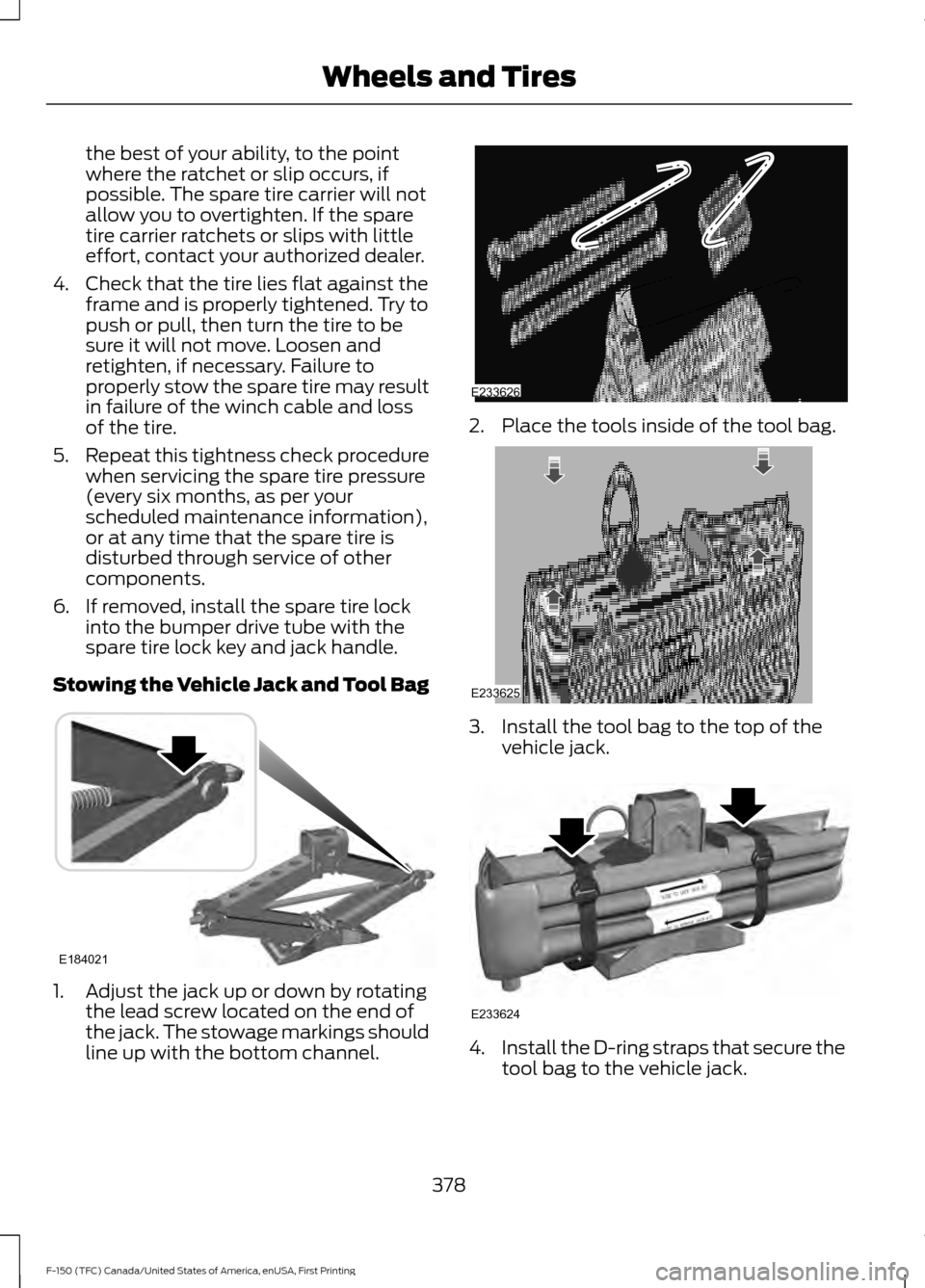
Stowing the Vehicle Jack and Tool Bag 1. Adjust the jack up or down by rotating
the lead screw located on the end of
the jack. The stowage markings should
line up with the bottom channel. 2. Place the tools inside of the tool bag.
3. Install the tool bag to the top of the
vehicle jack. 4.
Install the D-ring straps that secure the
tool bag to the vehicle jack.
378
F-150 (TFC) Canada/United States of America, enUSA, First Printing Wheels and TiresE184021 E233626 E233625 E233624
Page 382 of 599
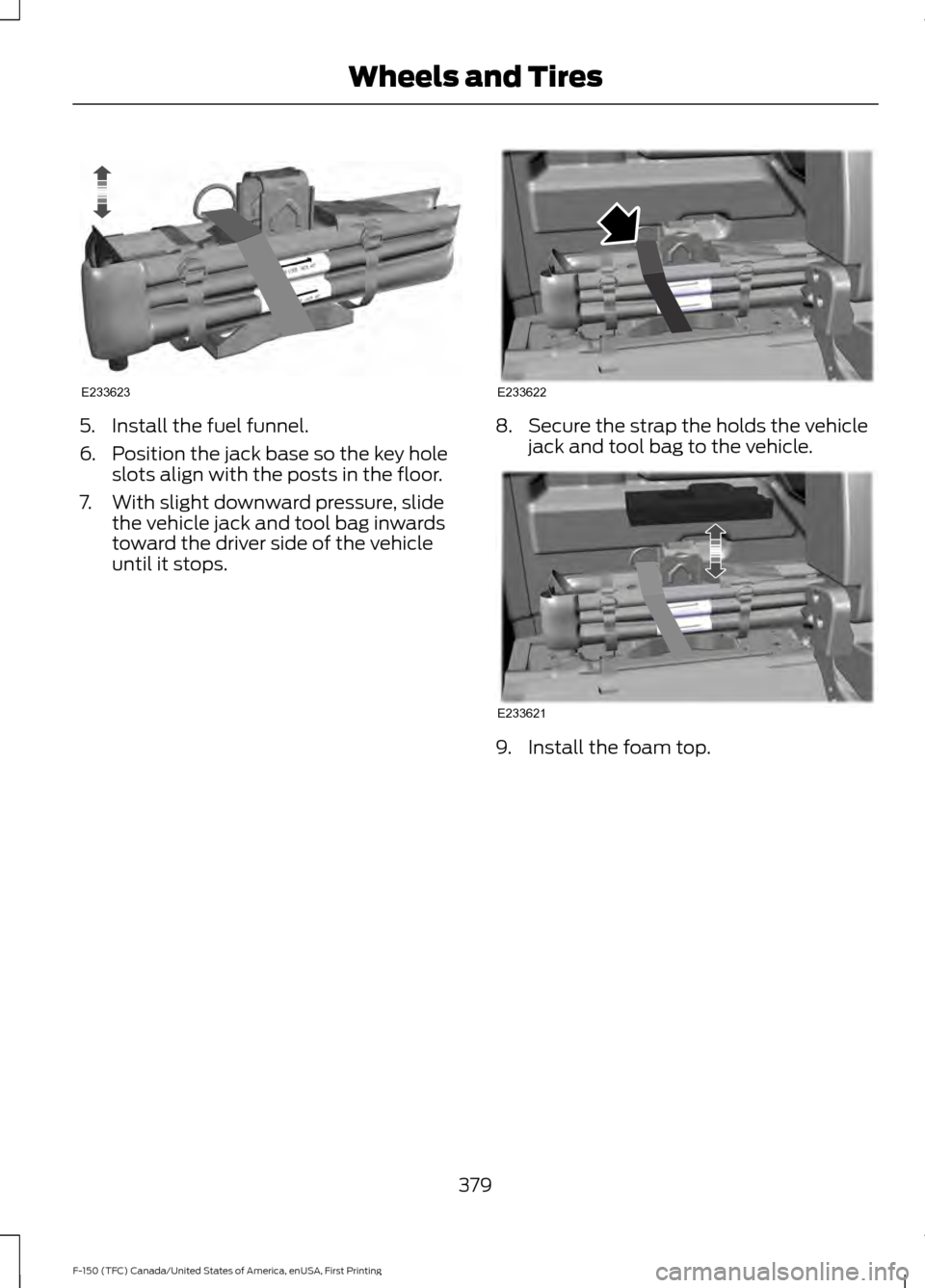
5. Install the fuel funnel.
6. Position the jack base so the key hole
slots align with the posts in the floor.
7. With slight downward pressure, slide the vehicle jack and tool bag inwards
toward the driver side of the vehicle
until it stops. 8. Secure the strap the holds the vehicle
jack and tool bag to the vehicle. 9. Install the foam top.
379
F-150 (TFC) Canada/United States of America, enUSA, First Printing Wheels and TiresE233623 E233622 E233621
Page 411 of 599
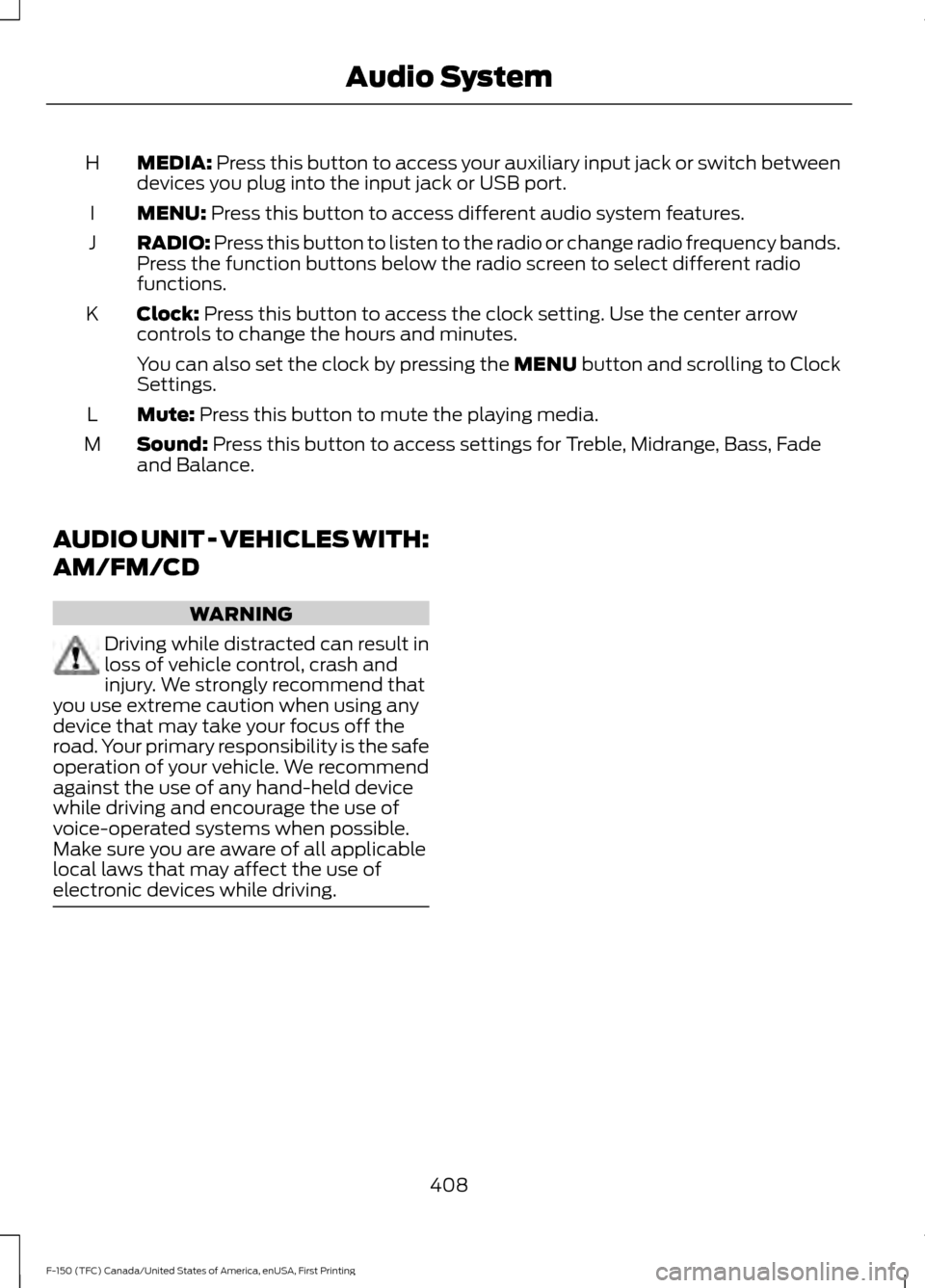
MEDIA: Press this button to access your auxiliary input jack or switch between
devices you plug into the input jack or USB port.
H
MENU:
Press this button to access different audio system features.
I
RADIO:
Press this button to listen to the radio or change radio frequency bands.
Press the function buttons below the radio screen to select different radio
functions.
J
Clock:
Press this button to access the clock setting. Use the center arrow
controls to change the hours and minutes.
K
You can also set the clock by pressing the MENU button and scrolling to Clock
Settings.
Mute:
Press this button to mute the playing media.
L
Sound:
Press this button to access settings for Treble, Midrange, Bass, Fade
and Balance.
M
AUDIO UNIT - VEHICLES WITH:
AM/FM/CD WARNING
Driving while distracted can result in
loss of vehicle control, crash and
injury. We strongly recommend that
you use extreme caution when using any
device that may take your focus off the
road. Your primary responsibility is the safe
operation of your vehicle. We recommend
against the use of any hand-held device
while driving and encourage the use of
voice-operated systems when possible.
Make sure you are aware of all applicable
local laws that may affect the use of
electronic devices while driving. 408
F-150 (TFC) Canada/United States of America, enUSA, First Printing Audio System
Page 413 of 599
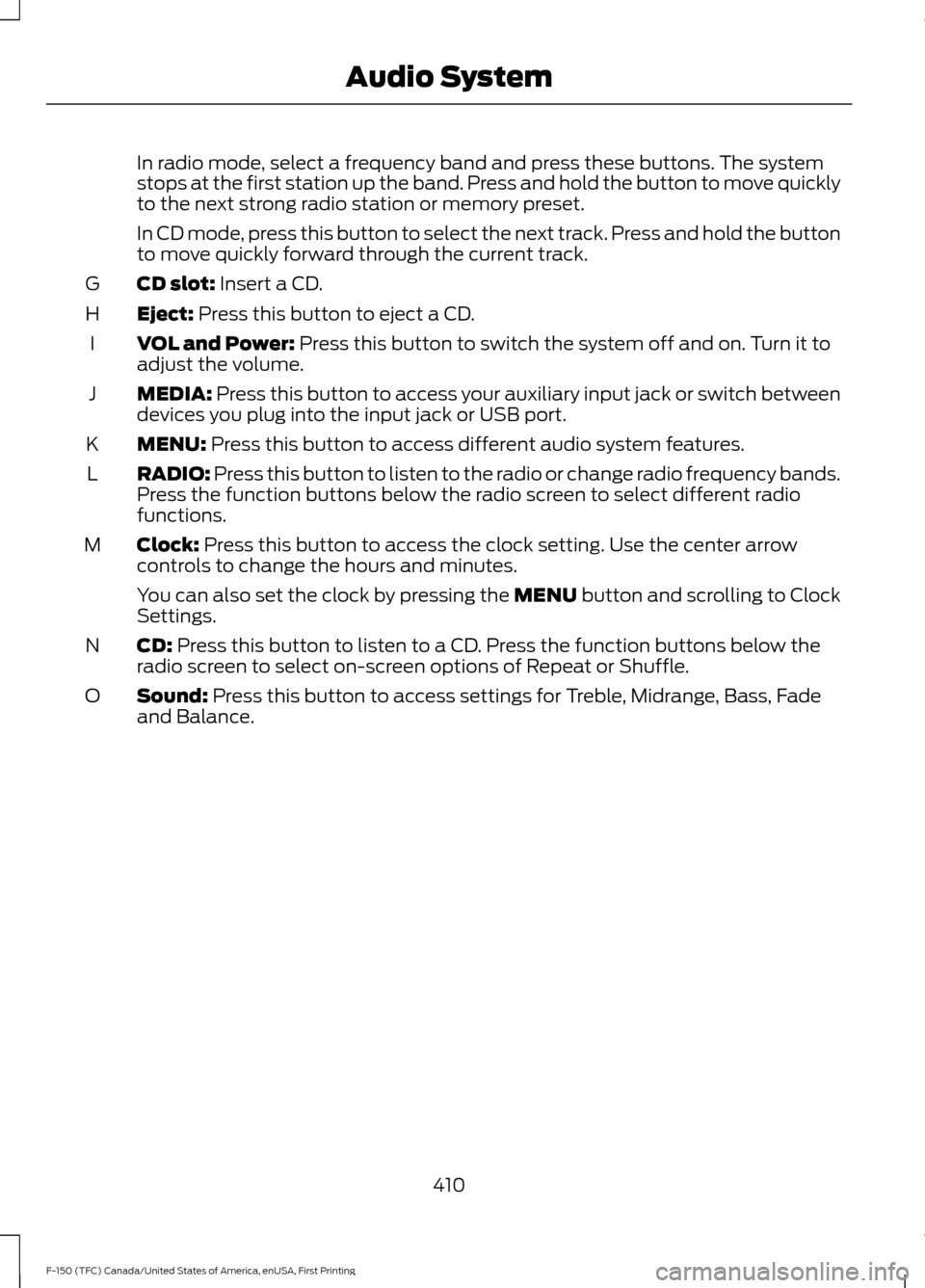
In radio mode, select a frequency band and press these buttons. The system
stops at the first station up the band. Press and hold the button to move quickly
to the next strong radio station or memory preset.
In CD mode, press this button to select the next track. Press and hold the button
to move quickly forward through the current track.
CD slot: Insert a CD.
G
Eject:
Press this button to eject a CD.
H
VOL and Power:
Press this button to switch the system off and on. Turn it to
adjust the volume.
I
MEDIA:
Press this button to access your auxiliary input jack or switch between
devices you plug into the input jack or USB port.
J
MENU:
Press this button to access different audio system features.
K
RADIO:
Press this button to listen to the radio or change radio frequency bands.
Press the function buttons below the radio screen to select different radio
functions.
L
Clock:
Press this button to access the clock setting. Use the center arrow
controls to change the hours and minutes.
M
You can also set the clock by pressing the MENU button and scrolling to Clock
Settings.
CD:
Press this button to listen to a CD. Press the function buttons below the
radio screen to select on-screen options of Repeat or Shuffle.
N
Sound:
Press this button to access settings for Treble, Midrange, Bass, Fade
and Balance.
O
410
F-150 (TFC) Canada/United States of America, enUSA, First Printing Audio System
Page 415 of 599
In phone mode, press the buttons to dial a phone number.
Function buttons: Select different functions of the audio system depending
on which mode you are in (such as Radio mode).
C
Cursor arrows and OK:
Use the up and down arrow buttons to select the
various settings. When you make your selection, press the left and right arrow
buttons to change the settings.
D
Press
OK to set or press MENU to exit.
TUNE:
Turn to search the frequency band in individual increments.
E
Seek:
Select a frequency band and press these buttons. The system stops at
the first station up the band. Press and hold the button to move quickly to the
next strong radio station or memory preset.
F
VOL and Power:
Press this button to switch the system off and on. Turn it to
adjust the volume.
G
PHONE:
Press this button to access the phone features of the SYNC system.
See SYNC™ (page 423).
H
MENU:
Press this button to access different audio system features.
I
MEDIA:
Press this button to access your auxiliary input jack or switch between
devices you plug into the input jack or USB port.
J
Clock:
Press this button to access the clock setting. Use the center arrow
controls to change the hours and minutes.
K
You can also set the clock by pressing the MENU button and scrolling to Clock
Settings.
RADIO:
Press this button to listen to the radio or change radio frequency bands.
Press the function buttons below the radio screen to select different radio
functions.
L
Sound:
Press this button to access settings for Treble, Midrange, Bass, Fade
and Balance.
M
412
F-150 (TFC) Canada/United States of America, enUSA, First Printing Audio System
Page 417 of 599
Display screen: View audio and SYNC options.
A
Number block:
B
In radio mode, store your favorite stations for later access. When tuned to any
station, press and hold a preset button until sound returns.
In CD mode, press a button to select a track.
In phone mode, press the buttons to dial a phone number.
Function buttons:
Select different functions of the audio system depending
on which mode you are in (such as Radio mode or CD mode).
C
Cursor arrows and OK:
Use the up and down arrow buttons to select the
various settings. When you make your selection, press the left and right arrow
buttons to change the settings.
D
Press
OK to set or press MENU to exit.
TUNE:
Turn to search the frequency band in individual increments.
E
Seek:
F
In radio mode, select a frequency band and press these buttons. The system
stops at the first station up the band. Press and hold the button to move quickly
to the next strong radio station or memory preset.
In CD mode, press this button to select the next track. Press and hold the button
to move quickly forward through the current track.
CD slot:
Insert a CD.
G
Eject:
Press this button to eject a CD.
H
VOL and Power:
Press this button to switch the system off and on. Turn it to
adjust the volume.
I
PHONE:
Press this button to access the phone features of the SYNC system.
See SYNC™ (page 423).
J
MENU:
Press this button to access different audio system features.
K
MEDIA:
Press this button to access your auxiliary input jack or switch between
devices you plug into the input jack or USB port.
L
Clock:
Press this button to access the clock setting. Use the center arrow
controls to change the hours and minutes.
M
You can also set the clock by pressing the MENU button and scrolling to Clock
Settings.
RADIO:
Press this button to listen to the radio or change radio frequency bands.
Press the function buttons below the radio screen to select different radio
functions.
N
414
F-150 (TFC) Canada/United States of America, enUSA, First Printing Audio System