remote start FORD F150 2017 13.G User Guide
[x] Cancel search | Manufacturer: FORD, Model Year: 2017, Model line: F150, Model: FORD F150 2017 13.GPages: 599, PDF Size: 7.34 MB
Page 79 of 599
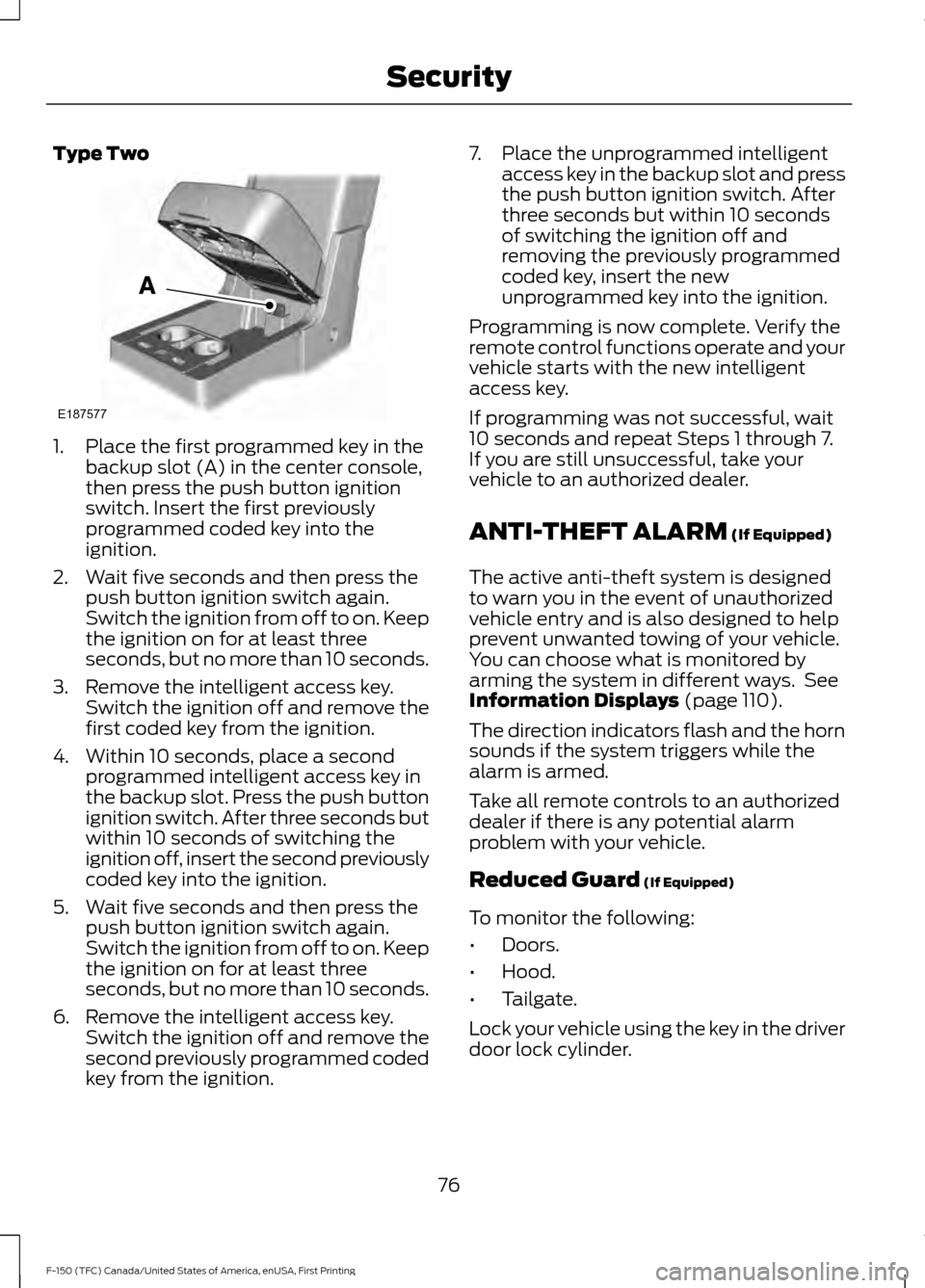
Type Two
1. Place the first programmed key in the
backup slot (A) in the center console,
then press the push button ignition
switch. Insert the first previously
programmed coded key into the
ignition.
2. Wait five seconds and then press the push button ignition switch again.
Switch the ignition from off to on. Keep
the ignition on for at least three
seconds, but no more than 10 seconds.
3. Remove the intelligent access key. Switch the ignition off and remove the
first coded key from the ignition.
4. Within 10 seconds, place a second programmed intelligent access key in
the backup slot. Press the push button
ignition switch. After three seconds but
within 10 seconds of switching the
ignition off, insert the second previously
coded key into the ignition.
5. Wait five seconds and then press the push button ignition switch again.
Switch the ignition from off to on. Keep
the ignition on for at least three
seconds, but no more than 10 seconds.
6. Remove the intelligent access key. Switch the ignition off and remove the
second previously programmed coded
key from the ignition. 7. Place the unprogrammed intelligent
access key in the backup slot and press
the push button ignition switch. After
three seconds but within 10 seconds
of switching the ignition off and
removing the previously programmed
coded key, insert the new
unprogrammed key into the ignition.
Programming is now complete. Verify the
remote control functions operate and your
vehicle starts with the new intelligent
access key.
If programming was not successful, wait
10 seconds and repeat Steps 1 through 7.
If you are still unsuccessful, take your
vehicle to an authorized dealer.
ANTI-THEFT ALARM (If Equipped)
The active anti-theft system is designed
to warn you in the event of unauthorized
vehicle entry and is also designed to help
prevent unwanted towing of your vehicle.
You can choose what is monitored by
arming the system in different ways. See
Information Displays
(page 110).
The direction indicators flash and the horn
sounds if the system triggers while the
alarm is armed.
Take all remote controls to an authorized
dealer if there is any potential alarm
problem with your vehicle.
Reduced Guard
(If Equipped)
To monitor the following:
• Doors.
• Hood.
• Tailgate.
Lock your vehicle using the key in the driver
door lock cylinder.
76
F-150 (TFC) Canada/United States of America, enUSA, First Printing SecurityE187577
Page 80 of 599
Full Guard (If Equipped)
To monitor the following:
• Doors.
• Hood.
• Tailgate.
• Movement inside your vehicle.
• Change in vehicle inclination, for
example, unwanted towing.
Lock your vehicle using the remote control
or the power door lock control with the
accompanying door open and then close
all doors.
Note: Do not choose full monitor mode if
movement within the vehicle is likely to
occur or when the vehicle is in transport.
Note: For correct operation of the interior
motion detection system, make sure all
windows are closed prior to arming the
system. This helps prevent accidental alarm
activation due to external influences and
make sure of correct interior motion
detection. Additionally, the interior motion
sensing system will not arm if any door is
ajar.
Arming the Alarm
The alarm is ready to arm when there is
not a key in the ignition. Lock your vehicle
to arm the alarm.
The direction indicators flash once after
you lock your vehicle. This indicates the
alarm is in the pre-armed mode. It fully
arms after 20 seconds.
Disarming the Alarm
Disarm the alarm by any of the following
actions:
• Press the power door unlock button
within the 20-second pre-armed mode.
• Unlock the doors with the remote
control or keyless entry keypad. •
Switch the ignition on or start your
vehicle.
• Use a key in the driver door lock
cylinder to unlock your vehicle, then
switch the ignition on within 12
seconds.
Note: Pressing the panic button on the
remote control stops the horn and direction
indicators, but will not disarm the system.
77
F-150 (TFC) Canada/United States of America, enUSA, First Printing Security
Page 115 of 599
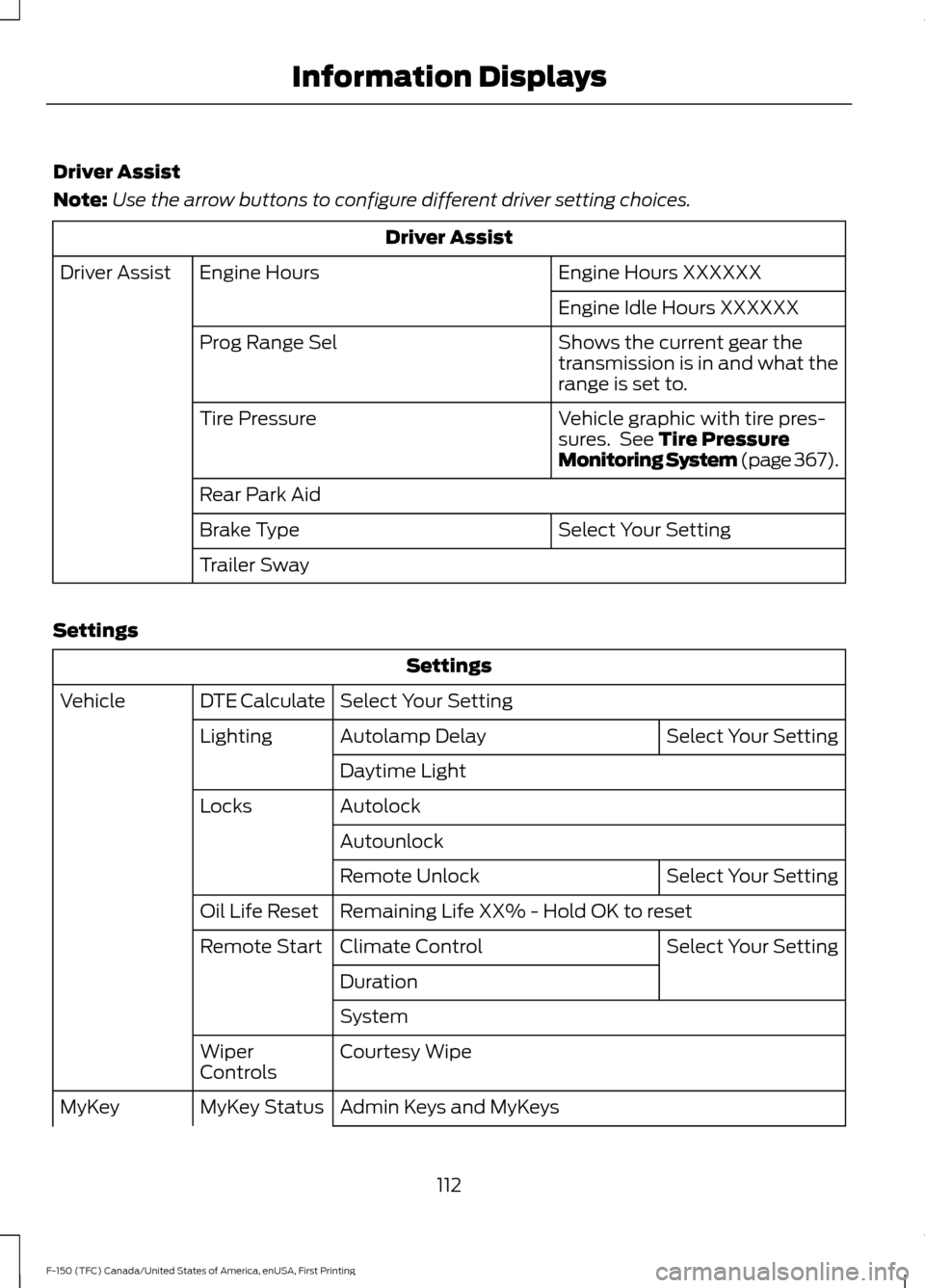
Driver Assist
Note:
Use the arrow buttons to configure different driver setting choices. Driver Assist
Engine Hours XXXXXX
Engine Hours
Driver Assist
Engine Idle Hours XXXXXX
Shows the current gear the
transmission is in and what the
range is set to.
Prog Range Sel
Vehicle graphic with tire pres-
sures. See Tire Pressure
Monitoring System (page 367).
Tire Pressure
Rear Park Aid
Select Your Setting
Brake Type
Trailer Sway
Settings Settings
Select Your Setting
DTE Calculate
Vehicle
Select Your Setting
Autolamp Delay
Lighting
Daytime Light
Autolock
Locks
Autounlock Select Your Setting
Remote Unlock
Remaining Life XX% - Hold OK to reset
Oil Life Reset
Select Your Setting
Climate Control
Remote Start
Duration
System
Courtesy Wipe
Wiper
Controls
Admin Keys and MyKeys
MyKey Status
MyKey
112
F-150 (TFC) Canada/United States of America, enUSA, First Printing Information Displays
Page 120 of 599
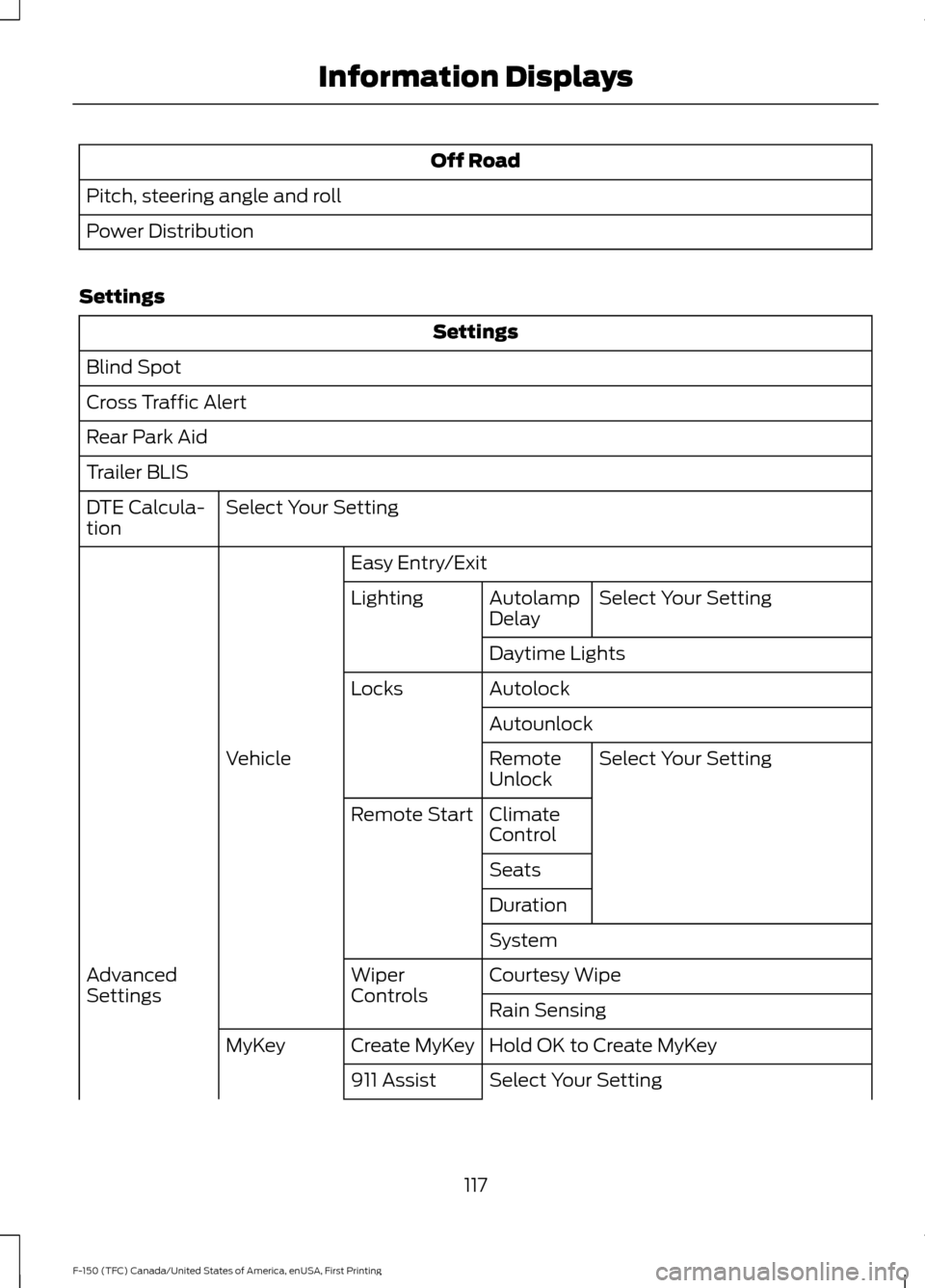
Off Road
Pitch, steering angle and roll
Power Distribution
Settings Settings
Blind Spot
Cross Traffic Alert
Rear Park Aid
Trailer BLIS Select Your Setting
DTE Calcula-
tion
Easy Entry/ExitSelect Your Setting
Autolamp
Delay
Lighting
Daytime Lights
Autolock
Locks
AutounlockSelect Your Setting
Remote
Unlock
Vehicle
Climate
Control
Remote Start
Seats
Duration
System
Courtesy Wipe
Wiper
Controls
Advanced
Settings
Rain Sensing
Hold OK to Create MyKey
Create MyKey
MyKey
Select Your Setting
911 Assist
117
F-150 (TFC) Canada/United States of America, enUSA, First Printing Information Displays
Page 128 of 599
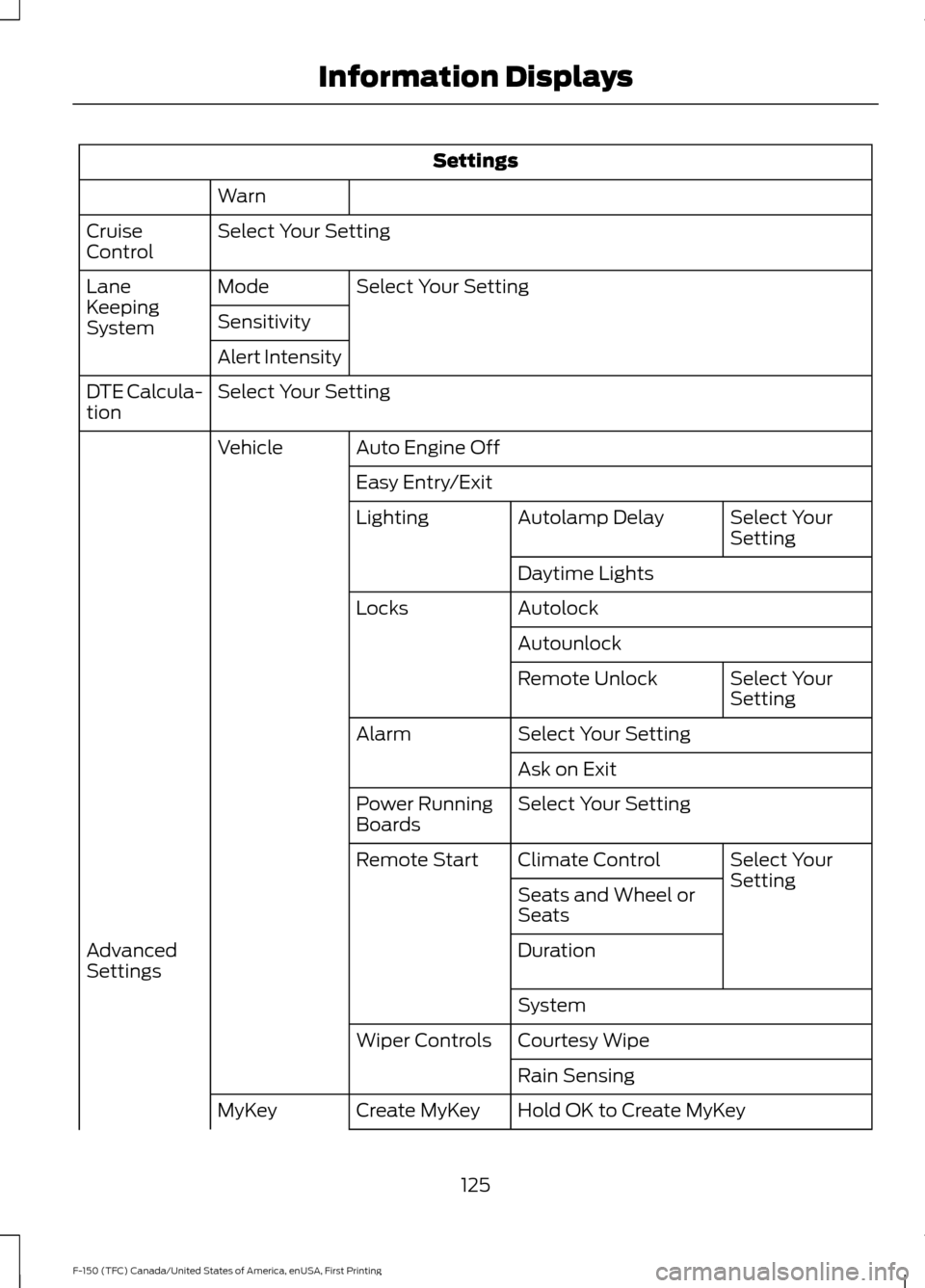
Settings
Warn
Select Your Setting
Cruise
Control
Select Your Setting
Mode
Lane
Keeping
System Sensitivity
Alert Intensity
Select Your Setting
DTE Calcula-
tion
Auto Engine Off
Vehicle
Easy Entry/Exit Select Your
Setting
Autolamp Delay
Lighting
Daytime Lights
Autolock
Locks
Autounlock Select Your
Setting
Remote Unlock
Select Your Setting
Alarm
Ask on Exit
Select Your Setting
Power Running
Boards
Select Your
Setting
Climate Control
Remote Start
Seats and Wheel or
Seats
Duration
Advanced
Settings
System
Courtesy Wipe
Wiper Controls
Rain Sensing
Hold OK to Create MyKey
Create MyKey
MyKey
125
F-150 (TFC) Canada/United States of America, enUSA, First Printing Information Displays
Page 140 of 599
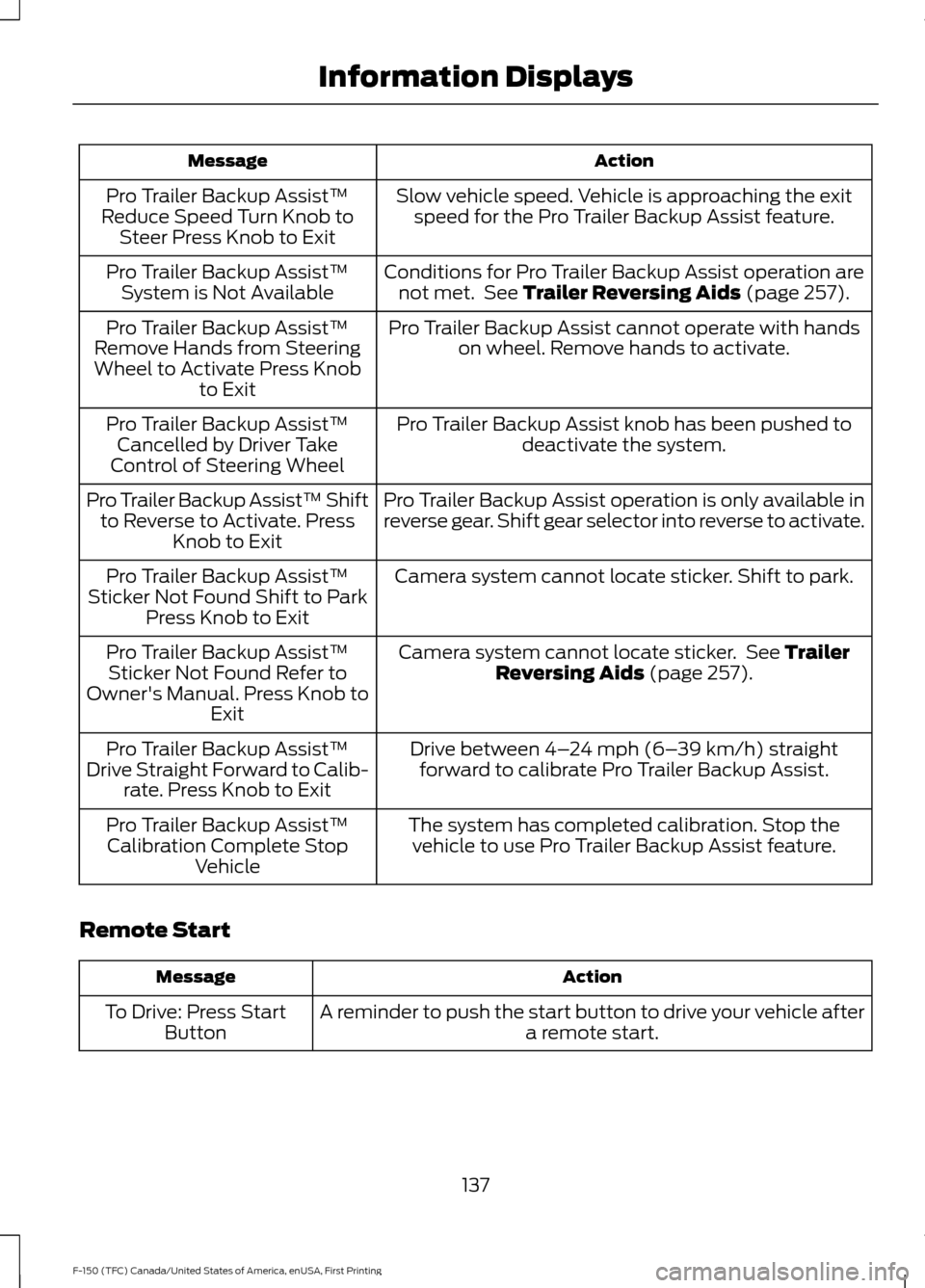
Action
Message
Slow vehicle speed. Vehicle is approaching the exitspeed for the Pro Trailer Backup Assist feature.
Pro Trailer Backup Assist™
Reduce Speed Turn Knob to Steer Press Knob to Exit
Conditions for Pro Trailer Backup Assist operation arenot met. See Trailer Reversing Aids (page 257).
Pro Trailer Backup Assist™
System is Not Available
Pro Trailer Backup Assist cannot operate with handson wheel. Remove hands to activate.
Pro Trailer Backup Assist™
Remove Hands from Steering
Wheel to Activate Press Knob to Exit
Pro Trailer Backup Assist knob has been pushed todeactivate the system.
Pro Trailer Backup Assist™
Cancelled by Driver Take
Control of Steering Wheel
Pro Trailer Backup Assist operation is only available in
reverse gear. Shift gear selector into reverse to activate.
Pro Trailer Backup Assist™ Shift
to Reverse to Activate. Press Knob to Exit
Camera system cannot locate sticker. Shift to park.
Pro Trailer Backup Assist™
Sticker Not Found Shift to Park Press Knob to Exit
Camera system cannot locate sticker. See
Trailer
Reversing Aids (page 257).
Pro Trailer Backup Assist™
Sticker Not Found Refer to
Owner's Manual. Press Knob to Exit
Drive between
4–24 mph (6– 39 km/h) straight
forward to calibrate Pro Trailer Backup Assist.
Pro Trailer Backup Assist™
Drive Straight Forward to Calib- rate. Press Knob to Exit
The system has completed calibration. Stop thevehicle to use Pro Trailer Backup Assist feature.
Pro Trailer Backup Assist™
Calibration Complete Stop Vehicle
Remote Start Action
Message
A reminder to push the start button to drive your vehicle after a remote start.
To Drive: Press Start
Button
137
F-150 (TFC) Canada/United States of America, enUSA, First Printing Information Displays
Page 151 of 599
For additional cabin air filter information,
or to replace the filter, see an authorized
dealer.
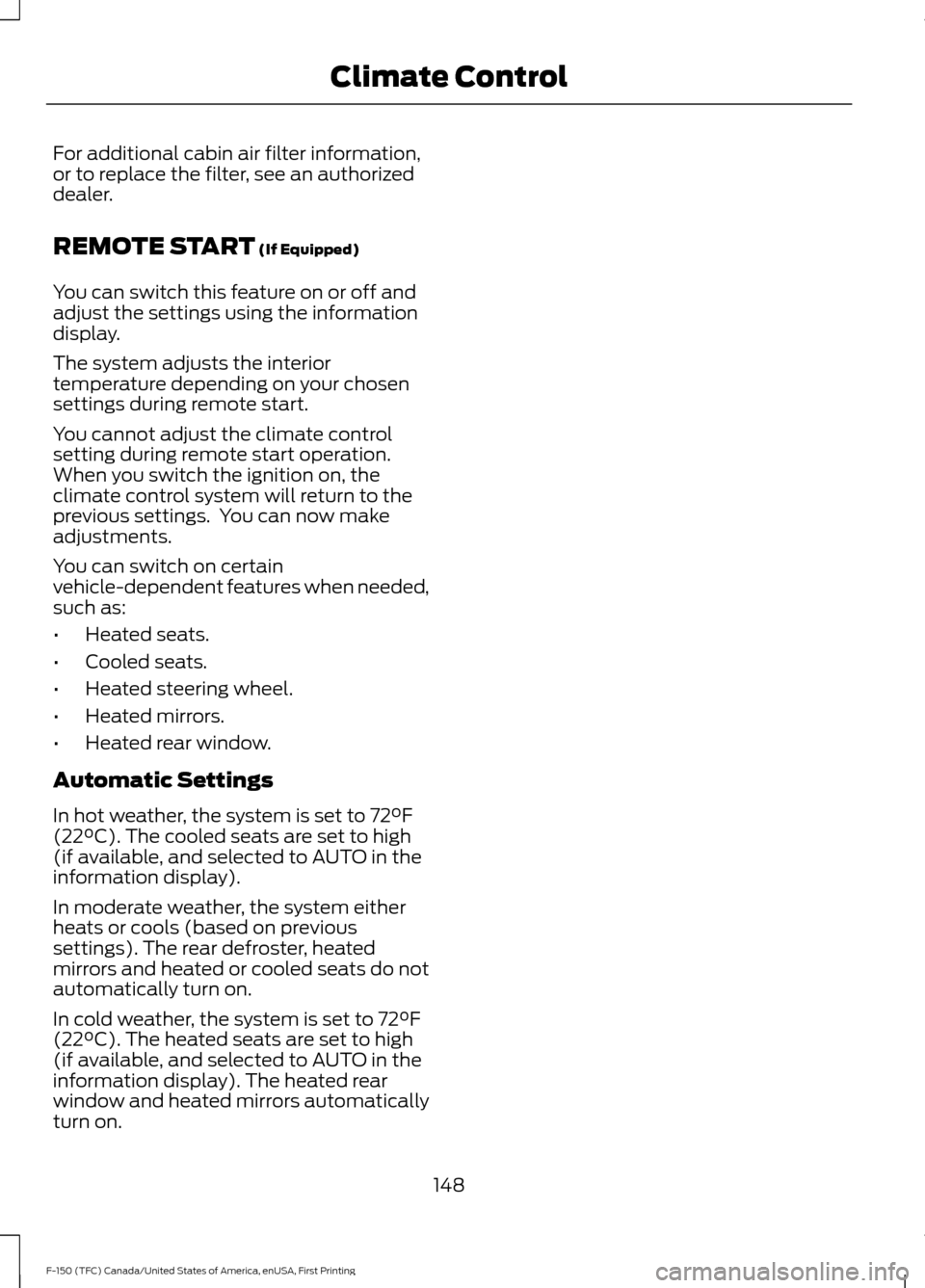
REMOTE START (If Equipped)
You can switch this feature on or off and
adjust the settings using the information
display.
The system adjusts the interior
temperature depending on your chosen
settings during remote start.
You cannot adjust the climate control
setting during remote start operation.
When you switch the ignition on, the
climate control system will return to the
previous settings. You can now make
adjustments.
You can switch on certain
vehicle-dependent features when needed,
such as:
• Heated seats.
• Cooled seats.
• Heated steering wheel.
• Heated mirrors.
• Heated rear window.
Automatic Settings
In hot weather, the system is set to
72°F
(22°C). The cooled seats are set to high
(if available, and selected to AUTO in the
information display).
In moderate weather, the system either
heats or cools (based on previous
settings). The rear defroster, heated
mirrors and heated or cooled seats do not
automatically turn on.
In cold weather, the system is set to
72°F
(22°C). The heated seats are set to high
(if available, and selected to AUTO in the
information display). The heated rear
window and heated mirrors automatically
turn on.
148
F-150 (TFC) Canada/United States of America, enUSA, First Printing Climate Control
Page 160 of 599
Press the heated seat symbol to cycle
through the various heat settings and off.
More indicator lights indicate warmer
settings.
Note:
The heated seats may remain on
after you remote start your vehicle, based
on your remote start settings. The heated
seats may also turn on when you start your
vehicle if they were on when you switched
your vehicle off.
Rear Heated Seats (If Equipped) WARNING
People who are unable to feel pain
to their skin because of advanced
age, chronic illness, diabetes, spinal
cord injury, medication, alcohol use,
exhaustion or other physical conditions,
must exercise care when using the heated
seat. The heated seat may cause burns
even at low temperatures, especially if
used for long periods of time. Do not place
anything on the seat that insulates against
heat, such as a blanket or cushion. This
may cause the heated seat to overheat.
Do not puncture the seat with pins, needles
or other pointed objects. This may damage
the heating element which may cause the
heated seat to overheat. An overheated
seat may cause serious personal injury. Do not do the following:
•
Place heavy objects on the seat.
• Operate the heated seat if water or any
other liquid spills on the seat. Allow the
seat to dry thoroughly.
Note: The engine must be running to use
this feature.
The rear seat heat controls are on the rear
of the center console. Press the heated seat symbol to cycle
through the various heat settings and off.
More indicator lights indicate warmer
settings.
The heated seat module resets at every
ignition run cycle. While the ignition is in
the on position, press the heated seat
switch to enable heating mode. When
activated, they turn off automatically when
you switch off the engine.
CLIMATE CONTROLLED SEATS
(If Equipped)
Heated Seats
157
F-150 (TFC) Canada/United States of America, enUSA, First Printing SeatsE146322 E146322
Page 234 of 599
Action
Cause
Clean the grille surface in front of the radar
or remove the object causing the obstruc-
tion.
The surface of the radar in the grille is dirty
or obstructed in some way.
Wait a short time. It may take several
minutes for the radar to detect that it is free
from obstruction.
The surface of the radar in the grille is clean
but the message remains in the display.
Do not use the system in these conditions
because it may not detect any vehicles
ahead.
Heavy rain or snow is interfering with the
radar signals.
Do not use the system in these conditions
because it may not detect any vehicles
ahead.
Swirling water, or snow or ice on the surface
of the road may interfere with the radar
signals.
Wait a short time or switch to normal cruise
control.
You are in a desert or remote area with no
other vehicles and no roadside objects.
Due to the nature of radar technology, it is
possible to get a blockage warning and not
have a blockage. This can happen, for
example, when driving in sparse rural or
desert environments. A false blocked
condition either self clears or clears after
a key cycle.
Switching to Normal Cruise
Control WARNING
Normal cruise control will not brake
when your vehicle is approaching
slower vehicles. Always be aware of
which mode you have selected and apply
the brakes when necessary. You can manually change from adaptive
cruise control to normal cruise control
through the information display. See
Information Messages (page 126). The cruise control indicator light
replaces the adaptive cruise
control indicator light if you
select normal cruise control. The gap
setting does not display, the system does
not automatically respond to lead vehicles
and automatic braking remains active to
maintain set speed. The system recalls its
last setting when you start your vehicle.
231
F-150 (TFC) Canada/United States of America, enUSA, First Printing Cruise Control
(If Equipped)E71340
Page 473 of 599
Website
www.syncmaroute.ca
SYNC Connect (If Equipped)
With a SYNC® Connect-equipped vehicle,
you can use FordPass® to track your
vehicle ’s location and remotely access
vehicle features such as start, lock and
unlock and vehicle status including fuel
level and approximate mileage. You can
also schedule specific times to remotely
start your vehicle so it’ s ready to hit the
road as soon as you are. SYNC Connect is
an optional feature on select 2017 MY
vehicles. FordPass® is available through
a free download via the Apple App Store®
or Google Play ™. Message and data rates
may apply. Services may be limited by
mobile phone network coverage area.
• FCC: LHJ-FAN
• IC: 2807E-FAN
Updating Your System
You can choose to download the update
onto a USB drive or use Wi-Fi to deliver
automatic updates.
USB Updates
To use the USB update you need to log
into your owner account and visit the SYNC
software update page. Website
www.owner.ford.com
www.syncmyride.ca
www.syncmaroute.ca
The website notifies you if an update is
available. You can then select to download
the update. You will need an empty USB drive. Please
check the website for minimum
requirements. Once you have inserted the
USB drive into your computer, choose to
start the download. Follow the instructions
provided to download the files to the USB
drive.
The installation of most files occurs in the
background, and does not interrupt your
use of the system. Navigation updates
cannot be installed in the background,
because the files are too large.
To install the update in your vehicle,
remove anything that is plugged in the USB
ports on the media hub and plug in the
USB drive containing the update. When
the USB drive is plugged in, the installation
should begin immediately. After a
successful installation, the update is
available the next time the vehicle is
started.
Please refer to the website for any further
actions.
Updating Over Wi-Fi
To update your System over Wi-Fi your
vehicle must be within the range of a Wi-Fi
access point. Data rates may apply.
To connect your system to Wi-Fi,
select:
Menu Item
Settings
Wi-Fi You can then select your
Wi-Fi network. You may
have to enter the security
code if the network is
secured. The system
confirms when it has
connected to the network.
Available
Wi-Fi
Networks
470
F-150 (TFC) Canada/United States of America, enUSA, First Printing SYNC™ 3
(If Equipped)