USB FORD F250 2013 Owners Manual
[x] Cancel search | Manufacturer: FORD, Model Year: 2013, Model line: F250, Model: FORD F250 2013Pages: 577, PDF Size: 7.74 MB
Page 4 of 577
Instrument Cluster 97
Gauges.............................................97
Warning lamps and indicators.............................99
Audible warnings and indicators..........................103
Information Displays 104
Controls............................................104
Information messages..................................119
Audio System 134
AM/FMstereo........................................136
AM/FM/CD with SYNC.................................137
Auxiliary input jack...................................141
USBport...........................................142
Satellite radio information...............................143
Climate Control 146
Manual heating and air conditioning........................146
Dual automatic temperature control........................148
Rear window defroster.................................152
Seats 154
Sitting in the correct position............................154
Head restraints.......................................155
Manual seats........................................157
Power seats.........................................159
Memory function.....................................160
Rear seats..........................................161
Heated and cooled seats................................165
Universal Garage Door Opener (If Equipped) 168
Car2U® home automation system.........................168
HomeLink® wireless control system.......................173
Table of Contents3
2013 F-250/350/450/550(f23)
Owners Guide gf, 3rd Printing, December 2012
USA(fus)
Page 143 of 577
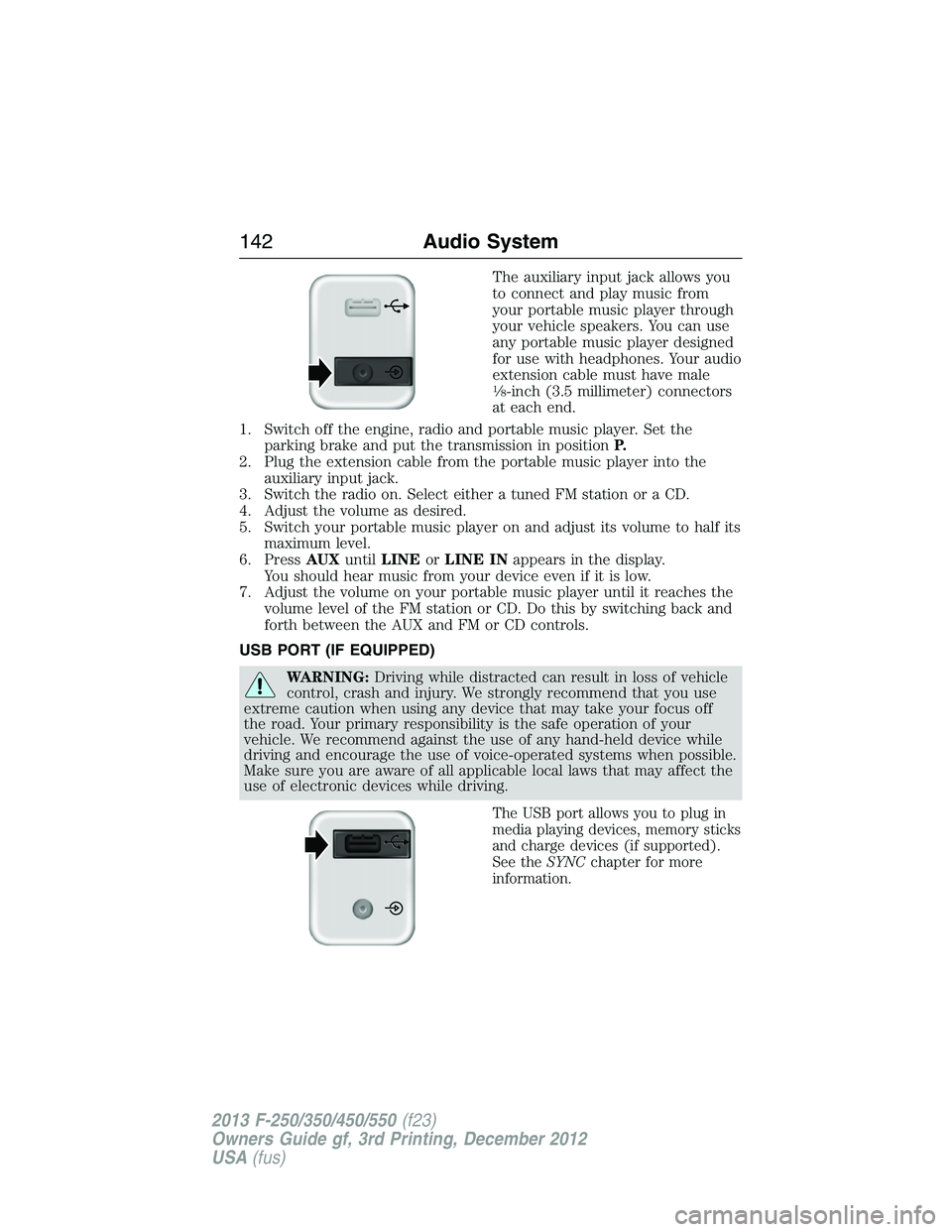
The auxiliary input jack allows you
to connect and play music from
your portable music player through
your vehicle speakers. You can use
any portable music player designed
for use with headphones. Your audio
extension cable must have male
18-inch (3.5 millimeter) connectors
at each end.
1. Switch off the engine, radio and portable music player. Set the
parking brake and put the transmission in positionP.
2. Plug the extension cable from the portable music player into the
auxiliary input jack.
3. Switch the radio on. Select either a tuned FM station or a CD.
4. Adjust the volume as desired.
5. Switch your portable music player on and adjust its volume to half its
maximum level.
6. PressAUXuntilLINEorLINE INappears in the display.
You should hear music from your device even if it is low.
7. Adjust the volume on your portable music player until it reaches the
volume level of the FM station or CD. Do this by switching back and
forth between the AUX and FM or CD controls.
USB PORT (IF EQUIPPED)
WARNING:Driving while distracted can result in loss of vehicle
control, crash and injury. We strongly recommend that you use
extreme caution when using any device that may take your focus off
the road. Your primary responsibility is the safe operation of your
vehicle. We recommend against the use of any hand-held device while
driving and encourage the use of voice-operated systems when possible.
Make sure you are aware of all applicable local laws that may affect the
use of electronic devices while driving.
The USB port allows you to plug in
media playing devices, memory sticks
and charge devices (if supported).
See theSYNCchapter for more
information.
142Audio System
2013 F-250/350/450/550(f23)
Owners Guide gf, 3rd Printing, December 2012
USA(fus)
Page 144 of 577
MEDIA HUB (IF EQUIPPED)
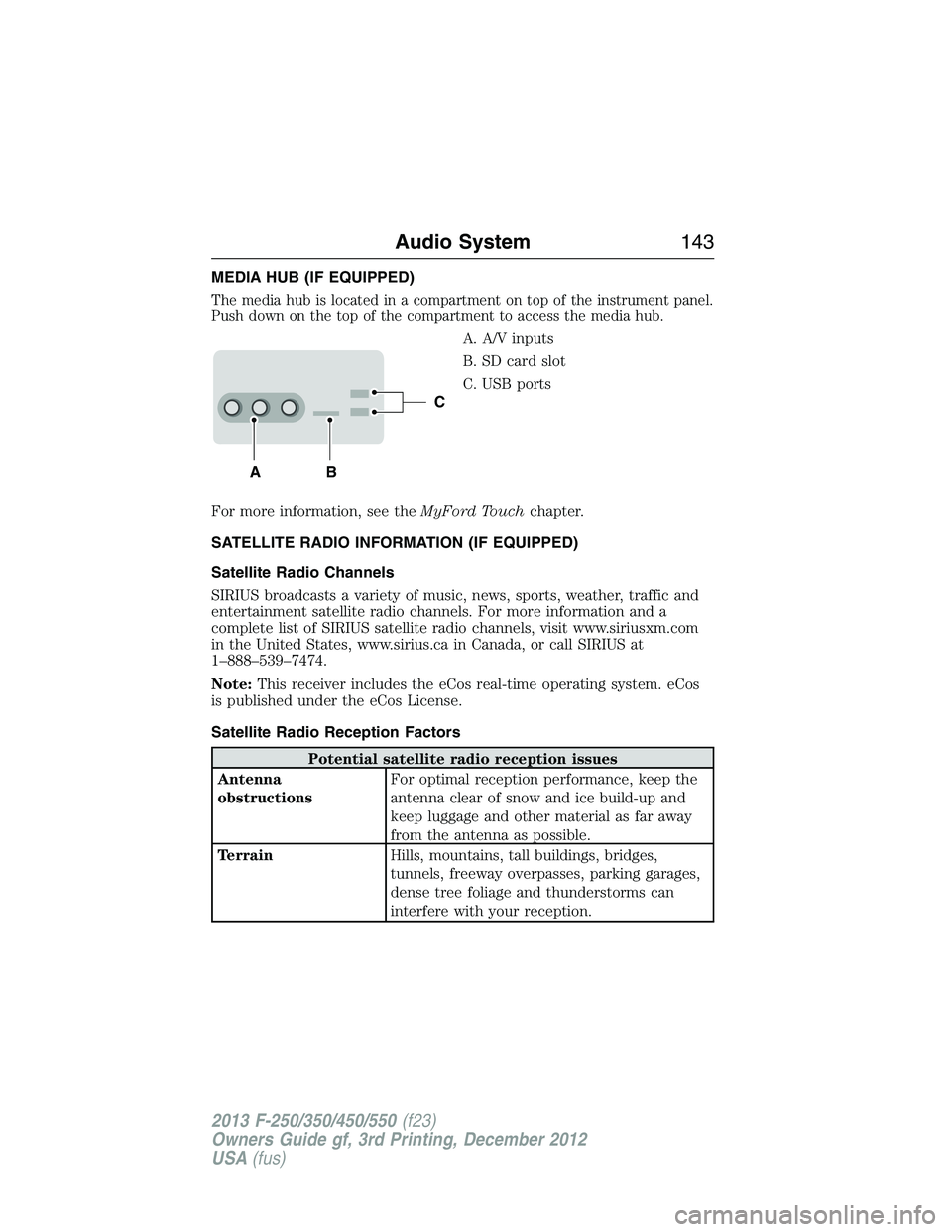
The media hub is located in a compartment on top of the instrument panel.
Push down on the top of the compartment to access the media hub.
A. A/V inputs
B. SD card slot
C. USB ports
For more information, see theMyFord Touchchapter.
SATELLITE RADIO INFORMATION (IF EQUIPPED)
Satellite Radio Channels
SIRIUS broadcasts a variety of music, news, sports, weather, traffic and
entertainment satellite radio channels. For more information and a
complete list of SIRIUS satellite radio channels, visit www.siriusxm.com
in the United States, www.sirius.ca in Canada, or call SIRIUS at
1–888–539–7474.
Note:This receiver includes the eCos real-time operating system. eCos
is published under the eCos License.
Satellite Radio Reception Factors
Potential satellite radio reception issues
Antenna
obstructionsFor optimal reception performance, keep the
antenna clear of snow and ice build-up and
keep luggage and other material as far away
from the antenna as possible.
TerrainHills, mountains, tall buildings, bridges,
tunnels, freeway overpasses, parking garages,
dense tree foliage and thunderstorms can
interfere with your reception.
C
BA
Audio System143
2013 F-250/350/450/550(f23)
Owners Guide gf, 3rd Printing, December 2012
USA(fus)
Page 421 of 577
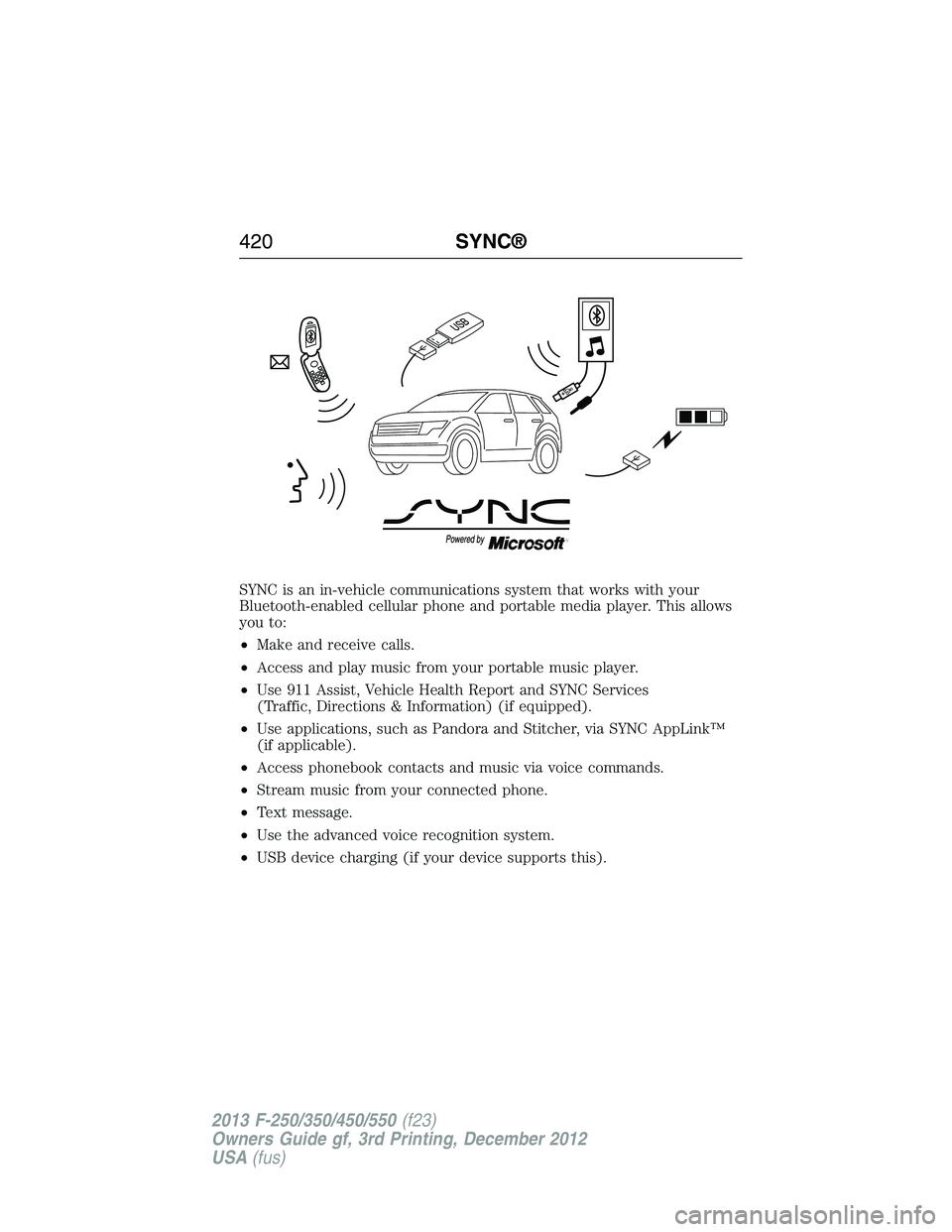
SYNC is an in-vehicle communications system that works with your
Bluetooth-enabled cellular phone and portable media player. This allows
you to:
•Make and receive calls.
•Access and play music from your portable music player.
•Use 911 Assist, Vehicle Health Report and SYNC Services
(Traffic, Directions & Information) (if equipped).
•Use applications, such as Pandora and Stitcher, via SYNC AppLink™
(if applicable).
•Access phonebook contacts and music via voice commands.
•Stream music from your connected phone.
•Text message.
•Use the advanced voice recognition system.
•USB device charging (if your device supports this).
420SYNC®
2013 F-250/350/450/550(f23)
Owners Guide gf, 3rd Printing, December 2012
USA(fus)
Page 424 of 577
The cellular profile, media device index, and development log remain in
the vehicle unless you delete them and are generally accessible only in
the vehicle when the cellular phone or media player is connected. If you
no longer plan to use the system or the vehicle, we recommend you
perform a Master Reset to erase all stored information.
System data cannot be accessed without special equipment and access to
the vehicle’s SYNC module. Ford Motor Company and Ford of Canada do
not access the system data for any purpose other than as described absent
consent, a court order, or where required by law enforcement, other
government authorities, or other third parties acting with lawful authority.
Other parties may seek to access the information independently of Ford
Motor Company and Ford of Canada. For further privacy information, see
the sections on 911 Assist, Vehicle Health Report, and Traffic, Directions
and Information.
USING VOICE RECOGNITION
This system helps you control many features using voice commands.
This allows you to keep your hands on the wheel and focus on what is in
front of you.
Initiating a Voice Session
Push the voice icon; a tone sounds and Listening appears in the
display. Say any of the following:
Say: If you want to:
“Phone” Make calls.
“USB”
Access the device connected to your USB port.
“Bluetooth Audio” Stream audio from your phone.
“Line in” Access the device connected to the auxiliary
input jack.
“Cancel” Cancel the requested action.
“SYNC” Return to the main menu.
“Voice settings”
Adjust the level of voice interaction and
feedback.
“Vehicle Health Report” Run a vehicle health report.*
“Services” Access the SYNC Services portal.*
“Mobile apps” Access mobile applications.*
“Help” Hear a list of voice commands available in the
current mode.
*If equipped, U.S. only.
SYNC®423
2013 F-250/350/450/550(f23)
Owners Guide gf, 3rd Printing, December 2012
USA(fus)
Page 450 of 577
SYNC AppLink™
Note:This feature is only available in the United States.
Note:Your smartphone must be paired and connected to SYNC to access
AppLink.
Note:iPhone users need to connect the phone to the USB port in order
to start the application. It is recommended to lock your iPhone after
starting an application.
Note:The AppLink feature is not available if your vehicle is equipped
with the MyFord Touch or MyLincoln Touch system.
Depending on your display type, you can access AppLink from the media
menu, the phone menu, or by using voice commands. Once an app is
running through AppLink, you can control main features of the app
through voice commands and steering wheel controls.
To Access Using the Phone Menu
1. Press the phone button to access the SYNC phone menu on-screen.
2. Scroll to Mobile Apps and pressOKto access a list of available
applications.
3. Scroll through the list of available applications and pressOKto
select a particular app.
4. Once an app is running through SYNC, you can access an app’s menu
by pressing theMENUbutton to first access the SYNC menu.
5. Select “SYNC-Media” by pressingOK.
6. Scroll until “
Menu), then pressOK.From here, you can access an application’s
features, such as Thumbs up, Thumbs down, etc. For more
information, please visit www.SYNCMyRide.com.
To Access Using the Media Menu
1.PressAUXbutton on the center console.
2. Press MENU to access the SYNC menu.
3. Select “SYNC-Media” by pressingOK.
4. Then scroll to Mobile Apps and pressOKto access a list of available
applications.
5. Scroll through the list of available applications and pressOKto
select a particular app.
6. Once an app is running through SYNC, you can access an app’s menu
by pressing theMENUbutton to first access the SYNC menu.
7. Select “SYNC-Media” by pressingOK.
8. Scroll until “
Menu), then pressOK.From here, you can access an application’s
features, such as Thumbs up, Thumbs down, etc. For more
information, please visit www.SYNCMyRide.com.
SYNC®449
2013 F-250/350/450/550(f23)
Owners Guide gf, 3rd Printing, December 2012
USA(fus)
Page 451 of 577
To Access Using Voice Commands
1. Press the voice icon.
2. When prompted, say “Mobile Apps”.
3. Say the name of the application after the tone.
4. The app should start. While an app is running through SYNC, you can
press the voice button and speak commands specific to the app, such
as “Play Station Quickmix”. Say “Help” to discover available voice
commands.
USING SYNC WITH YOUR MEDIA PLAYER
You can access and play music from your digital music player over
the vehicle’s speaker system using the system’s media menu or voice
commands. You can also sort and play your music by specific categories,
such as artists, albums, etc.
SYNC is capable of hosting nearly any digital media player including:
iPod, Zune™, Plays from device players, and most USB drives. SYNC also
supports audio formats such as MP3, WMA, WAV and ACC.
Connecting Your Digital Media Player via the USB Port
Note:If your digital media player has a power switch, ensure that the
device is turned on.
To connect using voice commands:
1. Plug the device into the vehicle’s USB port.
2. Press the voice icon and when prompted, say “USB”.
3. You can now play music by saying any of the appropriate voice
commands. See the media voice commands.
To connect using the system menu:
1. Plug the device into the vehicle’s USB port.
2. Press AUX and then MENU to enter the Media Menu.
3. Scroll until Select Source appears and press OK.
4. Scroll to select USB and press OK.
5. Depending on how many digital media files are on your connected
device, Indexing may appear in the radio display. When indexing is
complete, the screen returns to the Play Menu.
450SYNC®
2013 F-250/350/450/550(f23)
Owners Guide gf, 3rd Printing, December 2012
USA(fus)
Page 452 of 577
6. Press OK and scroll through selections of:
•Play All
•Artists
•Albums
•Genres
•Playlists
•Tracks
•Explore USB
•Similar Music
•Return
When the desired selection appears in the display, press OK to build
your desired music selection.
What’s Playing?
At any time when a track is playing, you can press the voice
icon and ask the system, “What’s playing?”. The system reads
the metadata tags (if populated) of the playing track to you.
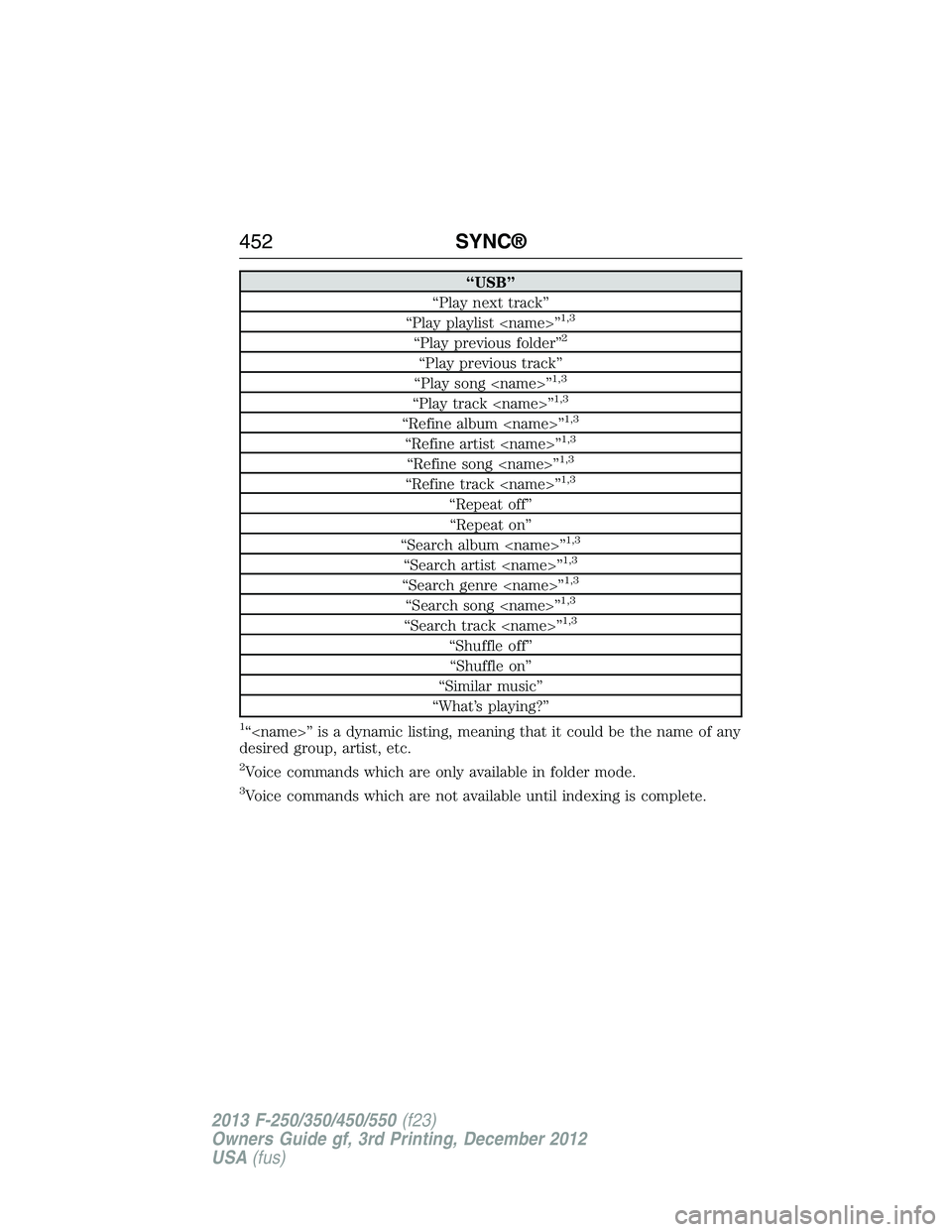
Media Voice Commands
Press the voice icon and, when prompted, say “USB” then any
of the following:
“USB”
“Autoplay off”
“Autoplay on”
“(Phone) (Media) (Bluetooth) Connections”
“Pause”
“Play”
“Play album
1,3
“Play all”
“Play artist
“Play genre
“Play next folder”2
SYNC®451
2013 F-250/350/450/550(f23)
Owners Guide gf, 3rd Printing, December 2012
USA(fus)
Page 453 of 577
“USB”
“Play next track”
“Play playlist
1,3
“Play previous folder”2
“Play previous track”
“Play song
“Play track
“Refine album
“Refine artist
“Refine song
“Refine track
“Repeat off”
“Repeat on”
“Search album
1,3
“Search artist
“Search genre
“Search song
“Search track
“Shuffle off”
“Shuffle on”
“Similar music”
“What’s playing?”
1“
desired group, artist, etc.
2Voice commands which are only available in folder mode.
3Voice commands which are not available until indexing is complete.
452SYNC®
2013 F-250/350/450/550(f23)
Owners Guide gf, 3rd Printing, December 2012
USA(fus)
Page 454 of 577
Voice command guide
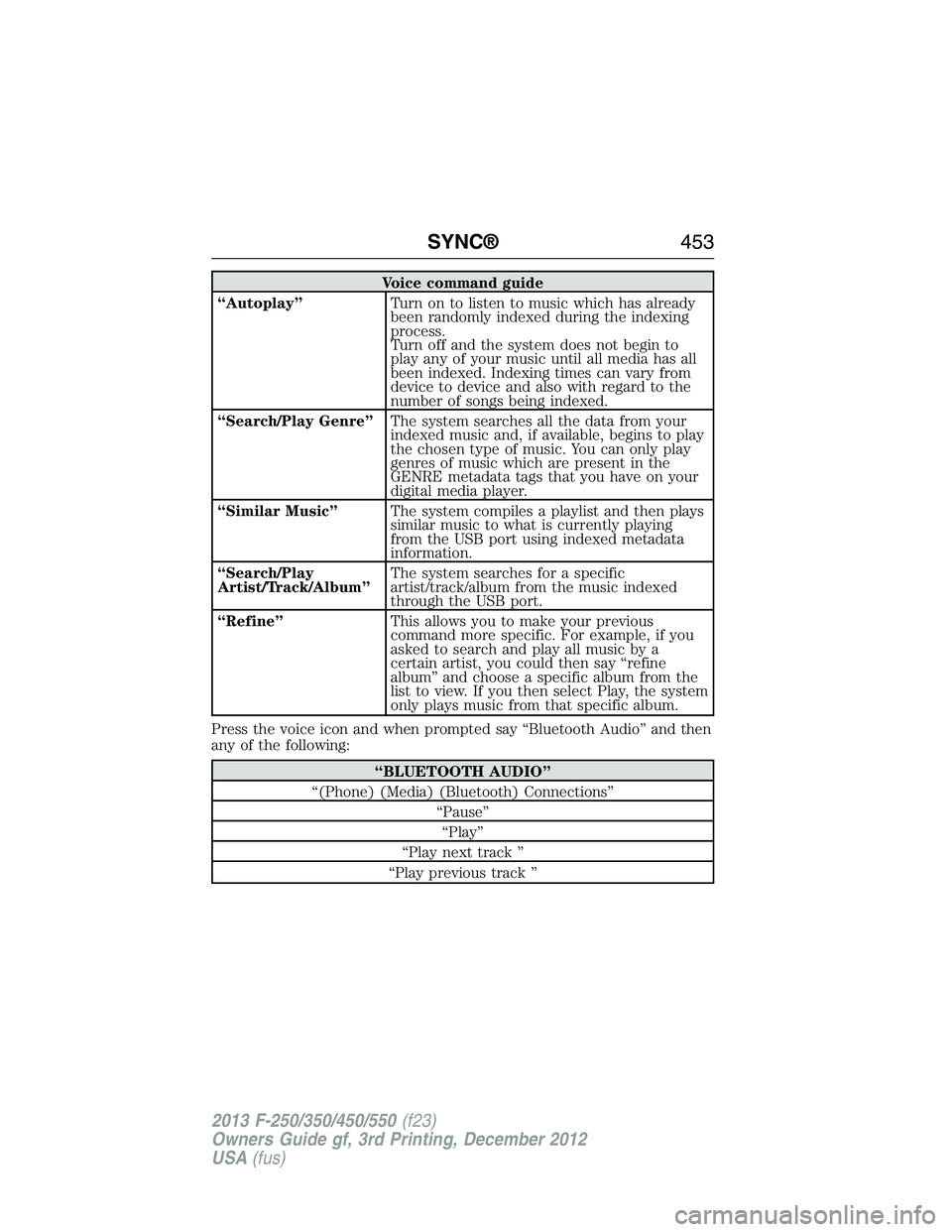
“Autoplay”Turn on to listen to music which has already
been randomly indexed during the indexing
process.
Turn off and the system does not begin to
play any of your music until all media has all
been indexed. Indexing times can vary from
device to device and also with regard to the
number of songs being indexed.
“Search/Play Genre”The system searches all the data from your
indexed music and, if available, begins to play
the chosen type of music. You can only play
genres of music which are present in the
GENRE metadata tags that you have on your
digital media player.
“Similar Music”The system compiles a playlist and then plays
similar music to what is currently playing
from the USB port using indexed metadata
information.
“Search/Play
Artist/Track/Album”The system searches for a specific
artist/track/album from the music indexed
through the USB port.
“Refine”This allows you to make your previous
command more specific. For example, if you
asked to search and play all music by a
certain artist, you could then say “refine
album” and choose a specific album from the
list to view. If you then select Play, the system
only plays music from that specific album.
Press the voice icon and when prompted say “Bluetooth Audio” and then
any of the following:
“BLUETOOTH AUDIO”
“(Phone) (Media) (Bluetooth) Connections”
“Pause”
“Play”
“Play next track ”
“Play previous track ”
SYNC®453
2013 F-250/350/450/550(f23)
Owners Guide gf, 3rd Printing, December 2012
USA(fus)