light FORD F250 2014 Owners Manual
[x] Cancel search | Manufacturer: FORD, Model Year: 2014, Model line: F250, Model: FORD F250 2014Pages: 460, PDF Size: 5.33 MB
Page 285 of 460
1.
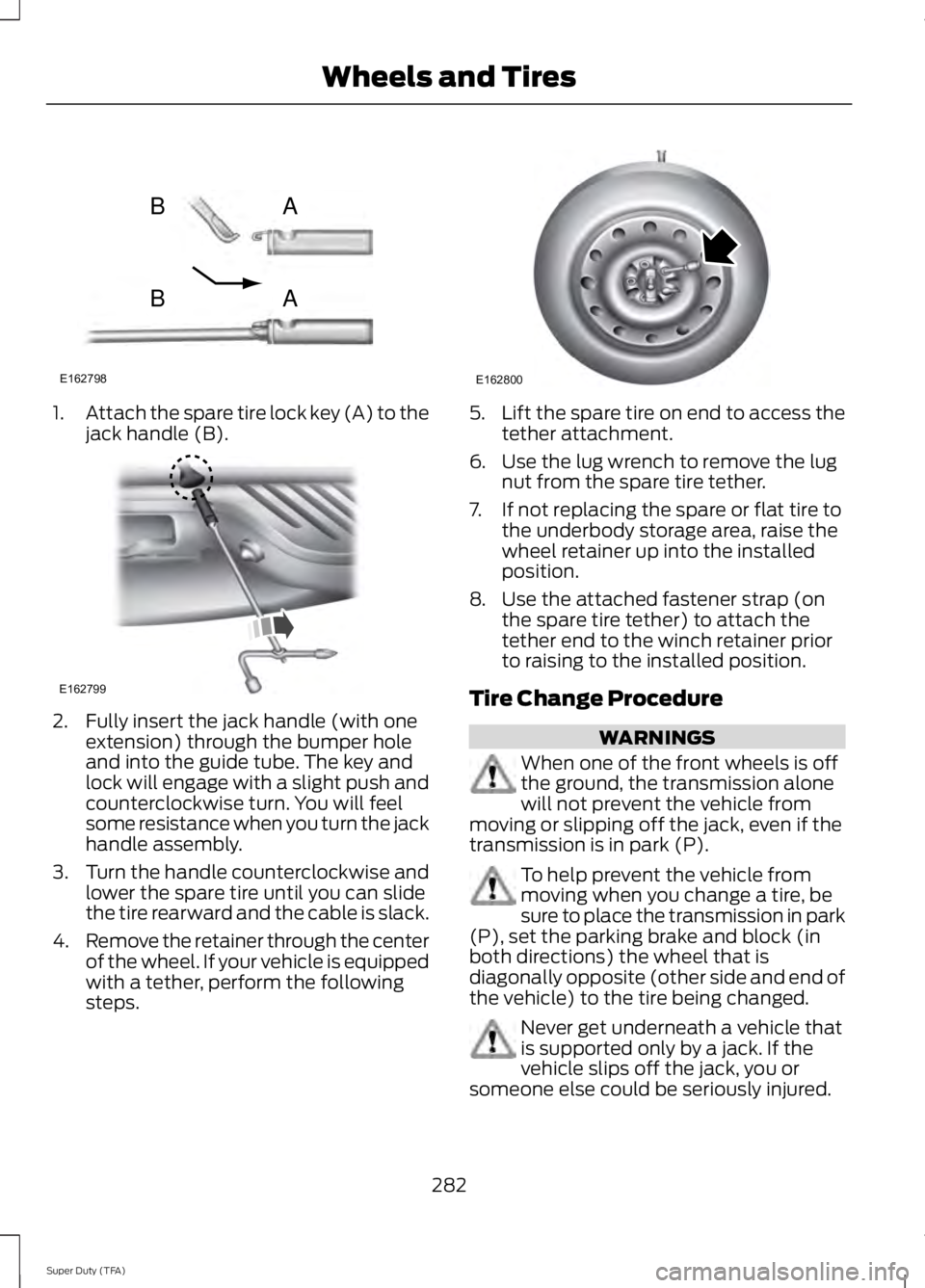
Attach the spare tire lock key (A) to the
jack handle (B). 2. Fully insert the jack handle (with one
extension) through the bumper hole
and into the guide tube. The key and
lock will engage with a slight push and
counterclockwise turn. You will feel
some resistance when you turn the jack
handle assembly.
3. Turn the handle counterclockwise and
lower the spare tire until you can slide
the tire rearward and the cable is slack.
4. Remove the retainer through the center
of the wheel. If your vehicle is equipped
with a tether, perform the following
steps. 5.
Lift the spare tire on end to access the
tether attachment.
6. Use the lug wrench to remove the lug nut from the spare tire tether.
7. If not replacing the spare or flat tire to the underbody storage area, raise the
wheel retainer up into the installed
position.
8. Use the attached fastener strap (on the spare tire tether) to attach the
tether end to the winch retainer prior
to raising to the installed position.
Tire Change Procedure WARNINGS
When one of the front wheels is off
the ground, the transmission alone
will not prevent the vehicle from
moving or slipping off the jack, even if the
transmission is in park (P). To help prevent the vehicle from
moving when you change a tire, be
sure to place the transmission in park
(P), set the parking brake and block (in
both directions) the wheel that is
diagonally opposite (other side and end of
the vehicle) to the tire being changed. Never get underneath a vehicle that
is supported only by a jack. If the
vehicle slips off the jack, you or
someone else could be seriously injured.
282
Super Duty (TFA) Wheels and TiresE162798
AB
AB E162799 E162800
Page 304 of 460
GENERAL INFORMATION
Radio Frequencies and Reception
Factors
AM and FM frequencies are established by
the Federal Communications Commission
(FCC) and the Canadian Radio and
Telecommunications Commission (CRTC).
Those frequencies are:
•
AM: 530, 540-1700, 1710 kHz
• FM: 87.9-107.7, 107.9 MHz Radio Reception Factors
The further you travel from an FM station, the weaker the
signal and the weaker the reception.
Distance and strength
Hills, mountains, tall buildings, bridges, tunnels, freeway
overpasses, parking garages, dense tree foliage and
thunderstorms can interfere with the reception.
Terrain
When you pass a ground-based broadcast repeating
tower, a stronger signal may overtake a weaker one and
result in the audio system muting.
Station overload
CD and CD Player Information
Note: CD units play commercially pressed
4.75-inch (12 centimeter) audio compact
discs only. Due to technical incompatibility,
certain recordable and re-recordable
compact discs may not function correctly
when used in Ford CD players.
Note: Do not insert CDs with homemade
paper (adhesive) labels into the CD player
as the label may peel and cause the CD to
become jammed. You should use a
permanent felt tip marker rather than
adhesive labels on your homemade CDs.
Ballpoint pens may damage CDs. Please
contact an authorized dealer for further
information.
Note: Do not use any irregularly shaped
discs or discs with a scratch protection film
attached.
Always handle discs by their edges only.
Clean the disc with an approved CD
cleaner only. Wipe it from the center of the
disc toward the edge. Do not clean in a
circular motion. Do not expose discs to direct sunlight or
heat sources for extended periods.
MP3 Track and Folder Structure
Audio systems capable of recognizing and
playing MP3 individual tracks and folder
structures work as follows:
•
There are two different modes for MP3
disc playback: MP3 track mode
(system default) and MP3 folder
mode.
• MP3 track mode ignores any folder
structure on the MP3 disc. The player
numbers each MP3 track on the disc
(noted by the .mp3 file extension) from
T001 to a maximum of T255. The
maximum number of playable MP3
files may be less depending on the
structure of the CD and exact model
of radio present.
301
Super Duty (TFA) Audio System
Page 310 of 460
The multicast indicator appears in FM
mode (only) if the current station is
broadcasting multiple digital broadcasts.
The highlighted numbers signify available
digital channels where new or different
content is available. HD1 signifies the main
programming status and is available in
analog and digital broadcasts. Other
multicast stations (HD2 through HD7) are
only available digitally.
When HD Radio broadcasts are active, you
can access the following functions:
When HD Radio broadcasts are active, you
can access the following functions:
•
Scan allows you to hear a brief
sampling of all available stations. This
feature still works when HD Radio
reception is on, although it does not
scan for HD2-HD7 channels. You may
see the HD logo appear if the station
has a digital broadcast.
• Memory presets
allow you to save an
active channel as a memory preset.
Touch and hold a memory preset slot
until the sound returns. There is a brief
mute while the radio saves the station.
Sound returns when finished. When
switching to an HD2 or HD3 memory
preset, the sound mutes before the
digital audio plays, because the system
has to reacquire the digital signal.
Note: As with any saved radio station, you
cannot access the saved station if your
vehicle is outside the station ’s reception
area.
HD Radio Reception and Station Troubleshooting Potential reception issues
If you are listening to a multicast station and you are on
the fringe of the reception area, the station may mute due
to weak signal strength.
Reception area
If you are listening to HD1, the system switches back to
the analog broadcast until the digital broadcast is available
again. However, if you are listening to any of the possible
HD2-HD7 multicast channels, the station mutes and stays
muted unless it is able to connect to the digital signal
again.
When the system first receives a station (aside from HD2-
HD7 multicast stations), it first plays the station in the
analog version. Once the receiver verifies the station is an
HD Radio station, it shifts to the digital version. Depending
on the station quality, you may hear a slight sound change
when the station changes from analog to digital. Blending
is the shift from analog to digital sound or digital back to
analog sound.
Station blending
307
Super Duty (TFA) Audio System
Page 354 of 460
Press to select any of the following:
•
AM
• FM
• SIRIUS
• CD
• USB
• BT Stereo
• SD Card
• A/V In
Using the Touch-Sensitive
Controls on Your System
To turn a feature on and off, just touch the
graphic with your finger. To get the best
performance from the touch-sensitive
controls:
• Do not press hard on the controls. They
are sensitive to light touch.
• Use your bare finger to touch the center
of a touch-control graphic. Touching
off-center of the graphic may affect
operation of a nearby control.
• Make sure your hands are clean and
dry.
• Since the touchscreen operates based
on the touch of a finger, you may have
trouble using it if you are wearing
gloves.
• Keep metal and other conductive
material away from the surface of the
touchscreen as this may cause
electronic interference (for example,
inadvertently turning on a feature other
than the one you meant to turn on).
Cleaning the Touchscreen Display
Use a clean, soft cloth such as one used
for cleaning glasses. If dirt or fingerprints
are still visible, apply a small amount of
alcohol to the cloth. Do not pour or spray
alcohol onto the display. Do not use
detergent or any type of solvent to clean
the display. Using Your Bezel Controls
Depending on your vehicle and option
package, you may also have these controls
on your bezel:
•
Power: Switch the media or climate
features off and on.
• VOL: Control the volume of playing
media.
• Temperature, fan and climate control
buttons: Control the temperature, fan
speed or settings of the climate control
system.
• Seek and Tune buttons: Use as you
normally would in media modes.
• Eject: Eject a CD from the
entertainment system.
• SOURCE:
Touch the word repeatedly
to see all available media modes. The
screen does not change, but you see
the media change in the lower left
status bar.
• MEDIA:
Touch the word to access the
Sound menu where you can adjust
settings such as: Bass, Treble,
Midrange, Balance and Fade, DSP
(Digital Signal Processing), Occupancy
Mode and Speed Compensated
Volume. (Your vehicle may not have
all of these sound options.)
• Hazard flasher: Switch the hazard
flashers off and on.
Using Your Steering Wheel
Controls
Depending on your vehicle and option
package, you can use your steering wheel
controls to interact with the touchscreen
system. See
Steering Wheel (page 60).
Support
The SYNC support team is available to
help you with any questions you are not
able to answer on your own.
351
Super Duty (TFA) MyFord Touch
™
(If Equipped)
Page 360 of 460
Under this menu, you can set
your clock, access and adjust the
display, sound and vehicle
settings as well as access settings for
specific modes or the help feature.
Clock
Note: You cannot manually set the date.
Your vehicle ’s GPS does this for you.
Note: If the battery has been disconnected,
your vehicle needs to acquire a GPS signal
to update the clock. Once your vehicle
acquires the signal, it may take a few
minutes for the update to display the correct
time. 1. Press the Settings icon > Clock.
2. Press
+ and - to adjust the time.
From this screen, you can also make other
adjustments such as 12-hour or 24-hour
mode, activate GPS time synchronization
and have the system automatically update
new time zones.
You can also turn the outside air
temperature display off and on. It appears
at the top center of the touchscreen, next
to the time and date.
The system automatically saves any
updates you make to the settings.
Display
You can adjust the touchscreen display
through the touchscreen or by pressing the
voice button on your steering wheel
controls and when prompted, say, "Display
settings". Press the Settings icon >
Display
, to access and make
adjustments using the
touchscreen. •
Brightness
allows you to make the
screen display brighter or dimmer.
• Auto DIM
, when set to On, lets you use
the Auto Dim Manual Offset feature.
When set to
Off, screen brightness
does not change.
• Mode
allows you to set the screen to
a certain brightness or have the system
automatically change based on the
outside light level, or turn the display
off.
• If you select
AUTO or NIGHT, you
have the options of turning the
display's Auto Dim feature on or off
and changing the Auto Dim Manual
Offset feature.
• Auto Dim Manual Offset
allows you
to adjust screen dimming as the
outside lighting conditions change from
day to night. This feature also allows
you to adjust screen brightness using
the instrument panel dimming control.
• Edit Wallpaper
•You can have your touchscreen
display the default photo or upload
your own.
Uploading Photos for Your Home
Screen Wallpaper
Note: You cannot load photos directly from
your camera. You must access the photos
either from your USB mass storage device
or from an SD card.
Note: Photographs with extremely large
dimensions (such as 2048 x 1536) may not
be compatible and appear as a blank
(black) image on the display.
Your system allows you to upload and view
up to 32 photos. To access, press the Settings
icon >
Display > Edit
Wallpaper, and then follow the
system prompts to upload your
photographs.
357
Super Duty (TFA) MyFord Touch
™
(If Equipped)E142607 E142607 E142607 E142607
Page 371 of 460
![FORD F250 2014 Owners Manual Sample commands
"Sirius <0-223>" *
"Sports games" *
* This command is only usable if you have
an active subscription to SIRIUS satellite
radio.
** The commands that have [ ] around t](/img/11/58775/w960_58775-370.png "FORD F250 2014 Owners Manual Sample commands
\"Sirius <0-223>\" *
\"Sports games\" *
* This command is only usable if you have
an active subscription to SIRIUS satellite
radio.
** The commands that have [ ] around t")
Sample commands
"Sirius <0-223>" *
"Sports games" *
* This command is only usable if you have
an active subscription to SIRIUS satellite
radio.
** The commands that have [ ] around the
word means that the word is optional. For
example, if you say, "Play Metallica", this
is the same as the voice command, "Play
[artist]
AM/FM Radio Touch the AM or FM tab to listen
to the radio.
To change between AM and FM presets,
just touch the AM or FM tab.
Memory Presets
Save a station by pressing and holding one
of the memory preset areas. There is a brief
mute while the radio saves the station.
Sound returns when finished.
HD Radio
Touch this button to turn HD Radio on. The
light on the button illuminates when the
feature is on. HD Radio allows you to
receive radio broadcasts digitally, where
available, providing free, crystal-clear
sound. See HD Radio information later in
this chapter.
Scan
Touch this button to go to the next strong
AM or FM radio station. The light on the
button illuminates when the feature is on. Options
Sound Settings
Touch this button to adjust settings for:
•
Bass
• Midrange
• Treble
• Balance and Fade
• DSP (Digital Signal processing)
• Occupancy Mode
• Speed Compensated Volume.
Note: Your vehicle may not have all these
sound settings.
Set PTY for Seek/Scan
This allows you to select a category of
music you would like to search for. You can
then choose to either seek or scan for the
stations playing that category.
RDS Text Display
This allows you to view the information
broadcast by FM stations.
AST
AST (Autostore) allows you to have the
system automatically store the six
strongest stations in your current location.
TAG Button
This feature is available when HD Radio is
on, and allows you to tag a song to
download later. When you select On, TAG
appears on-screen when HD Radio is
active. You can touch
TAG to save the
information of the song that is playing.
When you plug in your portable music
player, the information transfers, if
supported by your device. When you are
connected to iTunes, the tags appear to
remind you of the songs you would like to
download. See HD Radio information later
in this chapter.
368
Super Duty (TFA) MyFord Touch
™
(If Equipped)E142611
Page 372 of 460
Direct Tune
Touch this button to manually enter the
desired station number. Touch Enter when
you are done.
HD Radio
™ Information (If Available)
Note: HD Radio broadcasts are not
available in all markets.
HD Radio technology is the digital
evolution of analog AM/FM radio. Your
system has a special receiver that allows
it to receive digital broadcasts (where
available) in addition to the analog
broadcasts, it already receives. Digital
broadcasts provide a better sound quality
than analog broadcasts with free,
crystal-clear audio and no static or
distortion. For more information, and a
guide to available stations and
programming, please visit
www.hdradio.com.
When HD Radio is on and you tune to a
station broadcasting HD Radio technology,
you may notice the following indicators on
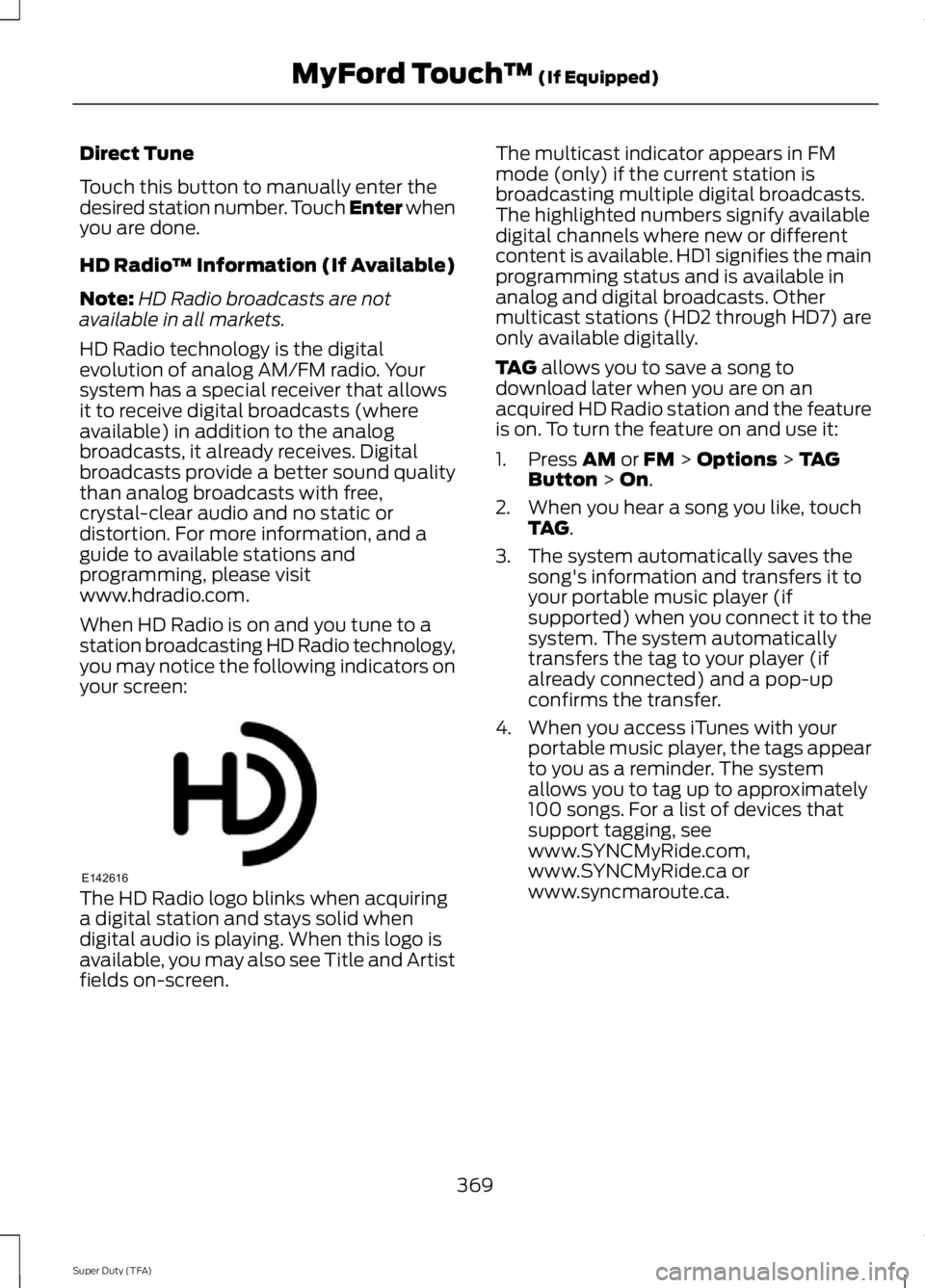
your screen: The HD Radio logo blinks when acquiring
a digital station and stays solid when
digital audio is playing. When this logo is
available, you may also see Title and Artist
fields on-screen. The multicast indicator appears in FM
mode (only) if the current station is
broadcasting multiple digital broadcasts.
The highlighted numbers signify available
digital channels where new or different
content is available. HD1 signifies the main
programming status and is available in
analog and digital broadcasts. Other
multicast stations (HD2 through HD7) are
only available digitally.
TAG allows you to save a song to
download later when you are on an
acquired HD Radio station and the feature
is on. To turn the feature on and use it:
1. Press
AM or FM > Options > TAG
Button > On.
2. When you hear a song you like, touch TAG
.
3. The system automatically saves the song's information and transfers it to
your portable music player (if
supported) when you connect it to the
system. The system automatically
transfers the tag to your player (if
already connected) and a pop-up
confirms the transfer.
4. When you access iTunes with your portable music player, the tags appear
to you as a reminder. The system
allows you to tag up to approximately
100 songs. For a list of devices that
support tagging, see
www.SYNCMyRide.com,
www.SYNCMyRide.ca or
www.syncmaroute.ca.
369
Super Duty (TFA) MyFord Touch
™
(If Equipped)E142616
Page 373 of 460
When HD Radio broadcasts are active, you
can access the following functions:
•
Scan allows you to hear a brief
sampling of all available stations. This
feature still works when HD Radio
reception is on, although it does not
scan for HD2-HD7 channels. You may
see the HD logo appear if the station
has a digital broadcast. •
Memory presets
allow you to save an
active channel as a memory preset.
Touch and hold a memory preset slot
until the sound returns. There is a brief
mute while the radio saves the station.
Sound returns when finished. When
switching to an HD2 or HD3 memory
preset, the sound mutes before the
digital audio plays, because the system
has to reacquire the digital signal.
Note: As with any saved radio station, you
cannot access the saved station if your
vehicle is outside the station ’s reception
area.
HD Radio Reception and Station Troubleshooting Potential reception issues
If you are listening to a multicast station and you are on
the fringe of the reception area, the station may mute due
to weak signal strength.
Reception area
If you are listening to HD1, the system switches back to
the analog broadcast until the digital broadcast is available
again. However, if you are listening to any of the possible
HD2-HD7 multicast channels, the station mutes and stays
muted unless it is able to connect to the digital signal
again.
When the system first receives a station (aside from HD2-
HD7 multicast stations), it first plays the station in the
analog version. Once the receiver verifies the station is an
HD Radio station, it shifts to the digital version. Depending
on the station quality, you may hear a slight sound change
when the station changes from analog to digital. Blending
is the shift from analog to digital sound or digital back to
analog sound.
Station blending
In order to provide the best possible
experience, use the contact form to report
any station issues found while listening to
a station broadcasting with HD Radio
technology. Independent entities own and
operate each station. These stations are
responsible for ensuring all audio streams
and data fields are accurate. 370
Super Duty (TFA) MyFord Touch
™
(If Equipped)
Page 404 of 460
Note:
The SD card slot is spring-loaded. To
remove the SD card, just push the card in
and release it. Do not attempt to pull the
card out to remove it; this could cause
damage.
Your navigation system is comprised of
two main features, destination mode and
map mode.
To set a destination, press the green corner
of your touchscreen, then the Dest button
when it appears. See Setting a
destination later in this chapter.
To view the navigation map and your
vehicle's current location, touch the green
bar in the upper right hand corner of the
touchscreen, or, press Dest, then Map. See
Map mode
later in this chapter.
Setting a Destination
Press the green corner of your touchscreen,
then the
Dest button when it appears.
Choose any of the following: Destination
My HomeFavorites
Previous Destinations Point of InterestEmergency
Street Address IntersectionCity Center Map
Edit Route Cancel Route 1. Enter the necessary information into
the highlighted text fields (in any
order). For address destination entry,
the Go! button appears once you enter
all the necessary information. Pressing
the
Go! button makes the address
location appear on the map. If you
choose Previous Destination, the last
20 destinations you have selected
appear.
2. Select
Set as Dest to make this your
destination. You can also choose to set
this as a waypoint (have the system
route to this point on the way to your
current destination) or save it as a
favorite. The system considers any
Avoid Areas
selections in its route
calculation.
3. Choose from up to three different types
of routes, and then select Start Route.
• Fastest: Uses the fastest moving roads
possible.
• Shortest: Uses the shortest distance
possible.
• Eco Route: Uses the most fuel-efficient
route.
You can cancel the route or have the
system demo the route for you. Select
Route Prefs
to set route preferences like
avoiding freeways, tollroads, ferries and
car trains as well as to use or not use
high-occupancy vehicle lanes.
(High-occupancy vehicle lanes are also
known as carpool or diamond lanes.
People who ride in buses, vanpools or
carpools use these lanes.)
Note: If your vehicle is on a recognized road
and you do not press the
Start Route
button, the system defaults to the Fastest
Route option and begins guidance.
401
Super Duty (TFA) MyFord Touch
™
(If Equipped)
Page 434 of 460
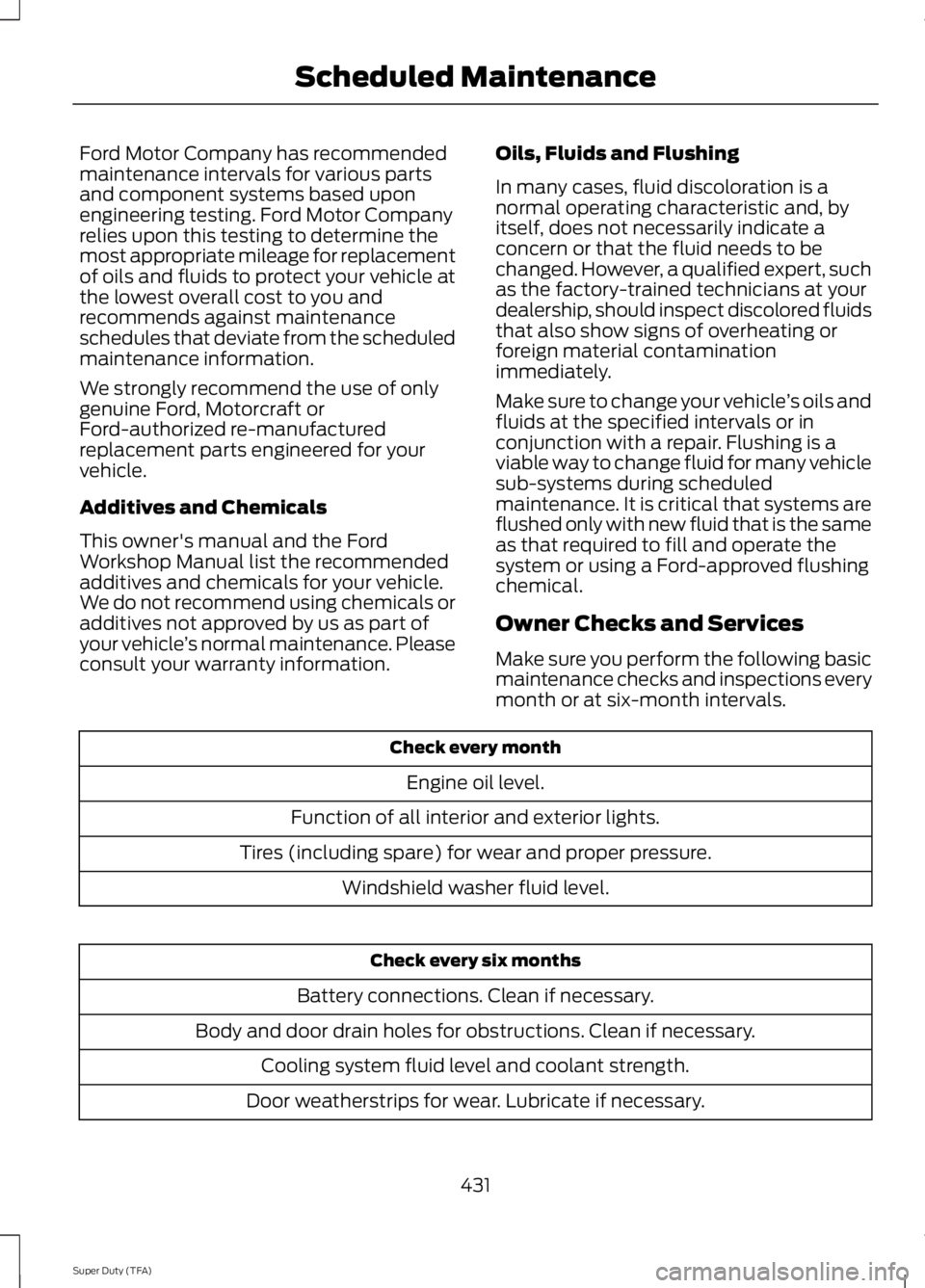
Ford Motor Company has recommended
maintenance intervals for various parts
and component systems based upon
engineering testing. Ford Motor Company
relies upon this testing to determine the
most appropriate mileage for replacement
of oils and fluids to protect your vehicle at
the lowest overall cost to you and
recommends against maintenance
schedules that deviate from the scheduled
maintenance information.
We strongly recommend the use of only
genuine Ford, Motorcraft or
Ford-authorized re-manufactured
replacement parts engineered for your
vehicle.
Additives and Chemicals
This owner's manual and the Ford
Workshop Manual list the recommended
additives and chemicals for your vehicle.
We do not recommend using chemicals or
additives not approved by us as part of
your vehicle
’s normal maintenance. Please
consult your warranty information. Oils, Fluids and Flushing
In many cases, fluid discoloration is a
normal operating characteristic and, by
itself, does not necessarily indicate a
concern or that the fluid needs to be
changed. However, a qualified expert, such
as the factory-trained technicians at your
dealership, should inspect discolored fluids
that also show signs of overheating or
foreign material contamination
immediately.
Make sure to change your vehicle
’s oils and
fluids at the specified intervals or in
conjunction with a repair. Flushing is a
viable way to change fluid for many vehicle
sub-systems during scheduled
maintenance. It is critical that systems are
flushed only with new fluid that is the same
as that required to fill and operate the
system or using a Ford-approved flushing
chemical.
Owner Checks and Services
Make sure you perform the following basic
maintenance checks and inspections every
month or at six-month intervals. Check every month
Engine oil level.
Function of all interior and exterior lights.
Tires (including spare) for wear and proper pressure. Windshield washer fluid level. Check every six months
Battery connections. Clean if necessary.
Body and door drain holes for obstructions. Clean if necessary. Cooling system fluid level and coolant strength.
Door weatherstrips for wear. Lubricate if necessary.
431
Super Duty (TFA) Scheduled Maintenance