navigation system FORD F250 2014 Owner's Manual
[x] Cancel search | Manufacturer: FORD, Model Year: 2014, Model line: F250, Model: FORD F250 2014Pages: 460, PDF Size: 5.33 MB
Page 405 of 460
During route guidance, you can press the
talking bubble icon that appears in the
upper right navigation corner (green bar)
if you want the system to repeat route
guidance information. When the system
repeats the last guidance instruction, it
updates the distance to the next guidance
instruction, since it detects when the
vehicle is moving.
Point of Interest (POI) Categories
Main categories
Food/Drink & Dining
Travel & Transportation Financial
Emergency
Community
Health & Medicine AutomotiveShopping
Entertainment & Arts Recreation & Sports Government
Domestic Services Subcategories
Restaurant Golf
Parking
Home & Garden
Personal Care Services Auto Dealership Subcategories
Govt Office
Public Transit Education
To expand these listings, press the + in
front of the listing.
The system also allows you to sort
alphabetically, by distance or by cityseekr
listings (if available).
cityseekr
Note: cityseekr point of interest (POI)
information is limited to approximately 912
cities (881 in the United States, 20 in
Canada and 11 in Mexico). cityseekr, when available, is a service that
provides more information about certain
points of interest such as restaurants,
hotels and attractions.
When you have selected a point of interest,
the location and information appear, such
as address and phone number. If cityseekr
lists the point of interest, more information
is available, such as a brief description,
check-in and checkout times or restaurant
hours.
Press More Information for a longer
review, a list of services and facilities, the
average room or meal price as well as the
website. This screen displays the point of
interest icon such as:
402
Super Duty (TFA) MyFord Touch
™
(If Equipped)E142634
Page 406 of 460
Hotel
Coffeehouse
Food & Drink
Nightlife
Attraction
This icon appears when your
selection exists in multiple
categories within the system.
When you are viewing more information
for hotels, cityseekr also tells you if the
hotel has certain services and facilities
using icons, such as:
• Restaurant
• Business center
• Handicap facilities
• Laundry
• Refrigerator
• 24 hour room service
• Fitness center
• Internet access
• Pool
• Wi-fi. For restaurants, cityseekr can provide
information such as star rating, average
cost, review, handicap access, hours of
operation, and website address.
For hotels, cityseekr can provide
information such as star rating, price
category, review, check-in and checkout
times, hotel service icons and website
address.
Setting Your Navigation
Preferences
Select settings for the system to take into
account when planning your route.
Press the Settings icon >
Settings > Navigation.
Map Preferences
Breadcrumbs
Display your vehicle ’s previously traveled
route with white dots. Turn this feature ON
or
OFF.
Turn List Format
Have the system display your turn list Top
to Bottom
or Bottom to Top.
Parking POI Notification
Set the automatic parking point of interest
notification. Turn this feature
ON or OFF.
When parking point of interest notification
is on, the icons display on the map when
you get close to your destination. This may
not be very useful in dense areas, and may
clutter the map when other points of
interest display.
403
Super Duty (TFA) MyFord Touch
™
(If Equipped)E143884 E142636 E142637 E142638 E142639 E142640 E142607
Page 407 of 460
Route Preferences
Preferred Route
Choose to have the system display the
Shortest, Fastest or most Ecological route
first. If you set Always Use Preferred
Route to Yes, the system uses the
selected route type to calculate only one
route to the desired destination.
Always Use Preferred Route
Bypass route selection in destination
programming. The system only calculates
one route based on preferred route setting.
Eco Time Penalty
Select a low, medium or high cost for the
calculated Eco Route. The higher the
setting, the longer the time allotment is for
the route.
Avoid
These features allow you to choose to
have the system avoid freeways, toll roads,
ferries and car trains when planning your
route. Turn these features
ON or OFF.
Use HOV Lanes
Have the system use high-occupancy
vehicle lanes, if available, when planning
your route.
Navigation Preferences
Guidance Prompts
Have the system use
Voice & Tones or
Tone Only on your programmed route.
Auto - Fill State/Province
Have the system automatically fill in the
state and province based on the
information already entered into the
system. Turn this feature
ON or OFF. Traffic Preferences
Avoid Traffic Problems
Choose how you want the system to
handle traffic problems along your route.
•
Automatic:
Have the system reroute
you to avoid traffic incidents that
develop and impact the current route.
The system does not provide a traffic
alert notification.
• Manual:
Have the system always
provide a traffic alert notification for
traffic incidents along the planned
route. You have a choice to accept or
ignore the notification before making
the route deviation.
Traffic Alert Notification
Have the system display traffic alert
notifications.
Other traffic alert features allows you to
turn on certain, or all, traffic icons on the
map such as road work, incident, accidents
and closed roads. Scroll down to view all
the different types of alerts. Turn these
features
ON or OFF.
Avoid Areas
Choose areas which you want the system
to avoid when calculating a route for you.
Press
Add to program an entry. Once you
make a selection, the system tries to avoid
the area(s) if possible for all routes. To
delete a selection, choose the listing on
the screen. When the screen changes to
Avoid Areas Edit
, you can press Delete
at the bottom right of the screen.
Map Mode
Press the green bar in the upper right area
of the touchscreen to view map mode. Map
mode shows advanced viewing comprised
of both 2D city maps as well as 3D
landmarks (when available).
404
Super Duty (TFA) MyFord Touch
™
(If Equipped)
Page 408 of 460
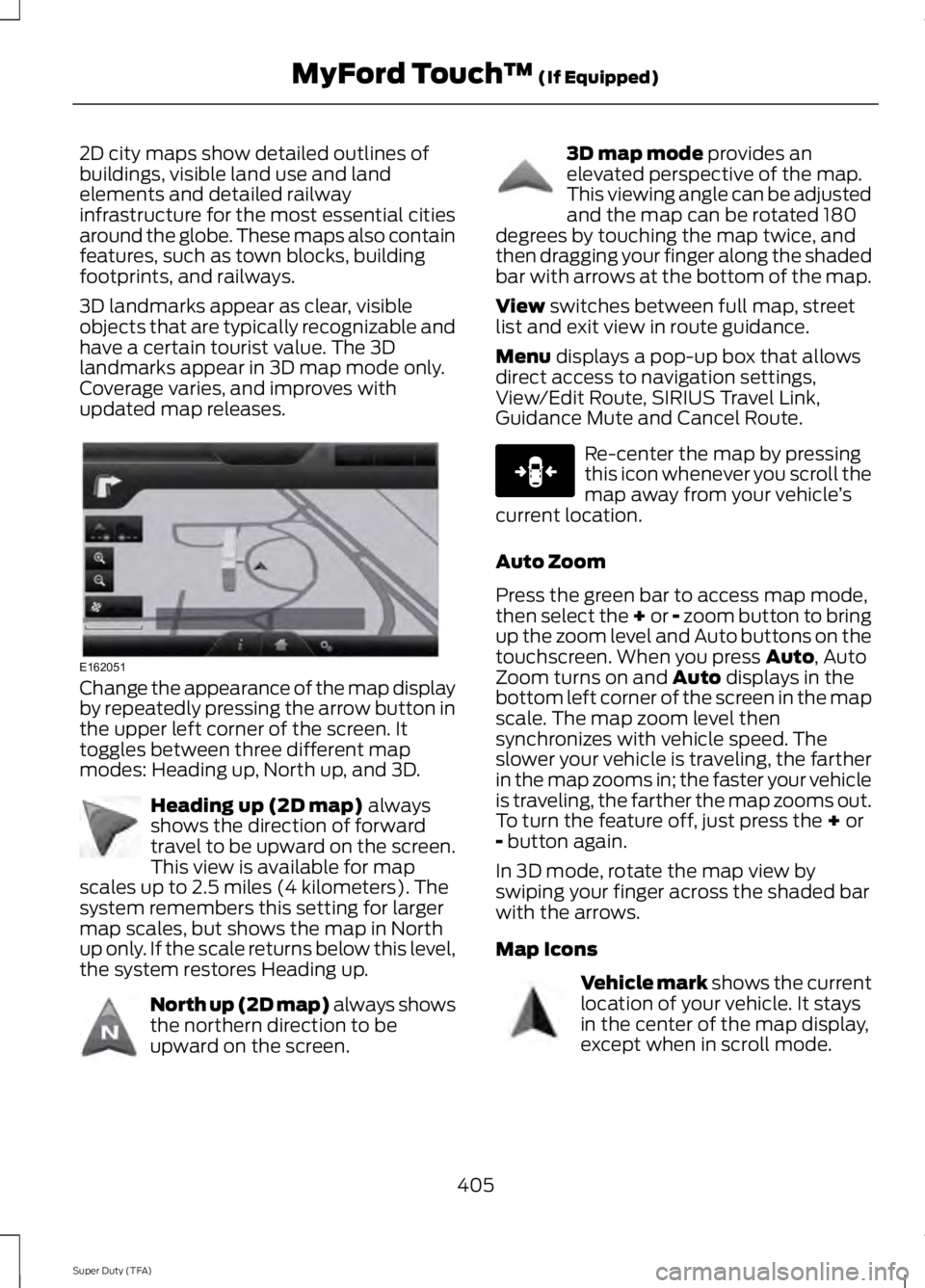
2D city maps show detailed outlines of
buildings, visible land use and land
elements and detailed railway
infrastructure for the most essential cities
around the globe. These maps also contain
features, such as town blocks, building
footprints, and railways.
3D landmarks appear as clear, visible
objects that are typically recognizable and
have a certain tourist value. The 3D
landmarks appear in 3D map mode only.
Coverage varies, and improves with
updated map releases.
Change the appearance of the map display
by repeatedly pressing the arrow button in
the upper left corner of the screen. It
toggles between three different map
modes: Heading up, North up, and 3D.
Heading up (2D map) always
shows the direction of forward
travel to be upward on the screen.
This view is available for map
scales up to 2.5 miles (4 kilometers). The
system remembers this setting for larger
map scales, but shows the map in North
up only. If the scale returns below this level,
the system restores Heading up. North up (2D map) always shows
the northern direction to be
upward on the screen. 3D map mode
provides an
elevated perspective of the map.
This viewing angle can be adjusted
and the map can be rotated 180
degrees by touching the map twice, and
then dragging your finger along the shaded
bar with arrows at the bottom of the map.
View
switches between full map, street
list and exit view in route guidance.
Menu
displays a pop-up box that allows
direct access to navigation settings,
View/Edit Route, SIRIUS Travel Link,
Guidance Mute and Cancel Route. Re-center the map by pressing
this icon whenever you scroll the
map away from your vehicle
’s
current location.
Auto Zoom
Press the green bar to access map mode,
then select the + or - zoom button to bring
up the zoom level and Auto buttons on the
touchscreen. When you press
Auto, Auto
Zoom turns on and Auto displays in the
bottom left corner of the screen in the map
scale. The map zoom level then
synchronizes with vehicle speed. The
slower your vehicle is traveling, the farther
in the map zooms in; the faster your vehicle
is traveling, the farther the map zooms out.
To turn the feature off, just press the
+ or
- button again.
In 3D mode, rotate the map view by
swiping your finger across the shaded bar
with the arrows.
Map Icons Vehicle mark
shows the current
location of your vehicle. It stays
in the center of the map display,
except when in scroll mode.
405
Super Duty (TFA) MyFord Touch
™
(If Equipped)E162051 E142642 E142643 E142644 E146188 E142646
Page 410 of 460
•
Edit Turn List
• Detour
• Edit Route Preferences
• Edit Traffic Preferences
• Cancel Route.
Nokia is the digital map provider for the
navigation application. If you find map data
errors, you may report them directly to
Nokia by going to
http://mapreporter.navteq.com. Nokia
evaluates all reported map errors and
responds with the result of their
investigation by e-mail.
Navigation Map Updates
Annual navigation map updates are
available for purchase through your
dealership, by calling 1-800-NAVMAPS (in
Mexico, call 01-800-557-5539) or going
to www.navigation.com/ford. You need to
specify the make and model of your vehicle
to determine if there is an update available.
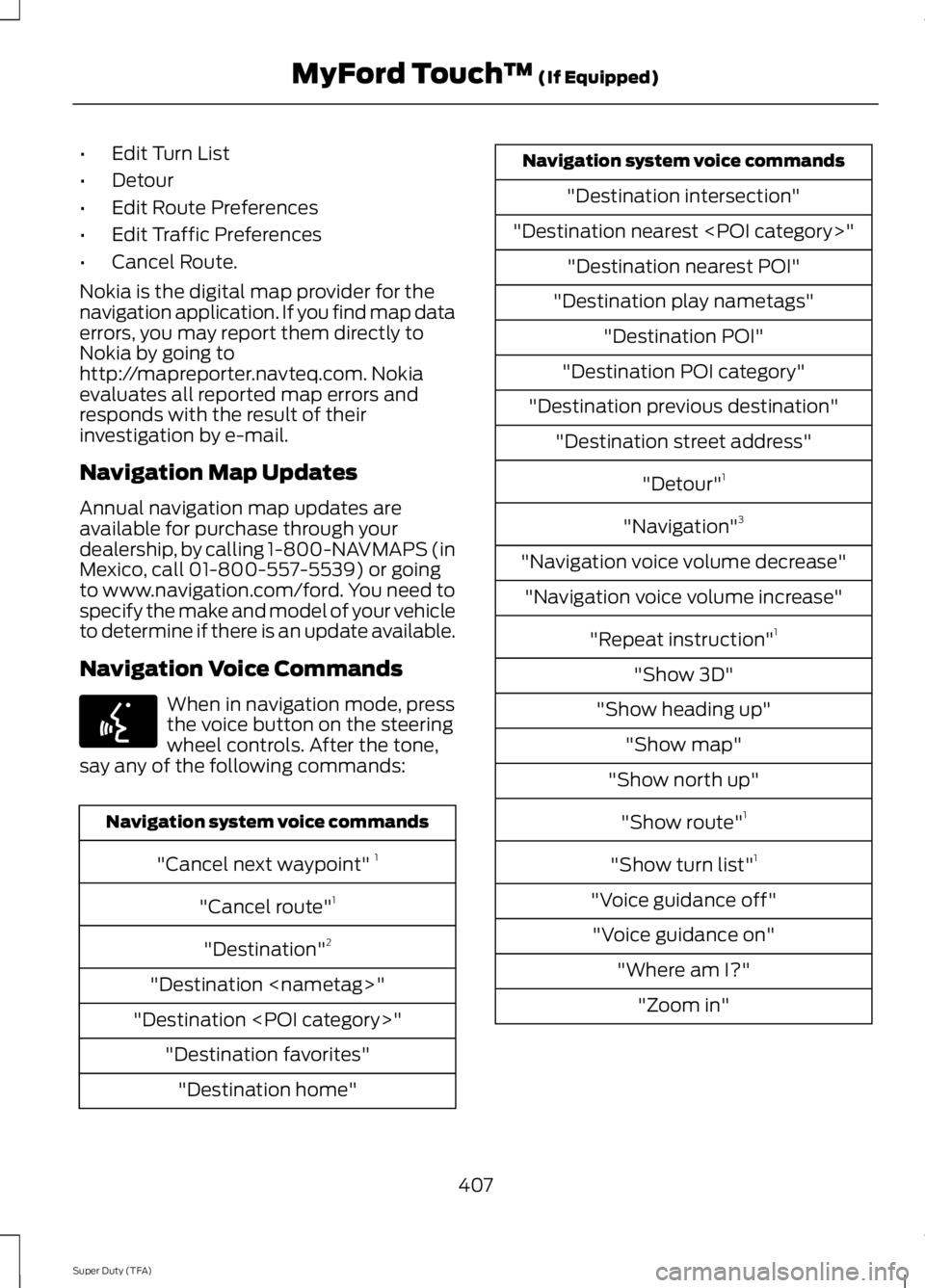
Navigation Voice Commands When in navigation mode, press
the voice button on the steering
wheel controls. After the tone,
say any of the following commands: Navigation system voice commands
"Cancel next waypoint" 1
"Cancel route" 1
"Destination" 2
"Destination
"Destination
"Destination intersection"
"Destination nearest
"Destination play nametags" "Destination POI"
"Destination POI category"
"Destination previous destination" "Destination street address"
"Detour"1
"Navigation" 3
"Navigation voice volume decrease" "Navigation voice volume increase"
"Repeat instruction" 1
"Show 3D"
"Show heading up" "Show map"
"Show north up"
"Show route" 1
"Show turn list" 1
"Voice guidance off" "Voice guidance on" "Where am I?""Zoom in"
407
Super Duty (TFA) MyFord Touch
™ (If Equipped)E142599
Page 411 of 460
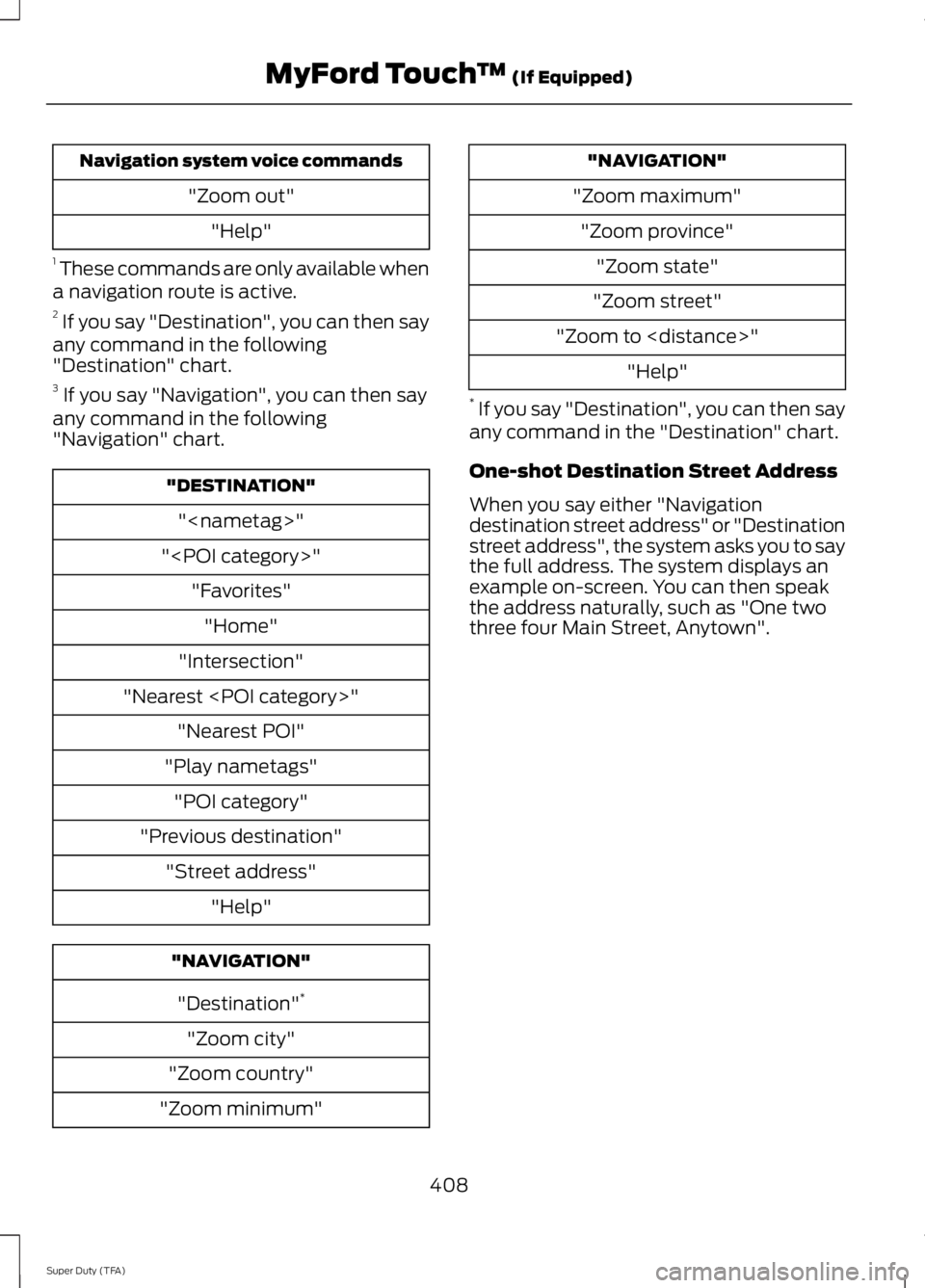
Navigation system voice commands
"Zoom out""Help"
1 These commands are only available when
a navigation route is active.
2 If you say "Destination", you can then say
any command in the following
"Destination" chart.
3 If you say "Navigation", you can then say
any command in the following
"Navigation" chart. "DESTINATION"
"
"
"Intersection"
"Nearest
"Play nametags" "POI category"
"Previous destination" "Street address" "Help" "NAVIGATION"
"Destination" *
"Zoom city"
"Zoom country"
"Zoom minimum" "NAVIGATION"
"Zoom maximum" "Zoom province" "Zoom state"
"Zoom street"
"Zoom to
* If you say "Destination", you can then say
any command in the "Destination" chart.
One-shot Destination Street Address
When you say either "Navigation
destination street address" or "Destination
street address", the system asks you to say
the full address. The system displays an
example on-screen. You can then speak
the address naturally, such as "One two
three four Main Street, Anytown".
408
Super Duty (TFA) MyFord Touch
™ (If Equipped)
Page 420 of 460
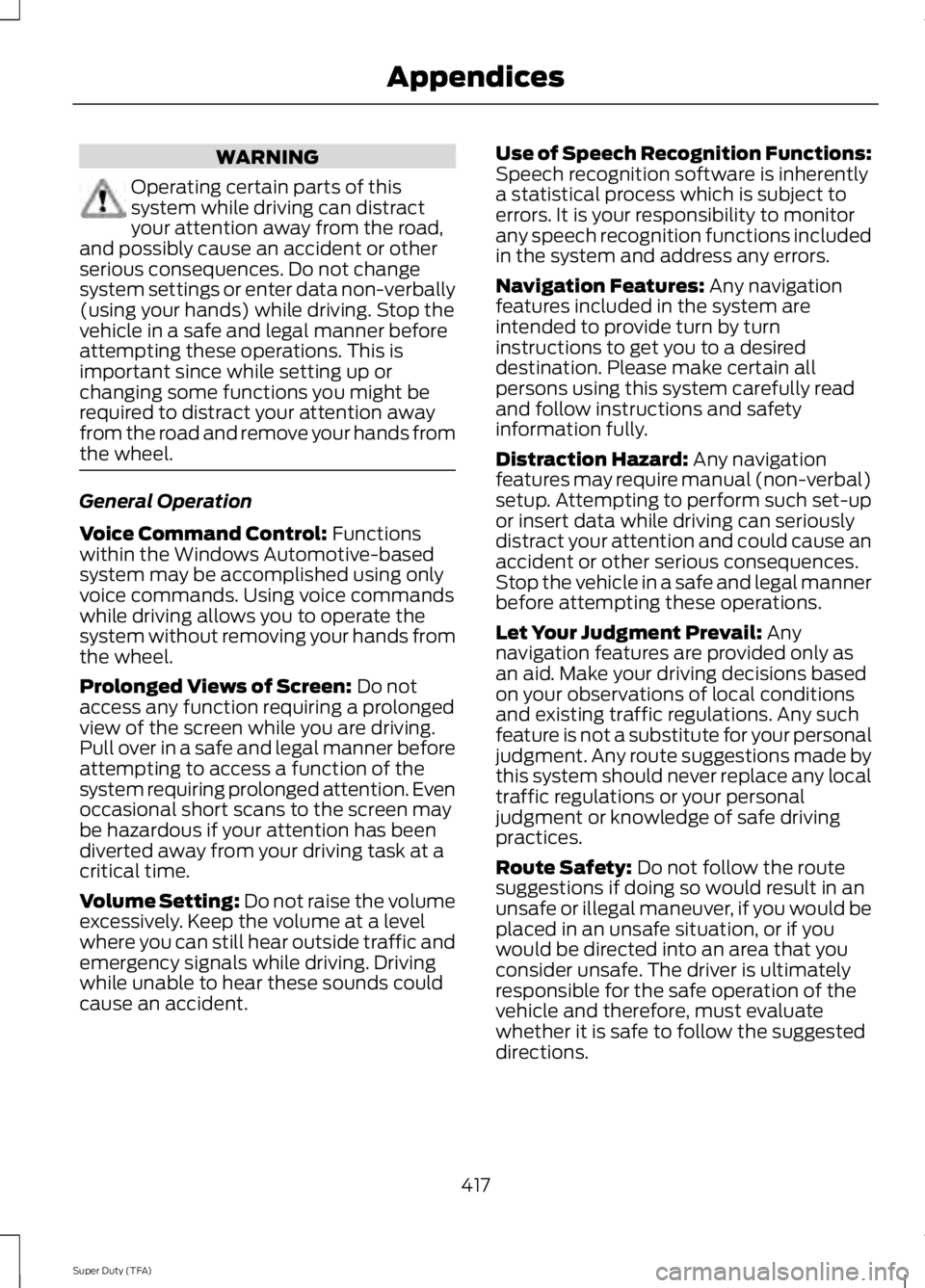
WARNING
Operating certain parts of this
system while driving can distract
your attention away from the road,
and possibly cause an accident or other
serious consequences. Do not change
system settings or enter data non-verbally
(using your hands) while driving. Stop the
vehicle in a safe and legal manner before
attempting these operations. This is
important since while setting up or
changing some functions you might be
required to distract your attention away
from the road and remove your hands from
the wheel. General Operation
Voice Command Control: Functions
within the Windows Automotive-based
system may be accomplished using only
voice commands. Using voice commands
while driving allows you to operate the
system without removing your hands from
the wheel.
Prolonged Views of Screen:
Do not
access any function requiring a prolonged
view of the screen while you are driving.
Pull over in a safe and legal manner before
attempting to access a function of the
system requiring prolonged attention. Even
occasional short scans to the screen may
be hazardous if your attention has been
diverted away from your driving task at a
critical time.
Volume Setting: Do not raise the volume
excessively. Keep the volume at a level
where you can still hear outside traffic and
emergency signals while driving. Driving
while unable to hear these sounds could
cause an accident. Use of Speech Recognition Functions:
Speech recognition software is inherently
a statistical process which is subject to
errors. It is your responsibility to monitor
any speech recognition functions included
in the system and address any errors.
Navigation Features:
Any navigation
features included in the system are
intended to provide turn by turn
instructions to get you to a desired
destination. Please make certain all
persons using this system carefully read
and follow instructions and safety
information fully.
Distraction Hazard:
Any navigation
features may require manual (non-verbal)
setup. Attempting to perform such set-up
or insert data while driving can seriously
distract your attention and could cause an
accident or other serious consequences.
Stop the vehicle in a safe and legal manner
before attempting these operations.
Let Your Judgment Prevail:
Any
navigation features are provided only as
an aid. Make your driving decisions based
on your observations of local conditions
and existing traffic regulations. Any such
feature is not a substitute for your personal
judgment. Any route suggestions made by
this system should never replace any local
traffic regulations or your personal
judgment or knowledge of safe driving
practices.
Route Safety:
Do not follow the route
suggestions if doing so would result in an
unsafe or illegal maneuver, if you would be
placed in an unsafe situation, or if you
would be directed into an area that you
consider unsafe. The driver is ultimately
responsible for the safe operation of the
vehicle and therefore, must evaluate
whether it is safe to follow the suggested
directions.
417
Super Duty (TFA) Appendices
Page 421 of 460
Potential Map Inaccuracy: Maps used
by this system may be inaccurate because
of changes in roads, traffic controls or
driving conditions. Always use good
judgment and common sense when
following the suggested routes.
Emergency Services:
Do not rely on any
navigation features included in the system
to route you to emergency services. Ask
local authorities or an emergency services
operator for these locations. Not all
emergency services such as police, fire
stations, hospitals and clinics are likely to
be contained in the map database for such
navigation features.
TeleNav Software End User License
Agreement
Please read these terms and conditions
carefully before you use the Telenav
Software. Your use of the Telenav
Software indicates that you accept these
terms and conditions. If you do not accept
these terms and conditions, do not break
the seal of the package, launch, or
otherwise use the Telenav Software.
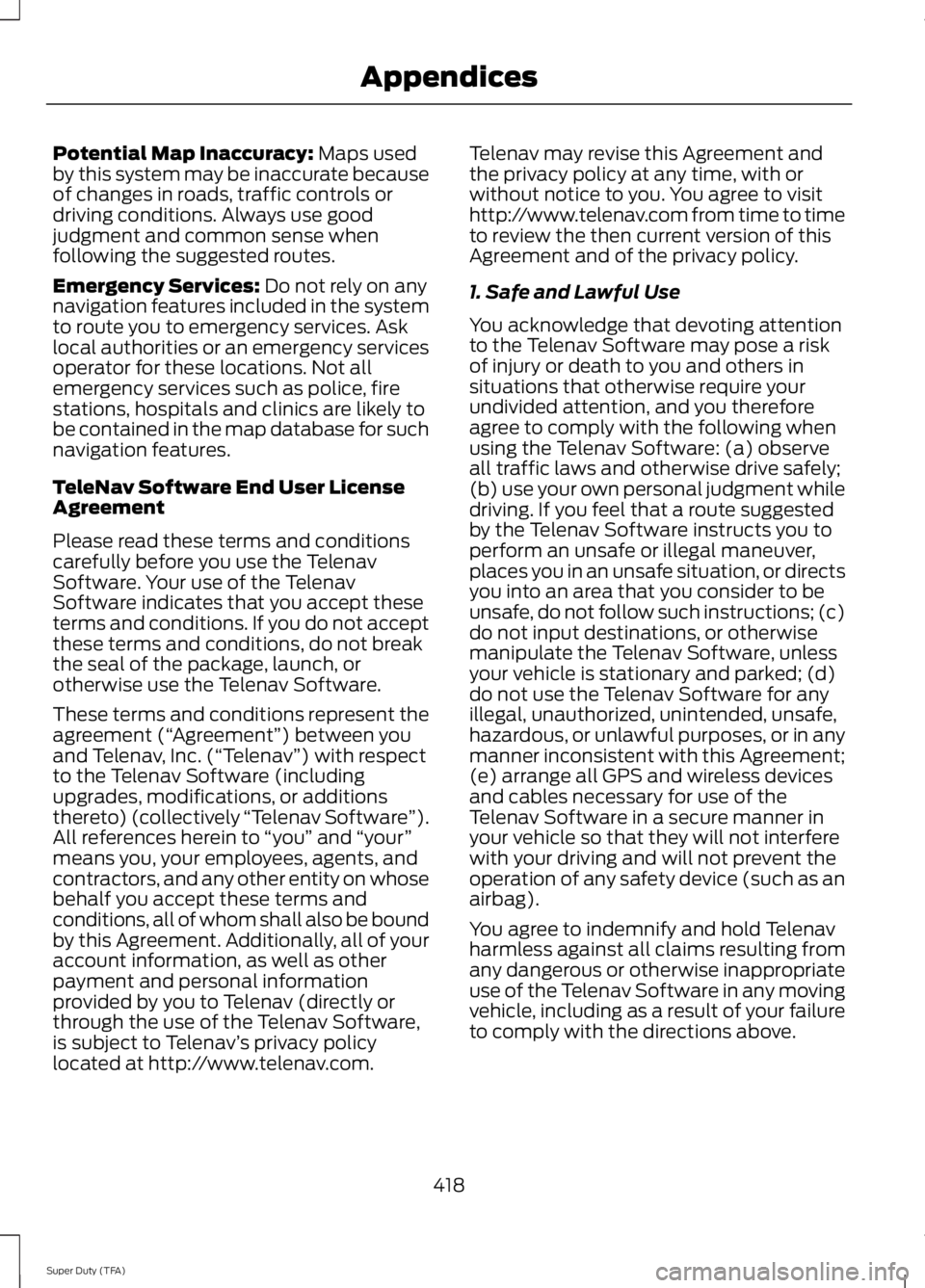
These terms and conditions represent the
agreement (“ Agreement”) between you
and Telenav, Inc. (“Telenav ”) with respect
to the Telenav Software (including
upgrades, modifications, or additions
thereto) (collectively “Telenav Software”).
All references herein to “you” and “your ”
means you, your employees, agents, and
contractors, and any other entity on whose
behalf you accept these terms and
conditions, all of whom shall also be bound
by this Agreement. Additionally, all of your
account information, as well as other
payment and personal information
provided by you to Telenav (directly or
through the use of the Telenav Software,
is subject to Telenav ’s privacy policy
located at http://www.telenav.com. Telenav may revise this Agreement and
the privacy policy at any time, with or
without notice to you. You agree to visit
http://www.telenav.com from time to time
to review the then current version of this
Agreement and of the privacy policy.
1. Safe and Lawful Use
You acknowledge that devoting attention
to the Telenav Software may pose a risk
of injury or death to you and others in
situations that otherwise require your
undivided attention, and you therefore
agree to comply with the following when
using the Telenav Software: (a) observe
all traffic laws and otherwise drive safely;
(b) use your own personal judgment while
driving. If you feel that a route suggested
by the Telenav Software instructs you to
perform an unsafe or illegal maneuver,
places you in an unsafe situation, or directs
you into an area that you consider to be
unsafe, do not follow such instructions; (c)
do not input destinations, or otherwise
manipulate the Telenav Software, unless
your vehicle is stationary and parked; (d)
do not use the Telenav Software for any
illegal, unauthorized, unintended, unsafe,
hazardous, or unlawful purposes, or in any
manner inconsistent with this Agreement;
(e) arrange all GPS and wireless devices
and cables necessary for use of the
Telenav Software in a secure manner in
your vehicle so that they will not interfere
with your driving and will not prevent the
operation of any safety device (such as an
airbag).
You agree to indemnify and hold Telenav
harmless against all claims resulting from
any dangerous or otherwise inappropriate
use of the Telenav Software in any moving
vehicle, including as a result of your failure
to comply with the directions above.
418
Super Duty (TFA) Appendices
Page 425 of 460
Agreement), and thus your use of the
Telenav Software is also subject to such
terms. You agree to comply with the
following additional terms and conditions,
which are applicable to Telenav
’s third
party vendor licensors:
End User License Agreement For
Distribution By HERE For North
America/APAC
The content provided (“Data ”) is licensed,
not sold. By opening this package, or
installing, copying, or otherwise using the
Data, you agree to be bound by the terms
of this agreement. If you do not agree to
the terms of this agreement, you are not
permitted to install, copy, use, resell or
transfer the Data. If you wish to reject the
terms of this agreement, and have not
installed, copied, or used the Data, you
must contact your retailer or HERE North
America, LLC (as defined below) within
thirty (30) days of purchase for a refund
of your purchase price. To contact HERE,
please visit www.here.com.
The Data is provided for your personal,
internal use only and may not be resold. It
is protected by copyright, and is subject to
the following terms (this “End User License
Agreement”) and conditions which are
agreed to by you, on the one hand, and
HERE and its licensors (including their
licensors and suppliers) on the other hand.
For purposes of these terms, “HERE” shall
mean (a) HERE North America, LLC with
respect to Data for the Americas and/or
the Asia Pacific region and (b) HERE
Europe B.V. for Data for Europe, the Middle
East and/or Africa.
The Data includes certain information and
related content provided under license to
HERE from third parties and is subject to
the applicable supplier terms and
copyright notices set forth at the following
URL:
http://corporate.navteq.com/supplier_terms.html. TERMS AND CONDITIONS
License Limitations on Use:
You agree that your license to use this Data
is limited to and conditioned on use for
solely personal, noncommercial purposes,
and not for service bureau, timesharing or
other similar purposes. Except as otherwise
set forth herein, you agree not to otherwise
reproduce, copy, modify, decompile,
disassemble or reverse engineer any
portion of this Data, and may not transfer
or distribute it in any form, for any purpose,
except to the extent permitted by
mandatory laws.
License Limitations on Transfer:
Your limited license does not allow transfer
or resale of the Data, except on the
condition that you may transfer the Data
and all accompanying materials on a
permanent basis if: (a) you retain no copies
of the Data; (b) the recipient agrees to the
terms of this End-User License Agreement;
and (c) you transfer the Data in the exact
same form as you purchased it by
physically transferring the original media
(e.g., the CD-ROM or DVD you purchased),
all original packaging, all Manuals and
other documentation. Specifically,
Multi-disc sets may only be transferred or
sold as a complete set as provided to you
and not as a subset thereof.
Additional License Limitations:
Except where you have been specifically
licensed to do so by HERE in a separate
written agreement, and without limiting
the preceding paragraph, your license is
conditioned on use of the Data as
prescribed in this agreement, and you may
not (a) use this Data with any products,
systems, or applications installed or
otherwise connected to or in
communication with vehicles capable of
vehicle navigation, positioning, dispatch,
422
Super Duty (TFA) Appendices
Page 455 of 460
Mirrors
See: Heated Windows and Mirrors..............106
See: Windows and Mirrors................................ 69
Mobile Communications Equipment.......13
Moonroof...........................................................73 Bounce-Back.......................................................... 74
Opening and Closing the Moonroof..............73
Venting the Moonroof......................................... 74
Motorcraft Parts...........................................293
MyFord Touch ™...........................................349
General Information......................................... 349
MyKey Troubleshooting
...............................53
MyKey ™............................................................50
Principle of Operation........................................ 50
N
Navigation.....................................................400 cityseekr................................................................ 402
Map Mode............................................................ 404
Navigation Map Updates................................ 407
Navigation Voice Commands....................... 407
Point of Interest (POI) Categories..............402
Quick-touch Buttons....................................... 406
Setting a Destination........................................ 401
Setting Your Navigation Preferences.........403
Normal Scheduled Maintenance
..........433
6.2L and 6.8L Gasoline Engines................... 433
6.7L Diesel Engine............................................. 434
O
Oil Check See: Engine Oil Check...................................... 226
Opening and Closing the Hood..............223
Ordering Additional Owner's Literature.......................................................212
Obtaining a French Owner ’s Manual...........212
Overhead Console
........................................129
P
Parking Aid
......................................................170
Rear Sensing System........................................ 170
Parking Aids....................................................170
Parking Brake
..................................................161
Passive Anti-Theft System........................58
SecuriLock ™.......................................................... 58PATS
See: Passive Anti-Theft System..................... 58
Pedals.................................................................63
Perchlorate.........................................................11
Phone...............................................................383 Making Calls........................................................ 385
Pairing Subsequent Phones.......................... 385
Pairing Your Phone for the First Time.................................................................. 384
Phone Menu Options....................................... 385
Phone Settings................................................... 387
Phone Voice Commands............................... 388
Receiving Calls................................................... 385
Text Messaging.................................................. 386
Post-Crash Alert System
..........................207
Power Door Locks See: Locking and Unlocking............................. 54
Power Seats
......................................................111
Power Lumbar........................................................ 111
Power Recline......................................................... 111
Power Steering Fluid Check.....................234
Power Take-Off.............................................148
Power Windows
.............................................69
Accessory Delay.................................................... 70
Bounce-Back......................................................... 69
One-Touch Up or Down.................................... 69
Power Sliding Back Window............................ 70
Window Lock......................................................... 70
R
Rear Axle
..........................................................158
Rear Seat Armrest.........................................118
Rear Seats
........................................................112
Folding the Rear Seat Back (Crew Cab)
........................................................................\
....... 113
Folding up the Rear Seat Cushion.................113
Rear Heated Seats ............................................. 114
Rear Under Seat Storage (Crew Cab).........114
Returning the Seat to the Seating Position............................................................... 113
Rear View Camera.........................................171 Using the Rear View Camera System...........171
Rear View Camera See: Rear View Camera..................................... 171
Recommended Towing Weights............188 Calculating the Maximum Loaded Trailer
Weight for Your Vehicle............................... 189
452
Super Duty (TFA) Index