ECO mode FORD F250 2014 Workshop Manual
[x] Cancel search | Manufacturer: FORD, Model Year: 2014, Model line: F250, Model: FORD F250 2014Pages: 460, PDF Size: 5.33 MB
Page 393 of 460
Under the Information menu, you can
access features such as:
•
SYNC Services
• Sirius Travel Link
• Alerts
• Calendar
• SYNC Applications If your vehicle is equipped with
Navigation, press the
Information button to access
these features. If your vehicle is not
equipped with Navigation, press the corner
of the touchscreen with the green tab.
SYNC Services (If Equipped,
United States Only)
Note: SYNC Services varies by trim level
and model year and may require a
subscription. Traffic alerts and turn-by-turn
directions available in select markets.
Message and data rates may apply. Ford
Motor Company reserves the right to change
or discontinue this product service at any
time without prior notification or incurring
any future obligation.
Note: SYNC Services requires activation
before use. Visit www.SYNCMyRide.com to
register and check your eligibility for
complimentary services. Standard phone
and message rates may apply. Subscription
may be required. You must also have the
active SYNC Services Bluetooth-enabled
cellular phone paired and connected to the
system in order to connect to, and use,
SYNC Services. See
Phone (page 383).
Note: This feature does not function
properly if you have enabled caller ID
blocking on your cellular phone. Make sure
your cellular phone is not blocking caller ID
before using SYNC Services. Note:
The driver is ultimately responsible
for the safe operation of the vehicle, and
therefore, must evaluate whether it is safe
to follow the suggested directions. Any
navigation features provided are only an aid.
Make your driving decisions based on your
observations of local conditions and existing
traffic regulations. Do not follow the route
suggestions if doing so would result in an
unsafe or illegal maneuver, if you would be
placed in an unsafe situation, or if you would
be directed into an area that you consider
unsafe. Maps used by this system may be
inaccurate because of errors, changes in
roads, traffic conditions or driving
conditions.
Note: When you connect, the service uses
GPS technology and advanced vehicle
sensors to collect your vehicle's current
location, travel direction and speed to help
provide you with the directions, traffic
reports, or business searches you request.
Further, to provide the services you request,
for continuous improvement, the service
may collect and record call details and voice
communications. For more information, see
SYNC Services Terms and Conditions at
www.SYNCMyRide.com. If you do not want
Ford or its service providers to collect your
vehicle travel information or other
information identified in the Terms and
Conditions, do not subscribe or use the
service.
SYNC Services uses advanced vehicle
sensors, integrated GPS technology and
comprehensive map and traffic data, to
give you personalized traffic reports,
precise turn-by-turn directions, business
search, news, sports, weather and more.
For a complete list of services, or to learn
more, please visit www.SYNCMyRide.com.
Connecting to SYNC Services Using
Voice Commands 390
Super Duty (TFA) MyFord Touch
™
(If Equipped)E142608 E142599
Page 402 of 460
Recirculated air: Touch to turn the recirculated air on or off which may reduce
the amount of time needed to cool down the interior and help reduce odors
from reaching the interior. Recirculated air also engages automatically when
you select MAX A/C and may turn on manually in any airflow mode except
defrost. It may also turn off in all airflow modes except MAX A/C to reduce fog
potential.
D
MAX A/C: Touch to cool your vehicle with recirculated air. Touch again for
normal A/C operation. MAX A/C distributes air through instrument panel vents
and may help reduce odors from entering your vehicle. MAX A/C is more
economical and efficient than normal A/C mode.
E
A/C:
Touch to turn the air conditioning on or off. Use A/C with recirculated air
to improve cooling performance and efficiency. A/C engages automatically in
MAX A/C, defrost and floor/defrost.
F
AUTO:
Touch to engage automatic operation, then set the temperature using
the temperature control. The system automatically controls fan speed, airflow
distribution, A/C on or off and the use of fresh or recirculated air.
G
Rear defrost:
Touch to turn the rear window defroster and heated mirrors.
H
Defrost:
Touch to clear the windshield of fog and thin ice. Touch again to return
to the previous airflow selection. When on, defrost provides outside air to reduce
window fogging and distributes air through the windshield defroster vents and
demister vents.
I
Manual airflow distribution controls:
Floor and Defrost: Distributes air
through the windshield defroster vents, demister vents, floor vents and rear
seat floor vents, and provides outside air to reduce window fogging. Panel:
Distributes air through the instrument panel vents. Panel and Floor: Distributes
air through the instrument panel vents, demister vents, floor vents and rear seat
floor vents. Floor:
Distributes air through the demister vents, floor vents and
rear seat floor vents.
J
Driver settings:
Touch + or – adjust the temperature. Touch the heated seat
icon to control the heated seat. Touch the cooled seat icon to control the cooled
seat. See
Seats (page 108). Touch and hold MyTemp to select a temperature
you would like your vehicle to remember and maintain for you. If your vehicle
is equipped with a heated steering wheel, touch the heated steering wheel icon
to warm the steering wheel.
K
Note: If your vehicle is equipped with a
wood-trimmed steering wheel, it does not
heat between the 10 o'clock and 2 o'clock
positions. Climate Control Voice Commands Press the voice button on the
steering wheel controls. When
prompted, say any of the
following commands:
399
Super Duty (TFA) MyFord Touch
™
(If Equipped)E142599
Page 404 of 460
Note:
The SD card slot is spring-loaded. To
remove the SD card, just push the card in
and release it. Do not attempt to pull the
card out to remove it; this could cause
damage.
Your navigation system is comprised of
two main features, destination mode and
map mode.
To set a destination, press the green corner
of your touchscreen, then the Dest button
when it appears. See Setting a
destination later in this chapter.
To view the navigation map and your
vehicle's current location, touch the green
bar in the upper right hand corner of the
touchscreen, or, press Dest, then Map. See
Map mode
later in this chapter.
Setting a Destination
Press the green corner of your touchscreen,
then the
Dest button when it appears.
Choose any of the following: Destination
My HomeFavorites
Previous Destinations Point of InterestEmergency
Street Address IntersectionCity Center Map
Edit Route Cancel Route 1. Enter the necessary information into
the highlighted text fields (in any
order). For address destination entry,
the Go! button appears once you enter
all the necessary information. Pressing
the
Go! button makes the address
location appear on the map. If you
choose Previous Destination, the last
20 destinations you have selected
appear.
2. Select
Set as Dest to make this your
destination. You can also choose to set
this as a waypoint (have the system
route to this point on the way to your
current destination) or save it as a
favorite. The system considers any
Avoid Areas
selections in its route
calculation.
3. Choose from up to three different types
of routes, and then select Start Route.
• Fastest: Uses the fastest moving roads
possible.
• Shortest: Uses the shortest distance
possible.
• Eco Route: Uses the most fuel-efficient
route.
You can cancel the route or have the
system demo the route for you. Select
Route Prefs
to set route preferences like
avoiding freeways, tollroads, ferries and
car trains as well as to use or not use
high-occupancy vehicle lanes.
(High-occupancy vehicle lanes are also
known as carpool or diamond lanes.
People who ride in buses, vanpools or
carpools use these lanes.)
Note: If your vehicle is on a recognized road
and you do not press the
Start Route
button, the system defaults to the Fastest
Route option and begins guidance.
401
Super Duty (TFA) MyFord Touch
™
(If Equipped)
Page 407 of 460
Route Preferences
Preferred Route
Choose to have the system display the
Shortest, Fastest or most Ecological route
first. If you set Always Use Preferred
Route to Yes, the system uses the
selected route type to calculate only one
route to the desired destination.
Always Use Preferred Route
Bypass route selection in destination
programming. The system only calculates
one route based on preferred route setting.
Eco Time Penalty
Select a low, medium or high cost for the
calculated Eco Route. The higher the
setting, the longer the time allotment is for
the route.
Avoid
These features allow you to choose to
have the system avoid freeways, toll roads,
ferries and car trains when planning your
route. Turn these features
ON or OFF.
Use HOV Lanes
Have the system use high-occupancy
vehicle lanes, if available, when planning
your route.
Navigation Preferences
Guidance Prompts
Have the system use
Voice & Tones or
Tone Only on your programmed route.
Auto - Fill State/Province
Have the system automatically fill in the
state and province based on the
information already entered into the
system. Turn this feature
ON or OFF. Traffic Preferences
Avoid Traffic Problems
Choose how you want the system to
handle traffic problems along your route.
•
Automatic:
Have the system reroute
you to avoid traffic incidents that
develop and impact the current route.
The system does not provide a traffic
alert notification.
• Manual:
Have the system always
provide a traffic alert notification for
traffic incidents along the planned
route. You have a choice to accept or
ignore the notification before making
the route deviation.
Traffic Alert Notification
Have the system display traffic alert
notifications.
Other traffic alert features allows you to
turn on certain, or all, traffic icons on the
map such as road work, incident, accidents
and closed roads. Scroll down to view all
the different types of alerts. Turn these
features
ON or OFF.
Avoid Areas
Choose areas which you want the system
to avoid when calculating a route for you.
Press
Add to program an entry. Once you
make a selection, the system tries to avoid
the area(s) if possible for all routes. To
delete a selection, choose the listing on
the screen. When the screen changes to
Avoid Areas Edit
, you can press Delete
at the bottom right of the screen.
Map Mode
Press the green bar in the upper right area
of the touchscreen to view map mode. Map
mode shows advanced viewing comprised
of both 2D city maps as well as 3D
landmarks (when available).
404
Super Duty (TFA) MyFord Touch
™
(If Equipped)
Page 408 of 460
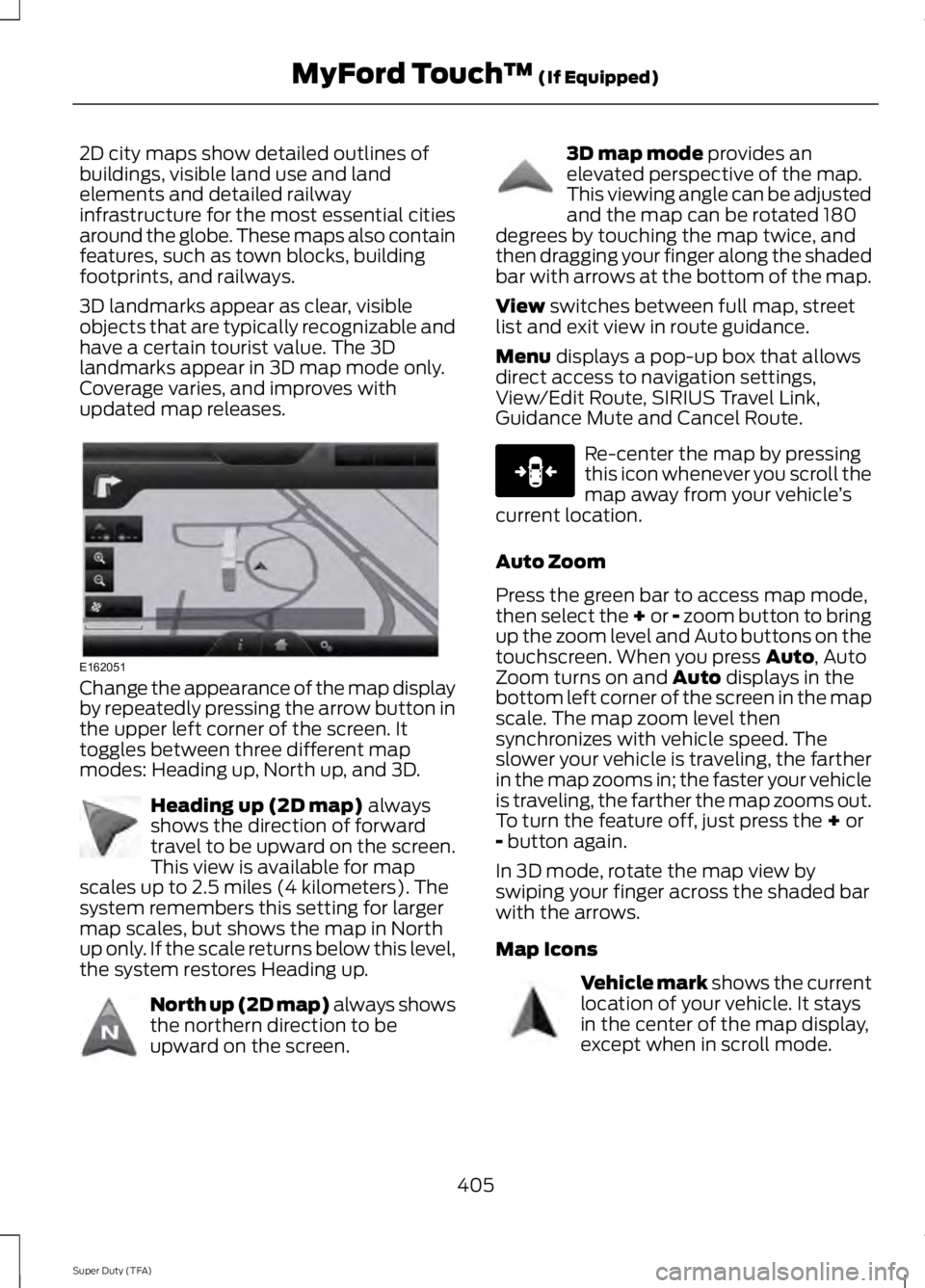
2D city maps show detailed outlines of
buildings, visible land use and land
elements and detailed railway
infrastructure for the most essential cities
around the globe. These maps also contain
features, such as town blocks, building
footprints, and railways.
3D landmarks appear as clear, visible
objects that are typically recognizable and
have a certain tourist value. The 3D
landmarks appear in 3D map mode only.
Coverage varies, and improves with
updated map releases.
Change the appearance of the map display
by repeatedly pressing the arrow button in
the upper left corner of the screen. It
toggles between three different map
modes: Heading up, North up, and 3D.
Heading up (2D map) always
shows the direction of forward
travel to be upward on the screen.
This view is available for map
scales up to 2.5 miles (4 kilometers). The
system remembers this setting for larger
map scales, but shows the map in North
up only. If the scale returns below this level,
the system restores Heading up. North up (2D map) always shows
the northern direction to be
upward on the screen. 3D map mode
provides an
elevated perspective of the map.
This viewing angle can be adjusted
and the map can be rotated 180
degrees by touching the map twice, and
then dragging your finger along the shaded
bar with arrows at the bottom of the map.
View
switches between full map, street
list and exit view in route guidance.
Menu
displays a pop-up box that allows
direct access to navigation settings,
View/Edit Route, SIRIUS Travel Link,
Guidance Mute and Cancel Route. Re-center the map by pressing
this icon whenever you scroll the
map away from your vehicle
’s
current location.
Auto Zoom
Press the green bar to access map mode,
then select the + or - zoom button to bring
up the zoom level and Auto buttons on the
touchscreen. When you press
Auto, Auto
Zoom turns on and Auto displays in the
bottom left corner of the screen in the map
scale. The map zoom level then
synchronizes with vehicle speed. The
slower your vehicle is traveling, the farther
in the map zooms in; the faster your vehicle
is traveling, the farther the map zooms out.
To turn the feature off, just press the
+ or
- button again.
In 3D mode, rotate the map view by
swiping your finger across the shaded bar
with the arrows.
Map Icons Vehicle mark
shows the current
location of your vehicle. It stays
in the center of the map display,
except when in scroll mode.
405
Super Duty (TFA) MyFord Touch
™
(If Equipped)E162051 E142642 E142643 E142644 E146188 E142646
Page 452 of 460
E
Economical Driving....................................200
Electronic Locking Differential................158
Activating the Electronic Locking
Differential....................................................... 158
Emission Control System..........................139 On-Board Diagnostics (OBD-II)................... 140
Readiness for Inspection/Maintenance (I/M) Testing................................................... 140
End User License Agreement...................412
SYNC® End User License Agreement
(EULA)............................................................... 412
Engine Block Heater.....................................132 Using the Engine Block Heater...................... 133
Engine Coolant Check
................................227
Adding Engine Coolant.................................... 228
Checking the Engine Coolant........................ 227
Recycled Engine Coolant................................ 229
Severe Climates................................................. 229
What You Should Know About Fail-Safe Cooling.............................................................. 229
Engine Immobilizer See: Passive Anti-Theft System..................... 58
Engine Oil Check..........................................226 Adding Engine Oil.............................................. 226
Engine Oil Dipstick
......................................226
Engine Specifications.................................292
Drivebelt Routing............................................... 292
Entertainment..............................................366 A/V Inputs............................................................ 382
AM/FM Radio...................................................... 368
Bluetooth Audio.................................................. 381
Browsing Device Content............................... 366
CD........................................................................\
..... 377
SD Card Slot and USB Port............................ 378
SIRIUS® Satellite Radio (If Activated)........................................................ 373
Supported Media Players, Formats and Metadata Information................................. 381Essential Towing Checks...........................189
Before Towing a Trailer..................................... 195
Hitches................................................................... 190
Launching or Retrieving a Boat or Personal Watercraft (PWC)......................................... 196
Safety Chains........................................................ 191
Trailer Brakes......................................................... 191
Trailer Lamps....................................................... 195
Trailer Towing Connector................................ 190
Using a Step Bumper (If Equipped)............195
When Towing a Trailer...................................... 195
Event Data Recording See: Data Recording.............................................. 9
Export Unique Options..................................13
Exterior Mirrors
................................................70
Clearance Lamps................................................... 71
Fold-Away Exterior Mirrors................................. 71
Heated Exterior Mirrors........................................ 71
Memory Mirrors...................................................... 71
Power Exterior Mirrors........................................ 70
Telescoping Mirrors.............................................. 72
F
Fastening the Safety Belts..........................29 Fastening the Cinch Tongue............................ 30
Restraint of Pregnant Women........................ 30
Safety Belt Extension Assembly...................... 31
Safety Belt Locking Modes............................... 30
Using the Safety Belt with Cinch Tongue (Front Center and Rear Center Seats
Only).................................................................... 29
Floor Mats
.......................................................201
Fog Lamps - Front See: Front Fog Lamps......................................... 67
Foot Pedals See: Adjusting the Pedals................................. 63
Ford Credit
..........................................................11
(U.S. Only)................................................................. 11
Ford Extended Service Plan (ESP)
.......427
SERVICE PLANS (CANADA ONLY)............429
SERVICE PLANS (U.S. Only)......................... 427
Four-Wheel Drive.........................................149
Front Fog Lamps............................................67
Front Seat Armrest........................................117
Fuel and Refueling
.......................................134
449
Super Duty (TFA) Index
Page 455 of 460
Mirrors
See: Heated Windows and Mirrors..............106
See: Windows and Mirrors................................ 69
Mobile Communications Equipment.......13
Moonroof...........................................................73 Bounce-Back.......................................................... 74
Opening and Closing the Moonroof..............73
Venting the Moonroof......................................... 74
Motorcraft Parts...........................................293
MyFord Touch ™...........................................349
General Information......................................... 349
MyKey Troubleshooting
...............................53
MyKey ™............................................................50
Principle of Operation........................................ 50
N
Navigation.....................................................400 cityseekr................................................................ 402
Map Mode............................................................ 404
Navigation Map Updates................................ 407
Navigation Voice Commands....................... 407
Point of Interest (POI) Categories..............402
Quick-touch Buttons....................................... 406
Setting a Destination........................................ 401
Setting Your Navigation Preferences.........403
Normal Scheduled Maintenance
..........433
6.2L and 6.8L Gasoline Engines................... 433
6.7L Diesel Engine............................................. 434
O
Oil Check See: Engine Oil Check...................................... 226
Opening and Closing the Hood..............223
Ordering Additional Owner's Literature.......................................................212
Obtaining a French Owner ’s Manual...........212
Overhead Console
........................................129
P
Parking Aid
......................................................170
Rear Sensing System........................................ 170
Parking Aids....................................................170
Parking Brake
..................................................161
Passive Anti-Theft System........................58
SecuriLock ™.......................................................... 58PATS
See: Passive Anti-Theft System..................... 58
Pedals.................................................................63
Perchlorate.........................................................11
Phone...............................................................383 Making Calls........................................................ 385
Pairing Subsequent Phones.......................... 385
Pairing Your Phone for the First Time.................................................................. 384
Phone Menu Options....................................... 385
Phone Settings................................................... 387
Phone Voice Commands............................... 388
Receiving Calls................................................... 385
Text Messaging.................................................. 386
Post-Crash Alert System
..........................207
Power Door Locks See: Locking and Unlocking............................. 54
Power Seats
......................................................111
Power Lumbar........................................................ 111
Power Recline......................................................... 111
Power Steering Fluid Check.....................234
Power Take-Off.............................................148
Power Windows
.............................................69
Accessory Delay.................................................... 70
Bounce-Back......................................................... 69
One-Touch Up or Down.................................... 69
Power Sliding Back Window............................ 70
Window Lock......................................................... 70
R
Rear Axle
..........................................................158
Rear Seat Armrest.........................................118
Rear Seats
........................................................112
Folding the Rear Seat Back (Crew Cab)
........................................................................\
....... 113
Folding up the Rear Seat Cushion.................113
Rear Heated Seats ............................................. 114
Rear Under Seat Storage (Crew Cab).........114
Returning the Seat to the Seating Position............................................................... 113
Rear View Camera.........................................171 Using the Rear View Camera System...........171
Rear View Camera See: Rear View Camera..................................... 171
Recommended Towing Weights............188 Calculating the Maximum Loaded Trailer
Weight for Your Vehicle............................... 189
452
Super Duty (TFA) Index
Page 458 of 460
Using Cruise Control....................................174
Switching Cruise Control Off.......................... 174
Switching Cruise Control On........................... 174
Using Four-Wheel Drive.............................149 4WD Indicator Lights........................................ 150
Driving Off-Road With Truck and Utility Vehicles............................................................. 153
Electronic Shift-On-the-Fly (ESOF) 4WD system............................................................... 149
How Your Vehicle Differs From Other Vehicles............................................................. 153
Manual Shift On Stop (MSOS) 4WD system............................................................... 149
Using a Manual Shift On Stop (MSOS) 4wd system............................................................... 150
Using the Electronic Shift on the Fly 4WD system................................................................ 152
Using Hill Descent Control........................168 Hill descent modes............................................ 168
Using MyKey With Remote Start Systems..........................................................52
Using Snow Chains......................................273
Using Stability Control...............................165
AdvanceTrac® with Roll Stability Control ™
(RSC®).............................................................. 165
Using SYNC™ With Your Media Player.............................................................335
Accessing Your Play Menu............................. 339
Connecting Your Digital Media Player to the USB Port........................................................... 335
Media Menu Features...................................... 338
Media Voice Commands................................ 336
System Settings.................................................. 341
What's Playing?................................................. 336
Using SYNC™ With Your Phone..............317 Accessing Features through the Phone
Menu................................................................... 321
Accessing Your Phone Settings.................... 324
Making Calls........................................................ 320
Pairing a Phone for the First Time................318
Pairing Subsequent Phones........................... 318
Phone Options during an Active Call.........320
Phone Voice Commands................................. 318
Receiving Calls................................................... 320
System Settings................................................. 325
Text Messaging................................................... 323Using Traction Control
................................163
System Indicator Lights and
Messages.......................................................... 164
Using Voice Recognition
............................315
Initiating a Voice Session................................. 315
System Interaction and Feedback...............316
Utilizing the Mediation/Arbitration Program (Canada Only).........................210
V
Vehicle Care
...................................................247
General Information.......................................... 247
Vehicle Certification Label
.......................294
Vehicle Identification Number................294
Vehicle Storage.............................................252 Battery.................................................................... 253
Body........................................................................\
252
Brakes..................................................................... 253
Cooling system................................................... 253
Engine..................................................................... 252
Fuel system.......................................................... 253
General.................................................................. 252
Miscellaneous..................................................... 253
Removing Vehicle From Storage.................. 253
Tires........................................................................\
. 253
Ventilated Seats
............................................116
Heated and Ventilated Seats Air Filter
Replacement ................................................... 116
Ventilation See: Climate Control......................................... 103
VIN See: Vehicle Identification Number............294
Voice Control....................................................61
455
Super Duty (TFA) Index