center console FORD F250 2014 Owners Manual
[x] Cancel search | Manufacturer: FORD, Model Year: 2014, Model line: F250, Model: FORD F250 2014Pages: 460, PDF Size: 5.33 MB
Page 5 of 460
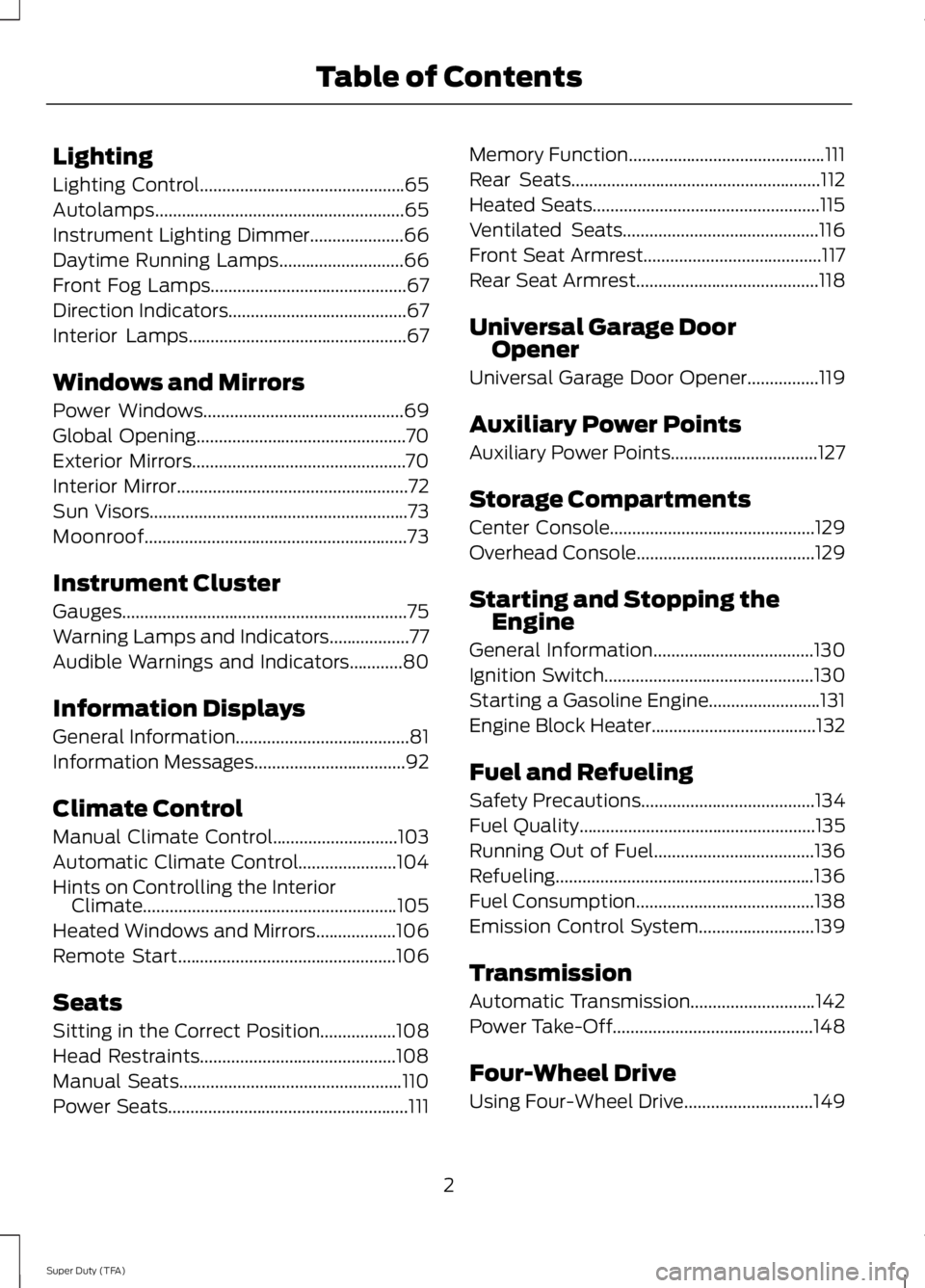
Lighting
Lighting Control..............................................65
Autolamps........................................................65
Instrument Lighting Dimmer.....................66
Daytime Running Lamps
............................66
Front Fog Lamps............................................67
Direction Indicators........................................67
Interior Lamps
.................................................67
Windows and Mirrors
Power Windows
.............................................69
Global Opening...............................................70
Exterior Mirrors................................................70
Interior Mirror....................................................72
Sun Visors..........................................................73
Moonroof...........................................................73
Instrument Cluster
Gauges................................................................75
Warning Lamps and Indicators..................77
Audible Warnings and Indicators............80
Information Displays
General Information
.......................................81
Information Messages
..................................92
Climate Control
Manual Climate Control
............................103
Automatic Climate Control......................104
Hints on Controlling the Interior Climate
.........................................................105
Heated Windows and Mirrors
..................106
Remote Start.................................................106
Seats
Sitting in the Correct Position
.................108
Head Restraints............................................108
Manual Seats
..................................................110
Power Seats
......................................................111 Memory Function
............................................111
Rear Seats
........................................................112
Heated Seats...................................................115
Ventilated Seats
............................................116
Front Seat Armrest
........................................117
Rear Seat Armrest.........................................118
Universal Garage Door Opener
Universal Garage Door Opener................119
Auxiliary Power Points
Auxiliary Power Points.................................127
Storage Compartments
Center Console
..............................................129
Overhead Console........................................129
Starting and Stopping the Engine
General Information
....................................130
Ignition Switch
...............................................130
Starting a Gasoline Engine.........................131
Engine Block Heater.....................................132
Fuel and Refueling
Safety Precautions
.......................................134
Fuel Quality
.....................................................135
Running Out of Fuel
....................................136
Refueling..........................................................136
Fuel Consumption
........................................138
Emission Control System..........................139
Transmission
Automatic Transmission
............................142
Power Take-Off
.............................................148
Four-Wheel Drive
Using Four-Wheel Drive.............................149
2
Super Duty (TFA) Table of Contents
Page 130 of 460
12 Volt DC Power Point
WARNING
Do not plug optional electrical
accessories into the cigar lighter
socket (if equipped). Improper use
of the lighter can cause damage not
covered by your warranty, and can result
in fire or serious injury. Note:
If used when the engine is not
running, the battery will discharge. There
may be insufficient power to restart your
engine.
Note: Do not insert objects other than an
accessory plug into the power point. This
will damage the outlet and blow the fuse.
Note: Do not hang any type of accessory or
accessory bracket from the plug.
Note: Do not use the power point over the
vehicle capacity of 12 volt DC 180 watts or
a fuse may blow.
Note: Do not use the power point for
operating a cigar lighter element.
Note: Improper use of the power point can
cause damage not covered by your
warranty.
Note: Always keep the power point caps
closed when not in use.
Run the engine for full capacity use of the
power point. To prevent the battery from
being discharged:
• do not use the power point longer than
necessary when the engine is not
running
• do not leave devices plugged in
overnight or when the vehicle is parked
for extended periods.
Locations
Power points may be found: •
On the instrument panel (two
locations).
• Inside the center console.
• On the rear of the center console.
• Inside the front under-seat storage
compartment (if equipped).
• Inside the rear under-seat storage
compartment (if equipped).
110 Volt AC Power Points (If Equipped) WARNING
Do not keep electrical devices
plugged in the power points when
the devices are not in use. Do not use
any extension cord with the 110 volt AC
power points, since it will defeat the safety
protection design. Do not use a single
power point to power multiple devices. It
may cause the power point to exceed the
150 watt load limit and overload, resulting
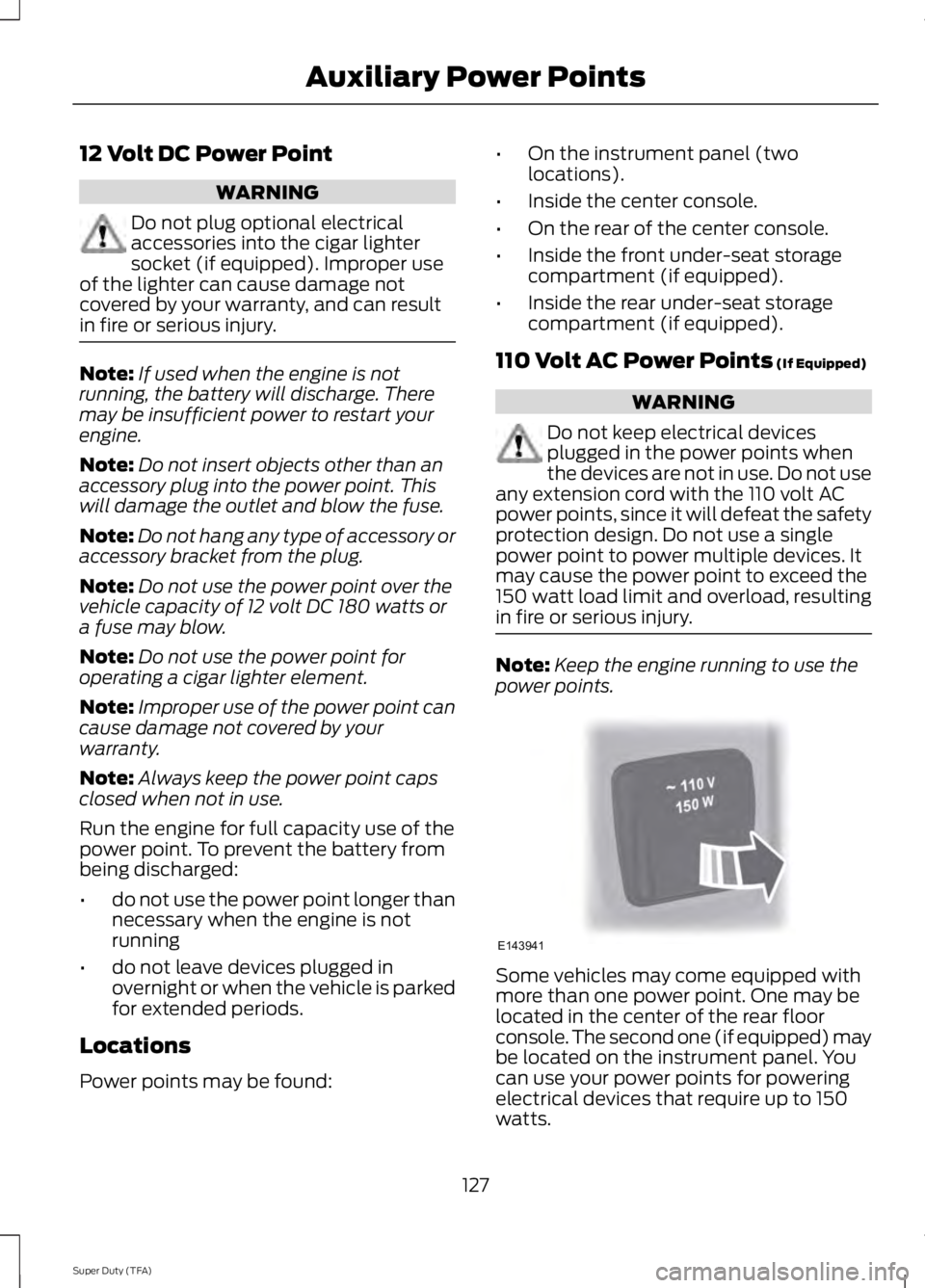
in fire or serious injury. Note:
Keep the engine running to use the
power points. Some vehicles may come equipped with
more than one power point. One may be
located in the center of the rear floor
console. The second one (if equipped) may
be located on the instrument panel. You
can use your power points for powering
electrical devices that require up to 150
watts.
127
Super Duty (TFA) Auxiliary Power PointsE143941
Page 132 of 460
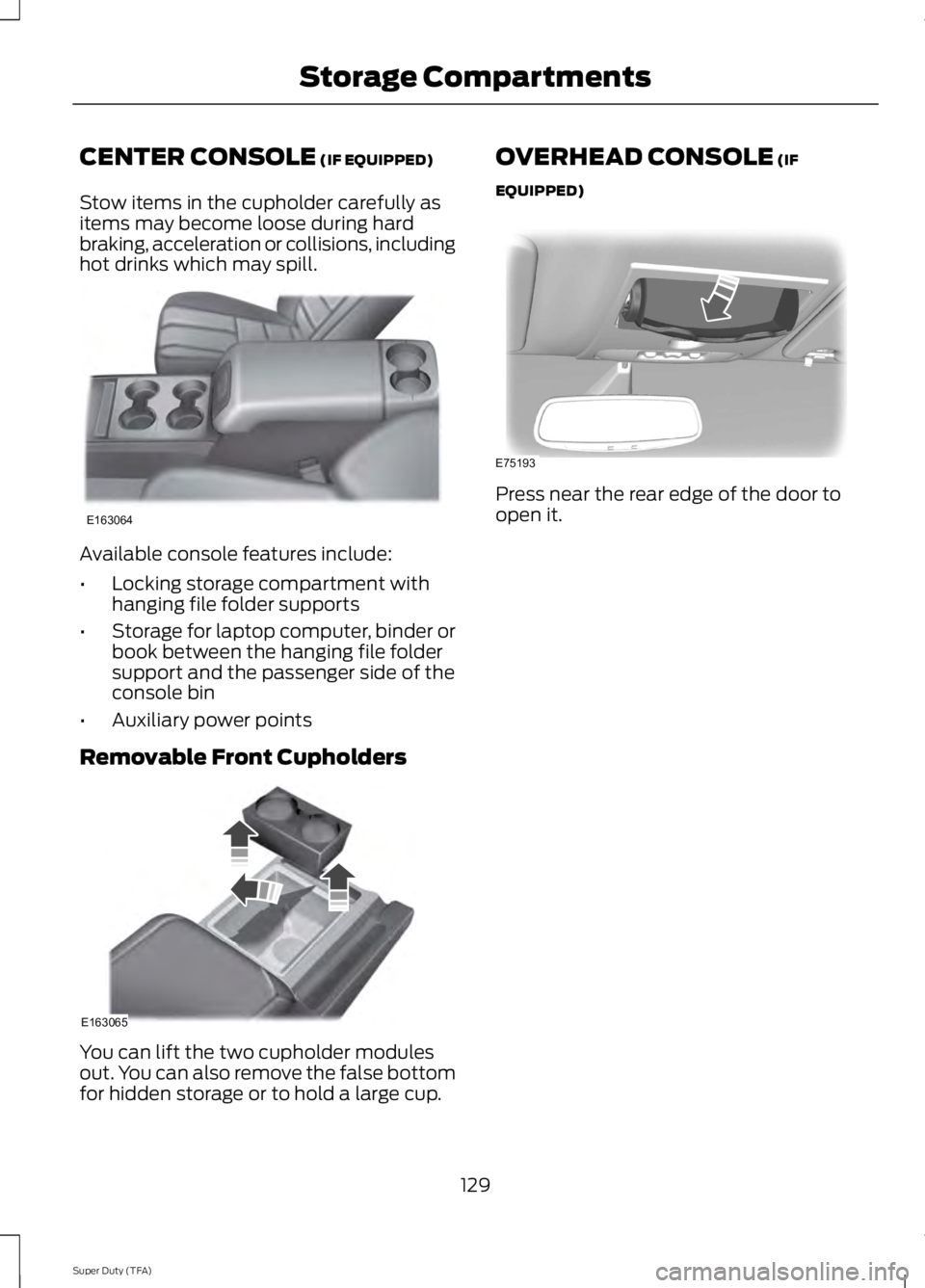
CENTER CONSOLE (IF EQUIPPED)
Stow items in the cupholder carefully as
items may become loose during hard
braking, acceleration or collisions, including
hot drinks which may spill. Available console features include:
•
Locking storage compartment with
hanging file folder supports
• Storage for laptop computer, binder or
book between the hanging file folder
support and the passenger side of the
console bin
• Auxiliary power points
Removable Front Cupholders You can lift the two cupholder modules
out. You can also remove the false bottom
for hidden storage or to hold a large cup. OVERHEAD CONSOLE (IF
EQUIPPED) Press near the rear edge of the door to
open it.
129
Super Duty (TFA) Storage CompartmentsE163064 E163065 E75193
Page 168 of 460
PRINCIPLE OF OPERATION
WARNINGS
Vehicle modifications involving
braking system, aftermarket roof
racks, suspension, steering system,
tire construction and wheel and tire size
may change the handling characteristics
of your vehicle and may adversely affect
the performance of the AdvanceTrac
system. In addition, installing any stereo
loudspeakers may interfere with and
adversely affect the AdvanceTrac system.
Install any aftermarket stereo loudspeaker
as far as possible from the front center
console, the tunnel, and the front seats in
order to minimize the risk of interfering with
the AdvanceTrac sensors. Reducing the
effectiveness of the AdvanceTrac system
could lead to an increased risk of loss of
vehicle control, vehicle rollover, personal
injury and death. Remember that even advanced
technology cannot defy the laws of
physics. It’
s always possible to lose
control of a vehicle due to inappropriate
driver input for the conditions. Aggressive
driving on any road condition can cause
you to lose control of your vehicle
increasing the risk of personal injury or
property damage. Activation of the
AdvanceTrac system is an indication that
at least some of the tires have exceeded
their ability to grip the road; this could
reduce the operator ’s ability to control the
vehicle potentially resulting in a loss of
vehicle control, vehicle rollover, personal
injury and death. If your AdvanceTrac
system activates, SLOW DOWN. The AdvanceTrac with Roll Stability
Control system helps you keep control of
your vehicle when on a slippery surface.
The electronic stability control portion of
the system helps avoid skids and lateral
slides and roll stability control helps avoid
a vehicle rollover. The traction control
system helps avoid drive wheel spin and
loss of traction. See Using Traction
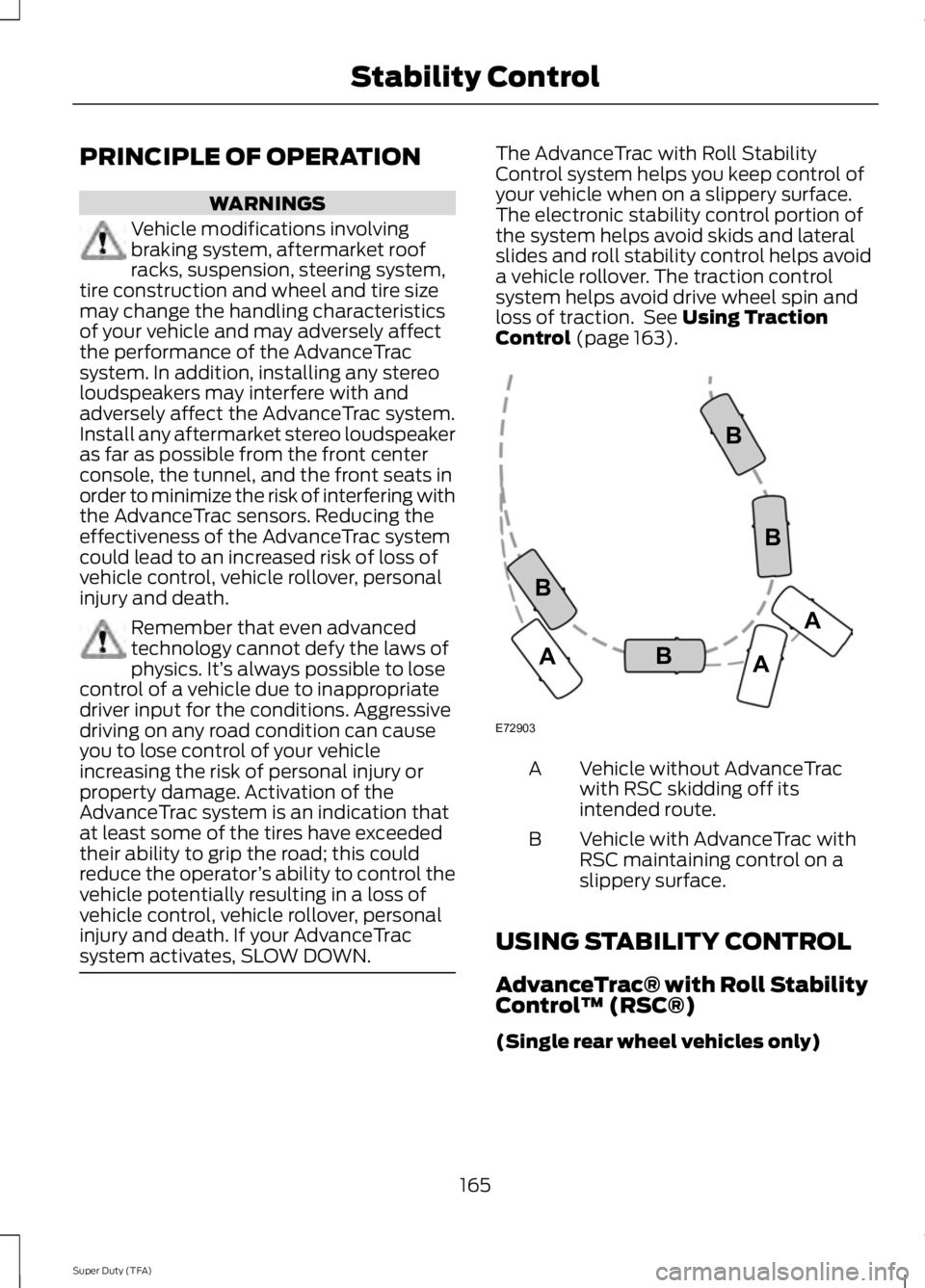
Control (page 163). Vehicle without AdvanceTrac
with RSC skidding off its
intended route.
A
Vehicle with AdvanceTrac with
RSC maintaining control on a
slippery surface.
B
USING STABILITY CONTROL
AdvanceTrac® with Roll Stability
Control ™ (RSC®)
(Single rear wheel vehicles only)
165
Super Duty (TFA) Stability ControlE72903A
AA
B
BB
B
Page 314 of 460
Possible action
Condition
Radio display
Contact SIRIUS at 1-888-
539-7474 to resolve
subscription issues.
Your satellite service is no
longer available.
Call SIRIUS 1-888-539-7474
Use the channel guide to
turn off the Lock or Skip
function on that station.
All the channels in the
selected category are either
skipped or locked.
None found. Check Channel
Guide.
No action required.
SIRIUS has updated the
channels available for your
vehicle.
Subscription Updated
AUDIO INPUT JACK WARNINGS
Driving while distracted can result in
loss of vehicle control, crash and
injury. We strongly recommend that
you use extreme caution when using any
device that may take your focus off the
road. Your primary responsibility is the safe
operation of your vehicle. We recommend
against the use of any hand-held device
while driving and encourage the use of
voice-operated systems when possible.
Make sure you are aware of all applicable
local laws that may affect the use of
electronic devices while driving. For safety reasons, do not connect
or adjust the settings on your
portable music player while your
vehicle is moving. Store the portable music player in a
secure location, such as the center
console or the glove box, when your
vehicle is moving. Hard objects may
become projectiles in a collision or sudden
stop, which may increase the risk of serious
injury. The audio extension cable must be
long enough to allow the portable music
player to be safely stored while your
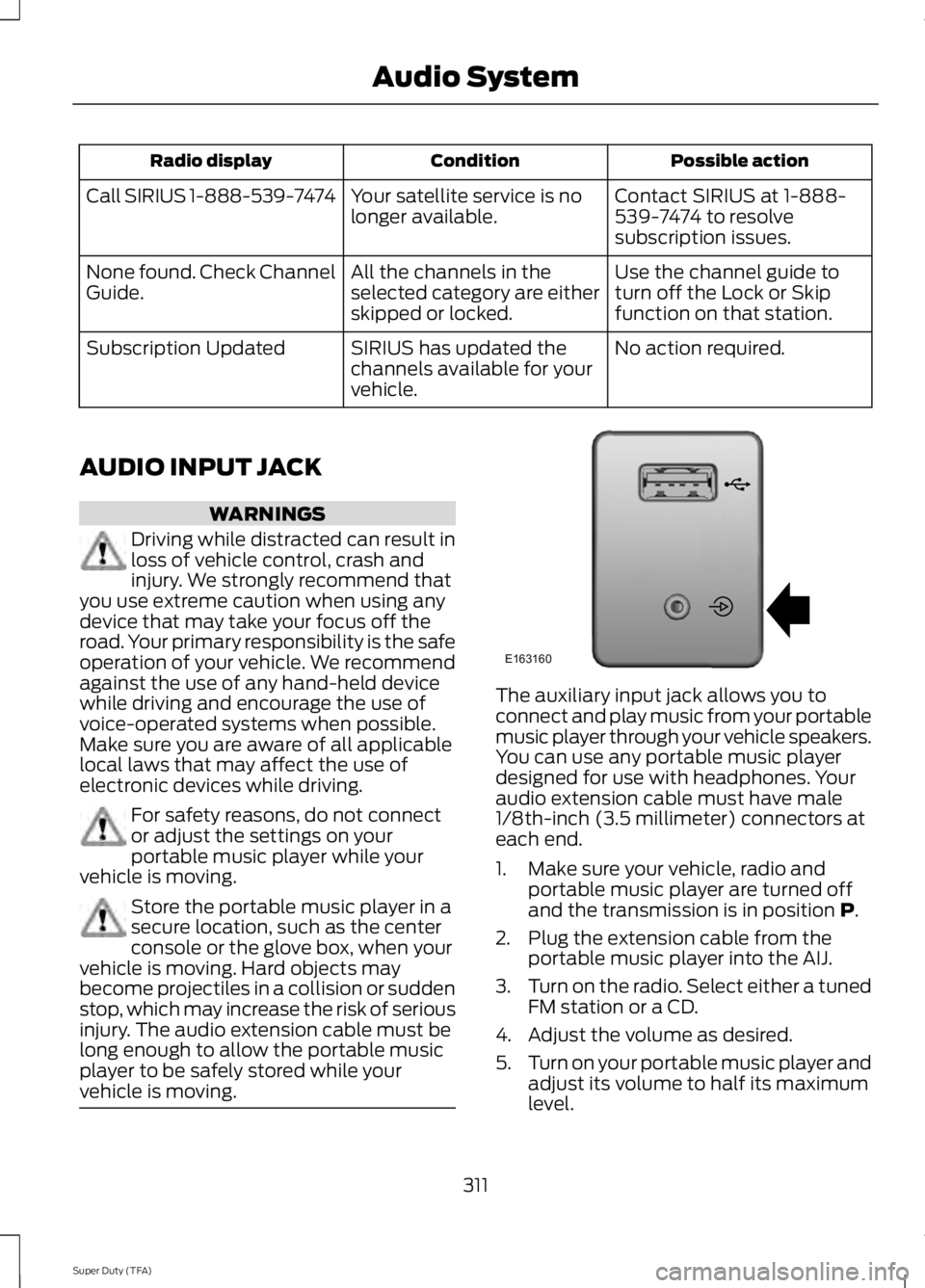
vehicle is moving. The auxiliary input jack allows you to
connect and play music from your portable
music player through your vehicle speakers.
You can use any portable music player
designed for use with headphones. Your
audio extension cable must have male
1/8th-inch (3.5 millimeter) connectors at
each end.
1. Make sure your vehicle, radio and
portable music player are turned off
and the transmission is in position P.
2. Plug the extension cable from the portable music player into the AIJ.
3. Turn on the radio. Select either a tuned
FM station or a CD.
4. Adjust the volume as desired.
5. Turn on your portable music player and
adjust its volume to half its maximum
level.
311
Super Duty (TFA) Audio SystemE163160
Page 338 of 460
To Access Using the Media Menu
1. Press the AUX button on the center
console.
2. Press
MENU to access the SYNC
menu.
3. Select "SYNC-Media" by pressing
OK.
4. Scroll to Mobile Apps and press OK to
access a list of available applications.
5. Scroll through the list of available applications and press
OK to select a
particular app.
6. Once an app is running through SYNC,
you can access an app ’s menu by
pressing the
MENU button to first
access the SYNC menu.
7. Select "SYNC-Media" by pressing
OK.
8. Scroll until "
then press
OK. From here, you can
access an application's features, such
as Thumbs up and Thumbs down. For
more information, please visit
www.SYNCMyRide.com.
To Access Using Voice Commands
1. Press the voice icon.
2. When prompted, say "Mobile Apps".
3. Say the name of the application after the tone.
4. The app should start. While an app is running through SYNC, you can press
the voice button and speak commands
specific to the app, such as "Play
Station Quickmix". Say "Help" to
discover available voice commands. USING SYNC™ WITH YOUR
MEDIA PLAYER
You can access and play music from your
digital music player over your vehicle's
speaker system using the system's media
menu or voice commands. You can also
sort and play your music by specific
categories, such as artist and album.
Note:
The system is capable of indexing up
to 30,000 songs.
SYNC is capable of hosting nearly any
digital media player including: iPod®,
Zune ™, Plays from device players, and
most USB drives. SYNC also supports
audio formats, such as MP3, WMA, WAV
and ACC.
Connecting Your Digital Media
Player to the USB Port
Note: If your digital media player has a
power switch, make sure you switch it on
before plugging it in.
To Connect Using Voice Commands
1. Plug the device into the USB port.
2. Press the voice icon and when prompted, say "USB".
3. You can now play music by saying any of the appropriate voice commands.
See the media voice commands.
To Connect Using the System Menu
1. Plug the device into the USB port.
2. Press
AUX and then MENU to enter
the media menu.
3. Scroll to Select Source. Press
OK.
4. Scroll to USB. Press
OK.
5. Depending on how many digital media
files are on your connected device,
Indexing
may appear in the radio
display. When indexing is complete, the
screen returns to the Play menu.
335
Super Duty (TFA) SYNC™
(If Equipped)
Page 381 of 460
"CD"
"Pause" "Play"
"Play next track"
"Play previous track" "Play track <1-512>" "Repeat"
"Repeat folder" *
"Repeat off"
"Repeat track" "Shuffle"
"Shuffle CD" *
"Shuffle folder" *
"Shuffle off" "Help"
* This applies to WMA or MP3 files only.
SD Card Slot and USB Port
SD Card
Note: Your SD card slot is spring-loaded.
To remove the SD card, press the card in
and the system ejects it. Do not attempt to
pull the card to remove it as this could cause
damage.
Note: The navigation system also uses this
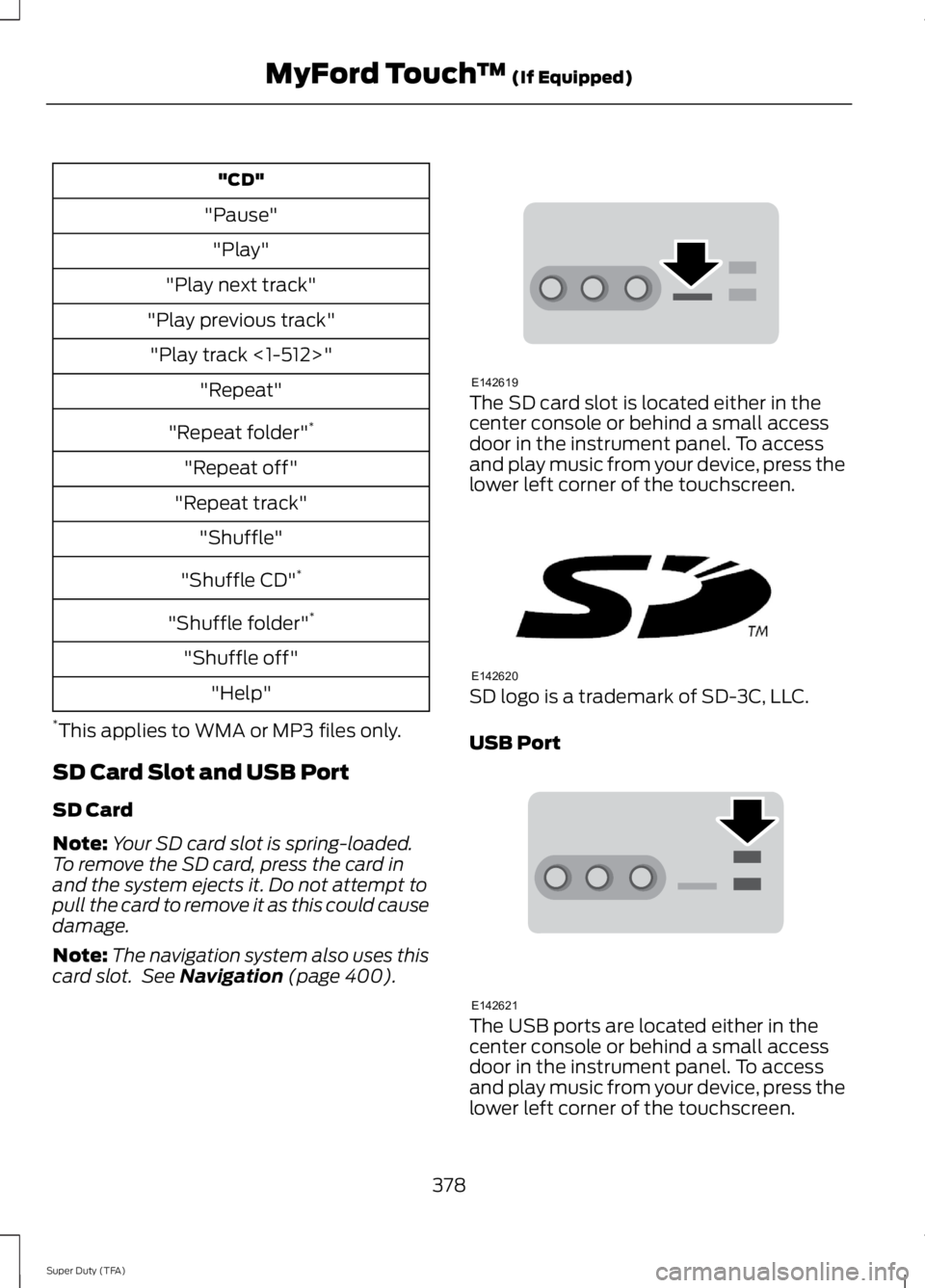
card slot. See Navigation (page 400). The SD card slot is located either in the
center console or behind a small access
door in the instrument panel. To access
and play music from your device, press the
lower left corner of the touchscreen.
SD logo is a trademark of SD-3C, LLC.
USB Port
The USB ports are located either in the
center console or behind a small access
door in the instrument panel. To access
and play music from your device, press the
lower left corner of the touchscreen.
378
Super Duty (TFA) MyFord Touch
™
(If Equipped)E142619 E142620 E142621
Page 385 of 460
To access, press the lower left
corner on the touchscreen, then
select the BT Stereo tab.
Bluetooth Audio Voice Commands If you are listening to a Bluetooth
audio device, press the voice
button on the steering wheel
control. When prompted, say "Next song",
"Pause", "Play" or "Previous song".
If you are not listening to a Bluetooth audio
device, press the voice button and, after
the tone, say "Next song", "Pause", "Play"
or "Previous song".
A/V Inputs WARNINGS
Driving while distracted can result in
loss of vehicle control, crash and
injury. We strongly recommend that
you use extreme caution when using any
device that may take your focus off the
road. Your primary responsibility is the safe
operation of your vehicle. We recommend
against the use of any handheld device
while driving and encourage the use of
voice-operated systems when possible.
Make sure you are aware of all applicable
local laws that may affect the use of
electronic devices while driving. For safety reasons, do not connect
or adjust the settings on your
portable music player while your
vehicle is moving. Store the portable music player in a
secure location, such as the center
console or the glove box, when your
vehicle is moving. Hard objects may
become projectiles in a crash or sudden
stop, which may increase the risk of serious
injury. The audio extension cable must be
long enough to allow the portable music
player to be safely stored while your
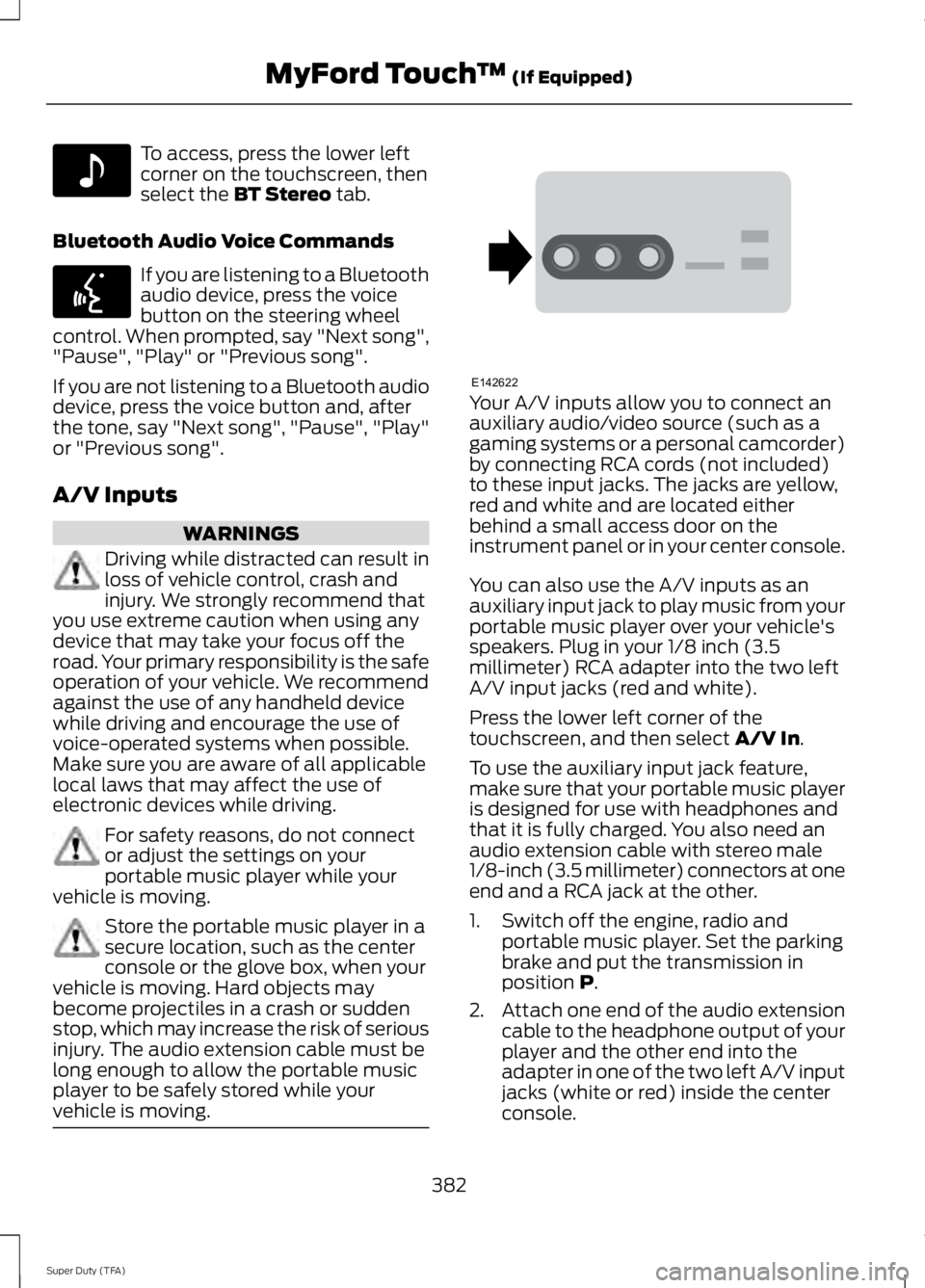
vehicle is moving. Your A/V inputs allow you to connect an
auxiliary audio/video source (such as a
gaming systems or a personal camcorder)
by connecting RCA cords (not included)
to these input jacks. The jacks are yellow,
red and white and are located either
behind a small access door on the
instrument panel or in your center console.
You can also use the A/V inputs as an
auxiliary input jack to play music from your
portable music player over your vehicle's
speakers. Plug in your 1/8 inch (3.5
millimeter) RCA adapter into the two left
A/V input jacks (red and white).
Press the lower left corner of the
touchscreen, and then select
A/V In.
To use the auxiliary input jack feature,
make sure that your portable music player
is designed for use with headphones and
that it is fully charged. You also need an
audio extension cable with stereo male
1/8-inch (3.5 millimeter) connectors at one
end and a RCA jack at the other.
1. Switch off the engine, radio and portable music player. Set the parking
brake and put the transmission in
position
P.
2. Attach one end of the audio extension
cable to the headphone output of your
player and the other end into the
adapter in one of the two left A/V input
jacks (white or red) inside the center
console.
382
Super Duty (TFA) MyFord Touch
™
(If Equipped)E142611 E142599 E142622
Page 413 of 460
For maximum vehicle performance, keep
the following information in mind when
adding accessories or equipment to your
vehicle:
•
When adding accessories, equipment,
passengers and luggage to your
vehicle, do not exceed the total weight
capacity of the vehicle or of the front
or rear axle (GVWR or GAWR as
indicated on the Safety Compliance
Certification label). Ask an authorized
dealer for specific weight information.
• The Federal Communications
Commission (FCC) and Canadian
Radio Telecommunications
Commission (CRTC) regulate the use
of mobile communications systems
that are equipped with radio
transmitters, for example, two-way
radios, telephones and theft alarms.
Any such equipment installed in your
vehicle should comply with Federal
Communications Commission (FCC)
and Canadian Radio
Telecommunications Commission
(CRTC) regulations and should be
installed only by an authorized dealer.
• An authorized dealer needs to install
mobile communications systems.
Improper installation may harm the
operation of your vehicle, particularly
if the manufacturer did not design the
mobile communication system
specifically for automotive use.
• If you or an authorized Ford dealer add
any non-Ford custom electrical or
electronic accessories or components
to your vehicle, you may adversely
affect battery performance and
durability. In addition, you may also
adversely affect the performance of
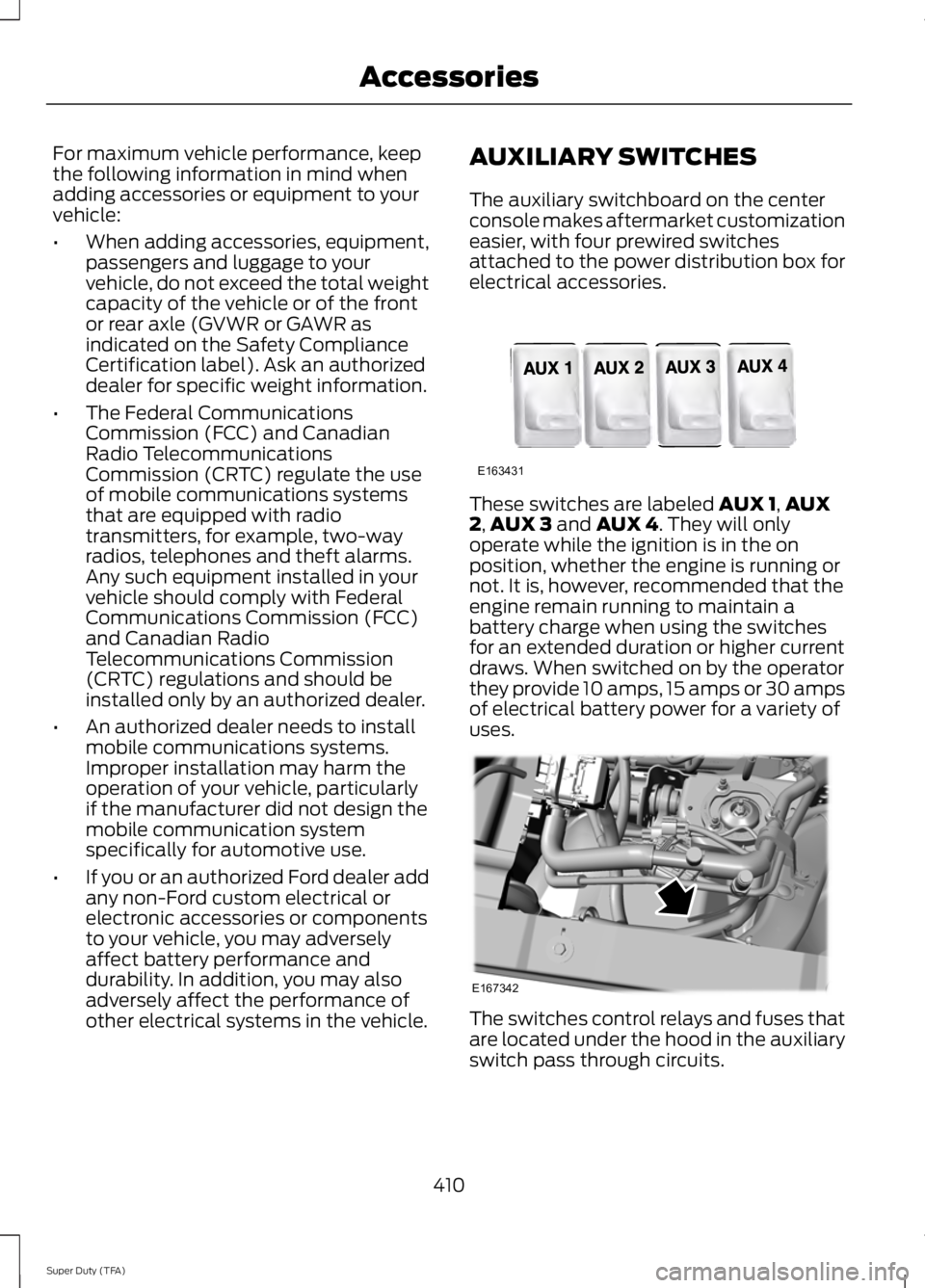
other electrical systems in the vehicle. AUXILIARY SWITCHES
The auxiliary switchboard on the center
console makes aftermarket customization
easier, with four prewired switches
attached to the power distribution box for
electrical accessories.
These switches are labeled AUX 1,
AUX
2, AUX 3 and AUX 4. They will only
operate while the ignition is in the on
position, whether the engine is running or
not. It is, however, recommended that the
engine remain running to maintain a
battery charge when using the switches
for an extended duration or higher current
draws. When switched on by the operator
they provide 10 amps, 15 amps or 30 amps
of electrical battery power for a variety of
uses. The switches control relays and fuses that
are located under the hood in the auxiliary
switch pass through circuits.
410
Super Duty (TFA) AccessoriesE163431 E167342
Page 451 of 460
Car Wash
See: Cleaning the Exterior............................... 247
Center Console..............................................129
Removable Front Cupholders........................ 129
Changing a Bulb............................................241 Lamp Assembly Condensation..................... 241
Replacing Brake/Tail/Turn/Reverse Lamp Bulbs.................................................................. 242
Replacing Cargo Lamp and High-mount Brake Lamp Bulbs........................................ 242
Replacing Fog Lamp Bulbs (If Equipped.......................................................... 242
Replacing Front Clearance and Identification Lamp Bulbs (If
Equipped)......................................................... 241
Replacing the License Plate Lamp Bulb.................................................................... 243
Changing a Fuse............................................214 Fuses....................................................................... 214
Changing a Road Wheel
............................279
Dissimilar Spare Wheel and Tire Assembly
Information...................................................... 279
Location of the Spare Tire and Tools........280
Removing the Spare Tire (With Spare Tire Carrier Only).................................................... 281
Tire Change Procedure.................................... 282
Changing the 12V Battery.........................235 Battery Management System (If
Equipped)........................................................ 236
Changing the Engine Air Filter.................245
Changing the Wiper Blades......................237
Checking MyKey System Status...............52
Checking the Wiper Blades
......................237
Child Restraint and Safety Belt Maintenance.................................................35
Child Safety
.......................................................15
General Information............................................. 15
Child Safety Locks..........................................27
Child Seat Positioning..................................26
Cleaning Leather Seats
..............................251
Cleaning Products........................................247
Cleaning the Alloy Wheels........................251
Cleaning the Engine....................................248
Cleaning the Exhaust
.................................249 Cleaning the Exterior
...................................247
Cleaning Plastic Exterior Parts..................... 248
Exterior Chrome.................................................. 247
Stripes or Graphics (if equipped)................247
Underbody........................................................... 248
Cleaning the Instrument Panel and Instrument Cluster Lens........................250
Cleaning the Interior
...................................250
Cleaning the Windows and Wiper Blades...........................................................249
Clearing All MyKeys.......................................52
Climate............................................................398 Climate Control Voice Commands.............399
Climate Control
.............................................103
Coolant Check See: Engine Coolant Check............................ 227
Crash Sensors and Airbag Indicator.......44
Creating a MyKey
...........................................50
Programming/Changing Configurable
Settings................................................................ 51
Cruise Control...................................................61 Principle of Operation....................................... 174
Cruise control See: Using Cruise Control................................. 174
Customer Assistance
................................208
D
Data Recording
..................................................9
Event Data Recording.......................................... 10
Service Data Recording........................................ 9
Daytime Running Lamps
............................66
Digital Radio..................................................306
HD Radio Reception and Station
Troubleshooting............................................ 307
Direction Indicators
........................................67
Lane Change.......................................................... 67
Driver and Passenger Airbags....................37 Children and Airbags........................................... 42
Passenger Airbag On and Off Switch ..........37
Proper Driver and Front Passenger Seating Adjustment......................................................... 41
Driving Aids
......................................................175
Driving Hints..................................................200
Driving Through Water................................201
DRL See: Daytime Running Lamps........................ 66
448
Super Duty (TFA) Index