tow FORD F250 2015 Manual Online
[x] Cancel search | Manufacturer: FORD, Model Year: 2015, Model line: F250, Model: FORD F250 2015Pages: 485, PDF Size: 5.35 MB
Page 300 of 485
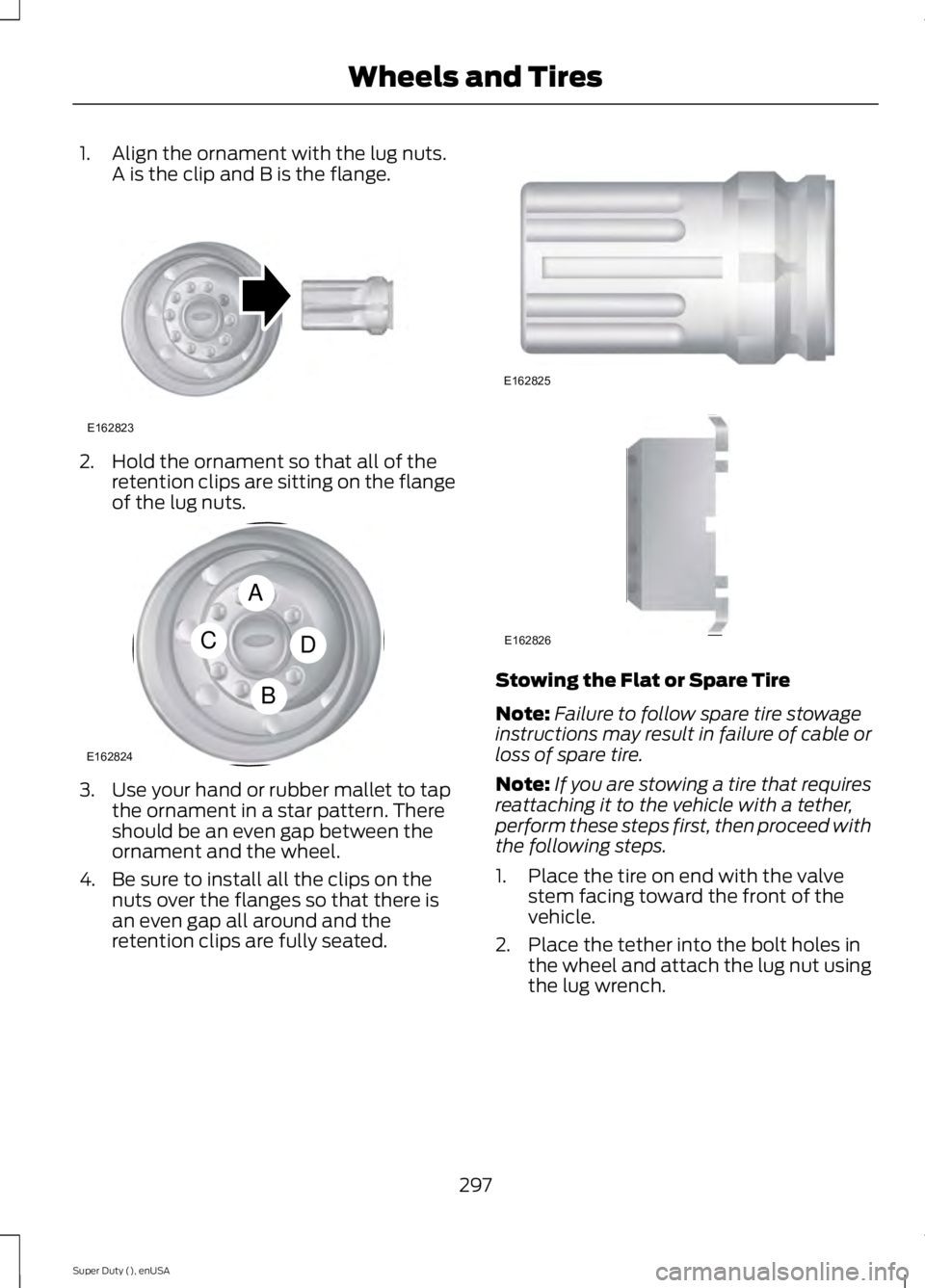
1. Align the ornament with the lug nuts.
A is the clip and B is the flange. 2. Hold the ornament so that all of the
retention clips are sitting on the flange
of the lug nuts. 3. Use your hand or rubber mallet to tap
the ornament in a star pattern. There
should be an even gap between the
ornament and the wheel.
4. Be sure to install all the clips on the nuts over the flanges so that there is
an even gap all around and the
retention clips are fully seated. Stowing the Flat or Spare Tire
Note:
Failure to follow spare tire stowage
instructions may result in failure of cable or
loss of spare tire.
Note: If you are stowing a tire that requires
reattaching it to the vehicle with a tether,
perform these steps first, then proceed with
the following steps.
1. Place the tire on end with the valve stem facing toward the front of the
vehicle.
2. Place the tether into the bolt holes in the wheel and attach the lug nut using
the lug wrench.
297
Super Duty (), enUSA Wheels and TiresE162823 A
C
B
D
E162824 E162825 E162826
Page 301 of 485
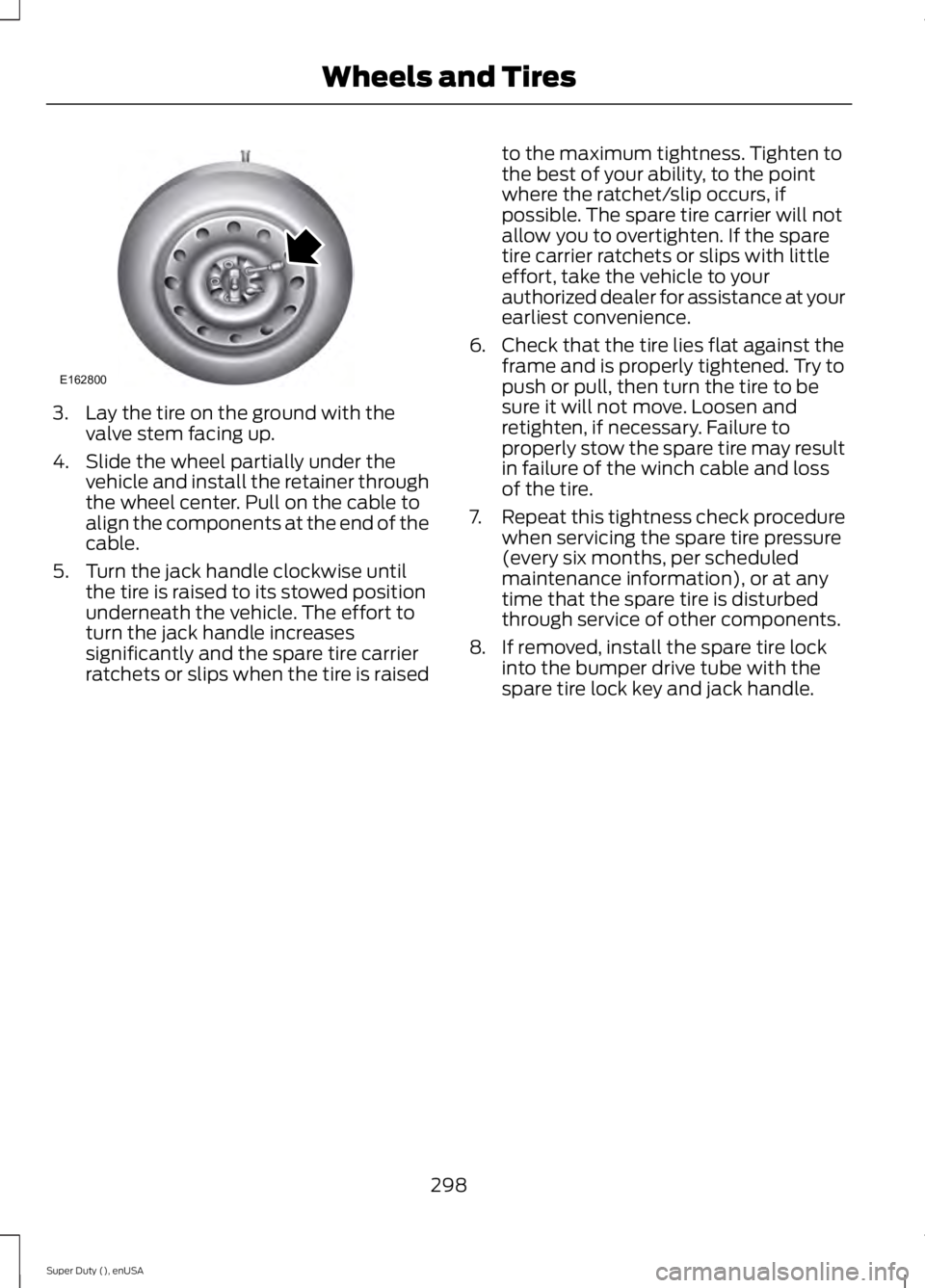
3. Lay the tire on the ground with the
valve stem facing up.
4. Slide the wheel partially under the vehicle and install the retainer through
the wheel center. Pull on the cable to
align the components at the end of the
cable.
5. Turn the jack handle clockwise until the tire is raised to its stowed position
underneath the vehicle. The effort to
turn the jack handle increases
significantly and the spare tire carrier
ratchets or slips when the tire is raised to the maximum tightness. Tighten to
the best of your ability, to the point
where the ratchet/slip occurs, if
possible. The spare tire carrier will not
allow you to overtighten. If the spare
tire carrier ratchets or slips with little
effort, take the vehicle to your
authorized dealer for assistance at your
earliest convenience.
6. Check that the tire lies flat against the frame and is properly tightened. Try to
push or pull, then turn the tire to be
sure it will not move. Loosen and
retighten, if necessary. Failure to
properly stow the spare tire may result
in failure of the winch cable and loss
of the tire.
7. Repeat this tightness check procedure
when servicing the spare tire pressure
(every six months, per scheduled
maintenance information), or at any
time that the spare tire is disturbed
through service of other components.
8. If removed, install the spare tire lock into the bumper drive tube with the
spare tire lock key and jack handle.
298
Super Duty (), enUSA Wheels and TiresE162800
Page 313 of 485
GENERAL INFORMATION
Radio Frequencies and Reception
Factors
AM and FM frequencies are established by
the Federal Communications Commission
(FCC) and the Canadian Radio and
Telecommunications Commission (CRTC).
Those frequencies are:
•
AM: 530, 540-1700, 1710 kHz
• FM: 87.9-107.7, 107.9 MHz Radio Reception Factors
The further you travel from an AM or FM station, the
weaker the signal and the weaker the reception.
Distance and strength
Hills, mountains, tall buildings, bridges, tunnels, freeway
overpasses, parking garages, dense tree foliage and
thunderstorms can interfere with the reception.
Terrain
When you pass a ground-based broadcast repeating
tower, a stronger signal may overtake a weaker one and
result in the audio system muting.
Station overload
CD and CD Player Information
Note: CD units play commercially pressed
4.75-inch (12 centimeter) audio compact
discs only. Due to technical incompatibility,
certain recordable and re-recordable
compact discs may not function correctly
when used in Ford CD players.
Note: Do not insert CDs with homemade
paper (adhesive) labels into the CD player
as the label may peel and cause the CD to
become jammed. You should use a
permanent felt tip marker rather than
adhesive labels on your homemade CDs.
Ballpoint pens may damage CDs. Please
contact an authorized dealer for further
information.
Note: Do not use any irregularly shaped
discs or discs with a scratch protection film
attached.
Always handle discs by their edges only.
Clean the disc with an approved CD
cleaner only. Wipe it from the center of the
disc toward the edge. Do not clean in a
circular motion. Do not expose discs to direct sunlight or
heat sources for extended periods.
MP3 Track and Folder Structure
Audio systems capable of recognizing and
playing MP3 individual tracks and folder
structures work as follows:
•
There are two different modes for MP3
disc playback: MP3 track mode
(system default) and MP3 folder
mode.
• MP3 track mode ignores any folder
structure on the MP3 disc. The player
numbers each MP3 track on the disc
(noted by the .mp3 file extension) from
T001 to a maximum of T255. The
maximum number of playable MP3
files may be less depending on the
structure of the CD and exact model
of radio present.
310
Super Duty (), enUSA Audio System
Page 322 of 485
Note:
This receiver includes the eCos
real-time operating system. eCos is
published under the eCos License.
Satellite Radio Reception Factors Potential satellite radio reception issues
For optimal reception performance, keep the antenna
clear of snow and ice build-up and keep luggage and other
material as far away from the antenna as possible.
Antenna obstructions
Hills, mountains, tall buildings, bridges, tunnels, freeway
overpasses, parking garages, dense tree foliage and
thunderstorms can interfere with your reception.
Terrain
When you pass a ground-based broadcast-repeating
tower, a stronger signal may overtake a weaker one and
the audio system may mute.
Station overload
Your display may show ACQUIRING . . . to indicate the
interference and the audio system may mute.
Satellite radio signal interfer-
ence
SIRIUS® Satellite Radio Service
Note: SIRIUS reserves the unrestricted right
to change, rearrange, add or delete
programming including canceling, moving
or adding particular channels, and its prices,
at any time, with or without notice to you.
Ford Motor Company shall not be
responsible for any such programming
changes. SIRIUS satellite radio is a
subscription-based satellite radio service
that broadcasts a variety of music, sports,
news, weather, traffic and entertainment
programming. Your factory-installed
SIRIUS satellite radio system includes
hardware and a limited subscription term,
which begins on the date of sale or lease
of your vehicle. See an authorized dealer
for availability.
For more information on extended
subscription terms (a service fee is
required), the online media player and a
complete list of SIRIUS satellite radio
channels, and other features, please visit
www.siriusxm.com in the United States,
www.sirius.ca in Canada, or call SIRIUS at
1-888-539-7474.
Satellite Radio Electronic Serial
Number (ESN)
You need your ESN to activate, modify or
track your satellite radio account. When in
satellite radio mode, press Options.
319
Super Duty (), enUSA Audio SystemE142593
Page 323 of 485
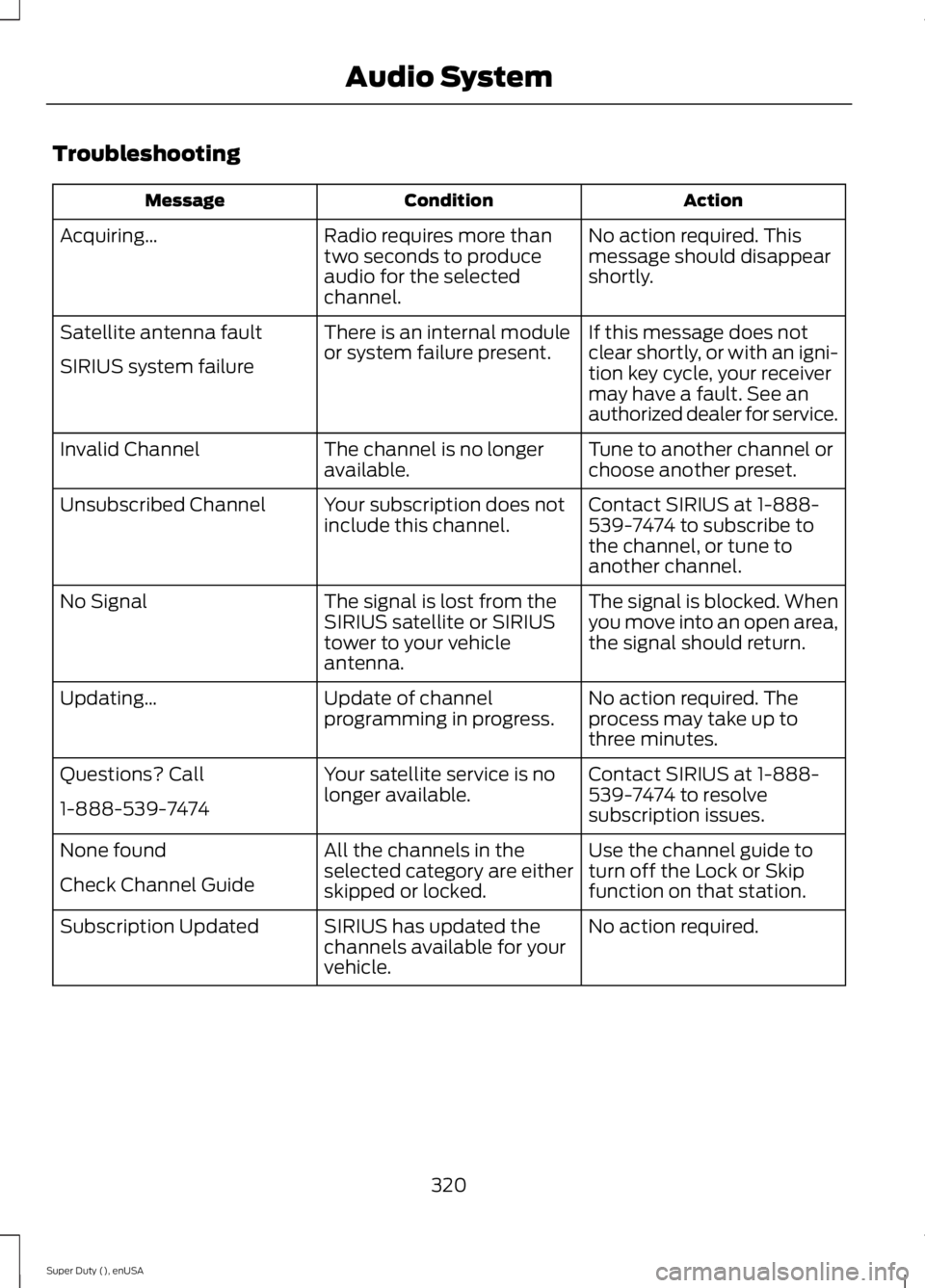
Troubleshooting
Action
Condition
Message
No action required. This
message should disappear
shortly.
Radio requires more than
two seconds to produce
audio for the selected
channel.
Acquiring…
If this message does not
clear shortly, or with an igni-
tion key cycle, your receiver
may have a fault. See an
authorized dealer for service.
There is an internal module
or system failure present.
Satellite antenna fault
SIRIUS system failure
Tune to another channel or
choose another preset.
The channel is no longer
available.
Invalid Channel
Contact SIRIUS at 1-888-
539-7474 to subscribe to
the channel, or tune to
another channel.
Your subscription does not
include this channel.
Unsubscribed Channel
The signal is blocked. When
you move into an open area,
the signal should return.
The signal is lost from the
SIRIUS satellite or SIRIUS
tower to your vehicle
antenna.
No Signal
No action required. The
process may take up to
three minutes.
Update of channel
programming in progress.
Updating…
Contact SIRIUS at 1-888-
539-7474 to resolve
subscription issues.
Your satellite service is no
longer available.
Questions? Call
1-888-539-7474
Use the channel guide to
turn off the Lock or Skip
function on that station.
All the channels in the
selected category are either
skipped or locked.
None found
Check Channel Guide
No action required.
SIRIUS has updated the
channels available for your
vehicle.
Subscription Updated
320
Super Duty (), enUSA Audio System
Page 346 of 485
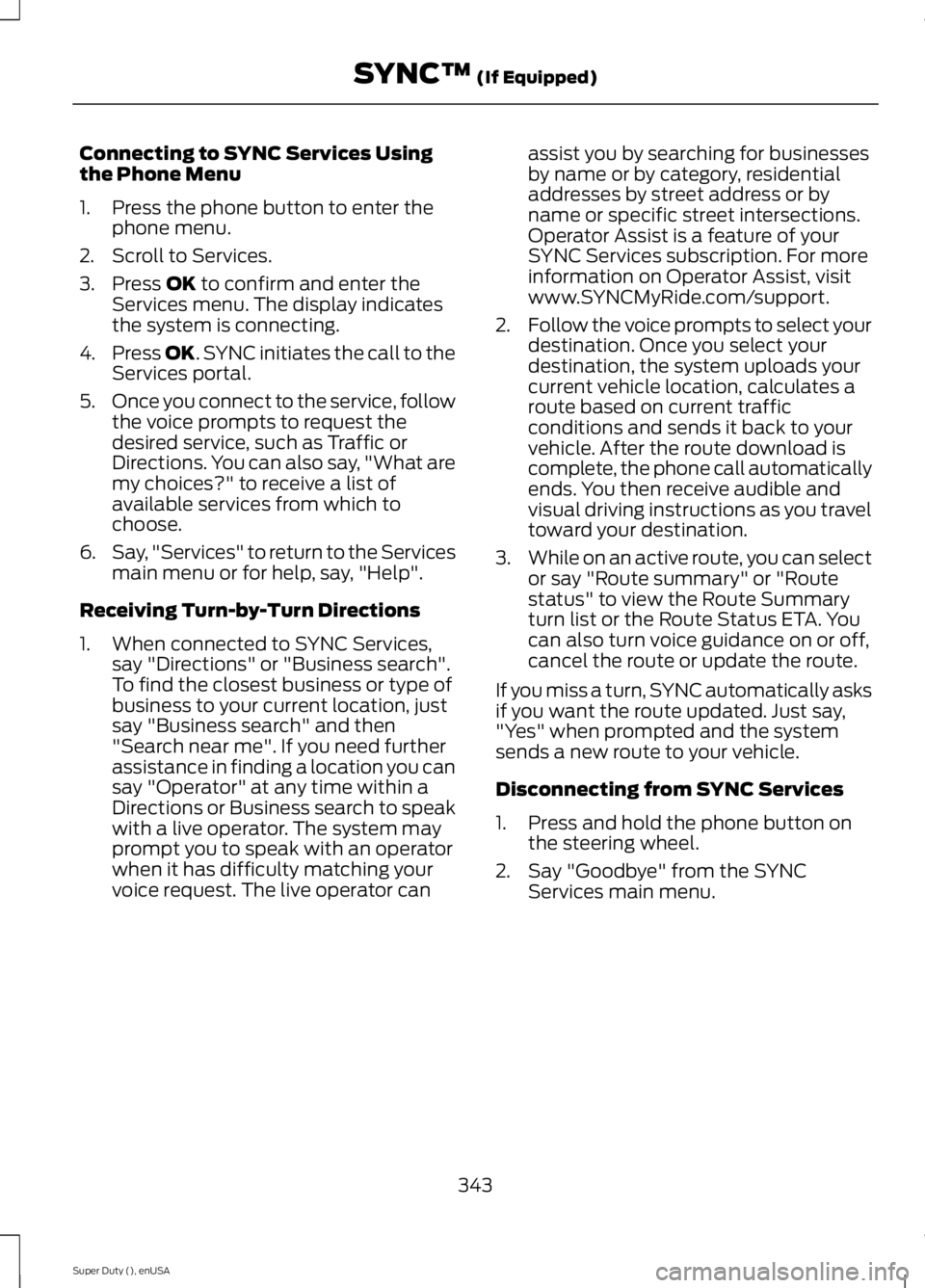
Connecting to SYNC Services Using
the Phone Menu
1. Press the phone button to enter the
phone menu.
2. Scroll to Services.
3. Press OK to confirm and enter the
Services menu. The display indicates
the system is connecting.
4. Press
OK. SYNC initiates the call to the
Services portal.
5. Once you connect to the service, follow
the voice prompts to request the
desired service, such as Traffic or
Directions. You can also say, "What are
my choices?" to receive a list of
available services from which to
choose.
6. Say, "Services" to return to the Services
main menu or for help, say, "Help".
Receiving Turn-by-Turn Directions
1. When connected to SYNC Services, say "Directions" or "Business search".
To find the closest business or type of
business to your current location, just
say "Business search" and then
"Search near me". If you need further
assistance in finding a location you can
say "Operator" at any time within a
Directions or Business search to speak
with a live operator. The system may
prompt you to speak with an operator
when it has difficulty matching your
voice request. The live operator can assist you by searching for businesses
by name or by category, residential
addresses by street address or by
name or specific street intersections.
Operator Assist is a feature of your
SYNC Services subscription. For more
information on Operator Assist, visit
www.SYNCMyRide.com/support.
2. Follow the voice prompts to select your
destination. Once you select your
destination, the system uploads your
current vehicle location, calculates a
route based on current traffic
conditions and sends it back to your
vehicle. After the route download is
complete, the phone call automatically
ends. You then receive audible and
visual driving instructions as you travel
toward your destination.
3. While on an active route, you can select
or say "Route summary" or "Route
status" to view the Route Summary
turn list or the Route Status ETA. You
can also turn voice guidance on or off,
cancel the route or update the route.
If you miss a turn, SYNC automatically asks
if you want the route updated. Just say,
"Yes" when prompted and the system
sends a new route to your vehicle.
Disconnecting from SYNC Services
1. Press and hold the phone button on the steering wheel.
2. Say "Goodbye" from the SYNC Services main menu.
343
Super Duty (), enUSA SYNC™
(If Equipped)
Page 391 of 485
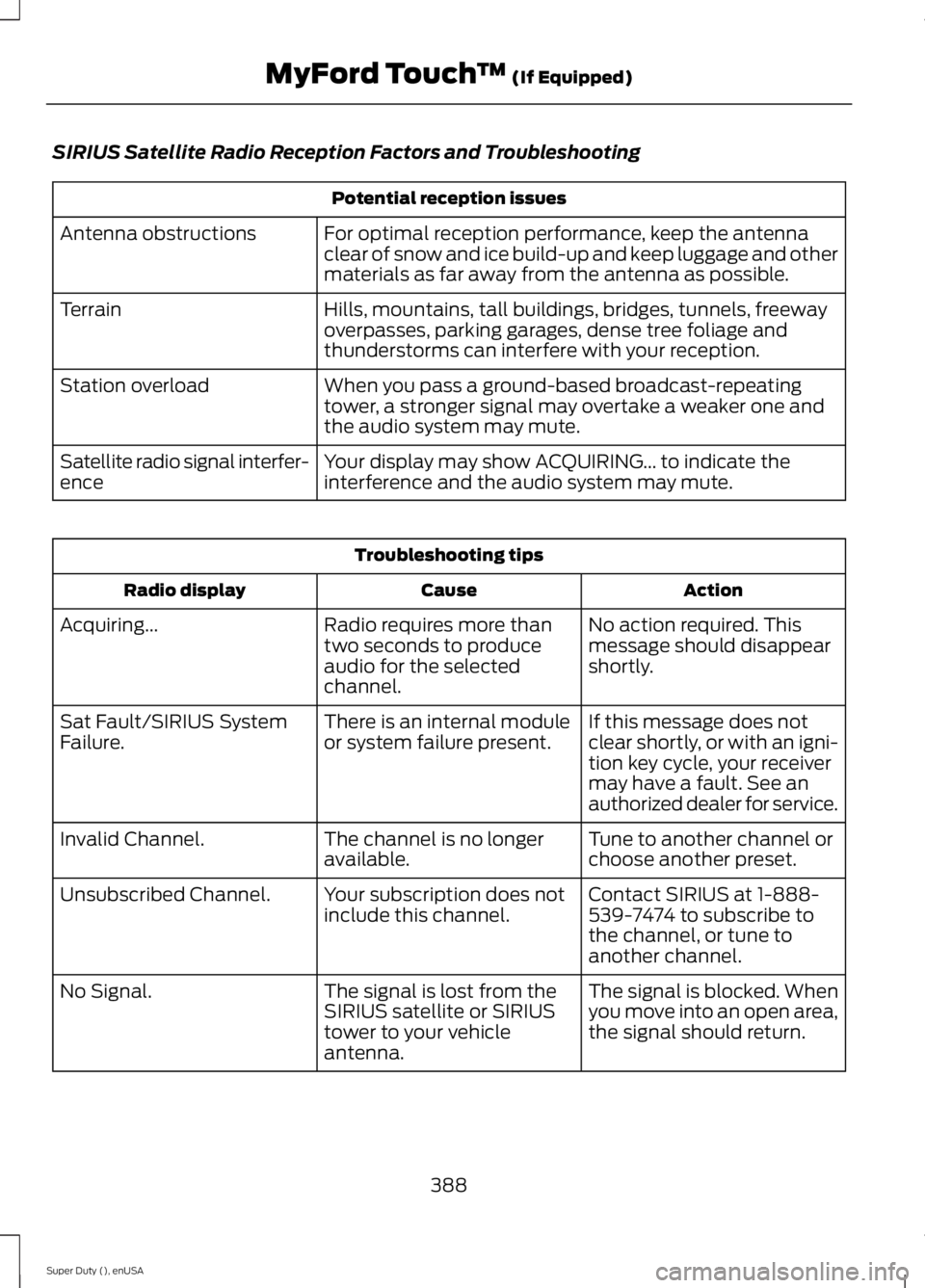
SIRIUS Satellite Radio Reception Factors and Troubleshooting
Potential reception issues
For optimal reception performance, keep the antenna
clear of snow and ice build-up and keep luggage and other
materials as far away from the antenna as possible.
Antenna obstructions
Hills, mountains, tall buildings, bridges, tunnels, freeway
overpasses, parking garages, dense tree foliage and
thunderstorms can interfere with your reception.
Terrain
When you pass a ground-based broadcast-repeating
tower, a stronger signal may overtake a weaker one and
the audio system may mute.
Station overload
Your display may show ACQUIRING... to indicate the
interference and the audio system may mute.
Satellite radio signal interfer-
ence Troubleshooting tips
Action
Cause
Radio display
No action required. This
message should disappear
shortly.
Radio requires more than
two seconds to produce
audio for the selected
channel.
Acquiring...
If this message does not
clear shortly, or with an igni-
tion key cycle, your receiver
may have a fault. See an
authorized dealer for service.
There is an internal module
or system failure present.
Sat Fault/SIRIUS System
Failure.
Tune to another channel or
choose another preset.
The channel is no longer
available.
Invalid Channel.
Contact SIRIUS at 1-888-
539-7474 to subscribe to
the channel, or tune to
another channel.
Your subscription does not
include this channel.
Unsubscribed Channel.
The signal is blocked. When
you move into an open area,
the signal should return.
The signal is lost from the
SIRIUS satellite or SIRIUS
tower to your vehicle
antenna.
No Signal.
388
Super Duty (), enUSA MyFord Touch
™ (If Equipped)
Page 421 of 485

Traffic Alert Notification
Have the system display traffic alert
notifications.
Other traffic alert features allows you to
turn on certain, or all, traffic icons on the
map such as road work, incident, accidents
and closed roads. Scroll down to view all
the different types of alerts. Switch these
features ON or OFF.
Avoid Areas
Choose areas which you want the system
to avoid when calculating a route for you.
Press
Add to program an entry. Once you
make a selection, the system tries to avoid
the area(s) if possible for all routes. To
delete a selection, choose the listing on
the screen. When the screen changes to
Avoid Areas Edit
, you can press Delete
at the bottom right of the screen.
Map Mode
Press the green bar in the upper right area
of the touchscreen to view map mode. Map
mode shows advanced viewing comprised
of both 2D city maps as well as 3D
landmarks (when available).
2D city maps show detailed outlines of
buildings, visible land use and land
elements and detailed railway
infrastructure for the most essential cities
around the globe. These maps also contain
features, such as town blocks, building
footprints and railways.
3D landmarks appear as clear, visible
objects that are typically recognizable and
have a certain tourist value. The 3D
landmarks appear in 3D map mode only.
Coverage varies and improves with
updated map releases. Change the appearance of the map display
by repeatedly pressing the arrow button in
the upper left corner of the screen. It
toggles between three different map
modes: Heading up, North up and 3D.
Heading up (2D map)
always
shows the direction of forward
travel to be upward on the screen.
This view is available for map
scales up to 2.5 miles (4 kilometers). The
system remembers this setting for larger
map scales, but shows the map in North
up only. If the scale returns below this level,
the system restores Heading up. North up (2D map) always shows
the northern direction to be
upward on the screen.
3D map mode
provides an
elevated perspective of the map.
This viewing angle can be adjusted
and the map can be rotated 180
degrees by touching the map twice, and
then dragging your finger along the shaded
bar with arrows at the bottom of the map.
View
switches between full map, street
list and exit view in route guidance.
Menu
displays a pop-up box that allows
direct access to navigation settings,
View/Edit Route, SIRIUS Travel Link,
Guidance Mute and Cancel Route.
418
Super Duty (), enUSA MyFord Touch
™
(If Equipped)E174016 E142642 E142643 E142644
Page 425 of 485
"NAVIGATION"
"Zoom maximum" "Zoom province" "Zoom state"
"Zoom street"
"Zoom to
* If you say "Destination", you can then say
any command in the "Destination" chart.
One-shot Destination Street Address
When you say either "Navigation
destination street address" or "Destination
street address", the system asks you to say
the full address. The system displays an
example on-screen. You can then speak
the address naturally, such as "One two
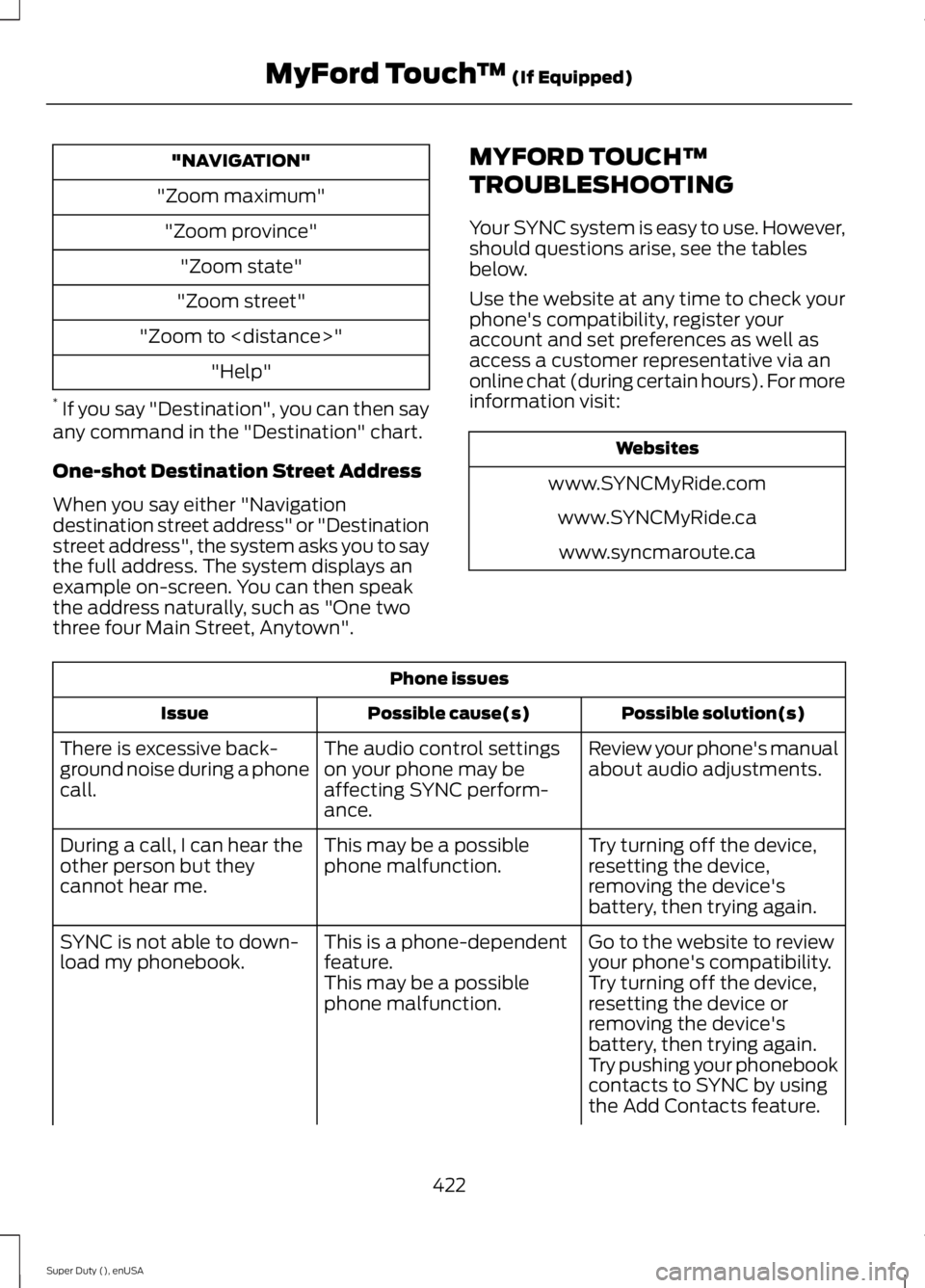
three four Main Street, Anytown". MYFORD TOUCH™
TROUBLESHOOTING
Your SYNC system is easy to use. However,
should questions arise, see the tables
below.
Use the website at any time to check your
phone's compatibility, register your
account and set preferences as well as
access a customer representative via an
online chat (during certain hours). For more
information visit: Websites
www.SYNCMyRide.com www.SYNCMyRide.cawww.syncmaroute.ca Phone issues
Possible solution(s)
Possible cause(s)
Issue
Review your phone's manual
about audio adjustments.
The audio control settings
on your phone may be
affecting SYNC perform-
ance.
There is excessive back-
ground noise during a phone
call.
Try turning off the device,
resetting the device,
removing the device's
battery, then trying again.
This may be a possible
phone malfunction.
During a call, I can hear the
other person but they
cannot hear me.
Go to the website to review
your phone's compatibility.
This is a phone-dependent
feature.
SYNC is not able to down-
load my phonebook.
Try turning off the device,
resetting the device or
removing the device's
battery, then trying again.
This may be a possible
phone malfunction.
Try pushing your phonebook
contacts to SYNC by using
the Add Contacts feature.
422
Super Duty (), enUSA MyFord Touch
™ (If Equipped)
Page 458 of 485
PROTECT YOURSELF FROM THE RISING
COST OF VEHICLE REPAIRS WITH A FORD
EXTENDED SERVICE PLAN.
SERVICE PLANS (U.S. Only)
More than 32 million Ford owners have
discovered the powerful protection of Ford
Extended Service Plan. It is the extended
service plan backed by Ford Motor
Company, and provides peace of mind
protection beyond the New Vehicle Limited
Warranty coverage.
Ford ESP Can Quickly Pay for Itself
One service bill – the cost of parts and
labor – can easily exceed the price of your
Ford Extended Service Plan. With Ford ESP
you minimize your risk for unexpected
repair bills and rising repair costs.
Up to 1,000+ Covered Vehicle
Components
There are four core Extended Service Plans
with different levels of coverage. Ask your
authorized dealer for details.
1. PremiumCARE - Our most
comprehensive coverage. With over
1,000 covered components, this plan
is so complete that we generally only
discuss what’ s not covered.
2. ExtraCARE - Covers 113 components, and includes many high-tech items.
3. BaseCARE - Covers 84 components.
4. PowertrainCARE - Covers 29 critical components.
Ford Extended Service Plan is honored by
all authorized Ford dealers in the U.S.,
Canada and Mexico. It is the extended
service plan authorized and backed by Ford
Motor Company. That means you get:
•
Reliable, quality service at any Ford or
Lincoln dealership
• Repairs performed by factory trained
technicians, using genuine parts
Rental Car Reimbursement
1st day Rental Benefit
You take advantage of replacement
transportation if your vehicle is at your
authorized dealer for same day covered
repairs.
Extended Rental Benefits
If your vehicle is kept overnight for covered
repairs, you are eligible for rental car
coverage, including bumper to bumper
warranty repairs, and Field Service Actions.
Roadside Assistance
Exclusive 24/7 roadside assistance,
including:
• Towing, flat-tire change and battery
jump starts
• Out of fuel and lock-out assistance.
• Travel expense reimbursement for
lodging, meals and rental car.
• Destination assistance for taxi, shuttle,
rental car coverage and emergency
transportation.
Transferable Coverage
If you sell your vehicle before your Ford
Extended Service Plan coverage expires,
you can transfer any remaining coverage
to the new owner. Whenever you sell your
vehicle, prospective buyers may have a
higher degree of confidence that vehicle
was properly maintained with Ford ESP,
thereby improving resale value.
455
Super Duty (), enUSA Extended Service Plan (ESP)