phone FORD F250 2016 User Guide
[x] Cancel search | Manufacturer: FORD, Model Year: 2016, Model line: F250, Model: FORD F250 2016Pages: 507, PDF Size: 6.81 MB
Page 223 of 507
In the CAMVAP program, impartial
third-party arbitrators conduct hearings at
mutually convenient times and places in
an informal environment. These impartial
arbitrators review the positions of the
parties, make decisions and, when
appropriate, render awards to resolve
disputes. CAMVAP decisions are fast, fair,
and final as the arbitrator
’s award is
binding on both you and Ford of Canada.
CAMVAP services are available in all
Canadian territories and provinces. For
more information, without charge or
obligation, call your CAMVAP Provincial
Administrator directly at 1-800-207-0685
or visit www.camvap.ca.
GETTING ASSISTANCE
OUTSIDE THE U.S. AND
CANADA
Before exporting your vehicle to a foreign
country, contact the appropriate foreign
embassy or consulate. These officials can
inform you of local vehicle registration
regulations and where to find unleaded
fuel.
If you cannot find unleaded fuel or can only
get fuel with an anti-knock index lower
than is recommended for your vehicle,
contact our Customer Relationship Center.
The use of leaded fuel in your vehicle
without proper conversion may damage
the effectiveness of your emission control
system and may cause engine knocking or
serious engine damage. Ford Motor
Company or Ford of Canada is not
responsible for any damage caused by use
of improper fuel. Using leaded fuel may
also result in difficulty importing your
vehicle back into the United States. If your vehicle must be serviced while you
are traveling or living in Asia-Pacific Region,
Sub-Saharan Africa, U.S. Virgin Islands,
Central America, the Caribbean, and Israel,
contact the nearest authorized dealer. If
the authorized dealer cannot help you,
contact:
FORD MOTOR COMPANY
Customer Relationship Center
1555 Fairlane Drive
Fairlane Business Park #3
Allen Park, Michigan 48101
U.S.A.
Telephone: (313) 594-4857
Fax: (313) 390-0804
Email: [email protected]
For customers in Guam, the
Commonwealth of the Northern Mariana
Islands (CNMI), America Samoa, and the
U.S. Virgin Islands, please feel free to call
our Toll-Free Number: (800) 841-FORD
(3673).
If your vehicle must be serviced while you
are traveling or living in Puerto Rico,
contact the nearest authorized dealer. If
the authorized dealer cannot help you,
contact:
FORD MOTOR COMPANY
Customer Relationship Center
1555 Fairlane Drive
Fairlane Business Park #3
Allen Park, Michigan 48101
U.S.A.
Telephone: (800) 841-FORD (3673)
FAX: (313) 390-0804
Email: [email protected]
www.ford.com.pr
If your vehicle must be serviced while you
are traveling or living in the Middle East,
contact the nearest authorized dealer. If
the authorized dealer cannot help you,
contact:
220
Super Duty (TFA) Canada/United States of America, enUSA, First Printing Customer Assistance
Page 225 of 507
If NHTSA receives similar
complaints, it may open an
investigation, and if it finds that a
safety defect exists in a group of
vehicles, it may order a recall and
remedy campaign. However,
NHTSA cannot become involved
in individual problems between
you, your dealer, or Ford Motor
Company.
To contact NHTSA, you may call
the Vehicle Safety Hotline
toll-free at 1-888-327-4236 (TTY:
1-800-424-9153); go to
http://www.safercar.gov; or write
to:
Administrator
1200 New Jersey Avenue,
Southeast
Washington, D.C. 20590
You can also obtain other
information about motor vehicle
safety from
http://www.safercar.gov.
REPORTING SAFETY DEFECTS
(CANADA ONLY)
If you believe that your vehicle has
a defect which could cause a
crash or could cause injury or
death, you should immediately
inform Transport Canada.Transport Canada Contact Information
http://www.tc.gc.ca/eng/roadsafety/menu.htm
Website
1–800–333–0510
Phone
222
Super Duty (TFA) Canada/United States of America, enUSA, First Printing Customer Assistance
Page 323 of 507
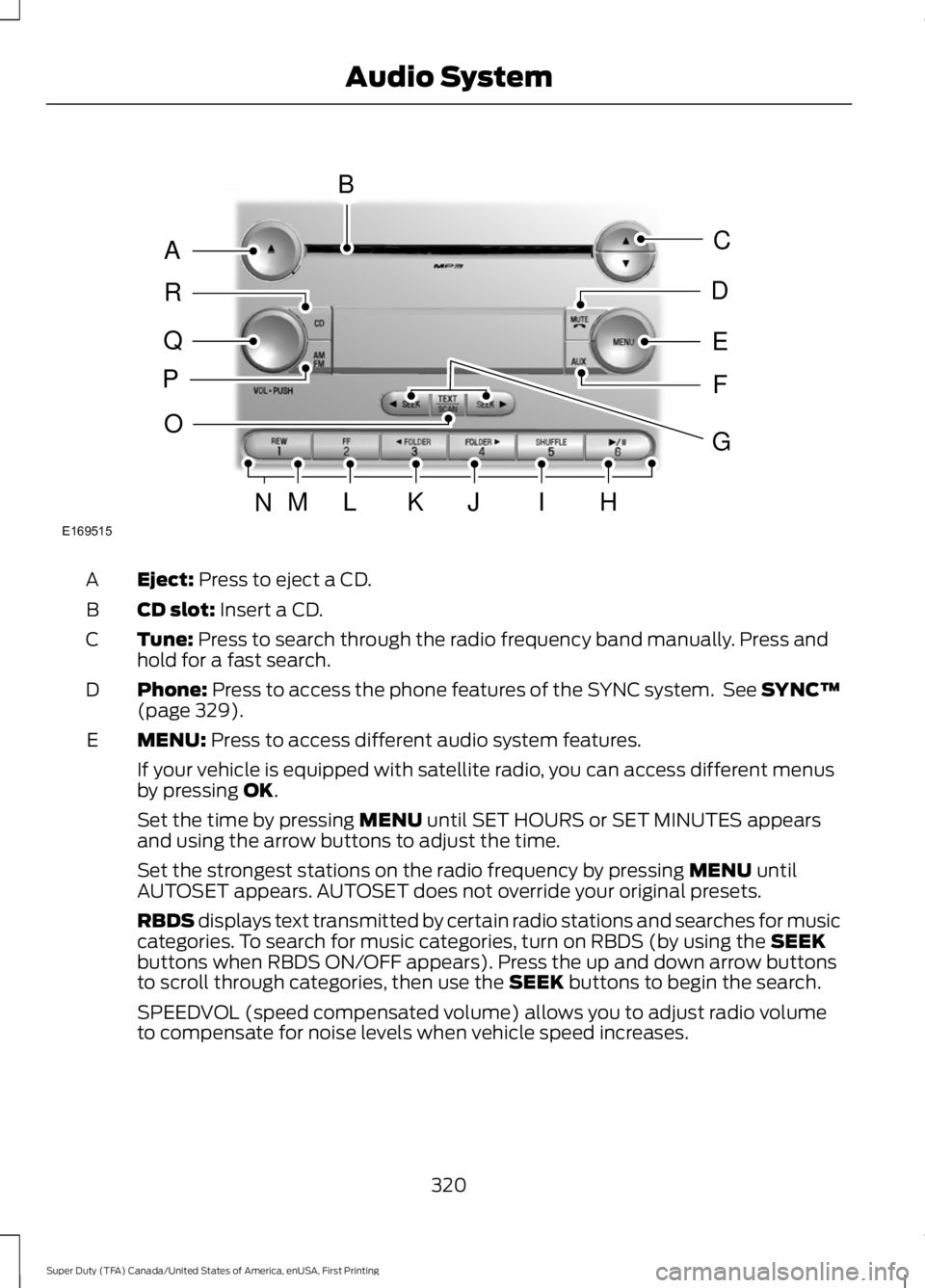
Eject: Press to eject a CD.
A
CD slot:
Insert a CD.
B
Tune:
Press to search through the radio frequency band manually. Press and
hold for a fast search.
C
Phone:
Press to access the phone features of the SYNC system. See SYNC™
(page 329).
D
MENU:
Press to access different audio system features.
E
If your vehicle is equipped with satellite radio, you can access different menus
by pressing
OK.
Set the time by pressing
MENU until SET HOURS or SET MINUTES appears
and using the arrow buttons to adjust the time.
Set the strongest stations on the radio frequency by pressing
MENU until
AUTOSET appears. AUTOSET does not override your original presets.
RBDS displays text transmitted by certain radio stations and searches for music
categories. To search for music categories, turn on RBDS (by using the
SEEK
buttons when RBDS ON/OFF appears). Press the up and down arrow buttons
to scroll through categories, then use the
SEEK buttons to begin the search.
SPEEDVOL (speed compensated volume) allows you to adjust radio volume
to compensate for noise levels when vehicle speed increases.
320
Super Duty (TFA) Canada/United States of America, enUSA, First Printing Audio SystemE169515
B
A
Q
R
P
C
E
D
F
O
MLKJIHN
G
Page 324 of 507

Track/Folder is only available on MP3 files when in CD mode. In track mode,
pressing the SEEK arrows allows you to scroll through all the tracks on the disc.
In folder mode, pressing the
SEEK arrows allows you to scroll through all the
tracks within the selected folder. Press the FOLDER buttons to access other
folders.
COMPRESS
(Compression) is only available in CD and MP3 modes. Switching
compression on brings the soft and loud passages together for a more consistent
listening level. Use the SEEK buttons and up and down arrow buttons to switch
it on and off.
AUX:
Press to access the media features of the SYNC system. See SYNC™
(page 329).
F
SEEK:
In radio mode, press and release these buttons to go to the next (or
previous) preset radio station or disc track. In CD and MP3 modes, press these
buttons to select the next (or previous) track, or press and hold to advance (or
reverse) within the same track.
G
Play, Pause and OK:
Play and Pause allow you to play or pause a track when
listening to a CD. OK allows you to confirm commands with phone and media
features of the SYNC system. See SYNC™ (page 329).
H
SHUFFLE:
Play music on the selected CD or MP3 folder in random order.
I
FOLDER >:
Press to access the next folder on an MP3 disc.
J
< FOLDER:
Press to access the previous folder on an MP3 disc.
K
FF:
Press to fast forward in a CD track or MP3 file manually.
L
REW:
Press to rewind in a CD track or MP3 file manually.
M
Memory presets:
Store your favorite radio stations. To store a radio station,
tune to the station, then press and hold a preset button until sound returns.
N
TEXT/SCAN:
In radio, CD and MP3 modes, press and hold to hear a brief
sampling of radio stations, CD tracks or MP3 files. In CD and MP3 modes, press
and release to display track title, artist name and disc title. In text mode,
sometimes the display requires additional text to show. When the < / > indicator
is on, press TEXT and then use the SEEK buttons to view the additional display
text.
O
AM/FM:
Press to select a frequency band.
P
VOL-PUSH:
Press to switch the system off and on. Turn it to adjust the volume.
Q
CD:
Press to enter CD or MP3 mode.
R
321
Super Duty (TFA) Canada/United States of America, enUSA, First Printing Audio System
Page 332 of 507
GENERAL INFORMATION
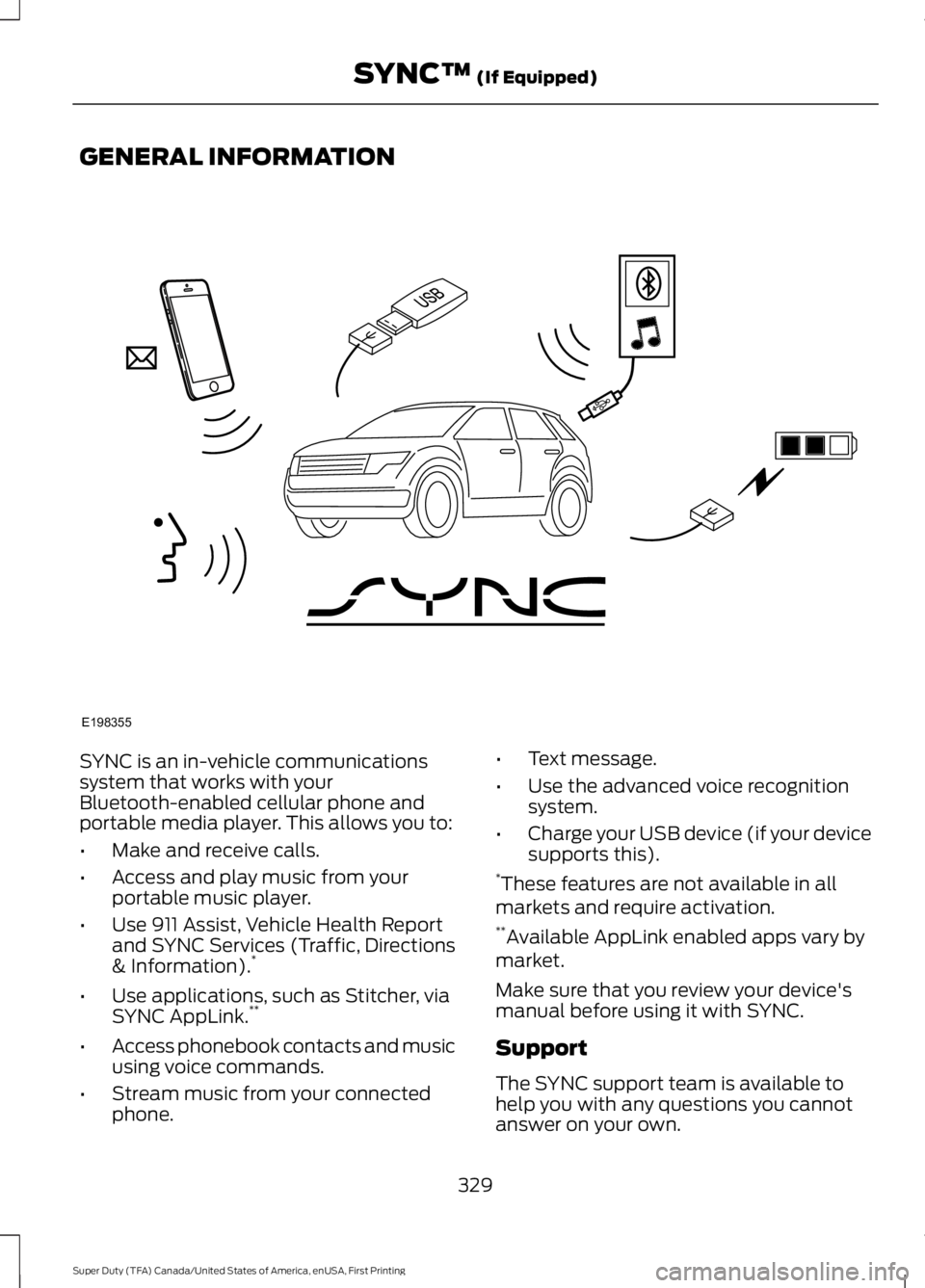
SYNC is an in-vehicle communications
system that works with your
Bluetooth-enabled cellular phone and
portable media player. This allows you to:
•
Make and receive calls.
• Access and play music from your
portable music player.
• Use 911 Assist, Vehicle Health Report
and SYNC Services (Traffic, Directions
& Information). *
• Use applications, such as Stitcher, via
SYNC AppLink. **
• Access phonebook contacts and music
using voice commands.
• Stream music from your connected
phone. •
Text message.
• Use the advanced voice recognition
system.
• Charge your USB device (if your device
supports this).
* These features are not available in all
markets and require activation.
** Available AppLink enabled apps vary by
market.
Make sure that you review your device's
manual before using it with SYNC.
Support
The SYNC support team is available to
help you with any questions you cannot
answer on your own.
329
Super Duty (TFA) Canada/United States of America, enUSA, First Printing SYNC™ (If Equipped)E198355
Page 333 of 507
Monday-Saturday, 8:30am-9:00pm EST.
Sunday, 10:30am-7:30pm EST.
In the United States, call 1-800-392-3673.
In Canada, call 1-800-565-3673.
Times are subject to change due to
holidays.
SYNC Owner Account
Why do I need a SYNC owner account?
•
Required to activate Vehicle Health
Report and to view the reports online.
• Required to activate the
subscription-based SYNC Services and
to personalize your Saved Points and
Favorites.
• Essential for keeping up with the latest
software downloads available for
SYNC.
• Access to customer support for any
questions you may have.
Driving Restrictions
For your safety, certain features are
speed-dependent and restricted when your
vehicle is traveling over 3 mph (5 km/h).
Safety Information WARNING
Driving while distracted can result in
loss of vehicle control, crash and
injury. We strongly recommend that
you use extreme caution when using any
device that may take your focus off the
road. Your primary responsibility is the safe
operation of your vehicle. We recommend
against the use of any hand-held device
while driving and encourage the use of
voice-operated systems when possible.
Make sure you are aware of all applicable
local laws that may affect the use of
electronic devices while driving. When using SYNC:
•
Do not operate playing devices if the
power cords or cables are broken, split
or damaged. Place cords and cables
out of the way, so they do not interfere
with the operation of pedals, seats,
compartments or safe driving abilities.
• Do not leave playing devices in your
vehicle during extreme conditions as it
could cause them damage. See your
device's manual for further information.
• Do not attempt to service or repair the
system. See an authorized dealer.
Privacy Information
When a cellular phone is connected to
SYNC, the system creates a profile within
your vehicle that is linked to that cellular
phone. This profile is created in order to
offer you more cellular features and to
operate more efficiently. Among other
things, this profile may contain data about
your cellular phone book, text messages
(read and unread), and call history,
including history of calls when your cellular
phone was not connected to the system.
In addition, if you connect a media device,
the system creates and retains an index of
supported media content. The system also
records a short development log of
approximately 10 minutes of all recent
system activity. The log profile and other
system data may be used to improve the
system and help diagnose any problems
that may occur.
The cellular profile, media device index,
and development log will remain in the
vehicle unless you delete them and are
generally accessible only in the vehicle
when the cellular phone or media player
is connected. If you no longer plan to use
the system or the vehicle, we recommend
you perform a Master Reset to erase all
stored information.
330
Super Duty (TFA) Canada/United States of America, enUSA, First Printing SYNC™
(If Equipped)
Page 334 of 507
System data cannot be accessed without
special equipment and access to the
vehicle's SYNC module. Ford Motor
Company and Ford of Canada will not
access the system data for any purpose
other than as described absent consent, a
court order, or where required by law
enforcement, other government
authorities, or other third parties acting
with lawful authority. Other parties may
seek to access the information
independently of Ford Motor Company and
Ford of Canada. For further privacy
information, see the sections on 911 Assist,
Vehicle Health Report, and Traffic,
Directions and Information.
USING VOICE RECOGNITION
This system helps you control many
features using voice commands. This
allows you to keep your hands on the
wheel and focus on what is in front of you.
Helpful Hints
•
Make sure the interior of your vehicle is
as quiet as possible. Wind noise from
open windows and road vibrations may
prevent the system from correctly
recognizing spoken commands.
• After pressing the voice button, wait
until after the tone sounds and
Listening appears before saying a
command. Any command spoken
before this does not register with the
system.
• Speak naturally, without long pauses
between words.
• At any time, you can interrupt the
system while it is speaking by pressing
the voice button.
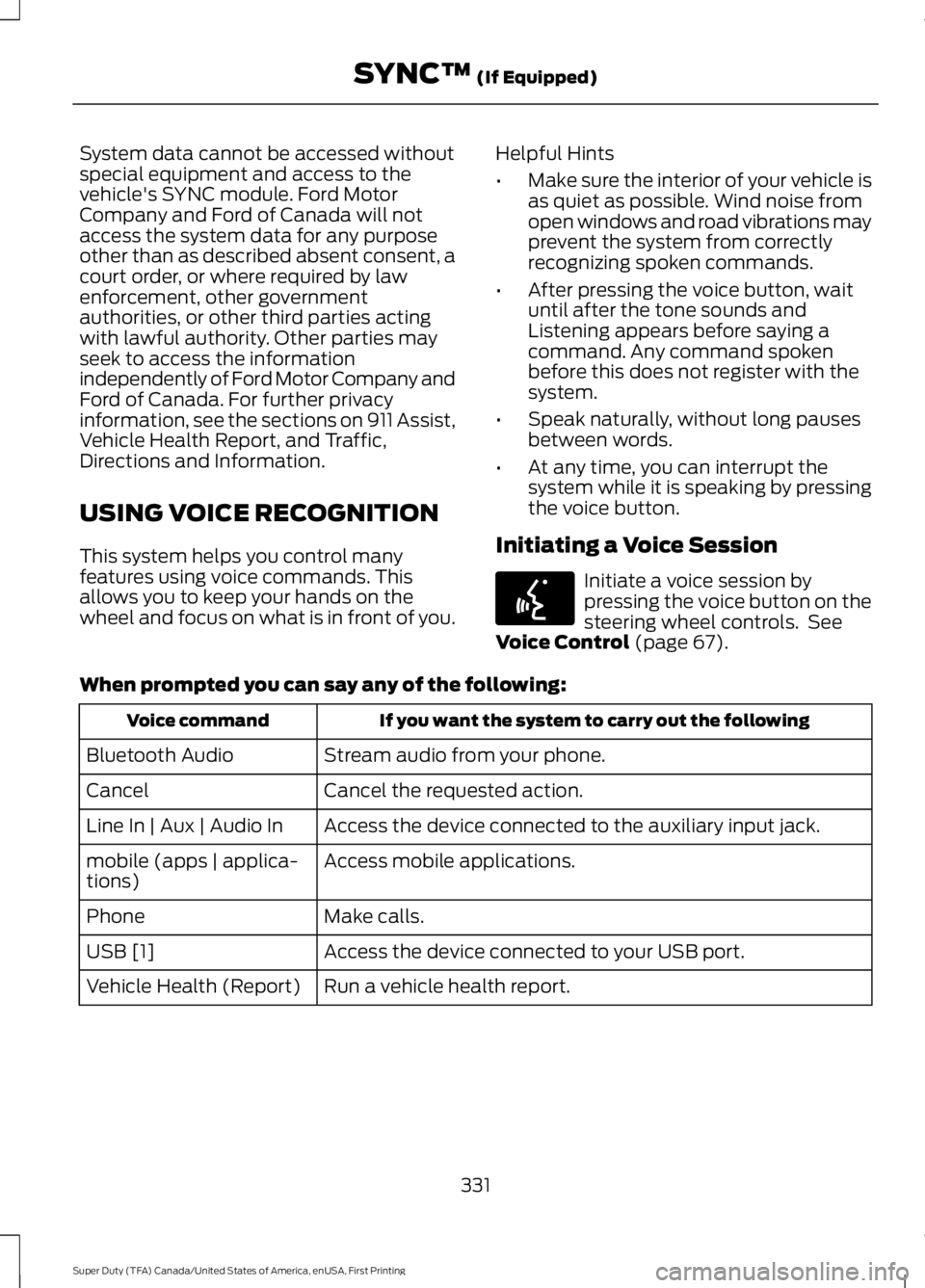
Initiating a Voice Session Initiate a voice session by
pressing the voice button on the
steering wheel controls. See
Voice Control (page 67).
When prompted you can say any of the following: If you want the system to carry out the following
Voice command
Stream audio from your phone.
Bluetooth Audio
Cancel the requested action.
Cancel
Access the device connected to the auxiliary input jack.
Line In | Aux | Audio In
Access mobile applications.
mobile (apps | applica-
tions)
Make calls.
Phone
Access the device connected to your USB port.
USB [1]
Run a vehicle health report.
Vehicle Health (Report)
331
Super Duty (TFA) Canada/United States of America, enUSA, First Printing SYNC™
(If Equipped)E142599
Page 336 of 507
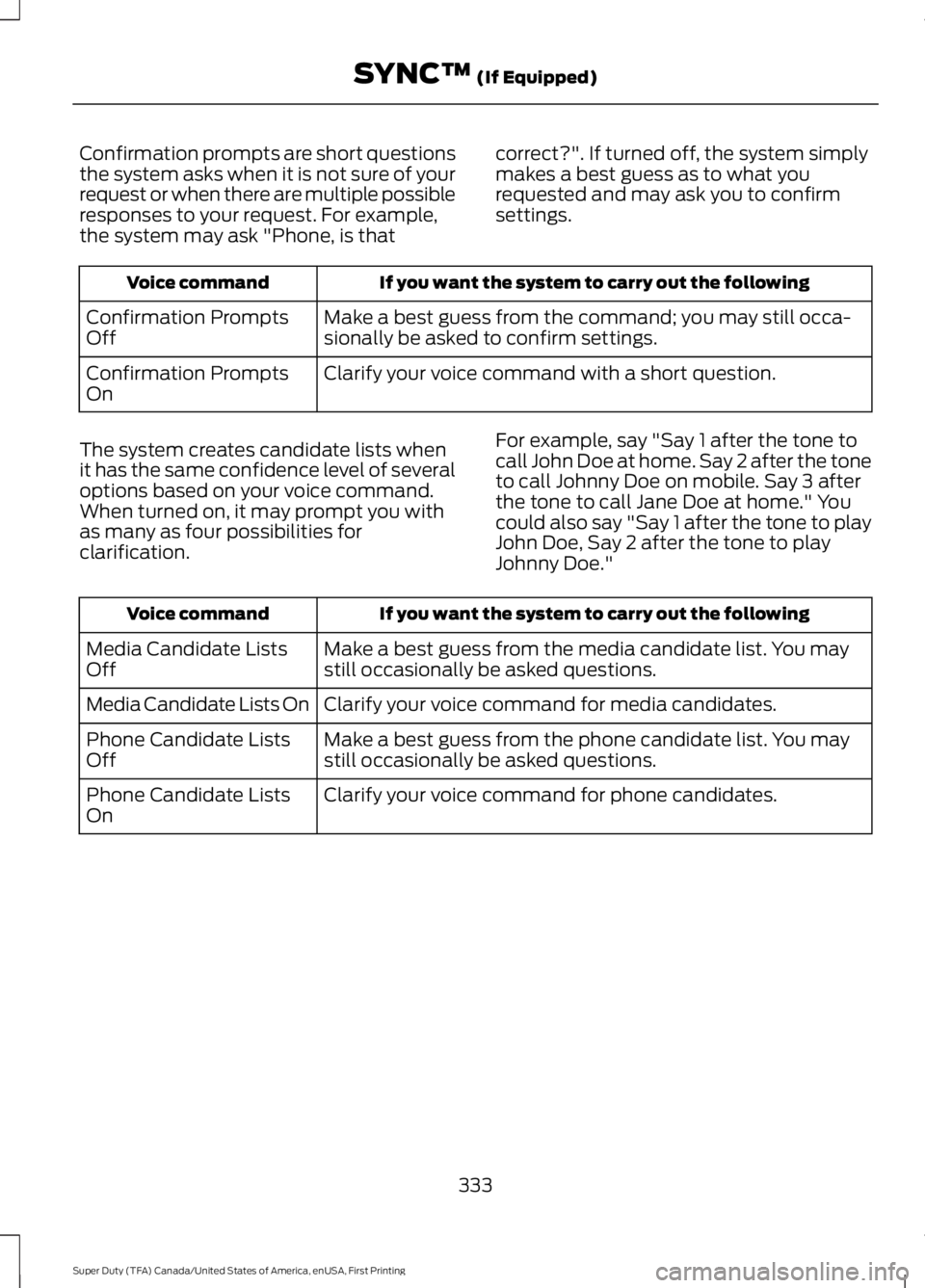
Confirmation prompts are short questions
the system asks when it is not sure of your
request or when there are multiple possible
responses to your request. For example,
the system may ask "Phone, is that
correct?". If turned off, the system simply
makes a best guess as to what you
requested and may ask you to confirm
settings.If you want the system to carry out the following
Voice command
Make a best guess from the command; you may still occa-
sionally be asked to confirm settings.
Confirmation Prompts
Off
Clarify your voice command with a short question.
Confirmation Prompts
On
The system creates candidate lists when
it has the same confidence level of several
options based on your voice command.
When turned on, it may prompt you with
as many as four possibilities for
clarification. For example, say "Say 1 after the tone to
call John Doe at home. Say 2 after the tone
to call Johnny Doe on mobile. Say 3 after
the tone to call Jane Doe at home." You
could also say "Say 1 after the tone to play
John Doe, Say 2 after the tone to play
Johnny Doe."If you want the system to carry out the following
Voice command
Make a best guess from the media candidate list. You may
still occasionally be asked questions.
Media Candidate Lists
Off
Clarify your voice command for media candidates.
Media Candidate Lists On
Make a best guess from the phone candidate list. You may
still occasionally be asked questions.
Phone Candidate Lists
Off
Clarify your voice command for phone candidates.
Phone Candidate Lists
On
333
Super Duty (TFA) Canada/United States of America, enUSA, First Printing SYNC™ (If Equipped)
Page 337 of 507
USING SYNC™ WITH YOUR
PHONE
Hands-free calling is one of the main
features of SYNC. While the system
supports a variety of features, many are
dependent on your cell phone's
functionality. At a minimum, most cell
phones with Bluetooth wireless technology
support the following functions:
•
Answering an incoming call.
• Ending a call.
• Using privacy mode.
• Dialing a number.
• Redialing.
• Call waiting notification.
• Caller ID. Other features, such as text messaging
using Bluetooth and automatic phonebook
download, are cell phone-dependent
features. To check your cell phone's
compatibility, see your cell phone's manual
and visit www.SYNCMyRide.com,
www.SYNCMyRide.ca or
www.syncmaroute.ca.
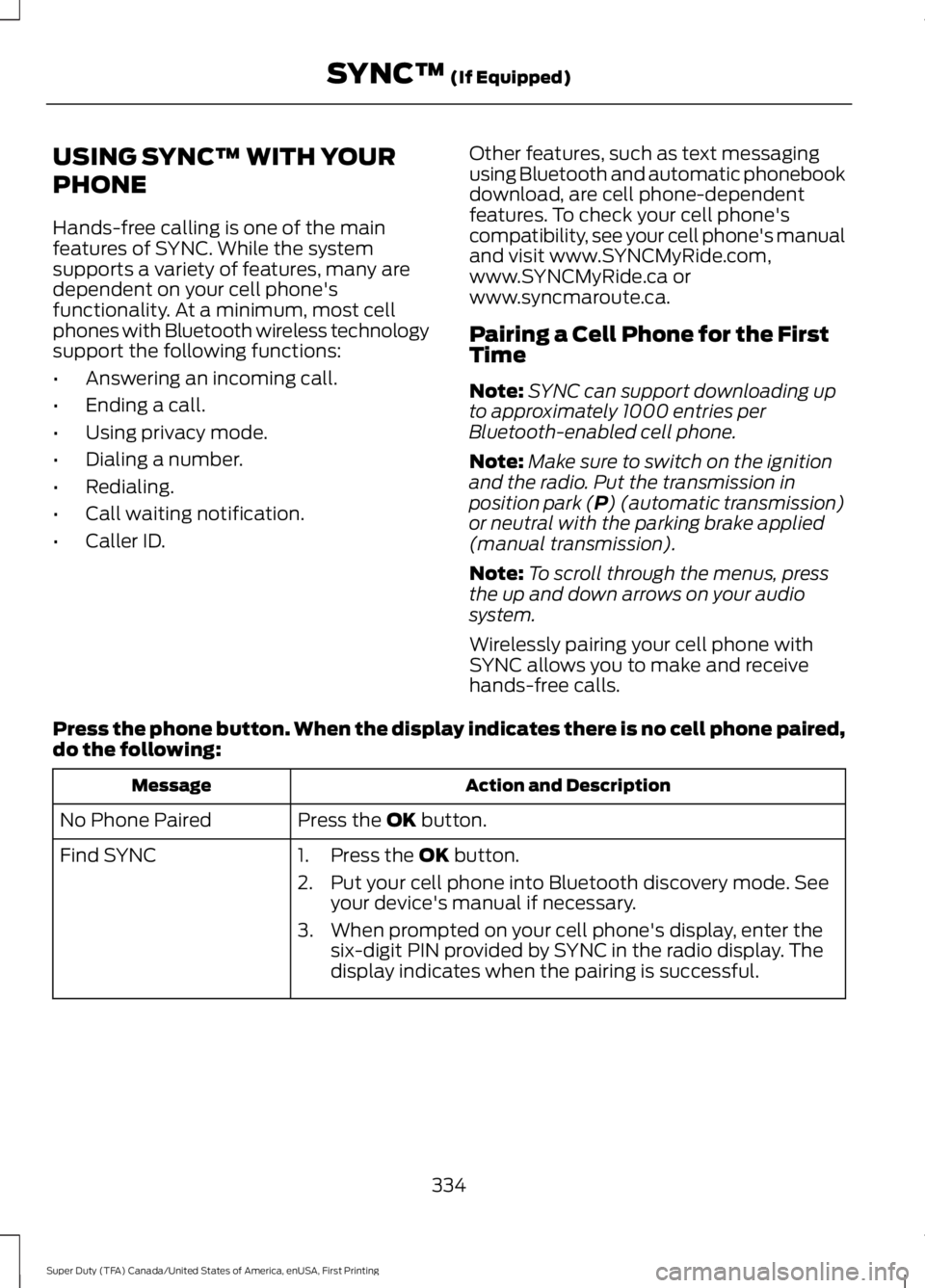
Pairing a Cell Phone for the First
Time
Note:
SYNC can support downloading up
to approximately 1000 entries per
Bluetooth-enabled cell phone.
Note: Make sure to switch on the ignition
and the radio. Put the transmission in
position park (P) (automatic transmission)
or neutral with the parking brake applied
(manual transmission).
Note: To scroll through the menus, press
the up and down arrows on your audio
system.
Wirelessly pairing your cell phone with
SYNC allows you to make and receive
hands-free calls.
Press the phone button. When the display indicates there is no cell phone paired,
do the following: Action and Description
Message
Press the
OK button.
No Phone Paired
Find SYNC 1. Press the
OK button.
2. Put your cell phone into Bluetooth discovery mode. See your device's manual if necessary.
3. When prompted on your cell phone's display, enter the six-digit PIN provided by SYNC in the radio display. The
display indicates when the pairing is successful.
334
Super Duty (TFA) Canada/United States of America, enUSA, First Printing SYNC™
(If Equipped)
Page 338 of 507
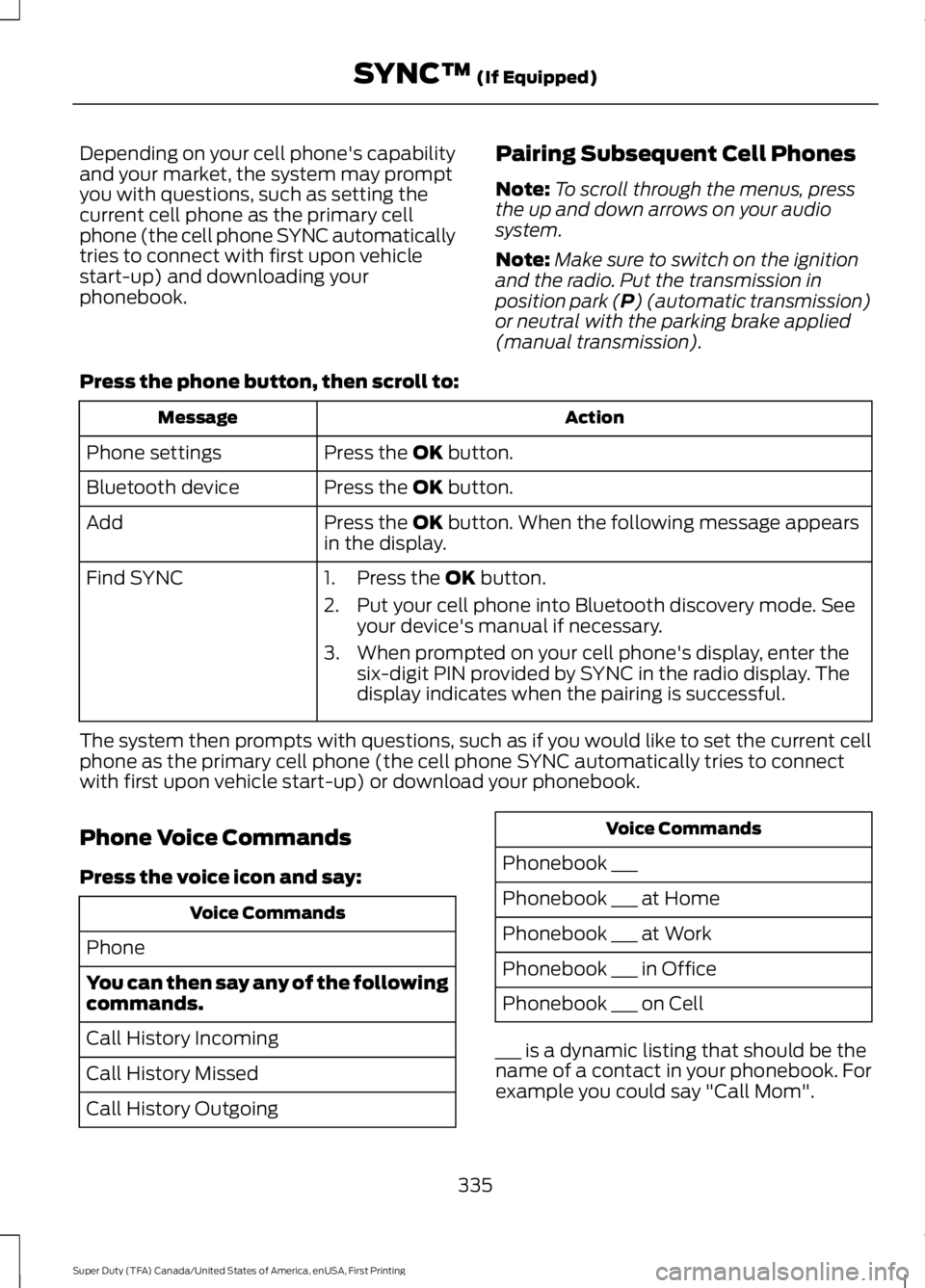
Depending on your cell phone's capability
and your market, the system may prompt
you with questions, such as setting the
current cell phone as the primary cell
phone (the cell phone SYNC automatically
tries to connect with first upon vehicle
start-up) and downloading your
phonebook.
Pairing Subsequent Cell Phones
Note:
To scroll through the menus, press
the up and down arrows on your audio
system.
Note: Make sure to switch on the ignition
and the radio. Put the transmission in
position park (P) (automatic transmission)
or neutral with the parking brake applied
(manual transmission).
Press the phone button, then scroll to: Action
Message
Press the
OK button.
Phone settings
Press the
OK button.
Bluetooth device
Press the
OK button. When the following message appears
in the display.
Add
Find SYNC
1. Press the
OK button.
2. Put your cell phone into Bluetooth discovery mode. See your device's manual if necessary.
3. When prompted on your cell phone's display, enter the six-digit PIN provided by SYNC in the radio display. The
display indicates when the pairing is successful.
The system then prompts with questions, such as if you would like to set the current cell
phone as the primary cell phone (the cell phone SYNC automatically tries to connect
with first upon vehicle start-up) or download your phonebook.
Phone Voice Commands
Press the voice icon and say: Voice Commands
Phone
You can then say any of the following
commands.
Call History Incoming
Call History Missed
Call History Outgoing Voice Commands
Phonebook ___
Phonebook ___ at Home
Phonebook ___ at Work
Phonebook ___ in Office
Phonebook ___ on Cell
___ is a dynamic listing that should be the
name of a contact in your phonebook. For
example you could say "Call Mom".
335
Super Duty (TFA) Canada/United States of America, enUSA, First Printing SYNC™
(If Equipped)