AUX FORD F250 SUPER DUTY 2014 User Guide
[x] Cancel search | Manufacturer: FORD, Model Year: 2014, Model line: F250 SUPER DUTY, Model: FORD F250 SUPER DUTY 2014Pages: 460, PDF Size: 6.55 MB
Page 223 of 460
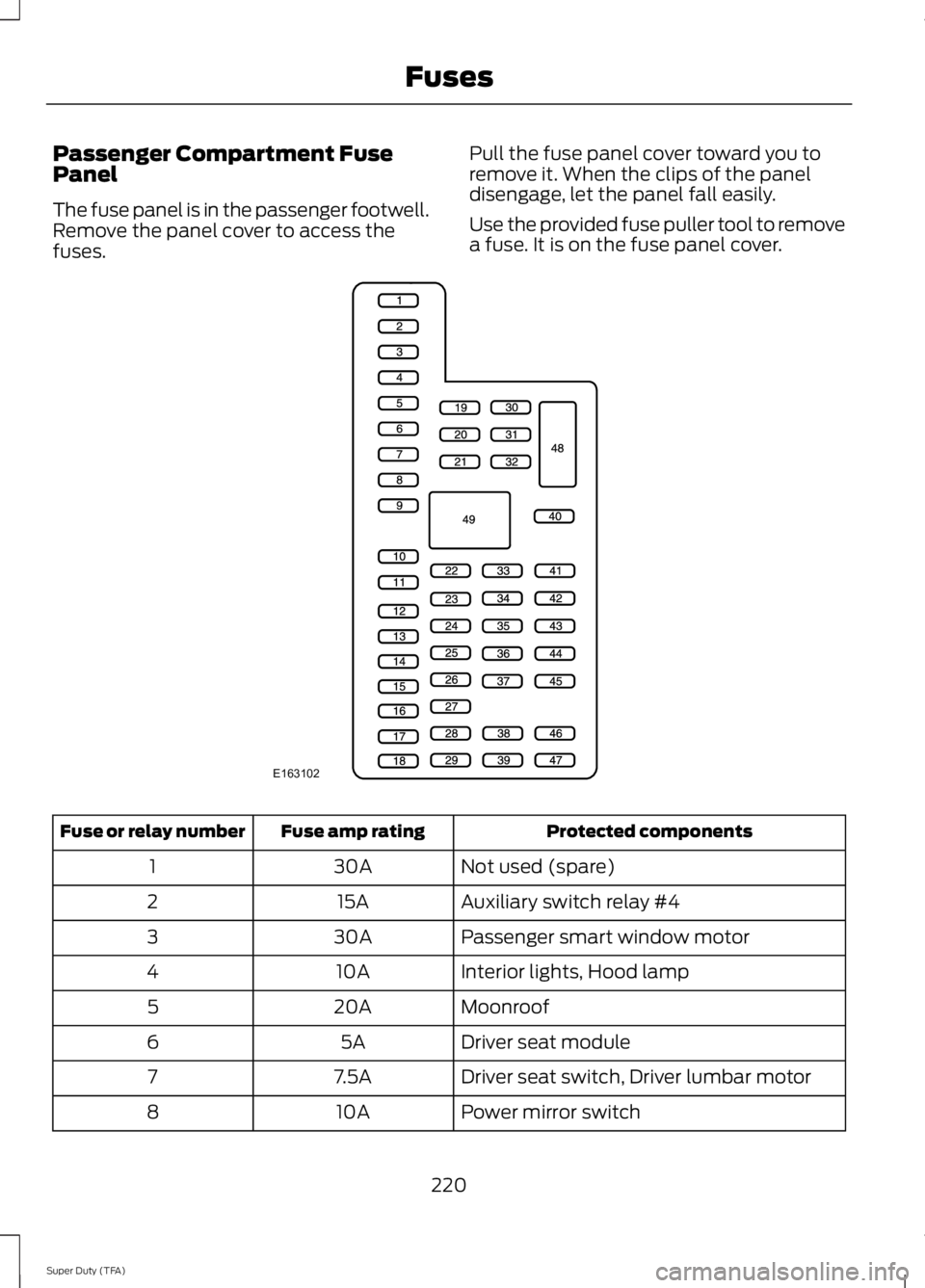
Passenger Compartment FusePanel
The fuse panel is in the passenger footwell.Remove the panel cover to access thefuses.
Pull the fuse panel cover toward you toremove it. When the clips of the paneldisengage, let the panel fall easily.
Use the provided fuse puller tool to removea fuse. It is on the fuse panel cover.
Protected componentsFuse amp ratingFuse or relay number
Not used (spare)30A1
Auxiliary switch relay #415A2
Passenger smart window motor30A3
Interior lights, Hood lamp10A4
Moonroof20A5
Driver seat module5A6
Driver seat switch, Driver lumbar motor7.5A7
Power mirror switch10A8
220
Super Duty (TFA)
FusesE163102
Page 224 of 460
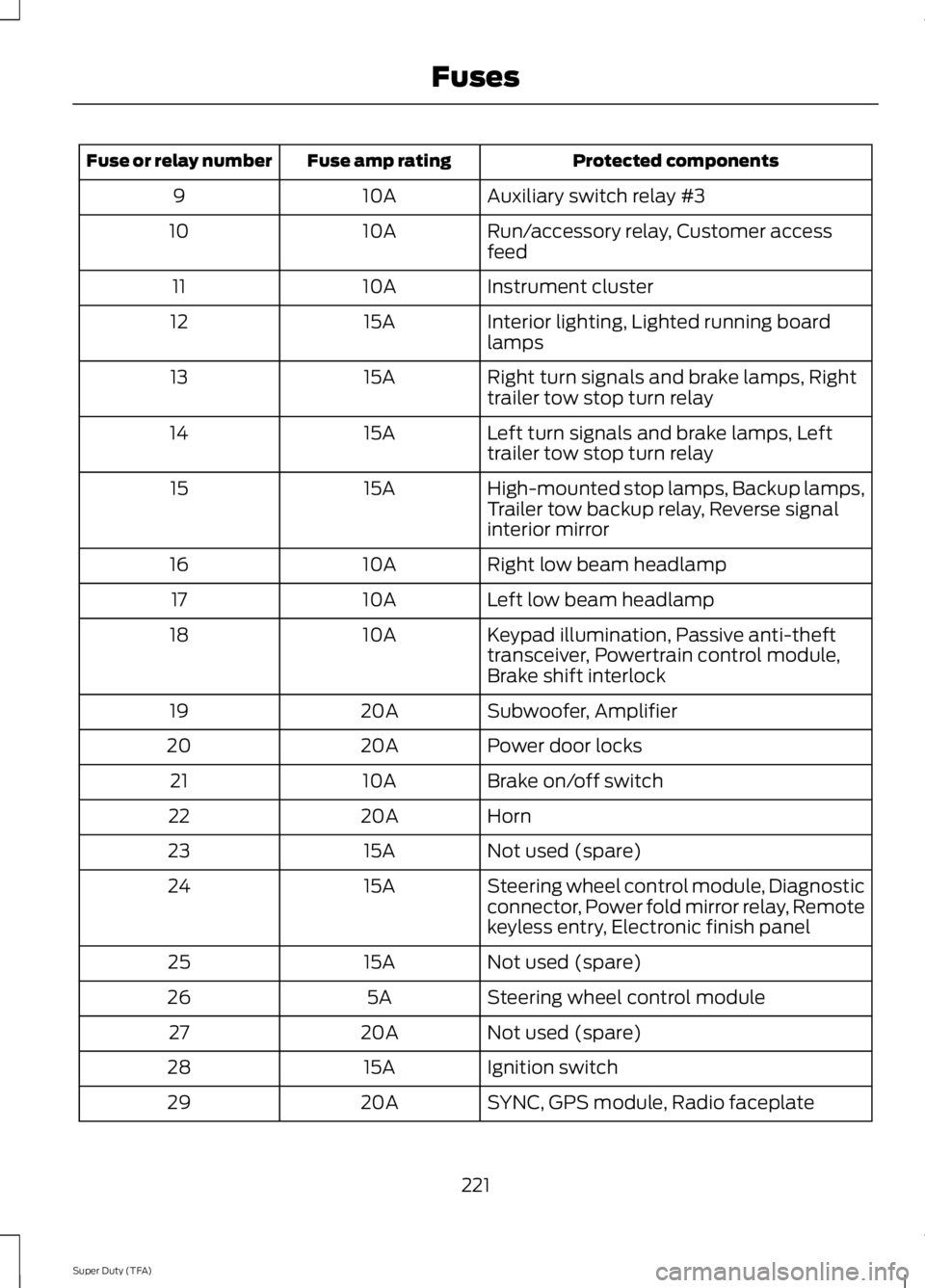
Protected componentsFuse amp ratingFuse or relay number
Auxiliary switch relay #310A9
Run/accessory relay, Customer accessfeed10A10
Instrument cluster10A11
Interior lighting, Lighted running boardlamps15A12
Right turn signals and brake lamps, Righttrailer tow stop turn relay15A13
Left turn signals and brake lamps, Lefttrailer tow stop turn relay15A14
High-mounted stop lamps, Backup lamps,Trailer tow backup relay, Reverse signalinterior mirror
15A15
Right low beam headlamp10A16
Left low beam headlamp10A17
Keypad illumination, Passive anti-thefttransceiver, Powertrain control module,Brake shift interlock
10A18
Subwoofer, Amplifier20A19
Power door locks20A20
Brake on/off switch10A21
Horn20A22
Not used (spare)15A23
Steering wheel control module, Diagnosticconnector, Power fold mirror relay, Remotekeyless entry, Electronic finish panel
15A24
Not used (spare)15A25
Steering wheel control module5A26
Not used (spare)20A27
Ignition switch15A28
SYNC, GPS module, Radio faceplate20A29
221
Super Duty (TFA)
Fuses
Page 225 of 460
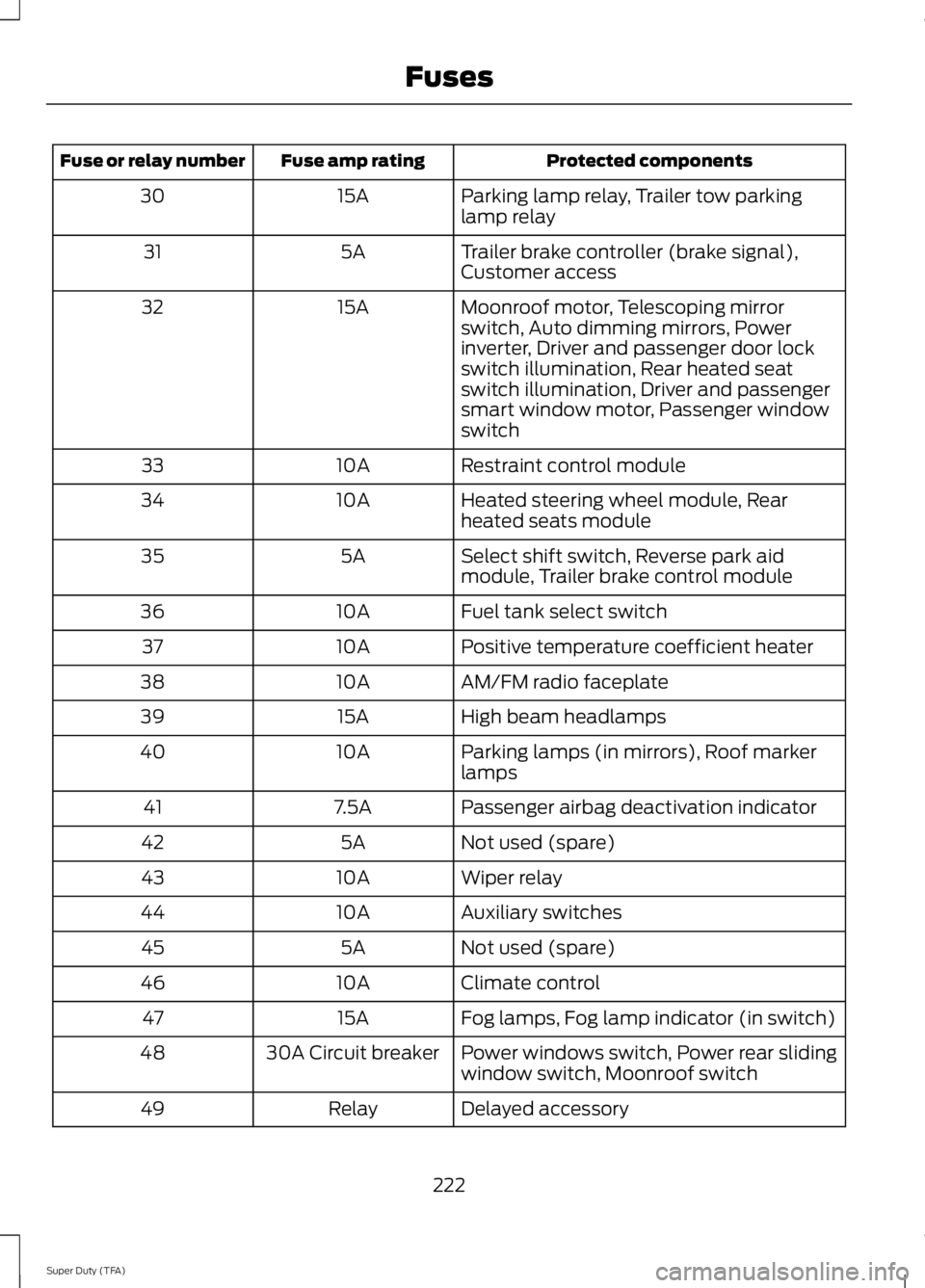
Protected componentsFuse amp ratingFuse or relay number
Parking lamp relay, Trailer tow parkinglamp relay15A30
Trailer brake controller (brake signal),Customer access5A31
Moonroof motor, Telescoping mirrorswitch, Auto dimming mirrors, Powerinverter, Driver and passenger door lockswitch illumination, Rear heated seatswitch illumination, Driver and passengersmart window motor, Passenger windowswitch
15A32
Restraint control module10A33
Heated steering wheel module, Rearheated seats module10A34
Select shift switch, Reverse park aidmodule, Trailer brake control module5A35
Fuel tank select switch10A36
Positive temperature coefficient heater10A37
AM/FM radio faceplate10A38
High beam headlamps15A39
Parking lamps (in mirrors), Roof markerlamps10A40
Passenger airbag deactivation indicator7.5A41
Not used (spare)5A42
Wiper relay10A43
Auxiliary switches10A44
Not used (spare)5A45
Climate control10A46
Fog lamps, Fog lamp indicator (in switch)15A47
Power windows switch, Power rear slidingwindow switch, Moonroof switch30A Circuit breaker48
Delayed accessoryRelay49
222
Super Duty (TFA)
Fuses
Page 308 of 460
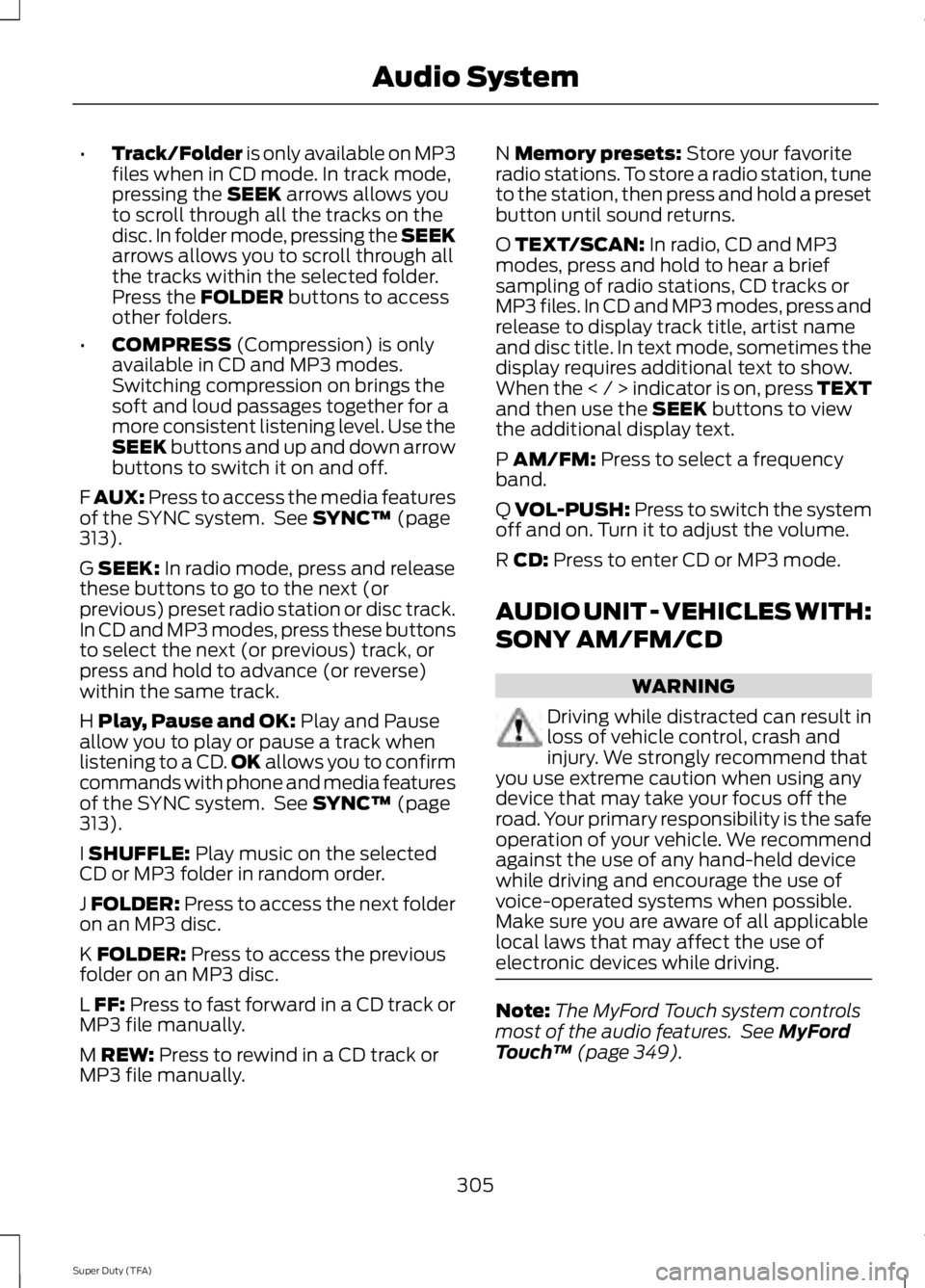
•Track/Folder is only available on MP3files when in CD mode. In track mode,pressing the SEEK arrows allows youto scroll through all the tracks on thedisc. In folder mode, pressing the SEEKarrows allows you to scroll through allthe tracks within the selected folder.Press the FOLDER buttons to accessother folders.
•COMPRESS (Compression) is onlyavailable in CD and MP3 modes.Switching compression on brings thesoft and loud passages together for amore consistent listening level. Use theSEEK buttons and up and down arrowbuttons to switch it on and off.
F AUX: Press to access the media featuresof the SYNC system. See SYNC™ (page313).
G SEEK: In radio mode, press and releasethese buttons to go to the next (orprevious) preset radio station or disc track.In CD and MP3 modes, press these buttonsto select the next (or previous) track, orpress and hold to advance (or reverse)within the same track.
H Play, Pause and OK: Play and Pauseallow you to play or pause a track whenlistening to a CD.OK allows you to confirmcommands with phone and media featuresof the SYNC system. See SYNC™ (page313).
I SHUFFLE: Play music on the selectedCD or MP3 folder in random order.
J FOLDER: Press to access the next folderon an MP3 disc.
K FOLDER: Press to access the previousfolder on an MP3 disc.
L FF: Press to fast forward in a CD track orMP3 file manually.
M REW: Press to rewind in a CD track orMP3 file manually.
N Memory presets: Store your favoriteradio stations. To store a radio station, tuneto the station, then press and hold a presetbutton until sound returns.
O TEXT/SCAN: In radio, CD and MP3modes, press and hold to hear a briefsampling of radio stations, CD tracks orMP3 files. In CD and MP3 modes, press andrelease to display track title, artist nameand disc title. In text mode, sometimes thedisplay requires additional text to show.When the < / > indicator is on, press TEXTand then use the SEEK buttons to viewthe additional display text.
P AM/FM: Press to select a frequencyband.
Q VOL-PUSH: Press to switch the systemoff and on. Turn it to adjust the volume.
R CD: Press to enter CD or MP3 mode.
AUDIO UNIT - VEHICLES WITH:
SONY AM/FM/CD
WARNING
Driving while distracted can result inloss of vehicle control, crash andinjury. We strongly recommend thatyou use extreme caution when using anydevice that may take your focus off theroad. Your primary responsibility is the safeoperation of your vehicle. We recommendagainst the use of any hand-held devicewhile driving and encourage the use ofvoice-operated systems when possible.Make sure you are aware of all applicablelocal laws that may affect the use ofelectronic devices while driving.
Note:The MyFord Touch system controlsmost of the audio features. See MyFordTouch™ (page 349).
305
Super Duty (TFA)
Audio System
Page 314 of 460
Possible actionConditionRadio display
Contact SIRIUS at 1-888-539-7474 to resolvesubscription issues.
Your satellite service is nolonger available.Call SIRIUS 1-888-539-7474
Use the channel guide toturn off the Lock or Skipfunction on that station.
All the channels in theselected category are eitherskipped or locked.
None found. Check ChannelGuide.
No action required.SIRIUS has updated thechannels available for yourvehicle.
Subscription Updated
AUDIO INPUT JACK
WARNINGS
Driving while distracted can result inloss of vehicle control, crash andinjury. We strongly recommend thatyou use extreme caution when using anydevice that may take your focus off theroad. Your primary responsibility is the safeoperation of your vehicle. We recommendagainst the use of any hand-held devicewhile driving and encourage the use ofvoice-operated systems when possible.Make sure you are aware of all applicablelocal laws that may affect the use ofelectronic devices while driving.
For safety reasons, do not connector adjust the settings on yourportable music player while yourvehicle is moving.
Store the portable music player in asecure location, such as the centerconsole or the glove box, when yourvehicle is moving. Hard objects maybecome projectiles in a collision or suddenstop, which may increase the risk of seriousinjury. The audio extension cable must belong enough to allow the portable musicplayer to be safely stored while yourvehicle is moving.
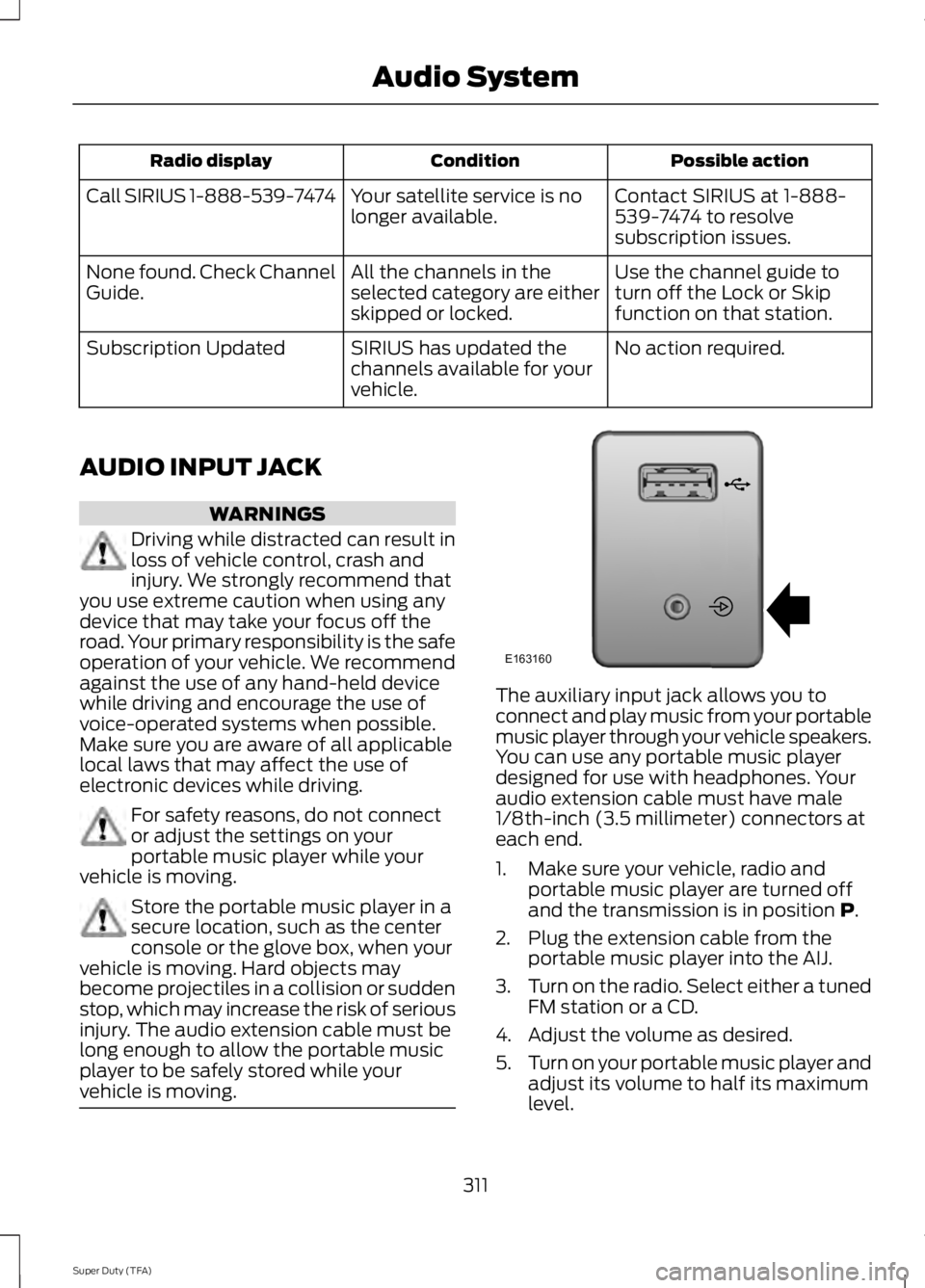
The auxiliary input jack allows you toconnect and play music from your portablemusic player through your vehicle speakers.You can use any portable music playerdesigned for use with headphones. Youraudio extension cable must have male1/8th-inch (3.5 millimeter) connectors ateach end.
1. Make sure your vehicle, radio andportable music player are turned offand the transmission is in position P.
2. Plug the extension cable from theportable music player into the AIJ.
3.Turn on the radio. Select either a tunedFM station or a CD.
4. Adjust the volume as desired.
5.Turn on your portable music player andadjust its volume to half its maximumlevel.
311
Super Duty (TFA)
Audio SystemE163160
Page 315 of 460
6. Press AUX until LINE or LINE INappears in the display. You should hearmusic from your device even if it is low.
7. Adjust the volume on your portablemusic player until it reaches the volumelevel of the FM station or CD. Do thisby switching back and forth betweenthe AUX and FM or CD controls.
USB PORT (IF EQUIPPED)
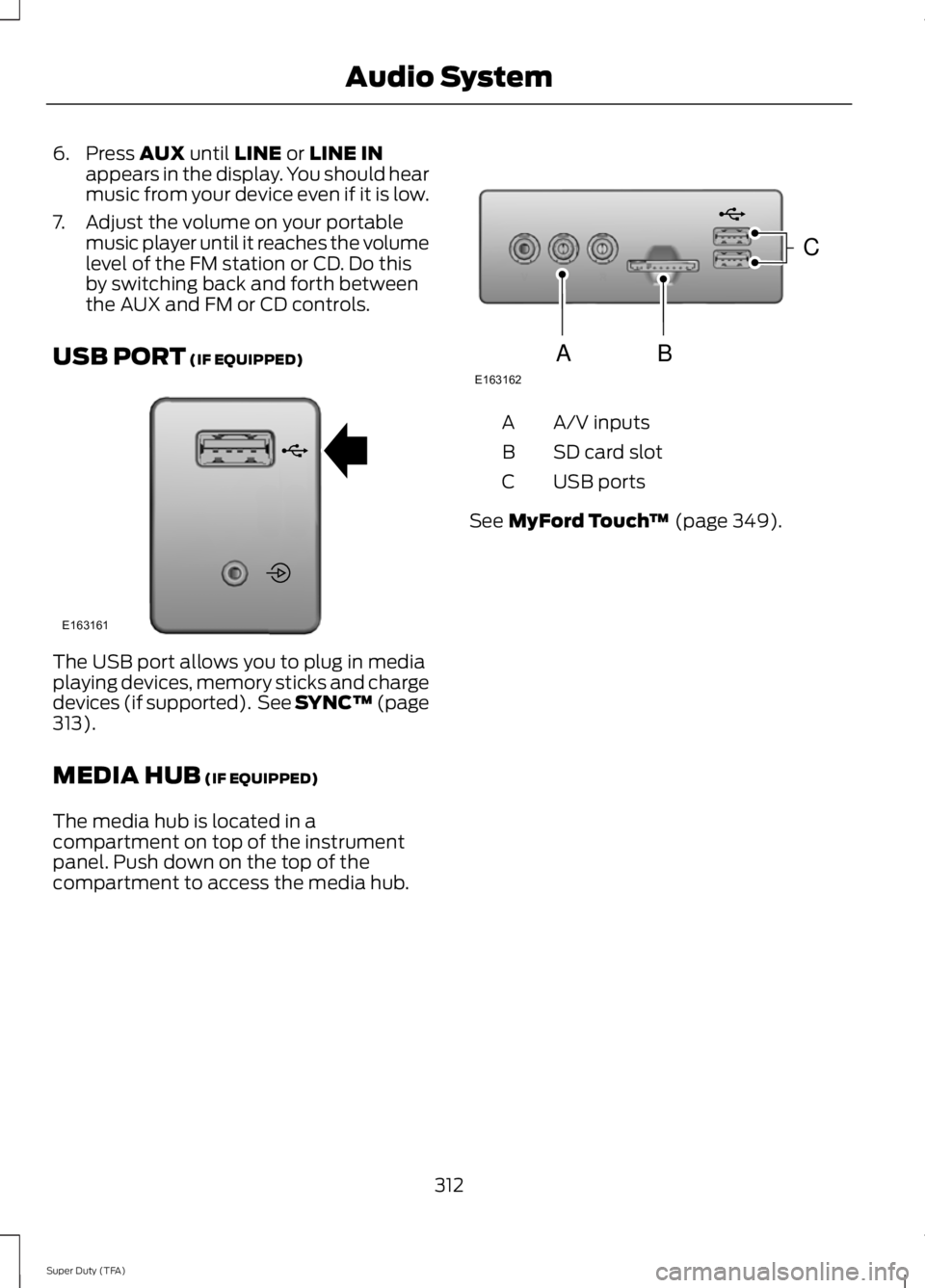
The USB port allows you to plug in mediaplaying devices, memory sticks and chargedevices (if supported). See SYNC™ (page313).
MEDIA HUB (IF EQUIPPED)
The media hub is located in acompartment on top of the instrumentpanel. Push down on the top of thecompartment to access the media hub.
A/V inputsA
SD card slotB
USB portsC
See MyFord Touch™ (page 349).
312
Super Duty (TFA)
Audio SystemE163161 E163162
C
BA
Page 318 of 460
System data cannot be accessed withoutspecial equipment and access to thevehicle's SYNC module. Ford MotorCompany and Ford of Canada will notaccess the system data for any purposeother than as described absent consent, acourt order, or where required by lawenforcement, other governmentauthorities, or other third parties actingwith lawful authority. Other parties mayseek to access the informationindependently of Ford Motor Company andFord of Canada. For further privacyinformation, see the sections on 911 Assist,Vehicle Health Report, and Traffic,Directions and Information.
USING VOICE RECOGNITION
This system helps you control manyfeatures using voice commands. Thisallows you to keep your hands on thewheel and focus on what is in front of you.
Initiating a Voice Session
Push the voice icon. A tonesounds and Listening appears inthe display. Say any of thefollowing:
If You Want ToSay
Stream audio from your phone."Bluetooth audio"
Cancel the requested action."Cancel"
Access the device connected to the auxiliary input jack."Line in"
Access mobile applications."Mobile apps" *
Make calls."Phone"
Access the SYNC Services portal."Services" *
Return to the main menu."SYNC"
Access the device connected to your USB port."USB"
Run a vehicle health report."Vehicle health report" *
Adjust the level of voice interaction and feedback."Voice settings"
Hear a list of voice commands available in the currentmode."Help"
* This is an optional feature and available in the United States only.
315
Super Duty (TFA)
SYNC™ (If Equipped)E142599
Page 338 of 460
To Access Using the Media Menu
1. Press the AUX button on the centerconsole.
2. Press MENU to access the SYNCmenu.
3. Select "SYNC-Media" by pressing OK.
4.Scroll to Mobile Apps and press OK toaccess a list of available applications.
5. Scroll through the list of availableapplications and press OK to select aparticular app.
6.Once an app is running through SYNC,you can access an app’s menu bypressing the MENU button to firstaccess the SYNC menu.
7. Select "SYNC-Media" by pressing OK.
8. Scroll until "
To Access Using Voice Commands
1. Press the voice icon.
2. When prompted, say "Mobile Apps".
3. Say the name of the application afterthe tone.
4. The app should start. While an app isrunning through SYNC, you can pressthe voice button and speak commandsspecific to the app, such as "PlayStation Quickmix". Say "Help" todiscover available voice commands.
USING SYNC™ WITH YOUR
MEDIA PLAYER
You can access and play music from yourdigital music player over your vehicle'sspeaker system using the system's mediamenu or voice commands. You can alsosort and play your music by specificcategories, such as artist and album.
Note:The system is capable of indexing upto 30,000 songs.
SYNC is capable of hosting nearly anydigital media player including: iPod®,Zune™, Plays from device players, andmost USB drives. SYNC also supportsaudio formats, such as MP3, WMA, WAVand ACC.
Connecting Your Digital MediaPlayer to the USB Port
Note:If your digital media player has apower switch, make sure you switch it onbefore plugging it in.
To Connect Using Voice Commands
1. Plug the device into the USB port.
2. Press the voice icon and whenprompted, say "USB".
3. You can now play music by saying anyof the appropriate voice commands.See the media voice commands.
To Connect Using the System Menu
1. Plug the device into the USB port.
2. Press AUX and then MENU to enterthe media menu.
3. Scroll to Select Source. Press OK.
4. Scroll to USB. Press OK.
5.Depending on how many digital mediafiles are on your connected device,Indexing may appear in the radiodisplay. When indexing is complete, thescreen returns to the Play menu.
335
Super Duty (TFA)
SYNC™ (If Equipped)
Page 341 of 460
Media Menu Features
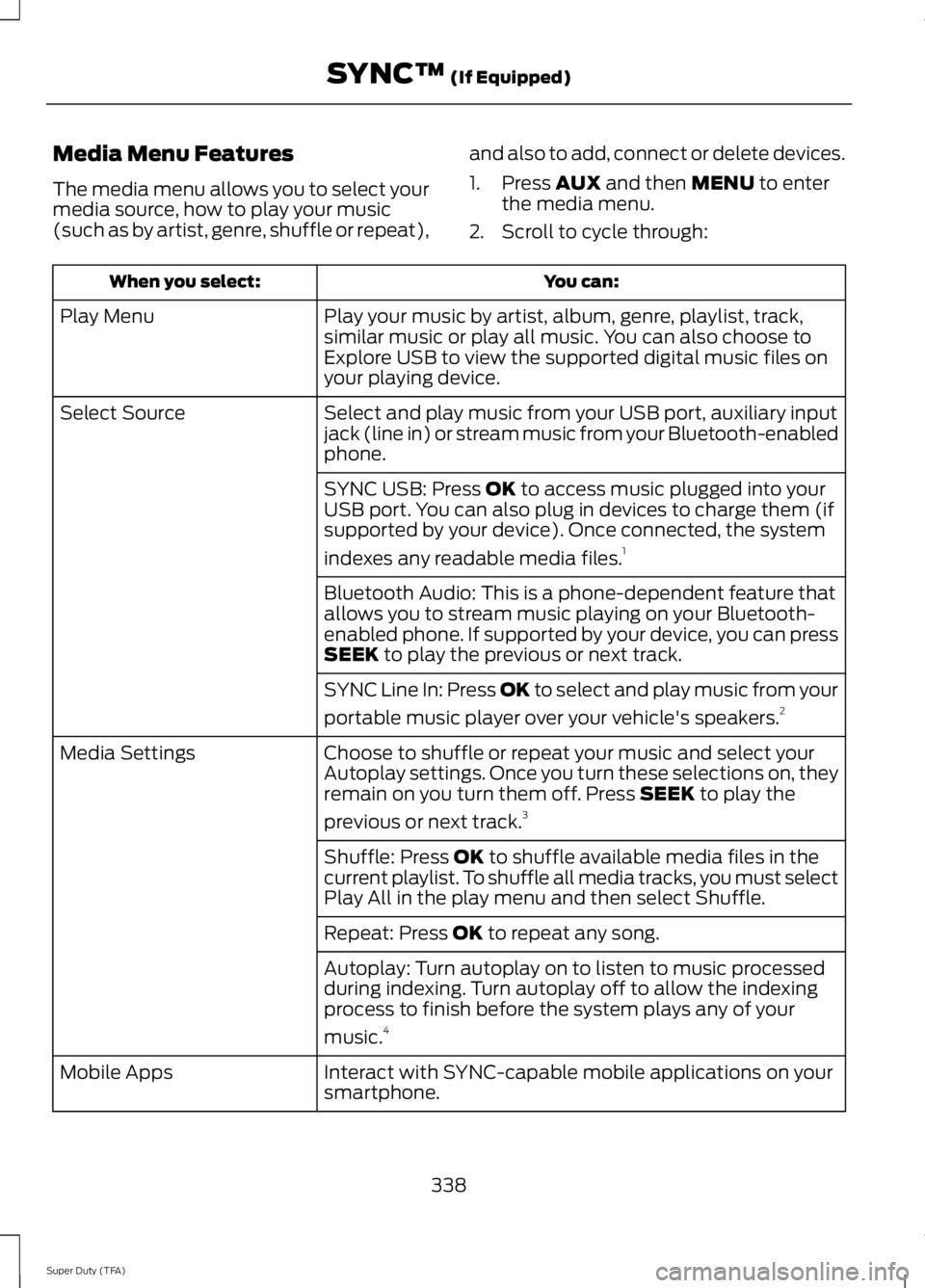
The media menu allows you to select yourmedia source, how to play your music(such as by artist, genre, shuffle or repeat),
and also to add, connect or delete devices.
1. Press AUX and then MENU to enterthe media menu.
2. Scroll to cycle through:
You can:When you select:
Play your music by artist, album, genre, playlist, track,similar music or play all music. You can also choose toExplore USB to view the supported digital music files onyour playing device.
Play Menu
Select and play music from your USB port, auxiliary inputjack (line in) or stream music from your Bluetooth-enabledphone.
Select Source
SYNC USB: Press OK to access music plugged into yourUSB port. You can also plug in devices to charge them (ifsupported by your device). Once connected, the system
indexes any readable media files.1
Bluetooth Audio: This is a phone-dependent feature thatallows you to stream music playing on your Bluetooth-enabled phone. If supported by your device, you can pressSEEK to play the previous or next track.
SYNC Line In: Press OK to select and play music from your
portable music player over your vehicle's speakers.2
Choose to shuffle or repeat your music and select yourAutoplay settings. Once you turn these selections on, theyremain on you turn them off. Press SEEK to play the
previous or next track.3
Media Settings
Shuffle: Press OK to shuffle available media files in thecurrent playlist. To shuffle all media tracks, you must selectPlay All in the play menu and then select Shuffle.
Repeat: Press OK to repeat any song.
Autoplay: Turn autoplay on to listen to music processedduring indexing. Turn autoplay off to allow the indexingprocess to finish before the system plays any of your
music.4
Interact with SYNC-capable mobile applications on yoursmartphone.Mobile Apps
338
Super Duty (TFA)
SYNC™ (If Equipped)
Page 342 of 460
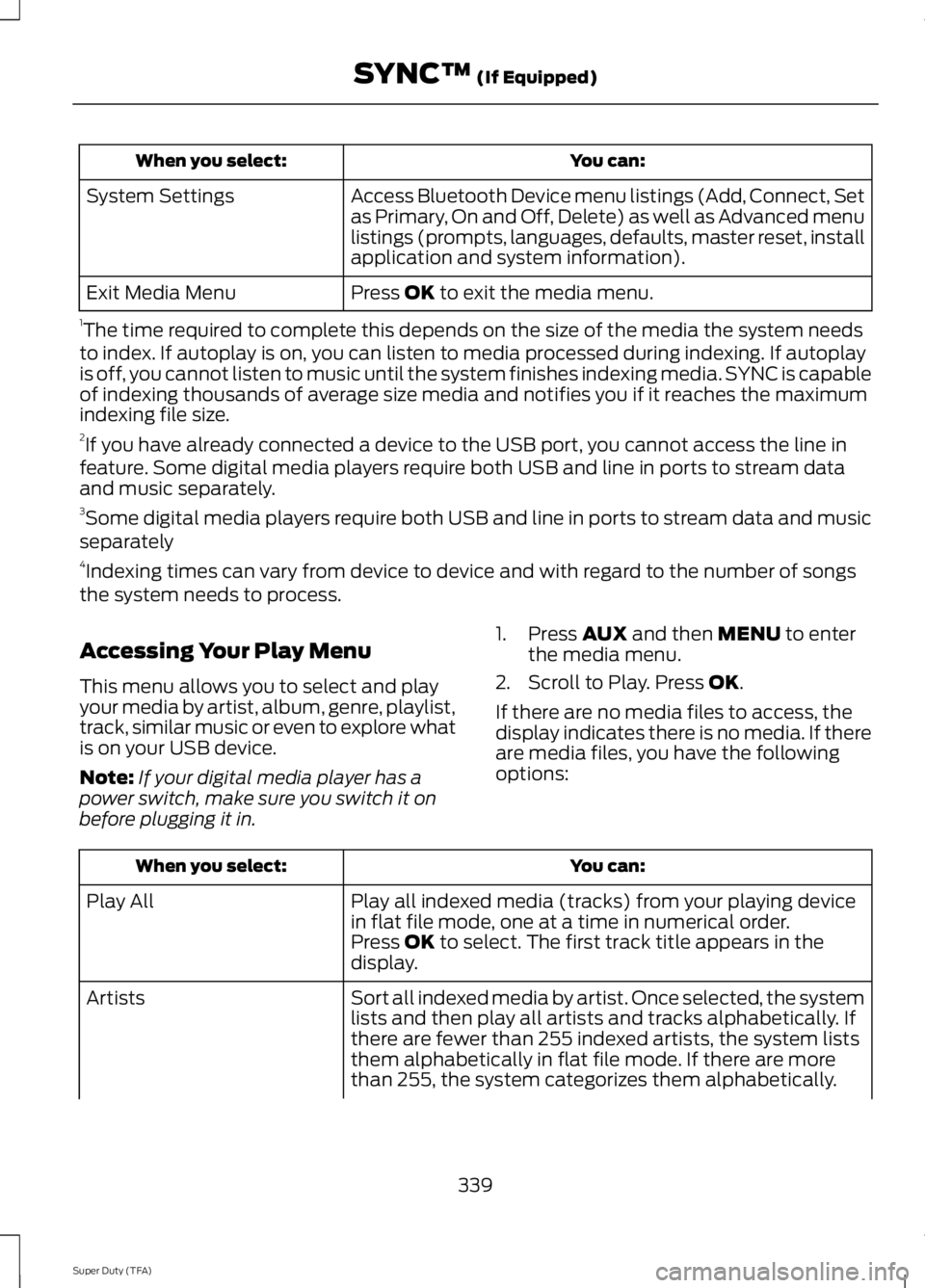
You can:When you select:
Access Bluetooth Device menu listings (Add, Connect, Setas Primary, On and Off, Delete) as well as Advanced menulistings (prompts, languages, defaults, master reset, installapplication and system information).
System Settings
Press OK to exit the media menu.Exit Media Menu
1The time required to complete this depends on the size of the media the system needsto index. If autoplay is on, you can listen to media processed during indexing. If autoplayis off, you cannot listen to music until the system finishes indexing media. SYNC is capableof indexing thousands of average size media and notifies you if it reaches the maximumindexing file size.2If you have already connected a device to the USB port, you cannot access the line infeature. Some digital media players require both USB and line in ports to stream dataand music separately.3Some digital media players require both USB and line in ports to stream data and musicseparately4Indexing times can vary from device to device and with regard to the number of songsthe system needs to process.
Accessing Your Play Menu
This menu allows you to select and playyour media by artist, album, genre, playlist,track, similar music or even to explore whatis on your USB device.
Note:If your digital media player has apower switch, make sure you switch it onbefore plugging it in.
1. Press AUX and then MENU to enterthe media menu.
2. Scroll to Play. Press OK.
If there are no media files to access, thedisplay indicates there is no media. If thereare media files, you have the followingoptions:
You can:When you select:
Play all indexed media (tracks) from your playing devicein flat file mode, one at a time in numerical order.Play All
Press OK to select. The first track title appears in thedisplay.
Sort all indexed media by artist. Once selected, the systemlists and then play all artists and tracks alphabetically. Ifthere are fewer than 255 indexed artists, the system liststhem alphabetically in flat file mode. If there are morethan 255, the system categorizes them alphabetically.
Artists
339
Super Duty (TFA)
SYNC™ (If Equipped)