USB port FORD F450 2015 User Guide
[x] Cancel search | Manufacturer: FORD, Model Year: 2015, Model line: F450, Model: FORD F450 2015Pages: 485, PDF Size: 5.35 MB
Page 353 of 485
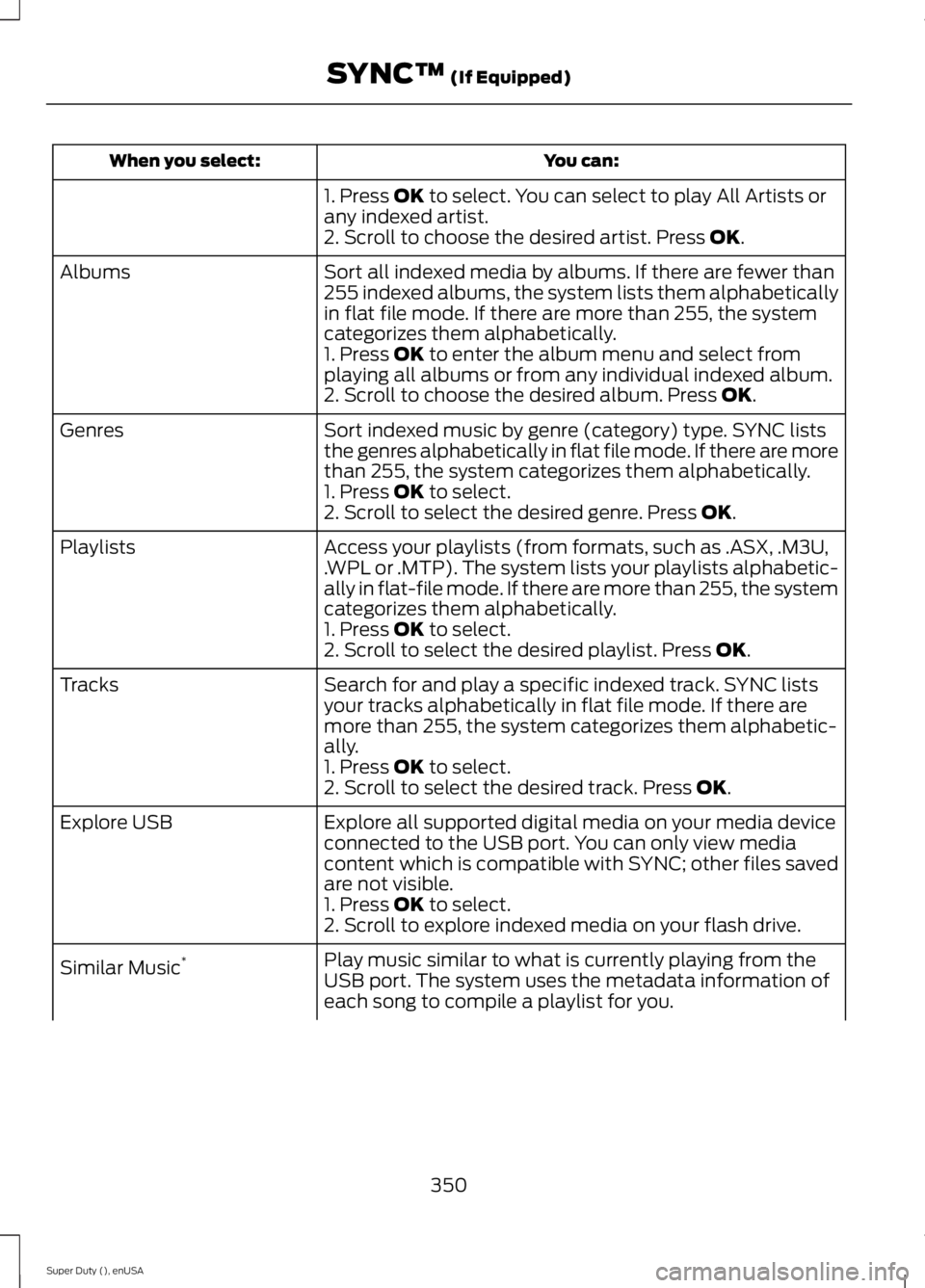
You can:
When you select:
1. Press OK to select. You can select to play All Artists or
any indexed artist.
2. Scroll to choose the desired artist. Press
OK.
Sort all indexed media by albums. If there are fewer than
255 indexed albums, the system lists them alphabetically
in flat file mode. If there are more than 255, the system
categorizes them alphabetically.
Albums
1. Press
OK to enter the album menu and select from
playing all albums or from any individual indexed album.
2. Scroll to choose the desired album. Press
OK.
Sort indexed music by genre (category) type. SYNC lists
the genres alphabetically in flat file mode. If there are more
than 255, the system categorizes them alphabetically.
Genres
1. Press
OK to select.
2. Scroll to select the desired genre. Press OK.
Access your playlists (from formats, such as .ASX, .M3U,
.WPL or .MTP). The system lists your playlists alphabetic-
ally in flat-file mode. If there are more than 255, the system
categorizes them alphabetically.
Playlists
1. Press
OK to select.
2. Scroll to select the desired playlist. Press OK.
Search for and play a specific indexed track. SYNC lists
your tracks alphabetically in flat file mode. If there are
more than 255, the system categorizes them alphabetic-
ally.
Tracks
1. Press
OK to select.
2. Scroll to select the desired track. Press OK.
Explore all supported digital media on your media device
connected to the USB port. You can only view media
content which is compatible with SYNC; other files saved
are not visible.
Explore USB
1. Press
OK to select.
2. Scroll to explore indexed media on your flash drive.
Play music similar to what is currently playing from the
USB port. The system uses the metadata information of
each song to compile a playlist for you.
Similar Music
*
350
Super Duty (), enUSA SYNC™
(If Equipped)
Page 356 of 485
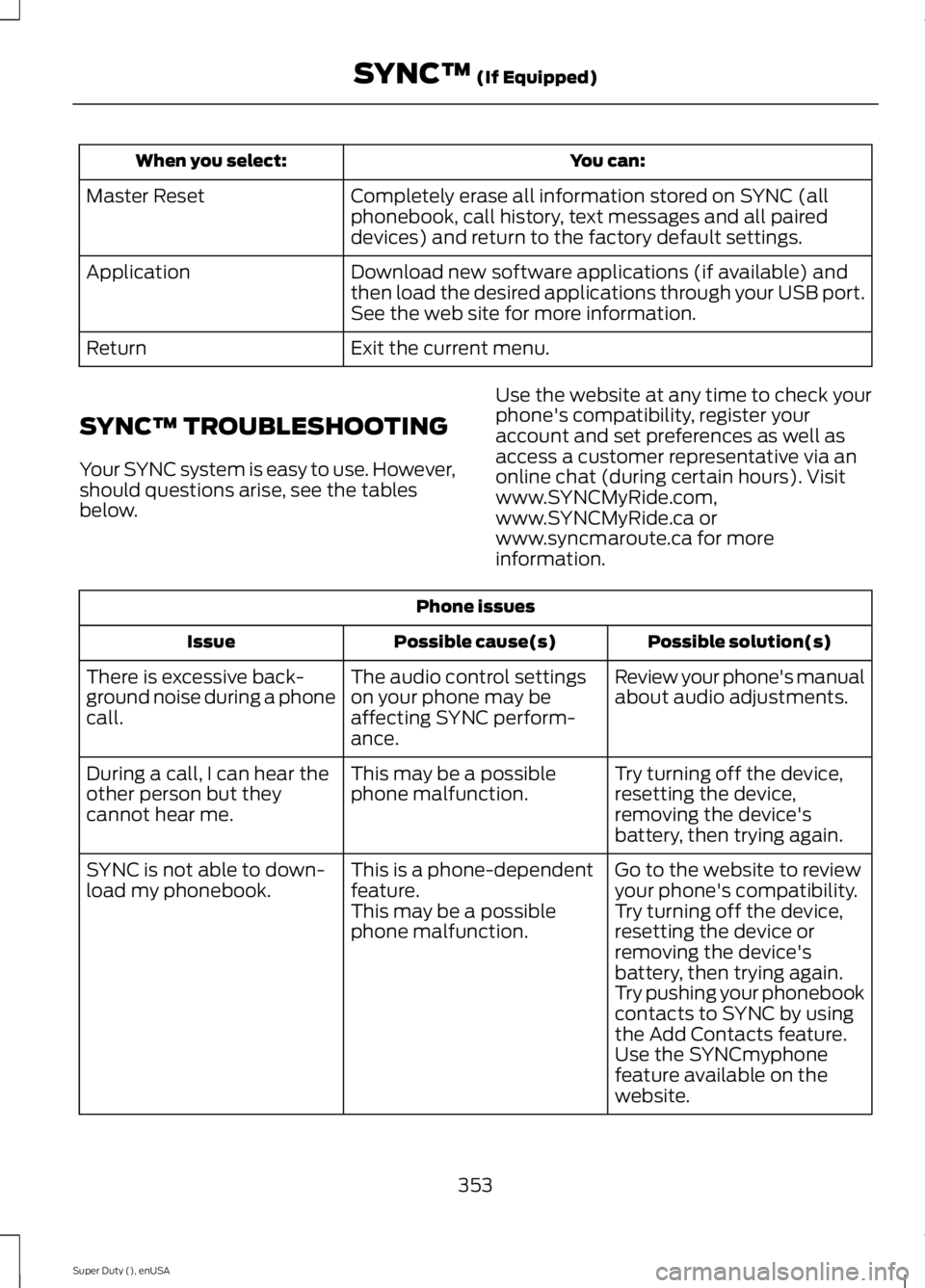
You can:
When you select:
Completely erase all information stored on SYNC (all
phonebook, call history, text messages and all paired
devices) and return to the factory default settings.
Master Reset
Download new software applications (if available) and
then load the desired applications through your USB port.
See the web site for more information.
Application
Exit the current menu.
Return
SYNC™ TROUBLESHOOTING
Your SYNC system is easy to use. However,
should questions arise, see the tables
below. Use the website at any time to check your
phone's compatibility, register your
account and set preferences as well as
access a customer representative via an
online chat (during certain hours). Visit
www.SYNCMyRide.com,
www.SYNCMyRide.ca or
www.syncmaroute.ca for more
information.Phone issues
Possible solution(s)
Possible cause(s)
Issue
Review your phone's manual
about audio adjustments.
The audio control settings
on your phone may be
affecting SYNC perform-
ance.
There is excessive back-
ground noise during a phone
call.
Try turning off the device,
resetting the device,
removing the device's
battery, then trying again.
This may be a possible
phone malfunction.
During a call, I can hear the
other person but they
cannot hear me.
Go to the website to review
your phone's compatibility.
This is a phone-dependent
feature.
SYNC is not able to down-
load my phonebook.
Try turning off the device,
resetting the device or
removing the device's
battery, then trying again.
This may be a possible
phone malfunction.
Try pushing your phonebook
contacts to SYNC by using
the Add Contacts feature.
Use the SYNCmyphone
feature available on the
website.
353
Super Duty (), enUSA SYNC™ (If Equipped)
Page 358 of 485
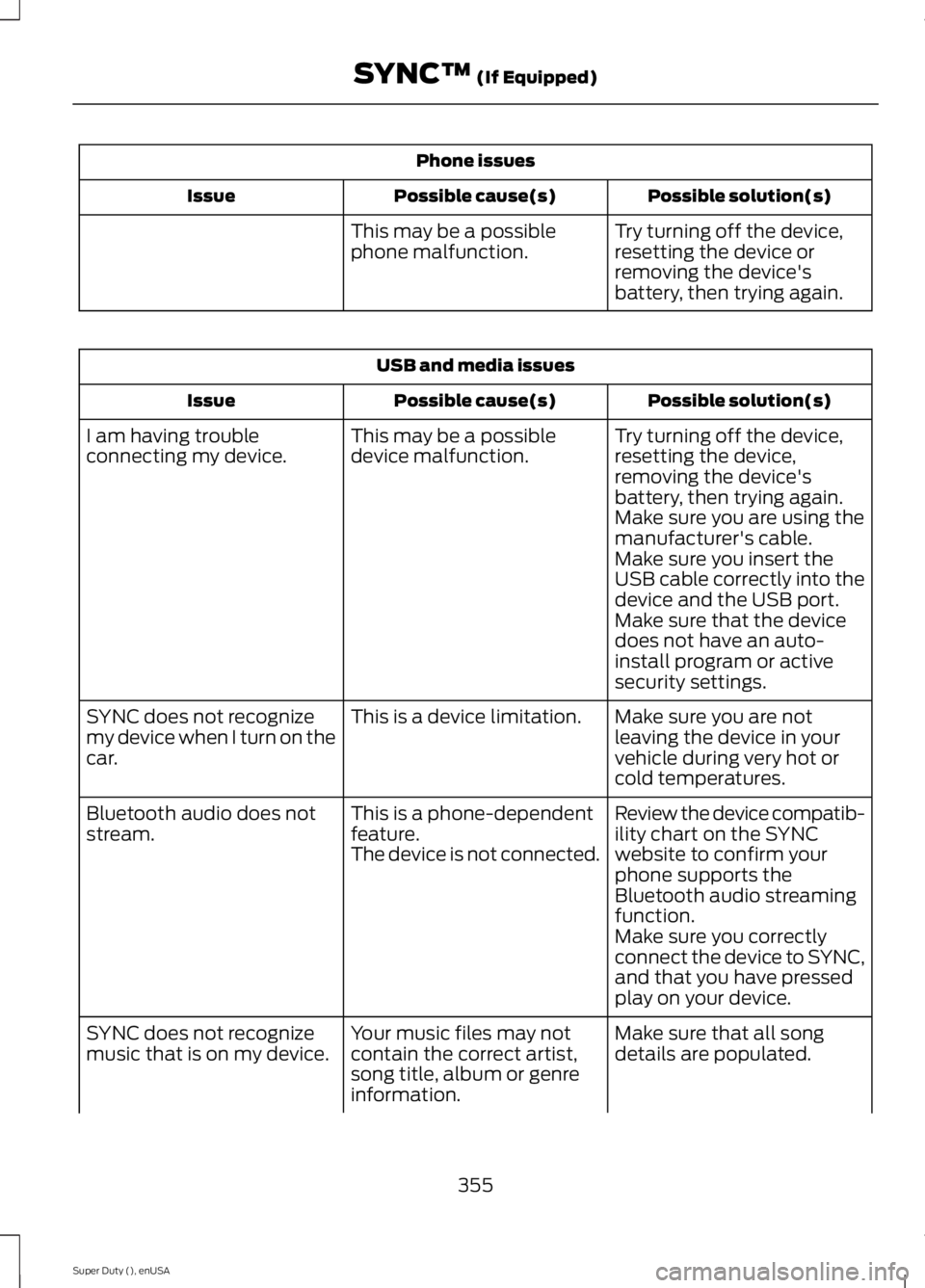
Phone issues
Possible solution(s)
Possible cause(s)
Issue
Try turning off the device,
resetting the device or
removing the device's
battery, then trying again.
This may be a possible
phone malfunction. USB and media issues
Possible solution(s)
Possible cause(s)
Issue
Try turning off the device,
resetting the device,
removing the device's
battery, then trying again.
This may be a possible
device malfunction.
I am having trouble
connecting my device.
Make sure you are using the
manufacturer's cable.
Make sure you insert the
USB cable correctly into the
device and the USB port.
Make sure that the device
does not have an auto-
install program or active
security settings.
Make sure you are not
leaving the device in your
vehicle during very hot or
cold temperatures.
This is a device limitation.
SYNC does not recognize
my device when I turn on the
car.
Review the device compatib-
ility chart on the SYNC
website to confirm your
phone supports the
Bluetooth audio streaming
function.
This is a phone-dependent
feature.
The device is not connected.
Bluetooth audio does not
stream.
Make sure you correctly
connect the device to SYNC,
and that you have pressed
play on your device.
Make sure that all song
details are populated.
Your music files may not
contain the correct artist,
song title, album or genre
information.
SYNC does not recognize
music that is on my device.
355
Super Duty (), enUSA SYNC™ (If Equipped)
Page 359 of 485
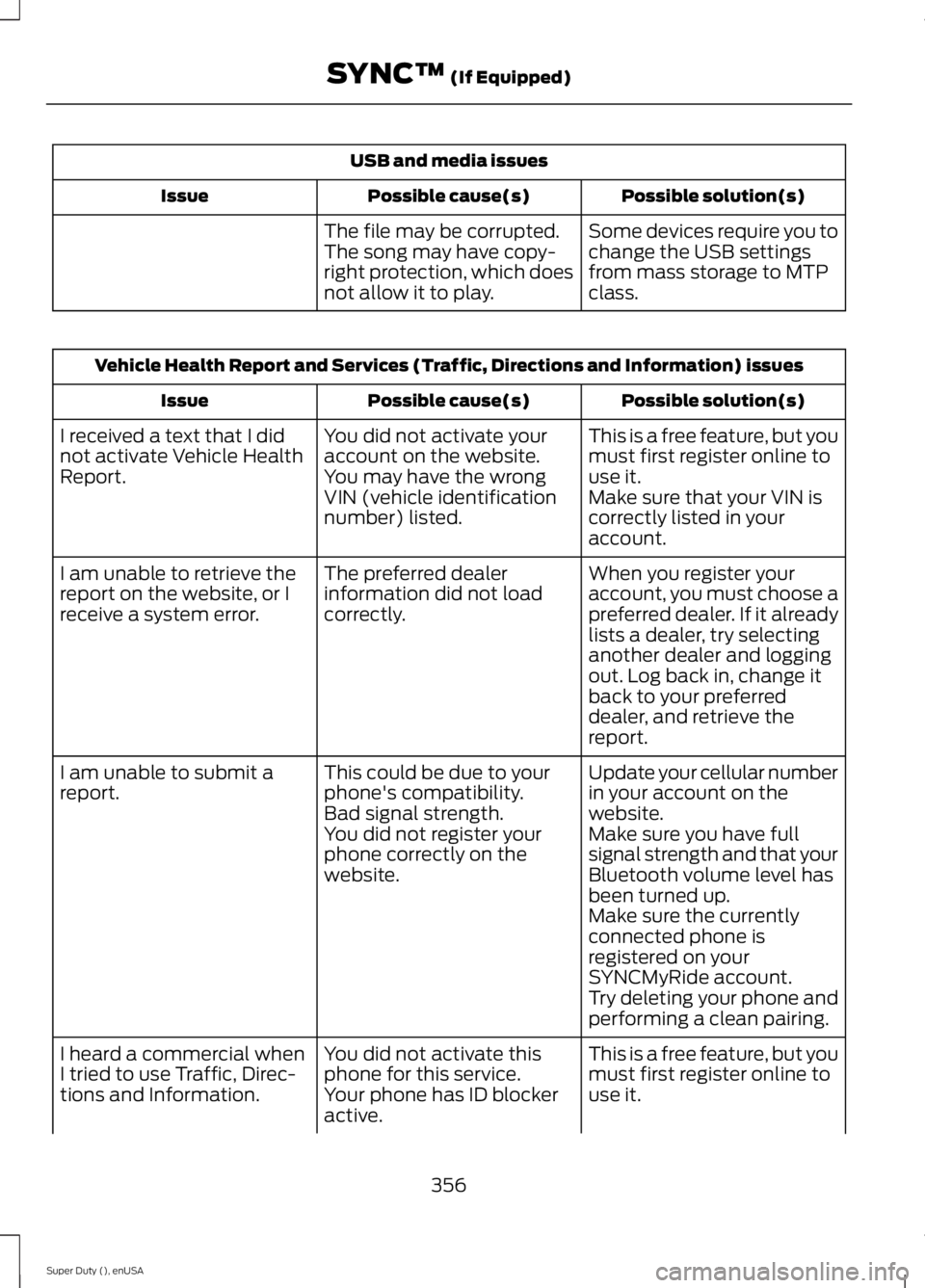
USB and media issues
Possible solution(s)
Possible cause(s)
Issue
Some devices require you to
change the USB settings
from mass storage to MTP
class.
The file may be corrupted.
The song may have copy-
right protection, which does
not allow it to play. Vehicle Health Report and Services (Traffic, Directions and Information) issues
Possible solution(s)
Possible cause(s)
Issue
This is a free feature, but you
must first register online to
use it.
You did not activate your
account on the website.
You may have the wrong
VIN (vehicle identification
number) listed.
I received a text that I did
not activate Vehicle Health
Report.
Make sure that your VIN is
correctly listed in your
account.
When you register your
account, you must choose a
preferred dealer. If it already
lists a dealer, try selecting
another dealer and logging
out. Log back in, change it
back to your preferred
dealer, and retrieve the
report.
The preferred dealer
information did not load
correctly.
I am unable to retrieve the
report on the website, or I
receive a system error.
Update your cellular number
in your account on the
website.
This could be due to your
phone's compatibility.
Bad signal strength.
I am unable to submit a
report.
Make sure you have full
signal strength and that your
Bluetooth volume level has
been turned up.
You did not register your
phone correctly on the
website.
Make sure the currently
connected phone is
registered on your
SYNCMyRide account.
Try deleting your phone and
performing a clean pairing.
This is a free feature, but you
must first register online to
use it.
You did not activate this
phone for this service.
Your phone has ID blocker
active.
I heard a commercial when
I tried to use Traffic, Direc-
tions and Information.
356
Super Duty (), enUSA SYNC™ (If Equipped)
Page 362 of 485
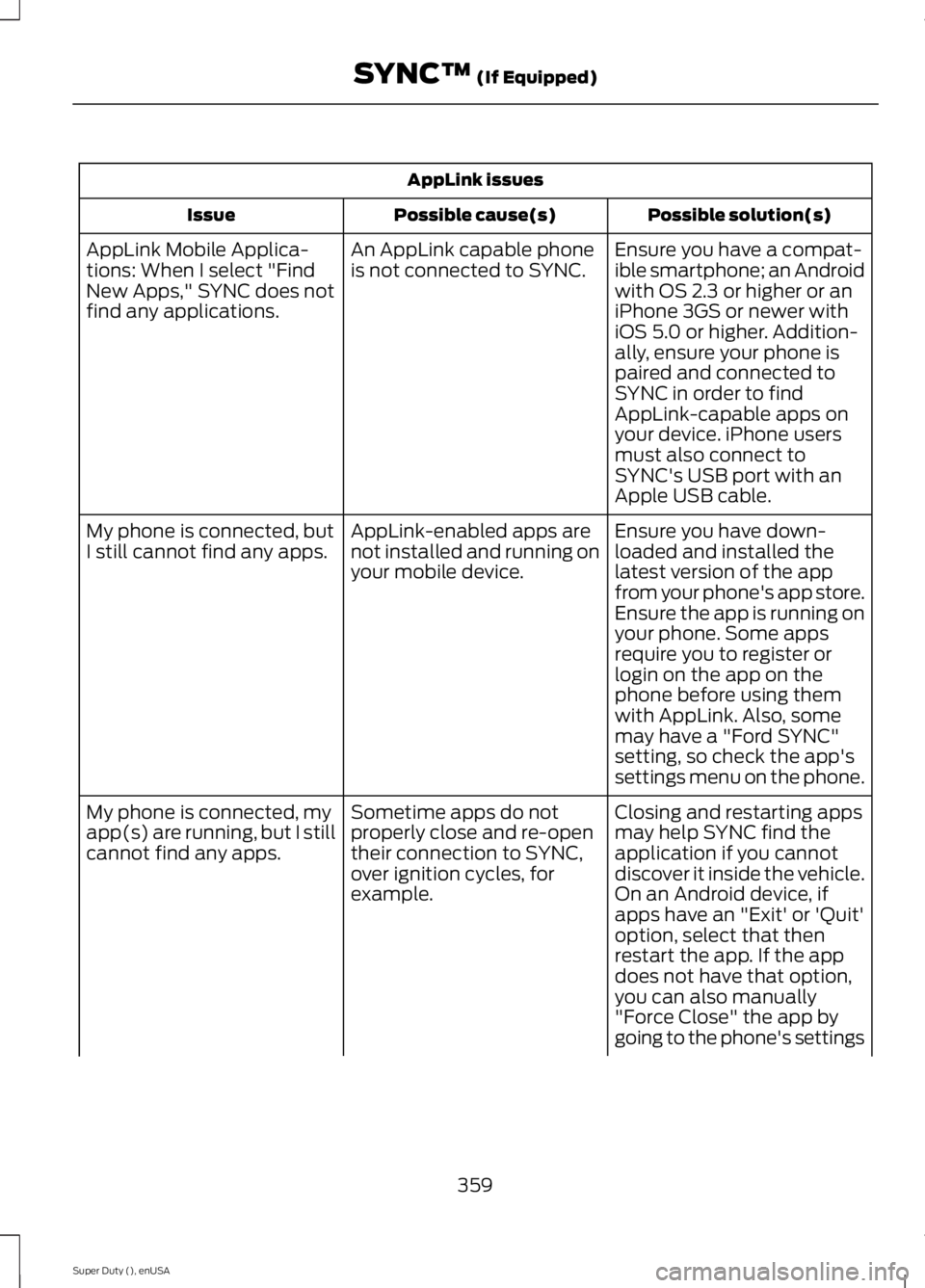
AppLink issues
Possible solution(s)
Possible cause(s)
Issue
Ensure you have a compat-
ible smartphone; an Android
with OS 2.3 or higher or an
iPhone 3GS or newer with
iOS 5.0 or higher. Addition-
ally, ensure your phone is
An AppLink capable phone
is not connected to SYNC.
AppLink Mobile Applica-
tions: When I select "Find
New Apps," SYNC does not
find any applications.
paired and connected to
SYNC in order to find
AppLink-capable apps on
your device. iPhone users
must also connect to
SYNC's USB port with an
Apple USB cable.
Ensure you have down-
loaded and installed the
latest version of the app
from your phone's app store.
Ensure the app is running on
your phone. Some apps
AppLink-enabled apps are
not installed and running on
your mobile device.
My phone is connected, but
I still cannot find any apps.
require you to register or
login on the app on the
phone before using them
with AppLink. Also, some
may have a "Ford SYNC"
setting, so check the app's
settings menu on the phone.
Closing and restarting apps
may help SYNC find the
application if you cannot
discover it inside the vehicle.
On an Android device, if
apps have an "Exit' or 'Quit'
Sometime apps do not
properly close and re-open
their connection to SYNC,
over ignition cycles, for
example.
My phone is connected, my
app(s) are running, but I still
cannot find any apps.
option, select that then
restart the app. If the app
does not have that option,
you can also manually
"Force Close" the app by
going to the phone's settings
359
Super Duty (), enUSA SYNC™ (If Equipped)
Page 364 of 485
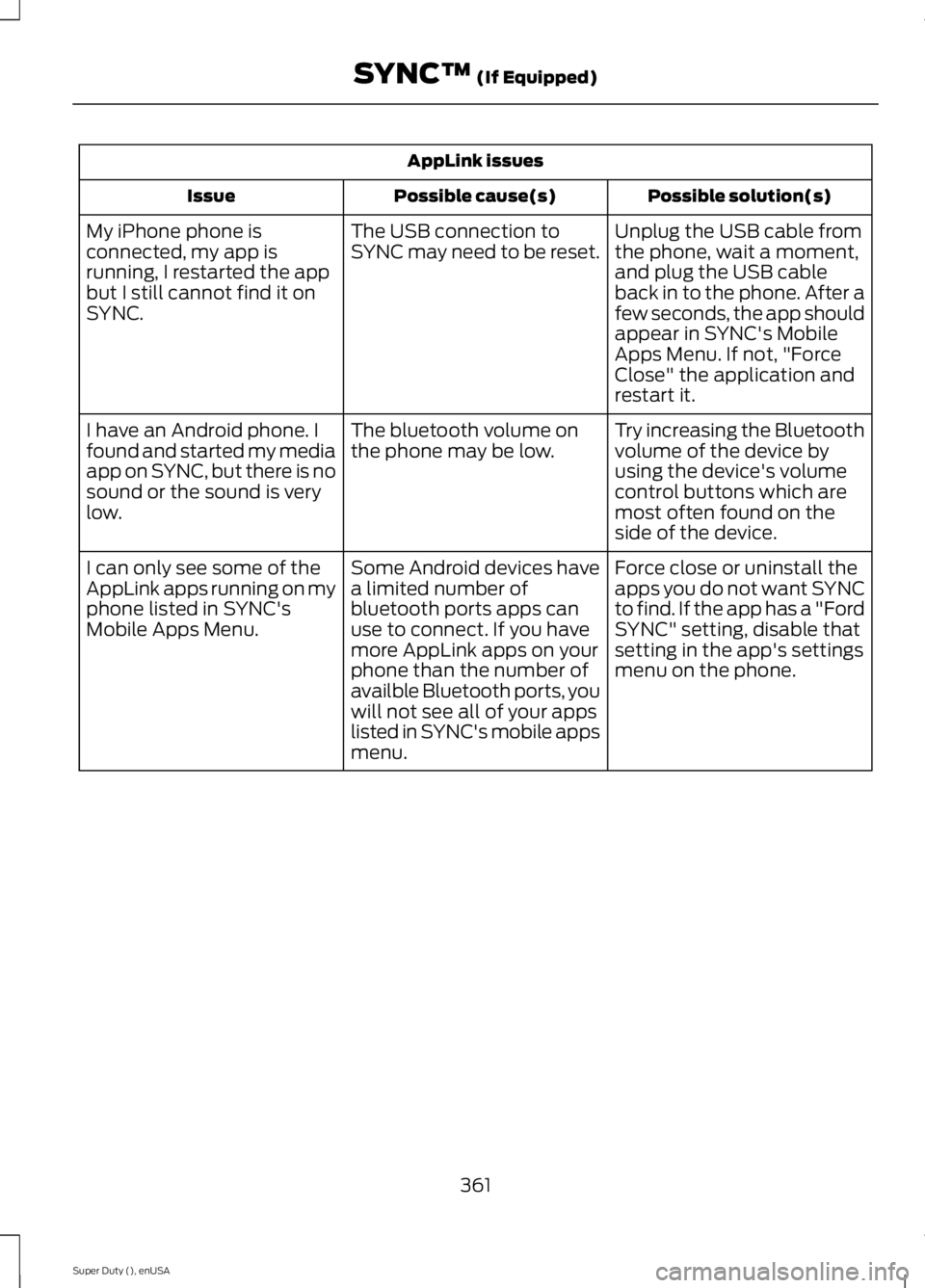
AppLink issues
Possible solution(s)
Possible cause(s)
Issue
Unplug the USB cable from
the phone, wait a moment,
and plug the USB cable
back in to the phone. After a
few seconds, the app should
appear in SYNC's Mobile
Apps Menu. If not, "Force
Close" the application and
restart it.
The USB connection to
SYNC may need to be reset.
My iPhone phone is
connected, my app is
running, I restarted the app
but I still cannot find it on
SYNC.
Try increasing the Bluetooth
volume of the device by
using the device's volume
control buttons which are
most often found on the
side of the device.
The bluetooth volume on
the phone may be low.
I have an Android phone. I
found and started my media
app on SYNC, but there is no
sound or the sound is very
low.
Force close or uninstall the
apps you do not want SYNC
to find. If the app has a "Ford
SYNC" setting, disable that
setting in the app's settings
menu on the phone.
Some Android devices have
a limited number of
bluetooth ports apps can
use to connect. If you have
more AppLink apps on your
phone than the number of
availble Bluetooth ports, you
will not see all of your apps
listed in SYNC's mobile apps
menu.
I can only see some of the
AppLink apps running on my
phone listed in SYNC's
Mobile Apps Menu.
361
Super Duty (), enUSA SYNC™ (If Equipped)
Page 367 of 485
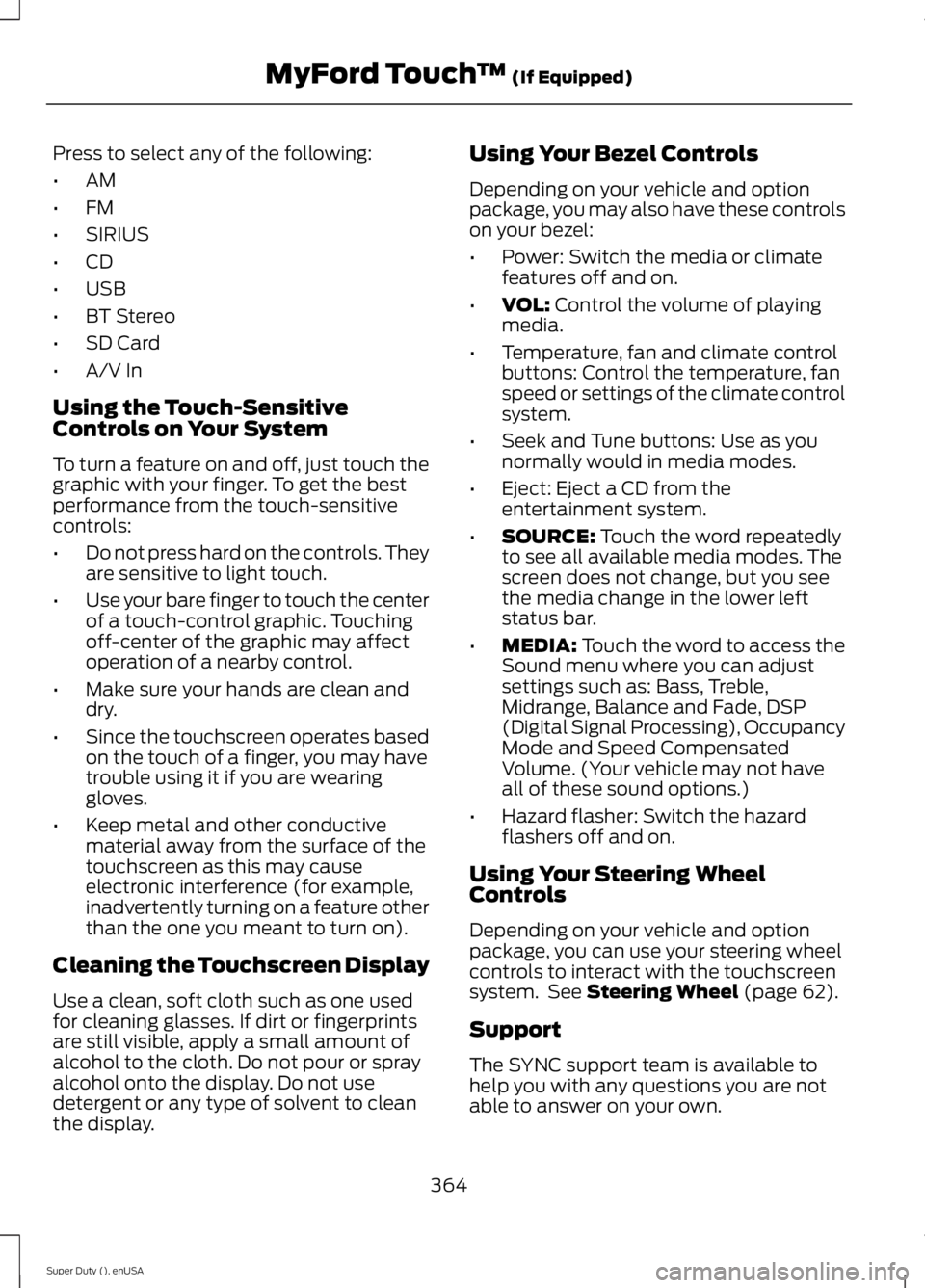
Press to select any of the following:
•
AM
• FM
• SIRIUS
• CD
• USB
• BT Stereo
• SD Card
• A/V In
Using the Touch-Sensitive
Controls on Your System
To turn a feature on and off, just touch the
graphic with your finger. To get the best
performance from the touch-sensitive
controls:
• Do not press hard on the controls. They
are sensitive to light touch.
• Use your bare finger to touch the center
of a touch-control graphic. Touching
off-center of the graphic may affect
operation of a nearby control.
• Make sure your hands are clean and
dry.
• Since the touchscreen operates based
on the touch of a finger, you may have
trouble using it if you are wearing
gloves.
• Keep metal and other conductive
material away from the surface of the
touchscreen as this may cause
electronic interference (for example,
inadvertently turning on a feature other
than the one you meant to turn on).
Cleaning the Touchscreen Display
Use a clean, soft cloth such as one used
for cleaning glasses. If dirt or fingerprints
are still visible, apply a small amount of
alcohol to the cloth. Do not pour or spray
alcohol onto the display. Do not use
detergent or any type of solvent to clean
the display. Using Your Bezel Controls
Depending on your vehicle and option
package, you may also have these controls
on your bezel:
•
Power: Switch the media or climate
features off and on.
• VOL: Control the volume of playing
media.
• Temperature, fan and climate control
buttons: Control the temperature, fan
speed or settings of the climate control
system.
• Seek and Tune buttons: Use as you
normally would in media modes.
• Eject: Eject a CD from the
entertainment system.
• SOURCE:
Touch the word repeatedly
to see all available media modes. The
screen does not change, but you see
the media change in the lower left
status bar.
• MEDIA:
Touch the word to access the
Sound menu where you can adjust
settings such as: Bass, Treble,
Midrange, Balance and Fade, DSP
(Digital Signal Processing), Occupancy
Mode and Speed Compensated
Volume. (Your vehicle may not have
all of these sound options.)
• Hazard flasher: Switch the hazard
flashers off and on.
Using Your Steering Wheel
Controls
Depending on your vehicle and option
package, you can use your steering wheel
controls to interact with the touchscreen
system. See
Steering Wheel (page 62).
Support
The SYNC support team is available to
help you with any questions you are not
able to answer on your own.
364
Super Duty (), enUSA MyFord Touch
™
(If Equipped)
Page 368 of 485
Monday-Saturday, 8:30am-9:00pm EST.
Sunday, 10:30am-7:30pm EST.
In the United States, call: 1-800-392-3673.
In Canada, call: 1-800-565-3673.
Times are subject to change due to
holidays.
Safety Information
WARNING
Driving while distracted can result in
loss of vehicle control, crash and
injury. We strongly recommend that
you use extreme caution when using any
device that may take your focus off the
road. Your primary responsibility is the safe
operation of your vehicle. We recommend
against the use of any hand-held device
while driving and encourage the use of
voice-operated systems when possible.
Make sure you are aware of all applicable
local laws that may affect the use of
electronic devices while driving. •
Do not attempt to service or repair the
system. See an authorized dealer.
• Do not operate playing devices if the
power cords or cables are broken, split
or damaged. Place cords and cables
out of the way, so they do not interfere
with the operation of pedals, seats,
compartments or safe driving abilities. •
Do not leave playing devices in your
vehicle during extreme conditions as it
could cause them damage. See your
device's user guide for further
information.
• For your safety, some SYNC functions
are speed-dependent. Their use is
limited to when your vehicle is traveling
at speeds under 3 mph (5 km/h).
Make sure that you review your device's
manual before using it with SYNC.
Speed-restricted Features
Some features of this system may be too
difficult to use while your vehicle is moving
so they are restricted from use unless your
vehicle is stationary.
• Screens crowded with information,
such as Point of Interest reviews and
ratings, SIRIUS Travel Link sports
scores, movie times or ski conditions.
• Any action that requires you to use a
keyboard is restricted, such as entering
a navigation destination or editing
information.
• All lists are limited so the user can view
fewer entries (such as phone contacts
or recent phone call entries).
See the following chart for more specific
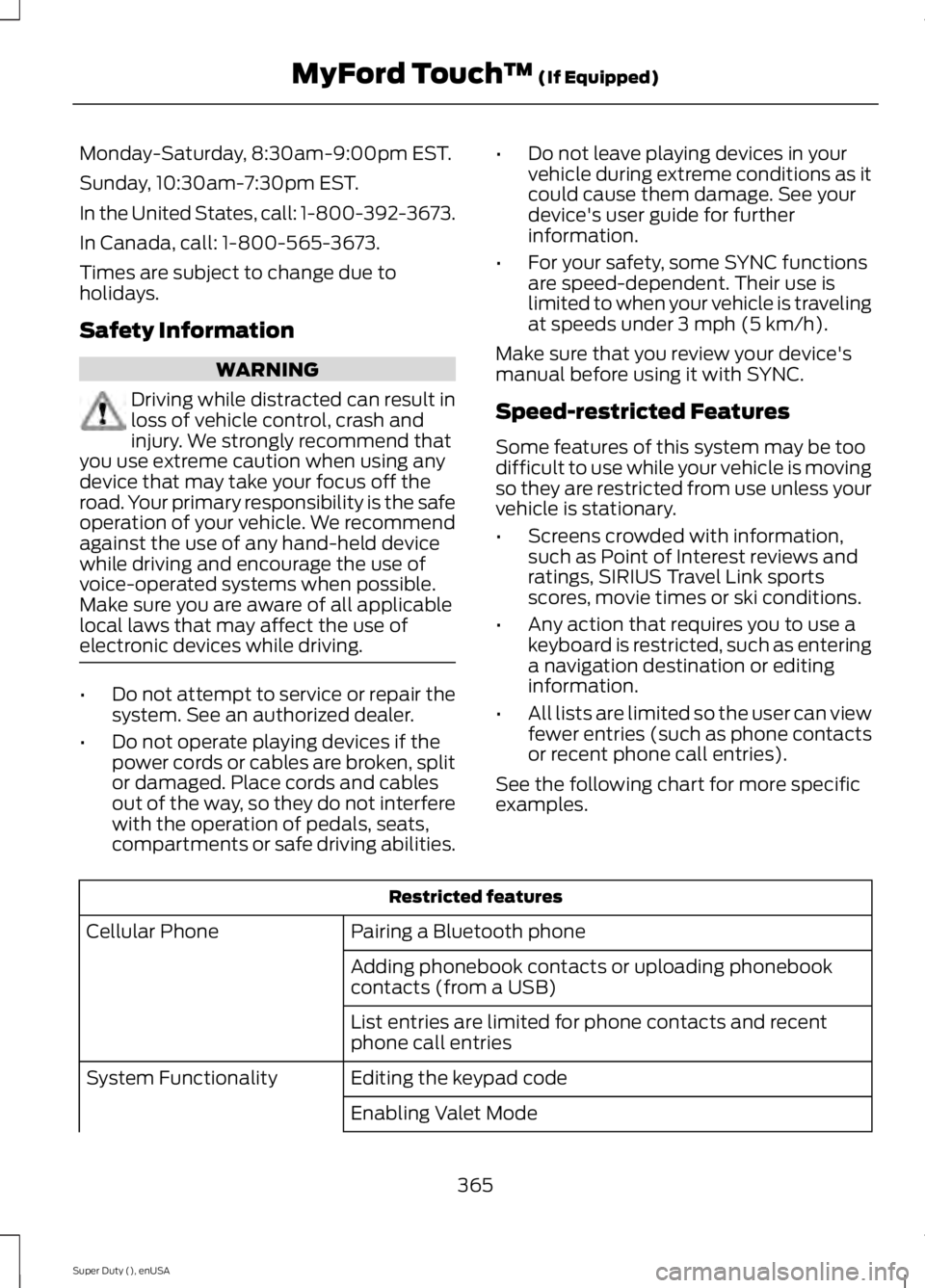
examples. Restricted features
Pairing a Bluetooth phone
Cellular Phone
Adding phonebook contacts or uploading phonebook
contacts (from a USB)
List entries are limited for phone contacts and recent
phone call entries
Editing the keypad code
System Functionality
Enabling Valet Mode
365
Super Duty (), enUSA MyFord Touch
™ (If Equipped)
Page 379 of 485
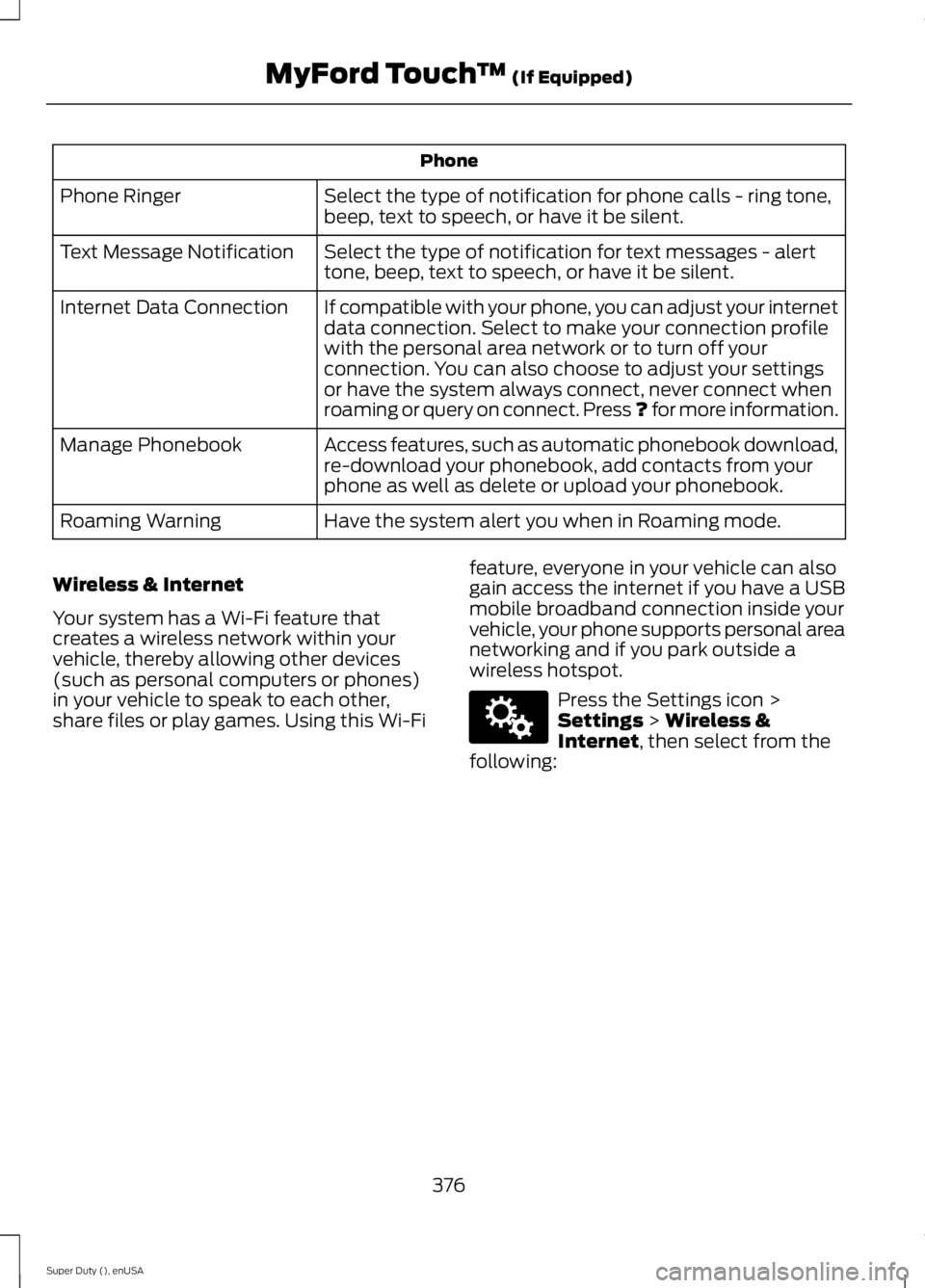
Phone
Select the type of notification for phone calls - ring tone,
beep, text to speech, or have it be silent.
Phone Ringer
Select the type of notification for text messages - alert
tone, beep, text to speech, or have it be silent.
Text Message Notification
If compatible with your phone, you can adjust your internet
data connection. Select to make your connection profile
with the personal area network or to turn off your
connection. You can also choose to adjust your settings
or have the system always connect, never connect when
roaming or query on connect. Press ? for more information.
Internet Data Connection
Access features, such as automatic phonebook download,
re-download your phonebook, add contacts from your
phone as well as delete or upload your phonebook.
Manage Phonebook
Have the system alert you when in Roaming mode.
Roaming Warning
Wireless & Internet
Your system has a Wi-Fi feature that
creates a wireless network within your
vehicle, thereby allowing other devices
(such as personal computers or phones)
in your vehicle to speak to each other,
share files or play games. Using this Wi-Fi feature, everyone in your vehicle can also
gain access the internet if you have a USB
mobile broadband connection inside your
vehicle, your phone supports personal area
networking and if you park outside a
wireless hotspot. Press the Settings icon >
Settings > Wireless &
Internet, then select from the
following:
376
Super Duty (), enUSA MyFord Touch
™
(If Equipped)E142607
Page 383 of 485
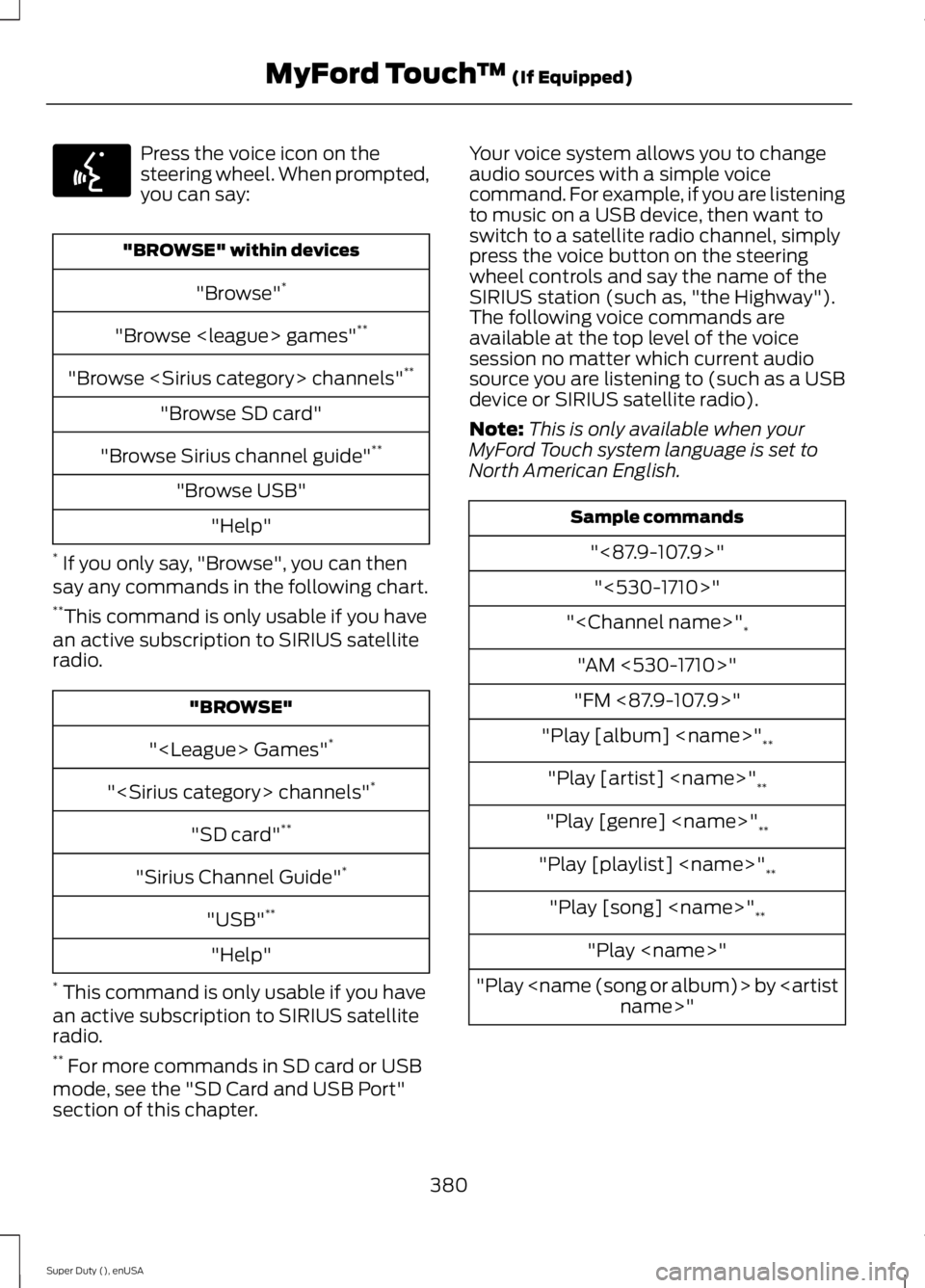
Press the voice icon on the
steering wheel. When prompted,
you can say:
"BROWSE" within devices
"Browse" *
"Browse
"Browse
"Browse SD card"
"Browse Sirius channel guide" **
"Browse USB" "Help"
* If you only say, "Browse", you can then
say any commands in the following chart.
** This command is only usable if you have
an active subscription to SIRIUS satellite
radio. "BROWSE"
"
"
"SD card" **
"Sirius Channel Guide" *
"USB" **
"Help"
* This command is only usable if you have
an active subscription to SIRIUS satellite
radio.
** For more commands in SD card or USB
mode, see the "SD Card and USB Port"
section of this chapter. Your voice system allows you to change
audio sources with a simple voice
command. For example, if you are listening
to music on a USB device, then want to
switch to a satellite radio channel, simply
press the voice button on the steering
wheel controls and say the name of the
SIRIUS station (such as, "the Highway").
The following voice commands are
available at the top level of the voice
session no matter which current audio
source you are listening to (such as a USB
device or SIRIUS satellite radio).
Note:
This is only available when your
MyFord Touch system language is set to
North American English. Sample commands
"<87.9-107.9>""<530-1710>"
"
"AM <530-1710>"
"FM <87.9-107.9>"
"Play [album]
"Play [artist]
"Play [genre]
"Play [playlist]
"Play [song]
"Play
"Play
380
Super Duty (), enUSA MyFord Touch
™ (If Equipped)E142599