ignition FORD F450 SUPER DUTY 2016 Manual PDF
[x] Cancel search | Manufacturer: FORD, Model Year: 2016, Model line: F450 SUPER DUTY, Model: FORD F450 SUPER DUTY 2016Pages: 507, PDF Size: 8.13 MB
Page 337 of 507
USING SYNC™ WITH YOUR
PHONE
Hands-free calling is one of the mainfeatures of SYNC. While the systemsupports a variety of features, many aredependent on your cell phone'sfunctionality. At a minimum, most cellphones with Bluetooth wireless technologysupport the following functions:
•Answering an incoming call.
•Ending a call.
•Using privacy mode.
•Dialing a number.
•Redialing.
•Call waiting notification.
•Caller ID.
Other features, such as text messagingusing Bluetooth and automatic phonebookdownload, are cell phone-dependentfeatures. To check your cell phone'scompatibility, see your cell phone's manualand visit www.SYNCMyRide.com,www.SYNCMyRide.ca orwww.syncmaroute.ca.
Pairing a Cell Phone for the FirstTime
Note:SYNC can support downloading upto approximately 1000 entries perBluetooth-enabled cell phone.
Note:Make sure to switch on the ignitionand the radio. Put the transmission inposition park (P) (automatic transmission)or neutral with the parking brake applied(manual transmission).
Note:To scroll through the menus, pressthe up and down arrows on your audiosystem.
Wirelessly pairing your cell phone withSYNC allows you to make and receivehands-free calls.
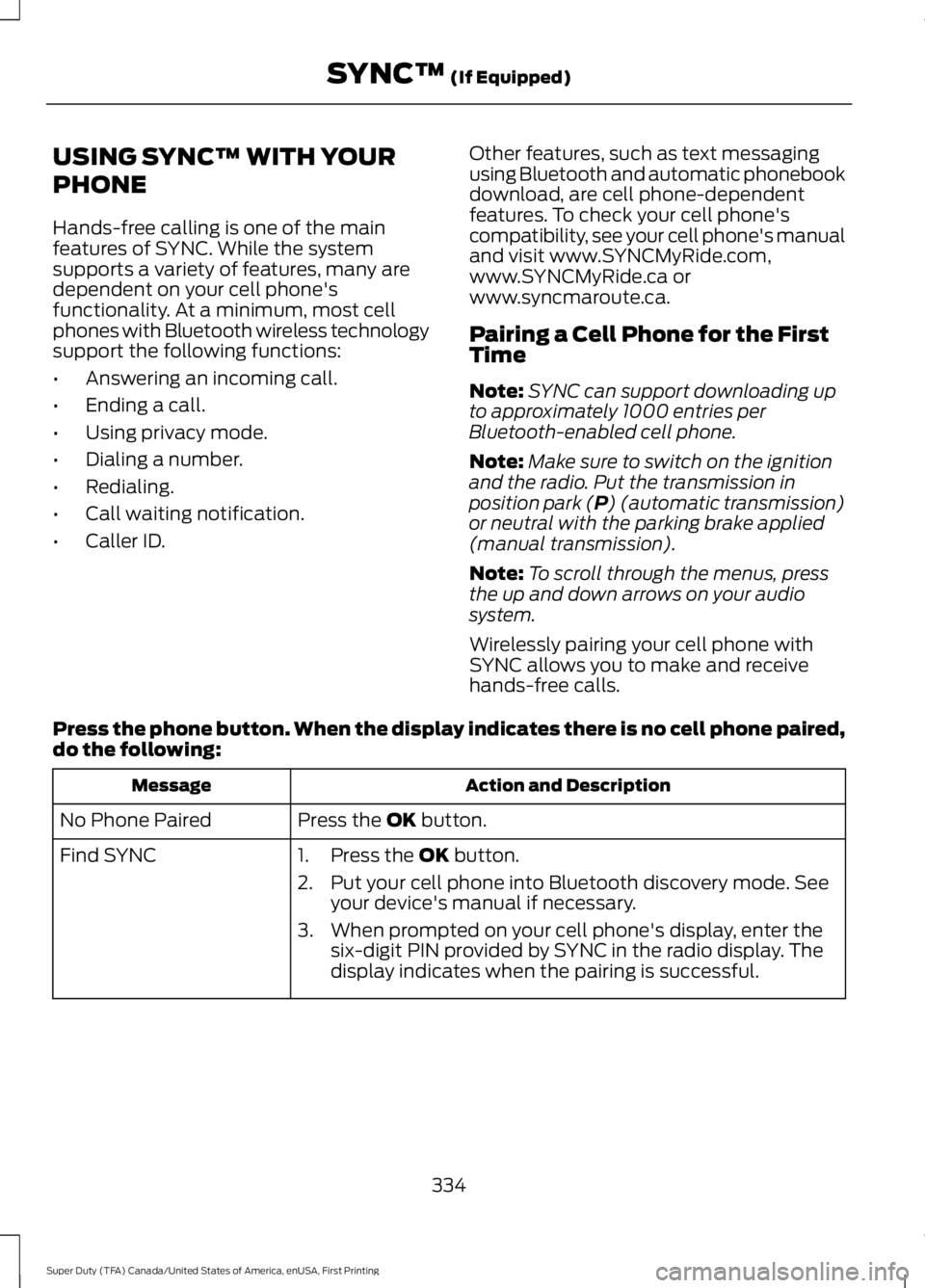
Press the phone button. When the display indicates there is no cell phone paired,do the following:
Action and DescriptionMessage
Press the OK button.No Phone Paired
Find SYNC1. Press the OK button.
2. Put your cell phone into Bluetooth discovery mode. Seeyour device's manual if necessary.
3. When prompted on your cell phone's display, enter thesix-digit PIN provided by SYNC in the radio display. Thedisplay indicates when the pairing is successful.
334
Super Duty (TFA) Canada/United States of America, enUSA, First Printing
SYNC™ (If Equipped)
Page 338 of 507
Depending on your cell phone's capabilityand your market, the system may promptyou with questions, such as setting thecurrent cell phone as the primary cellphone (the cell phone SYNC automaticallytries to connect with first upon vehiclestart-up) and downloading yourphonebook.
Pairing Subsequent Cell Phones
Note:To scroll through the menus, pressthe up and down arrows on your audiosystem.
Note:Make sure to switch on the ignitionand the radio. Put the transmission inposition park (P) (automatic transmission)or neutral with the parking brake applied(manual transmission).
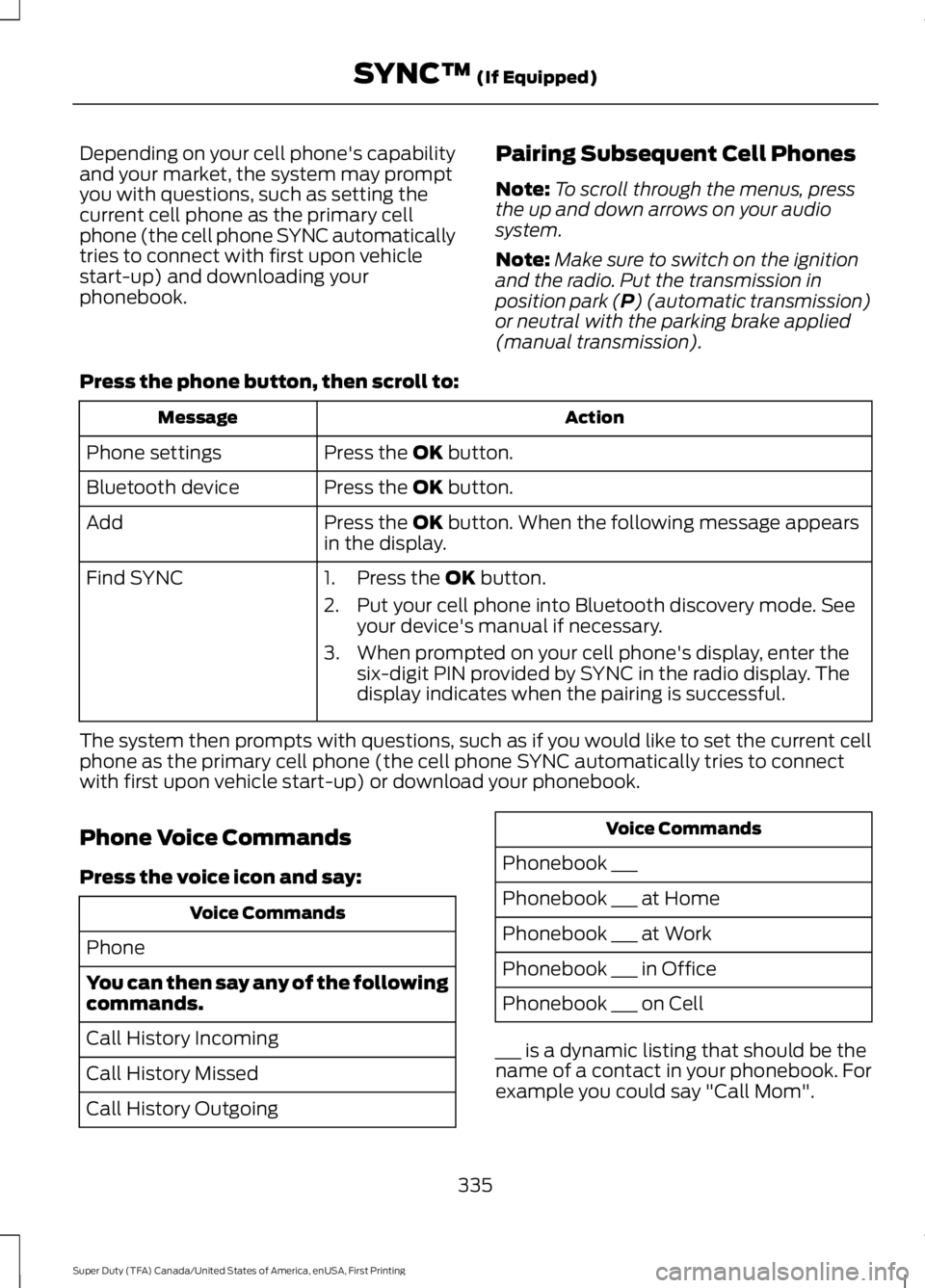
Press the phone button, then scroll to:
ActionMessage
Press the OK button.Phone settings
Press the OK button.Bluetooth device
Press the OK button. When the following message appearsin the display.Add
Find SYNC1. Press the OK button.
2. Put your cell phone into Bluetooth discovery mode. Seeyour device's manual if necessary.
3. When prompted on your cell phone's display, enter thesix-digit PIN provided by SYNC in the radio display. Thedisplay indicates when the pairing is successful.
The system then prompts with questions, such as if you would like to set the current cellphone as the primary cell phone (the cell phone SYNC automatically tries to connectwith first upon vehicle start-up) or download your phonebook.
Phone Voice Commands
Press the voice icon and say:
Voice Commands
Phone
You can then say any of the followingcommands.
Call History Incoming
Call History Missed
Call History Outgoing
Voice Commands
Phonebook ___
Phonebook ___ at Home
Phonebook ___ at Work
Phonebook ___ in Office
Phonebook ___ on Cell
___ is a dynamic listing that should be thename of a contact in your phonebook. Forexample you could say "Call Mom".
335
Super Duty (TFA) Canada/United States of America, enUSA, First Printing
SYNC™ (If Equipped)
Page 347 of 507
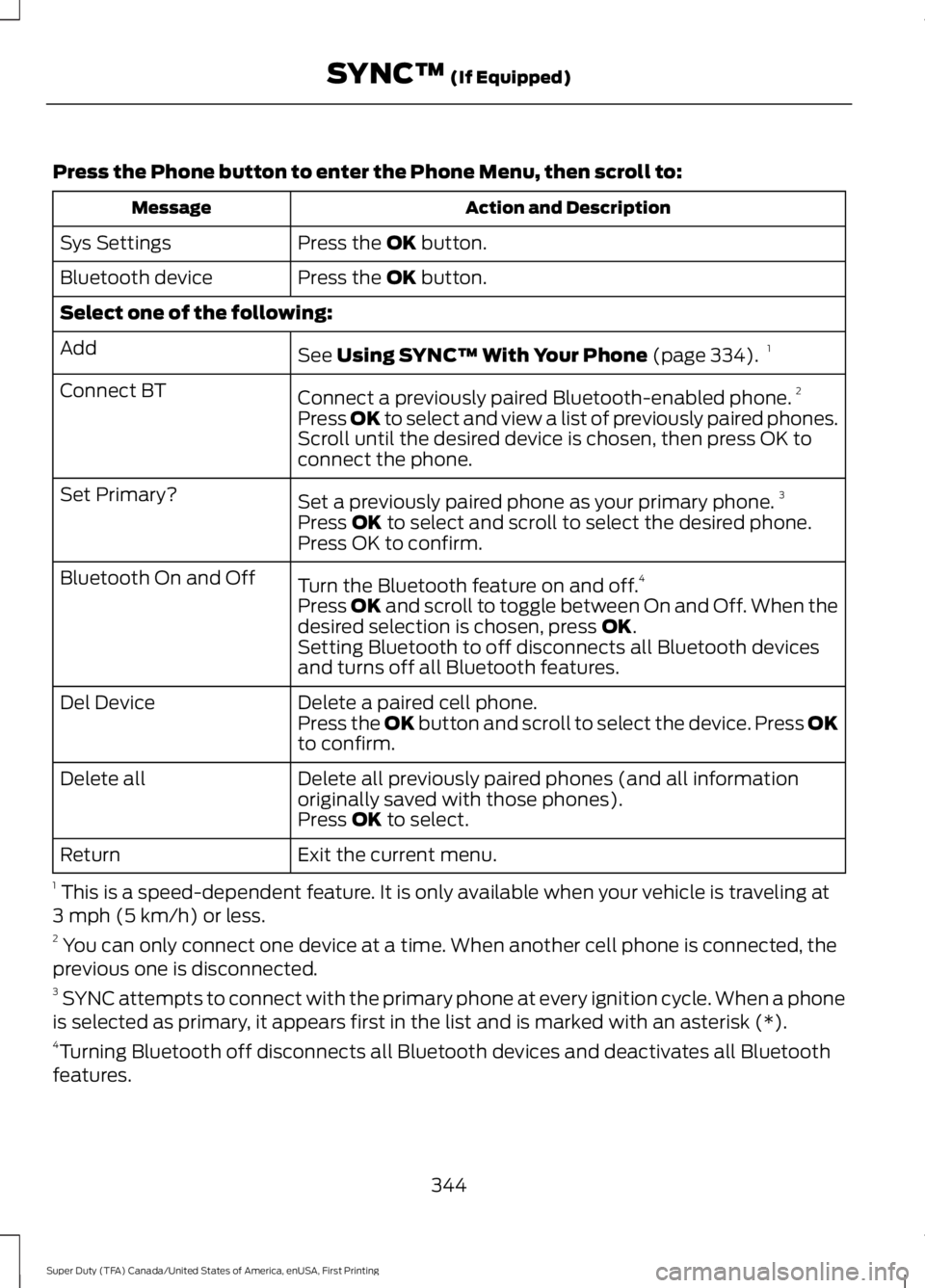
Press the Phone button to enter the Phone Menu, then scroll to:
Action and DescriptionMessage
Press the OK button.Sys Settings
Press the OK button.Bluetooth device
Select one of the following:
See Using SYNC™ With Your Phone (page 334).1Add
Connect a previously paired Bluetooth-enabled phone.2Connect BT
Press OK to select and view a list of previously paired phones.Scroll until the desired device is chosen, then press OK toconnect the phone.
Set a previously paired phone as your primary phone.3Set Primary?
Press OK to select and scroll to select the desired phone.Press OK to confirm.
Turn the Bluetooth feature on and off.4Bluetooth On and Off
Press OK and scroll to toggle between On and Off. When thedesired selection is chosen, press OK.Setting Bluetooth to off disconnects all Bluetooth devicesand turns off all Bluetooth features.
Delete a paired cell phone.Del DevicePress the OK button and scroll to select the device. Press OKto confirm.
Delete all previously paired phones (and all informationoriginally saved with those phones).Delete all
Press OK to select.
Exit the current menu.Return
1 This is a speed-dependent feature. It is only available when your vehicle is traveling at3 mph (5 km/h) or less.2 You can only connect one device at a time. When another cell phone is connected, theprevious one is disconnected.3 SYNC attempts to connect with the primary phone at every ignition cycle. When a phoneis selected as primary, it appears first in the list and is marked with an asterisk (*).4Turning Bluetooth off disconnects all Bluetooth devices and deactivates all Bluetoothfeatures.
344
Super Duty (TFA) Canada/United States of America, enUSA, First Printing
SYNC™ (If Equipped)
Page 374 of 507
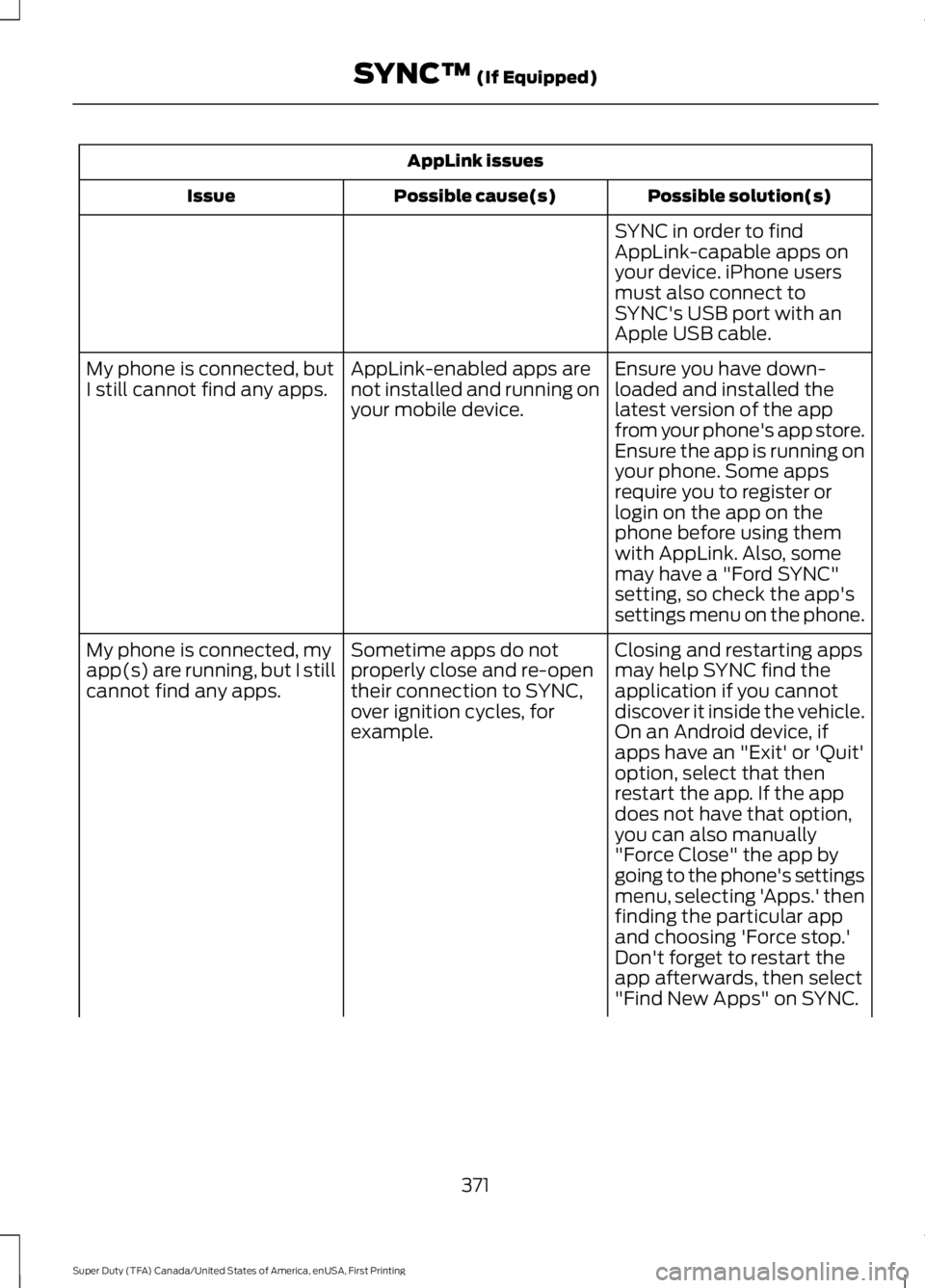
AppLink issues
Possible solution(s)Possible cause(s)Issue
SYNC in order to findAppLink-capable apps onyour device. iPhone usersmust also connect toSYNC's USB port with anApple USB cable.
Ensure you have down-loaded and installed thelatest version of the appfrom your phone's app store.Ensure the app is running onyour phone. Some apps
AppLink-enabled apps arenot installed and running onyour mobile device.
My phone is connected, butI still cannot find any apps.
require you to register orlogin on the app on thephone before using themwith AppLink. Also, somemay have a "Ford SYNC"setting, so check the app'ssettings menu on the phone.
Closing and restarting appsmay help SYNC find theapplication if you cannotdiscover it inside the vehicle.On an Android device, ifapps have an "Exit' or 'Quit'
Sometime apps do notproperly close and re-opentheir connection to SYNC,over ignition cycles, forexample.
My phone is connected, myapp(s) are running, but I stillcannot find any apps.
option, select that thenrestart the app. If the appdoes not have that option,you can also manually"Force Close" the app bygoing to the phone's settingsmenu, selecting 'Apps.' thenfinding the particular appand choosing 'Force stop.'Don't forget to restart theapp afterwards, then select"Find New Apps" on SYNC.
371
Super Duty (TFA) Canada/United States of America, enUSA, First Printing
SYNC™ (If Equipped)
Page 378 of 507
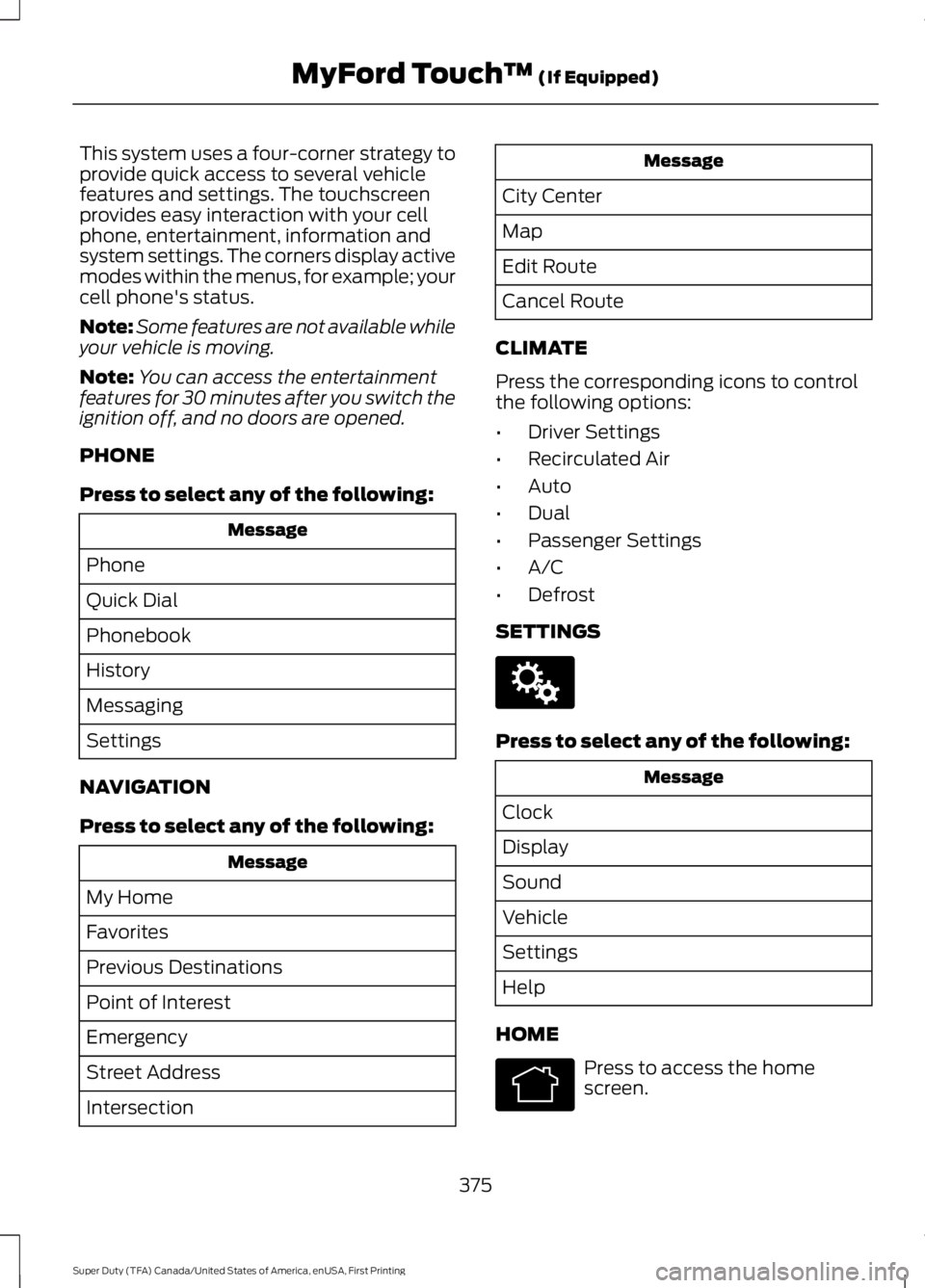
This system uses a four-corner strategy toprovide quick access to several vehiclefeatures and settings. The touchscreenprovides easy interaction with your cellphone, entertainment, information andsystem settings. The corners display activemodes within the menus, for example; yourcell phone's status.
Note:Some features are not available whileyour vehicle is moving.
Note:You can access the entertainmentfeatures for 30 minutes after you switch theignition off, and no doors are opened.
PHONE
Press to select any of the following:
Message
Phone
Quick Dial
Phonebook
History
Messaging
Settings
NAVIGATION
Press to select any of the following:
Message
My Home
Favorites
Previous Destinations
Point of Interest
Emergency
Street Address
Intersection
Message
City Center
Map
Edit Route
Cancel Route
CLIMATE
Press the corresponding icons to controlthe following options:
•Driver Settings
•Recirculated Air
•Auto
•Dual
•Passenger Settings
•A/C
•Defrost
SETTINGS
Press to select any of the following:
Message
Clock
Display
Sound
Vehicle
Settings
Help
HOME
Press to access the homescreen.
375
Super Duty (TFA) Canada/United States of America, enUSA, First Printing
MyFord Touch™ (If Equipped)E142607 E142613
Page 391 of 507
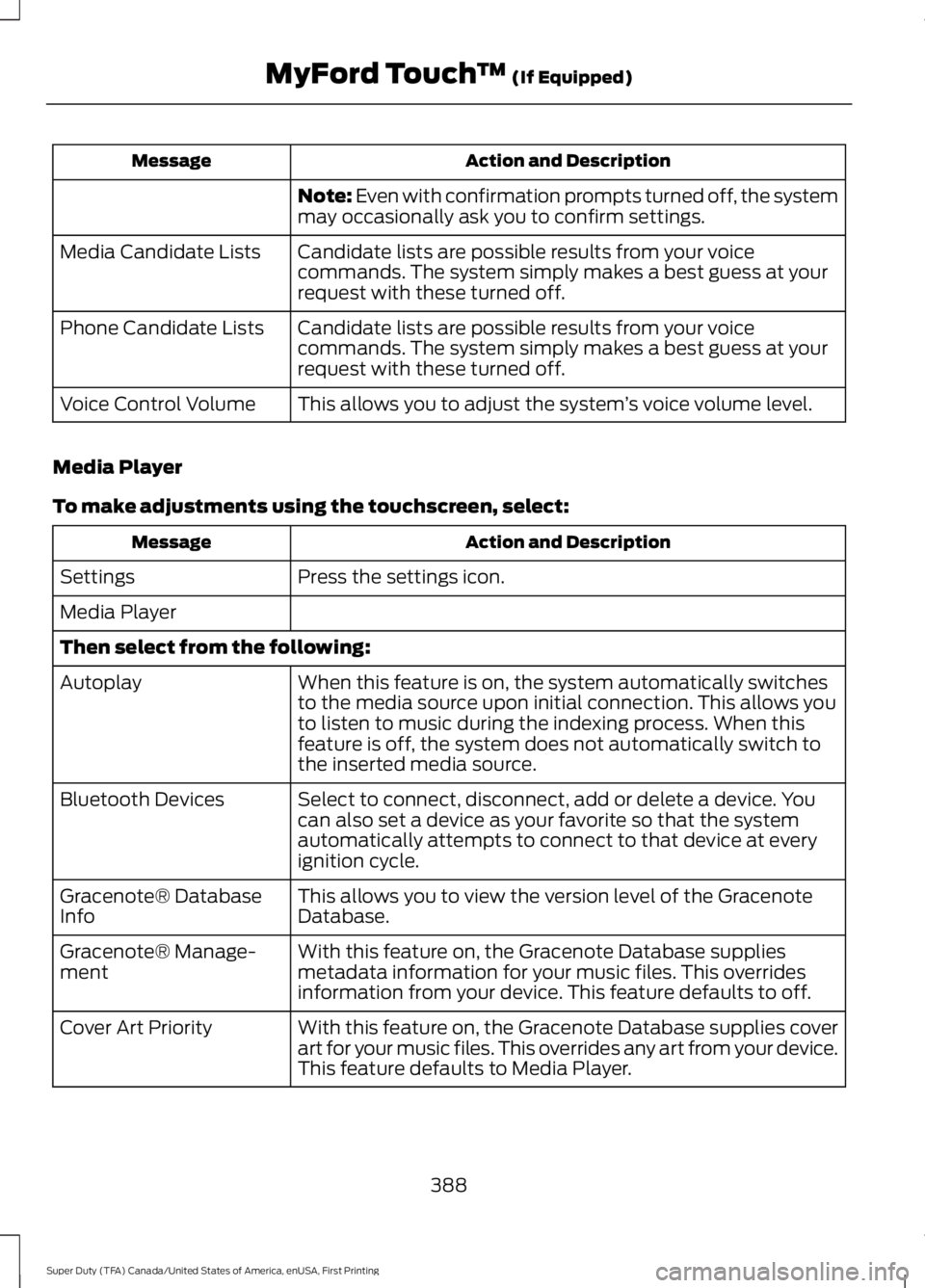
Action and DescriptionMessage
Note: Even with confirmation prompts turned off, the systemmay occasionally ask you to confirm settings.
Candidate lists are possible results from your voicecommands. The system simply makes a best guess at yourrequest with these turned off.
Media Candidate Lists
Candidate lists are possible results from your voicecommands. The system simply makes a best guess at yourrequest with these turned off.
Phone Candidate Lists
This allows you to adjust the system’s voice volume level.Voice Control Volume
Media Player
To make adjustments using the touchscreen, select:
Action and DescriptionMessage
Press the settings icon.Settings
Media Player
Then select from the following:
When this feature is on, the system automatically switchesto the media source upon initial connection. This allows youto listen to music during the indexing process. When thisfeature is off, the system does not automatically switch tothe inserted media source.
Autoplay
Select to connect, disconnect, add or delete a device. Youcan also set a device as your favorite so that the systemautomatically attempts to connect to that device at everyignition cycle.
Bluetooth Devices
This allows you to view the version level of the GracenoteDatabase.Gracenote® DatabaseInfo
With this feature on, the Gracenote Database suppliesmetadata information for your music files. This overridesinformation from your device. This feature defaults to off.
Gracenote® Manage-ment
With this feature on, the Gracenote Database supplies coverart for your music files. This overrides any art from your device.This feature defaults to Media Player.
Cover Art Priority
388
Super Duty (TFA) Canada/United States of America, enUSA, First Printing
MyFord Touch™ (If Equipped)
Page 407 of 507
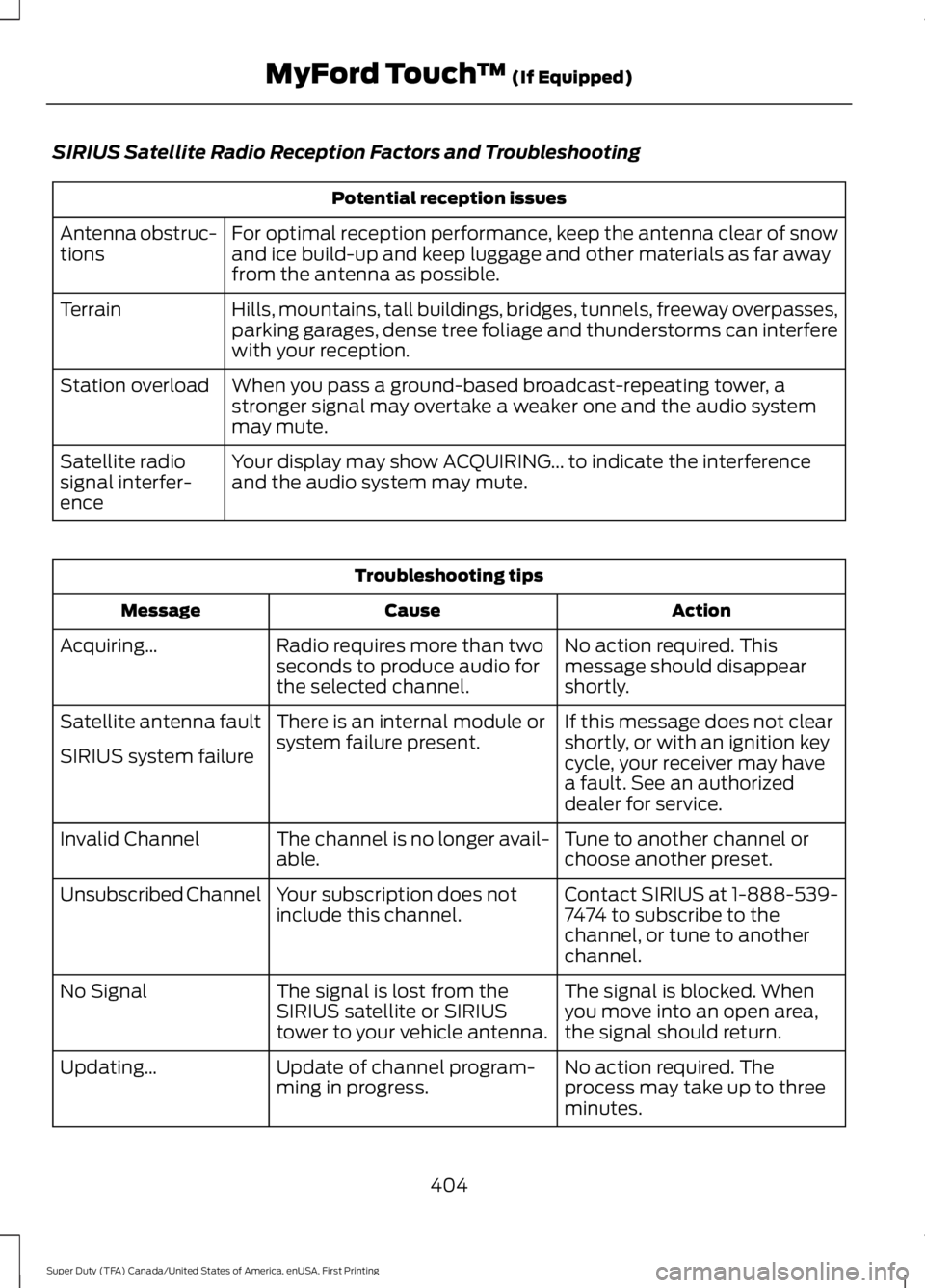
SIRIUS Satellite Radio Reception Factors and Troubleshooting
Potential reception issues
For optimal reception performance, keep the antenna clear of snowand ice build-up and keep luggage and other materials as far awayfrom the antenna as possible.
Antenna obstruc-tions
Hills, mountains, tall buildings, bridges, tunnels, freeway overpasses,parking garages, dense tree foliage and thunderstorms can interferewith your reception.
Terrain
When you pass a ground-based broadcast-repeating tower, astronger signal may overtake a weaker one and the audio systemmay mute.
Station overload
Your display may show ACQUIRING... to indicate the interferenceand the audio system may mute.Satellite radiosignal interfer-ence
Troubleshooting tips
ActionCauseMessage
No action required. Thismessage should disappearshortly.
Radio requires more than twoseconds to produce audio forthe selected channel.
Acquiring…
If this message does not clearshortly, or with an ignition keycycle, your receiver may havea fault. See an authorizeddealer for service.
There is an internal module orsystem failure present.Satellite antenna fault
SIRIUS system failure
Tune to another channel orchoose another preset.The channel is no longer avail-able.Invalid Channel
Contact SIRIUS at 1-888-539-7474 to subscribe to thechannel, or tune to anotherchannel.
Your subscription does notinclude this channel.Unsubscribed Channel
The signal is blocked. Whenyou move into an open area,the signal should return.
The signal is lost from theSIRIUS satellite or SIRIUStower to your vehicle antenna.
No Signal
No action required. Theprocess may take up to threeminutes.
Update of channel program-ming in progress.Updating…
404
Super Duty (TFA) Canada/United States of America, enUSA, First Printing
MyFord Touch™ (If Equipped)
Page 452 of 507
•An authorized dealer needs to installmobile communications systems.Improper installation may harm theoperation of your vehicle, particularlyif the manufacturer did not design themobile communication systemspecifically for automotive use.
•If you or an authorized Ford dealer addany non-Ford electrical or electronicaccessories or components to yourvehicle, you may adversely affectbattery performance and durability. Inaddition, you may also adversely affectthe performance of other electricalsystems in the vehicle.
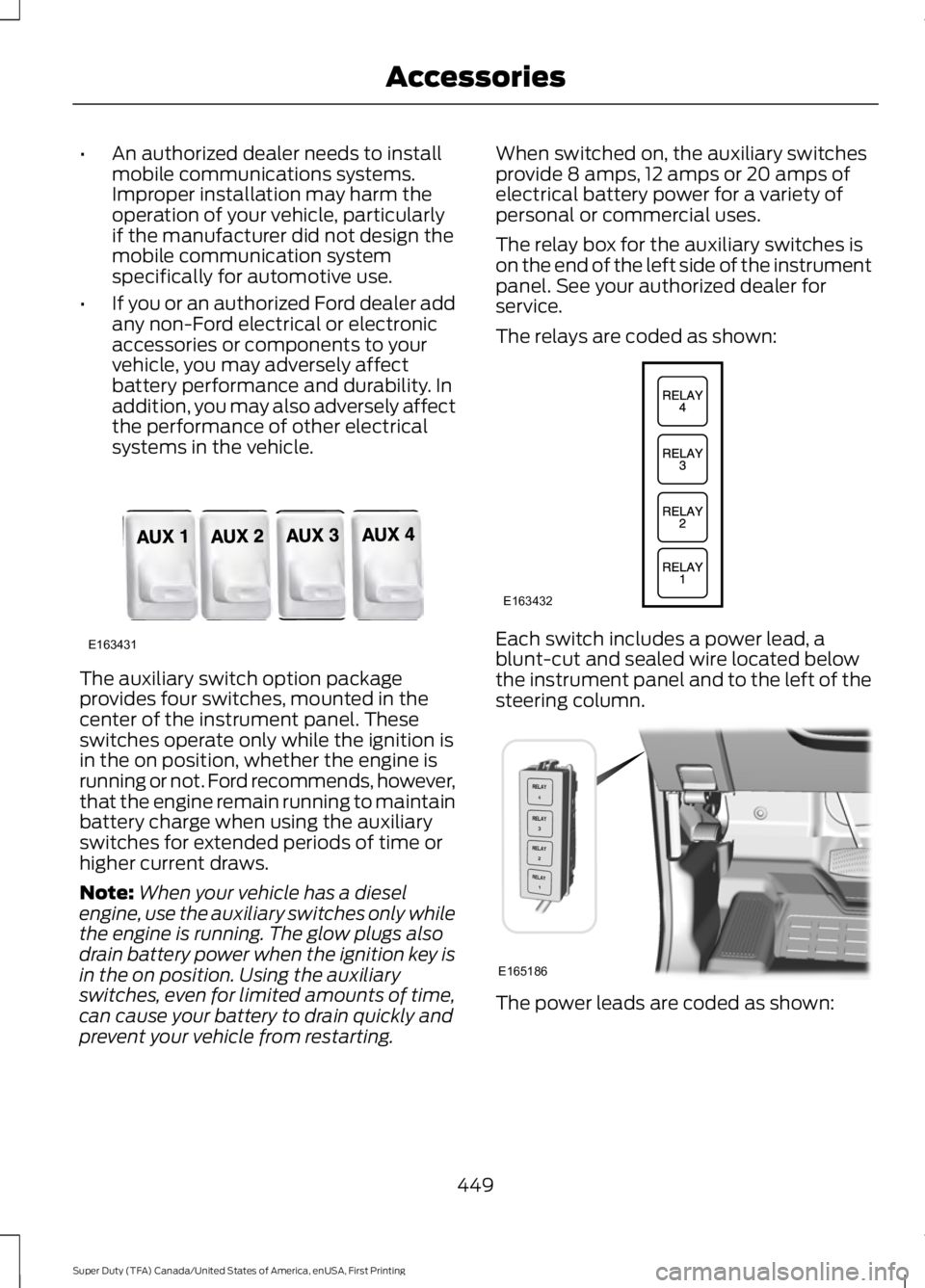
The auxiliary switch option packageprovides four switches, mounted in thecenter of the instrument panel. Theseswitches operate only while the ignition isin the on position, whether the engine isrunning or not. Ford recommends, however,that the engine remain running to maintainbattery charge when using the auxiliaryswitches for extended periods of time orhigher current draws.
Note:When your vehicle has a dieselengine, use the auxiliary switches only whilethe engine is running. The glow plugs alsodrain battery power when the ignition key isin the on position. Using the auxiliaryswitches, even for limited amounts of time,can cause your battery to drain quickly andprevent your vehicle from restarting.
When switched on, the auxiliary switchesprovide 8 amps, 12 amps or 20 amps ofelectrical battery power for a variety ofpersonal or commercial uses.
The relay box for the auxiliary switches ison the end of the left side of the instrumentpanel. See your authorized dealer forservice.
The relays are coded as shown:
Each switch includes a power lead, ablunt-cut and sealed wire located belowthe instrument panel and to the left of thesteering column.
The power leads are coded as shown:
449
Super Duty (TFA) Canada/United States of America, enUSA, First Printing
AccessoriesE163431 E163432 E165186
Page 498 of 507
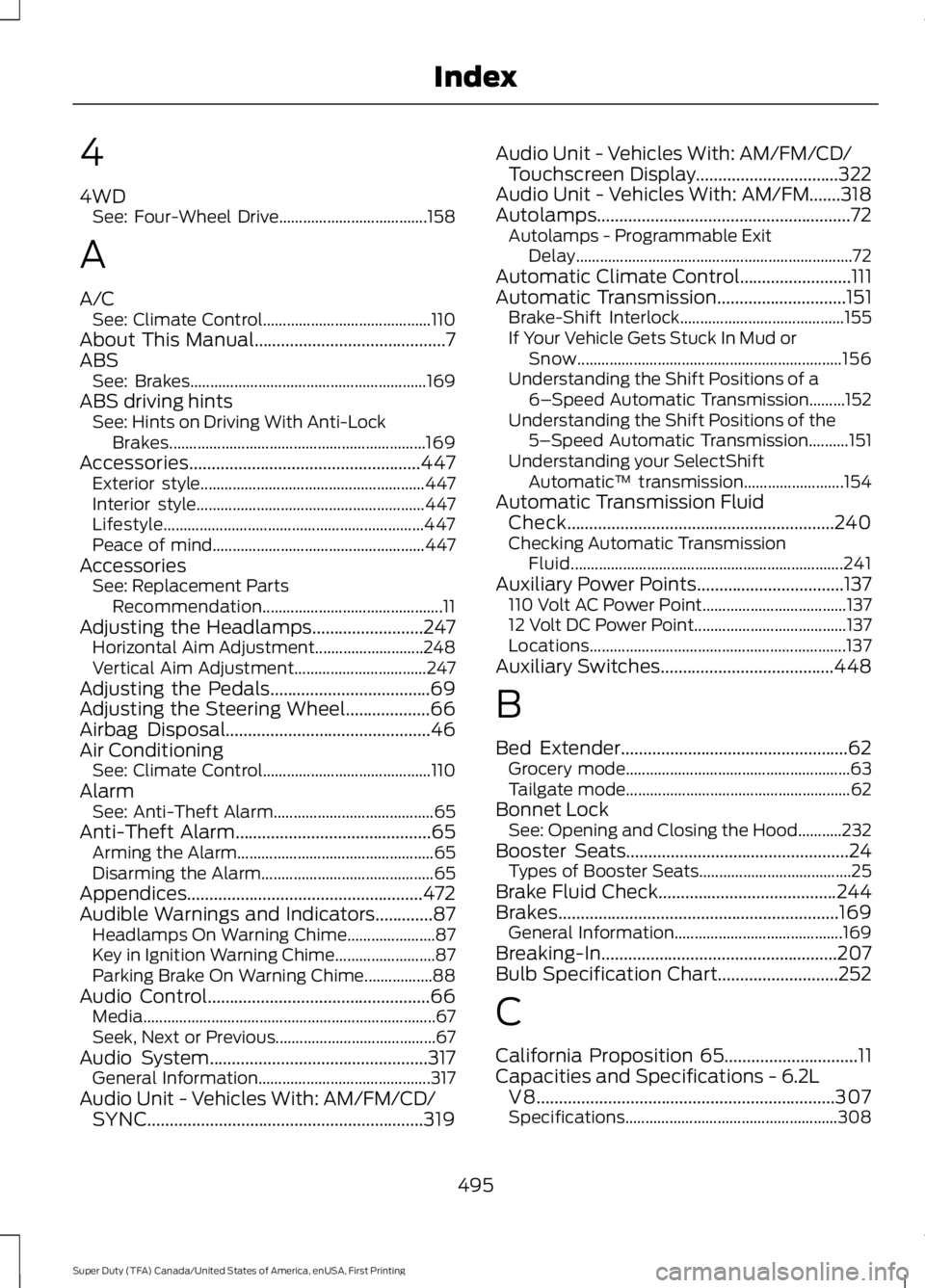
4
4WDSee: Four-Wheel Drive.....................................158
A
A/CSee: Climate Control..........................................110About This Manual...........................................7ABSSee: Brakes...........................................................169ABS driving hintsSee: Hints on Driving With Anti-LockBrakes................................................................169Accessories....................................................447Exterior style........................................................447Interior style.........................................................447Lifestyle.................................................................447Peace of mind.....................................................447AccessoriesSee: Replacement PartsRecommendation.............................................11Adjusting the Headlamps.........................247Horizontal Aim Adjustment...........................248Vertical Aim Adjustment.................................247Adjusting the Pedals....................................69Adjusting the Steering Wheel...................66Airbag Disposal..............................................46Air ConditioningSee: Climate Control..........................................110AlarmSee: Anti-Theft Alarm........................................65Anti-Theft Alarm............................................65Arming the Alarm.................................................65Disarming the Alarm...........................................65Appendices.....................................................472Audible Warnings and Indicators.............87Headlamps On Warning Chime......................87Key in Ignition Warning Chime.........................87Parking Brake On Warning Chime.................88Audio Control..................................................66Media.........................................................................67Seek, Next or Previous........................................67Audio System.................................................317General Information...........................................317Audio Unit - Vehicles With: AM/FM/CD/SYNC..............................................................319
Audio Unit - Vehicles With: AM/FM/CD/Touchscreen Display................................322Audio Unit - Vehicles With: AM/FM.......318Autolamps.........................................................72Autolamps - Programmable ExitDelay.....................................................................72Automatic Climate Control.........................111Automatic Transmission.............................151Brake-Shift Interlock.........................................155If Your Vehicle Gets Stuck In Mud orSnow..................................................................156Understanding the Shift Positions of a6–Speed Automatic Transmission.........152Understanding the Shift Positions of the5–Speed Automatic Transmission..........151Understanding your SelectShiftAutomatic™ transmission.........................154Automatic Transmission FluidCheck............................................................240Checking Automatic TransmissionFluid....................................................................241Auxiliary Power Points.................................137110 Volt AC Power Point....................................13712 Volt DC Power Point......................................137Locations................................................................137Auxiliary Switches.......................................448
B
Bed Extender...................................................62Grocery mode........................................................63Tailgate mode........................................................62Bonnet LockSee: Opening and Closing the Hood...........232Booster Seats..................................................24Types of Booster Seats......................................25Brake Fluid Check........................................244Brakes...............................................................169General Information..........................................169Breaking-In.....................................................207Bulb Specification Chart...........................252
C
California Proposition 65..............................11Capacities and Specifications - 6.2LV8...................................................................307Specifications.....................................................308
495
Super Duty (TFA) Canada/United States of America, enUSA, First Printing
Index
Page 501 of 507
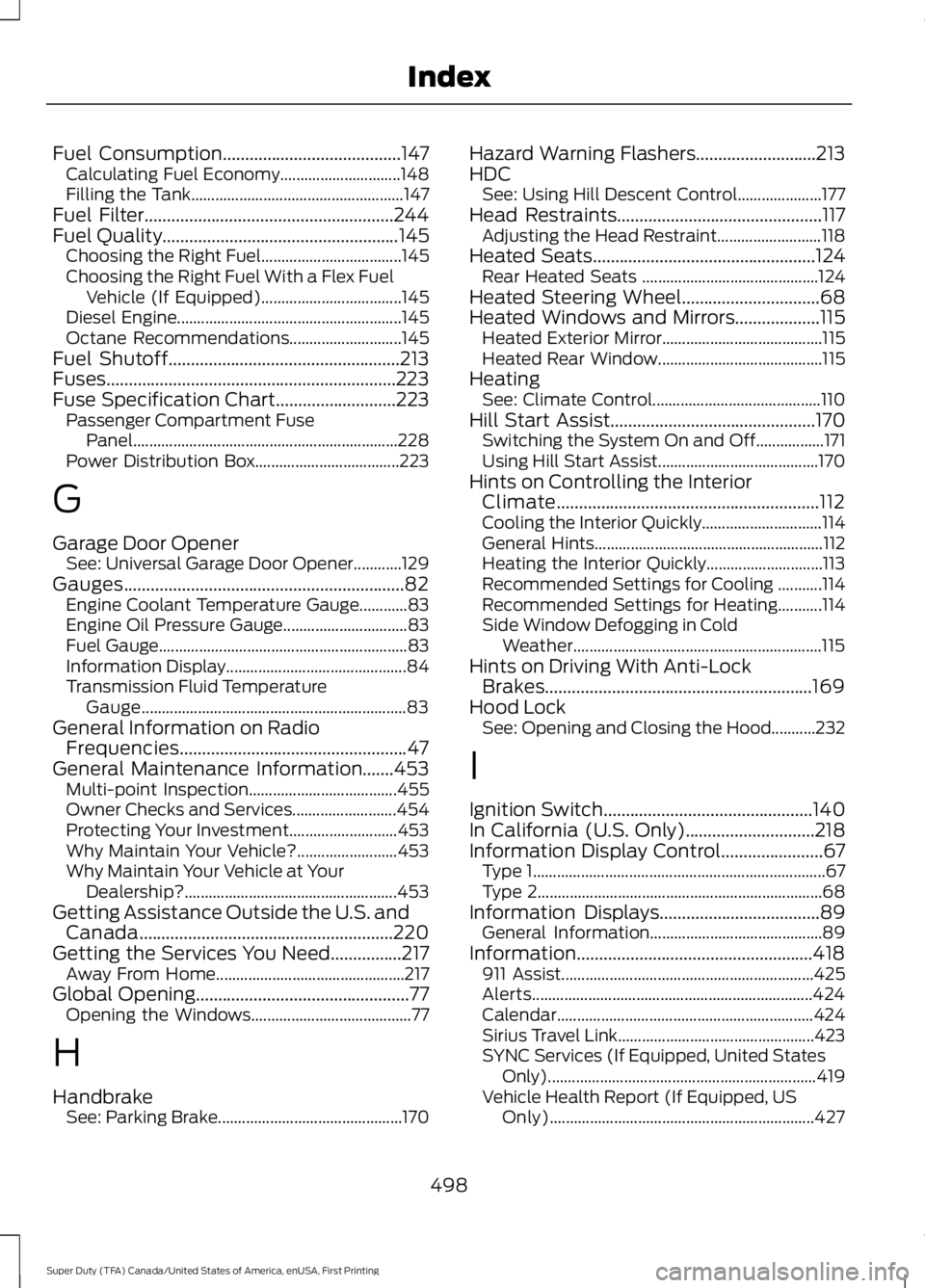
Fuel Consumption........................................147Calculating Fuel Economy..............................148Filling the Tank.....................................................147Fuel Filter........................................................244Fuel Quality.....................................................145Choosing the Right Fuel...................................145Choosing the Right Fuel With a Flex FuelVehicle (If Equipped)...................................145Diesel Engine........................................................145Octane Recommendations............................145Fuel Shutoff....................................................213Fuses.................................................................223Fuse Specification Chart...........................223Passenger Compartment FusePanel..................................................................228Power Distribution Box....................................223
G
Garage Door OpenerSee: Universal Garage Door Opener............129Gauges...............................................................82Engine Coolant Temperature Gauge............83Engine Oil Pressure Gauge...............................83Fuel Gauge..............................................................83Information Display.............................................84Transmission Fluid TemperatureGauge..................................................................83General Information on RadioFrequencies...................................................47General Maintenance Information.......453Multi-point Inspection.....................................455Owner Checks and Services..........................454Protecting Your Investment...........................453Why Maintain Your Vehicle?.........................453Why Maintain Your Vehicle at YourDealership?.....................................................453Getting Assistance Outside the U.S. andCanada.........................................................220Getting the Services You Need................217Away From Home...............................................217Global Opening................................................77Opening the Windows........................................77
H
HandbrakeSee: Parking Brake..............................................170
Hazard Warning Flashers...........................213HDCSee: Using Hill Descent Control.....................177Head Restraints..............................................117Adjusting the Head Restraint..........................118Heated Seats..................................................124Rear Heated Seats ............................................124Heated Steering Wheel...............................68Heated Windows and Mirrors...................115Heated Exterior Mirror........................................115Heated Rear Window.........................................115HeatingSee: Climate Control..........................................110Hill Start Assist..............................................170Switching the System On and Off.................171Using Hill Start Assist........................................170Hints on Controlling the InteriorClimate...........................................................112Cooling the Interior Quickly..............................114General Hints.........................................................112Heating the Interior Quickly.............................113Recommended Settings for Cooling ...........114Recommended Settings for Heating...........114Side Window Defogging in ColdWeather..............................................................115Hints on Driving With Anti-LockBrakes............................................................169Hood LockSee: Opening and Closing the Hood...........232
I
Ignition Switch...............................................140In California (U.S. Only).............................218Information Display Control.......................67Type 1.........................................................................67Type 2.......................................................................68Information Displays....................................89General Information...........................................89Information.....................................................418911 Assist...............................................................425Alerts......................................................................424Calendar................................................................424Sirius Travel Link.................................................423SYNC Services (If Equipped, United StatesOnly)...................................................................419Vehicle Health Report (If Equipped, USOnly)..................................................................427
498
Super Duty (TFA) Canada/United States of America, enUSA, First Printing
Index