phone FORD F450 SUPER DUTY 2017 User Guide
[x] Cancel search | Manufacturer: FORD, Model Year: 2017, Model line: F450 SUPER DUTY, Model: FORD F450 SUPER DUTY 2017Pages: 642, PDF Size: 12.35 MB
Page 312 of 642
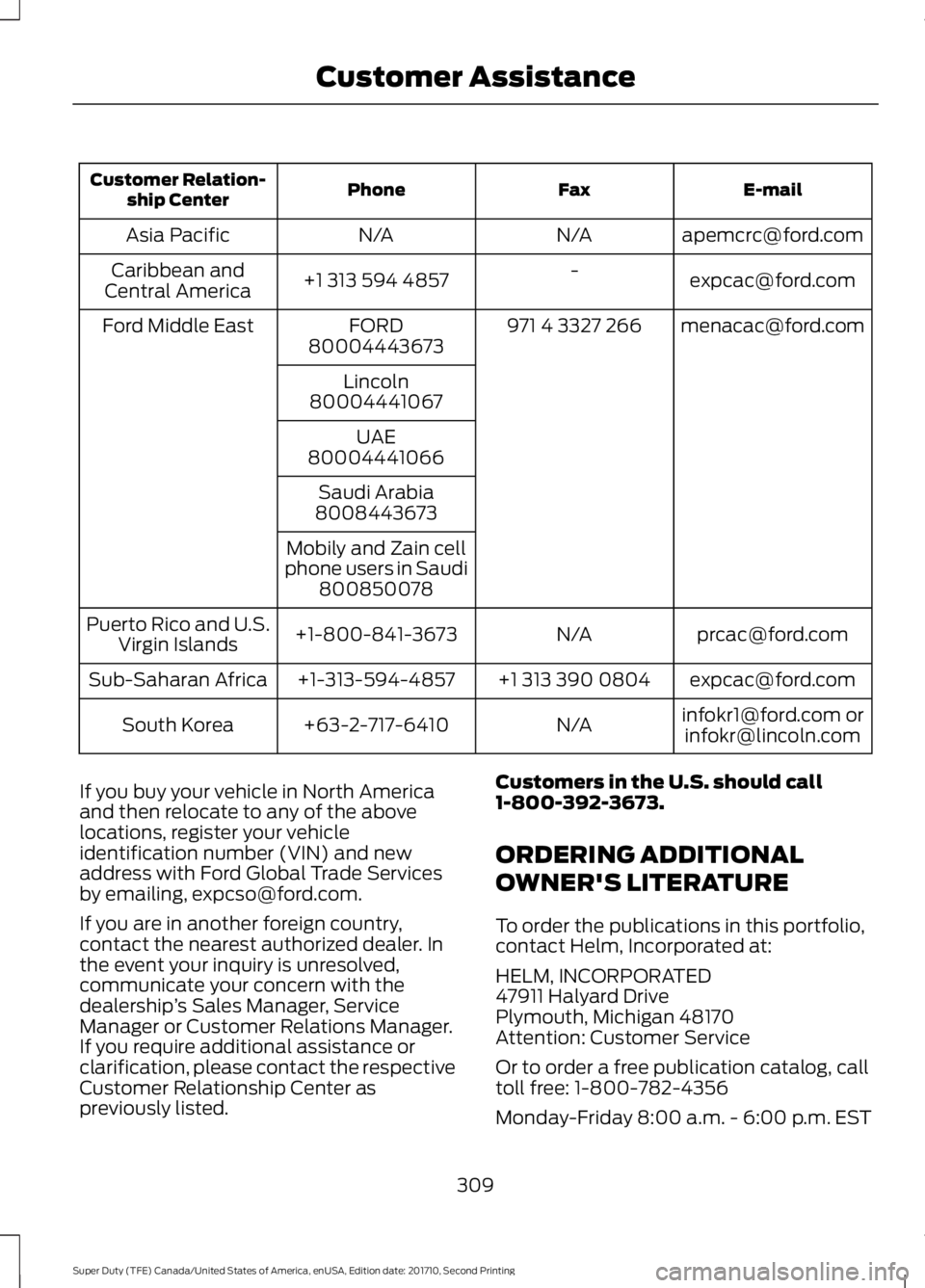
E-mailFaxPhoneCustomer Relation-ship Center
[email protected]/AN/AAsia Pacific
[email protected]+1 313 594 4857Caribbean andCentral America
[email protected] 4 3327 266FORDFord Middle East80004443673
Lincoln80004441067
UAE80004441066
Saudi Arabia8008443673
Mobily and Zain cellphone users in Saudi800850078
[email protected]/A+1-800-841-3673Puerto Rico and U.S.Virgin Islands
[email protected]+1 313 390 0804+1-313-594-4857Sub-Saharan Africa
[email protected] [email protected]/A+63-2-717-6410South Korea
If you buy your vehicle in North Americaand then relocate to any of the abovelocations, register your vehicleidentification number (VIN) and newaddress with Ford Global Trade Servicesby emailing, [email protected].
If you are in another foreign country,contact the nearest authorized dealer. Inthe event your inquiry is unresolved,communicate your concern with thedealership’s Sales Manager, ServiceManager or Customer Relations Manager.If you require additional assistance orclarification, please contact the respectiveCustomer Relationship Center aspreviously listed.
Customers in the U.S. should call1-800-392-3673.
ORDERING ADDITIONAL
OWNER'S LITERATURE
To order the publications in this portfolio,contact Helm, Incorporated at:
HELM, INCORPORATED47911 Halyard DrivePlymouth, Michigan 48170Attention: Customer Service
Or to order a free publication catalog, calltoll free: 1-800-782-4356
Monday-Friday 8:00 a.m. - 6:00 p.m. EST
309
Super Duty (TFE) Canada/United States of America, enUSA, Edition date: 201710, Second Printing
Customer Assistance
Page 314 of 642
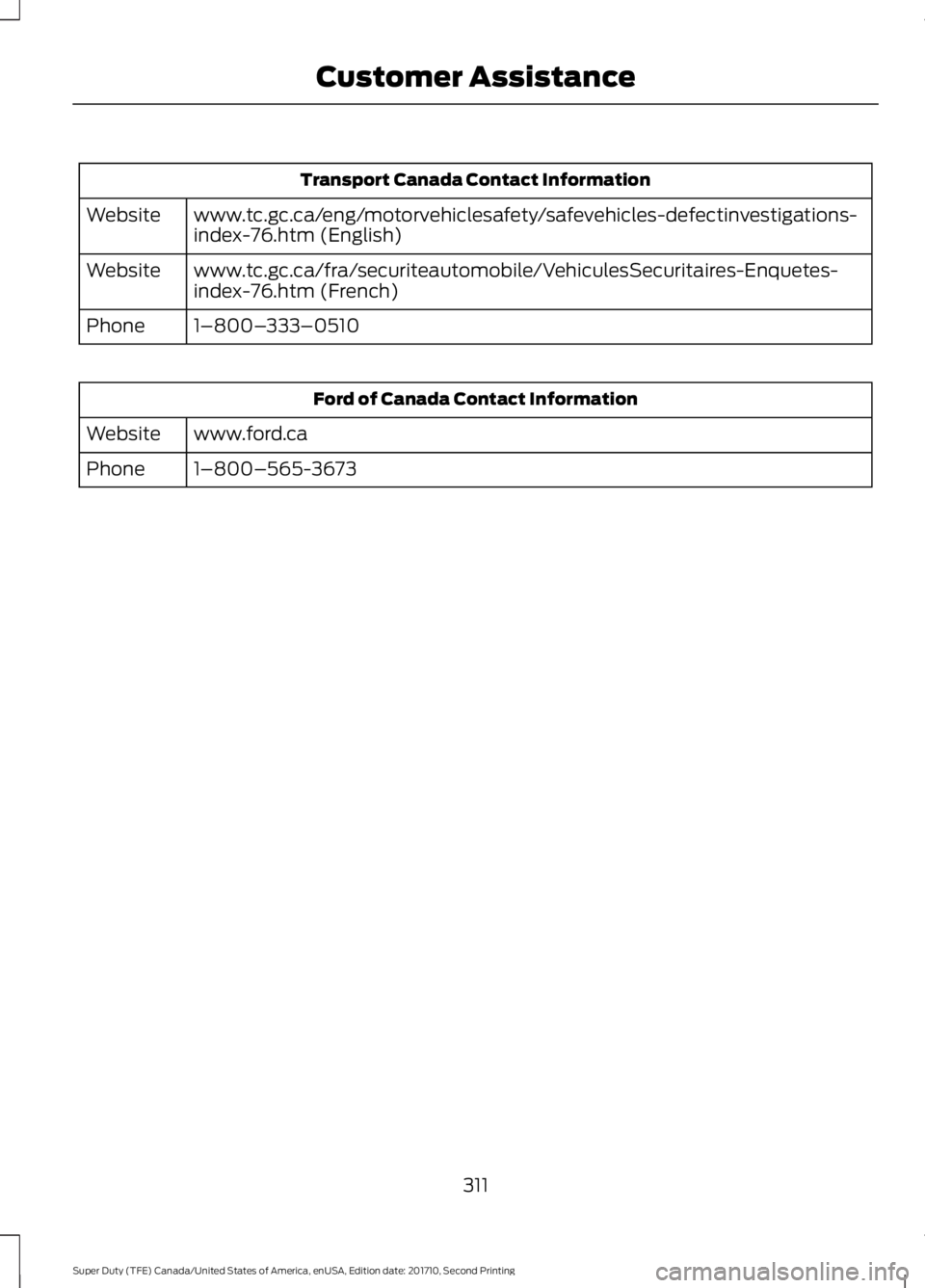
Transport Canada Contact Information
www.tc.gc.ca/eng/motorvehiclesafety/safevehicles-defectinvestigations-index-76.htm (English)Website
www.tc.gc.ca/fra/securiteautomobile/VehiculesSecuritaires-Enquetes-index-76.htm (French)Website
1–800–333–0510Phone
Ford of Canada Contact Information
www.ford.caWebsite
1–800–565-3673Phone
311
Super Duty (TFE) Canada/United States of America, enUSA, Edition date: 201710, Second Printing
Customer Assistance
Page 448 of 642
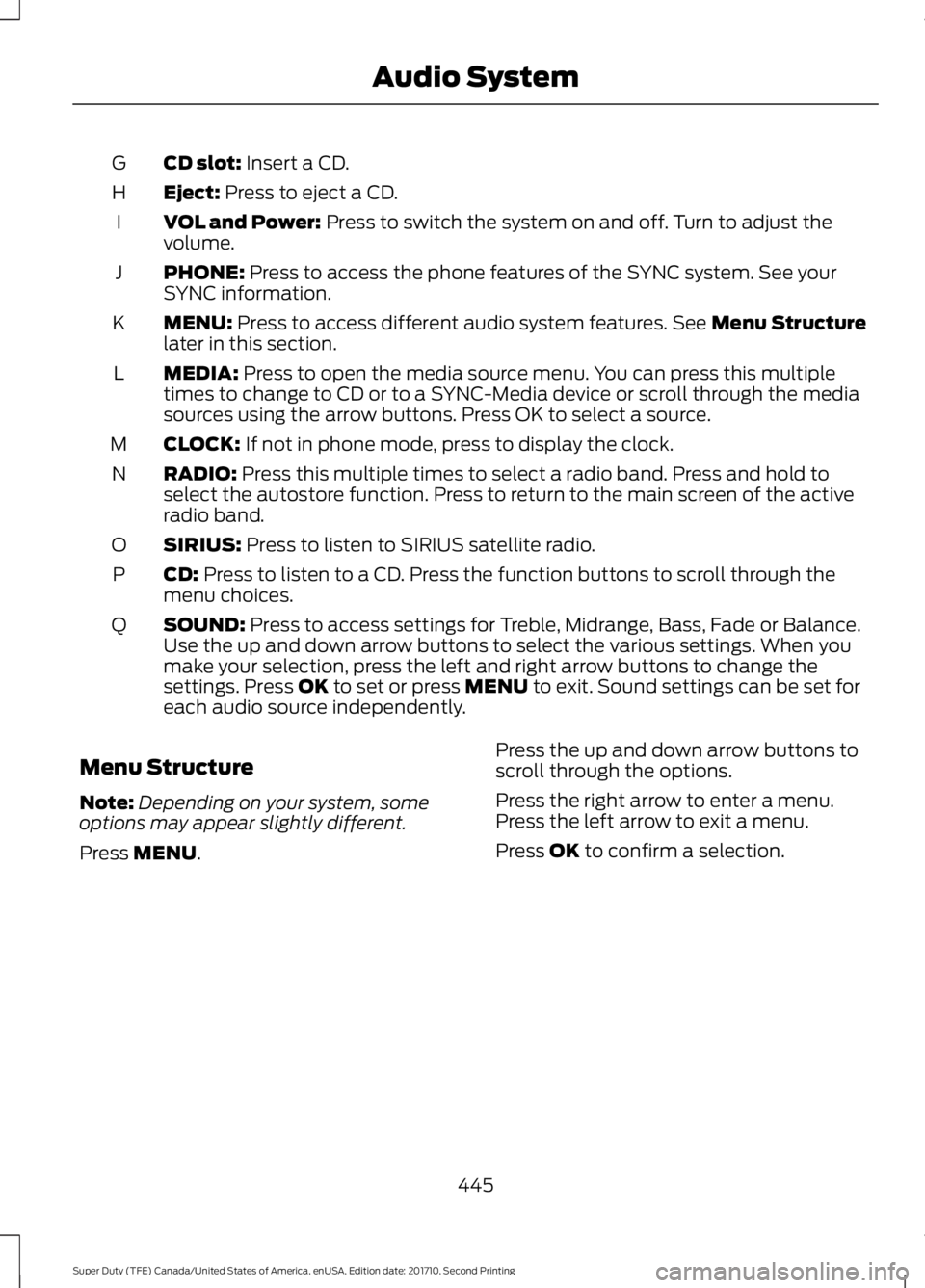
CD slot: Insert a CD.G
Eject: Press to eject a CD.H
VOL and Power: Press to switch the system on and off. Turn to adjust thevolume.I
PHONE: Press to access the phone features of the SYNC system. See yourSYNC information.J
MENU: Press to access different audio system features. See Menu Structurelater in this section.K
MEDIA: Press to open the media source menu. You can press this multipletimes to change to CD or to a SYNC-Media device or scroll through the mediasources using the arrow buttons. Press OK to select a source.
L
CLOCK: If not in phone mode, press to display the clock.M
RADIO: Press this multiple times to select a radio band. Press and hold toselect the autostore function. Press to return to the main screen of the activeradio band.
N
SIRIUS: Press to listen to SIRIUS satellite radio.O
CD: Press to listen to a CD. Press the function buttons to scroll through themenu choices.P
SOUND: Press to access settings for Treble, Midrange, Bass, Fade or Balance.Use the up and down arrow buttons to select the various settings. When youmake your selection, press the left and right arrow buttons to change thesettings. Press OK to set or press MENU to exit. Sound settings can be set foreach audio source independently.
Q
Menu Structure
Note:Depending on your system, someoptions may appear slightly different.
Press MENU.
Press the up and down arrow buttons toscroll through the options.
Press the right arrow to enter a menu.Press the left arrow to exit a menu.
Press OK to confirm a selection.
445
Super Duty (TFE) Canada/United States of America, enUSA, Edition date: 201710, Second Printing
Audio System
Page 458 of 642
GENERAL INFORMATION
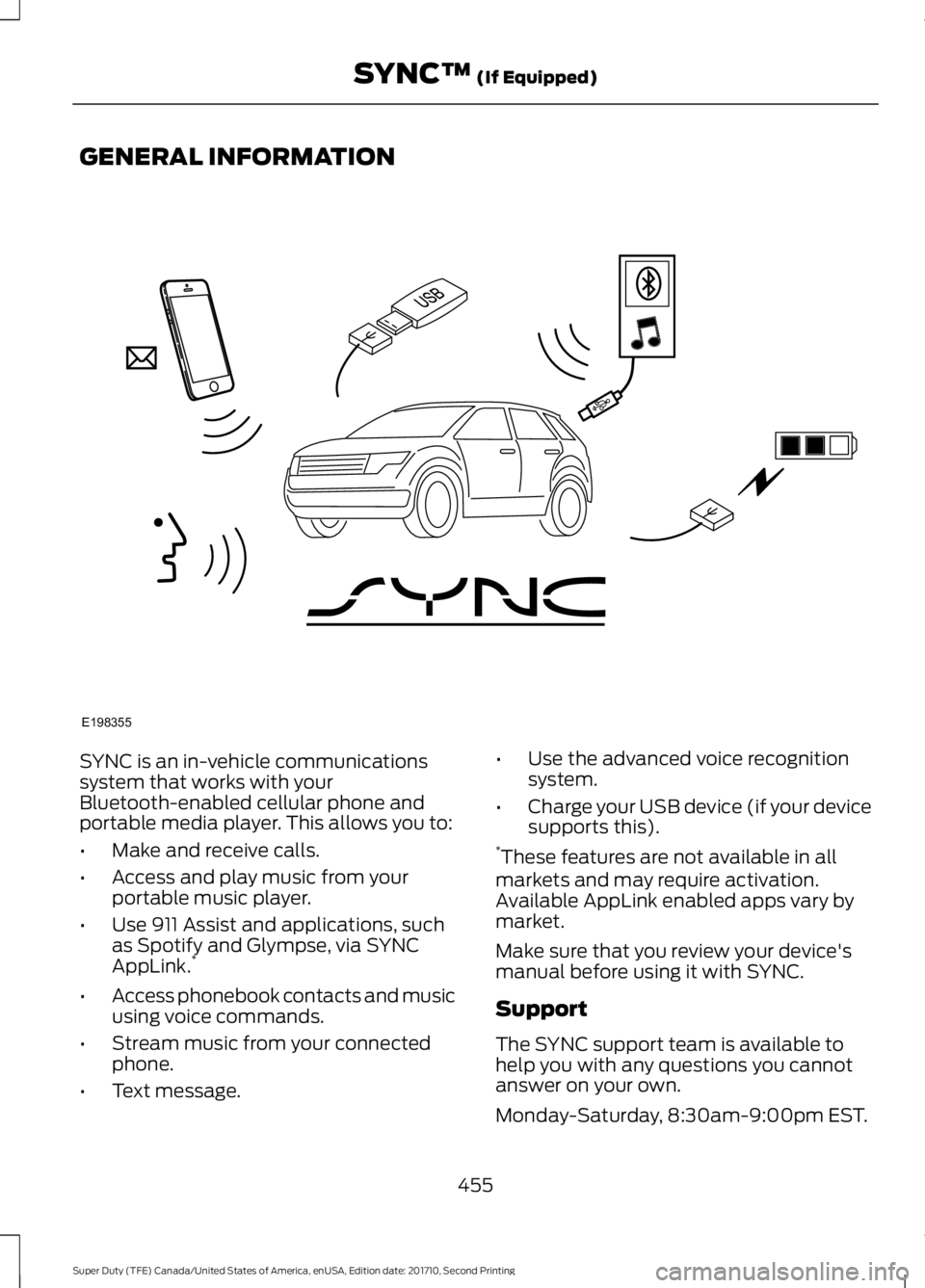
SYNC is an in-vehicle communicationssystem that works with yourBluetooth-enabled cellular phone andportable media player. This allows you to:
•Make and receive calls.
•Access and play music from yourportable music player.
•Use 911 Assist and applications, suchas Spotify and Glympse, via SYNCAppLink.*
•Access phonebook contacts and musicusing voice commands.
•Stream music from your connectedphone.
•Text message.
•Use the advanced voice recognitionsystem.
•Charge your USB device (if your devicesupports this).*These features are not available in allmarkets and may require activation.Available AppLink enabled apps vary bymarket.
Make sure that you review your device'smanual before using it with SYNC.
Support
The SYNC support team is available tohelp you with any questions you cannotanswer on your own.
Monday-Saturday, 8:30am-9:00pm EST.
455
Super Duty (TFE) Canada/United States of America, enUSA, Edition date: 201710, Second Printing
SYNC™ (If Equipped)E198355
Page 459 of 642
Sunday, 10:30am-7:30pm EST.
In the United States, call 1-800-392-3673.
In Canada, call 1-800-565-3673.
Times are subject to change due toholidays.
SYNC Owner Account
Why do I need a SYNC owner account?
•Essential for keeping up with the latestsoftware downloads available forSYNC.
•Access to customer support for anyquestions you may have.
Driving Restrictions
For your safety, certain features arespeed-dependent and restricted when yourvehicle is traveling over 3 mi (5 km).
Safety Information
WARNING
Driving while distracted can result inloss of vehicle control, crash andinjury. We strongly recommend thatyou use extreme caution when using anydevice that may take your focus off theroad. Your primary responsibility is the safeoperation of your vehicle. We recommendagainst the use of any hand-held devicewhile driving and encourage the use ofvoice-operated systems when possible.Make sure you are aware of all applicablelocal laws that may affect the use ofelectronic devices while driving.
When using SYNC:
•Do not operate playing devices if thepower cords or cables are broken, splitor damaged. Place cords and cablesout of the way, so they do not interferewith the operation of pedals, seats,compartments or safe driving abilities.
•Do not leave playing devices in yourvehicle during extreme conditions as itcould cause them damage. See yourdevice's manual for further information.
•Do not attempt to service or repair thesystem. See an authorized dealer.
Privacy Information
When a cellular phone is connected toSYNC, the system creates a profile withinyour vehicle that is linked to that cellularphone. This profile is created in order tooffer you more cellular features and tooperate more efficiently. Among otherthings, this profile may contain data aboutyour cellular phone book, text messages(read and unread), and call history,including history of calls when your cellularphone was not connected to the system.In addition, if you connect a media device,the system creates and retains an index ofsupported media content. The system alsorecords a short development log ofapproximately 10 minutes of all recentsystem activity. The log profile and othersystem data may be used to improve thesystem and help diagnose any problemsthat may occur.
The cellular profile, media device index,and development log will remain in thevehicle unless you delete them and aregenerally accessible only in the vehiclewhen the cellular phone or media playeris connected. If you no longer plan to usethe system or the vehicle, we recommendyou perform a Master Reset to erase allstored information.
456
Super Duty (TFE) Canada/United States of America, enUSA, Edition date: 201710, Second Printing
SYNC™ (If Equipped)
Page 461 of 642
System Interaction and Feedback
The system provides feedback throughaudible tones, prompts, questions andspoken confirmations depending on thesituation and the chosen level ofinteraction. You can customize the voicerecognition system to provide more or lessinstruction and feedback.
The default setting is to a higher level ofinteraction in order to help you learn to usethe system. You can change these settingsat any time.
Adjusting the Interaction Level
Press the voice button. Whenprompted, say:
Action and DescriptionVoice Command
voice settings
Then either of the following:
Provides more detailed interaction andguidance. (Recommended for first timeusers.)
interaction mode novice
Provides less audible interaction and guid-ance.interaction mode advanced
Confirmation Prompts
Confirmation prompts are short questionsthe system asks when it is not sure of yourrequest or when there is more than onepossible response to your request.
To adjust this setting press the voice button, when prompted say:
Action and DescriptionVoice Command
voice settings
Then either of the following:
Make a best guess from the command; youmay still occasionally be asked to confirmsettings.
confirmation prompts off
Clarify your voice command with a shortquestion.confirmation prompts on
Phone Confirmation
Using phone confirmations the systemasks you to verify before placing any calls.
458
Super Duty (TFE) Canada/United States of America, enUSA, Edition date: 201710, Second Printing
SYNC™ (If Equipped)E142599
Page 462 of 642
To adjust this setting press the voice button, when prompted say:
Action and DescriptionVoice Command
voice settings
Then any of the following:
When enabled, this feature will prompt youto confirm any voice initiated call commandprior to the call being placed.
phone confirmation on
The system will make a best guess; youmay still occasionally be asked to confirmsettings.
phone confirmation off
Changing the Voice Settings
In addition to using voice commands tochange the voice settings, you can also usethe menu in the audio display.
To change the voice settings press theMenu button then select:
Menu Item
SYNC-Settings
Voice settings
Note:Depending on the current climatecontrol settings, the fan speed mayautomatically go down while issuing voicecommands or while making and receivingphone calls via SYNC to reduce the amountof background noise in the vehicle. The fanspeed will automatically return to normaloperation once the voice session ends. Fanspeed can also be adjusted normally duringa voice session, simply press fan buttons (orturn fan knob) to increase or decrease fanspeed to desired setting.
To disable this automatic fan speedreduction feature during voice sessions,press and hold the climate control AC andRecirculated air buttons simultaneously,release and then increase fan speed within2 seconds. To re-enable this feature, repeatthe above sequence.
USING SYNC™ WITH YOUR
PHONE
Hands-free calling is one of the mainfeatures of SYNC. While the systemsupports a variety of features, many aredependent on your cellular phone'sfunctionality. At a minimum, most cellularphones with Bluetooth wireless technologysupport the following functions:
•Answering an incoming call.
•Ending a call.
•Using privacy mode.
•Dialing a number.
•Redialing.
•Call waiting notification.
•Caller ID.
459
Super Duty (TFE) Canada/United States of America, enUSA, Edition date: 201710, Second Printing
SYNC™ (If Equipped)
Page 463 of 642
Other features, such as text messagingusing Bluetooth and automatic phonebookdownload, are phone-dependent features.To check your phone's compatibility, seeyour phone's manual and visitwww.SYNCMyRide.com,www.SYNCMyRide.ca orwww.syncmaroute.ca.
Pairing a Phone for the First Time
Wirelessly pairing your phone with SYNCallows you to make and receive hands-freecalls.
Note:SYNC can support downloading upto approximately 4000 entries perBluetooth-enabled cellular phone.
Note:Make sure to switch on the ignitionand the radio. Shift the transmission intopark (P) for automatic transmission or firstgear for manual transmission.
Using the Audio System
Note:To scroll through the menus, pressthe up and down arrows on your audiosystem.
1. Make sure to switch on your phone'sBluetooth feature before starting thesearch. See your device's manual ifnecessary.
2. Press the PHONE button. When theaudio display indicates there is nopaired phone, select the option to add.
3. When a message to begin pairingappears in the audio display, search forSYNC on your phone to start the pairingprocess.
4. When prompted on your cell phone’sdisplay, confirm that the PIN providedby SYNC matches the PIN displayedon your cell phone. Your phone is nowpaired and the display indicates thatthe pairing was successful. If you areprompted to enter a PIN on your device,enter the PIN displayed on the screen.The display indicates when the pairingis successful.
Depending on your phone's capability andyour market, the system may prompt youwith questions, such as setting the currentphone as the primary phone (the phoneSYNC automatically tries to connect withfirst upon vehicle start-up) anddownloading your phonebook.
Using Voice Commands
Make sure to switch on yourphone's Bluetooth featurebefore starting the search. Seeyour device's manual if necessary.
Press the voice and when promptedsay:
Action and Descrip-tionVoice Command
Follow the instruc-tions on the audiodisplay.
(pair ([Bluetooth]device | phone |Bluetooth audio) |add phone)
You can say any of the voice commandsthat appear within open and close bracketsthat are separated by |. For example,where; (what's | what is) appears you say;what's or what is.
The commands that have [ ] around theword means that the word is optional.
460
Super Duty (TFE) Canada/United States of America, enUSA, Edition date: 201710, Second Printing
SYNC™ (If Equipped)E142599
Page 464 of 642
Depending on your phone's capability andyour market, the system may prompt youwith questions, such as setting the currentphone as the primary phone (the phoneSYNC automatically tries to connect withfirst upon vehicle start-up) anddownloading your phonebook.
Pairing Subsequent Phones
Note:Make sure to switch on the ignitionand the radio. Shift the transmission intopark (P) for automatic transmission or firstgear for manual transmission.
Note:To scroll through the menus, pressthe up and down arrows on your audiosystem.
1. Make sure to switch on your phone'sBluetooth feature before starting thesearch. See your device's manual ifnecessary.
2. Press the PHONE button.
3. Select the option for BluetoothDevices.
4. Press the OK button.
5. Select the option to add. This startsthe pairing process.
6. When a message to begin pairingappears in the audio display, search forSYNC on your device.
7. When prompted on your cell phone’sdisplay, confirm that the PIN providedby SYNC matches the PIN displayedon your cell phone. Your phone is nowpaired and the display indicates thatthe pairing was successful. If you areprompted to enter a PIN on your device,enter the PIN displayed on the screen.The display indicates when the pairingis successful.
SYNC may prompt you with more cellphone options. Your cell phone may alsoprompt you to give SYNC permission toaccess information. For more informationon your cell phone’s capability, see yourcell phone’s manual and visit the website.
Phone Voice Commands
Press the voice button. Whenprompted, say any of thefollowing:
Voice Command
(phone | Blackberry | iPhone)
Then say any of the following:
call (___)
call ___ at home
call ___ ((in|at) [the] office | at work)
call ___ on (cell | mobile)
call ___ on other
1dial [[a] number]
2([go to] privacy | transfer to phone| privacy on)
2(hold call [on] | place call on hold)
2join (calls | call)
2mute call [on]
2(mute call off | un-mute call)
(turn ringer on | silent mode off)
(turn ringer off | silent mode [on])
461
Super Duty (TFE) Canada/United States of America, enUSA, Edition date: 201710, Second Printing
SYNC™ (If Equipped)E142599
Page 465 of 642
![FORD F450 SUPER DUTY 2017 User Guide Voice Command
3[text] (messages | message)
help
___ is a dynamic listing that should be thename of a contact in your phonebook. Forexample you could say "Call Home".1 See Dial table below.2 Th](/img/11/58795/w960_58795-464.png "FORD F450 SUPER DUTY 2017 User Guide Voice Command
3[text] (messages | message)
help
___ is a dynamic listing that should be thename of a contact in your phonebook. Forexample you could say \"Call Home\".1 See Dial table below.2 Th")
Voice Command
3[text] (messages | message)
help
___ is a dynamic listing that should be thename of a contact in your phonebook. Forexample you could say "Call Home".1 See Dial table below.2 These commands are only valid while ina phone call.3 See the text message table below.
Dial Commands
Press the voice button and when promptedsay any of the following commands:
Voice Commands
411 (four-one-one), 911 (nine-one-one)
700 (seven hundred)
800 (eight hundred)
900 (nine hundred)
Clear (deletes all entered digits)
Delete (deletes last set of digits entered)
Number <0-9>
Plus
Pound (#)
Star (*)
Note:To exit dial mode, press and hold thephone button or press any button on theaudio system.
To access text messages say:
Voice Command
[text] (messages | message)
Then say any of the following:
(listen to | read) ([text] message)
forward (text | [text] message)
reply to (text | [text] message)
call [sender]
Phonebook Hints
To hear how the SYNC system speaks aname browse phonebook, select a contactand press:
Menu Item
Hear it
Changing Devices Using VoiceCommands
Using SYNC, you can easily access multiplephones, ipods, or USB devices. to switchdevices say:
462
Super Duty (TFE) Canada/United States of America, enUSA, Edition date: 201710, Second Printing
SYNC™ (If Equipped)