ECO mode FORD F450 SUPER DUTY 2017 Repair Manual
[x] Cancel search | Manufacturer: FORD, Model Year: 2017, Model line: F450 SUPER DUTY, Model: FORD F450 SUPER DUTY 2017Pages: 642, PDF Size: 12.35 MB
Page 232 of 642
PRINCIPLE OF OPERATION
WARNINGS
Hill descent control cannot controldescent in all surface conditions andcircumstances, such as ice orextremely steep grades. Hill descentcontrol is a driver assist system and cannotsubstitute for good judgment by the driver.Failure to do so may result in loss of vehiclecontrol, crash or serious injury.
Hill descent control does not providehill hold at zero miles per hour (0kilometers per hour). When stopped,the parking brake must be applied or thevehicle must be placed in P (Park) or itmay roll away.
Hill descent control allows the driver to setand maintain vehicle speed whiledescending steep grades in various surfaceconditions.
Hill descent control can maintain vehiclespeeds on downhill grades between 2 mph(3 km/h) and 12 mph (20 km/h). Above 20mph (32 km/h), the system remainsarmed, but descent speed cannot be setor maintained.
Hill descent control requires a coolingdown interval after a period of sustaineduse. The amount of time that the featurecan remain active before cooling varieswith conditions. The system will provide awarning in the message center and a chimewill sound when the system is about todisengage for cooling. At this time,manually apply the brakes as needed tomaintain descent speed.
USING HILL DESCENT
CONTROL
Press and release the hilldescent button located on theinstrument panel. A light in thecluster will illuminate and a chime willsound when this feature is activated.
To increase descent speed, press theaccelerator pedal until the desired speedis reached. To decrease descent speed,press the brake pedal until the desiredspeed is reached.
Whether accelerating or decelerating, oncethe desired descent speed is reached,remove your feet from the pedals and thechosen vehicle speed will be maintained.
Note:Noise from the ABS pump motor maybe observed during hill descent controloperation. This is a normal characteristic ofthe ABS and should be no reason forconcern.
Hill descent modes
•At speeds below 20 mph (32 km/h):When the Hill Descent Control switchis pressed and Hill Descent Control isactive, the Hill Descent Control telltalewill flash.
•At speeds below 20 mph (32 km/h):When the Hill Descent Control switchis pressed and conditions are notcorrect for hill descent activation, theHill Descent Control system will beenabled, the Hill Descent Controltelltale will be solid and a message willdisplay in the information display.
•At speeds above 20 mph (32 km/h):When the Hill Descent Control switchis pressed, the Hill Descent Controlsystem will be enabled, the telltale inthe cluster will not be illuminated anda message will be displayed in theinformation display.
229
Super Duty (TFE) Canada/United States of America, enUSA, Edition date: 201710, Second Printing
Terrain Control (If Equipped)E163957
Page 243 of 642
•Press SET+ or SET- to change the setspeed in small increments.
•Press the accelerator or brake pedaluntil you reach the desired speed. PressSET+ or SET-.
•Press and hold SET+ or SET-. Releasethe control when you reach the desiredspeed.
Canceling the Set Speed
Press CNCL or tap the brake pedal. Theset speed does not erase.
Resuming the Set Speed
Press RES.
Switching Cruise Control Off
Note:You erase the set speed when youswitch the system off.
Press OFF when the system is in standbymode or switch the ignition off.
USING ADAPTIVE CRUISE
CONTROL (If Equipped)
WARNINGS
Always pay close attention tochanging road conditions when usingadaptive cruise control. The systemdoes not replace attentive driving. Failingto pay attention to the road may result ina crash, serious injury or death.
Adaptive cruise control is not a crashwarning or avoidance system.
Adaptive cruise control does notdetect stationary or slow movingvehicles below 6 mph (10 km/h).
Adaptive cruise control does notdetect pedestrians or objects in theroad.
WARNINGS
Adaptive cruise control does notdetect oncoming vehicles in thesame lane.
Do not use adaptive cruise controlon winding roads, in heavy traffic orwhen the road surface is slippery.This could result in loss of vehicle control,serious injury or death.
Do not use adaptive cruise controlwith a snow plow blade installed.
Do not use adaptive cruise controlwhen towing a trailer that has trailerbrakes. The auto-brake componentof the adaptive cruise control system doesnot operate the trailer brakes. Usingadaptive cruise control when towing atrailer that has trailer brakes may result inthe loss of vehicle control, which couldresult in serious injury.
Do not use tire sizes other than thoserecommended because this canaffect the normal operation of thesystem. Failure to do so may result in a lossof vehicle control, which could result inserious injury.
Note:It is your responsibility to stay alert,drive safely and control the vehicle at alltimes.
The system adjusts your speed to maintaina proper distance between you and thevehicle in front of you in the same lane. Youcan select from one of four gap settings.
240
Super Duty (TFE) Canada/United States of America, enUSA, Edition date: 201710, Second Printing
Cruise Control (If Equipped)
Page 245 of 642
When a vehicle ahead of you enters thesame lane or a slower vehicle is ahead inthe same lane, the vehicle speed adjuststo maintain a preset gap distance. Thedistance setting is adjustable.
The lead vehicle graphic illuminates.
The vehicle maintains a constant distancefrom the vehicle ahead until:
•The vehicle in front of you acceleratesto a speed above the set speed.
•The vehicle in front of you moves outof your lane or out of view.
•The vehicle speed falls below 12 mph(20 km/h).
•You set a new gap distance.
The system applies the brakes to slow thevehicle to maintain a safe distance fromthe vehicle in front. The system appliesonly limited maximum braking. Press thebrake pedal to override the system.
If the system predicts that its maximumbraking level is insufficient, an audiblewarning sounds while the systemcontinues to brake. A red warning barappears on the windshield heads-updisplay. Take immediate action to slow orstop the vehicle.
The system may provide slight temporaryacceleration when you use your driver sidedirectional indicator while following a leadvehicle, to aid in passing the vehicle.
Setting the Gap Distance
Note:It is your responsibility to select a gapappropriate to the driving conditions.
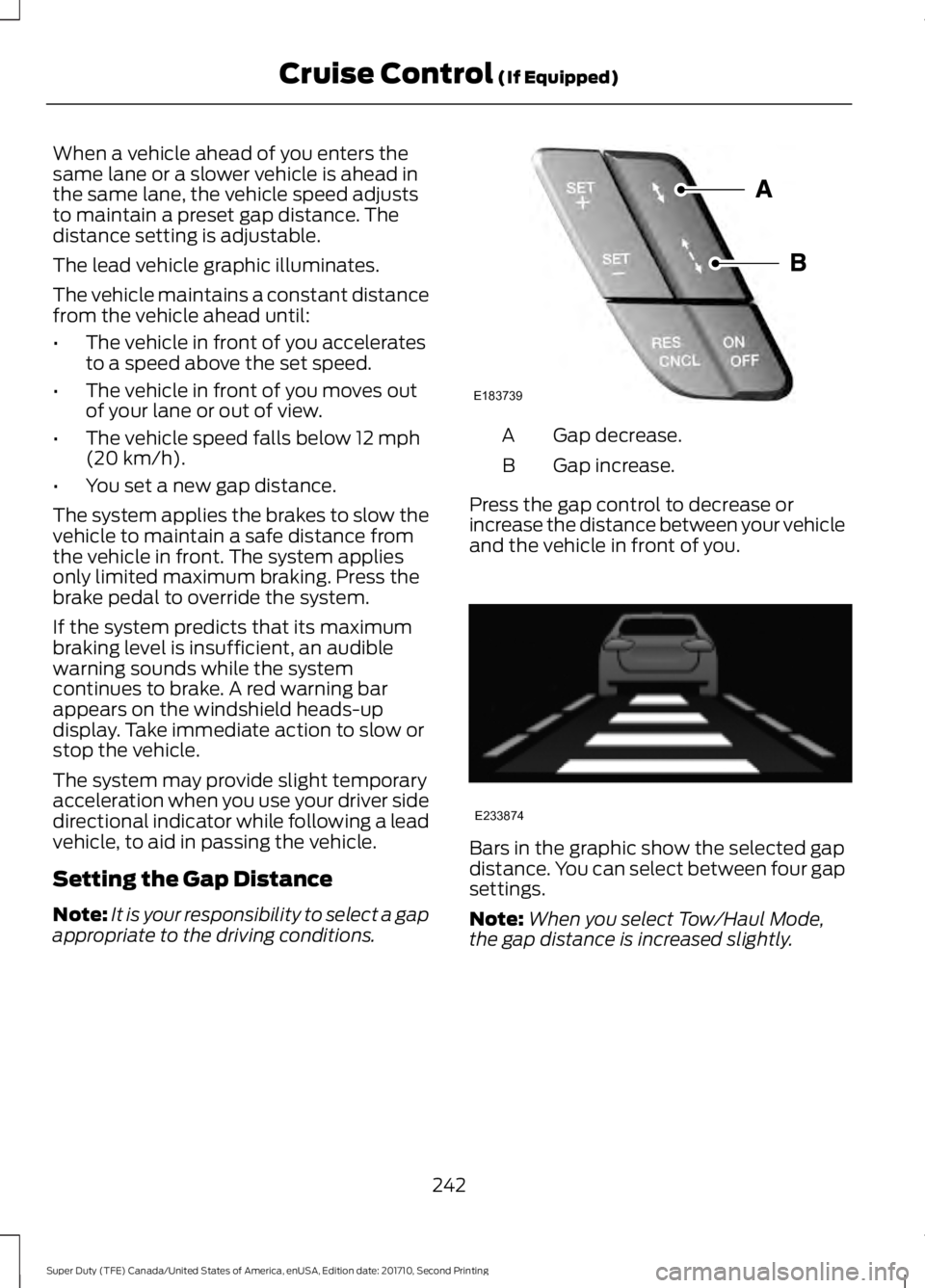
Gap decrease.A
Gap increase.B
Press the gap control to decrease orincrease the distance between your vehicleand the vehicle in front of you.
Bars in the graphic show the selected gapdistance. You can select between four gapsettings.
Note:When you select Tow/Haul Mode,the gap distance is increased slightly.
242
Super Duty (TFE) Canada/United States of America, enUSA, Edition date: 201710, Second Printing
Cruise Control (If Equipped)E183739 E233874
Page 247 of 642
Low Speed AutomaticCancellation
The system does not function at vehiclespeeds below 12.4 mph (20 km/h). Anaudible alarm sounds and the automaticbraking releases if the vehicle drops belowthis speed.
Hilly Condition and Trailer TowUsage
Note:An audible alarm sounds and thesystem shuts down if it applies brakes foran extended period of time. This allows thebrakes to cool. The system functionsnormally again when the brakes havecooled.
Note:When towing with adaptive cruisecontrol, turn on Tow/Haul Mode and DieselEngine Brake.
Select a lower gear when the system isactive in situations such as prolongeddownhill driving on steep grades, forexample in mountainous areas. Thesystem needs additional engine braking inthese situations to reduce the load on thevehicle’s regular brake system to preventit from overheating.
Switching the System Off
Note:The set speed memory erases whenyou switch off the system.
Press and release OFF or switch off theignition.
Detection Issues
WARNING
On rare occasions, detection issuescan occur due to the roadinfrastructures, for example bridges,tunnels and safety barriers. In these cases,the system may brake late orunexpectedly. At all times, you areresponsible for controlling your vehicle,supervising the system and intervening, ifrequired.
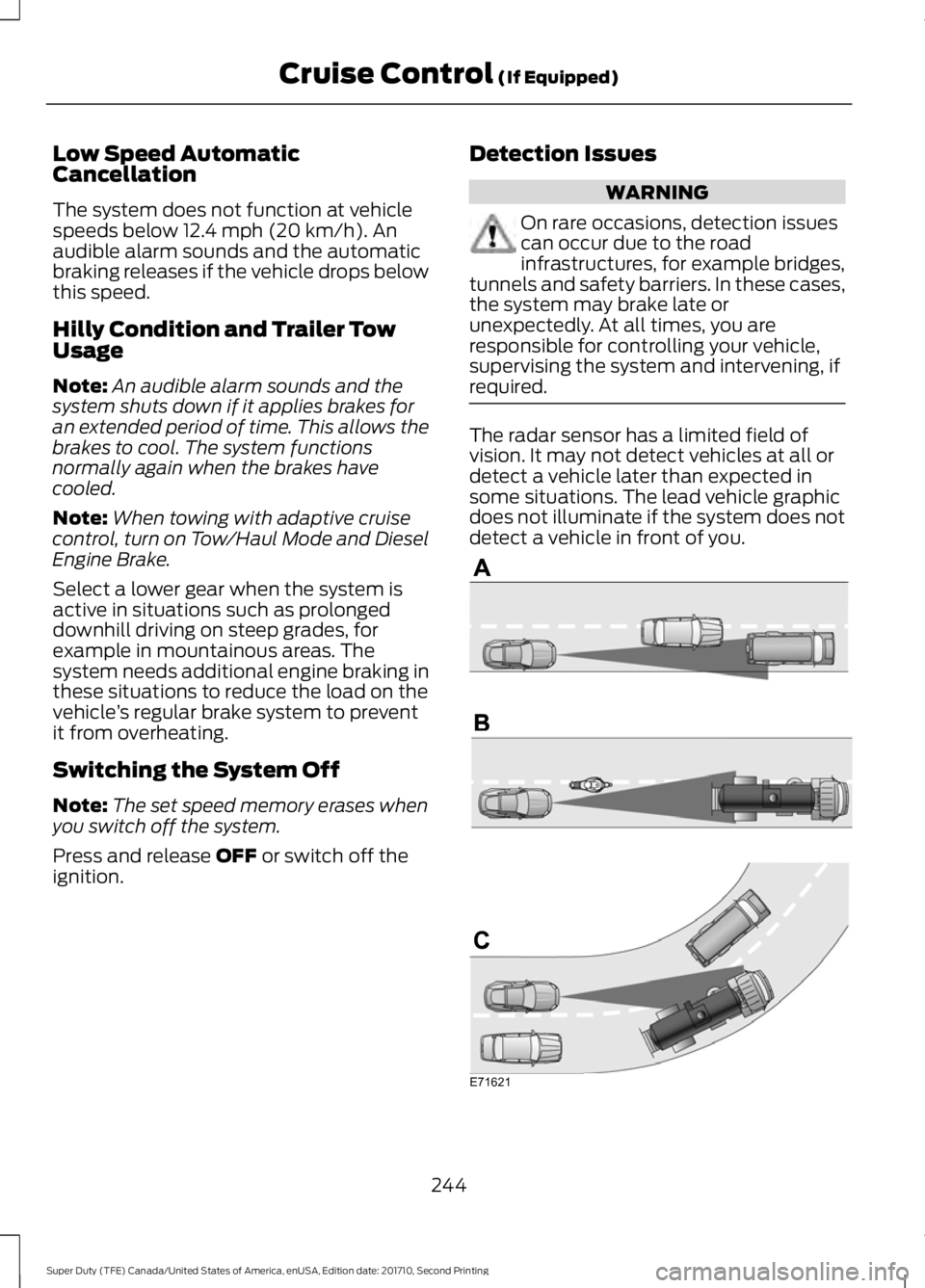
The radar sensor has a limited field ofvision. It may not detect vehicles at all ordetect a vehicle later than expected insome situations. The lead vehicle graphicdoes not illuminate if the system does notdetect a vehicle in front of you.
244
Super Duty (TFE) Canada/United States of America, enUSA, Edition date: 201710, Second Printing
Cruise Control (If Equipped)E71621
Page 249 of 642
ActionCause
Clean the grille surface in front of the radaror remove the object causing the obstruc-tion.
The surface of the radar in the grille is dirtyor obstructed in some way.
Wait a short time. It may take severalminutes for the radar to detect that it is freefrom obstruction.
The surface of the radar in the grille is cleanbut the message remains in the display.
Do not use the system in these conditionsbecause it may not detect any vehiclesahead.
Heavy rain or snow is interfering with theradar signals.
Do not use the system in these conditionsbecause it may not detect any vehiclesahead.
Swirling water, or snow or ice on the surfaceof the road may interfere with the radarsignals.
Wait a short time or switch to normal cruisecontrol.You are in a desert or remote area with noother vehicles and no roadside objects.
Due to the nature of radar technology, it ispossible to get a blockage warning and nothave a blockage. This can happen, forexample, when driving in sparse rural ordesert environments. A false blockedcondition either self clears or clears aftera key cycle.
Switching to Normal CruiseControl
WARNING
Normal cruise control will not brakewhen your vehicle is approachingslower vehicles. Always be aware ofwhich mode you have selected and applythe brakes when necessary.
You can manually change from adaptivecruise control to normal cruise controlthrough the information display. SeeInformation Messages (page 128).
The cruise control indicator lightreplaces the adaptive cruisecontrol indicator light if youselect normal cruise control. The gapsetting does not display, the system doesnot automatically respond to lead vehiclesand automatic braking remains active tomaintain set speed. The system recalls itslast setting when you start your vehicle.
246
Super Duty (TFE) Canada/United States of America, enUSA, Edition date: 201710, Second Printing
Cruise Control (If Equipped)E71340
Page 250 of 642
LANE KEEPING SYSTEM (If
Equipped)
WARNING
The system is designed to aid thedriver. It is not intended to replaceyour attention and judgment. You arestill responsible to drive with due care andattention.
Note:The system works as long as thecamera can detect one lane marking at aspeed above 40 mph (64 km/h).
Note:The system may not function if thecamera is blocked or there is damage to thewindshield.
The Lane Keeping System automaticallydetects and tracks the road lane markingsusing a camera mounted behind theinterior review view mirror. The systemnotifies you to stay in your lane when thefront camera detects an unintentional lanechange is likely to occur.
Switching the System On and Off
Note:The system on or off setting is storeduntil it is manually changed, unless a MyKeyis detected. If the system detects a MyKey,it defaults to on and the mode is set to alert.
Note:If a MyKey is detected, pressing thebutton will not affect the on or off status ofthe system. You can only change the modeand intensity settings.
Press the button located on thecenter console to switch thesystem on or off.
System Settings
The system sensitivity and intensity canbe adjusted through the display screen.See General Information (page 111). Thesystem remembers the last selection. Youdo not need to readjust the setting eachtime you turn on your vehicle.
Sensitivity: This setting allows you toselect where in the lane a warning isprovided. Increasing the sensitivity settingmoves the warning zones in closer to yourvehicle.
NormalA
IncreasedB
Note:The alert diagram illustrates generalzone coverage. It does not provide exactzone parameters.
Intensity: This setting affects the intensityof the steering wheel vibration. Increasingthe intensity causes a higher rate of hapticfeedback.
•High
•Normal
•Low
247
Super Duty (TFE) Canada/United States of America, enUSA, Edition date: 201710, Second Printing
Driving AidsE173233 E165517
Page 275 of 642
Step 5: Enter Measurements Using theInformation Display
Using the recorded measurements, enterthe required data into the system. Followthe on screen prompts to enter each of themeasurements taken in step 4. Use theup/down arrows to increase or decreasethe numbers as needed. Press OK toconfirm each measurement. The screenprompts you to add the nextmeasurement. Once you add your lastmeasurement, the information displayshows you all of your enteredmeasurements. You can choose to confirmor change the measurements.
Step 6: Confirming the Sticker Location
Check the Rear View Camera display tosee if the sticker is identified by the systemand marked with a red circle.
Confirm that the red circle is correctlylocated over the sticker image in thedisplay. The on screen prompt will ask youto confirm this.
Note:If the system cannot locate thesticker try cleaning the camera lens, andalso make sure the sticker is within the zoneas indicated in step 3.
The information display shows aconfirmation message when yousuccessfully confirm the target.
Calibrating the System
To complete setup, drive your vehiclestraight forward between 4 mph (6 km/h)and 24 mph (39 km/h) as directed by theinformation display.
Note:Keep the steering wheel straightduring the calibration process. If the steeringwheel is in a turned position, then thecalibration pauses. The information displayprompts you to drive straight forward tocomplete the calibration.
The information display shows a messageduring calibration and after calibration iscomplete
Note:For best results, we do notrecommend that you calibrate the systemat night.
Using Trailer Reverse Guidance
1. Shift into reverse (R) if you are notalready in reverse. Press the rearcamera button to expand the menu.
2. Press the trailer icon .
3. Select your trailer on your informationdisplay.
4. While in TRG mode, you can see thecamera view on the side where yourtrailer is moving, or both sides whenthe trailer is straight behind you. Whenthe views change with the trailerdirection, it's called Auto Mode. Forexample, If you turn the trailer to theright, then you see the right side of yourvehicle and trailer. You can switch thisview manually at any time by using thearrow keys. To return to Auto Mode,press the Auto button.
Note:Auto Mode is your default setting.
Use the view that helps you the most whilebacking up your vehicle and trailer.
Normal rear view camera view.Use this feature when you wantto see your trailer hitch or whatis directly behind your vehicle.
Straight back-up mode. Use thisfeature when you want to keepyour trailer completely in linewith your truck. In this mode, a steeringwheel graphic shows you which way to turnyour steering wheel to keep your trailerstraight.
272
Super Duty (TFE) Canada/United States of America, enUSA, Edition date: 201710, Second Printing
TowingE224483 E224484
Page 276 of 642
Note: It may be helpful to shift your vehicleinto drive (D), pull forward and straightenout the vehicle and trailer before engagingStraight Backup Mode.
Left and right arrows let you see otherviews regardless of your trailer angle. Usethem to switch views manually.
Note: If you're using a Fifth Wheel orGooseneck trailer, or you haven't set up theTrailer Reverse Guidance System yet, AutoView is not available.
To change your view, use the arrows. Youcan see the following views:
•Full driver
•Partial driver
•50/50
•Partial passenger
•Full passenger
Zoom. Use this feature to zoomin on any view.
Return. Ths feature takes youback to the 360-degree camerasystem and out of the TrailerReverse Guidance feature.
Auto. Ths feature returns you toautomatic view mode.
In addition to multiple view options, yourtouchscreen adds some features to giveyou more information.
After using the set up for a conventionaltrailer, for example, the display alwaysshows you a small, top-viewrepresentation of your truck and trailer.
This representation shows two,different-colored lines: A black line showsyou where your trailer is in relation to yourvehicle. A white line gives you a projectionof where your trailer will go based on yourcurrent steering wheel position
Note:When you move the steering wheel,the white line indicates where the trailer willgo based on your steering wheel input.
When you turn your steering wheel to theleft, the trailer moves to the right; when youturn your steering wheel to the right, thetrailer moves to the left.
When you turn the wheel, the smallrepresentation shows you two zones towarn you of a possible jackknife condition.The view shows you your truck and trailerposition and provides visual feedback tohelp you avoid jackknifing entirely.
The yellow zone warns you of a potentialjackknife position. When you enter into thiszone, it's best to put your vehicle back intodrive (D) and pull forward. Moving forwardhelps put the truck and trailer back into anin-line position.
The RED zone indicates that you need toput the truck into drive (D) and pullforward immediately.
Troubleshooting
Note:The system requires a clear view ofthe sticker placed on the trailer. You mustkeep the camera lens and sticker clean forthe system to operate correctly.
Setup
The system is designed to be used with awide variety of trailers. However there aresome trailers that do not have a propersurface and location to mount the sticker.These trailers are not supported. Attemptsto place the sticker on a surface that doesnot meet the sticker placementrequirement listed in Step 3 of the setupinstruction or entering inaccuratemeasurements to proceed through setupcan result in improper system function.
273
Super Duty (TFE) Canada/United States of America, enUSA, Edition date: 201710, Second Printing
TowingE224485 E224487 E224486
Page 283 of 642
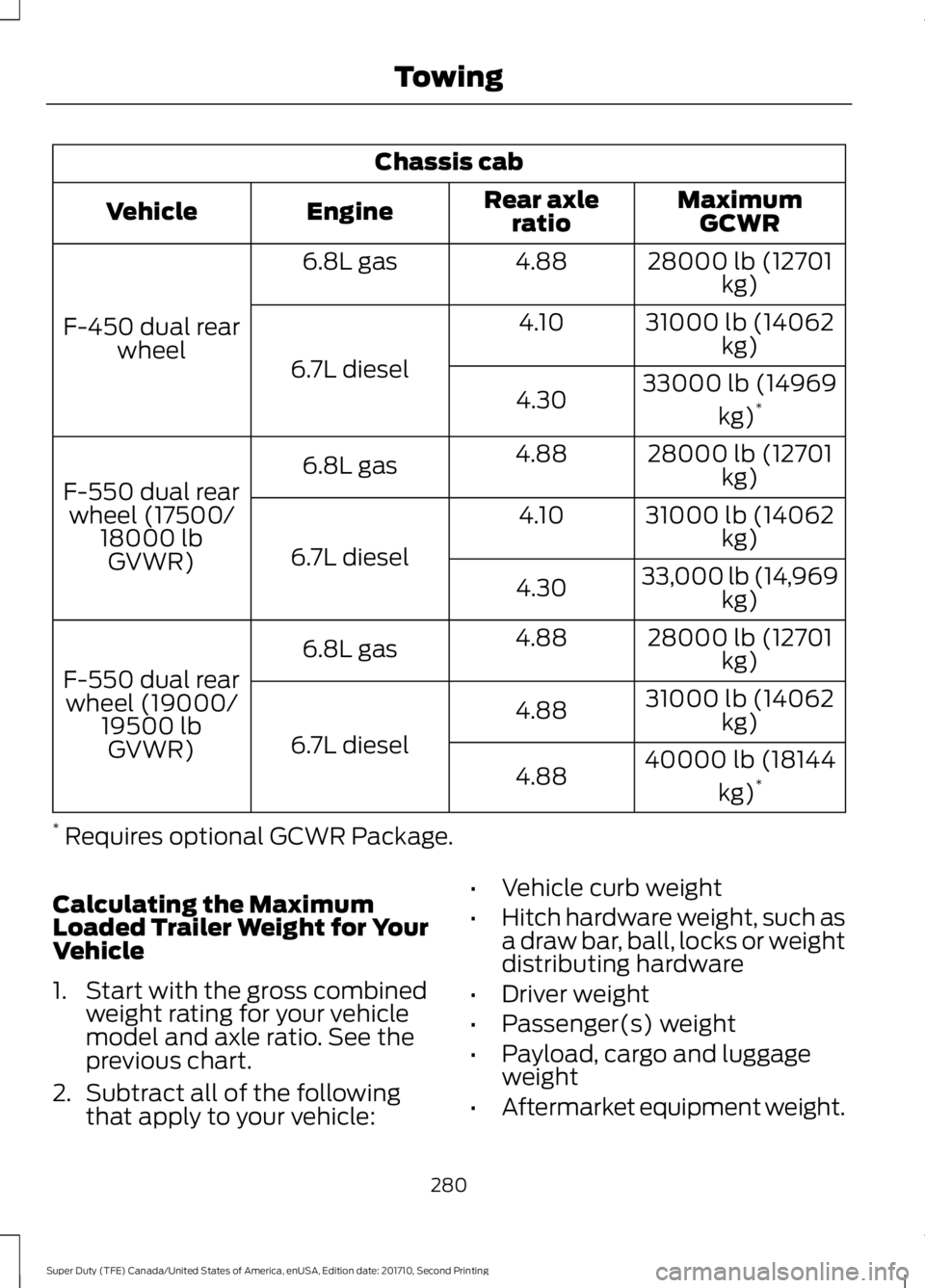
Chassis cab
MaximumGCWRRear axleratioEngineVehicle
28000 lb (12701kg)4.886.8L gas
F-450 dual rearwheel
31000 lb (14062kg)4.10
6.7L diesel33000 lb (14969
kg)*4.30
28000 lb (12701kg)4.886.8L gas
F-550 dual rearwheel (17500/18000 lbGVWR)
31000 lb (14062kg)4.10
6.7L diesel33,000 lb (14,969kg)4.30
28000 lb (12701kg)4.886.8L gas
F-550 dual rearwheel (19000/19500 lbGVWR)
31000 lb (14062kg)4.88
6.7L diesel40000 lb (18144
kg)*4.88
* Requires optional GCWR Package.
Calculating the MaximumLoaded Trailer Weight for YourVehicle
1. Start with the gross combinedweight rating for your vehiclemodel and axle ratio. See theprevious chart.
2.Subtract all of the followingthat apply to your vehicle:
•Vehicle curb weight
•Hitch hardware weight, such asa draw bar, ball, locks or weightdistributing hardware
•Driver weight
•Passenger(s) weight
•Payload, cargo and luggageweight
•Aftermarket equipment weight.
280
Super Duty (TFE) Canada/United States of America, enUSA, Edition date: 201710, Second Printing
Towing
Page 289 of 642
Procedure for Setting Trailer BrakeController Effort
Choose either the electric option for trailerswith electromagnetic drum brakes, or theelectric over hydraulic option for trailerswith these brake systems.
Trailer Brake Effort Setting
The trailer brake controller allows the userto customize how aggressively the trailerbrakes engage. The default value is the lowsetting and is the recommended settingfor most trailers. If your trailer's brakesrequire more initial voltage, or if you prefermore aggressive trailer braking, then selecteither the medium or the high setting.
Procedure for Setting Trailer BrakeController Mode
Choose the low, medium or high settingfor the required initial trailer brake output.
Procedure for Adjusting Gain
Note:Only perform this procedure in atraffic-free environment at speeds ofapproximately 20-25 mph (30-40 km/h).
The gain setting adjusts the trailer brakecontroller for the specific towing condition.You should change the setting as towingconditions change. Changes to towingconditions include trailer load, vehicle load,road conditions and weather.
The gain should be set to provide themaximum trailer braking assistance whilemaking sure the trailer wheels do not lockwhen using the brakes. Locked trailerwheels may lead to trailer instability.
1.Make sure the trailer brakes are in goodworking condition, functioning normallyand properly adjusted. See your trailerdealer if necessary.
2. Hook up the trailer and make theelectrical connections according to thetrailer manufacturer's instructions.
3. When you plug in a trailer with electricor electric-over-hydraulic brakes, aconfirmation message appears in theinformation display.
4. Use the gain adjustment (+ and -)buttons to increase or decrease thegain setting to the desired startingpoint. A gain setting of 6.0 is a goodstarting point for heavier loads.
5. In a traffic-free environment, tow thetrailer on a dry, level surface at a speedof 20-25 mph (30-40 km/h) andsqueeze the manual control levercompletely.
6. If the trailer wheels lock up, indicatedby squealing tires, reduce the gainsetting. If the trailer wheels turn freely,increase the gain setting. Repeat Steps5 and 6 until the gain setting is at apoint just below trailer wheel lock-up.If towing a heavier trailer, trailer wheellock-up may not be attainable evenwith the maximum gain setting of 10.
Information Display Warning Messages
Note:An authorized dealer can diagnosethe trailer brake controller to determineexactly which trailer fault has occurred.However, your Ford warranty does not coverthis diagnosis if the fault is with the trailer.
TRAILER BRAKE MODULE FAULT
Displays in response to faults sensed bythe trailer brake controller, accompaniedby a single tone. If this message appears,contact an authorized dealer as soon aspossible for diagnosis and repair. Thecontroller may still function, but withdegraded performance.
WIRING FAULT ON TRAILER
Displays when there is a short circuit onthe electric brake output wire.
286
Super Duty (TFE) Canada/United States of America, enUSA, Edition date: 201710, Second Printing
Towing