USB FORD FIESTA 2013 User Guide
[x] Cancel search | Manufacturer: FORD, Model Year: 2013, Model line: FIESTA, Model: FORD FIESTA 2013Pages: 346, PDF Size: 5.27 MB
Page 317 of 346
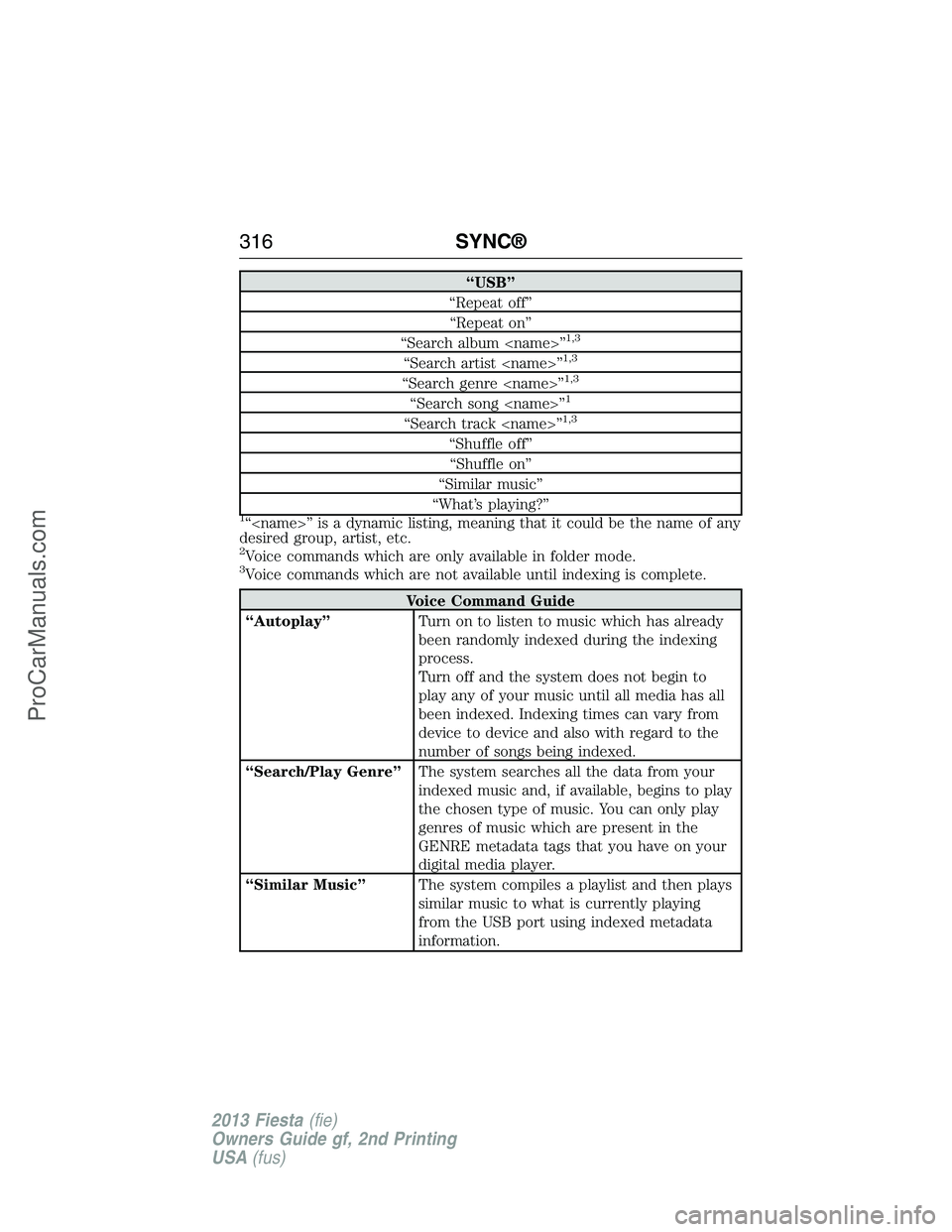
“USB”
“Repeat off”
“Repeat on”
“Search album
1,3
“Search artist
“Search genre
“Search song
“Search track
“Shuffle off”
“Shuffle on”
“Similar music”
“What’s playing?”
1“
desired group, artist, etc.
2Voice commands which are only available in folder mode.3Voice commands which are not available until indexing is complete.
Voice Command Guide
“Autoplay”Turn on to listen to music which has already
been randomly indexed during the indexing
process.
Turn off and the system does not begin to
play any of your music until all media has all
been indexed. Indexing times can vary from
device to device and also with regard to the
number of songs being indexed.
“Search/Play Genre”The system searches all the data from your
indexed music and, if available, begins to play
the chosen type of music. You can only play
genres of music which are present in the
GENRE metadata tags that you have on your
digital media player.
“Similar Music”The system compiles a playlist and then plays
similar music to what is currently playing
from the USB port using indexed metadata
information.
316SYNC®
2013 Fiesta(fie)
Owners Guide gf, 2nd Printing
USA(fus)
ProCarManuals.com
Page 318 of 346
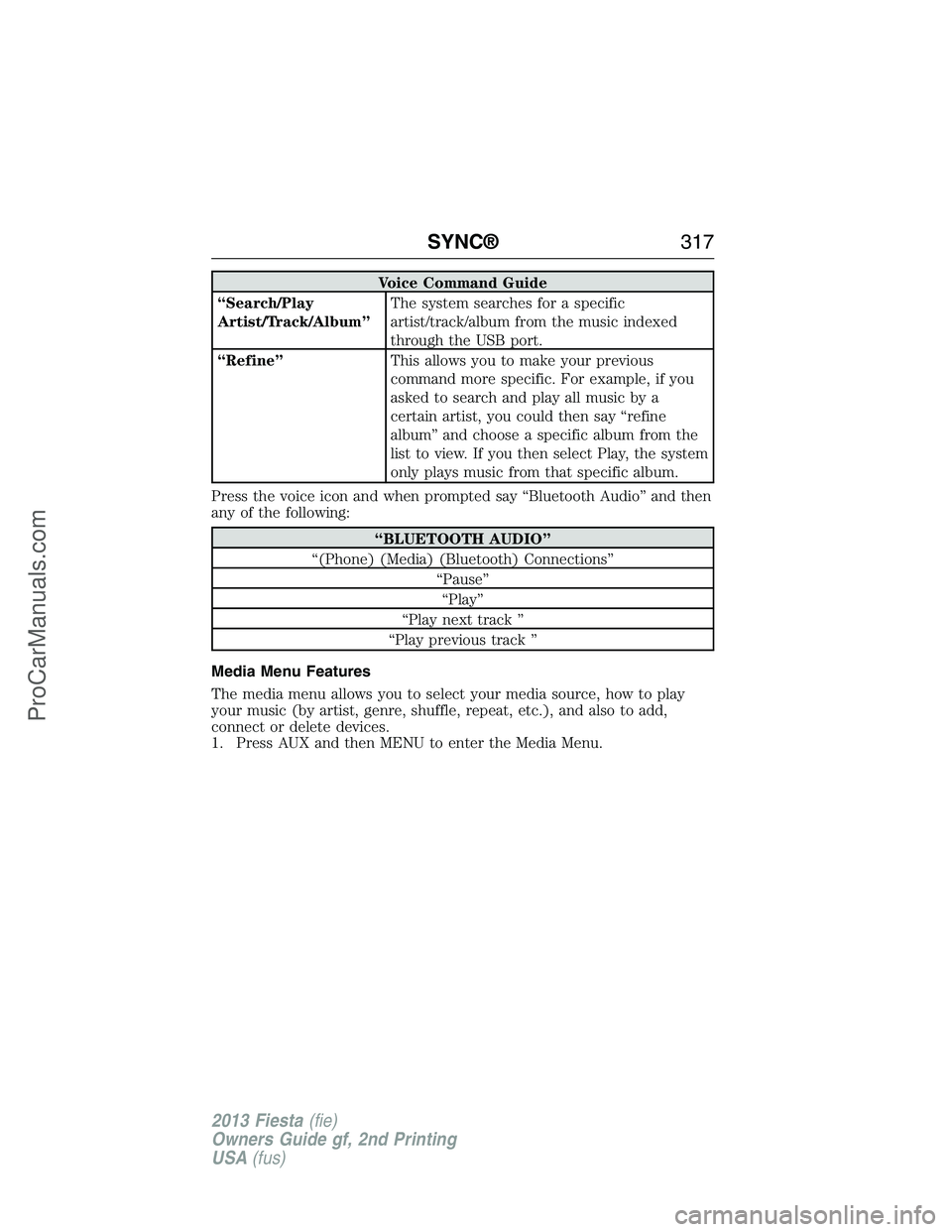
Voice Command Guide
“Search/Play
Artist/Track/Album”The system searches for a specific
artist/track/album from the music indexed
through the USB port.
“Refine”This allows you to make your previous
command more specific. For example, if you
asked to search and play all music by a
certain artist, you could then say “refine
album” and choose a specific album from the
list to view. If you then select Play, the system
only plays music from that specific album.
Press the voice icon and when prompted say “Bluetooth Audio” and then
any of the following:
“BLUETOOTH AUDIO”
“(Phone) (Media) (Bluetooth) Connections”
“Pause”
“Play”
“Play next track ”
“Play previous track ”
Media Menu Features
The media menu allows you to select your media source, how to play
your music (by artist, genre, shuffle, repeat, etc.), and also to add,
connect or delete devices.
1. Press AUX and then MENU to enter the Media Menu.
SYNC®317
2013 Fiesta(fie)
Owners Guide gf, 2nd Printing
USA(fus)
ProCarManuals.com
Page 319 of 346
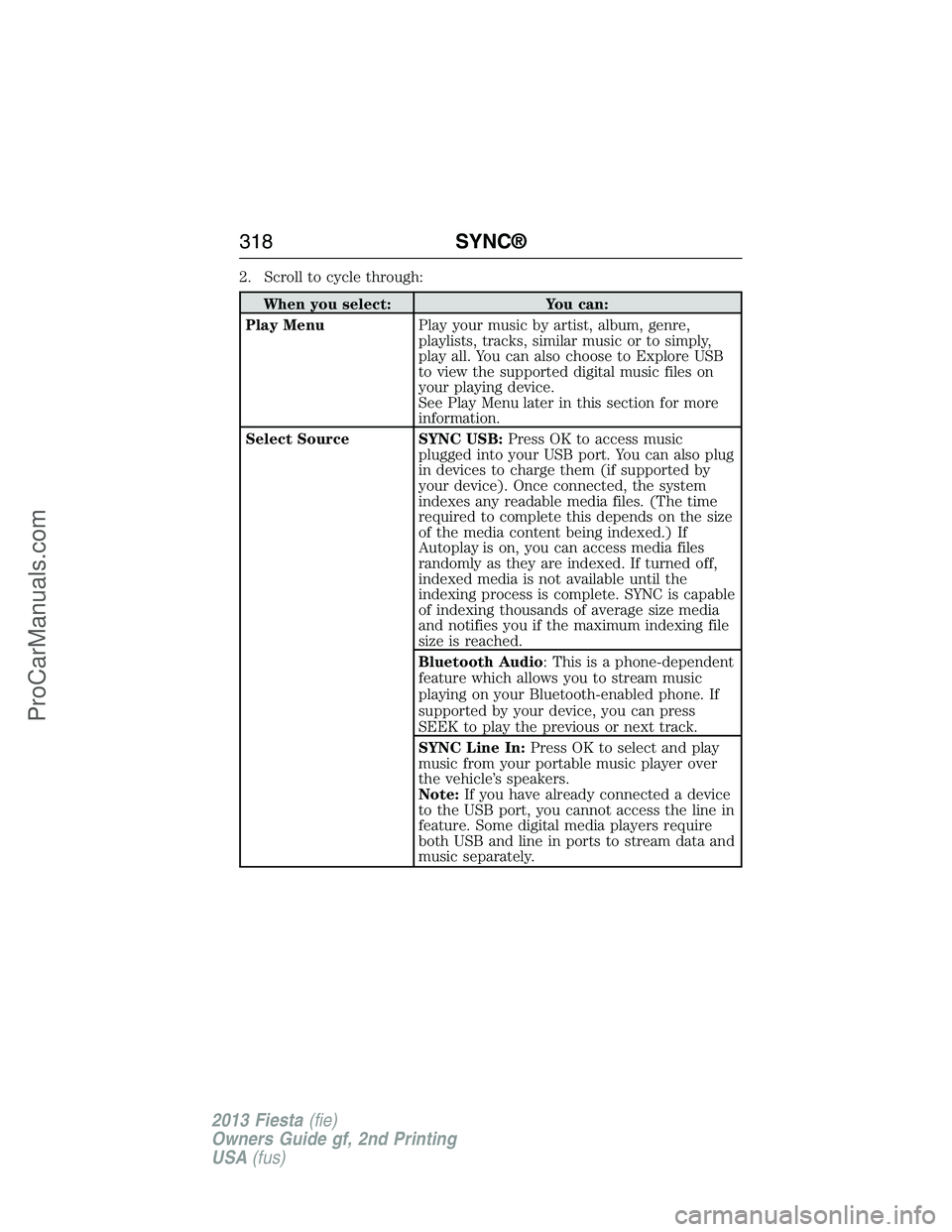
2. Scroll to cycle through:
When you select: You can:
Play MenuPlay your music by artist, album, genre,
playlists, tracks, similar music or to simply,
play all. You can also choose to Explore USB
to view the supported digital music files on
your playing device.
See Play Menu later in this section for more
information.
Select Source SYNC USB:Press OK to access music
plugged into your USB port. You can also plug
in devices to charge them (if supported by
your device). Once connected, the system
indexes any readable media files. (The time
required to complete this depends on the size
of the media content being indexed.) If
Autoplay is on, you can access media files
randomly as they are indexed. If turned off,
indexed media is not available until the
indexing process is complete. SYNC is capable
of indexing thousands of average size media
and notifies you if the maximum indexing file
size is reached.
Bluetooth Audio: This is a phone-dependent
feature which allows you to stream music
playing on your Bluetooth-enabled phone. If
supported by your device, you can press
SEEK to play the previous or next track.
SYNC Line In:Press OK to select and play
music from your portable music player over
the vehicle’s speakers.
Note:If you have already connected a device
to the USB port, you cannot access the line in
feature. Some digital media players require
both USB and line in ports to stream data and
music separately.
318SYNC®
2013 Fiesta(fie)
Owners Guide gf, 2nd Printing
USA(fus)
ProCarManuals.com
Page 320 of 346
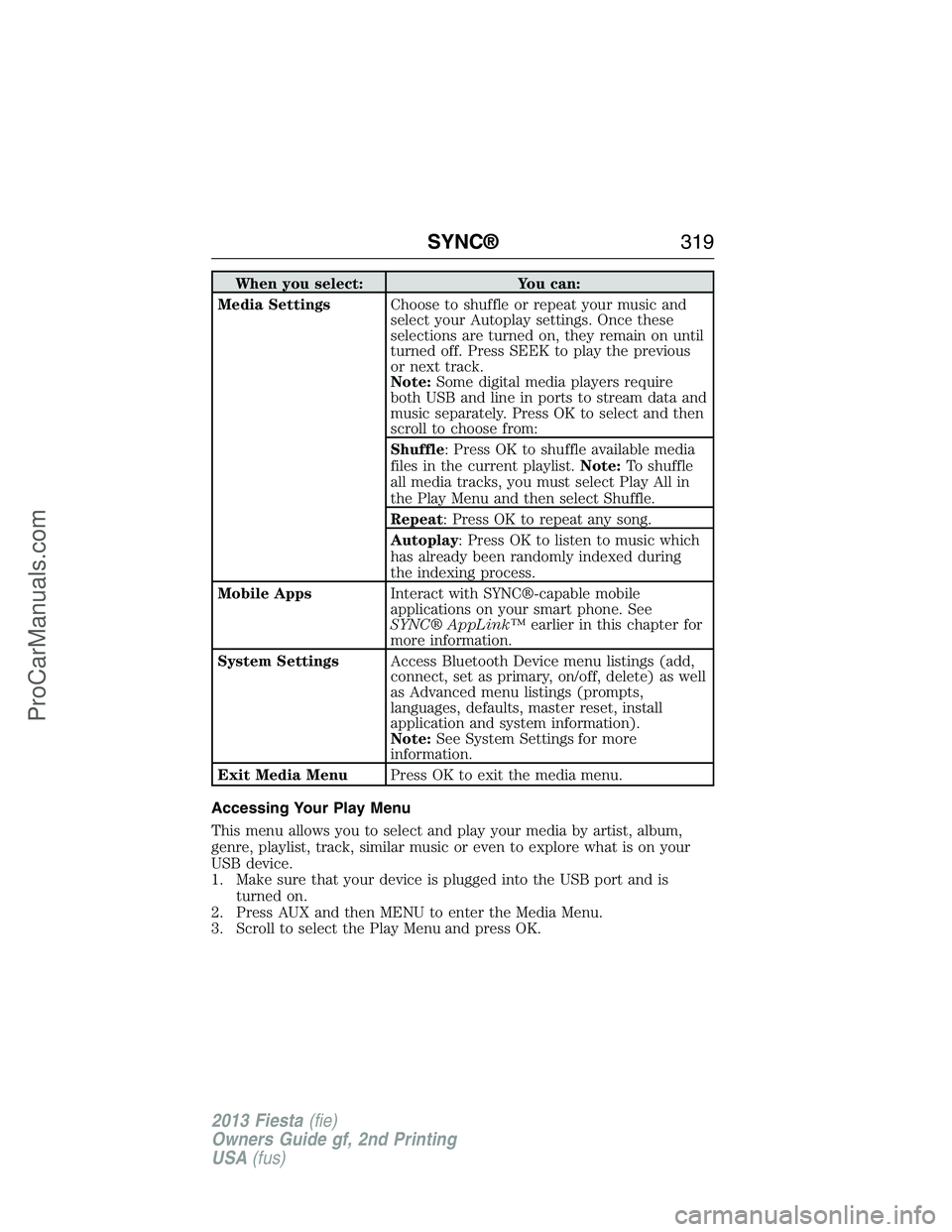
When you select: You can:
Media SettingsChoose to shuffle or repeat your music and
select your Autoplay settings. Once these
selections are turned on, they remain on until
turned off. Press SEEK to play the previous
or next track.
Note:Some digital media players require
both USB and line in ports to stream data and
music separately. Press OK to select and then
scroll to choose from:
Shuffle: Press OK to shuffle available media
files in the current playlist.Note:To shuffle
all media tracks, you must select Play All in
the Play Menu and then select Shuffle.
Repeat: Press OK to repeat any song.
Autoplay: Press OK to listen to music which
has already been randomly indexed during
the indexing process.
Mobile AppsInteract with SYNC®-capable mobile
applications on your smart phone. See
SYNC® AppLink™earlier in this chapter for
more information.
System SettingsAccess Bluetooth Device menu listings (add,
connect, set as primary, on/off, delete) as well
as Advanced menu listings (prompts,
languages, defaults, master reset, install
application and system information).
Note:See System Settings for more
information.
Exit Media MenuPress OK to exit the media menu.
Accessing Your Play Menu
This menu allows you to select and play your media by artist, album,
genre, playlist, track, similar music or even to explore what is on your
USB device.
1. Make sure that your device is plugged into the USB port and is
turned on.
2. Press AUX and then MENU to enter the Media Menu.
3. Scroll to select the Play Menu and press OK.
SYNC®319
2013 Fiesta(fie)
Owners Guide gf, 2nd Printing
USA(fus)
ProCarManuals.com
Page 322 of 346
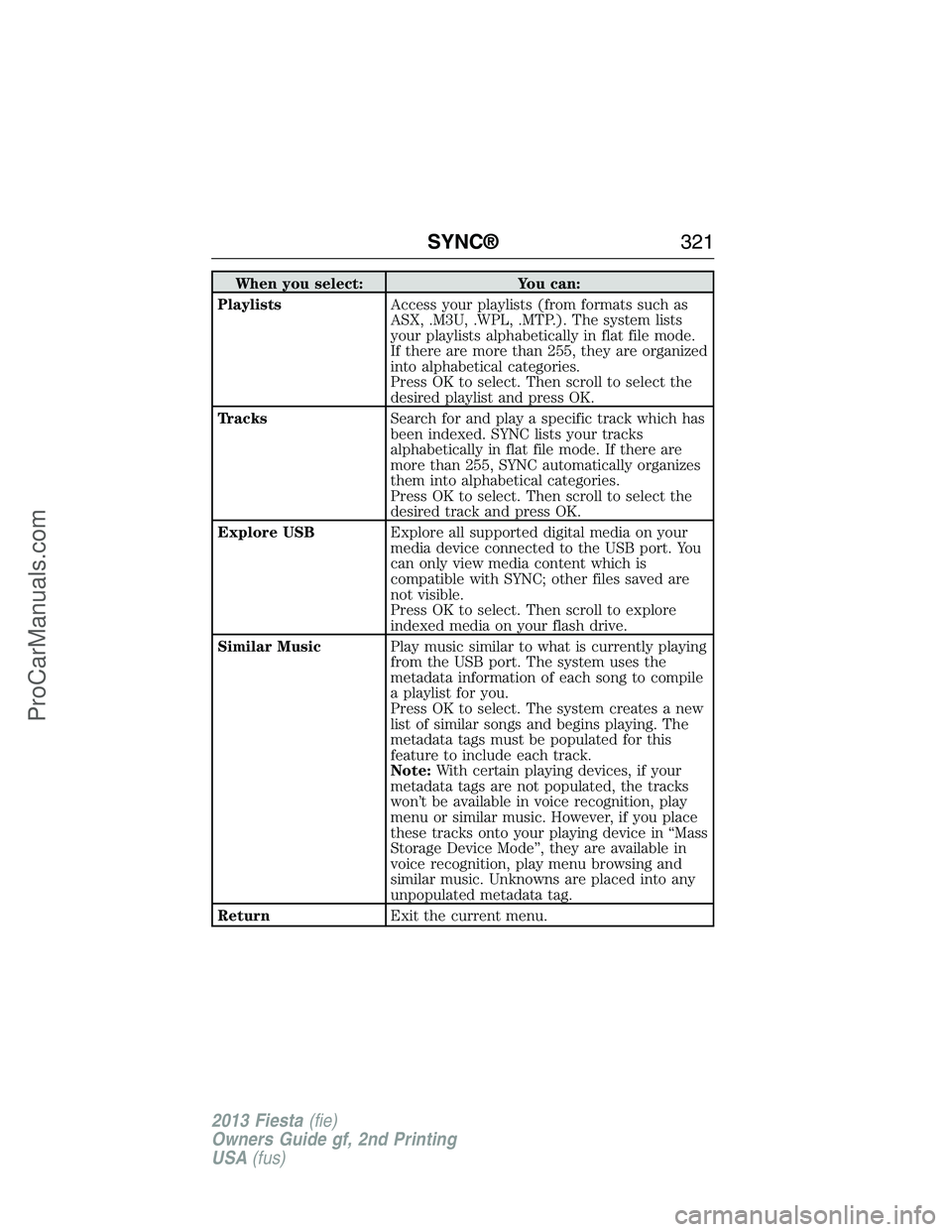
When you select: You can:
PlaylistsAccess your playlists (from formats such as
ASX, .M3U, .WPL, .MTP.). The system lists
your playlists alphabetically in flat file mode.
If there are more than 255, they are organized
into alphabetical categories.
Press OK to select. Then scroll to select the
desired playlist and press OK.
TracksSearch for and play a specific track which has
been indexed. SYNC lists your tracks
alphabetically in flat file mode. If there are
more than 255, SYNC automatically organizes
them into alphabetical categories.
Press OK to select. Then scroll to select the
desired track and press OK.
Explore USBExplore all supported digital media on your
media device connected to the USB port. You
can only view media content which is
compatible with SYNC; other files saved are
not visible.
Press OK to select. Then scroll to explore
indexed media on your flash drive.
Similar MusicPlay music similar to what is currently playing
from the USB port. The system uses the
metadata information of each song to compile
a playlist for you.
Press OK to select. The system creates a new
list of similar songs and begins playing. The
metadata tags must be populated for this
feature to include each track.
Note:With certain playing devices, if your
metadata tags are not populated, the tracks
won’t be available in voice recognition, play
menu or similar music. However, if you place
these tracks onto your playing device in “Mass
Storage Device Mode”, they are available in
voice recognition, play menu browsing and
similar music. Unknowns are placed into any
unpopulated metadata tag.
ReturnExit the current menu.
SYNC®321
2013 Fiesta(fie)
Owners Guide gf, 2nd Printing
USA(fus)
ProCarManuals.com
Page 325 of 346
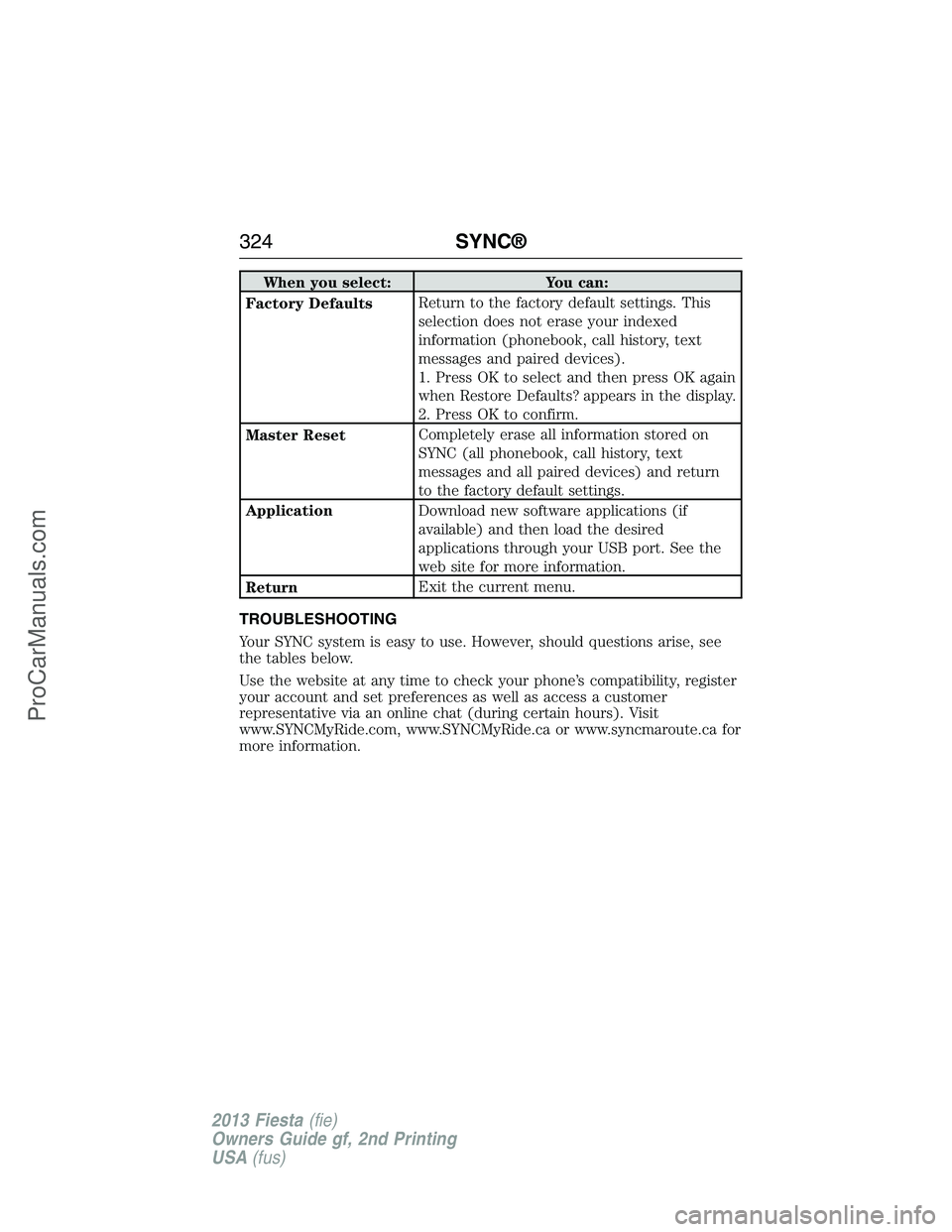
When you select: You can:
Factory DefaultsReturn to the factory default settings. This
selection does not erase your indexed
information (phonebook, call history, text
messages and paired devices).
1. Press OK to select and then press OK again
when Restore Defaults? appears in the display.
2. Press OK to confirm.
Master ResetCompletely erase all information stored on
SYNC (all phonebook, call history, text
messages and all paired devices) and return
to the factory default settings.
ApplicationDownload new software applications (if
available) and then load the desired
applications through your USB port. See the
web site for more information.
ReturnExit the current menu.
TROUBLESHOOTING
Your SYNC system is easy to use. However, should questions arise, see
the tables below.
Use the website at any time to check your phone’s compatibility, register
your account and set preferences as well as access a customer
representative via an online chat (during certain hours). Visit
www.SYNCMyRide.com, www.SYNCMyRide.ca or www.syncmaroute.ca for
more information.
324SYNC®
2013 Fiesta(fie)
Owners Guide gf, 2nd Printing
USA(fus)
ProCarManuals.com
Page 328 of 346
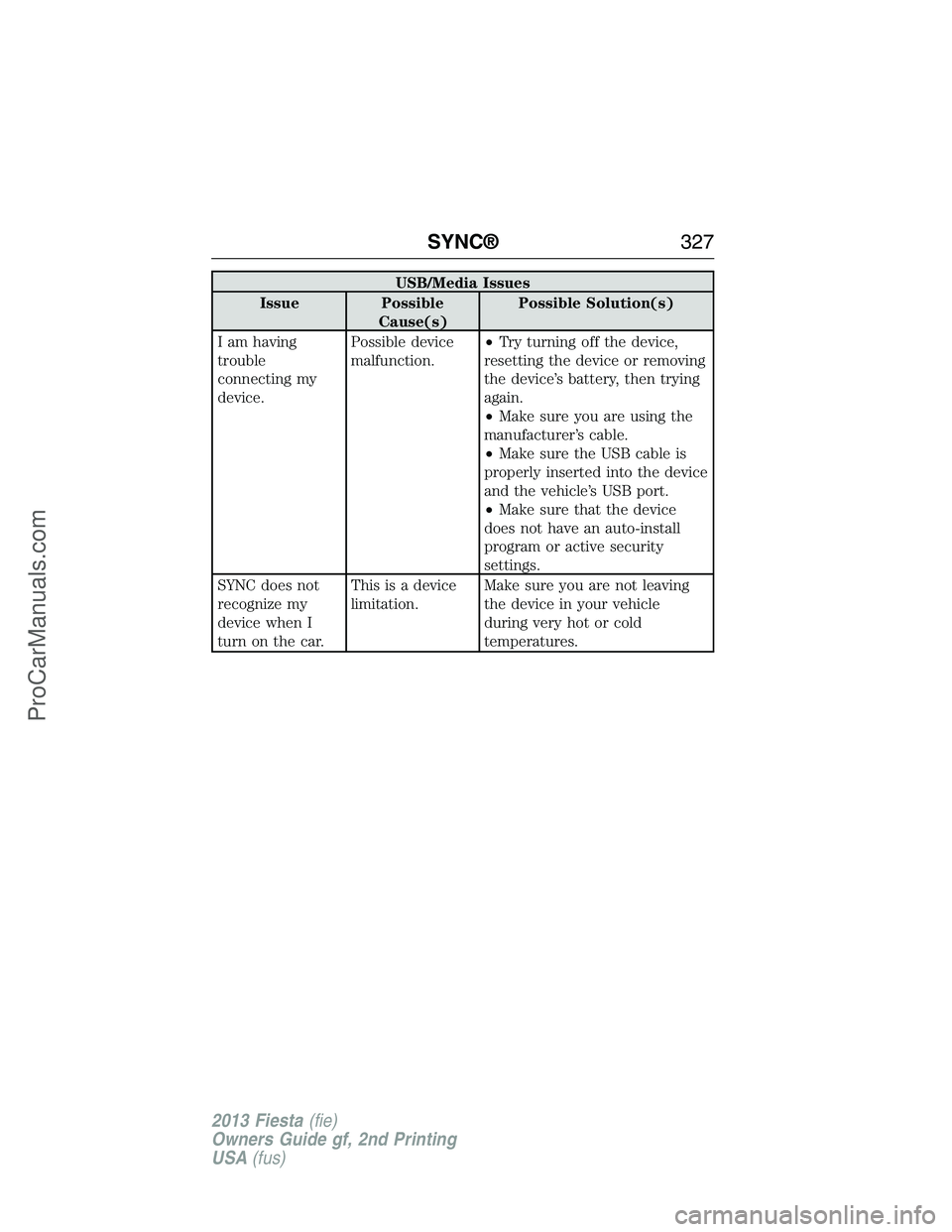
USB/Media Issues
Issue Possible
Cause(s)Possible Solution(s)
I am having
trouble
connecting my
device.Possible device
malfunction.•Try turning off the device,
resetting the device or removing
the device’s battery, then trying
again.
•Make sure you are using the
manufacturer’s cable.
•Make sure the USB cable is
properly inserted into the device
and the vehicle’s USB port.
•Make sure that the device
does not have an auto-install
program or active security
settings.
SYNC does not
recognize my
device when I
turn on the car.This is a device
limitation.Make sure you are not leaving
the device in your vehicle
during very hot or cold
temperatures.
SYNC®327
2013 Fiesta(fie)
Owners Guide gf, 2nd Printing
USA(fus)
ProCarManuals.com
Page 329 of 346
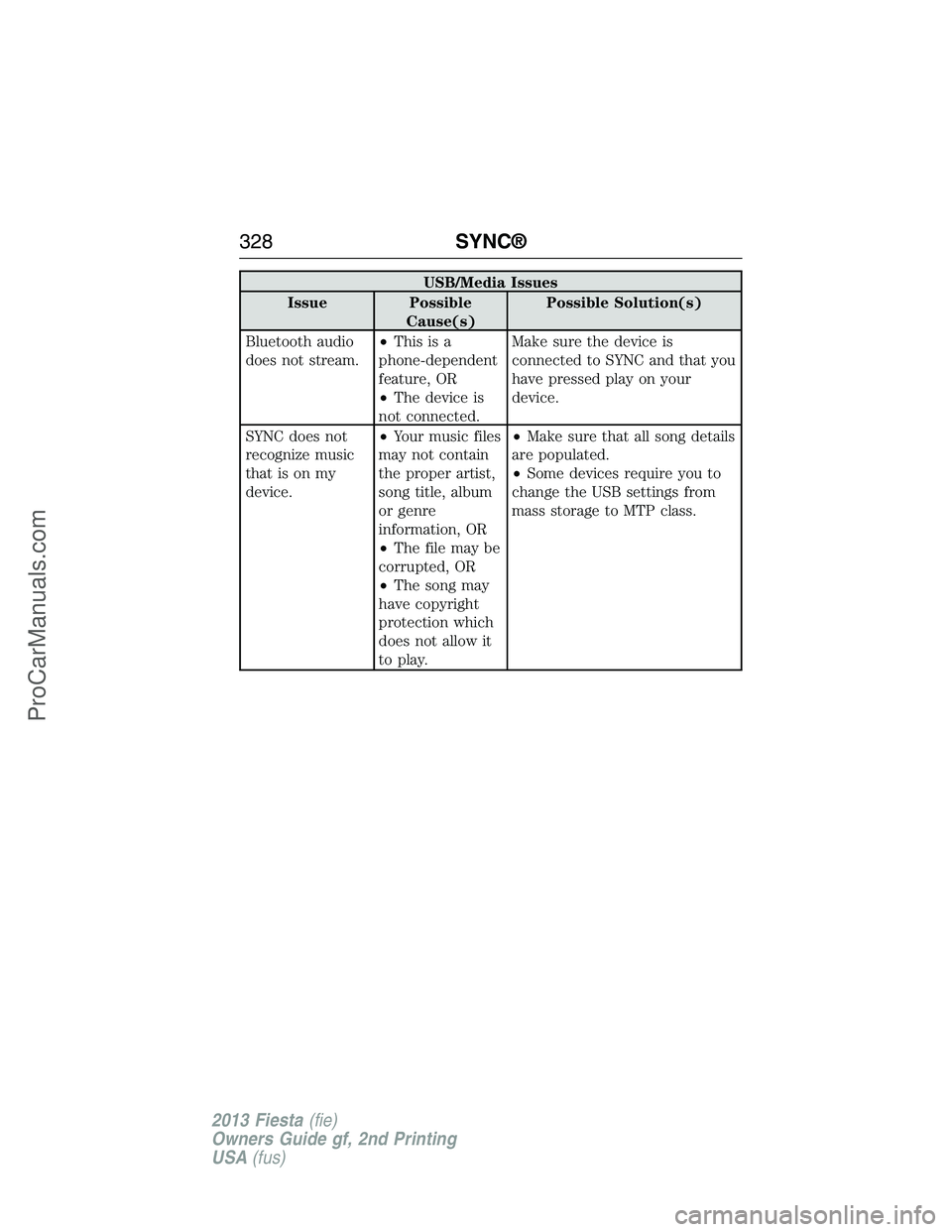
USB/Media Issues
Issue Possible
Cause(s)Possible Solution(s)
Bluetooth audio
does not stream.•Thisisa
phone-dependent
feature, OR
•The device is
not connected.Make sure the device is
connected to SYNC and that you
have pressed play on your
device.
SYNC does not
recognize music
that is on my
device.•Your music files
may not contain
the proper artist,
song title, album
or genre
information, OR
•The file may be
corrupted, OR
•The song may
have copyright
protection which
does not allow it
to play.•Make sure that all song details
are populated.
•Some devices require you to
change the USB settings from
mass storage to MTP class.
328SYNC®
2013 Fiesta(fie)
Owners Guide gf, 2nd Printing
USA(fus)
ProCarManuals.com
Page 345 of 346
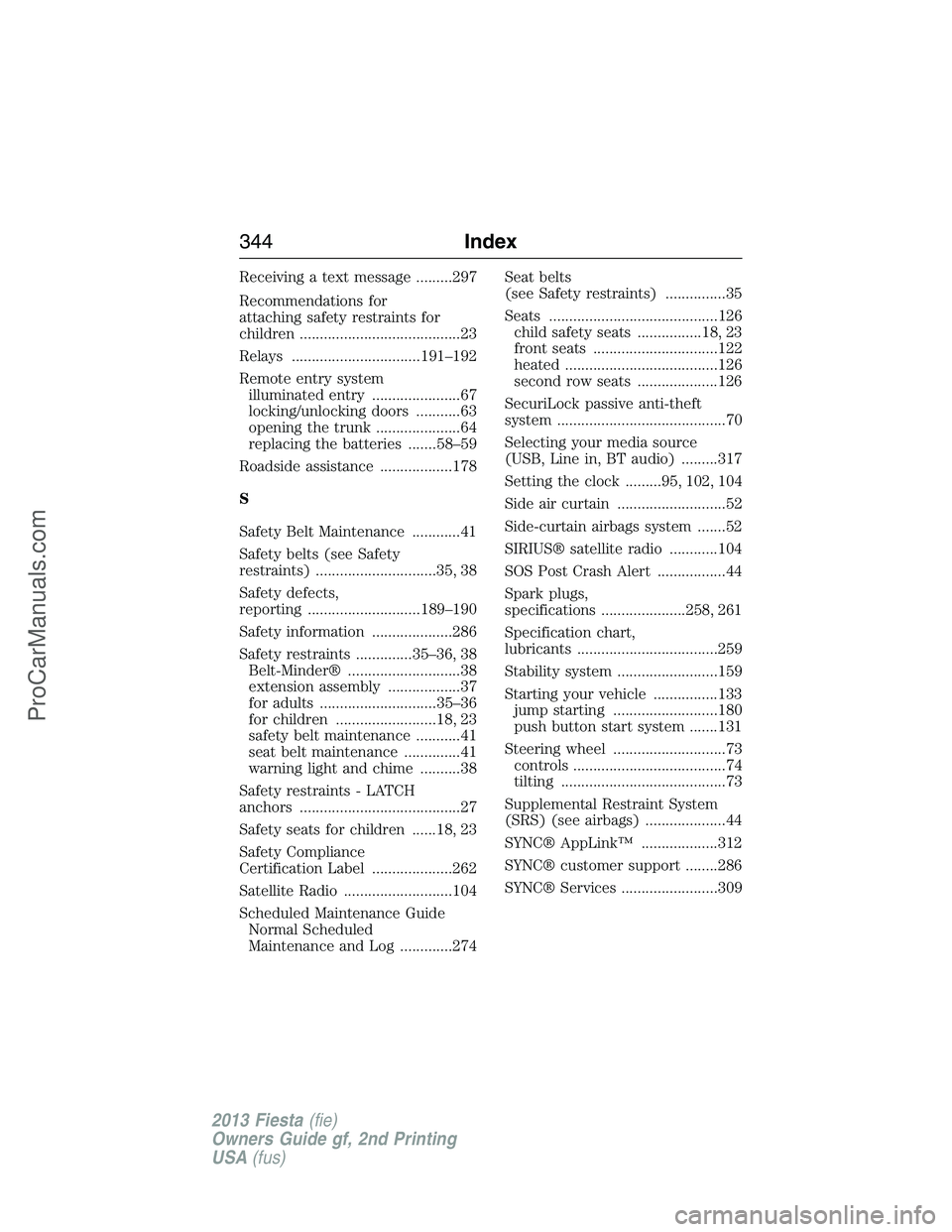
Receiving a text message .........297
Recommendations for
attaching safety restraints for
children ........................................23
Relays ................................191–192
Remote entry system
illuminated entry ......................67
locking/unlocking doors ...........63
opening the trunk .....................64
replacing the batteries .......58–59
Roadside assistance ..................178
S
Safety Belt Maintenance ............41
Safety belts (see Safety
restraints) ..............................35, 38
Safety defects,
reporting ............................189–190
Safety information ....................286
Safety restraints ..............35–36, 38
Belt-Minder® ............................38
extension assembly ..................37
for adults .............................35–36
for children .........................18, 23
safety belt maintenance ...........41
seat belt maintenance ..............41
warning light and chime ..........38
Safety restraints - LATCH
anchors ........................................27
Safety seats for children ......18, 23
Safety Compliance
Certification Label ....................262
Satellite Radio ...........................104
Scheduled Maintenance Guide
Normal Scheduled
Maintenance and Log .............274Seat belts
(see Safety restraints) ...............35
Seats ..........................................126
child safety seats ................18, 23
front seats ...............................122
heated ......................................126
second row seats ....................126
SecuriLock passive anti-theft
system ..........................................70
Selecting your media source
(USB, Line in, BT audio) .........317
Setting the clock .........95, 102, 104
Side air curtain ...........................52
Side-curtain airbags system .......52
SIRIUS® satellite radio ............104
SOS Post Crash Alert .................44
Spark plugs,
specifications .....................258, 261
Specification chart,
lubricants ...................................259
Stability system .........................159
Starting your vehicle ................133
jump starting ..........................180
push button start system .......131
Steering wheel ............................73
controls ......................................74
tilting .........................................73
Supplemental Restraint System
(SRS) (see airbags) ....................44
SYNC® AppLink™ ...................312
SYNC® customer support ........286
SYNC® Services ........................309
344Index
2013 Fiesta(fie)
Owners Guide gf, 2nd Printing
USA(fus)
ProCarManuals.com
Page 346 of 346
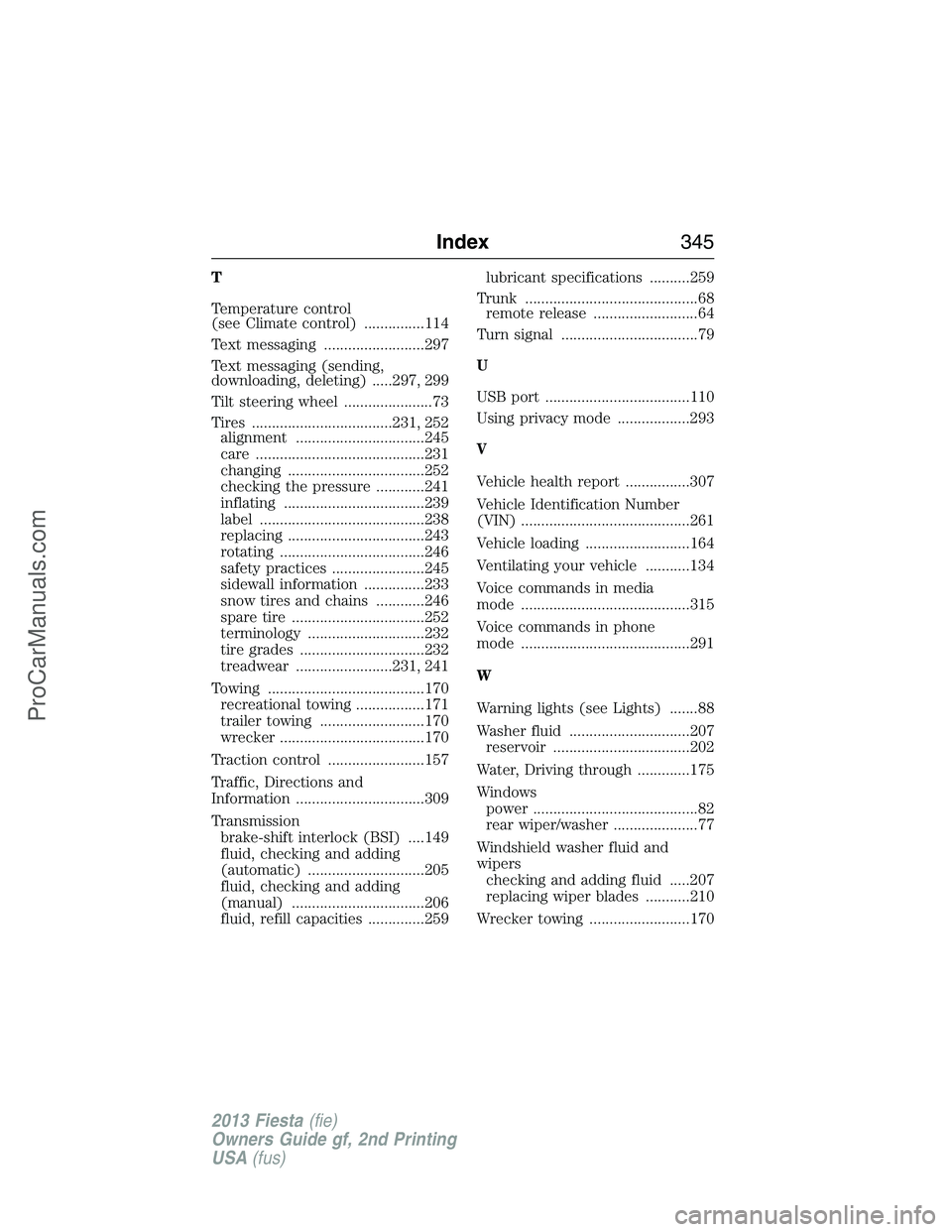
T
Temperature control
(see Climate control) ...............114
Text messaging .........................297
Text messaging (sending,
downloading, deleting) .....297, 299
Tilt steering wheel ......................73
Tires ...................................231, 252
alignment ................................245
care ..........................................231
changing ..................................252
checking the pressure ............241
inflating ...................................239
label .........................................238
replacing ..................................243
rotating ....................................246
safety practices .......................245
sidewall information ...............233
snow tires and chains ............246
spare tire .................................252
terminology .............................232
tire grades ...............................232
treadwear ........................231, 241
Towing .......................................170
recreational towing .................171
trailer towing ..........................170
wrecker ....................................170
Traction control ........................157
Traffic, Directions and
Information ................................309
Transmission
brake-shift interlock (BSI) ....149
fluid, checking and adding
(automatic) .............................205
fluid, checking and adding
(manual) .................................206
fluid, refill capacities ..............259lubricant specifications ..........259
Trunk ...........................................68
remote release ..........................64
Turn signal ..................................79
U
USB port ....................................110
Using privacy mode ..................293
V
Vehicle health report ................307
Vehicle Identification Number
(VIN) ..........................................261
Vehicle loading ..........................164
Ventilating your vehicle ...........134
Voice commands in media
mode ..........................................315
Voice commands in phone
mode ..........................................291
W
Warning lights (see Lights) .......88
Washer fluid ..............................207
reservoir ..................................202
Water, Driving through .............175
Windows
power .........................................82
rear wiper/washer .....................77
Windshield washer fluid and
wipers
checking and adding fluid .....207
replacing wiper blades ...........210
Wrecker towing .........................170
Index345
2013 Fiesta(fie)
Owners Guide gf, 2nd Printing
USA(fus)
ProCarManuals.com