USB FORD FIESTA 2013 Owners Manual
[x] Cancel search | Manufacturer: FORD, Model Year: 2013, Model line: FIESTA, Model: FORD FIESTA 2013Pages: 346, PDF Size: 5.27 MB
Page 4 of 346
Instrument Cluster 87
Gauges.............................................87
Warning lamps and indicators.............................88
Audible warnings and indicators...........................93
Information Displays 94
Multifunction display...................................95
Trip computer........................................95
Information messages...................................96
Audio System 100
AM/FMstereo........................................102
AM/FM/CD/SIRIUS Satellite Radio with SYNC.................104
Auxiliary input jack...................................109
USBport...........................................110
Satellite radio information...............................111
Climate Control 114
Manual heating and air conditioning........................114
Rear window defroster.................................117
Cabin air filter.......................................118
Seats 119
Sitting in the correct position............................119
Head restraints.......................................120
Front seats..........................................122
Heated seats........................................126
Rear seats..........................................126
Table of Contents3
2013 Fiesta(fie)
Owners Guide gf, 2nd Printing
USA(fus)
ProCarManuals.com
Page 104 of 346
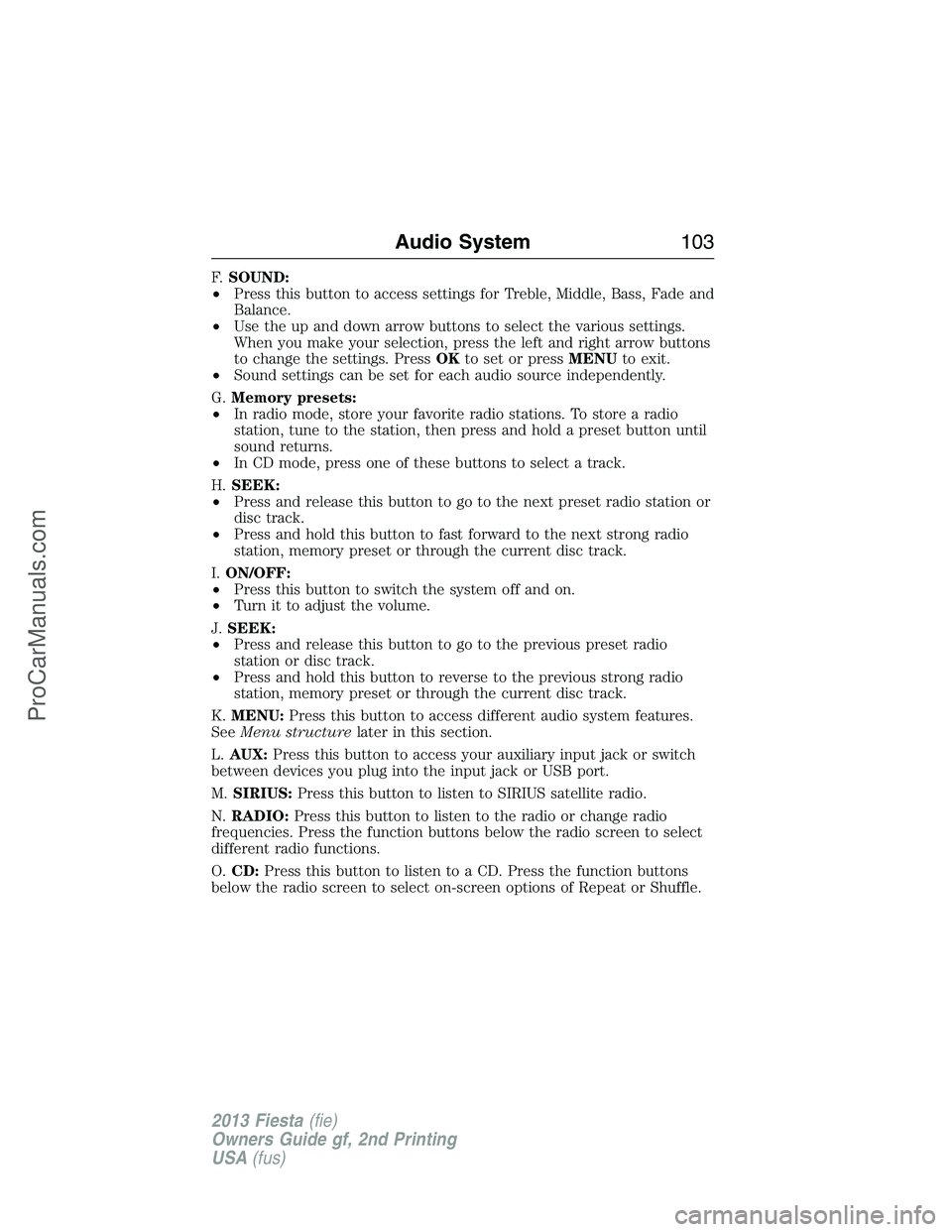
F.SOUND:
•Press this button to access settings for Treble, Middle, Bass, Fade and
Balance.
•Use the up and down arrow buttons to select the various settings.
When you make your selection, press the left and right arrow buttons
to change the settings. PressOKto set or pressMENUto exit.
•Sound settings can be set for each audio source independently.
G.Memory presets:
•In radio mode, store your favorite radio stations. To store a radio
station, tune to the station, then press and hold a preset button until
sound returns.
•In CD mode, press one of these buttons to select a track.
H.SEEK:
•Press and release this button to go to the next preset radio station or
disc track.
•Press and hold this button to fast forward to the next strong radio
station, memory preset or through the current disc track.
I.ON/OFF:
•Press this button to switch the system off and on.
•Turn it to adjust the volume.
J.SEEK:
•Press and release this button to go to the previous preset radio
station or disc track.
•Press and hold this button to reverse to the previous strong radio
station, memory preset or through the current disc track.
K.MENU:Press this button to access different audio system features.
SeeMenu structurelater in this section.
L.AUX:Press this button to access your auxiliary input jack or switch
between devices you plug into the input jack or USB port.
M.SIRIUS:Press this button to listen to SIRIUS satellite radio.
N.RADIO:Press this button to listen to the radio or change radio
frequencies. Press the function buttons below the radio screen to select
different radio functions.
O.CD:Press this button to listen to a CD. Press the function buttons
below the radio screen to select on-screen options of Repeat or Shuffle.
Audio System103
2013 Fiesta(fie)
Owners Guide gf, 2nd Printing
USA(fus)
ProCarManuals.com
Page 107 of 346
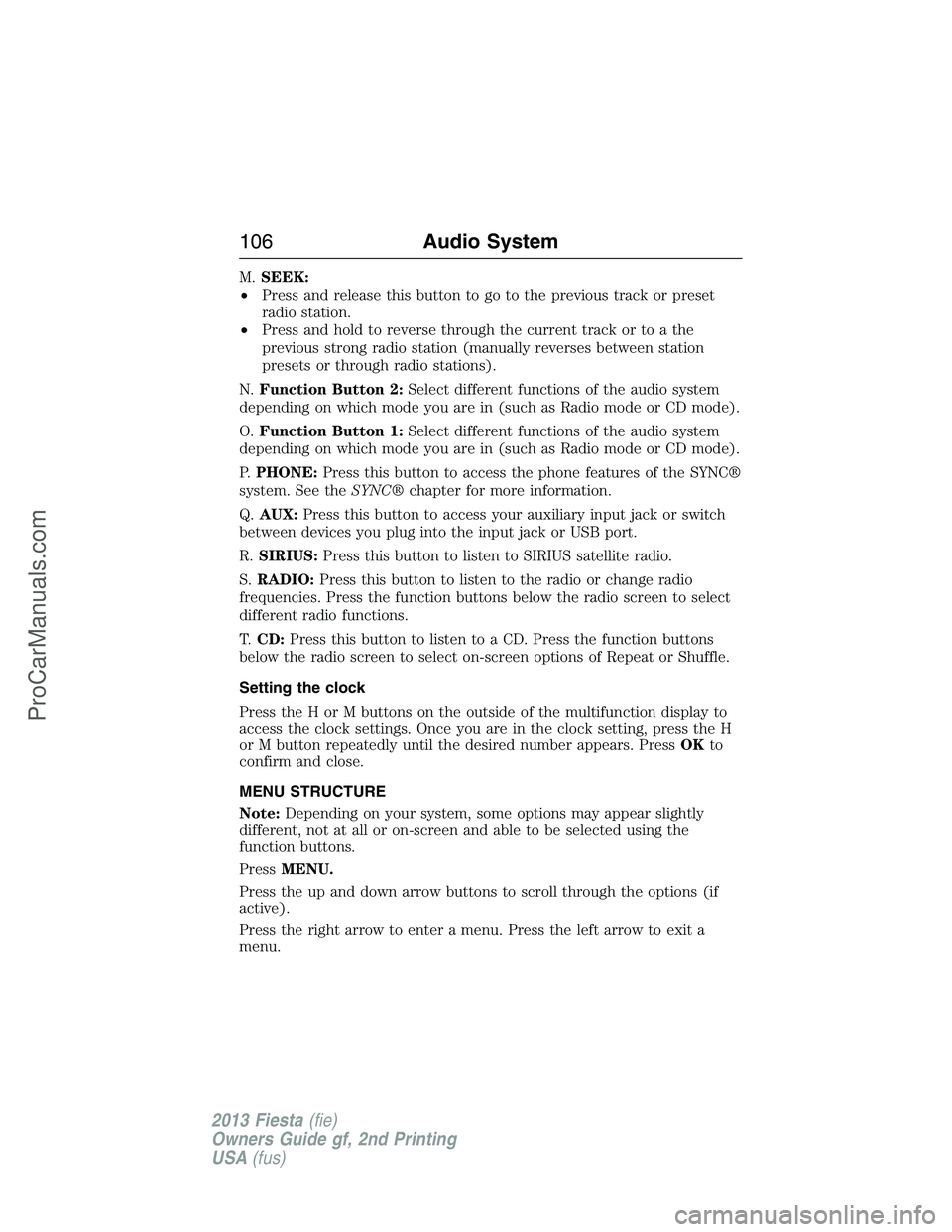
M.SEEK:
•Press and release this button to go to the previous track or preset
radio station.
•Press and hold to reverse through the current track or to a the
previous strong radio station (manually reverses between station
presets or through radio stations).
N.Function Button 2:Select different functions of the audio system
depending on which mode you are in (such as Radio mode or CD mode).
O.Function Button 1:Select different functions of the audio system
depending on which mode you are in (such as Radio mode or CD mode).
P.PHONE:Press this button to access the phone features of the SYNC®
system. See theSYNC®chapter for more information.
Q.AUX:Press this button to access your auxiliary input jack or switch
between devices you plug into the input jack or USB port.
R.SIRIUS:Press this button to listen to SIRIUS satellite radio.
S.RADIO:Press this button to listen to the radio or change radio
frequencies. Press the function buttons below the radio screen to select
different radio functions.
T.CD:Press this button to listen to a CD. Press the function buttons
below the radio screen to select on-screen options of Repeat or Shuffle.
Setting the clock
Press the H or M buttons on the outside of the multifunction display to
access the clock settings. Once you are in the clock setting, press the H
or M button repeatedly until the desired number appears. PressOKto
confirm and close.
MENU STRUCTURE
Note:Depending on your system, some options may appear slightly
different, not at all or on-screen and able to be selected using the
function buttons.
PressMENU.
Press the up and down arrow buttons to scroll through the options (if
active).
Press the right arrow to enter a menu. Press the left arrow to exit a
menu.
106Audio System
2013 Fiesta(fie)
Owners Guide gf, 2nd Printing
USA(fus)
ProCarManuals.com
Page 111 of 346
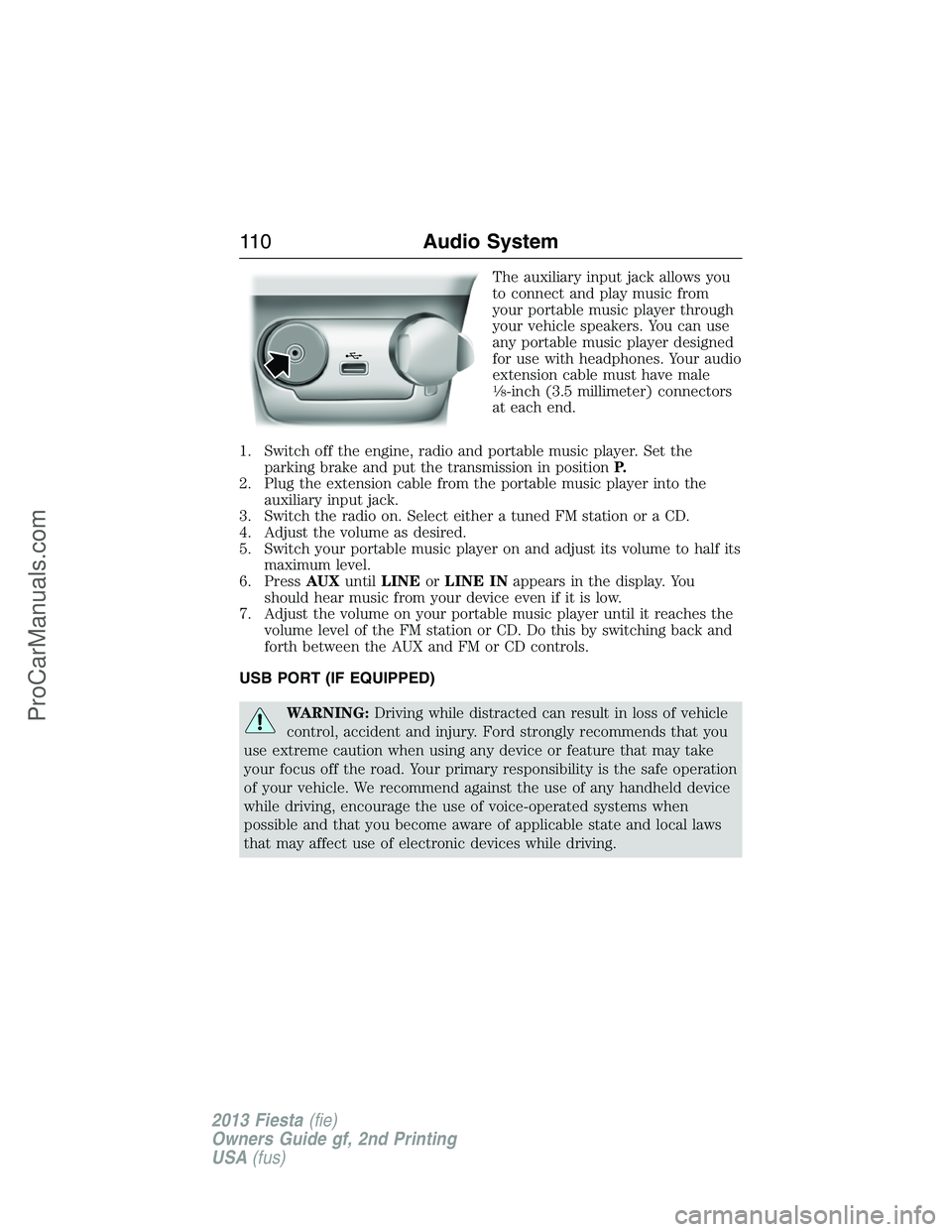
The auxiliary input jack allows you
to connect and play music from
your portable music player through
your vehicle speakers. You can use
any portable music player designed
for use with headphones. Your audio
extension cable must have male
18-inch (3.5 millimeter) connectors
at each end.
1. Switch off the engine, radio and portable music player. Set the
parking brake and put the transmission in positionP.
2. Plug the extension cable from the portable music player into the
auxiliary input jack.
3. Switch the radio on. Select either a tuned FM station or a CD.
4. Adjust the volume as desired.
5. Switch your portable music player on and adjust its volume to half its
maximum level.
6. PressAUXuntilLINEorLINE INappears in the display. You
should hear music from your device even if it is low.
7. Adjust the volume on your portable music player until it reaches the
volume level of the FM station or CD. Do this by switching back and
forth between the AUX and FM or CD controls.
USB PORT (IF EQUIPPED)
WARNING:Driving while distracted can result in loss of vehicle
control, accident and injury. Ford strongly recommends that you
use extreme caution when using any device or feature that may take
your focus off the road. Your primary responsibility is the safe operation
of your vehicle. We recommend against the use of any handheld device
while driving, encourage the use of voice-operated systems when
possible and that you become aware of applicable state and local laws
that may affect use of electronic devices while driving.
11 0Audio System
2013 Fiesta(fie)
Owners Guide gf, 2nd Printing
USA(fus)
ProCarManuals.com
Page 112 of 346
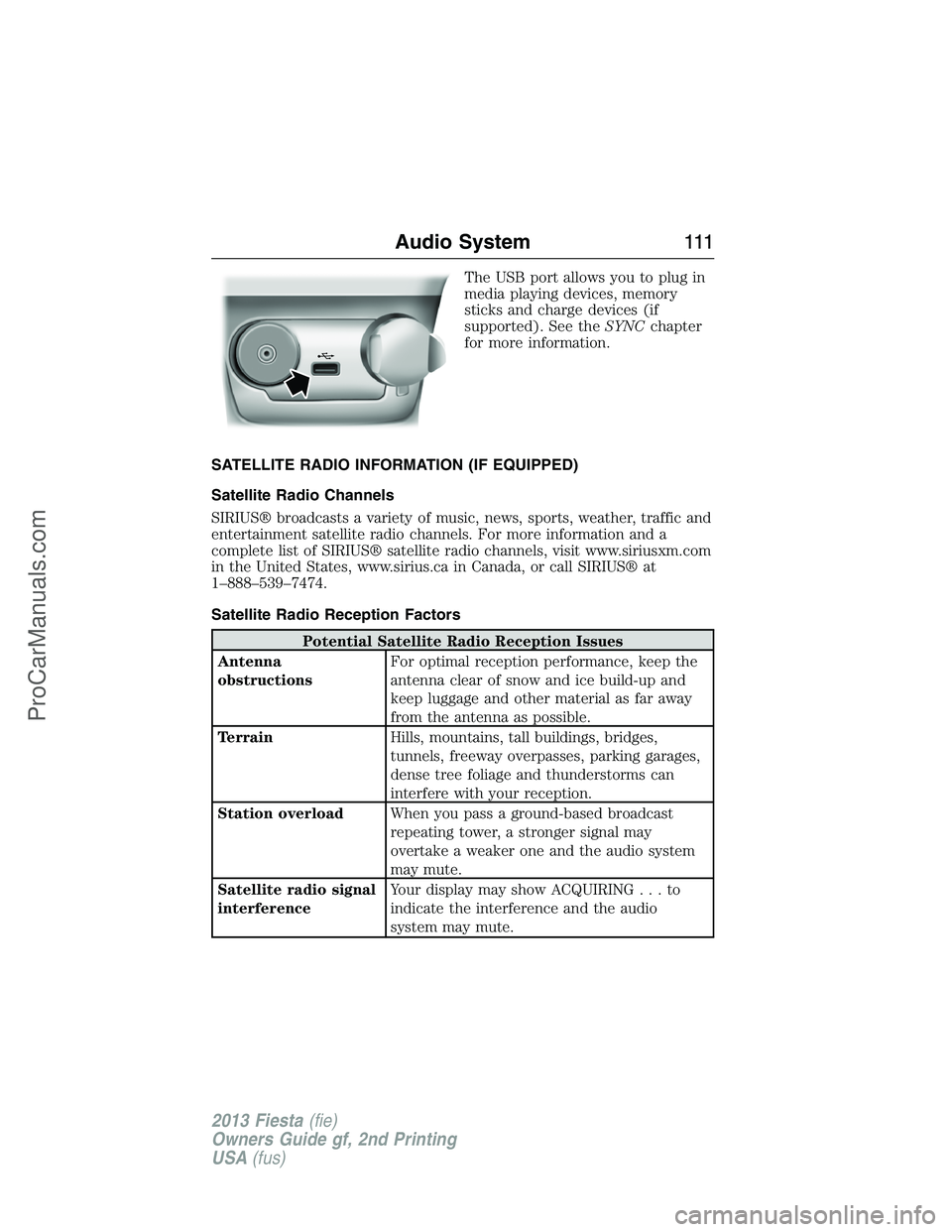
The USB port allows you to plug in
media playing devices, memory
sticks and charge devices (if
supported). See theSYNCchapter
for more information.
SATELLITE RADIO INFORMATION (IF EQUIPPED)
Satellite Radio Channels
SIRIUS® broadcasts a variety of music, news, sports, weather, traffic and
entertainment satellite radio channels. For more information and a
complete list of SIRIUS® satellite radio channels, visit www.siriusxm.com
in the United States, www.sirius.ca in Canada, or call SIRIUS® at
1–888–539–7474.
Satellite Radio Reception Factors
Potential Satellite Radio Reception Issues
Antenna
obstructionsFor optimal reception performance, keep the
antenna clear of snow and ice build-up and
keep luggage and other material as far away
from the antenna as possible.
TerrainHills, mountains, tall buildings, bridges,
tunnels, freeway overpasses, parking garages,
dense tree foliage and thunderstorms can
interfere with your reception.
Station overloadWhen you pass a ground-based broadcast
repeating tower, a stronger signal may
overtake a weaker one and the audio system
may mute.
Satellite radio signal
interferenceYour display may show ACQUIRING...to
indicate the interference and the audio
system may mute.
Audio System111
2013 Fiesta(fie)
Owners Guide gf, 2nd Printing
USA(fus)
ProCarManuals.com
Page 286 of 346
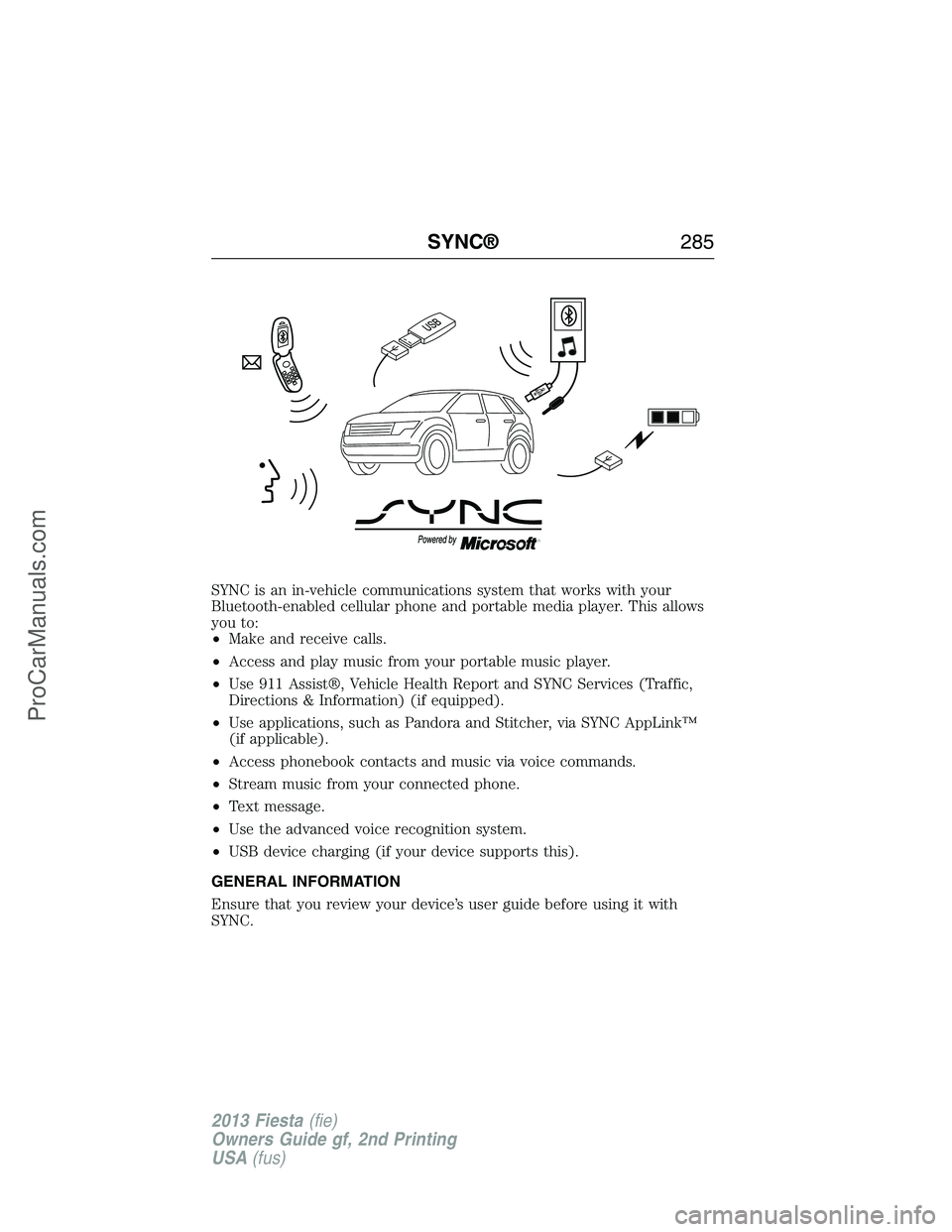
SYNC is an in-vehicle communications system that works with your
Bluetooth-enabled cellular phone and portable media player. This allows
you to:
•Make and receive calls.
•Access and play music from your portable music player.
•Use 911 Assist®, Vehicle Health Report and SYNC Services (Traffic,
Directions & Information) (if equipped).
•Use applications, such as Pandora and Stitcher, via SYNC AppLink™
(if applicable).
•Access phonebook contacts and music via voice commands.
•Stream music from your connected phone.
•Text message.
•Use the advanced voice recognition system.
•USB device charging (if your device supports this).
GENERAL INFORMATION
Ensure that you review your device’s user guide before using it with
SYNC.
SYNC®285
2013 Fiesta(fie)
Owners Guide gf, 2nd Printing
USA(fus)
ProCarManuals.com
Page 289 of 346
Initiating a Voice Session
Push the voice icon; a tone sounds and Listening appears in the
display. Say any of the following:
Say: If you want to:
“Phone” Make calls.
“USB” Access the device connected to your USB
port.
“Bluetooth Audio” Stream audio from your phone.
“Line in” Access the device connected to the auxiliary
input jack.
“Cancel” Cancel the requested action.
“SYNC” Return to the main menu.
“Voice settings” Adjust the level of voice interaction and
feedback.
“Vehicle Health Report” Run a vehicle health report.
*
“Services” Access the SYNC Services portal.*
“Mobile apps” Access mobile applications.*
“Help” Hear a list of voice commands available in the
current mode.
*If equipped, U.S. only.
System Interaction and Feedback
The system provides feedback through audible tones, prompts, questions
and spoken confirmations depending on the situation and the chosen
level of interaction (voice settings). You can customize the voice
recognition system to provide more or less instruction and feedback.
The default setting is to a higher level of interaction in order to help you
learn to use the system. You can change these settings at any time.
288SYNC®
2013 Fiesta(fie)
Owners Guide gf, 2nd Printing
USA(fus)
ProCarManuals.com
Page 313 of 346
Disconnecting from SYNC Services
1. Press and hold the phone button on the steering wheel.
2. Say “Good-bye” from the SYNC Services main menu.
SYNC Services Quick Tips
PersonalizingYou can personalize your Services feature to
provide quicker access to your most used or
favorite information. You can save address
points such as work or home. You can also
save favorite information like sports teams or
a news category. To learn more, log onto
www.SYNCMyRide.com.
Push to interruptPress the voice button at any time (while you
are connected to SYNC TDI Services) to
interrupt a voice prompt or an audio clip
(such as a sports report), wait for the
listening tone, and say your voice command.
PortableYour subscription is associated with your
Bluetooth-enabled cellular phone number, not
your VIN (Vehicle Identification Number). You
can pair and connect your phone to any
vehicle equipped with Traffic, Directions and
Information and continue enjoying your
personalized services.
You can even access your account outside the
vehicle. Just use the number on your phone’s
call history. Traffic and Directions features do
not function properly but information services
and the 411 connect and text message
features are available.
SYNC AppLink™
Note:Your smartphone must be paired and connected to SYNC to access
AppLink.
Note:iPhone® users need to connect the phone to the USB port in
order to start the application. It is recommended to lock your iPhone®
after starting an application.
312SYNC®
2013 Fiesta(fie)
Owners Guide gf, 2nd Printing
USA(fus)
ProCarManuals.com
Page 315 of 346
To Access Using Voice Commands
1. Press the voice icon.
2. When prompted, say “Mobile Apps”.
3. Say the name of the application after the tone.
4. The app should start. While an app is running through SYNC, you can
press the voice button and speak commands specific to the app, such
as “Play Station Quickmix”. Say “Help” to discover available voice
commands.
USING SYNC WITH YOUR MEDIA PLAYER
You can access and play music from your digital music player over the
vehicle’s speaker system using the system’s media menu or voice
commands. You can also sort and play your music by specific categories,
such as artists, albums, etc.
SYNC is capable of hosting nearly any digital media player including:
iPod®, Zune™, Plays from device players, and most USB drives. SYNC
also supports audio formats such as MP3, WMA, WAV and ACC.
Connecting Your Digital Media Player via the USB Port
Note:If your digital media player has a power switch, ensure that the
device is turned on.
To connect using voice commands:
1. Plug the device into the vehicle’s USB port.
2. Press the voice icon and when prompted, say “USB”.
3. You can now play music by saying any of the appropriate voice
commands. See the media voice commands.
To connect using the system menu:
1. Plug the device into the vehicle’s USB port.
2. Press AUX and then MENU to enter the Media Menu.
3. Scroll until Select Source appears and press OK.
4. Scroll to select USB and press OK.
5. Depending on how many digital media files are on your connected
device, Indexing may appear in the radio display. When indexing is
complete, the screen returns to the Play Menu.
6. Press OK and scroll through selections of:
•Play All
•Artists
•Albums
•Genres
•Playlists
•Tracks
314SYNC®
2013 Fiesta(fie)
Owners Guide gf, 2nd Printing
USA(fus)
ProCarManuals.com
Page 316 of 346
•Explore USB
•Similar Music
•Return
When the desired selection appears in the display, press OK to build
your desired music selection.
What’s Playing?
At any time when a track is playing, you can press the voice
icon and ask the system, “What’s playing?”. The system reads
the metadata tags (if populated) of the playing track to you.
Media Voice Commands
Press the voice icon and, when prompted, say “USB” then any
of the following:
“USB”
“Autoplay off”
“Autoplay on”
“(Phone) (Media) (Bluetooth) Connections”
“Pause”
“Play”
“Play album
1,3
“Play all”
“Play artist
“Play genre
“Play next folder”2
“Play next track”
“Play playlist
“Play previous folder”2
“Play previous track”
“Play song
“Play track
“Refine album
“Refine artist
“Refine song
“Refine track
SYNC®315
2013 Fiesta(fie)
Owners Guide gf, 2nd Printing
USA(fus)
ProCarManuals.com