reset FORD FIESTA 2014 6.G User Guide
[x] Cancel search | Manufacturer: FORD, Model Year: 2014, Model line: FIESTA, Model: FORD FIESTA 2014 6.GPages: 396, PDF Size: 5.58 MB
Page 125 of 396
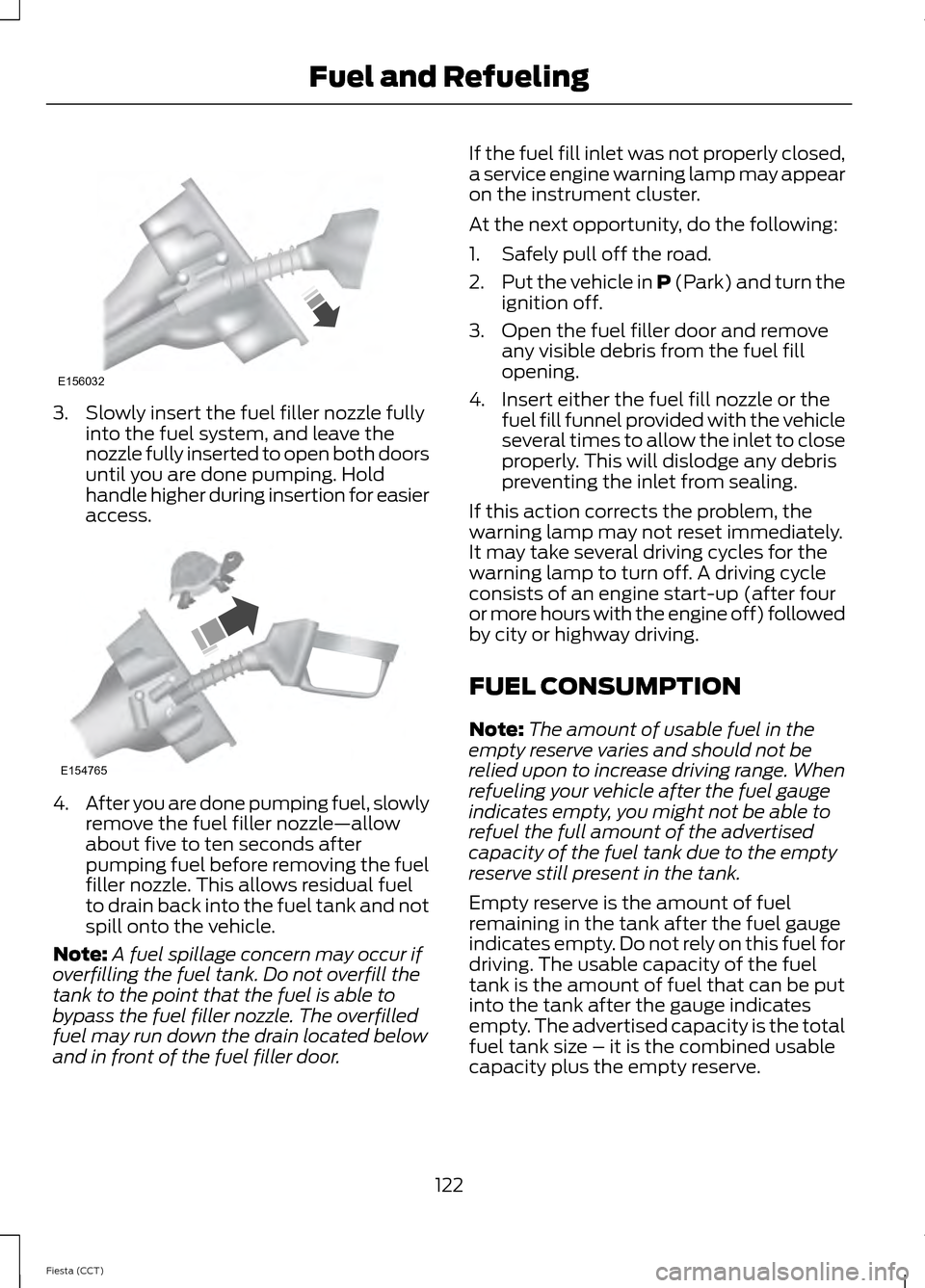
3. Slowly insert the fuel filler nozzle fully
into the fuel system, and leave the
nozzle fully inserted to open both doors
until you are done pumping. Hold
handle higher during insertion for easier
access. 4.
After you are done pumping fuel, slowly
remove the fuel filler nozzle—allow
about five to ten seconds after
pumping fuel before removing the fuel
filler nozzle. This allows residual fuel
to drain back into the fuel tank and not
spill onto the vehicle.
Note: A fuel spillage concern may occur if
overfilling the fuel tank. Do not overfill the
tank to the point that the fuel is able to
bypass the fuel filler nozzle. The overfilled
fuel may run down the drain located below
and in front of the fuel filler door. If the fuel fill inlet was not properly closed,
a service engine warning lamp may appear
on the instrument cluster.
At the next opportunity, do the following:
1. Safely pull off the road.
2.
Put the vehicle in P (Park) and turn the
ignition off.
3. Open the fuel filler door and remove any visible debris from the fuel fill
opening.
4. Insert either the fuel fill nozzle or the fuel fill funnel provided with the vehicle
several times to allow the inlet to close
properly. This will dislodge any debris
preventing the inlet from sealing.
If this action corrects the problem, the
warning lamp may not reset immediately.
It may take several driving cycles for the
warning lamp to turn off. A driving cycle
consists of an engine start-up (after four
or more hours with the engine off) followed
by city or highway driving.
FUEL CONSUMPTION
Note: The amount of usable fuel in the
empty reserve varies and should not be
relied upon to increase driving range. When
refueling your vehicle after the fuel gauge
indicates empty, you might not be able to
refuel the full amount of the advertised
capacity of the fuel tank due to the empty
reserve still present in the tank.
Empty reserve is the amount of fuel
remaining in the tank after the fuel gauge
indicates empty. Do not rely on this fuel for
driving. The usable capacity of the fuel
tank is the amount of fuel that can be put
into the tank after the gauge indicates
empty. The advertised capacity is the total
fuel tank size – it is the combined usable
capacity plus the empty reserve.
122
Fiesta (CCT) Fuel and RefuelingE156032 E154765
Page 147 of 396
STEERING
Electric Power Steering
WARNING
Obtain immediate service if a system
error is detected. You may not notice
any difference in the feel of your
steering, but a serious condition may exist.
Failure to do so may result in loss of
steering control. Note:
Your vehicle is equipped with an
electric power-assisted steering system.
There is no fluid reservoir to check or fill.
The electric power steering system has
diagnostic checks that continuously
monitor the system to ensure proper
operation of the electronic system. When
an electronic error is detected, a message
will be displayed in the information display.
If this happens, stop the vehicle in a safe
place, and turn off the engine. After at least
10 seconds, reset the system by restarting
the engine, and watch the information
display for a steering message. If a steering
message returns, or returns while driving,
take the vehicle to your dealer to have it
checked.
If your vehicle loses electrical power while
you are driving (or if the ignition is turned
off), you can steer the vehicle manually,
but it takes more effort. Extreme
continuous steering may increase the effort
it takes for you to steer. This occurs to
prevent internal overheating and
permanent damage to your steering
system. If this should occur, you will neither
lose the ability to steer the vehicle
manually nor will it cause permanent
damage. Typical steering and driving
maneuvers will allow the system to cool
and steering assist will return to normal. Steering Tips
If the steering wanders or pulls, check for:
•
an improperly inflated tire
• uneven tire wear
• loose or worn suspension components
• loose or worn steering components
• improper vehicle alignment
A high crown in the road or high crosswinds
may also make the steering seem to
wander or pull.
Adaptive Learning
The EPS system adaptive learning helps
correct for road irregularities and improves
overall handling and steering feel. It
communicates with the vehicle's brake
system to help operate advanced stability
control and accident avoidance systems.
Additionally, whenever the battery is
disconnected or a new battery installed,
the vehicle must be driven a short distance
before the strategy is relearned and all
systems are reactivated.
144
Fiesta (CCT) Driving Aids
Page 186 of 396
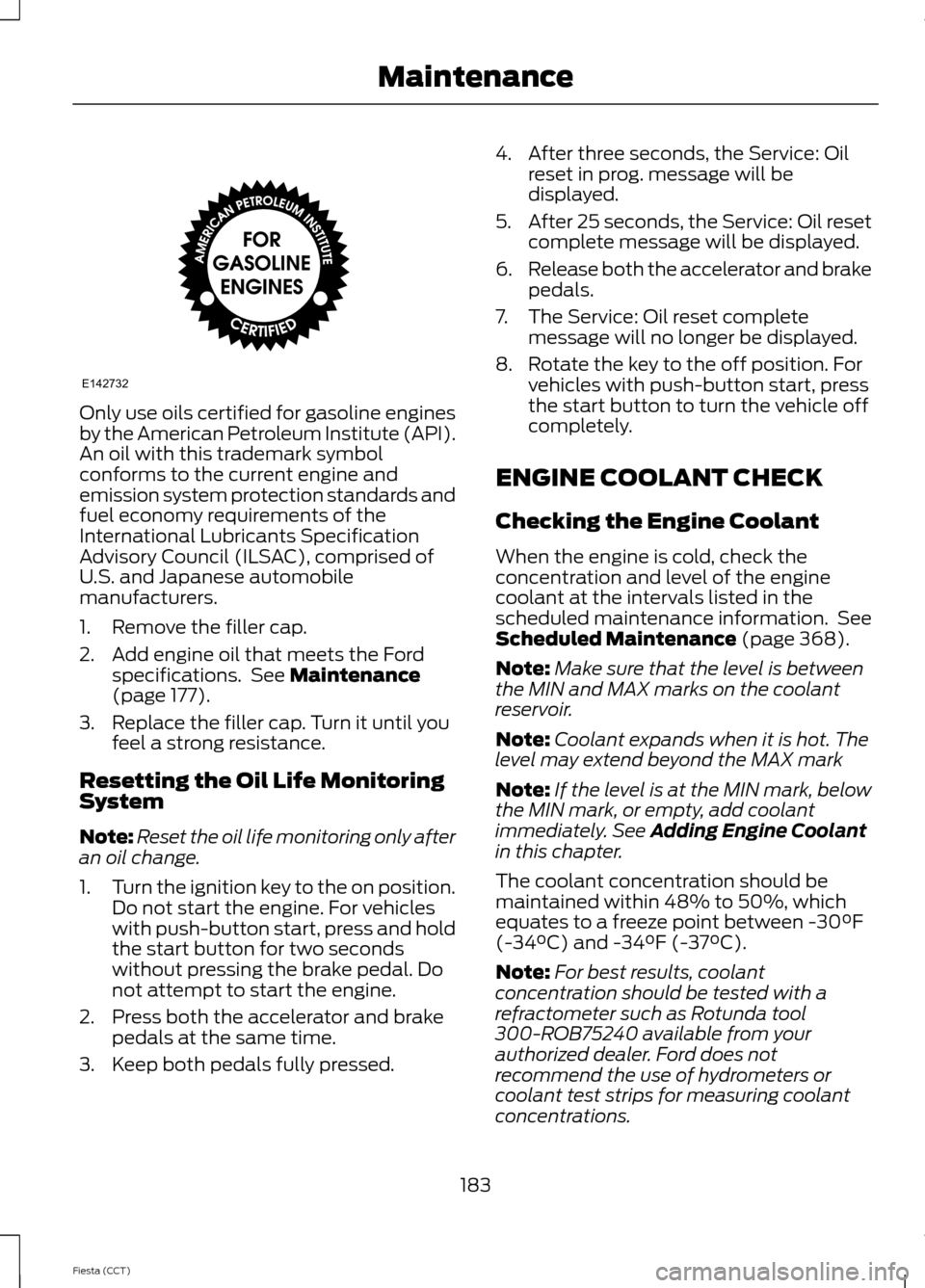
Only use oils certified for gasoline engines
by the American Petroleum Institute (API).
An oil with this trademark symbol
conforms to the current engine and
emission system protection standards and
fuel economy requirements of the
International Lubricants Specification
Advisory Council (ILSAC), comprised of
U.S. and Japanese automobile
manufacturers.
1. Remove the filler cap.
2. Add engine oil that meets the Ford
specifications. See Maintenance
(page 177).
3. Replace the filler cap. Turn it until you feel a strong resistance.
Resetting the Oil Life Monitoring
System
Note: Reset the oil life monitoring only after
an oil change.
1. Turn the ignition key to the on position.
Do not start the engine. For vehicles
with push-button start, press and hold
the start button for two seconds
without pressing the brake pedal. Do
not attempt to start the engine.
2. Press both the accelerator and brake pedals at the same time.
3. Keep both pedals fully pressed. 4. After three seconds, the Service: Oil
reset in prog. message will be
displayed.
5. After 25 seconds, the Service: Oil reset
complete message will be displayed.
6. Release both the accelerator and brake
pedals.
7. The Service: Oil reset complete message will no longer be displayed.
8. Rotate the key to the off position. For vehicles with push-button start, press
the start button to turn the vehicle off
completely.
ENGINE COOLANT CHECK
Checking the Engine Coolant
When the engine is cold, check the
concentration and level of the engine
coolant at the intervals listed in the
scheduled maintenance information. See
Scheduled Maintenance
(page 368).
Note: Make sure that the level is between
the MIN and MAX marks on the coolant
reservoir.
Note: Coolant expands when it is hot. The
level may extend beyond the MAX mark
Note: If the level is at the MIN mark, below
the MIN mark, or empty, add coolant
immediately. See
Adding Engine Coolant
in this chapter.
The coolant concentration should be
maintained within 48% to 50%, which
equates to a freeze point between -30°F
(-34°C) and -34°F (-37°C).
Note: For best results, coolant
concentration should be tested with a
refractometer such as Rotunda tool
300-ROB75240 available from your
authorized dealer. Ford does not
recommend the use of hydrometers or
coolant test strips for measuring coolant
concentrations.
183
Fiesta (CCT) MaintenanceE142732
Page 212 of 396
Note:
If battery cables are disconnected, it
will be necessary to reset memory features.
Brakes
• Make sure brakes and parking brake
are fully released.
Tires
• Maintain recommended air pressure.
Miscellaneous
• Make sure all linkages, cables, levers
and pins under vehicle are covered with
grease to prevent rust.
• Move vehicles at least 25 feet (8
meters) every 15 days to lubricate
working parts and prevent corrosion.
Removing Vehicle From Storage
When your vehicle is ready to come out of
storage, do the following:
• Wash your vehicle to remove any dirt
or grease film build-up on window
surfaces.
• Check windshield wipers for any
deterioration.
• Check under the hood for any foreign
material that may have collected
during storage (mice/squirrel nests).
• Check the exhaust for any foreign
material that may have collected
during storage.
• Check tire pressures and set tire
inflation per the Tire Label.
• Check brake pedal operation. Drive the
vehicle 15 feet (4.5 meters) back and
forth to remove rust build-up.
• Check fluid levels (including coolant,
oil and gas) to make sure there are no
leaks, and fluids are at recommended
levels.
• If the battery was removed, clean the
battery cable ends and inspect. Contact your authorized dealer if you have
any concerns or issues.
209
Fiesta (CCT) Vehicle Care
Page 249 of 396
Station Preset Buttons
This feature allows you to store your
favorite stations, they can be recalled by
selecting the appropriate waveband and
pressing one of the preset buttons.
1. Select a waveband.
2. Tune to the station required.
3. Press and hold one of the preset
buttons. A progress bar and message
will appear. When the progress bar
completes the station has been stored.
The audio unit will also mute
momentarily as confirmation.
You can repeat this on each waveband and
for each preset button.
Note: When you drive to another part of the
country, stations that broadcast on
alternative frequencies and are stored on
preset buttons, may be updated with the
correct frequency and station name for that
area.
Autostore Control
Note: This will store up to a maximum of
the six strongest signals available, either
from the AM or the FM waveband and
overwrite the previously stored stations. You
can also store stations manually in the same
way as other wavebands.
• Press and hold the RADIO button.
• When the search is complete, sound is
restored and the strongest signals are
stored on the autostore presets.
Automatic Volume Control
When available, automatic volume control
adjusts the volume level to compensate
for engine noise and road speed noise.
1. Press the
MENU button and select
Audio Settings.
2. Select
Spd. Comp. Vol. 3. Use the left or right arrow button to
adjust the setting.
4. Press the
OK button to confirm your
selection.
5. Press the
MENU button to return.
News Broadcasts
Your audio unit may interrupt normal
reception to broadcast news bulletins from
stations on the FM waveband, radio data
system or other enhanced network linked
stations.
The display will indicate there is an
incoming announcement during news
broadcasts. When the audio unit interrupts
for a news broadcast the preset volume
level will be the same as traffic
announcements.
1. Press the
MENU button.
2. Select
Audio Settings.
3. Scroll to
News and turn on or off with
the OK button.
4. Press the
MENU button to return.
Alternative Frequencies
The majority of programs that broadcast
on the FM waveband have a program
identification code that can be recognized
by audio units.
When your vehicle moves from one
transmission area to another with the
alternative frequencies tuning switched
on, this function will search for the
strongest station signal.
Under certain conditions, alternative
frequencies tuning may temporarily disrupt
normal reception.
246
Fiesta (CCT) Audio System
Page 253 of 396
Waveband Button
Press the RADIO button to select from the
wavebands available.
You can use the selector to return to radio
reception when you have been listening to
another source.
Alternatively, press the left arrow button
to display the available wavebands. Scroll
to the required waveband and press
OK.
Station Tuning Control
Seek Tuning
Select a waveband and briefly press one
of the seek buttons. The unit will stop at
the first station it finds in the direction you
have chosen.
Manual Tuning
1. Press
function button 2.
2. Use the left and right arrow buttons to
tune down or up the waveband in small
increments or press and hold to
increment quickly, until you find a
station you want to listen to.
3. Press
OK to continue listening to a
station.
Scan Tuning
Scan allows you to listen to a few seconds
of each station detected.
1. Press
function button 3.
2. Use the seek buttons to scan up or down the selected waveband.
3. Press
function button 3 again or OK
to continue listening to a station.
Station Preset Buttons
This feature allows you to store your
favorite stations, they can be recalled by
selecting the appropriate waveband and
pressing one of the preset buttons. 1. Select a waveband.
2. Tune to the station required.
3. Press and hold one of the preset
buttons. A progress bar and message
will appear. When the progress bar
completes the station has been stored.
The audio unit will also mute
momentarily as confirmation.
You can repeat this on each waveband and
for each preset button.
Note: When you drive to another part of the
country, stations that broadcast on
alternative frequencies, and are stored on
preset buttons, may be updated with the
correct frequency and station name for that
area.
Autostore Control
Note: This will store up to a maximum of
the 10 strongest signals available, either
from the AM or the FM waveband, and
overwrite the previously stored stations. You
can also store stations manually in the same
way as other wavebands.
• Press and hold the
RADIO button.
• When the search is complete, sound is
restored and the strongest signals are
stored on the autostore presets.
Automatic Volume Control
When available, automatic volume control
adjusts the volume level to compensate
for engine noise and road speed noise.
1. Press the
MENU button and
selectAudio Settings.
2. Select
Spd. Comp. Vol.
3. Use the left or right arrow button to adjust the setting.
4. Press the
OK button to confirm your
selection.
5. Press the
MENU button to return.
250
Fiesta (CCT) Audio System
Page 254 of 396
News Broadcasts
Your audio unit may interrupt normal
reception to broadcast news bulletins from
stations on the FM waveband, radio data
system or other enhanced network linked
stations.
The display will indicate there is an
incoming announcement, during news
broadcasts. When the audio unit interrupts
for a news broadcast the preset volume
level will be the same as traffic
announcements.
1. Press the MENU button.
2. Select
Audio Settings.
3. Scroll to
News and turn on or off with
the OK button.
4. Press the
MENU button to return.
Alternative Frequencies
The majority of programs that broadcast
on the FM waveband have a program
identification code, it can be recognized by
audio units.
When your vehicle moves from one
transmission area to another with the
alternative frequencies tuning switched
on, this function will search for the
strongest station signal.
Under certain conditions, alternative
frequencies tuning may temporarily disrupt
normal reception.
When selected, the unit continually
evaluates signal strength and, if a better
signal becomes available, the unit will
switch to that alternative. It mutes while
it checks a list of alternative frequencies
and if necessary, it will search once across
the selected waveband for a genuine
alternative frequency.
It will restore radio reception when it finds
one or if one is not found, the unit will
return to the original stored frequency. When selected,
AF
will be shown in the
display.
1. Press the
MENU button.
2. Select
Audio Settings.
3. Scroll to
Alternat. freq. or Alt.
Frequency. and turn on or off with the
OK button.
4. Press the
MENU button to return.
Regional Mode
Regional mode controls the behavior of
alternative frequencies switching between
regionally related networks of a parent
broadcaster. A broadcaster may run a fairly
large network across a large part of the
country. At various times of the day this
large network may be broken down into a
number of smaller regional networks,
typically centered on major towns or cities.
When the network is not split into regional
variants, the whole network carries the
same programming.
Regional mode ON: This prevents random
alternative frequency switches when
neighboring regional networks are not
carrying the same programming.
Regional mode OFF: This allows a larger
coverage area if neighboring regional
networks are carrying the same
programming, but can cause random
alternative frequency switches if they are
not.
1. Press the
MENU button.
2. Select
Audio Settings.
3. Scroll to
RDS regional and turn on or
off with the OK button.
4. Press the
MENU button to return.
251
Fiesta (CCT) Audio System
Page 261 of 396
Times are subject to change due to
holidays.
SYNC Owner Account
Why do I need a SYNC owner account?
•
Required to activate Vehicle Health
Report and to view the reports online.
• Required to activate the
subscription-based SYNC Services and
to personalize your Saved Points and
Favorites.
• Essential for keeping up with the latest
software downloads available for
SYNC.
• Access to customer support for any
questions you may have.
Driving Restrictions
For your safety, certain features are
speed-dependent and restricted when your
vehicle is traveling over 3 mph (5 km/h).
Safety Information WARNING
Driving while distracted can result in
loss of vehicle control, crash and
injury. We strongly recommend that
you use extreme caution when using any
device that may take your focus off the
road. Your primary responsibility is the safe
operation of your vehicle. We recommend
against the use of any hand-held device
while driving and encourage the use of
voice-operated systems when possible.
Make sure you are aware of all applicable
local laws that may affect the use of
electronic devices while driving. When using SYNC:
•
Do not operate playing devices if the
power cords or cables are broken, split
or damaged. Place cords and cables
out of the way, so they do not interfere
with the operation of pedals, seats,
compartments or safe driving abilities.
• Do not leave playing devices in your
vehicle during extreme conditions as it
could cause them damage. See your
device's manual for further information.
• Do not attempt to service or repair the
system. See an authorized dealer.
Privacy Information
When a cellular phone is connected to
SYNC, the system creates a profile within
your vehicle that is linked to that cellular
phone. This profile is created in order to
offer you more cellular features and to
operate more efficiently. Among other
things, this profile may contain data about
your cellular phone book, text messages
(read and unread), and call history,
including history of calls when your cellular
phone was not connected to the system.
In addition, if you connect a media device,
the system creates and retains an index of
supported media content. The system also
records a short development log of
approximately 10 minutes of all recent
system activity. The log profile and other
system data may be used to improve the
system and help diagnose any problems
that may occur.
The cellular profile, media device index,
and development log will remain in the
vehicle unless you delete them and are
generally accessible only in the vehicle
when the cellular phone or media player
is connected. If you no longer plan to use
the system or the vehicle, we recommend
you perform a Master Reset to erase all
stored information.
258
Fiesta (CCT) SYNC™
Page 269 of 396
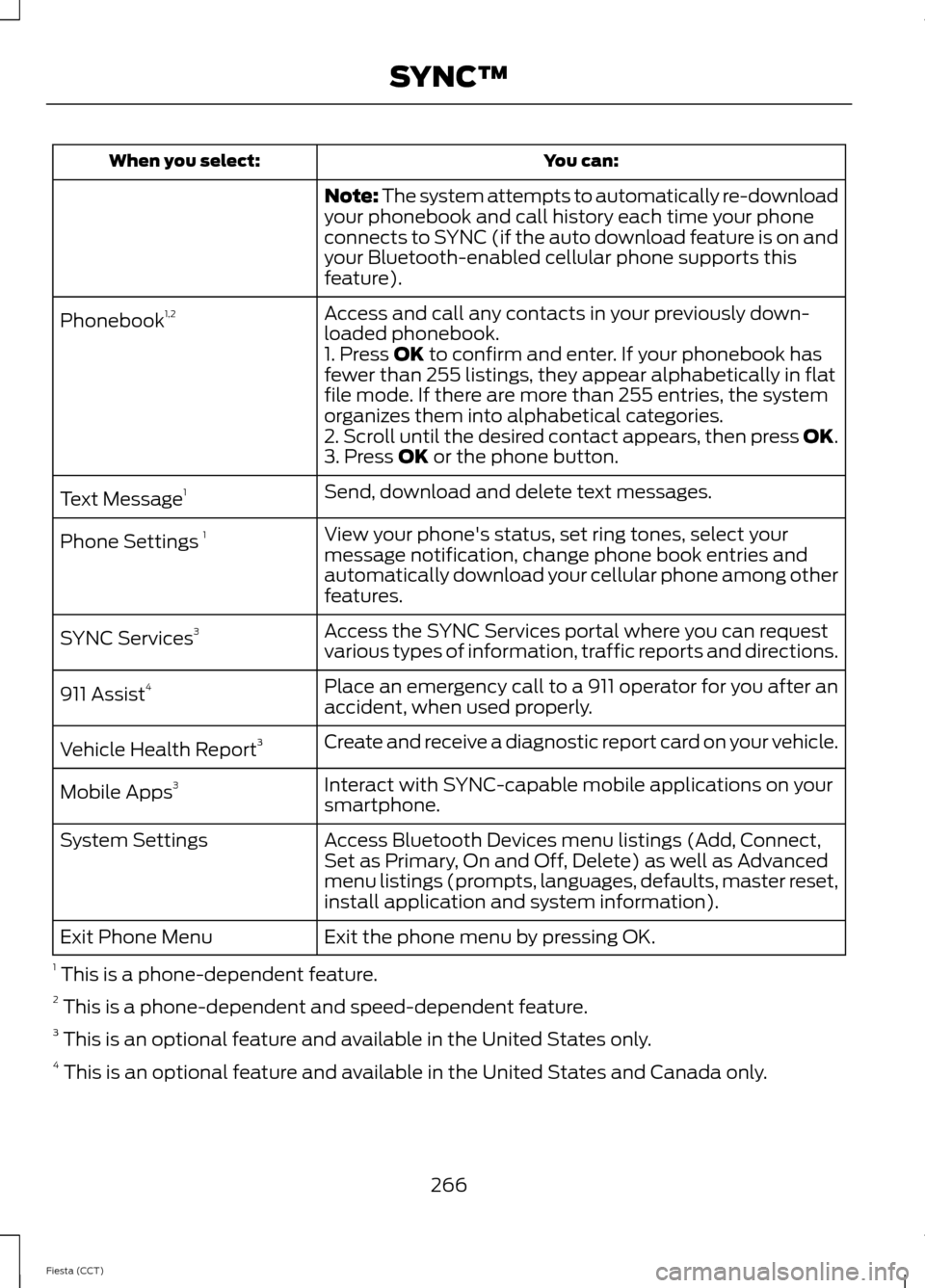
You can:
When you select:
Note: The system attempts to automatically re-download
your phonebook and call history each time your phone
connects to SYNC (if the auto download feature is on and
your Bluetooth-enabled cellular phone supports this
feature).
Access and call any contacts in your previously down-
loaded phonebook.
Phonebook
1,2
1. Press OK to confirm and enter. If your phonebook has
fewer than 255 listings, they appear alphabetically in flat
file mode. If there are more than 255 entries, the system
organizes them into alphabetical categories.
2. Scroll until the desired contact appears, then press OK.
3. Press
OK or the phone button.
Send, download and delete text messages.
Text Message 1
View your phone's status, set ring tones, select your
message notification, change phone book entries and
automatically download your cellular phone among other
features.
Phone Settings
1
Access the SYNC Services portal where you can request
various types of information, traffic reports and directions.
SYNC Services
3
Place an emergency call to a 911 operator for you after an
accident, when used properly.
911 Assist
4
Create and receive a diagnostic report card on your vehicle.
Vehicle Health Report 3
Interact with SYNC-capable mobile applications on your
smartphone.
Mobile Apps
3
Access Bluetooth Devices menu listings (Add, Connect,
Set as Primary, On and Off, Delete) as well as Advanced
menu listings (prompts, languages, defaults, master reset,
install application and system information).
System Settings
Exit the phone menu by pressing OK.
Exit Phone Menu
1 This is a phone-dependent feature.
2 This is a phone-dependent and speed-dependent feature.
3 This is an optional feature and available in the United States only.
4 This is an optional feature and available in the United States and Canada only.
266
Fiesta (CCT) SYNC™
Page 274 of 396
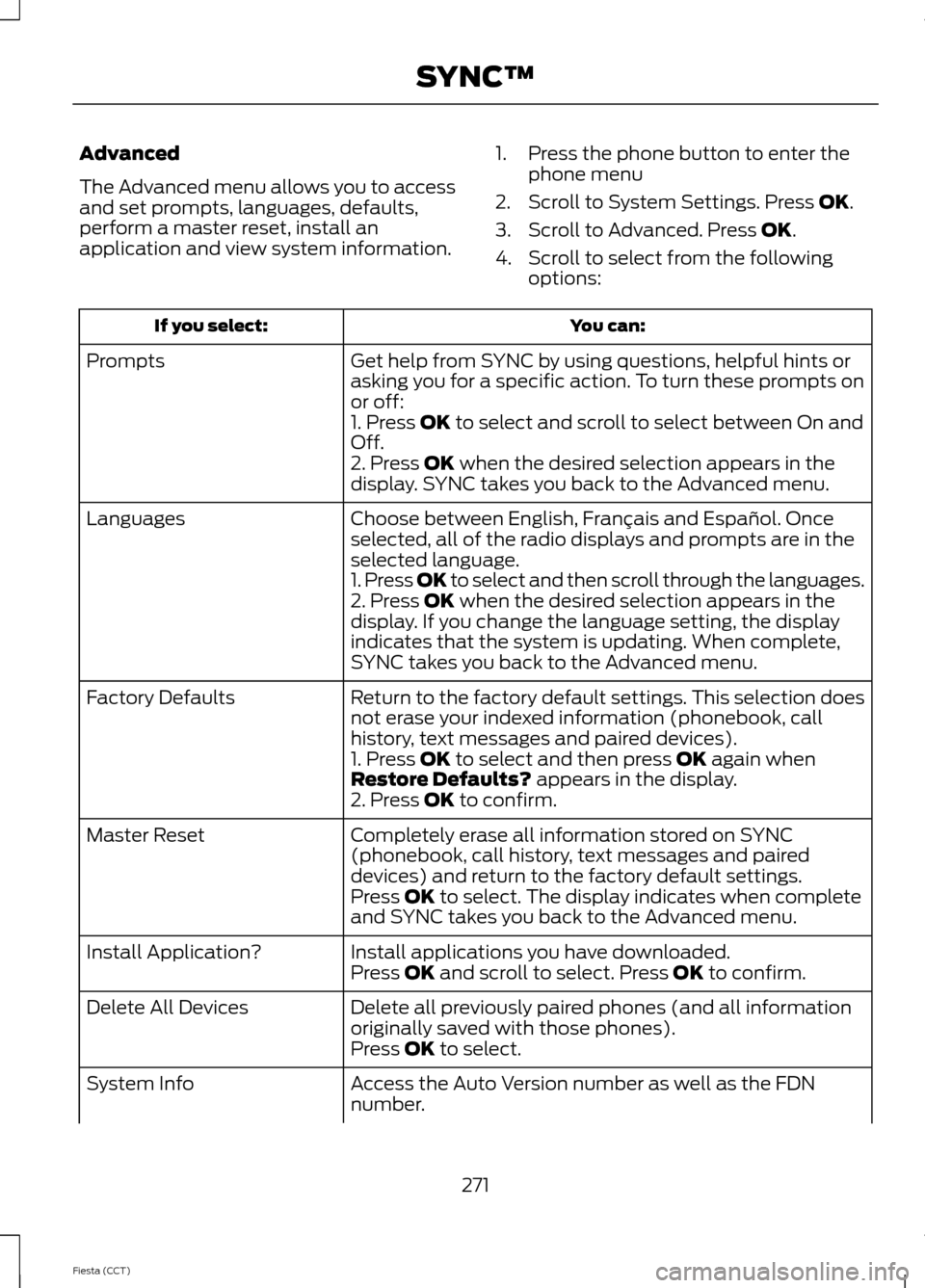
Advanced
The Advanced menu allows you to access
and set prompts, languages, defaults,
perform a master reset, install an
application and view system information.
1. Press the phone button to enter the
phone menu
2. Scroll to System Settings. Press OK.
3. Scroll to Advanced. Press
OK.
4. Scroll to select from the following options: You can:
If you select:
Get help from SYNC by using questions, helpful hints or
asking you for a specific action. To turn these prompts on
or off:
Prompts
1. Press
OK to select and scroll to select between On and
Off.
2. Press
OK when the desired selection appears in the
display. SYNC takes you back to the Advanced menu.
Choose between English, Français and Español. Once
selected, all of the radio displays and prompts are in the
selected language.
Languages
1. Press OK to select and then scroll through the languages.
2. Press
OK when the desired selection appears in the
display. If you change the language setting, the display
indicates that the system is updating. When complete,
SYNC takes you back to the Advanced menu.
Return to the factory default settings. This selection does
not erase your indexed information (phonebook, call
history, text messages and paired devices).
Factory Defaults
1. Press
OK to select and then press OK again when
Restore Defaults? appears in the display.
2. Press OK to confirm.
Completely erase all information stored on SYNC
(phonebook, call history, text messages and paired
devices) and return to the factory default settings.
Master Reset
Press
OK to select. The display indicates when complete
and SYNC takes you back to the Advanced menu.
Install applications you have downloaded.
Install Application?
Press
OK and scroll to select. Press OK to confirm.
Delete all previously paired phones (and all information
originally saved with those phones).
Delete All Devices
Press
OK to select.
Access the Auto Version number as well as the FDN
number.
System Info
271
Fiesta (CCT) SYNC™