display FORD FIESTA 2014 6.G Manual Online
[x] Cancel search | Manufacturer: FORD, Model Year: 2014, Model line: FIESTA, Model: FORD FIESTA 2014 6.GPages: 396, PDF Size: 5.58 MB
Page 332 of 396
•
Call waiting notification
• Caller ID.
Other features, such as text messaging
using Bluetooth and automatic phonebook
download, are phone-dependent features.
To check your phone ’s compatibility, see
your phone ’s user manual and visit
www.SYNCMyRide.com,
www.SYNCMyRide.ca or
www.syncmaroute.ca.
Pairing Your Phone for the First
Time WARNING
Driving while distracted can result in
loss of vehicle control, crash and
injury. We strongly recommend that
you use extreme caution when using any
device that may take your focus off the
road. Your primary responsibility is the safe
operation of your vehicle. We recommend
against the use of any handheld device
while driving and encourage the use of
voice-operated systems when possible.
Make sure you are aware of all applicable
local laws that may affect the use of
electronic devices while driving. The first thing you must do to use the
phone features of SYNC is to pair your
Bluetooth-enabled cellular phone with
SYNC. This allows you to use your phone
in a hands-free manner.
Note:
Put the transmission in position P.
Turn on your vehicle ignition and the radio.
1. Touch
Add Phone in the upper left
corner of the touchscreen. Find SYNC
appears on the screen, and instructs
you to begin the pairing process from
your device.
2. Make sure that Bluetooth is set to
On
and that your cellular phone is in the
proper mode. See your phone ’s manual
if necessary. Note:
Select
SYNC, and a six-digit PIN
appears on your device.
3. If you are prompted to enter a PIN on your device, it does not support Secure
Simple Pairing. To pair, enter the PIN
displayed on the touchscreen. Skip the
next step.
4. When prompted on your phone ’s
display, confirm that the PIN provided
by SYNC matches the PIN displayed
on your cellular phone.
5. The display indicates when the pairing
is successful.
SYNC may prompt you with more phone
options. For more information on your
phone's capability, see your phone's
manual and visit the website.
Pairing Subsequent Phones
Note: Put the transmission in position
P.
Turn on your vehicle ignition and the radio.
Make sure that Bluetooth is set to
On and
that your cellular phone is in the proper
mode. See your device's manual if
necessary. To pair a subsequent phone,
press:
1. Phone
.
2. Settings
.
3. BT Devices
.
4. Add Device
.
5. When prompted on your phone's display, enter the six-digit PIN provided
by SYNC on the screen. The display
indicates when the pairing is
successful.
SYNC may prompt you with more phone
options. For more information on your
phone's capability, see your phone's
manual and visit the website.
329
Fiesta (CCT) MyFord Touch
™
(If Equipped)
Page 333 of 396
Making Calls
Press the voice button on the
steering wheel controls. When
prompted, say, "Call
or say "Dial", then the desired number. To end the call or exit phone
mode, press and hold the phone
button.
Receiving Calls
During an incoming call, an audible tone
sounds. Call information appears in the
display if it is available. Accept the call by pressing
Accept on the touchscreen or
by pressing this phone button on
the steering wheel controls. Reject the call by pressing
Reject
on the touchscreen or by
pressing and holding this phone
button on the steering wheel controls.
Ignore the call by doing nothing. SYNC logs
it as a missed call.
Phone Menu Options
Press the top left corner on your
touchscreen to select from the following
options:
Phone
Touch this button to access the on-screen
numerical pad to enter a number and place
a call. During an active call, you can also
choose to:
• Mute the call
• Put the call on hold
• Turn on the privacy feature
• Join two calls
• End the call. Quick Dial
Select and call contacts stored in your
phonebook contacts and call history folder.
Phonebook
Touch this button to access and call any
contacts in your previously downloaded
phone book. The system places the entries
in alphabetical categories summarized at
the top of the screen.
To turn on contact picture settings, if your
device supports this feature, press:
1.
Phone
.
2. Settings
.
3. Manage Phonebook
.
4. Download photos from Phonebook.
5. On
.
Certain smartphones may support
transferring street addresses when listed
with phone book contact information. If
your phone supports this feature, you can
select and use these addresses as
destinations and save them as favorites.
History
After you connect your Bluetooth-enabled
phone to SYNC, you can access any
previously dialed, received or missed calls.
You can also choose to save these to your
Favorites or to Quick Dial.
Note: This is a phone-dependent feature.
If your phone does not support downloading
call history using Bluetooth, SYNC keeps
track of calls made with the SYNC system.
Messaging
Send text messages using your
touchscreen. See
Text messaging later
in this section.
330
Fiesta (CCT) MyFord Touch
™
(If Equipped)E142599
Page 334 of 396
Settings
Touch this button to access various phone
settings, such turning Bluetooth on and off,
managing your phonebook and more. See
Phone settings later in this section.
Text Messaging
Note: Downloading and sending text
messages using Bluetooth are
phone-dependent features.
Note: Certain features in text messaging
are speed-dependent and not available
when your vehicle is traveling at speeds over
3 mph (5 km/h).
Note: SYNC does not download read text
messages from your phone.
You can send and receive text messages
using Bluetooth, read them aloud and
translate text messaging acronyms, such
as LOL.
1. Touch the top left corner of the display
to access the
Phone menu.
2. Select
Messaging.
3. Choose from the following:
• Listen (speaker icon)
• Dial •
Send Text
• View
• Delete.
Composing a Text Message
Note: This is a speed-dependent feature.
It is unavailable when your vehicle is
traveling at speeds over 5 mph (8 km/h).
Note: Downloading and sending text
messages using Bluetooth are
phone-dependent features.
1. Press
Phone .
2. Messaging
.
3. Send Text
.
4. Enter a phone number or choose from
your phonebook.
You can select from the following options:
• Send
, which sends the message as it
is.
• Edit Text
, which allows you to
customize the pre-defined message or
create a message on your own.
You can then preview the message, verify
the recipient as well as update the
message list, and send it to a connected
device (such as a USB drive). Text message options
I’ll call you back in a few minutes. I just left, I’ll be there soon.Can you give me a call? I’m on my way.
I’m running a few minutes late.
I’m ahead of schedule, so I’ll be there early. I’m outside.
I’ll call you when I get there.
331
Fiesta (CCT) MyFord Touch
™
(If Equipped)
Page 335 of 396
Text message options
OK
Yes No
Thanks
Stuck in traffic. Call me later. LOL
Receiving a Text Message
Note: If you select View and your vehicle is
traveling over 3 mph (5 km/h), the system
offers to read the message to you instead
of allowing you to view it while driving.
When a new message arrives, an audible
tone sounds and the screen displays a
pop-up with the caller name and ID, if
supported by your phone. You can press:
• View to view the text message.
• Listen
for SYNC to read the message
to you.
• Dial
to call the contact.
• Ignore
to exit the screen.
Phone Settings
To enter the phone settings menu press:
1. Phone
.
2. Settings
.
3. Choose from the following:
Bluetooth Devices
Touch this tab to connect, disconnect, add
or delete a device, as well as save it as a
favorite. Bluetooth
Touch this tab to turn Bluetooth off or on.
Do Not Disturb
Touch this tab if you want all calls to go
directly to your voice mail and not ring in
the vehicle. When this feature is on, text
message notifications do not ring inside
the cabin either.
911 Assist
Turn on or turn off the 911 Assist feature.
See
Information (page 334).
Phone Ringer
Select the ring tone you want to hear when
you receive a call. Choose from possible
system ring tones, your currently paired
phone ’s ring tone, a beep, text-to-speech
or a silent notification.
Text Message Notification
Select a text message notification, if
supported by your phone. Choose from
possible system alert tones,
text-to-speech or silent.
332
Fiesta (CCT) MyFord Touch
™
(If Equipped)
Page 340 of 396
If your vehicle is not equipped with
Navigation:
•
Turn-by-turn directions appear in the
information display, in the status bar
of your touchscreen system and on the
SYNC Services screen. You also receive
driving instructions from audible
prompts.
• When on an active route, you can
select Route Summary or Route
Status using the touchscreen controls
or voice commands to view the Route
Summary Turn List
or the Route
Status ETA. You can also turn voice
guidance on or off, cancel the route or
update the route. If you miss a turn, SYNC automatically asks
if you want the route updated. Just say,
"Yes" when prompted and the system
delivers a new route to your vehicle.
If your vehicle is equipped with Navigation,
SYNC Services downloads your requested
destination to the navigation system. The
navigation system then calculates the
route and provides driving instructions.
See
Navigation (page 343).
Disconnecting from SYNC Services
1. Press and hold the hang-up phone button on the steering wheel.
2. Say "Good-bye" from the SYNC Services main menu. SYNC Services quick tips
You can personalize your Services feature to provide
quicker access to your most used or favorite information.
You can save address points, such as work or home. You
can also save favorite information like sports teams, such
as Detroit Lions, or a news category. You can learn more
about personalization by logging onto
www.SYNCMyRide.com.
Personalizing
Press the voice button at any time (while connected to
SYNC Services) to interrupt a voice prompt or an audio
clip (such as a sports report) and say your voice command.
Push to interrupt
Your subscription is associated with your Bluetooth-
enabled cellular phone number, not your VIN (Vehicle
Identification Number). You can pair and connect your
phone to any vehicle equipped with SYNC Services and
continue enjoying your personalized services.
Portable
SYNC Services Voice Commands When a route has been
downloaded (non-navigation
systems), press the voice button
on the steering wheel controls. When
prompted, say any of the following
commands: "SERVICES"
"Cancel route"
"Navigation voice off" "Navigation voice on" "Next turn"
337
Fiesta (CCT) MyFord Touch
™
(If Equipped)E142599
Page 343 of 396
Additional sports-related voice
commands
"My teams schedule" "My teams scores""NBA headlines""NBA schedule" "NBA scores"
"NFL headlines" "NFL schedule" "NFL scores"
"NHL headlines" "NHL schedule" "NHL scores"
"WNBA headlines" "WNBA schedule" "WNBA scores" "Help"
Alerts If your vehicle is equipped with
Navigation, touch the i
(Information) button to access
these features. If your vehicle is not
equipped with Navigation, touch the corner
of the touchscreen with the green tab.
Press Alerts, and then choose from any
of the following services:
• View
the complete message.
• Delete
the message.
• Delete All
messages.
This screen displays any system messages
(such as an SD card fault). Note:
The system alerts you to any
messages by turning the information icon
yellow. After you read or delete the
messages, the icon returns to white.
Calendar If your vehicle is equipped with
Navigation, touch the i
(Information) button to access
these features. If your vehicle is not
equipped with Navigation, touch the corner
of the touchscreen with the green tab.
Press
Calendar. You can view the current
calendar by day, week or month.
911 Assist
(If Equipped) WARNINGS
Unless the 911 Assist setting is set on
before a crash, the system will not
dial for help, which could delay
response time, potentially increasing the
risk of serious injury or death after a crash. Do not wait for 911 Assist to make an
emergency call if you can do it
yourself. Dial emergency services
immediately to avoid delayed response
time, which could increase the risk of
serious injury or death after a crash. If you
do not hear 911 Assist within five seconds
of the crash, the system or phone may be
damaged or non-functional. Always place your phone in a secure
location in your vehicle so it does not
become a projectile or damaged in
a crash. Failure to do so may cause serious
injury to someone or damage the phone,
which could prevent 911 Assist from
working properly. Note:
The SYNC 911 Assist feature must be
set on prior to the incident.
340
Fiesta (CCT) MyFord Touch
™
(If Equipped)E142608 E142608
Page 344 of 396
Note:
Before setting this feature on, make
sure that you read the 911 Assist Privacy
Notice later in this section for important
information.
Note: If any user turns 911 Assist on or off,
that setting applies for all paired phones. If
911 Assist is turned off, either a voice
message plays or a display message (or
icon) comes on (or both) when your vehicle
is started after a previously paired phone
connects.
Note: Every phone operates differently.
While SYNC 911 Assist works with most
cellular phones, some may have trouble
using this feature.
If a crash deploys an airbag (excludes knee
airbags and rear inflatable safety belts [if
equipped]) or activates the fuel pump
shut-off, your SYNC-equipped vehicle may
be able to contact emergency services by
dialing 911 through a paired and connected
Bluetooth-enabled phone. You can learn
more about the 911 Assist feature, visit
www.SYNCMyRide.com,
www.SYNCMyRide.ca or
www.syncmaroute.ca.
See Supplementary Restraints System
(page 34). Important information
regarding airbag deployment is in this
chapter.
See
Roadside Emergencies (page 166).
Important information regarding the fuel
pump shut-off is in this chapter.
Setting 911 Assist On If your vehicle is equipped with
Navigation, touch the i
(Information) button to access
these features. If your vehicle is not
equipped with Navigation, touch the corner
of the touchscreen with the green tab.
Touch
Apps > 911 Assist, then select On. You can also access 911 Assist
by:
• Pressing the Settings icon >
Settings
> Phone > 911 Assist, or
• Pressing the Settings icon > Help > 911
Assist
.
To make sure that 911 Assist works
properly:
• SYNC must be powered and working
properly at the time of the incident and
throughout feature activation and use.
• The 911 Assist feature must be set on
prior to the incident.
• You must pair and connect a
Bluetooth-enabled and compatible
phone to SYNC.
• A connected Bluetooth-enabled phone
must have the ability to make and
maintain an outgoing call at the time
of the incident.
• A connected Bluetooth-enabled phone
must have adequate network coverage,
battery power and signal strength.
• The vehicle must have battery power
and be located in the United States,
Canada or in a territory in which 911 is
the emergency number.
In the Event of a Crash
Not all crashes deploy an airbag or activate
the fuel pump shut-off (which would
trigger 911 Assist); however, SYNC tries to
contact emergency services if 911 Assist
triggers. If a connected phone sustains
damage or loses connection to SYNC,
SYNC searches for, and tries to connect
to, any available previously paired phone
and tries to make the call to 911.
341
Fiesta (CCT) MyFord Touch
™
(If Equipped)E142608 E142607
Page 349 of 396
cityseekr, when available, is a service that
provides more information about certain
points of interest such as restaurants,
hotels and attractions.
When you have selected a point of interest,
the location and information appear, such
as address and phone number. If cityseekr
lists the point of interest, more information
is available, such as a brief description,
hotel check-in and checkout times or
restaurant hours.
Press More Information for a longer
review, a list of services and facilities, the
average room or meal price as well as the
website link.
This screen displays either a facility photo
(if available) or point of interest icons, such
as: Hotel
Coffeehouse
Food & Drink
Nightlife Attraction
This icon appears when your
selection exists in multiple
categories within the system.
When you are viewing more information
for hotels, cityseekr also tells you if the
hotel has certain services and facilities
using icons.
For restaurants, cityseekr can provide
information such as star rating, average
cost, review, handicap access, hours of
operation, and website address.
For hotels, cityseekr can provide
information such as star rating, price
category, review, check in/out times, hotel
service icons and website address.
Setting Your Navigation
Preferences
Select settings for the system to take into
account when planning your route. To access, press:
1. Settings
icon.
2. Settings
.
3. Navigation
.
Map Preferences
Breadcrumbs
Display your vehicle ’s previously traveled
route with white dots. Turn this feature ON
or
OFF.
Turn List Format
Have the system display your turn list Top
to Bottom
or Bottom to Top.
346
Fiesta (CCT) MyFord Touch
™
(If Equipped)E142634 E143884 E142636 E142637 E142638 E142639 E142640 E142607
Page 350 of 396
Parking POI Notification
Set the automatic parking points of
interest notification. Turn this feature ON
or OFF. When parking points of interest
notification is on, the icons display on the
map when you get close to your
destination. This may not be very useful in
dense areas, and may clutter the map
when other points of interest display.
Route Preferences
Preferred Route
Choose to have the system display the
Shortest, Fastest or most Ecological route.
Always Use Preferred Route
Bypass route selection in destination
programming. The system only calculates
one route based on preferred route
settings.
Eco Time Penalty
Select a low, medium or high cost for the
calculated Eco Route. The higher the
setting, the longer the time allotment is for
the route.
Avoid
These features allow you to choose to
have the system avoid freeways, toll roads,
ferries and car trains when planning your
route. Turn these features ON or OFF.
Use HOV Lanes
Have the system use high-occupancy
vehicle lanes, if available, when planning
your route.
Navigation Preferences
Guidance Prompts
Have the system use
Voice & Tones or
Tone Only on your programmed route. Auto - Fill State/Province
Have the system automatically fill in the
state and province based on the
information already entered into the
system. Turn this feature
ON or OFF.
Traffic Preferences
Avoid Traffic Problems
Choose how you want the system to
handle traffic problems along your route.
• Automatic:
Have the system reroute
you to avoid traffic incidents that
develop and impact the current route.
The system does not provide a traffic
alert notification.
• Manual:
Have the system always
provide a traffic alert notification for
traffic incidents along the planned
route. You have a choice to accept or
ignore the notification before making
the route deviation.
Traffic Alert Notification
Have the system display traffic alert
notifications.
Other traffic alert features allows you to
turn on certain, or all, traffic icons on the
map such as road work, incident, accidents
and closed roads. Scroll down to view all
the different types of alerts. Turn these
features
ON or OFF.
Avoid Areas
Choose areas which you want the system
to avoid when calculating a route for you.
Press
Add to program an entry. Once you
make a selection, the system tries to avoid
the area(s) if possible for all routes. To
delete a selection, choose the listing on
the screen. When the screen changes to
Avoid Areas Edit
, you can press Delete
at the bottom right of the screen.
347
Fiesta (CCT) MyFord Touch
™
(If Equipped)
Page 351 of 396
Map Mode
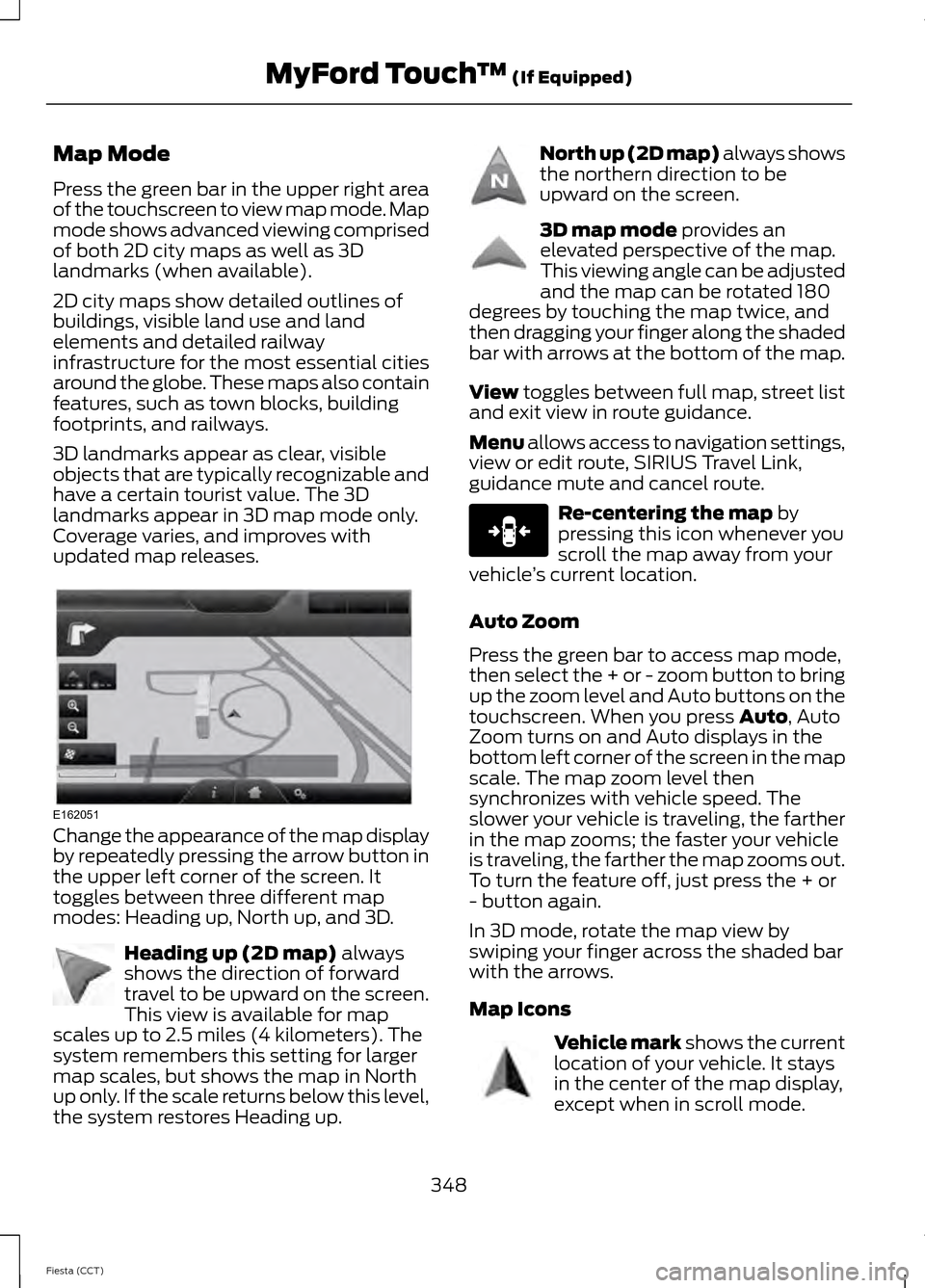
Press the green bar in the upper right area
of the touchscreen to view map mode. Map
mode shows advanced viewing comprised
of both 2D city maps as well as 3D
landmarks (when available).
2D city maps show detailed outlines of
buildings, visible land use and land
elements and detailed railway
infrastructure for the most essential cities
around the globe. These maps also contain
features, such as town blocks, building
footprints, and railways.
3D landmarks appear as clear, visible
objects that are typically recognizable and
have a certain tourist value. The 3D
landmarks appear in 3D map mode only.
Coverage varies, and improves with
updated map releases.
Change the appearance of the map display
by repeatedly pressing the arrow button in
the upper left corner of the screen. It
toggles between three different map
modes: Heading up, North up, and 3D.
Heading up (2D map) always
shows the direction of forward
travel to be upward on the screen.
This view is available for map
scales up to 2.5 miles (4 kilometers). The
system remembers this setting for larger
map scales, but shows the map in North
up only. If the scale returns below this level,
the system restores Heading up. North up (2D map) always shows
the northern direction to be
upward on the screen.
3D map mode
provides an
elevated perspective of the map.
This viewing angle can be adjusted
and the map can be rotated 180
degrees by touching the map twice, and
then dragging your finger along the shaded
bar with arrows at the bottom of the map.
View
toggles between full map, street list
and exit view in route guidance.
Menu allows access to navigation settings,
view or edit route, SIRIUS Travel Link,
guidance mute and cancel route. Re-centering the map
by
pressing this icon whenever you
scroll the map away from your
vehicle ’s current location.
Auto Zoom
Press the green bar to access map mode,
then select the + or - zoom button to bring
up the zoom level and Auto buttons on the
touchscreen. When you press
Auto, Auto
Zoom turns on and Auto displays in the
bottom left corner of the screen in the map
scale. The map zoom level then
synchronizes with vehicle speed. The
slower your vehicle is traveling, the farther
in the map zooms; the faster your vehicle
is traveling, the farther the map zooms out.
To turn the feature off, just press the + or
- button again.
In 3D mode, rotate the map view by
swiping your finger across the shaded bar
with the arrows.
Map Icons Vehicle mark
shows the current
location of your vehicle. It stays
in the center of the map display,
except when in scroll mode.
348
Fiesta (CCT) MyFord Touch
™
(If Equipped)E162051 E142642 E142643 E142644 E146188 E142646