CD player FORD FIESTA 2014 User Guide
[x] Cancel search | Manufacturer: FORD, Model Year: 2014, Model line: FIESTA, Model: FORD FIESTA 2014Pages: 398, PDF Size: 6.09 MB
Page 288 of 398
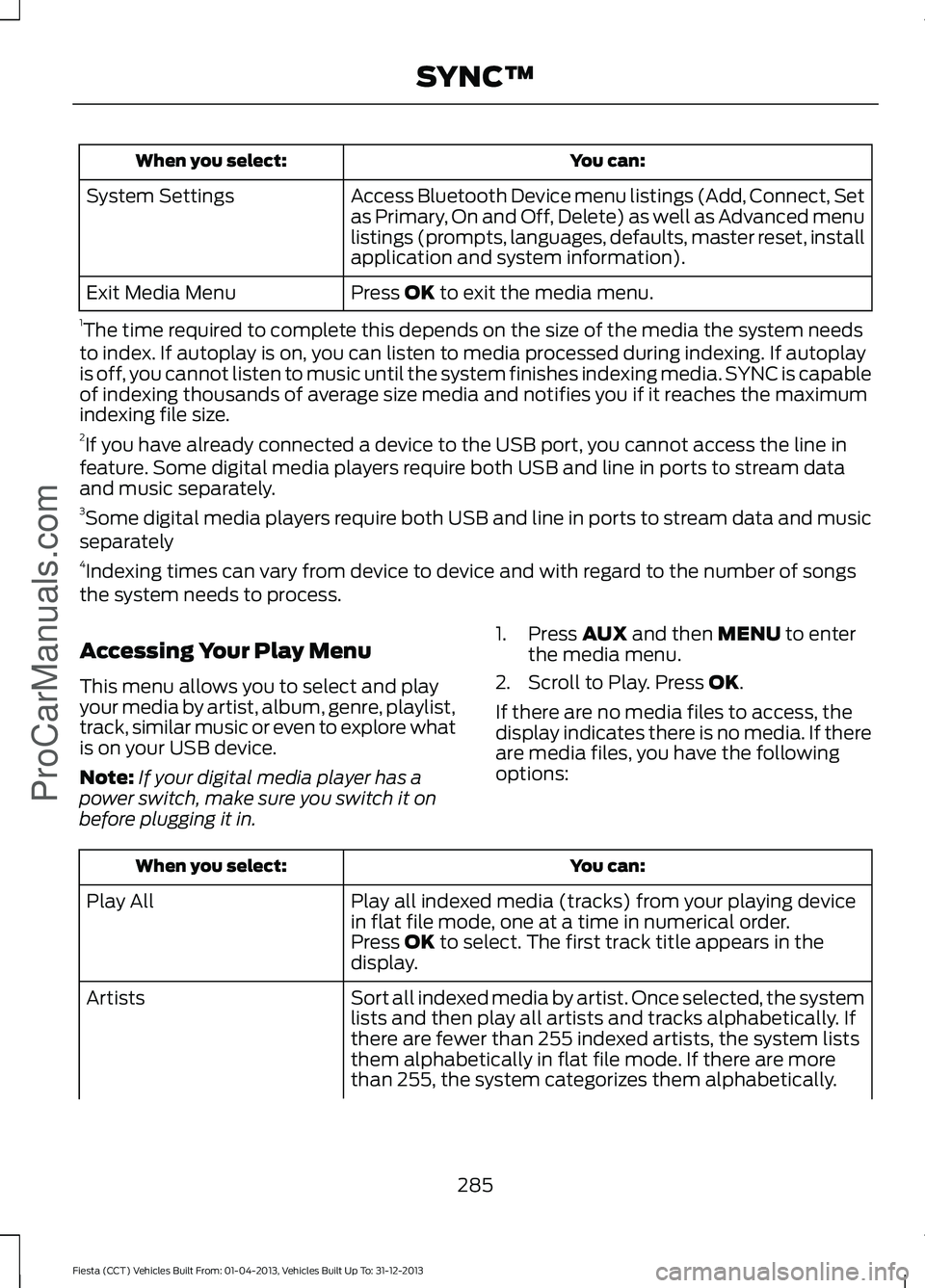
You can:
When you select:
Access Bluetooth Device menu listings (Add, Connect, Set
as Primary, On and Off, Delete) as well as Advanced menu
listings (prompts, languages, defaults, master reset, install
application and system information).
System Settings
Press OK to exit the media menu.
Exit Media Menu
1 The time required to complete this depends on the size of the media the system needs
to index. If autoplay is on, you can listen to media processed during indexing. If autoplay
is off, you cannot listen to music until the system finishes indexing media. SYNC is capable
of indexing thousands of average size media and notifies you if it reaches the maximum
indexing file size.
2 If you have already connected a device to the USB port, you cannot access the line in
feature. Some digital media players require both USB and line in ports to stream data
and music separately.
3 Some digital media players require both USB and line in ports to stream data and music
separately
4 Indexing times can vary from device to device and with regard to the number of songs
the system needs to process.
Accessing Your Play Menu
This menu allows you to select and play
your media by artist, album, genre, playlist,
track, similar music or even to explore what
is on your USB device.
Note: If your digital media player has a
power switch, make sure you switch it on
before plugging it in. 1. Press
AUX and then MENU to enter
the media menu.
2. Scroll to Play. Press
OK.
If there are no media files to access, the
display indicates there is no media. If there
are media files, you have the following
options: You can:
When you select:
Play all indexed media (tracks) from your playing device
in flat file mode, one at a time in numerical order.
Play All
Press
OK to select. The first track title appears in the
display.
Sort all indexed media by artist. Once selected, the system
lists and then play all artists and tracks alphabetically. If
there are fewer than 255 indexed artists, the system lists
them alphabetically in flat file mode. If there are more
than 255, the system categorizes them alphabetically.
Artists
285
Fiesta (CCT) Vehicles Built From: 01-04-2013, Vehicles Built Up To: 31-12-2013 SYNC™
ProCarManuals.com
Page 302 of 398
Privacy Information
When you connect a cell phone to SYNC,
the system creates a profile within your
vehicle that links to that cell phone. This
profile helps in offering you more cellular
features and operating more efficiently.
Among other things, this profile may
contain data about your cell phone book,
text messages (read and unread), and call
history, including history of calls when your
cell phone was not connected to the
system. In addition, if you connect a media
device, the system creates and retains an
index of supported media content. The
system also records a short development
log of approximately 10 minutes of all
recent system activity. The log profile and
other system data may be used to improve
the system and help diagnose any
problems that may occur.
The cellular profile, media device index,
and development log remain in your
vehicle unless you delete them, and are
generally accessible only in your vehicle
when your cell phone or media player is
connected. If you no longer plan to use the
system or your vehicle, we recommend you
carry out a Master Reset to erase all stored
information.
System data cannot be accessed without
special equipment and access to your
vehicle's SYNC module. Ford Motor
Company and Ford of Canada do not
access the system data for any purpose
other than as described without consent,
a court order, or where required by law
enforcement, other government
authorities, or other third parties acting
with lawful authority. Other parties may
seek to access the information
independently of Ford Motor Company and
Ford of Canada. For further privacy
information, see the sections on 911
Assist®, Vehicle Health Report, and Traffic,
Directions and Information.
Using Voice Commands
This system helps you control many
features using voice commands. This
allows you to keep your hands on the
wheel and focus on what is in front of you.
The system provides feedback through
audible tones, prompts, questions and
spoken confirmations depending on the
situation and the chosen level of
interaction (voice settings).
The system also asks short questions
(confirmation prompts) when it is not sure
of your request or when there are multiple
possible responses to your request.
When using voice commands, words and
icons may appear in the lower left status
bar indicating the status of the voice
command session (such as Listening,
Success, Failed, Paused or Try Again).
How to Use Voice Commands
Press the voice command icon.
After the tone, speak your voice
command clearly.
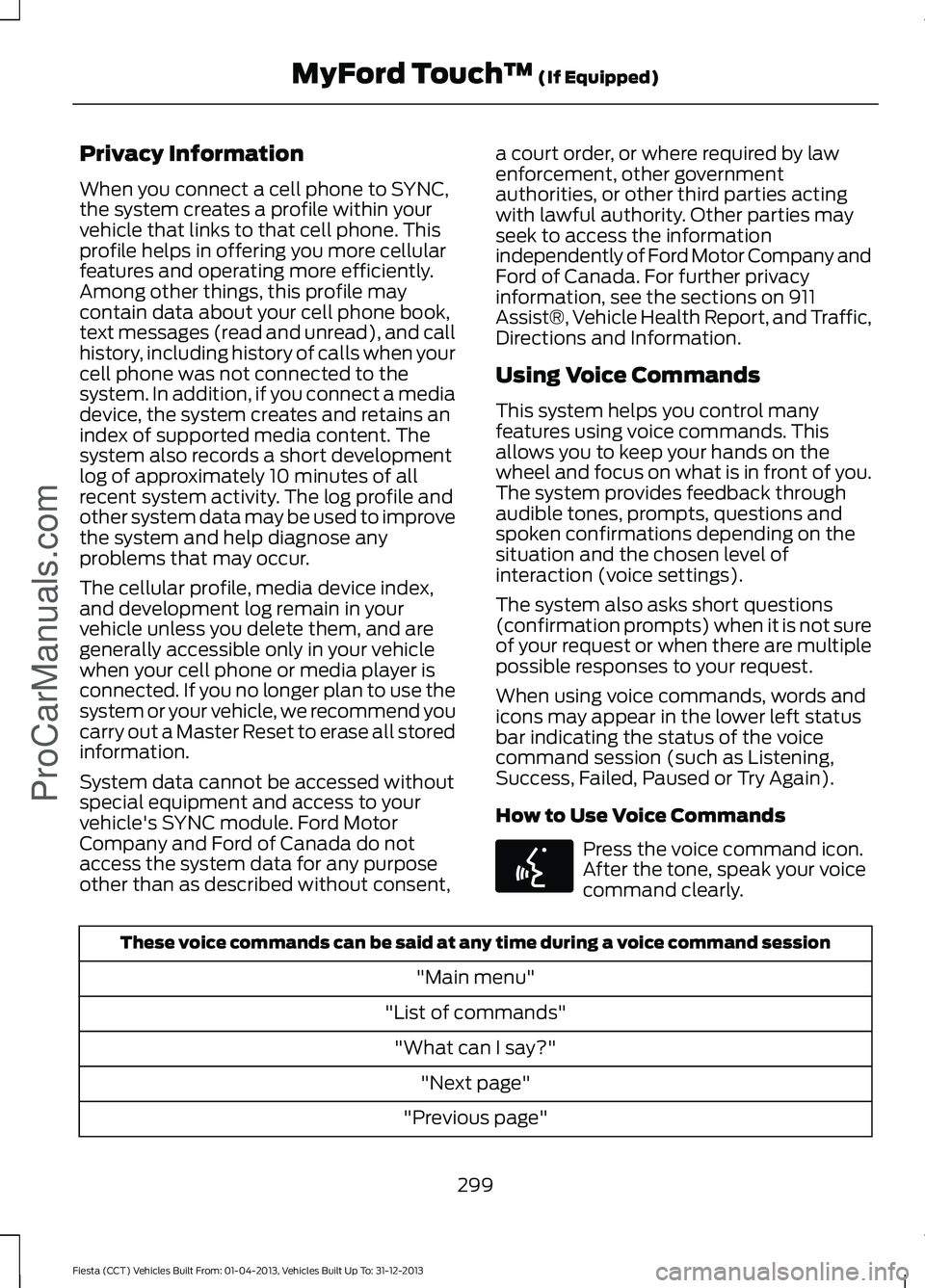
These voice commands can be said at any time during a voice command session
"Main menu"
"List of commands" "What can I say?" "Next page"
"Previous page"
299
Fiesta (CCT) Vehicles Built From: 01-04-2013, Vehicles Built Up To: 31-12-2013 MyFord Touch
™ (If Equipped)
ProCarManuals.comE142599
Page 310 of 398
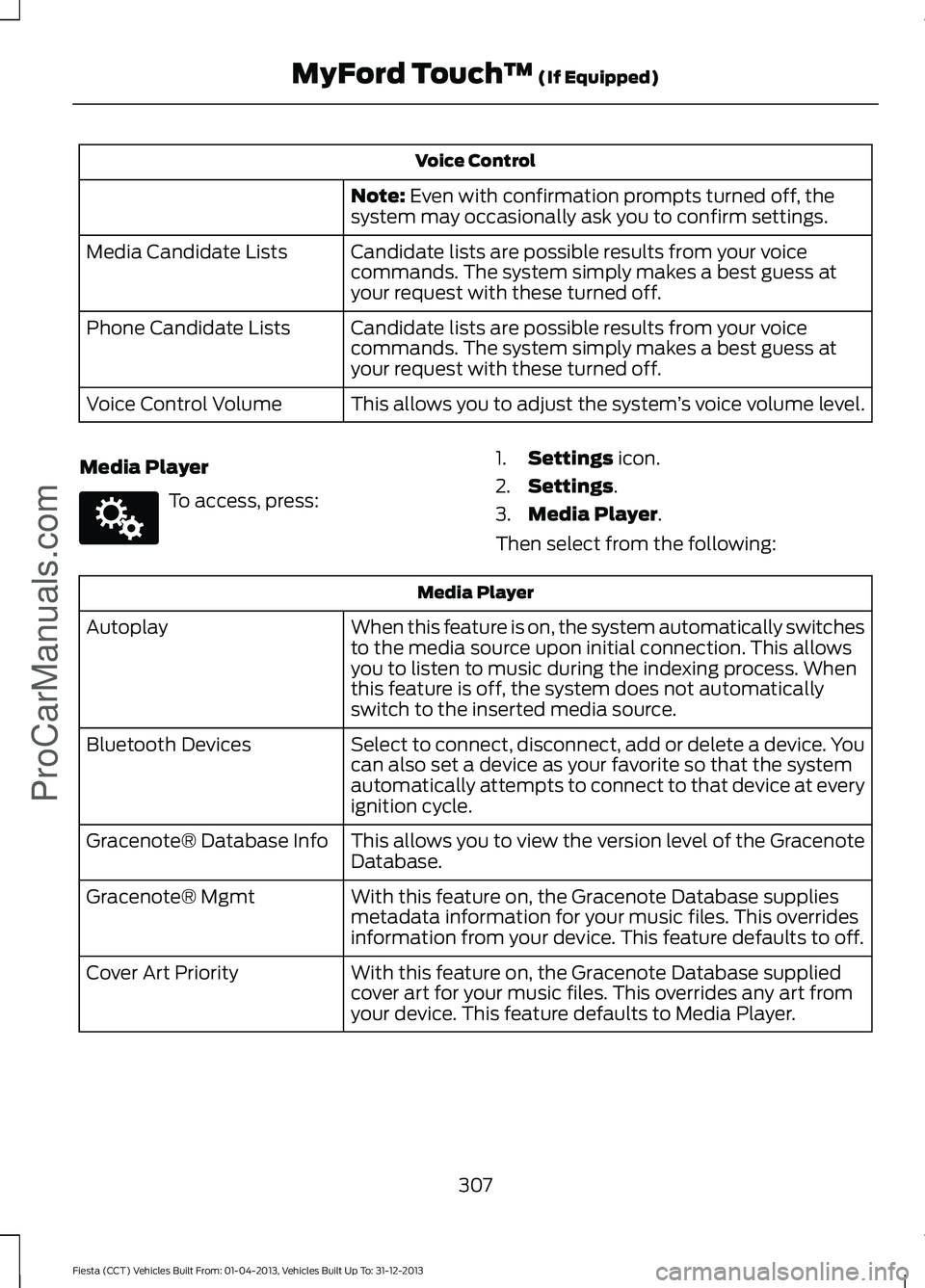
Voice Control
Note: Even with confirmation prompts turned off, the
system may occasionally ask you to confirm settings.
Candidate lists are possible results from your voice
commands. The system simply makes a best guess at
your request with these turned off.
Media Candidate Lists
Candidate lists are possible results from your voice
commands. The system simply makes a best guess at
your request with these turned off.
Phone Candidate Lists
This allows you to adjust the system ’s voice volume level.
Voice Control Volume
Media Player To access, press:
1.
Settings
icon.
2. Settings
.
3. Media Player
.
Then select from the following: Media Player
When this feature is on, the system automatically switches
to the media source upon initial connection. This allows
you to listen to music during the indexing process. When
this feature is off, the system does not automatically
switch to the inserted media source.
Autoplay
Select to connect, disconnect, add or delete a device. You
can also set a device as your favorite so that the system
automatically attempts to connect to that device at every
ignition cycle.
Bluetooth Devices
This allows you to view the version level of the Gracenote
Database.
Gracenote® Database Info
With this feature on, the Gracenote Database supplies
metadata information for your music files. This overrides
information from your device. This feature defaults to off.
Gracenote® Mgmt
With this feature on, the Gracenote Database supplied
cover art for your music files. This overrides any art from
your device. This feature defaults to Media Player.
Cover Art Priority
307
Fiesta (CCT) Vehicles Built From: 01-04-2013, Vehicles Built Up To: 31-12-2013 MyFord Touch
™
(If Equipped)
ProCarManuals.comE142607
Page 318 of 398
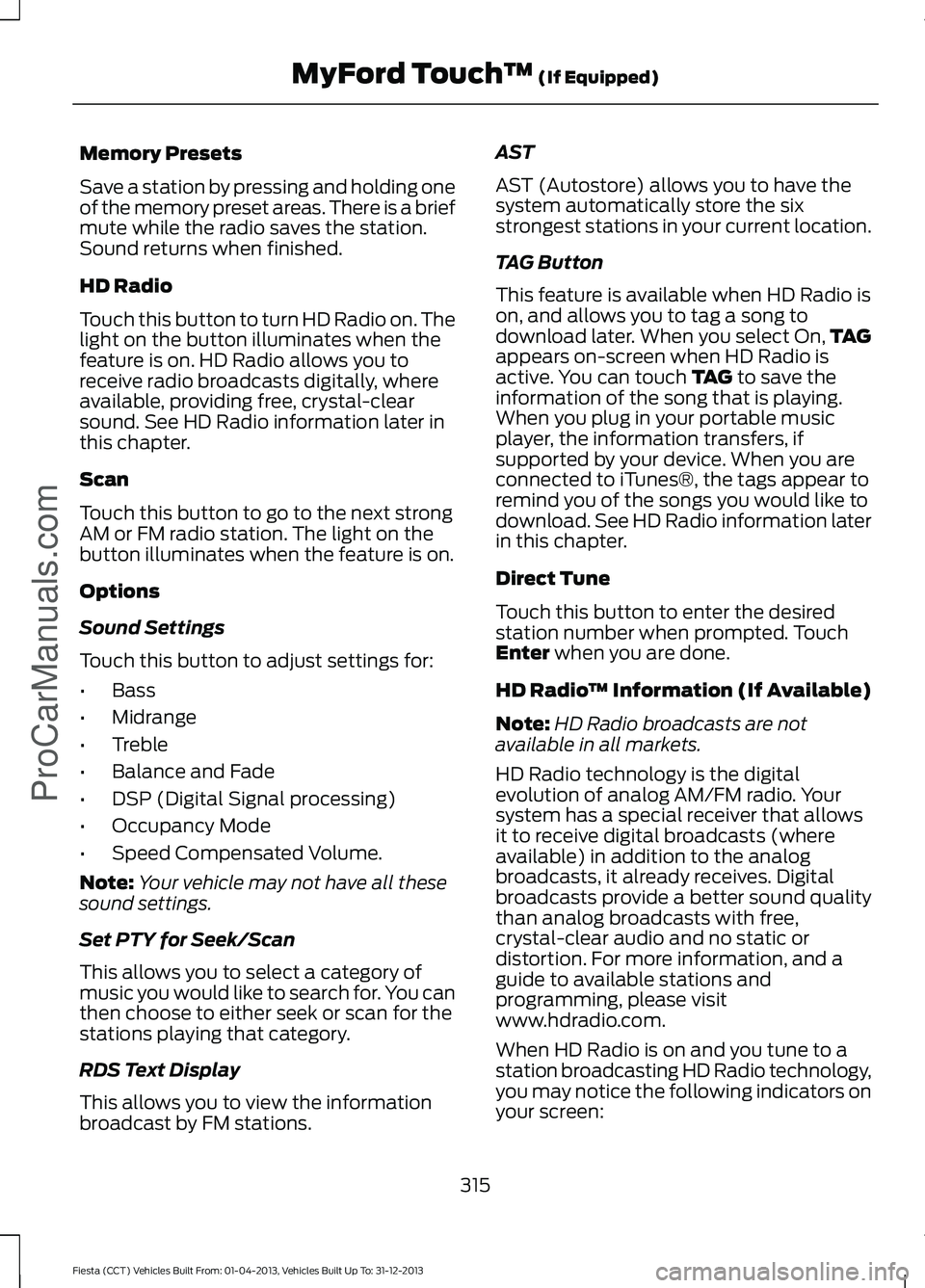
Memory Presets
Save a station by pressing and holding one
of the memory preset areas. There is a brief
mute while the radio saves the station.
Sound returns when finished.
HD Radio
Touch this button to turn HD Radio on. The
light on the button illuminates when the
feature is on. HD Radio allows you to
receive radio broadcasts digitally, where
available, providing free, crystal-clear
sound. See HD Radio information later in
this chapter.
Scan
Touch this button to go to the next strong
AM or FM radio station. The light on the
button illuminates when the feature is on.
Options
Sound Settings
Touch this button to adjust settings for:
•
Bass
• Midrange
• Treble
• Balance and Fade
• DSP (Digital Signal processing)
• Occupancy Mode
• Speed Compensated Volume.
Note: Your vehicle may not have all these
sound settings.
Set PTY for Seek/Scan
This allows you to select a category of
music you would like to search for. You can
then choose to either seek or scan for the
stations playing that category.
RDS Text Display
This allows you to view the information
broadcast by FM stations. AST
AST (Autostore) allows you to have the
system automatically store the six
strongest stations in your current location.
TAG Button
This feature is available when HD Radio is
on, and allows you to tag a song to
download later. When you select On,
TAG
appears on-screen when HD Radio is
active. You can touch TAG to save the
information of the song that is playing.
When you plug in your portable music
player, the information transfers, if
supported by your device. When you are
connected to iTunes®, the tags appear to
remind you of the songs you would like to
download. See HD Radio information later
in this chapter.
Direct Tune
Touch this button to enter the desired
station number when prompted. Touch
Enter
when you are done.
HD Radio ™ Information (If Available)
Note: HD Radio broadcasts are not
available in all markets.
HD Radio technology is the digital
evolution of analog AM/FM radio. Your
system has a special receiver that allows
it to receive digital broadcasts (where
available) in addition to the analog
broadcasts, it already receives. Digital
broadcasts provide a better sound quality
than analog broadcasts with free,
crystal-clear audio and no static or
distortion. For more information, and a
guide to available stations and
programming, please visit
www.hdradio.com.
When HD Radio is on and you tune to a
station broadcasting HD Radio technology,
you may notice the following indicators on
your screen:
315
Fiesta (CCT) Vehicles Built From: 01-04-2013, Vehicles Built Up To: 31-12-2013 MyFord Touch
™
(If Equipped)
ProCarManuals.com
Page 319 of 398
The HD Radio logo blinks when acquiring
a digital station and stays solid when
digital audio is playing. When this logo is
available, you may also see Title and Artist
fields on-screen.
The multicast indicator appears in FM
mode (only) if the current station is
broadcasting multiple digital broadcasts.
The highlighted numbers signify available
digital channels where new or different
content is available. HD1 signifies the main
programming status and is available in
analog and digital broadcasts. Other
multicast stations (HD2 through HD7) are
only available digitally.
TAG allows you to save a song to
download later when you are on an
acquired HD Radio station and the feature
is on. To turn the feature on and use it,
press:
1. AM
or FM.
2. Options
.
3. TAG Button
.
4. On
.
5. When you hear a song you like, press TAG
. The system automatically saves the song's
information and transfers it to your
portable music player (if supported) when
you connect it to the system. The system
automatically transfers the tag to your
player (if already connected) and a pop-up
confirms the transfer.
When you access iTunes® with your
portable music player, the tags appear to
you as a reminder. The system allows you
to tag up to approximately 100 songs. For
a list of devices that support tagging, see
www.SYNCMyRide.com,
www.SYNCMyRide.ca or
www.syncmaroute.ca.
When HD Radio broadcasts are active, you
can access the following functions:
•
Scan
allows you to hear a brief
sampling of all available stations. This
feature still works when HD Radio
reception is on, although it does not
scan for HD2-HD7 channels. You may
see the HD logo appear if the station
has a digital broadcast.
• Memory presets
allow you to save an
active channel as a memory preset.
Touch and hold a memory preset slot
until the sound returns. There is a brief
mute while the radio saves the station.
Sound returns when finished. When
switching to an HD2 or HD3 memory
preset, the sound mutes before the
digital audio plays, because the system
has to reacquire the digital signal.
Note: As with any saved radio station, you
cannot access the saved station if your
vehicle is outside the station ’s reception
area.
316
Fiesta (CCT) Vehicles Built From: 01-04-2013, Vehicles Built Up To: 31-12-2013 MyFord Touch
™
(If Equipped)
ProCarManuals.comE142616
Page 324 of 398
Parental Lockout
This allows you to lock and unlock
channels, change or reset your PIN or
unlock all channels. To use this feature,
you need your initial PIN, which is 1234.
Artist/Title/Team Alerts
This feature allows you to select Artists,
Titles and Teams that you would like the
system to alert you to when they are
playing on other channels. Press Edit Alerts
to delete or turn off alerts. You can also
set all alerts to on or off. When an alert
appears on the screen, you can choose to
Tune to the channel, to Cancel the alert or
to Disable Alerts. If you are listening to a
sporting event, you can save your favorite
teams so that the system can alert you
when they are playing on a satellite radio
channel.
Note:
SIRIUS does not support the Alert
feature on all channels. Ford Motor
Company shall not be responsible for Alert
feature variation.
Electronic Serial Number (ESN)
SIRIUS requires this number when
communicating with you about your
account.
Direct Tune
Touch this button to enter the satellite
channel number when prompted. Touch
Enter when you are done.
Browse
Touch this button to view a list of all
available stations. Scroll to see more
categories. Touch the station you want to
listen to.
Touch
Skip if you want to skip this
channel.
Touch
Lock if you do not want anyone to
listen to this channel. Touch
Title or Artist to see song and
artists on other stations.
SIRIUS Satellite Radio Information
Note: SIRIUS reserves the unrestricted right
to change, rearrange, add or delete
programming including canceling, moving
or adding particular channels, and its prices,
at any time, with or without notice to you.
Ford Motor Company shall not be
responsible for any such programming
changes. SIRIUS satellite radio is a
subscription-based satellite radio service
that broadcasts a variety of music, sports,
news, weather, traffic and entertainment
programming. Your factory-installed
SIRIUS satellite radio system includes
hardware and a limited subscription term
that begins on the date of sale or lease of
your vehicle. See an authorized dealer for
availability.
For more information on extended
subscription terms (a service fee is
required), the online media player and a
list of SIRIUS satellite radio channels, and
other features, please visit
www.siriusxm.com in the United States,
www.sirius.ca in Canada, or call SIRIUS at
1-888-539-7474.
Note:
This receiver includes the eCos
real-time operating system. eCos is
published under the eCos License.
321
Fiesta (CCT) Vehicles Built From: 01-04-2013, Vehicles Built Up To: 31-12-2013 MyFord Touch
™
(If Equipped)
ProCarManuals.comE142593
Page 330 of 398
This feature allows you to plug in media
playing devices, memory sticks, flash drives
or thumb drives, and charge devices if they
support this feature.
In order to playback video from your iPod®
or iPhone®, you must have a special
combination USB/RCA composite video
cable (which you can buy from Apple®).
When the cable is connected to your iPod®
or iPhone®, plug the other end into both
the RCA jacks and the USB port.
Playing Music from Your Device
Insert your device and select the
SD Card or USB tab once the
system recognizes it. You can
then select from the following options:
Repeat
This feature replays the currently playing
song or album.
Shuffle
Touch this button to play music on the
selected album or folder in random order.
Similar Music
This feature allows you to choose music
similar to what is currently playing.
More Info
Touch this button to see disc information
such as current track, artist name, album
and genre.
Options
Touch this button to view and adjust
various media settings.
Sound Settings
allows you to adjust
settings for:
• Bass
• Midrange •
Treble
• Balance and Fade
• DSP (Digital Signal processing)
• Occupancy Mode
• Speed Compensated Volume.
Note: Your vehicle may not have all these
sound settings.
Media Player Settings
allows you to
select more settings, which is under Media
Player. See
Settings (page 303).
Device Information
displays software
and firmware information about the
currently connected media device.
Update Media Index indexes your device
each time you connect it to make sure you
have the latest voice commands available
for all media on the device.
Browse
This feature allows you to view the
contents of the device. It also allows you
to search by categories, such as genre,
artist or album.
If you want to view song information such
as Title, Artist, File, Folder, Album, and
Genre, touch the on-screen album art.
You can also touch
What’ s Playing to
hear how the system pronounces the
current band and song. This can be helpful
when using voice commands to make sure
the system correctly plays your request.
SD Card and USB Voice Commands If you are listening to a USB
device or an SD card, press the
voice button on the steering
wheel controls. When prompted, say any
of the following commands.
If you are not listening to a USB device or
an SD card, press the voice button and,
after the tone, say "USB" or "SD card",
then any of the following commands.
327
Fiesta (CCT) Vehicles Built From: 01-04-2013, Vehicles Built Up To: 31-12-2013 MyFord Touch
™
(If Equipped)
ProCarManuals.comE142611 E142599
Page 332 of 398
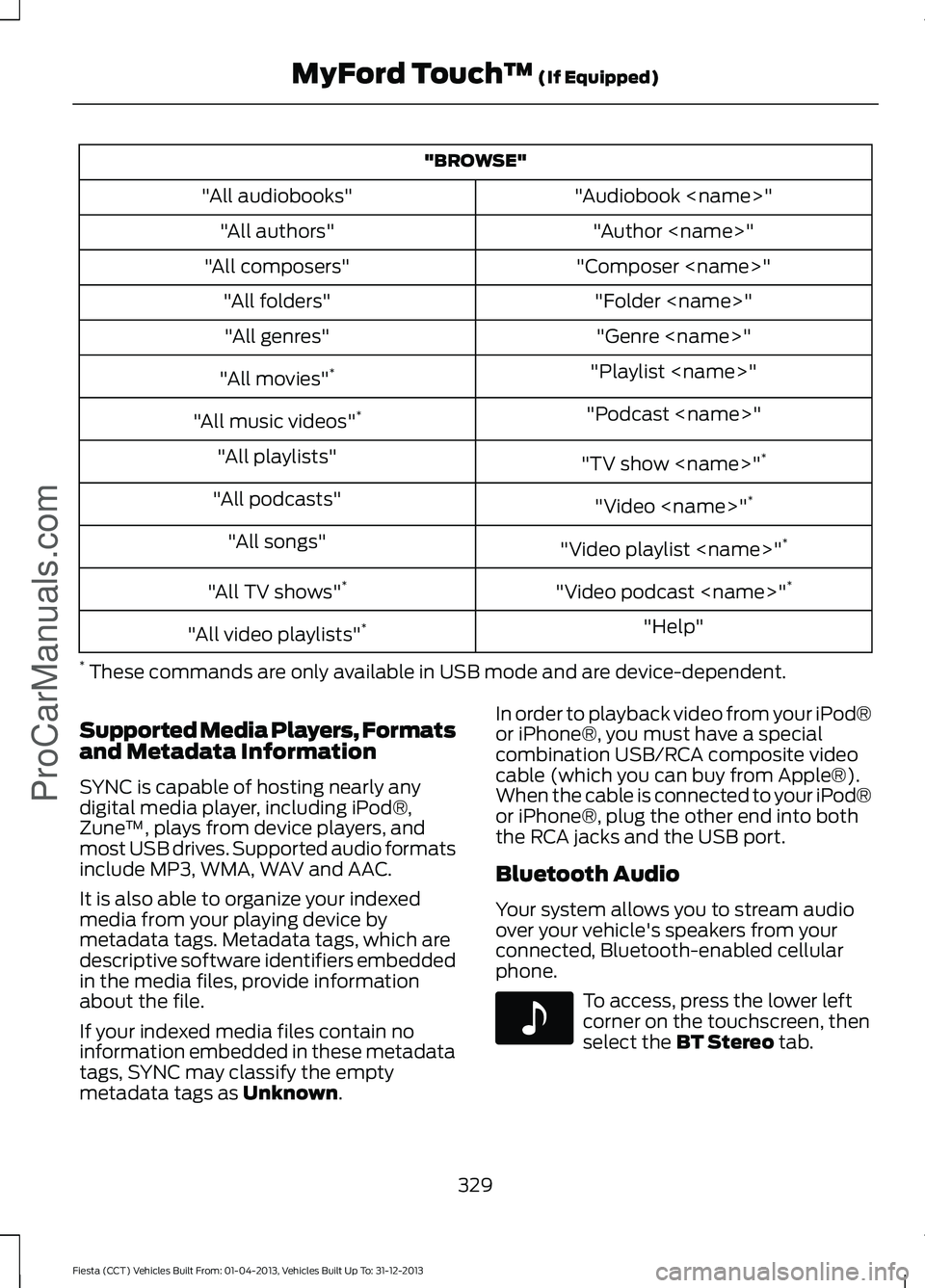
"BROWSE"
"Audiobook
"All audiobooks"
"Author
"All authors"
"Composer
"All composers"
"Folder
"All folders"
"Genre
"All genres"
"Playlist
"All movies" *
"Podcast
"All music videos" *
"TV show
"All playlists"
"Video
"All podcasts"
"Video playlist
"All songs"
"Video podcast
"All TV shows" *
"Help"
"All video playlists" *
* These commands are only available in USB mode and are device-dependent.
Supported Media Players, Formats
and Metadata Information
SYNC is capable of hosting nearly any
digital media player, including iPod®,
Zune ™, plays from device players, and
most USB drives. Supported audio formats
include MP3, WMA, WAV and AAC.
It is also able to organize your indexed
media from your playing device by
metadata tags. Metadata tags, which are
descriptive software identifiers embedded
in the media files, provide information
about the file.
If your indexed media files contain no
information embedded in these metadata
tags, SYNC may classify the empty
metadata tags as Unknown. In order to playback video from your iPod®
or iPhone®, you must have a special
combination USB/RCA composite video
cable (which you can buy from Apple®).
When the cable is connected to your iPod®
or iPhone®, plug the other end into both
the RCA jacks and the USB port.
Bluetooth Audio
Your system allows you to stream audio
over your vehicle's speakers from your
connected, Bluetooth-enabled cellular
phone.
To access, press the lower left
corner on the touchscreen, then
select the
BT Stereo tab.
329
Fiesta (CCT) Vehicles Built From: 01-04-2013, Vehicles Built Up To: 31-12-2013 MyFord Touch
™
(If Equipped)
ProCarManuals.comE142611
Page 362 of 398
TRADEMARKS: This EULA does not grant
you any rights in connection with any
trademarks or service marks of FORD
MOTOR COMPANY, MS, Microsoft
Corporation, third party software or service
providers, their affiliates or suppliers.
PRODUCT SUPPORT: Product support
for the SOFTWARE is not provided by MS,
its parent corporation Microsoft
Corporation, or their affiliates or
subsidiaries. For product support, please
refer to FORD MOTOR COMPANY
instructions provided in the documentation
for the DEVICE. Should you have any
questions concerning this EULA, or if you
desire to contact FORD MOTOR
COMPANY for any other reason, please
refer to the address provided in the
documentation for the DEVICE.
No Liability for Certain Damages:
EXCEPT AS PROHIBITED BY LAW, FORD
MOTOR COMPANY, ANY THIRD PARTY
SOFTWARE OR SERVICES SUPPLIERS,
MS, MICROSOFT CORPORATION AND
THEIR AFFILIATES SHALL HAVE NO
LIABILITY FOR ANY INDIRECT, SPECIAL,
CONSEQUENTIAL OR INCIDENTAL
DAMAGES ARISING FROM OR IN
CONNECTION WITH THE USE OR
PERFORMANCE OF THE SOFTWARE. THIS
LIMITATION SHALL APPLY EVEN IF ANY
REMEDY FAILS OF ITS ESSENTIAL
PURPOSE. IN NO EVENT SHALL MS,
MICROSOFT CORPORATION AND/OR
THEIR AFFILIATES BE LIABLE FOR ANY
AMOUNT IN EXCESS OF U.S. TWO
HUNDRED FIFTY DOLLARS (U.S.
$250.00).
• THERE ARE NO WARRANTIES OTHER
THAN THOSE THAT MAY EXPRESSLY
BE PROVIDED FOR YOUR NEW
VEHICLE. Adobe
Contains Adobe® [Flash® Player] or
[AIR®] technology by Adobe Systems
Incorporated. This [Licensee Product]
contains [Adobe® Flash® Player]
[Adobe® AIR®] software under license
from Adobe Systems Incorporated,
Copyright ©1995-2009 Adobe
Macromedia Software LLC. All rights
reserved. Adobe, Flash and AIR are
trademarks of Adobe Systems
Incorporated.
End User Notice
Microsoft® Windows® Mobile for
Automotive Important Safety
Information
This system Ford SYNC™ contains
software that is licensed to Manufacturer
FORD MOTOR COMPANY by an affiliate
of Microsoft Corporation pursuant to a
license agreement. Any removal,
reproduction, reverse engineering or other
unauthorized use of the software from this
system in violation of the license
agreement is strictly prohibited and may
subject you to legal action.
Read and follow instructions:
Before
using your Windows Automotive- based
system, read and follow all instructions
and safety information provided in this end
user manual ("User's Guide"). Not
following precautions found in this User's
Guide can lead to an accident or other
serious consequences.
Keep User's Guide in vehicle: When kept
in the vehicle, the User's Guide will be a
ready reference for you and other users
unfamiliar with the Windows
Automotive-based system. Please make
certain that before using the system for
the first time, all persons have access to
the User's Guide and read its instructions
and safety information carefully.
359
Fiesta (CCT) Vehicles Built From: 01-04-2013, Vehicles Built Up To: 31-12-2013 Appendices
ProCarManuals.com
Page 390 of 398
Creating a MyKey...........................................48
Programming or Changing Configurable
Settings............................................................... 49
Cruise Control.................................................64 Principle of Operation....................................... 142
Cruise control See: Using Cruise Control................................ 142
Cup Holders.....................................................112
Customer Assistance.................................160
D
Data Recording
................................................10
Event Data Recording.......................................... 10
Service Data Recording...................................... 10
Daytime Running Lamps............................69
Direction Indicators.......................................69
Driver and Passenger Airbags....................35 Children and Airbags........................................... 35
Proper Driver and Front Passenger Seating Adjustment........................................................ 35
Driver Knee Airbag.........................................39
Driving Aids
.....................................................144
Driving Hints....................................................157
Driving Through Water................................157
DRL See: Daytime Running Lamps......................... 69
E
Economical Driving
.......................................157
Emission Control System...........................123 On-Board Diagnostics (OBD-II).................... 124
Readiness for Inspection/Maintenance (I/M) Testing.................................................... 124
End User License Agreement..................355 SYNC® End User License Agreement
(EULA).............................................................. 355
Engine Block Heater.....................................116 Using the Engine Block Heater........................ 117
Engine Coolant Check................................183 Adding Engine Coolant.................................... 184
Checking the Engine Coolant......................... 183
Recycled Engine Coolant................................. 185
Severe Climates.................................................. 185
Engine Immobilizer See: Passive Anti-Theft System.................... 60Engine Oil Check...........................................182
Adding Engine Oil............................................... 182
Resetting the Oil Life Monitoring System............................................................... 183
Engine Oil Dipstick - 1.0L EcoBoost™..................................................182
Engine Oil Dipstick - 1.6L Duratec-16V Ti-VCT (88kW/120PS) - Sigma..........182
Engine Oil Dipstick - 1.6L EcoBoost™..................................................182
Engine Specifications.................................235 Drivebelt Routing............................................... 235
Entertainment................................................313 AM/FM Radio....................................................... 314
Bluetooth Audio................................................. 329
Browsing Device Content................................. 313
CD........................................................................\
.... 325
SD Card Slot and USB Port........................... 326
SIRIUS® Satellite Radio (If Activated)........................................................ 320
Supported Media Players, Formats and Metadata Information................................ 329
Event Data Recording See: Data Recording............................................ 10
Export Unique Options
..................................12
Exterior Mirrors.................................................74
Fold-Away Exterior Mirrors................................ 75
Integrated Blind Spot Mirrors........................... 75
Power Exterior Mirrors......................................... 74
F
Fastening the Safety Belts..........................27 Restraint of Pregnant Women......................... 27
Safety Belt Extension Assembly.................... 29
Safety Belt Locking Modes............................... 28
Floor Mats
.......................................................158
Fog Lamps - Front See: Front Fog Lamps........................................ 69
Ford Credit
.........................................................12
(U.S. Only)................................................................ 12
Ford Extended Service Plan (ESP)........241 SERVICE PLANS (CANADA ONLY).............243
SERVICE PLANS (U.S. Only).......................... 241
Front Fog Lamps............................................69
Front Passenger Sensing System............36
Fuel and Refueling........................................118
387
Fiesta (CCT) Vehicles Built From: 01-04-2013, Vehicles Built Up To: 31-12-2013 Index
ProCarManuals.com