change time FORD FIESTA 2014 Owner's Manual
[x] Cancel search | Manufacturer: FORD, Model Year: 2014, Model line: FIESTA, Model: FORD FIESTA 2014Pages: 398, PDF Size: 6.09 MB
Page 281 of 398
Note:
The driver is ultimately responsible
for the safe operation of the vehicle, and
therefore, must evaluate whether it is safe
to follow the suggested directions. Any
navigation features provided are only an aid.
Make your driving decisions based on your
observations of local conditions and existing
traffic regulations. Do not follow the route
suggestions if doing so would result in an
unsafe or illegal maneuver, place you in an
unsafe situation, or if you would be directed
into an area that you consider unsafe. Maps
used by this system may be inaccurate
because of errors, changes in roads, traffic
conditions or driving conditions.
Note: When you connect, the service uses
GPS technology and advanced vehicle
sensors to collect your vehicle's current
location, travel direction and speed to help
provide you with the directions, traffic
reports, or business searches you request.
Further, to provide the services you request,
for continuous improvement, the service
may collect and record call details and voice
communications. For more information, see
SYNC Services Terms and Conditions at
www.SYNCMyRide.com. If you do not want
Ford or its service providers to collect your
vehicle travel information or other
information identified in the Terms and
Conditions, do not subscribe or use the
service.
SYNC Services uses advanced vehicle
sensors, integrated GPS technology and
comprehensive map and traffic data, to
give you personalized traffic reports,
precise turn-by-turn directions, business
search, news, sports, weather and more.
For a complete list of services, or to learn
more, please visit www.SYNCMyRide.com.
Connecting to SYNC Services Using
Voice Commands
1. Press the voice button. 2. When prompted, say "Services". This
initiates an outgoing call to SYNC
Services using your paired and
connected Bluetooth-enabled cellular
phone.
3. Once you connect to the service, follow
the voice prompts to request the
desired service, such as Traffic or
Directions. You can also say, "What are
my choices?" to receive a list of
available services from which to
choose.
4. Say, "Services" to return to the Services
main menu or for help, say, "Help".
Connecting to SYNC Services Using
the Phone Menu
1. Press the phone button to enter the phone menu.
2. Scroll to Services.
3. Press OK to confirm and enter the
Services menu. The display indicates
the system is connecting.
4. Press
OK. SYNC initiates the call to the
Services portal.
5. Once you connect to the service, follow
the voice prompts to request the
desired service, such as Traffic or
Directions. You can also say, "What are
my choices?" to receive a list of
available services from which to
choose.
6. Say, "Services" to return to the Services
main menu or for help, say, "Help".
Receiving Turn-by-Turn Directions
1. When connected to SYNC Services, say "Directions" or "Business search".
To find the closest business or type of
business to your current location, just
say "Business search" and then
"Search near me". If you need further
assistance in finding a location you can
say "Operator" at any time within a
278
Fiesta (CCT) Vehicles Built From: 01-04-2013, Vehicles Built Up To: 31-12-2013 SYNC™
ProCarManuals.com
Page 300 of 398
Using the Touch-Sensitive
Controls
To turn a feature on or off using the
touch-sensitive controls:
•
Make sure your hands are clean and
dry.
• Press firmly on the center of a control
graphic or menu item.
• Keep metal objects or other conductive
material away from the surface of the
touchscreen.
Depending on your vehicle ’s option
package and software, it may also have
the following controls:
• Power: Switch the media features on
or off.
• VOL:
Adjust the volume of playing
media.
• Seek:
Use as you normally would in
media modes.
• Tune:
Use as you normally would in
media modes.
• Eject:
Eject a CD from the
entertainment system.
• SOURCE:
Touch the control
repeatedly to switch between media
modes.
• SOUND:
Adjust the settings for:
• Bass
• Treble
• Midrange
• Balance
• Fade
• DSP (Digital Signal Processing)
• Occupancy Mode
• Speed Compensated Volume.
• Hazard warning flasher:
Switch the
hazard warning flashers on or off. Cleaning the Touchscreen Display
Use a dry, clean, soft cloth. If dirt or
fingerprints are still visible, apply a small
amount of alcohol to the cloth. Do not pour
or spray alcohol onto the display. Do not
use detergent or any type of solvent to
clean the display.
Support
The SYNC support team is available:
•
Monday-Saturday, 8:30am-8:00pm
EST.
• United States: 1-888-270-1055
• Canada: 1-800-565-3673
Note: Times are subject to change due to
holidays.
Safety Information WARNING
Driving while distracted can result in
loss of vehicle control, crash and
injury. We strongly recommend that
you use extreme caution when using any
device that may take your focus off the
road. Your primary responsibility is the safe
operation of your vehicle. We recommend
against the use of any handheld device
while driving and encourage the use of
voice-operated systems when possible.
Make sure you are aware of all applicable
local laws that may affect the use of
electronic devices while driving •
Do not attempt to service or repair the
system. Have your vehicle checked by
an authorized dealer.
• Do not operate media devices if the
power cables are broken or damaged.
297
Fiesta (CCT) Vehicles Built From: 01-04-2013, Vehicles Built Up To: 31-12-2013 MyFord Touch
™
(If Equipped)
ProCarManuals.com
Page 307 of 398
From this screen, you can also make other
adjustments such as 12-hour or 24-hour
mode, activate GPS time synchronization
and have the system automatically update
new time zones.
You can also turn the outside air
temperature display off and on. It appears
at the top center of the touchscreen, next
to the time and date.
The system automatically saves any
updates you make to the settings.
Display
You can adjust the touchscreen display
through the touchscreen or by pressing the
voice button on the steering wheel controls
and when prompted, say, "Display
settings".
To make adjustments using the
touchscreen, press:
1. Settings icon.
2. Display
.
Then select from the following:
• Brightness
allows you to make the
screen display brighter or dimmer.
• Mode
allows you to set the screen to
a certain brightness or have the system
automatically change based on the
outside light level.
• If you select
AUTO or NIGHT, you
have the options of turning the
display's Auto Dim feature on or off
and changing the Auto Dim Manual
Offset feature.
• Edit Wallpaper
allows you to display
the default photo or upload your own. Uploading Photos for Your Home
Screen Wallpaper
Note:
You cannot load photos directly from
your camera. You must access the photos
either from your USB mass storage device
or from an SD card.
Note: Photographs with extremely large
dimensions (such as 2048 x 1536) may not
be compatible and appear as a blank
(black) image on the display.
Your system allows you to upload and view
up to 32 photos. To access, press:
1. Settings
icon.
2. Display
.
3. Edit Wallpaper
.
4. follow the system prompts to upload your photographs.
Only the photograph(s), which meets the
following conditions, display:
• Compatible file formats are as follows:
.jpg, .gif, .png, .bmp
• Each file must be 1.5 MB or less.
• Recommended dimensions: 800 x 384
Sound To make adjustments using the
touchscreen, press:
1. Settings
icon.
2. Sound
.
Then select from the following:
• Bass
• Midrange
• Treble
• Set Balance and Fade
• Occupancy Mode
304
Fiesta (CCT) Vehicles Built From: 01-04-2013, Vehicles Built Up To: 31-12-2013 MyFord Touch
™
(If Equipped)
ProCarManuals.comE142607 E142607 E142607
Page 321 of 398
Potential station issues
Action
Cause
Issues
No action required. This is a
broadcast issue.
This is poor time alignment
by the radio broadcaster.
Echo, stutter, skip or repeat
in audio.
Increase or decrease in
audio volume.
No action required. The
reception issue may clear up
as you continue to drive.
The radio is shifting between
analog and digital audio.
Sound fading or blending in
and out.
No action required. This is
normal behavior. Wait until
the audio is available.
The digital multicast is not
available until the HD Radio
broadcast is decoded. Once
decoded, the audio is avail-
able.
There is an audio mute
delay when selecting HD2 or
HD3, multicast preset or
Direct Tune.
No action required. The
station is not available in
your current location.
The previously stored
multicast preset or direct
tune is not available in your
current reception area.
Cannot access HD2 or HD3
multicast channel when
recalling a preset or from a
direct tune.
Fill out the station issue
form at website listed
below.*
Data service issue by the
radio broadcaster.
Text information does not
match currently playing
audio.
Fill out the station issue
form at website listed
below.*
Data service issue by the
radio broadcaster.
There is no text information
shown for currently selected
frequency.
No action required. This is
normal behavior.
Pressing
Scan disables
HD2-HD7 channel search.
HD2-HD7 stations not found
when Scan is pressed.
* http://www.ibiquity.com/automotive/report_radio_station_experiences
HD Radio Technology manufactured under
license from iBiquity Digital Corp. U.S. and
foreign patents. HD Radio and the HD and
HD Radio logos are proprietary trademarks
of iBiquity Digital Corp. Ford Motor
Company and iBiquity Digital Corp. are not
responsible for the content sent using HD
Radio technology. Content may be
changed, added or deleted at any time at
the station owner's discretion. Radio Voice Commands If you are listening to the radio,
press the voice button on the
steering wheel controls. When
prompted, say any of the following
commands.
If you are not listening to the radio, press
the voice button and, after the tone, say
"Radio", then any of the following
commands.
318
Fiesta (CCT) Vehicles Built From: 01-04-2013, Vehicles Built Up To: 31-12-2013 MyFord Touch
™
(If Equipped)
ProCarManuals.comE142599
Page 324 of 398
Parental Lockout
This allows you to lock and unlock
channels, change or reset your PIN or
unlock all channels. To use this feature,
you need your initial PIN, which is 1234.
Artist/Title/Team Alerts
This feature allows you to select Artists,
Titles and Teams that you would like the
system to alert you to when they are
playing on other channels. Press Edit Alerts
to delete or turn off alerts. You can also
set all alerts to on or off. When an alert
appears on the screen, you can choose to
Tune to the channel, to Cancel the alert or
to Disable Alerts. If you are listening to a
sporting event, you can save your favorite
teams so that the system can alert you
when they are playing on a satellite radio
channel.
Note:
SIRIUS does not support the Alert
feature on all channels. Ford Motor
Company shall not be responsible for Alert
feature variation.
Electronic Serial Number (ESN)
SIRIUS requires this number when
communicating with you about your
account.
Direct Tune
Touch this button to enter the satellite
channel number when prompted. Touch
Enter when you are done.
Browse
Touch this button to view a list of all
available stations. Scroll to see more
categories. Touch the station you want to
listen to.
Touch
Skip if you want to skip this
channel.
Touch
Lock if you do not want anyone to
listen to this channel. Touch
Title or Artist to see song and
artists on other stations.
SIRIUS Satellite Radio Information
Note: SIRIUS reserves the unrestricted right
to change, rearrange, add or delete
programming including canceling, moving
or adding particular channels, and its prices,
at any time, with or without notice to you.
Ford Motor Company shall not be
responsible for any such programming
changes. SIRIUS satellite radio is a
subscription-based satellite radio service
that broadcasts a variety of music, sports,
news, weather, traffic and entertainment
programming. Your factory-installed
SIRIUS satellite radio system includes
hardware and a limited subscription term
that begins on the date of sale or lease of
your vehicle. See an authorized dealer for
availability.
For more information on extended
subscription terms (a service fee is
required), the online media player and a
list of SIRIUS satellite radio channels, and
other features, please visit
www.siriusxm.com in the United States,
www.sirius.ca in Canada, or call SIRIUS at
1-888-539-7474.
Note:
This receiver includes the eCos
real-time operating system. eCos is
published under the eCos License.
321
Fiesta (CCT) Vehicles Built From: 01-04-2013, Vehicles Built Up To: 31-12-2013 MyFord Touch
™
(If Equipped)
ProCarManuals.comE142593
Page 352 of 398
Parking POI Notification
Set the automatic parking points of
interest notification. Turn this feature ON
or OFF. When parking points of interest
notification is on, the icons display on the
map when you get close to your
destination. This may not be very useful in
dense areas, and may clutter the map
when other points of interest display.
Route Preferences
Preferred Route
Choose to have the system display the
Shortest, Fastest or most Ecological route.
Always Use Preferred Route
Bypass route selection in destination
programming. The system only calculates
one route based on preferred route
settings.
Eco Time Penalty
Select a low, medium or high cost for the
calculated Eco Route. The higher the
setting, the longer the time allotment is for
the route.
Avoid
These features allow you to choose to
have the system avoid freeways, toll roads,
ferries and car trains when planning your
route. Turn these features ON or OFF.
Use HOV Lanes
Have the system use high-occupancy
vehicle lanes, if available, when planning
your route.
Navigation Preferences
Guidance Prompts
Have the system use
Voice & Tones or
Tone Only on your programmed route. Auto - Fill State/Province
Have the system automatically fill in the
state and province based on the
information already entered into the
system. Turn this feature
ON or OFF.
Traffic Preferences
Avoid Traffic Problems
Choose how you want the system to
handle traffic problems along your route.
• Automatic:
Have the system reroute
you to avoid traffic incidents that
develop and impact the current route.
The system does not provide a traffic
alert notification.
• Manual:
Have the system always
provide a traffic alert notification for
traffic incidents along the planned
route. You have a choice to accept or
ignore the notification before making
the route deviation.
Traffic Alert Notification
Have the system display traffic alert
notifications.
Other traffic alert features allows you to
turn on certain, or all, traffic icons on the
map such as road work, incident, accidents
and closed roads. Scroll down to view all
the different types of alerts. Turn these
features
ON or OFF.
Avoid Areas
Choose areas which you want the system
to avoid when calculating a route for you.
Press
Add to program an entry. Once you
make a selection, the system tries to avoid
the area(s) if possible for all routes. To
delete a selection, choose the listing on
the screen. When the screen changes to
Avoid Areas Edit
, you can press Delete
at the bottom right of the screen.
349
Fiesta (CCT) Vehicles Built From: 01-04-2013, Vehicles Built Up To: 31-12-2013 MyFord Touch
™
(If Equipped)
ProCarManuals.com
Page 354 of 398
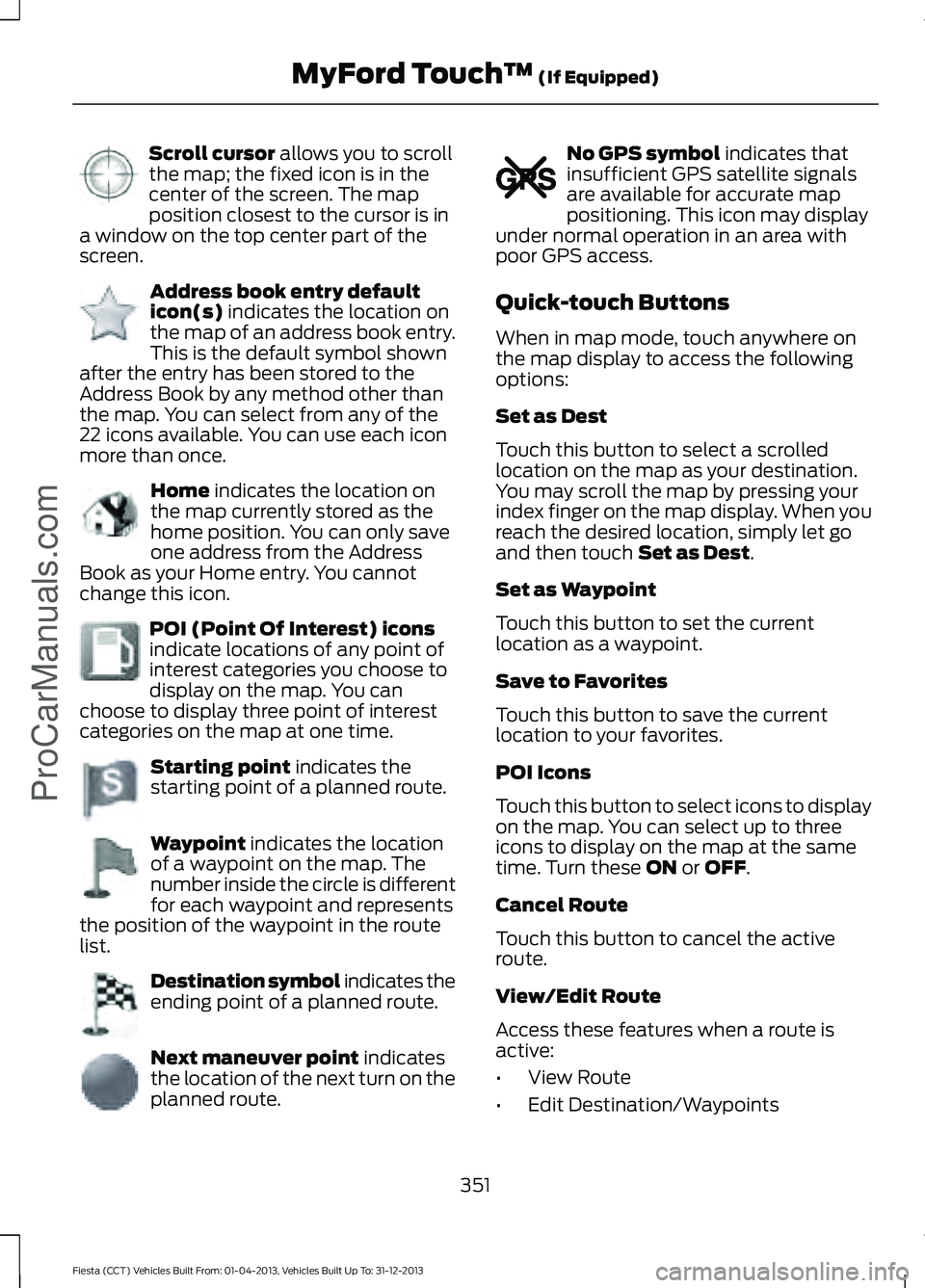
Scroll cursor allows you to scroll
the map; the fixed icon is in the
center of the screen. The map
position closest to the cursor is in
a window on the top center part of the
screen. Address book entry default
icon(s)
indicates the location on
the map of an address book entry.
This is the default symbol shown
after the entry has been stored to the
Address Book by any method other than
the map. You can select from any of the
22 icons available. You can use each icon
more than once. Home
indicates the location on
the map currently stored as the
home position. You can only save
one address from the Address
Book as your Home entry. You cannot
change this icon. POI (Point Of Interest) icons
indicate locations of any point of
interest categories you choose to
display on the map. You can
choose to display three point of interest
categories on the map at one time. Starting point
indicates the
starting point of a planned route. Waypoint
indicates the location
of a waypoint on the map. The
number inside the circle is different
for each waypoint and represents
the position of the waypoint in the route
list. Destination symbol indicates the
ending point of a planned route.
Next maneuver point
indicates
the location of the next turn on the
planned route. No GPS symbol
indicates that
insufficient GPS satellite signals
are available for accurate map
positioning. This icon may display
under normal operation in an area with
poor GPS access.
Quick-touch Buttons
When in map mode, touch anywhere on
the map display to access the following
options:
Set as Dest
Touch this button to select a scrolled
location on the map as your destination.
You may scroll the map by pressing your
index finger on the map display. When you
reach the desired location, simply let go
and then touch
Set as Dest.
Set as Waypoint
Touch this button to set the current
location as a waypoint.
Save to Favorites
Touch this button to save the current
location to your favorites.
POI Icons
Touch this button to select icons to display
on the map. You can select up to three
icons to display on the map at the same
time. Turn these
ON or OFF.
Cancel Route
Touch this button to cancel the active
route.
View/Edit Route
Access these features when a route is
active:
• View Route
• Edit Destination/Waypoints
351
Fiesta (CCT) Vehicles Built From: 01-04-2013, Vehicles Built Up To: 31-12-2013 MyFord Touch
™
(If Equipped)
ProCarManuals.comE142647 E142648 E142649 E142650 E142651 E142652 E142653 E142654 E142655
Page 363 of 398
WARNING
Operating certain parts of this
system while driving can distract
your attention away from the road,
and possibly cause an accident or other
serious consequences. Do not change
system settings or enter data non-verbally
(using your hands) while driving. Stop the
vehicle in a safe and legal manner before
attempting these operations. This is
important since while setting up or
changing some functions you might be
required to distract your attention away
from the road and remove your hands from
the wheel. General Operation
Voice Command Control: Functions
within the Windows Automotive-based
system may be accomplished using only
voice commands. Using voice commands
while driving allows you to operate the
system without removing your hands from
the wheel.
Prolonged Views of Screen:
Do not
access any function requiring a prolonged
view of the screen while you are driving.
Pull over in a safe and legal manner before
attempting to access a function of the
system requiring prolonged attention. Even
occasional short scans to the screen may
be hazardous if your attention has been
diverted away from your driving task at a
critical time.
Volume Setting: Do not raise the volume
excessively. Keep the volume at a level
where you can still hear outside traffic and
emergency signals while driving. Driving
while unable to hear these sounds could
cause an accident. Use of Speech Recognition Functions:
Speech recognition software is inherently
a statistical process which is subject to
errors. It is your responsibility to monitor
any speech recognition functions included
in the system and address any errors.
Navigation Features:
Any navigation
features included in the system are
intended to provide turn by turn
instructions to get you to a desired
destination. Please make certain all
persons using this system carefully read
and follow instructions and safety
information fully.
Distraction Hazard:
Any navigation
features may require manual (non-verbal)
setup. Attempting to perform such set-up
or insert data while driving can seriously
distract your attention and could cause an
accident or other serious consequences.
Stop the vehicle in a safe and legal manner
before attempting these operations.
Let Your Judgment Prevail:
Any
navigation features are provided only as
an aid. Make your driving decisions based
on your observations of local conditions
and existing traffic regulations. Any such
feature is not a substitute for your personal
judgment. Any route suggestions made by
this system should never replace any local
traffic regulations or your personal
judgment or knowledge of safe driving
practices.
Route Safety:
Do not follow the route
suggestions if doing so would result in an
unsafe or illegal maneuver, if you would be
placed in an unsafe situation, or if you
would be directed into an area that you
consider unsafe. The driver is ultimately
responsible for the safe operation of the
vehicle and therefore, must evaluate
whether it is safe to follow the suggested
directions.
360
Fiesta (CCT) Vehicles Built From: 01-04-2013, Vehicles Built Up To: 31-12-2013 Appendices
ProCarManuals.com
Page 364 of 398
Potential Map Inaccuracy: Maps used
by this system may be inaccurate because
of changes in roads, traffic controls or
driving conditions. Always use good
judgment and common sense when
following the suggested routes.
Emergency Services:
Do not rely on any
navigation features included in the system
to route you to emergency services. Ask
local authorities or an emergency services
operator for these locations. Not all
emergency services such as police, fire
stations, hospitals and clinics are likely to
be contained in the map database for such
navigation features.
TeleNav Software End User License
Agreement
Please read these terms and conditions
carefully before you use the TeleNav
Software. Your use of the TeleNav
Software indicates that you accept these
terms and conditions. If you do not accept
these terms and conditions, do not break
the seal of the package, launch, or
otherwise use the TeleNav Software.
TeleNav may revise this Agreement and
the privacy policy at any time, with or
without notice to you. You agree to visit
http://www.telenav.com from time to time
to review the then current version of this
Agreement and of the privacy policy.
1. Safe and Lawful Use
You acknowledge that devoting attention
to the TeleNav Software may pose a risk
of injury or death to you and others in
situations that otherwise require your
undivided attention, and you therefore
agree to comply with the following when
using the TeleNav Software: (a) observe
all traffic laws and otherwise drive safely;
(b) use your own personal judgment while
driving. If you feel that a route suggested
by the TeleNav Software instructs you to
perform an unsafe or illegal maneuver, places you in an unsafe situation, or directs
you into an area that you consider to be
unsafe, do not follow such instructions; (c)
do not input destinations, or otherwise
manipulate the TeleNav Software, unless
your vehicle is stationary and parked; (d)
do not use the TeleNav Software for any
illegal, unauthorized, unintended, unsafe,
hazardous, or unlawful purposes, or in any
manner inconsistent with this Agreement;
(e) arrange all GPS and wireless devices
and cables necessary for use of the
TeleNav Software in a secure manner in
your vehicle so that they will not interfere
with your driving and will not prevent the
operation of any safety device (such as an
airbag).
You agree to indemnify and hold TeleNav
harmless against all claims resulting from
any dangerous or otherwise inappropriate
use of the TeleNav Software in any moving
vehicle, including as a result of your failure
to comply with the directions above.
2. Account Information
You agree: (a) when registering the
TeleNav Software, to provide TeleNav with
true, accurate, current, and complete
information about yourself, and (b) to
inform TeleNav promptly of any changes
to such information, and to keep it true,
accurate, current and complete.
3. Software License
Subject to your compliance with the terms
of this Agreement, TeleNav hereby grants
to you a personal, non-exclusive,
non-transferable license (except as
expressly permitted below in connection
with your permanent transfer of the
TeleNav Software license), without the
right to sublicense, to use the TeleNav
Software (in object code form only) in
order to access and use the TeleNav
Software. This license shall terminate upon
361
Fiesta (CCT) Vehicles Built From: 01-04-2013, Vehicles Built Up To: 31-12-2013 Appendices
ProCarManuals.com
Page 371 of 398
The software from Gracenote (the
"Gracenote Software") enables this device
to do disc and music file identification and
obtain music-related information, including
name, artist, track, and title information
("Gracenote Data") from online servers
("Gracenote Servers"), and to perform
other functions. You may use Gracenote
Data only by means of the intended End
User functions of this device.
This device may contain content belonging
to Gracenote's providers. If so, all of the
restrictions set forth herein with respect to
Gracenote Data shall also apply to such
content and such content providers shall
be entitled to all of the benefits and
protections set forth herein that are
available to Gracenote.
You agree that you will use the content
from Gracenote ("Gracenote Content") ,
Gracenote Data, the Gracenote Software,
and Gracenote Servers for your own
personal, non-commercial use only. You
agree not to assign, copy, transfer or
transmit the Gracenote Content,
Gracenote Software or any Gracenote
Data (except in a Tag associated with a
music file) to any third party. YOU AGREE
NOT TO USE OR EXPLOIT GRACENOTE
CONTENT, GRACENOTE DATA, THE
GRACENOTE SOFTWARE, OR
GRACENOTE SERVERS, EXCEPT AS
EXPRESSLY PERMITTED HEREIN.
You agree that your non-exclusive licenses
to use the Gracenote Content, Gracenote
Data, the Gracenote Software, and
Gracenote Servers will terminate if you
violate these restrictions. If your licenses
terminate, you agree to cease any and all
use of the Gracenote Content, Gracenote
Data, the Gracenote Software, and
Gracenote Servers. Gracenote,
respectively, reserve all rights in Gracenote
Data, the Gracenote Software, and the
Gracenote Servers and Gracenote Content,
including all ownership rights. Under no
circumstances will either Gracenote
become liable for any payment to you for
any information that you provide, including
any copyrighted material or music file
information. You agree that Gracenote
may enforce its respective rights,
collectively or separately, under this
agreement against you, directly in each
company's own name.
Gracenote uses a unique identifier to track
queries for statistical purposes. The
purpose of a randomly assigned numeric
identifier is to allow Gracenote to count
queries without knowing anything about
who you are. For more information, see the
web page at www.gracenote.com for the
Gracenote Privacy Policy.
THE GRACENOTE SOFTWARE, EACH ITEM
OF GRACENOTE DATA AND THE
GRACENOTE CONTENT ARE LICENSED
TO YOU "AS IS". NEITHER GRACENOTE
MAKES ANY REPRESENTATIONS OR
WARRANTIES, EXPRESS OR IMPLIED,
REGARDING THE ACCURACY OF ANY
GRACENOTE DATA FROM THE
GRACENOTE SERVERS OR GRACENOTE
CONTENT. GRACENOTE COLLECTIVELY
AND SEPARATELY RESERVE THE RIGHT
TO DELETE DATA AND/OR CONTENT
FROM THE COMPANIES' RESPECTIVE
SERVERS OR, IN THE CASE OF
GRACENOTE, CHANGE DATA
CATEGORIES FOR ANY CAUSE THAT
GRACENOTE DEEMS SUFFICIENT. NO
WARRANTY IS MADE THAT EITHER
GRACENOTE CONTENT OR THE
GRACENOTE SOFTWARE OR
GRACENOTE SERVERS ARE ERROR-FREE
OR THAT THE FUNCTIONING OF THE
GRACENOTE SOFTWARE OR
GRACENOTE SERVERS WILL BE
UNINTERRUPTED. GRACENOTE IS NOT
OBLIGATED TO PROVIDE YOU WITH ANY
ENHANCED OR ADDITIONAL DATA TYPES
THAT GRACENOTE MAY CHOOSE TO
PROVIDE IN THE FUTURE AND IS FREE
TO DISCONTINUE ITS ONLINE SERVICES
AT ANY TIME. GRACENOTE DISCLAIM ALL
368
Fiesta (CCT) Vehicles Built From: 01-04-2013, Vehicles Built Up To: 31-12-2013 AppendicesProCarManuals.com