wheel FORD FIESTA 2015 Repair Manual
[x] Cancel search | Manufacturer: FORD, Model Year: 2015, Model line: FIESTA, Model: FORD FIESTA 2015Pages: 423, PDF Size: 5.5 MB
Page 331 of 423
![FORD FIESTA 2015 Repair Manual Voice command
(USB [<1-n>] | iPod | MP3 [player])
(browse | show | search) help
* These commands are only usable if you
have an active subscription to SIRIUS
satellite radio.
The voice system allows y](/img/11/57821/w960_57821-330.png "FORD FIESTA 2015 Repair Manual Voice command
(USB [<1-n>] | iPod | MP3 [player])
(browse | show | search) help
* These commands are only usable if you
have an active subscription to SIRIUS
satellite radio.
The voice system allows y")
Voice command
(USB [<1-n>] | iPod | MP3 [player])
(browse | show | search) help
* These commands are only usable if you
have an active subscription to SIRIUS
satellite radio.
The voice system allows you to change
audio sources with a simple voice
command. For example, if you are listening
to music on a USB device, then want to
switch to a satellite radio channel, simply
press the voice button on the steering
wheel controls and say the name of the
SIRIUS station (for example, "the
Highway"). The following voice commands
are available at the top level of the voice
session no matter which current audio
source you are listening to (for example a
USB device or SIRIUS satellite radio).
Note: This is only available when your
MyFord Touch system language is set to
North American English.
Press the voice button and when
prompted say any of the following: Voice command
[tune [to]] (FM
[tune [to]] (AM
*
[tune [to]] [Sirius]
play (song | track | title | file)
podcast episode name | song name
| audiobook title name> by artist
**
play [artist]
**
play genre
**
play playlist
*
[tune [to]] [Sirius] [channel] <0-
223>
*
[tune [to]] [Sirius] sports (game |
games)
* This command is only usable if you have
an active subscription to SIRIUS satellite
radio.
** The commands that have [ ] around the
word means that the word is optional. For
example, if you say, "Play Metallica", this
is the same as the voice command, "Play
[artist]
AM/FM Radio Touch the AM or FM tab to listen
to the radio.
To change between AM and FM presets,
just touch the AM or FM tab.
Memory Presets
Save a station by pressing and holding one
of the memory preset areas. There is a brief
mute while the radio saves the station.
Sound returns when finished.
HD Radio
Touch this button to turn HD Radio on. The
light on the button illuminates when the
feature is on. HD Radio allows you to
receive radio broadcasts digitally, where
available, providing free, crystal-clear
sound. See HD Radio information later in
this chapter.
328
Fiesta (CCT), enUSA, Second Printing MyFord Touch
™
(If Equipped)
ProCarManuals.comE142611
Page 341 of 423
CD
To access, press the lower left corner
on the touchscreen, then select:
Message
CD
Insert your CD then select: Action and Descrip-
tion
Message
Touch this button
to repeat the
currently playing
track, all tracks on
the disc or switch
the feature off if
already on.
Repeat
Touch this button
to play the tracks or
entire albums in
random order, or
switch the feature
off if already on.
Shuffle
Touch this button
to hear a brief
sampling of all
available tracks.
Scan
Touch this button
to see disc informa-
tion.
More Info
To adjust the Sound Settings, select: Message
Options
Sound Settings
Then any of the following: Message
Bass
Midrange
Treble
Set Balance and Fade
Occupancy Mode
Speed Compensated Volume
DSP
Note: Your vehicle may not have all these
sound settings.
CD Voice Commands If you are listening to a CD, press
the voice button on the steering
wheel controls. When prompted,
say any of the following commands.
If you are not listening to a CD, press the
voice button and, after the tone, say "CD",
then any of the following commands.
Press the voice button and when
prompted say: Action
and
Descrip- tion
Voice command
(disc | CD [player])
Then say any of the
following:
pause
(disc | CD [player]) play
[play] next track
[play] previous track
338
Fiesta (CCT), enUSA, Second Printing MyFord Touch
™ (If Equipped)
ProCarManuals.comE142611 E142599
Page 350 of 423
To pair a subsequent cell phone, select:
Action and Description
Message
Phone
Settings
Select BT Device Select SYNC and a six-digit PIN appears on your device.
Add Device
If you are prompted to enter a PIN on your device, it does not
support Secure Simple Pairing. To pair, enter the PIN
displayed on the touchscreen. Skip the next step.
When prompted on your cell phone ’s display, confirm that
the PIN provided by SYNC matches the PIN displayed on your
cell phone.
The display indicates when the pairing is successful.
SYNC may prompt you with more cell phone options. For
more information on your cell phone's capability, see your
cell phone's manual and visit the website.
Making Calls Press the voice button and when
prompted say:
Voice command
call [[a] name]
dial [[a] number] To end the call or exit phone
mode, press and hold the phone
button.
Receiving Calls
During an incoming call, an audible tone
sounds. Call information appears in the
display if it is available. To accept the call, select:
Message
Accept
Note: You can also accept the call by
pressing the phone button on the steering
wheel. To reject the call, select:
Message
Reject
Note: You can also reject the call by
pressing the phone button on the steering
wheel.
347
Fiesta (CCT), enUSA, Second Printing MyFord Touch
™
(If Equipped)
ProCarManuals.comE142599
Page 358 of 423
If you miss a turn, SYNC automatically asks
if you want the route updated. Just say,
"Yes" when prompted and the system
delivers a new route to your vehicle.
If your vehicle is equipped with Navigation,
SYNC Services downloads your requested
destination to the navigation system. The
navigation system then calculates the
route and provides driving instructions.
See Navigation (page 362).
Disconnecting from SYNC Services
1. Press and hold the hang-up phone button on the steering wheel.
2. Say "Good-bye" from the SYNC Services main menu.
SYNC Services Quick Tips Tips
You can person-
alize your Services feature to providequicker access to
your most used or favorite informa-
Personalizing
tion. You can saveaddress points,
such as work or
home. You can also save favorite
information like
sports teams, for example Detroit Tips
Lions, or a news
category. You can learn more about
personalization by logging onto
www.SYNCMyRide.com.
Press the voice
button at any time (while connected
to SYNC Services)
to interrupt a voice
prompt or an audio clip (such as a
sports report) and say your voicecommand.
Push to interrupt
Your subscription isassociated withyour Bluetooth-
enabled cellular
phone number, not your VIN (Vehicle
Portable
Identification
Number). You can pair and connect
your phone to any vehicle equipped
with SYNC Services and continue
enjoying your personalized services.
SYNC Services Voice Commands When a route has been
downloaded (non-navigation
systems), press the voice button
on the steering wheel controls. When
prompted, say any of the following
commands:
355
Fiesta (CCT), enUSA, Second Printing MyFord Touch
™
(If Equipped)
ProCarManuals.comE142599
Page 360 of 423
Sports Info
Touch this button to view scores and
schedules from a variety of sports. You can
also save up to 10 favorite teams for easier
access. The score automatically refreshes
when a game is in progress.
Ski Conditions
Touch this button to view ski conditions
for a specific area.
Sirius Travel Link Voice Commands
Press the voice button on the
steering wheel controls. When
prompted, say any of the
following commands:
Sirius Travel Link Voice command
5-day weather forecast
Fuel prices
Movie listings *
Sports headlines
*
Sports schedules
*
Sports scores
Traffic
Weather
Weather map
Help
* If you say "Sports headlines", "Sports
schedules" or "Sports scores", you can
then say any of the commands in the
following chart. Sports-Related Commands Voice command
Baseball
College basketball
College football
Golf
MLS
My teams
NBA
NFL
NHL
WNBA
Help
Additional Sports-Related Voice
Commands Voice command
Baseball headlines
Baseball schedule
Baseball scores
College basketball headlines
College basketball schedule
College basketball scores
College football headlines
College football schedule
College football scores
Golf headlines
Golf leaderboard
Golf schedule
357
Fiesta (CCT), enUSA, Second Printing MyFord Touch
™ (If Equipped)
ProCarManuals.comE142599
Page 363 of 423
•
You must pair and connect a
Bluetooth-enabled and compatible
phone to SYNC.
• A connected Bluetooth-enabled phone
must have the ability to make and
maintain an outgoing call at the time
of the incident.
• A connected Bluetooth-enabled phone
must have adequate network coverage,
battery power and signal strength.
• The vehicle must have battery power
and be located in the United States,
Canada or in a territory in which 911 is
the emergency number.
In the Event of a Crash
Not all crashes deploy an airbag or activate
the fuel pump shut-off (which would
trigger 911 Assist); however, SYNC tries to
contact emergency services if 911 Assist
triggers. If a connected phone sustains
damage or loses connection to SYNC,
SYNC searches for, and tries to connect
to, any available previously paired phone
and tries to make the call to 911.
Before making the call:
• SYNC provides a short window of time
(approximately 10 seconds) to cancel
the call. If you fail to cancel the call,
SYNC attempts to dial 911.
• SYNC says the following, or a similar
message: "SYNC will attempt to call
911, to cancel the call, press Cancel on
your screen or press and hold the
phone button on your steering wheel."
If you do not cancel the call, and SYNC
makes a successful call, a pre-recorded
message plays for the 911 operator, and
then the occupant(s) in your vehicle is able
to talk with the operator. Be prepared to
provide your name, phone number and
location immediately, because not all 911
systems are capable of receiving this
information electronically. 911 Assist May Not Work If:
•
Your cellular phone or 911 Assist
hardware sustains damage in a crash.
• The vehicle's battery or the SYNC
system has no power.
• The phones(s) previously paired or
connected to the system are thrown
from the vehicle.
911 Assist Privacy Notice
When you turn on 911 Assist, it may
disclose to emergency services that your
vehicle has been in a crash involving the
deployment of an airbag or activation of
the fuel pump shut-off. Certain versions or
updates to 911 Assist may also be capable
of electronically or verbally disclosing to
911 operators your vehicle location or other
details about your vehicle or crash to assist
911 operators to provide the most
appropriate emergency services. If you do
not want to disclose this information, do
not turn the feature on.
Vehicle Health Report WARNING
Always follow scheduled
maintenance instructions, regularly
inspect your vehicle, and seek repair
for any damage or problem you suspect.
Vehicle Health Report supplements, but
cannot replace, normal maintenance and
vehicle inspection. Vehicle Health Report
only monitors certain systems
electronically monitored by your vehicle
and will not monitor or report the status
of any other system, (such as brake lining
wear). Failure to perform scheduled
maintenance and regularly inspect your
vehicle may result in vehicle damage and
serious injury. Note:
This feature is only available in the
United States.
360
Fiesta (CCT), enUSA, Second Printing MyFord Touch
™ (If Equipped)
ProCarManuals.com
Page 371 of 423
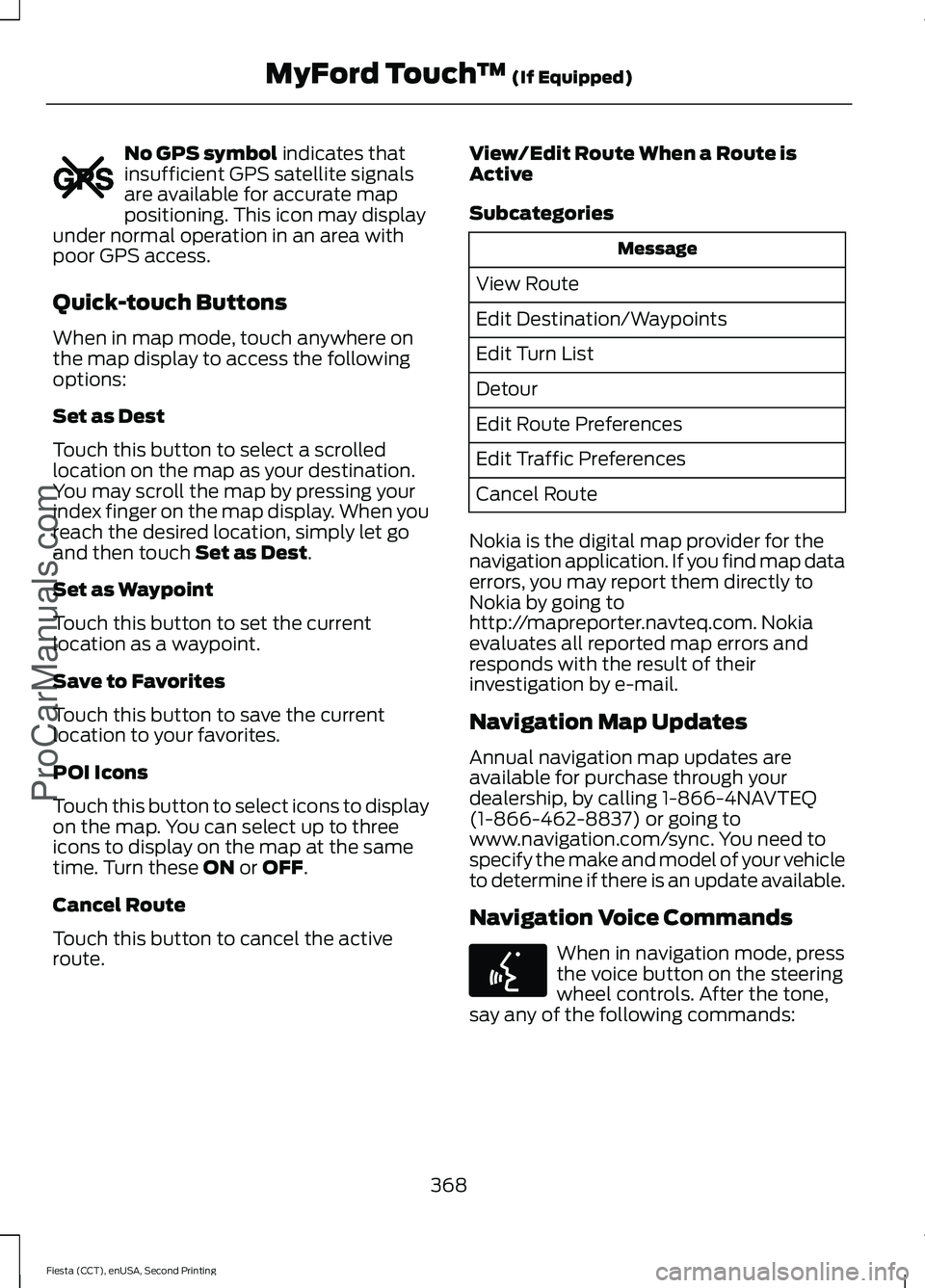
No GPS symbol indicates that
insufficient GPS satellite signals
are available for accurate map
positioning. This icon may display
under normal operation in an area with
poor GPS access.
Quick-touch Buttons
When in map mode, touch anywhere on
the map display to access the following
options:
Set as Dest
Touch this button to select a scrolled
location on the map as your destination.
You may scroll the map by pressing your
index finger on the map display. When you
reach the desired location, simply let go
and then touch
Set as Dest.
Set as Waypoint
Touch this button to set the current
location as a waypoint.
Save to Favorites
Touch this button to save the current
location to your favorites.
POI Icons
Touch this button to select icons to display
on the map. You can select up to three
icons to display on the map at the same
time. Turn these
ON or OFF.
Cancel Route
Touch this button to cancel the active
route. View/Edit Route When a Route is
Active
Subcategories Message
View Route
Edit Destination/Waypoints
Edit Turn List
Detour
Edit Route Preferences
Edit Traffic Preferences
Cancel Route
Nokia is the digital map provider for the
navigation application. If you find map data
errors, you may report them directly to
Nokia by going to
http://mapreporter.navteq.com. Nokia
evaluates all reported map errors and
responds with the result of their
investigation by e-mail.
Navigation Map Updates
Annual navigation map updates are
available for purchase through your
dealership, by calling 1-866-4NAVTEQ
(1-866-462-8837) or going to
www.navigation.com/sync. You need to
specify the make and model of your vehicle
to determine if there is an update available.
Navigation Voice Commands When in navigation mode, press
the voice button on the steering
wheel controls. After the tone,
say any of the following commands:
368
Fiesta (CCT), enUSA, Second Printing MyFord Touch
™
(If Equipped)
ProCarManuals.comE142655 E142599
Page 380 of 423
For a complete listing of the accessories
that are available for your vehicle, please
contact your dealer or visit our online store
at www.Accessories.Ford.com (United
States only).
Ford Custom Accessories are available for
your vehicle through an authorized Ford
dealer. Ford Motor Company will repair or
replace any properly authorized
dealer-installed Ford Genuine Accessory
found to be defective in factory-supplied
materials or workmanship during the
warranty period, as well as any component
damaged by the defective accessories.
Ford Motor Company will warrant your
accessory through the warranty that
provides the greatest benefit:
•
24 months, unlimited miles.
• The remainder of your new vehicle
limited warranty.
Contact an authorized dealer for details
and a copy of the warranty.
Exterior style
• Vehicle covers.
• Body kits.
• Graphics kit.
• Side window deflectors.
• Splash guards.
• Rear spoiler.
• Wheels.
• Bumper protectors.
Interior style
• All-weather floor mats.
• Rear seat entertainment*.
• Premium carpeted floor mats.
• Lighted door sill plates.
• Ambient lighting.
• Gear shift knob. Lifestyle
•
Ash cup and smokers packages.
• Roof racks and carriers*.
• Cargo organization.
Peace of mind
• Remote start.
• Vehicle security systems.
• Keyless entry keypad.
• Wheel locks.
• Bumper-mounted parking sensor*.
• Locking fuel plug for capless fuel
system.
*Ford Licensed Accessory. The accessory
manufacturer designs, develops and
therefore warrants Ford Licensed
Accessories, and does not design or test
these accessories to Ford Motor Company
engineering requirements. Contact an
authorized Ford dealer for the
manufacturer's limited warranty details,
and request a copy of the Ford Licensed
Accessories product limited warranty from
the accessory manufacturer.
For maximum vehicle performance, keep
the following information in mind when
adding accessories, equipment,
passengers and luggage to your vehicle:
377
Fiesta (CCT), enUSA, Second Printing AccessoriesProCarManuals.com
Page 387 of 423
WARNING
Operating certain parts of this
system while driving can distract
your attention away from the road,
and possibly cause an accident or other
serious consequences. Do not change
system settings or enter data non-verbally
(using your hands) while driving. Stop the
vehicle in a safe and legal manner before
attempting these operations. This is
important since while setting up or
changing some functions you might be
required to distract your attention away
from the road and remove your hands from
the wheel. General Operation
Voice Command Control: Functions
within the Windows Automotive-based
system may be accomplished using only
voice commands. Using voice commands
while driving allows you to operate the
system without removing your hands from
the wheel.
Prolonged Views of Screen:
Do not
access any function requiring a prolonged
view of the screen while you are driving.
Pull over in a safe and legal manner before
attempting to access a function of the
system requiring prolonged attention. Even
occasional short scans to the screen may
be hazardous if your attention has been
diverted away from your driving task at a
critical time.
Volume Setting: Do not raise the volume
excessively. Keep the volume at a level
where you can still hear outside traffic and
emergency signals while driving. Driving
while unable to hear these sounds could
cause an accident. Use of Speech Recognition Functions:
Speech recognition software is inherently
a statistical process which is subject to
errors. It is your responsibility to monitor
any speech recognition functions included
in the system and address any errors.
Navigation Features:
Any navigation
features included in the system are
intended to provide turn by turn
instructions to get you to a desired
destination. Please make certain all
persons using this system carefully read
and follow instructions and safety
information fully.
Distraction Hazard:
Any navigation
features may require manual (non-verbal)
setup. Attempting to perform such set-up
or insert data while driving can seriously
distract your attention and could cause an
accident or other serious consequences.
Stop the vehicle in a safe and legal manner
before attempting these operations.
Let Your Judgment Prevail:
Any
navigation features are provided only as
an aid. Make your driving decisions based
on your observations of local conditions
and existing traffic regulations. Any such
feature is not a substitute for your personal
judgment. Any route suggestions made by
this system should never replace any local
traffic regulations or your personal
judgment or knowledge of safe driving
practices.
Route Safety:
Do not follow the route
suggestions if doing so would result in an
unsafe or illegal maneuver, if you would be
placed in an unsafe situation, or if you
would be directed into an area that you
consider unsafe. The driver is ultimately
responsible for the safe operation of the
vehicle and therefore, must evaluate
whether it is safe to follow the suggested
directions.
384
Fiesta (CCT), enUSA, Second Printing Appendices
ProCarManuals.com
Page 403 of 423
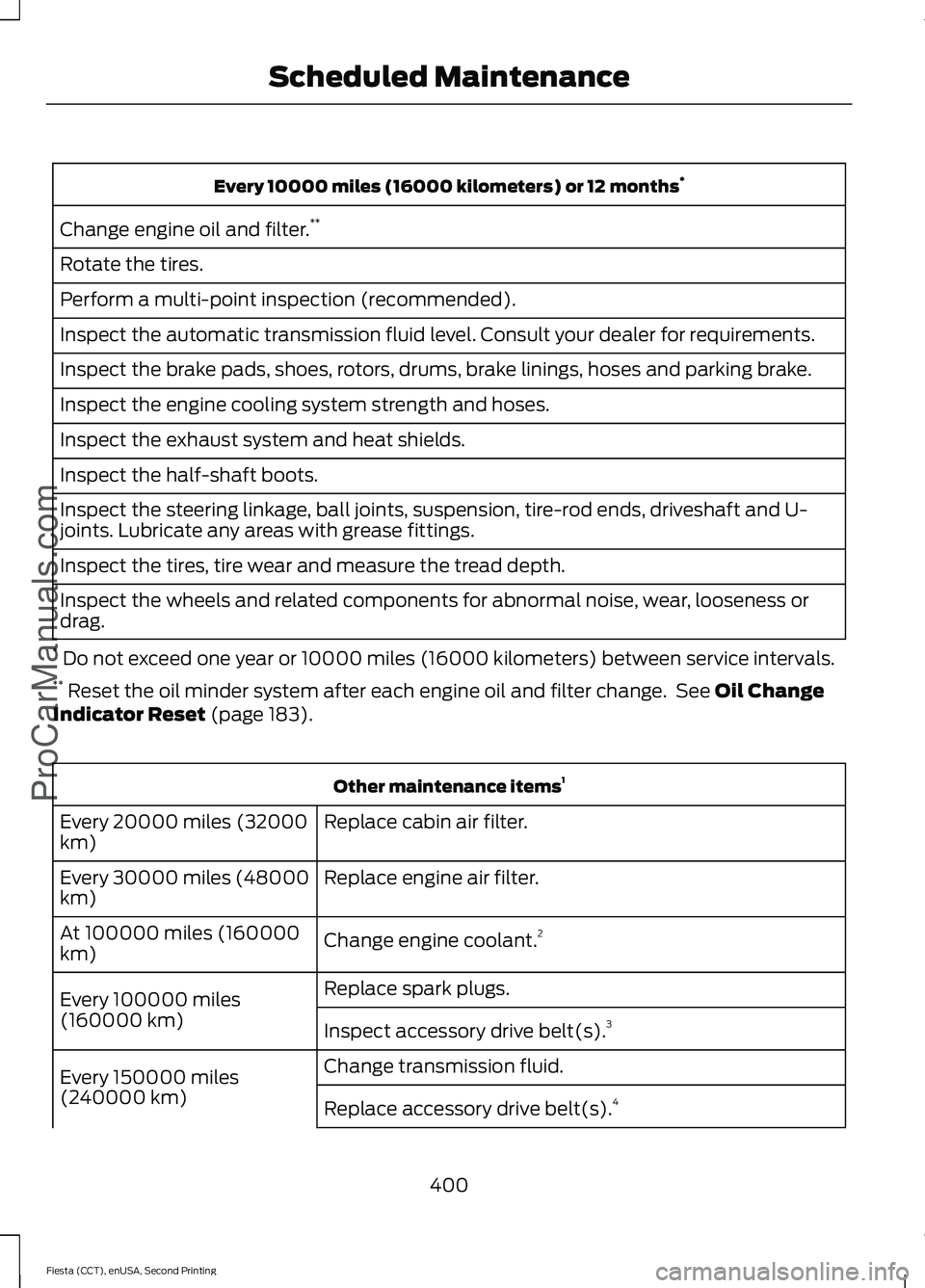
Every 10000 miles (16000 kilometers) or 12 months
*
Change engine oil and filter. **
Rotate the tires.
Perform a multi-point inspection (recommended).
Inspect the automatic transmission fluid level. Consult your dealer for requirements.
Inspect the brake pads, shoes, rotors, drums, brake linings, hoses and parking brake.
Inspect the engine cooling system strength and hoses.
Inspect the exhaust system and heat shields.
Inspect the half-shaft boots.
Inspect the steering linkage, ball joints, suspension, tire-rod ends, driveshaft and U-
joints. Lubricate any areas with grease fittings.
Inspect the tires, tire wear and measure the tread depth.
Inspect the wheels and related components for abnormal noise, wear, looseness or
drag.
* Do not exceed one year or 10000 miles (16000 kilometers) between service intervals.
** Reset the oil minder system after each engine oil and filter change. See Oil Change
Indicator Reset (page 183). Other maintenance items
1
Replace cabin air filter.
Every 20000 miles (32000
km)
Replace engine air filter.
Every 30000 miles (48000
km)
Change engine coolant.2
At 100000 miles (160000
km)
Replace spark plugs.
Every 100000 miles
(160000 km) Inspect accessory drive belt(s). 3
Change transmission fluid.
Every 150000 miles
(240000 km) Replace accessory drive belt(s). 4
400
Fiesta (CCT), enUSA, Second Printing Scheduled Maintenance
ProCarManuals.com