lock FORD FLEX 2014 1.G Owners Manual
[x] Cancel search | Manufacturer: FORD, Model Year: 2014, Model line: FLEX, Model: FORD FLEX 2014 1.GPages: 554, PDF Size: 8.04 MB
Page 352 of 554
8. Remove the wheel cover with the lug wrench tip and loosen each
wheel lug nut one-half turn counterclockwise, but do not remove them
until the wheel is raised off the ground.
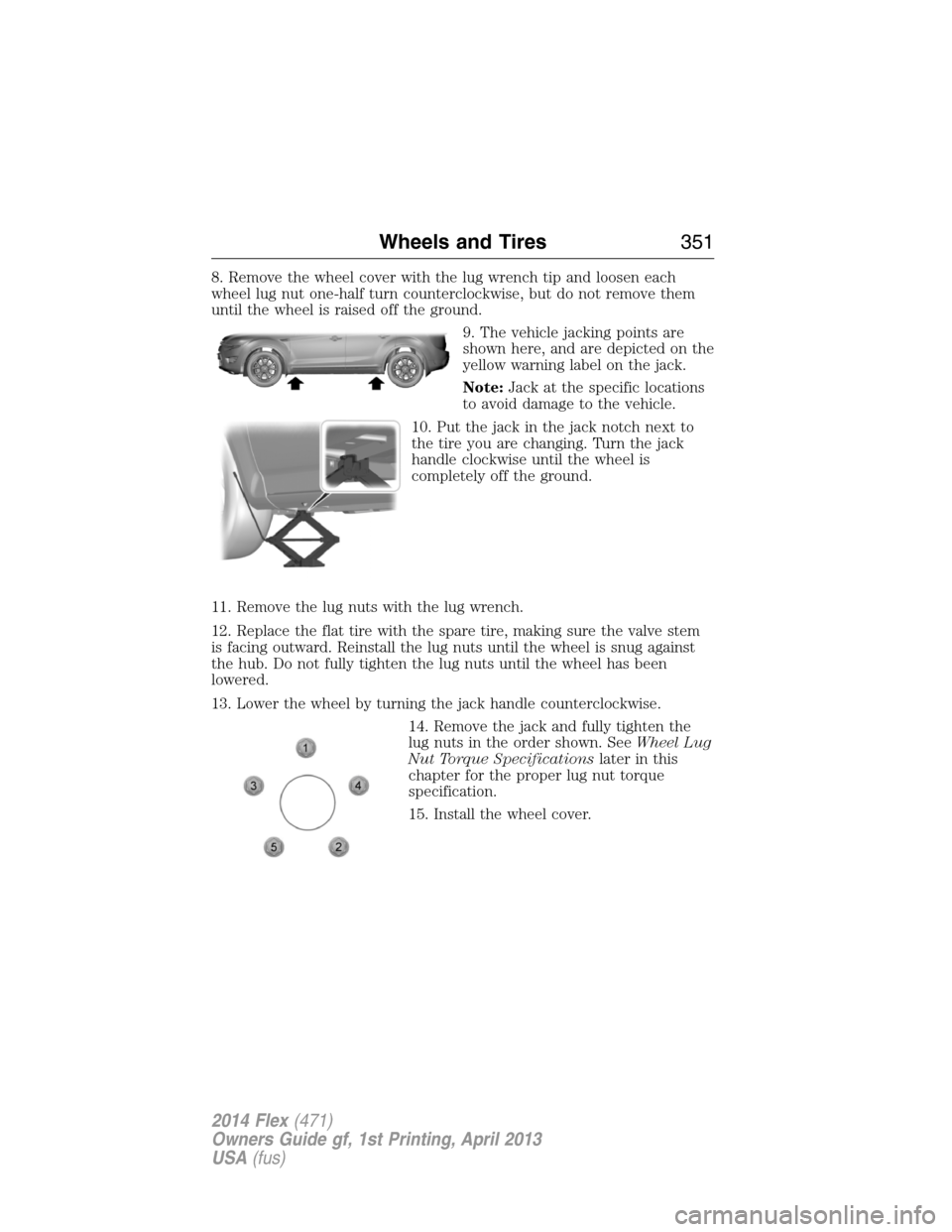
9. The vehicle jacking points are
shown here, and are depicted on the
yellow warning label on the jack.
Note:Jack at the specific locations
to avoid damage to the vehicle.
10. Put the jack in the jack notch next to
the tire you are changing. Turn the jack
handle clockwise until the wheel is
completely off the ground.
11. Remove the lug nuts with the lug wrench.
12. Replace the flat tire with the spare tire, making sure the valve stem
is facing outward. Reinstall the lug nuts until the wheel is snug against
the hub. Do not fully tighten the lug nuts until the wheel has been
lowered.
13. Lower the wheel by turning the jack handle counterclockwise.
14. Remove the jack and fully tighten the
lug nuts in the order shown. SeeWheel Lug
Nut Torque Specificationslater in this
chapter for the proper lug nut torque
specification.
15. Install the wheel cover.
Wheels and Tires351
2014 Flex(471)
Owners Guide gf, 1st Printing, April 2013
USA(fus)
Page 354 of 554
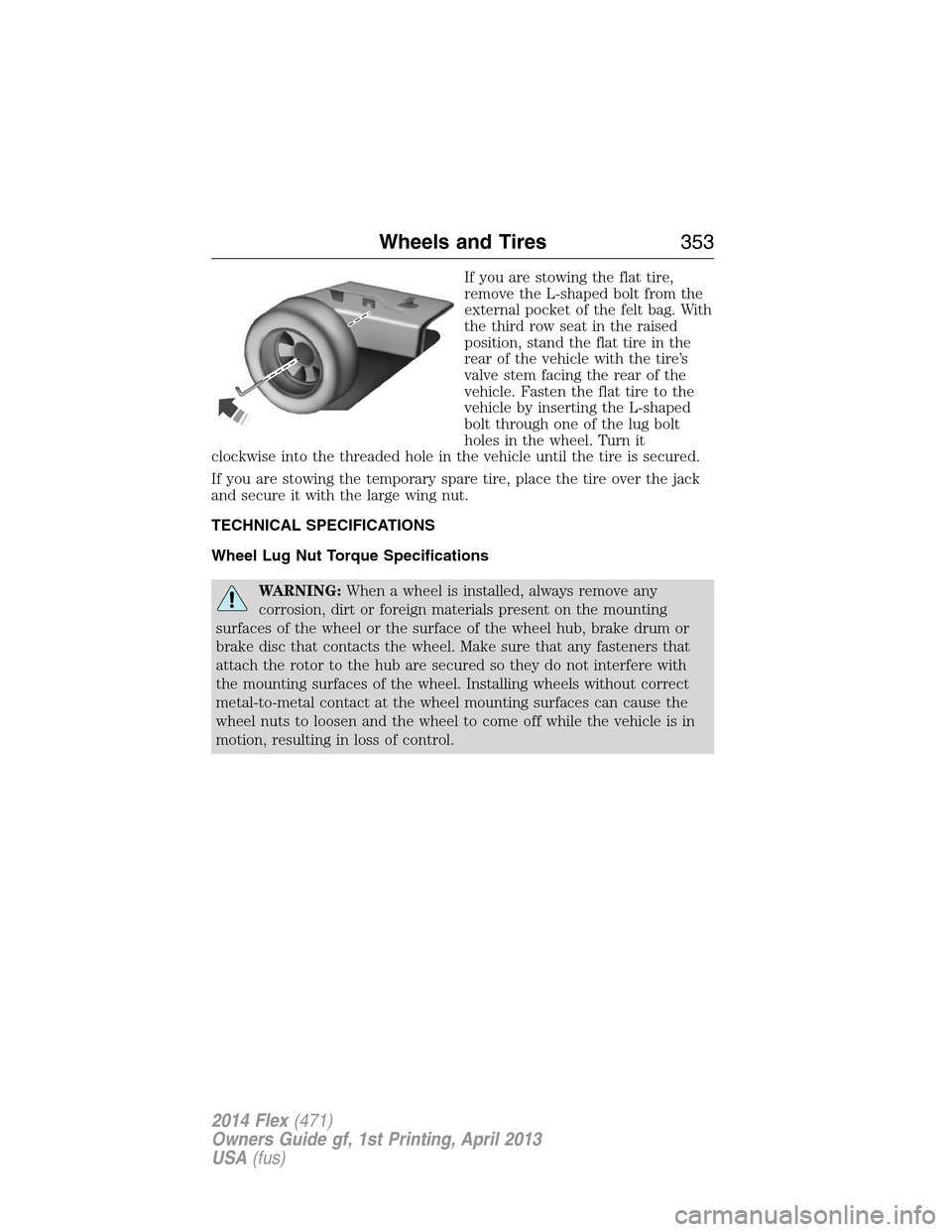
If you are stowing the flat tire,
remove the L-shaped bolt from the
external pocket of the felt bag. With
the third row seat in the raised
position, stand the flat tire in the
rear of the vehicle with the tire’s
valve stem facing the rear of the
vehicle. Fasten the flat tire to the
vehicle by inserting the L-shaped
bolt through one of the lug bolt
holes in the wheel. Turn it
clockwise into the threaded hole in the vehicle until the tire is secured.
If you are stowing the temporary spare tire, place the tire over the jack
and secure it with the large wing nut.
TECHNICAL SPECIFICATIONS
Wheel Lug Nut Torque Specifications
WARNING:When a wheel is installed, always remove any
corrosion, dirt or foreign materials present on the mounting
surfaces of the wheel or the surface of the wheel hub, brake drum or
brake disc that contacts the wheel. Make sure that any fasteners that
attach the rotor to the hub are secured so they do not interfere with
the mounting surfaces of the wheel. Installing wheels without correct
metal-to-metal contact at the wheel mounting surfaces can cause the
wheel nuts to loosen and the wheel to come off while the vehicle is in
motion, resulting in loss of control.
Wheels and Tires353
2014 Flex(471)
Owners Guide gf, 1st Printing, April 2013
USA(fus)
Page 357 of 554
TECHNICAL SPECIFICATIONS
Items CapacityFord Part Name or
equivalentFord Part Number /
Ford Specification
Brake fluid
1
Between MAX and
MIN on reservoirMotorcraft™ DOT 4 LV
High Performance Motor
Vehicle Brake FluidPM-20 /
WSS-M6C65-A2 and ISO
4925 Class 6
Door latch, hood latch,
auxiliary hood latch,
seat tracks, trunk and
liftgate latches—Multi-Purpose Grease
(Lithium grease)XG-4 or XL-5 or
equivalent /
ESA-M1C93-B
Lock cylinders —Motorcraft™ Penetrating
and Lock LubricantXL-1 /
None
Automatic transmission
fluid
2,3
10.9 quarts
(10.3L)
(6F50)
Motorcraft™
MERCON™ LV ATFXT-10-QLV /
MERCON® LV
11.6 quarts
(11.0L)
(6F55)
Rear differential fluid
(AWD)1.3 pints
(0.615L)Motorcraft™ SAE
80W-90
Premium Rear Axle
LubricantXY-80W90-QL /
WSP-M2C197-A
Power Transfer Unit
(PTU) fluid (AWD)
4
18 ounces (0.53L)Motorcraft™ SAE
75W-140 Synthetic Rear
Axle LubricantXY-75W140-QL /
WSL-M2C192-A
356Capacities and Specifications
2014 Flex(471)
Owners Guide gf, 1st Printing, April 2013
USA(fus)
Page 364 of 554
Peace of mind
•Remote start•Wheel locks
•Locking fuel plug for capless fuel
systems•Vehicle security
•Full vehicle covers*
•Bumper and hitch mounted parking sensors*
*Ford Licensed Accessories (FLA) are warranted by the accessory
manufacturer’s warranty. Ford Licensed Accessories are fully designed
and developed by the accessory manufacturer and have not been
designed or tested to Ford Motor Company engineering requirements.
Contact your Ford dealer for details regarding the manufacturer’s limited
warranty and/or a copy of the FLA product limited warranty offered by
the accessory manufacturer.
For maximum vehicle performance, keep the following information in
mind when adding accessories or equipment to your vehicle:
•When adding accessories, equipment, passengers and luggage to your
vehicle, do not exceed the total weight capacity of the vehicle or of
the front or rear axle (GVWR or GAWR as indicated on the Safety
Compliance Certification label). Consult your authorized dealer for
specific weight information.
•The Federal Communications Commission (FCC) and Canadian Radio
Telecommunications Commission (CRTC) regulate the use of mobile
communications systems — such as two-way radios, telephones and
theft alarms — that are equipped with radio transmitters. Any such
equipment installed in your vehicle should comply with FCC or CRTC
regulations and should be installed only by a qualified service
technician.
•Mobile communications systems may harm the operation of your
vehicle, particularly if they are not properly designed for automotive
use.
•To avoid interference with other vehicle functions, such as anti-lock
braking systems, amateur radio users who install radios and antennas
onto their vehicle should not locate the amateur radio antennas in the
area of the driver’s side hood.
•Any non-Ford custom electrical or electronic accessories or
components that are added to the vehicle by the authorized dealer or
the owner may adversely affect battery performance and durability,
and may also adversely affect the performance of other electrical
systems in the vehicle.
Accessories363
2014 Flex(471)
Owners Guide gf, 1st Printing, April 2013
USA(fus)
Page 366 of 554
Roadside Assistance
Exclusive 24/7 roadside assistance, including:
•Towing, flat-tire change and battery jump starts
•Out of fuel and lock-out assistance
•Travel Expense reimbursement for lodging, meals and rental car
•Destination assistance for taxi, shuttle, rental car coverage and
emergency transportation
Transferable Coverage
If you sell your vehicle before your Ford Extended Service Plan coverage
expires, you can transfer any remaining coverage to the new owner.
Whenever you sell your vehicle, prospective buyers may have a higher
degree of confidence that vehicle was properly maintained with Ford
ESP, thereby improving resale value!
Avoid the Rising cost of vehicle maintenance
Ford ESP also offers a Premium Maintenance Plan that covers all
scheduled maintenance, and select items that routinely wear out.
The coverage is prepaid, so you never have to worry about affording
vehicle maintenance. It covers regular checkups, routine inspections,
preventative care and replacement items that require periodic attention
for normal wear:
•Windshield Wiper Blades
•Spark Plugs (except in California)
•The clutch Disc
•Brake pads and linings
•Shock Absorbers
•Belts and Hoses
•Diesel Exhaust Fluid Replenishment
Contact your selling dealership today so they can customize a Genuine
Ford Extended Service Plan that fits your driving lifestyle and budget.
Ford Extended Service Plan365
2014 Flex(471)
Owners Guide gf, 1st Printing, April 2013
USA(fus)
Page 371 of 554
C.Memory presets:
•In radio mode, store your favorite radio stations. To store a radio
station, tune to the station, then press and hold a preset button until
sound returns.
•In CD mode, press one of these buttons to select a track.
D.Function buttons:Select different functions of the audio system
depending on which mode you are in (such as Radio mode or CD mode).
E.TUNE:
•In radio mode, turn the control to manually search the frequency
band.
•In satellite radio mode, turn the control to tune to the next or
previous channel.
F.Reverse and Fast Forward; AM/FM/CD Seek:
•In radio mode, select a frequency band and press one of these
buttons. The system stops at the first station it finds in that direction.
Press and hold one of these buttons to move quickly in that direction
to the next strong radio station or memory preset.
•In SIRIUS mode, press one of these buttons to select the previous or
next channel. If you select a specific category (such as Jazz, Rock or
News), use these buttons to find the previous or next channel in the
selected category. Press and hold one of these buttons to move
quickly in that direction to the next channel or category.
•In CD mode, press one of these buttons to select the previous or next
track. Press and hold one of these buttons to move quickly in that
direction within the current track.
G.OK and arrow buttons:
•Press the up and down or left and right arrow buttons to browse
menu selections.
•PressOKto confirm menu selections.
H.Eject:Press this button to eject a CD.
I.Power and Volume:
•Press this button to switch the system off and on.
•Turn it to adjust the volume.
J.CLOCK:Press this button to access the clock setting. Use the center
arrow controls to change the hours and minutes.
K.SOUND:Press this button to adjust settings for Treble, Middle, Bass,
Balance and Fade.
L.MENU:Press this button to access different audio system features.
SeeMenu structurelater in this section.
370Audio System
2014 Flex(471)
Owners Guide gf, 1st Printing, April 2013
USA(fus)
Page 373 of 554
SIRIUS
ScanSelect for a brief sampling of all available
channels.
Show ESNSelect to view your satellite radio electronic
serial number (ESN). You need this number
when communicating with SIRIUS® to
activate, modify or track your account.
Channel GuideSelect to view available satellite radio
channels. PressOKtoopenalistofthe
following options for this channel: Tune
Channel, Skip Channel or Lock Channel. Once
you skip or lock a channel, you can only access
it by pressing Direct and entering the channel
number. Locking or unlocking a channel
requires your PIN.
Set CategorySelect to view channel categories (such as
Pop, Rock or News). If you select a category,
seek and scan functions only stop on channels
in that category.
AlertsSelect to turn off or turn on alerts for songs,
artists or teams. The system alerts you when
the selection is playing on another channel.
Save up to 20 alerts.
Unlock All StationsUse your PIN to unlock previously locked
stations.
Skip No StationsRemove the skip feature from all the channels
you previously skipped.
Parental Lock (PIN)Select to create a PIN, which allows you to
lock or unlock channels. Your initial PIN is
1234.
372Audio System
2014 Flex(471)
Owners Guide gf, 1st Printing, April 2013
USA(fus)
Page 374 of 554
Audio Settings
Spd. Comp. Vol.Automatically adjusts the volume to
compensate for speed and wind noise. You can
set the system between 0 and +7.
SoundSelect to adjust settings for Treble, Middle,
Bass, Fade and Balance.
CD Settings
Scan AllSelect to scan all disc selections.
Scan FolderSelect to scan all music in the current MP3
folder.
CD CompressionSelect to bring soft and loud passages together
for a more consistent listening level.
Clock Settings
Set TimeSelect to set the time.
Set DateSelect to set the calendar date.
24h ModeSelect to view clock time in a 12–hour mode or
24–hour mode.
Display Settings
LanguageSelect to display the language in English,
French or Spanish.
Temp. SettingSelect to display the outside temperature in
Fahrenheit or Celsius.
Audio System373
2014 Flex(471)
Owners Guide gf, 1st Printing, April 2013
USA(fus)
Page 383 of 554
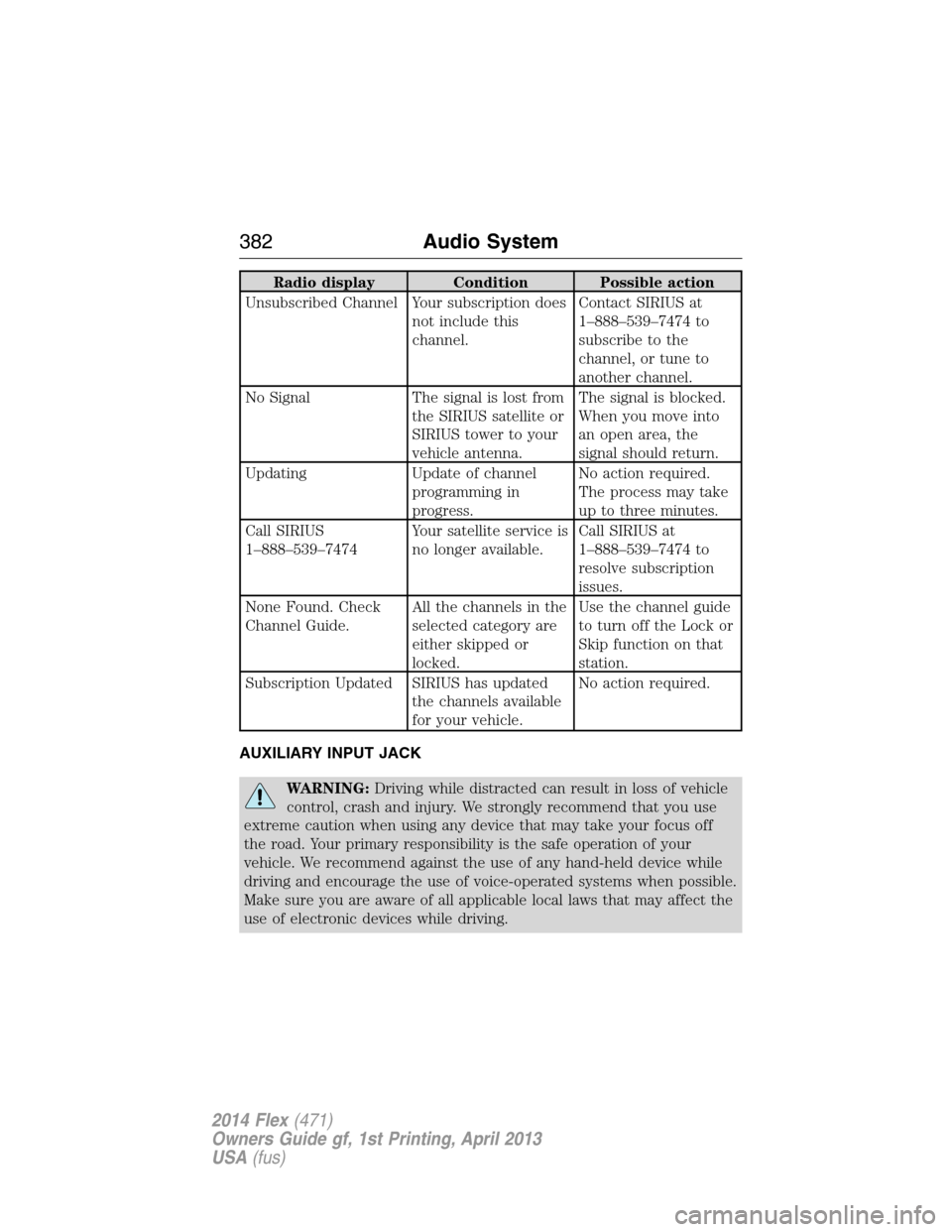
Radio display Condition Possible action
Unsubscribed Channel Your subscription does
not include this
channel.Contact SIRIUS at
1–888–539–7474 to
subscribe to the
channel, or tune to
another channel.
No Signal The signal is lost from
the SIRIUS satellite or
SIRIUS tower to your
vehicle antenna.The signal is blocked.
When you move into
an open area, the
signal should return.
Updating Update of channel
programming in
progress.No action required.
The process may take
up to three minutes.
Call SIRIUS
1–888–539–7474Your satellite service is
no longer available.Call SIRIUS at
1–888–539–7474 to
resolve subscription
issues.
None Found. Check
Channel Guide.All the channels in the
selected category are
either skipped or
locked.Use the channel guide
to turn off the Lock or
Skip function on that
station.
Subscription Updated SIRIUS has updated
the channels available
for your vehicle.No action required.
AUXILIARY INPUT JACK
WARNING:Driving while distracted can result in loss of vehicle
control, crash and injury. We strongly recommend that you use
extreme caution when using any device that may take your focus off
the road. Your primary responsibility is the safe operation of your
vehicle. We recommend against the use of any hand-held device while
driving and encourage the use of voice-operated systems when possible.
Make sure you are aware of all applicable local laws that may affect the
use of electronic devices while driving.
382Audio System
2014 Flex(471)
Owners Guide gf, 1st Printing, April 2013
USA(fus)
Page 409 of 554
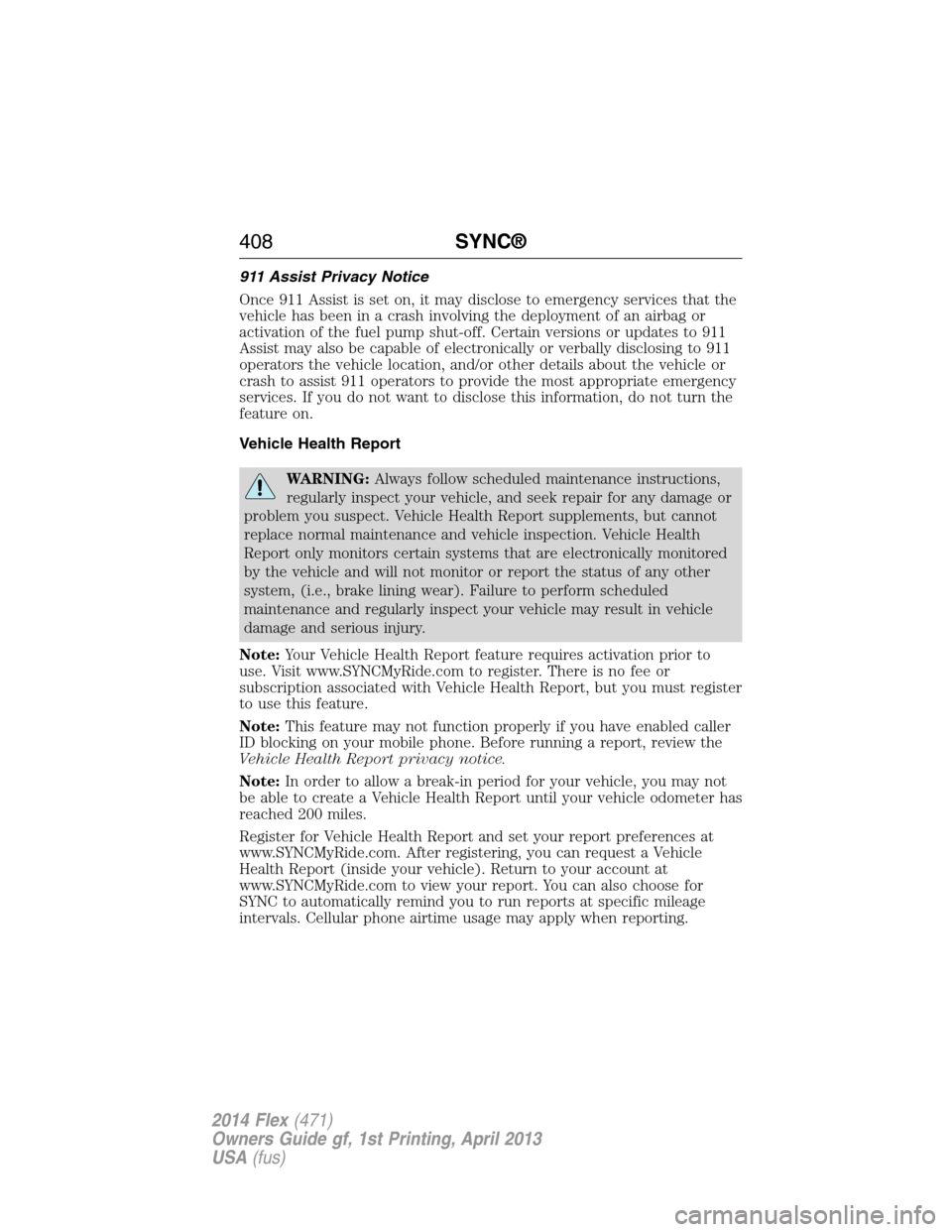
911 Assist Privacy Notice
Once 911 Assist is set on, it may disclose to emergency services that the
vehicle has been in a crash involving the deployment of an airbag or
activation of the fuel pump shut-off. Certain versions or updates to 911
Assist may also be capable of electronically or verbally disclosing to 911
operators the vehicle location, and/or other details about the vehicle or
crash to assist 911 operators to provide the most appropriate emergency
services. If you do not want to disclose this information, do not turn the
feature on.
Vehicle Health Report
WARNING:Always follow scheduled maintenance instructions,
regularly inspect your vehicle, and seek repair for any damage or
problem you suspect. Vehicle Health Report supplements, but cannot
replace normal maintenance and vehicle inspection. Vehicle Health
Report only monitors certain systems that are electronically monitored
by the vehicle and will not monitor or report the status of any other
system, (i.e., brake lining wear). Failure to perform scheduled
maintenance and regularly inspect your vehicle may result in vehicle
damage and serious injury.
Note:Your Vehicle Health Report feature requires activation prior to
use. Visit www.SYNCMyRide.com to register. There is no fee or
subscription associated with Vehicle Health Report, but you must register
to use this feature.
Note:This feature may not function properly if you have enabled caller
ID blocking on your mobile phone. Before running a report, review the
Vehicle Health Report privacy notice.
Note:In order to allow a break-in period for your vehicle, you may not
be able to create a Vehicle Health Report until your vehicle odometer has
reached 200 miles.
Register for Vehicle Health Report and set your report preferences at
www.SYNCMyRide.com. After registering, you can request a Vehicle
Health Report (inside your vehicle). Return to your account at
www.SYNCMyRide.com to view your report. You can also choose for
SYNC to automatically remind you to run reports at specific mileage
intervals. Cellular phone airtime usage may apply when reporting.
408SYNC®
2014 Flex(471)
Owners Guide gf, 1st Printing, April 2013
USA(fus)