wheel FORD FLEX 2015 1.G Owners Manual
[x] Cancel search | Manufacturer: FORD, Model Year: 2015, Model line: FLEX, Model: FORD FLEX 2015 1.GPages: 571, PDF Size: 5.52 MB
Page 371 of 571
Peace of mind
•Remote start•Wheel locks
•Locking fuel plug•Vehicle security
•Full vehicle covers*
•Bumper and hitch mounted parking sensors*
*The accessory manufacturer designs, develops and therefore warrants
Ford Licensed Accessories, and does not design or test these accessories
to Ford Motor Company engineering requirements. Contact an
authorized Ford dealer for the manufacturer’s limited warranty details,
and request a copy of the Ford Licensed Accessories product limited
warranty from the accessory manufacturer.
For maximum vehicle performance, keep the following information in
mind when adding accessories or equipment to your vehicle:
•When adding accessories, equipment, passengers and luggage to your
vehicle, do not exceed the total weight capacity of the vehicle or of
the front or rear axle (GVWR or GAWR as indicated on the Safety
Compliance Certification label). Ask an authorized dealer for specific
weight information.
•The Federal Communications Commission (FCC) and Canadian Radio
Telecommunications Commission (CRTC) regulate the use of mobile
communications systems that are equipped with radio transmitters, for
example, two-way radios, telephones and theft alarms. Any such
equipment installed in your vehicle should comply with Federal
Communications Commission (FCC) and Canadian Radio
Telecommunications Commission (CRTC) regulations and should be
installed only by an authorized dealer.
•An authorized dealer needs to install mobile communications systems.
Improper installation may harm the operation of your vehicle,
particularly if the manufacturer did not design the mobile
communication system specifically for automotive use.
•If you or an authorized Ford dealer add any non-Ford electrical or
electronic accessories or components to your vehicle, you may
adversely affect battery performance and durability. In addition, you
may also adversely affect the performance of other electrical systems
in the vehicle.
370Accessories
2015 Flex(471)
Owners Guide gf, 1st Printing, October 2014
USA(fus)
Page 396 of 571
USING VOICE RECOGNITION
This system helps you control many features using voice commands. This
allows you to keep your hands on the wheel and focus on what is in
front of you.
Initiating a Voice Session
Push the voice icon; a tone sounds and Listening appears in the
display. Say any of the following:
Say: If you want to:
“Phone” Make calls.
“USB” Access the device connected to your USB
port.
“Bluetooth Audio” Stream audio from your phone.
“Line in” Access the device connected to the auxiliary
input jack.
“Cancel” Cancel the requested action.
“SYNC” Return to the main menu.
“Voice settings” Adjust the level of voice interaction and
feedback.
“Vehicle Health Report” Run a vehicle health report.
*
“Services” Access the SYNC Services portal.*
“Mobile apps” Access mobile applications.*
“Help” Hear a list of voice commands available in the
current mode.
*If equipped, U.S. only.
System Interaction and Feedback
The system provides feedback through audible tones, prompts, questions
and spoken confirmations depending on the situation and the chosen
level of interaction (voice settings). You can customize the voice
recognition system to provide more or less instruction and feedback.
The default setting is to a higher level of interaction in order to help you
learn to use the system. You can change these settings at any time.
SYNC®395
2015 Flex(471)
Owners Guide gf, 1st Printing, October 2014
USA(fus)
Page 415 of 571
In the Event of a Crash
Not all crashes deploy an airbag or activate the fuel pump shut-off
(which would activate 911 Assist); however, if 911 Assist is triggered,
SYNC tries to contact emergency services. If a connected phone is
damaged or loses connection to SYNC, SYNC searches for, and tries to
connect to, any available previously paired phone and tries to make the
call to 911.
Before making the call:
•SYNC provides a short window of time (about 10 seconds) to cancel
the call. Failure to cancel the call results in SYNC attempting to dial
911.
•SYNC says the following, or a similar message: “SYNC will attempt to
call 911, to cancel the call, press Cancel on your screen or press and
hold the phone button on your steering wheel.”
If the call is not cancelled and a successful call is made, a pre-recorded
message is played for the 911 operator, then the occupant(s) in the
vehicle is able to talk with the operator. Be prepared to provide your
name, phone number and location immediately, because not all 911
systems are capable of receiving this information electronically.
911 Assist May Not Work If
•Your cellular phone or 911 Assist hardware was damaged in a crash.
•The vehicle’s battery or SYNC system has no power.
•The phone(s) paired and connected to the system was thrown from
the vehicle.
911 Assist Privacy Notice
Once 911 Assist is set on, it may disclose to emergency services that the
vehicle has been in a crash involving the deployment of an airbag or
activation of the fuel pump shut-off. Certain versions or updates to 911
Assist may also be capable of electronically or verbally disclosing to 911
operators the vehicle location, and/or other details about the vehicle or
crash to assist 911 operators to provide the most appropriate emergency
services. If you do not want to disclose this information, do not turn the
feature on.
414SYNC®
2015 Flex(471)
Owners Guide gf, 1st Printing, October 2014
USA(fus)
Page 420 of 571
phone call is automatically ended. You then receive audible and visual
driving instructions as you travel toward your destination.
3. While on an active route, you can select or say “Route summary” or
“Route status” to view the Route Summary turn list or the Route
Status ETA. You can also turn voice guidance on or off, cancel the
route or update the route.
If you miss a turn, SYNC automatically asks if you want the route
updated. Just say, “Yes” when prompted and a new route will be
delivered to your vehicle.
Disconnecting from SYNC Services
1. Press and hold the phone button on the steering wheel.
2. Say “Good-bye” from the SYNC Services main menu.
SYNC Services quick tips
PersonalizingYou can personalize your Services feature to
provide quicker access to your most used or
favorite information. You can save address
points such as work or home. You can also
save favorite information like sports teams or
a news category. To learn more, log onto
www.SYNCMyRide.com.
Push to interruptPress the voice button at any time (while you
are connected to SYNC Services) to interrupt
a voice prompt or an audio clip (such as a
sports report), wait for the listening tone, and
say your voice command.
PortableYour subscription is associated with your
Bluetooth-enabled cellular phone number, not
your VIN (Vehicle Identification Number). You
can pair and connect your phone to any
vehicle equipped with SYNC Services and
continue enjoying your personalized services.
You can even access your account outside the
vehicle. Just use the number on your phone’s
call history. Traffic and Directions features do
not function properly but information services
and the 411 connect and text message
features are available.
SYNC®419
2015 Flex(471)
Owners Guide gf, 1st Printing, October 2014
USA(fus)
Page 450 of 571
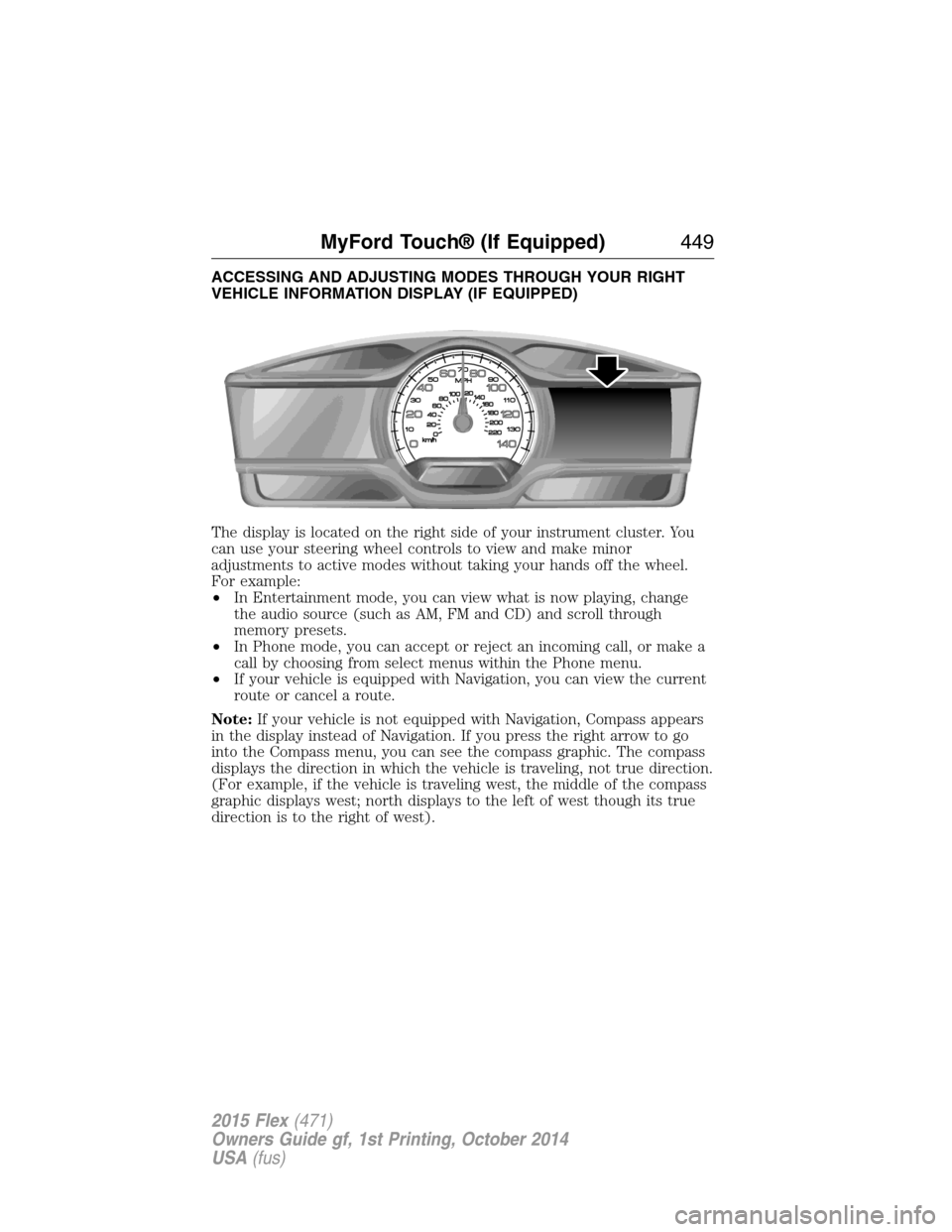
ACCESSING AND ADJUSTING MODES THROUGH YOUR RIGHT
VEHICLE INFORMATION DISPLAY (IF EQUIPPED)
The display is located on the right side of your instrument cluster. You
can use your steering wheel controls to view and make minor
adjustments to active modes without taking your hands off the wheel.
For example:
•In Entertainment mode, you can view what is now playing, change
the audio source (such as AM, FM and CD) and scroll through
memory presets.
•In Phone mode, you can accept or reject an incoming call, or make a
call by choosing from select menus within the Phone menu.
•If your vehicle is equipped with Navigation, you can view the current
route or cancel a route.
Note:If your vehicle is not equipped with Navigation, Compass appears
in the display instead of Navigation. If you press the right arrow to go
into the Compass menu, you can see the compass graphic. The compass
displays the direction in which the vehicle is traveling, not true direction.
(For example, if the vehicle is traveling west, the middle of the compass
graphic displays west; north displays to the left of west though its true
direction is to the right of west).
MyFord Touch® (If Equipped)449
2015 Flex(471)
Owners Guide gf, 1st Printing, October 2014
USA(fus)
Page 451 of 571
Audio Sources and Memory Presets
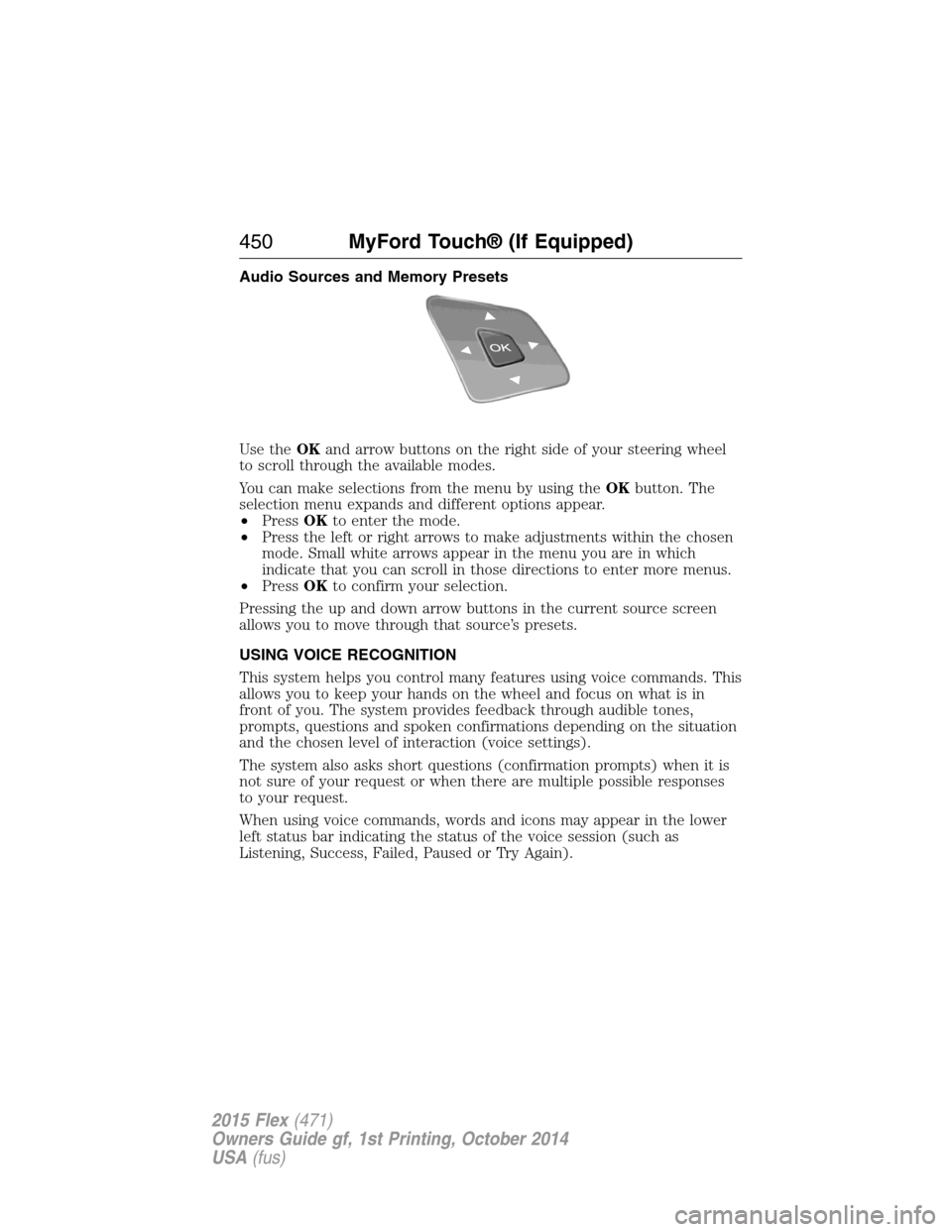
Use theOKand arrow buttons on the right side of your steering wheel
to scroll through the available modes.
You can make selections from the menu by using theOKbutton. The
selection menu expands and different options appear.
•PressOKto enter the mode.
•Press the left or right arrows to make adjustments within the chosen
mode. Small white arrows appear in the menu you are in which
indicate that you can scroll in those directions to enter more menus.
•PressOKto confirm your selection.
Pressing the up and down arrow buttons in the current source screen
allows you to move through that source’s presets.
USING VOICE RECOGNITION
This system helps you control many features using voice commands. This
allows you to keep your hands on the wheel and focus on what is in
front of you. The system provides feedback through audible tones,
prompts, questions and spoken confirmations depending on the situation
and the chosen level of interaction (voice settings).
The system also asks short questions (confirmation prompts) when it is
not sure of your request or when there are multiple possible responses
to your request.
When using voice commands, words and icons may appear in the lower
left status bar indicating the status of the voice session (such as
Listening, Success, Failed, Paused or Try Again).
450MyFord Touch® (If Equipped)
2015 Flex(471)
Owners Guide gf, 1st Printing, October 2014
USA(fus)
Page 453 of 571
Accessing a List of Available Commands
•If you use the touchscreen, press the Settings icon >Help>Voice
Command List.
•If you use the steering wheel control, press the voice icon. After the
tone, speak your command clearly.
Voice command list
“Audio list of commands”
“Bluetooth audio list of commands”
“Browse list of commands”
“CD list of commands”
“Climate control list of commands”
“List of commands”
“Navigation list of commands”
*
“Phone list of commands”
“Radio list of commands”
“SD card list of commands”
“Sirius satellite list of commands”
**
“Travel link list of commands”*
“USB list of commands”
“Voice instructions list of commands”
“Voice settings list of commands”
“Help”
*This command is only available when your vehicle is equipped with the
navigation system, and the navigation system SD card is in the card slot.
**This command is only available when you have an active Sirius satellite
radio subscription.
Voice Settings
Voice settings allow you to customize the level of system interaction,
help and feedback. The system defaults to standard interaction that uses
candidate lists and confirmation prompts as these provide the highest
level of guidance and feedback.
Interaction Mode:Novice mode provides detailed interaction and
guidance while the advanced mode has less audible interaction and more
tone prompts.
452MyFord Touch® (If Equipped)
2015 Flex(471)
Owners Guide gf, 1st Printing, October 2014
USA(fus)
Page 456 of 571
Browsing Device Content
When listening to audio on a device, you can browse through other
devices without having to change sources. For example, if you are
currently listening to audio on an SD card, you can browse all the artists
that are stored on your USB device.
Press the voice icon on the steering wheel. When prompted,
you can say:
“BROWSE” within devices
“Browse”*
“Browse
“Browse
“Browse Sirius channel guide”**
“Browse SD card”
“Browse USB”
“Help”
*If you have said “Browse”, you can then say any commands in the
following chart.
**This command is only usable if you have an active subscription to
Sirius satellite radio.
“BROWSE”
“
”
“SD card”**
“Sirius channel guide”*
“USB”**
“Help”
*This command is only usable if you have an active subscription to Sirius
satellite radio.
**For more commands in SD card or USB mode, see the “SD card and
USB Port” section of this chapter.
For a complete list of “Browse” voice commands, seeUSB and SD card
voice commandsandBluetooth audio voice commandsin the
following sections.
MyFord Touch® (If Equipped)455
2015 Flex(471)
Owners Guide gf, 1st Printing, October 2014
USA(fus)
Page 457 of 571
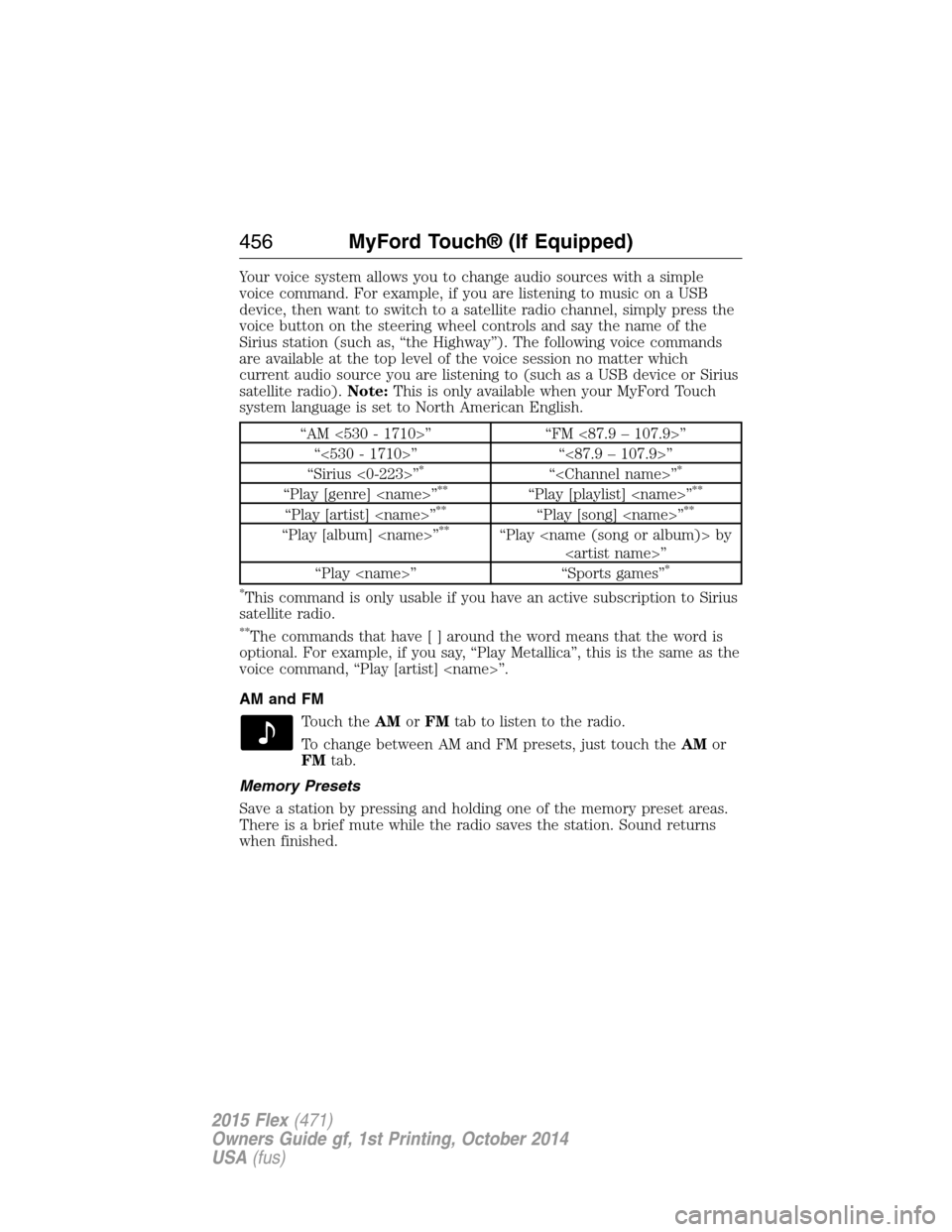
Your voice system allows you to change audio sources with a simple
voice command. For example, if you are listening to music on a USB
device, then want to switch to a satellite radio channel, simply press the
voice button on the steering wheel controls and say the name of the
Sirius station (such as, “the Highway”). The following voice commands
are available at the top level of the voice session no matter which
current audio source you are listening to (such as a USB device or Sirius
satellite radio).Note:This is only available when your MyFord Touch
system language is set to North American English.
“AM <530 - 1710>” “FM <87.9 – 107.9>”
“<530 - 1710>” “<87.9 – 107.9>”
“Sirius <0-223>”
*“
“Play [genre]
“Play [artist]
“Play [album]
“Play
*
*
This command is only usable if you have an active subscription to Sirius
satellite radio.
**The commands that have [ ] around the word means that the word is
optional. For example, if you say, “Play Metallica”, this is the same as the
voice command, “Play [artist]
AM and FM
Touch theAMorFMtab to listen to the radio.
To change between AM and FM presets, just touch theAMor
FMtab.
Memory Presets
Save a station by pressing and holding one of the memory preset areas.
There is a brief mute while the radio saves the station. Sound returns
when finished.
456MyFord Touch® (If Equipped)
2015 Flex(471)
Owners Guide gf, 1st Printing, October 2014
USA(fus)
Page 462 of 571
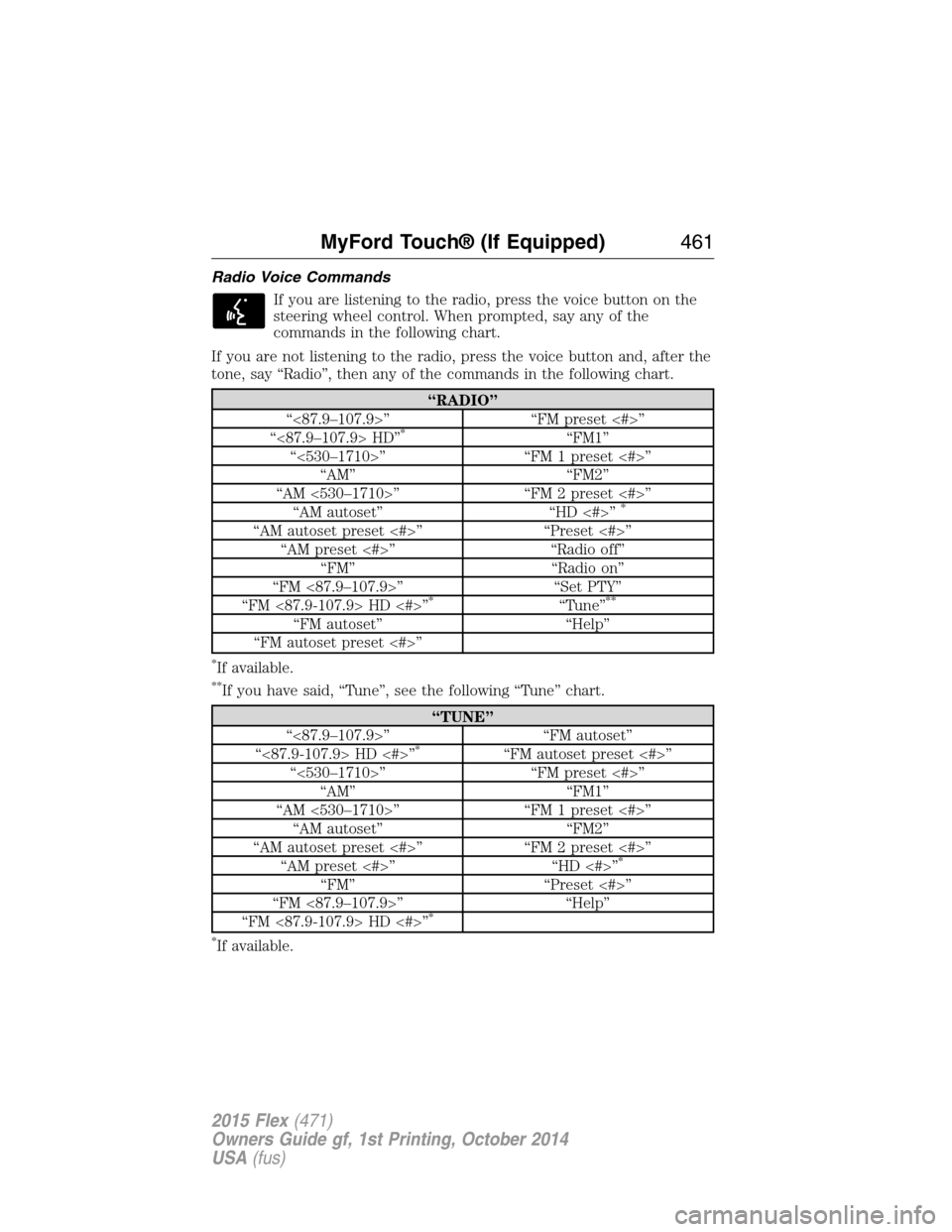
Radio Voice Commands
If you are listening to the radio, press the voice button on the
steering wheel control. When prompted, say any of the
commands in the following chart.
If you are not listening to the radio, press the voice button and, after the
tone, say “Radio”, then any of the commands in the following chart.
“RADIO”
“<87.9–107.9>” “FM preset <#>”
“<87.9–107.9> HD”
*“FM1”
“<530–1710>” “FM 1 preset <#>”
“AM” “FM2”
“AM <530–1710>” “FM 2 preset <#>”
“AM autoset” “HD <#>”
*
“AM autoset preset <#>” “Preset <#>”
“AM preset <#>” “Radio off”
“FM” “Radio on”
“FM <87.9–107.9>” “Set PTY”
“FM <87.9-107.9> HD <#>”
*“Tune”**
“FM autoset” “Help”
“FM autoset preset <#>”
*If available.
**If you have said, “Tune”, see the following “Tune” chart.
“TUNE”
“<87.9–107.9>” “FM autoset”
“<87.9-107.9> HD <#>”
*“FM autoset preset <#>”
“<530–1710>” “FM preset <#>”
“AM” “FM1”
“AM <530–1710>” “FM 1 preset <#>”
“AM autoset” “FM2”
“AM autoset preset <#>” “FM 2 preset <#>”
“AM preset <#>” “HD <#>”
*
“FM” “Preset <#>”
“FM <87.9–107.9>” “Help”
“FM <87.9-107.9> HD <#>”
*
*
If available.
MyFord Touch® (If Equipped)461
2015 Flex(471)
Owners Guide gf, 1st Printing, October 2014
USA(fus)