ESP FORD FLEX 2015 1.G Workshop Manual
[x] Cancel search | Manufacturer: FORD, Model Year: 2015, Model line: FLEX, Model: FORD FLEX 2015 1.GPages: 571, PDF Size: 5.52 MB
Page 413 of 571
SYNC APPLICATIONS AND SERVICES (IF EQUIPPED)
Note:In order for the following features to work, your cellular phone
must be compatible with SYNC. To check your phone’s compatibility, visit
www.SYNCMyRide.com, www.SYNCMyRide.ca or www.syncmaroute.ca.
•SYNC Services (if equipped, United States only): Provides access to
traffic, directions and information such as travel, horoscopes, stock
prices and more.
•911 Assist: Can alert 911 in the event of an emergency.
•Vehicle Health Report (if equipped, United States only): Provides a
diagnostic and maintenance report card of your vehicle.
911 Assist®
WARNING:Unless the 911 Assist setting is set on prior to a
crash, the system will not dial for help which could delay
response time, potentially increasing the risk of serious injury or death
after a crash.
WARNING:Do not wait for 911 Assist to make an emergency
call if you can do it yourself. Dial emergency services
immediately to avoid delayed response time which could increase the
risk of serious injury or death after a crash. If you do not hear 911
Assist within five seconds of the crash, the system or phone may be
damaged or non-functional.
WARNING:Always place your phone in a secure location in the
vehicle so it does not become a projectile or get damaged in a
crash. Failure to do so may cause serious injury to someone or damage
the phone which could prevent 911 Assist from working properly.
Note:SYNC 911 Assist feature must be set on prior to the incident.
Note:Before setting this feature on, ensure that you read the 911 Assist
privacy notice later in this section for important information.
Note:If 911 Assist is turned on or off by any user, that setting applies
for all paired phones. If 911 Assist is turned off, a voice message plays
and/or a display message/icon comes on when the vehicle is started after
a previously paired phone connects.
412SYNC®
2015 Flex(471)
Owners Guide gf, 1st Printing, October 2014
USA(fus)
Page 418 of 571
SYNC Services: Traffic, Directions & Information (TDI)
(If Equipped, United States Only)
Note:SYNC Services varies by trim level and model year and may
require a subscription. Traffic alerts and turn-by-turn directions available
in select markets. Message and data rates may apply. Ford Motor
Company reserves the right to change or discontinue this product service
at any time without prior notification or incurring any future obligation.
Note:SYNC Services requires activation prior to use. Visit
www.SYNCMyRide.com to register and check your eligibility for
complimentary services. Standard phone and message rates may apply.
Subscription may be required. You must also have the active SYNC
Services Bluetooth-enabled cellular phone paired and connected to the
system in order to connect to, and use, SYNC Services. SeeUsing SYNC
with your phonefor pairing instructions.
Note:This feature does not function properly if you have enabled caller
ID blocking on your mobile phone. Make sure your mobile phone is not
blocking caller ID before using SYNC Services.
Note:The driver is ultimately responsible for the safe operation of the
vehicle, and therefore, must evaluate whether it is safe to follow the
suggested directions. Any navigation features are provided only as an aid.
Make your driving decisions based on your observations of local conditions
and existing traffic regulations. Do not follow the route suggestions if doing
so would result in an unsafe or illegal maneuver, if you would be placed in
an unsafe situation, or if you would be directed into an area that you
consider unsafe. Maps used by this system may be inaccurate because of
errors, changes in roads, traffic conditions or driving conditions.
Note:When you connect, the service uses GPS technology and advanced
vehicle sensors to collect the vehicle’s current location, travel direction
and speed to help provide you with the directions, traffic reports, or
business searches you request. Further, to provide the services you
request and for continuous improvement, the service may collect and
record call details and voice communications. For more information, see
SYNC Services Terms and Conditions at www.SYNCMyRide.com. If you
do not want Ford or its service providers to collect the vehicle travel
information or other information identified in the Terms and Conditions,
do not activate or use the service.
SYNC Services uses advanced vehicle sensors, integrated GPS technology
and comprehensive map and traffic data, to give you personalized traffic
reports, precise turn-by-turn directions, business search, news, sports,
weather and more. For a complete list of services, or to learn more,
please visit www.SYNCMyRide.com.
SYNC®417
2015 Flex(471)
Owners Guide gf, 1st Printing, October 2014
USA(fus)
Page 431 of 571
Advanced Menu Options
This menu allows you to access settings such as prompts, language,
performing a master reset as well as returning to factory defaults.
1. Press AUX and then MENU to access the Media Menu.
2. Scroll until System Settings appears and select OK.
3. Scroll until Advanced appears.
4. Press OK and then scroll to select from the following:
When you select: You can:
PromptsHave SYNC guide you via questions, helpful
hints or ask you for a specific action.
1. Press OK to select and scroll to select
between on or off.
2. Press OK when the desired selection
appears in the display. SYNC takes you back
to the Advanced menu.
LanguagesChoose from English, Francais and Espanol.
The displays and prompts are in the selected
language.
1. Press OK to select and then scroll through
the languages.
2. Press OK when the desired selection
appears in the display.
3. If you change the language setting, the
display indicates that the system is updating.
When complete, SYNC takes you back to the
Advanced menu.
Factory DefaultsReturn to the factory default settings. This
selection does not erase your indexed
information (phonebook, call history, text
messages and paired devices).
1. Press OK to select and then press OK again
when Restore Defaults? appears in the display.
2. Press OK to confirm.
430SYNC®
2015 Flex(471)
Owners Guide gf, 1st Printing, October 2014
USA(fus)
Page 437 of 571
Voice command issues
Issue Possible
cause(s)Possible solution(s)
SYNC does not
understand what
I am saying.•You may be
using the wrong
voice commands,
OR
•You may be
speaking too soon
or at the wrong
time.•Review the Phone voice
commands and the Media voice
commands at the beginning of
their respective sections.
•Be aware that the microphone
for SYNC is either in your rear
view mirror or in the headliner
just above the windshield.
SYNC does not
understand the
name of a song or
artist.•You may be
using the wrong
voice commands,
OR
•You may not be
saying the name
exactly as it is
saved, OR
•The system
may not be
reading the name
the same way you
are saying it.•Review the media voice
commands at the beginning of
the media section.
•Say the song or artist exactly
as listed. If you say, “Play Artist
Prince”, the system does not
play music by Prince and the
Revolution or Prince and the
New Power Generation.
•Make sure you are saying the
complete title, such as
“California remix featuring
Jennifer Nettles”.
•If the songs are saved in all
CAPS, you have to spell them.
LOLA requires you to say, “Play
L-O-L-A”.
•Do not use special characters
in the title as the system does
not recognize them.
436SYNC®
2015 Flex(471)
Owners Guide gf, 1st Printing, October 2014
USA(fus)
Page 443 of 571
GENERAL INFORMATION
WARNING:Driving while distracted can result in loss of vehicle
control, crash and injury. We strongly recommend that you use
extreme caution when using any device that may take your focus off
the road. Your primary responsibility is the safe operation of your
vehicle. We recommend against the use of any hand-held device while
driving and encourage the use of voice-operated systems when possible.
Make sure you are aware of all applicable local laws that may affect the
use of electronic devices while driving.
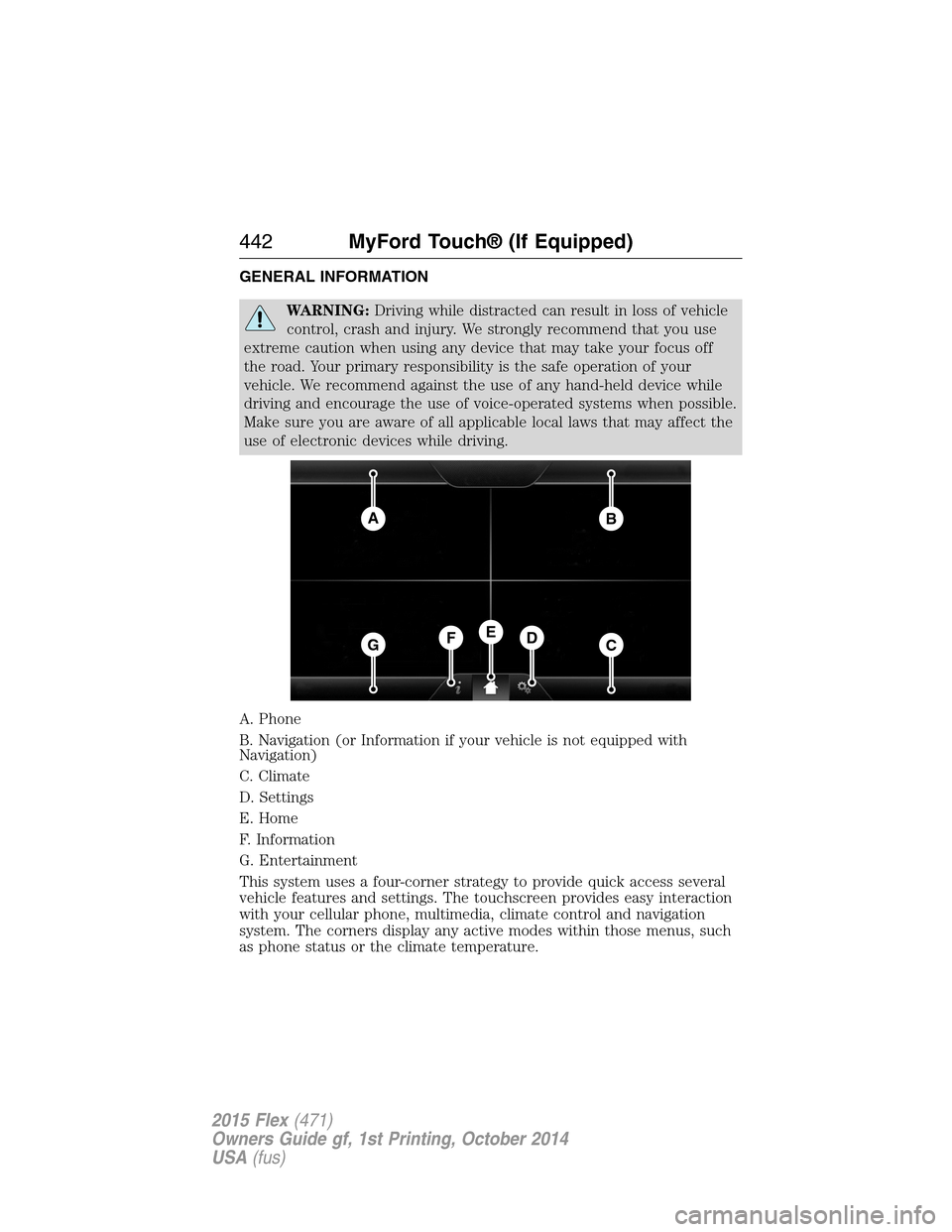
A. Phone
B. Navigation (or Information if your vehicle is not equipped with
Navigation)
C. Climate
D. Settings
E. Home
F. Information
G. Entertainment
This system uses a four-corner strategy to provide quick access several
vehicle features and settings. The touchscreen provides easy interaction
with your cellular phone, multimedia, climate control and navigation
system. The corners display any active modes within those menus, such
as phone status or the climate temperature.
AB
GCDFE
442MyFord Touch® (If Equipped)
2015 Flex(471)
Owners Guide gf, 1st Printing, October 2014
USA(fus)
Page 447 of 571
Support
The SYNC support team is available to help you with any questions you
aren’t able to answer on your own.
Monday-Saturday, 8:30 am-8pm EST
In the United States, call: 1–888–270–1055
In Canada, call: 1–800–565–3673
Times are subject to change due to holidays.
Safety information
WARNING:Driving while distracted can result in loss of vehicle
control, accident and injury. Ford strongly recommends that
drivers use extreme caution when using any device that may take their
focus off the road. Your primary responsibility is the safe operation of
the vehicle. We recommend against the use of any handheld device
while driving, encourage the use of voice-operated systems when
possible and that you become aware of applicable state and local laws
that may affect use of electronic devices while driving.
•Do not attempt to service or repair SYNC®. See your authorized
dealer.
•Do not operate playing devices if the power cords and/or cables are
broken, split or damaged. Carefully place cords and/or cables where
they will not be stepped on or interfere with the operation of pedals,
seats and/or compartments, or safe driving abilities.
•Do not leave playing devices in the vehicle in extreme conditions as it
could cause damage to your device. Refer to your device’s user guide
for further information.
•For your safety, some SYNC® functions are speed dependent and
cannot be performed when the vehicle is traveling at speeds greater
than 3 mph (5 km/h).
•Ensure that you review your device’s user guide before using with
SYNC®.
446MyFord Touch® (If Equipped)
2015 Flex(471)
Owners Guide gf, 1st Printing, October 2014
USA(fus)
Page 451 of 571
Audio Sources and Memory Presets
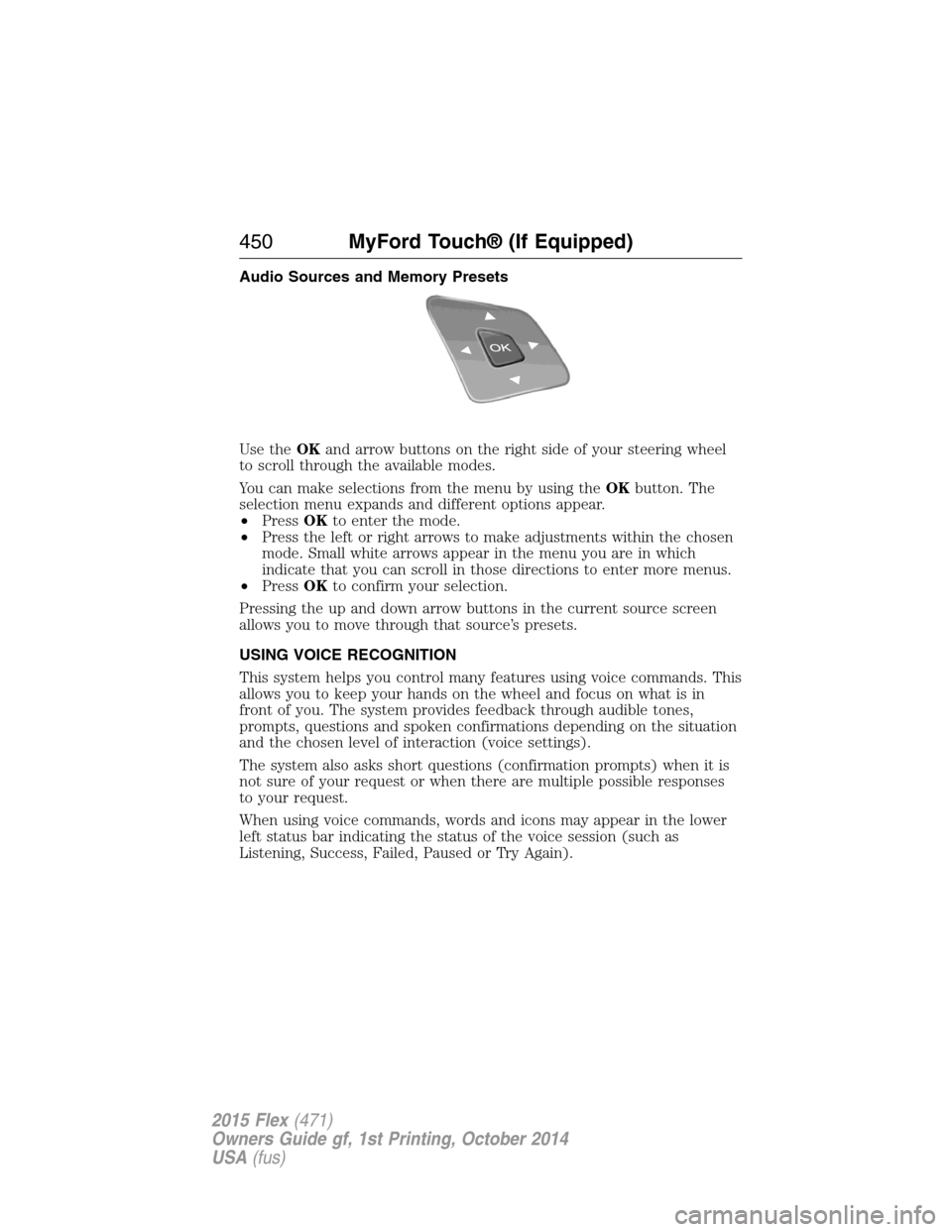
Use theOKand arrow buttons on the right side of your steering wheel
to scroll through the available modes.
You can make selections from the menu by using theOKbutton. The
selection menu expands and different options appear.
•PressOKto enter the mode.
•Press the left or right arrows to make adjustments within the chosen
mode. Small white arrows appear in the menu you are in which
indicate that you can scroll in those directions to enter more menus.
•PressOKto confirm your selection.
Pressing the up and down arrow buttons in the current source screen
allows you to move through that source’s presets.
USING VOICE RECOGNITION
This system helps you control many features using voice commands. This
allows you to keep your hands on the wheel and focus on what is in
front of you. The system provides feedback through audible tones,
prompts, questions and spoken confirmations depending on the situation
and the chosen level of interaction (voice settings).
The system also asks short questions (confirmation prompts) when it is
not sure of your request or when there are multiple possible responses
to your request.
When using voice commands, words and icons may appear in the lower
left status bar indicating the status of the voice session (such as
Listening, Success, Failed, Paused or Try Again).
450MyFord Touch® (If Equipped)
2015 Flex(471)
Owners Guide gf, 1st Printing, October 2014
USA(fus)
Page 460 of 571
•Memory presetsallow you to save an active channel as a memory
preset. Touch and hold a memory preset slot until the sound returns.
There is a brief mute while the radio saves the station. Sound returns
when finished. When switching to an HD2 or HD3 memory preset, the
sound mutes before the digital audio plays, because the system has to
reacquire the digital signal.
•Note:As with any saved radio station, you cannot access the
saved station if your vehicle is outside the station’s reception area.
HD Radio Reception and Station Troubleshooting
Potential Reception Issues
Reception areaIf you are listening to a multicast station and
you are on the fringe of the reception area,
the station may mute due to weak signal
strength.
If you are listening to HD1, the system
switches back to the analog broadcast until
the digital broadcast is available again.
However, if you are listening to any of the
possible HD2 through HD7 multicast
channels, the station mutes and stays muted
unless it is able to connect to the digital
signal again.
Station blendingWhen the system first receives a station
(aside from HD2-HD7 multicast stations), it
first plays the station in the analog version.
Once the receiver verifies the station is an HD
Radio station, it shifts to the digital version.
Depending on the station quality, you may
hear a slight sound change when the station
changes from analog to digital. Blending is the
shift from analog to digital sound or digital
back to analog sound.
In order to provide the best possible experience, use the contact form to
report any station issues found while listening to a station broadcasting
with HD Radio technology. Independent entities own and operate each
station. These stations are responsible for making sure all audio streams
and data fields are accurate.
MyFord Touch® (If Equipped)459
2015 Flex(471)
Owners Guide gf, 1st Printing, October 2014
USA(fus)
Page 461 of 571
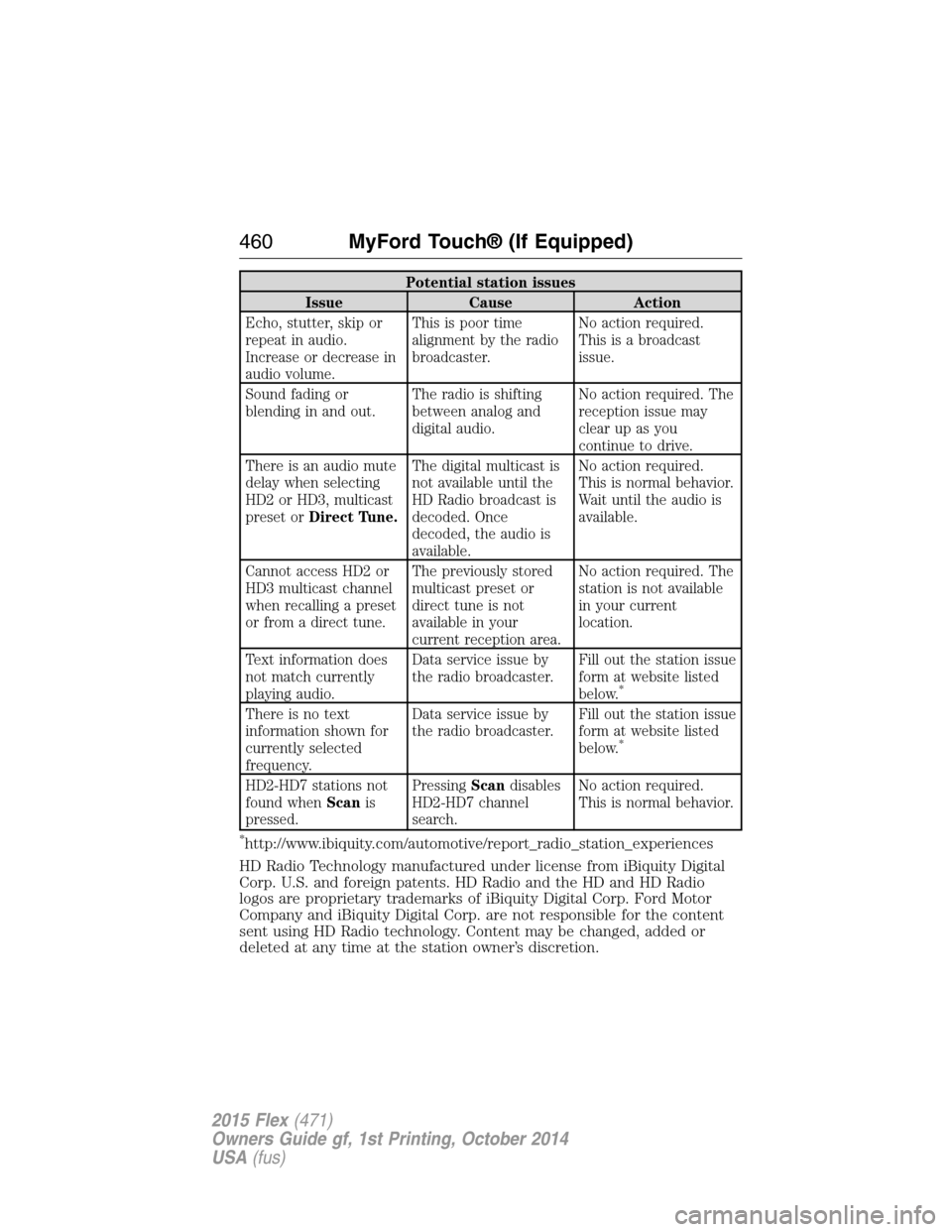
Potential station issues
Issue Cause Action
Echo, stutter, skip or
repeat in audio.
Increase or decrease in
audio volume.This is poor time
alignment by the radio
broadcaster.No action required.
This is a broadcast
issue.
Sound fading or
blending in and out.The radio is shifting
between analog and
digital audio.No action required. The
reception issue may
clear up as you
continue to drive.
There is an audio mute
delay when selecting
HD2 or HD3, multicast
preset orDirect Tune.The digital multicast is
not available until the
HD Radio broadcast is
decoded. Once
decoded, the audio is
available.No action required.
This is normal behavior.
Wait until the audio is
available.
Cannot access HD2 or
HD3 multicast channel
when recalling a preset
or from a direct tune.The previously stored
multicast preset or
direct tune is not
available in your
current reception area.No action required. The
station is not available
in your current
location.
Text information does
not match currently
playing audio.Data service issue by
the radio broadcaster.Fill out the station issue
form at website listed
below.
*
There is no text
information shown for
currently selected
frequency.Data service issue by
the radio broadcaster.Fill out the station issue
form at website listed
below.
*
HD2-HD7 stations not
found whenScanis
pressed.PressingScandisables
HD2-HD7 channel
search.No action required.
This is normal behavior.
*http://www.ibiquity.com/automotive/report_radio_station_experiences
HD Radio Technology manufactured under license from iBiquity Digital
Corp. U.S. and foreign patents. HD Radio and the HD and HD Radio
logos are proprietary trademarks of iBiquity Digital Corp. Ford Motor
Company and iBiquity Digital Corp. are not responsible for the content
sent using HD Radio technology. Content may be changed, added or
deleted at any time at the station owner’s discretion.
460MyFord Touch® (If Equipped)
2015 Flex(471)
Owners Guide gf, 1st Printing, October 2014
USA(fus)
Page 464 of 571
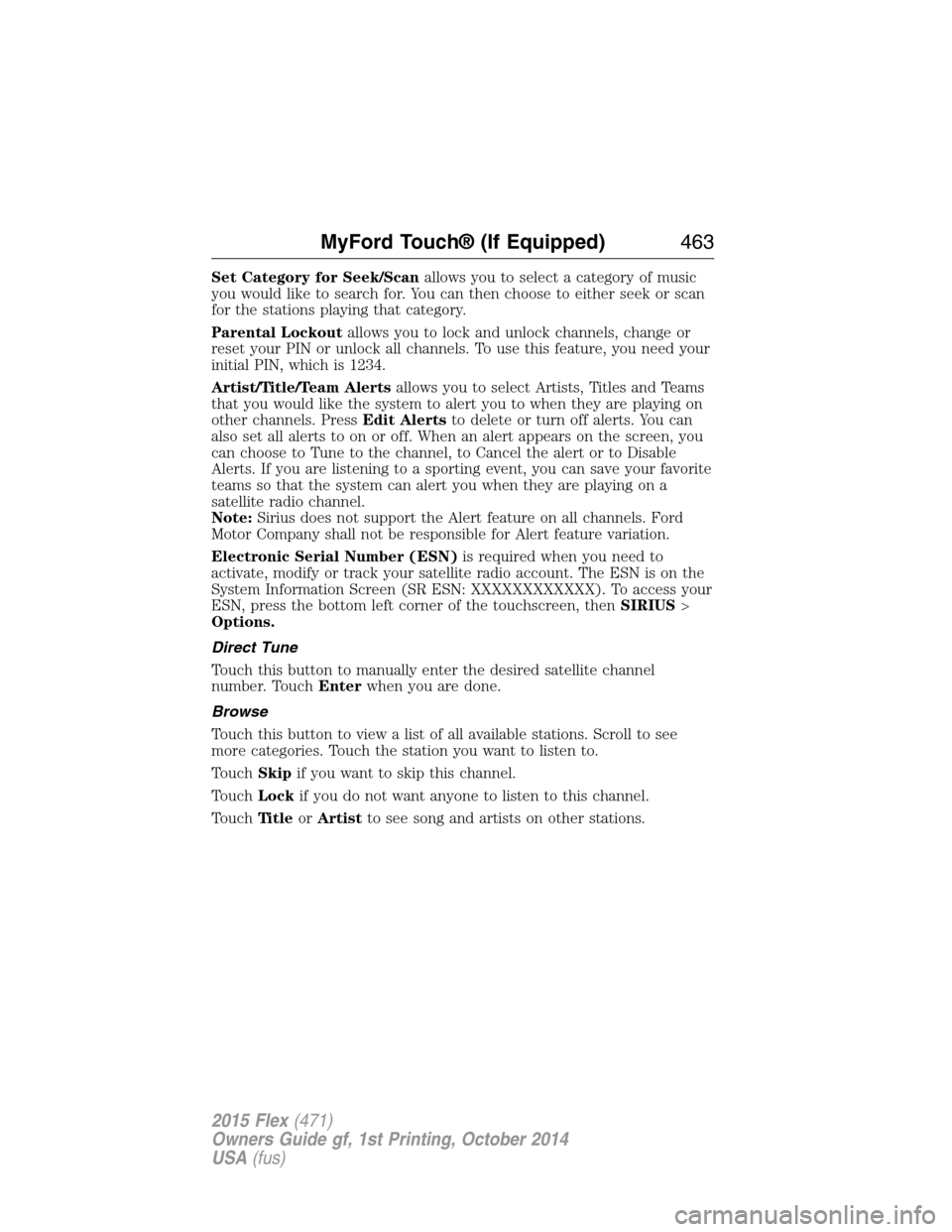
Set Category for Seek/Scanallows you to select a category of music
you would like to search for. You can then choose to either seek or scan
for the stations playing that category.
Parental Lockoutallows you to lock and unlock channels, change or
reset your PIN or unlock all channels. To use this feature, you need your
initial PIN, which is 1234.
Artist/Title/Team Alertsallows you to select Artists, Titles and Teams
that you would like the system to alert you to when they are playing on
other channels. PressEdit Alertsto delete or turn off alerts. You can
also set all alerts to on or off. When an alert appears on the screen, you
can choose to Tune to the channel, to Cancel the alert or to Disable
Alerts. If you are listening to a sporting event, you can save your favorite
teams so that the system can alert you when they are playing on a
satellite radio channel.
Note:Sirius does not support the Alert feature on all channels. Ford
Motor Company shall not be responsible for Alert feature variation.
Electronic Serial Number (ESN)is required when you need to
activate, modify or track your satellite radio account. The ESN is on the
System Information Screen (SR ESN: XXXXXXXXXXXX). To access your
ESN, press the bottom left corner of the touchscreen, thenSIRIUS>
Options.
Direct Tune
Touch this button to manually enter the desired satellite channel
number. TouchEnterwhen you are done.
Browse
Touch this button to view a list of all available stations. Scroll to see
more categories. Touch the station you want to listen to.
TouchSkipif you want to skip this channel.
TouchLockif you do not want anyone to listen to this channel.
TouchTi t l eorArtistto see song and artists on other stations.
MyFord Touch® (If Equipped)463
2015 Flex(471)
Owners Guide gf, 1st Printing, October 2014
USA(fus)