radio FORD FLEX 2015 1.G Workshop Manual
[x] Cancel search | Manufacturer: FORD, Model Year: 2015, Model line: FLEX, Model: FORD FLEX 2015 1.GPages: 571, PDF Size: 5.52 MB
Page 466 of 571
“TUNE”
“SAT 2”
“SAT 2 preset <#>”
“SAT 3”
“SAT 3 preset <#>”
“Help”
Sirius Satellite Radio Information
Note:Sirius reserves the unrestricted right to change, rearrange, add or
delete programming including canceling, moving or adding particular
channels, and its prices, at any time, with or without notice to you. Ford
Motor Company shall not be responsible for any such programming
changes.
Note:This receiver includes the eCos real-time operating system. eCos
is published under the eCos License.
Sirius satellite radio is a
subscription-based satellite radio
service that broadcasts a variety of
music, sports, news, weather, traffic
and entertainment programming.
Your factory-installed Sirius satellite
radio system includes hardware and
a limited subscription term that begins on the date of sale or lease of
your vehicle. See your authorized dealer for availability.
For more information on extended subscription terms (a service fee is
required), the online media player and a list of Sirius satellite radio
channels, and other features, please visit www.siriusxm.com in the
United States, www.sirius.ca in Canada, or call Sirius at 1-888-539-7474.
Potential satellite radio reception issues
Antenna
obstructionsFor optimal reception performance, keep the
antenna clear of snow and ice build-up and
keep luggage and other materials as far away
from the antenna as possible.
TerrainHills, mountains, tall buildings, bridges,
tunnels, freeway overpasses, parking garages,
dense tree foliage and thunderstorms can
interfere with your reception.
MyFord Touch® (If Equipped)465
2015 Flex(471)
Owners Guide gf, 1st Printing, October 2014
USA(fus)
Page 467 of 571
Potential satellite radio reception issues
Station overloadWhen you pass a ground-based
broadcast-repeating tower, a stronger signal
may overtake a weaker one and the audio
system may mute.
Satellite radio signal
interferenceYour display may show ACQUIRING...to
indicate the interference and the audio
system may mute.
Sirius troubleshooting tips
Radio display Condition Possible action
Acquiring... Radio requires more
than two seconds to
produce audio for the
selected channel.No action required.
This message should
disappear shortly.
Sat Fault/SIRIUS
system failure.There is an internal
module or system
failure present.If this message does
not clear shortly, or
with an ignition key
cycle, your receiver
may have a fault. See
your authorized dealer
for service.
Invalid Channel. The channel is no
longer available.Tune to another
channel or choose
another preset.
Unsubscribed Channel. Your subscription does
not include this
channel.Contact Sirius at
1–888–539–7474 to
subscribe to the
channel, or tune to
another channel.
No Signal. The signal is lost from
the Sirius satellite or
Sirius tower to your
vehicle antenna.The signal is blocked.
When you move into
an open area, the
signal should return.
466MyFord Touch® (If Equipped)
2015 Flex(471)
Owners Guide gf, 1st Printing, October 2014
USA(fus)
Page 468 of 571
Sirius troubleshooting tips
Radio display Condition Possible action
Updating. Update of channel
programming in
progress.No action required.
The process may take
up to three minutes.
Call SIRIUS
1–888–539–7474.Your satellite service is
no longer available.Contact Sirius at
1-888-539-7474 to
resolve subscription
issues.
None Found. Check
Channel Guide.All the channels in the
selected channels are
either skipped or
locked.Use the channel guide
to turn off theLock
orSkipfunction on
that station.
Subscription Updated. Sirius has updated the
channels available for
your vehicle.No action required.
CD
Press the lower left corner of the touchscreen, and then select
theCDtab.
You can also advance and reverse the current track or current folder, if
applicable.
Repeat
Touch this button to repeat the currently playing track, all tracks on the
disc or turn the feature off if already on.
Shuffle
Touch this button to play the tracks or entire albums in random order, or
turn the feature off if already on.
Scan
Touch this button to hear a brief sampling of all available tracks.
More Info
Touch this button to see disc information.
MyFord Touch® (If Equipped)467
2015 Flex(471)
Owners Guide gf, 1st Printing, October 2014
USA(fus)
Page 475 of 571
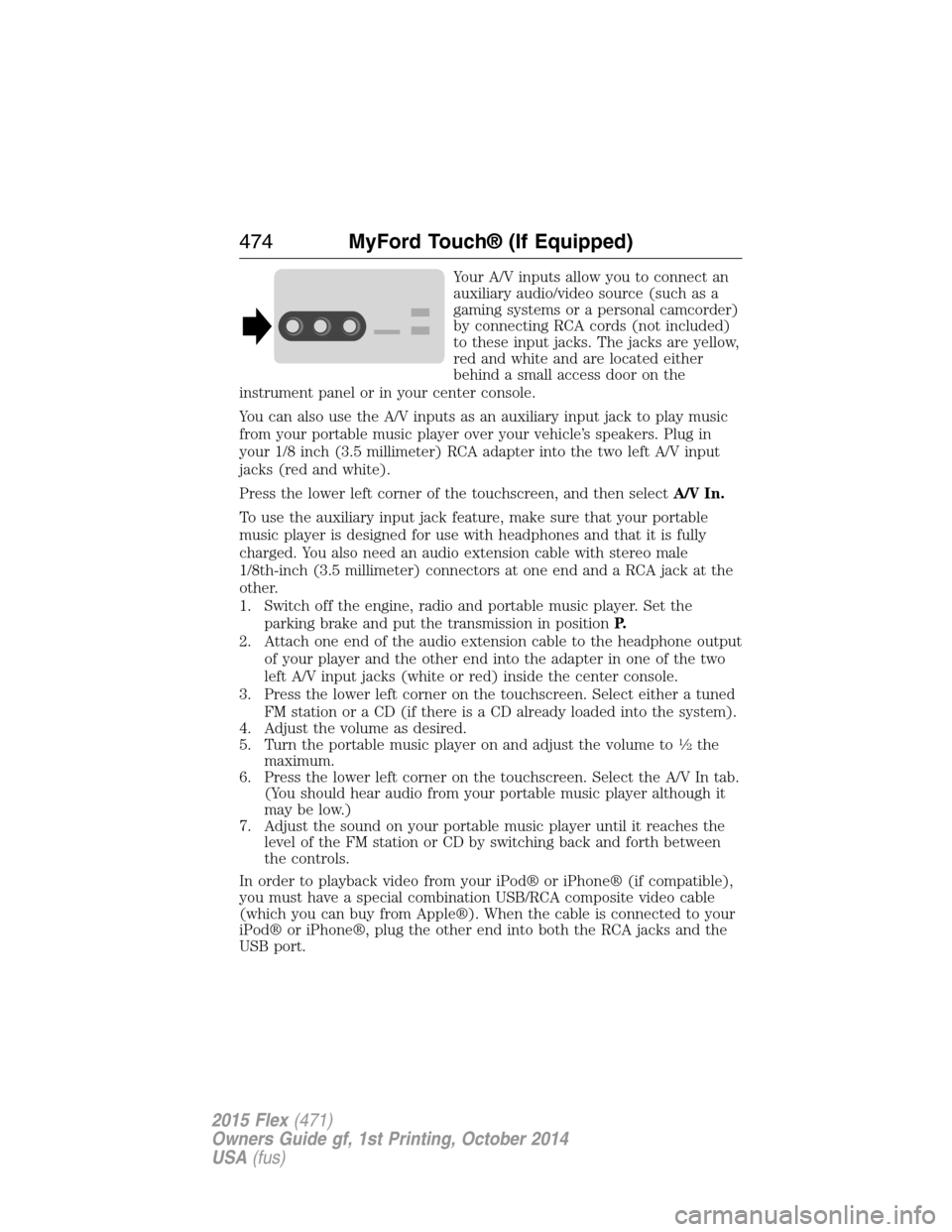
Your A/V inputs allow you to connect an
auxiliary audio/video source (such as a
gaming systems or a personal camcorder)
by connecting RCA cords (not included)
to these input jacks. The jacks are yellow,
red and white and are located either
behind a small access door on the
instrument panel or in your center console.
You can also use the A/V inputs as an auxiliary input jack to play music
from your portable music player over your vehicle’s speakers. Plug in
your 1/8 inch (3.5 millimeter) RCA adapter into the two left A/V input
jacks (red and white).
Press the lower left corner of the touchscreen, and then selectA/V In.
To use the auxiliary input jack feature, make sure that your portable
music player is designed for use with headphones and that it is fully
charged. You also need an audio extension cable with stereo male
1/8th-inch (3.5 millimeter) connectors at one end and a RCA jack at the
other.
1. Switch off the engine, radio and portable music player. Set the
parking brake and put the transmission in positionP.
2. Attach one end of the audio extension cable to the headphone output
of your player and the other end into the adapter in one of the two
left A/V input jacks (white or red) inside the center console.
3. Press the lower left corner on the touchscreen. Select either a tuned
FM station or a CD (if there is a CD already loaded into the system).
4. Adjust the volume as desired.
5. Turn the portable music player on and adjust the volume to
12the
maximum.
6. Press the lower left corner on the touchscreen. Select the A/V In tab.
(You should hear audio from your portable music player although it
may be low.)
7. Adjust the sound on your portable music player until it reaches the
level of the FM station or CD by switching back and forth between
the controls.
In order to playback video from your iPod® or iPhone® (if compatible),
you must have a special combination USB/RCA composite video cable
(which you can buy from Apple®). When the cable is connected to your
iPod® or iPhone®, plug the other end into both the RCA jacks and the
USB port.
474MyFord Touch® (If Equipped)
2015 Flex(471)
Owners Guide gf, 1st Printing, October 2014
USA(fus)
Page 476 of 571

Troubleshooting
•Do not connect the audio input jack to a line level output. The jack
only works correctly with devices that have a headphone output with
a volume control.
•Do not set the portable music player’s volume level higher than is
necessary to match the volume of the CD or FM radio as this causes
distortion and reduces sound quality.
•If the music sounds distorted at lower listening levels, turn the
portable music player volume down. If the problem persists, replace or
recharge the batteries in the portable media player.
•Control the portable media player in the same manner when used with
headphones, as the auxiliary input jack does not provide control (such
as Play or Pause) over the attached portable media player.
PHONE
A. Phone
B. Quick Dial
C. Phonebook
D. History
E. Messaging
F. Settings
Hands-free calling is one of the main features of SYNC. Once you pair
your phone, you can access many options using the touchscreen or voice
A
B
C
D
E
F
MyFord Touch® (If Equipped)475
2015 Flex(471)
Owners Guide gf, 1st Printing, October 2014
USA(fus)
Page 477 of 571
commands. While the system supports a variety of features, many are
dependent on your cellular phone’s functionality. At a minimum, most
cellular phones with Bluetooth wireless technology support the following
functions:
•Answering an incoming call
•Ending a call
•Using privacy mode
•Dialing a number
•Redialing
•Call waiting notification
•Caller ID.
Other features, such as text messaging using Bluetooth and automatic
phonebook download, are phone-dependent features. To check your
phone’s compatibility, see your phone’s user manual and visit
www.SYNCMyRide.com, www.SYNCMyRide.ca or www.syncmaroute.ca.
Pairing Your Phone for the First Time
WARNING:Driving while distracted can result in loss of vehicle
control, crash and injury. We strongly recommend that you use
extreme caution when using any device that may take your focus off
the road. Your primary responsibility is the safe operation of your
vehicle. We recommend against the use of any hand-held device while
driving and encourage the use of voice-operated systems when possible.
Make sure you are aware of all applicable local laws that may affect the
use of electronic devices while driving.
The first thing you must do to use the phone features of SYNC is to pair
your Bluetooth-enabled cellular phone with SYNC. This allows you to use
your phone in a hands-free manner.
Note:Put the transmission in positionP.Turn on your vehicle ignition
and the radio.
1. TouchAdd Phonein the upper left corner of the touchscreen.Find
SYNCappears on the screen and instructs you to begin the pairing
process from your device.
2. Make sure that Bluetooth is set toOnand that your cellular phone is
in the proper mode. See your phone’s manual if necessary.
•SelectSYNC,and a six-digit PIN appears on your device.
3. If you are prompted to enter a PIN on your device, it does not
support Secure Simple Pairing. To pair, enter the PIN displayed on
the touchscreen. Skip the next step.
476MyFord Touch® (If Equipped)
2015 Flex(471)
Owners Guide gf, 1st Printing, October 2014
USA(fus)
Page 478 of 571
4. When prompted on your phone’s display, confirm that the PIN
provided by SYNC matches the PIN displayed on your cellular phone.
5. The display indicates when the pairing is successful.
SYNC may prompt you with more phone options. For more information on
your phone’s capability, see your phone’s manual and visit the website.
Pairing Subsequent Phones
Note:Put the transmission in positionP.Turn on your vehicle ignition
and the radio.
1. Press thePhonecorner of the touchscreen >Settings>BT
Devices>Add Device.
2. Make sure that Bluetooth is set toOnand that your cellular phone is
in the proper mode. See your phone’s manual if necessary.
•SelectSYNC,and a six-digit PIN appears on your device.
3. If you are prompted to enter a PIN on your device, it does not
support Secure Simple Pairing. To pair, enter the PIN displayed on
the touchscreen. Skip the next step.
4. When prompted on your phone’s display, confirm that the PIN
provided by SYNC matches the PIN displayed on your cellular phone.
5. The display indicates when the pairing is successful.
SYNC may prompt you with more phone options. For more information
on your phone’s capability, see your phone’s user guide and visit the
website.
Making Calls
Press the voice button on your steering wheel controls. When
prompted, say, “Call
number.
To end the call or exit phone mode, press this phone button.
Receiving Calls
During an incoming call, an audible tone sounds. Call information
appears in the display if it is available.
Accept the call by pressingAccepton the touchscreen or by
pressing this phone button on your steering wheel controls.
Reject the call by pressingRejecton the touchscreen or by
pressing this phone button on your steering wheel controls.
Ignore the call by doing nothing. SYNC logs it as a missed call.
MyFord Touch® (If Equipped)477
2015 Flex(471)
Owners Guide gf, 1st Printing, October 2014
USA(fus)
Page 503 of 571
Navigation
Traffic PreferencesHave the system display areas where
roadwork occurs.
Have the system display incident icons.
Have the system display areas where difficult
driving conditions may occur.
Have the system display areas where snow
and ice on the road may occur.
Have the system display any smog alerts.
Have the system display weather warnings.
Have the system display where there may be
reduced visibility.
Have the system turn on your radio for traffic
announcements.
Have the system avoid traffic problems
automatically.
Switch traffic alert notifications on and off.
Have the system display accident icons.
Have the system display traffic jam icons.
Have the system display closed roads.
Avoid AreasEnter specific areas that you would like to
avoid on planned navigation routes.
502MyFord Touch® (If Equipped)
2015 Flex(471)
Owners Guide gf, 1st Printing, October 2014
USA(fus)
Page 507 of 571
Help
Press the Settings icon >Help,then select from the following:
Help
Where Am I?View your vehicle’s current location, if your
vehicle is equipped with navigation. If your vehicle
is not equipped with navigation, nothing displays.
System InformationTouchscreen system serial number.
Your vehicle identification number (VIN).
Touchscreen system software version.
Navigation system version.
Map database version.
Sirius satellite radio electronic serial number
(ESN).
Gracenote Database Information and Library
version.
Software LicensesView the licenses for any software and
applications installed on your system.
Driving RestrictionsCertain features are not accessible when your
vehicle is moving.
911 AssistTurn on and turn off the 911 Assist feature. See
911 Assistin theSYNC applications and
servicessection.
In Case of Emergency (ICE) Speed Dial
allows you to save up to two numbers as ICE
contacts for quick access if there is an emergency.
SelectEditto access your phonebook and then
select the desired contacts. The numbers then
appear as options on this screen for the ICE 1 and
ICE 2 buttons. The ICE contacts you select appear
at the end of the 911 Assist call process.
Voice Command ListView categorized lists of voice commands.
To access Help using the voice commands, press the voice button, then,
after the tone, say “Help”. The system provides allowable voice
commands for the current mode.
506MyFord Touch® (If Equipped)
2015 Flex(471)
Owners Guide gf, 1st Printing, October 2014
USA(fus)
Page 528 of 571
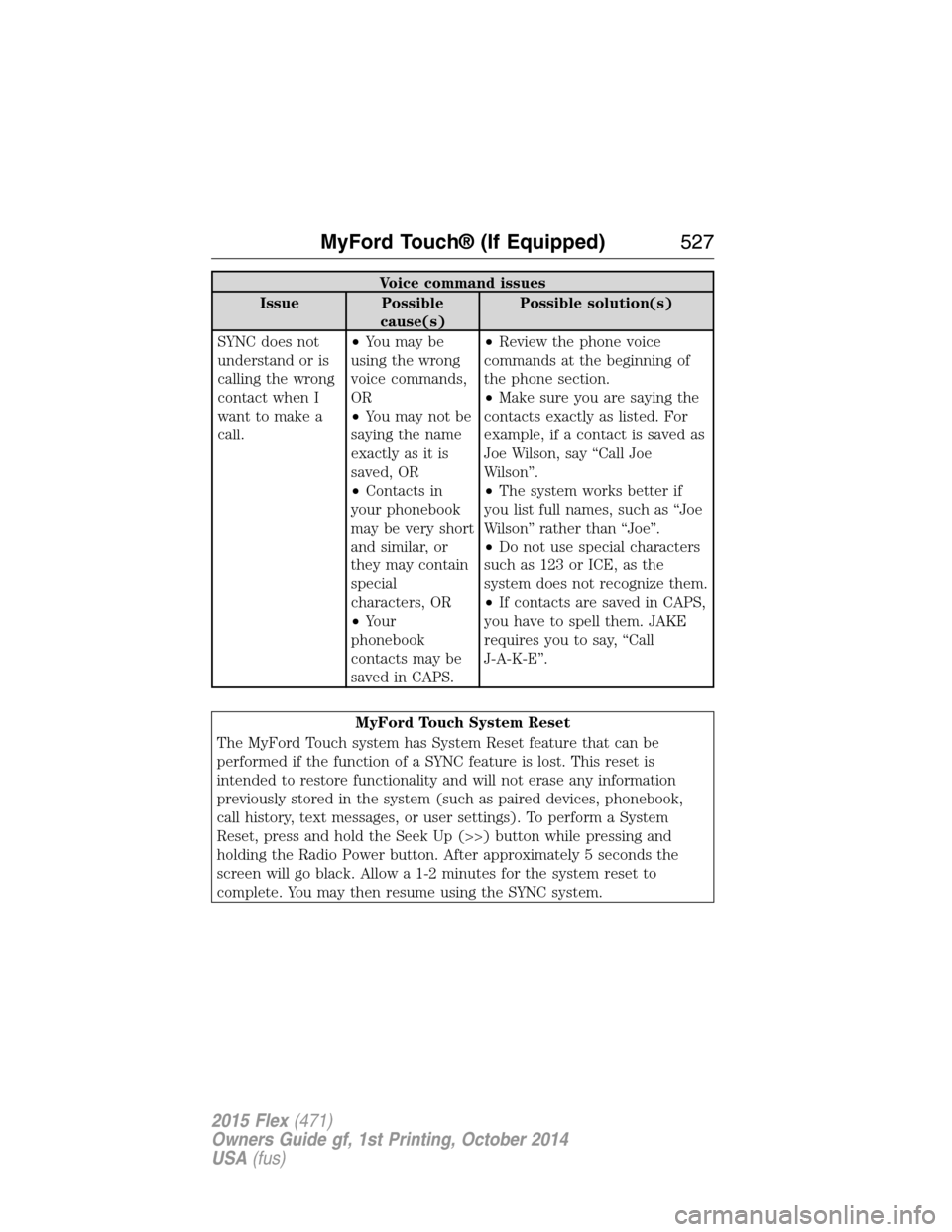
Voice command issues
Issue Possible
cause(s)Possible solution(s)
SYNC does not
understand or is
calling the wrong
contact when I
want to make a
call.•You may be
using the wrong
voice commands,
OR
•You may not be
saying the name
exactly as it is
saved, OR
•Contacts in
your phonebook
may be very short
and similar, or
they may contain
special
characters, OR
•Your
phonebook
contacts may be
saved in CAPS.•Review the phone voice
commands at the beginning of
the phone section.
•Make sure you are saying the
contacts exactly as listed. For
example, if a contact is saved as
Joe Wilson, say “Call Joe
Wilson”.
•The system works better if
you list full names, such as “Joe
Wilson” rather than “Joe”.
•Do not use special characters
such as 123 or ICE, as the
system does not recognize them.
•If contacts are saved in CAPS,
you have to spell them. JAKE
requires you to say, “Call
J-A-K-E”.
MyFord Touch System Reset
The MyFord Touch system has System Reset feature that can be
performed if the function of a SYNC feature is lost. This reset is
intended to restore functionality and will not erase any information
previously stored in the system (such as paired devices, phonebook,
call history, text messages, or user settings). To perform a System
Reset, press and hold the Seek Up (>>) button while pressing and
holding the Radio Power button. After approximately 5 seconds the
screen will go black. Allow a 1-2 minutes for the system reset to
complete. You may then resume using the SYNC system.
MyFord Touch® (If Equipped)527
2015 Flex(471)
Owners Guide gf, 1st Printing, October 2014
USA(fus)