light FORD FLEX 2018 Owners Manual
[x] Cancel search | Manufacturer: FORD, Model Year: 2018, Model line: FLEX, Model: FORD FLEX 2018Pages: 508, PDF Size: 6.31 MB
Page 297 of 508
2. This device must accept any
interference received, including
interference that may cause undesired
operation.
Note: Changes or modifications not
expressively approved by the party
responsible for compliance could void the
user's authority to operate the equipment.
The term "IC:" before the radio certification
number only signifies that Industry Canada
technical specifications were met.
Changing Tires With a Tire
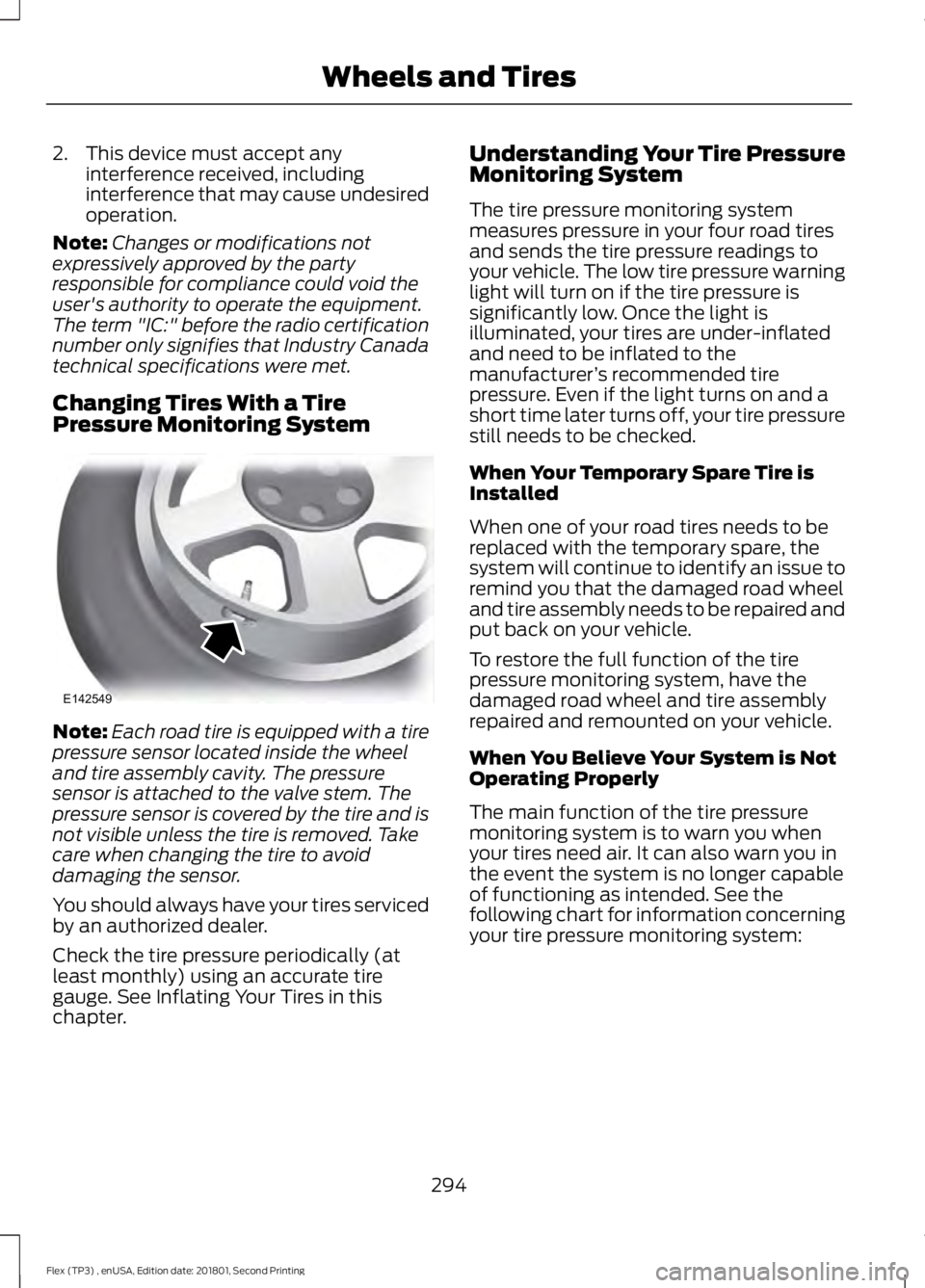
Pressure Monitoring System Note:
Each road tire is equipped with a tire
pressure sensor located inside the wheel
and tire assembly cavity. The pressure
sensor is attached to the valve stem. The
pressure sensor is covered by the tire and is
not visible unless the tire is removed. Take
care when changing the tire to avoid
damaging the sensor.
You should always have your tires serviced
by an authorized dealer.
Check the tire pressure periodically (at
least monthly) using an accurate tire
gauge. See Inflating Your Tires in this
chapter. Understanding Your Tire Pressure
Monitoring System
The tire pressure monitoring system
measures pressure in your four road tires
and sends the tire pressure readings to
your vehicle. The low tire pressure warning
light will turn on if the tire pressure is
significantly low. Once the light is
illuminated, your tires are under-inflated
and need to be inflated to the
manufacturer
’s recommended tire
pressure. Even if the light turns on and a
short time later turns off, your tire pressure
still needs to be checked.
When Your Temporary Spare Tire is
Installed
When one of your road tires needs to be
replaced with the temporary spare, the
system will continue to identify an issue to
remind you that the damaged road wheel
and tire assembly needs to be repaired and
put back on your vehicle.
To restore the full function of the tire
pressure monitoring system, have the
damaged road wheel and tire assembly
repaired and remounted on your vehicle.
When You Believe Your System is Not
Operating Properly
The main function of the tire pressure
monitoring system is to warn you when
your tires need air. It can also warn you in
the event the system is no longer capable
of functioning as intended. See the
following chart for information concerning
your tire pressure monitoring system:
294
Flex (TP3) , enUSA, Edition date: 201801, Second Printing Wheels and TiresE142549
Page 298 of 508
Customer action required
Possible cause
Low tire pressure
warning light
Make sure tires are at the proper pres-
sure. See Inflating your tires in this
chapter. After inflating your tires to the
manufacturer’s recommended pressure
as shown on the Tire Label (located on
the edge of driver ’s door or the B-Pillar),
the vehicle must be driven for at least
two minutes over 20 mph (32 km/h)
before the light turns off.
Tire(s) under-inflated
Solid warning light
Repair the damaged road wheel and tire
assembly and reinstall it on the vehicle
to restore system function. For a
description on how the system functions,
see
When your temporary spare tire
is installed in this section.
Spare tire in use
If the tires are properly inflated and the
spare tire is not in use but the light
remains on, contact your authorized
dealer as soon as possible.
TPMS malfunction
Repair the damaged road wheel and tire
assembly and reinstall it on the vehicle
to restore system function. For a
description on how the system functions,
see
When your temporary spare tire
is installed in this section.
Spare tire in use
Flashing warning
light
If the tires are properly inflated and the
spare tire is not in use but the light
remains on, contact your authorized
dealer as soon as possible.
TPMS malfunction
When Inflating Your Tires
When putting air into your tires (such as at
a gas station or in your garage), the tire
pressure monitoring system may not
respond immediately to the air added to
your tires. It may take up to two minutes of driving
over 20 mph (32 km/h) for the light to turn
off after you have filled your tires to the
recommended inflation pressure.
295
Flex (TP3) , enUSA, Edition date: 201801, Second Printing Wheels and Tires
Page 299 of 508
How Temperature Affects Your Tire
Pressure
The tire pressure monitoring system
monitors tire pressure in each pneumatic
tire. While driving in a normal manner, a
typical passenger tire inflation pressure
may increase about 2
–4 psi (14– 28 kPa)
from a cold start situation. If the vehicle is
stationary overnight with the outside
temperature significantly lower than the
daytime temperature, the tire pressure may
decrease about 3 psi (21 kPa) for a drop of
30°F (17°C) in ambient temperature. This
lower pressure value may be detected by
the tire pressure monitoring system as
being significantly lower than the
recommended inflation pressure and
activate the system warning light for low
tire pressure. If the low tire pressure
warning light is on, visually check each tire
to verify that no tire is flat. If one or more
tires are flat, repair as necessary. Check
the air pressure in the road tires. If any tire
is under-inflated, carefully drive the vehicle
to the nearest location where air can be
added to the tires. Inflate all the tires to
the recommended inflation pressure.
CHANGING A ROAD WHEEL WARNINGS
The use of tire sealant may damage
your tire pressure monitoring system
and should only be used in roadside
emergencies. If you must use a sealant, the
Ford Tire Mobility Kit sealant should be
used. The tire pressure monitoring system
sensor and valve stem on the wheel must
be replaced by an authorized dealer after
use of the sealant. See
Tire Pressure Monitoring
System (page 293). If the tire
pressure monitor sensor becomes
damaged, it will no longer function. Note:
The tire pressure monitoring system
indicator light will illuminate when the spare
tire is in use. To restore the full function of
the monitoring system, all road wheels
equipped with tire pressure monitoring
sensors must be mounted on the vehicle.
If you get a flat tire while driving, do not
apply the brake heavily. Instead, gradually
decrease your speed. Hold the steering
wheel firmly and slowly move to a safe
place on the side of the road.
Have a flat serviced by an authorized
dealer in order to prevent damage to the
tire pressure monitoring system sensors.
See
Tire Pressure Monitoring System
(page 293). Replace the spare tire with a
road tire as soon as possible. During
repairing or replacing of the flat tire, have
the authorized dealer inspect the tire
pressure monitoring system sensor for
damage.
Dissimilar Spare Wheel and Tire
Assembly Information WARNING
Failure to follow these guidelines
could result in an increased risk of
loss of vehicle control, injury or death.
If you have a dissimilar spare wheel and
tire, then it is intended for temporary use
only. This means that if you need to use it,
you should replace it as soon as possible
with a road wheel and tire assembly that
is the same size and type as the road tires
and wheels that were originally provided
by Ford. If the dissimilar spare tire or wheel
is damaged, it should be replaced rather
than repaired.
A dissimilar spare wheel and tire assembly
is defined as a spare wheel and tire
assembly that is different in brand, size or
appearance from the road tires and wheels
and can be one of three types:
296
Flex (TP3) , enUSA, Edition date: 201801, Second Printing Wheels and Tires
Page 320 of 508
GENERAL INFORMATION
Radio Frequencies and Reception
Factors
AM and FM frequencies are established by
the Federal Communications Commission
(FCC) and the Canadian Radio and
Telecommunications Commission (CRTC).
Those frequencies are:
•
AM: 530-1710 kHz
• FM: 87.9-107.9 MHz
Note: Listening to loud audio for long
periods of time could damage your hearing. Radio Reception Factors
The further you travel from an AM or FM station, the
weaker the signal and the weaker the reception.
Distance and strength
Hills, mountains, tall buildings, bridges, tunnels, freeway
overpasses, parking garages, dense tree foliage and
thunderstorms can interfere with the reception.
Terrain
When you pass a ground-based broadcast repeating
tower, a stronger signal may overtake a weaker one and
result in the audio system muting.
Station overload
CD and CD Player Information
Note: CD units play commercially pressed
4.7 in (12 cm) audio compact discs only. Due
to technical incompatibility, certain
recordable and re-recordable compact discs
may not function correctly when used in
Ford CD players.
Note: Do not insert CDs with homemade
paper (adhesive) labels into the CD player
as the label may peel and cause the CD to
become jammed. You should use a
permanent felt tip marker rather than
adhesive labels on your homemade CDs.
Ballpoint pens may damage CDs. Ask an
authorized dealer for more information.
Note: Do not use any irregularly shaped
discs or discs with a scratch protection film
attached. Always handle discs by their edges only.
Clean the disc with an approved CD
cleaner only. Wipe it from the center of
the disc toward the edge. Do not clean in
a circular motion.
Do not expose discs to direct sunlight or
heat sources for extended periods.
317
Flex (TP3) , enUSA, Edition date: 201801, Second Printing Audio System
Page 323 of 508
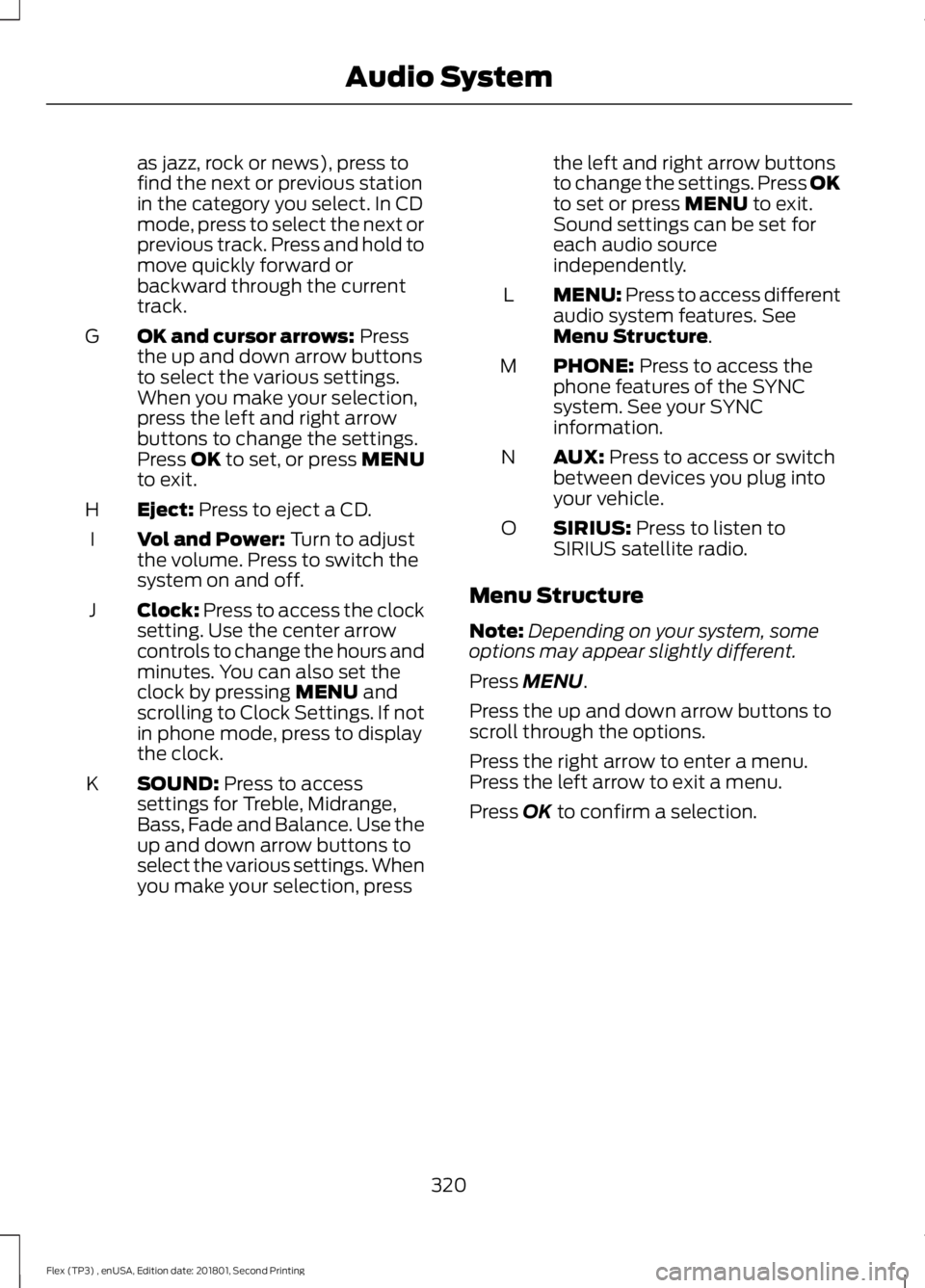
as jazz, rock or news), press to
find the next or previous station
in the category you select. In CD
mode, press to select the next or
previous track. Press and hold to
move quickly forward or
backward through the current
track.
OK and cursor arrows: Press
the up and down arrow buttons
to select the various settings.
When you make your selection,
press the left and right arrow
buttons to change the settings.
Press OK to set, or press MENU
to exit.
G
Eject:
Press to eject a CD.
H
Vol and Power:
Turn to adjust
the volume. Press to switch the
system on and off.
I
Clock:
Press to access the clock
setting. Use the center arrow
controls to change the hours and
minutes. You can also set the
clock by pressing
MENU and
scrolling to Clock Settings. If not
in phone mode, press to display
the clock.
J
SOUND:
Press to access
settings for Treble, Midrange,
Bass, Fade and Balance. Use the
up and down arrow buttons to
select the various settings. When
you make your selection, press
K the left and right arrow buttons
to change the settings. Press OK
to set or press
MENU to exit.
Sound settings can be set for
each audio source
independently.
MENU: Press to access different
audio system features. See
Menu Structure
.
L
PHONE:
Press to access the
phone features of the SYNC
system. See your SYNC
information.
M
AUX:
Press to access or switch
between devices you plug into
your vehicle.
N
SIRIUS:
Press to listen to
SIRIUS satellite radio.
O
Menu Structure
Note: Depending on your system, some
options may appear slightly different.
Press
MENU.
Press the up and down arrow buttons to
scroll through the options.
Press the right arrow to enter a menu.
Press the left arrow to exit a menu.
Press
OK to confirm a selection.
320
Flex (TP3) , enUSA, Edition date: 201801, Second Printing Audio System
Page 394 of 508
HD Radio technology is the digital
evolution of analog AM/FM radio. Your
system has a special receiver that allows
it to receive digital broadcasts (where
available) in addition to the analog
broadcasts, it already receives. Digital
broadcasts provide a better sound quality
than analog broadcasts with free,
crystal-clear audio and no static or
distortion. For more information, and a
guide to available stations and
programming, please visit:
Website
www.hdradio.com
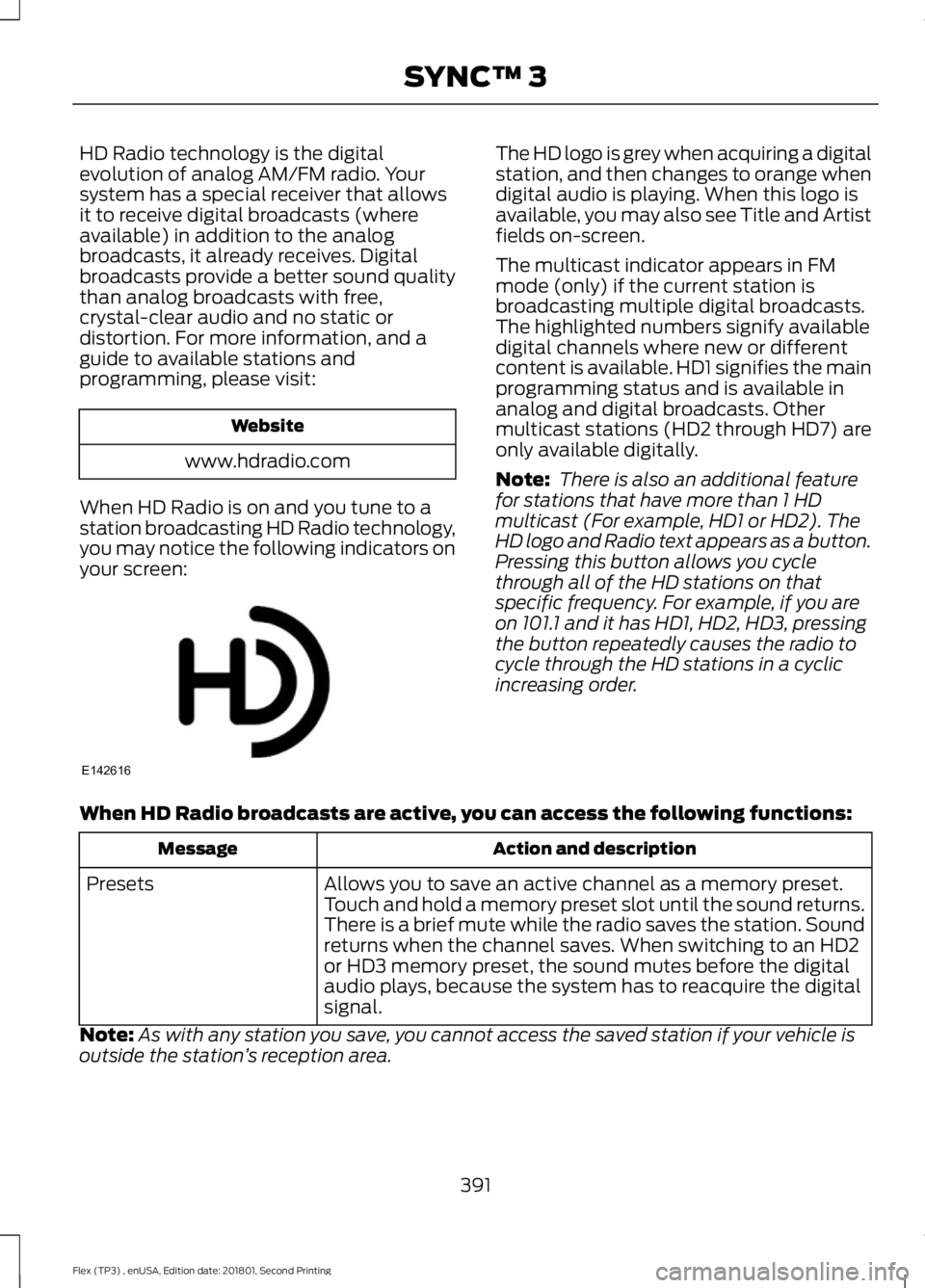
When HD Radio is on and you tune to a
station broadcasting HD Radio technology,
you may notice the following indicators on
your screen: The HD logo is grey when acquiring a digital
station, and then changes to orange when
digital audio is playing. When this logo is
available, you may also see Title and Artist
fields on-screen.
The multicast indicator appears in FM
mode (only) if the current station is
broadcasting multiple digital broadcasts.
The highlighted numbers signify available
digital channels where new or different
content is available. HD1 signifies the main
programming status and is available in
analog and digital broadcasts. Other
multicast stations (HD2 through HD7) are
only available digitally.
Note:
There is also an additional feature
for stations that have more than 1 HD
multicast (For example, HD1 or HD2). The
HD logo and Radio text appears as a button.
Pressing this button allows you cycle
through all of the HD stations on that
specific frequency. For example, if you are
on 101.1 and it has HD1, HD2, HD3, pressing
the button repeatedly causes the radio to
cycle through the HD stations in a cyclic
increasing order.
When HD Radio broadcasts are active, you can access the following functions: Action and description
Message
Allows you to save an active channel as a memory preset.
Touch and hold a memory preset slot until the sound returns.
There is a brief mute while the radio saves the station. Sound
returns when the channel saves. When switching to an HD2
or HD3 memory preset, the sound mutes before the digital
audio plays, because the system has to reacquire the digital
signal.
Presets
Note: As with any station you save, you cannot access the saved station if your vehicle is
outside the station ’s reception area.
391
Flex (TP3) , enUSA, Edition date: 201801, Second Printing SYNC™ 3E142616
Page 395 of 508
HD Radio Reception and Station Troubleshooting
Potential reception issues
If you are listening to a multicast station and you are on the
fringe of the reception area, the station may mute due to
weak signal strength.
Reception area
If you are listening to HD1, the system changes back to the
analog broadcast until the digital broadcast is available again.
However, if you are listening to any of the possible HD2-HD7
multicast channels, the station mutes and stays muted unless
it is able to connect to the digital signal again.
When the system first receives a station (aside from HD2-
HD7 multicast stations), it first plays the station in the analog
version. Once the receiver verifies the station is an HD Radio
station, it shifts to the digital version. Depending on the station
quality, you may hear a slight sound change when the station
changes from analog to digital. Blending is the shift from
analog to digital sound or digital back to analog sound.
Station blending
In order to provide the best possible
experience, use the contact form to report
any station issues found while listening to
a station broadcasting with HD Radio
technology. Independent entities own and
operate each station. These stations are
responsible for ensuring all audio streams
and data fields are accurate. Potential station issues
Action
Cause
Issues
No action required. This is a
broadcast issue.
This is poor time alignment by
the radio broadcaster.
Echo, stutter, skip or
repeat in audio.
Increase or decrease in
audio volume.
No action required. The recep-
tion issue may clear up as you
continue to drive.
The radio is shifting between
analog and digital audio.
Sound fading or
blending in and out.
No action required. This is
normal behavior. Wait until the
audio is available.
The digital multicast is not
available until the HD Radio
broadcast is decoded. Once
decoded, the audio is available.
There is an audio mute
delay when selecting
HD2 or HD3, multicast
preset or Direct Tune.
392
Flex (TP3) , enUSA, Edition date: 201801, Second Printing SYNC™ 3
Page 397 of 508
Function
Button
For MP3 CDs, this button allows you to toggle through repeat
off, repeat one track (a small number one displays), and repeat
current folder (a small folder displays).
Select the shuffle symbol to have the audio on the disk play
in random order.
Shuffle
You can use the forward, reverse, pause or
play buttons to control the audio playback. Bluetooth Stereo or USB
Bluetooth Stereo and USB allow you to
access media that you store on your
Bluetooth device or USB device such as
music, audio books or podcasts.
The following buttons are available for Bluetooth and USB: Function
Button
Pressing the repeat button toggles the repeat setting through
three modes: repeat off (button not highlighted), repeat all
(button highlighted) and repeat track (button highlighted with
a small number one).
Repeat
Play the tracks in random order.
Shuffle
You can use the forward, reverse, pause or
play buttons to control the audio playback.
To get more information about the
currently playing track, press the cover art
or Info button. For some devices, SYNC 3 is able to
provide 30-second skip buttons when you
listen to audio books or podcasts. These
buttons allow you to skip forward or
backward within a track.
While playing audio from a USB device you
can look for certain music by selecting the
following: Function
Button
If available, displays the list of tracks in the
Now Playing playlist.
Browse
This option, which is available under
browse, allows you to play all tracks or to
filter the available media into one of the
below categories.
New Search
Play All
394
Flex (TP3) , enUSA, Edition date: 201801, Second Printing SYNC™ 3
Page 400 of 508
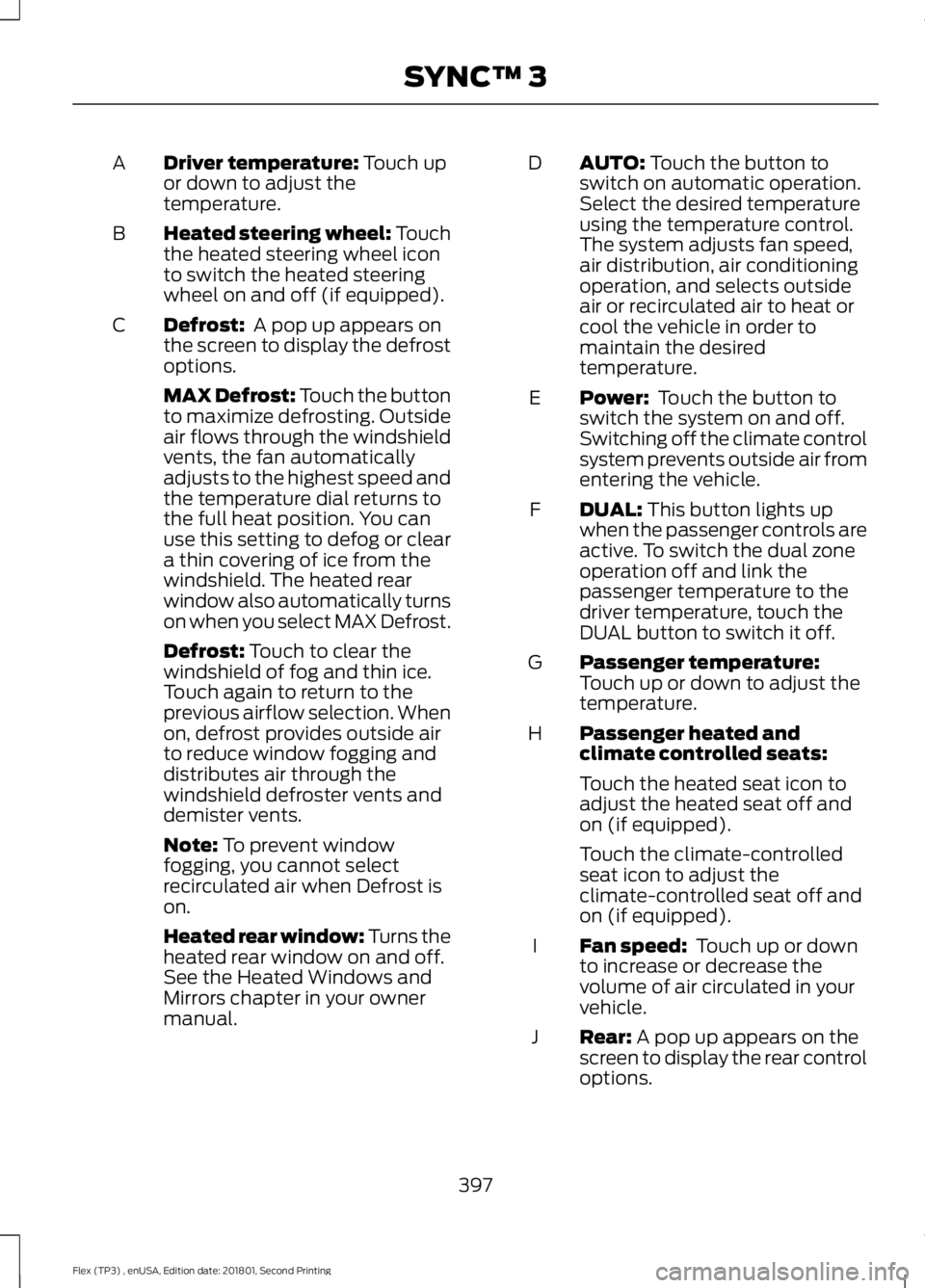
Driver temperature: Touch up
or down to adjust the
temperature.
A
Heated steering wheel: Touch
the heated steering wheel icon
to switch the heated steering
wheel on and off (if equipped).
B
Defrost:
A pop up appears on
the screen to display the defrost
options.
C
MAX Defrost: Touch the button
to maximize defrosting. Outside
air flows through the windshield
vents, the fan automatically
adjusts to the highest speed and
the temperature dial returns to
the full heat position. You can
use this setting to defog or clear
a thin covering of ice from the
windshield. The heated rear
window also automatically turns
on when you select MAX Defrost.
Defrost:
Touch to clear the
windshield of fog and thin ice.
Touch again to return to the
previous airflow selection. When
on, defrost provides outside air
to reduce window fogging and
distributes air through the
windshield defroster vents and
demister vents.
Note:
To prevent window
fogging, you cannot select
recirculated air when Defrost is
on.
Heated rear window: Turns the
heated rear window on and off.
See the Heated Windows and
Mirrors chapter in your owner
manual. AUTO:
Touch the button to
switch on automatic operation.
Select the desired temperature
using the temperature control.
The system adjusts fan speed,
air distribution, air conditioning
operation, and selects outside
air or recirculated air to heat or
cool the vehicle in order to
maintain the desired
temperature.
D
Power:
Touch the button to
switch the system on and off.
Switching off the climate control
system prevents outside air from
entering the vehicle.
E
DUAL:
This button lights up
when the passenger controls are
active. To switch the dual zone
operation off and link the
passenger temperature to the
driver temperature, touch the
DUAL button to switch it off.
F
Passenger temperature:
Touch up or down to adjust the
temperature.
G
Passenger heated and
climate controlled seats:
H
Touch the heated seat icon to
adjust the heated seat off and
on (if equipped).
Touch the climate-controlled
seat icon to adjust the
climate-controlled seat off and
on (if equipped).
Fan speed:
Touch up or down
to increase or decrease the
volume of air circulated in your
vehicle.
I
Rear:
A pop up appears on the
screen to display the rear control
options.
J
397
Flex (TP3) , enUSA, Edition date: 201801, Second Printing SYNC™ 3
Page 408 of 508
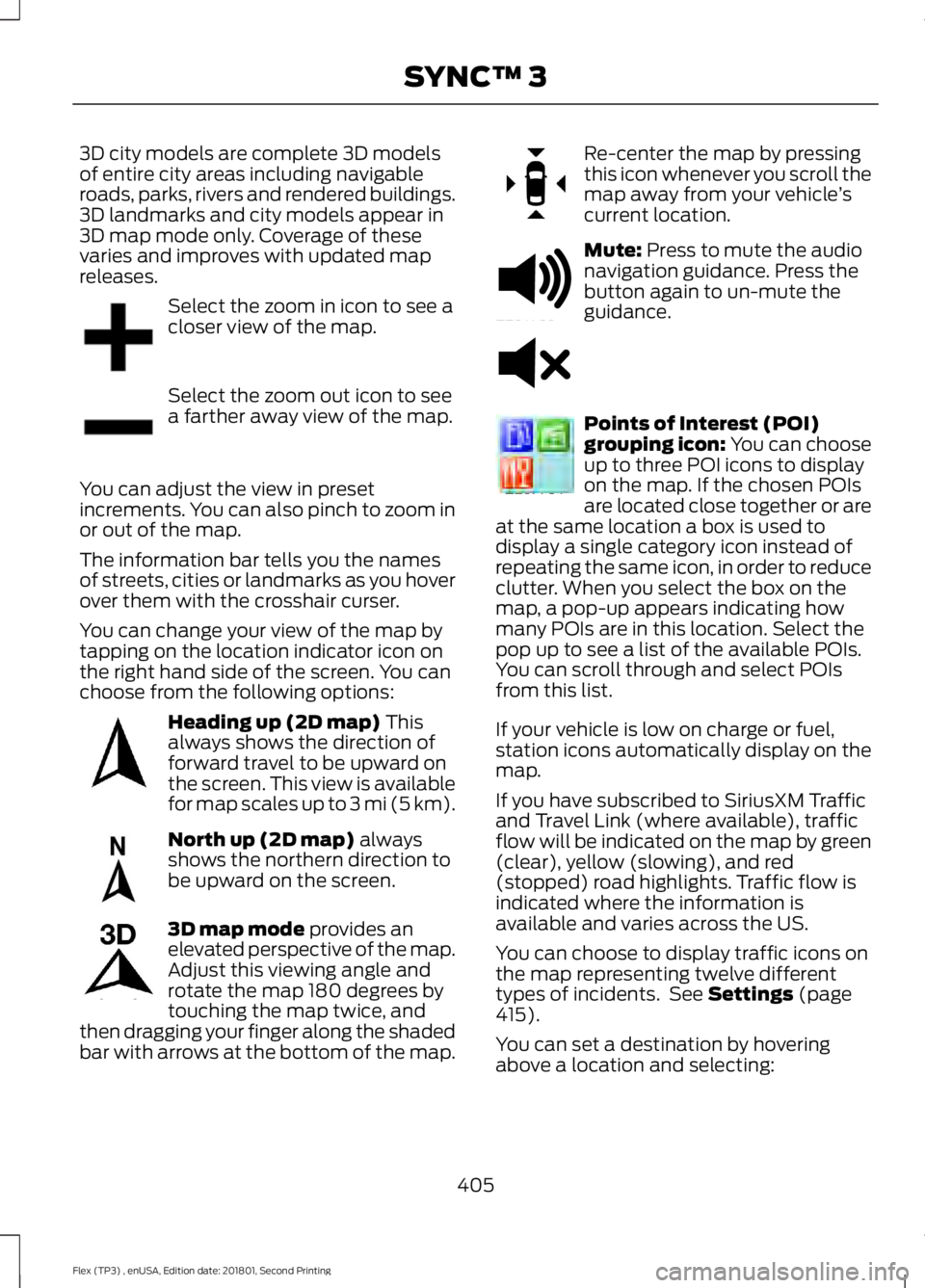
3D city models are complete 3D models
of entire city areas including navigable
roads, parks, rivers and rendered buildings.
3D landmarks and city models appear in
3D map mode only. Coverage of these
varies and improves with updated map
releases.
Select the zoom in icon to see a
closer view of the map.
Select the zoom out icon to see
a farther away view of the map.
You can adjust the view in preset
increments. You can also pinch to zoom in
or out of the map.
The information bar tells you the names
of streets, cities or landmarks as you hover
over them with the crosshair curser.
You can change your view of the map by
tapping on the location indicator icon on
the right hand side of the screen. You can
choose from the following options: Heading up (2D map) This
always shows the direction of
forward travel to be upward on
the screen. This view is available
for map scales up to
3 mi (5 km). North up (2D map)
always
shows the northern direction to
be upward on the screen. 3D map mode
provides an
elevated perspective of the map.
Adjust this viewing angle and
rotate the map 180 degrees by
touching the map twice, and
then dragging your finger along the shaded
bar with arrows at the bottom of the map. Re-center the map by pressing
this icon whenever you scroll the
map away from your vehicle
’s
current location. Mute:
Press to mute the audio
navigation guidance. Press the
button again to un-mute the
guidance. Points of Interest (POI)
grouping icon: You can choose
up to three POI icons to display
on the map. If the chosen POIs
are located close together or are
at the same location a box is used to
display a single category icon instead of
repeating the same icon, in order to reduce
clutter. When you select the box on the
map, a pop-up appears indicating how
many POIs are in this location. Select the
pop up to see a list of the available POIs.
You can scroll through and select POIs
from this list.
If your vehicle is low on charge or fuel,
station icons automatically display on the
map.
If you have subscribed to SiriusXM Traffic
and Travel Link (where available), traffic
flow will be indicated on the map by green
(clear), yellow (slowing), and red
(stopped) road highlights. Traffic flow is
indicated where the information is
available and varies across the US.
You can choose to display traffic icons on
the map representing twelve different
types of incidents. See
Settings (page
415).
You can set a destination by hovering
above a location and selecting:
405
Flex (TP3) , enUSA, Edition date: 201801, Second Printing SYNC™ 3E207752 E207753 E207750 E207749 E207748 E207751 E251780 E251779 E207754