USB port FORD FLEX 2018 Owner's Manual
[x] Cancel search | Manufacturer: FORD, Model Year: 2018, Model line: FLEX, Model: FORD FLEX 2018Pages: 508, PDF Size: 6.31 MB
Page 407 of 508
2. Follow the prompts on the
touchscreen.
3. Follow the prompts that appear on your phone to allow access to Apple
CarPlay.
After completing the setup, your phone
connects to CarPlay automatically when
plugged into a USB port.
To disable this feature from the
Settings screen, select: Menu Item
Apple CarPlay Preferences
Your device is listed if SYNC detects
Apple CarPlay. Select the name of your
device and select:
Disable
To return to SYNC 3, go to the Apple
CarPlay home screen and select the SYNC
app.
Note: Contact Apple for Apple CarPlay
support.
Android Auto
Android Auto is compatible with most
devices with Android 5.0 or newer.
1. Download the Android Auto app to your device from Google Play to
prepare your device (this may require
mobile data usage).
Note: The Android Auto App may not be
available within your current market.
2. Plug your device into a USB Port. See USB Port (page 325).
3. Follow the prompt on the touchscreen.
4. Follow the prompts that appear on your device.
Note: You may be prompted to update
additional apps on your device. This may
require mobile data usage. To disable this feature from the
Settings screen, select: Menu Item
Android Auto Preferences
Your device is listed if SYNC detects
Android Auto. Select the name of your
device and select:
Disable
Note: You may need to slide your Settings
screen to the left to select
Apple CarPlay
Preferences or Android Auto Preferences.
To return to SYNC 3, select the
speedometer icon in the Android Auto
menu bar at the bottom of the
touchscreen, and then touch the option to
return to SYNC.
Note: Contact Google for Android Auto
support.
NAVIGATION
(If Equipped)
Your navigation system is comprised of
two main features, destination mode and
map mode.
Map Mode
Map mode shows advanced viewing
comprised of 2D city maps, 3D landmarks
and 3D city models (when available). 2D
city maps show detailed outlines of
buildings, visible land use, landscape
features, and detailed railroad
infrastructure for the most essential cities
around the globe.
3D landmarks appear as clear, visible
objects that are typically recognizable and
have a certain tourism value.
404
Flex (TP3) , enUSA, Edition date: 201801, Second Printing SYNC™ 3
Page 416 of 508
Note:
Available AppLink enabled apps will
vary by market.
Note: You must pair and connect your
smartphone via Bluetooth to SYNC 3 to
access AppLink.
Note: iPhone users need to connect the
phone to the USB port.
Note: For information on available apps,
supported smartphone devices and
troubleshooting tips please visit: Websites
owner.ford.com
www.syncmyride.ca
www.syncmaroute.ca
Note: Make sure you have an active account
for the app that you have downloaded.
Some apps will work automatically with no
setup. Other apps will want you to configure
your personal settings and personalize your
experience by creating stations or
favorites.We recommend you do this at
home or outside of your vehicle.
Note: We encourage you to review the
smartphone app ’s terms of service and
privacy policies because Ford is not
responsible for your app or its use of data.
Note: AppLink is a native SYNC system
feature. Accessing mobile apps through
AppLink is only possible when Android Auto
or Apple CarPlay are disabled. Some apps
may only be accessible in the car through
AppLink and others only through Android
Auto or Apple CarPlay. Please refer to the
Smartphone Connectivity information to
disable Android Auto or Apple CarPlay.
Note: In order to use an app with SYNC 3,
the app needs to be running in the
background of your phone. If you shut down
the app on your phone, it shuts down the
app on SYNC 3 as well. Note:
If a SYNC 3 AppLink compatible app
is not shown in the Apps Domain, make sure
the required app is running on the mobile
device. Action and Descrip-
tion
Menu Item
SYNC 3 will search
and connect to
compatible app(s)
running on your
mobile device.
Find Mobile Apps
Enabling SYNC 3 Mobile Apps
In order to enable mobile apps, SYNC 3
requires user consent to send and receive
app authorization information and updates
using the data plan associated with the
connected device.
The connected device sends data to Ford
in the United States. The information is
encrypted and includes your VIN, SYNC 3
module number, odometer, usage
statistics and debugging information. We
retain this data for only as long as
necessary to provide this service,
troubleshoot, and improve products and
services and to offer you products and
services that may interest you where
allowed by law.
Note: You must enable mobile apps for
each connected device the first time you
select a mobile app using the system.
Note: Ford reserves the right to limit
functionality or deactivate mobile apps at
any time.
Note: Standard data rates apply. Ford is
not responsible for any additional charges
you may receive from your service provider,
when your vehicle sends or receives data
through the connected device. This includes
any additional charges incurred due to
driving in areas when roaming out of a home
network.
413
Flex (TP3) , enUSA, Edition date: 201801, Second Printing SYNC™ 3
Page 433 of 508
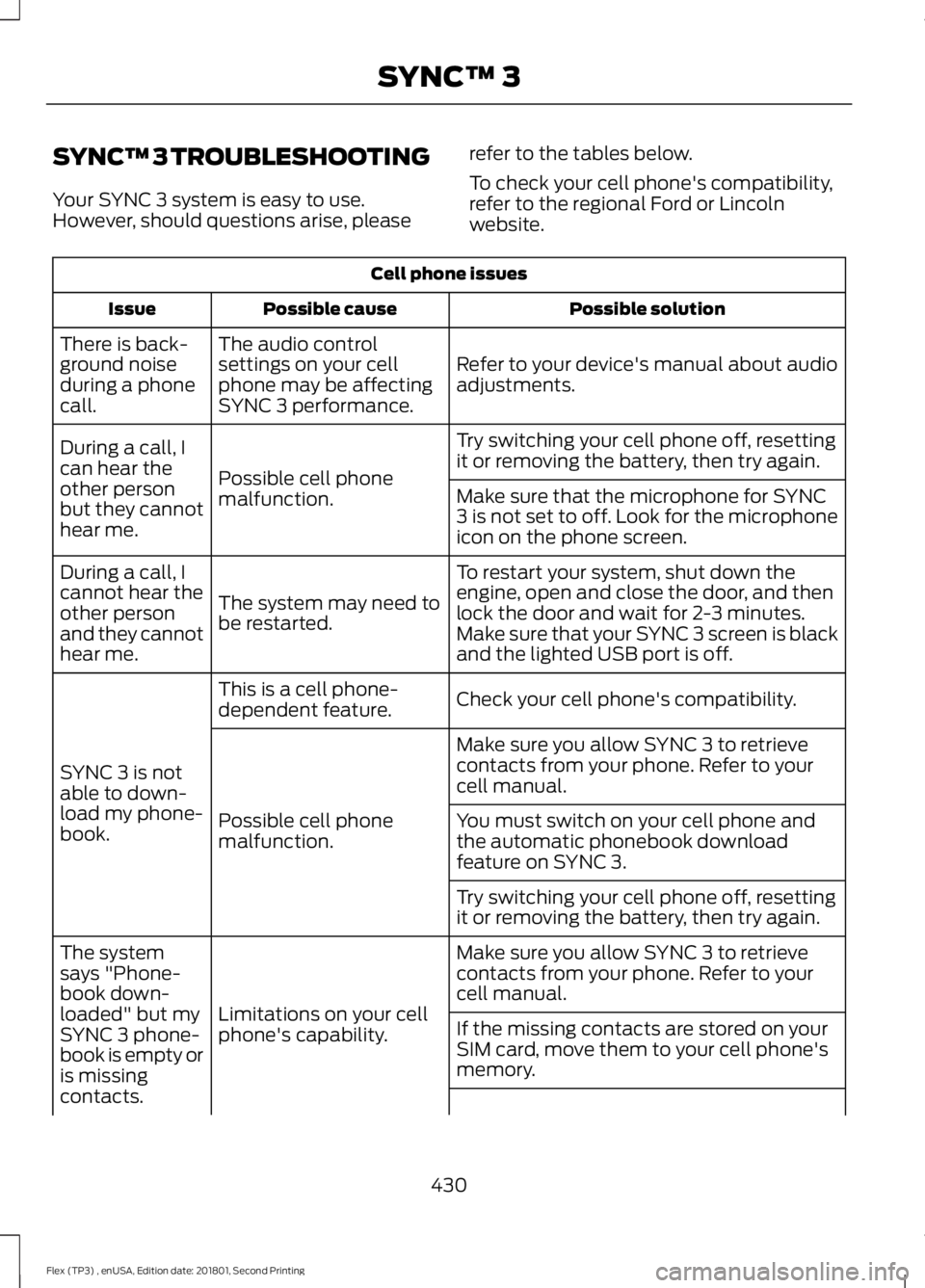
SYNC™ 3 TROUBLESHOOTING
Your SYNC 3 system is easy to use.
However, should questions arise, please
refer to the tables below.
To check your cell phone's compatibility,
refer to the regional Ford or Lincoln
website.Cell phone issues
Possible solution
Possible cause
Issue
Refer to your device's manual about audio
adjustments.
The audio control
settings on your cell
phone may be affecting
SYNC 3 performance.
There is back-
ground noise
during a phone
call.
Try switching your cell phone off, resetting
it or removing the battery, then try again.
Possible cell phone
malfunction.
During a call, I
can hear the
other person
but they cannot
hear me.
Make sure that the microphone for SYNC
3 is not set to off. Look for the microphone
icon on the phone screen.
To restart your system, shut down the
engine, open and close the door, and then
lock the door and wait for 2-3 minutes.
Make sure that your SYNC 3 screen is black
and the lighted USB port is off.
The system may need to
be restarted.
During a call, I
cannot hear the
other person
and they cannot
hear me.
Check your cell phone's compatibility.
This is a cell phone-
dependent feature.
SYNC 3 is not
able to down-
load my phone-
book. Make sure you allow SYNC 3 to retrieve
contacts from your phone. Refer to your
cell manual.
Possible cell phone
malfunction. You must switch on your cell phone and
the automatic phonebook download
feature on SYNC 3.
Try switching your cell phone off, resetting
it or removing the battery, then try again.
Make sure you allow SYNC 3 to retrieve
contacts from your phone. Refer to your
cell manual.
Limitations on your cell
phone's capability.
The system
says "Phone-
book down-
loaded" but my
SYNC 3 phone-
book is empty or
is missing
contacts.
If the missing contacts are stored on your
SIM card, move them to your cell phone's
memory.
430
Flex (TP3) , enUSA, Edition date: 201801, Second Printing SYNC™ 3
Page 435 of 508
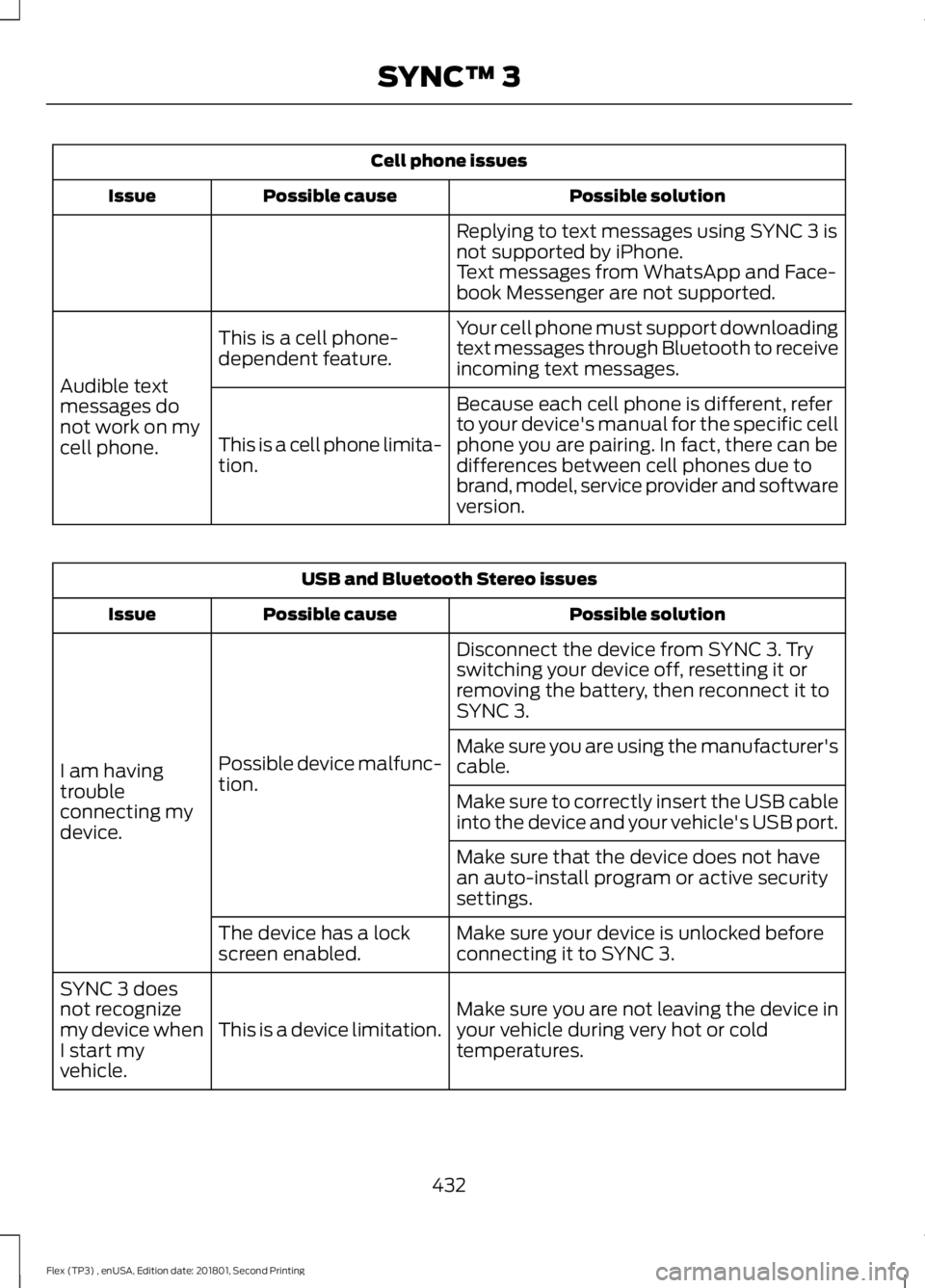
Cell phone issues
Possible solution
Possible cause
Issue
Replying to text messages using SYNC 3 is
not supported by iPhone.
Text messages from WhatsApp and Face-
book Messenger are not supported.
Your cell phone must support downloading
text messages through Bluetooth to receive
incoming text messages.
This is a cell phone-
dependent feature.
Audible text
messages do
not work on my
cell phone. Because each cell phone is different, refer
to your device's manual for the specific cell
phone you are pairing. In fact, there can be
differences between cell phones due to
brand, model, service provider and software
version.
This is a cell phone limita-
tion. USB and Bluetooth Stereo issues
Possible solution
Possible cause
Issue
Disconnect the device from SYNC 3. Try
switching your device off, resetting it or
removing the battery, then reconnect it to
SYNC 3.
Possible device malfunc-
tion.
I am having
trouble
connecting my
device. Make sure you are using the manufacturer's
cable.
Make sure to correctly insert the USB cable
into the device and your vehicle's USB port.
Make sure that the device does not have
an auto-install program or active security
settings.
Make sure your device is unlocked before
connecting it to SYNC 3.
The device has a lock
screen enabled.
Make sure you are not leaving the device in
your vehicle during very hot or cold
temperatures.
This is a device limitation.
SYNC 3 does
not recognize
my device when
I start my
vehicle.
432
Flex (TP3) , enUSA, Edition date: 201801, Second Printing SYNC™ 3
Page 436 of 508
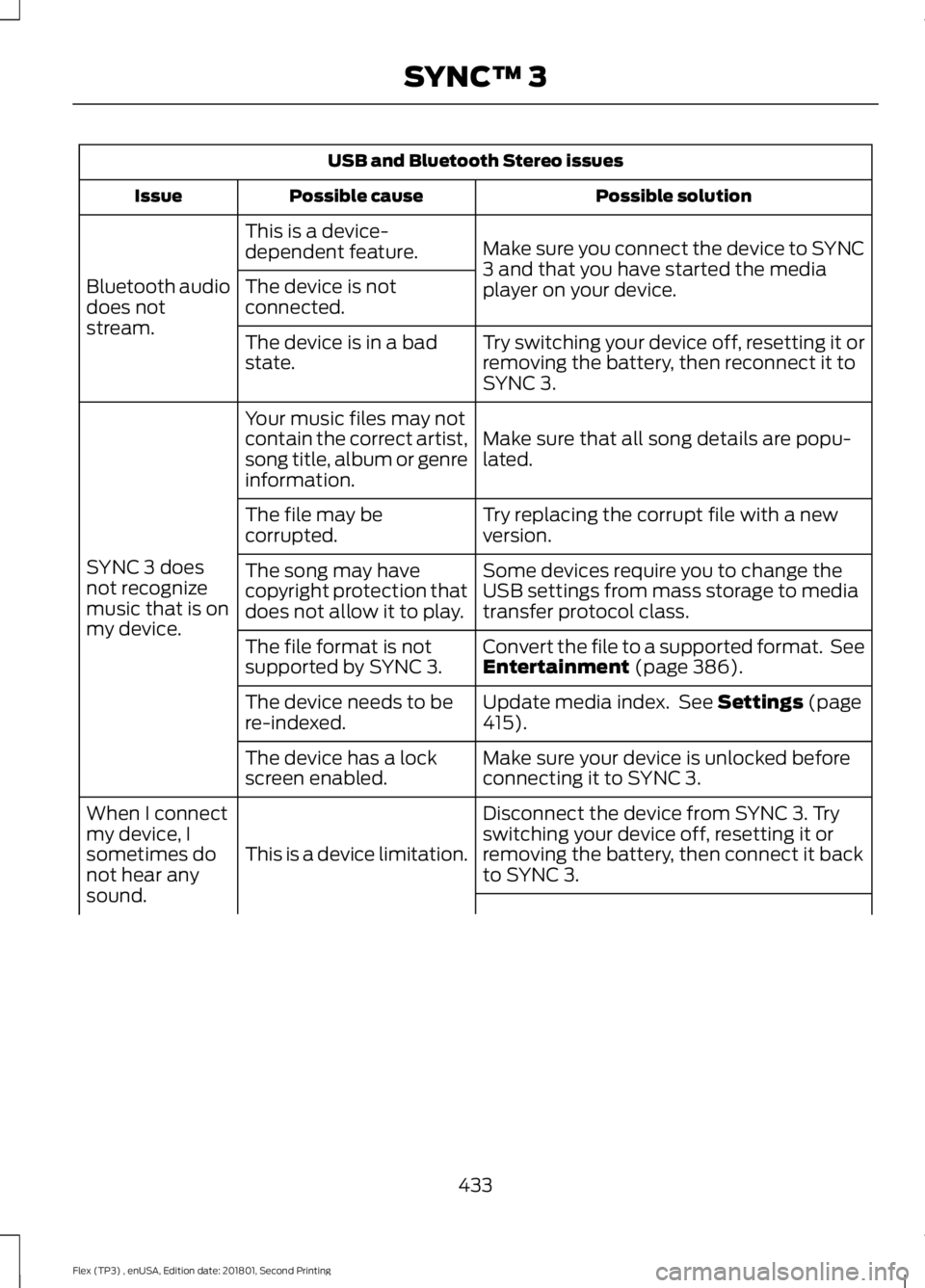
USB and Bluetooth Stereo issues
Possible solution
Possible cause
Issue
Make sure you connect the device to SYNC
3 and that you have started the media
player on your device.
This is a device-
dependent feature.
Bluetooth audio
does not
stream. The device is not
connected.
Try switching your device off, resetting it or
removing the battery, then reconnect it to
SYNC 3.
The device is in a bad
state.
Make sure that all song details are popu-
lated.
Your music files may not
contain the correct artist,
song title, album or genre
information.
SYNC 3 does
not recognize
music that is on
my device. Try replacing the corrupt file with a new
version.
The file may be
corrupted.
Some devices require you to change the
USB settings from mass storage to media
transfer protocol class.
The song may have
copyright protection that
does not allow it to play.
Convert the file to a supported format. See
Entertainment (page 386).
The file format is not
supported by SYNC 3.
Update media index. See
Settings (page
415).
The device needs to be
re-indexed.
Make sure your device is unlocked before
connecting it to SYNC 3.
The device has a lock
screen enabled.
Disconnect the device from SYNC 3. Try
switching your device off, resetting it or
removing the battery, then connect it back
to SYNC 3.
This is a device limitation.
When I connect
my device, I
sometimes do
not hear any
sound.
433
Flex (TP3) , enUSA, Edition date: 201801, Second Printing SYNC™ 3
Page 439 of 508
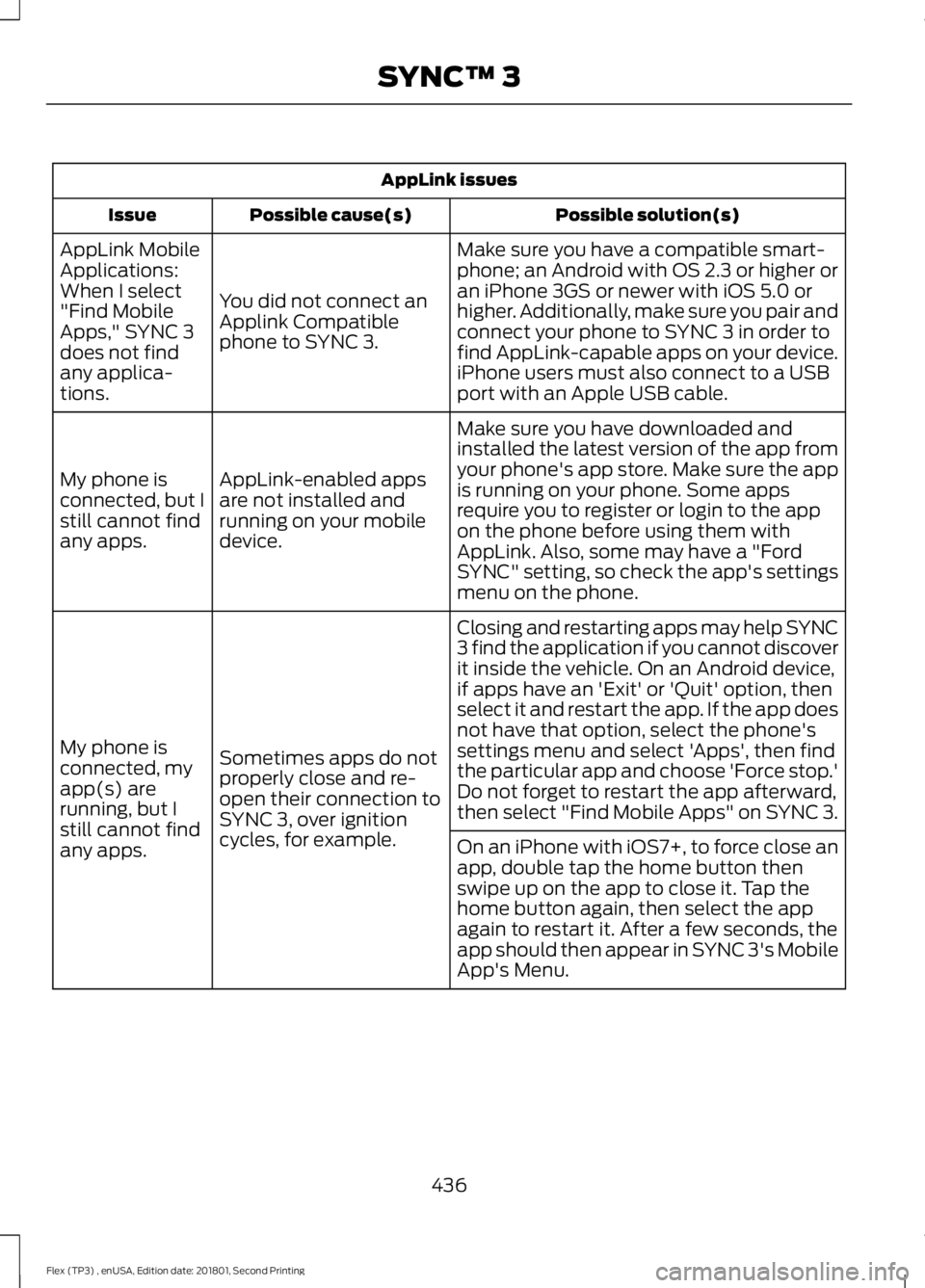
AppLink issues
Possible solution(s)
Possible cause(s)
Issue
Make sure you have a compatible smart-
phone; an Android with OS 2.3 or higher or
an iPhone 3GS or newer with iOS 5.0 or
higher. Additionally, make sure you pair and
connect your phone to SYNC 3 in order to
find AppLink-capable apps on your device.
iPhone users must also connect to a USB
port with an Apple USB cable.
You did not connect an
Applink Compatible
phone to SYNC 3.
AppLink Mobile
Applications:
When I select
"Find Mobile
Apps," SYNC 3
does not find
any applica-
tions.
Make sure you have downloaded and
installed the latest version of the app from
your phone's app store. Make sure the app
is running on your phone. Some apps
require you to register or login to the app
on the phone before using them with
AppLink. Also, some may have a "Ford
SYNC" setting, so check the app's settings
menu on the phone.
AppLink-enabled apps
are not installed and
running on your mobile
device.
My phone is
connected, but I
still cannot find
any apps.
Closing and restarting apps may help SYNC
3 find the application if you cannot discover
it inside the vehicle. On an Android device,
if apps have an 'Exit' or 'Quit' option, then
select it and restart the app. If the app does
not have that option, select the phone's
settings menu and select 'Apps', then find
the particular app and choose 'Force stop.'
Do not forget to restart the app afterward,
then select "Find Mobile Apps" on SYNC 3.
Sometimes apps do not
properly close and re-
open their connection to
SYNC 3, over ignition
cycles, for example.
My phone is
connected, my
app(s) are
running, but I
still cannot find
any apps.
On an iPhone with iOS7+, to force close an
app, double tap the home button then
swipe up on the app to close it. Tap the
home button again, then select the app
again to restart it. After a few seconds, the
app should then appear in SYNC 3's Mobile
App's Menu.
436
Flex (TP3) , enUSA, Edition date: 201801, Second Printing SYNC™ 3
Page 440 of 508
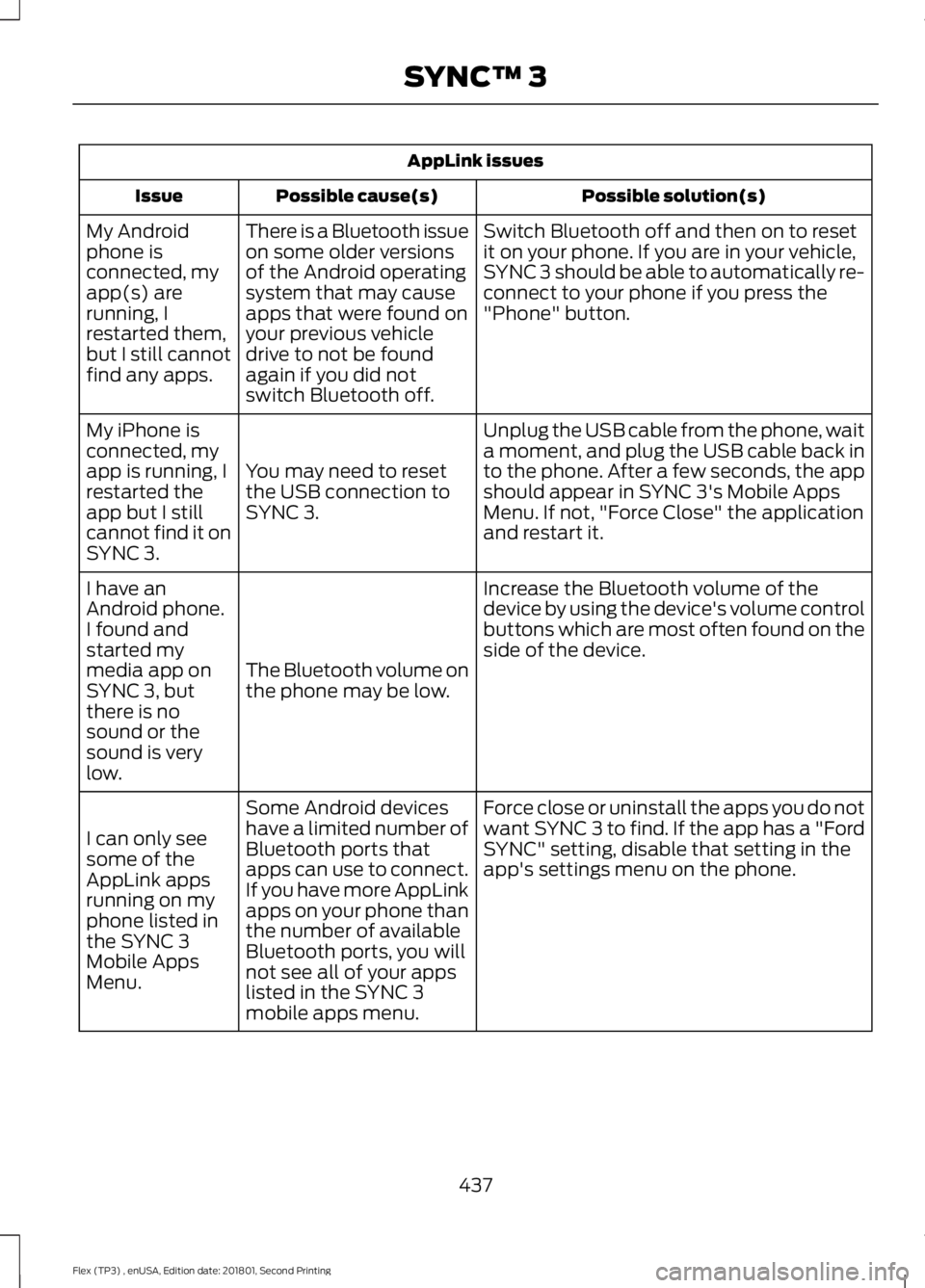
AppLink issues
Possible solution(s)
Possible cause(s)
Issue
Switch Bluetooth off and then on to reset
it on your phone. If you are in your vehicle,
SYNC 3 should be able to automatically re-
connect to your phone if you press the
"Phone" button.
There is a Bluetooth issue
on some older versions
of the Android operating
system that may cause
apps that were found on
your previous vehicle
drive to not be found
again if you did not
switch Bluetooth off.
My Android
phone is
connected, my
app(s) are
running, I
restarted them,
but I still cannot
find any apps.
Unplug the USB cable from the phone, wait
a moment, and plug the USB cable back in
to the phone. After a few seconds, the app
should appear in SYNC 3's Mobile Apps
Menu. If not, "Force Close" the application
and restart it.
You may need to reset
the USB connection to
SYNC 3.
My iPhone is
connected, my
app is running, I
restarted the
app but I still
cannot find it on
SYNC 3.
Increase the Bluetooth volume of the
device by using the device's volume control
buttons which are most often found on the
side of the device.
The Bluetooth volume on
the phone may be low.
I have an
Android phone.
I found and
started my
media app on
SYNC 3, but
there is no
sound or the
sound is very
low.
Force close or uninstall the apps you do not
want SYNC 3 to find. If the app has a "Ford
SYNC" setting, disable that setting in the
app's settings menu on the phone.
Some Android devices
have a limited number of
Bluetooth ports that
apps can use to connect.
If you have more AppLink
apps on your phone than
the number of available
Bluetooth ports, you will
not see all of your apps
listed in the SYNC 3
mobile apps menu.
I can only see
some of the
AppLink apps
running on my
phone listed in
the SYNC 3
Mobile Apps
Menu.
437
Flex (TP3) , enUSA, Edition date: 201801, Second Printing SYNC™ 3
Page 445 of 508
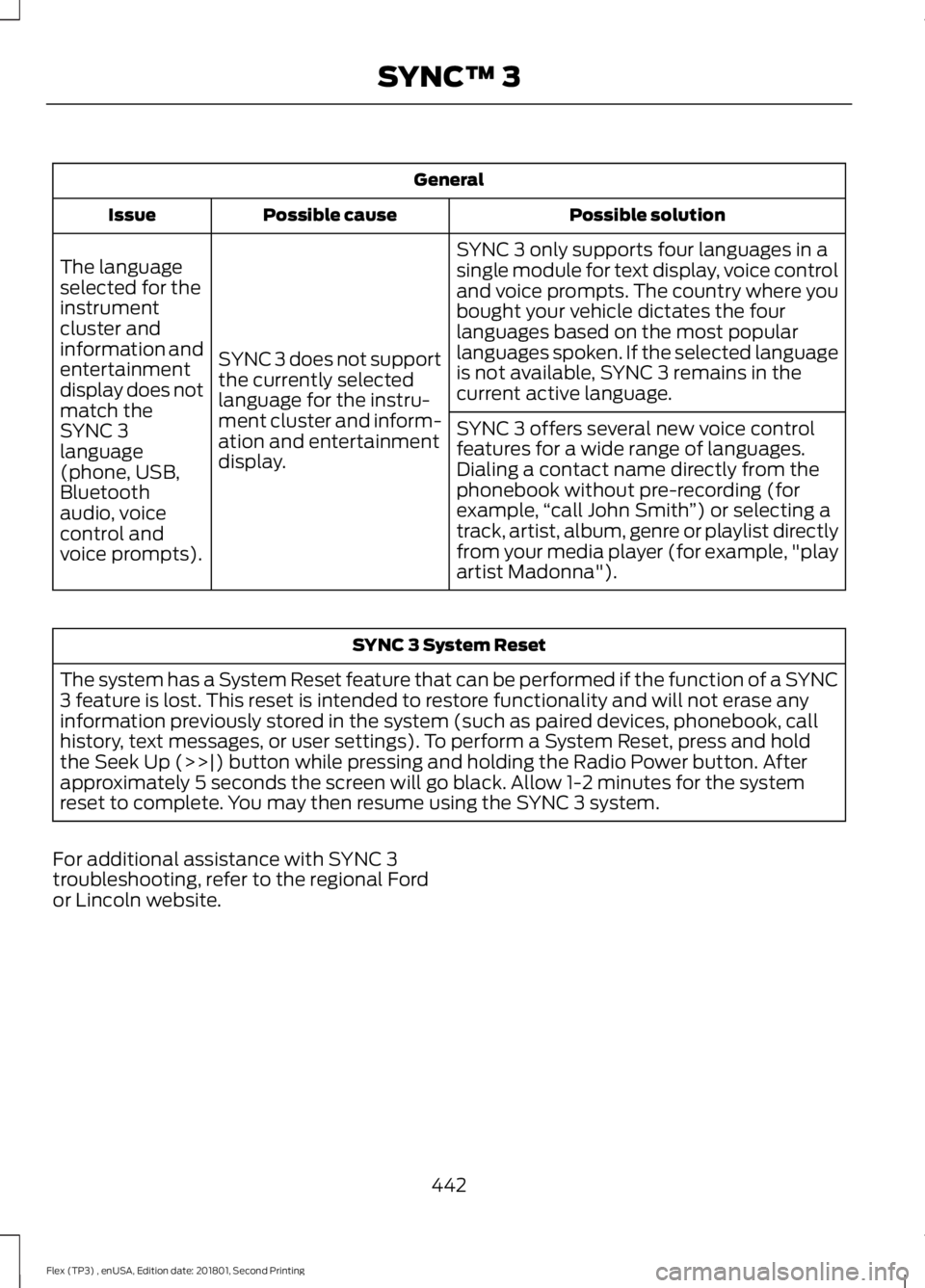
General
Possible solution
Possible cause
Issue
SYNC 3 only supports four languages in a
single module for text display, voice control
and voice prompts. The country where you
bought your vehicle dictates the four
languages based on the most popular
languages spoken. If the selected language
is not available, SYNC 3 remains in the
current active language.
SYNC 3 does not support
the currently selected
language for the instru-
ment cluster and inform-
ation and entertainment
display.
The language
selected for the
instrument
cluster and
information and
entertainment
display does not
match the
SYNC 3
SYNC 3 offers several new voice control
features for a wide range of languages.
Dialing a contact name directly from the
phonebook without pre-recording (for
example,
“call John Smith ”) or selecting a
track, artist, album, genre or playlist directly
from your media player (for example, "play
artist Madonna").
language
(phone, USB,
Bluetooth
audio, voice
control and
voice prompts). SYNC 3 System Reset
The system has a System Reset feature that can be performed if the function of a SYNC
3 feature is lost. This reset is intended to restore functionality and will not erase any
information previously stored in the system (such as paired devices, phonebook, call
history, text messages, or user settings). To perform a System Reset, press and hold
the Seek Up (>>|) button while pressing and holding the Radio Power button. After
approximately 5 seconds the screen will go black. Allow 1-2 minutes for the system
reset to complete. You may then resume using the SYNC 3 system.
For additional assistance with SYNC 3
troubleshooting, refer to the regional Ford
or Lincoln website.
442
Flex (TP3) , enUSA, Edition date: 201801, Second Printing SYNC™ 3
Page 501 of 508
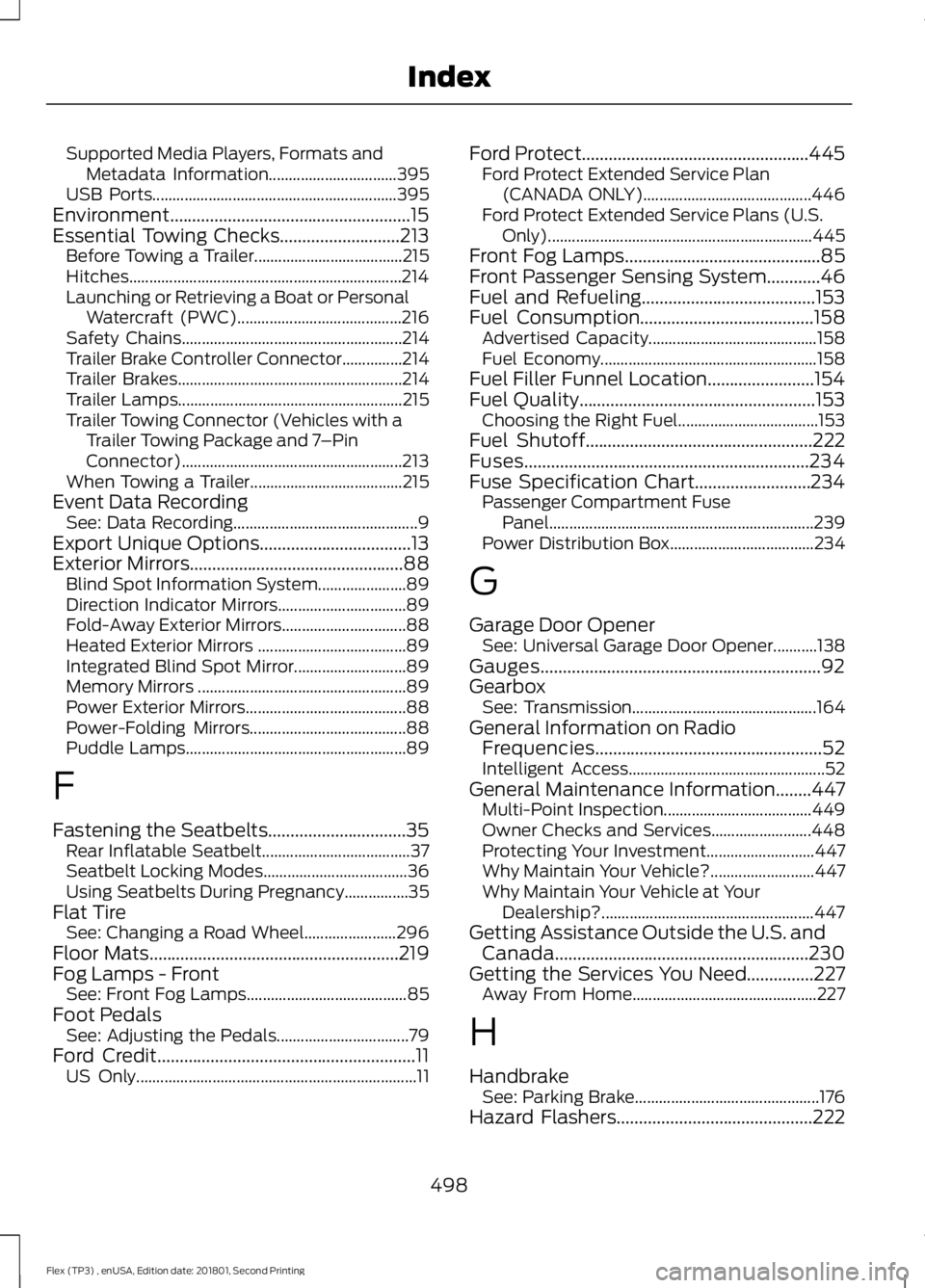
Supported Media Players, Formats and
Metadata Information................................ 395
USB Ports............................................................. 395
Environment......................................................15
Essential Towing Checks...........................213 Before Towing a Trailer..................................... 215
Hitches.................................................................... 214
Launching or Retrieving a Boat or Personal Watercraft (PWC)......................................... 216
Safety Chains....................................................... 214
Trailer Brake Controller Connector...............214
Trailer Brakes........................................................ 214
Trailer Lamps........................................................ 215
Trailer Towing Connector (Vehicles with a Trailer Towing Package and 7 –Pin
Connector)....................................................... 213
When Towing a Trailer...................................... 215
Event Data Recording See: Data Recording.............................................. 9
Export Unique Options..................................13
Exterior Mirrors
................................................88
Blind Spot Information System...................... 89
Direction Indicator Mirrors................................ 89
Fold-Away Exterior Mirrors............................... 88
Heated Exterior Mirrors ..................................... 89
Integrated Blind Spot Mirror............................ 89
Memory Mirrors .................................................... 89
Power Exterior Mirrors........................................ 88
Power-Folding Mirrors....................................... 88
Puddle Lamps....................................................... 89
F
Fastening the Seatbelts...............................35 Rear Inflatable Seatbelt..................................... 37
Seatbelt Locking Modes.................................... 36
Using Seatbelts During Pregnancy................35
Flat Tire See: Changing a Road Wheel....................... 296
Floor Mats
........................................................219
Fog Lamps - Front See: Front Fog Lamps........................................ 85
Foot Pedals See: Adjusting the Pedals................................. 79
Ford Credit
..........................................................11
US Only...................................................................... 11Ford Protect...................................................445
Ford Protect Extended Service Plan
(CANADA ONLY).......................................... 446
Ford Protect Extended Service Plans (U.S. Only).................................................................. 445
Front Fog Lamps
............................................85
Front Passenger Sensing System............46
Fuel and Refueling.......................................153
Fuel Consumption
.......................................158
Advertised Capacity.......................................... 158
Fuel Economy...................................................... 158
Fuel Filler Funnel Location........................154
Fuel Quality
.....................................................153
Choosing the Right Fuel................................... 153
Fuel Shutoff
...................................................222
Fuses................................................................234
Fuse Specification Chart..........................234 Passenger Compartment Fuse
Panel.................................................................. 239
Power Distribution Box.................................... 234
G
Garage Door Opener See: Universal Garage Door Opener...........138
Gauges...............................................................92
Gearbox See: Transmission.............................................. 164
General Information on Radio Frequencies...................................................52
Intelligent Access................................................. 52
General Maintenance Information
........447
Multi-Point Inspection..................................... 449
Owner Checks and Services......................... 448
Protecting Your Investment........................... 447
Why Maintain Your Vehicle?.......................... 447
Why Maintain Your Vehicle at Your Dealership?..................................................... 447
Getting Assistance Outside the U.S. and Canada.........................................................230
Getting the Services You Need...............227 Away From Home.............................................. 227
H
Handbrake See: Parking Brake.............................................. 176
Hazard Flashers
............................................222
498
Flex (TP3) , enUSA, Edition date: 201801, Second Printing Index
Page 506 of 508
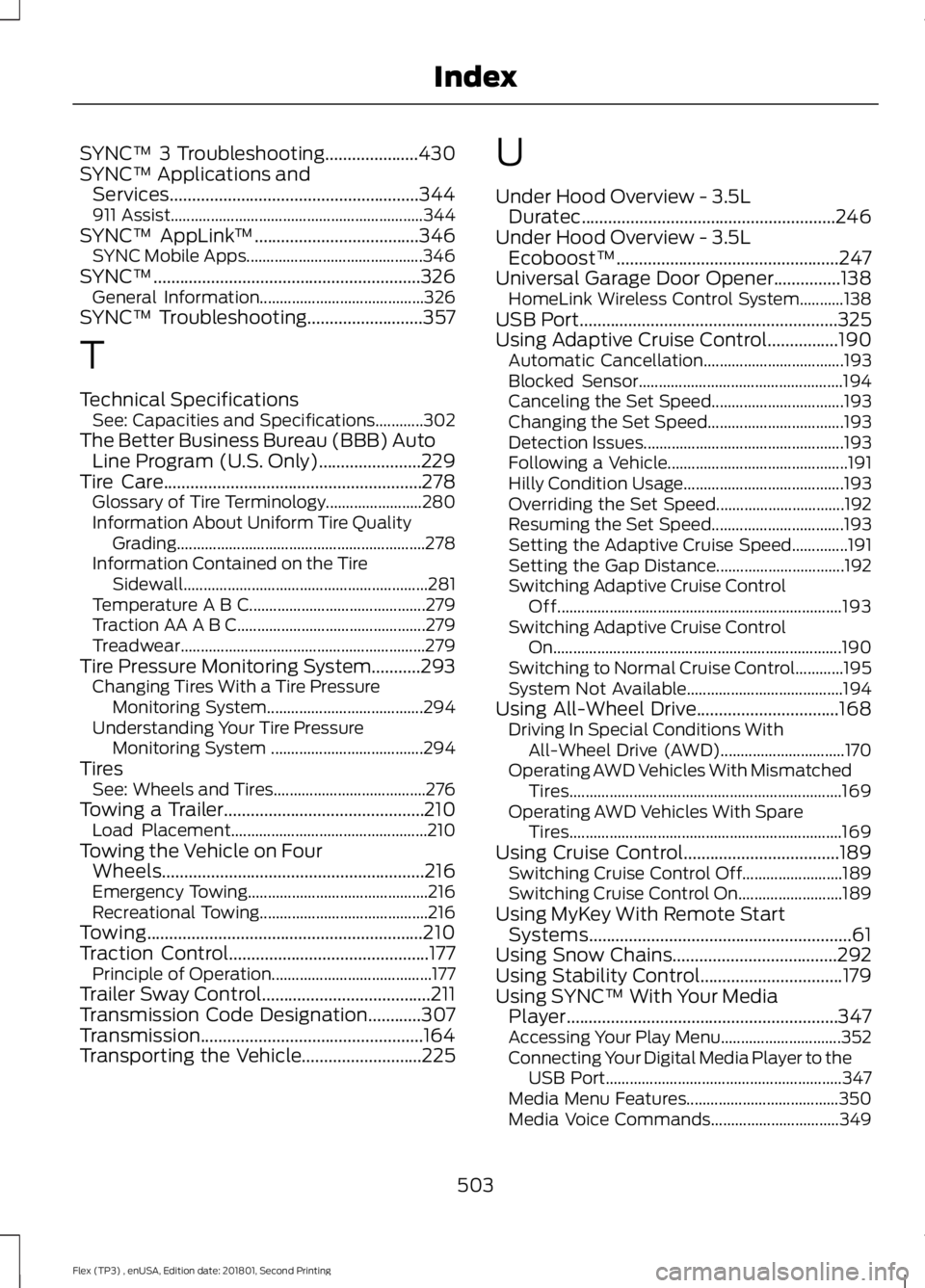
SYNC™ 3 Troubleshooting.....................430
SYNC™ Applications and
Services........................................................344
911 Assist............................................................... 344
SYNC™ AppLink ™.....................................346
SYNC Mobile Apps............................................ 346
SYNC™............................................................326 General Information......................................... 326
SYNC™ Troubleshooting
..........................357
T
Technical Specifications See: Capacities and Specifications............302
The Better Business Bureau (BBB) Auto Line Program (U.S. Only)
.......................229
Tire Care..........................................................278 Glossary of Tire Terminology........................ 280
Information About Uniform Tire Quality Grading .............................................................. 278
Information Contained on the Tire Sidewall............................................................. 281
Temperature A B C............................................ 279
Traction AA A B C............................................... 279
Treadwear............................................................. 279
Tire Pressure Monitoring System...........293 Changing Tires With a Tire Pressure
Monitoring System....................................... 294
Understanding Your Tire Pressure Monitoring System ...................................... 294
Tires See: Wheels and Tires...................................... 276
Towing a Trailer.............................................210 Load Placement................................................. 210
Towing the Vehicle on Four Wheels...........................................................216
Emergency Towing............................................. 216
Recreational Towing.......................................... 216
Towing..............................................................210
Traction Control
.............................................177
Principle of Operation........................................ 177
Trailer Sway Control......................................211
Transmission Code Designation
............307
Transmission..................................................164
Transporting the Vehicle...........................225 U
Under Hood Overview - 3.5L
Duratec.........................................................246
Under Hood Overview - 3.5L Ecoboost™..................................................247
Universal Garage Door Opener...............138 HomeLink Wireless Control System...........138
USB Port..........................................................325
Using Adaptive Cruise Control................190 Automatic Cancellation................................... 193
Blocked Sensor................................................... 194
Canceling the Set Speed................................. 193
Changing the Set Speed.................................. 193
Detection Issues.................................................. 193
Following a Vehicle............................................. 191
Hilly Condition Usage........................................ 193
Overriding the Set Speed................................ 192
Resuming the Set Speed................................. 193
Setting the Adaptive Cruise Speed..............191
Setting the Gap Distance................................ 192
Switching Adaptive Cruise Control Off....................................................................... 193
Switching Adaptive Cruise Control On........................................................................\
190
Switching to Normal Cruise Control............195
System Not Available....................................... 194
Using All-Wheel Drive................................168 Driving In Special Conditions With
All-Wheel Drive (AWD)............................... 170
Operating AWD Vehicles With Mismatched Tires.................................................................... 169
Operating AWD Vehicles With Spare Tires.................................................................... 169
Using Cruise Control...................................189 Switching Cruise Control Off......................... 189
Switching Cruise Control On.......................... 189
Using MyKey With Remote Start Systems...........................................................61
Using Snow Chains
.....................................292
Using Stability Control................................179
Using SYNC™ With Your Media Player.............................................................347
Accessing Your Play Menu.............................. 352
Connecting Your Digital Media Player to the USB Port........................................................... 347
Media Menu Features...................................... 350
Media Voice Commands................................ 349
503
Flex (TP3) , enUSA, Edition date: 201801, Second Printing Index