CD player FORD FOCUS 2015 3.G User Guide
[x] Cancel search | Manufacturer: FORD, Model Year: 2015, Model line: FOCUS, Model: FORD FOCUS 2015 3.GPages: 453, PDF Size: 5.32 MB
Page 315 of 453
![FORD FOCUS 2015 3.G User Guide Description and Action
Voice Command
You can now play music by saying any of the appropriate
voice commands.
(USB [stick] | iPod | MP3
[player])
You can say any of the voice commands that appear withi](/img/11/5150/w960_5150-314.png "FORD FOCUS 2015 3.G User Guide Description and Action
Voice Command
You can now play music by saying any of the appropriate
voice commands.
(USB [stick] | iPod | MP3
[player])
You can say any of the voice commands that appear withi")
Description and Action
Voice Command
You can now play music by saying any of the appropriate
voice commands.
(USB [stick] | iPod | MP3
[player])
You can say any of the voice commands that appear within open and close brackets that
are separated by |. For example, where; (what's | what is) appears you say; what's or
what is.
You must say any of the voice commands that appear outside of open and close brackets.
For example, where; who plays this (what's | what is) playing, you must say; who plays
this (what's or what is) playing. Description and Action
Command
Pauses device playback.
pause
Resumes device playback.
play
Commands inside the < > are dynamic, which
means it could be the name of anything such
as album, artist or song. This voice command
is not available until indexing is complete on
your device.
Play album
Play all media on the device from the first
track to the last.
play all
Commands inside the < > are dynamic, which
means it could be the name of anything such
as album, artist or song. This voice command
is not available until indexing is complete on
your device.
Play artist
Commands inside the < > are dynamic, which
means it could be the name of anything such
as album, artist or song. This voice command
is not available until indexing is complete on
your device.
Play genre
Commands inside the < > are dynamic, which
means it could be the name of anything such
as album, artist or song. This voice command
is not available until indexing is complete on
your device.
Play playlist
Plays the next track on the current media.
[play] next track
Plays the previous track on current media.
[play] previous track
312
Focus (CDH), enUSA, First Printing SYNC™
Page 319 of 453
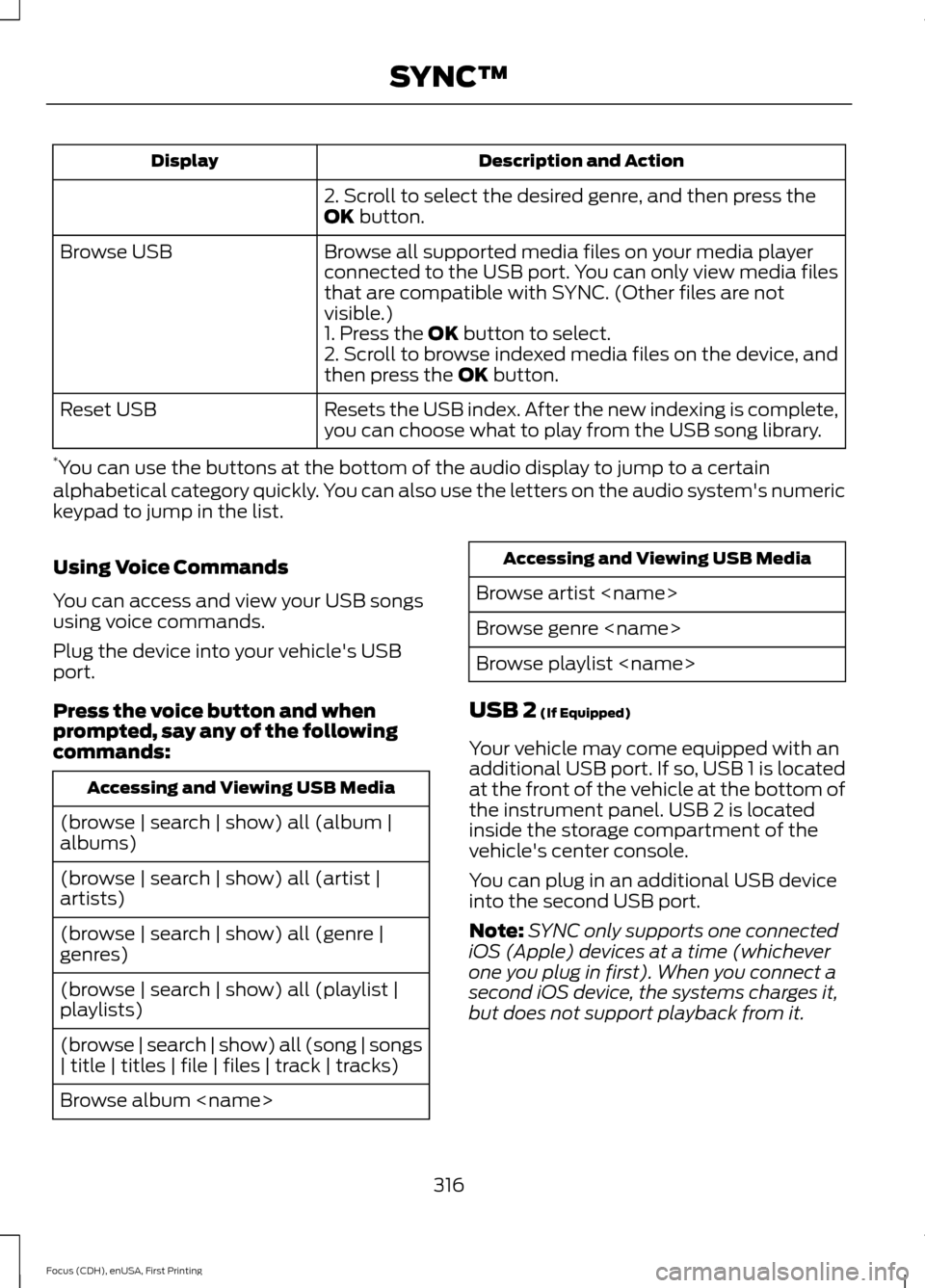
Description and Action
Display
2. Scroll to select the desired genre, and then press the
OK button.
Browse all supported media files on your media player
connected to the USB port. You can only view media files
that are compatible with SYNC. (Other files are not
visible.)
Browse USB
1. Press the
OK button to select.
2. Scroll to browse indexed media files on the device, and
then press the
OK button.
Resets the USB index. After the new indexing is complete,
you can choose what to play from the USB song library.
Reset USB
* You can use the buttons at the bottom of the audio display to jump to a certain
alphabetical category quickly. You can also use the letters on the audio system's numeric
keypad to jump in the list.
Using Voice Commands
You can access and view your USB songs
using voice commands.
Plug the device into your vehicle's USB
port.
Press the voice button and when
prompted, say any of the following
commands: Accessing and Viewing USB Media
(browse | search | show) all (album |
albums)
(browse | search | show) all (artist |
artists)
(browse | search | show) all (genre |
genres)
(browse | search | show) all (playlist |
playlists)
(browse | search | show) all (song | songs
| title | titles | file | files | track | tracks)
Browse album
Browse artist
Browse genre
Browse playlist
USB 2
(If Equipped)
Your vehicle may come equipped with an
additional USB port. If so, USB 1 is located
at the front of the vehicle at the bottom of
the instrument panel. USB 2 is located
inside the storage compartment of the
vehicle's center console.
You can plug in an additional USB device
into the second USB port.
Note: SYNC only supports one connected
iOS (Apple) devices at a time (whichever
one you plug in first). When you connect a
second iOS device, the systems charges it,
but does not support playback from it.
316
Focus (CDH), enUSA, First Printing SYNC™
Page 320 of 453
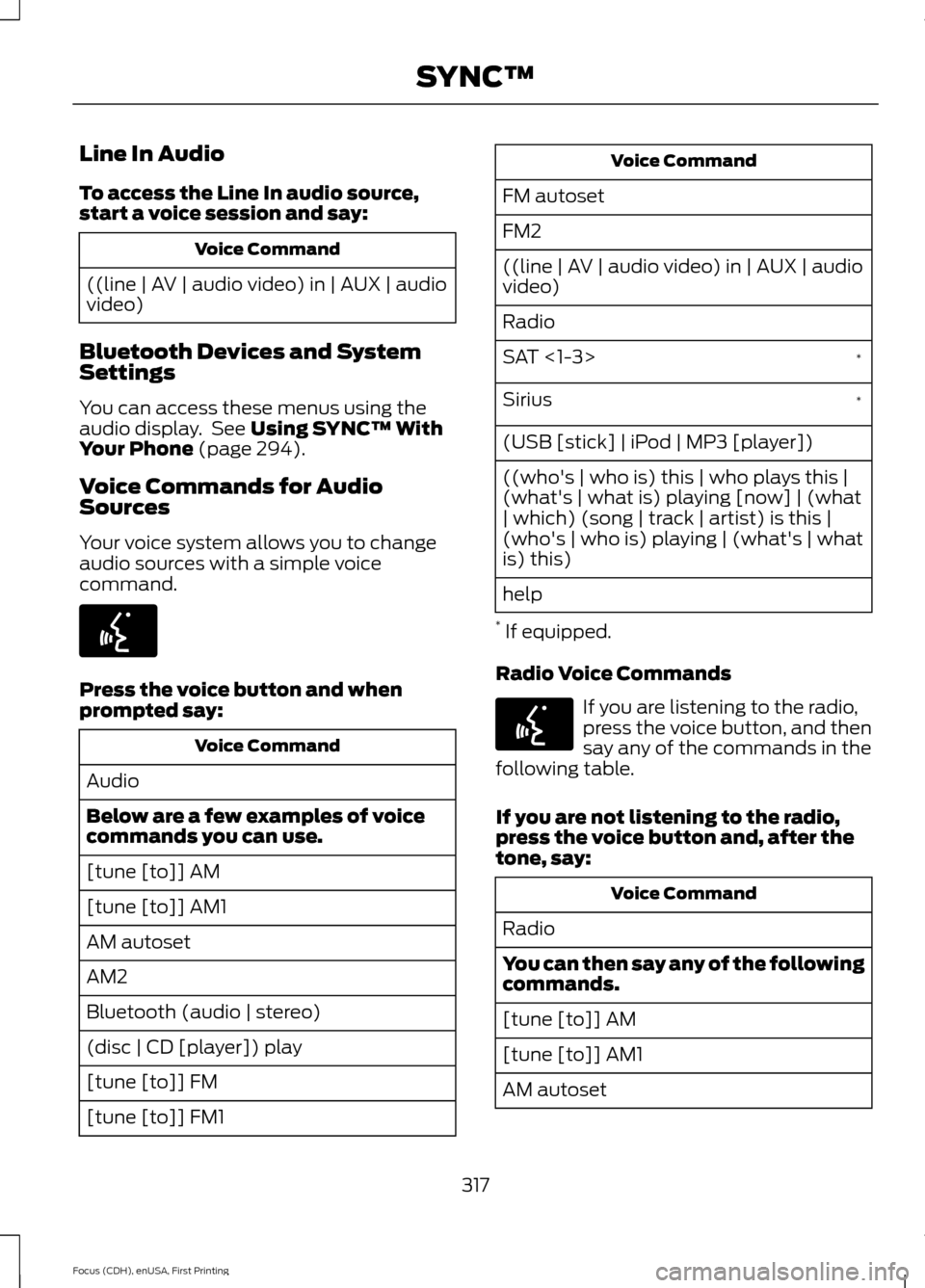
Line In Audio
To access the Line In audio source,
start a voice session and say:
Voice Command
((line | AV | audio video) in | AUX | audio
video)
Bluetooth Devices and System
Settings
You can access these menus using the
audio display. See Using SYNC™ With
Your Phone (page 294).
Voice Commands for Audio
Sources
Your voice system allows you to change
audio sources with a simple voice
command. Press the voice button and when
prompted say:
Voice Command
Audio
Below are a few examples of voice
commands you can use.
[tune [to]] AM
[tune [to]] AM1
AM autoset
AM2
Bluetooth (audio | stereo)
(disc | CD [player]) play
[tune [to]] FM
[tune [to]] FM1 Voice Command
FM autoset
FM2
((line | AV | audio video) in | AUX | audio
video)
Radio *
SAT <1-3>
*
Sirius
(USB [stick] | iPod | MP3 [player])
((who's | who is) this | who plays this |
(what's | what is) playing [now] | (what
| which) (song | track | artist) is this |
(who's | who is) playing | (what's | what
is) this)
help
* If equipped.
Radio Voice Commands If you are listening to the radio,
press the voice button, and then
say any of the commands in the
following table.
If you are not listening to the radio,
press the voice button and, after the
tone, say: Voice Command
Radio
You can then say any of the following
commands.
[tune [to]] AM
[tune [to]] AM1
AM autoset
317
Focus (CDH), enUSA, First Printing SYNC™E142599 E142599
Page 321 of 453
![FORD FOCUS 2015 3.G User Guide Voice Command
AM2
AM <530-1710>
AM preset <number>
AM [1] [autoset] preset <number>
[tune [to]] FM
[tune [to]] FM1
FM autoset
FM2
FM <87.9-107.9>
FM [autoset] preset <number>
FM <radio frequency> HD <](/img/11/5150/w960_5150-320.png "FORD FOCUS 2015 3.G User Guide Voice Command
AM2
AM <530-1710>
AM preset <number>
AM [1] [autoset] preset <number>
[tune [to]] FM
[tune [to]] FM1
FM autoset
FM2
FM <87.9-107.9>
FM [autoset] preset <number>
FM <radio frequency> HD <")
Voice Command
AM2
AM <530-1710>
AM preset
AM [1] [autoset] preset
[tune [to]] FM
[tune [to]] FM1
FM autoset
FM2
FM <87.9-107.9>
FM [autoset] preset
FM
FM1 preset
FM2 preset
HD <1-7>
Preset
Tune
help
Sirius Satellite Radio Voice Commands
(If equipped) If you are listening to Sirius
satellite radio, press the voice
button, and then say any of the
commands in the following table. If you are not listening to Sirius
satellite radio, press the voice button
and, after the tone, say: Voice Commands
Sirius
You can then say any of the following
commands.
<0-233>
SAT
SAT1
SAT2
SAT3
Preset
SAT1 preset
SAT2 preset
SAT3 preset
Tune
help
CD Voice Commands If you are listening to a CD, press
the voice button, and then say
any of the commands in the
following table.
If you are not listening to a CD, press
the voice button and, after the tone,
say: Voice Command
(disc | CD [player]) play
You can then say any of the following
commands.
pause
318
Focus (CDH), enUSA, First Printing SYNC™E142599 E142599
Page 322 of 453
![FORD FOCUS 2015 3.G User Guide Voice Command
play
[play] next track
[play] previous track
Play track <1-512> *
repeat (track | song) [on]
Repeat folder
repeat off
*
(shuffle | random | mix) [on |
(tracks | songs) [on]]
(shuffle | r](/img/11/5150/w960_5150-321.png "FORD FOCUS 2015 3.G User Guide Voice Command
play
[play] next track
[play] previous track
Play track <1-512> *
repeat (track | song) [on]
Repeat folder
repeat off
*
(shuffle | random | mix) [on |
(tracks | songs) [on]]
(shuffle | r")
Voice Command
play
[play] next track
[play] previous track
Play track <1-512> *
repeat (track | song) [on]
Repeat folder
repeat off
*
(shuffle | random | mix) [on |
(tracks | songs) [on]]
(shuffle | random | mix) (CD [player] |
disc) [on] Voice Command
(shuffle | random | mix) folder [on]
shuffle off
* You need to indicate to the system which
track or folder to repeat or shuffle when
using these commands.
SYNC™ TROUBLESHOOTING
Your SYNC system is easy to use. However,
should questions arise, see the tables
below.
Use the website at any time to check your
phone's compatibility, register your
account and set preferences as well as
access a customer representative via an
online chat (during certain hours). Visit
www.SYNCMyRide.com,
www.SYNCMyRide.ca or
www.syncmaroute.ca for more
information. Phone issues
Possible solution(s)
Possible cause(s)
Issue
Review your phone's manualabout audio adjustments.
The audio control settings
on your phone may be
affecting SYNC perform- ance.
There is excessive back-
ground noise during a phone call.
Try turning off the device,resetting the device,
removing the device's
battery, then trying again.
This may be a possible
phone malfunction.
During a call, I can hear the
other person but theycannot hear me.
Go to the website to reviewyour phone's compatibility.
This is a phone-dependent feature.
SYNC is not able to down-
load my phonebook. Try turning off the device,
resetting the device orremoving the device's
battery, then trying again.
319
Focus (CDH), enUSA, First Printing SYNC™
Page 335 of 453
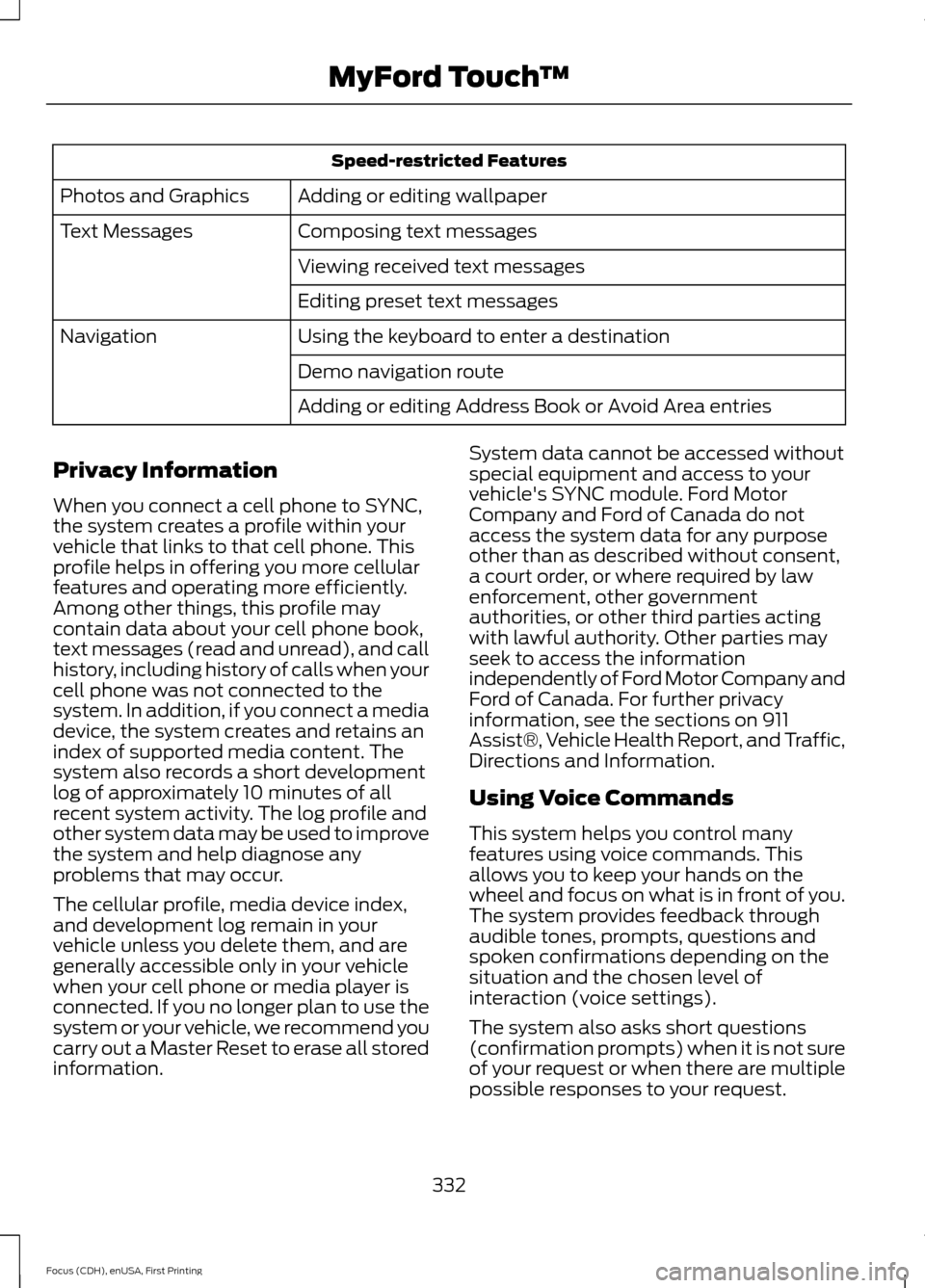
Speed-restricted Features
Adding or editing wallpaper
Photos and Graphics
Composing text messages
Text Messages
Viewing received text messages
Editing preset text messages
Using the keyboard to enter a destination
Navigation
Demo navigation route
Adding or editing Address Book or Avoid Area entries
Privacy Information
When you connect a cell phone to SYNC,
the system creates a profile within your
vehicle that links to that cell phone. This
profile helps in offering you more cellular
features and operating more efficiently.
Among other things, this profile may
contain data about your cell phone book,
text messages (read and unread), and call
history, including history of calls when your
cell phone was not connected to the
system. In addition, if you connect a media
device, the system creates and retains an
index of supported media content. The
system also records a short development
log of approximately 10 minutes of all
recent system activity. The log profile and
other system data may be used to improve
the system and help diagnose any
problems that may occur.
The cellular profile, media device index,
and development log remain in your
vehicle unless you delete them, and are
generally accessible only in your vehicle
when your cell phone or media player is
connected. If you no longer plan to use the
system or your vehicle, we recommend you
carry out a Master Reset to erase all stored
information. System data cannot be accessed without
special equipment and access to your
vehicle's SYNC module. Ford Motor
Company and Ford of Canada do not
access the system data for any purpose
other than as described without consent,
a court order, or where required by law
enforcement, other government
authorities, or other third parties acting
with lawful authority. Other parties may
seek to access the information
independently of Ford Motor Company and
Ford of Canada. For further privacy
information, see the sections on 911
Assist®, Vehicle Health Report, and Traffic,
Directions and Information.
Using Voice Commands
This system helps you control many
features using voice commands. This
allows you to keep your hands on the
wheel and focus on what is in front of you.
The system provides feedback through
audible tones, prompts, questions and
spoken confirmations depending on the
situation and the chosen level of
interaction (voice settings).
The system also asks short questions
(confirmation prompts) when it is not sure
of your request or when there are multiple
possible responses to your request.
332
Focus (CDH), enUSA, First Printing MyFord Touch
™
Page 344 of 453
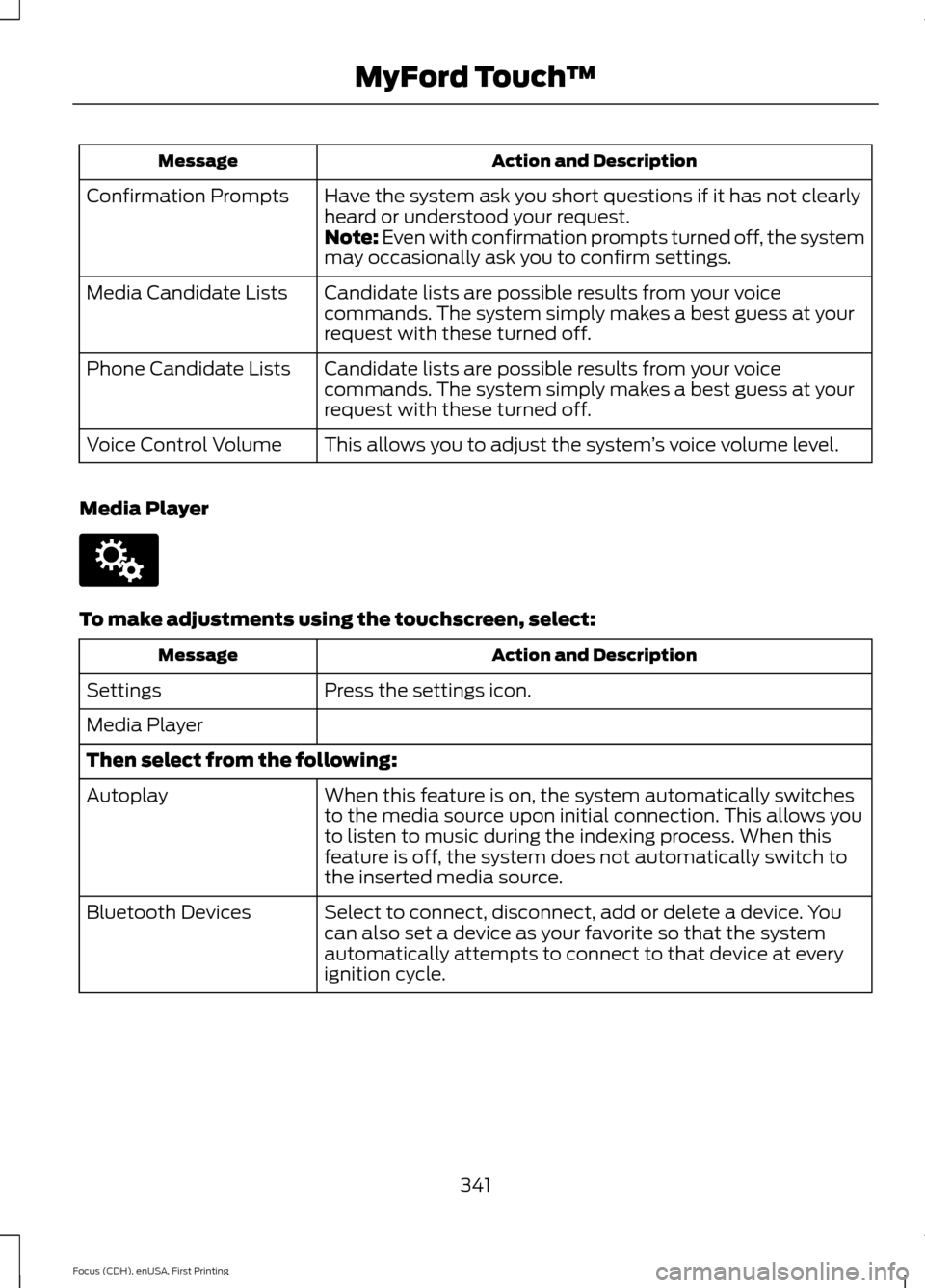
Action and Description
Message
Have the system ask you short questions if it has not clearly
heard or understood your request.
Confirmation Prompts
Note: Even with confirmation prompts turned off, the system
may occasionally ask you to confirm settings.
Candidate lists are possible results from your voice
commands. The system simply makes a best guess at your
request with these turned off.
Media Candidate Lists
Candidate lists are possible results from your voice
commands. The system simply makes a best guess at your
request with these turned off.
Phone Candidate Lists
This allows you to adjust the system ’s voice volume level.
Voice Control Volume
Media Player To make adjustments using the touchscreen, select:
Action and Description
Message
Press the settings icon.
Settings
Media Player
Then select from the following:
When this feature is on, the system automatically switches
to the media source upon initial connection. This allows you
to listen to music during the indexing process. When this
feature is off, the system does not automatically switch to
the inserted media source.
Autoplay
Select to connect, disconnect, add or delete a device. You
can also set a device as your favorite so that the system
automatically attempts to connect to that device at every
ignition cycle.
Bluetooth Devices
341
Focus (CDH), enUSA, First Printing MyFord Touch
™E142607
Page 345 of 453
Action and Description
Message
This allows you to view the version level of the Gracenote
Database.
Gracenote® Database
Info
With this feature on, the Gracenote Database supplies
metadata information for your music files. This overrides
information from your device. This feature defaults to off.
Gracenote® Manage-
ment
With this feature on, the Gracenote Database supplied cover
art for your music files. This overrides any art from your device.
This feature defaults to Media Player.
Cover Art Priority
Navigation To make adjustments using the touchscreen, select:
Action and Description
Message
Press the settings icon.
Settings
Navigation
Then select from the following:
Turn breadcrumbs on and off.
Map Preferences
Have the system display your turn list top to bottom or
bottom to top.
Turn the Parking POI notification on and off.
Select shortest route, fastest route or ecological route as
your preferred route. This route will be displayed first.
Route Preferences
Always use preferred route. If set to yes, the system will only
calculate a single route. This speeds up your destination entry
process.
Select a low, medium or high cost for the calculated ecolo-
gical route. This may incur a time penalty.
Have the system avoid freeways.
Have the system avoid toll roads.
Have the system avoid ferries or car trains.
342
Focus (CDH), enUSA, First Printing MyFord Touch
™E142607
Page 353 of 453
Action and Description
Menu Item
This allows you to have the system automatically store the six strongest
stations in your current location.
AST
This feature is available when HD Radio is on, and allows you to tag a
song to download later. When you select On, TAG appears on-screen
when HD Radio is active. You can touch TAG to save the information
of the song that is playing. When you plug in your portable music player,
the information transfers, if supported by your device. When you are
connected to iTunes, the tags appear to remind you of the songs you
would like to download. See HD Radio information later in this chapter.
TAG Button
Note: Your vehicle may not have all these sound settings.
HD Radio ™ Information (If Available)
Note: HD Radio broadcasts are not
available in all markets.
HD Radio technology is the digital
evolution of analog AM/FM radio. Your
system has a special receiver that allows
it to receive digital broadcasts (where
available) in addition to the analog
broadcasts, it already receives. Digital
broadcasts provide a better sound quality
than analog broadcasts with free,
crystal-clear audio and no static or
distortion. For more information, and a
guide to available stations and
programming, please visit
www.hdradio.com.
When HD Radio is on and you tune to a
station broadcasting HD Radio technology,
you may notice the following indicators on
your screen: The HD logo either blinks when acquiring
a digital station, and then stays solid when
digital audio is playing, or is grey when
acquiring a digital station, and then
changes to orange when digital audio is
playing. When this logo is available, you
may also see Title and Artist fields
on-screen.
The multicast indicator appears in FM
mode (only) if the current station is
broadcasting multiple digital broadcasts.
The highlighted numbers signify available
digital channels where new or different
content is available. HD1 signifies the main
programming status and is available in
analog and digital broadcasts. Other
multicast stations (HD2 through HD7) are
only available digitally.
TAG
allows you to save a song to
download later when you are on an
acquired HD Radio station and the feature
is on.
350
Focus (CDH), enUSA, First Printing MyFord Touch
™E142616
Page 354 of 453
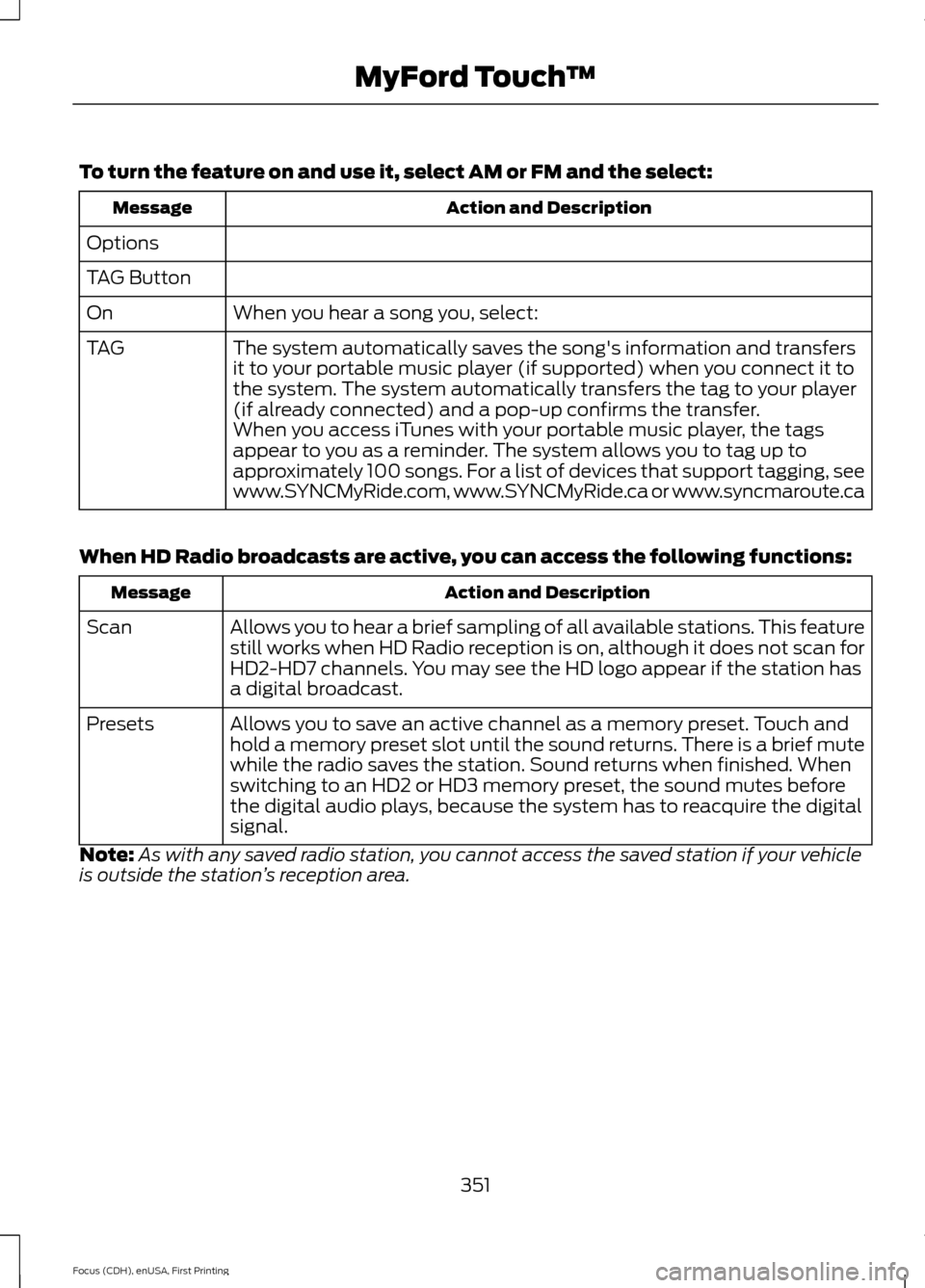
To turn the feature on and use it, select AM or FM and the select:
Action and Description
Message
Options
TAG Button When you hear a song you, select:
On
The system automatically saves the song's information and transfers
it to your portable music player (if supported) when you connect it to
the system. The system automatically transfers the tag to your player
(if already connected) and a pop-up confirms the transfer.
TAG
When you access iTunes with your portable music player, the tags
appear to you as a reminder. The system allows you to tag up to
approximately 100 songs. For a list of devices that support tagging, see
www.SYNCMyRide.com, www.SYNCMyRide.ca or www.syncmaroute.ca
When HD Radio broadcasts are active, you can access the following functions: Action and Description
Message
Allows you to hear a brief sampling of all available stations. This feature
still works when HD Radio reception is on, although it does not scan for
HD2-HD7 channels. You may see the HD logo appear if the station has
a digital broadcast.
Scan
Allows you to save an active channel as a memory preset. Touch and
hold a memory preset slot until the sound returns. There is a brief mute
while the radio saves the station. Sound returns when finished. When
switching to an HD2 or HD3 memory preset, the sound mutes before
the digital audio plays, because the system has to reacquire the digital
signal.
Presets
Note: As with any saved radio station, you cannot access the saved station if your vehicle
is outside the station ’s reception area.
351
Focus (CDH), enUSA, First Printing MyFord Touch
™