ECO mode FORD FOCUS 2015 3.G Owner's Guide
[x] Cancel search | Manufacturer: FORD, Model Year: 2015, Model line: FOCUS, Model: FORD FOCUS 2015 3.GPages: 453, PDF Size: 5.32 MB
Page 317 of 453
![FORD FOCUS 2015 3.G Owners Guide Voice Command
pause
play
[play] next track
[play] previous track
Media Menu Features
The media menu allows you to select how
to play your music (such as by artist, genre,
shuffle or repeat), find simi](/img/11/5150/w960_5150-316.png "FORD FOCUS 2015 3.G Owners Guide Voice Command
pause
play
[play] next track
[play] previous track
Media Menu Features
The media menu allows you to select how
to play your music (such as by artist, genre,
shuffle or repeat), find simi")
Voice Command
pause
play
[play] next track
[play] previous track
Media Menu Features
The media menu allows you to select how
to play your music (such as by artist, genre,
shuffle or repeat), find similar music or
reset the index of your USB devices. Press AUX to select USB playback. Description and Action
Message
This will enter the media menu.
Options
Then any of the following: Description and Action
Message
Choose to shuffle or repeat your music. Once you make your
choice, it remains on until you switch it off.
Shuffle
Choose to shuffle or repeat your music. Once you make your
choice, it remains on until you switch it off.
Repeat track
You can play similar types of music to the current playlist
from the USB port. The system uses the metadata informa-
tion of each track to compile a playlist. The system then
creates a new list of similar tracks and then begins playing.
Each track must have the metadata tags populated for this
feature. With certain playing devices, if your metadata tags
Similar music
are not populated, the tracks will not be available in voice
recognition, the play menu or this option. However, if you
place these tracks onto your playing device in mass storage
device mode they are available in voice recognition, the play
menu or this option. The system places unknowns into any
unpopulated metadata tag.
Resets the USB index. After the new indexing is complete
you can choose what to play from the USB song library.
Reset SYNC USB
314
Focus (CDH), enUSA, First Printing SYNC™
Page 334 of 453
Safety Information
WARNING
Driving while distracted can result in
loss of vehicle control, crash and
injury. We strongly recommend that
you use extreme caution when using any
device that may take your focus off the
road. Your primary responsibility is the safe
operation of your vehicle. We recommend
against the use of any hand-held device
while driving and encourage the use of
voice-operated systems when possible.
Make sure you are aware of all applicable
local laws that may affect the use of
electronic devices while driving. •
Do not attempt to service or repair the
system. Have your vehicle checked by
an authorized dealer.
• Do not operate media devices if the
power cables are broken or damaged. •
Make sure the power cables do not
interfere with the safe operation of your
vehicle's controls or affect your safe
driving abilities.
• Some SYNC functions are
speed-dependent. Their use is limited
to when your vehicle is traveling at
speeds below 3 mph (5 km/h).
Make sure that you review your device's
manual before using it with SYNC.
Speed-restricted Features
Some features of this system are restricted
from use unless your vehicle is stationary.
• Screens crowded with information, for
example:
•Point of Interest reviews and ratings
• SIRIUS Travel Link sports scores
• Movie times
• Ski conditions.
• Any action that requires keyboard use,
for example: entering a navigation
destination or editing information.
• All lists are limited, for example: phone
contacts.
See the following chart for more specific
examples. Speed-restricted Features
Pairing a cell phone
Cell phone
Adding or editing phonebook contacts
Phone contacts and recent phone call entries
Enabling Valet Mode
System Functionality
Editing settings while the rear view camera or active park
assist are active
Editing wireless settings
Wi-Fi and Wireless
Editing the list of wireless networks
331
Focus (CDH), enUSA, First Printing MyFord Touch
™
Page 340 of 453
To make adjustments using the voice
button, press the button and when
prompted, say:
Voice command
Display Settings
Uploading Photos for Your Home
Screen Wallpaper Note:
You cannot load photos directly from
your camera. You must access the photos
either from your USB mass storage device
or from an SD card.
Note: Photographs with extremely large
dimensions (such as 2048 x 1536) may not
be compatible and appear as a blank
(black) image on the display.
The system allows you to upload and view
up to 32 photos. To access, press:
To upload your photos, select: Action and Description
Menu Item
Press the settings icon.
Settings
Display
Follow the system prompts to upload your photographs.
Edit Wallpaper
Only the photograph(s), which meets the
following conditions display:
• Compatible file formats are as follows:
JPG, GIF, PNG, BMP.
• Each file must be 1.5 MB or less.
• Recommended dimensions: 800 x 384.
Sound To make adjustments using the
touchscreen, select:
Message
Settings
Sound
Then select from the following: Message
Bass
Midrange
Treble
Set Balance and Fade
Occupancy Mode
Speed Compensated Volume
DSP
Note: Your vehicle may not have all of
these sound settings.
Vehicle 337
Focus (CDH), enUSA, First Printing MyFord Touch
™E142607 E142607 E142607
Page 363 of 453
This feature allows you to plug in media
playing devices, memory sticks, flash drives
or thumb drives, and charge devices if they
support this feature.
Playing Music from Your Device
Note:
The system is capable of indexing up
to 30,000 songs. Insert your device and select:
Action and Description
Message
Once the system recognizes your USB or SD card you can then select
from the following options:
USB
SD Card
This feature replays the currently playing song or album.
Repeat
Touch this button to play music on the selected album or folder in
random order.
Shuffle
This feature allows you to choose music similar to what is currently
playing.
Similar Music
Touch this button to see disc information, for example current track,
artist name, album and genre.
More Info
Touch this button to view and adjust various media settings.
Options
Sound
You can adjust the settings for: Action and Description
Message
Bass
Sound Settings
Midrange
Treble
Set Balance and Fade
DSP
EQ Mode
Speed Compensated Volume
Allows you to select more settings, which is under Media Player. See
Settings (page 335).
Media Player
Settings
360
Focus (CDH), enUSA, First Printing MyFord Touch
™E142611
Page 368 of 453
Pairing Your Cell Phone for the
First Time
WARNING
Driving while distracted can result in
loss of vehicle control, crash and
injury. We strongly recommend that
you use extreme caution when using any
device that may take your focus off the
road. Your primary responsibility is the safe
operation of your vehicle. We recommend
against the use of any hand-held device
while driving and encourage the use of
voice-operated systems when possible.
Make sure you are aware of all applicable
local laws that may affect the use of
electronic devices while driving. The first thing you must do to use the
phone features of SYNC is to pair your
Bluetooth-enabled cell phone with SYNC.
This allows you to use your cell phone in a
hands-free manner.
Note:
Switch off the radio. Apply the
parking brake and shift the transmission into
park (P) for automatic transmission or first
gear for manual transmission. Switch the
ignition off.
Touch the upper left corner of the touchscreen: Action and Description
Message
Add phone Follow the on-screen instructions.
Find SYNC
Make sure that Bluetooth is set to On and that your cell phone
is in the correct mode. See your cell phone ’s manual if
necessary.
Select
SYNC and a six-digit PIN appears on your device.
If you are prompted to enter a PIN on your device, it does not
support Secure Simple Pairing. To pair, enter the PIN
displayed on the touchscreen. Skip the next step.
When prompted on your cell phone ’s display, confirm that
the PIN provided by SYNC matches the PIN displayed on your
cell phone.
The display indicates when the pairing is successful.
SYNC may prompt you with more cell phone options. For
more information on your cell phone's capability, see your
cell phone's manual and visit the website.
Pairing Subsequent Cell Phones
Note: Switch off the radio. Apply the
parking brake and shift the transmission into
park (P) for automatic transmission or first
gear for manual transmission. Switch the
ignition off. Make sure that Bluetooth is set to
On and
that your cell phone is in the correct mode.
See your device's manual if necessary.
365
Focus (CDH), enUSA, First Printing MyFord Touch
™
Page 375 of 453
If your vehicle is equipped with
Navigation, press the
Information button to access
these features. If your vehicle is not
equipped with Navigation, press the corner
of the touchscreen with the green tab.
SYNC Services (If Equipped,
United States Only)
Note: SYNC Services varies by trim level
and model year and may require a
subscription. Traffic alerts and turn-by-turn
directions available in select markets.
Message and data rates may apply. Ford
Motor Company reserves the right to change
or discontinue this product service at any
time without prior notification or incurring
any future obligation.
Note: SYNC Services requires activation
before use. Visit www.SYNCMyRide.com to
register and check your eligibility for
complimentary services. Standard phone
and message rates may apply. Subscription
may be required. You must also have the
active SYNC Services Bluetooth-enabled
cellular phone paired and connected to the
system in order to connect to, and use,
SYNC Services. See
Phone (page 364).
Note: This feature does not function
properly if you have enabled caller ID
blocking on your cellular phone. Make sure
your cellular phone is not blocking caller ID
before using SYNC Services. Note:
The driver is ultimately responsible
for the safe operation of the vehicle, and
therefore, must evaluate whether it is safe
to follow the suggested directions. Any
navigation features provided are only an aid.
Make your driving decisions based on your
observations of local conditions and existing
traffic regulations. Do not follow the route
suggestions if doing so would result in an
unsafe or illegal maneuver, if you would be
placed in an unsafe situation, or if you would
be directed into an area that you consider
unsafe. Maps used by this system may be
inaccurate because of errors, changes in
roads, traffic conditions or driving
conditions.
Note: When you connect, the service uses
GPS technology and advanced vehicle
sensors to collect your vehicle's current
location, travel direction and speed to help
provide you with the directions, traffic
reports, or business searches you request.
Further, to provide the services you request,
for continuous improvement, the service
may collect and record call details and voice
communications. For more information, see
SYNC Services Terms and Conditions at
www.SYNCMyRide.com. If you do not want
Ford or its service providers to collect your
vehicle travel information or other
information identified in the Terms and
Conditions, do not subscribe or use the
service.
SYNC Services uses advanced vehicle
sensors, integrated GPS technology and
comprehensive map and traffic data, to
give you personalized traffic reports,
precise turn-by-turn directions, business
search, news, sports, weather and more.
For a complete list of services, or to learn
more, please visit www.SYNCMyRide.com.
Connecting to SYNC Services
You can connect to SYNC Services using
voice commands or by selecting a menu
item on the touchscreen.
372
Focus (CDH), enUSA, First Printing MyFord Touch
™E142608
Page 385 of 453
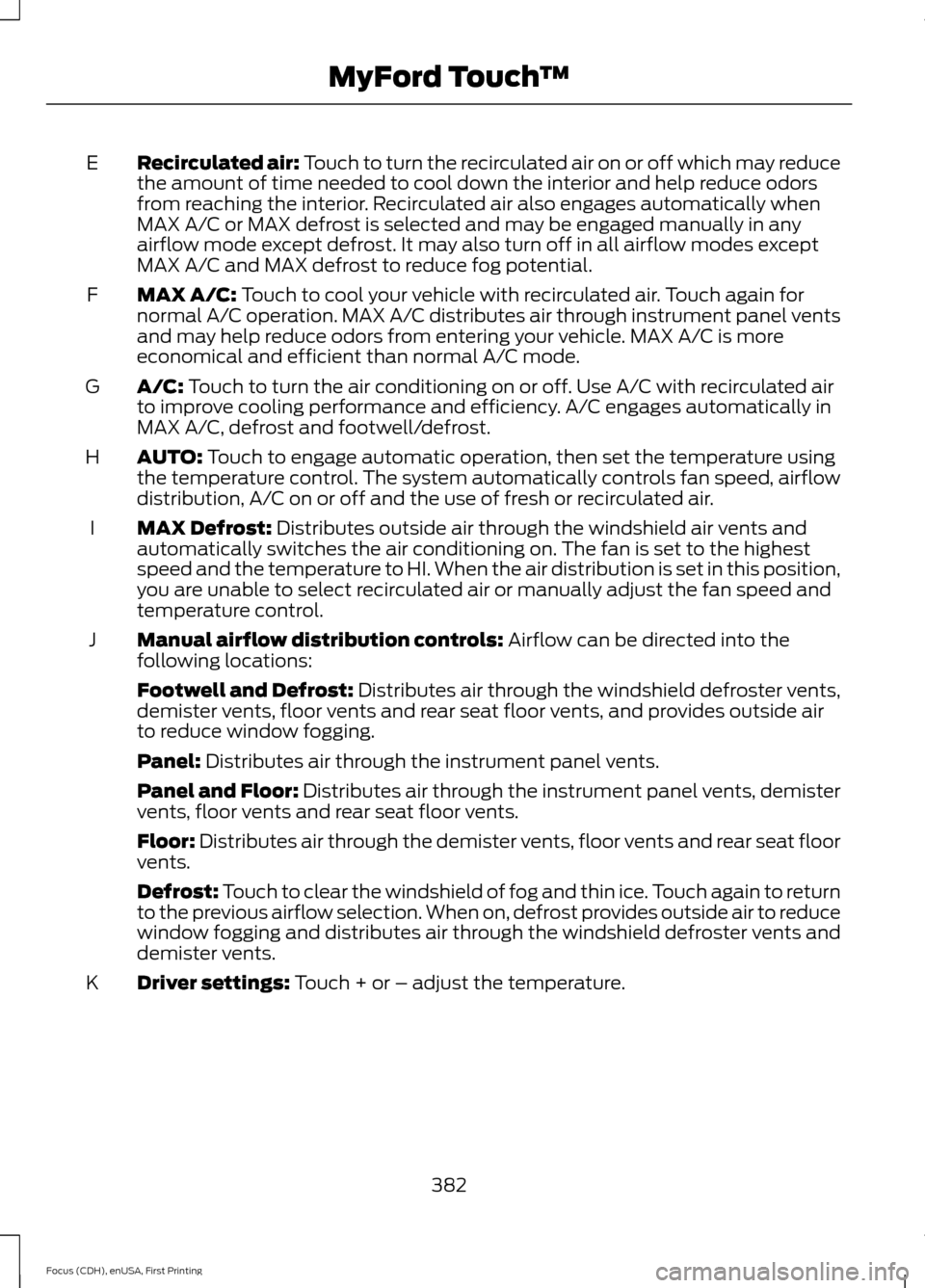
Recirculated air: Touch to turn the recirculated air on or off which may reduce
the amount of time needed to cool down the interior and help reduce odors
from reaching the interior. Recirculated air also engages automatically when
MAX A/C or MAX defrost is selected and may be engaged manually in any
airflow mode except defrost. It may also turn off in all airflow modes except
MAX A/C and MAX defrost to reduce fog potential.
E
MAX A/C: Touch to cool your vehicle with recirculated air. Touch again for
normal A/C operation. MAX A/C distributes air through instrument panel vents
and may help reduce odors from entering your vehicle. MAX A/C is more
economical and efficient than normal A/C mode.
F
A/C:
Touch to turn the air conditioning on or off. Use A/C with recirculated air
to improve cooling performance and efficiency. A/C engages automatically in
MAX A/C, defrost and footwell/defrost.
G
AUTO:
Touch to engage automatic operation, then set the temperature using
the temperature control. The system automatically controls fan speed, airflow
distribution, A/C on or off and the use of fresh or recirculated air.
H
MAX Defrost:
Distributes outside air through the windshield air vents and
automatically switches the air conditioning on. The fan is set to the highest
speed and the temperature to HI. When the air distribution is set in this position,
you are unable to select recirculated air or manually adjust the fan speed and
temperature control.
I
Manual airflow distribution controls:
Airflow can be directed into the
following locations:
J
Footwell and Defrost: Distributes air through the windshield defroster vents,
demister vents, floor vents and rear seat floor vents, and provides outside air
to reduce window fogging.
Panel:
Distributes air through the instrument panel vents.
Panel and Floor:
Distributes air through the instrument panel vents, demister
vents, floor vents and rear seat floor vents.
Floor:
Distributes air through the demister vents, floor vents and rear seat floor
vents.
Defrost:
Touch to clear the windshield of fog and thin ice. Touch again to return
to the previous airflow selection. When on, defrost provides outside air to reduce
window fogging and distributes air through the windshield defroster vents and
demister vents.
Driver settings:
Touch + or – adjust the temperature.
K
382
Focus (CDH), enUSA, First Printing MyFord Touch
™
Page 392 of 453
Second Level Messages, Actions and Descriptions
Menu Item
Choose areas which you want the system to avoid when
calculating a route for you
Avoid Areas
Then select any of the following:
Once you make a selection, the system tries to avoid the
area(s) if possible for all routes. Select this button to program
an entry, then choose a destination entry method. You can
edit the name or location of a destination or remove it from
your selections.
Add
To remove an area from your selection, choose the listing on
the screen. The screen will change, then press delete and
confirm the deletion.
Delete
Map Mode
Press the green bar in the upper right area
of the touchscreen to view map mode. Map
mode shows advanced viewing comprised
of both 2D city maps as well as 3D
landmarks (when available).
2D city maps show detailed outlines of
buildings, visible land use and land
elements and detailed railway
infrastructure for the most essential cities
around the globe. These maps also contain
features, such as town blocks, building
footprints and railways.
3D landmarks appear as clear, visible
objects that are typically recognizable and
have a certain tourist value. The 3D
landmarks appear in 3D map mode only.
Coverage varies and improves with
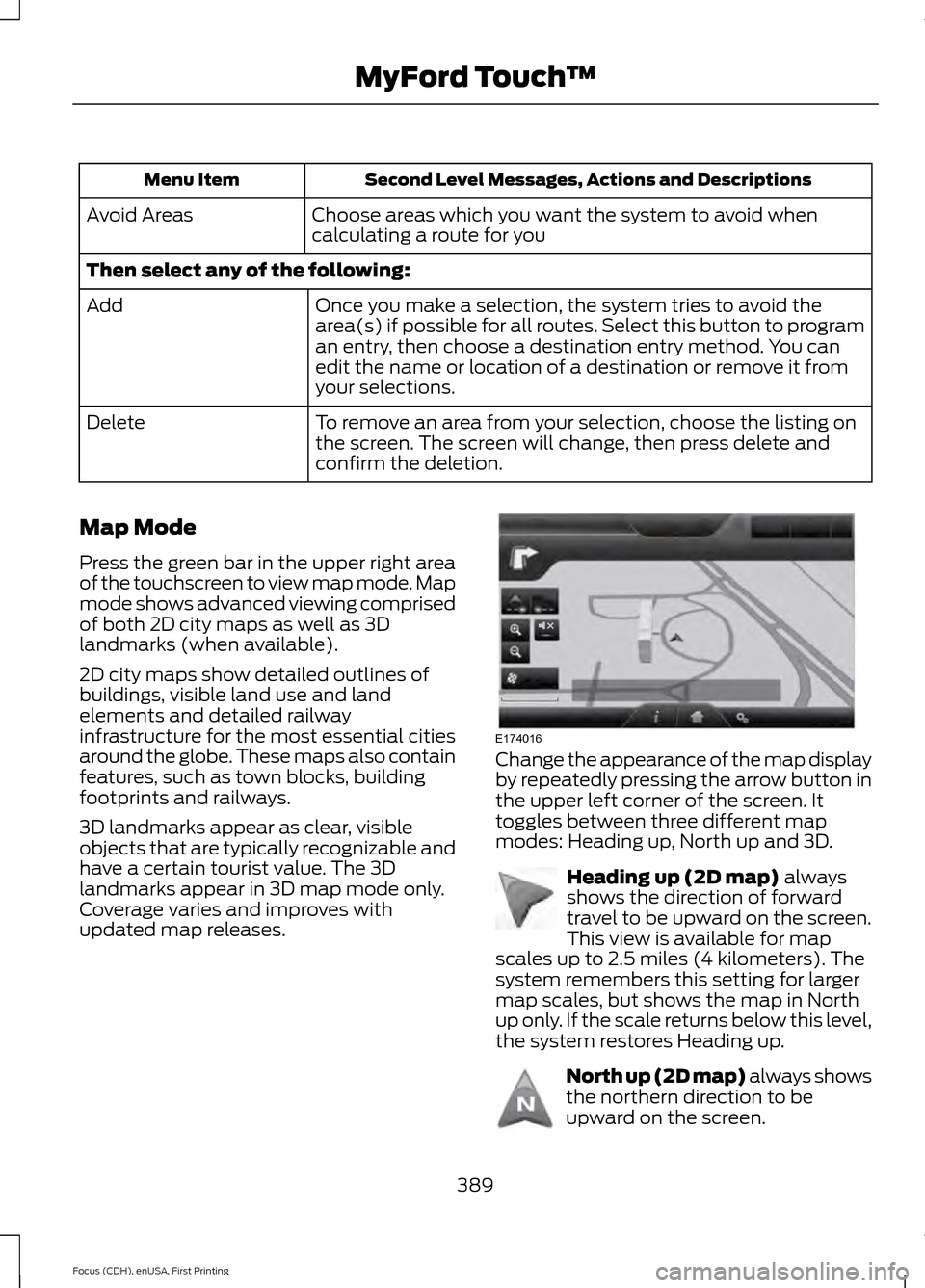
updated map releases. Change the appearance of the map display
by repeatedly pressing the arrow button in
the upper left corner of the screen. It
toggles between three different map
modes: Heading up, North up and 3D.
Heading up (2D map) always
shows the direction of forward
travel to be upward on the screen.
This view is available for map
scales up to 2.5 miles (4 kilometers). The
system remembers this setting for larger
map scales, but shows the map in North
up only. If the scale returns below this level,
the system restores Heading up. North up (2D map) always shows
the northern direction to be
upward on the screen.
389
Focus (CDH), enUSA, First Printing MyFord Touch
™E174016 E142642 E142643
Page 432 of 453
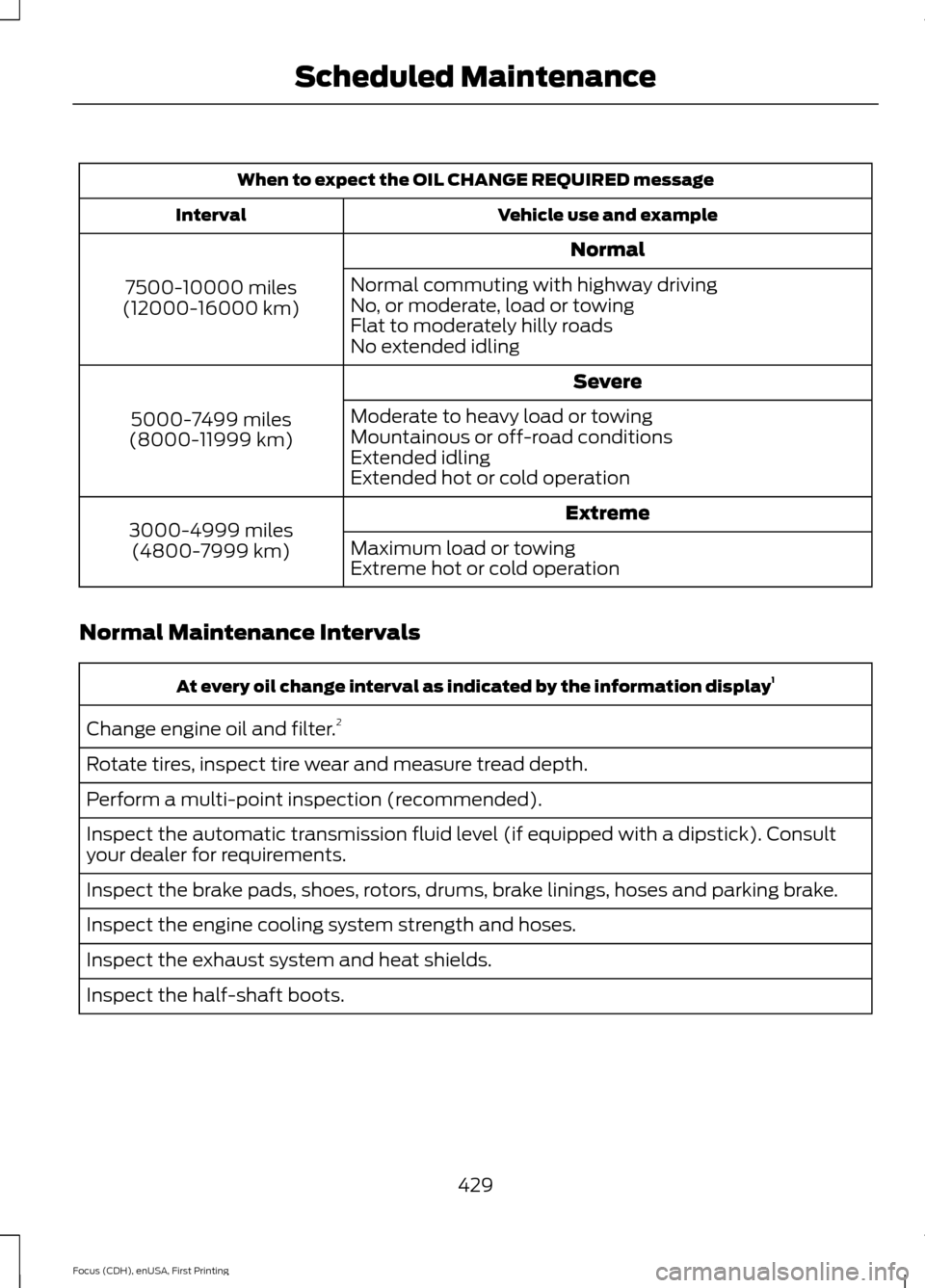
When to expect the OIL CHANGE REQUIRED message
Vehicle use and example
Interval
Normal
7500-10000 miles
(12000-16000 km) Normal commuting with highway driving
No, or moderate, load or towing
Flat to moderately hilly roads
No extended idling
Severe
5000-7499 miles
(8000-11999 km) Moderate to heavy load or towing
Mountainous or off-road conditions
Extended idling
Extended hot or cold operation
Extreme
3000-4999 miles
(4800-7999 km) Maximum load or towing
Extreme hot or cold operation
Normal Maintenance Intervals At every oil change interval as indicated by the information display
1
Change engine oil and filter. 2
Rotate tires, inspect tire wear and measure tread depth.
Perform a multi-point inspection (recommended).
Inspect the automatic transmission fluid level (if equipped with a dipstick). Consult
your dealer for requirements.
Inspect the brake pads, shoes, rotors, drums, brake linings, hoses and parking brake.
Inspect the engine cooling system strength and hoses.
Inspect the exhaust system and heat shields.
Inspect the half-shaft boots.
429
Focus (CDH), enUSA, First Printing Scheduled Maintenance
Page 446 of 453
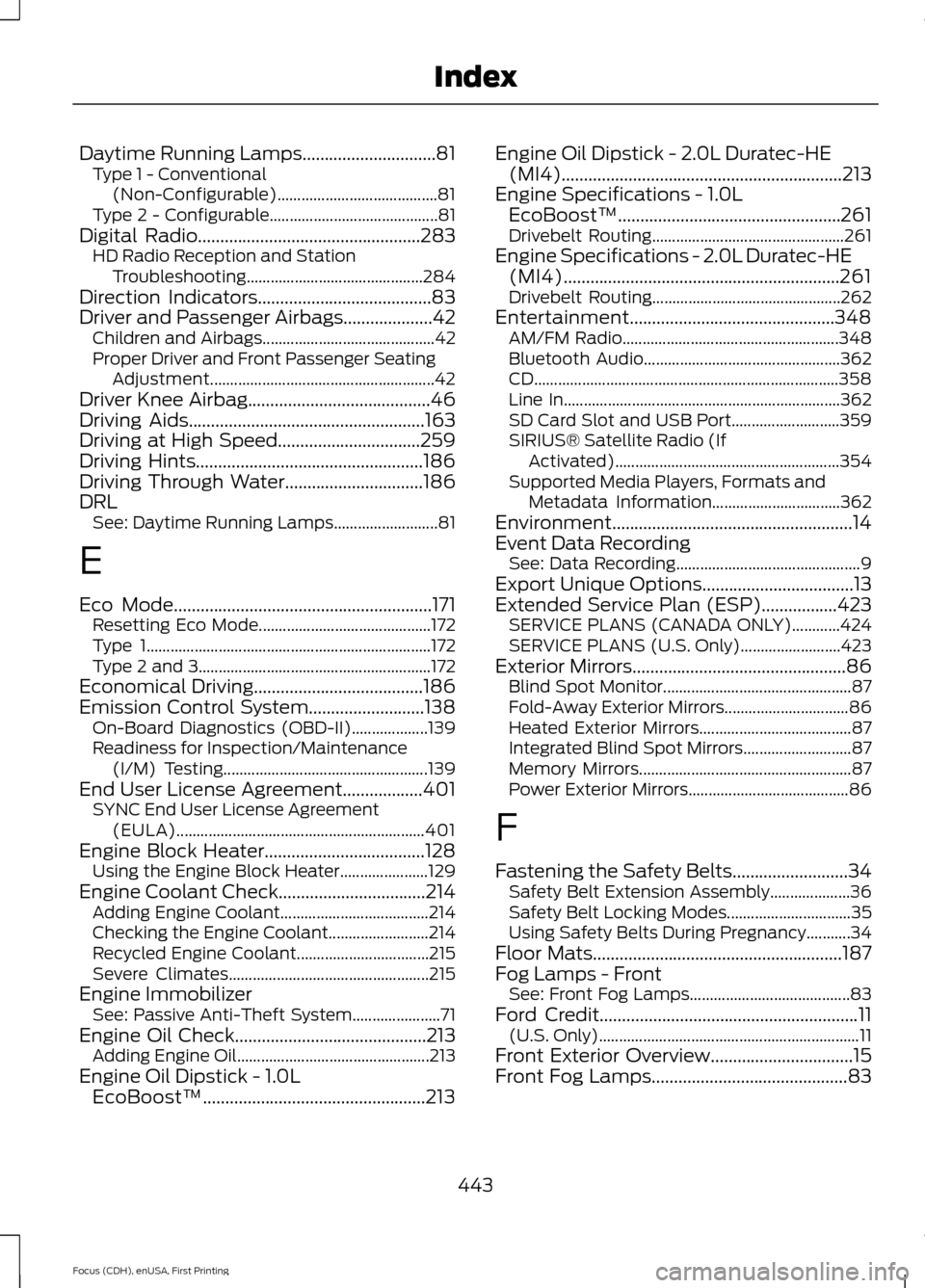
Daytime Running Lamps..............................81
Type 1 - Conventional
(Non-Configurable)........................................ 81
Type 2 - Configurable.......................................... 81
Digital Radio..................................................283
HD Radio Reception and Station
Troubleshooting............................................ 284
Direction Indicators.......................................83
Driver and Passenger Airbags....................42 Children and Airbags........................................... 42
Proper Driver and Front Passenger Seating Adjustment........................................................ 42
Driver Knee Airbag
.........................................46
Driving Aids.....................................................163
Driving at High Speed................................259
Driving Hints...................................................186
Driving Through Water...............................186
DRL See: Daytime Running Lamps.......................... 81
E
Eco Mode
..........................................................171
Resetting Eco Mode........................................... 172
Type 1....................................................................... 172
Type 2 and 3.......................................................... 172
Economical Driving
......................................186
Emission Control System..........................138 On-Board Diagnostics (OBD-II)................... 139
Readiness for Inspection/Maintenance (I/M) Testing................................................... 139
End User License Agreement..................401 SYNC End User License Agreement
(EULA).............................................................. 401
Engine Block Heater
....................................128
Using the Engine Block Heater...................... 129
Engine Coolant Check
.................................214
Adding Engine Coolant..................................... 214
Checking the Engine Coolant......................... 214
Recycled Engine Coolant................................. 215
Severe Climates.................................................. 215
Engine Immobilizer See: Passive Anti-Theft System...................... 71
Engine Oil Check...........................................213 Adding Engine Oil................................................ 213
Engine Oil Dipstick - 1.0L EcoBoost™..................................................213 Engine Oil Dipstick - 2.0L Duratec-HE
(MI4)
...............................................................213
Engine Specifications - 1.0L EcoBoost™..................................................261
Drivebelt Routing................................................ 261
Engine Specifications - 2.0L Duratec-HE (MI4)..............................................................261
Drivebelt Routing............................................... 262
Entertainment..............................................348 AM/FM Radio...................................................... 348
Bluetooth Audio................................................. 362
CD........................................................................\
.... 358
Line In..................................................................... 362
SD Card Slot and USB Port........................... 359
SIRIUS® Satellite Radio (If Activated)........................................................ 354
Supported Media Players, Formats and Metadata Information................................ 362
Environment......................................................14
Event Data Recording See: Data Recording.............................................. 9
Export Unique Options..................................13
Extended Service Plan (ESP).................423 SERVICE PLANS (CANADA ONLY)............424
SERVICE PLANS (U.S. Only)......................... 423
Exterior Mirrors................................................86 Blind Spot Monitor............................................... 87
Fold-Away Exterior Mirrors............................... 86
Heated Exterior Mirrors...................................... 87
Integrated Blind Spot Mirrors........................... 87
Memory Mirrors..................................................... 87
Power Exterior Mirrors........................................ 86
F
Fastening the Safety Belts
..........................34
Safety Belt Extension Assembly.................... 36
Safety Belt Locking Modes............................... 35
Using Safety Belts During Pregnancy...........34
Floor Mats........................................................187
Fog Lamps - Front See: Front Fog Lamps........................................ 83
Ford Credit
..........................................................11
(U.S. Only)................................................................. 11
Front Exterior Overview................................15
Front Fog Lamps............................................83
443
Focus (CDH), enUSA, First Printing Index