audio FORD FOCUS 2018 Service Manual
[x] Cancel search | Manufacturer: FORD, Model Year: 2018, Model line: FOCUS, Model: FORD FOCUS 2018Pages: 473, PDF Size: 39.91 MB
Page 325 of 473
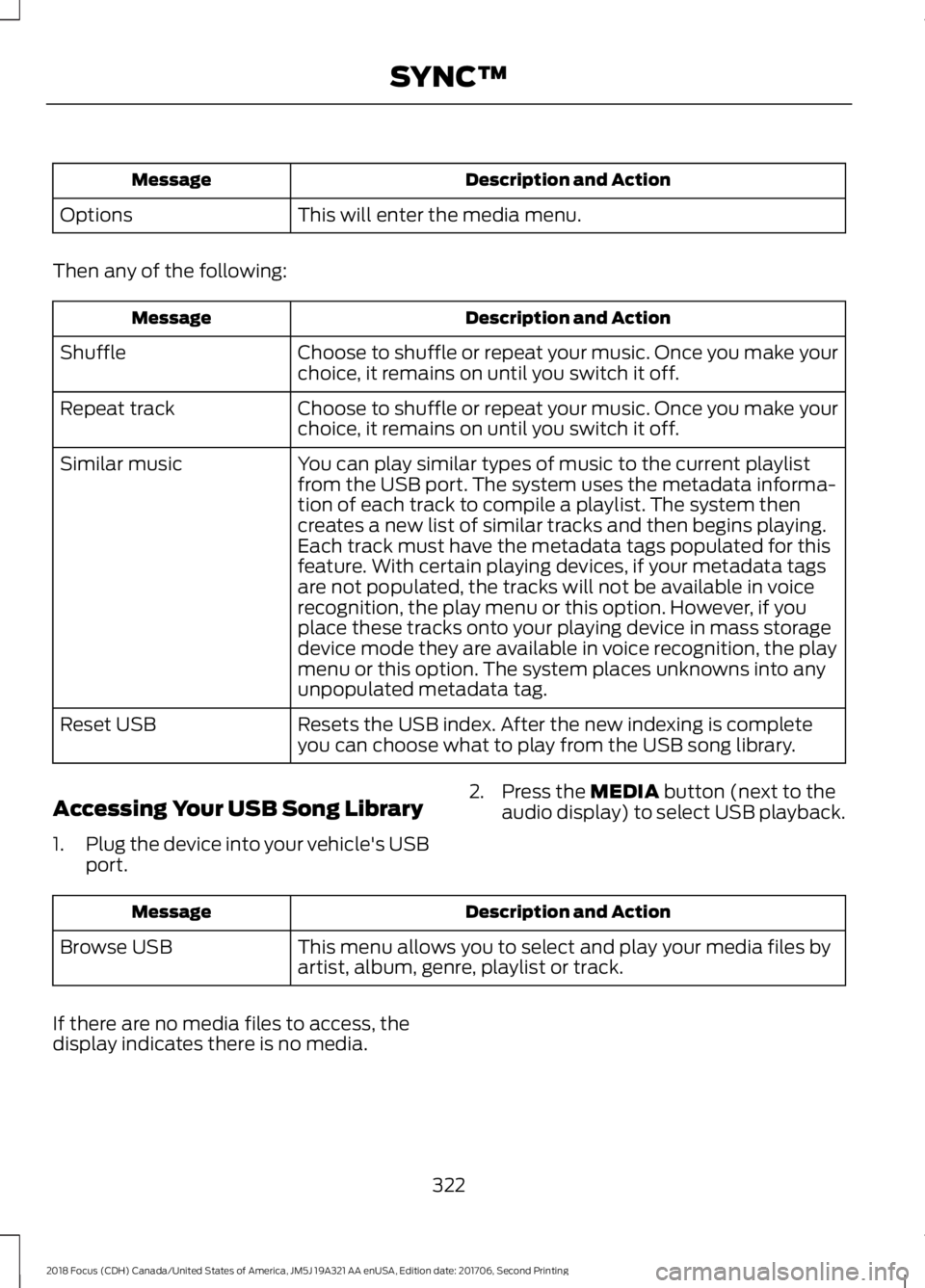
Description and ActionMessage
This will enter the media menu.Options
Then any of the following:
Description and ActionMessage
Choose to shuffle or repeat your music. Once you make yourchoice, it remains on until you switch it off.Shuffle
Choose to shuffle or repeat your music. Once you make yourchoice, it remains on until you switch it off.Repeat track
You can play similar types of music to the current playlistfrom the USB port. The system uses the metadata informa-tion of each track to compile a playlist. The system thencreates a new list of similar tracks and then begins playing.Each track must have the metadata tags populated for thisfeature. With certain playing devices, if your metadata tags
Similar music
are not populated, the tracks will not be available in voicerecognition, the play menu or this option. However, if youplace these tracks onto your playing device in mass storagedevice mode they are available in voice recognition, the playmenu or this option. The system places unknowns into anyunpopulated metadata tag.
Resets the USB index. After the new indexing is completeyou can choose what to play from the USB song library.Reset USB
Accessing Your USB Song Library
1.Plug the device into your vehicle's USBport.
2.Press the MEDIA button (next to theaudio display) to select USB playback.
Description and ActionMessage
This menu allows you to select and play your media files byartist, album, genre, playlist or track.Browse USB
If there are no media files to access, thedisplay indicates there is no media.
3222018 Focus (CDH) Canada/United States of America, JM5J 19A321 AA enUSA, Edition date: 201706, Second PrintingSYNC™
Page 327 of 473
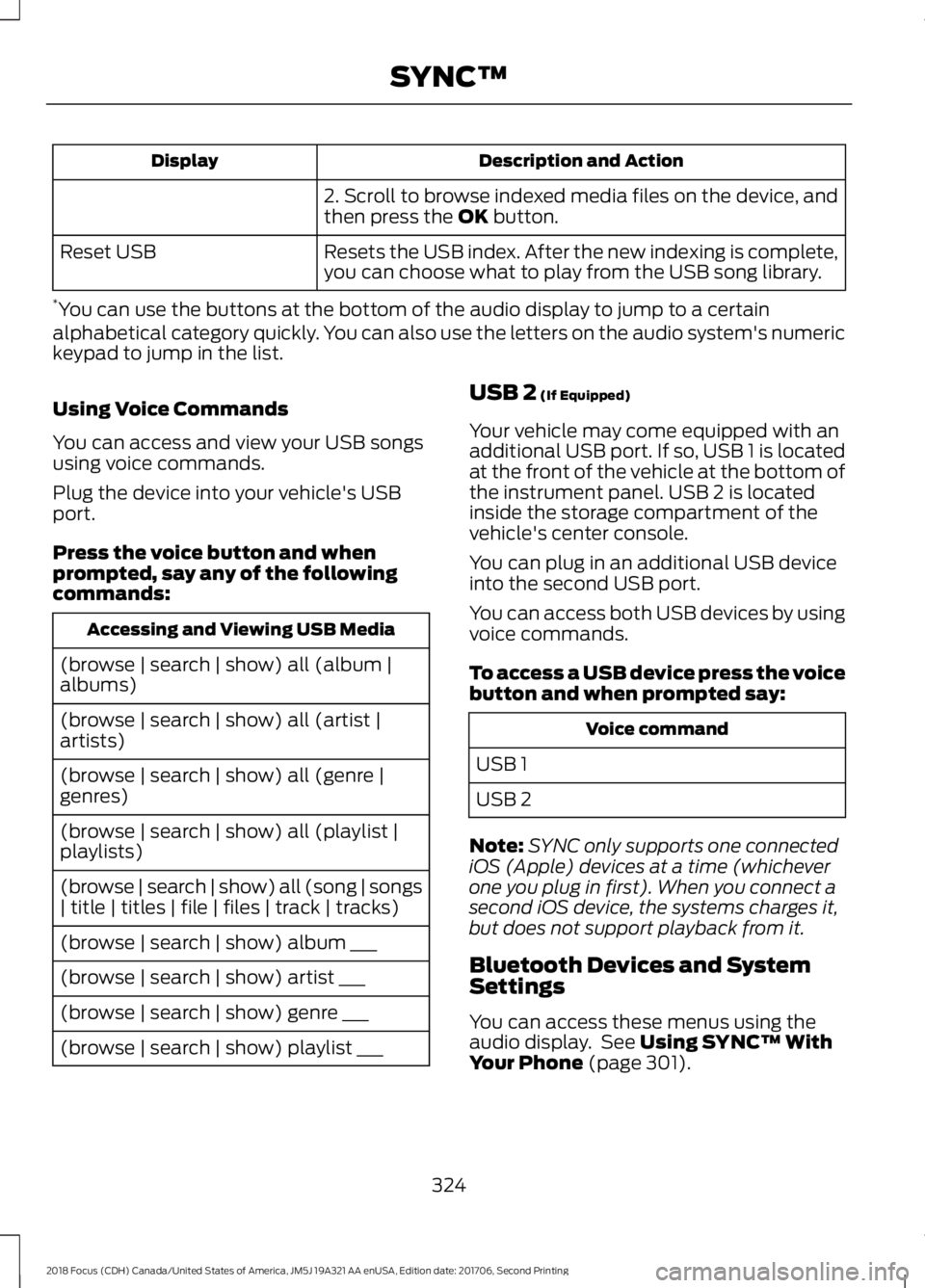
Description and ActionDisplay
2. Scroll to browse indexed media files on the device, andthen press the OK button.
Resets the USB index. After the new indexing is complete,you can choose what to play from the USB song library.Reset USB
*You can use the buttons at the bottom of the audio display to jump to a certainalphabetical category quickly. You can also use the letters on the audio system's numerickeypad to jump in the list.
Using Voice Commands
You can access and view your USB songsusing voice commands.
Plug the device into your vehicle's USBport.
Press the voice button and whenprompted, say any of the followingcommands:
Accessing and Viewing USB Media
(browse | search | show) all (album |albums)
(browse | search | show) all (artist |artists)
(browse | search | show) all (genre |genres)
(browse | search | show) all (playlist |playlists)
(browse | search | show) all (song | songs| title | titles | file | files | track | tracks)
(browse | search | show) album ___
(browse | search | show) artist ___
(browse | search | show) genre ___
(browse | search | show) playlist ___
USB 2 (If Equipped)
Your vehicle may come equipped with anadditional USB port. If so, USB 1 is locatedat the front of the vehicle at the bottom ofthe instrument panel. USB 2 is locatedinside the storage compartment of thevehicle's center console.
You can plug in an additional USB deviceinto the second USB port.
You can access both USB devices by usingvoice commands.
To access a USB device press the voicebutton and when prompted say:
Voice command
USB 1
USB 2
Note:SYNC only supports one connectediOS (Apple) devices at a time (whicheverone you plug in first). When you connect asecond iOS device, the systems charges it,but does not support playback from it.
Bluetooth Devices and SystemSettings
You can access these menus using theaudio display. See Using SYNC™ WithYour Phone (page 301).
3242018 Focus (CDH) Canada/United States of America, JM5J 19A321 AA enUSA, Edition date: 201706, Second PrintingSYNC™
Page 328 of 473
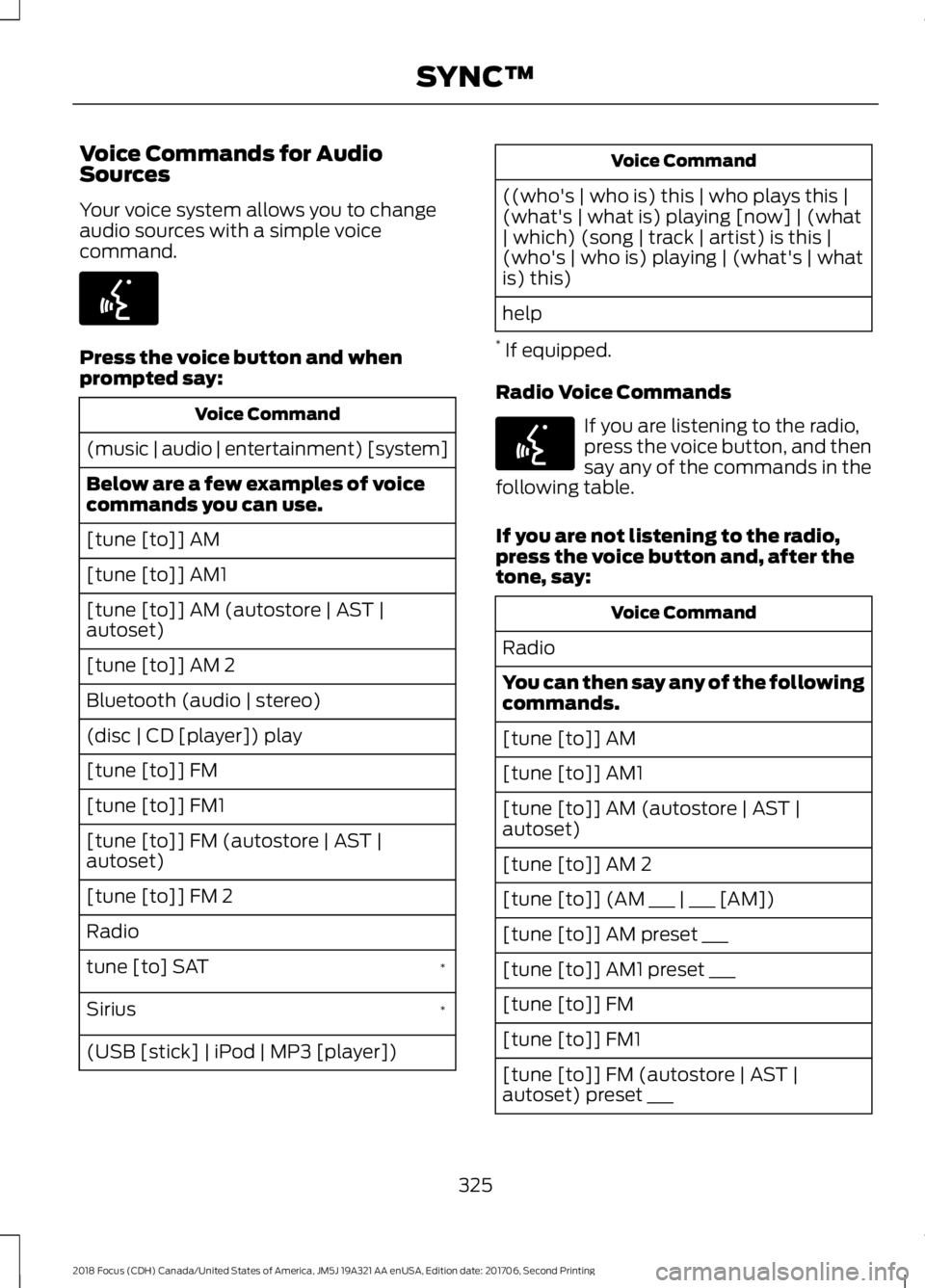
Voice Commands for AudioSources
Your voice system allows you to changeaudio sources with a simple voicecommand.
Press the voice button and whenprompted say:
Voice Command
(music | audio | entertainment) [system]
Below are a few examples of voicecommands you can use.
[tune [to]] AM
[tune [to]] AM1
[tune [to]] AM (autostore | AST |autoset)
[tune [to]] AM 2
Bluetooth (audio | stereo)
(disc | CD [player]) play
[tune [to]] FM
[tune [to]] FM1
[tune [to]] FM (autostore | AST |autoset)
[tune [to]] FM 2
Radio
*tune [to] SAT
*Sirius
(USB [stick] | iPod | MP3 [player])
Voice Command
((who's | who is) this | who plays this |(what's | what is) playing [now] | (what| which) (song | track | artist) is this |(who's | who is) playing | (what's | whatis) this)
help
* If equipped.
Radio Voice Commands
If you are listening to the radio,press the voice button, and thensay any of the commands in thefollowing table.
If you are not listening to the radio,press the voice button and, after thetone, say:
Voice Command
Radio
You can then say any of the followingcommands.
[tune [to]] AM
[tune [to]] AM1
[tune [to]] AM (autostore | AST |autoset)
[tune [to]] AM 2
[tune [to]] (AM ___ | ___ [AM])
[tune [to]] AM preset ___
[tune [to]] AM1 preset ___
[tune [to]] FM
[tune [to]] FM1
[tune [to]] FM (autostore | AST |autoset) preset ___
3252018 Focus (CDH) Canada/United States of America, JM5J 19A321 AA enUSA, Edition date: 201706, Second PrintingSYNC™E142599 E142599
Page 330 of 473
![FORD FOCUS 2018 Service Manual Voice Command
(shuffle | random | mix) (CD [player] |disc) [on]
(shuffle | random | mix) folder [on]
shuffle off
SYNC™ TROUBLESHOOTING
Your SYNC system is easy to use. However,should questions arise](/img/11/40765/w960_40765-329.png "FORD FOCUS 2018 Service Manual Voice Command
(shuffle | random | mix) (CD [player] |disc) [on]
(shuffle | random | mix) folder [on]
shuffle off
SYNC™ TROUBLESHOOTING
Your SYNC system is easy to use. However,should questions arise")
Voice Command
(shuffle | random | mix) (CD [player] |disc) [on]
(shuffle | random | mix) folder [on]
shuffle off
SYNC™ TROUBLESHOOTING
Your SYNC system is easy to use. However,should questions arise, see the tablesbelow.
Use the website at any time to check yourphone's compatibility, register youraccount and set preferences as well asaccess a customer representative via anonline chat (during certain hours). Visitwww.SYNCMyRide.com,www.SYNCMyRide.ca orwww.syncmaroute.ca for moreinformation.
Phone issues
Possible solution(s)Possible cause(s)Issue
Review your phone's manualabout audio adjustments.The audio control settingson your phone may beaffecting SYNC perform-ance.
There is excessive back-ground noise during a phonecall.
Try turning off the device,resetting the device,removing the device'sbattery, then trying again.
This may be a possiblephone malfunction.
During a call, I can hear theother person but theycannot hear me.
Go to the website to reviewyour phone's compatibility.
This is a phone-dependentfeature.
SYNC is not able to down-load my phonebook.
Try turning off the device,resetting the device orremoving the device'sbattery, then trying again.
Try pushing your phonebookcontacts to SYNC by usingthe Add Contacts feature.This may be a possiblephone malfunction.Use the SYNCmyphonefeature available on thewebsite.
Try pushing your phonebookcontacts to SYNC by usingthe Add Contacts feature.This may be a limitation onyour phone's capability.
The system says PhonebookDownloaded but thephonebook in SYNC isempty or missing contacts.
3272018 Focus (CDH) Canada/United States of America, JM5J 19A321 AA enUSA, Edition date: 201706, Second PrintingSYNC™
Page 332 of 473
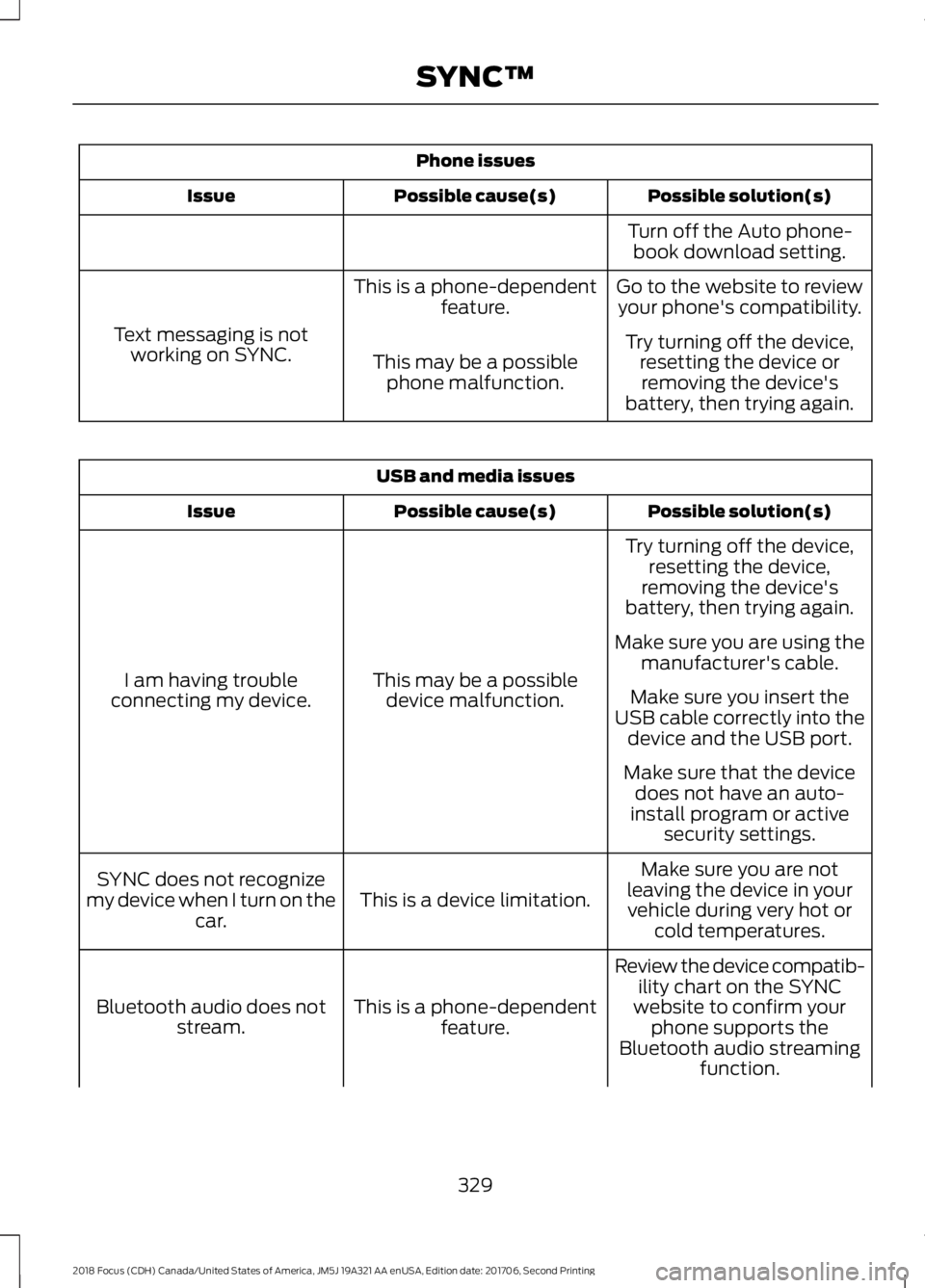
Phone issues
Possible solution(s)Possible cause(s)Issue
Turn off the Auto phone-book download setting.
Go to the website to reviewyour phone's compatibility.This is a phone-dependentfeature.
Text messaging is notworking on SYNC.Try turning off the device,resetting the device orremoving the device'sbattery, then trying again.
This may be a possiblephone malfunction.
USB and media issues
Possible solution(s)Possible cause(s)Issue
Try turning off the device,resetting the device,removing the device'sbattery, then trying again.
This may be a possibledevice malfunction.I am having troubleconnecting my device.
Make sure you are using themanufacturer's cable.
Make sure you insert theUSB cable correctly into thedevice and the USB port.
Make sure that the devicedoes not have an auto-install program or activesecurity settings.
Make sure you are notleaving the device in yourvehicle during very hot orcold temperatures.
This is a device limitation.SYNC does not recognizemy device when I turn on thecar.
Review the device compatib-ility chart on the SYNCwebsite to confirm yourphone supports theBluetooth audio streamingfunction.
This is a phone-dependentfeature.Bluetooth audio does notstream.
3292018 Focus (CDH) Canada/United States of America, JM5J 19A321 AA enUSA, Edition date: 201706, Second PrintingSYNC™
Page 338 of 473
GENERAL INFORMATION
WARNING
Driving while distracted can result inloss of vehicle control, crash andinjury. We strongly recommend thatyou use extreme caution when using anydevice that may take your focus off theroad. Your primary responsibility is the safeoperation of your vehicle. We recommendagainst the use of any hand-held devicewhile driving and encourage the use ofvoice-operated systems when possible.Make sure you are aware of all applicablelocal laws that may affect the use ofelectronic devices while driving.
Getting to Know Your System
The SYNC 3 system allows you to interactwith a variety of features using thetouchscreen and voice commands. Byintegrating with your Bluetooth-enabledphone, the touchscreen provides easyinteraction with audio, multimedia, climatecontrol, navigation, and your phone's SYNCAppLink.
Using the Touchscreen
To operate the touchscreen, you cansimply touch the item or option that youwant to select. The button highlights whenyou select it.
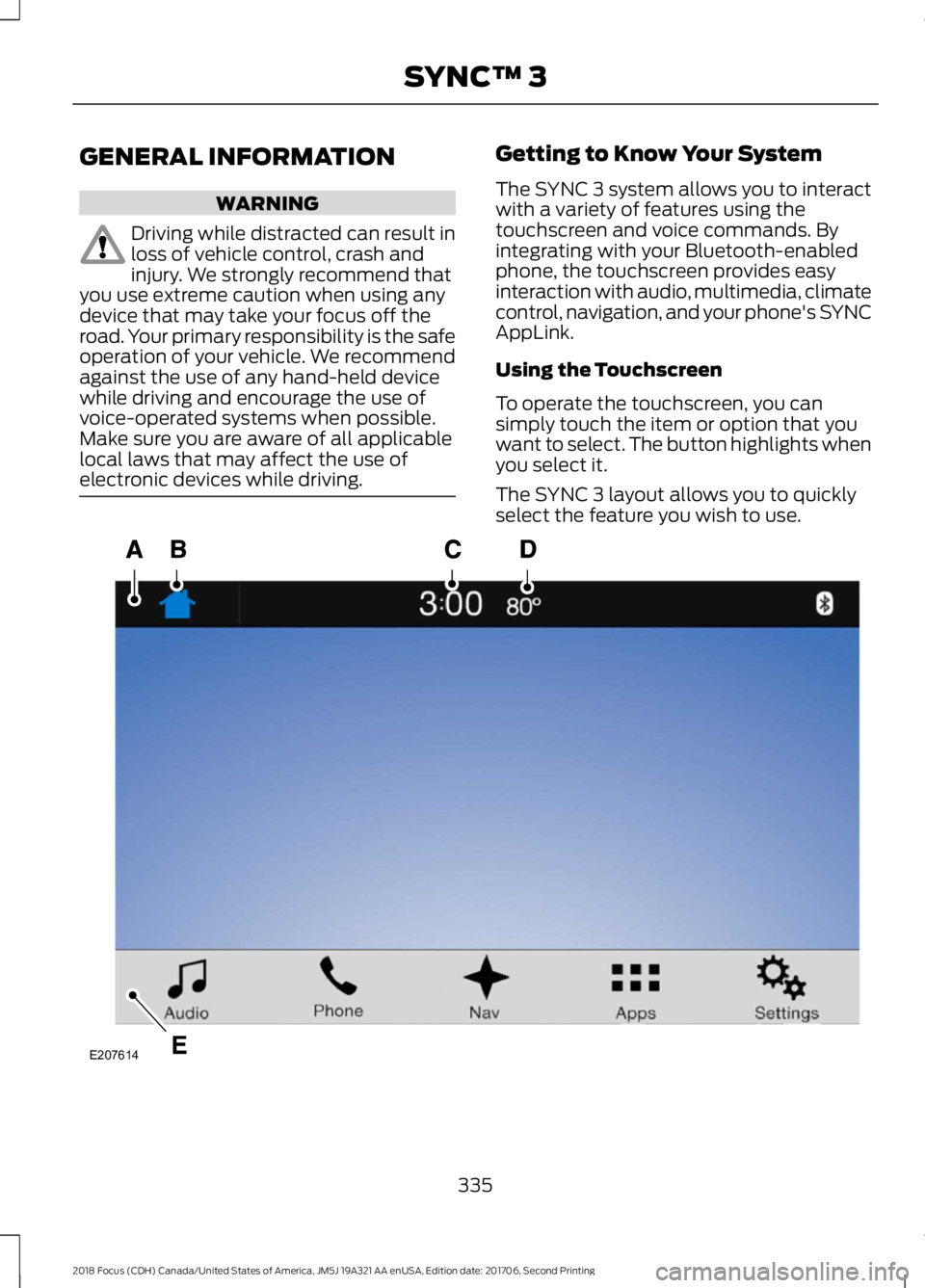
The SYNC 3 layout allows you to quicklyselect the feature you wish to use.
3352018 Focus (CDH) Canada/United States of America, JM5J 19A321 AA enUSA, Edition date: 201706, Second PrintingSYNC™ 3E207614
Page 339 of 473
Action and DescriptionMenu ItemItem
This bar displays icons and messages pertaining to currentsystem activities including climate settings, voicecommands and phone functions such as text messages.
Status BarA
This button is available on the main screens. Pressing ittakes you to the home screen view.HomeB
This shows the current time. You can set the clock manuallyor have it controlled by the vehicle's GPS location. SeeSettings (page 379).
ClockC
This displays the current outside temperature.OutsideTemperatureD
You can touch any of the buttons on this bar to select afeature.Feature BarE
The touchscreen allows you quick accessto all of your comfort, navigation,communication and entertainmentoptions. Using the status and feature baryou can quickly select the feature you wantto use.
Note:Your system is equipped with afeature that allows you to access andcontrol audio features for 10 minutes afteryou switch the ignition off (and no doorsopen).
The Status Bar
Additional icons also display in the statusbar depending on market, vehicle optionsand current operation. If a feature is notactive, the icon does not display. Certainicons may move to the left or rightdepending on what options are active.
3362018 Focus (CDH) Canada/United States of America, JM5J 19A321 AA enUSA, Edition date: 201706, Second PrintingSYNC™ 3
Page 340 of 473
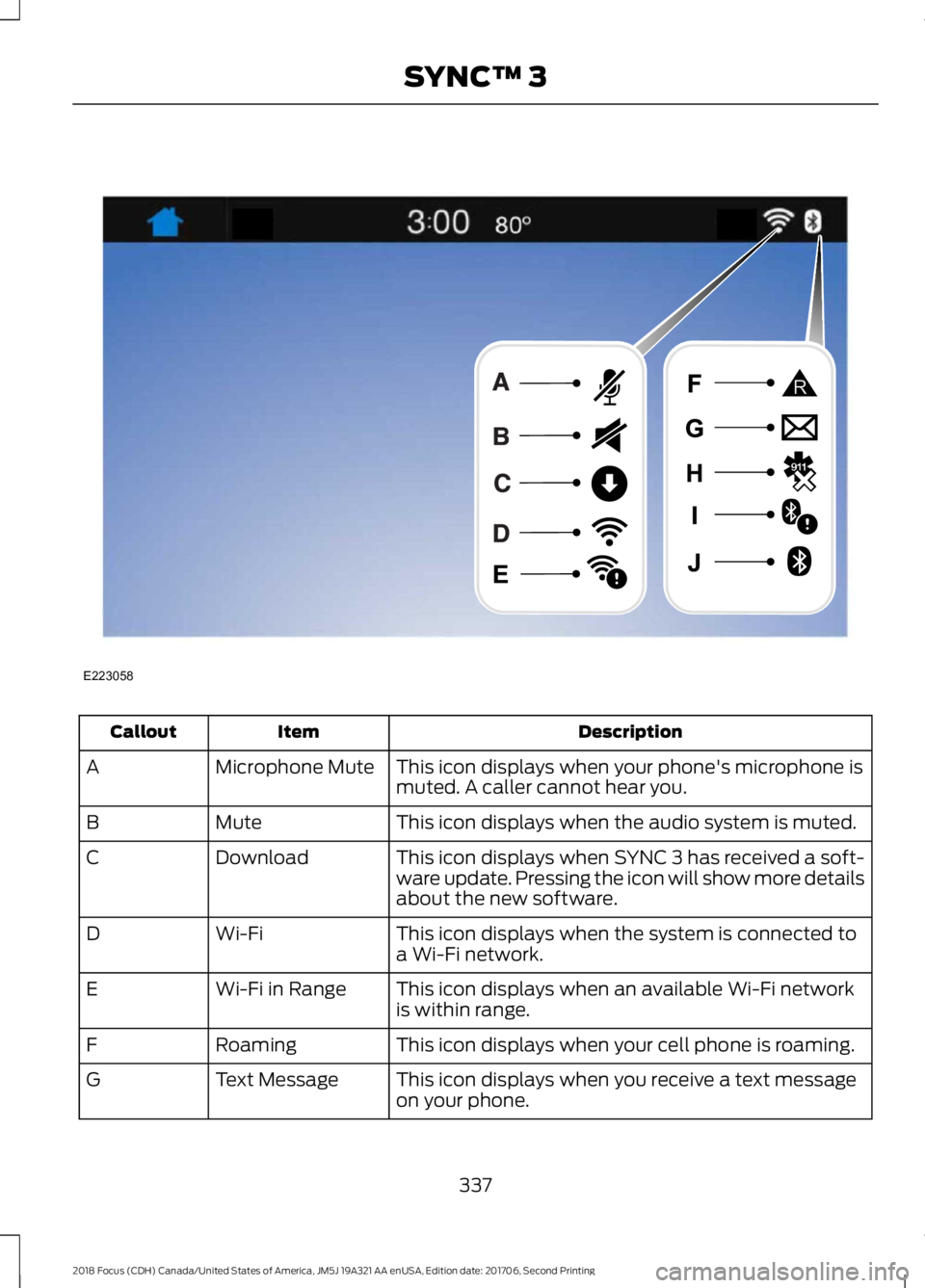
DescriptionItemCallout
This icon displays when your phone's microphone ismuted. A caller cannot hear you.Microphone MuteA
This icon displays when the audio system is muted.MuteB
This icon displays when SYNC 3 has received a soft-ware update. Pressing the icon will show more detailsabout the new software.
DownloadC
This icon displays when the system is connected toa Wi-Fi network.Wi-FiD
This icon displays when an available Wi-Fi networkis within range.Wi-Fi in RangeE
This icon displays when your cell phone is roaming.RoamingF
This icon displays when you receive a text messageon your phone.Text MessageG
3372018 Focus (CDH) Canada/United States of America, JM5J 19A321 AA enUSA, Edition date: 201706, Second PrintingSYNC™ 3E223058
Page 341 of 473
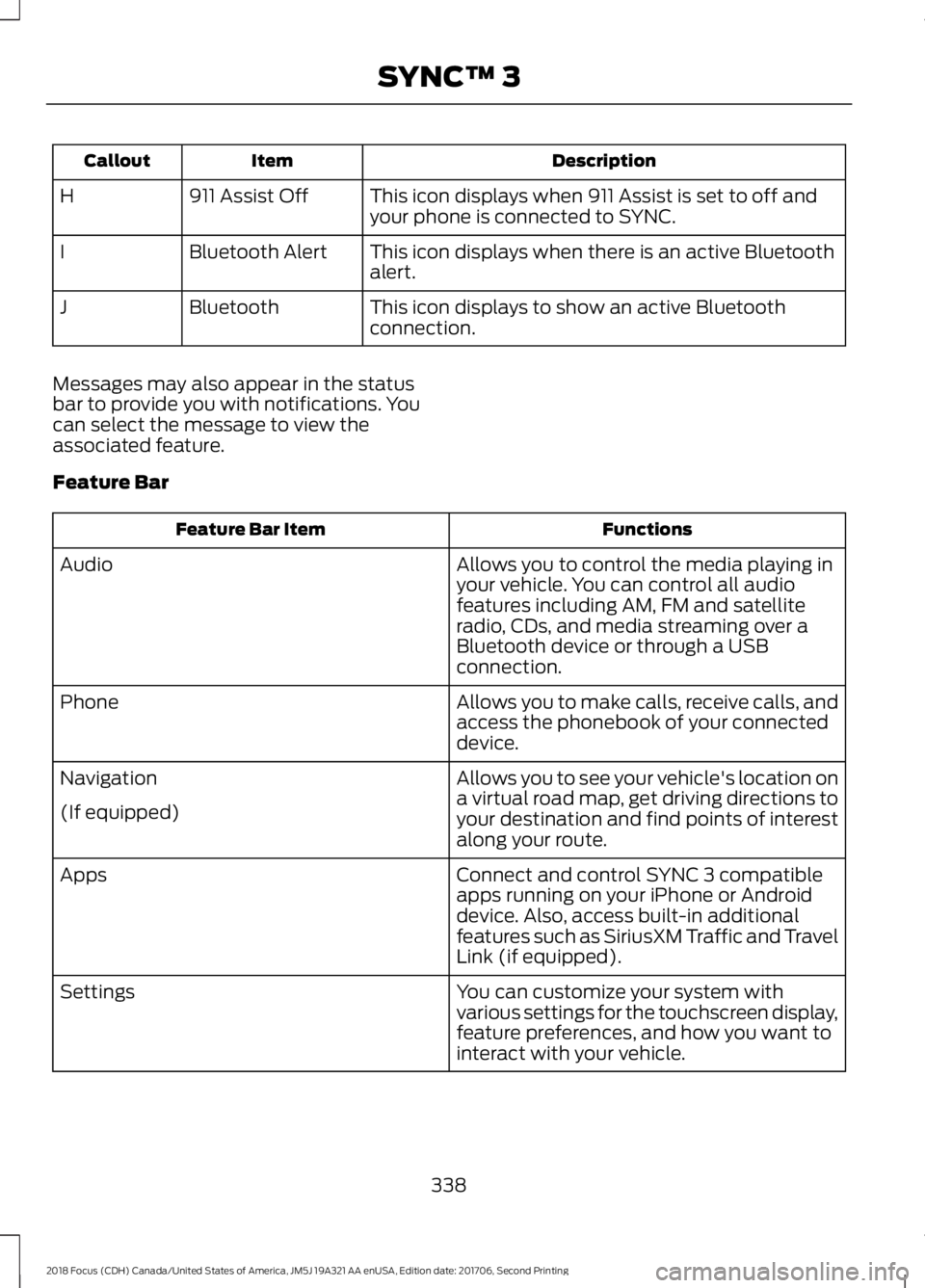
DescriptionItemCallout
This icon displays when 911 Assist is set to off andyour phone is connected to SYNC.911 Assist OffH
This icon displays when there is an active Bluetoothalert.Bluetooth AlertI
This icon displays to show an active Bluetoothconnection.BluetoothJ
Messages may also appear in the statusbar to provide you with notifications. Youcan select the message to view theassociated feature.
Feature Bar
FunctionsFeature Bar Item
Allows you to control the media playing inyour vehicle. You can control all audiofeatures including AM, FM and satelliteradio, CDs, and media streaming over aBluetooth device or through a USBconnection.
Audio
Allows you to make calls, receive calls, andaccess the phonebook of your connecteddevice.
Phone
Allows you to see your vehicle's location ona virtual road map, get driving directions toyour destination and find points of interestalong your route.
Navigation
(If equipped)
Connect and control SYNC 3 compatibleapps running on your iPhone or Androiddevice. Also, access built-in additionalfeatures such as SiriusXM Traffic and TravelLink (if equipped).
Apps
You can customize your system withvarious settings for the touchscreen display,feature preferences, and how you want tointeract with your vehicle.
Settings
3382018 Focus (CDH) Canada/United States of America, JM5J 19A321 AA enUSA, Edition date: 201706, Second PrintingSYNC™ 3
Page 342 of 473
Cleaning the Touchscreen
You can remove fingerprints with a dry,clean, soft cloth.
If dirt or fingerprints are still on the screen,apply a small amount of alcohol to thecloth and try to clean it again.
Note: Do not use detergent or any type ofsolvent to clean the touchscreen.
Note:Do not pour or spray alcohol onto thetouchscreen.
Using Voice Recognition
Using voice commands allows you to keepyour hands on the wheel and eyes on theroad. The system provides feedbackthrough audible tones, prompts, questionsand spoken confirmations depending onthe situation and the chosen level ofinteraction (voice settings).
The system also asks short questions(confirmation prompts) when it is not sureof your request or when there are multiplepossible responses to your request.
When using voice commands, words andicons may appear in the status barindicating the status of the voice commandsession. See Using Voice Recognition(page 347).
Using the Steering Wheel Controls
Depending on your vehicle and optionpackage, you can use different controls onyour steering wheel to interact with thetouchscreen system in different ways.
VOL: Control the volume of audio output.
Mute: Mute the audio output.
Voice: Press to start a voice session. Pressagain to stop the voice prompt andimmediately begin speaking. Press andhold to end a voice session.
SEEK NEXT:
•While in radio mode, press to seekbetween memory presets.
•While in USB, Bluetooth Audio or CDmode, press to seek between songs orpress and hold to fast seek.
SEEK PREVIOUS:
•While in radio mode, press to seekbetween memory presets.
•While in USB, Bluetooth Audio or CDmode, press to seek between songs orpress and hold to fast seek.
PHONE ACCEPT: Press to answer a callor switch between calls.
PHONE REJECT: Press to end a call orreject an incoming call.
Note:On some models,SEEK NEXT maybe combined with PHONE REJECT andSEEK PREVIOUS may be combined withPHONE ACCEPT.
M:Touch the control repeatedly to switchbetween media sources (modes).
See Steering Wheel (page 71).
Using Your Bezel Controls
Depending on your vehicle and optionpackage, you may also have these controlson your instrument panel:
•Power: Switch the audio system onand off.
•VOL: Control the volume of playingaudio.
•Seek and Tune: se as you normallywould in audio modes.
•Eject: Eject a CD from the audiosystem.
•SOURCE or MEDIA: Press repeatedlyto advance through available mediamodes.
3392018 Focus (CDH) Canada/United States of America, JM5J 19A321 AA enUSA, Edition date: 201706, Second PrintingSYNC™ 3