change time FORD FOCUS ELECTRIC 2014 3.G User Guide
[x] Cancel search | Manufacturer: FORD, Model Year: 2014, Model line: FOCUS ELECTRIC, Model: FORD FOCUS ELECTRIC 2014 3.GPages: 403, PDF Size: 6.42 MB
Page 287 of 403
ACCESSING AND ADJUSTING MODES THROUGH YOUR RIGHT
VEHICLE INFORMATION DISPLAY
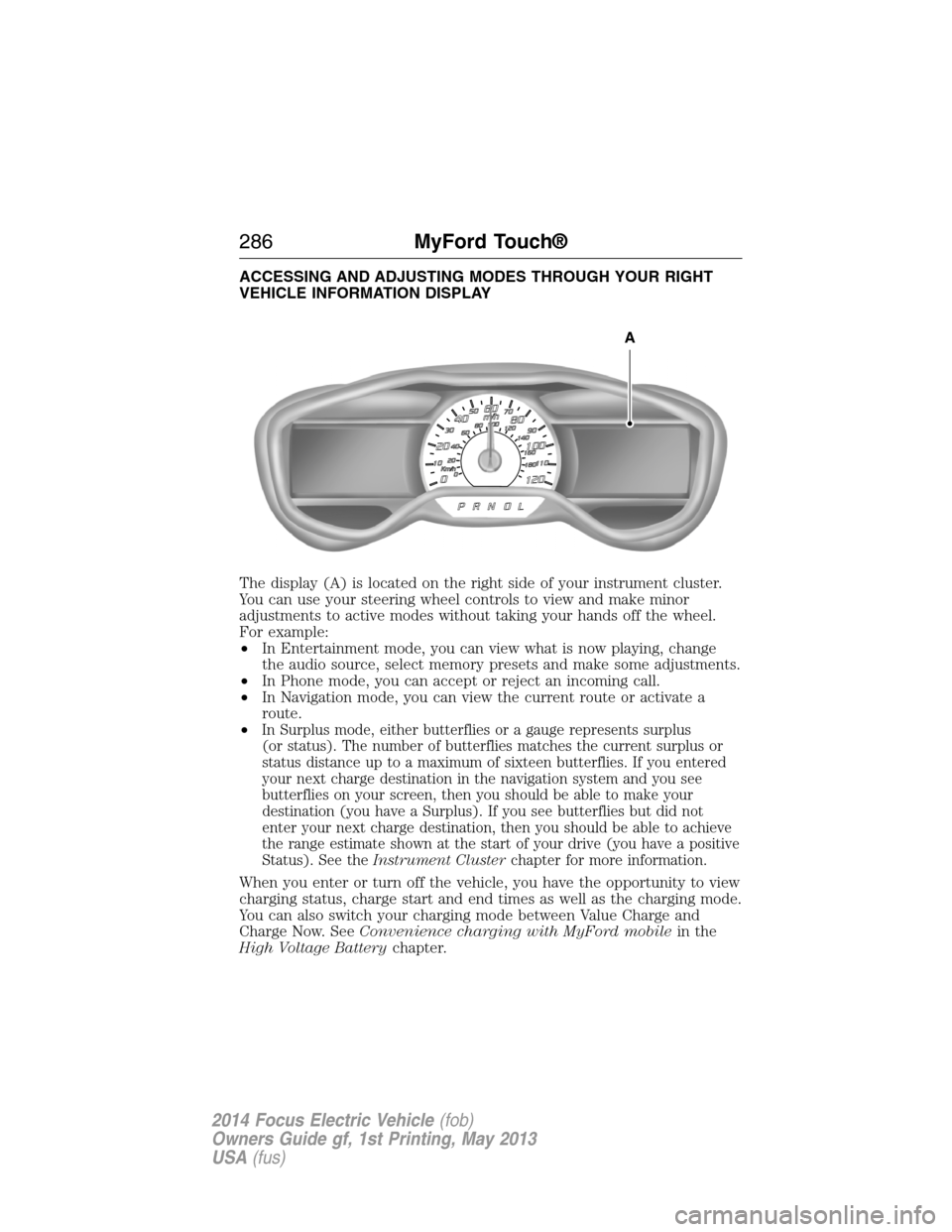
The display (A) is located on the right side of your instrument cluster.
You can use your steering wheel controls to view and make minor
adjustments to active modes without taking your hands off the wheel.
For example:
•In Entertainment mode, you can view what is now playing, change
the audio source, select memory presets and make some adjustments.
•In Phone mode, you can accept or reject an incoming call.
•In Navigation mode, you can view the current route or activate a
route.
•
In Surplus mode, either butterflies or a gauge represents surplus
(or status). The number of butterflies matches the current surplus or
status distance up to a maximum of sixteen butterflies. If you entered
your next charge destination in the navigation system and you see
butterflies on your screen, then you should be able to make your
destination (you have a Surplus). If you see butterflies but did not
enter your next charge destination, then you should be able to achieve
the range estimate shown at the start of your drive (you have a positive
Status). See theInstrument Clusterchapter for more information.
When you enter or turn off the vehicle, you have the opportunity to view
charging status, charge start and end times as well as the charging mode.
You can also switch your charging mode between Value Charge and
Charge Now. SeeConvenience charging with MyFord mobilein the
High Voltage Batterychapter.
A
286MyFord Touch®
2014 Focus Electric Vehicle(fob)
Owners Guide gf, 1st Printing, May 2013
USA(fus)
Page 298 of 403
Potential station issues
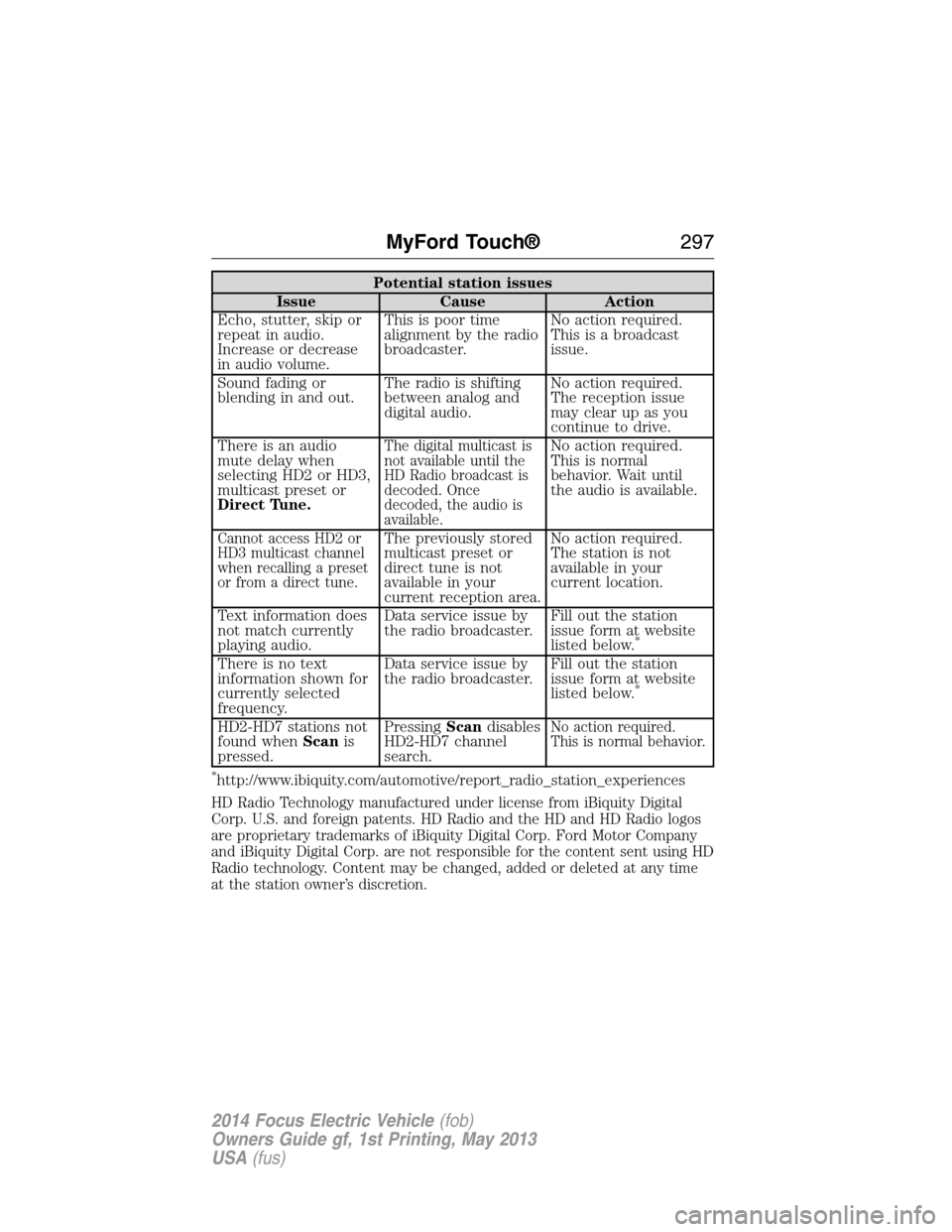
Issue Cause Action
Echo, stutter, skip or
repeat in audio.
Increase or decrease
in audio volume.This is poor time
alignment by the radio
broadcaster.No action required.
This is a broadcast
issue.
Sound fading or
blending in and out.The radio is shifting
between analog and
digital audio.No action required.
The reception issue
may clear up as you
continue to drive.
There is an audio
mute delay when
selecting HD2 or HD3,
multicast preset or
Direct Tune.
The digital multicast is
not available until the
HD Radio broadcast is
decoded. Once
decoded, the audio is
available.No action required.
This is normal
behavior. Wait until
the audio is available.
Cannot access HD2 or
HD3 multicast channel
when recalling a preset
or from a direct tune.The previously stored
multicast preset or
direct tune is not
available in your
current reception area.No action required.
The station is not
available in your
current location.
Text information does
not match currently
playing audio.Data service issue by
the radio broadcaster.Fill out the station
issue form at website
listed below.
*
There is no text
information shown for
currently selected
frequency.Data service issue by
the radio broadcaster.Fill out the station
issue form at website
listed below.
*
HD2-HD7 stations not
found whenScanis
pressed.PressingScandisables
HD2-HD7 channel
search.No action required.
This is normal behavior.
*http://www.ibiquity.com/automotive/report_radio_station_experiences
HD Radio Technology manufactured under license from iBiquity Digital
Corp. U.S. and foreign patents. HD Radio and the HD and HD Radio logos
are proprietary trademarks of iBiquity Digital Corp. Ford Motor Company
and iBiquity Digital Corp. are not responsible for the content sent using HD
Radio technology. Content may be changed, added or deleted at any time
at the station owner’s discretion.
MyFord Touch®297
2014 Focus Electric Vehicle(fob)
Owners Guide gf, 1st Printing, May 2013
USA(fus)
Page 302 of 403
“SIRIUS”
“SAT 1” “Sirius on”
“SAT 1 preset <#>” “Sports game”
*
“SAT 2” “Tune”**
“SAT 2 preset <#>” “Help”
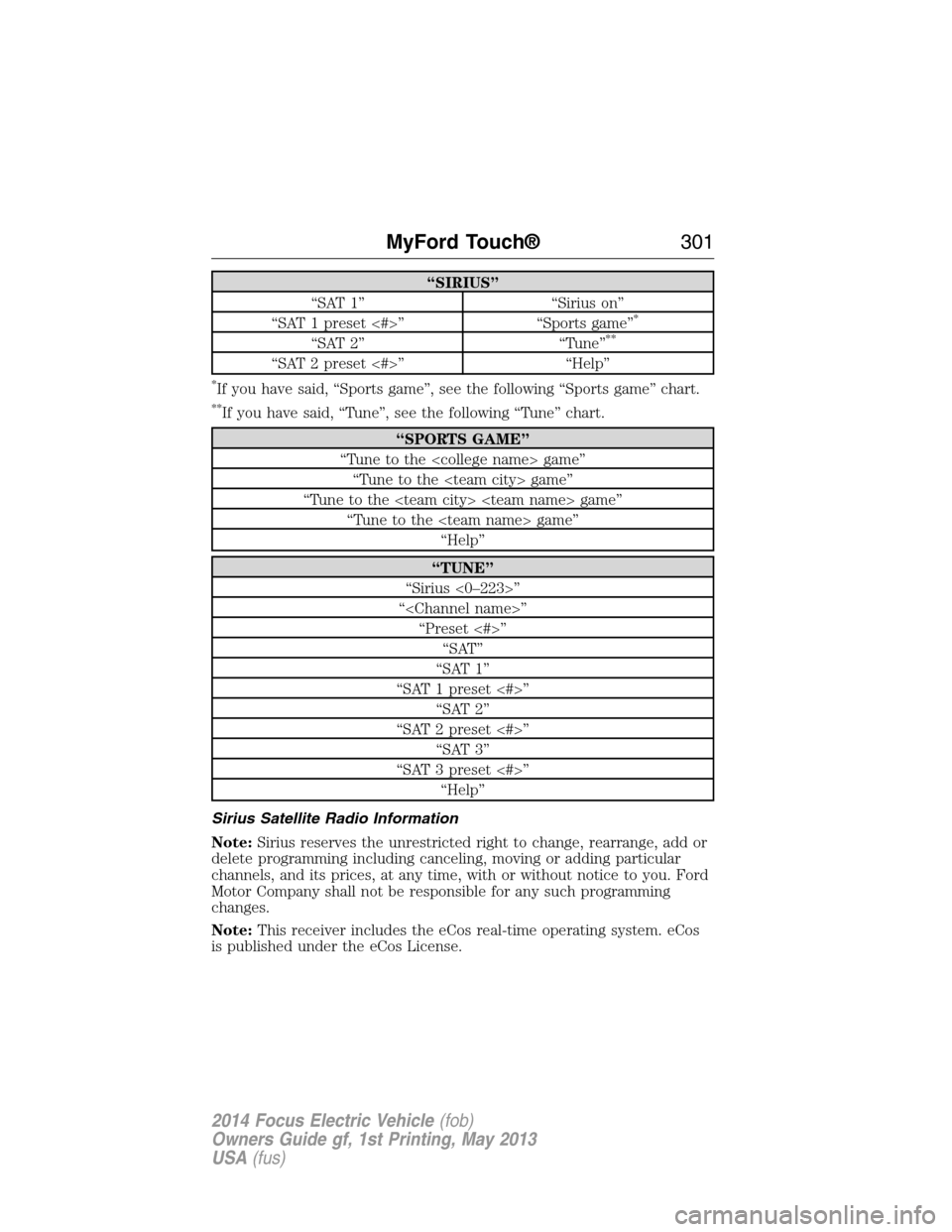
*If you have said, “Sports game”, see the following “Sports game” chart.
**If you have said, “Tune”, see the following “Tune” chart.
“SPORTS GAME”
“Tune to the
“Tune to the
“Tune to the
“Tune to the
“Help”
“TUNE”
“Sirius <0–223>”
“
“Preset <#>”
“SAT”
“SAT 1”
“SAT 1 preset <#>”
“SAT 2”
“SAT 2 preset <#>”
“SAT 3”
“SAT 3 preset <#>”
“Help”
Sirius Satellite Radio Information
Note:Sirius reserves the unrestricted right to change, rearrange, add or
delete programming including canceling, moving or adding particular
channels, and its prices, at any time, with or without notice to you. Ford
Motor Company shall not be responsible for any such programming
changes.
Note:This receiver includes the eCos real-time operating system. eCos
is published under the eCos License.
MyFord Touch®301
2014 Focus Electric Vehicle(fob)
Owners Guide gf, 1st Printing, May 2013
USA(fus)
Page 322 of 403
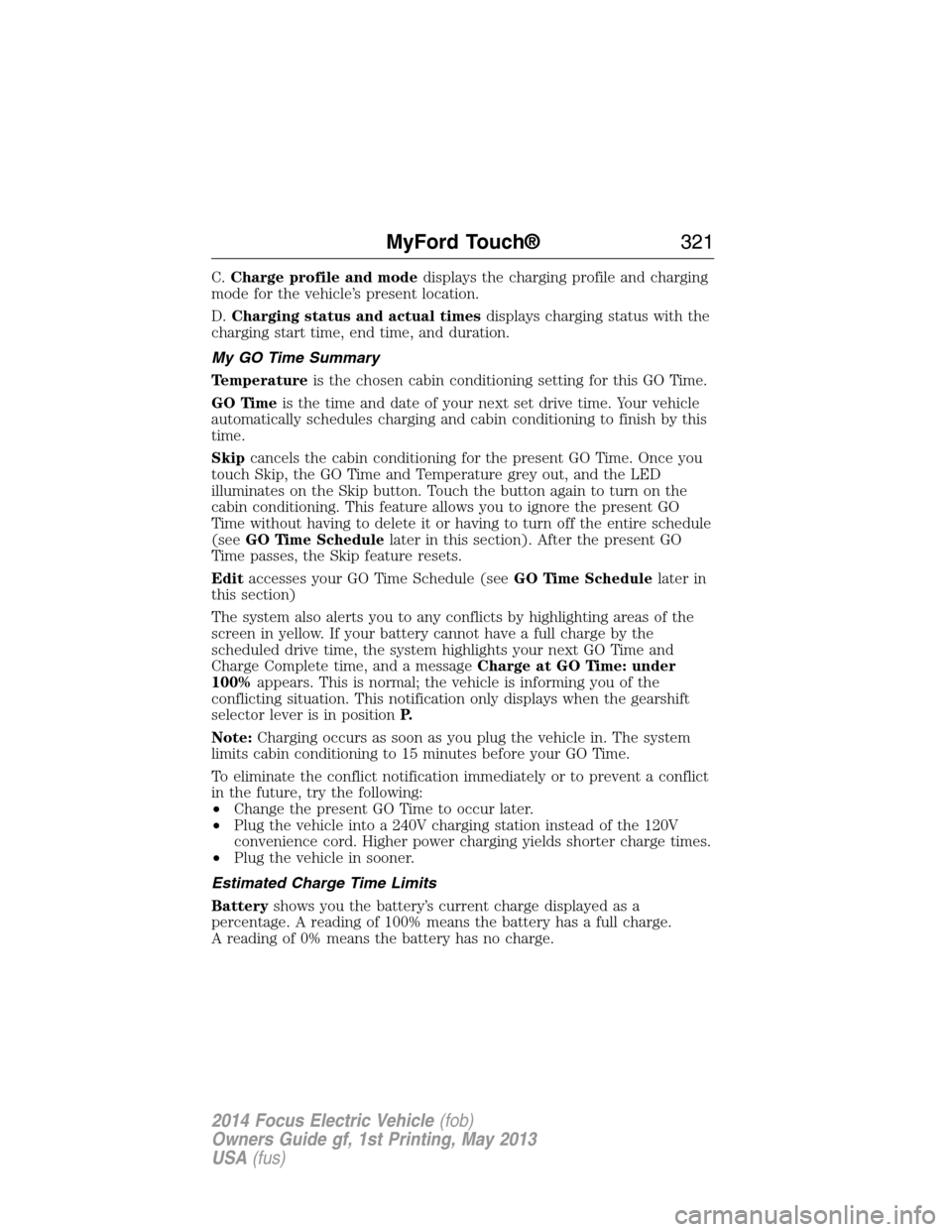
C.Charge profile and modedisplays the charging profile and charging
mode for the vehicle’s present location.
D.Charging status and actual timesdisplays charging status with the
charging start time, end time, and duration.
My GO Time Summary
Temperatureis the chosen cabin conditioning setting for this GO Time.
GO Timeis the time and date of your next set drive time. Your vehicle
automatically schedules charging and cabin conditioning to finish by this
time.
Skipcancels the cabin conditioning for the present GO Time. Once you
touch Skip, the GO Time and Temperature grey out, and the LED
illuminates on the Skip button. Touch the button again to turn on the
cabin conditioning. This feature allows you to ignore the present GO
Time without having to delete it or having to turn off the entire schedule
(seeGO Time Schedulelater in this section). After the present GO
Time passes, the Skip feature resets.
Editaccesses your GO Time Schedule (seeGO Time Schedulelater in
this section)
The system also alerts you to any conflicts by highlighting areas of the
screen in yellow. If your battery cannot have a full charge by the
scheduled drive time, the system highlights your next GO Time and
Charge Complete time, and a messageCharge at GO Time: under
100%appears. This is normal; the vehicle is informing you of the
conflicting situation. This notification only displays when the gearshift
selector lever is in positionP.
Note:Charging occurs as soon as you plug the vehicle in. The system
limits cabin conditioning to 15 minutes before your GO Time.
To eliminate the conflict notification immediately or to prevent a conflict
in the future, try the following:
•Change the present GO Time to occur later.
•Plug the vehicle into a 240V charging station instead of the 120V
convenience cord. Higher power charging yields shorter charge times.
•Plug the vehicle in sooner.
Estimated Charge Time Limits
Batteryshows you the battery’s current charge displayed as a
percentage. A reading of 100% means the battery has a full charge.
A reading of 0% means the battery has no charge.
MyFord Touch®321
2014 Focus Electric Vehicle(fob)
Owners Guide gf, 1st Printing, May 2013
USA(fus)
Page 324 of 403
Value Chargeif you want to take advantage of off-peak electricity rates.
The vehicle optimizes the charge schedule to be complete by the next
GO Time. This button illuminates when Value Charge is the charge mode
selected for the presently detected charge profile.
Charging Status and Actual Times
This is the status of the charging system, which includes the charging
plug, high-voltage battery and charger.
Next Chargemeans the vehicle is unplugged. Charge Start and
Complete information is for the present vehicle location.
Waiting to Chargemeans the vehicle is plugged in and ready to charge.
Typical of Value Charge mode, the vehicle may not start charging right
away because it is set to charge at times with lower utility costs.
Chargingmeans the high-voltage battery is charging.
Chargedmeans the high-voltage battery is fully charged and not
currently scheduled for further charging.
Charge Faultmeans a fault is present that is preventing the
high-voltage battery from charging. Inspect the charge plug connection,
charge cord and charging station.
Startis the scheduled start time of charging.
•At Plug In:When the vehicle is in Charge Now mode, and
unplugged, the message At Plug In appears, indicating the vehicle
immediately starts charging once you plug it in. Once you plug it in,
the system shows the actual charge start time.
•Scheduled Charge Start Time:When the vehicle is in Value Charge
mode, the system displays the scheduled charge start time (for
example, 8:00 PM). Once charging starts, the system continues to
display the actual charge start time.
Completeis the estimated time of charge completion.
•Charge Now Duration:When the vehicle is in Charge Now mode,
and unplugged, the system displays the charging duration in hours.
Once you plug in the vehicle, the value shows the estimated time to
finish charging.
•Scheduled Charge Complete:When the vehicle is in Value Charge
mode, the system displays the estimated charge complete time. It is
normal for the estimated complete time to change while charging.
The vehicle keeps charging until the high-voltage battery is fully
charged.
MyFord Touch®323
2014 Focus Electric Vehicle(fob)
Owners Guide gf, 1st Printing, May 2013
USA(fus)
Page 325 of 403
GO Time Schedule
Touch theEditbutton in the My GO Time section of the Settings screen
to see the GO Time Schedule.
Onturns on the GO Time schedule.
Offturns off the GO Time schedule. This also turns off the cabin
conditioning function. Use this mode to prevent using energy for cabin
preconditioning when you leave your vehicle plugged in and don’t plan to
use it for a while, such as when on vacation.
Note:If you choose to perform Value Charging with the schedule off, the
vehicle schedules charging to finish at the lowest cost within 24 hours of
plugging the vehicle in.
GO Time 1andGO Time 2display the GO Time day-of-week and time.
The blue highlighted GO Time is the present GO Time the vehicle is
using for charge scheduling and cabin conditioning. You can schedule
two GO Time events per day for each day of the week.
•GO Timeallows you to edit the GO Time and cabin conditioning
temperature.
•--:--indicates that you can add a GO Time to this slot.
Note:If you set GO Time 2 to occur before GO Time 1, a message pops
up alerting you. You need to go back to the previous screen and change
the times so GO Time 1 occurs before GO Time 2.
GO Time and Cabin Conditioning
This screen allows you to enter or change the GO Time and cabin
conditioning temperature.
Time Buttons (+ and -)changes the hours and minutes of your GO
Time. The minutes change in increments of five. You can also change the
settings for AM and PM by touching those buttons.
Cabin Conditioning Buttons (+ and -)changes the setting for your
selected cabin conditioning temperature for this GO Time event. You can
select from four settings:
•65°F (18.5°C)
•72°F (22.0°C)
•85°F (29.5°C)
•Off.
Note:Cabin conditioning can perform differently depending on if you
plug into a 120V convenience cord or 240V charging station. The power
available for conditioning is limited to the charging station power
available.
324MyFord Touch®
2014 Focus Electric Vehicle(fob)
Owners Guide gf, 1st Printing, May 2013
USA(fus)
Page 327 of 403
StartandFinishdisplay the times, which you can modify, using the
following:
•+and-allow you to change the hours and minutes of your start and
finish times.
•AMandPMallow you to change the time of your start and finish
time. This setting is viewable in 12-hour mode.
240Vand120Vrepresent the voltage service the default profile is using.
The system uses this selection to calculate estimated charge times.
Clearerases the Default Value Charge preferences.
Save Allstores your Default Value Charge preferences.
•Note:Make sure you save your settings before returning to the
previous screen. If you do not touchSave,your settings are not
stored in the system.
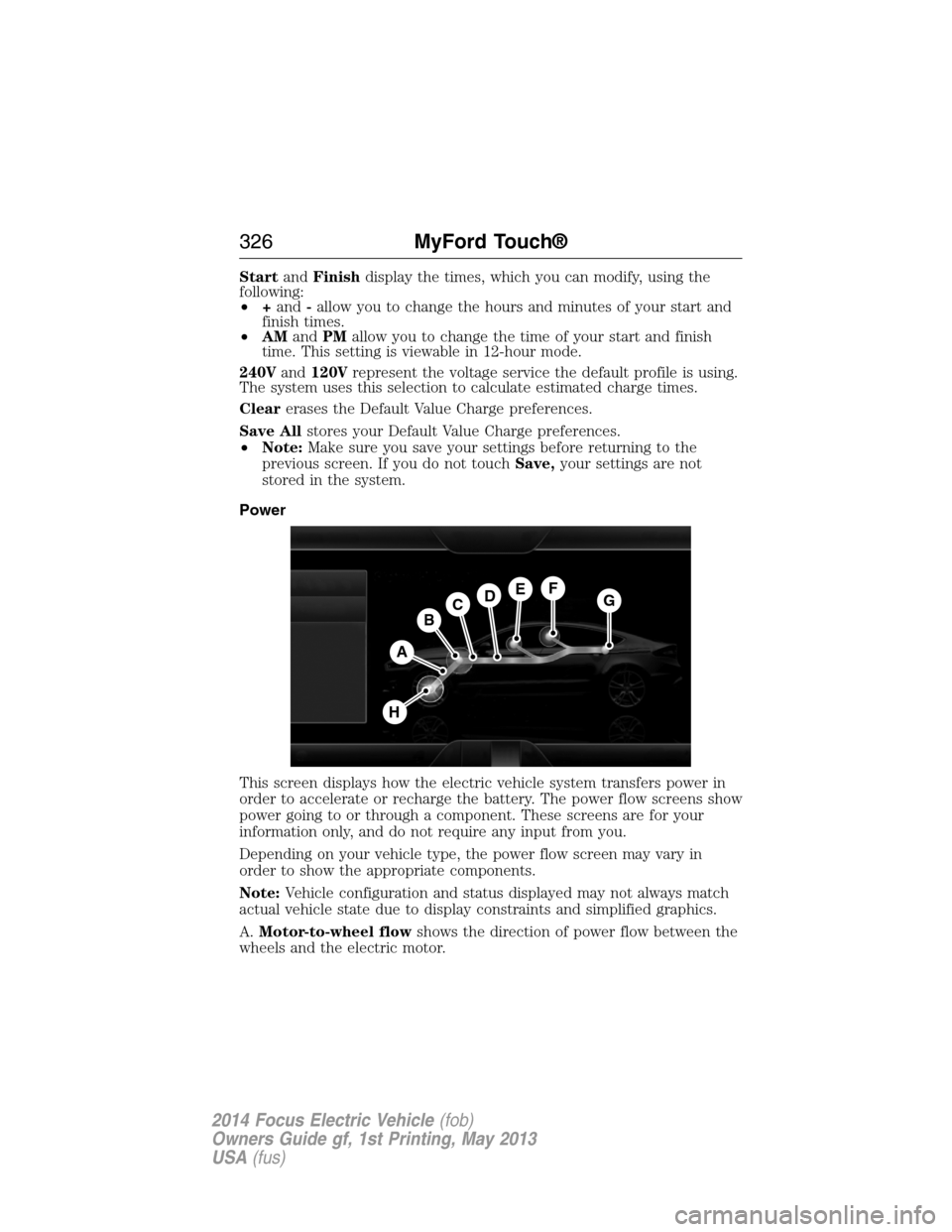
Power
This screen displays how the electric vehicle system transfers power in
order to accelerate or recharge the battery. The power flow screens show
power going to or through a component. These screens are for your
information only, and do not require any input from you.
Depending on your vehicle type, the power flow screen may vary in
order to show the appropriate components.
Note:Vehicle configuration and status displayed may not always match
actual vehicle state due to display constraints and simplified graphics.
A.Motor-to-wheel flowshows the direction of power flow between the
wheels and the electric motor.
A
DGEF
BC
H
326MyFord Touch®
2014 Focus Electric Vehicle(fob)
Owners Guide gf, 1st Printing, May 2013
USA(fus)
Page 343 of 403
You can also turn the outside air temperature display on and off. It
appears at the top center of the touchscreen, next to the time and date.
The system automatically saves any updates you make to the settings.
Display
You can adjust the touchscreen display through the touchscreen or by
pressing the voice button on your steering wheel controls and when
prompted, say, “Display settings”.
Press the Settings icon >Display,then select from the
following:
Brightnessallows you to make the screen display brighter or dimmer.
Modeallows you to set the screen to a certain brightness or have the
system automatically change based on the outside light level, or turn the
display off.
•If you selectAUTOorNIGHT,you have the options of turning the
display’s Auto Dim feature on or off and changing the Auto Dim
Manual Offset feature.
Edit Wallpaper
•You can have your touchscreen display the default photo or upload
your own.
Uploading Photos for Your Home Screen Wallpaper
Note:You cannot load photos directly from your camera. You must
access the photos either from your USB mass storage device or from an
SD card.
Note:
Photographs with extremely large dimensions (such as 2048 x 1536)
may not be compatible and appear as a blank (black) image on the display.
Your system allows you to upload and view up to 32 photos.
To access, press theSettings icon >Display>Edit Wallpaper,and then
follow the system prompts to upload your photographs.
Only the photograph(s), which meets the following conditions, display:
•Compatible file formats are as follows: .jpg, .gif, .png, .bmp.
•Each file must be 1.5 MB or less.
•Recommended dimensions: 800 x 384.
342MyFord Touch®
2014 Focus Electric Vehicle(fob)
Owners Guide gf, 1st Printing, May 2013
USA(fus)
Page 365 of 403
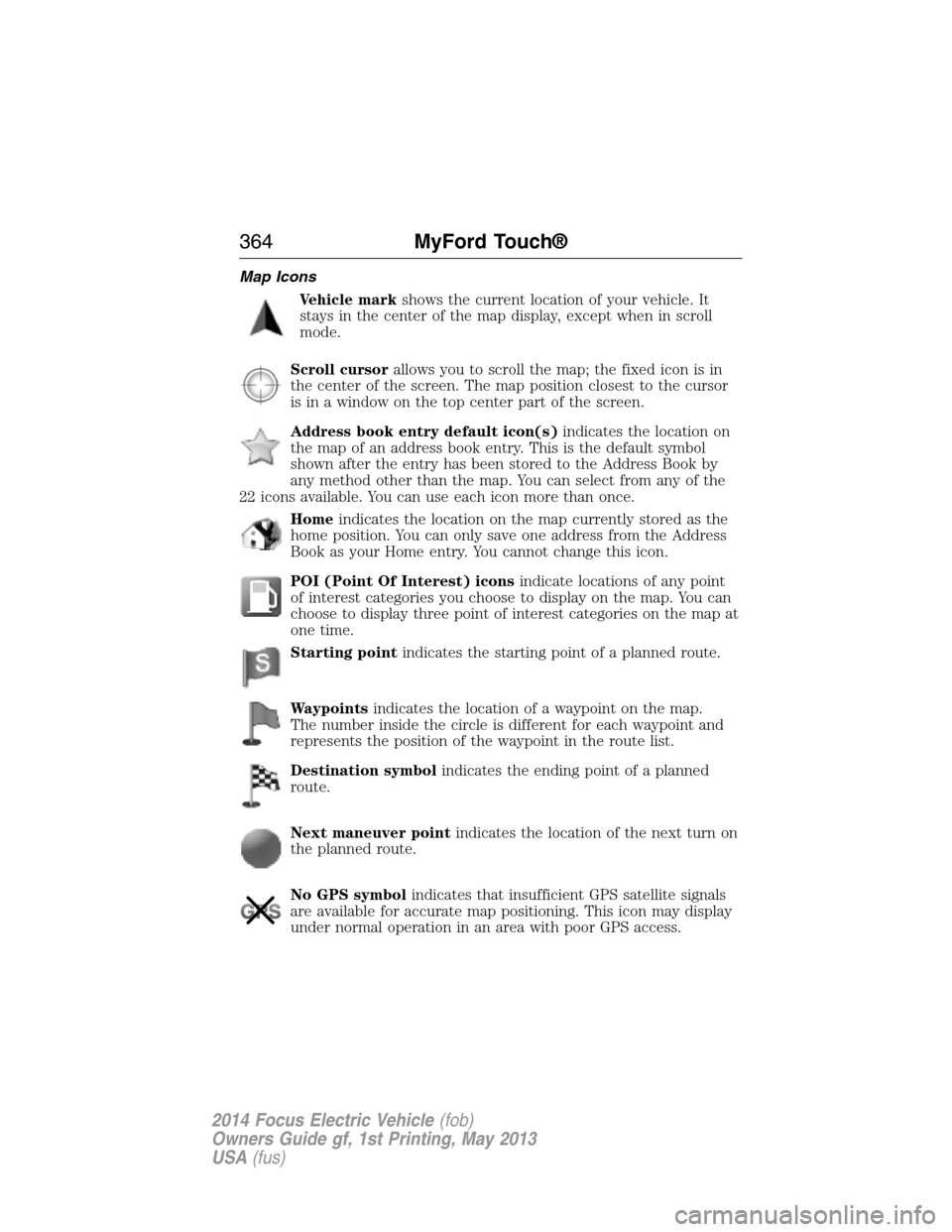
Map Icons
Vehicle markshows the current location of your vehicle. It
stays in the center of the map display, except when in scroll
mode.
Scroll cursorallows you to scroll the map; the fixed icon is in
the center of the screen. The map position closest to the cursor
is in a window on the top center part of the screen.
Address book entry default icon(s)indicates the location on
the map of an address book entry. This is the default symbol
shown after the entry has been stored to the Address Book by
any method other than the map. You can select from any of the
22 icons available. You can use each icon more than once.
Homeindicates the location on the map currently stored as the
home position. You can only save one address from the Address
Book as your Home entry. You cannot change this icon.
POI (Point Of Interest) iconsindicate locations of any point
of interest categories you choose to display on the map. You can
choose to display three point of interest categories on the map at
one time.
Starting pointindicates the starting point of a planned route.
Waypointsindicates the location of a waypoint on the map.
The number inside the circle is different for each waypoint and
represents the position of the waypoint in the route list.
Destination symbolindicates the ending point of a planned
route.
Next maneuver pointindicates the location of the next turn on
the planned route.
No GPS symbolindicates that insufficient GPS satellite signals
are available for accurate map positioning. This icon may display
under normal operation in an area with poor GPS access.
364MyFord Touch®
2014 Focus Electric Vehicle(fob)
Owners Guide gf, 1st Printing, May 2013
USA(fus)
Page 375 of 403
Keep User’s Guide in Vehicle
When kept in the vehicle, the User’s Guide will be a ready reference for
you and other users unfamiliar with the Windows Automotive-based
system. Please make certain that before using the system for the
first time, all persons have access to the User’s Guide and read its
instructions and safety information carefully.
WARNING:Operating certain parts of this system while driving
can distract your attention away from the road, and possibly
cause an accident or other serious consequences. Do not change
system settings or enter data non-verbally (using your hands) while
driving. Stop the vehicle in a safe and legal manner before attempting
these operations. This is important since while setting up or changing
some functions you might be required to distract your attention away
from the road and remove your hands from the wheel.
General operation
Voice Command Control
Functions within the Windows Automotive-based system may be
accomplished using only voice commands. Using voice commands while
driving allows you to operate the system without removing your hands
from the wheel.
Prolonged Views of Screen
Do not access any function requiring a prolonged view of the screen
while you are driving. Pull over in a safe and legal manner before
attempting to access a function of the system requiring prolonged
attention. Even occasional short scans to the screen may be hazardous if
your attention has been diverted away from your driving task at a critical
time.
Volume Setting
Do not raise the volume excessively. Keep the volume at a level where
you can still hear outside traffic and emergency signals while driving.
Driving while unable to hear these sounds could cause an accident.
Use of Speech Recognition Functions
Speech recognition software is inherently a statistical process which is
subject to errors. It is your responsibility to monitor any speech
recognition functions included in the system and address any errors.
374Appendices
2014 Focus Electric Vehicle(fob)
Owners Guide gf, 1st Printing, May 2013
USA(fus)