display FORD FOCUS ELECTRIC 2014 3.G Repair Manual
[x] Cancel search | Manufacturer: FORD, Model Year: 2014, Model line: FOCUS ELECTRIC, Model: FORD FOCUS ELECTRIC 2014 3.GPages: 403, PDF Size: 6.42 MB
Page 303 of 403
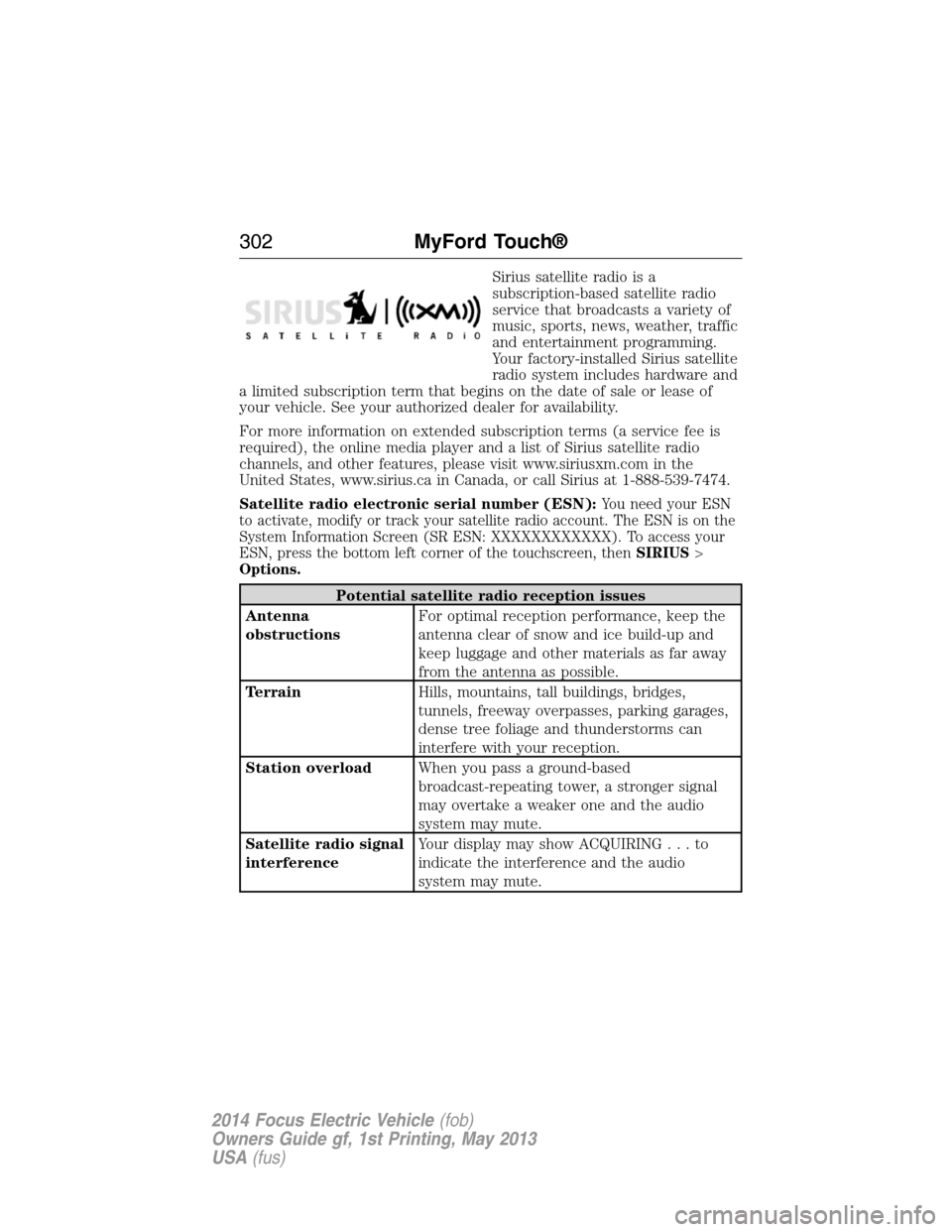
Sirius satellite radio is a
subscription-based satellite radio
service that broadcasts a variety of
music, sports, news, weather, traffic
and entertainment programming.
Your factory-installed Sirius satellite
radio system includes hardware and
a limited subscription term that begins on the date of sale or lease of
your vehicle. See your authorized dealer for availability.
For more information on extended subscription terms (a service fee is
required), the online media player and a list of Sirius satellite radio
channels, and other features, please visit www.siriusxm.com in the
United States, www.sirius.ca in Canada, or call Sirius at 1-888-539-7474.
Satellite radio electronic serial number (ESN):
You need your ESN
to activate, modify or track your satellite radio account. The ESN is on the
System Information Screen (SR ESN: XXXXXXXXXXXX). To access your
ESN, press the bottom left corner of the touchscreen, thenSIRIUS>
Options.
Potential satellite radio reception issues
Antenna
obstructionsFor optimal reception performance, keep the
antenna clear of snow and ice build-up and
keep luggage and other materials as far away
from the antenna as possible.
TerrainHills, mountains, tall buildings, bridges,
tunnels, freeway overpasses, parking garages,
dense tree foliage and thunderstorms can
interfere with your reception.
Station overloadWhen you pass a ground-based
broadcast-repeating tower, a stronger signal
may overtake a weaker one and the audio
system may mute.
Satellite radio signal
interferenceYour display may show ACQUIRING...to
indicate the interference and the audio
system may mute.
302MyFord Touch®
2014 Focus Electric Vehicle(fob)
Owners Guide gf, 1st Printing, May 2013
USA(fus)
Page 304 of 403
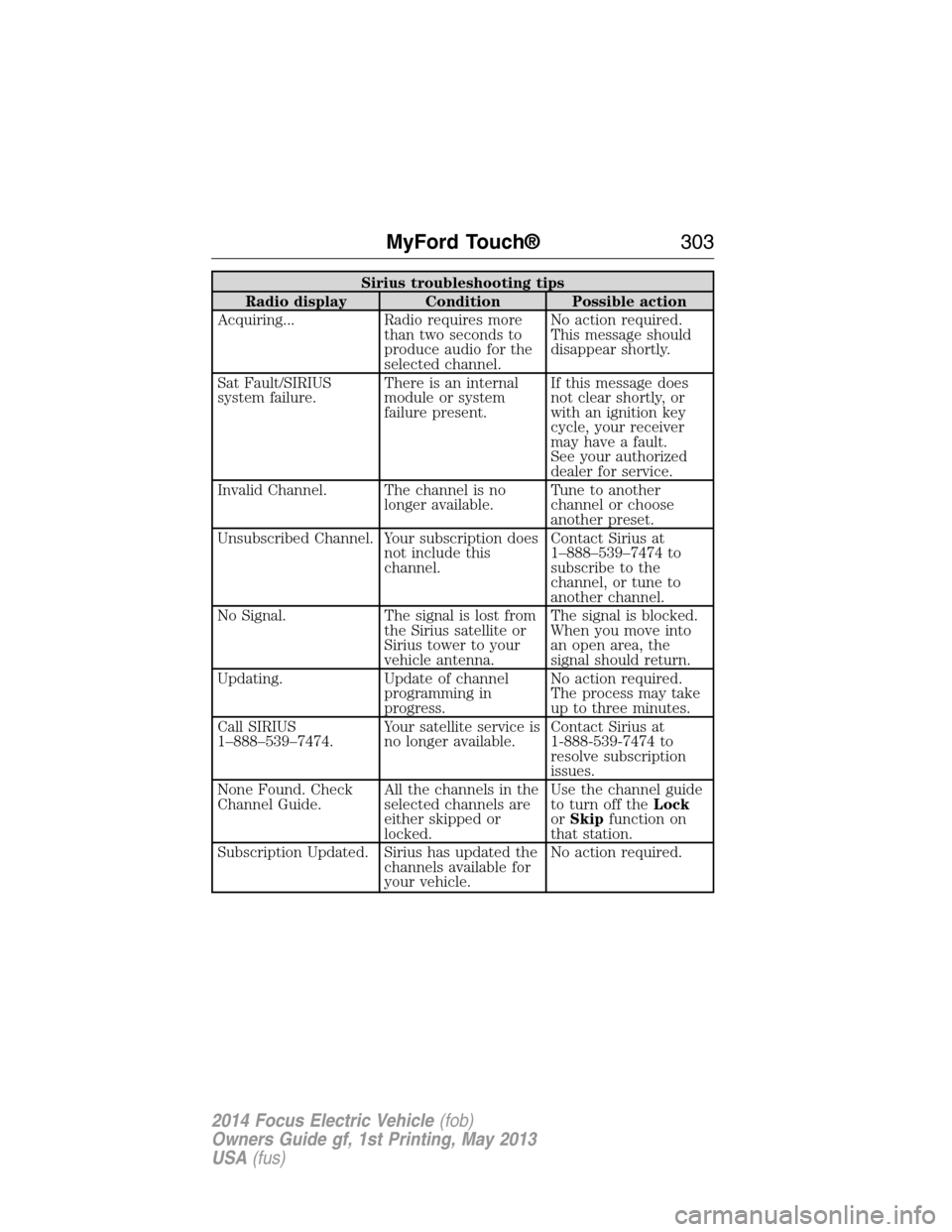
Sirius troubleshooting tips
Radio display Condition Possible action
Acquiring... Radio requires more
than two seconds to
produce audio for the
selected channel.No action required.
This message should
disappear shortly.
Sat Fault/SIRIUS
system failure.There is an internal
module or system
failure present.If this message does
not clear shortly, or
with an ignition key
cycle, your receiver
may have a fault.
See your authorized
dealer for service.
Invalid Channel. The channel is no
longer available.Tune to another
channel or choose
another preset.
Unsubscribed Channel. Your subscription does
not include this
channel.Contact Sirius at
1–888–539–7474 to
subscribe to the
channel, or tune to
another channel.
No Signal. The signal is lost from
the Sirius satellite or
Sirius tower to your
vehicle antenna.The signal is blocked.
When you move into
an open area, the
signal should return.
Updating. Update of channel
programming in
progress.No action required.
The process may take
up to three minutes.
Call SIRIUS
1–888–539–7474.Your satellite service is
no longer available.Contact Sirius at
1-888-539-7474 to
resolve subscription
issues.
None Found. Check
Channel Guide.All the channels in the
selected channels are
either skipped or
locked.Use the channel guide
to turn off theLock
orSkipfunction on
that station.
Subscription Updated. Sirius has updated the
channels available for
your vehicle.No action required.
MyFord Touch®303
2014 Focus Electric Vehicle(fob)
Owners Guide gf, 1st Printing, May 2013
USA(fus)
Page 307 of 403
SD logo is a trademark of SD-3C,
LLC.
USB Port
The ports are located either in the center
console or behind a small access door in the
instrument panel. To access and play music
from your device, press the lower left corner
of the touchscreen, and then select theUSB
tab.
This feature allows you to plug in media playing devices, memory sticks,
flash drives or thumb drives, and charge devices if they support this
feature.
In order to playback video from your iPod or iPhone, if compatible, you
must have a special combination USB/RCA composite video cable, which
you can buy from Apple. When you connect the cable to your iPod or
iPhone, plug the other end into both the RCA jacks and the USB port.
Playing Music from Your Device
Insert your device and select theSD CardorUSBtab once the system
recognizes it. You can then select from the following options:
Repeatreplays the currently playing song or album.
Shuffleplays music on the selected album or folder in random order.
Similar Musicallows you to choose music similar to what is currently
playing.
More Infodisplays information such as current track, artist name,
album and genre.
Optionsallows you to view and adjust various media settings.
•Sound Settingsallows you to adjust settings for:
•Bass
•Midrange
•Treble
•Balance and Fade
•DSP (Digital Signal Processing)
306MyFord Touch®
2014 Focus Electric Vehicle(fob)
Owners Guide gf, 1st Printing, May 2013
USA(fus)
Page 308 of 403
•Occupancy Mode
•Speed Compensated Volume.
Note:Your vehicle may not have all these sound settings.
•Media Player Settingsallows you to select more settings, which is
underMedia Player.SeeSettings.
•Device Informationdisplays software and firmware information
about the currently connected media device.
•Update Media Indexindexes your device each time you connect it
to make sure you have the latest voice commands available for all
media on the device.
Browseallows you to view the contents of the device. It also allows you
to search by categories, such as genre, artist or album.
If you want to view song information such as Title, Artist, File, Folder,
Album, and Genre, touch the on-screen album art.
You can also touchWhat’s Playingto hear how the system pronounces
the current band and song. This can be helpful when using voice
commands to make sure the system correctly plays your request.
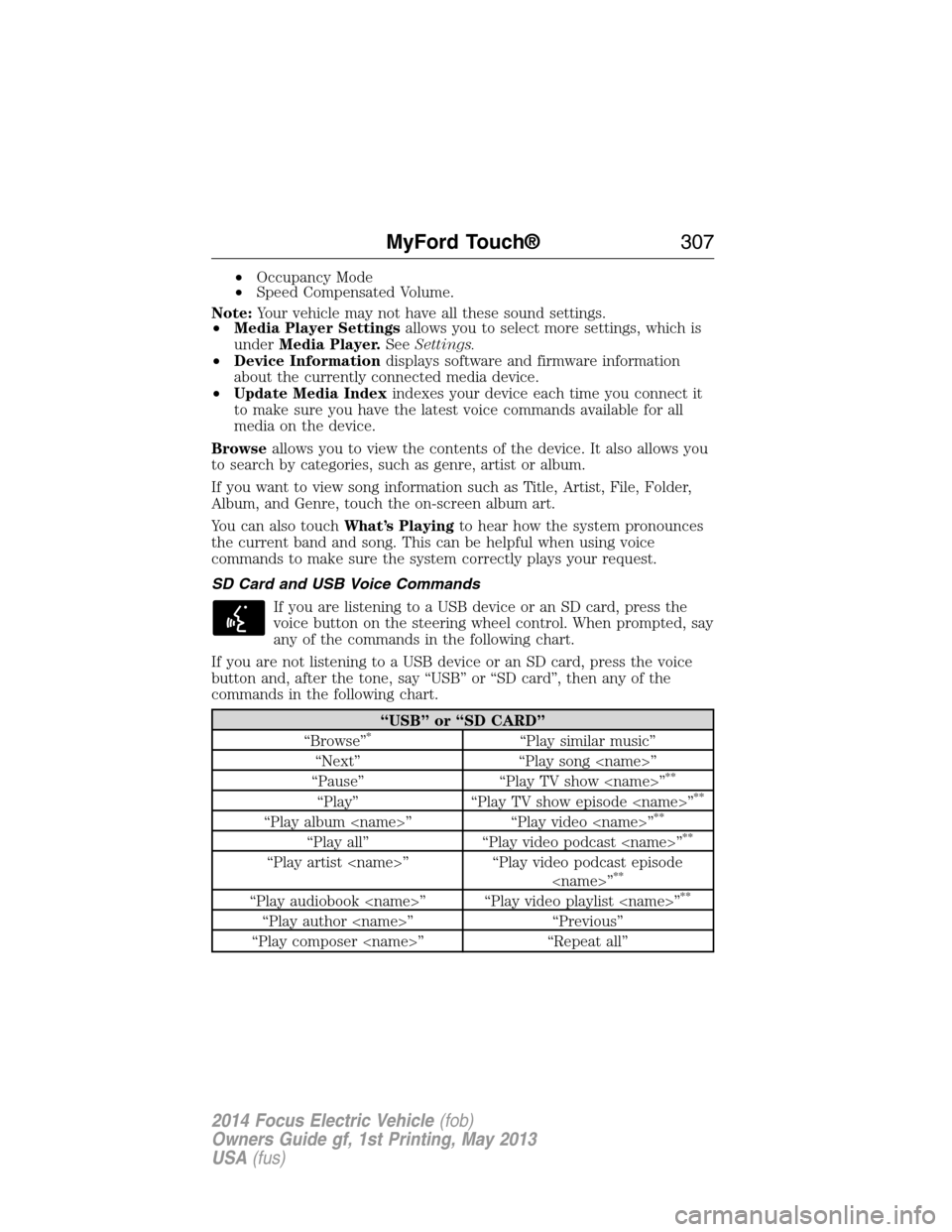
SD Card and USB Voice Commands
If you are listening to a USB device or an SD card, press the
voice button on the steering wheel control. When prompted, say
any of the commands in the following chart.
If you are not listening to a USB device or an SD card, press the voice
button and, after the tone, say “USB” or “SD card”, then any of the
commands in the following chart.
“USB” or “SD CARD”
“Browse”*“Play similar music”
“Next” “Play song
“Pause” “Play TV show
**
“Play” “Play TV show episode
“Play album
“Play all” “Play video podcast
“Play artist
“Play audiobook
“Play author
“Play composer
MyFord Touch®307
2014 Focus Electric Vehicle(fob)
Owners Guide gf, 1st Printing, May 2013
USA(fus)
Page 314 of 403
Pairing Your Phone for the First Time
WARNING:Driving while distracted can result in loss of vehicle
control, crash and injury. We strongly recommend that you use
extreme caution when using any device that may take your focus off
the road. Your primary responsibility is the safe operation of your
vehicle. We recommend against the use of any hand-held device while
driving and encourage the use of voice-operated systems when possible.
Make sure you are aware of all applicable local laws that may affect the
use of electronic devices while driving.
The first thing you must do to use the phone features of SYNC is to pair
your Bluetooth-enabled cellular phone with SYNC. This allows you to use
your phone in a hands-free manner.
Note:Put the transmission in positionP.Turn on your vehicle ignition
and the radio.
1. TouchAdd Phonein the upper left corner of the touchscreen.Find
SYNCappears on the screen and instructs you to begin the pairing
process from your device.
2. Make sure that Bluetooth is set toOnand that your cellular phone is
in the proper mode. See your phone’s manual if necessary.
•SelectSYNC,and a six-digit PIN appears on your device.
3. If you are prompted to enter a PIN on your device, it does not
support Secure Simple Pairing. To pair, enter the PIN displayed on
the touchscreen. Skip the next step.
4. When prompted on your phone’s display, confirm that the PIN
provided by SYNC matches the PIN displayed on your cellular phone.
5. The display indicates when the pairing is successful.
SYNC may prompt you with more phone options. For more information
on your phone’s capability, see your phone’s manual and visit the
website.
Pairing Subsequent Phones
Note:Put the transmission in positionP.Turn on your vehicle ignition
and the radio.
1. Press thePhonecorner of the touchscreen >Settings>BT
Devices>Add Device.
2. Make sure that Bluetooth is set toOnand that your cellular phone is
in the proper mode. See your phone’s manual if necessary.
•SelectSYNC,and a six-digit PIN appears on your device.
MyFord Touch®313
2014 Focus Electric Vehicle(fob)
Owners Guide gf, 1st Printing, May 2013
USA(fus)
Page 315 of 403
3. If you are prompted to enter a PIN on your device, it does not
support Secure Simple Pairing. To pair, enter the PIN displayed on
the touchscreen. Skip the next step.
4. When prompted on your phone’s display, confirm that the PIN
provided by SYNC matches the PIN displayed on your cellular phone.
5. The display indicates when the pairing is successful.
SYNC may prompt you with more phone options. For more information
on your phone’s capability, see your phone’s user guide and visit the
website.
Making Calls
Press the voice button on your steering wheel controls. When
prompted, say, “Call
number.
To end the call or exit phone mode, press this phone button.
Receiving Calls
During an incoming call, an audible tone sounds. Call information
appears in the display if it is available.
Accept the call by pressingAccepton the touchscreen or by
pressing this phone button on your steering wheel controls.
Reject the call by pressingRejecton the touchscreen or by
pressing this phone button on your steering wheel controls.
Ignore the call by doing nothing. SYNC logs it as a missed call.
Phone Menu Options
Press the top left corner on your touchscreen to select from the
following options:
Phone
Touch this button to access the on-screen numerical pad to enter a
number and place a call. During an active call, you can also choose to:
•Mute the call
•Put it on hold
•Turn on privacy (returns the call to your cellular phone)
•Join two calls
•End the call.
314MyFord Touch®
2014 Focus Electric Vehicle(fob)
Owners Guide gf, 1st Printing, May 2013
USA(fus)
Page 317 of 403
1. Touch the top left corner of the display to access thePhonemenu.
2. SelectMessaging.
3. Choose from the following:
•Listen(speaker icon)
•Dial
•Send Text
•Vi e w
•Delete.
Composing a Text Message
Note:This is a speed-dependent feature. It is unavailable when your
vehicle is traveling at speeds over 3 mph (5 km/h).
Note:Downloading and sending text messages using Bluetooth are
phone-dependent features.
1. Touch the top left corner of the display to access thePhonemenu.
2. TouchMessaging>Send Text.
3. Enter a phone number or choose from your phone book.
4. You can select from the following options:
•Sendwhich sends the message as it is.
•Edit Textallows you to customize the pre-defined message or
create a message on your own.
You can then preview the message, verify the recipient as well as update
the message list, and send it to a connected device (such as a USB drive).
Pre-defined text message options
I’ll call you back in a few minutes.
I just left, I’ll be there soon.
Can you give me a call?
I’m on my way.
I’m running a few minutes late.
I’m ahead of schedule, so I’ll be there early.
I’m outside.
I’ll call you when I get there.
OK
Ye s
No
Thanks
Stuck in traffic.
Call me later.
LOL
316MyFord Touch®
2014 Focus Electric Vehicle(fob)
Owners Guide gf, 1st Printing, May 2013
USA(fus)
Page 318 of 403
Receiving a Text Message
When a new message arrives, an audible tone sounds and the screen
displays a pop-up with the caller name and ID, if supported by your
phone. You can press:
•Vi e wto view the text message.
•Listenfor SYNC to read the message to you.
•Dialto call the contact.
•Ignoreto exit the screen.
Note:If you selectVi e wand your vehicle is traveling over 3 mph
(5 km/h), the system offers to read the message to you instead of
allowing you to view it while driving.
Phone Settings
PressPhone>Settings.
Bluetooth Devices
Touch this tab to connect, disconnect, add or delete a device, as well as
save it as a favorite.
Bluetooth
Touch this tab to turn Bluetooth off or on.
Do Not Disturb
Touch this tab if you want all calls to go directly to your voice mail
and not ring in the vehicle. When this feature is on, text message
notifications do not ring inside the cabin either.
911 Assist
Turn on or turn off the 911 Assist feature. See911 Assistin theSYNC
Services and Applicationssection.
Phone Ringer
Select the ring tone you want to hear when you receive a call. Choose
from possible system ring tones, your currently paired phone’s ring tone,
a beep, text-to-speech or a silent notification.
Text Message Notification
Select a text message notification, if supported by your phone. Choose
from possible system alert tones, text-to-speech or silent.
MyFord Touch®317
2014 Focus Electric Vehicle(fob)
Owners Guide gf, 1st Printing, May 2013
USA(fus)
Page 320 of 403
“MESSAGES”
“Call”
“Forward text messages”
“Listen to text message <#>”
“Listen to text messages”
“Reply to text messages”
“Help”
ELECTRIC VEHICLE INFORMATION
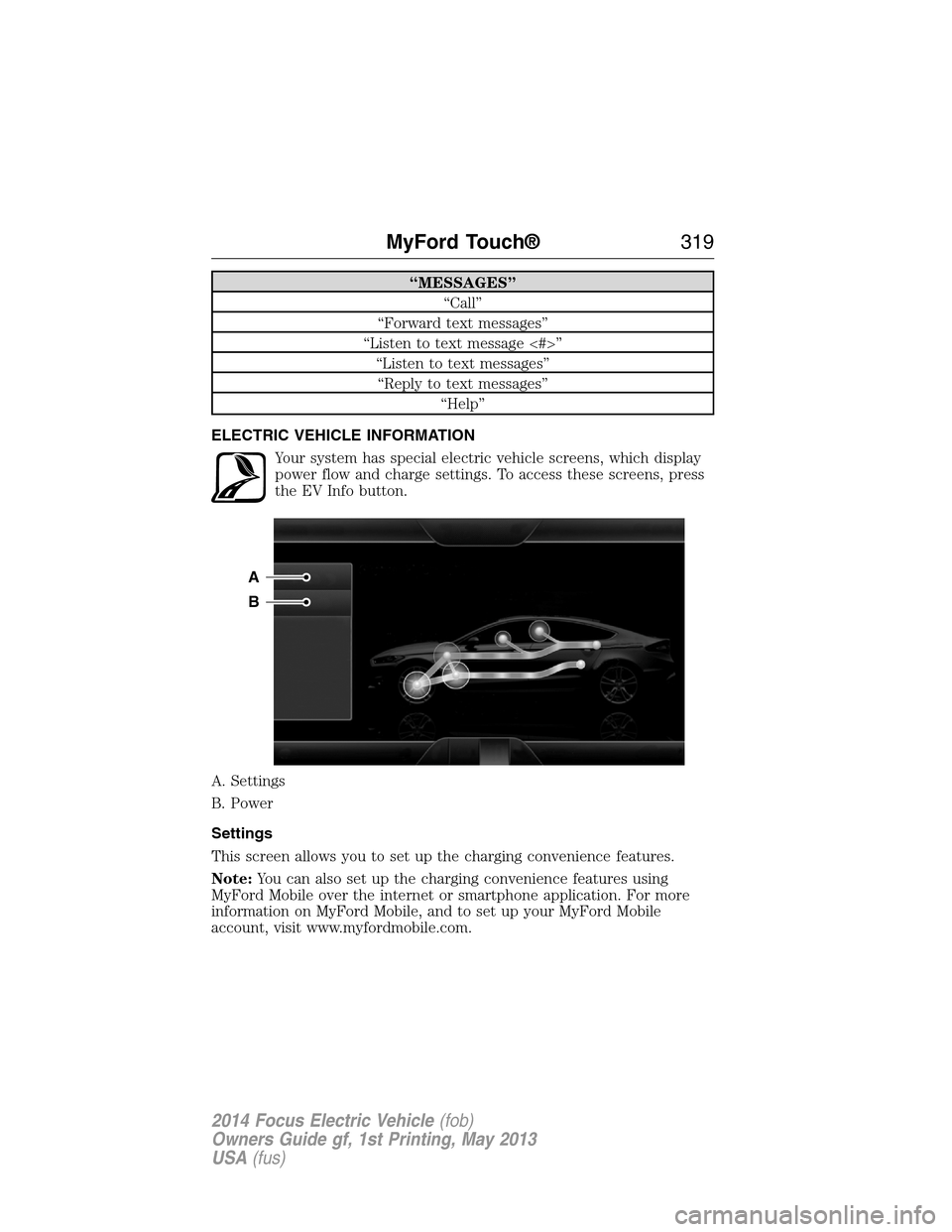
Your system has special electric vehicle screens, which display
power flow and charge settings. To access these screens, press
the EV Info button.
A. Settings
B. Power
Settings
This screen allows you to set up the charging convenience features.
Note:You can also set up the charging convenience features using
MyFord Mobile over the internet or smartphone application. For more
information on MyFord Mobile, and to set up your MyFord Mobile
account, visit www.myfordmobile.com.
A
B
MyFord Touch®319
2014 Focus Electric Vehicle(fob)
Owners Guide gf, 1st Printing, May 2013
USA(fus)
Page 321 of 403
To improve the charging experience, your vehicle has the following
convenience features:
•Value Charge:Your vehicle schedules its charging time for when the
utility rates are lowest. Contact your utility company to see what
rates are available.
•Charge Now:Your vehicle starts charging immediately after you
connect the charging plug.
•My GO Time:
Setting GO Times allows you to control charging
schedules and cabin conditioning settings so your vehicle is ready to
drive when you are. By setting a GO Time, your vehicle can use your
value charge settings to minimize your electricity cost but still prioritize
getting a full charge before your GO Time. A calendar view allows you
to program two GO Times per day for each day of the week.
Note:Remember, you must plug in your vehicle for My GO Time to work.
•Cabin Conditioning:Get the most miles out of every charge by
conditioning your vehicle while it is plugged in. Set the cabin
temperature when you set your GO Time in order to use energy from
your home (or charging station) instead of from your vehicle’s battery.
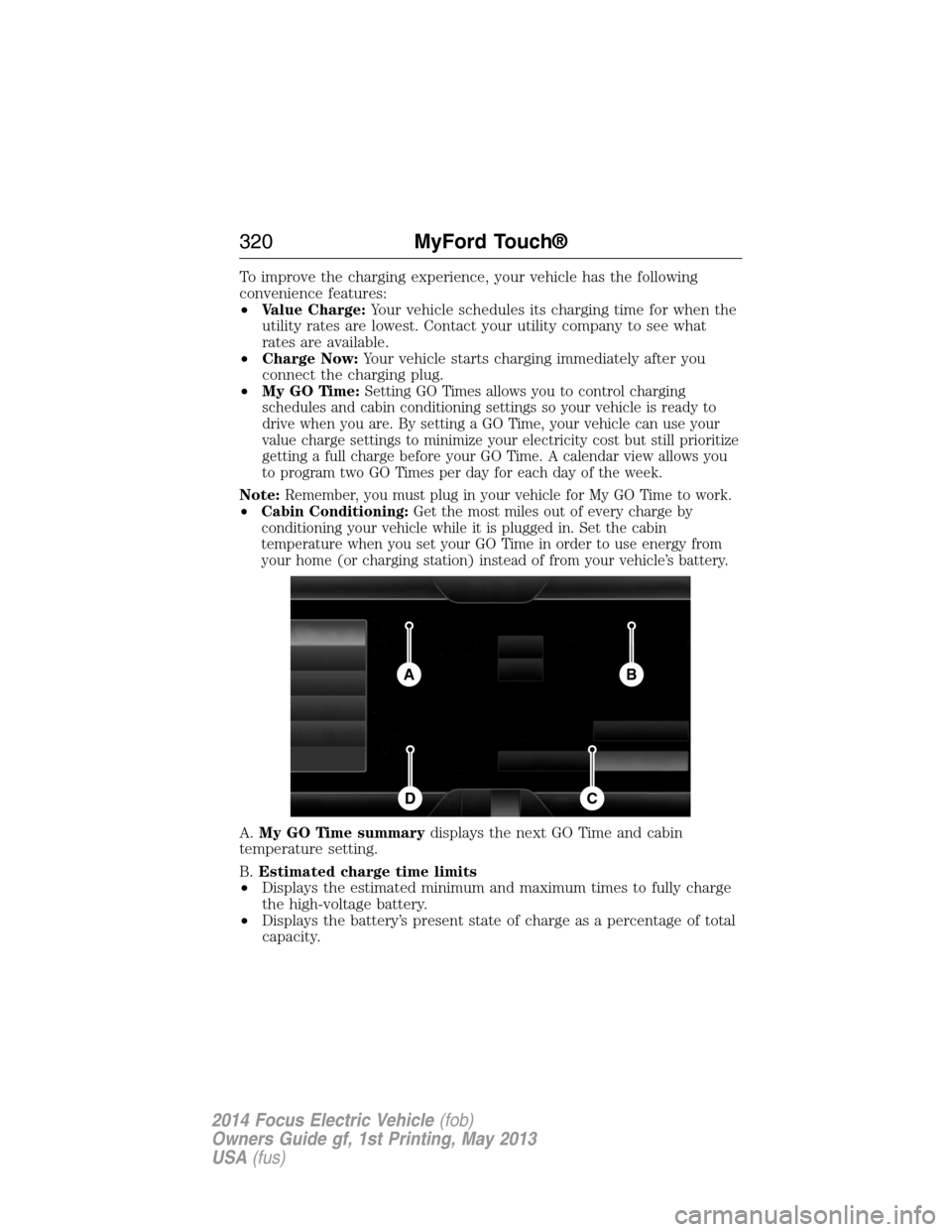
A.My GO Time summarydisplays the next GO Time and cabin
temperature setting.
B.Estimated charge time limits
•Displays the estimated minimum and maximum times to fully charge
the high-voltage battery.
•Displays the battery’s present state of charge as a percentage of total
capacity.
BA
CD
320MyFord Touch®
2014 Focus Electric Vehicle(fob)
Owners Guide gf, 1st Printing, May 2013
USA(fus)