buttons FORD FOCUS ELECTRIC 2015 3.G Owner's Manual
[x] Cancel search | Manufacturer: FORD, Model Year: 2015, Model line: FOCUS ELECTRIC, Model: FORD FOCUS ELECTRIC 2015 3.GPages: 369, PDF Size: 4.53 MB
Page 310 of 369
The darker shaded area, beyond the rings,
is unlikely to be within range on the current
battery charge.
The rings represent approximate ranges.
Actual route distances, road grades,
vehicle speed, accessory usage and other
conditions affect how far your vehicle can
travel before recharging.
You can switch off the rings in the
Settings menu by pressing:
Menu Item
Settings
Navigation
Map Preferences
You can switch the charge point POIs on
and off. Touch the map, use the buttons
at the bottom of the screen and then
select the POI icon. The icons only appear
at a map scale of 5 mi (8 km) and lower.
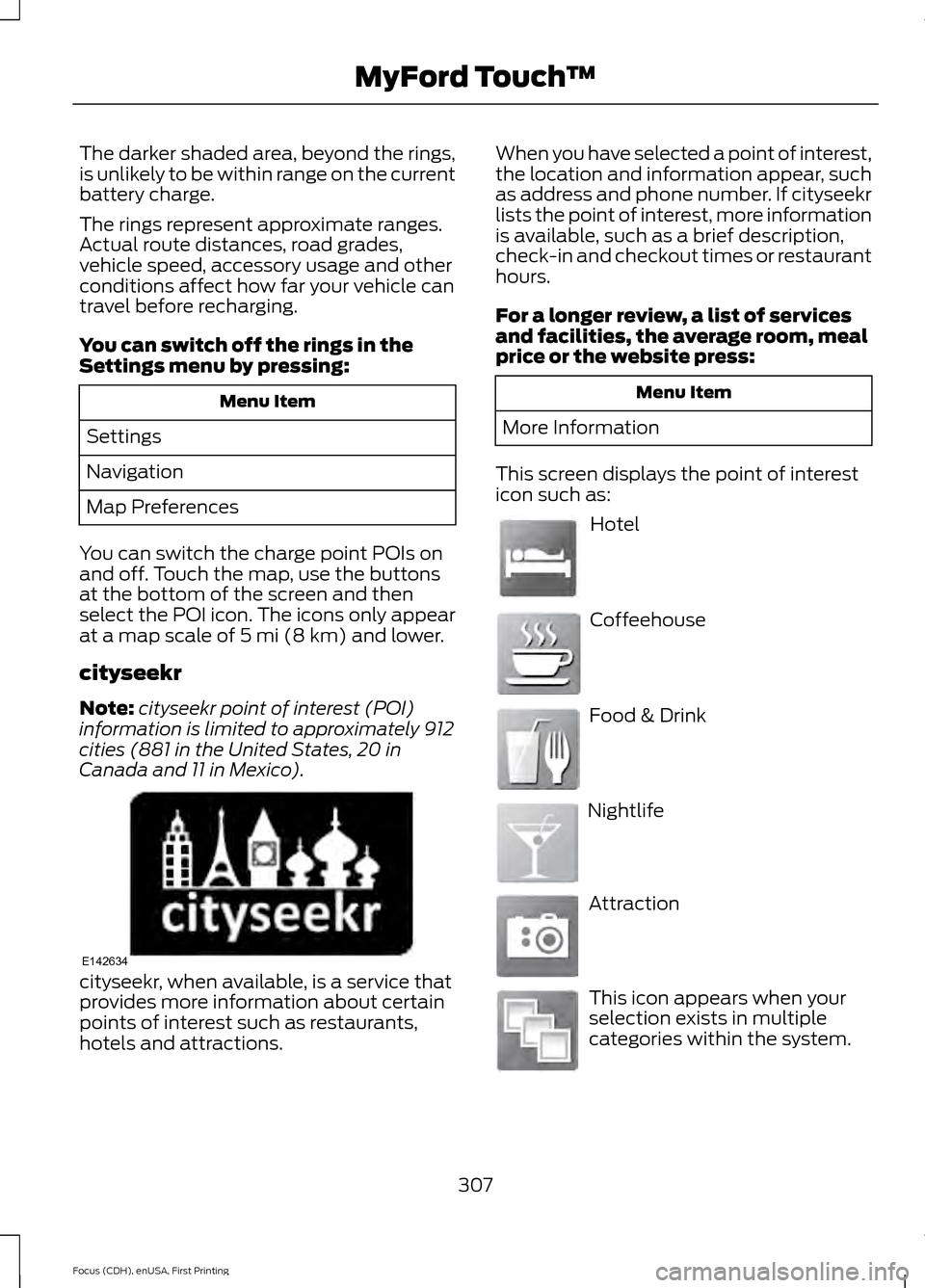
cityseekr
Note: cityseekr point of interest (POI)
information is limited to approximately 912
cities (881 in the United States, 20 in
Canada and 11 in Mexico). cityseekr, when available, is a service that
provides more information about certain
points of interest such as restaurants,
hotels and attractions. When you have selected a point of interest,
the location and information appear, such
as address and phone number. If cityseekr
lists the point of interest, more information
is available, such as a brief description,
check-in and checkout times or restaurant
hours.
For a longer review, a list of services
and facilities, the average room, meal
price or the website press:
Menu Item
More Information
This screen displays the point of interest
icon such as: Hotel
Coffeehouse
Food & Drink
Nightlife
Attraction
This icon appears when your
selection exists in multiple
categories within the system.
307
Focus (CDH), enUSA, First Printing MyFord Touch
™E142634 E143884 E142636 E142637 E142638 E142639 E142640
Page 314 of 369
Map Mode
Press the green bar in the upper right area
of the touchscreen to view map mode. Map
mode shows advanced viewing comprised
of both 2D city maps as well as 3D
landmarks (when available).
2D city maps show detailed outlines of
buildings, visible land use and land
elements and detailed railway
infrastructure for the most essential cities
around the globe. These maps also contain
features, such as town blocks, building
footprints and railways.
3D landmarks appear as clear, visible
objects that are typically recognizable and
have a certain tourist value. The 3D
landmarks appear in 3D map mode only.
Coverage varies, and improves with
updated map releases.
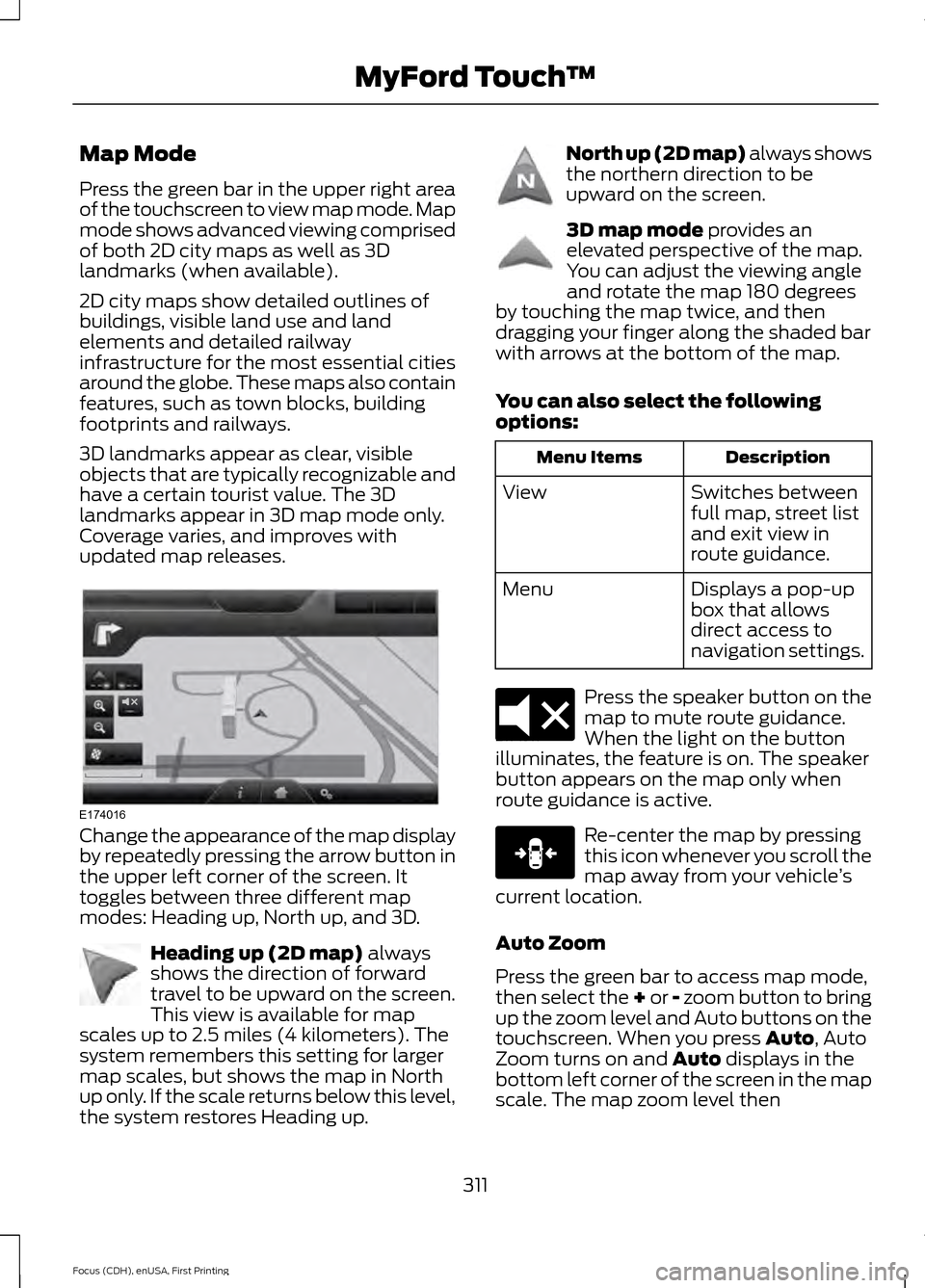
Change the appearance of the map display
by repeatedly pressing the arrow button in
the upper left corner of the screen. It
toggles between three different map
modes: Heading up, North up, and 3D.
Heading up (2D map) always
shows the direction of forward
travel to be upward on the screen.
This view is available for map
scales up to 2.5 miles (4 kilometers). The
system remembers this setting for larger
map scales, but shows the map in North
up only. If the scale returns below this level,
the system restores Heading up. North up (2D map) always shows
the northern direction to be
upward on the screen.
3D map mode
provides an
elevated perspective of the map.
You can adjust the viewing angle
and rotate the map 180 degrees
by touching the map twice, and then
dragging your finger along the shaded bar
with arrows at the bottom of the map.
You can also select the following
options: Description
Menu Items
Switches between
full map, street list
and exit view in
route guidance.
View
Displays a pop-up
box that allows
direct access to
navigation settings.
Menu Press the speaker button on the
map to mute route guidance.
When the light on the button
illuminates, the feature is on. The speaker
button appears on the map only when
route guidance is active. Re-center the map by pressing
this icon whenever you scroll the
map away from your vehicle
’s
current location.
Auto Zoom
Press the green bar to access map mode,
then select the + or - zoom button to bring
up the zoom level and Auto buttons on the
touchscreen. When you press
Auto, Auto
Zoom turns on and Auto displays in the
bottom left corner of the screen in the map
scale. The map zoom level then
311
Focus (CDH), enUSA, First Printing MyFord Touch
™E174016 E142642 E142643 E142644 E174017 E146188
Page 315 of 369
synchronizes with vehicle speed. The
slower your vehicle is traveling, the farther
in the map zooms in; the faster your vehicle
is traveling, the farther the map zooms out.
To switch the feature off, just press the +
or - button again.
In 3D mode, rotate the map view by
swiping your finger across the shaded bar
with the arrows.
The ETA box under the zoom buttons
appears when a route is active and
displays the distance and time to your
destination. If you press the button, a pop
up appears with the destination listed (and
waypoint, if applicable) along with mileage
and time to destination. You may also
select to have either the estimated time
to reach your destination or your estimated
arrival time.
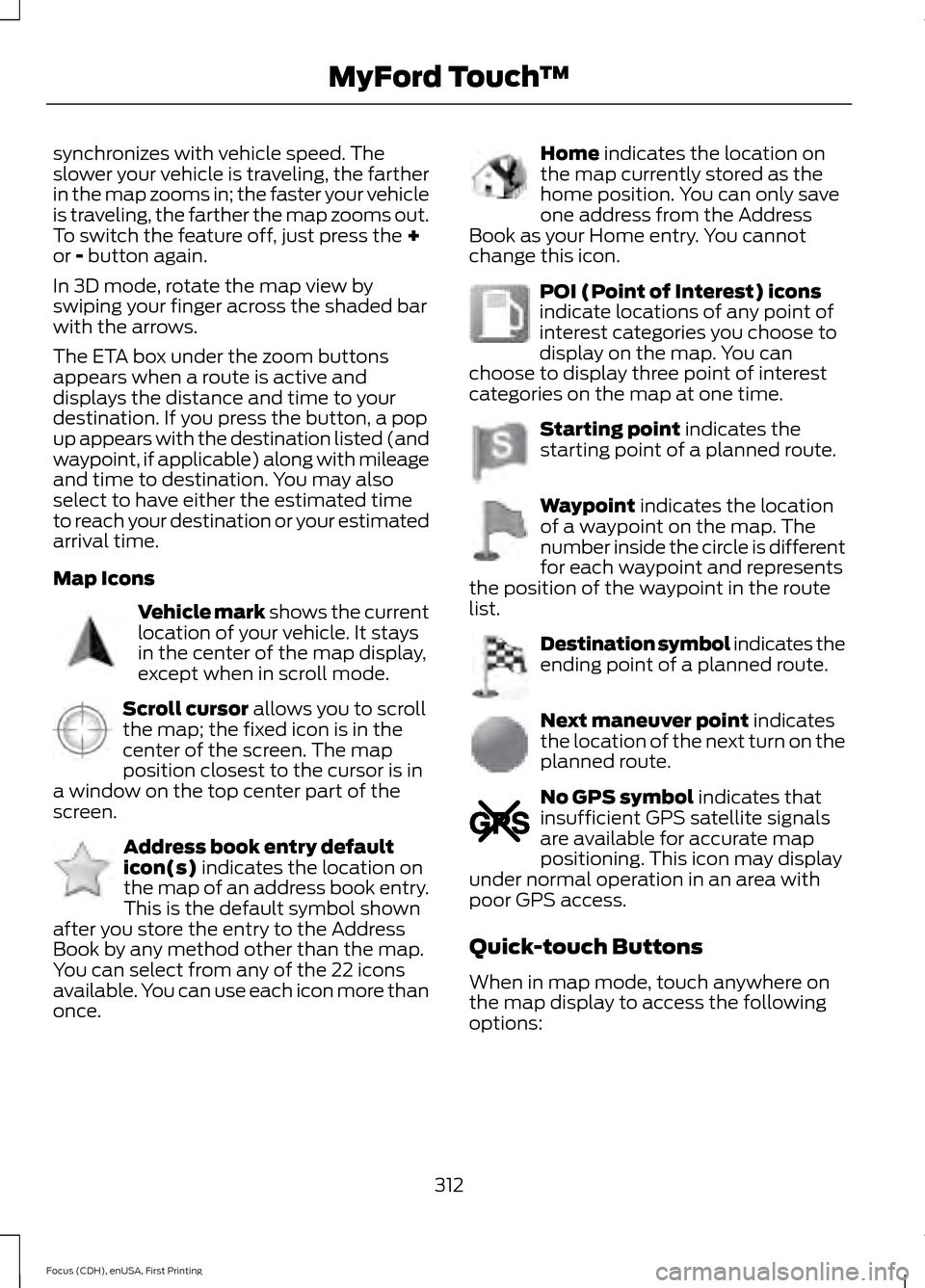
Map Icons Vehicle mark
shows the current
location of your vehicle. It stays
in the center of the map display,
except when in scroll mode. Scroll cursor
allows you to scroll
the map; the fixed icon is in the
center of the screen. The map
position closest to the cursor is in
a window on the top center part of the
screen. Address book entry default
icon(s)
indicates the location on
the map of an address book entry.
This is the default symbol shown
after you store the entry to the Address
Book by any method other than the map.
You can select from any of the 22 icons
available. You can use each icon more than
once. Home
indicates the location on
the map currently stored as the
home position. You can only save
one address from the Address
Book as your Home entry. You cannot
change this icon. POI (Point of Interest) icons
indicate locations of any point of
interest categories you choose to
display on the map. You can
choose to display three point of interest
categories on the map at one time. Starting point
indicates the
starting point of a planned route. Waypoint
indicates the location
of a waypoint on the map. The
number inside the circle is different
for each waypoint and represents
the position of the waypoint in the route
list. Destination symbol indicates the
ending point of a planned route.
Next maneuver point
indicates
the location of the next turn on the
planned route. No GPS symbol
indicates that
insufficient GPS satellite signals
are available for accurate map
positioning. This icon may display
under normal operation in an area with
poor GPS access.
Quick-touch Buttons
When in map mode, touch anywhere on
the map display to access the following
options:
312
Focus (CDH), enUSA, First Printing MyFord Touch
™E142646 E142647 E142648 E142649 E142650 E142651 E142652 E142653 E142654 E142655
Page 366 of 369
Manual Liftgate................................................61
Closing the Liftgate............................................. 62
Opening the Liftgate............................................ 61
Manual Seats
.................................................106
Media Hub......................................................230
Message Center See: Information Displays................................. 86
Mirrors See: Heated Windows and Mirrors..............102
See: Windows and Mirrors................................. 77
Mobile Communications Equipment......................................................10
Motorcraft Parts
...........................................222
MyFord Touch ™............................................231
General Information........................................... 231
MyFord Touch ™ Troubleshooting..........314
MyKey Troubleshooting...............................55
MyKey ™
............................................................50
Principle of Operation........................................ 50
N
Navigation......................................................304 cityseekr................................................................ 307
Destination Mode.............................................. 304
Map Mode............................................................... 311
Navigation Map Updates................................. 313
Navigation Voice Commands........................ 313
Point of Interest (POI) Categories..............305
Quick-touch Buttons......................................... 312
Setting Your Navigation Preferences.........308
Normal Scheduled Maintenance
..........350
O
Opening and Closing the Hood...............169
Ordering Additional Owner's Literature......................................................156
Obtaining a French Owner ’s Manual..........156
Overhead Console
..........................................111
P
Parking Aids
....................................................129
Parking Brake.................................................125
Passive Anti-Theft System........................64 SecuriLock.............................................................. 64PATS
See: Passive Anti-Theft System..................... 64
Perchlorate..........................................................9
Personal Safety System ™
..........................36
How Does the Personal Safety System
Work?.................................................................. 36
Phone................................................................271 Making Calls......................................................... 273
Pairing Subsequent Cell Phones.................. 272
Pairing Your Cell Phone for the First Time.................................................................... 272
Phone Menu Options........................................ 274
Phone Settings.................................................... 277
Phone Voice Commands................................ 278
Receiving Calls.................................................... 273
Text Messaging................................................... 275
Post-Crash Alert System
............................151
Power Door Locks See: Locking and Unlocking.............................. 57
Power Seats
...................................................106
Power Lumbar..................................................... 107
Power Windows...............................................77 Accessory Delay.................................................... 78
Bounce-Back
.......................................................... 77
One-Touch Down.................................................. 77
One-Touch Up........................................................ 77
Window Lock.......................................................... 77
Protecting the Environment.........................11
R
Rear Exterior Overview
..................................13
Rear Parking Aid............................................129 Rear Sensing System........................................ 129
Rear Seats.......................................................107 Folding the Seatback........................................ 107
Rear Under Floor Storage
..........................135
Cargo Management System........................... 135
Rear View Camera.......................................130 Using the Rear View Camera System.........130
Rear View Camera See: Rear View Camera................................... 130
Rear Window Wiper and Washers............71 Rear Window Washer.......................................... 71
Rear Window Wiper.............................................. 71
363
Focus (CDH), enUSA, First Printing Index